change wheel BMW M3 2008 Owners Manual
[x] Cancel search | Manufacturer: BMW, Model Year: 2008, Model line: M3, Model: BMW M3 2008Pages: 266, PDF Size: 8.85 MB
Page 5 of 266
Reference
At a glance
Controls
Driving tips
Communications
Navigation
Entertainment
Mobility
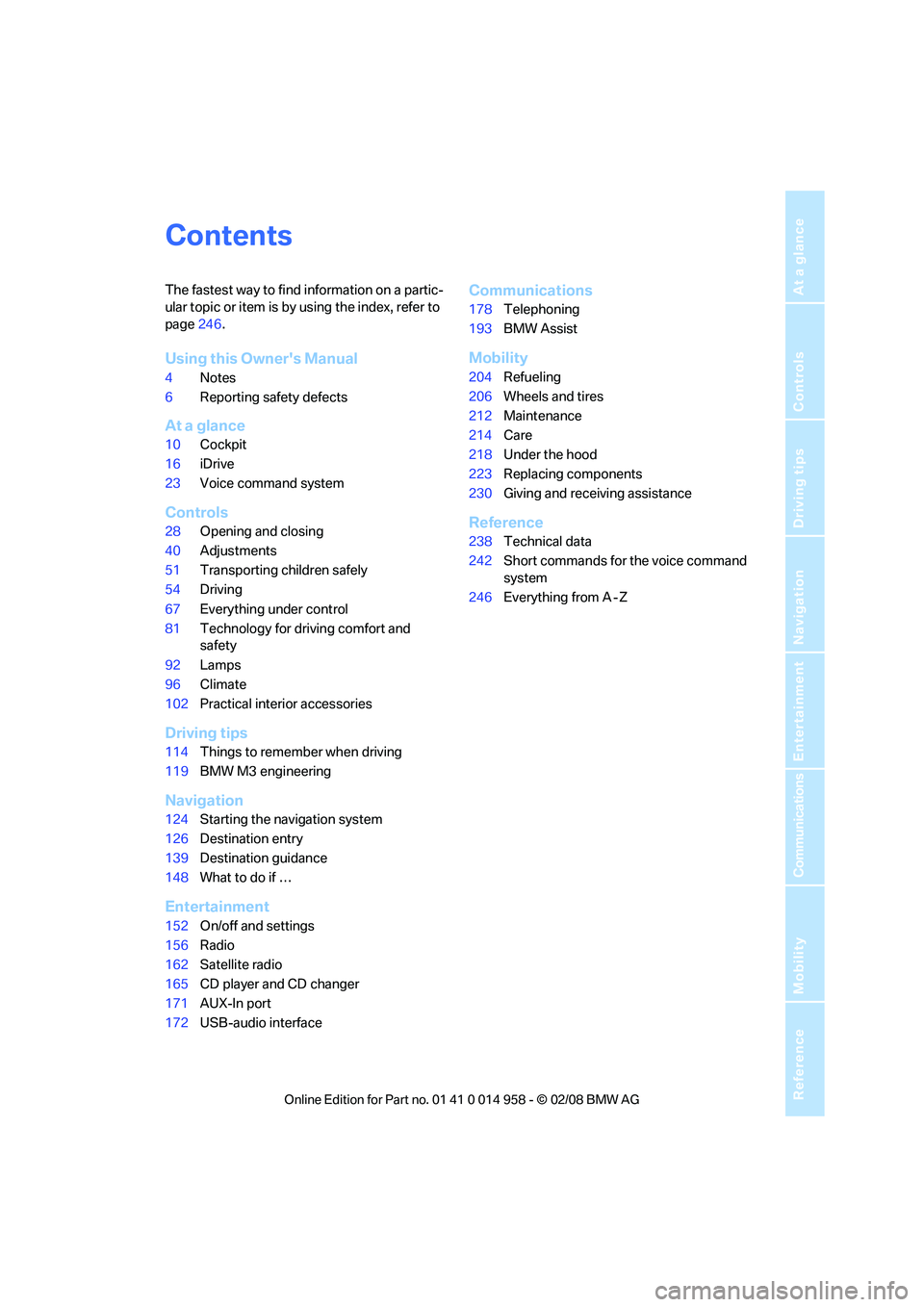
Contents
The fastest way to find information on a partic-
ular topic or item is by using the index, refer to
page246.
Using this Owner's Manual
4Notes
6Reporting safety defects
At a glance
10Cockpit
16iDrive
23Voice command system
Controls
28Opening and closing
40Adjustments
51Transporting children safely
54Driving
67Everything under control
81Technology for driving comfort and
safety
92Lamps
96Climate
102Practical interior accessories
Driving tips
114Things to remember when driving
119BMW M3 engineering
Navigation
124Starting the navigation system
126Destination entry
139Destination guidance
148What to do if …
Entertainment
152On/off and settings
156Radio
162Satellite radio
165CD player and CD changer
171AUX-In port
172USB-audio interface
Communications
178Telephoning
193BMW Assist
Mobility
204Refueling
206Wheels and tires
212Maintenance
214Care
218Under the hood
223Replacing components
230Giving and receiving assistance
Reference
238Technical data
242Short commands for the voice command
system
246Everything from A - Z
Page 26 of 266
Voice command system
24 item on the Control Display.
To have the possible commands read out to
you:
For instance, if you have selected "CD", the
commands available for operating the CD
player and CD changer are read out
*.
Opening help
Using alternative commands
There are often a number of commands to run a
function, e.g.:
Calling up functions immediately via
short commands
Short commands enable you to perform certain
functions immediately, irrespective of which
menu item is selected, refer to page242.
Opening the start menu
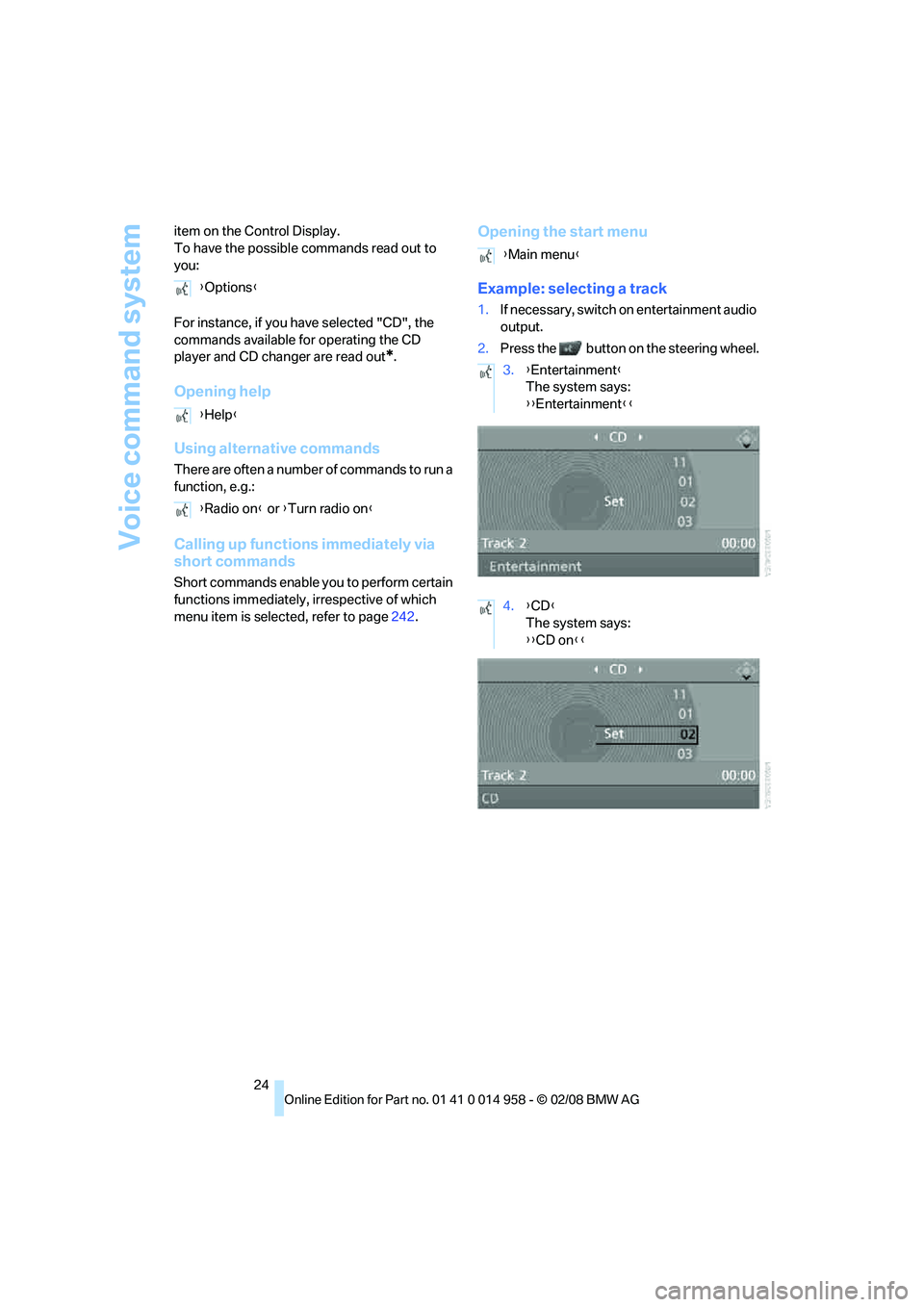
Example: selecting a track
1.If necessary, switch on entertainment audio
output.
2.Press the button on the steering wheel. {Options}
{Help}
{Radio on} or {Turn radio on}
{Main menu}
3.{Entertainment}
The system says:
{{Entertainment}}
4.{CD}
The system says:
{{CD on}}
Page 36 of 266
Opening and closing
34
Unlocking separately
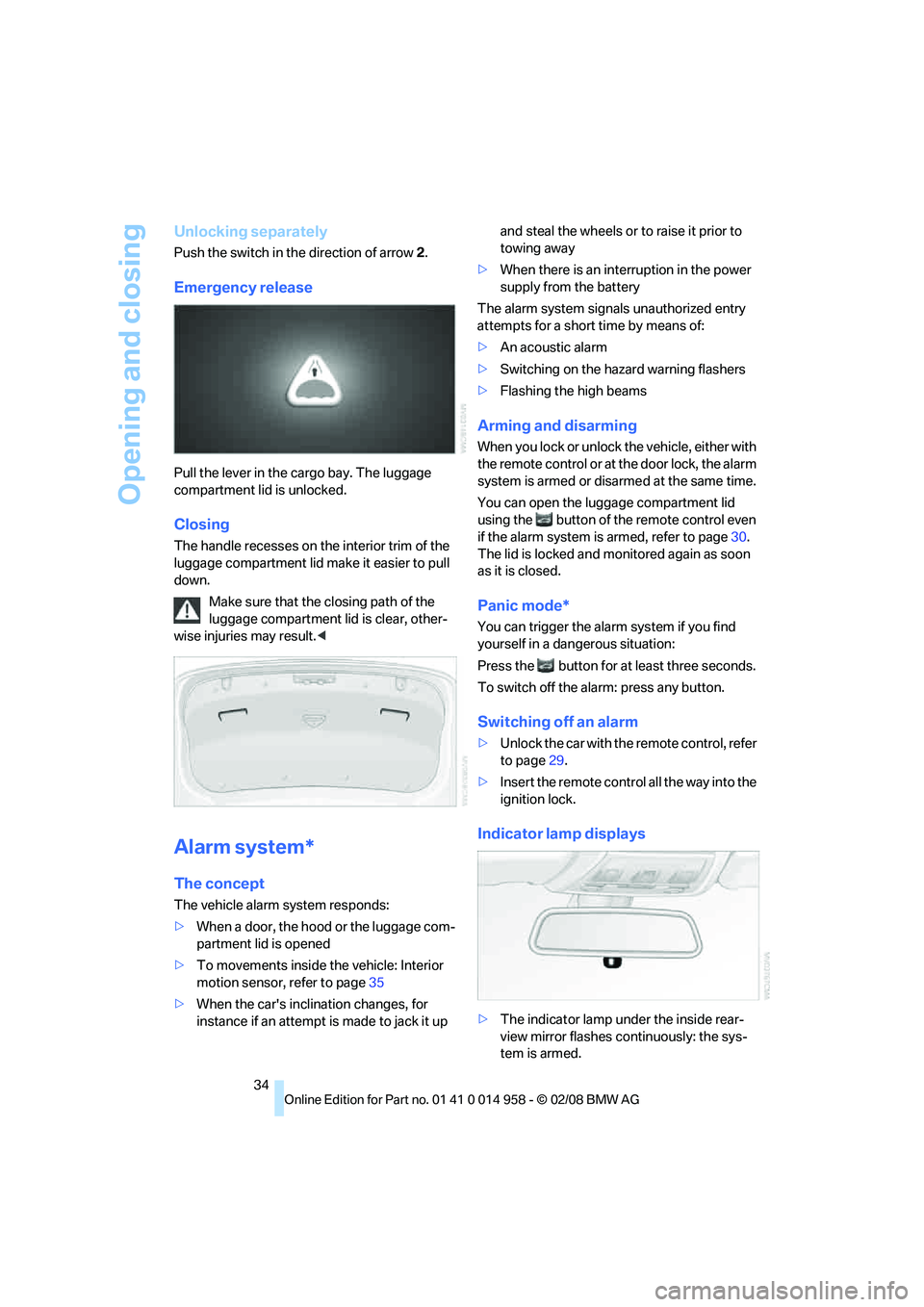
Push the switch in the direction of arrow 2.
Emergency release
Pull the lever in the cargo bay. The luggage
compartment lid is unlocked.
Closing
The handle recesses on the interior trim of the
luggage compartment lid make it easier to pull
down.
Make sure that the closing path of the
luggage compartment lid is clear, other-
wise injuries may result.<
Alarm system*
The concept
The vehicle alarm system responds:
>When a door, the hood or the luggage com-
partment lid is opened
>To movements inside the vehicle: Interior
motion sensor, refer to page35
>When the car's inclination changes, for
instance if an attempt is made to jack it up and steal the wheels or to raise it prior to
towing away
>When there is an interruption in the power
supply from the battery
The alarm system signals unauthorized entry
attempts for a short time by means of:
>An acoustic alarm
>Switching on the hazard warning flashers
>Flashing the high beams
Arming and disarming
When you lock or unlock the vehicle, either with
the remote control or at the door lock, the alarm
system is armed or disarmed at the same time.
You can open the luggage compartment lid
using the button of the remote control even
if the alarm system is armed, refer to page30.
The lid is locked and monitored again as soon
as it is closed.
Panic mode*
You can trigger the alarm system if you find
yourself in a dangerous situation:
Press the button for at least three seconds.
To switch off the alarm: press any button.
Switching off an alarm
>Unlock the car with the remote control, refer
to page29.
>Insert the remote control all the way into the
ignition lock.
Indicator lamp displays
>The indicator lamp under the inside rear-
view mirror flashes continuously: the sys-
tem is armed.
Page 49 of 266
Controls
47Reference
At a glance
Driving tips
Communications
Navigation
Entertainment
Mobility
Do not use force to swing the lever
back up, otherwise the mechanism
will be damaged.<
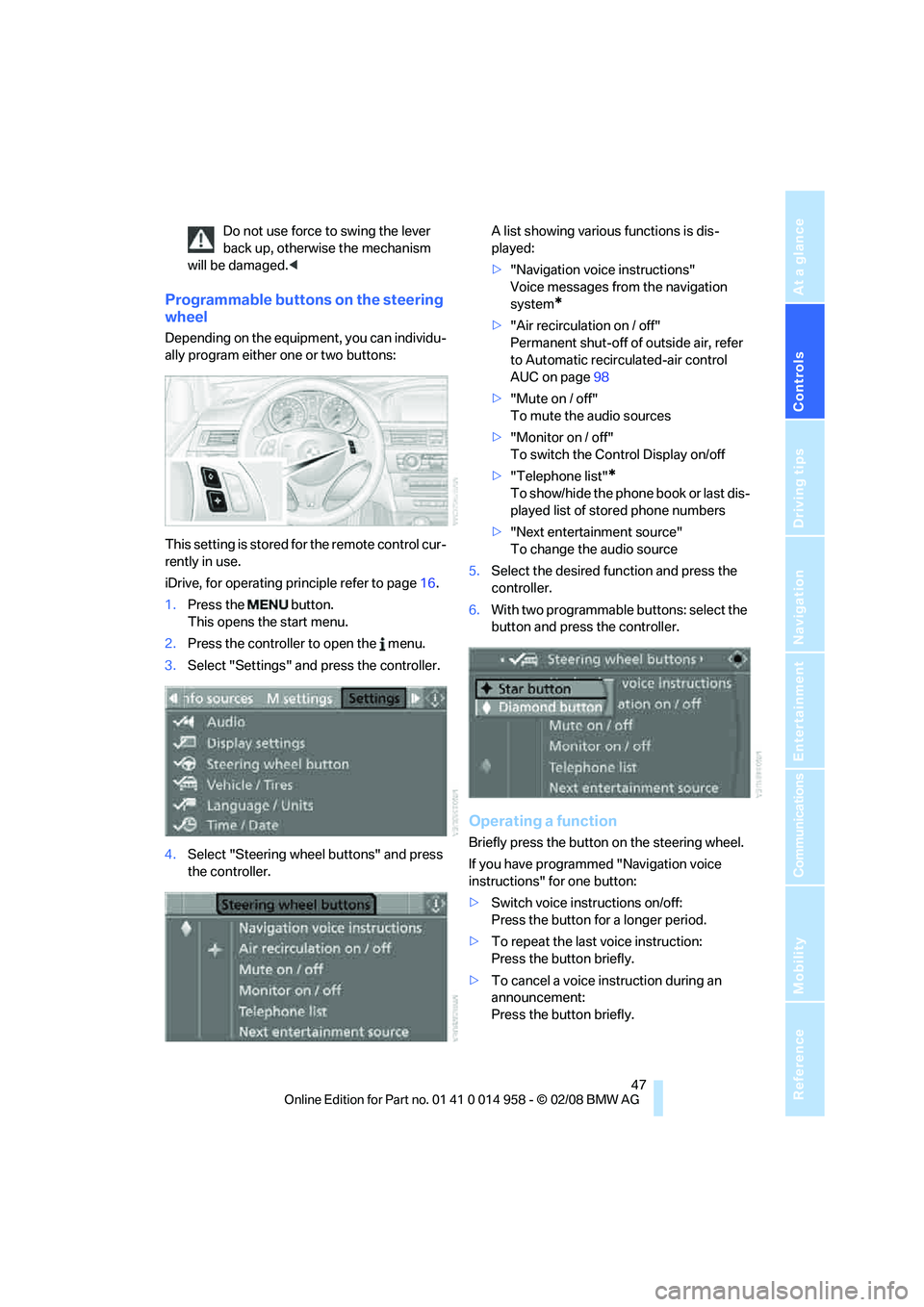
Programmable buttons on the steering
wheel
Depending on the equipment, you can individu-
ally program either one or two buttons:
This setting is stored for the remote control cur-
rently in use.
iDrive, for operating principle refer to page16.
1.Press the button.
This opens the start menu.
2.Press the controller to open the menu.
3.Select "Settings" and press the controller.
4.Select "Steering wheel buttons" and press
the controller.A list showing various functions is dis-
played:
>"Navigation voice instructions"
Voice messages from the navigation
system
*
>"Air recirculation on / off"
Permanent shut-off of outside air, refer
to Automatic recirculated-air control
AUC on page98
>"Mute on / off"
To mute the audio sources
>"Monitor on / off"
To switch the Control Display on/off
>"Telephone list"
*
To show/hide the phone book or last dis-
played list of stored phone numbers
>"Next entertainment source"
To change the audio source
5.Select the desired function and press the
controller.
6.With two programmable buttons: select the
button and press the controller.
Operating a function
Briefly press the button on the steering wheel.
If you have programmed "Navigation voice
instructions" for one button:
>Switch voice instructions on/off:
Press the button for a longer period.
>To repeat the last voice instruction:
Press the button briefly.
>To cancel a voice instruction during an
announcement:
Press the button briefly.
Page 50 of 266
Adjustments
48
MDrive*
With MDrive you can configure several individ-
ual settings for your vehicle on the Control Dis-
play and activate them using the button on
the steering wheel.
Configuring settings
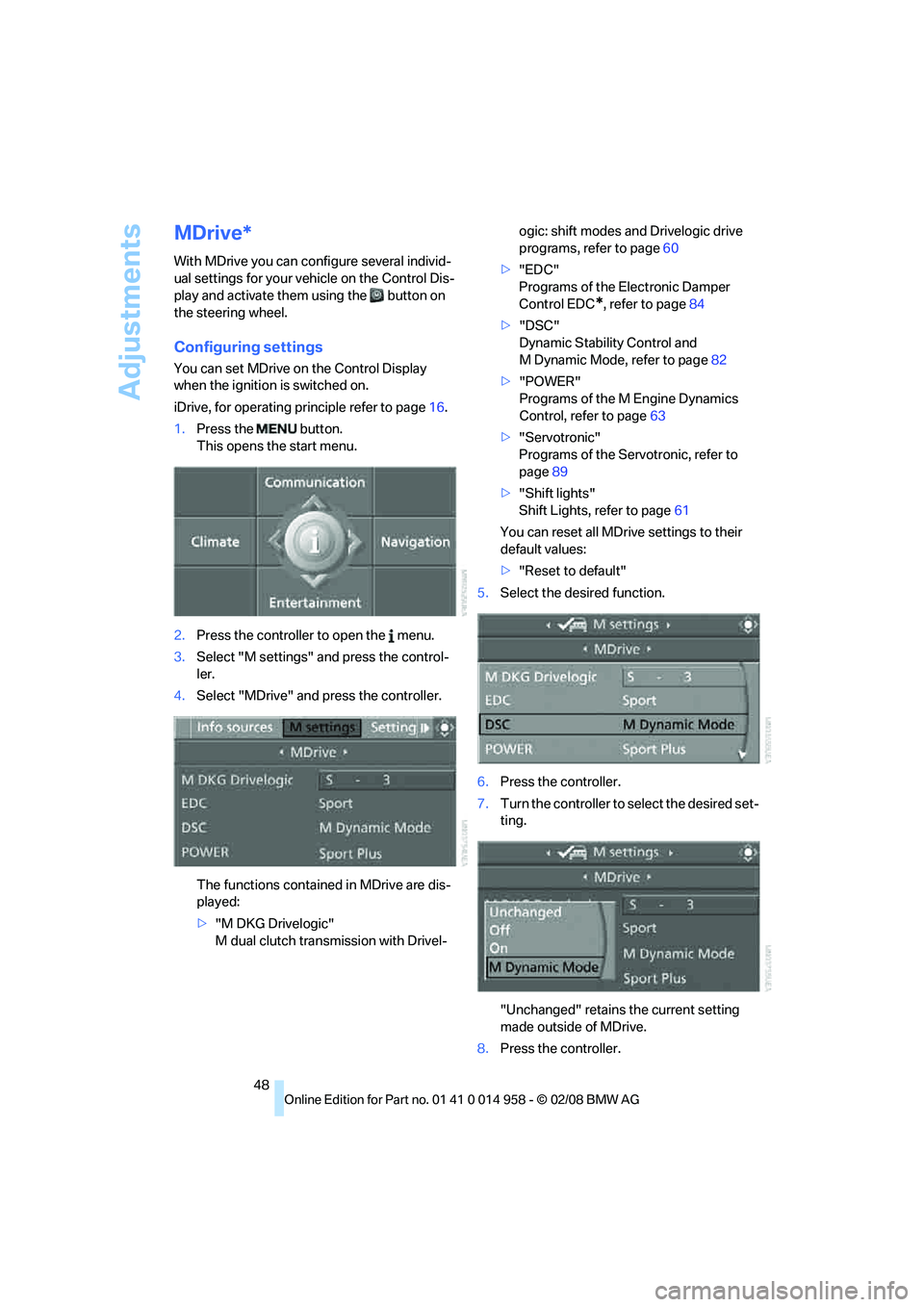
You can set MDrive on the Control Display
when the ignition is switched on.
iDrive, for operating principle refer to page16.
1.Press the button.
This opens the start menu.
2.Press the controller to open the menu.
3.Select "M settings" and press the control-
ler.
4.Select "MDrive" and press the controller.
The functions contained in MDrive are dis-
played:
>"M DKG Drivelogic"
M dual clutch transmission with Drivel-ogic: shift modes and Drivelogic drive
programs, refer to page60
>"EDC"
Programs of the Electronic Damper
Control EDC
*, refer to page84
>"DSC"
Dynamic Stability Control and
M Dynamic Mode, refer to page82
>"POWER"
Programs of the M Engine Dynamics
Control, refer to page63
>"Servotronic"
Programs of the Servotronic, refer to
page89
>"Shift lights"
Shift Lights, refer to page61
You can reset all MDrive settings to their
default values:
>"Reset to default"
5.Select the desired function.
6.Press the controller.
7.Turn the controller to select the desired set-
ting.
"Unchanged" retains the current setting
made outside of MDrive.
8.Press the controller.
Page 51 of 266
Controls
49Reference
At a glance
Driving tips
Communications
Navigation
Entertainment
Mobility
The setting is stored for the remote control cur-
rently in use.
Activating the settings
Press the button on the steering wheel.
The indicator lamp in the instrument
cluster comes on. The settings made
on the Control Display for the functions
in MDrive are active.
Pressing the button again deactivates MDrive.
If the indicator lamp flashes after the but-
ton was pressed, MDrive was unable to
respond because the Antilock Brake System
ABS or Dynamic Stability Control DSC are cur-
rently regulating driving stability. Press the
button again when the indicator lamp is no
longer flashing.<
You can change individual settings outside of
MDrive even when MDrive is activated, e. g.
using the buttons on the center console. To
reactivate all settings made on the Control Dis-
play for MDrive: press the button twice.
Key-dependent settings
For the remote control currently in use, you can
set your preferred program for the M Engine
Dynamics Control and Electronic Damper Con-
trol EDC. These presettings are called up when
the engine is started.
iDrive, for operating principle refer to page16.
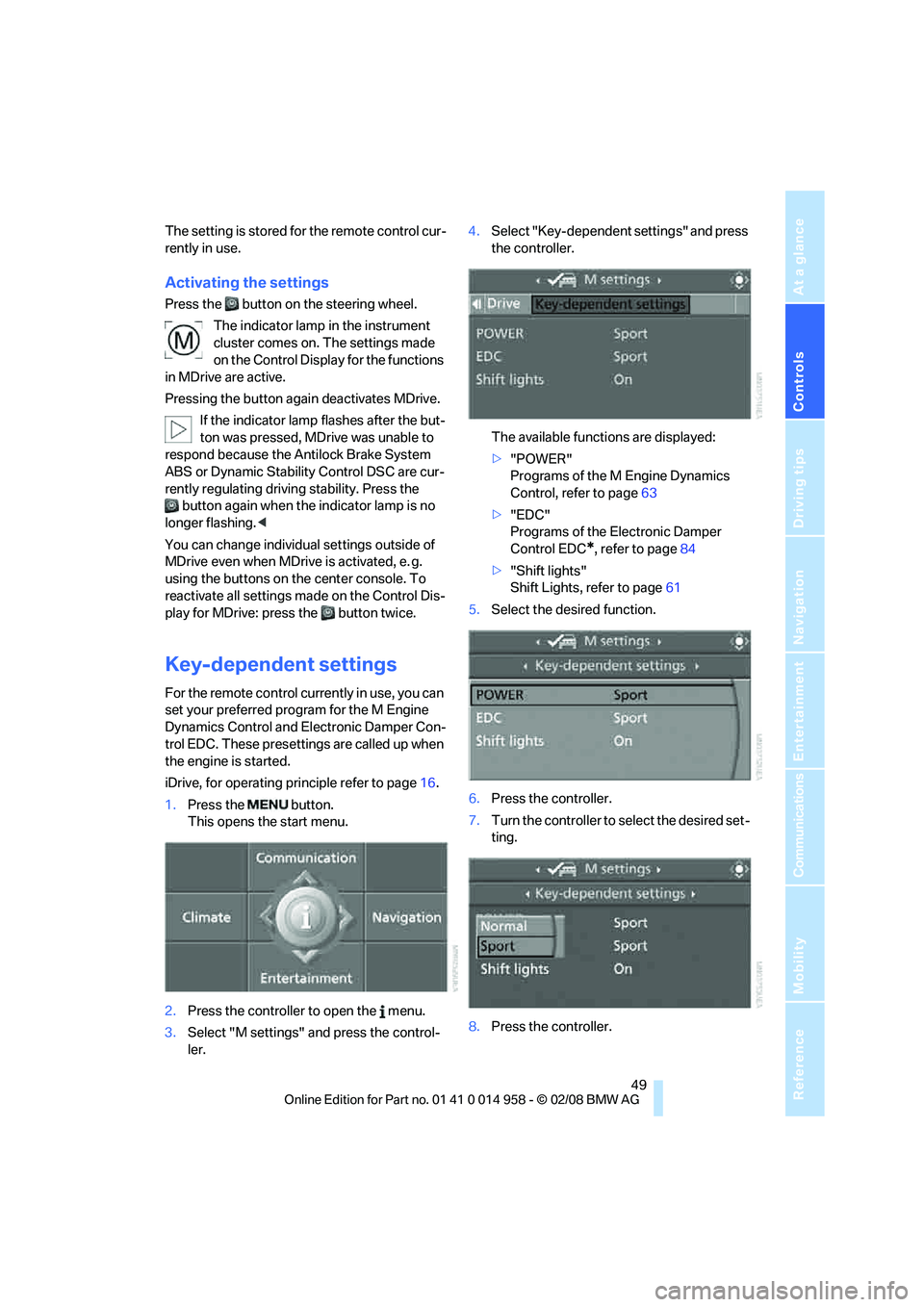
1.Press the button.
This opens the start menu.
2.Press the controller to open the menu.
3.Select "M settings" and press the control-
ler.4.Select "Key-dependent settings" and press
the controller.
The available functions are displayed:
>"POWER"
Programs of the M Engine Dynamics
Control, refer to page63
>"EDC"
Programs of the Electronic Damper
Control EDC
*, refer to page84
>"Shift lights"
Shift Lights, refer to page61
5.Select the desired function.
6.Press the controller.
7.Turn the controller to select the desired set-
ting.
8.Press the controller.
Page 59 of 266
Controls
57Reference
At a glance
Driving tips
Communications
Navigation
Entertainment
Mobility
Reverse gear
Select this only when the vehicle is stationary.
When the gearshift lever is pressed to the left, a
slight resistance has to be overcome.
M dual clutch transmission
with Drivelogic*
The concept
The M dual clutch transmission with Drivelogic
is an automated manual transmission with two
clutches and a partial transmission in which an
electro-hydraulic system takes over clutch
action and shifting.
With the M dual clutch transmission, gears are
changed without interruption of the traction
force.
The M dual clutch transmission is operated
using the selector lever and two shift paddles
on the steering wheel.
The transmission offers you the following func-
tions:
>Selection between manual and automatic
operation: sequential mode or drive mode
>Selection between different drive pro-
grams, Drivelogic, refer to page60
>Shift Lights, refer to page61
>Automatic downshifting and protection
against selecting the wrong gear even in
sequential mode
>Launch Control, refer to page62
>Automatic throttle blip
>Low Speed Assistant
System limitations
The M dual clutch transmission is equipped
with an overheating protection system that pro-
tects the clutch against extreme loads.
The indicator lamp lights up yellow
when the transmission becomes too
warm. Avoid high engine loads and
driving off frequently. When the transmission is
overheated, the indicator lamp lights up red and
the fuel supply to the engine is cut off. You can-not continue driving until the transmission has
cooled down.
Avoid driving off frequently with high accelera-
tion and do not hold the vehicle on inclines by
pressing lightly on the accelerator while letting
the clutch slip, as this may cause the transmis-
sion to overheat.
In traffic congestion or at very low speeds, use
the Low Speed Assistant, refer to the informa-
tion below.
Low Speed Assistant
The Low Speed Assistant supports you when
driving at very low speeds: the vehicle moves at
walking speed and automatically controls the
engine speed. You can also use the Low Speed
Assistant when rocking the vehicle out of deep
snow. To do so, shift between reverse gear and
the forward position without pressing the brake.
Activating
1.Engage a drive position.
2.Briefly tap the accelerator.
The vehicle rolls at the minimum speed. Do not
press the brake continuously as this may cause
the transmission to overheat.
Deactivating
Brake the vehicle to a stop to deactivate the
Low Speed Assistant.
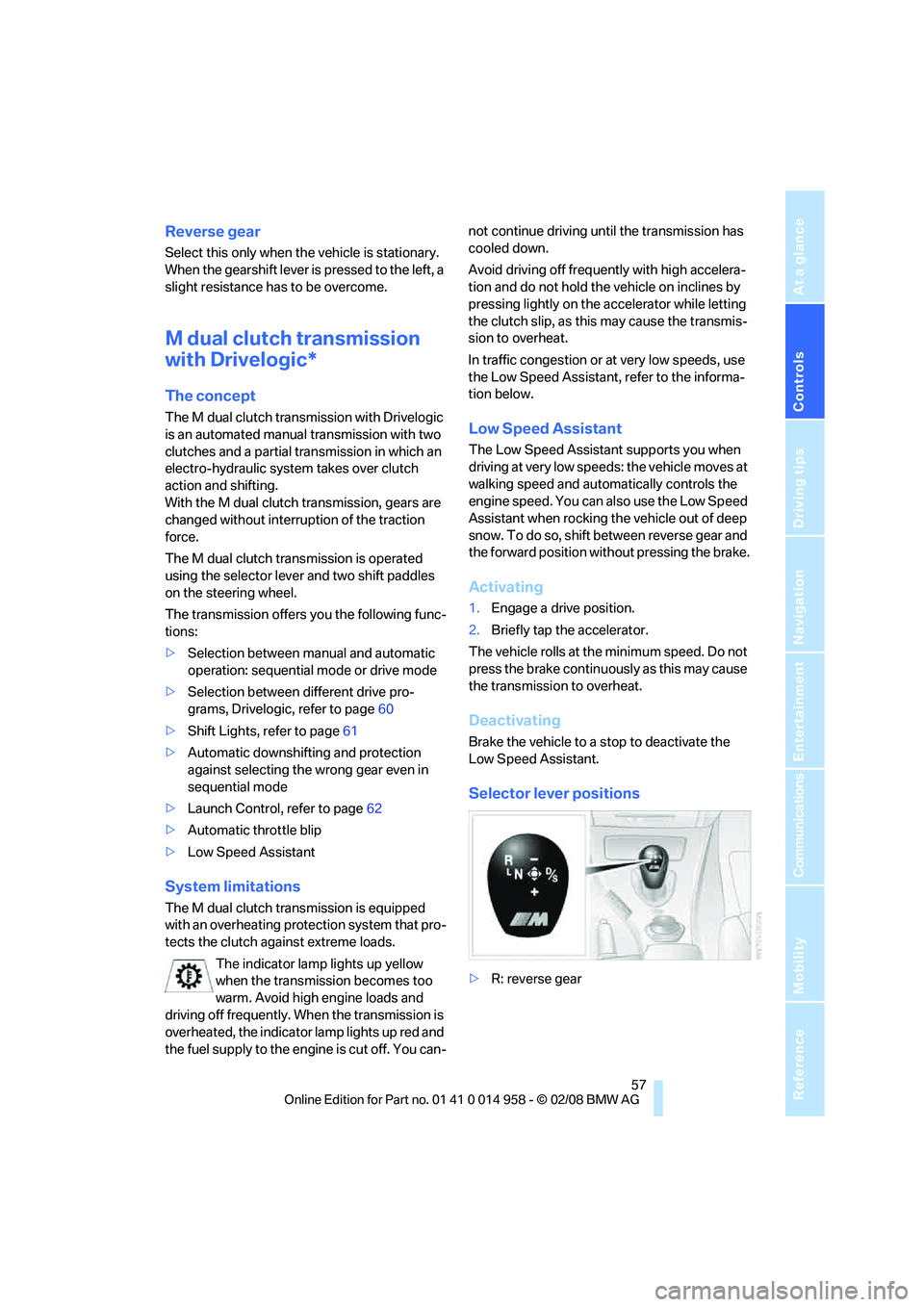
Selector lever positions
>R: reverse gear
Page 62 of 266
Driving
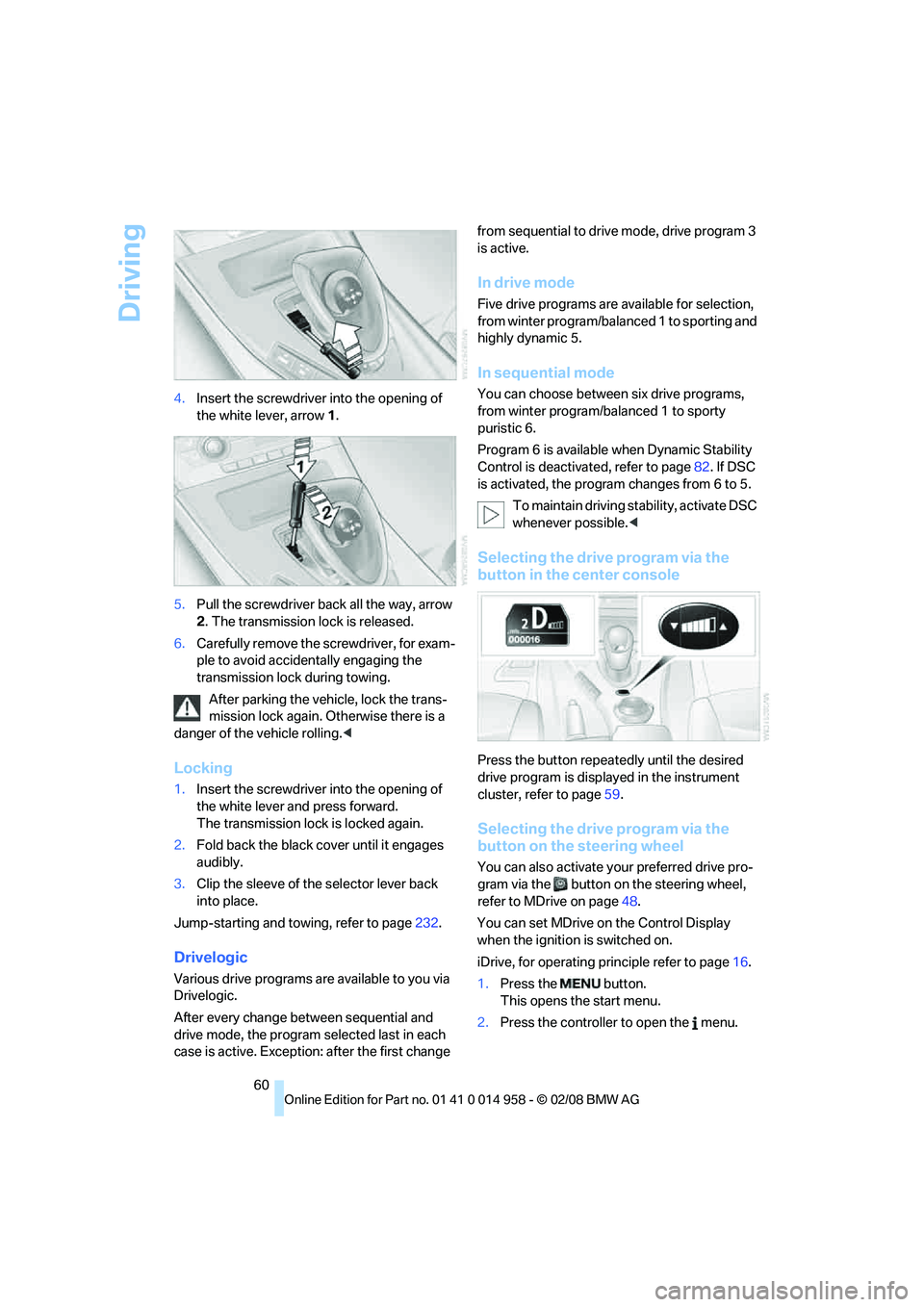
60 4.Insert the screwdriver into the opening of
the white lever, arrow 1.
5.Pull the screwdriver back all the way, arrow
2. The transmission lock is released.
6.Carefully remove the screwdriver, for exam-
ple to avoid accidentally engaging the
transmission lock during towing.
After parking the vehicle, lock the trans-
mission lock again. Otherwise there is a
danger of the vehicle rolling.<
Locking
1.Insert the screwdriver into the opening of
the white lever and press forward.
The transmission lock is locked again.
2.Fold back the black cover until it engages
audibly.
3.Clip the sleeve of the selector lever back
into place.
Jump-starting and towing, refer to page232.
Drivelogic
Various drive programs are available to you via
Drivelogic.
After every change between sequential and
drive mode, the program selected last in each
case is active. Exception: after the first change from sequential to drive mode, drive program 3
is active.
In drive mode
Five drive programs are available for selection,
from winter program/balanced 1 to sporting and
highly dynamic 5.
In sequential mode
You can choose between six drive programs,
from winter program/balanced 1 to sporty
puristic 6.
Program 6 is available when Dynamic Stability
Control is deactivated, refer to page82. If DSC
is activated, the program changes from 6 to 5.
To maintain driving stability, activate DSC
whenever possible.<
Selecting the drive program via the
button in the center console
Press the button repeatedly until the desired
drive program is displayed in the instrument
cluster, refer to page59.
Selecting the drive program via the
button on the steering wheel
You can also activate your preferred drive pro-
gram via the button on the steering wheel,
refer to MDrive on page48.
You can set MDrive on the Control Display
when the ignition is switched on.
iDrive, for operating principle refer to page16.
1.Press the button.
This opens the start menu.
2.Press the controller to open the menu.
Page 86 of 266
Technology for driving comfort and safety
84
For better control
If the indicator lamp flashes:
DSC is regulating the drive and brak-
ing forces.
If the indicator lamps are on:
DSC is deactivated.
Electronic Damper Control
EDC*
The concept
Whenever there is a change in any significant
parameter such as road surface quality or in an
operating condition such as steering, braking,
etc., the damping automatically adjusts to the
new conditions in fractions of a second.
You can select between three programs.
"Comfort" program
Select the "Comfort" program if you want com-
fort-oriented control of the shock absorbers.
"Normal" program
The "Normal" program offers control that is bal-
anced between comfort and sportiness.
"Sport" program
Select the "Sport" program if you want consis-
tently sporty control of the shock absorbers.
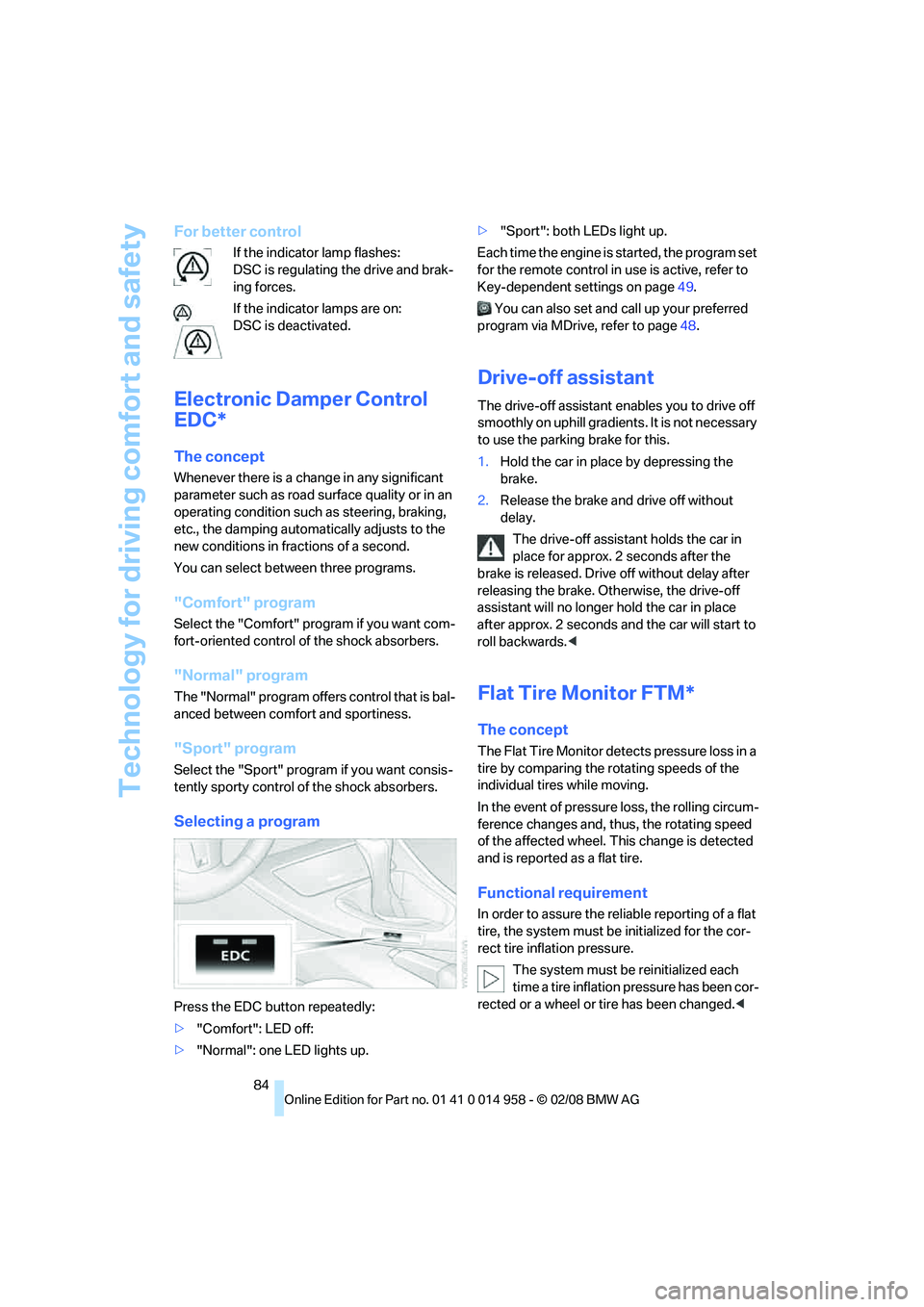
Selecting a program
Press the EDC button repeatedly:
>"Comfort": LED off:
>"Normal": one LED lights up.>"Sport": both LEDs light up.
Each time the engine is started, the program set
for the remote control in use is active, refer to
Key-dependent settings on page49.
You can also set and call up your preferred
program via MDrive, refer to page48.
Drive-off assistant
The drive-off assistant enables you to drive off
smoothly on uphill gradients. It is not necessary
to use the parking brake for this.
1.Hold the car in place by depressing the
brake.
2.Release the brake and drive off without
delay.
The drive-off assistant holds the car in
place for approx. 2 seconds after the
brake is released. Drive off without delay after
releasing the brake. Otherwise, the drive-off
assistant will no longer hold the car in place
after approx. 2 seconds and the car will start to
roll backwards.<
Flat Tire Monitor FTM*
The concept
The Flat Tire Monitor detects pressure loss in a
tire by comparing the rotating speeds of the
individual tires while moving.
In the event of pressure loss, the rolling circum-
ference changes and, thus, the rotating speed
of the affected wheel. This change is detected
and is reported as a flat tire.
Functional requirement
In order to assure the reliable reporting of a flat
tire, the system must be initialized for the cor-
rect tire inflation pressure.
The system must be reinitialized each
time a tire inflation pressure has been cor-
rected or a wheel or tire has been changed.<
Page 88 of 266
Technology for driving comfort and safety
86 9.Start to drive.
Initialization is completed while the car is
moving, without any feedback.
Indication of a flat tire
The warning lamps come on in yellow
and red. A message appears on the
Control Display. In addition, an
acoustic signal sounds. There is a flat
tire or substantial loss of tire pressure.
1.Reduce your speed and carefully stop the
car. Avoid sudden braking and steering
maneuvers.
2.Identify the damaged tire. To do so, check
the tire pressure using the M Mobility Sys-
tem, refer to Producing the tire inflation
pressure on page227.
3.Repair the flat tire with the M Mobility Sys-
tem, refer to page227.
Malfunction
The warning lamps come on in yel-
low. A message appears on the Con-
trol Display. The Flat Tire Monitor has
a malfunction or has failed. Have the
system checked as soon as possible.
Tire Pressure Monitor TPM*
The concept
TPM checks the inflation pressures of the four
mounted tires. The system notifies you if there
is a significant loss of pressure in one or more
tires.
Functional requirement
In order to assure the reliable reporting of a flat
tire, the system must be reset while all tire infla-
tion pressures are correct.
Always use wheels with TPM electronics. Oth-
erwise, the system may malfunction.
Each time a tire inflation pressure has
been corrected or a wheel or tire has been
changed, reset the system.<
System limitations
TPM cannot warn you in advance of sud-
den severe tire damage caused by out-
side influences.<
The system does not work correctly if it has not
been reset; for example, a flat tire may be indi-
cated even though the tire inflation pressures
are correct.
The system is inactive and cannot indicate a flat
tire if a wheel without TPM electronics has been
mounted, or if TPM is temporarily malfunction-
ing due to other systems or devices using the
same radio frequency.
Status indicator on the Control Display
The color of the wheels represents the status of
the tires and the system.
TPM takes into account that tire pressures
change while the vehicle is being driven. The
tire pressures do not need to be corrected
unless the TPM instructs you to do so by means
of color indicators.
Green
The tire inflation pressure corresponds to the
established target value.
"TPM active" appears on the Control Display.
One wheel yellow
There is a flat tire or substantial loss of tire pres-
sure in the indicated tire. A message appears on
the Control Display.
All wheels yellow
There is a flat tire or substantial loss of tire pres-
sure in several tires. A message appears on the
Control Display.
Gray
The system cannot detect a puncture.
Possible reasons for this:
>TPM is being reset
>Temporary malfunction caused by systems
or devices using the same radio frequency
>Malfunction