instrument cluster BMW M3 2012 Owner's Manual
[x] Cancel search | Manufacturer: BMW, Model Year: 2012, Model line: M3, Model: BMW M3 2012Pages: 314, PDF Size: 7.72 MB
Page 91 of 314
90
ControlsControls overview
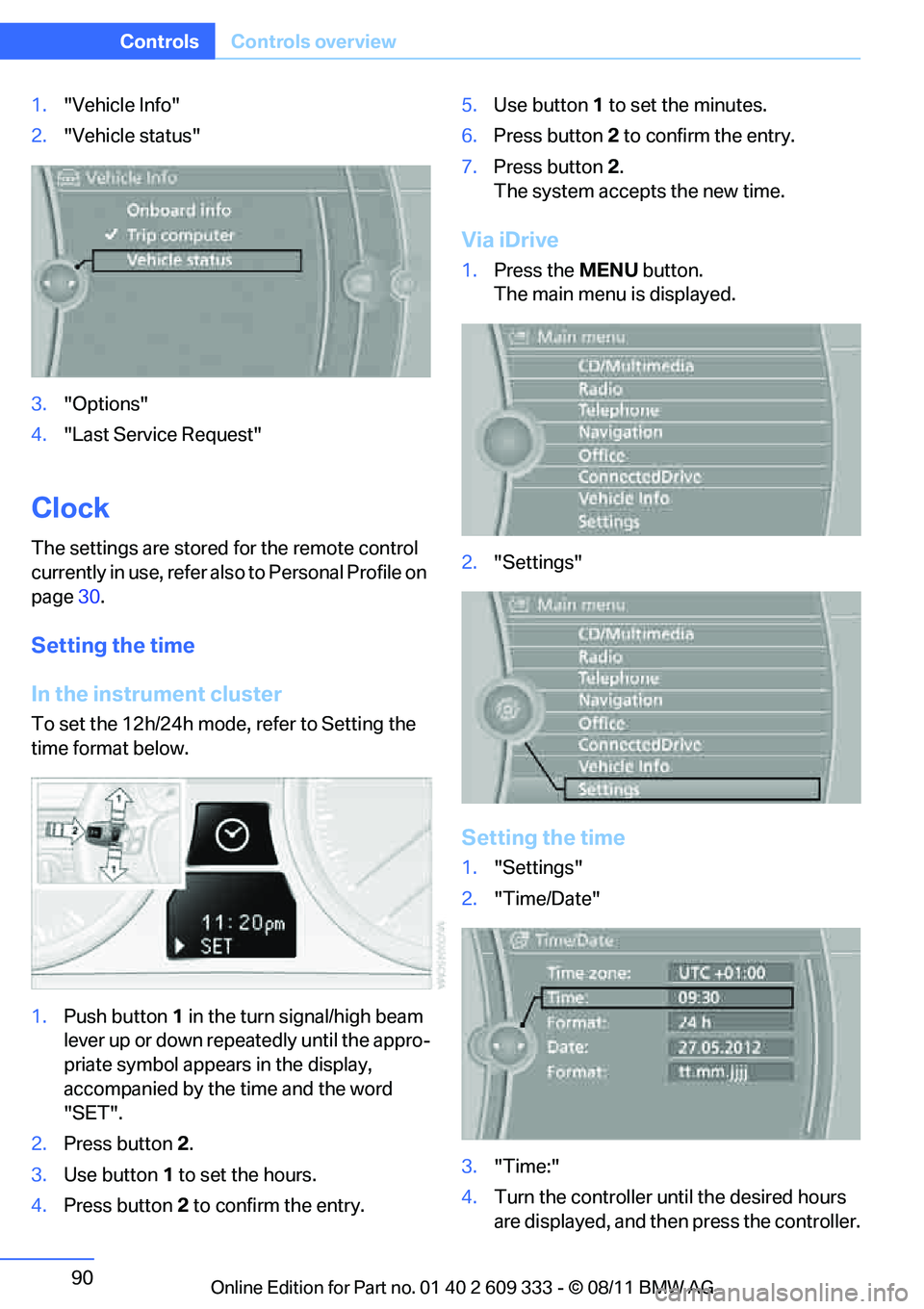
1."Vehicle Info"
2. "Vehicle status"
3. "Options"
4. "Last Service Request"
Clock
The settings are stored for the remote control
currently in use, refer also to Personal Profile on
page 30.
Setting the time
In the instrument cluster
To set the 12h/24h mode , refer to Setting the
time format below.
1. Push button 1 in the turn signal/high beam
lever up or down repe atedly until the appro-
priate symbol appear s in the display,
accompanied by the time and the word
"SET".
2. Press button 2.
3. Use button 1 to set the hours.
4. Press button 2 to confirm the entry. 5.
Use button 1 to set the minutes.
6. Press button 2 to confirm the entry.
7. Press button 2.
The system accepts the new time.
Via iDrive
1. Press the MENUbutton.
The main menu is displayed.
2. "Settings"
Setting the time
1."Settings"
2. "Time/Date"
3. "Time:"
4. Turn the controller until the desired hours
are displayed, and then press the controller.
Online Edition for Part no. 01 40 2 609 333 - \251 08/11 BMW AG
Page 92 of 314
91
Controls overview
Controls
5.
Turn the controller unt il the desired minutes
are displayed, and then press the controller.
The time is stored.
Setting the time format
1. "Settings"
2. "Time/Date"
3. "Format:"
4. Select the desired format and press the
controller.
The time format is stored.
Setting time zone
1. "Settings"
2. "Time/Date"
3. "Time zone:"
4. Select desired time zone.
The time zone is stored.
Date
The settings are stored for the remote control
currently in use, refer also to Personal Profile on
page 30.
Setting the date
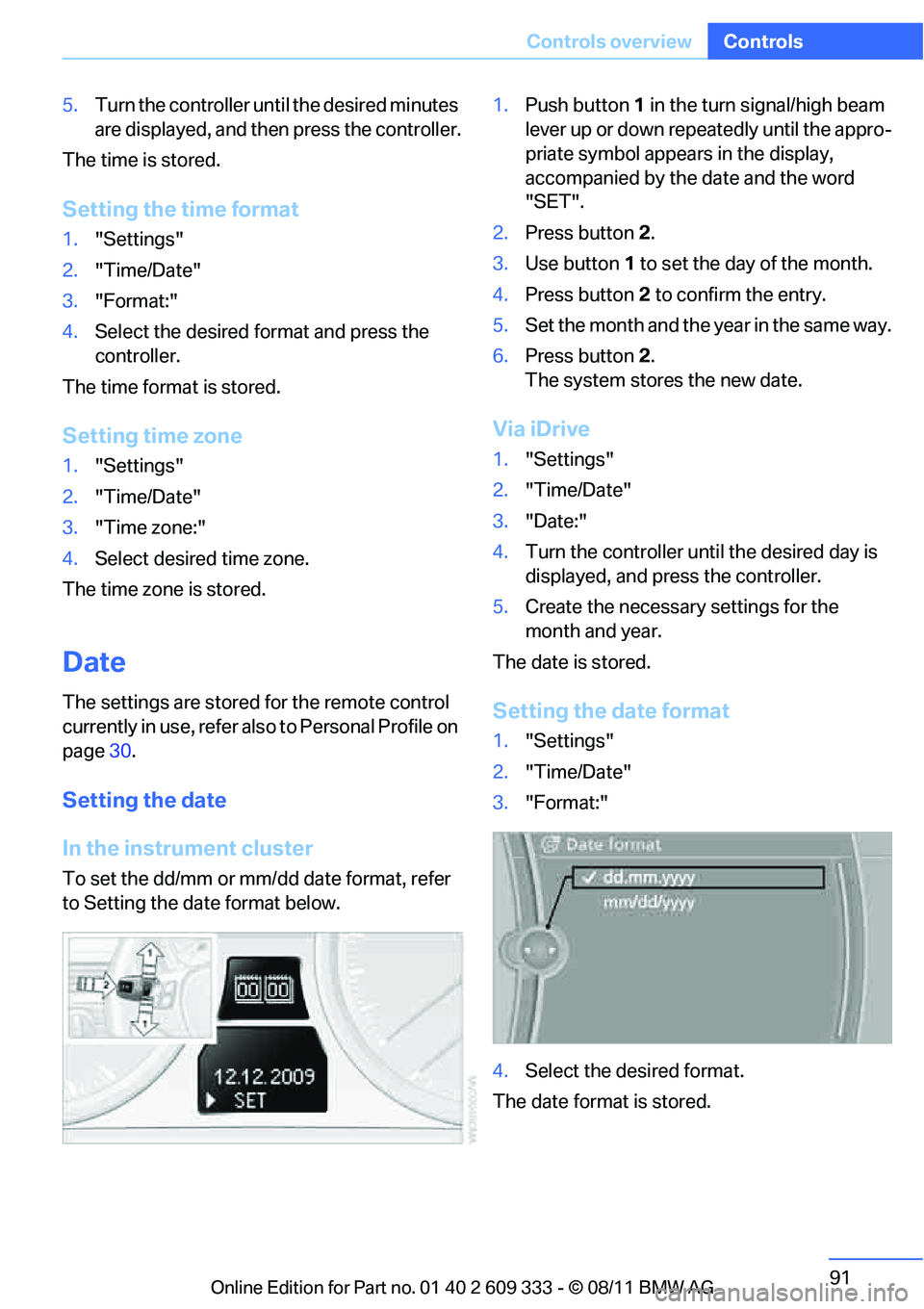
In the instrument cluster
To set the dd/mm or mm/dd date format, refer
to Setting the da te format below. 1.
Push button 1 in the turn signal/high beam
lever up or down repeatedly until the appro-
priate symbol appears in the display,
accompanied by the date and the word
"SET".
2. Press button 2.
3. Use button 1 to set the day of the month.
4. Press button 2 to confirm the entry.
5. Set the month and the year in the same way.
6. Press button 2.
The system stores the new date.
Via iDrive
1. "Settings"
2. "Time/Date"
3. "Date:"
4. Turn the controller until the desired day is
displayed, and press the controller.
5. Create the necessary settings for the
month and year.
The date is stored.
Setting the date format
1. "Settings"
2. "Time/Date"
3. "Format:"
4. Select the desired format.
The date format is stored.
Online Edition for Part no. 01 40 2 609 333 - \251 08/11 BMW AG
Page 93 of 314
92
ControlsControls overview
Check Control
The concept
The Check Control monitors vehicle functions
and alerts you to any malfunctions in the sys-
tems monitored. This type of Check Control
message includes indica tor and warning lamps
in the instrument cluster and, in some cases, an
acoustic signal and text messages at the top of
the Control Display.
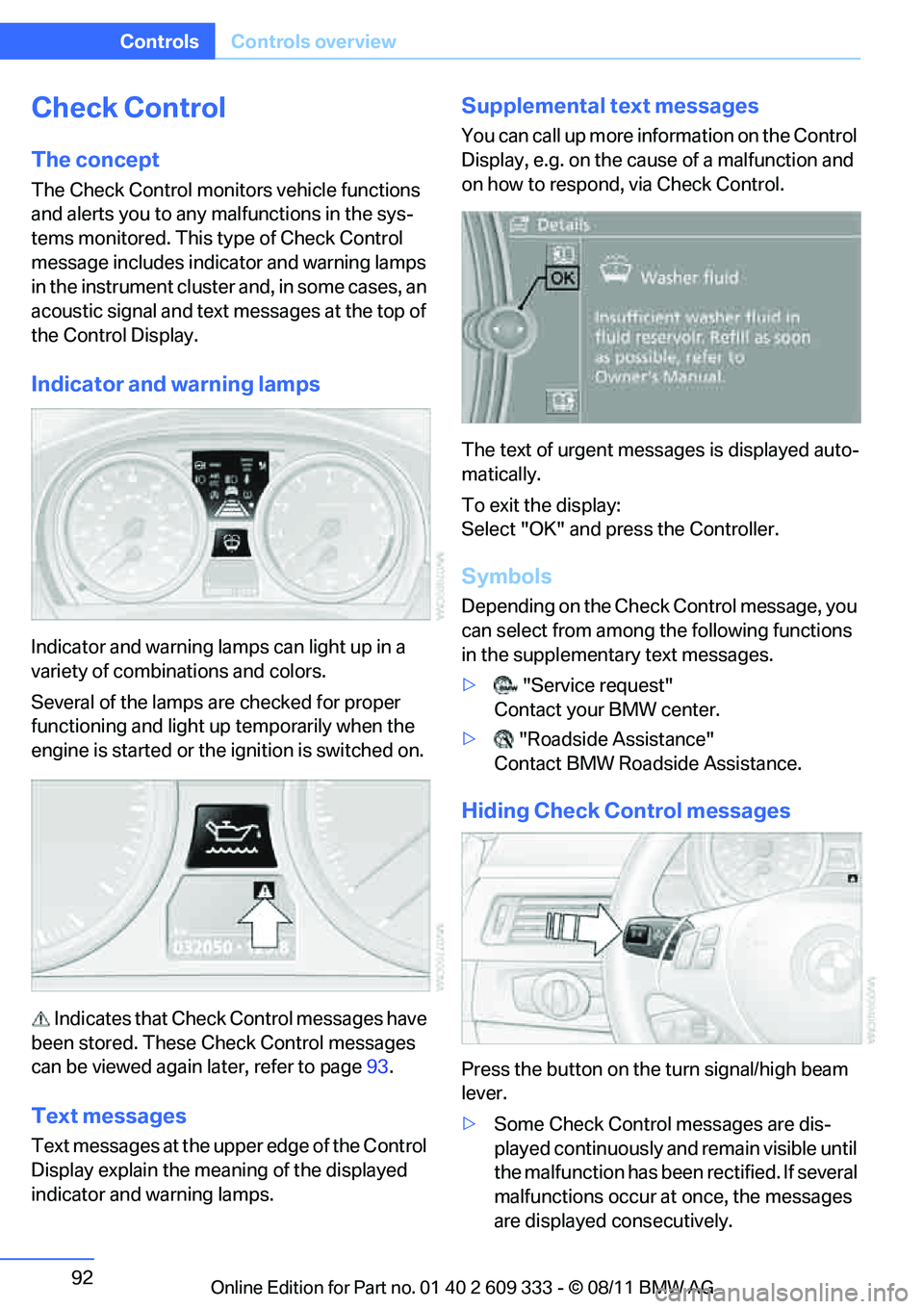
Indicator and warning lamps
Indicator and warning lamps can light up in a
variety of combinations and colors.
Several of the lamps ar e checked for proper
functioning and light up temporarily when the
engine is started or the ignition is switched on.
Indicates that Check Control messages have
been stored. These Check Control messages
can be viewed again later, refer to page 93.
Text messages
Text messages at the upper edge of the Control
Display explain the meaning of the displayed
indicator and warning lamps.
Supplemental text messages
You can call up more information on the Control
Display, e.g. on the cause of a malfunction and
on how to respond, via Check Control.
The text of urgent messages is displayed auto-
matically.
To exit the display:
Select "OK" and press the Controller.
Symbols
Depending on the Check Control message, you
can select from among the following functions
in the supplementary text messages.
> "Service request"
Contact your BMW center.
> "Roadside Assistance"
Contact BMW Roadside Assistance.
Hiding Check Control messages
Press the button on the turn signal/high beam
lever.
> Some Check Control messages are dis-
played continuously an d remain visible until
the malfunction has been rectified. If several
malfunctions occur at once, the messages
are displayed consecutively.
Online Edition for Part no. 01 40 2 609 333 - \251 08/11 BMW AG
Page 99 of 314
98
ControlsTechnology for driving comfort and safety
safety margin again by taking risks, as this could
result in an accident. <
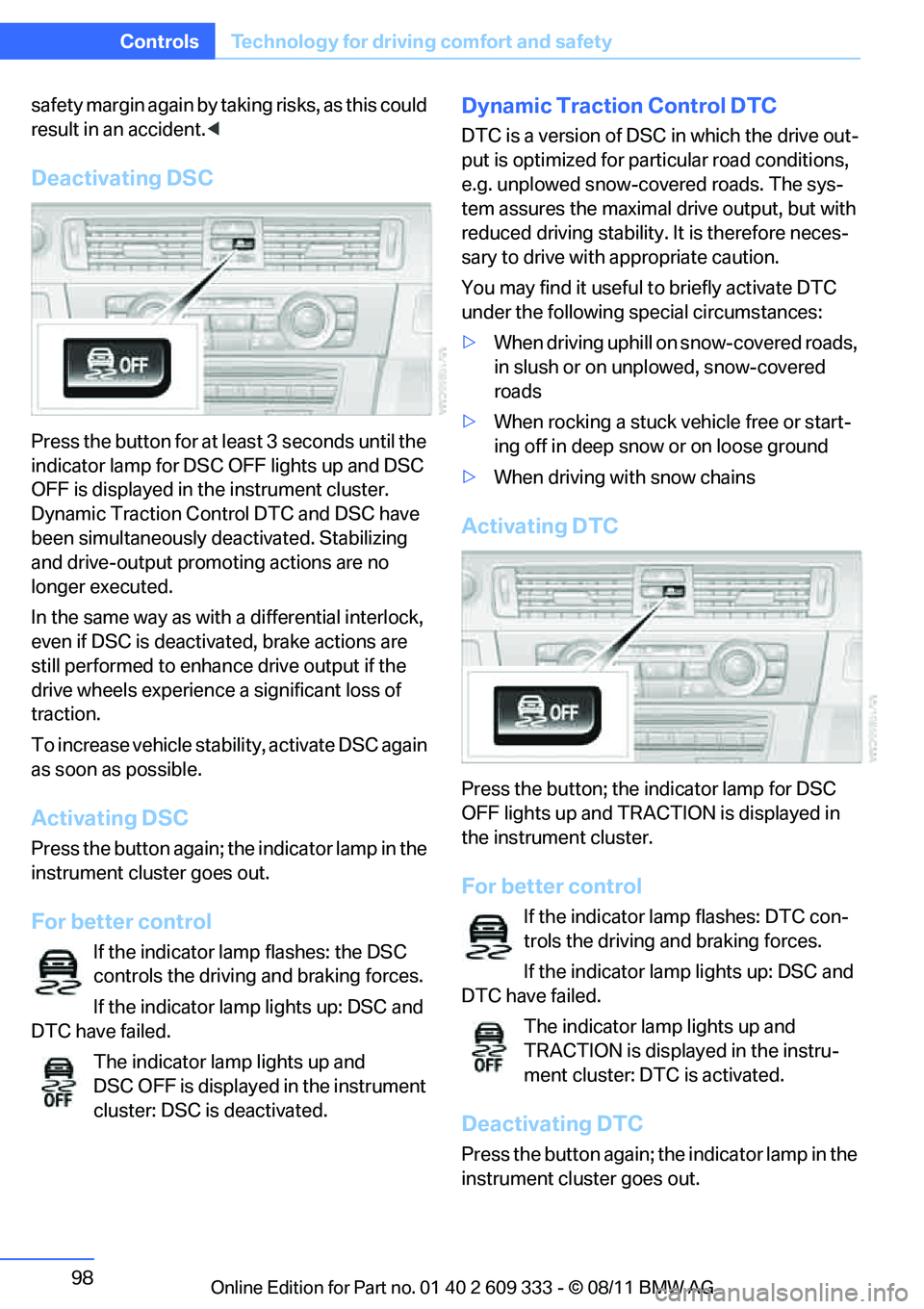
Deactivating DSC
Press the button for at le ast 3 seconds until the
indicator lamp for DSC OFF lights up and DSC
OFF is displayed in the instrument cluster.
Dynamic Traction Control DTC and DSC have
been simultaneously de activated. Stabilizing
and drive-output promoting actions are no
longer executed.
In the same way as with a differential interlock,
even if DSC is deactivated, brake actions are
still performed to enhanc e drive output if the
drive wheels experience a significant loss of
traction.
To increase vehicle stab ility, activate DSC again
as soon as possible.
Activating DSC
Press the button again; th e indicator lamp in the
instrument cluster goes out.
For better control
If the indicator lamp flashes: the DSC
controls the driving and braking forces.
If the indicator lamp lights up: DSC and
DTC have failed.
The indicator lamp lights up and
DSC OFF is displayed in the instrument
cluster: DSC is deactivated.
Dynamic Traction Control DTC
DTC is a version of DSC in which the drive out-
put is optimized for part icular road conditions,
e.g. unplowed snow-covered roads. The sys-
tem assures the maximal drive output, but with
reduced driving stability. It is therefore neces-
sary to drive with appropriate caution.
You may find it useful to briefly activate DTC
under the following sp ecial circumstances:
> When driving uphill on snow-covered roads,
in slush or on unplowed, snow-covered
roads
> When rocking a stuck vehicle free or start-
ing off in deep snow or on loose ground
> When driving with snow chains
Activating DTC
Press the button; the indicator lamp for DSC
OFF lights up and TRACTION is displayed in
the instrument cluster.
For better control
If the indicator lamp flashes: DTC con-
trols the driving and braking forces.
If the indicator lamp lights up: DSC and
DTC have failed.
The indicator lamp lights up and
TRACTION is displayed in the instru-
ment cluster: DTC is activated.
Deactivating DTC
Press the button again; th e indicator lamp in the
instrument cluster goes out.
Online Edition for Part no. 01 40 2 609 333 - \251 08/11 BMW AG
Page 100 of 314
99
Technology for driving comfort and safety
Controls
xDrive
xDrive is your BMW's fo
ur-wheel-drive system.
The combined efforts of xDrive and DSC help to
further optimize traction and driving dynamics.
The xDrive four-wheel-drive system distributes
driving power variably to the front and rear axles
depending on the driving situation and road
conditions.
Hill Descent Control HDC
HDC is a downhill driving assistant that controls
your speed on steep downhill gradients and
makes it even easier to control your BMW's
handling under these conditions. The vehicle
then moves slightly fast er than double walking
speed without the driver needing to intervene.
HDC can be activated as long as you are driving
under approx. 20 mph or 35 km/h. When driving
downhill at a speed of under approx. 20 mph or
35 km/h, the vehicle's speed is automatically
reduced to slightly more than double walking
speed and maintained.
Increasing or de creasing speed
By accelerating or braking you can change this
speed within a range from approx. 3 to 15 mph,
approx. 5 to 25 km/h.
You can specify a target speed within the same
range by using the lever of the cruise control.
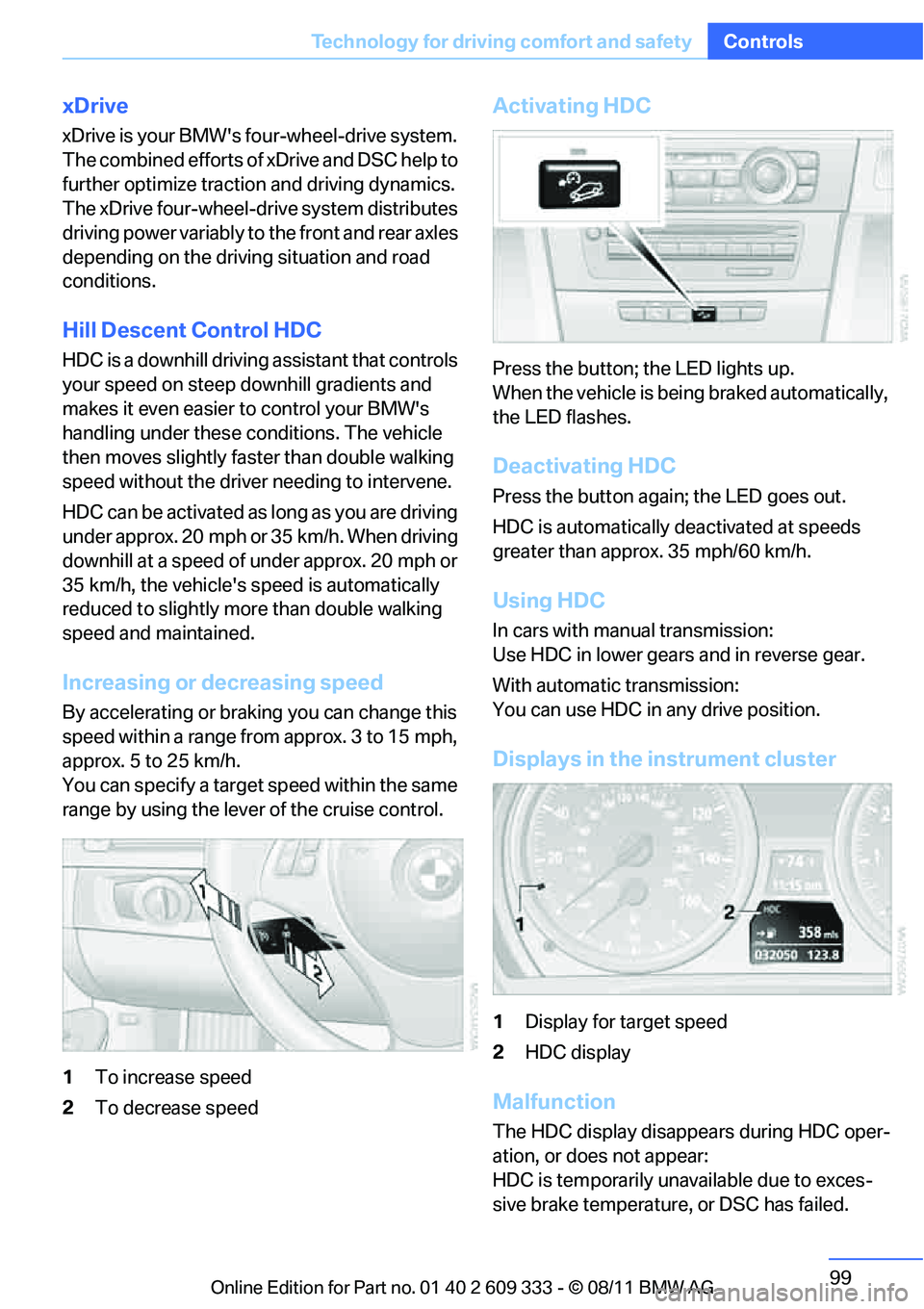
1 To increase speed
2 To decrease speed
Activating HDC
Press the button; the LED lights up.
When the vehicle is being braked automatically,
the LED flashes.
Deactivating HDC
Press the button again; the LED goes out.
HDC is automatically de activated at speeds
greater than approx. 35 mph/60 km/h.
Using HDC
In cars with manual transmission:
Use HDC in lower gears and in reverse gear.
With automatic transmission:
You can use HDC in any drive position.
Displays in the instrument cluster
1 Display for target speed
2 HDC display
Malfunction
The HDC display disappears during HDC oper-
ation, or does not appear:
HDC is temporarily unav ailable due to exces-
sive brake temperature, or DSC has failed.
Online Edition for Part no. 01 40 2 609 333 - \251 08/11 BMW AG
Page 114 of 314
113
Lamps
Controls
High-beam Assistant
The concept
This system automatica
lly switches the high
beams on and off. The procedure is controlled
by a sensor on the front of the interior rearview
mirror. The assistant ensures that the high
beams are switched on whenever the traffic sit-
uation allows. It handle s this task for you and
gives you the benefit of the best possible view.
You can intervene at any time and switch the
high beams on and off as usual.
Activating the system
1. Turn the light switch to position 3, refer to
page 110.
2. With the low beams switched on, briefly
push the turn signal/high beam lever in the
direction of the high beam.
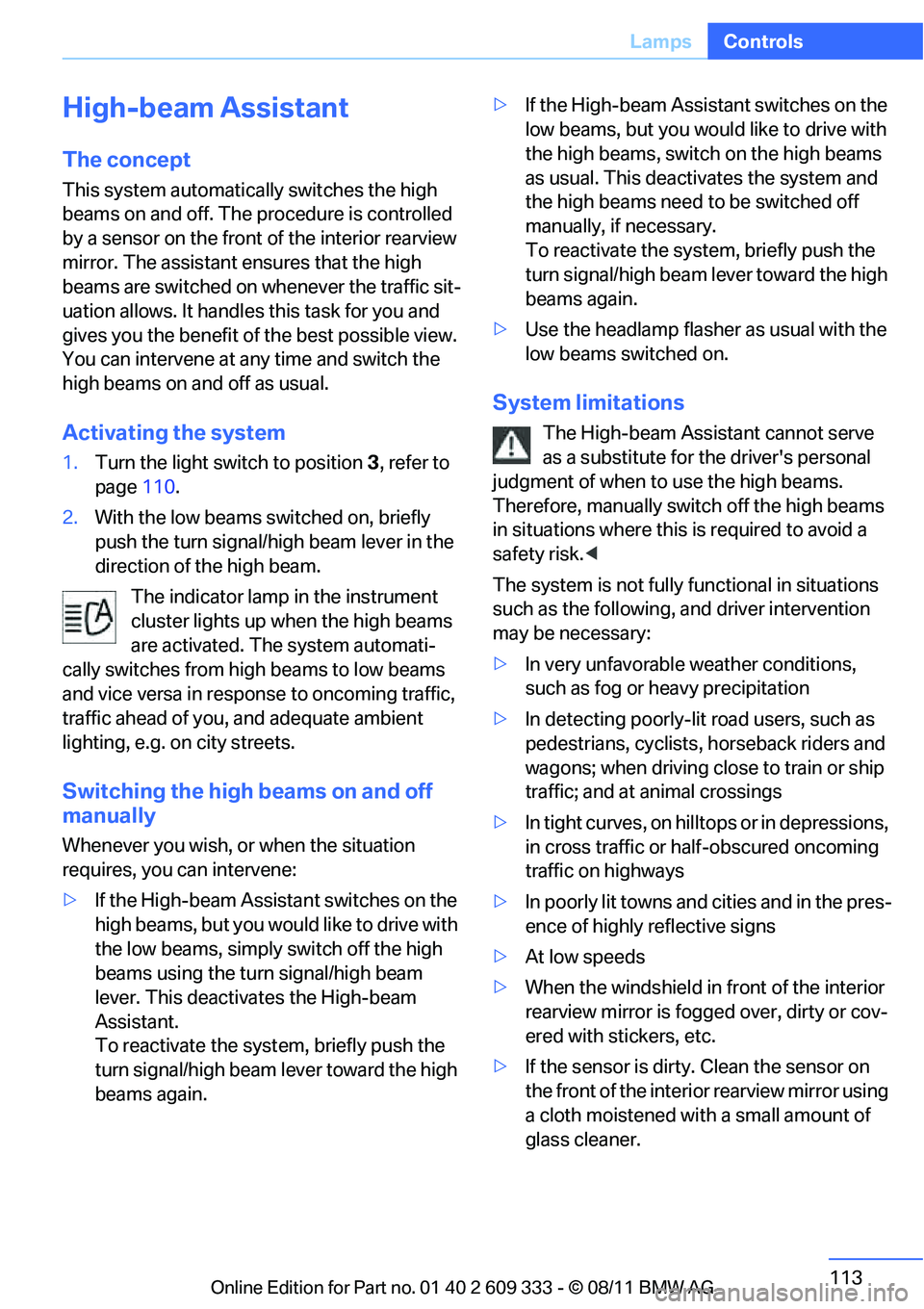
The indicator lamp in the instrument
cluster lights up when the high beams
are activated. The system automati-
cally switches from hi gh beams to low beams
and vice versa in response to oncoming traffic,
traffic ahead of you, and adequate ambient
lighting, e.g. on city streets.
Switching the high beams on and off
manually
Whenever you wish, or when the situation
requires, you can intervene:
> If the High-beam Assistant switches on the
high beams, but you would like to drive with
the low beams, simply switch off the high
beams using the turn signal/high beam
lever. This deacti vates the High-beam
Assistant.
To reactivate the syst em, briefly push the
turn signal/high beam lever toward the high
beams again. >
If the High-beam Assistant switches on the
low beams, but you would like to drive with
the high beams, switch on the high beams
as usual. This deacti vates the system and
the high beams need to be switched off
manually, if necessary.
To reactivate the system, briefly push the
turn signal/high beam lever toward the high
beams again.
> Use the headlamp flasher as usual with the
low beams switched on.
System limitations
The High-beam Assistant cannot serve
as a substitute for the driver's personal
judgment of when to use the high beams.
Therefore, manually switch off the high beams
in situations where this is required to avoid a
safety risk.<
The system is not fully fu nctional in situations
such as the following, and driver intervention
may be necessary:
> In very unfavorable weather conditions,
such as fog or heavy precipitation
> In detecting poorly-lit road users, such as
pedestrians, cyclists, horseback riders and
wagons; when driving close to train or ship
traffic; and at animal crossings
> In tight curves, on hilltops or in depressions,
in cross traffic or half-obscured oncoming
traffic on highways
> In poorly lit towns and cities and in the pres-
ence of highly reflective signs
> At low speeds
> When the windshield in front of the interior
rearview mirror is fogged over, dirty or cov-
ered with stickers, etc.
> If the sensor is dirty. Clean the sensor on
the front of the interior rearview mirror using
a cloth moistened with a small amount of
glass cleaner.
Online Edition for Part no. 01 40 2 609 333 - \251 08/11 BMW AG
Page 115 of 314
114
ControlsLamps
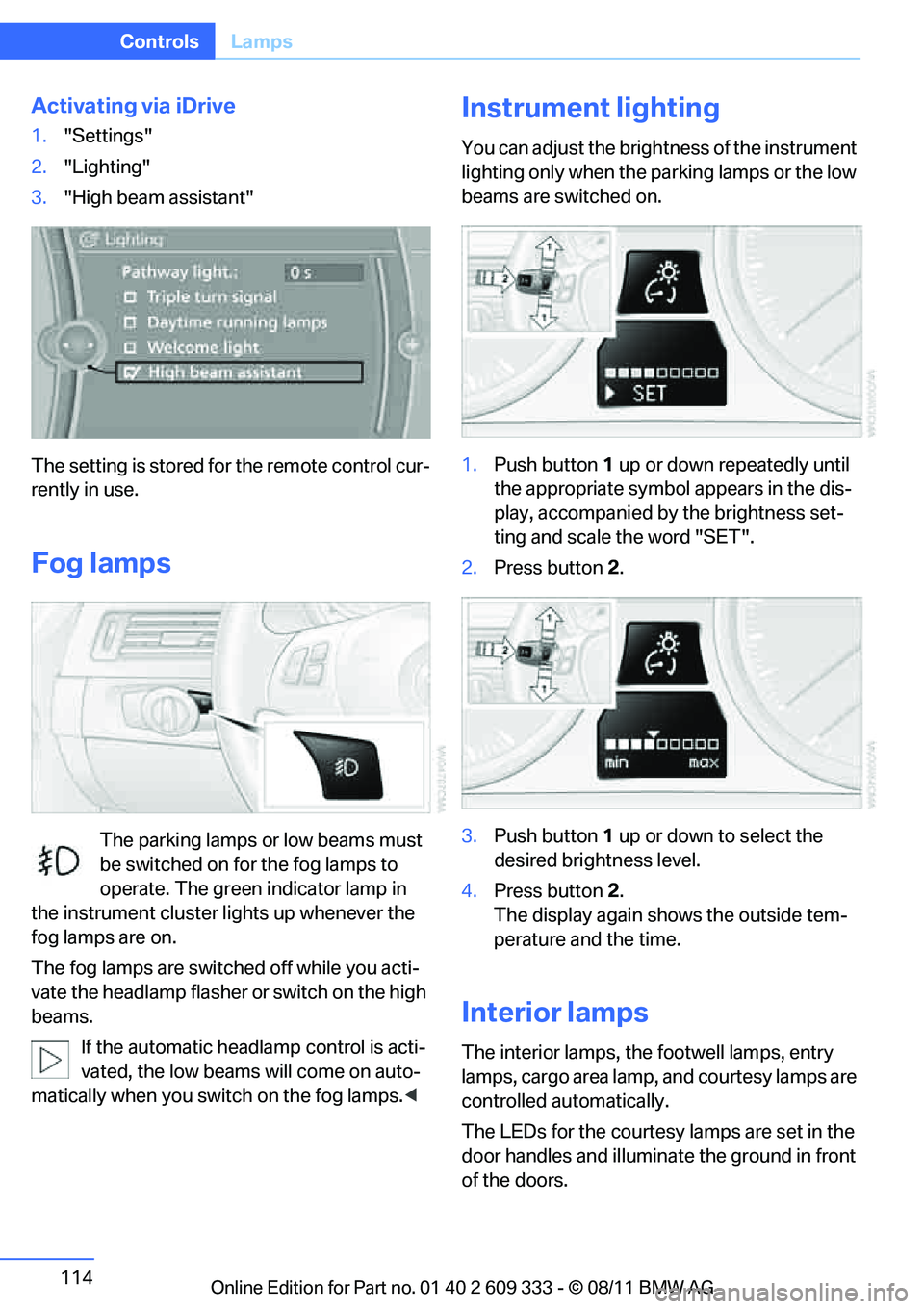
Activating via iDrive
1."Settings"
2. "Lighting"
3. "High beam assistant"
The setting is stored for the remote control cur-
rently in use.
Fog lamps
The parking lamps or low beams must
be switched on for the fog lamps to
operate. The green indicator lamp in
the instrument cluster lights up whenever the
fog lamps are on.
The fog lamps are switched off while you acti-
vate the headlamp flasher or switch on the high
beams.
If the automatic headla mp control is acti-
vated, the low beams will come on auto-
matically when you swit ch on the fog lamps.<
Instrument lighting
You can adjust the brightness of the instrument
lighting only when the pa rking lamps or the low
beams are switched on.
1. Push button 1 up or down repeatedly until
the appropriate symbol appears in the dis-
play, accompanied by the brightness set-
ting and scale the word "SET".
2. Press button 2.
3. Push button 1 up or down to select the
desired brightness level.
4. Press button 2.
The display again shows the outside tem-
perature and the time.
Interior lamps
The interior lamps, the footwell lamps, entry
lamps, cargo area lamp, and courtesy lamps are
controlled automatically.
The LEDs for the courtesy lamps are set in the
door handles and illuminate the ground in front
of the doors.
Online Edition for Part no. 01 40 2 609 333 - \251 08/11 BMW AG
Page 262 of 314
261
Engine compartment
Mobility
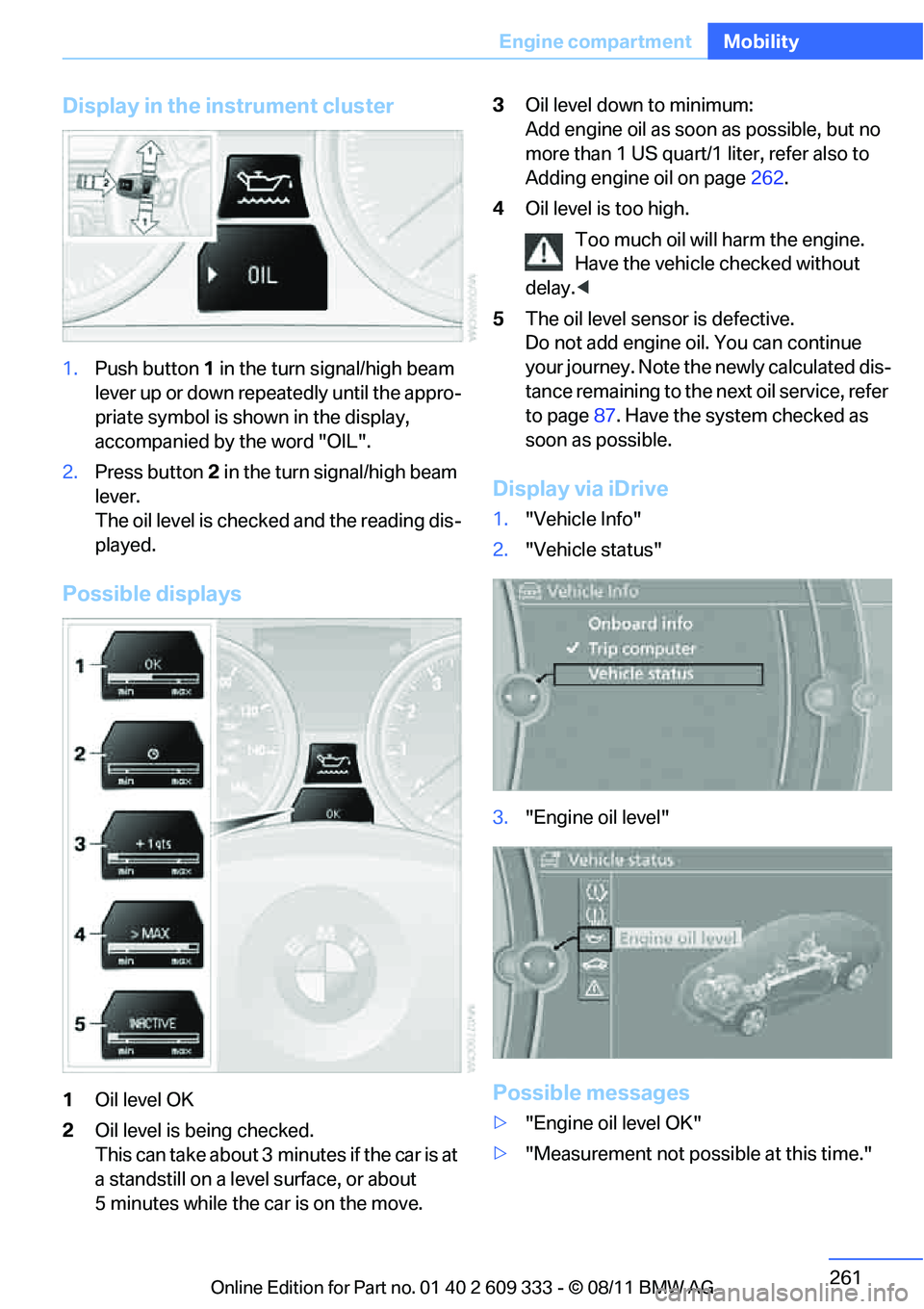
Display in the instrument cluster
1.
Push button 1 in the turn signal/high beam
lever up or down repe atedly until the appro-
priate symbol is shown in the display,
accompanied by the word "OIL".
2. Press button 2 in the turn signal/high beam
lever.
The oil level is checked and the reading dis-
played.
Possible displays
1 Oil level OK
2 Oil level is being checked.
This can take about 3 min utes if the car is at
a standstill on a level surface, or about
5 minutes while the car is on the move. 3
Oil level down to minimum:
Add engine oil as soon as possible, but no
more than 1 US quart/1 liter, refer also to
Adding engine oil on page 262.
4 Oil level is too high.
Too much oil will harm the engine.
Have the vehicle checked without
delay. <
5 The oil level sens or is defective.
Do not add engine oil. You can continue
your journey. Note the newly calculated dis-
tance remaining to the next oil service, refer
to page 87. Have the system checked as
soon as possible.
Display via iDrive
1. "Vehicle Info"
2. "Vehicle status"
3. "Engine oil level"
Possible messages
>"Engine oil level OK"
> "Measurement not possible at this time."
Online Edition for Part no. 01 40 2 609 333 - \251 08/11 BMW AG
Page 270 of 314
269
Care
Mobility
Treat the leather at least once every two
months using a leather lotion as dirt and grease
will gradually attack th
e leather's protective
layer.
Carpet and floor mats
Keep floor mats, carpet, and other objects
out of the movement range of the pedals;
otherwise, they may inhi bit the function of the
pedals during driving.
Do not place additional fl oor mats onto an exist-
ing one or onto other objects.
Only use floor mats that have been approved for
the vehicle and can be appropriately fastened.
Make sure that the floo r mats are securely fas-
tened again after they ha ve been removed, e.g.
for cleaning. <
Interior plastic parts
>Imitation leather surfaces
> Lamp glasses
> Display pane of instrument cluster
> Matte parts
Clean with water and solvent-free plastic
cleaner if necessary.
Fine wood parts
Clean fine wood trim and fine wood parts with a
damp cloth. Wipe dry with a soft cloth.
Safety belts
Dirty belt straps impede the reeling action and
thus have a negative impact on safety. Do not clean chemically, as this may
destroy the webbing. <
Interior sensors/cameras
To clean interior sensor s and cameras, e.g. of
the High-beam Assistant, use a lint-free cloth
moistened with glass cleaner.
Displays
To clean displays, e.g. of the radio or instrument
cluster, use a cleaning cloth for displays or a
soft, non-abrasive, lint-free cloth.
Avoid applying excessive pressure when
cleaning the displays; otherwise, damage
may occur. <
Do not use chemical or abrasive house-
hold cleaning agents. Keep all types of
fluid away from the device. Otherwise, surfaces
or electrical components may be corroded or
damaged. <
CD/DVD drives
Do not use a cleaning CD, as it may dam-
age parts of the drive. <
Vehicle storage
If you plan to park your vehicle for longer than
three months, your BMW center will be happy
to advise you.
Online Edition for Part no. 01 40 2 609 333 - \251 08/11 BMW AG
Page 302 of 314
301
Everything from A to Z
Reference
Consumption, refer to
Average fuel
consumption 84
Contacts 218
– deleting 220,227
– exporting/importing 227
– new contact 219
Control Center, refer to
iDrive 18
Control Display 19
– switching off 19
Control Display, refer to iDrive 18
– adjusting brightness 94
Controller, refer to iDrive 18
Controls and displays 10
Control unit, refer to iDrive 18
Convenient loading in Convertible 33
Convenient opening and closing
– glass roof 32
– glass roof with Comfort Access 39
– retractable hardtop 32
– windows 32
– windows with Comfort Access 39
– with Comfort Access 39
Convertible
– bag holder 131
– convenient loading 33
– enlarging cargo area 130
– folding down rear
backrest 130
– retractable hardtop 43
– rollover protection
system 109
– securing cargo 143
– stowing cargo 142
Coolant 263
– checking level 263
Coolant temperature 263
Cooling, maximum 117
Cooling fluid, refer to Coolant 263 Cooling system, refer to
Coolant 263
Copyright 2
Corner-illuminating lamps
– replacing bulbs 271
Cornering light, refer to Adaptive Light Control 112
Correct tires 257
Courtesy lamps, refer to Interior lamps 114
Criteria for route 159
Cross-hairs in navigation155
Cruise control 73
– ac
tive 75
– malfunction 75
Cruise control, refer to Active
Cruise Control 75
Cruising range 84
Cupholders 128
Curb weight, refer to Weights 287
Customer Relations 231
D
Dashboard, refer to
Cockpit 10
Dashboard, refer to
Instrument cluster 12
Dashboard lighting, refer to Instrument lighting 114
Data, technical 284
– capacities 289
– dimensions 285
– engine 284
– weights 287
Data memory 265
Data transfer 232
Date
– date format 91
– setting 91
Daytime running lights 111
– replacing bulbs 271
DBC Dynamic Brake Control 97
Deactivating front passenger
airbags 107 Deadlocking, refer to
Locking 32
Defect
– door lock 34
– fuel filler flap 236
– glass roof 42
Defining a home address 219
Destination, entering by town/
city name 150
Destination address
– entering 150,156
Destination entry via BMW Assist 155
Destination for navigation
– entering by voice 156
– entering via map 155
– entry 150
– home address 153
– manual entry 150
Destination guidance 159
– bypassing a route section 160
– changing specified route 159
– continuing 159
– starting 159
– voice instructions 161
– volume of voice
instructions 161
Digital clock 82
Digital compass 124
Dimensions 285
Directional indicators, refer to Turn signals 71
Direction instructions, refer to Voice instructions 161
Directory for navigation, refer
to Address book 152
Dis
placement, refer to Engine
data 284
Display, refer to iDrive controls 18
Displaying contact
pictures 219
Display lighting, refer to Instrument lighting 114
Online Edition for Part no. 01 40 2 609 333 - \251 08/11 BMW AG