radio BMW M3 CONVERTIBLE 2009 E93 Owner's Guide
[x] Cancel search | Manufacturer: BMW, Model Year: 2009, Model line: M3 CONVERTIBLE, Model: BMW M3 CONVERTIBLE 2009 E93Pages: 256, PDF Size: 12.03 MB
Page 92 of 256
Technology for driving comfort and safety
90 seat.
The front and side airbags for the front pas-
senger are activated.
>The indicator lamp does not come on if the
seat is empty.
The front and side airbags for the front pas-
senger are not activated.
Operational readiness of airbag system
As of radio readiness, refer to page55, the
warning lamp comes on briefly to indicate that
the entire airbag system and the belt tensioners
are operational.
Airbag system malfunction
>Warning lamp does not light up at radio
readiness or beyond.
>Warning lamp remains permanently on.
In the event of a fault in the airbag system,
have it checked without delay, otherwise
there is the risk that the system will not function
as intended even if a sufficiently severe acci-
dent occurs.<
Convertible: rollover
protection system
The rollover protection system is activated
automatically in the event of an accident, a crit-
ical driving situation, an extreme tilt in the car's
longitudinal axis or upon loss of ground contact.
The protection bars behind the rear head
restraints deploy within fractions of a second.
As a supplementary system to the reinforced
windshield frame, the rollover protection sys-
tem ensures that the necessary headroom is
maintained for all vehicle occupants.Always keep the area of movement of the
rollover protection system clear.
In minor accidents, you are protected by the
fastened safety belt and, depending on acci-
dent severity, by the safety belt tensioner and
multi-phase airbag retention system.<
Resetting
If the rollover protection system was not
impacted after being automatically activated, it
can be reset by lowering the protection bars to
their original positions. This does not require
tools.
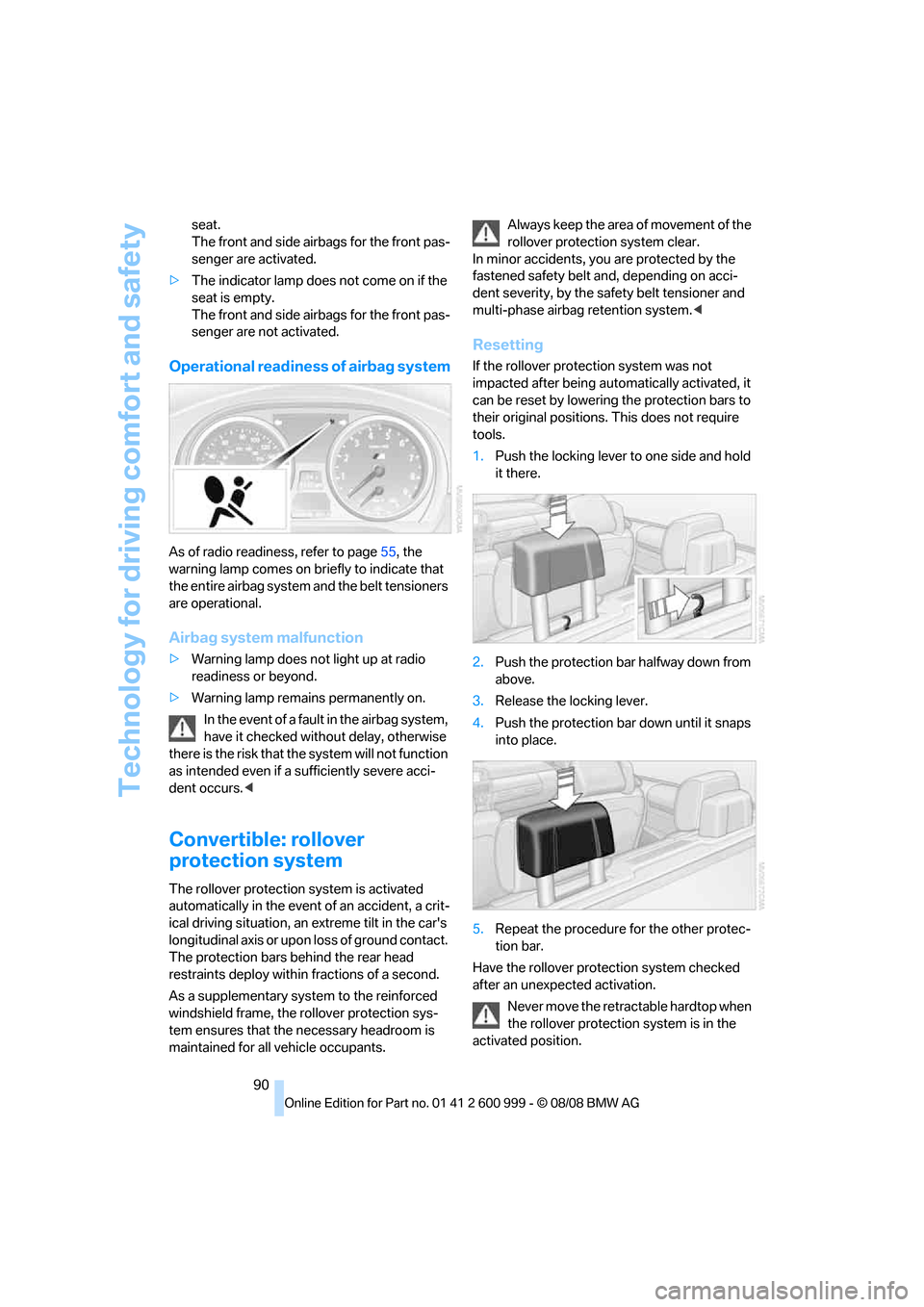
1.Push the locking lever to one side and hold
it there.
2.Push the protection bar halfway down from
above.
3.Release the locking lever.
4.Push the protection bar down until it snaps
into place.
5.Repeat the procedure for the other protec-
tion bar.
Have the rollover protection system checked
after an unexpected activation.
Never move the retractable hardtop when
the rollover protection system is in the
activated position.
ba8_E9293M3_cic.book Seite 90 Dienstag, 19. August 2008 12:01 12
Page 100 of 256
Climate
98 switched on. In the Convertible program, the
automatic air conditioning system is optimized
for driving with the top open. In addition, the air
flow rate is increased as vehicle speed
increases.
The effectiveness of the Convertible pro-
gram can be enhanced considerably by
installing the wind deflector.<
Adjusting air flow rate manually
Press the left side of the button to
reduce airflow. Press the right side
of the button to increase it.
You can reactivate the automatic mode for the
air flow rate with the AUTO button.
The air flow rate may be reduced or the blower
may be switched off entirely to save on battery
power. The display remains the same.
Switching the system on/off
With the blower at its lowest setting, press the
left side of the button to switch off the auto-
matic climate control. All displays are cleared
except for the rear window defroster if it is
switched on.
Press any button except REST or rear window
defroster to reactivate the automatic climate
control.
The recirculated-air mode is switched on
when you switch off the automatic cli-
mate control. If the air quality deteriorates or the
window fogs over, switch the system back on
and increase the air volume.<
Automatic recirculated-air control
AUC/Recirculated-air mode
Switch on the desired operating
mode by pressing this button
repeatedly:
>LED off: outside air flows in continuously.
>Left-hand LED on, AUC mode: a sensor
detects pollutants in the outside air. If nec-
essary, the system blocks the supply of out-
side air and recirculates the inside air. As
soon as the concentration of pollutants in
the outside air has decreased sufficiently, the system automatically switches back to
outside air supply.
>Right-hand LED on, recirculated-air mode:
the supply of outside air is permanently
shut off. The system then recirculates the
air currently within the vehicle.
If condensation starts to form on the
inside window surfaces during operation
in the recirculated-air mode, you should switch
it off while also increasing the air flow rate as
required.
The recirculated-air mode should not be used
continuously for lengthy periods, otherwise the
quality of the air inside the car will gradually
deteriorate.<
Via the button on the steering wheel
You can switch quickly between the recircu-
lated-air mode and the previous mode using an
individually programmable button
on the steer-
ing wheel, refer to page50.
Residual heat
The heat stored in the engine is
used to heat the passenger com-
partment, e.g. while stopped at a
school to pick up a child.
The function can be switched on when the fol-
lowing conditions are met:
>Up to 15 minutes after the engine has been
switched off
>While the engine is at operating tempera-
ture
>As long as battery voltage is sufficient
>At an outside temperature below 777/
256
The LED is lit when the function is on.
As of radio readiness, you can set the interior
temperature, the air flow rate and the air distri-
bution.
ba8_E9293M3_cic.book Seite 98 Dienstag, 19. August 2008 12:01 12
Page 103 of 256
Controls
101Reference
At a glance
Driving tips
Communications
Navigation
Entertainment
Mobility
Practical interior accessories
Integrated universal remote
control*
The concept
The integrated universal remote control can
replace as many as three hand-held transmit-
ters for various remote-controlled devices,
such as garage doors and gates or lighting sys-
tems. The integrated universal remote control
registers and stores signals from the original
hand-held transmitters.
The signal of an original hand-held transmitter
can be programmed on one of the three mem-
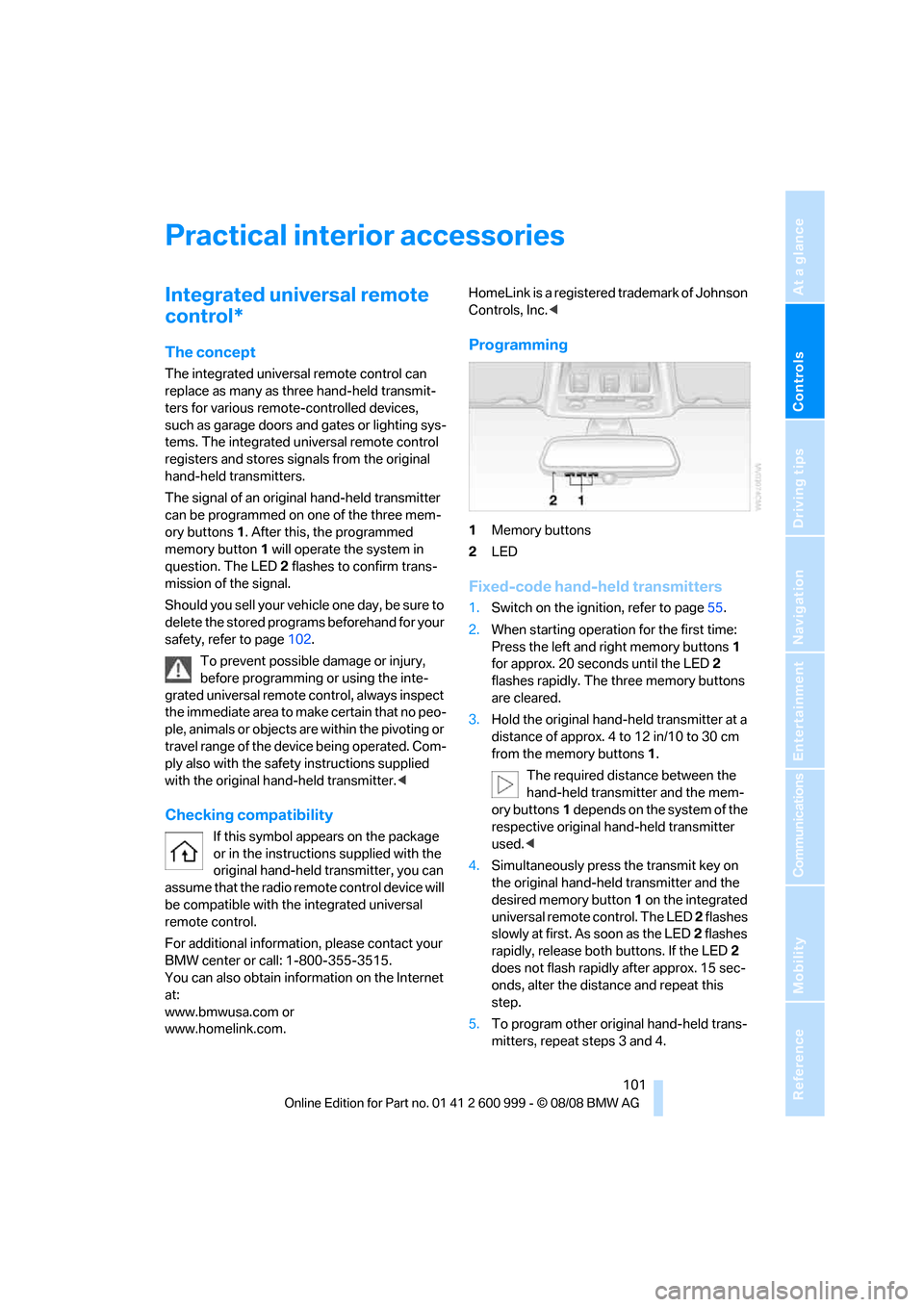
ory buttons1. After this, the programmed
memory button1 will operate the system in
question. The LED2 flashes to confirm trans-
mission of the signal.
Should you sell your vehicle one day, be sure to
delete the stored programs beforehand for your
safety, refer to page102.
To prevent possible damage or injury,
before programming or using the inte-
grated universal remote control, always inspect
the immediate area to make certain that no peo-
ple, animals or objects are within the pivoting or
travel range of the device being operated. Com-
ply also with the safety instructions supplied
with the original hand-held transmitter.<
Checking compatibility
If this symbol appears on the package
or in the instructions supplied with the
original hand-held transmitter, you can
assume that the radio remote control device will
be compatible with the integrated universal
remote control.
For additional information, please contact your
BMW center or call: 1-800-355-3515.
You can also obtain information on the Internet
at:
www.bmwusa.com or
www.homelink.com. HomeLink is a registered trademark of Johnson
Controls, Inc.<
Programming
1Memory buttons
2LED
Fixed-code hand-held transmitters
1.Switch on the ignition, refer to page55.
2.When starting operation for the first time:
Press the left and right memory buttons1
for approx. 20 seconds until the LED2
flashes rapidly. The three memory buttons
are cleared.
3.Hold the original hand-held transmitter at a
distance of approx. 4 to 12 in/10 to 30 cm
from the memory buttons1.
The required distance between the
hand-held transmitter and the mem-
ory buttons1 depends on the system of the
respective original hand-held transmitter
used.<
4.Simultaneously press the transmit key on
the original hand-held transmitter and the
desired memory button 1 on the integrated
universal remote control. The LED 2 flashes
slowly at first. As soon as the LED2 flashes
rapidly, release both buttons. If the LED2
does not flash rapidly after approx. 15 sec-
onds, alter the distance and repeat this
step.
5.To program other original hand-held trans-
mitters, repeat steps 3 and 4.
ba8_E9293M3_cic.book Seite 101 Dienstag, 19. August 2008 12:01 12
Page 142 of 256
Destination guidance
140
Automatic scaling of the map
In the map display facing north, turn the control-
ler in any direction until AUTO is displayed as
the map scale.
The map shows the entire range from your loca-
tion to the destination.
Settings for the map display
1."Navigation"
2."Map"
3.Open "Options".
4."Settings"
>Optimized view "Night mode"
>Optimized view with spatial display:
"Perspective view in 3D" prominent
areas are shown in the map.
Split screen settings
The map settings for the split screen can be
created separately from the main screen.
1.Open "Options".
2."Split screen"
3.Move the controller to the right until the
split screen is selected.
4.Press the controller.
5.Select the settings:
>"View facing north"
>"View in direction of travel"
>"Perspective view"
>"3D exit ramps"*
6.To change the scale:
>Move the controller: change the scale.
Traffic bulletins*
You can display the traffic bulletins from radio
stations that broadcast the TMC (Traffic Mes-
sage Channel) of a traffic information service.
This information from the traffic information
service is continuously updated on the basis of
measurement data from traffic control centers
and information on traffic congestion.
During destination guidance, traffic bulletins that are relevant to areas along the route are
automatically displayed and taken into account
in the route planning. You can open all traffic
bulletins manually via iDrive.
The traffic bulletins are shown in the map dis-
play.
Activating/deactivating reception
1."Navigation"
2.Open "Options".
3."Receive Traffic Info"
In many metropolitan areas you can receive
traffic information broadcast by radio stations.
The traffic conditions are monitored by traffic
control centers and the traffic information is
updated periodically.
During destination guidance, the traffic bulle-
tins relevant to your planned route are automat-
ically shown. Whether destination guidance is
active or not, you can have the traffic informa-
tion displayed in the map view or in the traffic
info list.
Traffic bulletins in a list
A list of the traffic bulletins can be opened via
the menu or map display.
Opening the traffic bulletins
1."Navigation"
2."Traffic Info"
First, the traffic bulletins on the planned
route are displayed. The traffic bulletins are
sorted in the order of their distance from the
current vehicle position.
3.Select a traffic bulletin.
Additional information can be displayed for
some traffic bulletins:
1.Select the symbol.
2.Additional information is displayed.
ba8_E9293M3_cic.book Seite 140 Dienstag, 19. August 2008 12:01 12
Page 147 of 256
Entertainment
Operation of the radio, CD equipment and
external audio devices as well as their tone
settings are described in this chapter.
Entertainment
ba8_E9293M3_cic.book Seite 145 Dienstag, 19. August 2008 12:01 12
Page 148 of 256
On/off and tone
146
On/off and tone
The following audio and video sources share
the same control elements and adjustments:
>Radio
>CD player
>CD changer
*
>Video
>External devices, e.g. MP3 player
Controls
The audio and video sources can be controlled
using the:
>Buttons near the CD player
>iDrive
>Buttons on the steering wheel, refer to
page10
>Programmable memory keys, refer to
page20
>Voice activation system
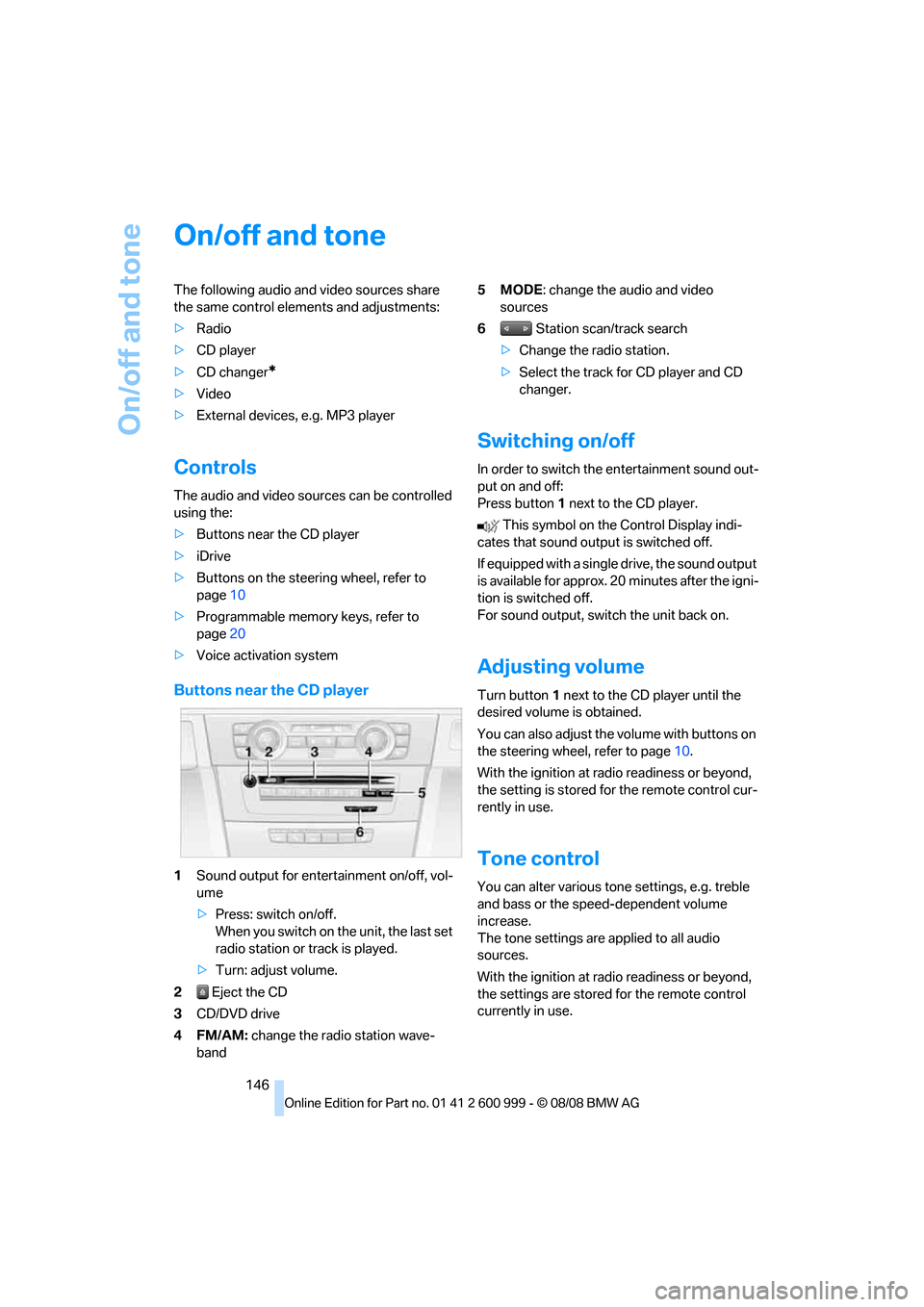
Buttons near the CD player
1Sound output for entertainment on/off, vol-
ume
>Press: switch on/off.
When you switch on the unit, the last set
radio station or track is played.
>Turn: adjust volume.
2 Eject the CD
3CD/DVD drive
4FM/AM: change the radio station wave-
band5MODE: change the audio and video
sources
6 Station scan/track search
>Change the radio station.
>Select the track for CD player and CD
changer.
Switching on/off
In order to switch the entertainment sound out-
put on and off:
Press button1 next to the CD player.
This symbol on the Control Display indi-
cates that sound output is switched off.
If equipped with a single drive, the sound output
is available for approx. 20 minutes after the igni-
tion is switched off.
For sound output, switch the unit back on.
Adjusting volume
Turn button1 next to the CD player until the
desired volume is obtained.
You can also adjust the volume with buttons on
the steering wheel, refer to page10.
With the ignition at radio readiness or beyond,
the setting is stored for the remote control cur-
rently in use.
Tone control
You can alter various tone settings, e.g. treble
and bass or the speed-dependent volume
increase.
The tone settings are applied to all audio
sources.
With the ignition at radio readiness or beyond,
the settings are stored for the remote control
currently in use.
ba8_E9293M3_cic.book Seite 146 Dienstag, 19. August 2008 12:01 12
Page 149 of 256
Navigation
Entertainment
Driving tips
147Reference
At a glance
Controls
Communications
Mobility
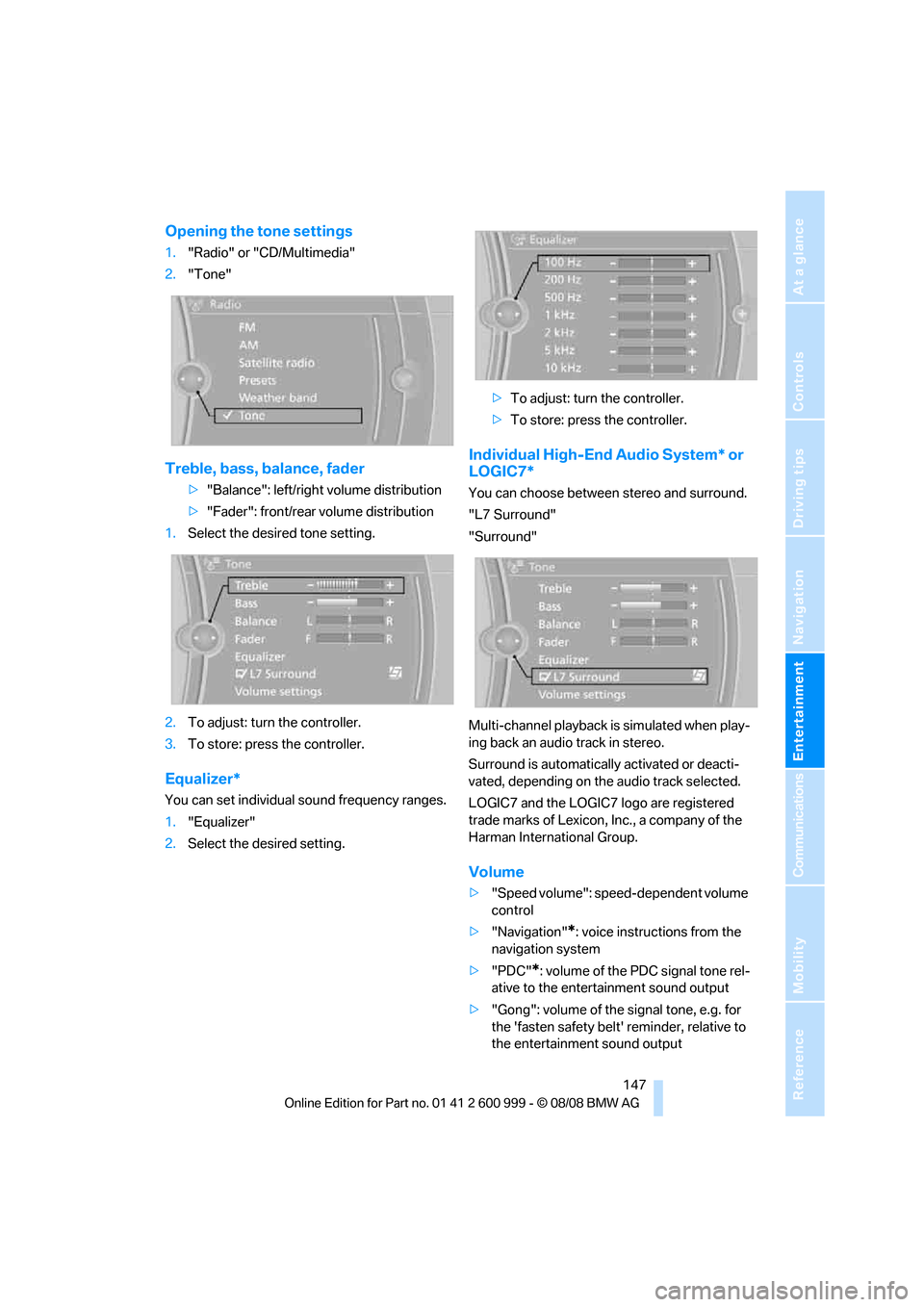
Opening the tone settings
1."Radio" or "CD/Multimedia"
2."Tone"
Treble, bass, balance, fader
>"Balance": left/right volume distribution
>"Fader": front/rear volume distribution
1.Select the desired tone setting.
2.To adjust: turn the controller.
3.To store: press the controller.
Equalizer*
You can set individual sound frequency ranges.
1."Equalizer"
2.Select the desired setting.>To adjust: turn the controller.
>To store: press the controller.
Individual High-End Audio System* or
LOGIC7*
You can choose between stereo and surround.
"L7 Surround"
"Surround"
Multi-channel playback is simulated when play-
ing back an audio track in stereo.
Surround is automatically activated or deacti-
vated, depending on the audio track selected.
LOGIC7 and the LOGIC7 logo are registered
trade marks of Lexicon, Inc., a company of the
Harman International Group.
Volume
>"Speed volume": speed-dependent volume
control
>"Navigation"
*: voice instructions from the
navigation system
>"PDC"
*: volume of the PDC signal tone rel-
ative to the entertainment sound output
>"Gong": volume of the signal tone, e.g. for
the 'fasten safety belt' reminder, relative to
the entertainment sound output
ba8_E9293M3_cic.book Seite 147 Dienstag, 19. August 2008 12:01 12
Page 151 of 256
Navigation
Entertainment
Driving tips
149Reference
At a glance
Controls
Communications
Mobility
Radio
Your radio provides reception of the FM and AM
wavebands.
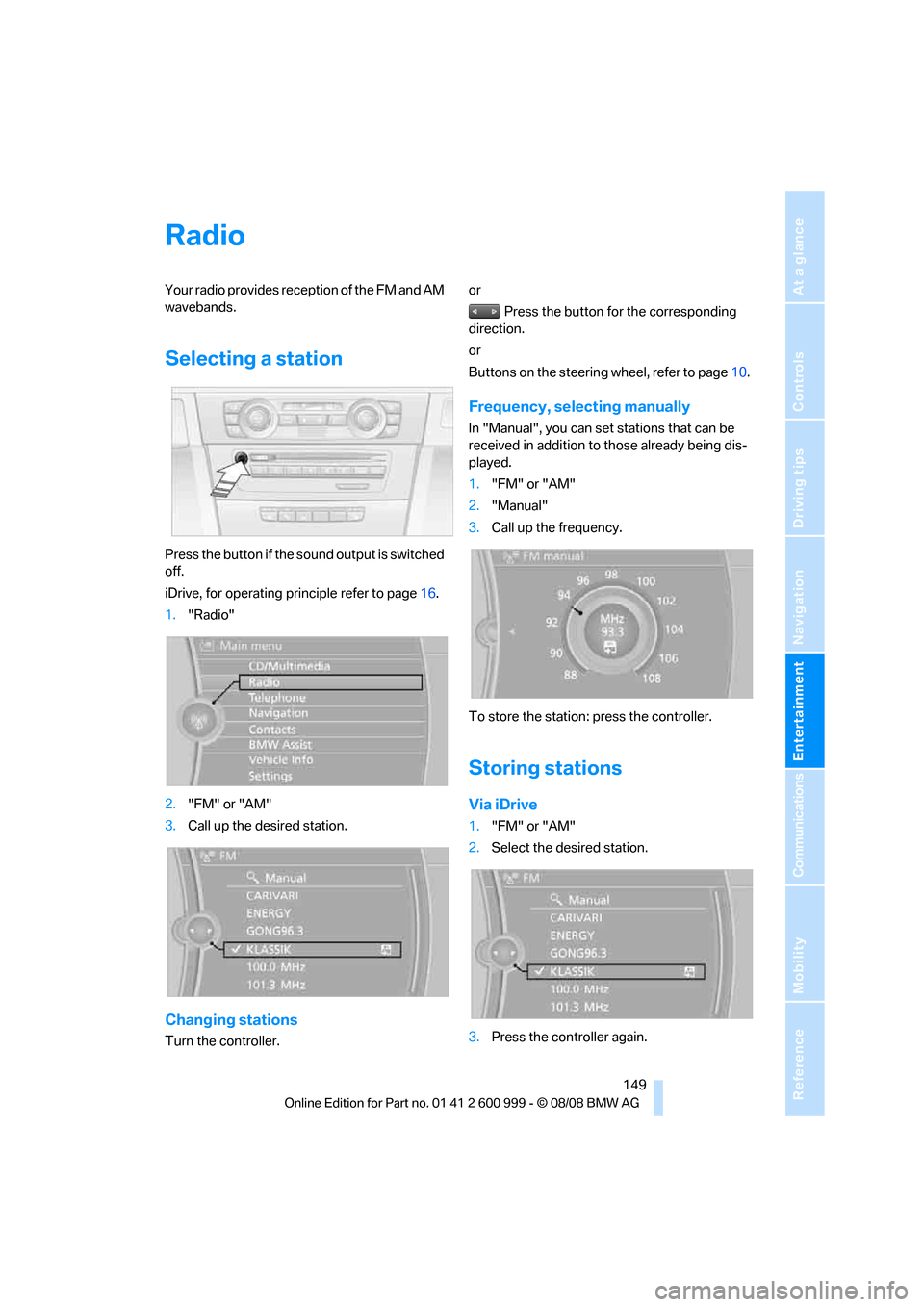
Selecting a station
Press the button if the sound output is switched
off.
iDrive, for operating principle refer to page16.
1."Radio"
2."FM" or "AM"
3.Call up the desired station.
Changing stations
Turn the controller.or
Press the button for the corresponding
direction.
or
Buttons on the steering wheel, refer to page10.
Frequency, selecting manually
In "Manual", you can set stations that can be
received in addition to those already being dis-
played.
1."FM" or "AM"
2."Manual"
3.Call up the frequency.
To store the station: press the controller.
Storing stations
Via iDrive
1."FM" or "AM"
2.Select the desired station.
3.Press the controller again.
ba8_E9293M3_cic.book Seite 149 Dienstag, 19. August 2008 12:01 12
Page 152 of 256
Radio
150 4.Select the desired memory location.
The station is stored.
The stations are stored for the remote control
currently in use.
Via programmable memory keys
You can store a station on the programmable
memory keys, refer also to page20.
1.Select a station.
2. ... Press the desired button
for a longer period.
Radio Data System RDS
On the FM waveband, additional information is
broadcast via RDS. If the reception conditions
are good, the station names are shown on the
Control Display. Where reception is poor or in
the event of interference, it may take some time
before the station names will appear in the dis-
play.
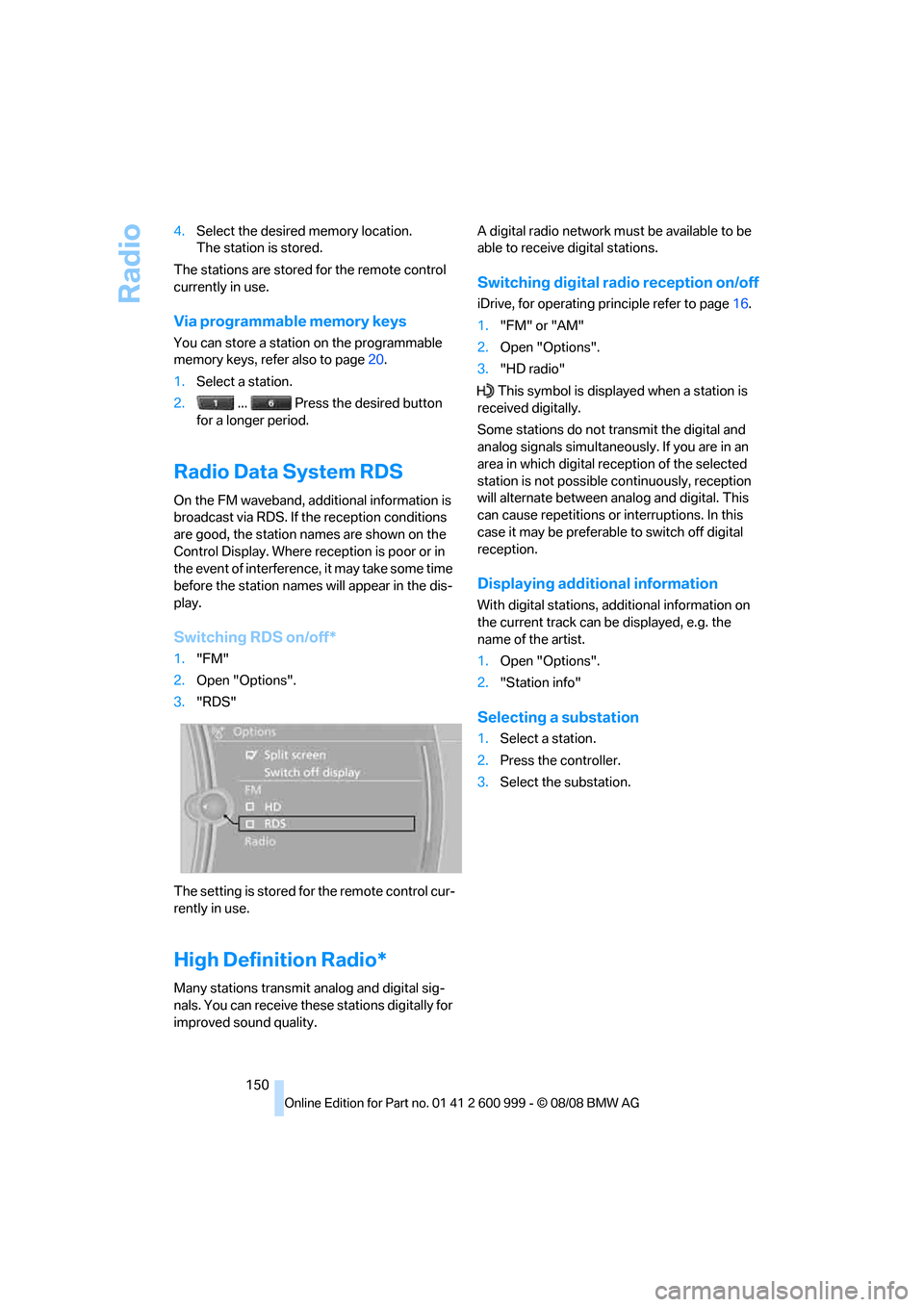
Switching RDS on/off*
1."FM"
2.Open "Options".
3."RDS"
The setting is stored for the remote control cur-
rently in use.
High Definition Radio*
Many stations transmit analog and digital sig-
nals. You can receive these stations digitally for
improved sound quality.A digital radio network must be available to be
able to receive digital stations.
Switching digital radio reception on/off
iDrive, for operating principle refer to page16.
1."FM" or "AM"
2.Open "Options".
3."HD radio"
This symbol is displayed when a station is
received digitally.
Some stations do not transmit the digital and
analog signals simultaneously. If you are in an
area in which digital reception of the selected
station is not possible continuously, reception
will alternate between analog and digital. This
can cause repetitions or interruptions. In this
case it may be preferable to switch off digital
reception.
Displaying additional information
With digital stations, additional information on
the current track can be displayed, e.g. the
name of the artist.
1.Open "Options".
2."Station info"
Selecting a substation
1.Select a station.
2.Press the controller.
3.Select the substation.
ba8_E9293M3_cic.book Seite 150 Dienstag, 19. August 2008 12:01 12
Page 154 of 256
Satellite radio
152
Satellite radio
You can receive over 100 different channels
with high sound quality.
The channels are offered to you in predefined
packages. To receive the channels of your
choice, you must have the corresponding pack-
ages enabled.
With this new technology, signal losses
can occur from time to time and result in
audio interruptions.<
Enabling or disabling
channels
Enabling the channels
iDrive, for operating principle refer to page16.
1.Ensure that reception is reliable. It is usually
at its best when you have an unobstructed
view of the sky.
2."Satellite radio"
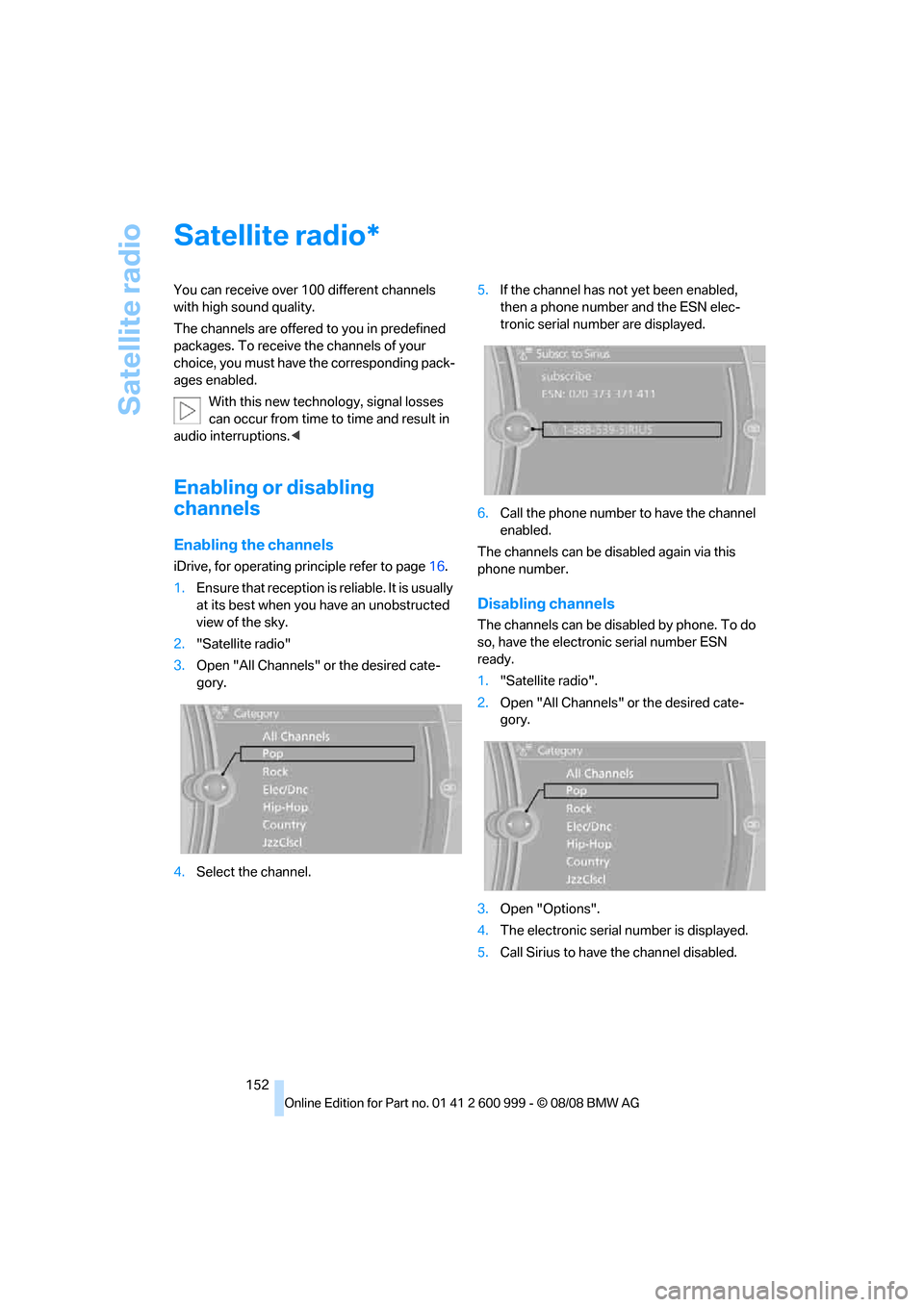
3.Open "All Channels" or the desired cate-
gory.
4.Select the channel.5.If the channel has not yet been enabled,
then a phone number and the ESN elec-
tronic serial number are displayed.
6.Call the phone number to have the channel
enabled.
The channels can be disabled again via this
phone number.
Disabling channels
The channels can be disabled by phone. To do
so, have the electronic serial number ESN
ready.
1."Satellite radio".
2.Open "All Channels" or the desired cate-
gory.
3.Open "Options".
4.The electronic serial number is displayed.
5.Call Sirius to have the channel disabled.
*
ba8_E9293M3_cic.book Seite 152 Dienstag, 19. August 2008 12:01 12