buttons BMW M3 CONVERTIBLE 2013 E93 User Guide
[x] Cancel search | Manufacturer: BMW, Model Year: 2013, Model line: M3 CONVERTIBLE, Model: BMW M3 CONVERTIBLE 2013 E93Pages: 311, PDF Size: 6.89 MB
Page 125 of 311
120
ControlsPractical interior accessories
Practical interior accessories
Vehicle equipment
In this chapter, all pr oduction, country, and
optional equipment that is offered in the model
range is described. For this reason, descrip-
tions will be given of some equipment that may
not be available in a vehi cle, for example due to
the special options or national-market version
selected. This also app lies to safety related
functions and systems.
Integrated universal remote
control
The concept
The Integrated universal remote control can be
used to operate up to 3 functions of remote-
controlled devices such as garage door open-
ers or lighting systems. The Integrated univer-
sal remote control thus replaces as many as
three different hand-held transmitters. To oper-
ate them, the buttons on the interior rearview
mirror must be programmed with the desired
functions. Programming requires the hand-held
transmitter for the respective device.
To prevent possible damage or injury,
before programming or using the inte-
grated universal remote control to operate a
device, always inspect the immediate area to
make certain that no people, animals or objects
are within the pivoting or travel range of the
device being operated.
Also follow the safety in structions supplied with
the hand-held transmitter. <
For security reasons, ma ke sure to delete the
stored functions before selling the vehicle, refer
to page 122.
Compatibility
If this symbol appears on the package
or in the instructions supplied with the
device to be operated, you can gener-
ally assume that the devi ce is compatible with
the Integrated univer sal remote control.
For additional questions, please consult:
> Your BMW center.
> www.homelink.com on the Internet.
HomeLink is a registered trademark of Johnson
Controls, Inc.
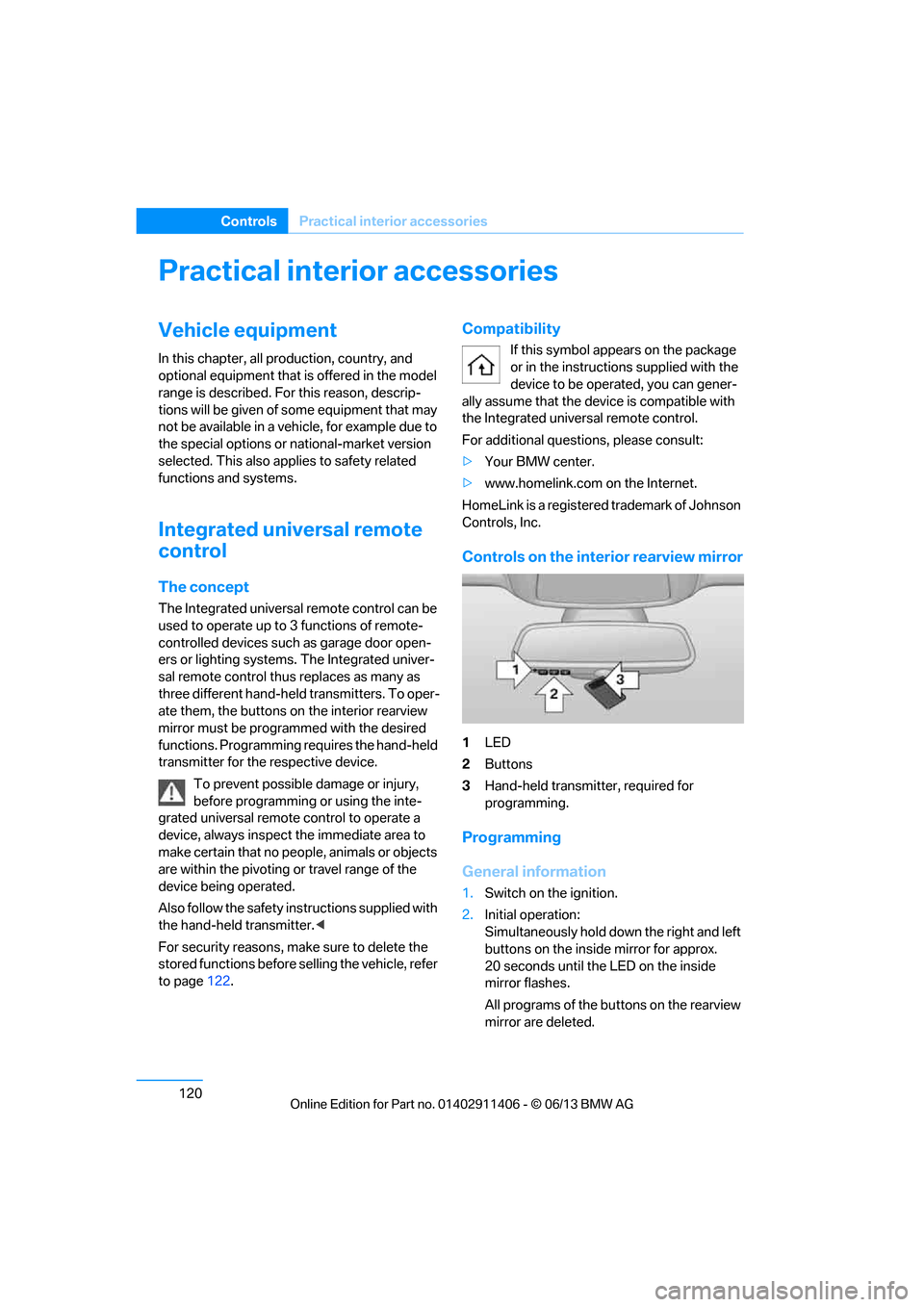
Controls on the interior rearview mirror
1 LED
2 Buttons
3 Hand-held transmitter, required for
programming.
Programming
General information
1.Switch on the ignition.
2. Initial operation:
Simultaneously hold down the right and left
buttons on the inside mirror for approx.
20 seconds until the LED on the inside
mirror flashes.
All programs of the bu ttons on the rearview
mirror are deleted.
00320051004F004C00510048000300280047004C0057004C005200510003
Page 126 of 311
121
Practical interior accessories
Controls
3.
Hold the hand-held transmitter of the
device to be controlled approx. 1 in/2.5 cm
to 3 in/8 cm away from the buttons on the
inside mirror.
The required distance depends on the
hand-held transmitter.
4. Simultaneously press and hold the button
of the desired function on the hand-held
transmitter and the button to be pro-
grammed on the inside mirror.
The LED on the inside mirror will flash
slowly at first.
5. As soon as the LED flashes rapidly, release
both buttons. The rapid flashing indicates
that the button on the inside mirror has
been programmed.
If the LED does not flash rapidly within
60 seconds, change the distance between
the inside mirror and the hand-held trans-
mitter and repeat this step. This may
require several attemp ts. Allow at least
15 seconds between attempts.
6. To program additional functions on the
other buttons of the inside mirror, repeat
steps 3 through 5.
The buttons on the inside mirror can be used to
operate the devices if the ignition is switched
on.
Special procedure with alternating-
code systems
If the device fails to func tion even after repeated
programming, check whether the device to be
controlled uses an alte rnating-code system.
To do so, either read the instructions for the
device or hold down the programmed button on
the inside mirror. If the LED on the inside mirror
flashes quickly at first and then remains lit for
2 seconds, the device uses an alternating-code
system. The LED flashes and lights up repeat-
edly for approx. 20 seconds.
In devices with an alternating-code system, the
Integrated universal re mote control and the
device must also be synchronized. For information about synchronizing can also
be found in the operating instructions for the
device to be set.
Programming will be easier with the aid of a
second person.
Synchronizing:
1.
Park your vehicle with in the range of the
remote-controlled device.
2. Program the Integrated universal remote
control as described above.
3. Locate and press the synchronization
button on the device to be set. You have
approx. 30 seconds to perform the next
step.
4. Hold down the programmed button on the
inside mirror for approx. 3 seconds and then
release it. Repeat this operation, up to three
times if necessary, to complete the syn-
chronization. If the synchronization has
succeeded, the programmed function is
performed.
Reprogramming individual buttons
1. Switch on the ignition.
2. Hold the hand-held transmitter of the
device to be controlled approx. 1 in/2.5 cm
to 3 in/8 cm away from the buttons on the
inside mirror.
The required distance depends on the
hand-held transmitter.
3. Press the desired button on the inside
mirror.
4. If the LED on the inside mirror flashes
slowly after approx. 20 seconds, press the
transmit key of the hand-held transmitter.
5. As soon as the LED flashes rapidly, release
both buttons.
If the LED does not flash rapidly after
approx. 60 seconds, alter the distance and
repeat the step.
00320051004F004C00510048000300280047004C0057004C005200510003
Page 127 of 311
122
ControlsPractical interior accessories
Canada: if the LED does not flash rapidly
after approx. 60 seconds, alter the distance
and repeat this step or, if the programming
by means of the hand-held transmitter was
interrupted, hold down the button on the
inside mirror and then press and release the
button on the hand-hel d transmitter several
times, holding it down for 2 seconds each
time.
Operation
To prevent possible damage or injury,
before programming or using the inte-
grated universal remote control to operate a
device, always inspect the immediate area to
make certain that no people, animals or objects
are within the pivoting or travel range of the
device being operated.
Also follow the safety in structions supplied with
the hand-held transmitter. <
The button on the inside mirror can be used to
operate the device, for example the garage
door, if the engine is running or the ignition is
switched on. To do so, within the reception
range of the device, press the button of the
device until the function is triggered. The LED
on the inside mirror remains lit during transmis-
sion of the radio signal.
Deleting stored functions
Simultaneously hold down the right and left
buttons on the inside mi rror for approx. 20 sec-
onds until the LED on the inside mirror flashes
rapidly. All stored functions are deleted. The
functions cannot be de leted individually.
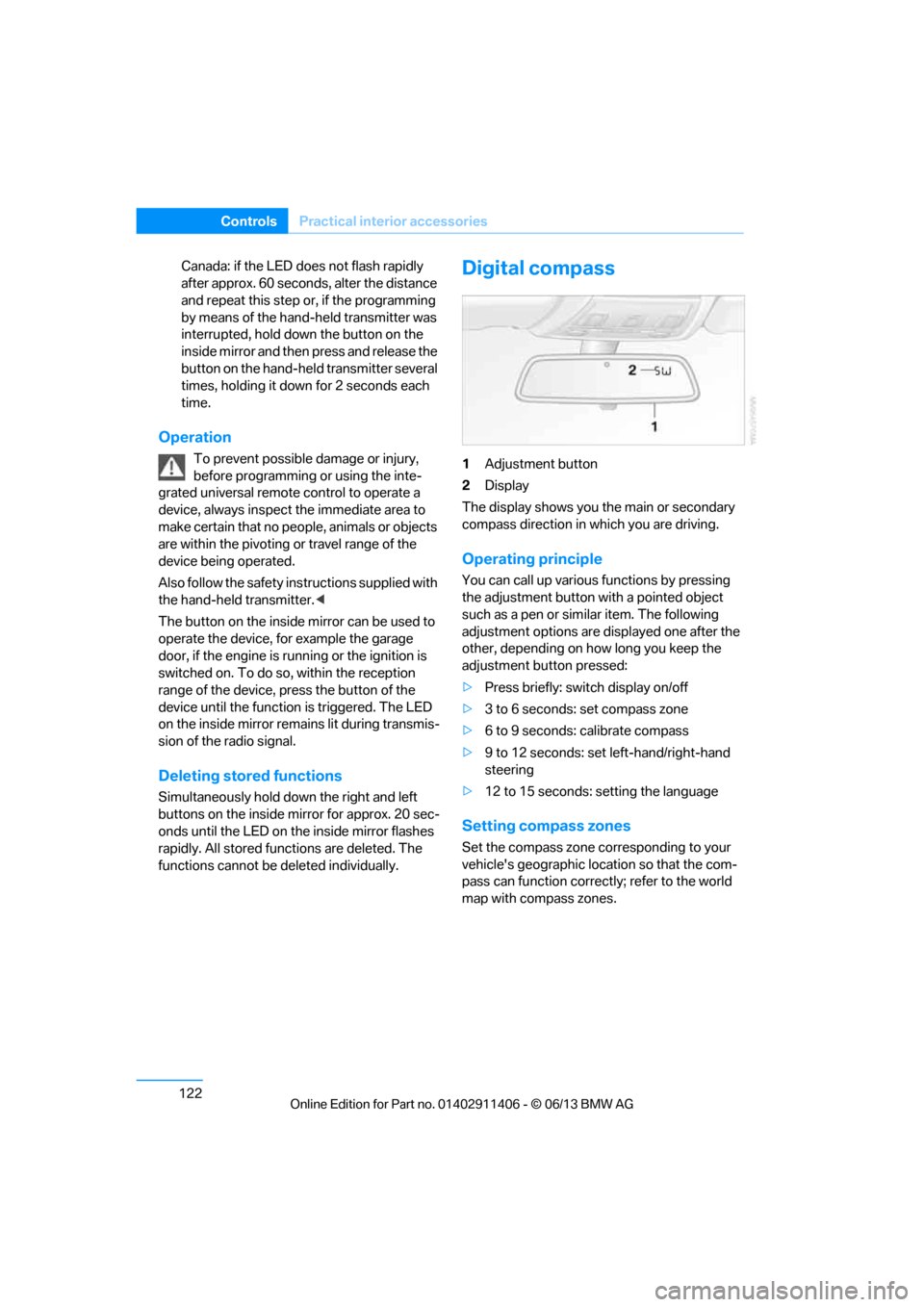
Digital compass
1Adjustment button
2 Display
The display shows you the main or secondary
compass direction in which you are driving.
Operating principle
You can call up various functions by pressing
the adjustment button with a pointed object
such as a pen or similar item. The following
adjustment options are displayed one after the
other, depending on how long you keep the
adjustment button pressed:
> Press briefly: switch display on/off
> 3 to 6 seconds: set compass zone
> 6 to 9 seconds: calibrate compass
> 9 to 12 seconds: set left-hand/right-hand
steering
> 12 to 15 seconds: setting the language
Setting compass zones
Set the compass zone corresponding to your
vehicle's geographic loca tion so that the com-
pass can function correctly; refer to the world
map with compass zones.
00320051004F004C00510048000300280047004C0057004C005200510003
Page 171 of 311
166
EntertainmentOn/off and tone
On/off and tone
Vehicle equipment
In this chapter, all pr oduction, country, and
optional equipment that is offered in the model
range is described. Equipment is also described
that is not available because of, for example,
selected options or country version. This also
applies to safety related functions and systems.
General information
The following audio and video sources share
the same control elements and adjustments:
> Radio
> CD/DVD player
> Video
> External devices, e.g. MP3 player
Controls
The audio and video sources can be controlled
using the:
>Buttons near th e CD/DVD player
> iDrive
> Buttons on the steering wheel, refer to
page 13
> Programmable memory keys, refer to
page 25
> Voice activation system
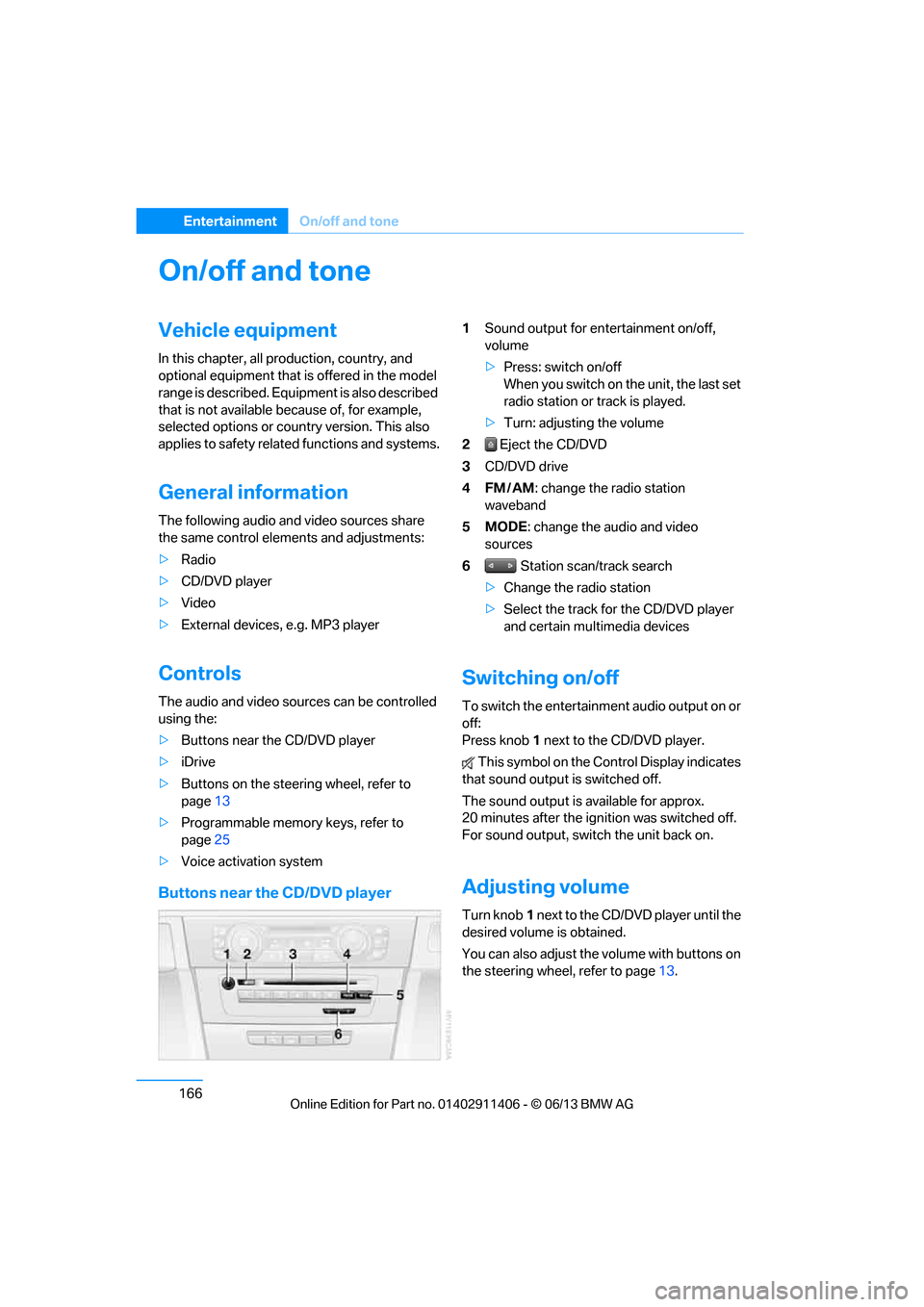
Buttons near the CD/DVD player
1Sound output for entertainment on/off,
volume
>Press: switch on/off
When you switch on the unit, the last set
radio station or track is played.
> Turn: adjusting the volume
2 Eject the CD/DVD
3 CD/DVD drive
4FM/AM : change the radio station
waveband
5MODE : change the audio and video
sources
6 Station scan/track search
> Change the radio station
> Select the track for the CD/DVD player
and certain multimedia devices
Switching on/off
To switch the entertainment audio output on or
off:
Press knob 1 next to the CD/DVD player.
This symbol on the Co ntrol Display indicates
that sound output is switched off.
The sound output is available for approx.
20 minutes after the ignition was switched off.
For sound output, switch the unit back on.
Adjusting volume
Turn knob 1 next to the CD/DVD player until the
desired volume is obtained.
You can also adjust the volume with buttons on
the steering wheel, refer to page 13.
00320051004F004C00510048000300280047004C0057004C005200510003
Page 174 of 311
169
Radio
Entertainment
Radio
Vehicle equipment
In this chapter, all production, country, and
optional equipment that is offered in the model
range is described. Equipment is also described
that is not available because of, for example,
selected options or coun
try version. This also
applies to safety related functions and systems.
General information
Your radio is designed for reception of the
following stations:
> FM and AM
> HD Radio
> Satellite radio
Selecting a station
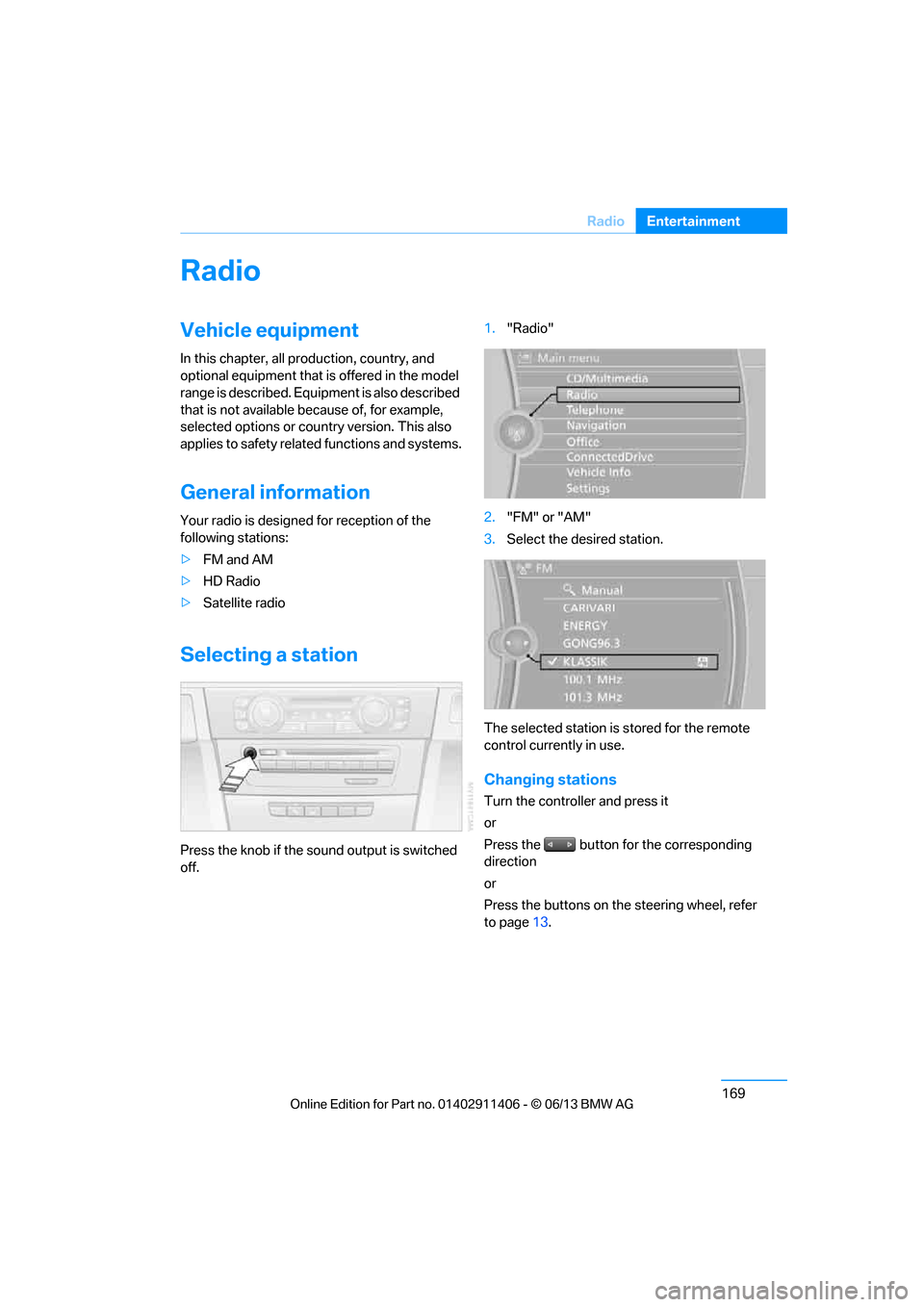
Press the knob if the sound output is switched
off. 1.
"Radio"
2. "FM" or "AM"
3. Select the desired station.
The selected station is stored for the remote
control currently in use.
Changing stations
Turn the controller and press it
or
Press the button for the corresponding
direction
or
Press the buttons on the steering wheel, refer
to page 13.
00320051004F004C00510048000300280047004C0057004C005200510003
Page 178 of 311
173
Satellite radio
Entertainment
Satellite radio
Vehicle equipment
In this chapter, all production, country, and
optional equipment that is offered in the model
range is described. Equipment is also described
that is not available because of, for example,
selected options or coun
try version. This also
applies to safety related functions and systems.
General information
The channels are offered in fixed packages.
Packages must be ac tivated by telephone.
Navigation bar
The functions of the navigation bar symbols can
also be stored on the programmable memory
buttons, refer to page 25.
Managing subscription
Clear reception is required for activating and
deactivating channels. Re ception is best when
you have an unobstructed view to the sky. The
channel name is displayed in the status line.
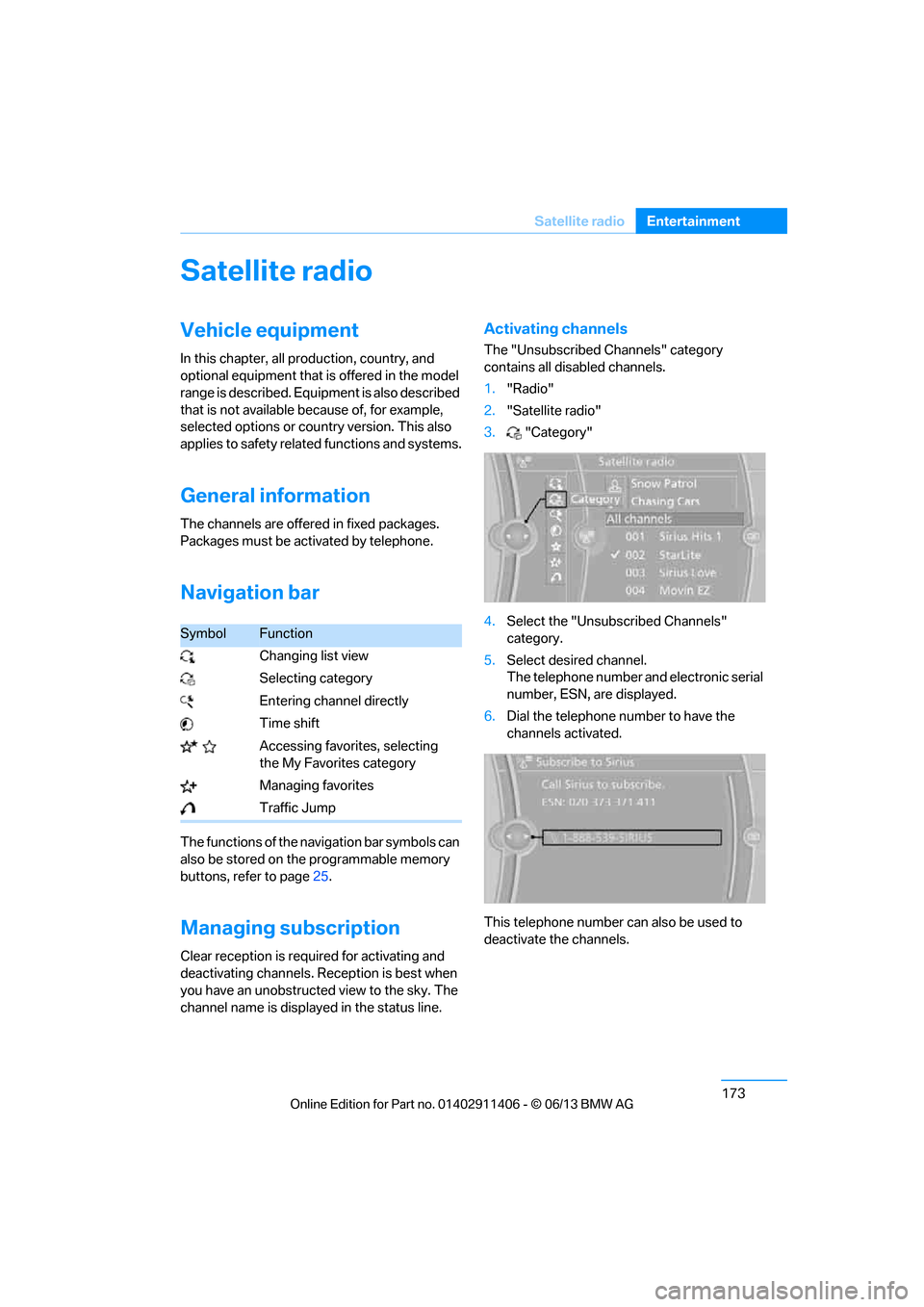
Activating channels
The "Unsubscribed Channels" category
contains all disabled channels.
1. "Radio"
2. "Satellite radio"
3. "Category"
4. Select the "Unsubscribed Channels"
category.
5. Select desired channel.
The telephone number and electronic serial
number, ESN, are displayed.
6. Dial the telephone number to have the
channels activated.
This telephone number can also be used to
deactivate the channels.
SymbolFunction
Changing list view
Selecting category
Entering channel directly
Time shift
Accessing favorites, selecting the My Favorites category
Managing favorites
Traffic Jump
00320051004F004C00510048000300280047004C0057004C005200510003
Page 205 of 311
200
CommunicationsTe l e p h o n e
Telephone
Vehicle equipment
In this chapter, all production, country, and
optional equipment that is offered in the model
range is described. Equipment is also described
that is not available because of, for example,
selected options or country version. This also
applies to safety related functions and systems.
Overview
The concept
Mobile phones or other external devices, e.g.
audio players, can be connected to the vehicle
via Bluetooth.
Bluetooth® is a registered trademark of
Bluetooth® SIG, Inc.
After being paired once, when the ignition is
switched on, these devices are automatically
detected as soon as they are present in the
vehicle and can be controlled via iDrive, by the
buttons on the steering wheel, and by voice.
Depending on whether they are functioning as a
telephone and/or as an audio source, external
devices can be used via the vehicle. The tele-
phone functions will be described below. Oper-
ation of audio functions, refer to page 192.
Up to four external devices can be paired.
It may be necessary for some functions to be
activated by the mobile phone provider or ser-
vice provider. Only make entries when traffic conditions
permit. Do not hold the mobile phone in
your hand while you are driving; use the hands-
free system instead. Otherwise, you may
endanger vehicle occupants and other road
users. <
Snap-in adapter
The snap-in adapter makes it possible:
>Accommodate the mobile phone.
> Recharge its battery.
> Connect it to an external antenna of the
vehicle.
This assures a better network connection
and constant sound quality.
Suitable mobile phones
For precise information about which mobile
phones and external devices with a Bluetooth
interface are supported by the mobile phone
preparation, go to www.bmwusa.com/
bluetooth.
Displaying vehicl e identification
number and software part number
Checking which mobile phones are supported
by the mobile phone pr eparation requires the
vehicle identification number and software part
number. The software ve rsion of the mobile
phone may also be required.
1. "Telephone"
2. Open "Options".
3. "Bluetooth® info"
4. "Display system information"
With a certain software version, these suitable
mobile phones support the vehicle functions
described below.
With other mobile phones or software versions,
malfunctions may occur.
A mobile phone that is connected to the vehicle
should not be operated via the mobile phone
keypad; otherwise, ma lfunctions may occur.
It is possible to perform a software update, refer
to page 196.
00320051004F004C00510048000300280047004C0057004C005200510003
Page 217 of 311
212
CommunicationsTe l e p h o n e
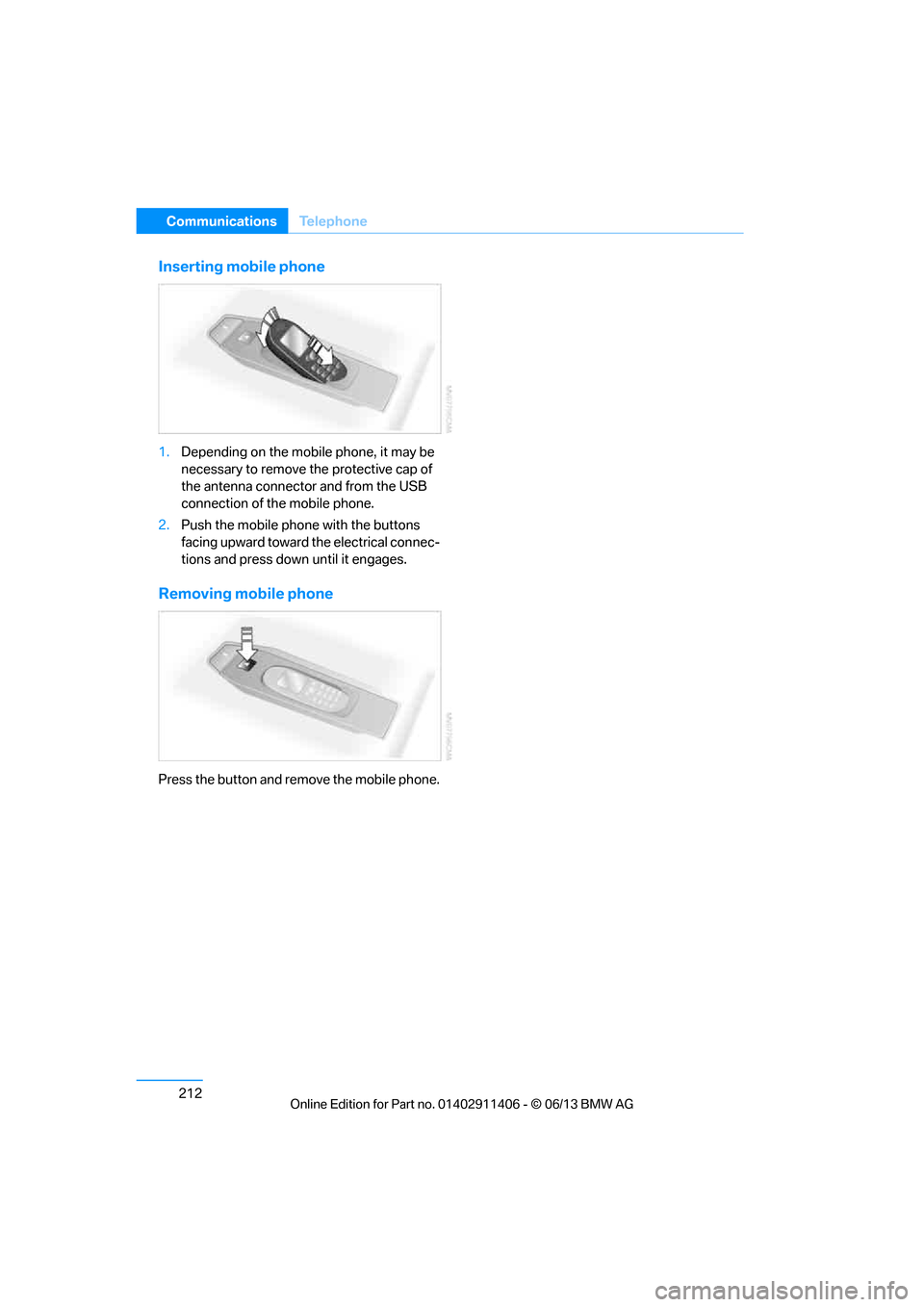
Inserting mobile phone
1.Depending on the mobile phone, it may be
necessary to remove th e protective cap of
the antenna connector and from the USB
connection of the mobile phone.
2. Push the mobile phone with the buttons
facing upward toward the electrical connec-
tions and press down until it engages.
Removing mobile phone
Press the button and remove the mobile phone.
00320051004F004C00510048000300280047004C0057004C005200510003
Page 296 of 311
291
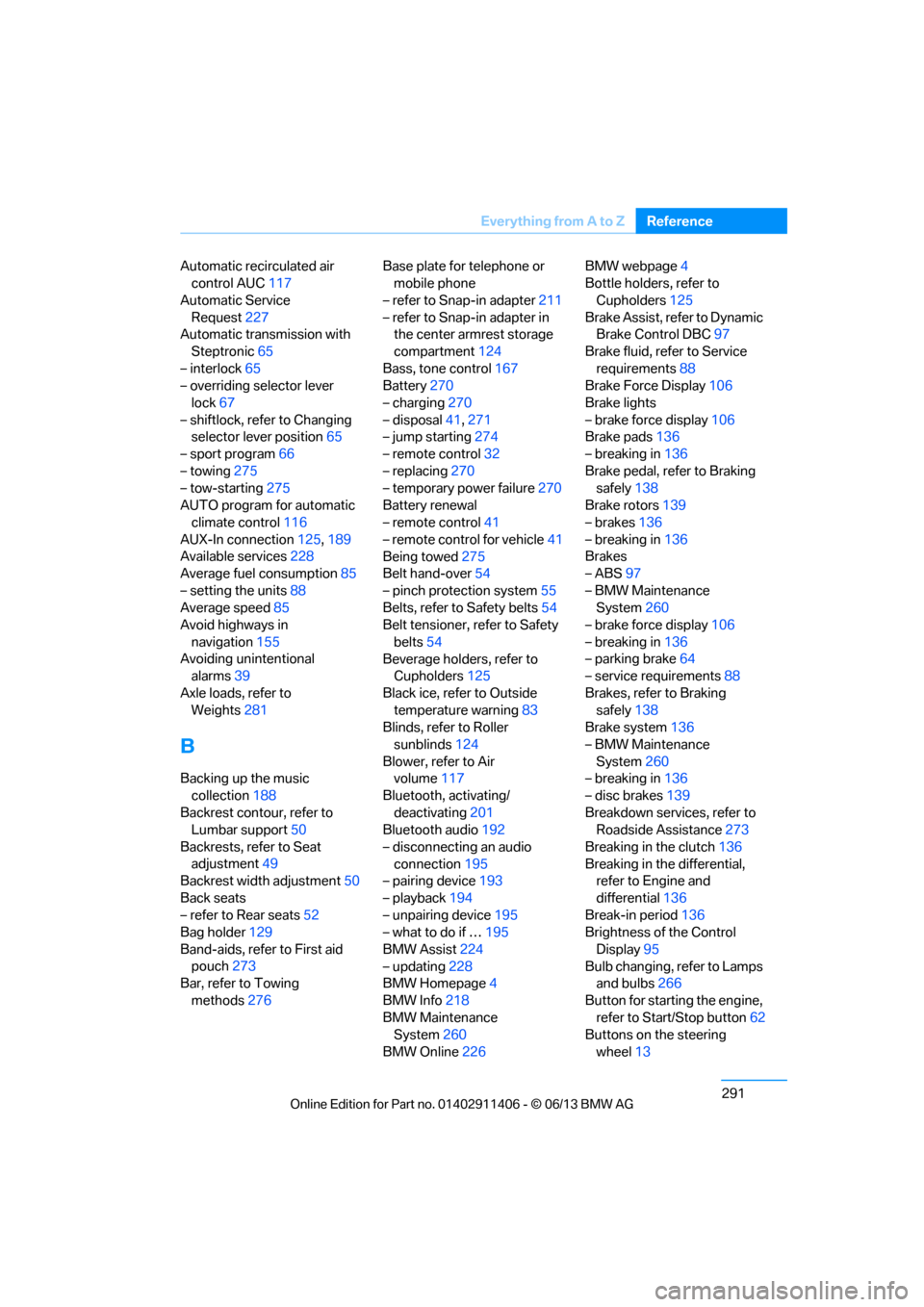
Everything from A to Z
Reference
Automatic recirculated air
control AUC 117
Automatic Service Request 227
Automatic transmission with
Steptronic 65
– interlock 65
– overriding selector lever
lock 67
– shiftlock, refer to Changing selector lever position 65
– sport program 66
– towing 275
– tow-starting 275
AUTO program for automatic climate control 116
AUX-In connection 125,189
Available services 228
Average fuel consumption 85
– setting the units 88
Average speed 85
Avoid highways in
navigation 155
Avoiding unintentional alarms 39
Axle loads, refer to Weights 281
B
Backing up the music
collection 188
Backrest contour, refer to Lumbar support 50
Backrests, refer to Seat adjustment 49
Backrest width adjustment 50
Back seats
– refer to Rear seats 52
Bag holder 129
Band-aids, refer to First aid pouch 273
Bar, refer to Towing
methods 276 Base plate for telephone or
mobile phone
– refer to Snap-in adapter 211
– refer to Snap-in adapter in the center armrest storage
compartment 124
Bass, tone control 167
Battery 270
– charging 270
– disposal 41,271
– jump starting 274
– remote control 32
– replacing 270
– temporary power failure 270
Battery renewal
– remote control 41
– remote control for vehicle 41
Being towed 275
Belt hand-over 54
– pinch protection system 55
Belts, refer to Safety belts 54
Belt tensioner, refer to Safety
belts 54
Beverage holders, refer to Cupholders 125
Black ice, refer to Outside temperature warning 83
Blinds, refer to Roller
sunblinds 124
Blower, refer to Air volume 117
Bluetooth, activating/ deactivating 201
Bluetooth audio 192
– disconnecting an audio connection 195
– pairing device 193
– playback 194
– unpairing device 195
– what to do if … 195
BMW Assist 224
– updating 228
BMW Homepage 4
BMW Info 218
BMW Maintenance
System 260
BM
W Online 226 BMW webpage
4
Bottle holders, refer to
Cupholders 125
Brake Assist, refer to Dynamic Brake Control DBC 97
Brake fluid, refer to Service requirements 88
Brake Force Display 106
Brake lights
– brake force display 106
Brake pads 136
– breaking in 136
Brake pedal, refer to Braking safely 138
Brake rotors 139
– brakes 136
– breaking in 136
Brakes
– ABS 97
– BMW Maintenance System 260
– brake force display 106
– breaking in 136
– parking brake 64
– service requirements 88
Brakes, refer to Braking safely 138
Brake system 136
– BMW Maintenance System 260
– breaking in 136
– disc brakes 139
Breakdown services, refer to Roadside Assistance 273
Breaking in the clutch 136
Breaking in the differential, refer to Engine and
differential 136
Break-in period 136
Brightness of the Control
Display 95
Bulb changing, refer to Lamps and bulbs 266
Button for starting the engine, refer to Start/Stop button 62
Buttons on the steering
wheel 13
00320051004F004C00510048000300280047004C0057004C005200510003
Page 299 of 311
294
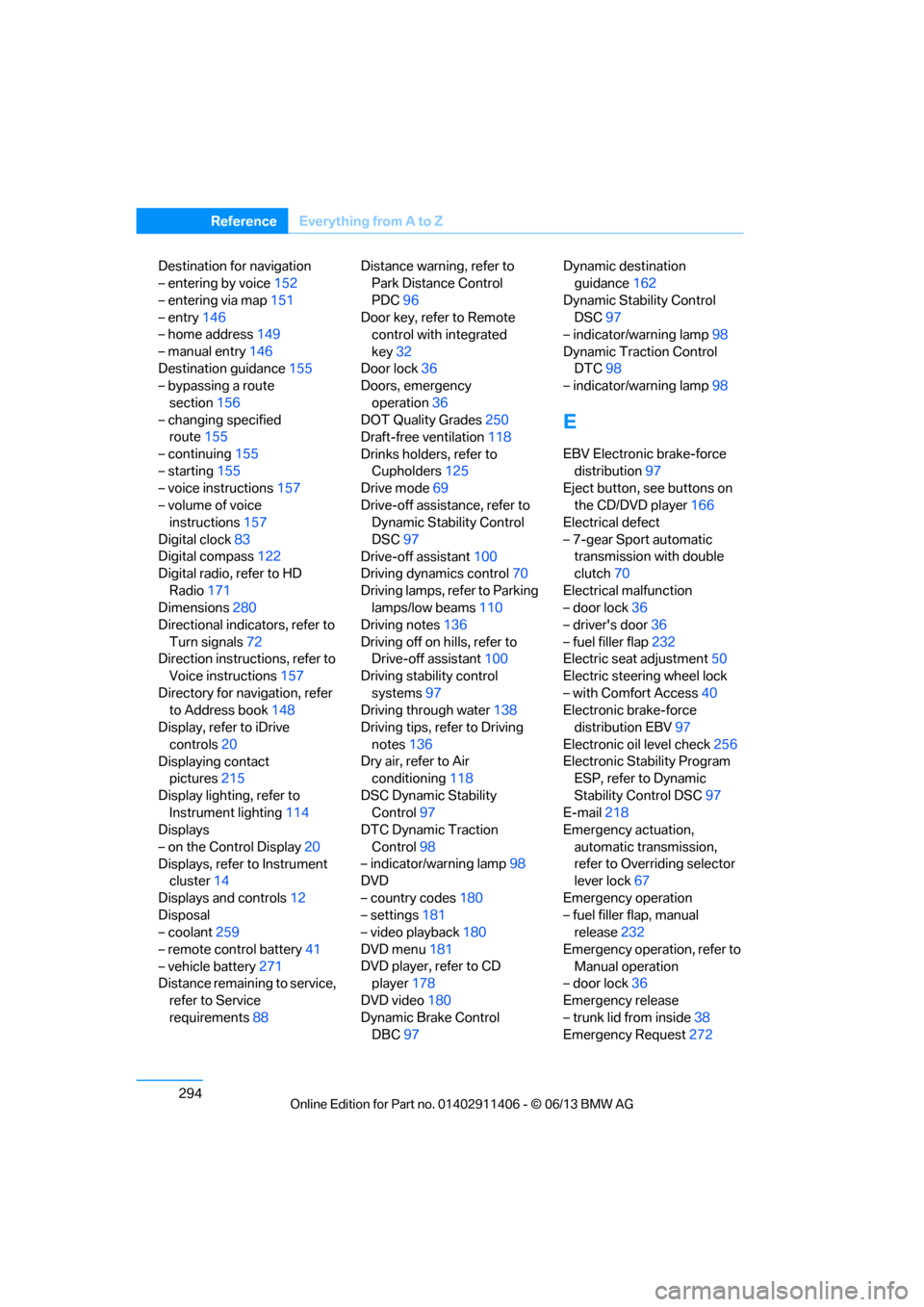
ReferenceEverything from A to Z
Destination for navigation
– entering by voice 152
– entering via map 151
– entry 146
– home address 149
– manual entry 146
Destination guidance 155
– bypassing a route
section 156
– changing specified route 155
– continuing 155
– starting 155
– voice instructions 157
– volume of voice instructions 157
Digital clock 83
Digital compass 122
Digital radio, refer to HD
Radio 171
Dimensions 280
Directional indicators, refer to
Turn signals 72
Direction instructions, refer to Voice instructions 157
Directory for navigation, refer to Address book 148
Display, refer to iDrive
controls 20
Displaying contact pictures 215
Display lighting, refer to Instrument lighting 114
Displays
– on the Control Display 20
Displays, refer to Instrument cluster 14
Displays and controls 12
Disposal
– coolant 259
– remote control battery 41
– vehicle battery 271
Distance remaining to service,
refer to Service
requirements 88 Distance warning, refer to
Park Distance Control
PDC 96
Door key, refer to Remote control with integrated
key 32
Door lock 36
Doors, emergency
operation 36
DOT Quality Grades 250
Draft-free ventilation 118
Drinks holders, refer to Cupholders 125
Drive mode 69
Drive-off assistance, refer to Dynamic Stability Control
DSC 97
Drive-off assistant 100
Driving dynamics control 70
Driving lamps, ref e
r to Parking
lamps/low beams 110
Driving notes 136
Driving off on hills, refer to Drive-off assistant 100
Driving stability control
systems 97
Driving through water 138
Driving tips, refer to Driving
notes 136
Dry air, refer to Air conditioning 118
DSC Dynamic Stability Control 97
DTC Dynamic Traction
Control 98
– indicator/warning lamp 98
DVD
– country codes 180
– settings 181
– video playback 180
DVD menu 181
DVD player, refer to CD player 178
DVD video 180
Dynamic Brake Control DBC 97 Dynamic destination
guidance 162
Dynamic Stability Control DSC 97
– indicator/warning lamp 98
Dynamic Traction Control DTC 98
– indicator/warning lamp 98
E
EBV Electronic brake-force
distribution 97
Eject button, see buttons on
the CD/DVD player 166
Electrical defect
– 7-gear Sport automatic transmission with double
clutch 70
Electrical malfunction
– door lock 36
– driver's door 36
– fuel filler flap 232
Electric seat adjustment 50
Electric steering wheel lock
– with Comfort Access 40
Electronic brake-force distribution EBV 97
Electronic oil level check 256
Electronic Stability Program ESP, refer to Dynamic
Stability Control DSC 97
E-mail 218
Emergency actuation,
automatic transmission,
refer to Overriding selector
lever lock 67
Emergency operation
– fuel filler flap, manual release 232
Emergency operation, refer to Manual operation
– door lock 36
Emergency release
– trunk lid from inside 38
Emergency Request 272
00320051004F004C00510048000300280047004C0057004C005200510003