ESP BMW M3 CONVERTIBLE 2013 E93 Workshop Manual
[x] Cancel search | Manufacturer: BMW, Model Year: 2013, Model line: M3 CONVERTIBLE, Model: BMW M3 CONVERTIBLE 2013 E93Pages: 311, PDF Size: 6.89 MB
Page 145 of 311
140
Driving tipsThings to remember when driving
1,400 lbs and there will be five 150-lb
passengers in your vehicle, the amount of
available cargo and lugga ge load capacity is
650 lbs:
1,400 lbs minus 750 lbs = 650 lbs.
5. Determine the combined weight of luggage
and cargo being loaded on the vehicle. That
weight may not safely exceed the available
cargo and luggage load capacity calculated
in step 4.
6. If your vehicle will be towing a trailer, part of
the load from your tra iler will be transferred
to your vehicle. Co nsult the manual for
transporting a trailer to determine how this
may reduce the available cargo and luggage
load capacity of your vehicle.
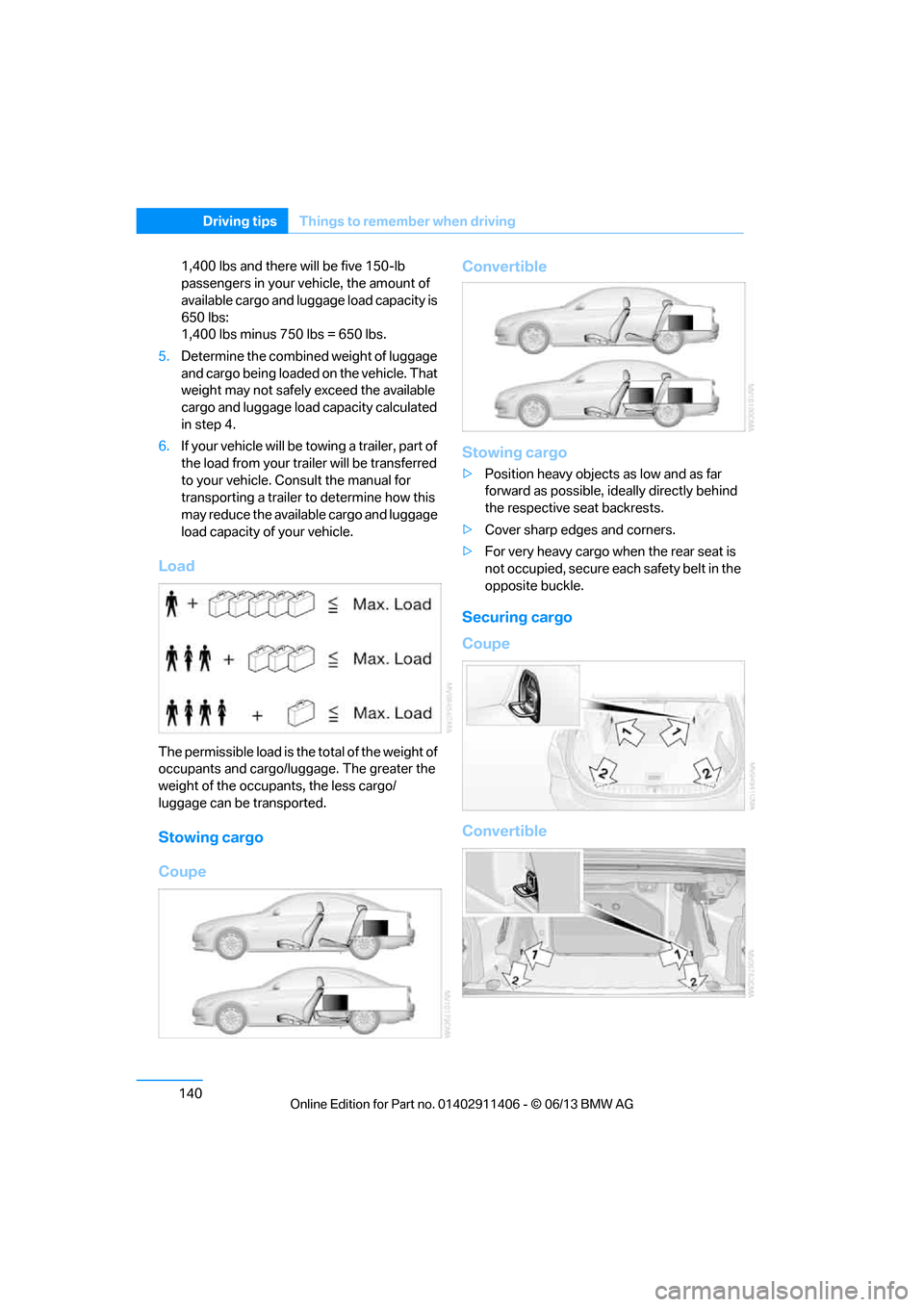
Load
The permissible load is the total of the weight of
occupants and cargo/luggage. The greater the
weight of the occupants, the less cargo/
luggage can be transported.
Stowing cargo
Coupe Convertible
Stowing cargo
>
Position heavy objects as low and as far
forward as possible, ideally directly behind
the respective seat backrests.
> Cover sharp edges and corners.
> For very heavy cargo when the rear seat is
not occupied, secure each safety belt in the
opposite buckle.
Securing cargo
Coupe
Convertible
00320051004F004C00510048000300280047004C0057004C005200510003
Page 146 of 311
141
Things to remember when driving
Driving tips
Securing cargo
>
Secure smaller and lighter items using
retaining straps, a trunk net, or draw straps.
> Heavy-duty cargo straps for securing larger
and heavier objects are available at your
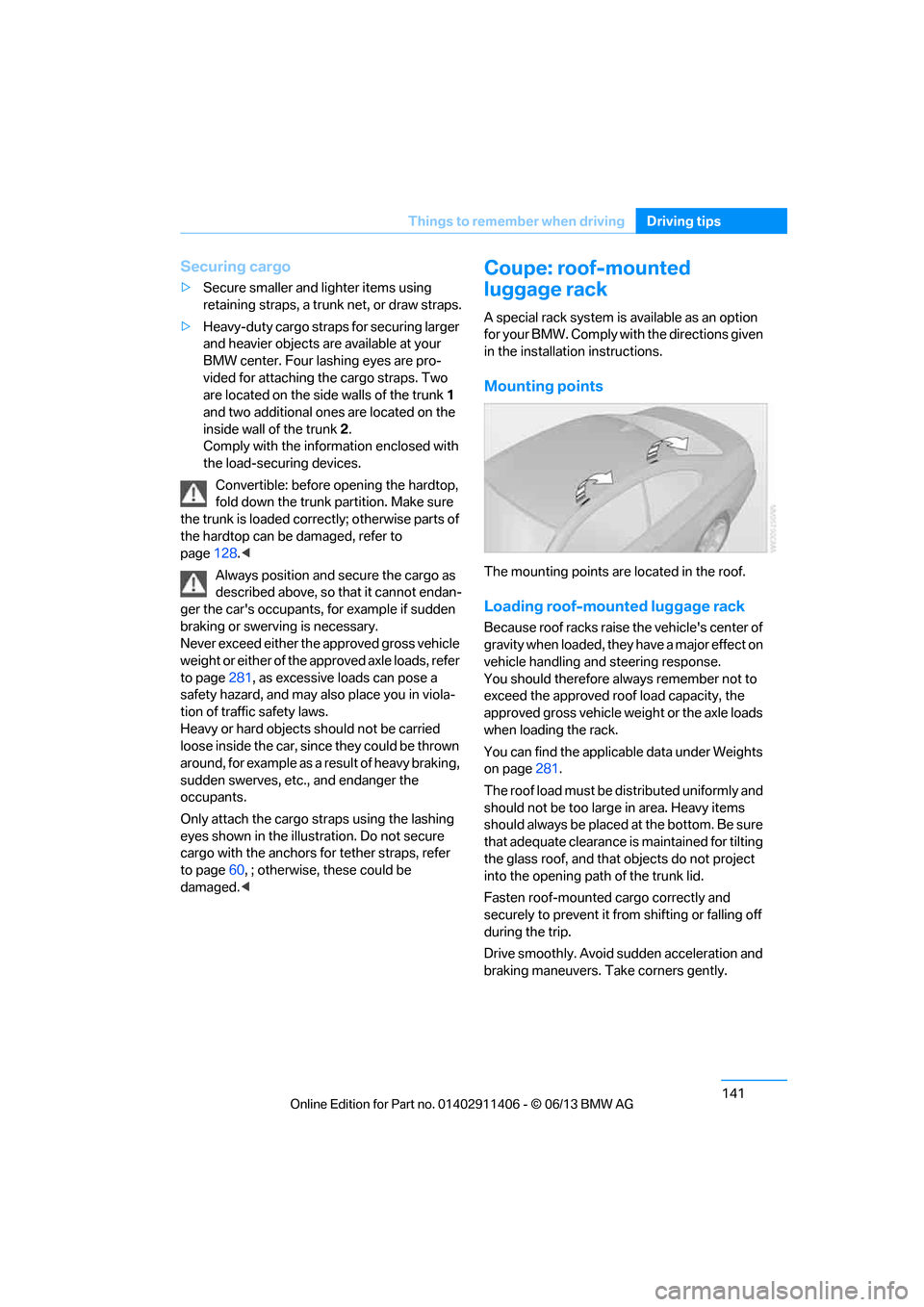
BMW center. Four lashing eyes are pro-
vided for attaching the cargo straps. Two
are located on the side walls of the trunk 1
and two additional ones are located on the
inside wall of the trunk 2.
Comply with the information enclosed with
the load-securing devices.
Convertible: before opening the hardtop,
fold down the trunk pa rtition. Make sure
the trunk is loaded corre ctly; otherwise parts of
the hardtop can be damaged, refer to
page 128.<
Always position and secure the cargo as
described above, so that it cannot endan-
ger the car's occupants, for example if sudden
braking or swerving is necessary.
Never exceed either the approved gross vehicle
weight or either of the approved axle loads, refer
to page 281, as excessive loads can pose a
safety hazard, and may also place you in viola-
tion of traffic safety laws.
Heavy or hard objects should not be carried
loose inside the car, sinc e they could be thrown
around, for example as a result of heavy braking,
sudden swerves, etc., and endanger the
occupants.
Only attach the cargo st raps using the lashing
eyes shown in the illust ration. Do not secure
cargo with the anchors fo r tether straps, refer
to page 60, ; otherwise, these could be
damaged. <
Coupe: roof-mounted
luggage rack
A special rack system is available as an option
f o r y o u r B M W . C o m p l y w i t h t h e d i r e c t i o n s g i v e n
in the installation instructions.
Mounting points
The mounting points are located in the roof.
Loading roof-mounted luggage rack
Because roof racks raise the vehicle's center of
gravity when loaded, they have a major effect on
vehicle handling and steering response.
You should therefore always remember not to
exceed the approved roof load capacity, the
approved gross vehicle we ight or the axle loads
when loading the rack.
You can find the applicable data under Weights
on page 281.
The roof load must be distributed uniformly and
should not be too larg e in area. Heavy items
should always be placed at the bottom. Be sure
that adequate clearance is maintained for tilting
the glass roof, and that objects do not project
into the opening path of the trunk lid.
Fasten roof-mounted cargo correctly and
securely to prevent it fr om shifting or falling off
during the trip.
Drive smoothly. Avoid sudden acceleration and
braking maneuvers. Take corners gently.
00320051004F004C00510048000300280047004C0057004C005200510003
Page 152 of 311
147
Destination entry
Navigation
2.
Select letters, if necessary.
The list is reduced in steps with each entry.
To delete letters:
> To delete individual letters:
Turn the controller to select , and
then press the controller.
> To delete all letters:
Turn the controller to select , and
then press the controller for an extended
period.
To enter spaces:
> Select the symbol.
The list gradually grow s smaller each time
you enter a new letter.
3. Move the controller to the right.
4. Select the name of the town/city from the
list.
If there are several town s/cities with the same
name:
1. Change to the list of town/city names.
2. Highlight the town/city.
3. Select the town/city.
Entering the postal code
1.Select "Town/City/Postal Code" or the
displayed town/city.
2. Select the symbol.
3. Select the digits.
4. Change to the list of postal codes and
towns/cities.
5. Highlight the entry.
6. Select an entry.
Entering street and intersection
1.Select "Street" or displayed street.
2. Enter the street and cross-street the same
way you entered the town/city.
After you enter the street, you can also enter
the cross street or the house number. If there are several streets with the same name:
1.
Change to the list of street names.
2. Highlight street.
3. Select the street.
Alternative: entering street and house
number
1.Select "Street" or displayed street.
2. Enter the street the same way you entered
the town/city.
3. "House number"
4. Select the digits.
5. Change to the list of house numbers.
6. Select a house number or range of house
numbers.
No such street at the destination
The desired street is not in the entered town/
city because it belongs to another district of the
town/city.
1."Navigation"
2. "Enter address"
3. Select "Street" or displayed street.
4. Change to the list of street names.
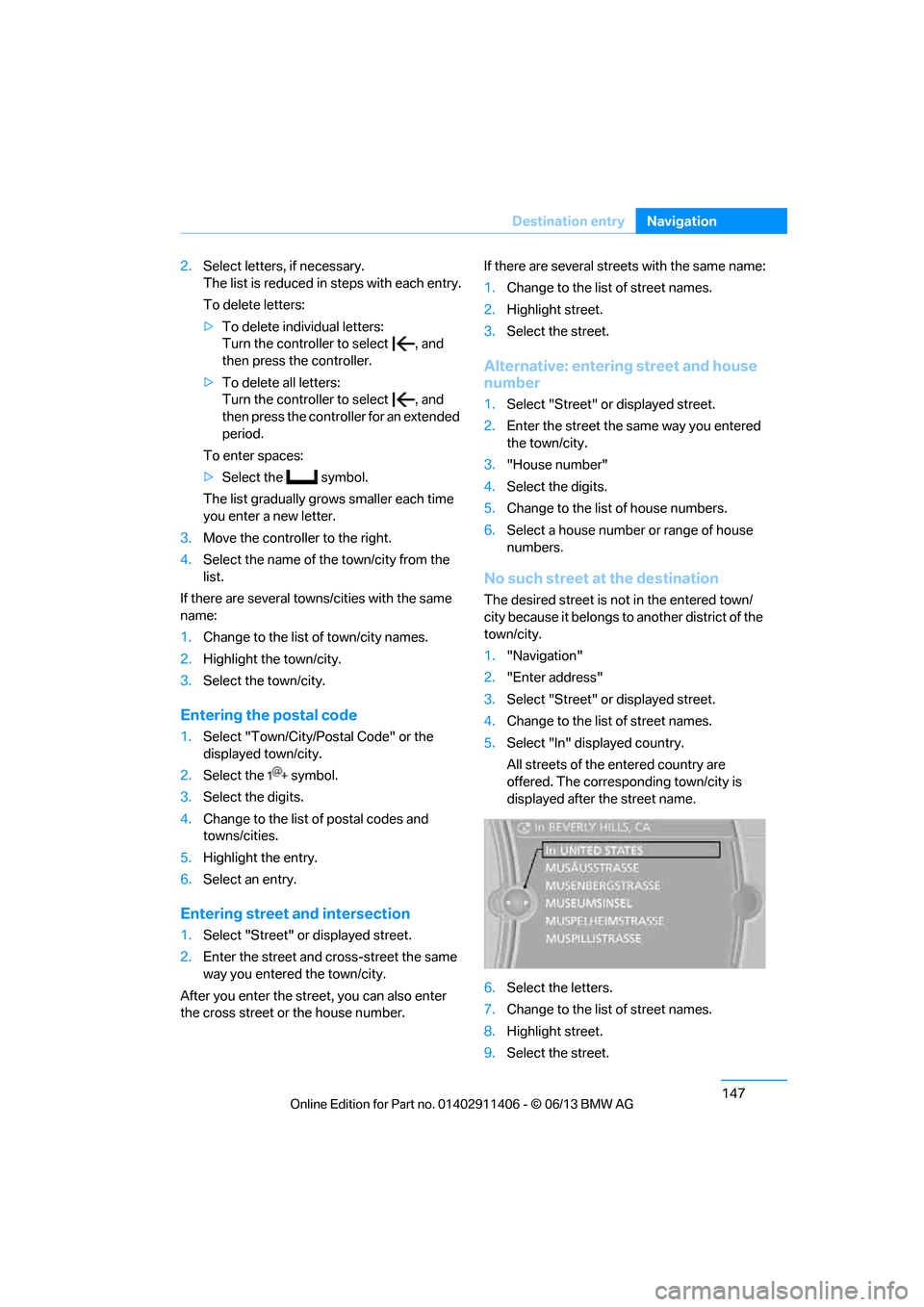
5. Select "In" displayed country.
All streets of the entered country are
offered. The corresponding town/city is
displayed after the street name.
6. Select the letters.
7. Change to the list of street names.
8. Highlight street.
9. Select the street.
00320051004F004C00510048000300280047004C0057004C005200510003
Page 165 of 311
160
NavigationDestination guidance
violation of this directive and/or (c) any unautho-
rized or unlawful activiti es by you in connection
herewith.
B. Total Traffic Network traffic data is informa-
tional only. User assumes all risk of use. Total
Traffic Network, BMW NA, and their suppliers
make no representations about content, traffic
and road conditions, route usability, or speed.
C. The licensed material is provided to license
"as is," and "where is". Total Traffic Network,
including, but not limited to, any and all third
party providers of any of the licensed material,
expressly disclaims, to the fullest extent permit-
ted by law, all warranti es or representations
with respect to the licen sed material (including,
without limitation, that the licensed material will
be error-free, will operate without interruption
or that the traffic data w ill be accurate), express,
implied or statutory, including, without limita-
tion, the implied warranties of merchantability,
non-infringement fitnes s for a particular pur-
pose, or those arising from a course of dealing
or usage of trade.
D. Neither Total Traffic Network, Inrix, Inc. nor
BMW NA will be liable to you for any indirect,
special, consequential, exemplary, or incidental
damages (including, without limitation, lost rev-
enues, anticipated revenues, or profits relating
to the same) arising from any claim relating
directly or indirectly to use of the traffic data,
and even if Total Traffic Network, Inrix, Inc., or
BMW NA are aware of the possibility of such
damages. These limitations apply to all claims,
including, without limitation, claims in contract
and tort (such as negligence, product liability
and strict liability). Some states do not allow the
exclusion or limitation of incidental or conse-
quential damages, so those particular limita-
tions may not apply to you.
Activating/deactivating reception
1. "Navigation"
2. Open "Options".
3. "Receive Traffic Info"
Accessing traffic bulletins
1."Navigation"
2. "Map"
3. "Traffic Info"
First, the traffic bulletins for the calculated
route are displayed.
The traffic bulletins are sorted in the order
of their distance from the current vehicle
position.
4. Select a traffic bulletin.
"More information":
Display additional information.
5. Scroll to the next or previous traffic bulletin
if desired.
Traffic bulletins on the map
"Traffic conditions/gray map" active: the Con-
trol Display changes to a grayscale display. This
enables a better view of the traffic bulletins. The
day/night mode is disregarded in this setting.
Symbols or special destinations are no longer
displayed.
1. "Navigation"
2. "Map"
3. Open "Options".
4. "Settings"
5. "Traffic conditions/gray map"
Symbols in the map view
Depending on the scale of the map and the
location of the traffi c obstruction along the
route, the symbols for th e traffic obstructions
are displayed.
00320051004F004C00510048000300280047004C0057004C005200510003
Page 166 of 311
161
Destination guidance
Navigation
Additional information in the map view
Depending on the map scale, a traffic obstruc-
tion's length, direction
and impact are displayed
on the map using triangles or gray bars along
the calculated route.
> Red: traffic congestion
> Orange: stop-and-go traffic
> Yellow: heavy traffic
> Green: clear roads
> Gray: general traffic information, e.g.
construction zone
The bulletins displayed depend in the respec-
tive traffic information service.
Filtering traffic bulletins
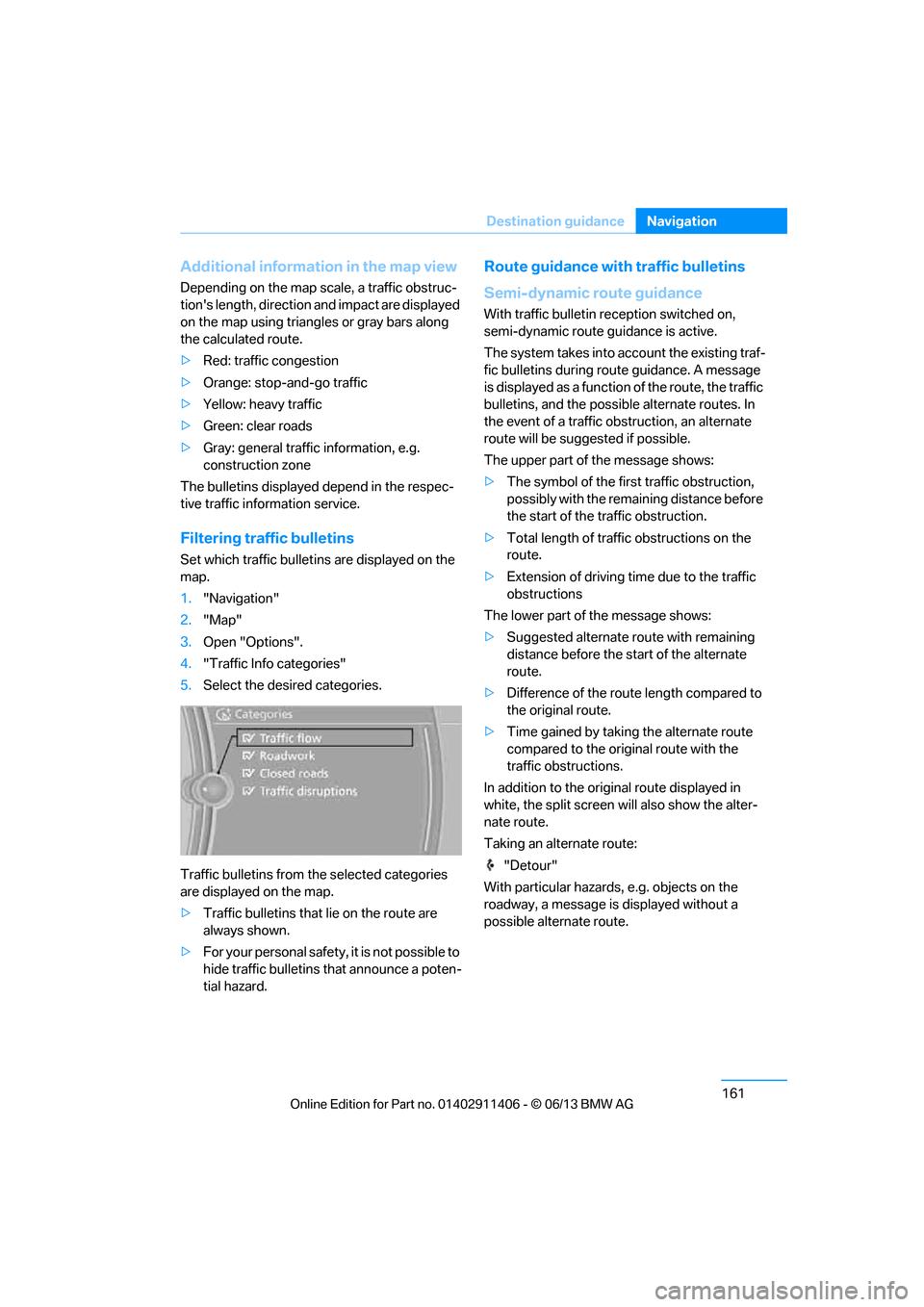
Set which traffic bulletins are displayed on the
map.
1. "Navigation"
2. "Map"
3. Open "Options".
4. "Traffic Info categories"
5. Select the desired categories.
Traffic bulletins from th e selected categories
are displayed on the map.
> Traffic bulletins that lie on the route are
always shown.
> For your personal safety, it is not possible to
hide traffic bulletins that announce a poten-
tial hazard.
Route guidance with traffic bulletins
Semi-dynamic route guidance
With traffic bulletin re ception switched on,
semi-dynamic route guidance is active.
The system takes into ac count the existing traf-
fic bulletins during route guidance. A message
is displayed as a function of the route, the traffic
bulletins, and the possible alternate routes. In
the event of a traffic obstruction, an alternate
route will be suggested if possible.
The upper part of the message shows:
> The symbol of the first traffic obstruction,
possibly with the remaining distance before
the start of the traffic obstruction.
> Total length of traffic obstructions on the
route.
> Extension of driving ti me due to the traffic
obstructions
The lower part of the message shows:
> Suggested alternate route with remaining
distance before the st art of the alternate
route.
> Difference of the route length compared to
the original route.
> Time gained by taking the alternate route
compared to the original route with the
traffic obstructions.
In addition to the original route displayed in
white, the split screen will also show the alter-
nate route.
Taking an alternate route:
"Detour"
With particular hazards, e.g. objects on the
roadway, a message is displayed without a
possible alternate route.
00320051004F004C00510048000300280047004C0057004C005200510003
Page 174 of 311
169
Radio
Entertainment
Radio
Vehicle equipment
In this chapter, all production, country, and
optional equipment that is offered in the model
range is described. Equipment is also described
that is not available because of, for example,
selected options or coun
try version. This also
applies to safety related functions and systems.
General information
Your radio is designed for reception of the
following stations:
> FM and AM
> HD Radio
> Satellite radio
Selecting a station
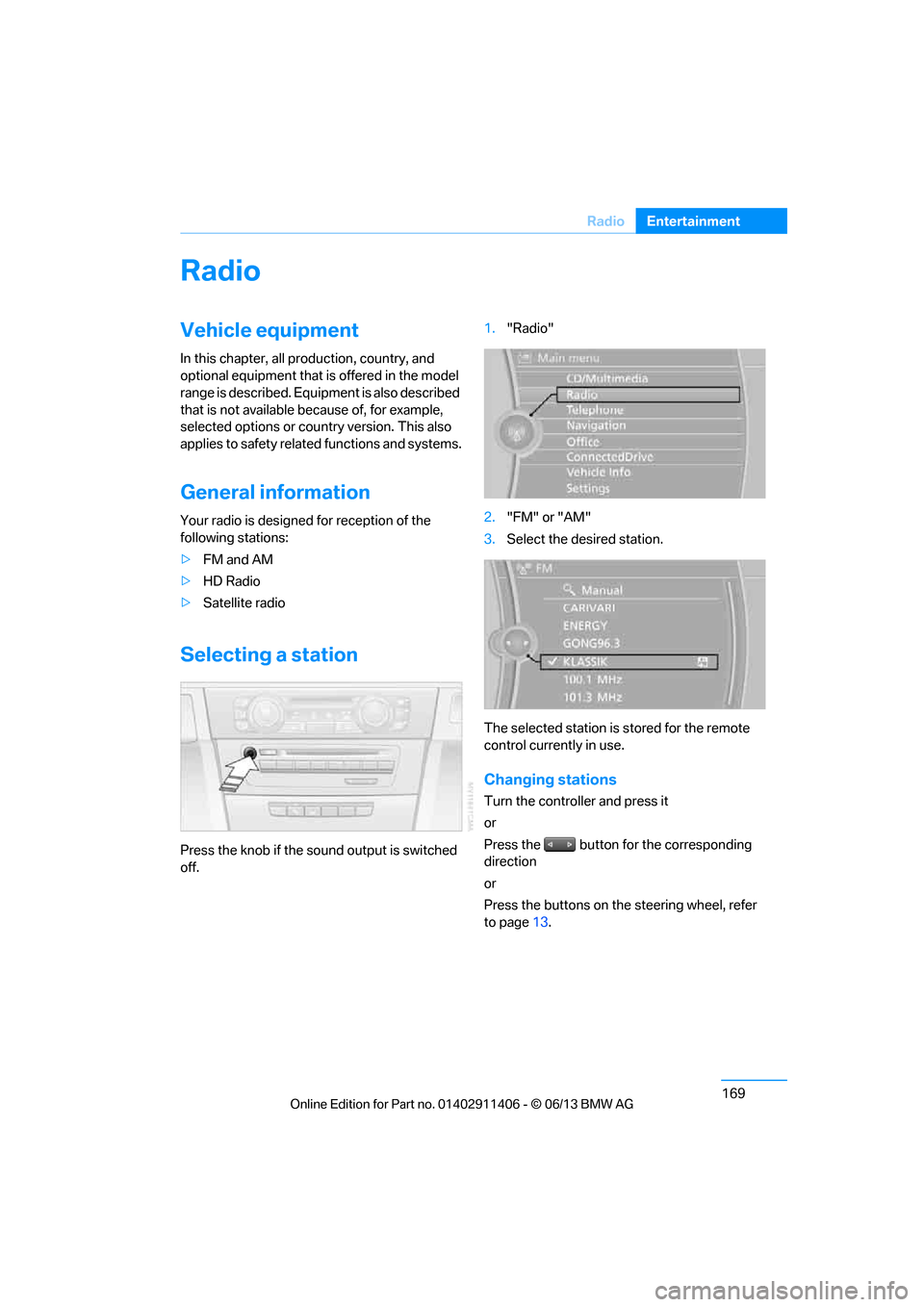
Press the knob if the sound output is switched
off. 1.
"Radio"
2. "FM" or "AM"
3. Select the desired station.
The selected station is stored for the remote
control currently in use.
Changing stations
Turn the controller and press it
or
Press the button for the corresponding
direction
or
Press the buttons on the steering wheel, refer
to page 13.
00320051004F004C00510048000300280047004C0057004C005200510003
Page 179 of 311
174
EntertainmentSatellite radio
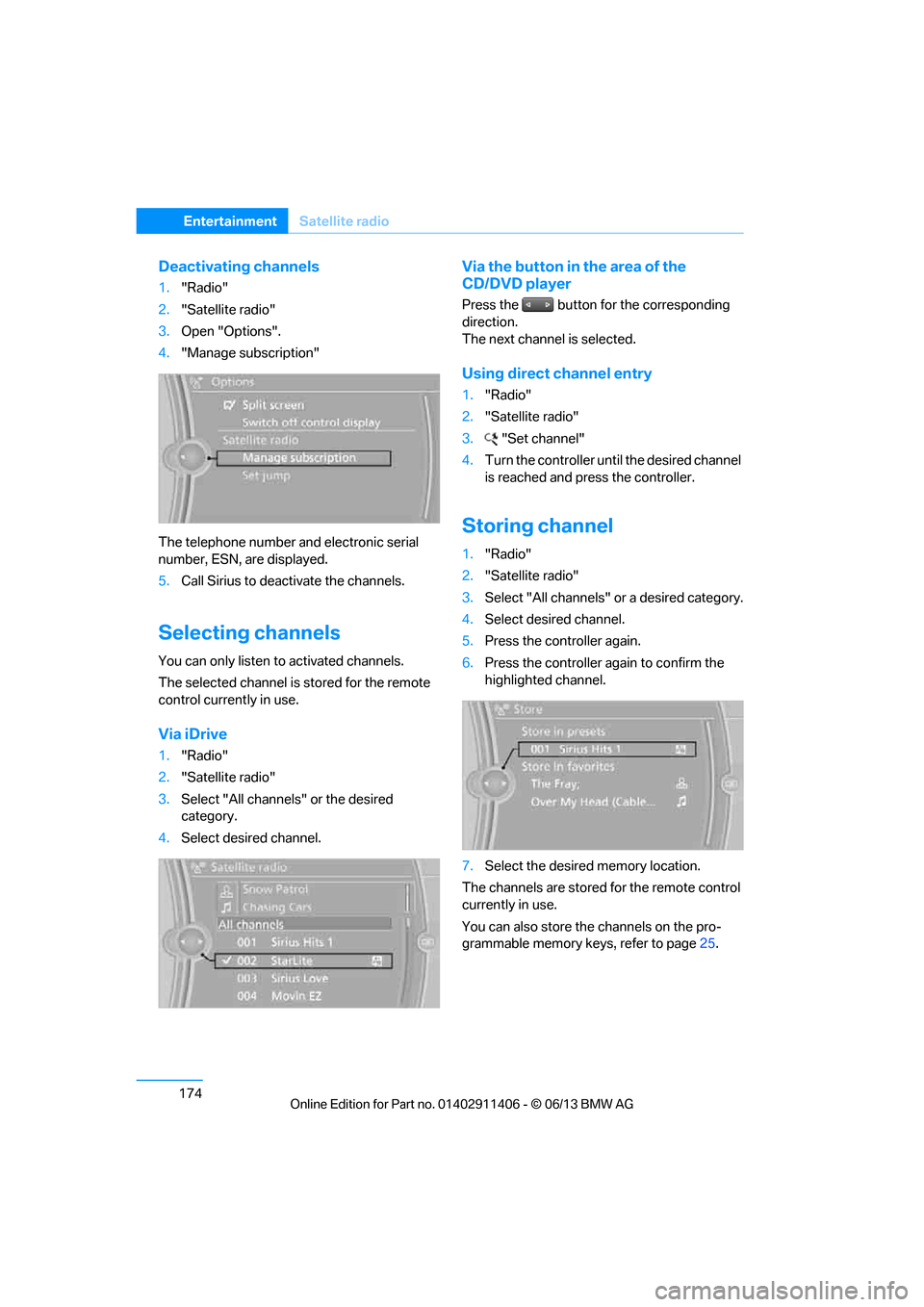
Deactivating channels
1."Radio"
2. "Satellite radio"
3. Open "Options".
4. "Manage subscription"
The telephone number and electronic serial
number, ESN, are displayed.
5. Call Sirius to deacti vate the channels.
Selecting channels
You can only listen to activated channels.
The selected channel is stored for the remote
control currently in use.
Via iDrive
1. "Radio"
2. "Satellite radio"
3. Select "All channels" or the desired
category.
4. Select desired channel.
Via the button in the area of the
CD/DVD player
Press the button for the corresponding
direction.
The next channel is selected.
Using direct channel entry
1."Radio"
2. "Satellite radio"
3. "Set channel"
4. Turn the controller unt il the desired channel
is reached and pr ess the controller.
Storing channel
1."Radio"
2. "Satellite radio"
3. Select "All channels" or a desired category.
4. Select desired channel.
5. Press the controller again.
6. Press the controller again to confirm the
highlighted channel.
7. Select the desired memory location.
The channels are stored for the remote control
currently in use.
You can also store the channels on the pro-
grammable memory ke ys, refer to page25.
00320051004F004C00510048000300280047004C0057004C005200510003
Page 185 of 311
180
EntertainmentCD/DVD player
Fast forward/reverse
Press and hold the button for the
corresponding direction.
Video playback
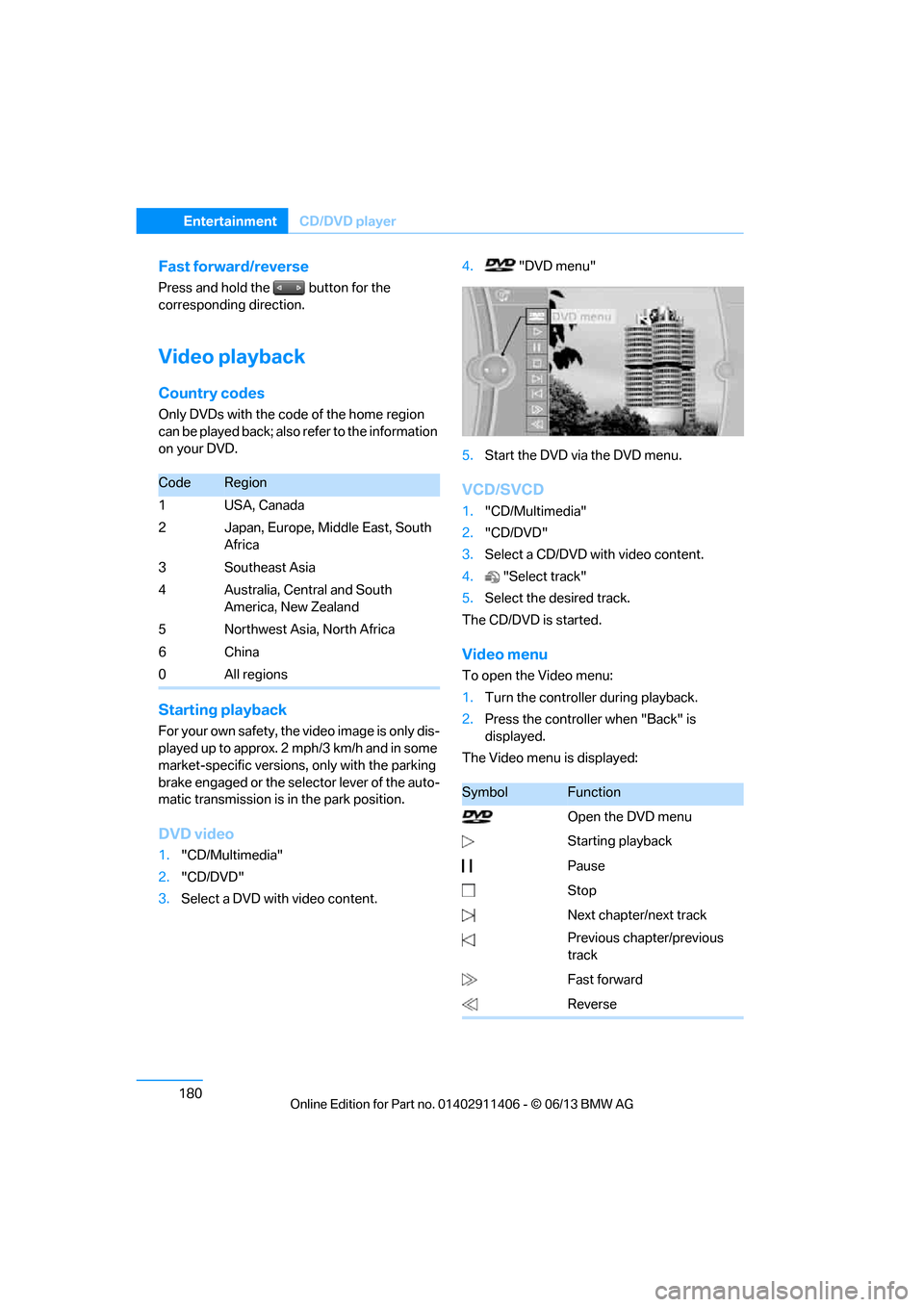
Country codes
Only DVDs with the code of the home region
can be played back; also refer to the information
on your DVD.
Starting playback
For your own safety, the video image is only dis-
played up to approx. 2 mph/3 km/h and in some
market-specific versions, only with the parking
brake engaged or the selector lever of the auto-
matic transmission is in the park position.
DVD video
1. "CD/Multimedia"
2. "CD/DVD"
3. Select a DVD with video content. 4.
"DVD menu"
5. Start the DVD via the DVD menu.
VCD/SVCD
1."CD/Multimedia"
2. "CD/DVD"
3. Select a CD/DVD with video content.
4. "Select track"
5. Select the desired track.
The CD/DVD is started.
Video menu
To open the Video menu:
1. Turn the controller during playback.
2. Press the controller when "Back" is
displayed.
The Video menu is displayed:
CodeRegion
1USA, Canada
2 Japan, Europe, Middle East, South Africa
3Southeast Asia
4 Australia, Central and South America, New Zealand
5 Northwest Asia, North Africa
6China
0 All regions
SymbolFunction
Open the DVD menu
Starting playback
Pause
Stop
Next chapter/next track
Previous chapter/previous
track
Fast forward
Reverse
00320051004F004C00510048000300280047004C0057004C005200510003
Page 190 of 311
185
Music collection
Entertainment
You can switch to the ot
her audio sources with-
out interrupting the st orage process. Tracks
from the current CD/DVD can also be called up,
if they have been stored already.
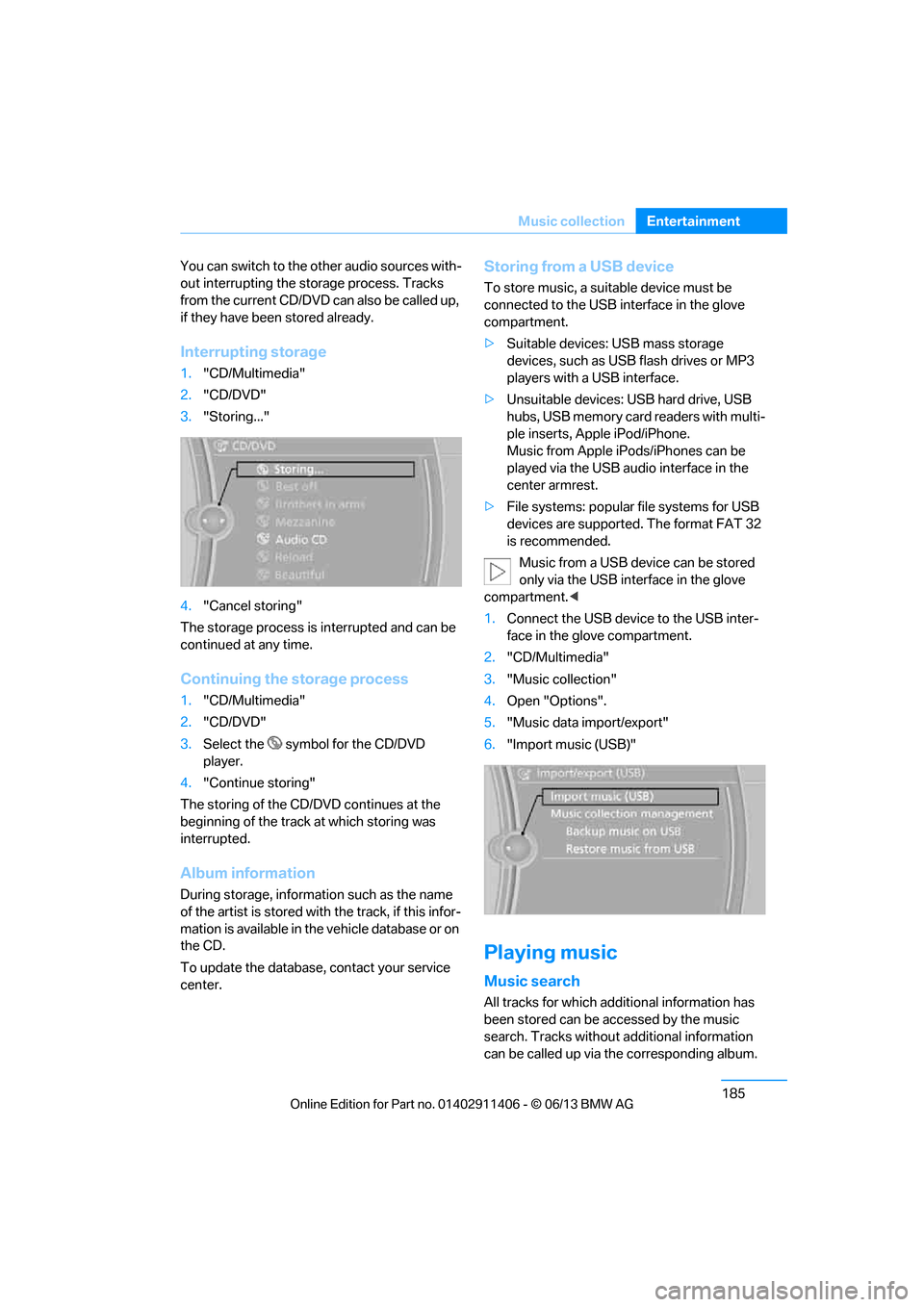
Interrupting storage
1. "CD/Multimedia"
2. "CD/DVD"
3. "Storing..."
4. "Cancel storing"
The storage process is interrupted and can be
continued at any time.
Continuing the storage process
1. "CD/Multimedia"
2. "CD/DVD"
3. Select the symbol for the CD/DVD
player.
4. "Continue storing"
The storing of the CD/DVD continues at the
beginning of the track at which storing was
interrupted.
Album information
During storage, information such as the name
of the artist is stored with the track, if this infor-
mation is available in th e vehicle database or on
the CD.
To update the database, contact your service
center.
Storing from a USB device
To store music, a suitable device must be
connected to the USB interface in the glove
compartment.
> Suitable devices: USB mass storage
devices, such as USB flash drives or MP3
players with a USB interface.
> Unsuitable devices: USB hard drive, USB
hubs, USB memory card readers with multi-
ple inserts, Apple iPod/iPhone.
Music from Apple iPods/iPhones can be
played via the USB audio interface in the
center armrest.
> File systems: popular file systems for USB
devices are supported. The format FAT 32
is recommended.
Music from a USB device can be stored
only via the USB interface in the glove
compartment. <
1. Connect the USB device to the USB inter-
face in the glove compartment.
2. "CD/Multimedia"
3. "Music collection"
4. Open "Options".
5. "Music data import/export"
6. "Import music (USB)"
Playing music
Music search
All tracks for which additional information has
been stored can be accessed by the music
search. Tracks without additional information
can be called up via the corresponding album.
00320051004F004C00510048000300280047004C0057004C005200510003
Page 200 of 311
195
External devices
Entertainment
Disconnecting an audio connection
1.
"CD/Multimedia"
2. "Bluetooth® (audio)"
3. Select the desired device from the list of
connected devices.
4. Open "Options".
5. "Configure phone"
6. "Audio"
7. "OK"
With a mobile phone, on ly the audio connection
is disconnected. All ot her connections remain
active.
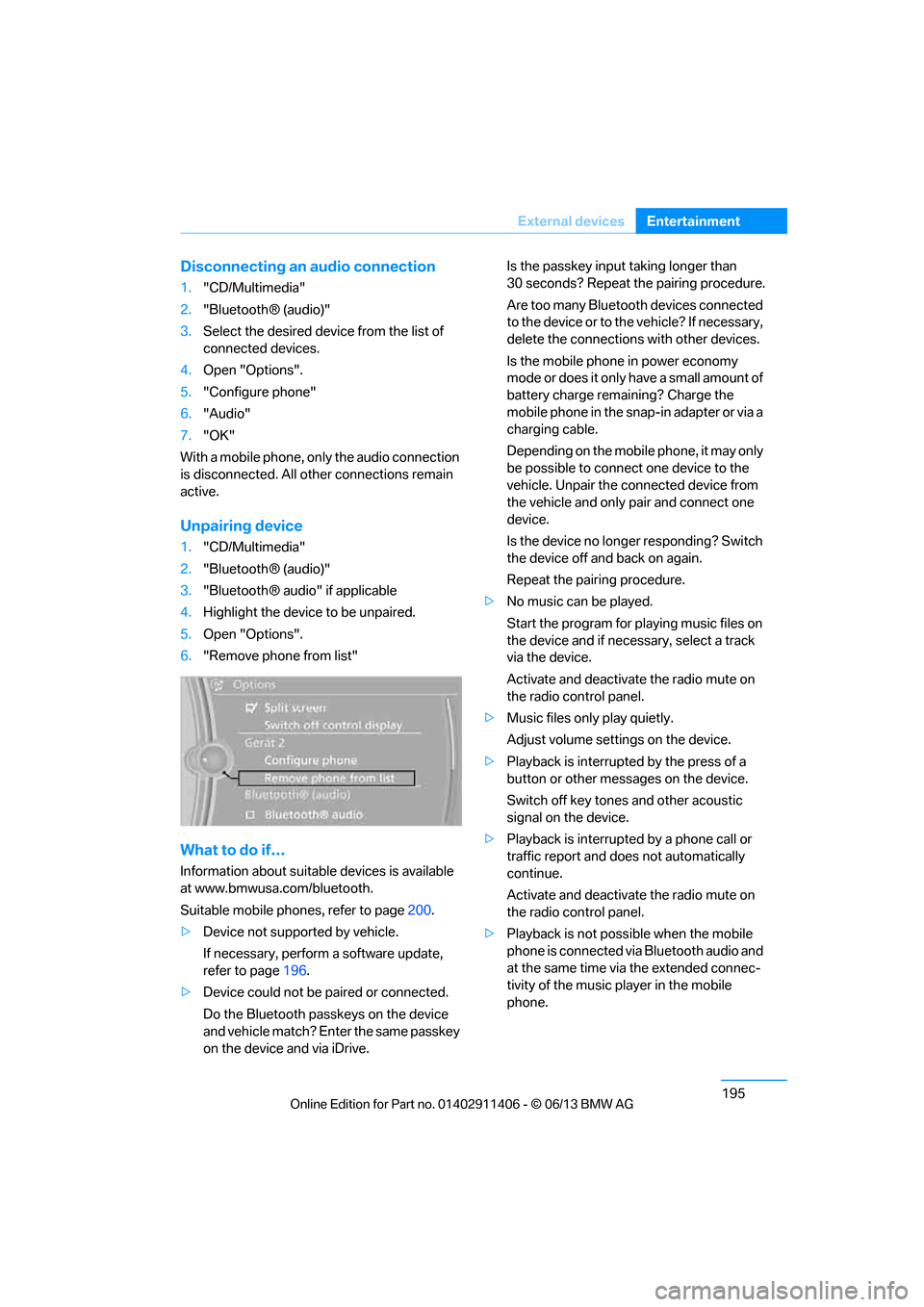
Unpairing device
1. "CD/Multimedia"
2. "Bluetooth® (audio)"
3. "Bluetooth® audio" if applicable
4. Highlight the device to be unpaired.
5. Open "Options".
6. "Remove phone from list"
What to do if…
Information about suitable devices is available
at www.bmwusa.com/bluetooth.
Suitable mobile phones, refer to page 200.
> Device not supported by vehicle.
If necessary, perform a software update,
refer to page 196.
> Device could not be paired or connected.
Do the Bluetooth passk eys on the device
and vehicle match? Enter the same passkey
on the device and via iDrive. Is the passkey input taking longer than
30 seconds? Repeat the pairing procedure.
Are too many Bluetooth devices connected
to the device or to th
e vehicle? If necessary,
delete the connections with other devices.
Is the mobile phone in power economy
mode or does it only have a small amount of
battery charge remaining? Charge the
mobile phone in the snap-in adapter or via a
charging cable.
Depending on the mobile phone, it may only
be possible to connect one device to the
vehicle. Unpair the connected device from
the vehicle and only pair and connect one
device.
Is the device no longer responding? Switch
the device off and back on again.
Repeat the pairing procedure.
> No music can be played.
Start the program for pl aying music files on
the device and if necessary, select a track
via the device.
Activate and deactivate the radio mute on
the radio control panel.
> Music files only play quietly.
Adjust volume settings on the device.
> Playback is interrupted by the press of a
button or other messages on the device.
Switch off key tones and other acoustic
signal on the device.
> Playback is interrupted by a phone call or
traffic report and does not automatically
continue.
Activate and deactivate the radio mute on
the radio control panel.
> Playback is not possible when the mobile
phone is connected via Bluetooth audio and
at the same time via the extended connec-
tivity of the music player in the mobile
phone.
00320051004F004C00510048000300280047004C0057004C005200510003