display BMW M3 CONVERTIBLE 2013 E93 Repair Manual
[x] Cancel search | Manufacturer: BMW, Model Year: 2013, Model line: M3 CONVERTIBLE, Model: BMW M3 CONVERTIBLE 2013 E93Pages: 311, PDF Size: 6.89 MB
Page 124 of 311
119
Climate
Controls
2
Use the thumbwheel to smoothly open and
close the air vents
3 Use the lever to change the direction of the
airflow
Microfilter/activated-charcoal filter
The microfilter traps dust and pollen in the
incoming air. The activated-charcoal filter pro-
vides additional protecti on by filtering gaseous
pollutants from the outs ide air. Your BMW cen-
ter replaces this combined filter during routine
maintenance.
Parked car ventilation
The concept
The parked car ventilation provides ventilation
to the passenger compartment and lowers its
temperature, if necessary.
For any outside temperatur e, the system can be
switched on or off directly or via a preset
switch-on time. It will remain on for 30 minutes.
Due to its high power consumption, the parked
car ventilation system sh ould not be switched
on twice in a row without driving in between to
allow the battery to recharge.
Open the vents so that air can flow out.
They can be operated via iDrive.
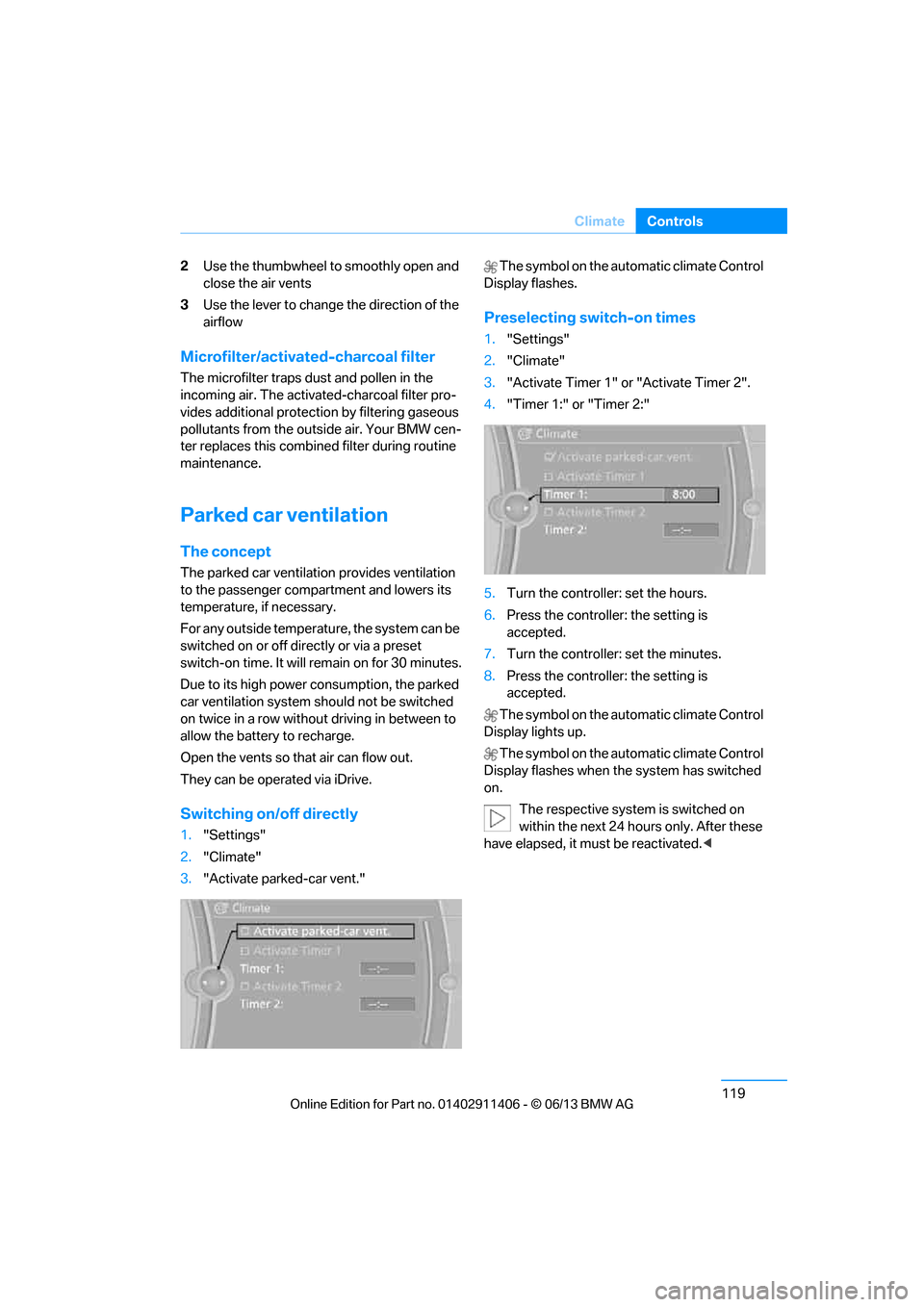
Switching on/off directly
1. "Settings"
2. "Climate"
3. "Activate parked-car vent." The symbol on the automatic climate Control
Display flashes.
Preselecting switch-on times
1. "Settings"
2. "Climate"
3. "Activate Timer 1" or "Activate Timer 2".
4. "Timer 1:" or "Timer 2:"
5. Turn the controller: set the hours.
6. Press the controller: the setting is
accepted.
7. Turn the controller: set the minutes.
8. Press the controller: the setting is
accepted.
The symbol on the automatic climate Control
Display lights up.
The symbol on the automatic climate Control
Display flashes when the system has switched
on.
The respective system is switched on
within the next 24 hours only. After these
have elapsed, it must be reactivated. <
00320051004F004C00510048000300280047004C0057004C005200510003
Page 127 of 311
122
ControlsPractical interior accessories
Canada: if the LED does not flash rapidly
after approx. 60 seconds, alter the distance
and repeat this step or, if the programming
by means of the hand-held transmitter was
interrupted, hold down the button on the
inside mirror and then press and release the
button on the hand-hel d transmitter several
times, holding it down for 2 seconds each
time.
Operation
To prevent possible damage or injury,
before programming or using the inte-
grated universal remote control to operate a
device, always inspect the immediate area to
make certain that no people, animals or objects
are within the pivoting or travel range of the
device being operated.
Also follow the safety in structions supplied with
the hand-held transmitter. <
The button on the inside mirror can be used to
operate the device, for example the garage
door, if the engine is running or the ignition is
switched on. To do so, within the reception
range of the device, press the button of the
device until the function is triggered. The LED
on the inside mirror remains lit during transmis-
sion of the radio signal.
Deleting stored functions
Simultaneously hold down the right and left
buttons on the inside mi rror for approx. 20 sec-
onds until the LED on the inside mirror flashes
rapidly. All stored functions are deleted. The
functions cannot be de leted individually.
Digital compass
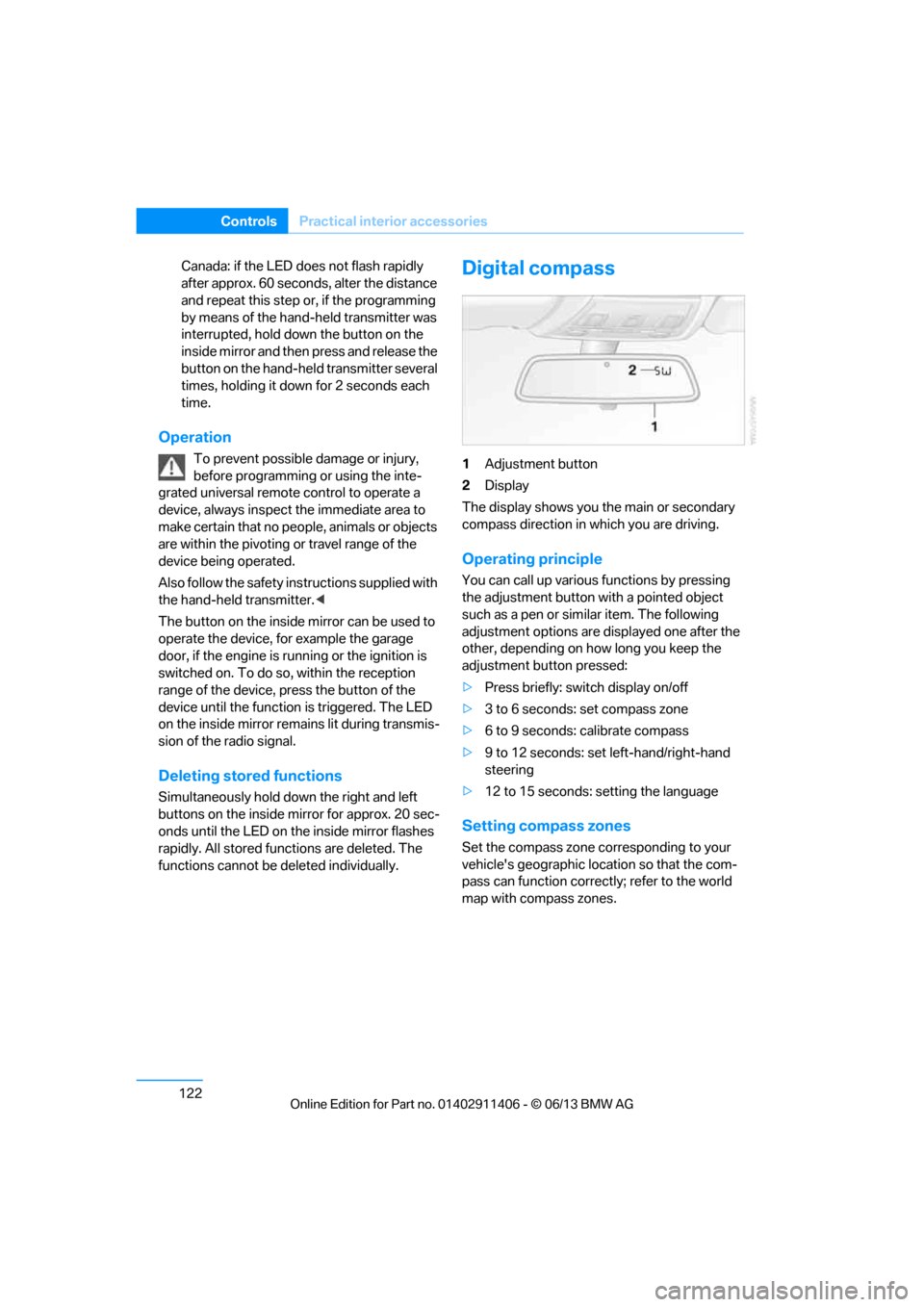
1Adjustment button
2 Display
The display shows you the main or secondary
compass direction in which you are driving.
Operating principle
You can call up various functions by pressing
the adjustment button with a pointed object
such as a pen or similar item. The following
adjustment options are displayed one after the
other, depending on how long you keep the
adjustment button pressed:
> Press briefly: switch display on/off
> 3 to 6 seconds: set compass zone
> 6 to 9 seconds: calibrate compass
> 9 to 12 seconds: set left-hand/right-hand
steering
> 12 to 15 seconds: setting the language
Setting compass zones
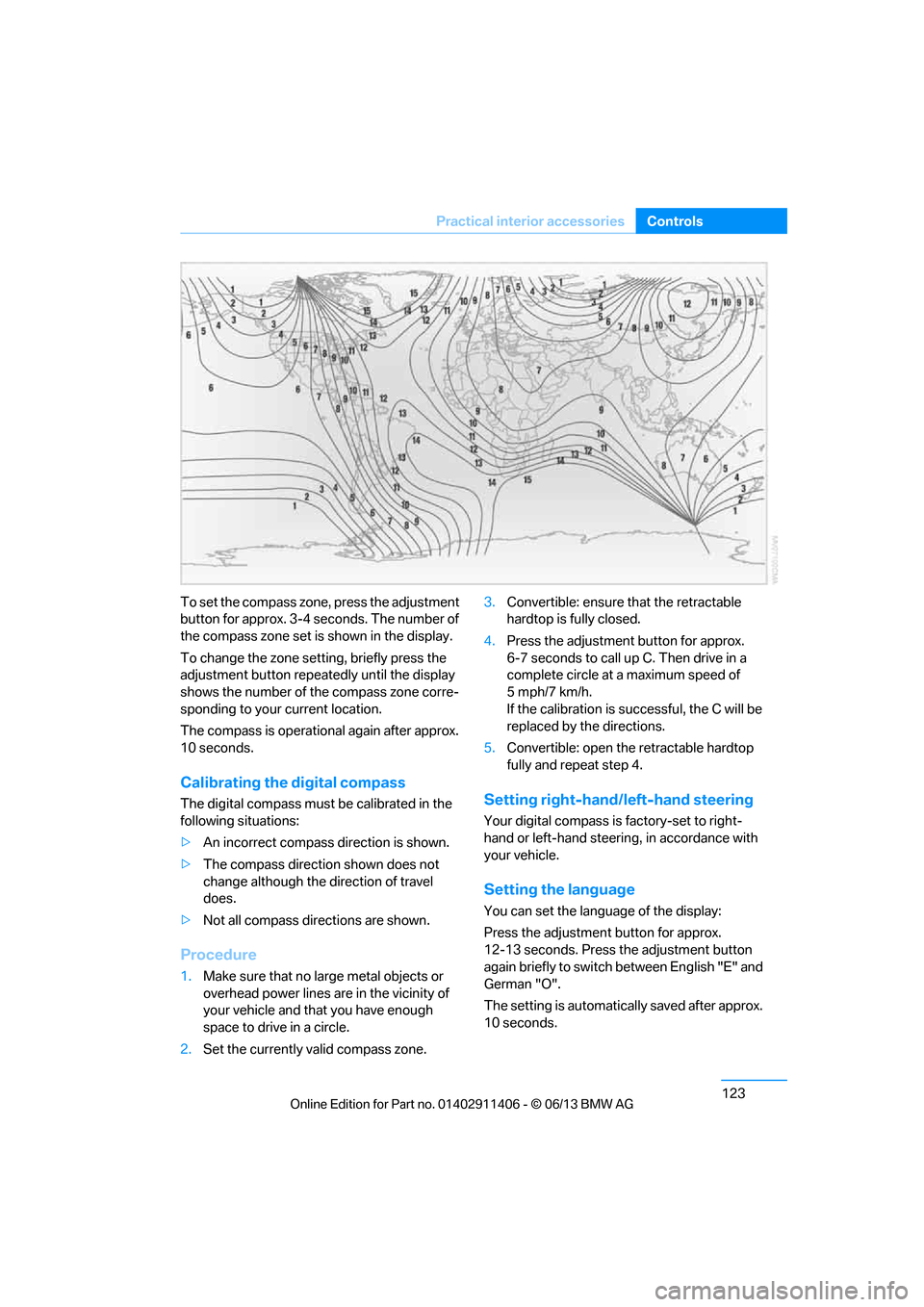
Set the compass zone corresponding to your
vehicle's geographic loca tion so that the com-
pass can function correctly; refer to the world
map with compass zones.
00320051004F004C00510048000300280047004C0057004C005200510003
Page 128 of 311
123
Practical interior accessories
Controls
To set the compass zone, press the adjustment
button for approx. 3-4 seconds. The number of
the compass zone set is shown in the display.
To change the zone se
tting, briefly press the
adjustment button repeat edly until the display
shows the number of the compass zone corre-
sponding to your current location.
The compass is operational again after approx.
10 seconds.
Calibrating the digital compass
The digital compass must be calibrated in the
following situations:
> An incorrect compass direction is shown.
> The compass direction shown does not
change although the direction of travel
does.
> Not all compass directions are shown.
Procedure
1.Make sure that no large metal objects or
overhead power lines are in the vicinity of
your vehicle and that you have enough
space to drive in a circle.
2. Set the currently va lid compass zone. 3.
Convertible: ensure that the retractable
hardtop is fully closed.
4. Press the adjustment button for approx.
6-7 seconds to call up C. Then drive in a
complete circle at a maximum speed of
5mph/7km/h.
If the calibration is successful, the C will be
replaced by the directions.
5. Convertible: open the retractable hardtop
fully and repeat step 4.
Setting right-hand/left-hand steering
Your digital compass is factory-set to right-
hand or left-hand steering, in accordance with
your vehicle.
Setting the language
You can set the language of the display:
Press the adjustment button for approx.
12-13 seconds. Press the adjustment button
again briefly to switch between English "E" and
German "O".
The setting is automatica lly saved after approx.
10 seconds.
00320051004F004C00510048000300280047004C0057004C005200510003
Page 149 of 311
144
NavigationNavigation system
Navigation system
Vehicle equipment
In this chapter, all pr oduction, country, and
optional equipment that is offered in the model
range is described. Equipment is also described
that is not available because of, for example,
selected options or country version. This also
applies to safety related functions and systems.
General information
The navigation system can determine the pre-
cise position of the vehicle, with the aid of satel-
lites and vehicle sensors, and can reliably guide
you to every entered destination.
Enter data only with the vehicle station-
ary, and always give priority to the appli-
cable traffic regulations in the event of any con-
tradiction between traffi c and road conditions
and the instructions issu ed by the navigation
system. Failure to take to this precaution can
place you in violation of the law and put vehicle
occupants and other road users in danger. <
Accessing navigation system
1.Press the button.
2. "Navigation"
The navigation syst em can also be
accessed directly with the button on the
controller.
Navigation data
General information
Navigation data and au thorization codes are
available from your BMW center. Navigation
data are stored in the vehicle and can be
updated. >
Depending on the data volume, a data
update may take several hours.
> Update data while dr iving to reduce the
drain on the battery.
> Only the main functions of the navigation
system are available during updating.
The update is resumed automatically when a
trip is continued after an interruption.
> You can inquire as to the status of the
update.
> The data are stored in the vehicle.
> After the update, the system restarts.
> The medium that holds the navigation
data can be removed after the update is
completed.
Information about navigation data
1."Navigation"
2. Open "Options".
3. "Navigation system version":
Information about the data version is
displayed.
Updating the navigation data
Inserting navigation DVD
1.Insert the navigation DVD into the DVD
player with the labe led side facing up.
2. Follow the instructions on the Control
Display.
3. Enter the authorization code of the naviga-
tion DVD and change the DVD if needed.
00320051004F004C00510048000300280047004C0057004C005200510003
Page 151 of 311
146
NavigationDestination entry
Destination entry
Vehicle equipment
In this chapter, all pr oduction, country, and
optional equipment that is offered in the model
range is described. Equipment is also described
that is not available because of, for example,
selected options or country version. This also
applies to safety related functions and systems.
General information
In entering your destination you can select from
the following options:
> Entering a destination manually, see below
> Selecting destination from address book,
refer to page 148
> Last destinations, refer to page 149
> Special destinations, refer to page 149
> Entering a destination on the map, refer to
page 151
> Selecting home addr ess, refer to page149
> Destination entry via voice, refer to
page 152
> Destination entry via BMW Assist, refer to
page 151
You can also store a navigation destination on
the programmable memo ry keys, refer to
page 25.
Entering a destination
manually
To make it easier to enter town/city names and
street names, the system assists you with auto-
matic name completion and entry comparison,
refer to page 155. This makes it possible to
enter different spellings and completes your
entry automatically so that stored town/city
names and street names can be accessed
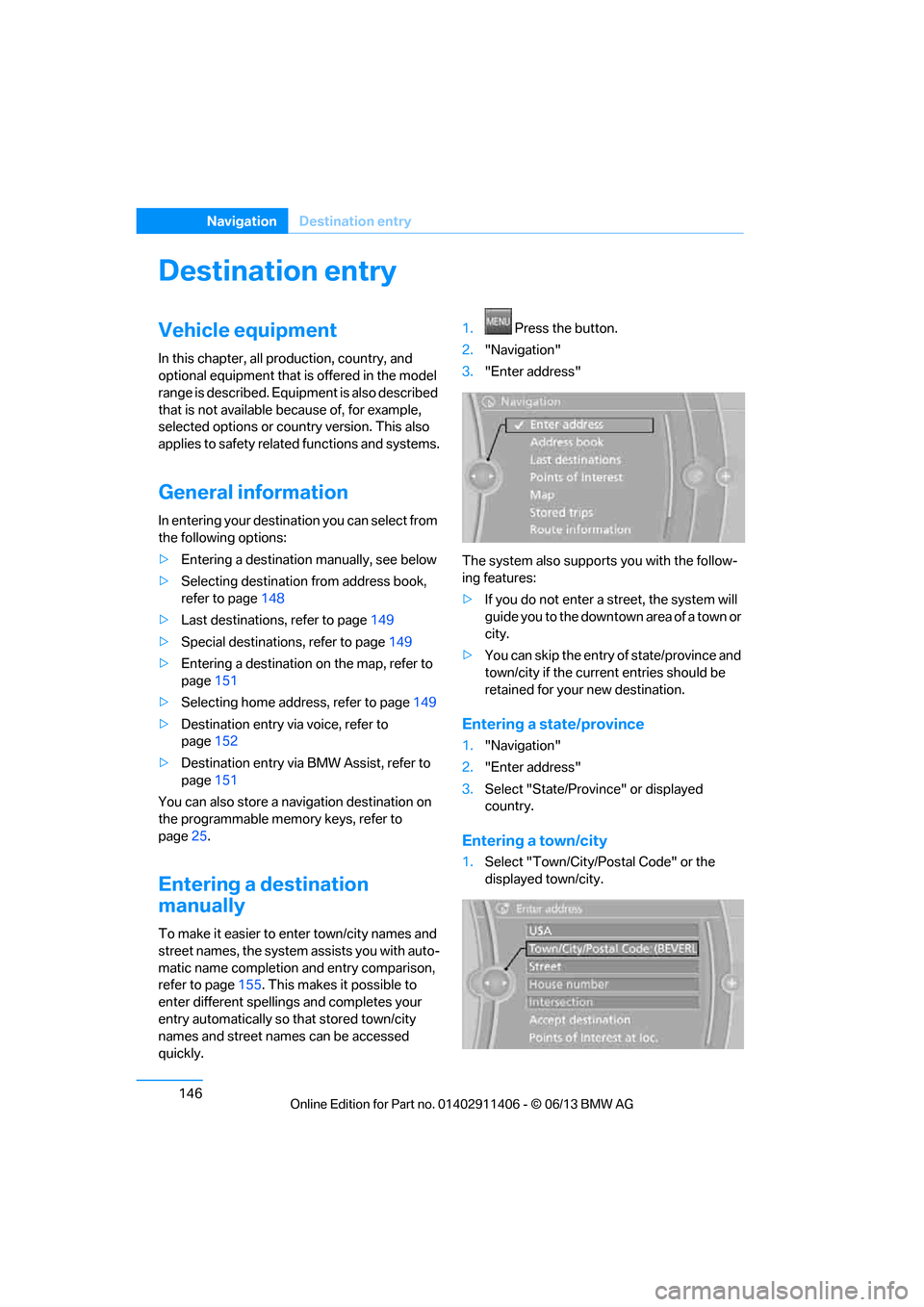
quickly. 1.
Press the button.
2. "Navigation"
3. "Enter address"
The system also supports you with the follow-
ing features:
> If you do not enter a street, the system will
guide you to the downtown area of a town or
city.
> You can skip the entry of state/province and
town/city if the curren t entries should be
retained for your new destination.
Entering a state/province
1. "Navigation"
2. "Enter address"
3. Select "State/Provi nce" or displayed
country.
Entering a town/city
1. Select "Town/City/Postal Code" or the
displayed town/city.
00320051004F004C00510048000300280047004C0057004C005200510003
Page 152 of 311
147
Destination entry
Navigation
2.
Select letters, if necessary.
The list is reduced in steps with each entry.
To delete letters:
> To delete individual letters:
Turn the controller to select , and
then press the controller.
> To delete all letters:
Turn the controller to select , and
then press the controller for an extended
period.
To enter spaces:
> Select the symbol.
The list gradually grow s smaller each time
you enter a new letter.
3. Move the controller to the right.
4. Select the name of the town/city from the
list.
If there are several town s/cities with the same
name:
1. Change to the list of town/city names.
2. Highlight the town/city.
3. Select the town/city.
Entering the postal code
1.Select "Town/City/Postal Code" or the
displayed town/city.
2. Select the symbol.
3. Select the digits.
4. Change to the list of postal codes and
towns/cities.
5. Highlight the entry.
6. Select an entry.
Entering street and intersection
1.Select "Street" or displayed street.
2. Enter the street and cross-street the same
way you entered the town/city.
After you enter the street, you can also enter
the cross street or the house number. If there are several streets with the same name:
1.
Change to the list of street names.
2. Highlight street.
3. Select the street.
Alternative: entering street and house
number
1.Select "Street" or displayed street.
2. Enter the street the same way you entered
the town/city.
3. "House number"
4. Select the digits.
5. Change to the list of house numbers.
6. Select a house number or range of house
numbers.
No such street at the destination
The desired street is not in the entered town/
city because it belongs to another district of the
town/city.
1."Navigation"
2. "Enter address"
3. Select "Street" or displayed street.
4. Change to the list of street names.
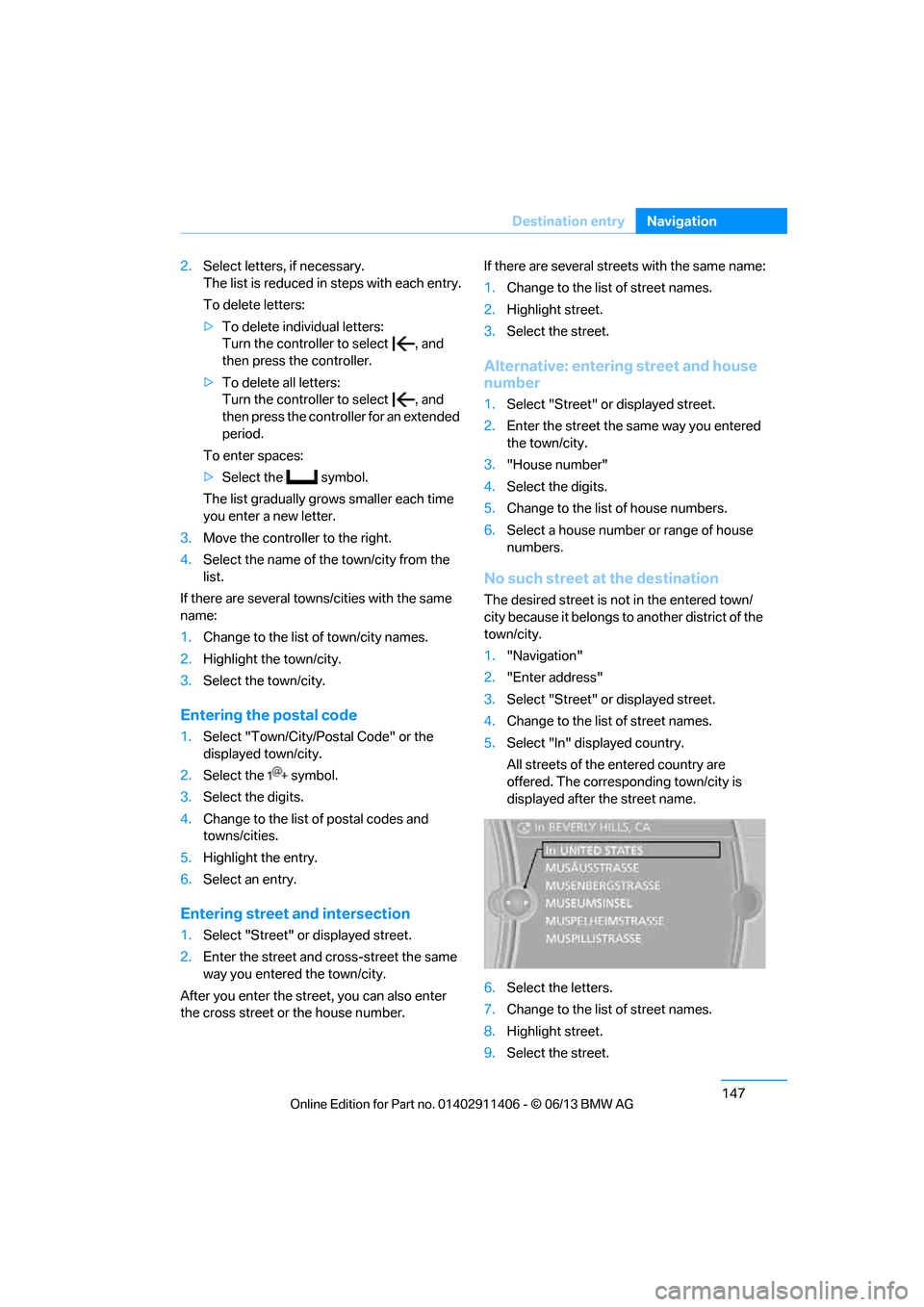
5. Select "In" displayed country.
All streets of the entered country are
offered. The corresponding town/city is
displayed after the street name.
6. Select the letters.
7. Change to the list of street names.
8. Highlight street.
9. Select the street.
00320051004F004C00510048000300280047004C0057004C005200510003
Page 153 of 311
148
NavigationDestination entry
Starting destination guidance after
entering the destination
1."Accept destination"
2. "Start guidance" or "Add as another desti-
nation", refer to page 153.
> Setting "Route pref erence", refer to
page 155.
> Search for "Points of Interest at loc.", refer
to page 149.
Address book
To create contacts, refer to page 224.
Selecting a destination from the
address book
1."Navigation"
2. "Address book"
Contacts with addresses are displayed if
these addresses have been checked as
destinations.
If the contacts with addresses from the
mobile phone are not displayed, they first
n e e d t o b e c h e c k e d a s d e s t i n a t i o n s , r e f e r t o
page 214.
3. Select a contact in the list or if so desired,
using the "A-Z search".
4. Select "Business address" or "Home
address"
Storing a destination in the address
book
Store the destination in the address book after
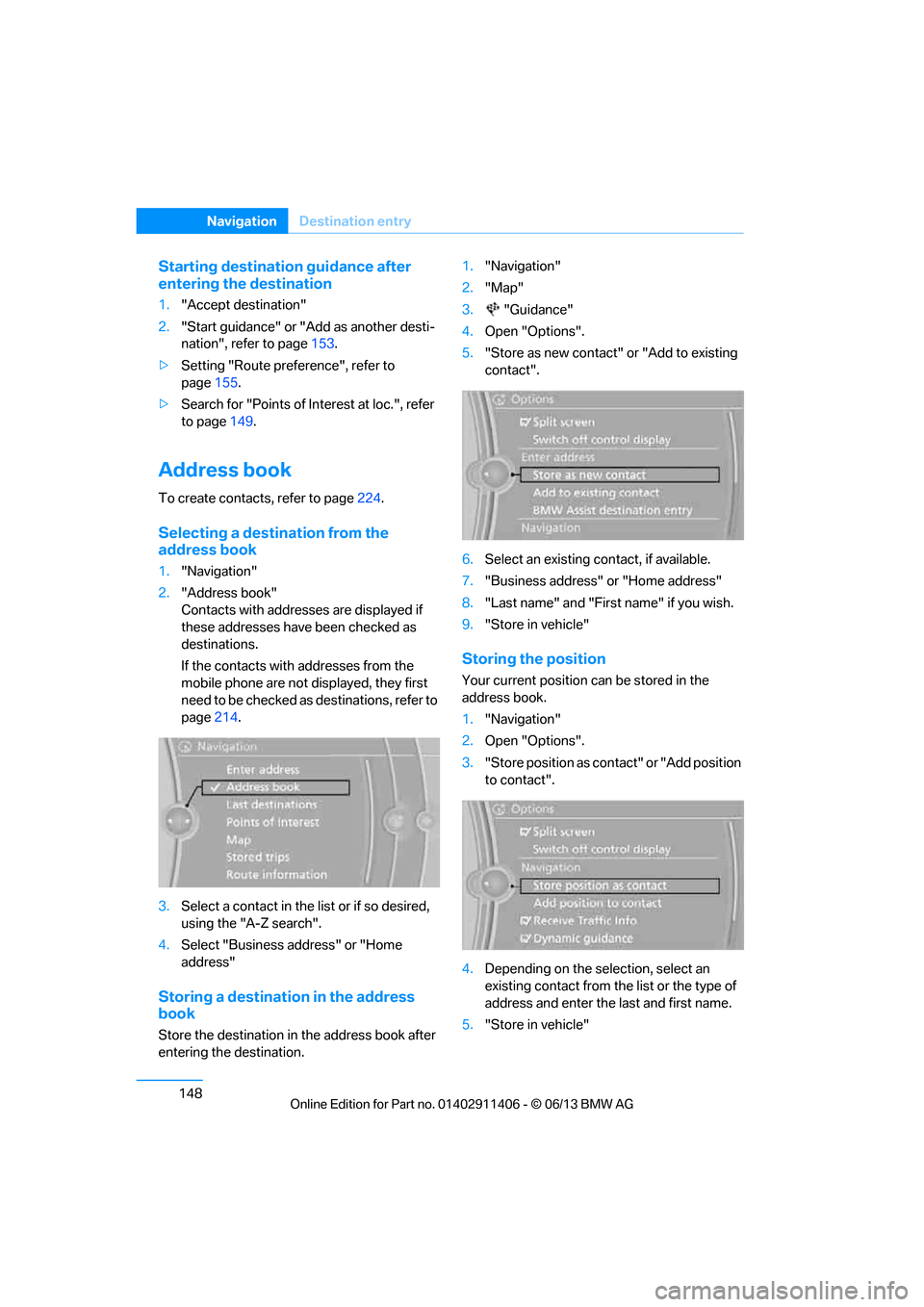
entering the destination. 1.
"Navigation"
2. "Map"
3. "Guidance"
4. Open "Options".
5. "Store as new contact" or "Add to existing
contact".
6. Select an existing contact, if available.
7. "Business address" or "Home address"
8. "Last name" and "First name" if you wish.
9. "Store in vehicle"
Storing the position
Your current position can be stored in the
address book.
1."Navigation"
2. Open "Options".
3. "Store position as cont act" or "Add position
to contact".
4. Depending on the selection, select an
existing contact from the list or the type of
address and enter the last and first name.
5. "Store in vehicle"
00320051004F004C00510048000300280047004C0057004C005200510003
Page 155 of 311
150
NavigationDestination entry
Special destination location
As you input the search destination, you can
select from among various options.
>"At current location"
> "At destination"
> "At different location"
> "Along route"
A-Z search
1."A-Z search"
2. "Town/City"
3. Select or enter town/city.
4. "Category"
5. Select category.
6. "Category details"
For some special destinations, it is possible
to select several category details.
Move the controller towa rd the left to exit
category details.
7. "Keyword"
8. Enter keyword.
A list of the special destinations is
displayed.
9. Select the special destination.
Details are displayed.
If several details are stored, then you can
scroll through the pages.
If a phone number is available, a connection
can be established, if desired.
10. Select the symbol.
11. "Start guidance" or "Add as another desti-
nation". Adding destination as another
destination, refer to page 153.
"Start search": without entering a search term,
the search is repeated with the last stored
search term.
Category search
1. "Category search"
2. "Town/City"
3. Select or enter town/city.
4. "Category"
5. Select category.
6. "Category details"
For some special destinations, it is possible
to select several category details.
Move the controller towa rd the left to exit
category details.
7. "Start search"
A list of the special destinations is
displayed.
8. Select the special destination.
Details are displayed.
If several details are stored, then you can
scroll through the pages.
If a phone number is available, a connection
can be established, if desired.
9. Select the symbol.
10. "Start guidance" or "Add as another desti-
nation". Adding destination as another
destination, refer to page 153.
Displaying special destinations
List of special destinations: the special destina-
tions are displayed in order of their distance and
are displayed with a direction arrow pointing
toward the destination.
With the Professional navigation system:
In the split screen, specia l destinations from the
selected category are displayed as symbols in
the map view. The displa y depends on the map
scale and the category.
00320051004F004C00510048000300280047004C0057004C005200510003
Page 156 of 311
151
Destination entry
Navigation
Destination entry via BMW Assist
A connection to the BMW Concierge service is
established, refer to page
225.
1. "Navigation"
2. "Enter address"
3. Open "Options".
4. "BMW Assist dest. entry"
Displaying special destinations in the
map
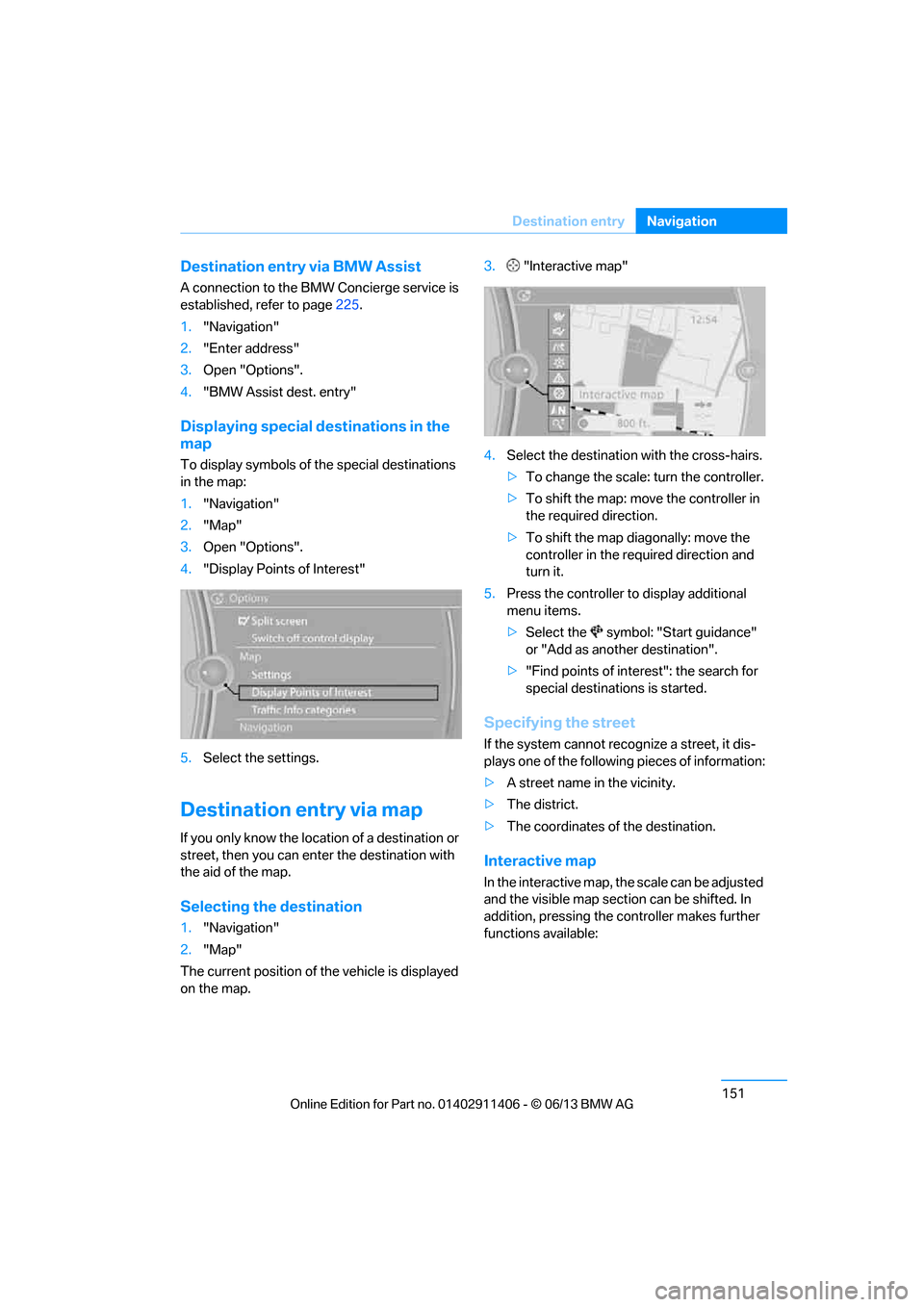
To display symbols of the special destinations
in the map:
1."Navigation"
2. "Map"
3. Open "Options".
4. "Display Points of Interest"
5. Select the settings.
Destination entry via map
If you only know the location of a destination or
street, then you can ente r the destination with
the aid of the map.
Selecting the destination
1. "Navigation"
2. "Map"
The current position of the vehicle is displayed
on the map. 3.
"Interactive map"
4. Select the destination with the cross-hairs.
> To change the scale: turn the controller.
> To shift the map: move the controller in
the required direction.
> To shift the map diagonally: move the
controller in the required direction and
turn it.
5. Press the controller to display additional
menu items.
>Select the symbol: "Start guidance"
or "Add as another destination".
> "Find points of interest": the search for
special destinations is started.
Specifying the street
If the system cannot recognize a street, it dis-
plays one of the following pieces of information:
> A street name in the vicinity.
> The district.
> The coordinates of the destination.
Interactive map
In the interactive map, th e scale can be adjusted
and the visible map section can be shifted. In
addition, pressing the controller makes further
functions available:
00320051004F004C00510048000300280047004C0057004C005200510003
Page 157 of 311
152
NavigationDestination entry
>Select the symbol.
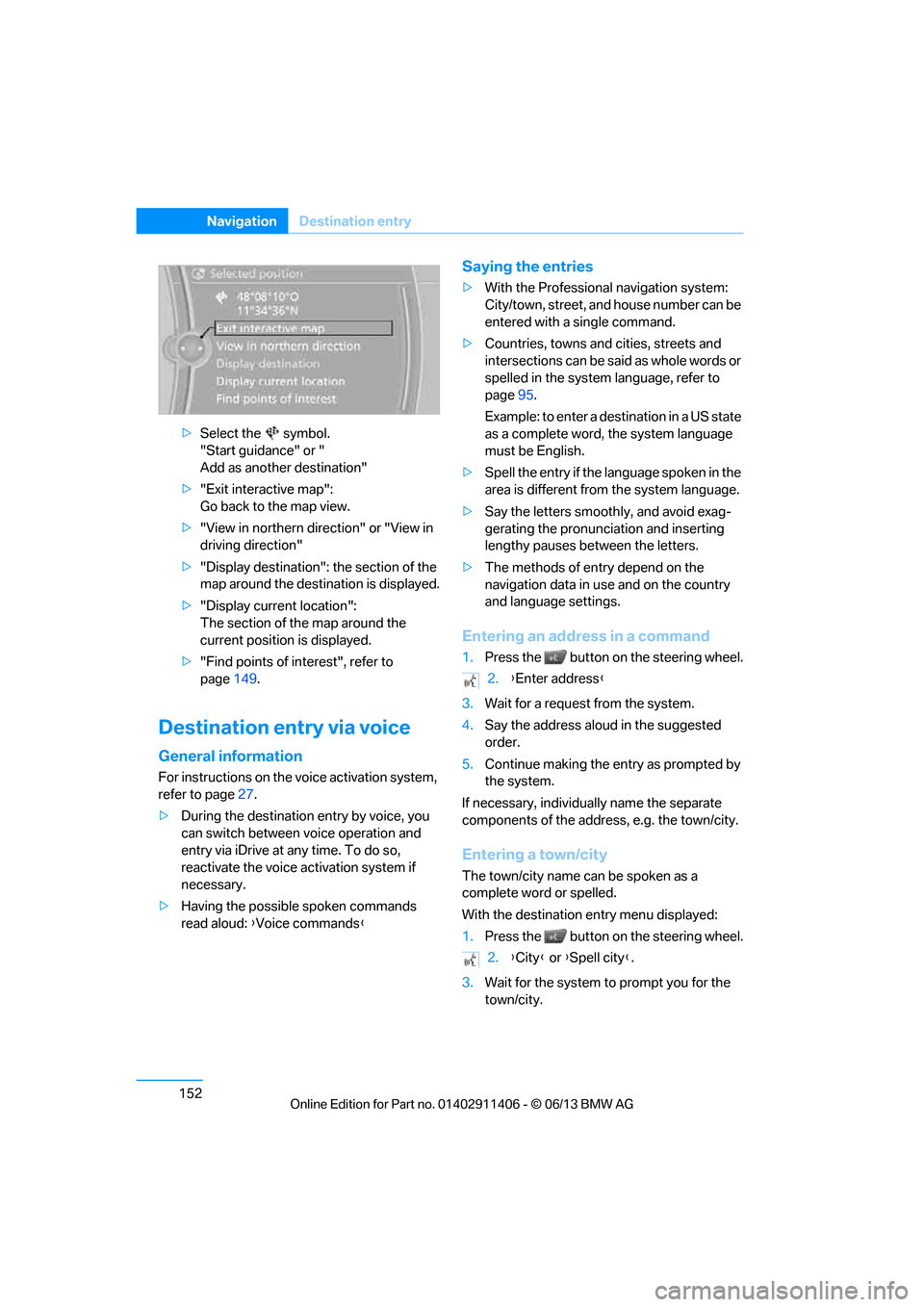
"Start guidance" or "
Add as another destination"
> "Exit interactive map":
Go back to the map view.
> "View in northern direction" or "View in
driving direction"
> "Display destination": the section of the
map around the destination is displayed.
> "Display current location":
The section of the map around the
current position is displayed.
> "Find points of interest", refer to
page 149.
Destination entry via voice
General information
For instructions on the voice activation system,
refer to page 27.
> During the destination entry by voice, you
can switch between voice operation and
entry via iDrive at any time. To do so,
reactivate the voice ac tivation system if
necessary.
> Having the possible spoken commands
read aloud: {Voice commands }
Saying the entries
>With the Professional navigation system:
City/town, street, and house number can be
entered with a single command.
> Countries, towns and cities, streets and
intersections can be said as whole words or
spelled in the system language, refer to
page 95.
Example: to enter a destination in a US state
as a complete word, the system language
must be English.
> Spell the entry if the language spoken in the
area is different from the system language.
> Say the letters smoothly, and avoid exag-
gerating the pronunciation and inserting
lengthy pauses between the letters.
> The methods of entry depend on the
navigation data in use and on the country
and language settings.
Entering an address in a command
1.Press the button on the steering wheel.
3. Wait for a request from the system.
4. Say the address aloud in the suggested
order.
5. Continue making the entry as prompted by
the system.
If necessary, individua lly name the separate
components of the addres s, e.g. the town/city.
Entering a town/city
The town/city name can be spoken as a
complete word or spelled.
With the destination entry menu displayed:
1.Press the button on the steering wheel.
3. Wait for the system to prompt you for the
town/city.
2. {Enter address }
2. {City } or {Spell city }.
00320051004F004C00510048000300280047004C0057004C005200510003