phone BMW M3 COUPE 2009 E92 User Guide
[x] Cancel search | Manufacturer: BMW, Model Year: 2009, Model line: M3 COUPE, Model: BMW M3 COUPE 2009 E92Pages: 256, PDF Size: 12.03 MB
Page 90 of 256
Technology for driving comfort and safety
88 At low speeds, steering is assisted strongly, i. e.
less effort is required to turn the vehicle. Steer-
ing assistance lessens with increasing speed.
You can select between two programs
*.
"Normal" program
Select the "Normal" program if you want com-
fort-oriented steering, e. g. in city traffic or when
parking.
"Sport" program
Select the "Sport" program if you want consis-
tently sporty steering.
Selecting a program
You can set and call up your preferred pro-
gram via MDrive, refer to page50.
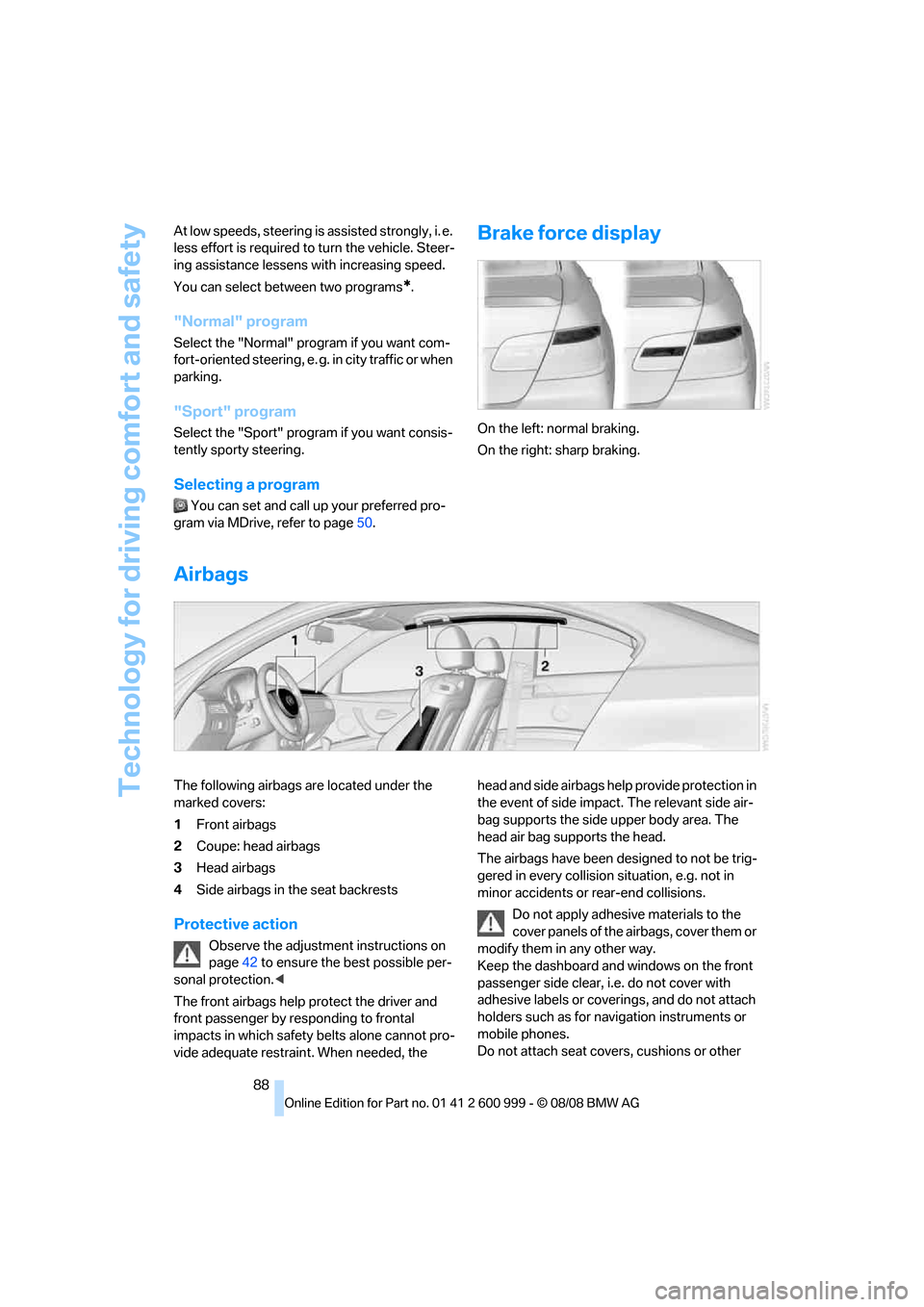
Brake force display
On the left: normal braking.
On the right: sharp braking.
Airbags
The following airbags are located under the
marked covers:
1Front airbags
2Coupe: head airbags
3Head airbags
4Side airbags in the seat backrests
Protective action
Observe the adjustment instructions on
page42 to ensure the best possible per-
sonal protection.<
The front airbags help protect the driver and
front passenger by responding to frontal
impacts in which safety belts alone cannot pro-
vide adequate restraint. When needed, the head and side airbags help provide protection in
the event of side impact. The relevant side air-
bag supports the side upper body area. The
head air bag supports the head.
The airbags have been designed to not be trig-
gered in every collision situation, e.g. not in
minor accidents or rear-end collisions.
Do not apply adhesive materials to the
cover panels of the airbags, cover them or
modify them in any other way.
Keep the dashboard and windows on the front
passenger side clear, i.e. do not cover with
adhesive labels or coverings, and do not attach
holders such as for navigation instruments or
mobile phones.
Do not attach seat covers, cushions or other
ba8_E9293M3_cic.book Seite 88 Dienstag, 19. August 2008 12:01 12
Page 107 of 256
Controls
105Reference
At a glance
Driving tips
Communications
Navigation
Entertainment
Mobility
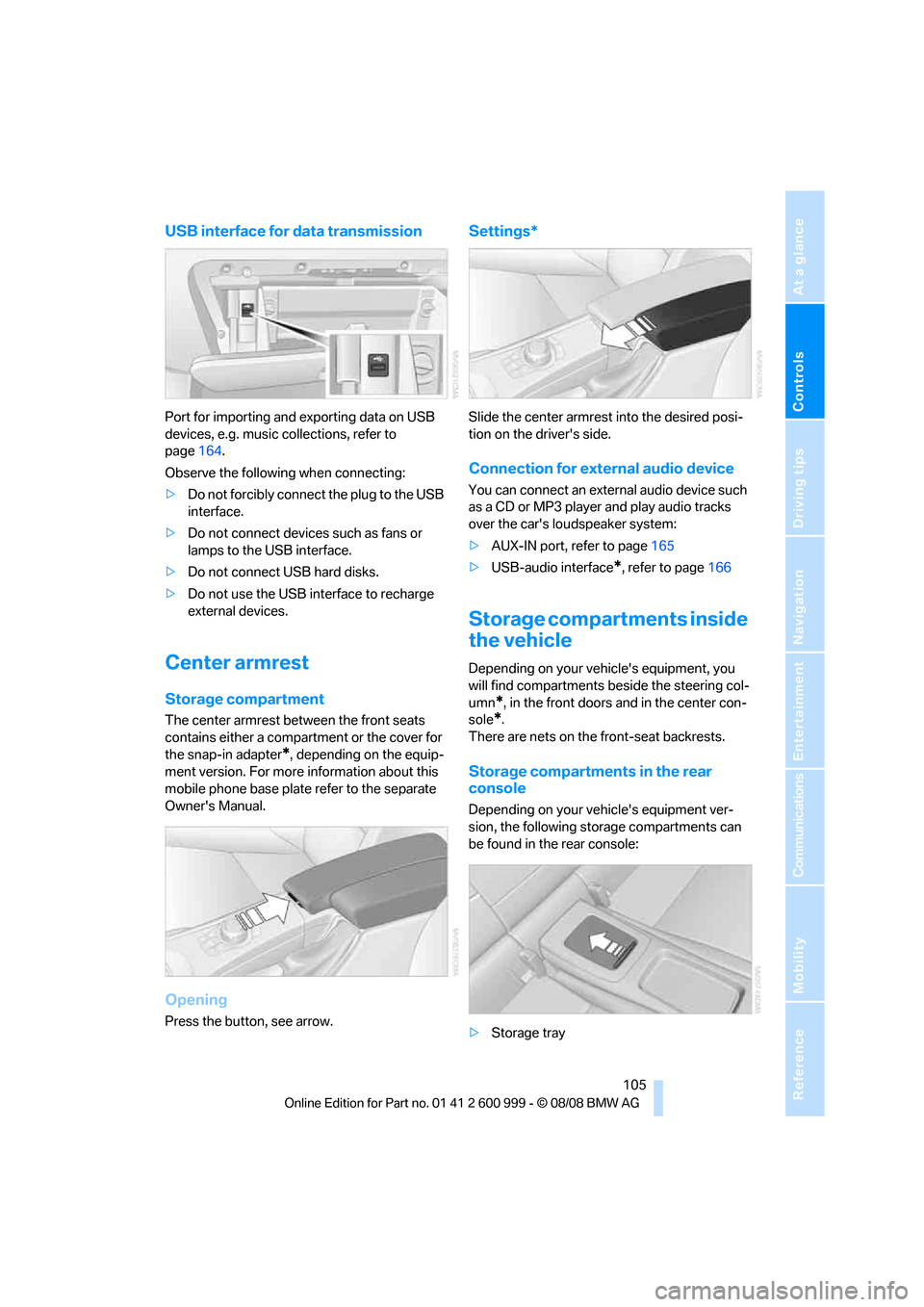
USB interface for data transmission
Port for importing and exporting data on USB
devices, e.g. music collections, refer to
page164.
Observe the following when connecting:
>Do not forcibly connect the plug to the USB
interface.
>Do not connect devices such as fans or
lamps to the USB interface.
>Do not connect USB hard disks.
>Do not use the USB interface to recharge
external devices.
Center armrest
Storage compartment
The center armrest between the front seats
contains either a compartment or the cover for
the snap-in adapter
*, depending on the equip-
ment version. For more information about this
mobile phone base plate refer to the separate
Owner's Manual.
Opening
Press the button, see arrow.
Settings*
Slide the center armrest into the desired posi-
tion on the driver's side.
Connection for external audio device
You can connect an external audio device such
as a CD or MP3 player and play audio tracks
over the car's loudspeaker system:
>AUX-IN port, refer to page165
>USB-audio interface
*, refer to page166
Storage compartments inside
the vehicle
Depending on your vehicle's equipment, you
will find compartments beside the steering col-
umn
*, in the front doors and in the center con-
sole
*.
There are nets
on the front-seat backrests.
Storage compartments in the rear
console
Depending on your vehicle's equipment ver-
sion, the following storage compartments can
be found in the rear console:
>Storage tray
ba8_E9293M3_cic.book Seite 105 Dienstag, 19. August 2008 12:01 12
Page 133 of 256
Navigation
Driving tips
131Reference
At a glance
Controls
Communications
Entertainment
Mobility
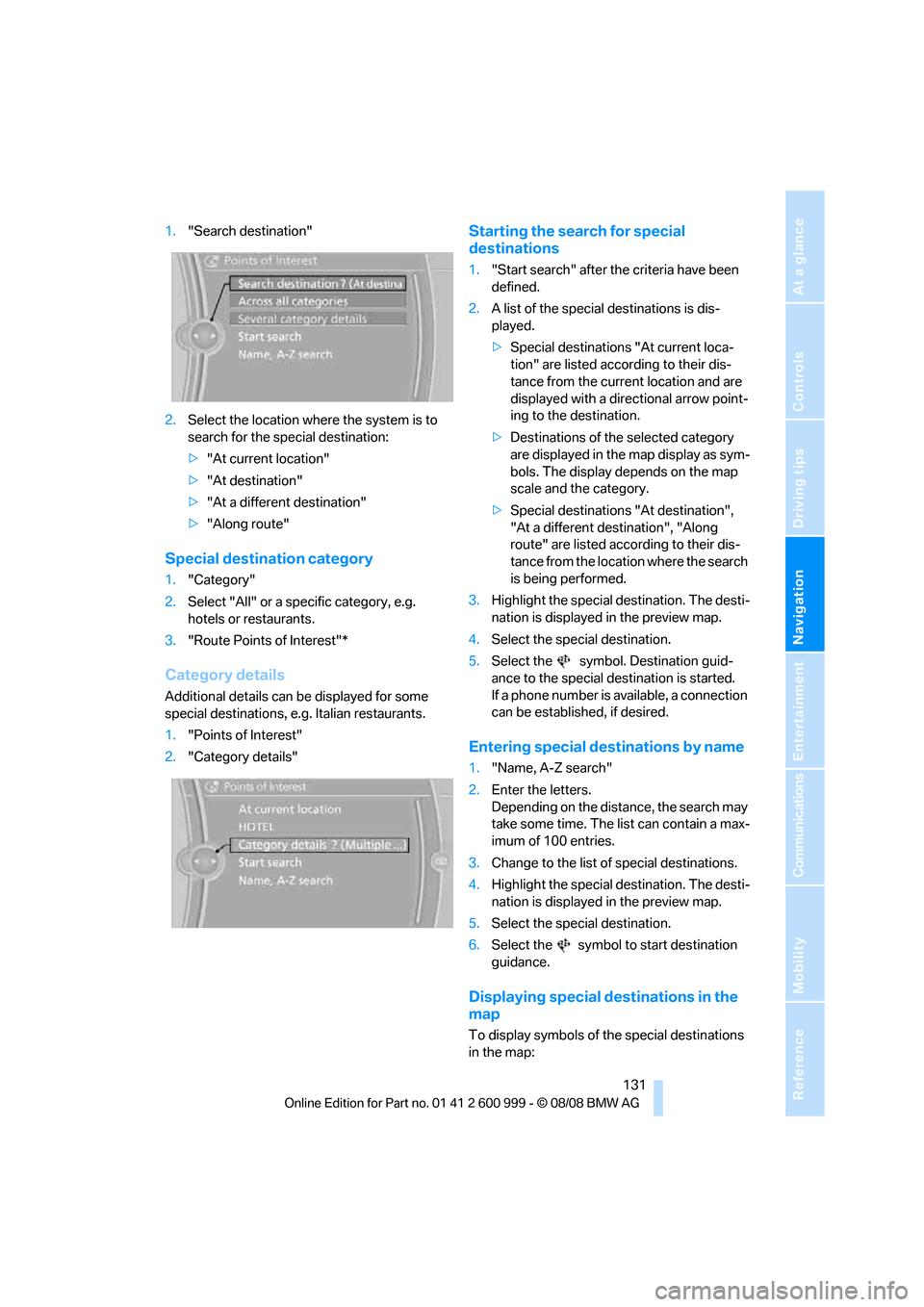
1."Search destination"
2.Select the location where the system is to
search for the special destination:
>"At current location"
>"At destination"
>"At a different destination"
>"Along route"
Special destination category
1."Category"
2.Select "All" or a specific category, e.g.
hotels or restaurants.
3."Route Points of Interest"*
Category details
Additional details can be displayed for some
special destinations, e.g. Italian restaurants.
1."Points of Interest"
2."Category details"
Starting the search for special
destinations
1."Start search" after the criteria have been
defined.
2.A list of the special destinations is dis-
played.
>Special destinations "At current loca-
tion" are listed according to their dis-
tance from the current location and are
displayed with a directional arrow point-
ing to the destination.
>Destinations of the selected category
are displayed in the map display as sym-
bols. The display depends on the map
scale and the category.
>Special destinations "At destination",
"At a different destination", "Along
route" are listed according to their dis-
tance from the location where the search
is being performed.
3.Highlight the special destination. The desti-
nation is displayed in the preview map.
4.Select the special destination.
5.Select the symbol. Destination guid-
ance to the special destination is started.
If a phone number is available, a connection
can be established, if desired.
Entering special destinations by name
1."Name, A-Z search"
2.Enter the letters.
Depending on the distance, the search may
take some time. The list can contain a max-
imum of 100 entries.
3.Change to the list of special destinations.
4.Highlight the special destination. The desti-
nation is displayed in the preview map.
5.Select the special destination.
6.Select the symbol to start destination
guidance.
Displaying special destinations in the
map
To display symbols of the special destinations
in the map:
ba8_E9293M3_cic.book Seite 131 Dienstag, 19. August 2008 12:01 12
Page 154 of 256
Satellite radio
152
Satellite radio
You can receive over 100 different channels
with high sound quality.
The channels are offered to you in predefined
packages. To receive the channels of your
choice, you must have the corresponding pack-
ages enabled.
With this new technology, signal losses
can occur from time to time and result in
audio interruptions.<
Enabling or disabling
channels
Enabling the channels
iDrive, for operating principle refer to page16.
1.Ensure that reception is reliable. It is usually
at its best when you have an unobstructed
view of the sky.
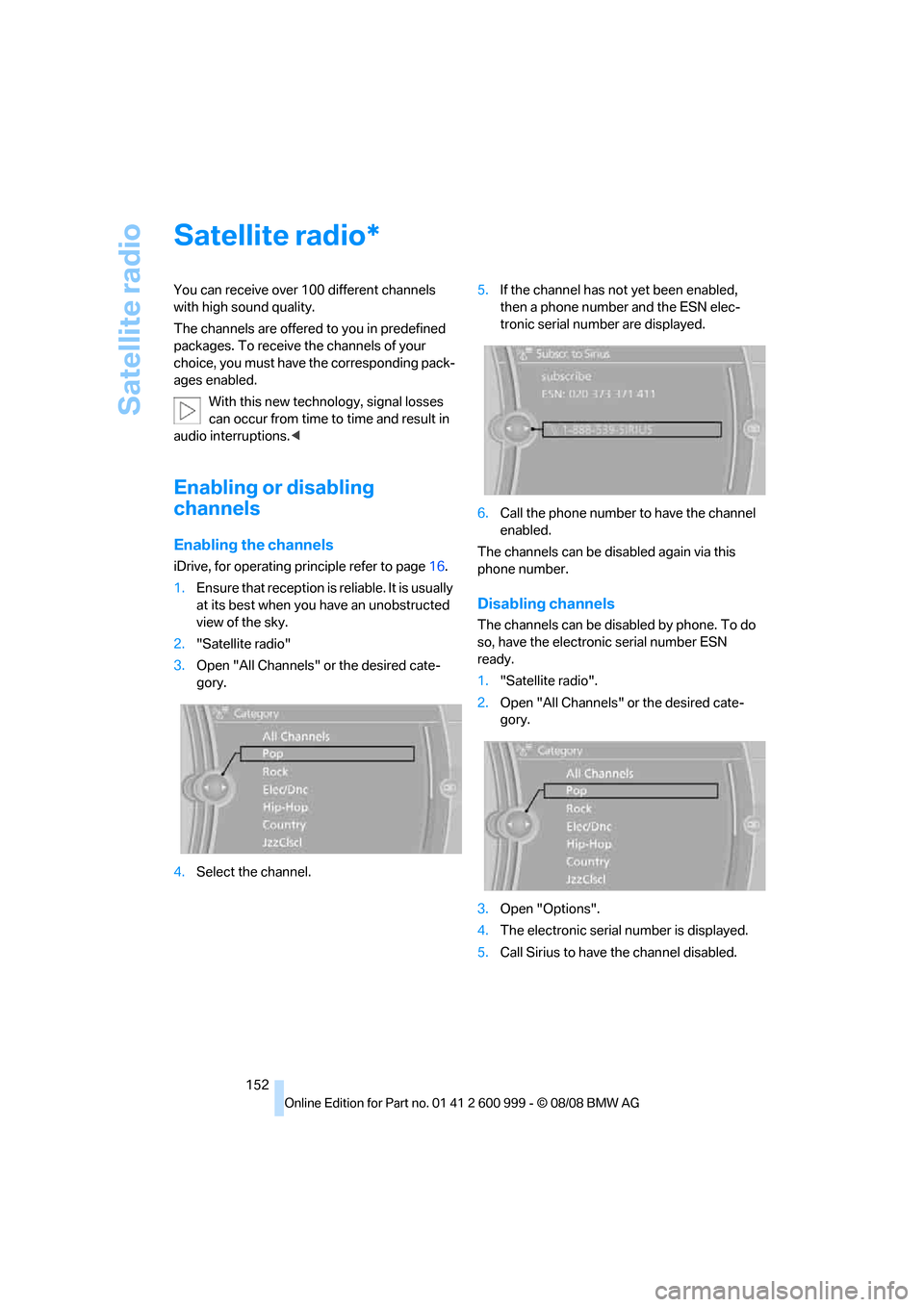
2."Satellite radio"
3.Open "All Channels" or the desired cate-
gory.
4.Select the channel.5.If the channel has not yet been enabled,
then a phone number and the ESN elec-
tronic serial number are displayed.
6.Call the phone number to have the channel
enabled.
The channels can be disabled again via this
phone number.
Disabling channels
The channels can be disabled by phone. To do
so, have the electronic serial number ESN
ready.
1."Satellite radio".
2.Open "All Channels" or the desired cate-
gory.
3.Open "Options".
4.The electronic serial number is displayed.
5.Call Sirius to have the channel disabled.
*
ba8_E9293M3_cic.book Seite 152 Dienstag, 19. August 2008 12:01 12
Page 168 of 256
USB-audio interface/mobile phone audio interface
166
USB-audio interface/mobile phone audio
interface
Connectable devices
iPod / iPhone, mobile phone or USB devices
(MP3 player, USB flash drive). They can be
operated via iDrive.
Standard audio formats, e.g. MP3, WMA, WAV
(PCM) and AAC, and playlists in the M3U format
can be played.
Due to the large number of different audio
devices/mobile phones available on the market,
it cannot be ensured that every audio device/
mobile phone is operable on the vehicle.
Ask about suitable audio devices/mobile
phones at your BMW center.
Connecting
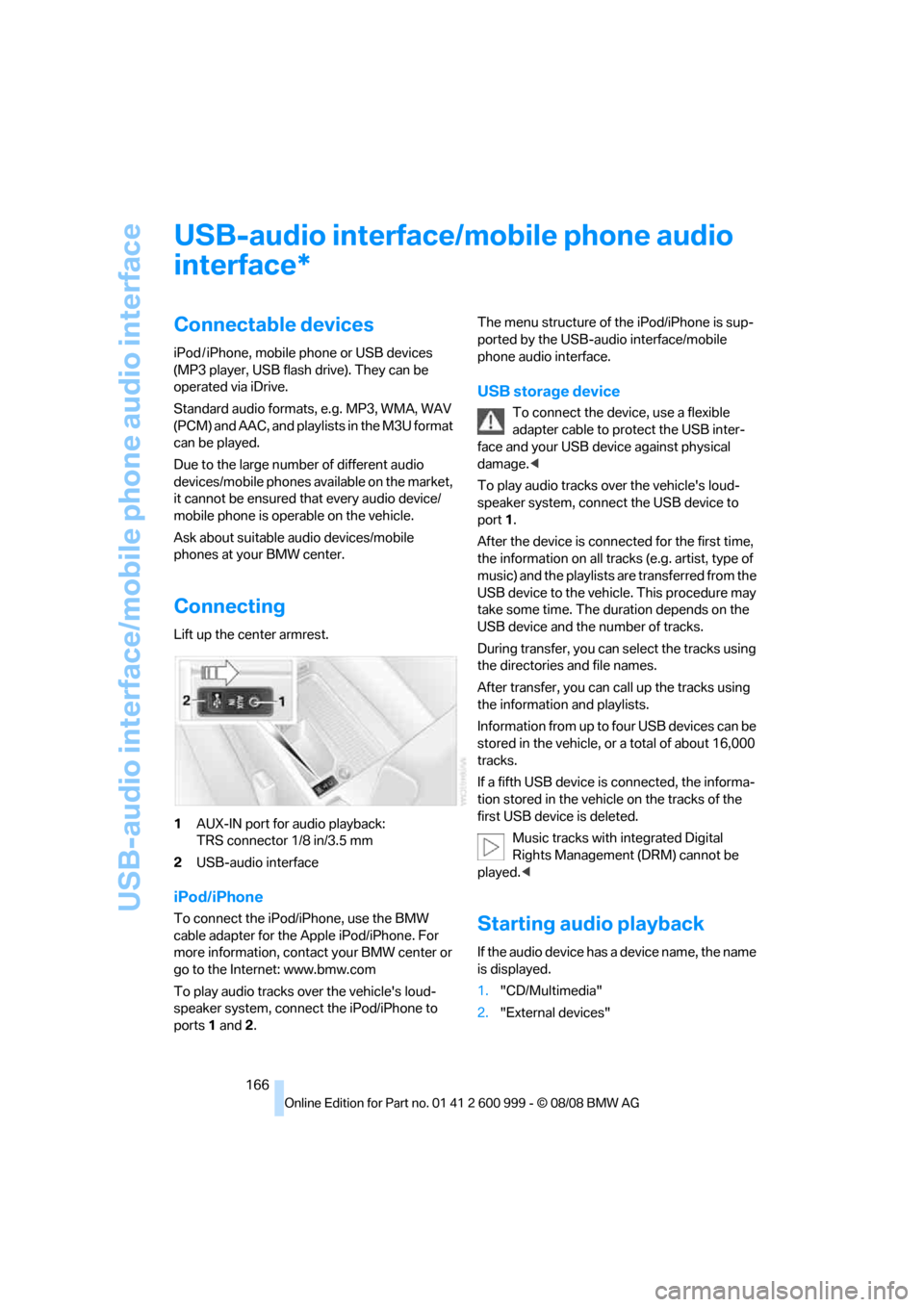
Lift up the center armrest.
1AUX-IN port for audio playback:
TRS connector 1/8 in/3.5 mm
2USB-audio interface
iPod/iPhone
To connect the iPod/iPhone, use the BMW
cable adapter for the Apple iPod/iPhone. For
more information, contact your BMW center or
go to the Internet: www.bmw.com
To play audio tracks over the vehicle's loud-
speaker system, connect the iPod/iPhone to
ports 1 and 2.The menu structure of the iPod/iPhone is sup-
ported by the USB-audio interface/mobile
phone audio interface.
USB storage device
To connect the device, use a flexible
adapter cable to protect the USB inter-
face and your USB device against physical
damage.<
To play audio tracks over the vehicle's loud-
speaker system, connect the USB device to
port1.
After the device is connected for the first time,
the information on all tracks (e.g. artist, type of
music) and the playlists are transferred from the
USB device to the vehicle. This procedure may
take some time. The duration depends on the
USB device and the number of tracks.
During transfer, you can select the tracks using
the directories and file names.
After transfer, you can call up the tracks using
the information and playlists.
Information from up to four USB devices can be
stored in the vehicle, or a total of about 16,000
tracks.
If a fifth USB device is connected, the informa-
tion stored in the vehicle on the tracks of the
first USB device is deleted.
Music tracks with integrated Digital
Rights Management (DRM) cannot be
played.<
Starting audio playback
If the audio device has a device name, the name
is displayed.
1."CD/Multimedia"
2."External devices"
*
ba8_E9293M3_cic.book Seite 166 Dienstag, 19. August 2008 12:01 12
Page 169 of 256
Navigation
Entertainment
Driving tips
167Reference
At a glance
Controls
Communications
Mobility
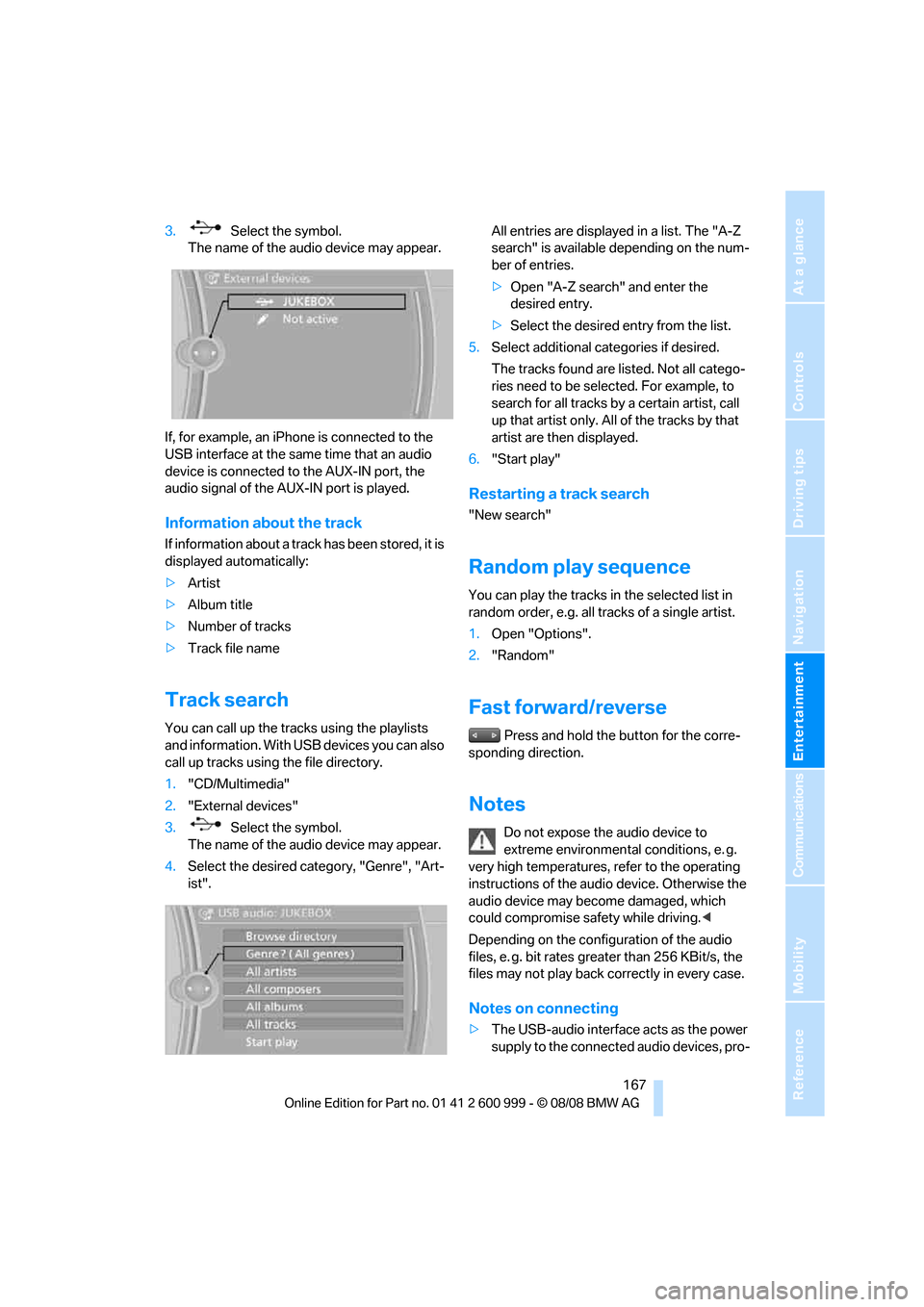
3. Select the symbol.
The name of the audio device may appear.
If, for example, an iPhone is connected to the
USB interface at the same time that an audio
device is connected to the AUX-IN port, the
audio signal of the AUX-IN port is played.
Information about the track
If information about a track has been stored, it is
displayed automatically:
>Artist
>Album title
>Number of tracks
>Track file name
Track search
You can call up the tracks using the playlists
and information. With USB devices you can also
call up tracks using the file directory.
1."CD/Multimedia"
2."External devices"
3. Select the symbol.
The name of the audio device may appear.
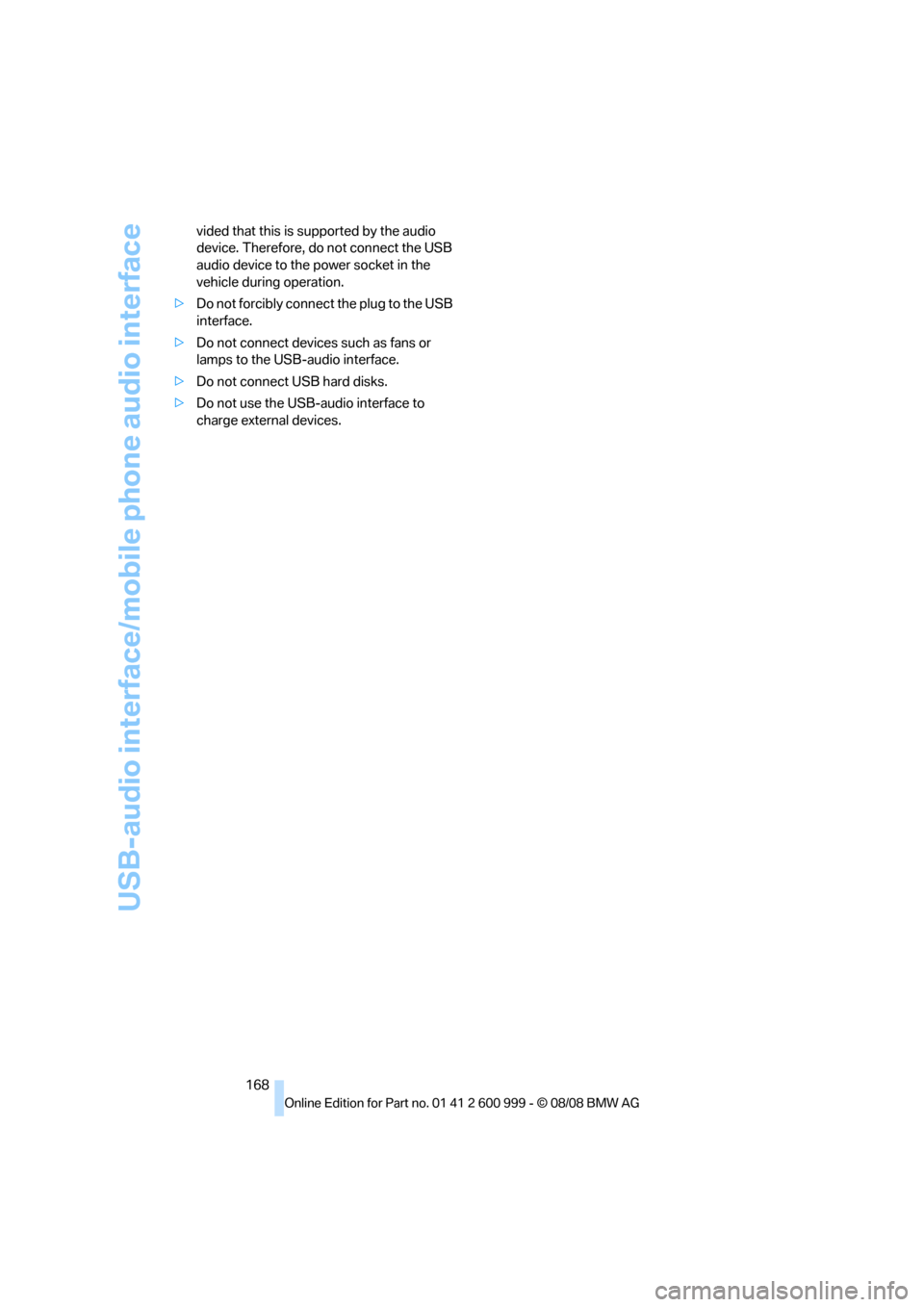
4.Select the desired category, "Genre", "Art-
ist".All entries are displayed in a list. The "A-Z
search" is available depending on the num-
ber of entries.
>Open "A-Z search" and enter the
desired entry.
>Select the desired entry from the list.
5.Select additional categories if desired.
The tracks found are listed. Not all catego-
ries need to be selected. For example, to
search for all tracks by a certain artist, call
up that artist only. All of the tracks by that
artist are then displayed.
6."Start play"
Restarting a track search
"New search"
Random play sequence
You can play the tracks in the selected list in
random order, e.g. all tracks of a single artist.
1.Open "Options".
2."Random"
Fast forward/reverse
Press and hold the button for the corre-
sponding direction.
Notes
Do not expose the audio device to
extreme environmental conditions, e. g.
very high temperatures, refer to the operating
instructions of the audio device. Otherwise the
audio device may become damaged, which
could compromise safety while driving.<
Depending on the configuration of the audio
files, e. g. bit rates greater than 256 KBit/s, the
files may not play back correctly in every case.
Notes on connecting
>The USB-audio interface acts as the power
supply to the connected audio devices, pro-
ba8_E9293M3_cic.book Seite 167 Dienstag, 19. August 2008 12:01 12
Page 170 of 256
USB-audio interface/mobile phone audio interface
168 vided that this is supported by the audio
device. Therefore, do not connect the USB
audio device to the power socket in the
vehicle during operation.
>Do not forcibly connect the plug to the USB
interface.
>Do not connect devices such as fans or
lamps to the USB-audio interface.
>Do not connect USB hard disks.
>Do not use the USB-audio interface to
charge external devices.
ba8_E9293M3_cic.book Seite 168 Dienstag, 19. August 2008 12:01 12
Page 173 of 256
Communications
This chapter describes how to use the
telephone, BMW Assist and TeleService.
Communications
ba8_E9293M3_cic.book Seite 171 Dienstag, 19. August 2008 12:01 12
Page 174 of 256
Telephone
172
Telephone
The concept
Your BMW is equipped with a Full preparation
package mobile phone. After pairing a suitable
mobile phone with the vehicle once, you can
operate the mobile phone via iDrive, the buttons
on the steering wheel or via voice commands.
Once a mobile phone has been paired with your
vehicle, it is automatically recognized as soon
as it is inside the vehicle while the engine is run-
ning or the ignition is switched on. You can
store the pairing data for up to four mobile
phones simultaneously. If several mobile
phones are detected at the same time, the
mobile phone last paired can be operated via
the vehicle.
Using the telephone inside
the vehicle
Using the snap-in adapter*
The so-called snap-in adapter, a holder for
mobile phones, allows you to charge the mobile
phone's battery and connect the mobile phone
to your vehicle's outside antenna. This ensures
better network reception and consistent repro-
duction quality. Please contact your
BMW center to find out for which mobile
phones there are snap-in adapters available.
For your safety
A car phone makes life more convenient in
many ways, and can even save lives in an emer-
gency. While you should consult your mobile
phone's separate operating instructions for a
detailed description of safety precautions and
information, we request that you direct your
particular attention to the following:
Only make entries when the traffic situa-
tion allows you to do so. Do not hold the
mobile phone in your hand while you are driving;
use the hands-free system instead. If you do
not observe this precaution, your being dis-tracted can endanger vehicle occupants and
other road users.<
Suitable mobile phones
Please ask your BMW center which mobile
phones with Bluetooth interface are supported
by the mobile phone preparation package and
which mobile phones are compatible with the
snap-in adapter. By virtue of their particular
software versions, these mobile phones sup-
port the functions described in this Owner's
Manual. Malfunctions may occur with other
mobile phones.
Operating options
You can operate the mobile phone* using:
>Buttons on the steering wheel, refer to
page10
>iDrive, refer to page16
>Voice commands, refer to page179
>Programmable memory keys, refer to
page20
Avoid operating a mobile phone recognized by
the vehicle via the mobile phone's keypad, oth-
erwise malfunctions may result.
Start-up
Pairing the mobile phone with the
vehicle
The following prerequisites must be met:
>Compatible mobile phone: the mobile
phone is supported by the Full preparation
package mobile phone. You can obtain
information on the Internet at:
www.bmw.com
>The mobile phone is ready to operate.
*
ba8_E9293M3_cic.book Seite 172 Dienstag, 19. August 2008 12:01 12
Page 175 of 256
173
Entertainment
Reference
At a glance
Controls
Driving tips Communications
Navigation
Mobility
>Bluetooth is activated in the vehicle, refer to
page174, and on the mobile phone.
>Depending on the mobile phone, some
default settings may be necessary for the
mobile phone: e. g. using the following
menu items:
>Bluetooth switched on
>Connection must be allowed without
requiring further confirmation
>Reconnection
>Depending on the mobile phone type, the
power-saving mode setting, for example,
may result in a paired mobile phone not
being detected by the vehicle.
>For pairing purposes, define any 4 to 16-
digit number as a Bluetooth passkey,
e.g. 25081107. A long and complex number
offers the best protection against unautho-
rized access. This Bluetooth passkey is no
longer required after pairing is successful.
>The ignition is switched on.
Pair the mobile phone with the vehicle
only when the car is stationary, to avoid
endangering the car's occupants and other
road users by being distracted.<
Switch on ignition
1.Insert remote control all the way into the
ignition lock.
2.Switch on ignition without operating the
brake or clutch or pressing the start/stop
button.
Preparation via iDrive
iDrive, for operating principle refer to page16.
3."Telephone"
4."Bluetooth"5."Add new phone"
The Bluetooth name of the vehicle is dis-
played.
Preparation via the mobile phone
6.Further steps must be carried out with the
mobile phone and vary depending on the
model. Please refer to your mobile phone's
operating instructions, e.g. under the topics
of Searching for a Bluetooth device, Linking
or Pairing. The Bluetooth name of the vehi-
cle also appears on the mobile phone dis-
play.
7.Select the Bluetooth name of the vehicle on
the mobile phone display.
Pairing
Depending on your mobile phone, you will see
messages, first on the mobile phone display or
on the iDrive, requesting you to enter the same
Bluetooth passkey previously determined by
you.
8.Enter the Bluetooth passkey.
Depending on the mobile phone, you will
have approx. 30 seconds to enter your
Bluetooth passkey on the mobile phone
and the Control Display.
ba8_E9293M3_cic.book Seite 173 Dienstag, 19. August 2008 12:01 12