CD changer BMW M3 COUPE 2009 E92 Owner's Manual
[x] Cancel search | Manufacturer: BMW, Model Year: 2009, Model line: M3 COUPE, Model: BMW M3 COUPE 2009 E92Pages: 256, PDF Size: 12.03 MB
Page 5 of 256
Reference
At a glance
Controls
Driving tips
Communications
Navigation
Entertainment
Mobility
Contents
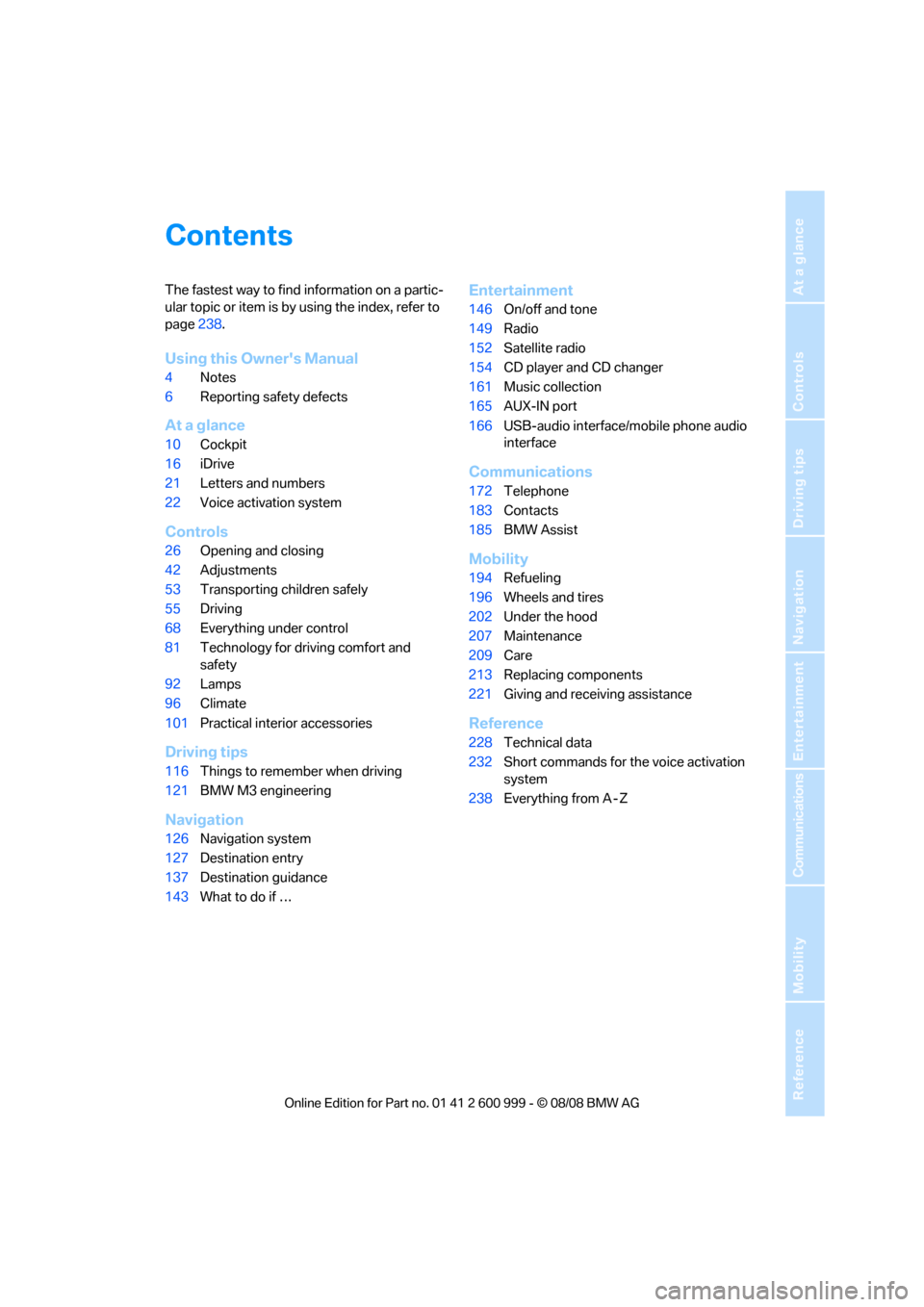
The fastest way to find information on a partic-
ular topic or item is by using the index, refer to
page238.
Using this Owner's Manual
4Notes
6Reporting safety defects
At a glance
10Cockpit
16iDrive
21Letters and numbers
22Voice activation system
Controls
26Opening and closing
42Adjustments
53Transporting children safely
55Driving
68Everything under control
81Technology for driving comfort and
safety
92Lamps
96Climate
101Practical interior accessories
Driving tips
116Things to remember when driving
121BMW M3 engineering
Navigation
126Navigation system
127Destination entry
137Destination guidance
143What to do if …
Entertainment
146On/off and tone
149Radio
152Satellite radio
154CD player and CD changer
161Music collection
165AUX-IN port
166USB-audio interface/mobile phone audio
interface
Communications
172Telephone
183Contacts
185BMW Assist
Mobility
194Refueling
196Wheels and tires
202Under the hood
207Maintenance
209Care
213Replacing components
221Giving and receiving assistance
Reference
228Technical data
232Short commands for the voice activation
system
238Everything from A - Z
ba8_E9293M3_cic.book Seite 3 Dienstag, 19. August 2008 12:01 12
Page 148 of 256
On/off and tone
146
On/off and tone
The following audio and video sources share
the same control elements and adjustments:
>Radio
>CD player
>CD changer
*
>Video
>External devices, e.g. MP3 player
Controls
The audio and video sources can be controlled
using the:
>Buttons near the CD player
>iDrive
>Buttons on the steering wheel, refer to
page10
>Programmable memory keys, refer to
page20
>Voice activation system
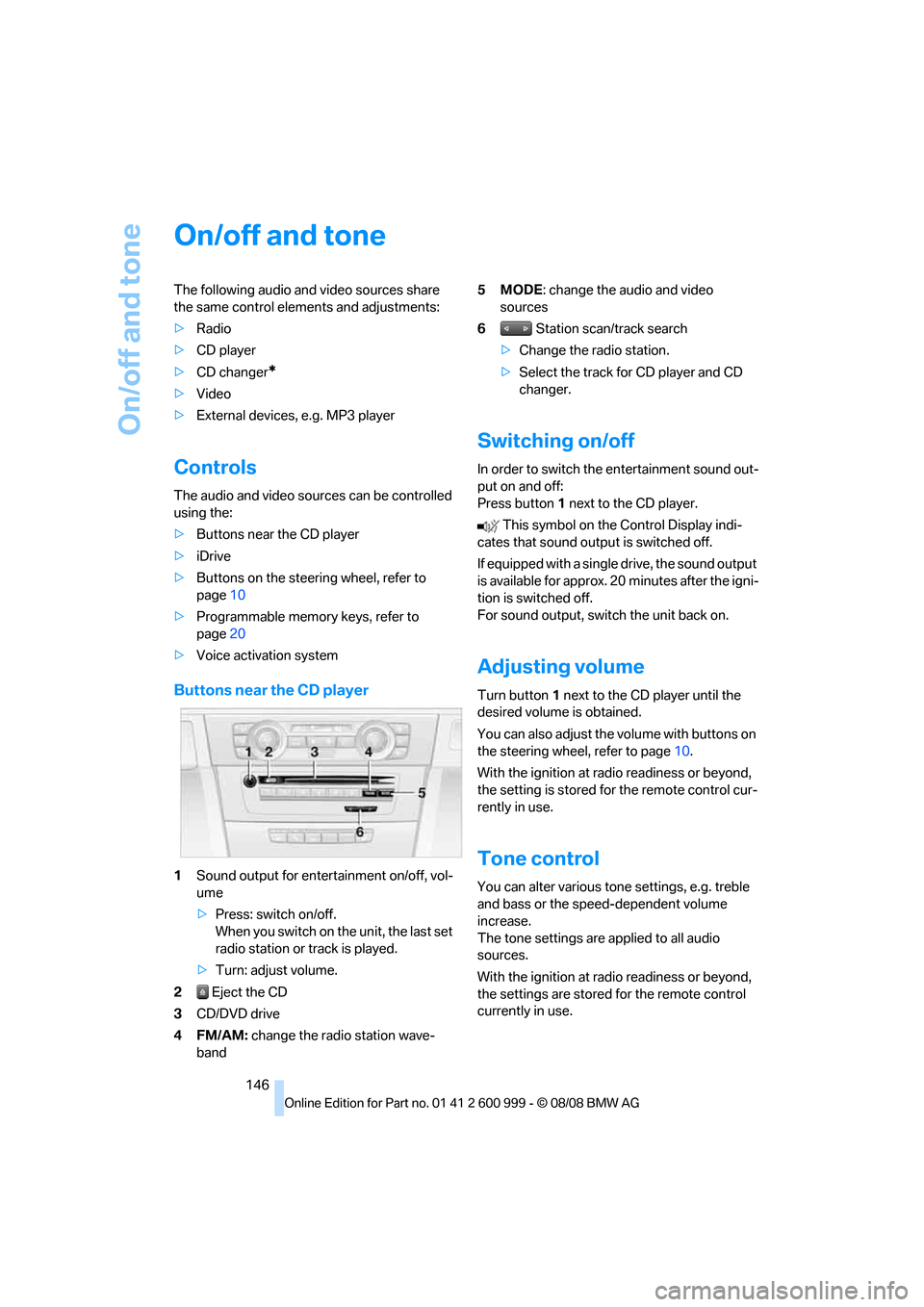
Buttons near the CD player
1Sound output for entertainment on/off, vol-
ume
>Press: switch on/off.
When you switch on the unit, the last set
radio station or track is played.
>Turn: adjust volume.
2 Eject the CD
3CD/DVD drive
4FM/AM: change the radio station wave-
band5MODE: change the audio and video
sources
6 Station scan/track search
>Change the radio station.
>Select the track for CD player and CD
changer.
Switching on/off
In order to switch the entertainment sound out-
put on and off:
Press button1 next to the CD player.
This symbol on the Control Display indi-
cates that sound output is switched off.
If equipped with a single drive, the sound output
is available for approx. 20 minutes after the igni-
tion is switched off.
For sound output, switch the unit back on.
Adjusting volume
Turn button1 next to the CD player until the
desired volume is obtained.
You can also adjust the volume with buttons on
the steering wheel, refer to page10.
With the ignition at radio readiness or beyond,
the setting is stored for the remote control cur-
rently in use.
Tone control
You can alter various tone settings, e.g. treble
and bass or the speed-dependent volume
increase.
The tone settings are applied to all audio
sources.
With the ignition at radio readiness or beyond,
the settings are stored for the remote control
currently in use.
ba8_E9293M3_cic.book Seite 146 Dienstag, 19. August 2008 12:01 12
Page 156 of 256
CD player and CD changer
154
CD player and CD changer
CD/DVD playback
Inserting a CD/DVD
Insert the CD/DVD into the drive with the
printed side up. The CD/DVD is drawn in auto-
matically.
Playback starts automatically if the sound out-
put is on. When playing CDs/DVDs with com-
pressed audio files, it can take the player
approx. 1 minute to read in the data, depending
on the directory structure.
Playable formats
CD/DVD player
>DVD: DVD-ROM, DVD-R, DVD+R, DVD-
RW, DVD+RW, DVD-R DL, DVD+R DL, DVD
audio (video part only), DVD video
>CD: CD-ROM, CD-R, CD-RW, CD-DA,
VCD, SVCD
>Compressed audio files: MP3, WMA, AAC
CD changer
*
>CD: CD-ROM, CD-R, CD-RW, CD-DA
Start playback
Via iDrive
Fill and insert the CD magazine, refer to
page159.
To start playback if a CD is already located in
the player or changer:
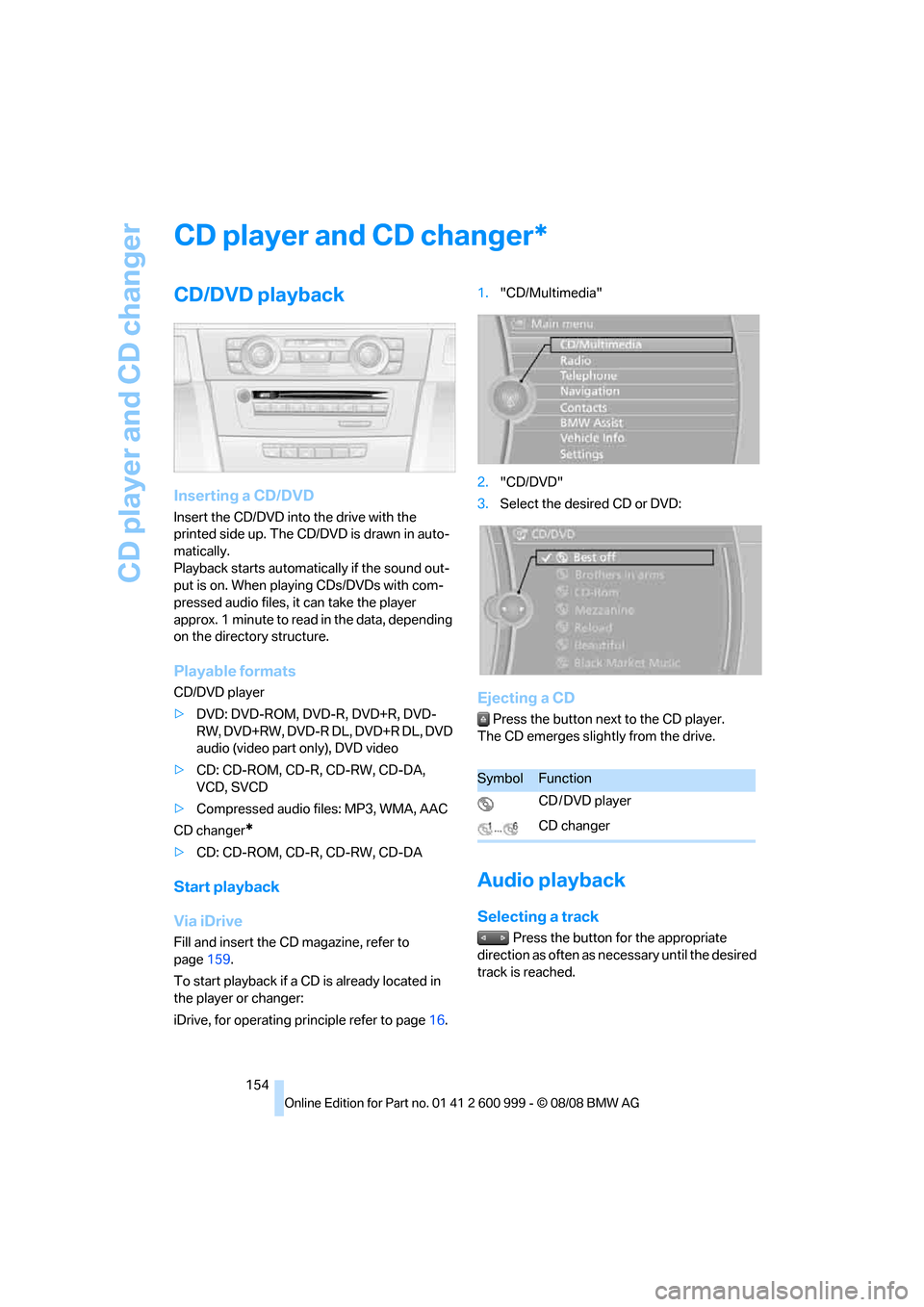
iDrive, for operating principle refer to page16.1."CD/Multimedia"
2."CD/DVD"
3.Select the desired CD or DVD:
Ejecting a CD
Press the button next to the CD player.
The CD emerges slightly from the drive.
Audio playback
Selecting a track
Press the button for the appropriate
direction as often as necessary until the desired
track is reached.
*
SymbolFunction
CD / DVD player
CD changer
ba8_E9293M3_cic.book Seite 154 Dienstag, 19. August 2008 12:01 12
Page 158 of 256
CD player and CD changer
156
Fast forward/reverse
Press and hold the button for the corre-
sponding direction.
Video playback*
Country codes
Only DVDs with the code of the home region
can be played back; also refer to the information
on your DVD.
Start playback
The video image is displayed on the Control
Display up to a vehicle speed of approx. 2 mph/
3km/h.
In some country versions, playback is either not
possible at all or only possible with the parking
brake set.
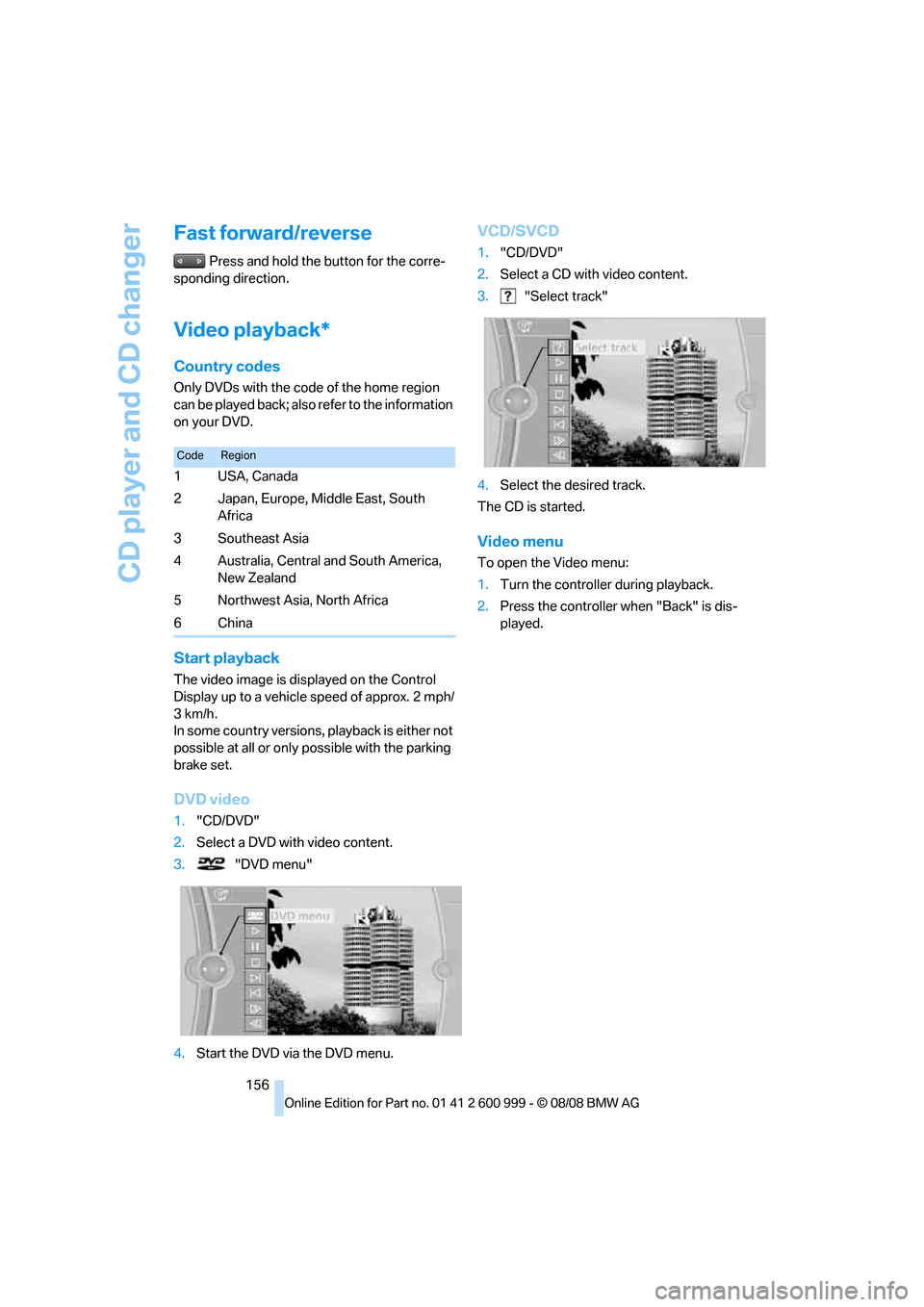
DVD video
1."CD/DVD"
2.Select a DVD with video content.
3. "DVD menu"
4.Start the DVD via the DVD menu.
VCD/SVCD
1."CD/DVD"
2.Select a CD with video content.
3. "Select track"
4.Select the desired track.
The CD is started.
Video menu
To open the Video menu:
1.Turn the controller during playback.
2.Press the controller when "Back" is dis-
played.
CodeRegion
1USA, Canada
2 Japan, Europe, Middle East, South
Africa
3Southeast Asia
4 Australia, Central and South America,
New Zealand
5 Northwest Asia, North Africa
6China
ba8_E9293M3_cic.book Seite 156 Dienstag, 19. August 2008 12:01 12
Page 160 of 256
CD player and CD changer
158 4."Brightness", "Contrast" or "Color"
5.Turn the controller until the desired setting
is displayed and then press the controller.
Zoom
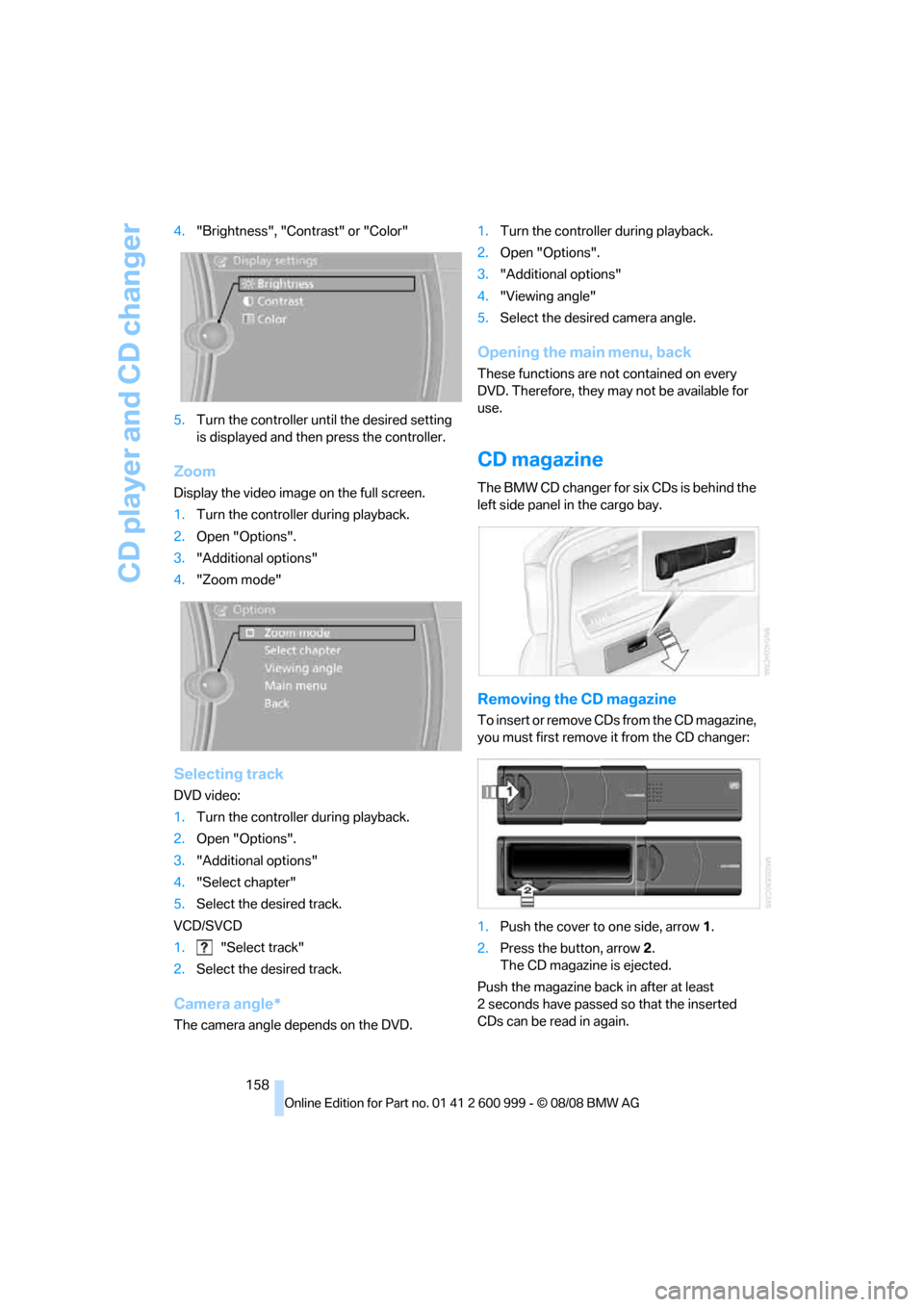
Display the video image on the full screen.
1.Turn the controller during playback.
2.Open "Options".
3."Additional options"
4."Zoom mode"
Selecting track
DVD video:
1.Turn the controller during playback.
2.Open "Options".
3."Additional options"
4."Select chapter"
5.Select the desired track.
VCD/SVCD
1. "Select track"
2.Select the desired track.
Camera angle*
The camera angle depends on the DVD.1.Turn the controller during playback.
2.Open "Options".
3."Additional options"
4."Viewing angle"
5.Select the desired camera angle.
Opening the main menu, back
These functions are not contained on every
DVD. Therefore, they may not be available for
use.
CD magazine
The BMW CD changer for six CDs is behind the
left side panel in the cargo bay.
Removing the CD magazine
To insert or remove CDs from the CD magazine,
you must first remove it from the CD changer:
1.Push the cover to one side, arrow 1.
2.Press the button, arrow 2.
The CD magazine is ejected.
Push the magazine back in after at least
2 seconds have passed so that the inserted
CDs can be read in again.
ba8_E9293M3_cic.book Seite 158 Dienstag, 19. August 2008 12:01 12
Page 161 of 256
Navigation
Entertainment
Driving tips
159Reference
At a glance
Controls
Communications
Mobility
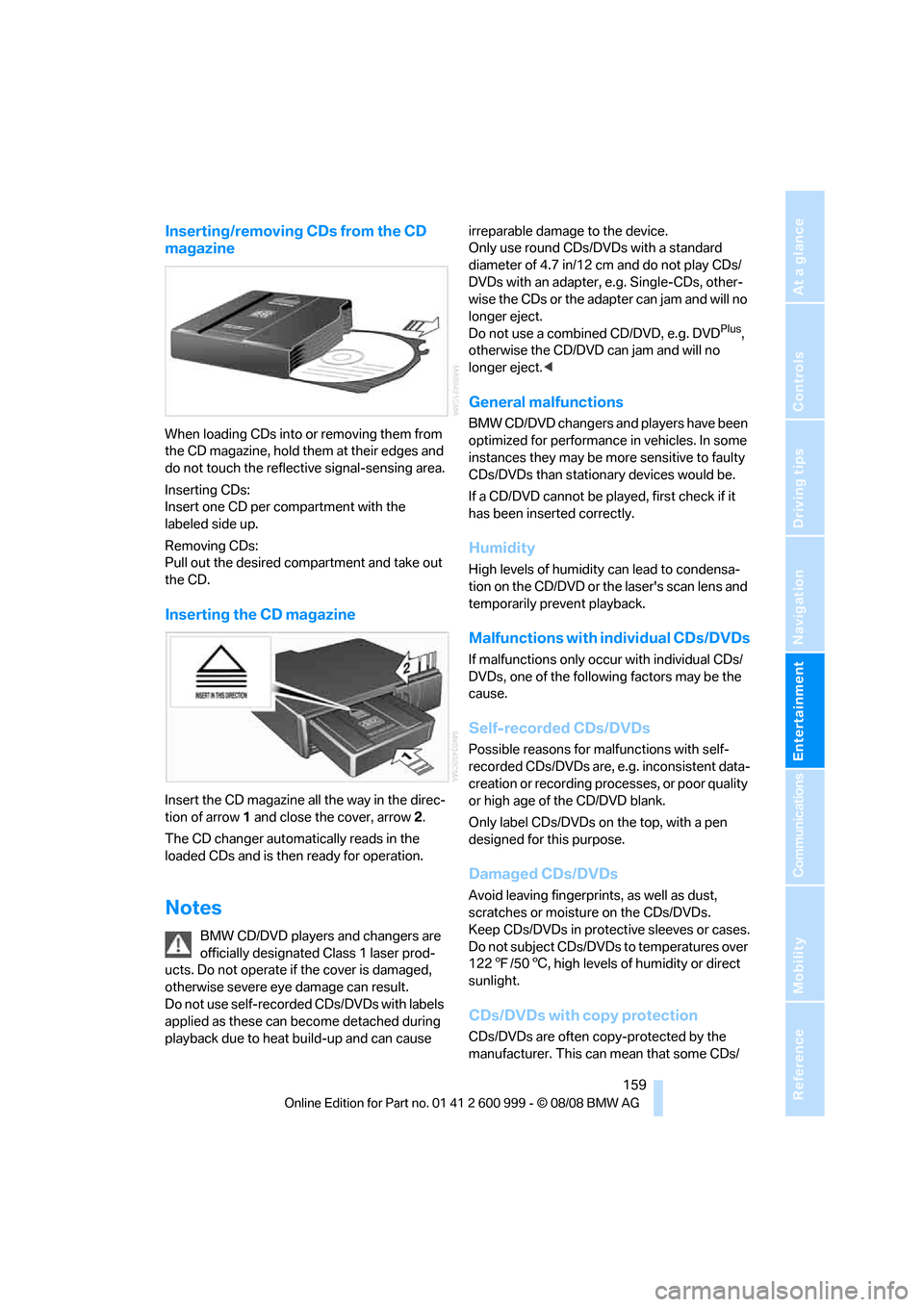
Inserting/removing CDs from the CD
magazine
When loading CDs into or removing them from
the CD magazine, hold them at their edges and
do not touch the reflective signal-sensing area.
Inserting CDs:
Insert one CD per compartment with the
labeled side up.
Removing CDs:
Pull out the desired compartment and take out
the CD.
Inserting the CD magazine
Insert the CD magazine all the way in the direc-
tion of arrow 1 and close the cover, arrow 2.
The CD changer automatically reads in the
loaded CDs and is then ready for operation.
Notes
BMW CD/DVD players and changers are
officially designated Class 1 laser prod-
ucts. Do not operate if the cover is damaged,
otherwise severe eye damage can result.
Do not use self-recorded CDs/DVDs with labels
applied as these can become detached during
playback due to heat build-up and can cause irreparable damage to the device.
Only use round CDs/DVDs with a standard
diameter of 4.7 in/12 cm and do not play CDs/
DVDs with an adapter, e.g. Single-CDs, other-
wise the CDs or the adapter can jam and will no
longer eject.
Do not use a combined CD/DVD, e.g. DVD
Plus,
otherwise the CD/DVD can jam and will no
longer eject.<
General malfunctions
BMW CD/DVD changers and players have been
optimized for performance in vehicles. In some
instances they may be more sensitive to faulty
CDs/DVDs than stationary devices would be.
If a CD/DVD cannot be played, first check if it
has been inserted correctly.
Humidity
High levels of humidity can lead to condensa-
tion on the CD/DVD or the laser's scan lens and
temporarily prevent playback.
Malfunctions with individual CDs/DVDs
If malfunctions only occur with individual CDs/
DVDs, one of the following factors may be the
cause.
Self-recorded CDs/DVDs
Possible reasons for malfunctions with self-
recorded CDs/DVDs are, e.g. inconsistent data-
creation or recording processes, or poor quality
or high age of the CD/DVD blank.
Only label CDs/DVDs on the top, with a pen
designed for this purpose.
Damaged CDs/DVDs
Avoid leaving fingerprints, as well as dust,
scratches or moisture on the CDs/DVDs.
Keep CDs/DVDs in protective sleeves or cases.
Do not subject CDs/DVDs to temperatures over
1227/506, high levels of humidity or direct
sunlight.
CDs/DVDs with copy protection
CDs/DVDs are often copy-protected by the
manufacturer. This can mean that some CDs/
ba8_E9293M3_cic.book Seite 159 Dienstag, 19. August 2008 12:01 12
Page 162 of 256
CD player and CD changer
160 DVDs cannot be played or can only be played to
a limited extent.
Care
Clean the reflective signal side of CDs/DVDs as
needed by wiping it with a commercially avail-
able cleaning tissue in straight lines from the
center of the disc outwards.
ba8_E9293M3_cic.book Seite 160 Dienstag, 19. August 2008 12:01 12
Page 234 of 256
Short commands for the voice activation system
232
Short commands for the voice activation
system
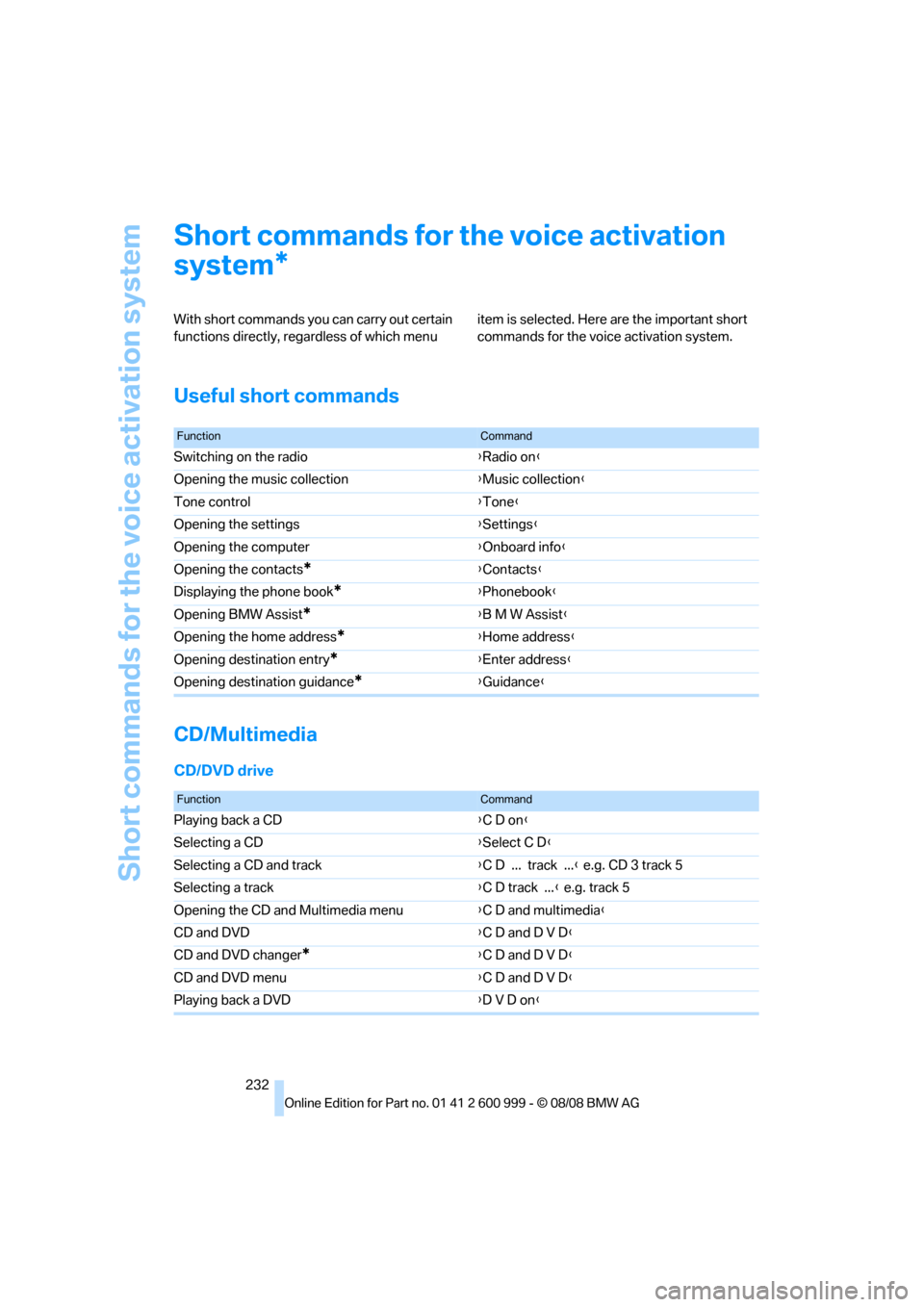
With short commands you can carry out certain
functions directly, regardless of which menu item is selected. Here are the important short
commands for the voice activation system.
Useful short commands
CD/Multimedia
CD/DVD drive
*
FunctionCommand
Switching on the radio{Radio on}
Opening the music collection{Music collection}
Tone control{Tone}
Opening the settings{Settings}
Opening the computer{Onboard info}
Opening the contacts
*{Contacts}
Displaying the phone book
*{Phonebook}
Opening BMW Assist
*{B M W Assist}
Opening the home address
*{Home address}
Opening destination entry
*{Enter address}
Opening destination guidance
*{Guidance}
FunctionCommand
Playing back a CD{C D on}
Selecting a CD{Select C D}
Selecting a CD and track{C D ... track ...} e.g. CD 3 track 5
Selecting a track{C D track ...} e.g. track 5
Opening the CD and Multimedia menu{C D and multimedia}
CD and DVD{C D and D V D}
CD and DVD changer
*{C D and D V D}
CD and DVD menu{C D and D V D}
Playing back a DVD{D V D on}
ba8_E9293M3_cic.book Seite 232 Dienstag, 19. August 2008 12:01 12
Page 235 of 256
Reference 233
At a glance
Controls
Driving tips
Communications
Navigation
Entertainment
Mobility
Music collection
External devices
Tone control
Radio
FM
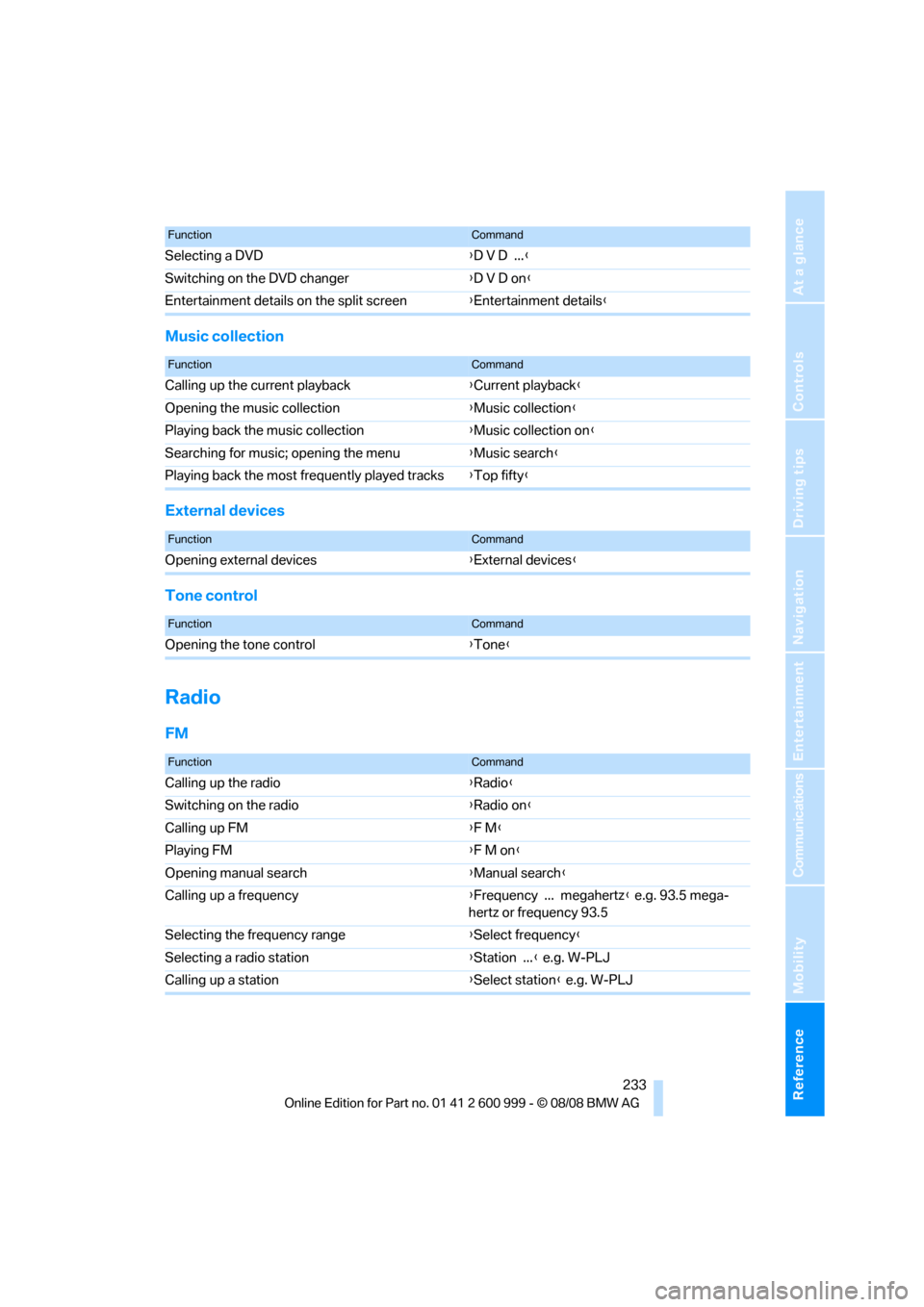
Selecting a DVD{D V D ...}
Switching on the DVD changer{D V D on}
Entertainment details on the split screen{Entertainment details}
FunctionCommand
FunctionCommand
Calling up the current playback{Current playback}
Opening the music collection{Music collection}
Playing back the music collection{Music collection on}
Searching for music; opening the menu{Music search}
Playing back the most frequently played tracks{Top fifty}
FunctionCommand
Opening external devices{External devices}
FunctionCommand
Opening the tone control{Tone}
FunctionCommand
Calling up the radio{Radio}
Switching on the radio{Radio on}
Calling up FM{F M}
Playing FM{F M on}
Opening manual search{Manual search}
Calling up a frequency{Frequency ... megahertz} e.g. 93.5 mega-
hertz or frequency 93.5
Selecting the frequency range{Select frequency}
Selecting a radio station{Station ...} e.g. W-PLJ
Calling up a station{Select station} e.g. W-PLJ
ba8_E9293M3_cic.book Seite 233 Dienstag, 19. August 2008 12:01 12
Page 242 of 256
Everything from A - Z
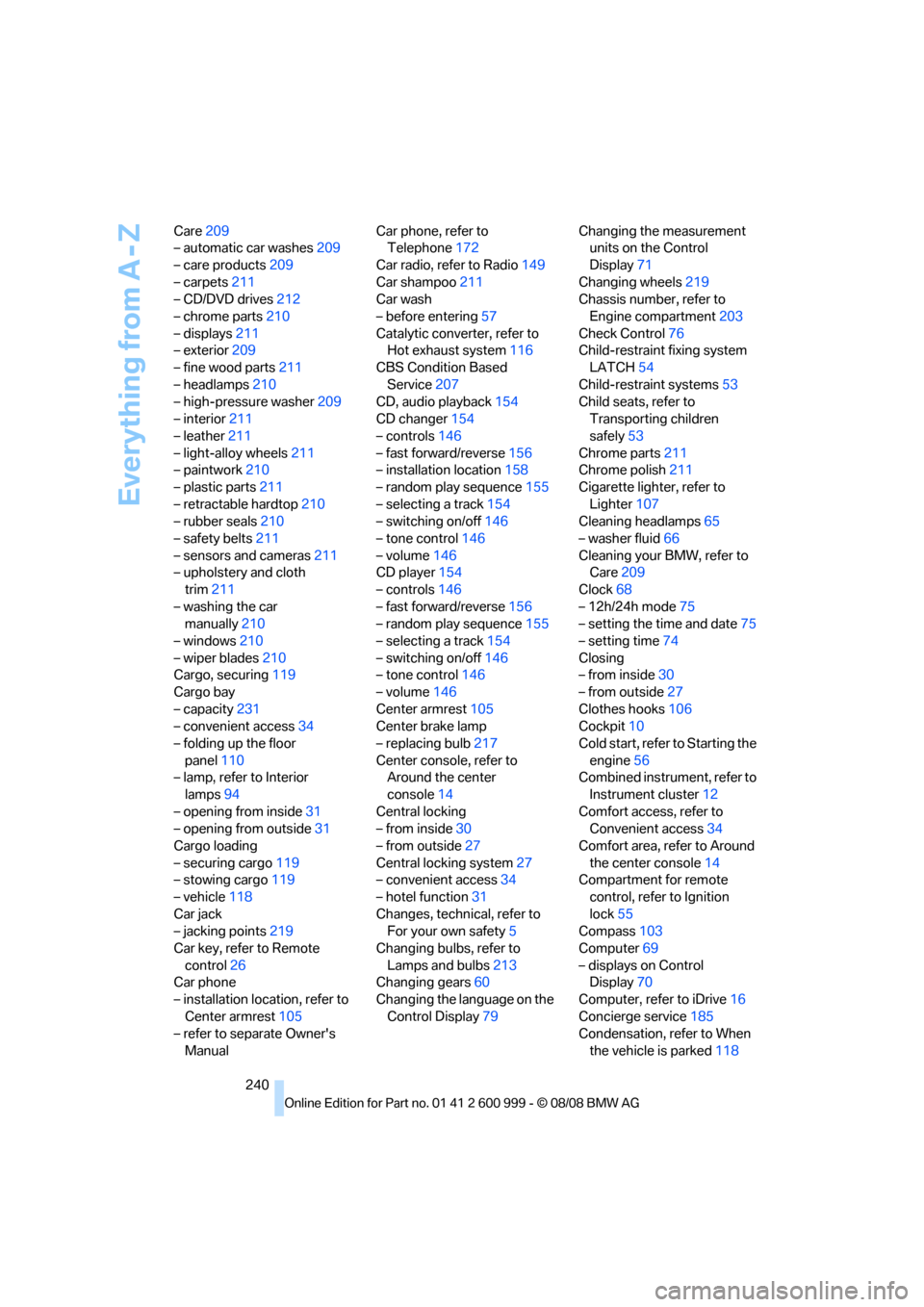
240 Care209
– automatic car washes209
– care products209
– carpets211
– CD/DVD drives212
– chrome parts210
– displays211
– exterior209
– fine wood parts211
– headlamps210
– high-pressure washer209
– interior211
– leather211
– light-alloy wheels211
– paintwork210
– plastic parts211
– retractable hardtop210
– rubber seals210
– safety belts211
– sensors and cameras211
– upholstery and cloth
trim211
– washing the car
manually210
– windows210
– wiper blades210
Cargo, securing119
Cargo bay
– capacity231
– convenient access34
– folding up the floor
panel110
– lamp, refer to Interior
lamps94
– opening from inside31
– opening from outside31
Cargo loading
– securing cargo119
– stowing cargo119
– vehicle118
Car jack
– jacking points219
Car key, refer to Remote
control26
Car phone
– installation location, refer to
Center armrest105
– refer to separate Owner's
ManualCar phone, refer to
Telephone172
Car radio, refer to Radio149
Car shampoo211
Car wash
– before entering57
Catalytic converter, refer to
Hot exhaust system116
CBS Condition Based
Service
207
CD, audio playback154
CD changer154
– controls146
– fast forward/reverse156
– installation location158
– random play sequence155
– selecting a track154
– switching on/off146
– tone control146
– volume146
CD player154
– controls146
– fast forward/reverse156
– random play sequence155
– selecting a track154
– switching on/off146
– tone control146
– volume146
Center armrest105
Center brake lamp
– replacing bulb217
Center console, refer to
Around the center
console14
Central locking
– from inside30
– from outside27
Central locking system27
– convenient access34
– hotel function31
Changes, technical, refer to
For your own safety5
Changing bulbs, refer to
Lamps and bulbs213
Changing gears60
Changing the language on the
Control Display79Changing the measurement
units on the Control
Display71
Changing wheels219
Chassis number, refer to
Engine compartment203
Check Control76
Child-restraint fixing system
LATCH54
Child-restraint systems53
Child seats, refer to
Transporting children
safely53
Chrome parts211
Chrome polish211
Cigarette lighter, refer to
Lighter107
Cleaning headlamps65
– washer fluid66
Cleaning your BMW, refer to
Care209
Clock
68
– 12h/24h mode75
– setting the time and date75
– setting time74
Closing
– from inside30
– from outside27
Clothes hooks106
Cockpit10
Cold start, refer to Starting the
engine56
Combined instrument, refer to
Instrument cluster12
Comfort access, refer to
Convenient access34
Comfort area, refer to Around
the center console14
Compartment for remote
control, refer to Ignition
lock55
Compass103
Computer69
– displays on Control
Display70
Computer, refer to iDrive16
Concierge service185
Condensation, refer to When
the vehicle is parked118
ba8_E9293M3_cic.book Seite 240 Dienstag, 19. August 2008 12:01 12