change time BMW M3 COUPE 2013 E92 Owner's Guide
[x] Cancel search | Manufacturer: BMW, Model Year: 2013, Model line: M3 COUPE, Model: BMW M3 COUPE 2013 E92Pages: 311, PDF Size: 6.89 MB
Page 186 of 311
181
CD/DVD player
Entertainment
In fast forward/reverse: the speed increases
every time the controller is pressed. To stop,
start playback.
DVD menu
1.
If necessary, turn the controller to open the
Video menu.
2. "DVD menu"
The DVD menu is displayed. The display
depends on the contents of the DVD.
> To select menu items: move and press the
controller.
> To change to the Video menu: turn the
controller and select "Back".
DVD/VCD settings
For some DVDs, settings can only be made via
the DVD menu; also refer to the information on
your DVD.
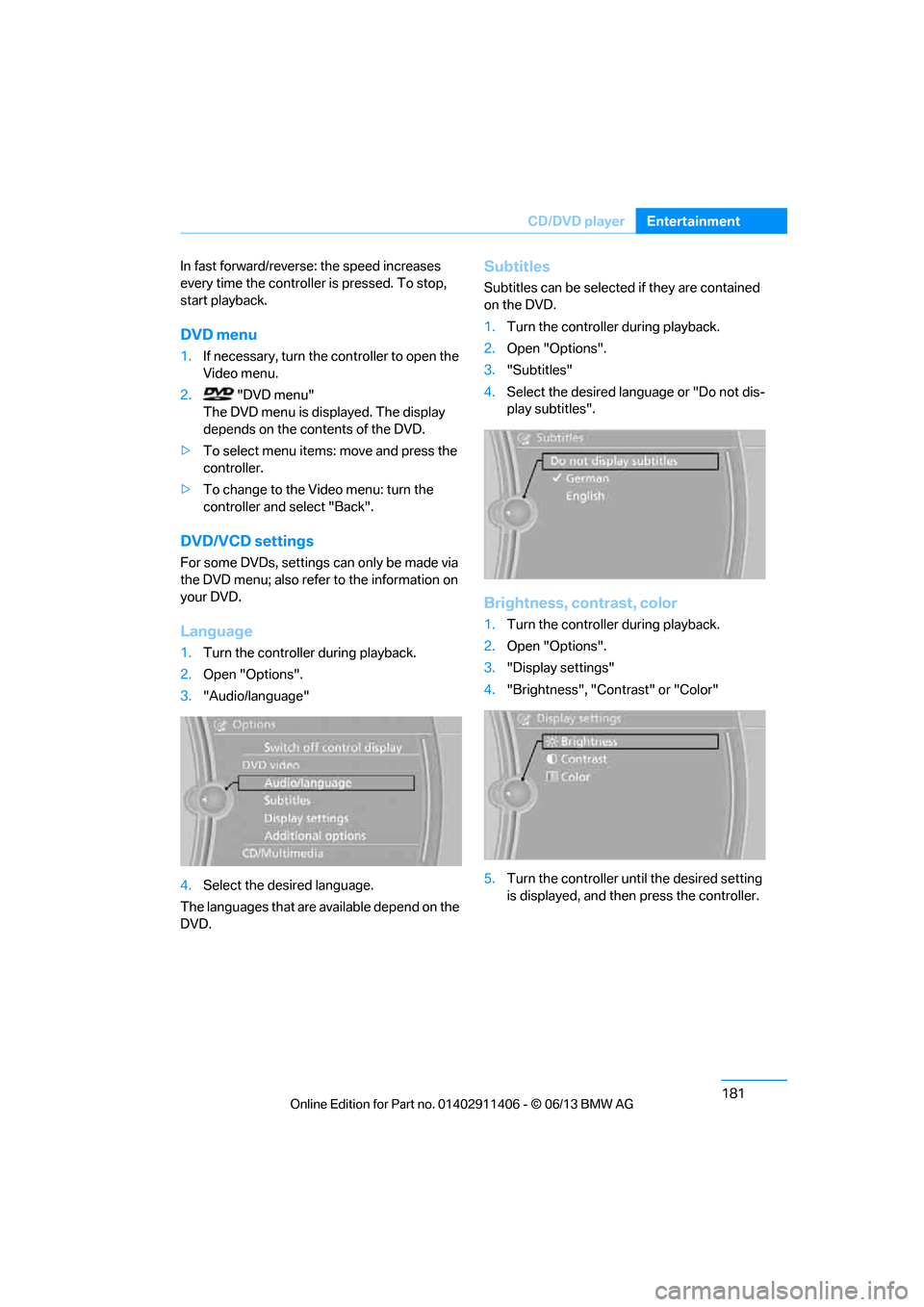
Language
1.Turn the controller during playback.
2. Open "Options".
3. "Audio/language"
4. Select the desired language.
The languages that are available depend on the
DVD.
Subtitles
Subtitles can be selected if they are contained
on the DVD.
1. Turn the controller during playback.
2. Open "Options".
3. "Subtitles"
4. Select the desired language or "Do not dis-
play subtitles".
Brightness, contrast, color
1.Turn the controller during playback.
2. Open "Options".
3. "Display settings"
4. "Brightness", "Contrast" or "Color"
5. Turn the controller unt il the desired setting
is displayed, and then press the controller.
00320051004F004C00510048000300280047004C0057004C005200510003
Page 192 of 311
187
Music collection
Entertainment
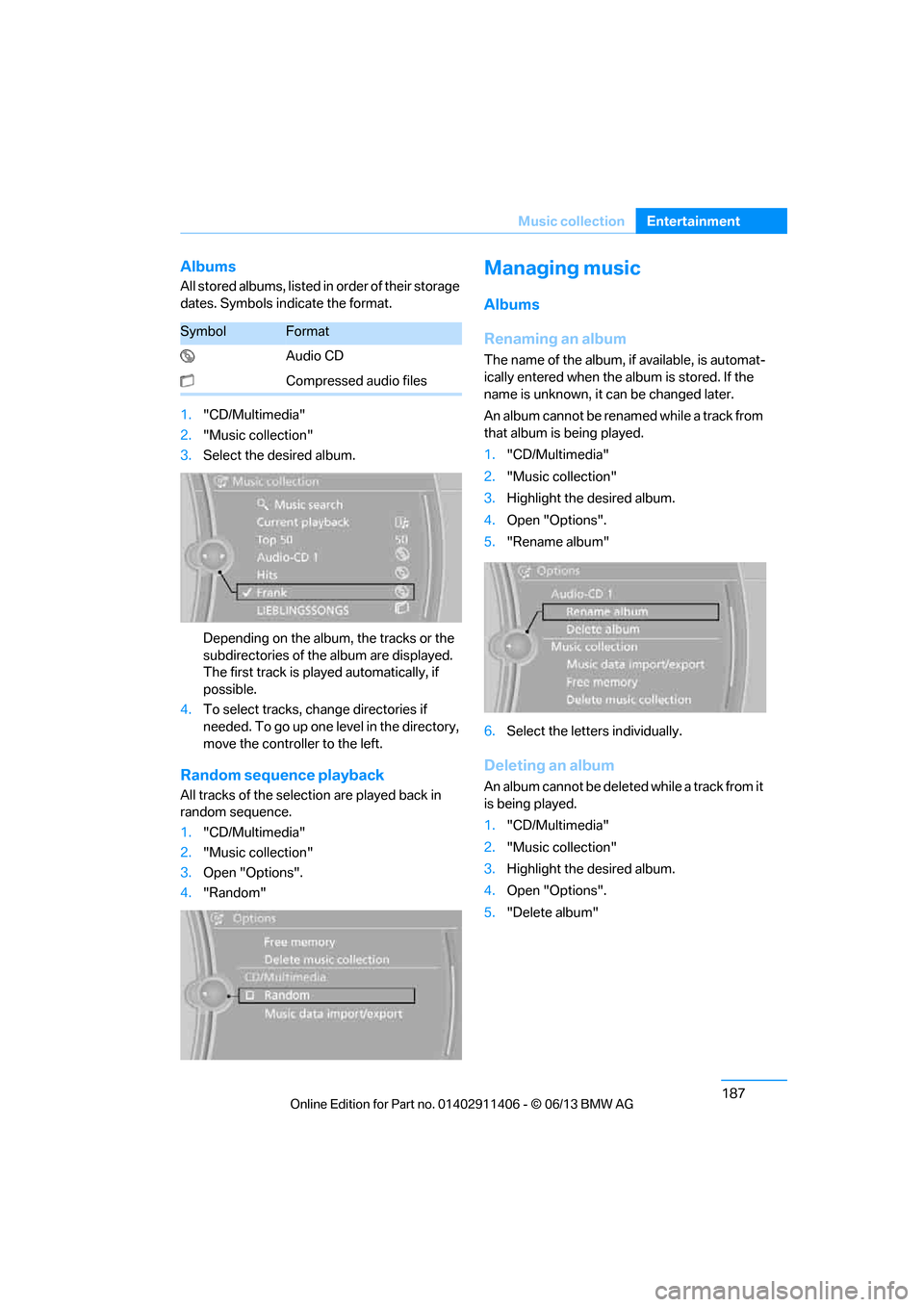
Albums
All stored albums, listed in
order of their storage
dates. Symbols indicate the format.
1. "CD/Multimedia"
2. "Music collection"
3. Select the desired album.
Depending on the album, the tracks or the
subdirectories of the album are displayed.
The first track is play ed automatically, if
possible.
4. To select tracks, ch ange directories if
needed. To go up one level in the directory,
move the controller to the left.
Random sequence playback
All tracks of the select ion are played back in
random sequence.
1. "CD/Multimedia"
2. "Music collection"
3. Open "Options".
4. "Random"
Managing music
Albums
Renaming an album
The name of the album, if available, is automat-
ically entered when the album is stored. If the
name is unknown, it can be changed later.
An album cannot be renamed while a track from
that album is being played.
1. "CD/Multimedia"
2. "Music collection"
3. Highlight the desired album.
4. Open "Options".
5. "Rename album"
6. Select the letters individually.
Deleting an album
An album cannot be delete d while a track from it
is being played.
1. "CD/Multimedia"
2. "Music collection"
3. Highlight the desired album.
4. Open "Options".
5. "Delete album"
SymbolFormat
Audio CD
Compressed audio files
00320051004F004C00510048000300280047004C0057004C005200510003
Page 197 of 311
192
EntertainmentExternal devices
Random play sequence
The current list of tracks is played in random
sequence.
1. "CD/Multimedia"
2. "External devices"
3. Open "Options".
4. "Random"
Fast forward/reverse
Press and hold the button.
Video playback
Overview
Video playback possible via snap-in adapter.
They can be operated via iDrive. Sound is
output over the vehicle speakers.
Playback
For your own safety, the video image is only dis-
played up to approx. 2 mph/3 km/h and in some
market-specific versions, only with the parking
brake engaged or the selector lever of the auto-
matic transmission is in the park position.
1. "CD/Multimedia"
2. "External devices"
3. Select the symbol.
4. "Video"
5. Select the directory, if necessary.
To change to a higher level directory: move
the controller to the left.
6. Select the desired video file to begin
playback.
Video menu Notes
Do not expose the audio device to extreme
environmental conditions, e.g. very high tem-
peratures, refer to the operating instructions of
the audio device.
Depending on the configuration of the audio
files, e.g. bit rates greater than 256 Kbit/s,
proper playback cannot always be ensured.
Information on connection
>
The connected audio device is supplied
with a max. power of 500 mA if supported
by the device. For this reason, do not con-
nect the device to a charging socket in the
vehicle; otherwise, it may not be possible to
ensure proper playback.
> Do not use force when plugging the
connector into th e USB interface.
> Do not connect devices such as fans or
lamps to the USB audio interface.
> Do not connect USB hard drives.
> Do not use the USB audio interface to
recharge external devices.
Bluetooth audio
Overview
>It is possible to use Bluetooth to play music
files from external devices, e.g. audio
devices or mobile phones.
Using a mobile phone as an audio source,
refer to page 190.
> Bluetooth® is a registered trademark of
Bluetooth® SIG, Inc.
> Sound is output over the vehicle speakers.
> The volume of the so und output depends
on the device. If necessary, change the
volume setting on the device.
> Up to four external devices can be paired
with the vehicle.
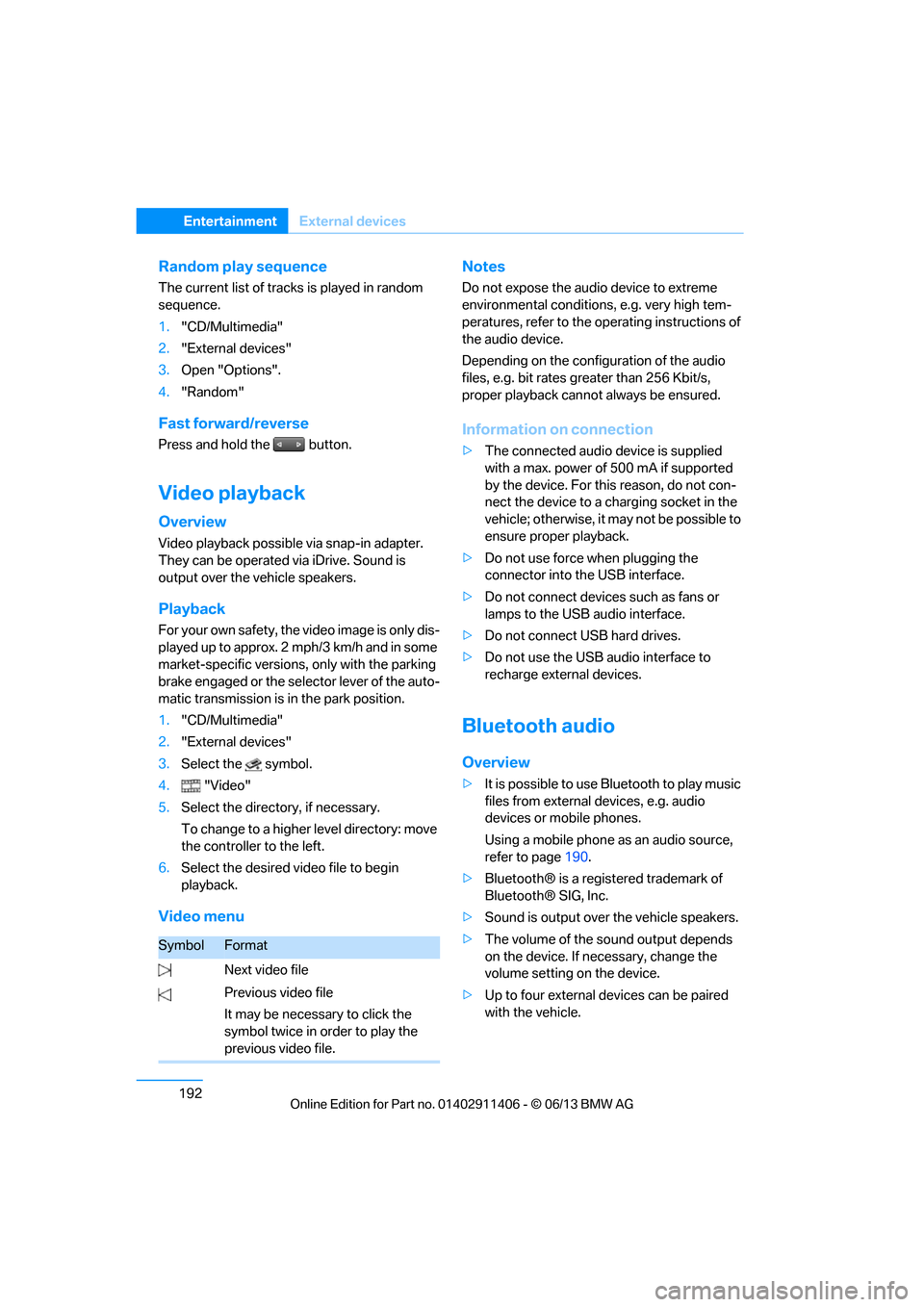
SymbolFormat
Next video file
Previous video file
It may be necessary to click the
symbol twice in order to play the
previous video file.
00320051004F004C00510048000300280047004C0057004C005200510003
Page 198 of 311
193
External devices
Entertainment
Requirements
>
Suitable device. For information, go to
www.bmwusa.com/bluetooth.
> Device operational.
> Ignition switched on.
> Bluetooth activated in vehicle, refer to
page 201, and in the device.
> Activating Bluetooth audio, refer to
page 201.
> Bluetooth presets in the device are
required, e.g. connection not confirmed or
visible, refer to Owner's Manual for the
device.
> A number with at least 4 and at most
16 digits has been established as the
Bluetooth passkey. Only required once for
pairing.
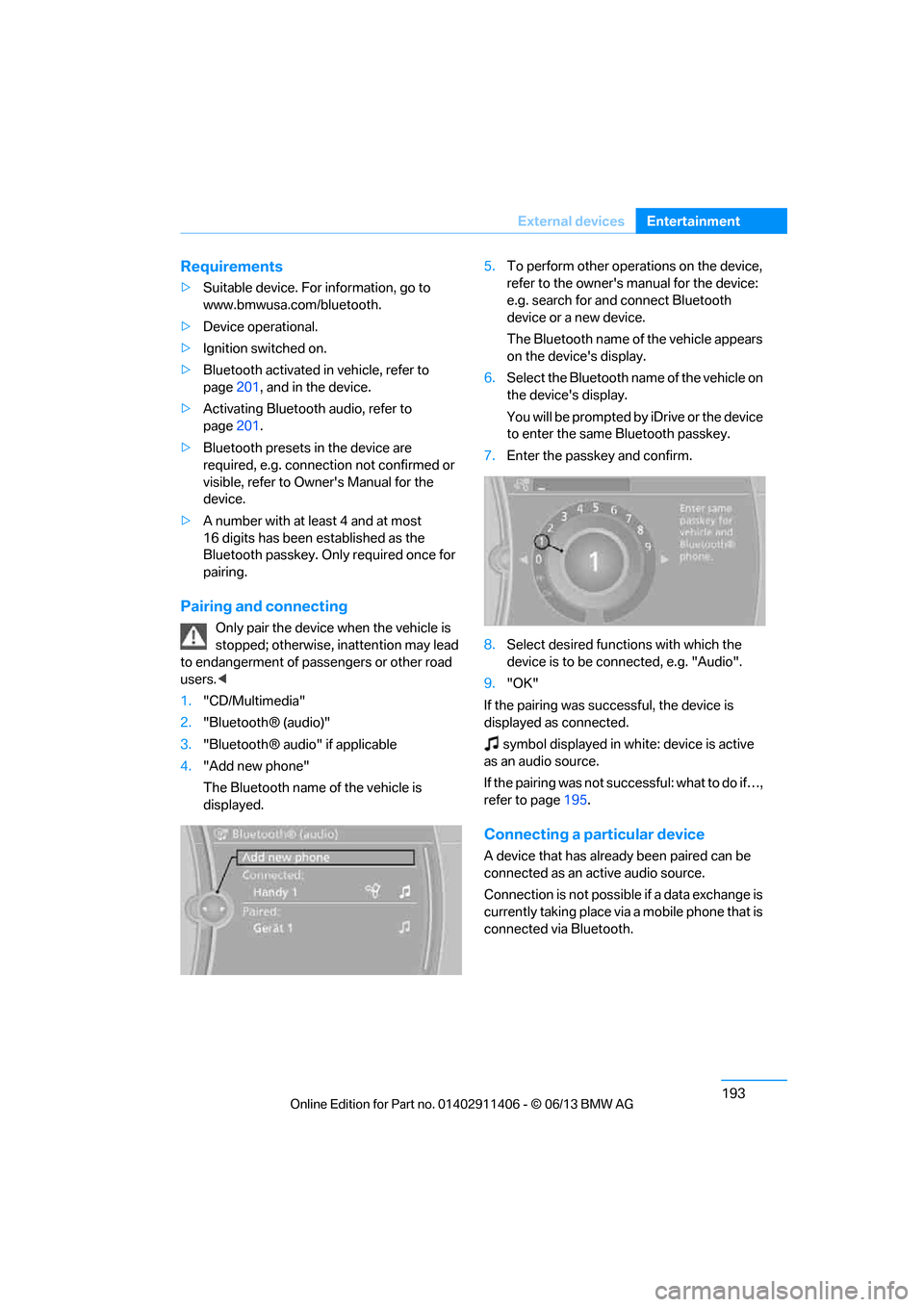
Pairing and connecting
Only pair the device when the vehicle is
stopped; otherwise, inattention may lead
to endangerment of passengers or other road
users. <
1. "CD/Multimedia"
2. "Bluetooth® (audio)"
3. "Bluetooth® audio" if applicable
4. "Add new phone"
The Bluetooth name of the vehicle is
displayed. 5.
To perform other operations on the device,
refer to the owner's ma nual for the device:
e.g. search for and connect Bluetooth
device or a new device.
The Bluetooth name of the vehicle appears
on the device's display.
6. Select the Bluetooth na me of the vehicle on
the device's display.
You will be prompted by iDrive or the device
to enter the same Bluetooth passkey.
7. Enter the passkey and confirm.
8. Select desired functions with which the
device is to be connected, e.g. "Audio".
9. "OK"
If the pairing was successful, the device is
displayed as connected. symbol displayed in white: device is active
as an audio source.
If the pairing was not succ e s s f u l : w h a t t o d o i f … ,
refer to page 195.
Connecting a particular device
A device that has already been paired can be
connected as an active audio source.
Connection is not possible if a data exchange is
currently taking place via a mobile phone that is
connected via Bluetooth.
00320051004F004C00510048000300280047004C0057004C005200510003
Page 199 of 311
194
EntertainmentExternal devices
Prerequisite
If necessary, activate the audio connection of
the desired device from the list of paired
devices.
1."CD/Multimedia"
2. "Bluetooth® (audio)"
3. "Bluetooth® audio" if applicable
4. Select the desired device from the list of
paired devices.
5. Open "Options".
6. "Configure phone"
7. Activate "Audio".
8. "OK"
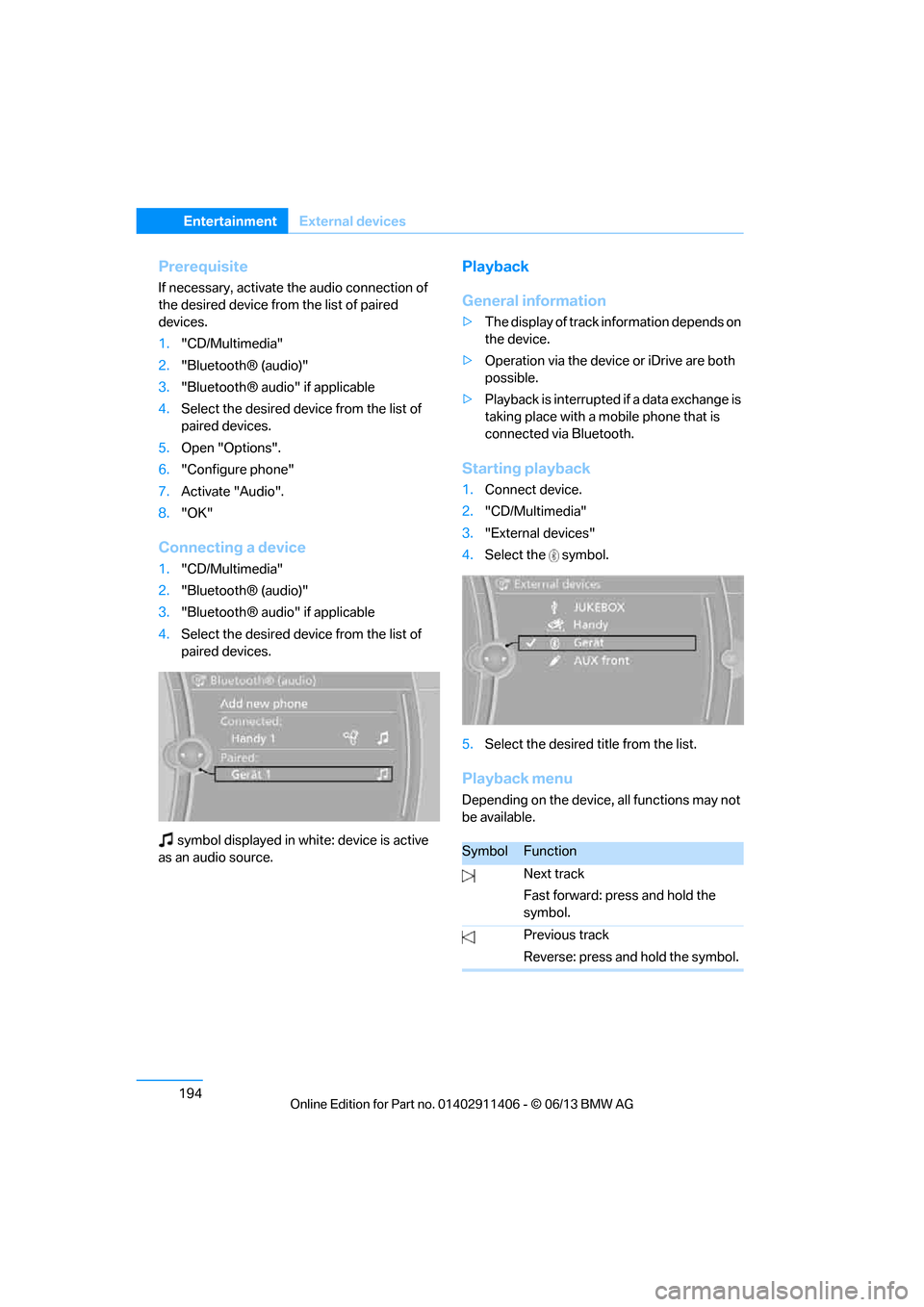
Connecting a device
1."CD/Multimedia"
2. "Bluetooth® (audio)"
3. "Bluetooth® audio" if applicable
4. Select the desired device from the list of
paired devices.
symbol displayed in whit e: device is active
as an audio source.
Playback
General information
> The display of track information depends on
the device.
> Operation via the device or iDrive are both
possible.
> Playback is interrupted if a data exchange is
taking place with a mobile phone that is
connected via Bluetooth.
Starting playback
1. Connect device.
2. "CD/Multimedia"
3. "External devices"
4. Select the symbol.
5. Select the desired title from the list.
Playback menu
Depending on the device, all functions may not
be available.
SymbolFunction
Next track
Fast forward: press and hold the
symbol.
Previous track
Reverse: press and hold the symbol.
00320051004F004C00510048000300280047004C0057004C005200510003
Page 272 of 311
267
Replacing components
Mobility
When working on electrical systems,
always begin by switching off the con-
sumer in question; otherwise, short-circuits
could result. To avoid possible injury or equip-
ment damage when replacing bulbs, observe
any instructions provided by the bulb
manufacturer. <
For care of the headla mps, please follow the
instructions in the ch apter entitled 'Care'.
To replace lamps not described here,
please contact your BMW center. <
Light-emitting diodes LED
Light-emitting diodes installed behind translu-
cent lenses serve as the light source for many of
the controls, displays, and equipment in your
vehicle. These light-emitting diodes, which
operate using a concept similar to that applied
in conventional lasers, are officially designated
as Class 1 light-emitting diodes.
Do not remove the co vers or expose the
eyes directly to the unfiltered light source
for several hours; otherw ise, this could cause
irritation of the retina. <
Headlight lenses
In cool or humid weather, condensation may
form on the interior of outside lamps. The con-
densation will disappear after a short time when
driving with the headlamps switched on. The
headlamp glasses do not need to be changed.
If the headlamps do not defrost despite driving
with the headlamps switch ed on, and additional
moisture builds up, for example water droplets
in the lamps, have them checked by your BMW
center.
Xenon lamps
These bulbs have a very lo ng service life and are
highly unlikely to fail. If a xenon lamp fails never-
theless, switch on the fog lamps and continue
the journey with great ca re, provided that local
legislation does not prohibit this. Have all work on the xenon lamp system,
including bulb replacements, performed
only by your BMW center . Due to high voltage,
there is a risk of fatal injury if work on the xenon
lamps is carried out improperly. <
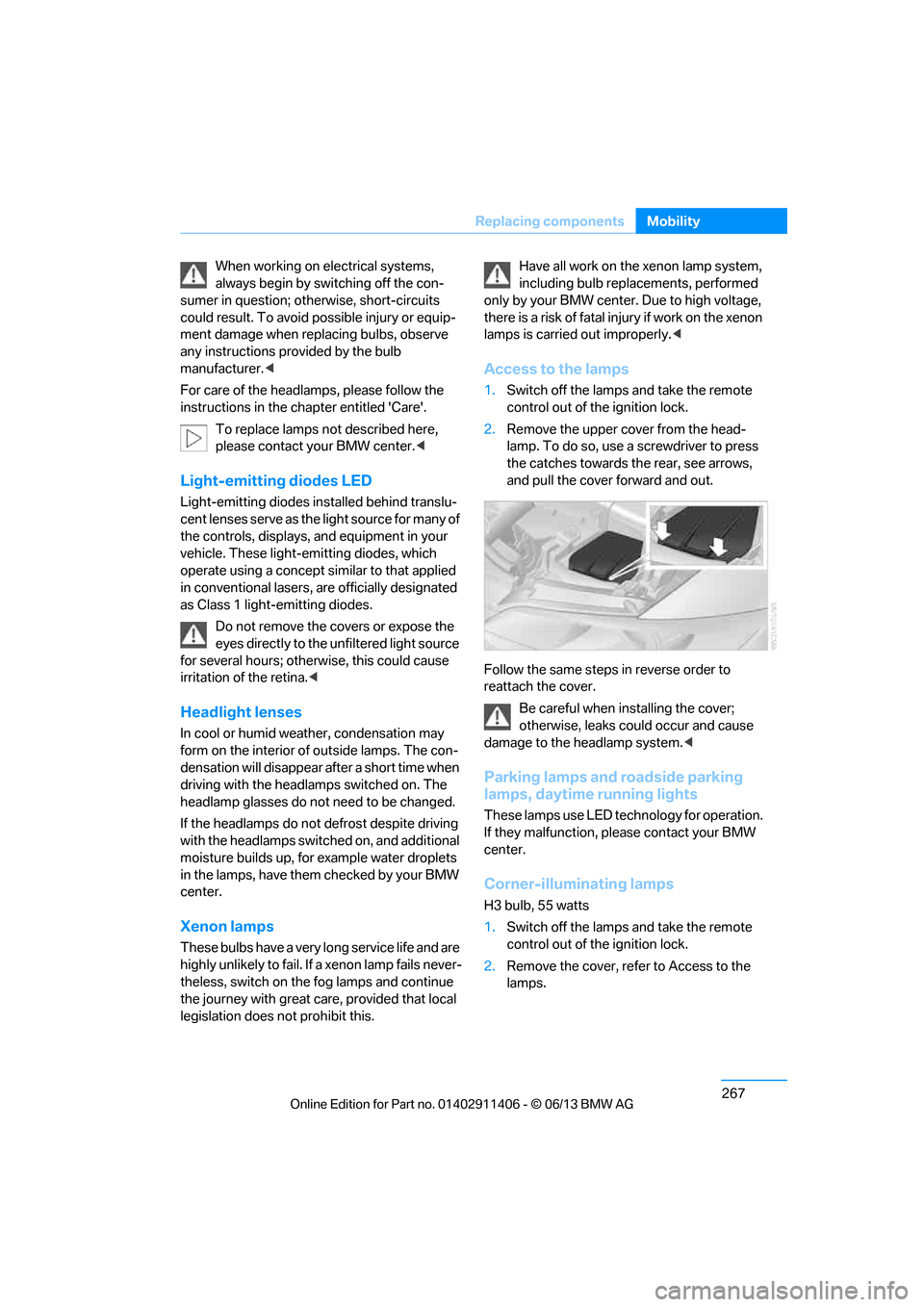
Access to the lamps
1.Switch off the lamps and take the remote
control out of the ignition lock.
2. Remove the upper co ver from the head-
lamp. To do so, use a screwdriver to press
the catches towards the rear, see arrows,
and pull the cover forward and out.
Follow the same steps in reverse order to
reattach the cover. Be careful when installing the cover;
otherwise, leaks co uld occur and cause
damage to the headlamp system. <
Parking lamps and roadside parking
lamps, daytime running lights
These lamps use LED technology for operation.
If they malfunction, please contact your BMW
center.
Corner-illuminating lamps
H3 bulb, 55 watts
1.Switch off the lamps and take the remote
control out of the ignition lock.
2. Remove the cover, re fer to Access to the
lamps.
00320051004F004C00510048000300280047004C0057004C005200510003
Page 297 of 311
292
ReferenceEverything from A to Z
C
Calendar219
– displaying appointment 219
– selecting calendar day 219
California Proposition 65 warning 6
Call
– accepting 205
– ending 205
– muting the microphone 207
– rejecting 205
Calling, refer to Phone numbers, dialing 206
Calling, refer to Telephone owner's manual
Calls
– with multiple parties 206
Can holders, refer to
Cupholders 125
Capacities 282
Capacity of the trunk 281
Car battery, refer to Vehicle battery 270
Car care, refer to Care 262
Care 262
– automatic car washes 262
– care products 263
– carpets 264
– chrome parts 264
– displays 265
– fine wood parts 264
– headlamps 263
– leather 263
– light-alloy wheels 264
– paintwork 263
– plastic parts 264
– retractable hardtop 262
– rubber seals 264
– safety belts 264
– sensors and cameras 265
– upholstery and cloth trim 264
Cargo, securing 140 Cargo loading
139
– securing cargo 140
– stowing cargo 140
– vehicle 139
Car jack
– jacking points 270
Car key, refer to Integrated key/remote control 32
Car phone
– installation location, refer to Center armrest 124
– refer to separate Owner's Manual
Car phone, refer to
Telephone 200
Car radio, refer to Radio 169
Catalytic converter, refer to Hot exhaust system 138
CD
, audio playback 178
CD player 178
– controls 166
– fast forward/reverse 180
– random sequence 179
– selecting a track 178
– switching on/off 166
– tone control 167
– volume 166
Center armrest 124
Center brake lamp
– replacing bulb 269
Center console, refer to
Around the center
console 16
Central locking
– from inside 36
– from outside 33
Central locking system 33
– comfort access 40
– hotel function 37
– setting unlocking
characteristics 34
Changes, technical, refer to For your own safety 5
Changing bulbs, refer to Lamps and bulbs 266Changing gears
69
Changing the language on the
Control Display 95
Changing the measurement units on the Control
Display 88
Changing wheels 269
Chassis number, refer to
Engine compartment 255
Check Control 92
Child restraint fixing system
LATCH 59
Child restraint systems 58
Child seats, refer to
Transporting children
safely 58
Cigarette lighter, refer to Lighter 126
Cleaning headlamps 73
– washer fluid 74
Cleaning your BMW, refer to Care 262
Climate control
– automatic air distribution 116
Clock 83
– 12h/24h mode 91
– setting the time and date 91
– setting time 90
Closing
– from inside 36
– from outside 33
Clothes hooks 125
Cockpit 12
Cold start, refer to Starting t
he
engine 63
Comfort Access 40
– replacing the battery 41
Comfort area, refer to Around the center console 16
Compartment for remote control, refer to Ignition
lock 62
Compass 122
00320051004F004C00510048000300280047004C0057004C005200510003