navigation BMW M3 SEDAN 2008 E90 User Guide
[x] Cancel search | Manufacturer: BMW, Model Year: 2008, Model line: M3 SEDAN, Model: BMW M3 SEDAN 2008 E90Pages: 266, PDF Size: 8.85 MB
Page 22 of 266
iDrive
20
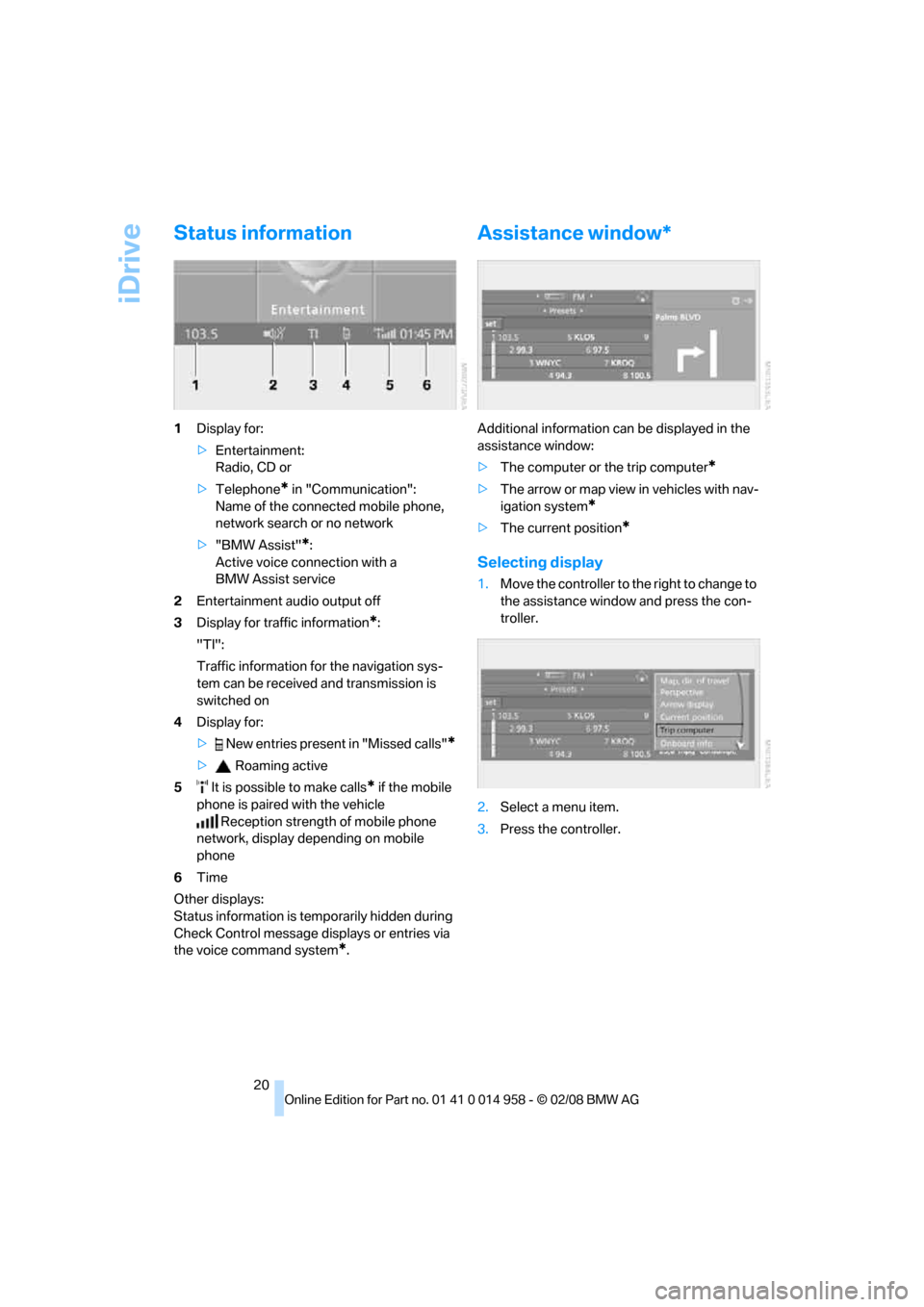
Status information
1Display for:
>Entertainment:
Radio, CD or
>Telephone
* in "Communication":
Name of the connected mobile phone,
network search or no network
>"BMW Assist"
*:
Active voice connection with a
BMW Assist service
2Entertainment audio output off
3Display for traffic information
*:
"TI":
Traffic information for the navigation sys-
tem can be received and transmission is
switched on
4Display for:
> New entries present in "Missed calls"
*
> Roaming active
5 It is possible to make calls
* if the mobile
phone is paired with the vehicle
Reception strength of mobile phone
network, display depending on mobile
phone
6Time
Other displays:
Status information is temporarily hidden during
Check Control message displays or entries via
the voice command system
*.
Assistance window*
Additional information can be displayed in the
assistance window:
>The computer or the trip computer
*
>The arrow or map view in vehicles with nav-
igation system
*
>The current position*
Selecting display
1.Move the controller to the right to change to
the assistance window and press the con-
troller.
2.Select a menu item.
3.Press the controller.
Page 23 of 266
At a glance
21Reference
Controls
Driving tips
Communications
Navigation
Entertainment
Mobility
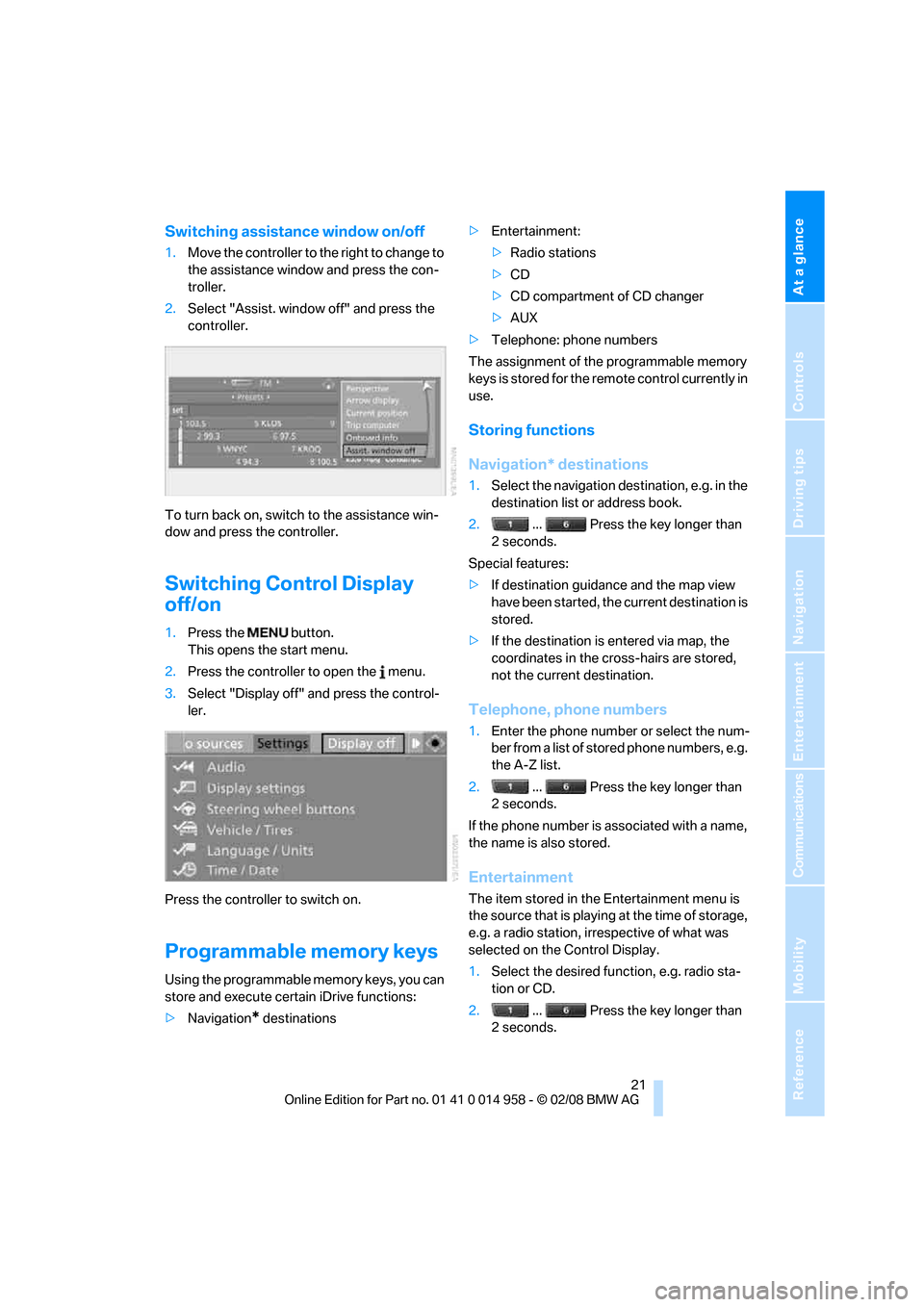
Switching assistance window on/off
1.Move the controller to the right to change to
the assistance window and press the con-
troller.
2.Select "Assist. window off" and press the
controller.
To turn back on, switch to the assistance win-
dow and press the controller.
Switching Control Display
off/on
1.Press the button.
This opens the start menu.
2.Press the controller to open the menu.
3.Select "Display off" and press the control-
ler.
Press the controller to switch on.
Programmable memory keys
Using the programmable memory keys, you can
store and execute certain iDrive functions:
>Navigation
* destinations>Entertainment:
>Radio stations
>CD
>CD compartment of CD changer
>AUX
>Telephone: phone numbers
The assignment of the programmable memory
keys is stored for the remote control currently in
use.
Storing functions
Navigation* destinations
1.Select the navigation destination, e.g. in the
destination list or address book.
2. ... Press the key longer than
2seconds.
Special features:
>If destination guidance and the map view
have been started, the current destination is
stored.
>If the destination is entered via map, the
coordinates in the cross-hairs are stored,
not the current destination.
Telephone, phone numbers
1.Enter the phone number or select the num-
ber from a list of stored phone numbers, e.g.
the A-Z list.
2. ... Press the key longer than
2seconds.
If the phone number is associated with a name,
the name is also stored.
Entertainment
The item stored in the Entertainment menu is
the source that is playing at the time of storage,
e.g. a radio station, irrespective of what was
selected on the Control Display.
1.Select the desired function, e.g. radio sta-
tion or CD.
2. ... Press the key longer than
2seconds.
Page 24 of 266
iDrive
22 If the car is equipped with two drives and a
CD with compressed audio files is played,
the current track is stored.<
Executing a function
... Press the key.
The function is executed immediately. This
means that, for example, if a phone number is
selected, the connection is established, or if a
navigation destination is called up, destination
guidance is started.
Displaying memory key assignments
You can have the assignment of a memory key
displayed by touching the key with your finger.
Please do not wear gloves when doing so.
Touching the keys with an object such as a pen
will not work.
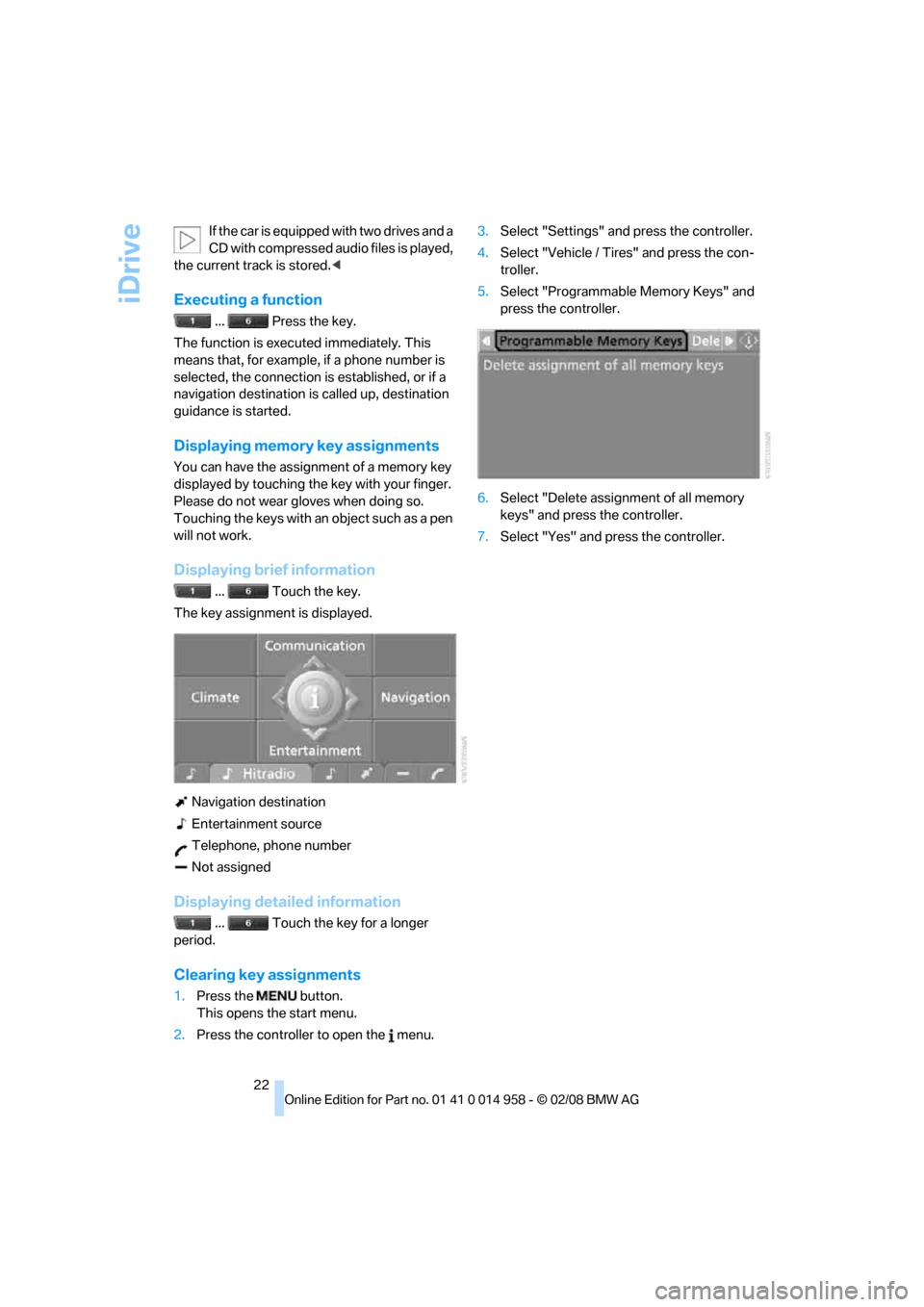
Displaying brief information
... Touch the key.
The key assignment is displayed.
Navigation destination
Entertainment source
Telephone, phone number
Not assigned
Displaying detailed information
... Touch the key for a longer
period.
Clearing key assignments
1.Press the button.
This opens the start menu.
2.Press the controller to open the menu.3.Select "Settings" and press the controller.
4.Select "Vehicle / Tires" and press the con-
troller.
5.Select "Programmable Memory Keys" and
press the controller.
6.Select "Delete assignment of all memory
keys" and press the controller.
7.Select "Yes" and press the controller.
Page 25 of 266
At a glance
23Reference
Controls
Driving tips
Communications
Navigation
Entertainment
Mobility
Voice command system
The concept
The voice command system allows you to con-
trol operation of various vehicle systems with-
out removing your hands from the steering
wheel.
Individual menu items on the Control Display
can be spoken as commands. It is not neces-
sary to use the controller.
The voice command system transforms your
oral commands into control signals for the
selected systems and provides support in the
form of instructions or questions.
The voice command system uses a special
microphone located in the area of the interior
rearview mirror, refer to page14.
Precondition
Via iDrive, select the language in which the
voice command system is operating, so that the
spoken commands can be identified. Selecting
the language for iDrive, refer to page79.
Symbols in the Owner's Manual
Saying commands
Activating voice command system
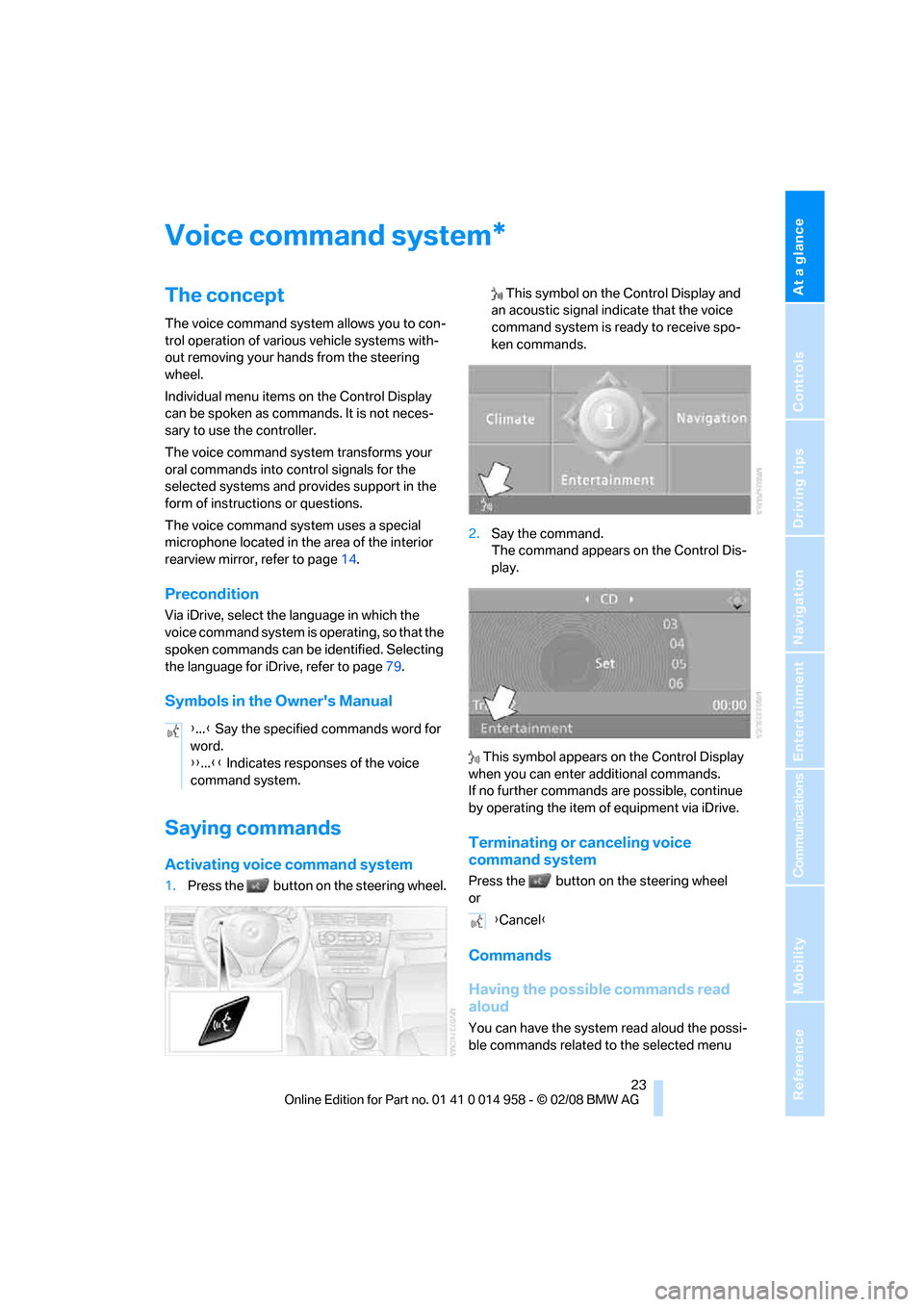
1.Press the button on the steering wheel. This symbol on the Control Display and
an acoustic signal indicate that the voice
command system is ready to receive spo-
ken commands.
2.Say the command.
The command appears on the Control Dis-
play.
This symbol appears on the Control Display
when you can enter additional commands.
If no further commands are possible, continue
by operating the item of equipment via iDrive.
Terminating or canceling voice
command system
Press the button on the steering wheel
or
Commands
Having the possible commands read
aloud
You can have the system read aloud the possi-
ble commands related to the selected menu
*
{...} Say the specified commands word for
word.
{{...}} Indicates responses of the voice
command system.
{Cancel}
Page 27 of 266
At a glance
25Reference
Controls
Driving tips
Communications
Navigation
Entertainment
Mobility
5.Press the button on the steering wheel.
Notes
For information on voice control of the
telephone, refer also to the separate
Owner's Manual.<
For voice commands, bear in mind the follow-
ing:
>Pronounce the commands and digits
smoothly and at normal volume, avoiding
excessive emphases and pauses. The same
applies to spelling when entering a destina-
tion for navigation.
>Always speak the commands in the lan-
guage of the voice command system.
>When selecting a radio station, use the
standard pronunciation of the station name.
>For entries in the voice-activated phone
book, only use names in the language of the
voice command system and no abbrevia-
tions.
>Keep the doors, windows and glass roof
closed to prevent interference from outside
noise.
>Avoid ambient noise in the vehicle while
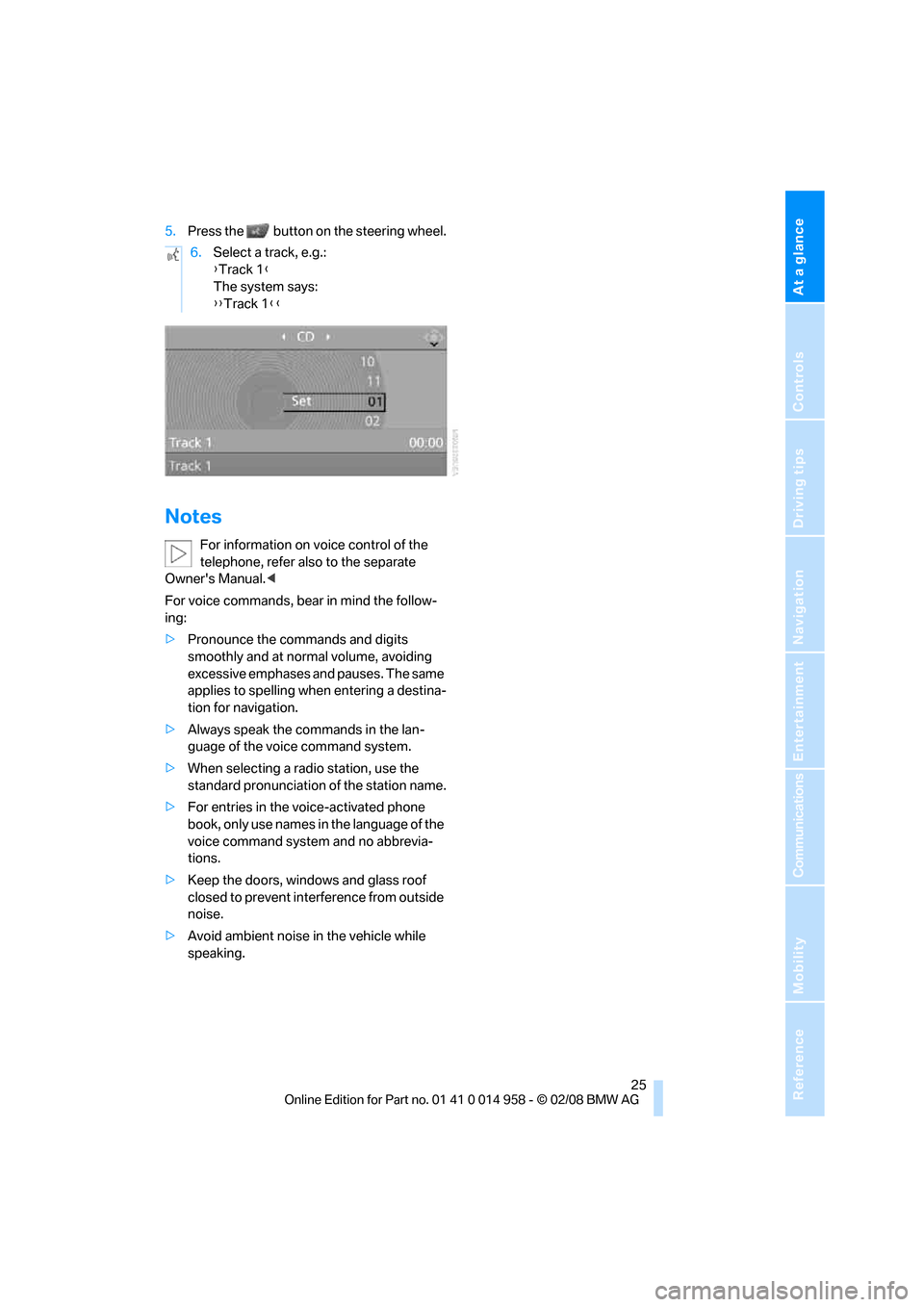
speaking.6.Select a track, e.g.:
{Track 1}
The system says:
{{Track 1}}
Page 31 of 266
Controls
29Reference
At a glance
Driving tips
Communications
Navigation
Entertainment
Mobility
>Calling up the preferred program of the M
Engine Dynamics Control POWER and
Electronic Damper Control EDC
* when
starting the vehicle, refer to Key-dependent
settings on page49
>Triple turn signal activation, refer to
page63
>Settings for the displays on the Control Dis-
play and in the instrument cluster:
>12h/24h format of the clock, refer to
page76
>Date format, refer to page76
>Brightness of the Control Display, refer
to page80
>Language on the Control Display, refer
to page79
>Units of measure for fuel consumption,
distance covered/remaining distances,
and temperature, refer to page71
>Show visual warning for Park Distance Con-
trol PDC
*, refer to page81
>Light settings:
>Welcome lamps, refer to page92
>Pathway lighting, refer to page93
>Daytime running lamps, refer to page93
>Automatic climate control: activating/deac-
tivating AUTO program, cooling function
and automatic recirculated-air control, set-
ting temperature, air flow rate and distribu-
tion, refer to page97 ff
>Entertainment:
>Audio volume, refer to page153
>Tone control, refer to page153
>Speed-dependent volume control, refer
to page153
Central locking system
The concept
The central locking system functions when the
driver's door is closed.The system simultaneously engages and
releases the locks on the following:
>Doors
>Luggage compartment lid
>Fuel filler door
Operating from outside
>Via the remote control
>Via the door lock
>In cars with convenient access
*, via the
handles on the driver's and front passen-
ger's doors
The anti-theft system is also operated at the
same time. It prevents the doors from being
unlocked using the lock buttons or door han-
dles. In addition, if the remote control is used,
the welcome lamps, interior lamps and the
door's courtesy lamps
* are switched on or off.
The alarm system
* is also armed or disarmed.
For further details of the alarm system,
refer to
page34.
Operating from inside
By means of the button for central locking, refer
to page32.
In the event of a sufficiently severe accident, the
central locking system unlocks automatically. In
addition, the hazard warning flashers and inte-
rior lamps come on.
Opening and closing:
Using the remote control
Persons or animals in a parked vehicle
could lock the doors from the inside. You
should therefore take the remote control with
you when you leave the vehicle so that the latter
can be opened from outside.<
Unlocking
Press the button.
The interior lamps, the courtesy lamps
* and the
welcome lamps come on.
Page 33 of 266
Controls
31Reference
At a glance
Driving tips
Communications
Navigation
Entertainment
Mobility
gage compartment lid has not been inadvert-
ently unlocked.<
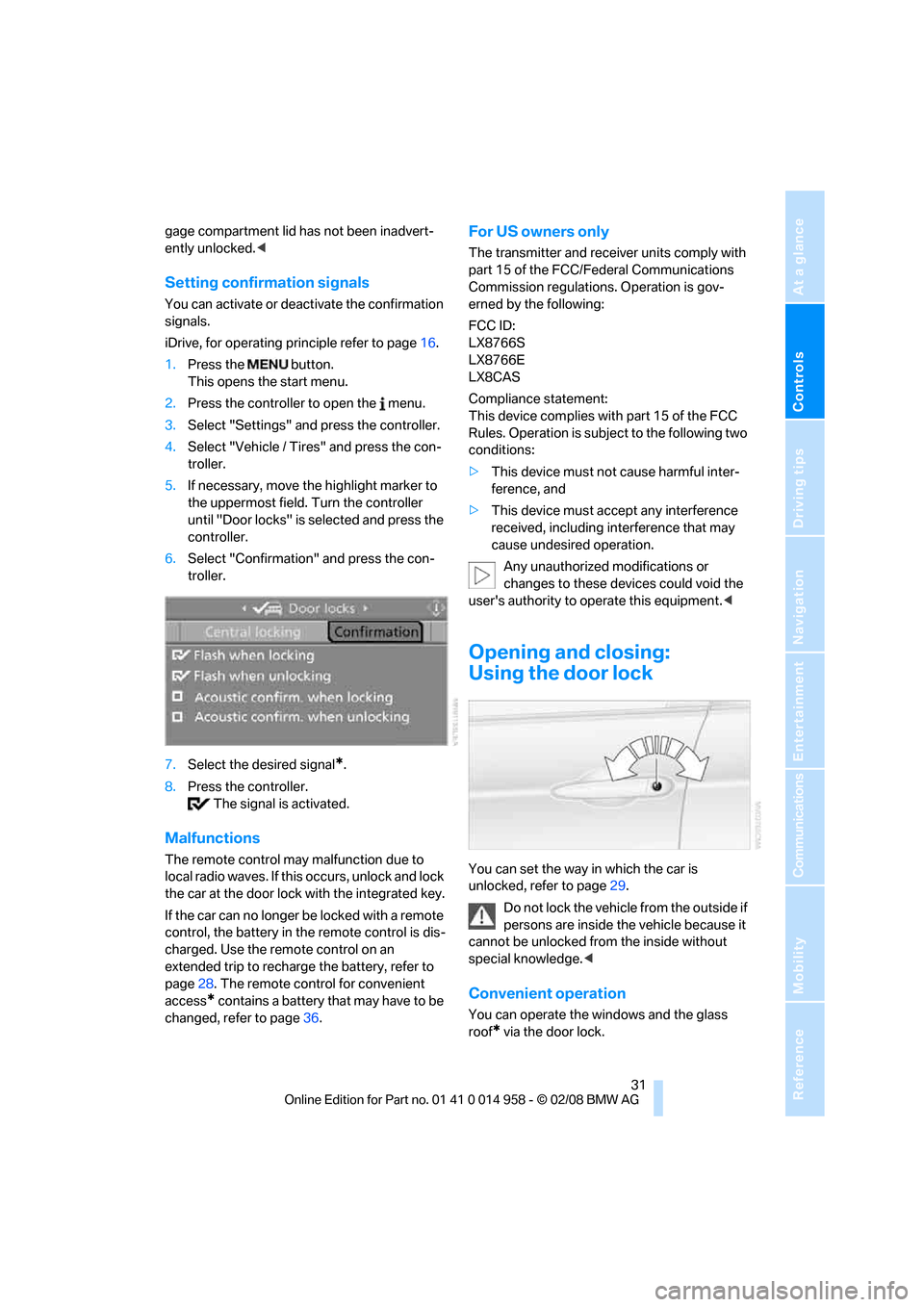
Setting confirmation signals
You can activate or deactivate the confirmation
signals.
iDrive, for operating principle refer to page16.
1.Press the button.
This opens the start menu.
2.Press the controller to open the menu.
3.Select "Settings" and press the controller.
4.Select "Vehicle / Tires" and press the con-
troller.
5.If necessary, move the highlight marker to
the uppermost field. Turn the controller
until "Door locks" is selected and press the
controller.
6.Select "Confirmation" and press the con-
troller.
7.Select the desired signal
*.
8.Press the controller.
The signal is activated.
Malfunctions
The remote control may malfunction due to
local radio waves. If this occurs, unlock and lock
the car at the door lock with the integrated key.
If the car can no longer be locked with a remote
control, the battery in the remote control is dis-
charged. Use the remote control on an
extended trip to recharge the battery, refer to
page28. The remote control for convenient
access
* contains a battery that may have to be
changed, refer to page36.
For US owners only
The transmitter and receiver units comply with
part 15 of the FCC/Federal Communications
Commission regulations. Operation is gov-
erned by the following:
FCC ID:
LX8766S
LX8766E
LX8CAS
Compliance statement:
This device complies with part 15 of the FCC
Rules. Operation is subject to the following two
conditions:
>This device must not cause harmful inter-
ference, and
>This device must accept any interference
received, including interference that may
cause undesired operation.
Any unauthorized modifications or
changes to these devices could void the
user's authority to operate this equipment.<
Opening and closing:
Using the door lock
You can set the way in which the car is
unlocked, refer to page29.
Do not lock the vehicle from the outside if
persons are inside the vehicle because it
cannot be unlocked from the inside without
special knowledge.<
Convenient operation
You can operate the windows and the glass
roof
* via the door lock.
Page 35 of 266
Controls
33Reference
At a glance
Driving tips
Communications
Navigation
Entertainment
Mobility
you when you leave the vehicle so that the latter
can be opened from outside.<
Luggage compartment lid
In order to avoid damage, make sure there
is sufficient clearance before opening the
luggage compartment lid.<
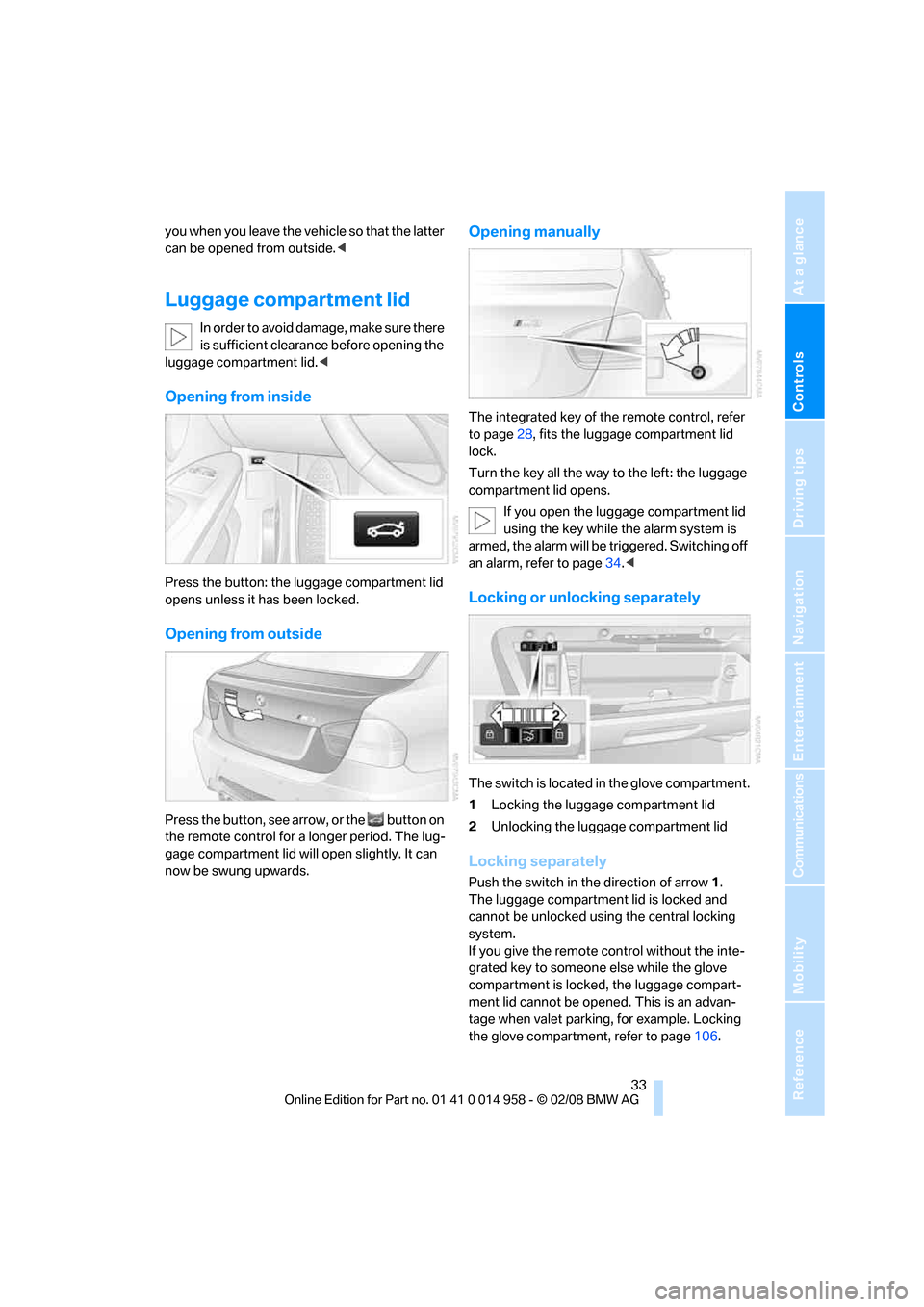
Opening from inside
Press the button: the luggage compartment lid
opens unless it has been locked.
Opening from outside
Press the button, see arrow, or the button on
the remote control for a longer period. The lug-
gage compartment lid will open slightly. It can
now be swung upwards.
Opening manually
The integrated key of the remote control, refer
to page28, fits the luggage compartment lid
lock.
Turn the key all the way to the left: the luggage
compartment lid opens.
If you open the luggage compartment lid
using the key while the alarm system is
armed, the alarm will be triggered. Switching off
an alarm, refer to page34.<
Locking or unlocking separately
The switch is located in the glove compartment.
1Locking the luggage compartment lid
2Unlocking the luggage compartment lid
Locking separately
Push the switch in the direction of arrow 1.
The luggage compartment lid is locked and
cannot be unlocked using the central locking
system.
If you give the remote control without the inte-
grated key to someone else while the glove
compartment is locked, the luggage compart-
ment lid cannot be opened. This is an advan-
tage when valet parking, for example. Locking
the glove compartment, refer to page106.
Page 37 of 266
Controls
35Reference
At a glance
Driving tips
Communications
Navigation
Entertainment
Mobility
>The indicator lamp flashes after locking:
doors, hood or luggage compartment lid are
not properly closed. Even if you do not close
the alerted area, the system begins to mon-
itor the remaining areas, and the indicator
lamp flashes continuously after approx.
10 seconds. The interior motion sensor and
the tilt alarm sensor are not activated.
>The indicator lamp goes out after unlocking:
your vehicle has not been disturbed while
you were away.
>If the indicator lamp flashes after unlocking
until the remote control is inserted in the
ignition, but for no longer than approx.
5 minutes: your vehicle has been disturbed
while you were away.
Tilt alarm sensor
The tilt of the vehicle is monitored. The alarm
system reacts, e.g. to attempts to steal a wheel
or tow the vehicle.
Interior motion sensor
In order for the interior motion sensor to func-
tion properly, the windows and glass roof must
be completely closed
*.
Avoiding unintentional alarms
The tilt alarm sensor and interior motion sensor
may be switched off at the same time. This pre-
vents unintentional alarms, e.g. in the following
situations:
>In duplex garages
>During transport on car-carrying trains,
boats/ships or on a trailer
>When animals are to remain in the vehicle
Switching off tilt alarm sensor and
interior motion sensor
Press the button on the remote control
again as soon as the vehicle is locked.
The indicator lamp lights up briefly and then
flashes continuously. The tilt alarm sensor and
the interior motion sensor are switched off until
the next time the vehicle is unlocked and subse-
quently locked again.
Convenient access*
Convenient access enables you to enter your
vehicle without needing to hold the remote con-
trol in your hand. All you need to do is wear the
remote control close to your body, e.g. in your
jacket pocket. The vehicle detects the corre-
sponding remote control within the immediate
vicinity or in the passenger compartment.
Convenient access supports the following
functions:
>Unlocking/locking the vehicle
>Unlocking the luggage compartment lid
separately
>Starting the engine
>Convenient closure
Functional requirement
>The vehicle or the luggage compartment lid
can only be locked when the vehicle detects
that the remote control currently in use is
outside of the vehicle.
>The vehicle cannot be locked or unlocked
again until after approx. 2 seconds.
>The engine can only be started when the
vehicle detects that the remote control cur-
rently in use is inside the vehicle.
Comparison to the standard remote
control
In general, there is no difference between using
convenient access or pressing the buttons on
the remote control to carry out the functions
mentioned above. You should therefore first
familiarize yourself with the instructions on
opening and closing starting on page28.
Special features regarding the use of conve-
nient access are described below.
If you notice a brief delay while opening or
closing windows or the glass roof, the
system is checking whether a remote control is
inside the vehicle. Please repeat the opening or
closing procedure, if necessary.<
Page 39 of 266
Controls
37Reference
At a glance
Driving tips
Communications
Navigation
Entertainment
Mobility
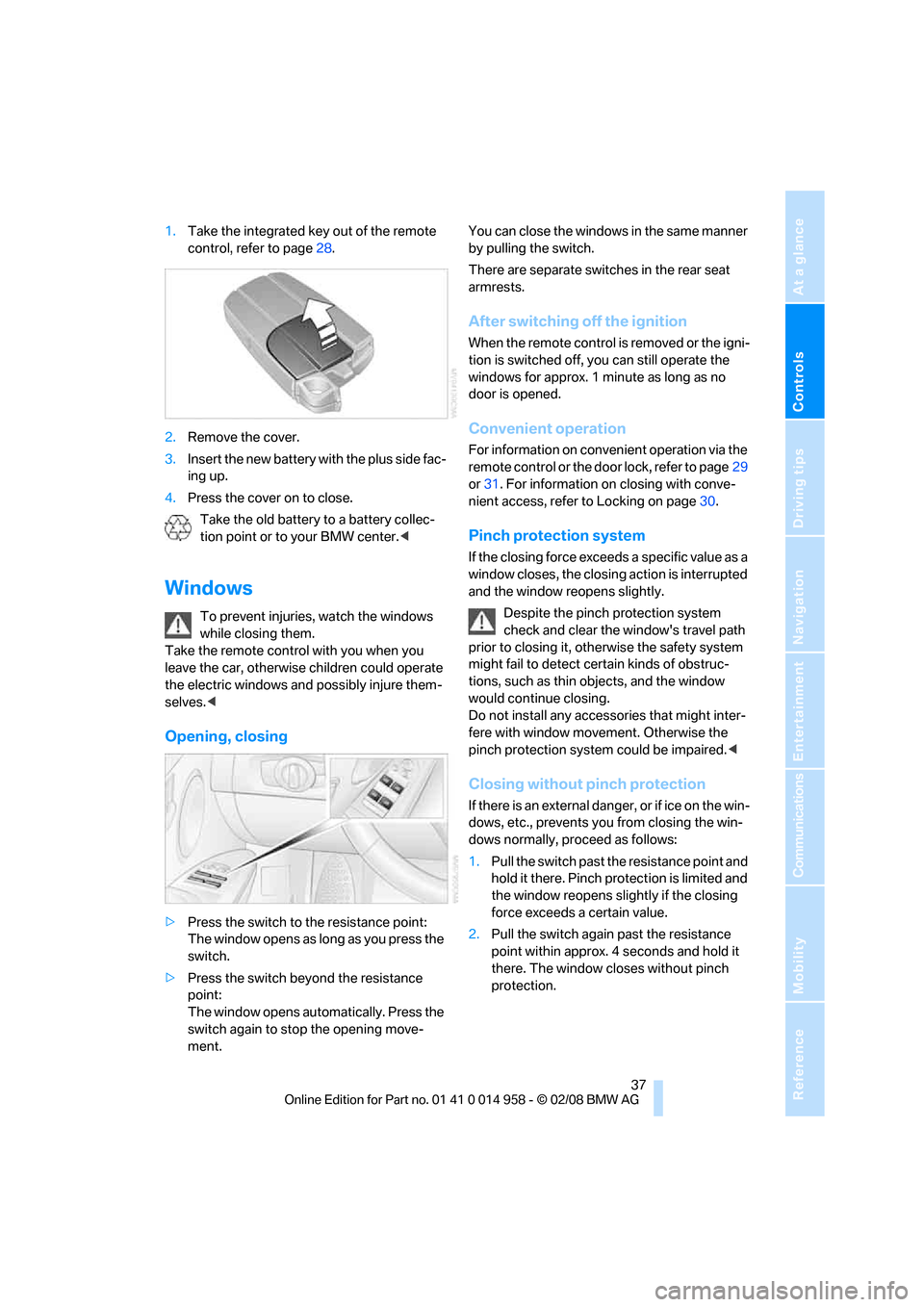
1.Take the integrated key out of the remote
control, refer to page28.
2.Remove the cover.
3.Insert the new battery with the plus side fac-
ing up.
4.Press the cover on to close.
Take the old battery to a battery collec-
tion point or to your BMW center.<
Windows
To prevent injuries, watch the windows
while closing them.
Take the remote control with you when you
leave the car, otherwise children could operate
the electric windows and possibly injure them-
selves.<
Opening, closing
>Press the switch to the resistance point:
The window opens as long as you press the
switch.
>Press the switch beyond the resistance
point:
The window opens automatically. Press the
switch again to stop the opening move-
ment.You can close the windows in the same manner
by pulling the switch.
There are separate switches in the rear seat
armrests.
After switching off the ignition
When the remote control is removed or the igni-
tion is switched off, you can still operate the
windows for approx. 1 minute as long as no
door is opened.
Convenient operation
For information on convenient operation via the
remote control or the door lock, refer to page29
or31. For information on closing with conve-
nient access, refer to Locking on page30.
Pinch protection system
If the closing force exceeds a specific value as a
window closes, the closing action is interrupted
and the window reopens slightly.
Despite the pinch protection system
check and clear the window's travel path
prior to closing it, otherwise the safety system
might fail to detect certain kinds of obstruc-
tions, such as thin objects, and the window
would continue closing.
Do not install any accessories that might inter-
fere with window movement. Otherwise the
pinch protection system could be impaired.<
Closing without pinch protection
If there is an external danger, or if ice on the win-
dows, etc., prevents you from closing the win-
dows normally, proceed as follows:
1.Pull the switch past the resistance point and
hold it there. Pinch protection is limited and
the window reopens slightly if the closing
force exceeds a certain value.
2.Pull the switch again past the resistance
point within approx. 4 seconds and hold it
there. The window closes without pinch
protection.