idrive BMW M4 COUPE 2016 F82 User Guide
[x] Cancel search | Manufacturer: BMW, Model Year: 2016, Model line: M4 COUPE, Model: BMW M4 COUPE 2016 F82Pages: 228, PDF Size: 4.87 MB
Page 31 of 228
Voice activation systemVehicle features and options
This chapter describes all standard, country-
specific and optional features offered with the
series. It also describes features that are not
necessarily available in your car, e. g., due to
the selected options or country versions. This
also applies to safety-related functions and
systems. The respectively applicable country
provisions must be observed when using the
respective features and systems.
The concept▷Most functions displayed on the Control
Display can be operated by voice com‐
mands via the voice activation system. The
system supports you with announcements
during input.▷Functions that can only be used when the
vehicle is stationary cannot be used via the
voice activation system.▷The system uses a special microphone on
the driver's side.▷›...‹ Verbal instructions in the Owner's
Manual to use with the voice activation
system.
Requirements
Via the Control Display, set a language that is
also supported by the voice activation system
so that the spoken commands can be identi‐
fied.
Set the language, refer to page 89.
Using voice activation
Activating the voice activation system1. Press button on the steering
wheel.2.Wait for the signal.3.Say the command.
A command that is recognized by the voice
activation system is announced and dis‐
played in the instrument cluster.
This symbol in the instrument cluster indi‐
cates that the voice activation system is active.
If no other commands are available, use func‐
tion via iDrive.
Terminating the voice activation
system
Briefly press the button on the steer‐
ing wheel or ›Cancel‹.
Possible commands Most menu items on the Control Display can
be voiced as commands.
The available commands depend on the menu
that is currently displayed on the Control Dis‐
play.
There are short commands for many functions.
You may select lists such as phone lists via
voice activation. Read these lists out loud ex‐
actly as they show in the respective list.
Having possible commands read aloud You can have available commands read out
loud for you: ›Voice commands‹
E. g. if the "Settings" menu is displayed, the
commands for the settings are read out loud.
Seite 27Voice activation systemAt a glance27
Online Edition for Part no. 01 40 2 960 786 - II/15
Page 35 of 228
Context help - Owner's Manual to the
temporarily selected function
You may open the relevant information di‐
rectly.
Opening via the iDrive
To move directly from the application on the
Control Display to the Options menu:1. Press button or move the controller
to the right repeatedly until the "Options"
menu is displayed.2."Display Owner's Manual"
Opening when a Check Control
message is displayed
Directly from the Check Control message on
the Control Display:
"Display Owner's Manual"
Changing between a function and the
Owner's Manual
To reel from a function, e. g., radio, to the
Owner's Manual on the Control Display and to
alternate between the two displays:
1. Press button or move the controller
to the right repeatedly until the "Options"
menu is displayed.2."Display Owner's Manual"3.Select the desired page in the Owner's
Manual.4. Press button again to return to last
displayed function.5. Press button to return to the page of
the Owner's Manual displayed last.
To alternate permanently between the last dis‐
played function and the Owner's Manual re‐
peat steps 4 & 5. Opens a new display every
time.
Programmable memory buttons
General information
The Owner's Manual can be stored on the pro‐
grammable memory buttons and called up di‐
rectly.
Storing1."Owner's Manual" Select via the iDrive.2. Press selected button for more
than 2 seconds.
Executing
Press button.
The Owner's Manual is displayed im‐
mediately.
Seite 31Integrated Owner's Manual in the vehicleAt a glance31
Online Edition for Part no. 01 40 2 960 786 - II/15
Page 110 of 228
At a glance
Button in the vehicle
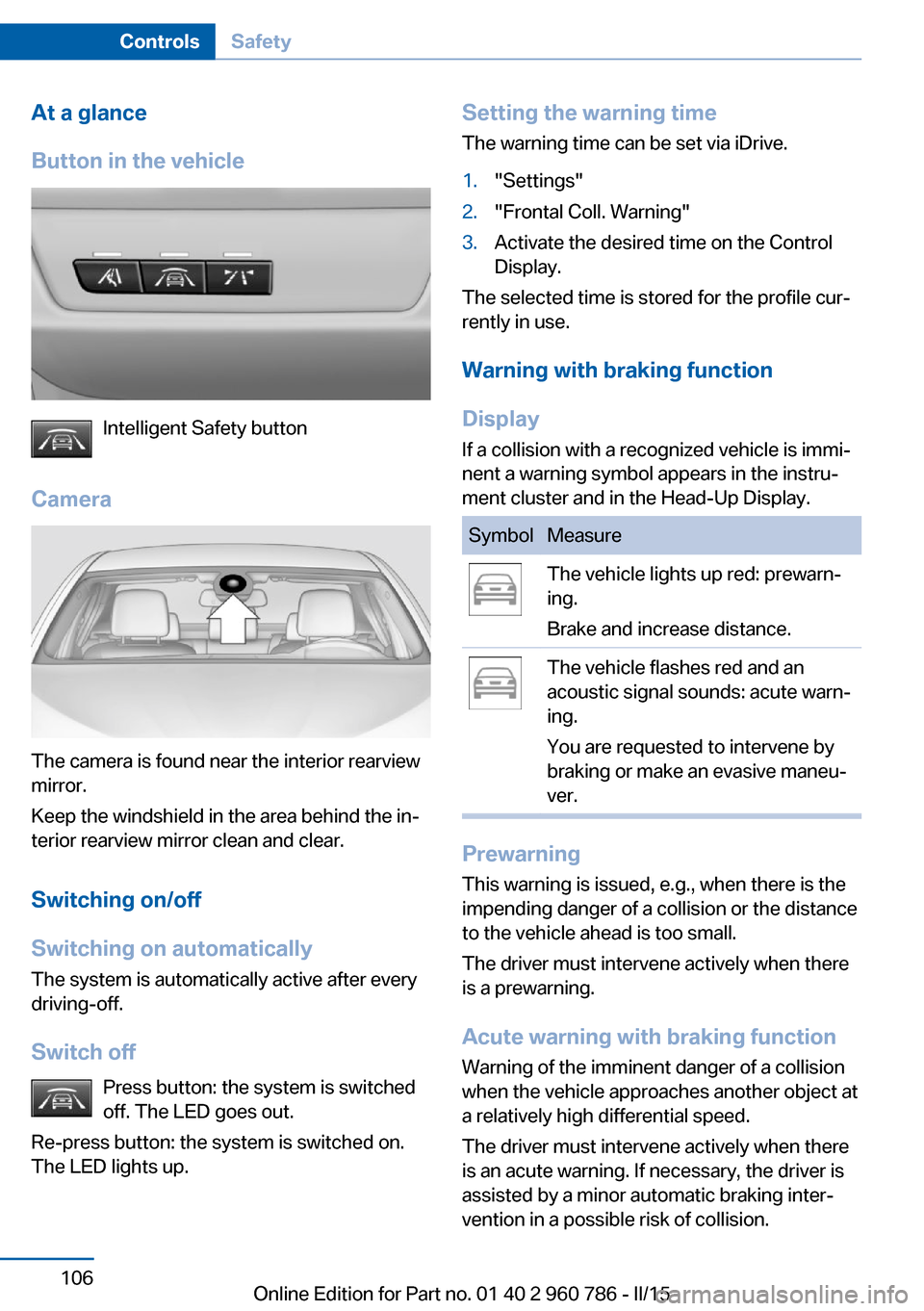
Intelligent Safety button
Camera
The camera is found near the interior rearview
mirror.
Keep the windshield in the area behind the in‐
terior rearview mirror clean and clear.
Switching on/off
Switching on automatically The system is automatically active after every
driving-off.
Switch off Press button: the system is switched
off. The LED goes out.
Re-press button: the system is switched on.
The LED lights up.
Setting the warning time
The warning time can be set via iDrive.1."Settings"2."Frontal Coll. Warning"3.Activate the desired time on the Control
Display.
The selected time is stored for the profile cur‐
rently in use.
Warning with braking function
Display If a collision with a recognized vehicle is immi‐
nent a warning symbol appears in the instru‐
ment cluster and in the Head-Up Display.
SymbolMeasureThe vehicle lights up red: prewarn‐
ing.
Brake and increase distance.The vehicle flashes red and an
acoustic signal sounds: acute warn‐
ing.
You are requested to intervene by
braking or make an evasive maneu‐
ver.
Prewarning
This warning is issued, e.g., when there is the
impending danger of a collision or the distance
to the vehicle ahead is too small.
The driver must intervene actively when there
is a prewarning.
Acute warning with braking function
Warning of the imminent danger of a collision
when the vehicle approaches another object at
a relatively high differential speed.
The driver must intervene actively when there
is an acute warning. If necessary, the driver is
assisted by a minor automatic braking inter‐
vention in a possible risk of collision.
Seite 106ControlsSafety106
Online Edition for Part no. 01 40 2 960 786 - II/15
Page 129 of 228
HintsCheck the traffic situation as well
Check the traffic situation around the ve‐
hicle with your own eyes. Otherwise, an acci‐
dent could result from road users or objects
that are not lidtured by the camera.◀
At a glance
Button in the vehicle
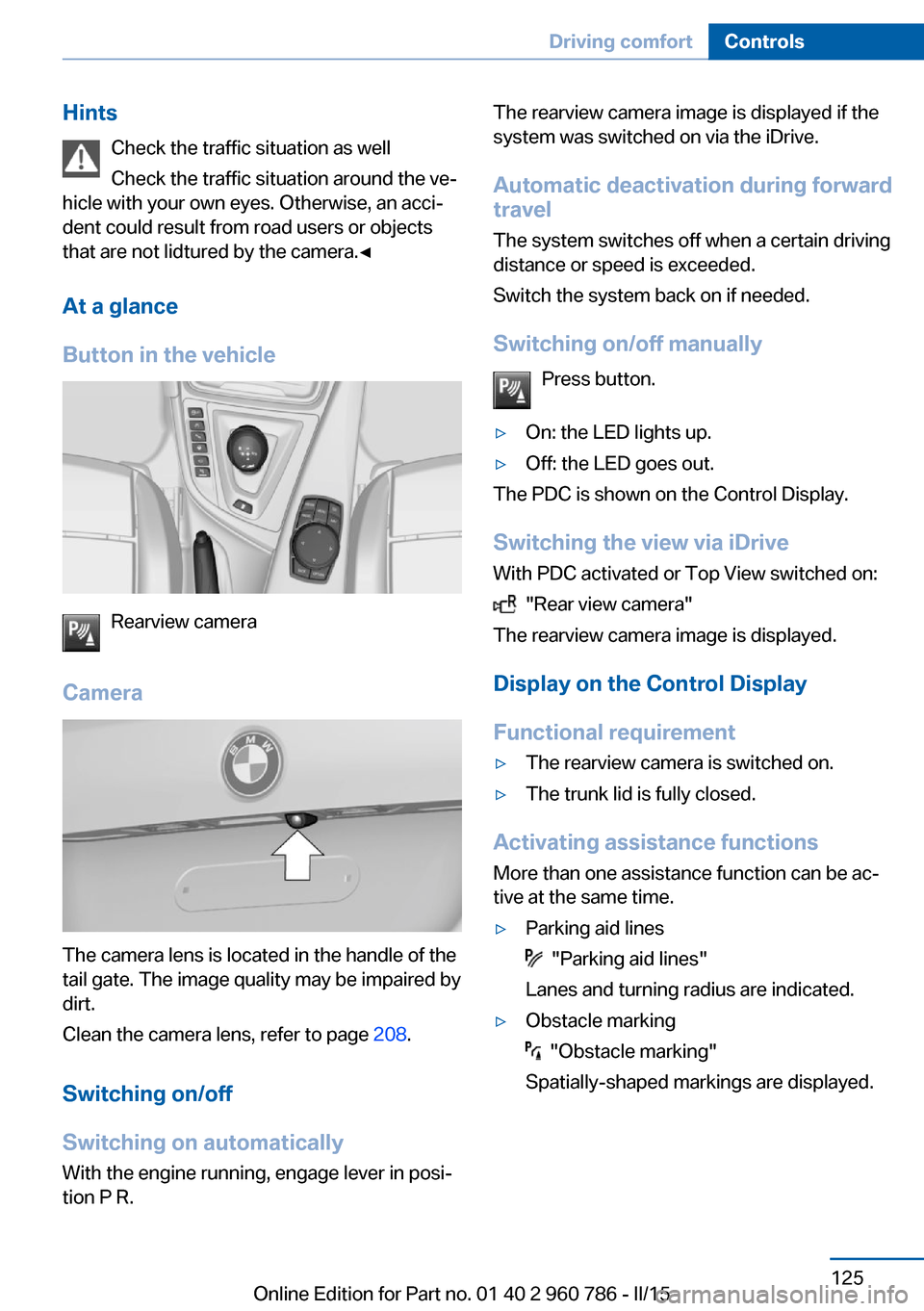
Rearview camera
Camera
The camera lens is located in the handle of the
tail gate. The image quality may be impaired by
dirt.
Clean the camera lens, refer to page 208.
Switching on/off
Switching on automatically With the engine running, engage lever in posi‐
tion P R.
The rearview camera image is displayed if the
system was switched on via the iDrive.
Automatic deactivation during forward
travel
The system switches off when a certain driving
distance or speed is exceeded.
Switch the system back on if needed.
Switching on/off manually Press button.▷On: the LED lights up.▷Off: the LED goes out.
The PDC is shown on the Control Display.
Switching the view via iDrive With PDC activated or Top View switched on:
"Rear view camera"
The rearview camera image is displayed.
Display on the Control Display
Functional requirement
▷The rearview camera is switched on.▷The trunk lid is fully closed.
Activating assistance functions
More than one assistance function can be ac‐
tive at the same time.
▷Parking aid lines
"Parking aid lines"
Lanes and turning radius are indicated.
▷Obstacle marking
"Obstacle marking"
Spatially-shaped markings are displayed.
Seite 125Driving comfortControls125
Online Edition for Part no. 01 40 2 960 786 - II/15
Page 133 of 228
Cameras
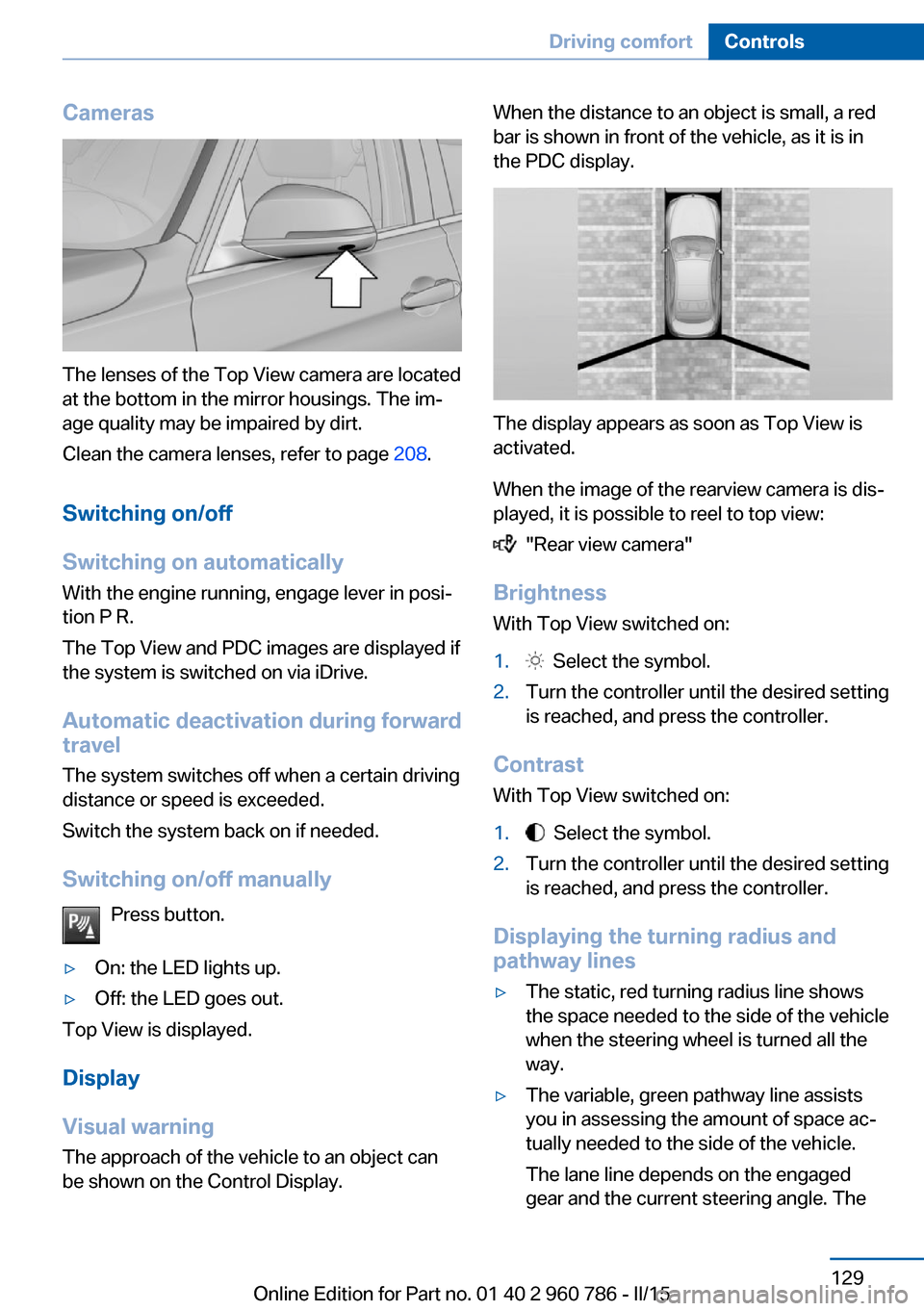
The lenses of the Top View camera are located
at the bottom in the mirror housings. The im‐
age quality may be impaired by dirt.
Clean the camera lenses, refer to page 208.
Switching on/off
Switching on automatically With the engine running, engage lever in posi‐
tion P R.
The Top View and PDC images are displayed if
the system is switched on via iDrive.
Automatic deactivation during forward
travel
The system switches off when a certain driving
distance or speed is exceeded.
Switch the system back on if needed.
Switching on/off manually Press button.
▷On: the LED lights up.▷Off: the LED goes out.
Top View is displayed.
Display
Visual warning
The approach of the vehicle to an object can
be shown on the Control Display.
When the distance to an object is small, a red
bar is shown in front of the vehicle, as it is in
the PDC display.
The display appears as soon as Top View is
activated.
When the image of the rearview camera is dis‐
played, it is possible to reel to top view:
"Rear view camera"
Brightness
With Top View switched on:
1. Select the symbol.2.Turn the controller until the desired setting
is reached, and press the controller.
Contrast
With Top View switched on:
1. Select the symbol.2.Turn the controller until the desired setting
is reached, and press the controller.
Displaying the turning radius and
pathway lines
▷The static, red turning radius line shows
the space needed to the side of the vehicle
when the steering wheel is turned all the
way.▷The variable, green pathway line assists
you in assessing the amount of space ac‐
tually needed to the side of the vehicle.
The lane line depends on the engaged
gear and the current steering angle. TheSeite 129Driving comfortControls129
Online Edition for Part no. 01 40 2 960 786 - II/15
Page 221 of 228
Eyes for securing cargo 161
F
Failure message, see Check Control 77
False alarm, refer to Uninten‐ tional alarm 45
Fan, refer to Air flow 136
Filler neck for engine oil 184
Fine wood, care 207
First aid kit 200
Fitting for towing, see Tow fit‐ ting 203
Flat tire, changing wheels 195
Flat tire, Tire Pressure Moni‐ tor TPM 101
Flat tire, warning lamp 102
Flooding 157
Floor carpet, care 208
Floor mats, care 208
Fold down the rear seat back‐ rest, see Though-loading
system 145
Fold-out position, wiper 69
Foot brake 157
Front airbags 98
Front-end collision warning with City Braking func‐
tion 105
Front lights 191
front-seat passenger airbags, automatic deactivation 100
Front-seat passenger airbags, indicator lamp 100
Fuel 170
Fuel consumption, current 82
Fuel consumption, refer to Average fuel consump‐
tion 87
Fuel filler flap 168
Fuel gauge 80
Fuel lid 168
Fuel quality 170
Fuel recommendation 170 Fuel, tank capacity 213
Fuse 197
G
Garage door opener, refer to Universal Integrated Remote
Control 139
Gasoline 170
Gear change 72
Gear shift indicator 84
General driving notes 157
Glare shield 143
Glass sunroof, powered 47
Glove compartment 147
Gross vehicle weight, ap‐ proved 212
Ground clearance 158
H
Handbrake, refer to parking brake 66
Hand-held transmitter, alter‐ nating code 140
Hazard warning flashers 199
Head airbags 98
Headlight control, auto‐ matic 94
Headlight courtesy delay fea‐ ture 93
Headlight flasher 67
Headlight glass 191
Headlights 191
Headlights, care 206
Headlight washer system 67
Head restraints 49
Head restraints, front 54
Head-up Display 90
Head-up Display, care 208
Head-up display, M view 91
Head-up display, standard view 90
Heavy cargo, stowing 161
Height, vehicle 212
High-beam Assistant 95 High beams 67
High beams/low beams, refer to High-beam Assistant 95
High-performance en‐ gine 154
Hills 158
Hill start assistant, refer to Drive-off assistant 118
Hints 6
Holder for beverages 149
Homepage 6
Hood 181
Horn 14
Hotel function, trunk lid 41
Hot exhaust system 157
HUD Head-up Display 90
Hydroplaning 157
I Ice warning, see External temperature warning 81
Icy roads, see External tem‐ perature warning 81
Identification marks, tires 173
Identification number, see ve‐ hicle identification num‐
ber 9
iDrive 18
Ignition key, refer to Remote control 34
Ignition off 62
Ignition on 62
Indication of a flat tire 102
Indicator and alarm lamps, see Check Control 77
Indicator lamp, see Check Control 77
Individual air distribution 136
Individual settings, refer to M Drive 114
Individual settings, refer to Personal Profile 35
Inflation pressure, tires 172
Info display, refer to On- Board computer 86 Seite 217Everything from A to ZReference217
Online Edition for Part no. 01 40 2 960 786 - II/15
Page 223 of 228
M double-clutch transmis‐sion 70
M Drive 114
M Driving Dynamics Con‐ trol 74
M Dynamic Mode MDM 116
Measure, units of 90
Medical kit 200
Memory, seat, mirror 54
Menu EfficientDynamics 83
Menu in instrument clus‐ ter 86
Menus, operating, iDrive 18
Menus, refer to iDrive operat‐ ing concept 20
Messages, see Check Con‐ trol 77
Microfilter 137
Minimum tread, tires 175
Mirror 55
Mirror memory 54
Mobile communication devi‐ ces in the vehicle 157
Mobility System 177
Modifications, technical, refer to Safety 7
Moisture in headlight 191
Monitor, refer to Control Dis‐ play 18
Mounting of child restraint systems 58
M technology 154
Multifunction steering wheel, buttons 14
M view, Head-up display 91
N
Navigation, see user's manual for Navigation, Entertain‐
ment and Communication
Neck restraints, front, refer to Head restraints 54
Neutral cleaner, see wheel cleaner 207
New wheels and tires 176 Nylon rope for tow-starting/
towing 203
O OBD Onboard Diagnosis 189
OBD, see OBD Onboard Di‐ agnosis 189
Obstacle marking, rearview camera 126
Octane rating, refer to Rec‐ ommended fuel grade 170
Odometer 81
Office, see user's manual for Navigation, Entertainment
and Communication
Oil 183
Oil, adding 184
Oil additives 185
Oil change 185
Oil change interval, service requirements 83
Oil filler neck 184
Oil types, alternative 185
Oil types, approved 185
Old batteries, disposal 197
On-board computer 86
Onboard monitor, refer to Control Display 18
Onboard vehicle tool kit 190
Opening/closing via door lock 39
Opening and closing 34
Opening and closing, without remote control 39
Opening and closing, with re‐ mote control 37
Opening the trunk lid with no- touch activation 42
Operating concept, iDrive 18
Optional equipment, standard equipment 6
Outside air, refer to Auto‐ matic recirculated-air con‐
trol 136 Overheating of engine, refer
to Coolant temperature 81
P Paint, vehicle 206
Parallel parking assistant 130
Park Distance Control PDC 122
Parked-car ventilation 137
Parked vehicle, condensa‐ tion 158
Parking aid, refer to PDC 122
Parking assistant 130
Parking brake 66
Parking lights 93
Parts and accessories 7
Passenger side mirror, tilting downward 55
Pathway lines, rearview cam‐ era 126
PDC Park Distance Con‐ trol 122
Pedestrian warning with city braking function 107
Personal Profile 35
Personal Profile, exporting profiles 36
Personal Profile, importing profiles 37
Pinch protection system, glass sunroof 48
Pinch protection system, win‐ dows 46
Plastic, care 207
Power failure 196
Power sunroof, glass 47
Power windows 46
Pressure, tire air pres‐ sure 172
Preventing Auto Start Stop 65
Profile, refer to Personal Pro‐ file 35
Programmable memory but‐ tons, iDrive 24 Seite 219Everything from A to ZReference219
Online Edition for Part no. 01 40 2 960 786 - II/15
Page 225 of 228
Sport displays, torque dis‐play, performance dis‐
play 88
Stability control systems 114
Standard view, head-up dis‐ play 90
Start/stop, automatic func‐ tion 64
Start/Stop button 62
Start function during malfunc‐ tion 35
Starting the engine 63
Status control display, tires 102
Status information, iDrive 23
Status of Owner's Manual 7
Steering assistance 118
Steering wheel, adjusting 56
Steering wheel heating 57
Stopping the engine 63
Storage compartments 147
Storage compartments, loca‐ tions 147
Storage, tires 177
Storing the vehicle 208
Suitable engine oils 185
Summer tires, tread 175
Sun visor 143
Supplementary text mes‐ sage 79
Surround View 124
Switch-on times, parked-car ventilation 138
Switch, refer to Cockpit 14
Symbols 6
Symbols in the status field 23
System states of dynamic driving 83
T
Tachometer 80
Tail lights 193
Technical changes, refer to Safety 7
Technical data 212 Technology, BMW M 154
Telephone, see user's manual for Navigation, Entertain‐
ment and Communication
Temperature, automatic cli‐ mate control 135
Temperature display for ex‐ ternal temperature 81
Temperature, engine oil 80
Terminal, starting aid 201
Text message, supplemen‐ tary 79
Theft alarm system, refer to Alarm system 44
Through-loading system 145
Tilt alarm sensor 45
Time of arrival 87
Tire damage 175
Tire identification marks 173
Tire inflation pressure 172
Tire Pressure Monitor TPM 101
Tires, changing 176
Tire sealant 177
Tires, everything on wheels and tires 172
Tire tread 175
Tone, see user's manual for Navigation, Entertainment
and Communication
Tool 190
Top View 128
Total vehicle weight 212
Touchpad 21
Tow fitting 203
Towing 202
Tow lug, see Tow fitting 203
Tow-starting 202
Tow truck 202
TPM Tire Pressure Moni‐ tor 101
Transmission, manual trans‐ mission 70
Transporting children safely 58
Tread, tires 175 Trip computer 88
Triple turn signal activa‐ tion 67
Trip odometer 81
Truck for tow-starting/ towing 202
Trunk lid closing 40
Trunk lid, emergency unlock‐ ing 41
Trunk lid, hotel function 41
Trunk lid opening 40
Trunk lid, opening with no- touch activation 42
Trunk lid via remote con‐ trol 38
Turning circle 212
Turning circle lines, rearview camera 126
Turn signals, operation 67
U Unintentional alarm 45
Units of measure 90
Universal remote control 139
Unlocking/locking via door lock 39
Unlocking/locking with re‐ mote control 37
Unlocking, settings 43
Updates made after the edito‐ rial deadline 7
Upholstery care 207
USB interface 144
V Vanity mirror 143
Vehicle battery 196
Vehicle battery, replac‐ ing 196
Vehicle, break-in 156
Vehicle care 206
Vehicle features and op‐ tions 6 Seite 221Everything from A to ZReference221
Online Edition for Part no. 01 40 2 960 786 - II/15