audio BMW M5 2006 User Guide
[x] Cancel search | Manufacturer: BMW, Model Year: 2006, Model line: M5, Model: BMW M5 2006Pages: 231, PDF Size: 8.44 MB
Page 147 of 231
Navigation
Entertainment
Driving tips
145Reference
At a glance
Controls
Communications
Mobility
CD player and CD changer
Listening to CDs
Compressed audio files*
CDs with compressed audio files, i.e. MP3, can
be played by the CD player, but not by the CD
changer.
CD player: starting CD
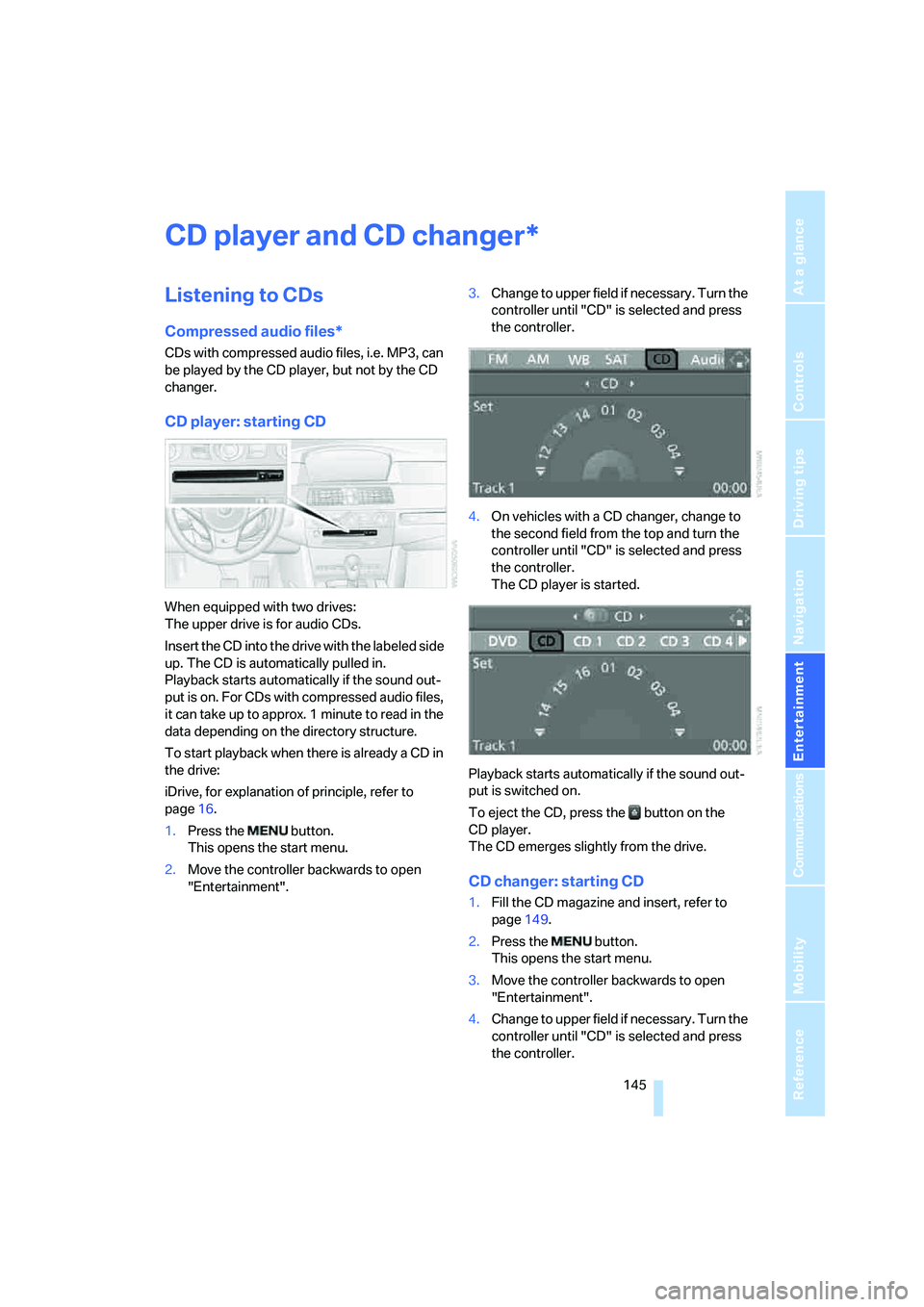
When equipped with two drives:
The upper drive is for audio CDs.
Insert the CD into the drive with the labeled side
up. The CD is automatically pulled in.
Playback starts automatically if the sound out-
put is on. For CDs with compressed audio files,
it can take up to approx. 1 minute to read in the
data depending on the directory structure.
To start playback when there is already a CD in
the drive:
iDrive, for explanation of principle, refer to
page16.
1.Press the button.
This opens the start menu.
2.Move the controller backwards to open
"Entertainment".3.Change to upper field if necessary. Turn the
controller until "CD" is selected and press
the controller.
4.On vehicles with a CD changer, change to
the second field from the top and turn the
controller until "CD" is selected and press
the controller.
The CD player is started.
Playback starts automatically if the sound out-
put is switched on.
To eject the CD, press the button on the
CD player.
The CD emerges slightly from the drive.
CD changer: starting CD
1.Fill the CD magazine and insert, refer to
page149.
2.Press the button.
This opens the start menu.
3.Move the controller backwards to open
"Entertainment".
4.Change to upper field if necessary. Turn the
controller until "CD" is selected and press
the controller.
*
Page 148 of 231
CD player and CD changer
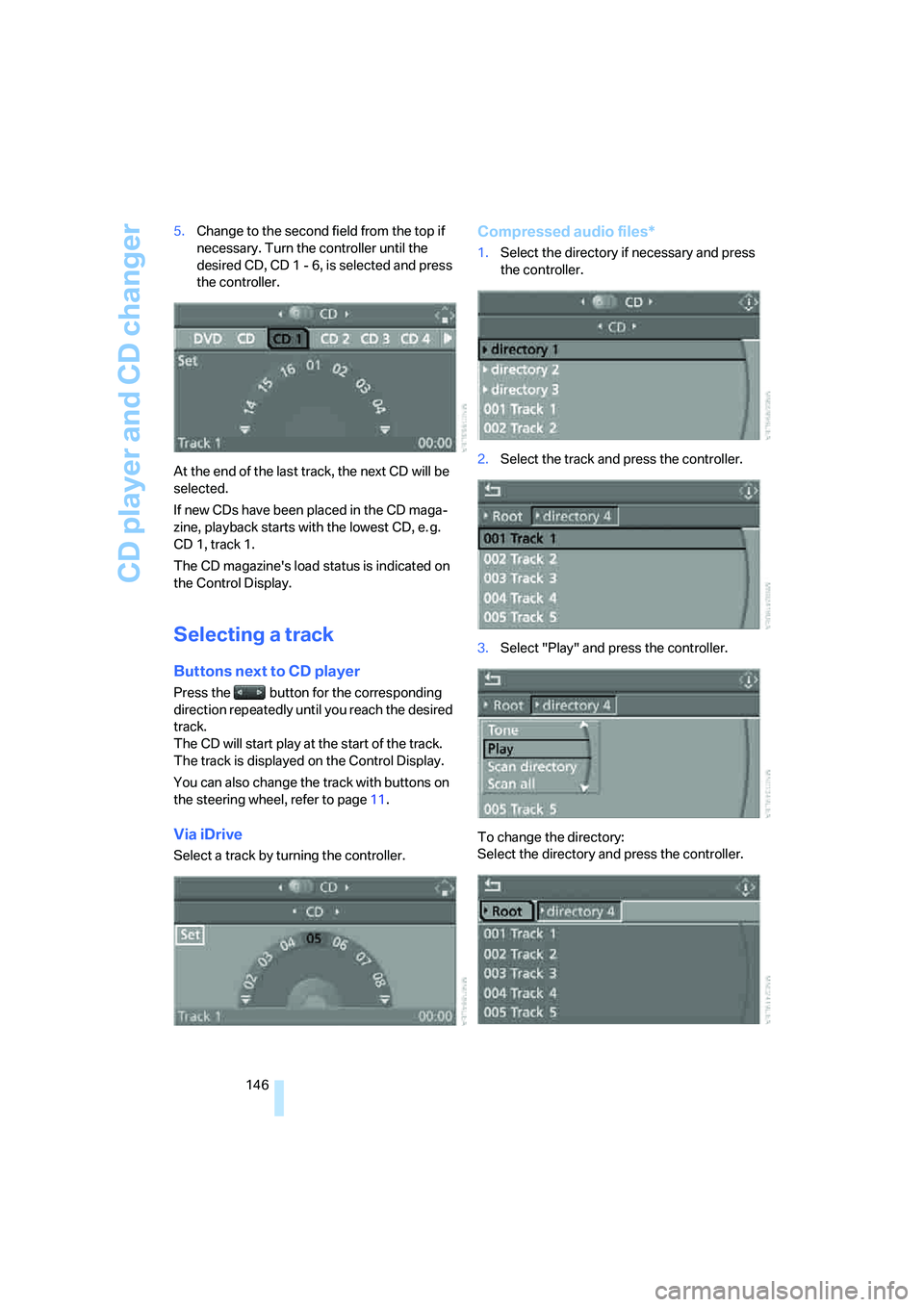
146 5.Change to the second field from the top if
necessary. Turn the controller until the
desired CD, CD 1 - 6, is selected and press
the controller.
At the end of the last track, the next CD will be
selected.
If new CDs have been placed in the CD maga-
zine, playback starts with the lowest CD, e. g.
CD 1, track 1.
The CD magazine's load status is indicated on
the Control Display.
Selecting a track
Buttons next to CD player
Press the button for the corresponding
direction repeatedly until you reach the desired
track.
The CD will start play at the start of the track.
The track is displayed on the Control Display.
You can also change the track with buttons on
the steering wheel, refer to page11.
Via iDrive
Select a track by turning the controller.
Compressed audio files*
1.Select the directory if necessary and press
the controller.
2.Select the track and press the controller.
3.Select "Play" and press the controller.
To change the directory:
Select the directory and press the controller.
Page 149 of 231
Navigation
Entertainment
Driving tips
147Reference
At a glance
Controls
Communications
Mobility
To exit from the menu:
Select the arrow and press the controller.
Displaying information on track*
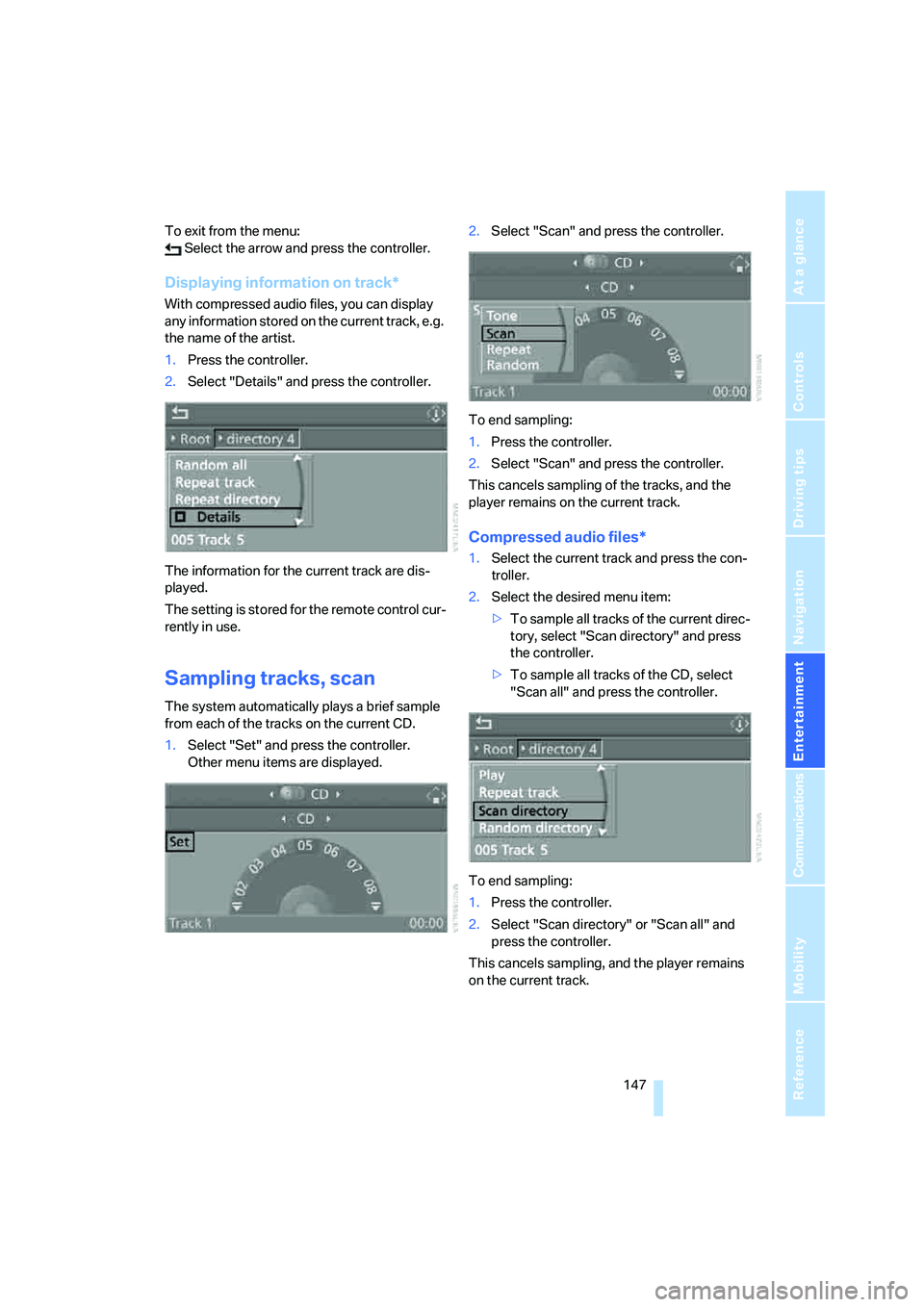
With compressed audio files, you can display
any information stored on the current track, e.g.
the name of the artist.
1.Press the controller.
2.Select "Details" and press the controller.
The information for the current track are dis-
played.
The setting is stored for the remote control cur-
rently in use.
Sampling tracks, scan
The system automatically plays a brief sample
from each of the tracks on the current CD.
1.Select "Set" and press the controller.
Other menu items are displayed.2.Select "Scan" and press the controller.
To end sampling:
1.Press the controller.
2.Select "Scan" and press the controller.
This cancels sampling of the tracks, and the
player remains on the current track.
Compressed audio files*
1.Select the current track and press the con-
troller.
2.Select the desired menu item:
>To sample all tracks of the current direc-
tory, select "Scan directory" and press
the controller.
>To sample all tracks of the CD, select
"Scan all" and press the controller.
To end sampling:
1.Press the controller.
2.Select "Scan directory" or "Scan all" and
press the controller.
This cancels sampling, and the player remains
on the current track.
Page 150 of 231
CD player and CD changer
148
Repeating a track
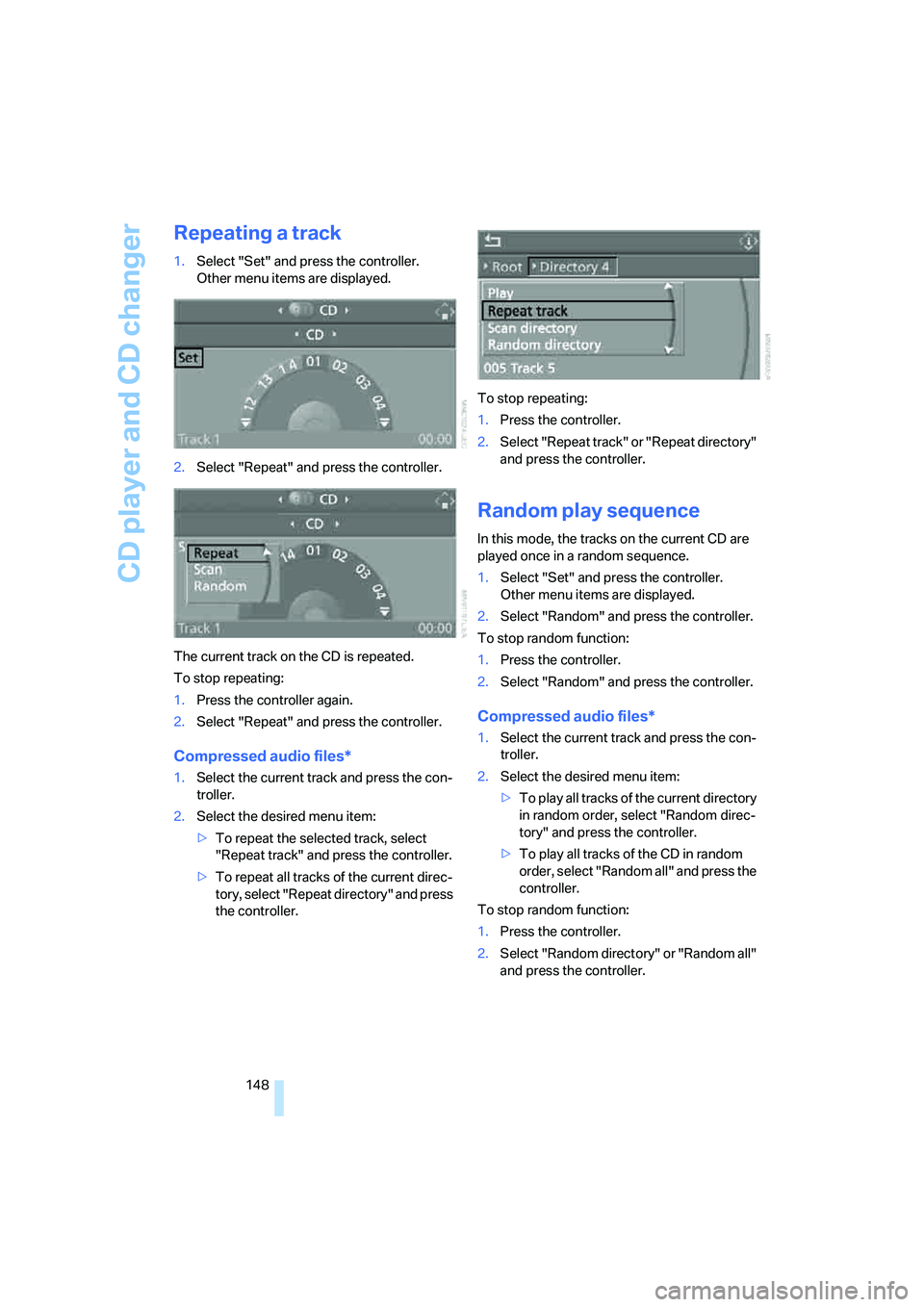
1.Select "Set" and press the controller.
Other menu items are displayed.
2.Select "Repeat" and press the controller.
The current track on the CD is repeated.
To stop repeating:
1.Press the controller again.
2.Select "Repeat" and press the controller.
Compressed audio files*
1.Select the current track and press the con-
troller.
2.Select the desired menu item:
>To repeat the selected track, select
"Repeat track" and press the controller.
>To repeat all tracks of the current direc-
tory, select "Repeat directory" and press
the controller.To stop repeating:
1.Press the controller.
2.Select "Repeat track" or "Repeat directory"
and press the controller.
Random play sequence
In this mode, the tracks on the current CD are
played once in a random sequence.
1.Select "Set" and press the controller.
Other menu items are displayed.
2.Select "Random" and press the controller.
To stop random function:
1.Press the controller.
2.Select "Random" and press the controller.
Compressed audio files*
1.Select the current track and press the con-
troller.
2.Select the desired menu item:
>To pla y all tracks of the current directory
in random order, select "Random direc-
tory" and press the controller.
>To play all tracks of the CD in random
order, select "Random all" and press the
controller.
To stop random function:
1.Press the controller.
2.Select "Random directory" or "Random all"
and press the controller.
Page 153 of 231
Navigation
Entertainment
Driving tips
151Reference
At a glance
Controls
Communications
Mobility
External audio device
You can connect an external audio device, e.g.
an MP3 player, and play the sound via the vehi-
cle loudspeakers. The sound can be adjusted
with iDrive.
Connecting
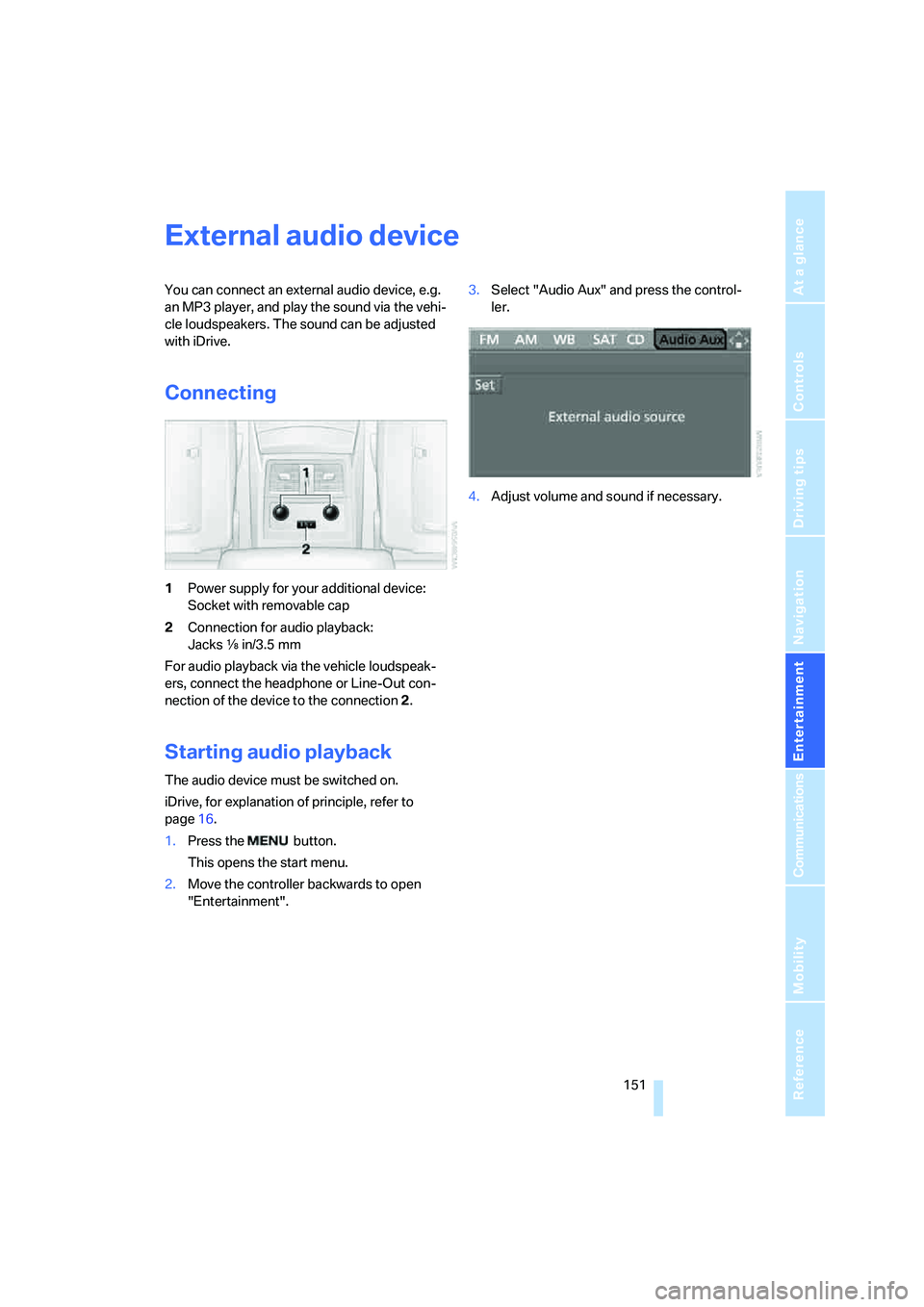
1Power supply for your additional device:
Socket with removable cap
2Connection for audio playback:
Jacks εin/3.5 mm
For audio playback via the vehicle loudspeak-
ers, connect the headphone or Line-Out con-
nection of the device to the connection 2.
Starting audio playback
The audio device must be switched on.
iDrive, for explanation of principle, refer to
page16.
1.Press the button.
This opens the start menu.
2.Move the controller backwards to open
"Entertainment".3.Select "Audio Aux" and press the control-
ler.
4.Adjust volume and sound if necessary.
Page 160 of 231
Telephoning
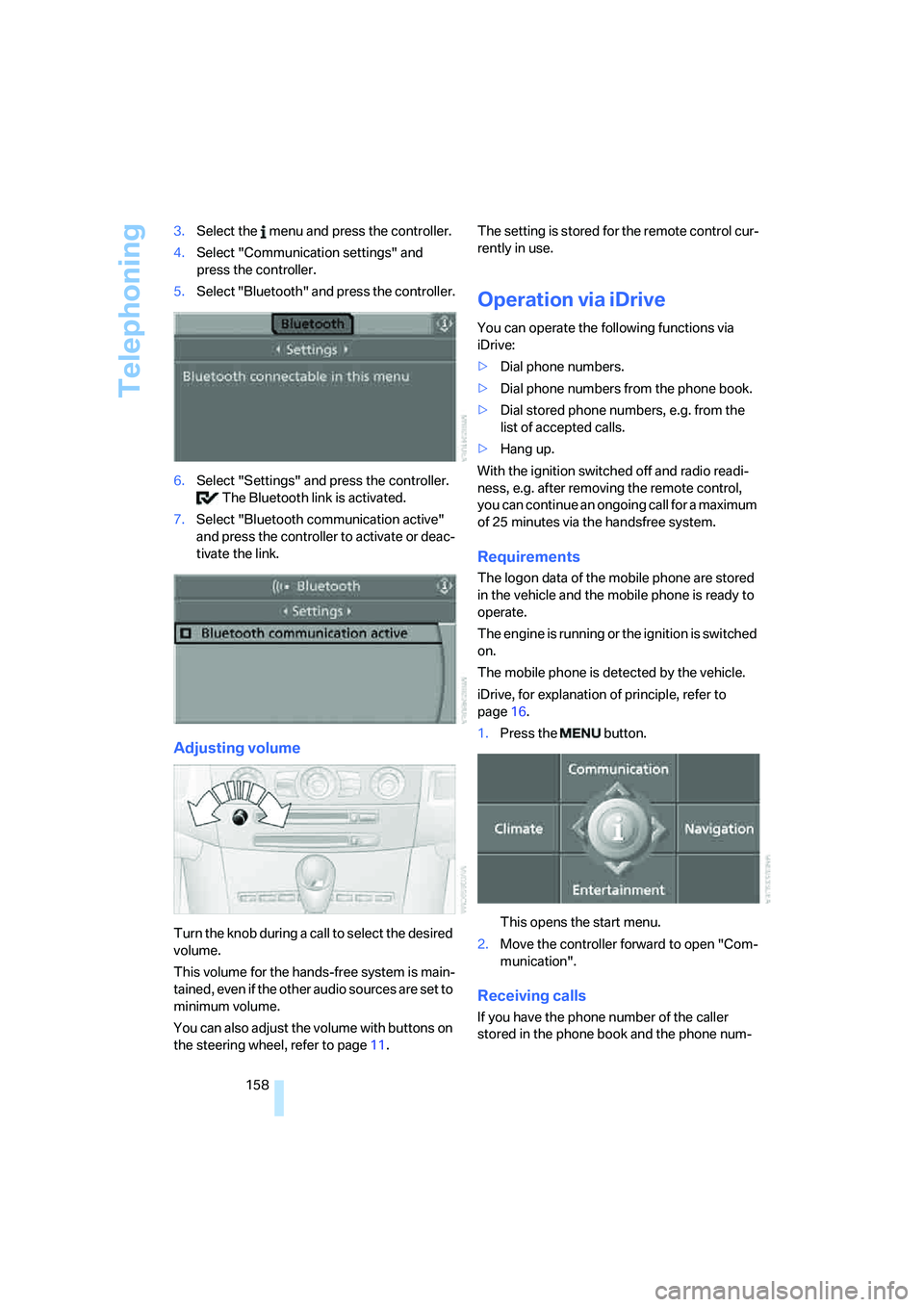
158 3.Select the menu and press the controller.
4.Select "Communication settings" and
press the controller.
5.Select "Bluetooth" and press the controller.
6.Select "Settings" and press the controller.
The Bluetooth link is activated.
7.Select "Bluetooth communication active"
and press the controller to activate or deac-
tivate the link.
Adjusting volume
Turn the knob during a call to select the desired
volume.
This volume for the hands-free system is main-
tained, even if the other audio sources are set to
minimum volume.
You can also adjust the volume with buttons on
the steering wheel, refer to page11.The setting is stored for the remote control cur-
rently in use.
Operation via iDrive
You can operate the following functions via
iDrive:
>Dial phone numbers.
>Dial phone numbers from the phone book.
>Dial stored phone numbers, e.g. from the
list of accepted calls.
>Hang up.
With the ignition switched off and radio readi-
ness, e.g. after removing the remote control,
you can continue an ongoing call for a maximum
of 25 minutes via the handsfree system.
Requirements
The logon data of the mobile phone are stored
in the vehicle and the mobile phone is ready to
operate.
The engine is running or the ignition is switched
on.
The mobile phone is detected by the vehicle.
iDrive, for explanation of principle, refer to
page16.
1.Press the button.
This opens the start menu.
2.Move the controller forward to open "Com-
munication".
Receiving calls
If you have the phone number of the caller
stored in the phone book and the phone num-
Page 166 of 231
Telephoning
164
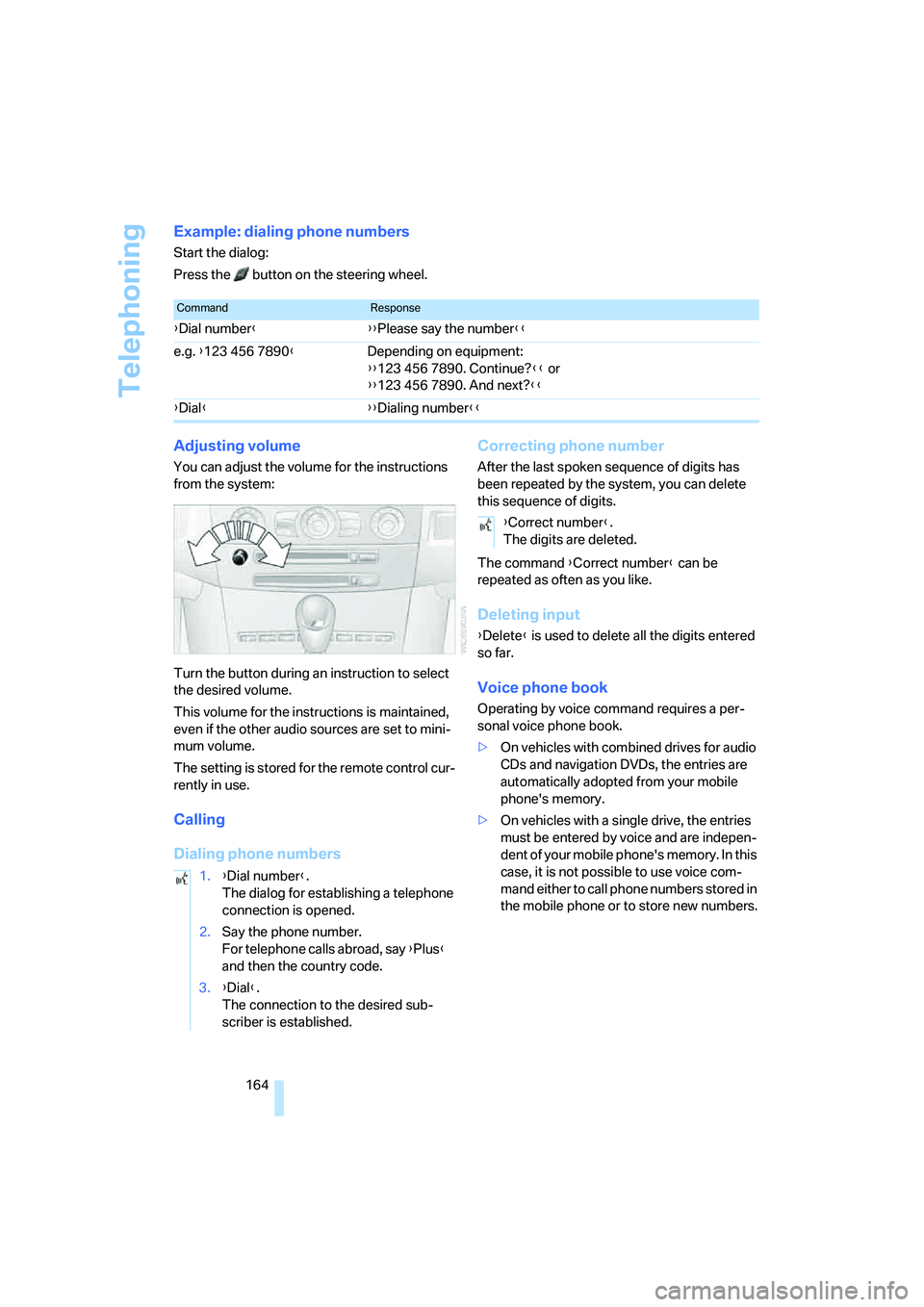
Example: dialing phone numbers
Start the dialog:
Press the button on the steering wheel.
Adjusting volume
You can adjust the volume for the instructions
from the system:
Turn the button during an instruction to select
the desired volume.
This volume for the instructions is maintained,
even if the other audio sources are set to mini-
mum volume.
The setting is stored for the remote control cur-
rently in use.
Calling
Dialing phone numbersCorrecting phone number
After the last spoken sequence of digits has
been repeated by the system, you can delete
this sequence of digits.
The command {Correct number} can be
repeated as often as you like.
Deleting input
{Delete} is used to delete all the digits entered
so far.
Voice phone book
Operating by voice command requires a per-
sonal voice phone book.
>On vehicles with combined drives for audio
CDs and navigation DVDs, the entries are
automatically adopted from your mobile
phone's memory.
>On vehicles with a single drive, the entries
must be entered by voice and are indepen-
dent of your mobile phone's memory. In this
case, it is not possible to use voice com-
mand either to call phone numbers stored in
the mobile phone or to store new numbers.
CommandResponse
{Dial number}{{Please say the number}}
e.g. {123 456 7890}Depending on equipment:
{{123 456 7890. Continue?}} or
{{123 456 7890. And next?}}
{Dial}{{Dialing number}}
1.{Dial number}.
The dialog for establishing a telephone
connection is opened.
2.Say the phone number.
For telephone calls abroad, say {Plus}
and then the country code.
3.{Dial}.
The connection to the desired sub-
scriber is established.
{Correct number}.
The digits are deleted.
Page 209 of 231
Reference 207
At a glance
Controls
Driving tips
Communications
Navigation
Entertainment
Mobility
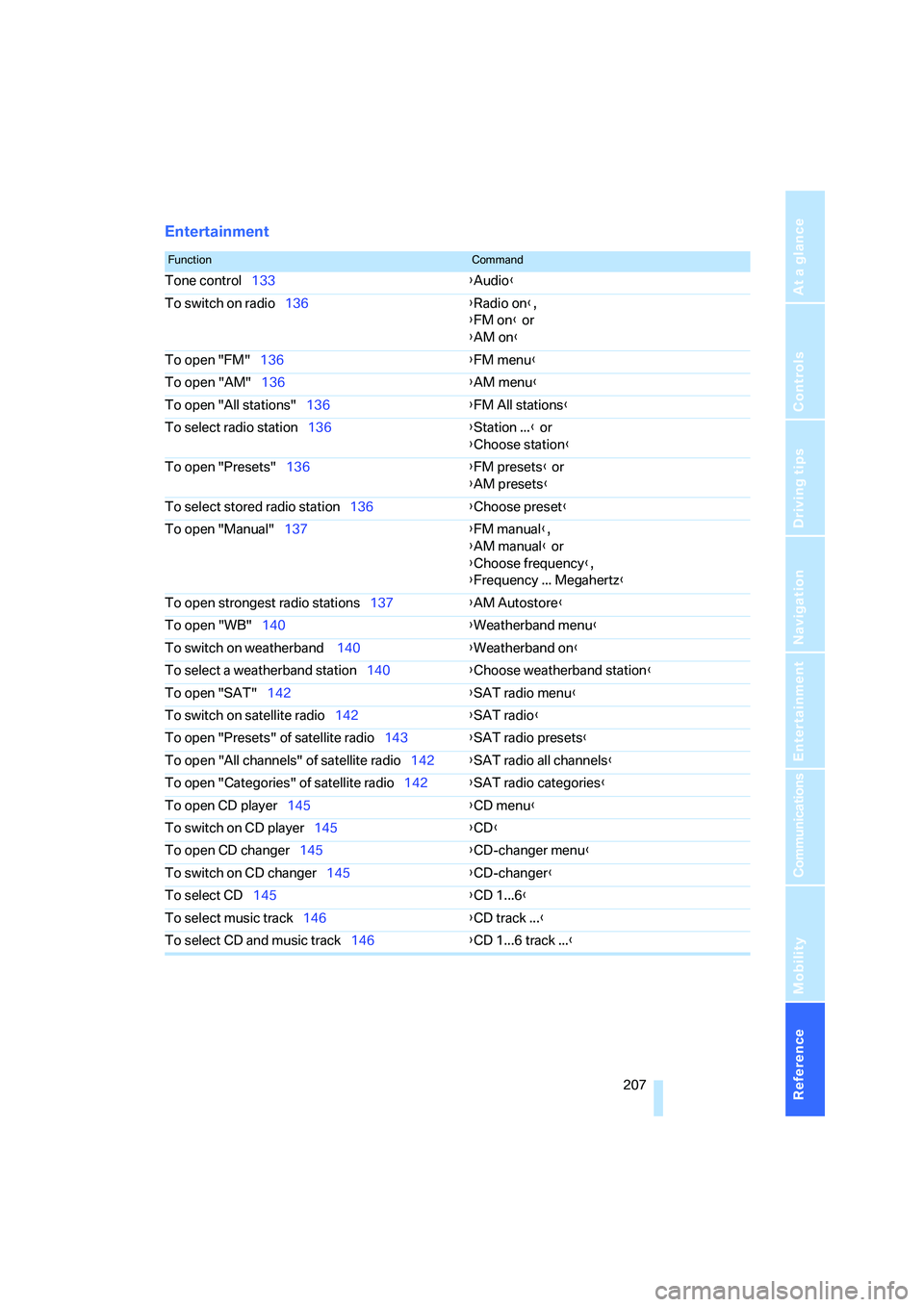
Entertainment
FunctionCommand
Tone control133{Audio}
To switch on radio136{Radio on},
{FM on} or
{AM on}
To open "FM"136{FM menu}
To open "AM"136{AM menu}
To open "All stations"136{FM All stations}
To select radio station136{Station ...} or
{Choose station}
To open "Presets"136{FM presets} or
{AM presets}
To select stored radio station136{Choose preset}
To open "Manual"137{FM manual},
{AM manual} or
{Choose frequency},
{Frequency ... Megahertz}
To open strongest radio stations137{AM Autostore}
To open "WB"140{Weatherband menu}
To switch on weatherband 140{Weatherband on}
To select a weatherband station140{Choose weatherband station}
To open "SAT"142{SAT radio menu}
To switch on satellite radio142{
SAT radio}
To open "Presets" of satellite radio143{SAT radio presets}
To open "All channels" of satellite radio142{SAT radio all channels}
To open "Categories" of satellite radio142{SAT radio categories}
To open CD player145{CD menu}
To switch on CD player145{CD}
To open CD changer145{CD-changer menu}
To switch on CD changer145{CD-changer}
To select CD145{CD 1...6}
To select music track146{CD track ...}
To select CD and music track146{CD 1...6 track ...}
Page 212 of 231
Everything from A to Z
210
Everything from A to Z
Index
"..." Identifies Control Display
texts used to select
individual functions, and
indicates where to find them
in the text.
A
ABS Antilock Brake
System74
Accessories6
Acoustic signal, refer to Check
Control67
Activated-charcoal filter91
"Activation time" for parked-
car ventilation91
Active head restraints,
front43
"Active seat backrest"48
Active seat ventilation45
Adapter for spare key28
Adaptive brake lamps, refer to
Brake force display78
Adaptive Head Light84
"Add digits" for mobile
phone160
"Address book" for navigation
system120
Address for navigation
– deleting121
– entering113,116
– selecting121
– storing120
– storing current position120
"Add to address book"120
"Add to destination list"116
Adjusting active backrest
width41
Adjusting confirmation signals
for locking and unlocking31
Adjusting the tone during
audio operation, refer to
Tone control133Adjusting thigh support41
Adjustment in audio mode
– front-to-rear134
– right/left balance134
"After door opened"43
"After unlocking"43
Airbags78
– sitting safely40
– warning lamp80
Air circulation, refer to Air
recirculation90
Air distribution
– automatic88
– manual89
Airing, refer to Ventilation90
Air recirculation
– AUC Automatic recircu-
lated-air control90
– recirculated-air mode90
"Air recirculation on / off"47
Air vents87
– refer to Ventilation90
Air volume89
AKI, refer to Fuel quality
175
Alarm system34
– avoiding unintentional
alarms35
– interior motion sensor35
– switching off alarm35
– switching off tilt alarm
sensor and interior motion
sensor35
– tilt alarm sensor35
"All channels"143
"All doors"30
All-season tires, refer to
Winter tires180
"All stations", calling up with
radio136,139
Alterations, technical, refer to
For your own safety5
Altering stretch of road128"AM", reception
range132,136
Antenna for mobile phone154
Antifreeze
– coolant184
– washer fluid60
Antilock Brake System
ABS74
Anti-theft alarm system, refer
to Alarm system34
Anti-theft system, refer to
Central locking system29
Approved axle loads, refer to
Weights204
Approved engine oils184
Approved gross vehicle
weight, refer to Weights204
Armrest, refer to Center
armrest, rear98
Around the center console14
Around the steering wheel10
Arrival time
– refer to Computer64
– refer to Starting destination
guidance124
"Arrow display" for navigation
system125
Ashtray
– front97
– rear97
Assist, refer to
BMW Assist167
Assistance systems, refer to
Driving stability control
systems74
Assistance window20
"Assist. window off"21
AUC Automatic recirculated-
air control90
Page 213 of 231
Reference 211
At a glance
Controls
Driving tips
Communications
Navigation
Entertainment
Mobility
Audio132
– controls132
– switching on/off132
– tone control133
– volume133
"Audio", refer to Tone
control133
"Audio Aux"132,151
– on external audio device151
Audio device, external96
Automatic
– air distribution88
– air volume88
– headlamp control83
– service notification168
– steering wheel adjustment,
refer to Easy entry/exit47
– storing stations137
Automatically switching
between high beams and
low beams, refer to High-
beam assistant84
Automatic car washes106
– also refer to Caring for your
vehicle brochure
Automatic climate control87
– automatic air distribution88
– switching off90
Automatic closing of doors,
refer to Automatic soft
closing33
Automatic curb monitor46
Automatic lighting
– refer to Automatic headlamp
control83
– refer to Daytime running
lamps84
– refer to High-beam
assistant84
– refer to Interior lamps86
– refer to Pathway lighting83
Automatic low-beam function,
refer to High-beam
assistant84
"Automatic programs"88
Automatic recirculated-air
control AUC90
Automatic soft closing33
Automatic station search137"Automatic ventilation"91
AUTO program for automatic
climate control88
"Autostore" on the
radio136,138
AUX-In
– connection96
– refer to External audio
device151
Average fuel consumption64
– setting the units72
Average speed, refer to
Computer63
"Avoid ferries" for navigation
system123
"Avoid highways" for
navigation system123
Avoiding freeways for
navigation122
Avoiding unintentional
alarms35
"Avoid tollroads" for
navigation system123
Axle loads, refer to
Weights204
"A - Z"160
B
Backrest contour, refer to
Lumbar support41
Backrests, refer to Seats40
Backrest width41
Back seats, refer to Rear seats
Backup lamps, replacing
bulbs189
"Balance", refer to Tone
control134
Balance, refer to Tone
control134
Band-aids, refer to First-aid
kit196
Bass, refer to Tone
control133
"Bass", tone control134
Battery, refer to Vehicle
battery195
– jump starting197Battery disposal
– remote control with comfort
access37
– vehicle battery195
Battery replacement, remote
control with comfort
access37
Being towed198
Belts, refer to Safety belts44
Beverage holder, refer to Cup
holders96
Blower, refer to Air volume89
"BMW Assist"169
BMW Assist167
– enabling167
– services offered168
"BMW Contact"162
"BMW Contact
Numbers"162
BMW homepage4
BMW maintenance
system186
"BMW Service"169
"BMW Service settings"168
BMW website4
Bottle holder, refer to Cup
holders96
Brake Assistant, refer to DBC
Dynamic Brake Control74
Brake fluid185
– warning lamp185
Brake force display78
Brake lamps
– brake force display78
– replacing bulbs189
Brake pads185
– breaking-in104
Brake rotors106
Brakes
– ABS Antilock Brake
System74
– brake fluid
185
– brake force display78
– brake pads185
– breaking-in104
– handbrake55
– warning lamps13