turn signal BMW M5 2006 User Guide
[x] Cancel search | Manufacturer: BMW, Model Year: 2006, Model line: M5, Model: BMW M5 2006Pages: 231, PDF Size: 8.44 MB
Page 87 of 231
Controls
85Reference
At a glance
Driving tips
Communications
Navigation
Entertainment
Mobility
any time and switch the high beams on and off
in the accustomed manner.
Activating high-beam assistant
1.Turn the light switch to switch position3,
refer to page83.
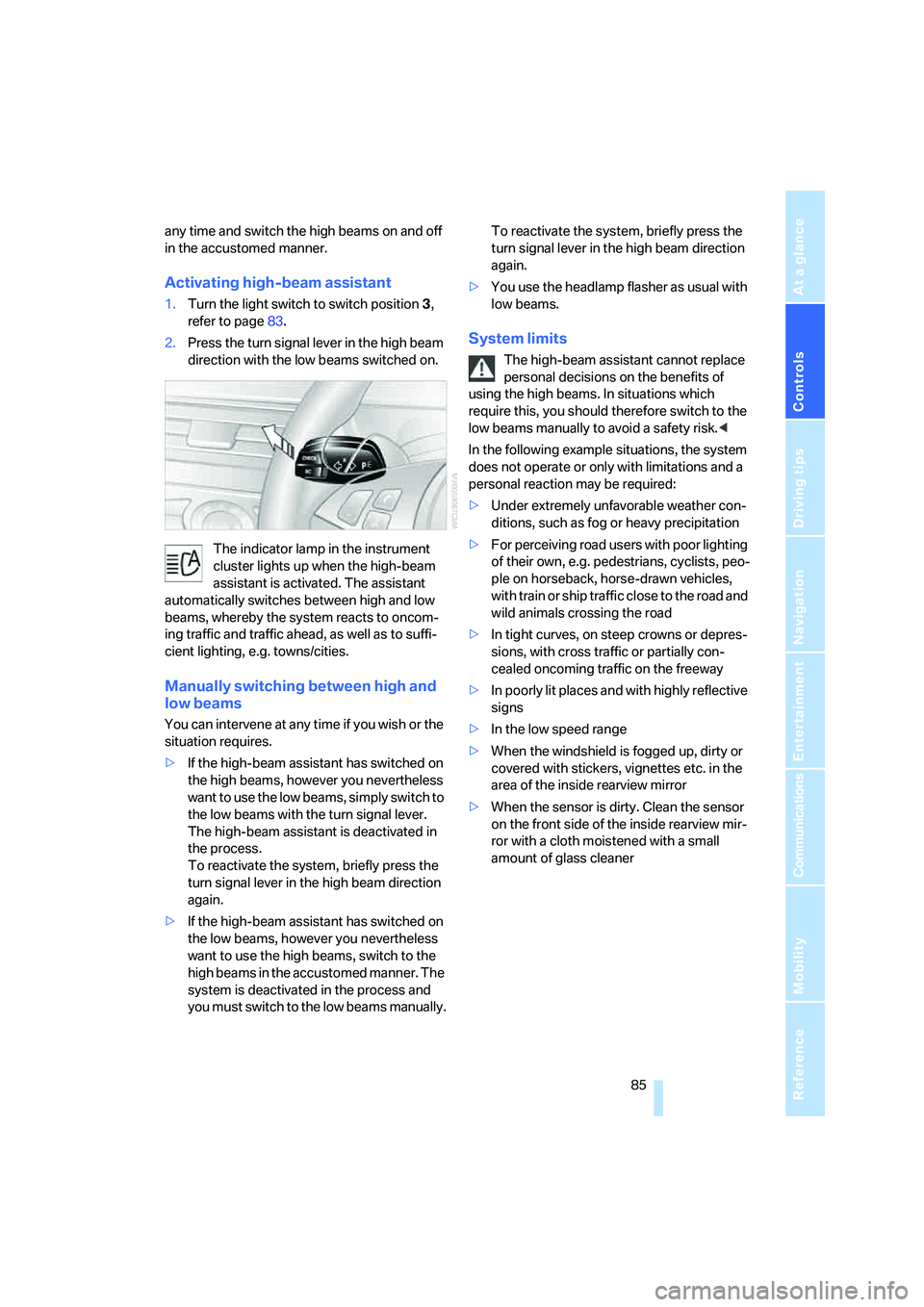
2.Press the turn signal lever in the high beam
direction with the low beams switched on.
The indicator lamp in the instrument
cluster lights up when the high-beam
assistant is activated. The assistant
automatically switches between high and low
beams, whereby the system reacts to oncom-
ing traffic and traffic ahead, as well as to suffi-
cient lighting, e.g. towns/cities.
Manually switching between high and
low beams
You can intervene at any time if you wish or the
situation requires.
>If the high-beam assistant has switched on
the high beams, however you nevertheless
want to use the low beams, simply switch to
the low beams with the turn signal lever.
The high-beam assistant is deactivated in
the process.
To reactivate the system, briefly press the
turn signal lever in the high beam direction
again.
>If the high-beam assistant has switched on
the low beams, however you nevertheless
want to use the high beams, switch to the
high beams in the accustomed manner. The
system is deactivated in the process and
you must switch to the low beams manually.To reactivate the system, briefly press the
turn signal lever in the high beam direction
again.
>You use the headlamp flasher as usual with
low beams.
System limits
The high-beam assistant cannot replace
personal decisions on the benefits of
using the high beams. In situations which
require this, you should therefore switch to the
low beams manually to avoid a safety risk.<
In the following example situations, the system
does not operate or only with limitations and a
personal reaction may be required:
>Under extremely unfavorable weather con-
ditions, such as fog or heavy precipitation
>For perceiving road users with poor lighting
of their own, e.g. pedestrians, cyclists, peo-
ple on horseback, horse-drawn vehicles,
with train or ship traffic close to the road and
wild animals crossing the road
>In tight curves, on steep crowns or depres-
sions, with cross traffic or partially con-
cealed oncoming traffic on the freeway
>In poorly lit places and with highly reflective
signs
>In the low speed range
>When the windshield is fogged up, dirty or
covered with stickers, vignettes etc. in the
area of the inside rearview mirror
>When the sensor is dirty. Clean the sensor
on the front side of the inside rearview mir-
ror with a cloth moistened with a small
amount of glass cleaner
Page 131 of 231
Navigation
Driving tips
129Reference
At a glance
Controls
Communications
Entertainment
Mobility
What to do if …
What to do if …
>a navigation DVD is inserted, but an instruc-
tion to insert the DVD appears on the Con-
trol Display?
The navigation DVD may not be the correct
DVD for the navigation system. This infor-
mation is indicated on the DVD label.
>you request the current position of your
vehicle, but do not receive a precise dis-
play?
The system is unable to receive enough
GPS signals at your current position due to
obstructions, your position is not yet avail-
able on your navigation DVD, or the system
is in the process of calculating your posi-
tion. Reception is best when you have an
unobstructed view to the sky.
>the destination guidance does not accept a
destination?
The data of the destination is not stored on
the navigation DVD that is loaded. Select a
destination that is as close as possible to
the original.
>the destination guidance does not accept
an address without the street name?
On the navigation DVD, no downtown area
can be determined for the city or town
entered. Enter any street, or a destination
such as the railway station in the selected
town, and then start the destination guid-
ance.
>you want to enter a destination for the des-
tination guidance, but it is not possible to
select the letters for your desired entry?
The data of the destination is not stored on
the navigation DVD that is loaded. In this
case, the system will not offer you any let-
ters to choose from. Select a destination
that is as close as possible to the original.>the system stops furnishing directions on
which way to turn as you approach intersec-
tions?
You are driving in an area that has not yet
been completely recorded on the naviga-
tion DVD. Instead of an arrow indicating a
turn, you will see an arrow which indicates
the general direction of your planned route.
Or you have left the recommended route
and the system requires a few seconds to
calculate a new recommended route.
>the navigation system does not react to
entries?
If the battery was disconnected, it takes
about 10 minutes before the system is once
again operational.
Page 138 of 231
Radio
136
Radio
Your radio provides reception the FM and AM
wavebands.
Listening to radio
Press the button if the sound output is switched
off.
iDrive, for explanation of principle, refer to
page16.
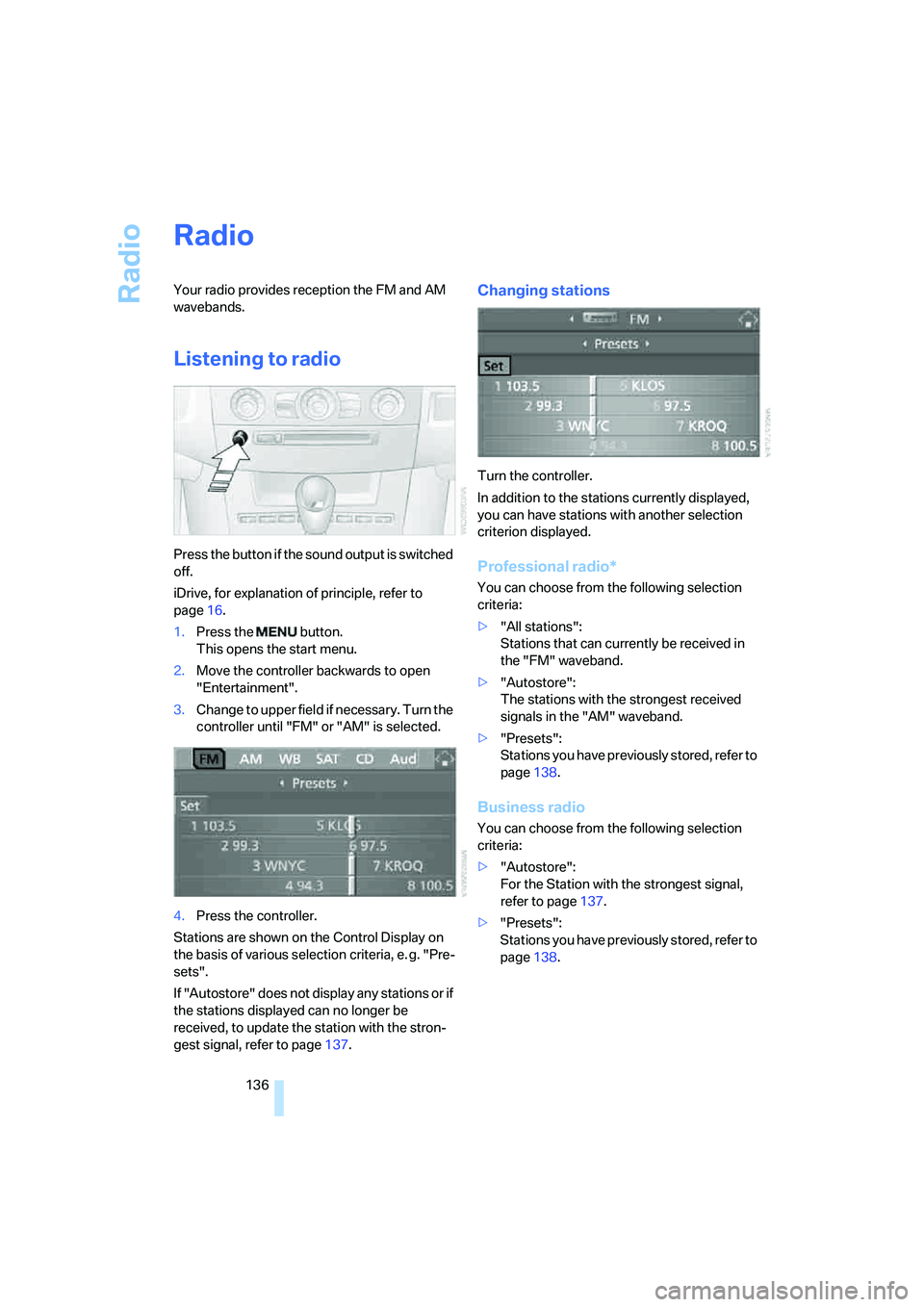
1.Press the button.
This opens the start menu.
2.Move the controller backwards to open
"Entertainment".
3.Change to upper field if necessary. Turn the
controller until "FM" or "AM" is selected.
4.Press the controller.
Stations are shown on the Control Display on
the basis of various selection criteria, e. g. "Pre-
sets".
If "Autostore" does not display any stations or if
the stations displayed can no longer be
received, to update the station with the stron-
gest signal, refer to page137.
Changing stations
Turn the controller.
In addition to the stations currently displayed,
you can have stations with another selection
criterion displayed.
Professional radio*
You can choose from the following selection
criteria:
>"All stations":
Stations that can currently be received in
the "FM" waveband.
>"Autostore":
The stations with the strongest received
signals in the "AM" waveband.
>"Presets":
Stations you have previously stored, refer to
page138.
Business radio
You can choose from the following selection
criteria:
>"Autostore":
For the Station with the strongest signal,
refer to page137.
>"Presets":
Stations you have previously stored, refer to
page138.
Page 146 of 231
Radio
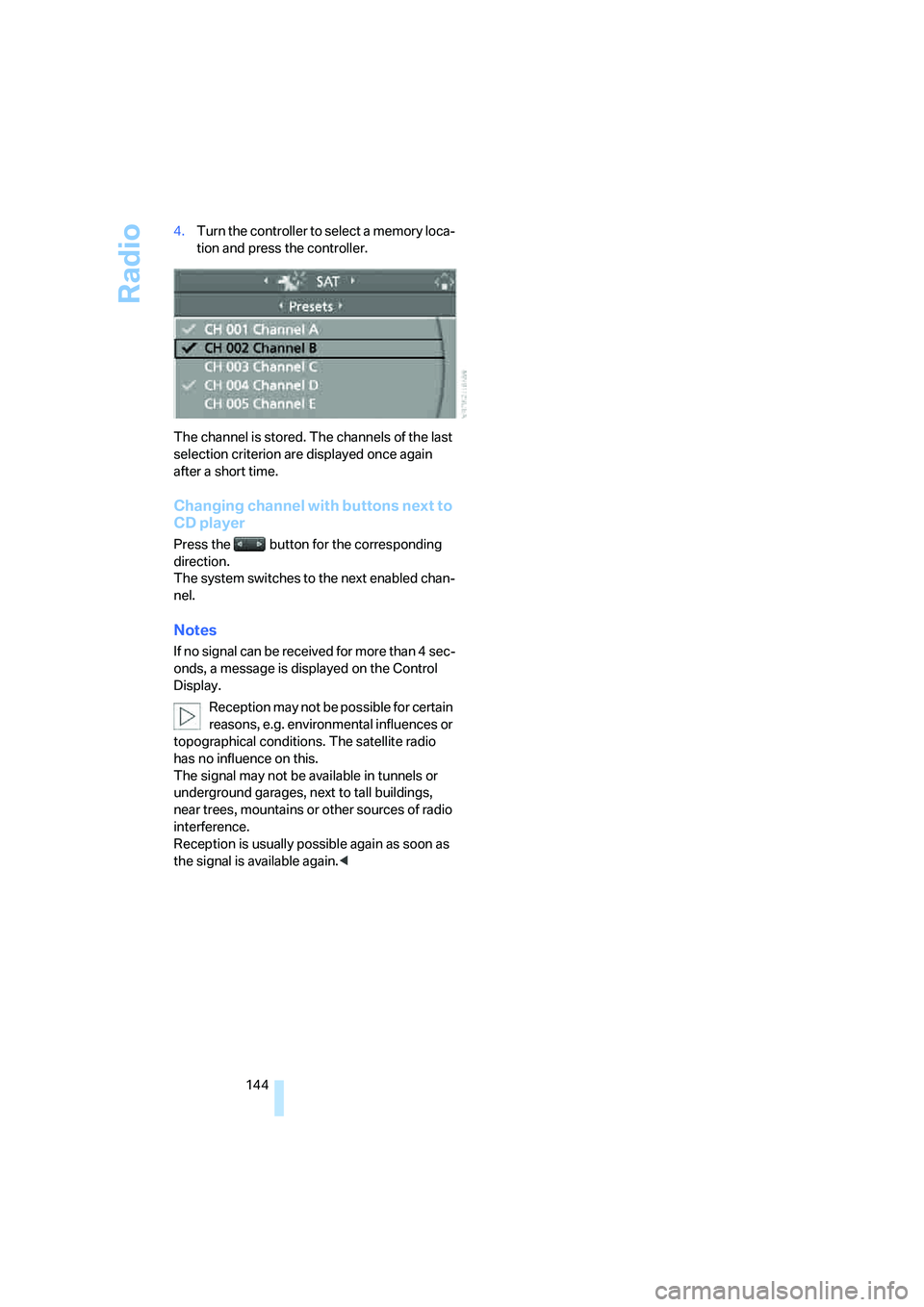
144 4.Turn the controller to select a memory loca-
tion and press the controller.
The channel is stored. The channels of the last
selection criterion are displayed once again
after a short time.
Changing channel with buttons next to
CD player
Press the button for the corresponding
direction.
The system switches to the next enabled chan-
nel.
Notes
If no signal can be received for more than 4 sec-
onds, a message is displayed on the Control
Display.
Reception may not be possible for certain
reasons, e.g. environmental influences or
topographical conditions. The satellite radio
has no influence on this.
The signal may not be available in tunnels or
underground garages, next to tall buildings,
near trees, mountains or other sources of radio
interference.
Reception is usually possible again as soon as
the signal is available again.<
Page 184 of 231
Under the hood
182
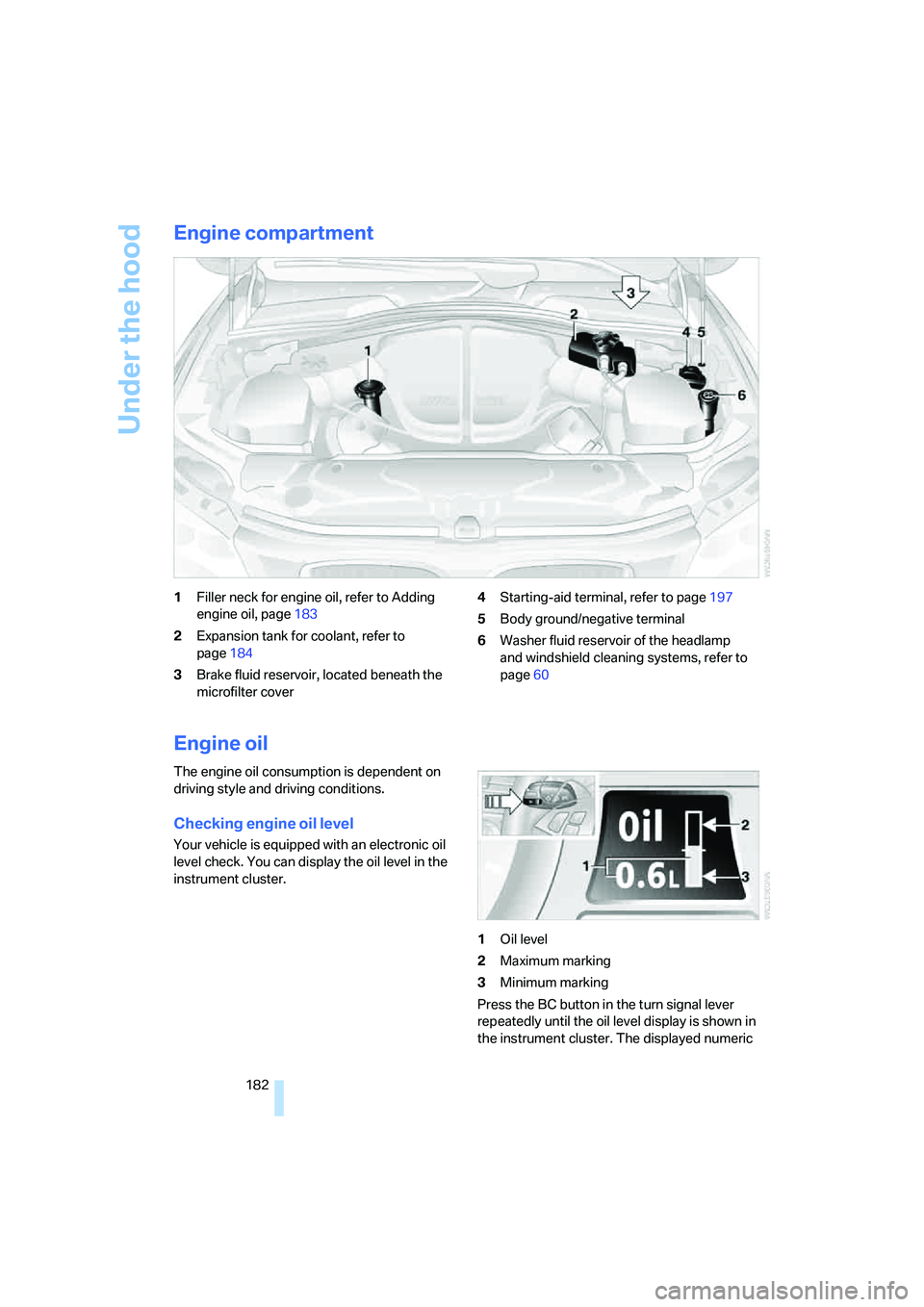
Engine compartment
1Filler neck for engine oil, refer to Adding
engine oil, page183
2Expansion tank for coolant, refer to
page184
3Brake fluid reservoir, located beneath the
microfilter cover4Starting-aid terminal, refer to page197
5Body ground/negative terminal
6Washer fluid reservoir of the headlamp
and windshield cleaning systems, refer to
page60
Engine oil
The engine oil consumption is dependent on
driving style and driving conditions.
Checking engine oil level
Your vehicle is equipped with an electronic oil
level check. You can display the oil level in the
instrument cluster.
1Oil level
2Maximum marking
3Minimum marking
Press the BC button in the turn signal lever
repeatedly until the oil level display is shown in
the instrument cluster. The displayed numeric
Page 185 of 231
Mobility
183Reference
At a glance
Controls
Driving tips
Communications
Navigation
Entertainment
value indicates the current oil level in liters
above Minimum.
After starting the engine, the last determined
value is displayed.
The oil level must be between the two marks.
Exact measurement
The oil level is measured continuously while
driving or when stopped with the engine run-
ning.
The determination of a new value can take
30 minutes or longer.
If only dashes are shown in the display, it
was not possible to determine a new
value. This can, for example, be the case when
driving short distances or with a sporty driving
style.<
Fast measurement
In addition to the continuous measurement, you
can also quickly determine the current oil level,
e.g. after adding engine oil, however with a low
measuring accuracy.
1.With the engine at operating temperature,
i.e. after at least 6 miles/10 km of uninter-
rupted driving, park the vehicle in a horizon-
tal position.
2.Allow the engine to run at idle.
3.Press the BC button in the turn signal lever
repeatedly until the oil level display is
shown in the instrument cluster.
4.Press the BC button in the turn signal lever
for at least 2 seconds.
The oil level is determined. A clock symbol
is displayed during the measurement.
5.After approx. 1 minute the current oil level is
displayed.
If not all measuring conditions are met,
e.g. with the engine cold, "-.-" is dis-
played. The requested measurement is carried
out as soon as possible.<
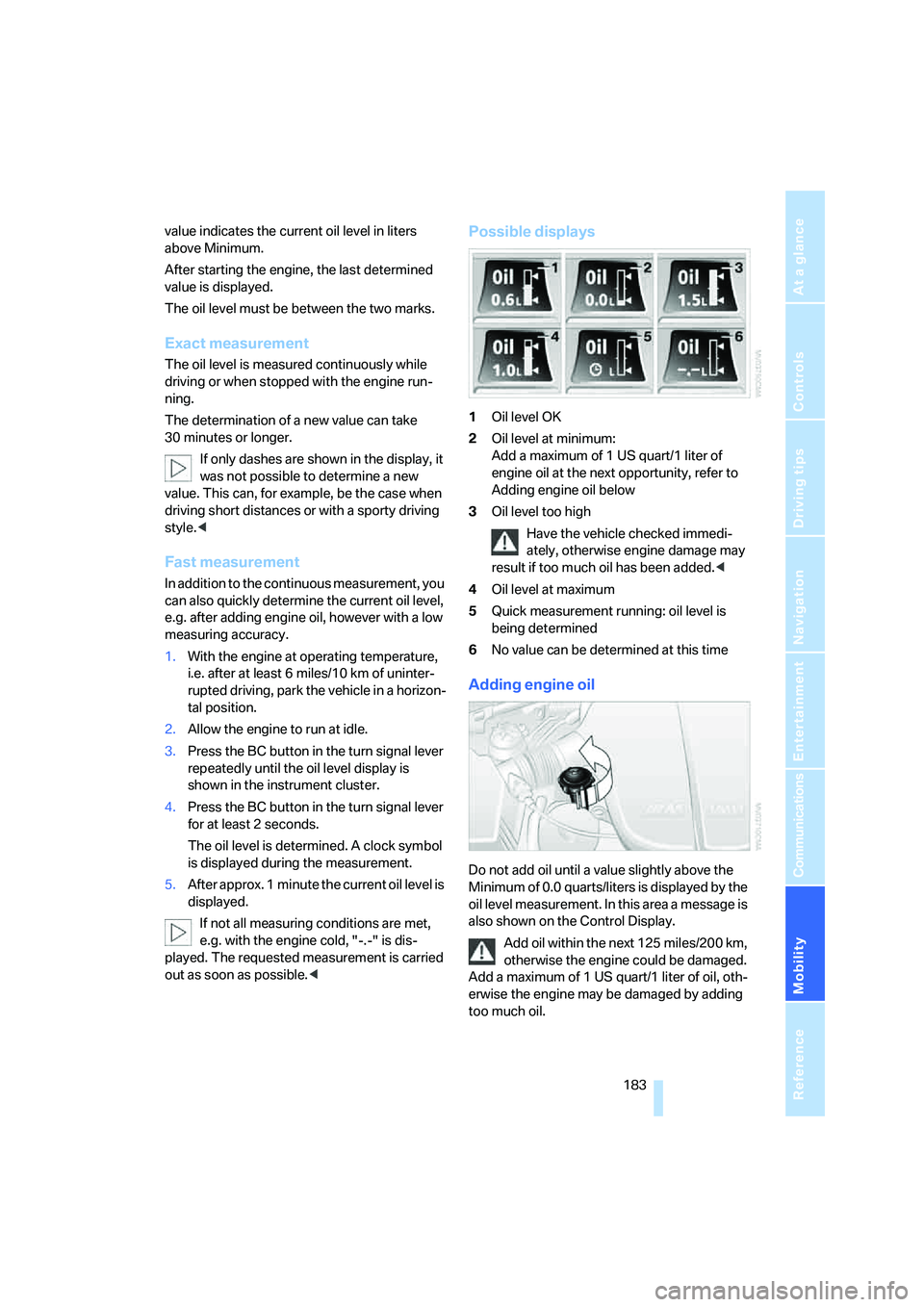
Possible displays
1Oil level OK
2Oil level at minimum:
Add a maximum of 1 US quart/1 liter of
engine oil at the next opportunity, refer to
Adding engine oil below
3Oil level too high
Have the vehicle checked immedi-
ately, otherwise engine damage may
result if too much oil has been added.<
4Oil level at maximum
5Quick measurement running: oil level is
being determined
6No value can be determined at this time
Adding engine oil
Do not add oil until a value slightly above the
Minimum of 0.0 quarts/liters is displayed by the
oil level measurement. In this area a message is
also shown on the Control Display.
Add oil within the next 125 miles/200 km,
otherwise the engine could be damaged.
Add a maximum of 1 US quart/1 liter of oil, oth-
erwise the engine may be damaged by adding
too much oil.
Page 191 of 231
Mobility
189Reference
At a glance
Controls
Driving tips
Communications
Navigation
Entertainment
procedures with correspondingly trained per-
sonnel. Due to the high voltage present in the
system, there is a danger of fatal injuries when
work is carried out improperly.<
Parking and roadside parking lamps
In the event of a malfunction, please go to your
BMW center or a workshop that works accord-
ing to BMW repair procedures with correspond-
ingly trained personnel.
Turn signals, front
Bulb 21 watts, PY 21 W
1.Turn the bulb holder to the left and remove.
2.Apply gentle pressure to the bulb while
turning it to the left for removal and replace-
ment.
Side-mounted turn signals
Bulb 5 watts, W 5 W
1.Press back against the front edge of the
light with the tip of your finger, then pivot it
out.
2.Turn the bulb holder to the left and remove.
3.Remove the bulb for replacement.
Side marker lamps, front and rear
To replace, please go to your BMW center or a
workshop that works according to BMW repair
procedures with correspondingly trained per-
sonnel.
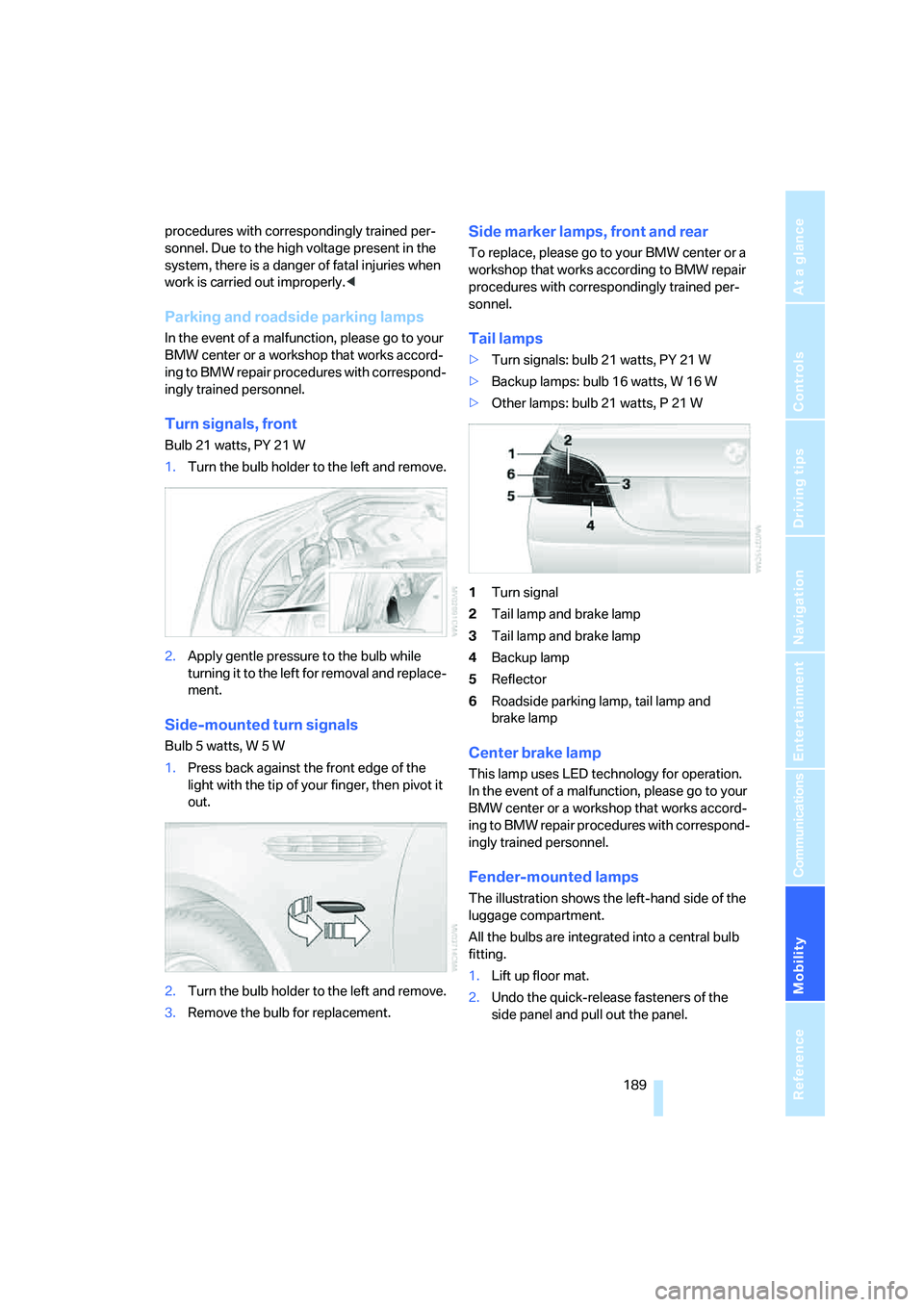
Tail lamps
>Turn signals: bulb 21 watts, PY 21 W
>Backup lamps: bulb 16 watts, W 16 W
>Other lamps: bulb 21 watts, P 21 W
1Turn signal
2Tail lamp and brake lamp
3Tail lamp and brake lamp
4Backup lamp
5Reflector
6Roadside parking lamp, tail lamp and
brake lamp
Center brake lamp
This lamp uses LED technology for operation.
In the event of a malfunction, please go to your
BMW center or a workshop that works accord-
ing to BMW repair procedures with correspond-
ingly trained personnel.
Fender-mounted lamps
The illustration shows the left-hand side of the
luggage compartment.
All the bulbs are integrated into a central bulb
fitting.
1.Lift up floor mat.
2.Undo the quick-release fasteners of the
side panel and pull out the panel.
Page 200 of 231
Giving and receiving assistance
198 Your BMW M5 has a special nut as body
ground or negative terminal.
5.Attach the second end of the cable to the
negative terminal of the battery or to the
engine or body ground of the vehicle to be
started.
Starting engine
1.Start the engine on the assisting vehicle
and allow it to run at idle for several minutes
at slightly increased speed.
2.Start the engine on the other vehicle in the
usual way.
If the first starting attempt is not successful,
wait a few minutes before another attempt
in order to allow the discharged battery to
recharge.
3.Let the engines run for a few minutes.
4.Disconnect the jumper cables by reversing
the connection sequence.
Check the battery and recharge if necessary.
Never use spray fluids to start the
engine.<
Tow-starting and towing
Observe applicable laws and regulations
for tow-starting and towing.<
Do not transport any passengers other
than the driver in a vehicle that is being
towed.<
Using tow fitting
The screw-on tow-fitting must always be car-
ried in the vehicle. It can be screwed in at the
front or rear of the BMW M5.It is located in the toolkit in the luggage com-
partment lid, refer to page188.
Use only the tow fitting provided with the
vehicle and screw it all the way in. Use the
tow fitting for towing only on roads. Avoid lateral
loading of the tow fitting, e.g. do not lift the vehi-
cle by the tow fitting. Otherwise damage to the
tow fitting and the vehicle can occur.<
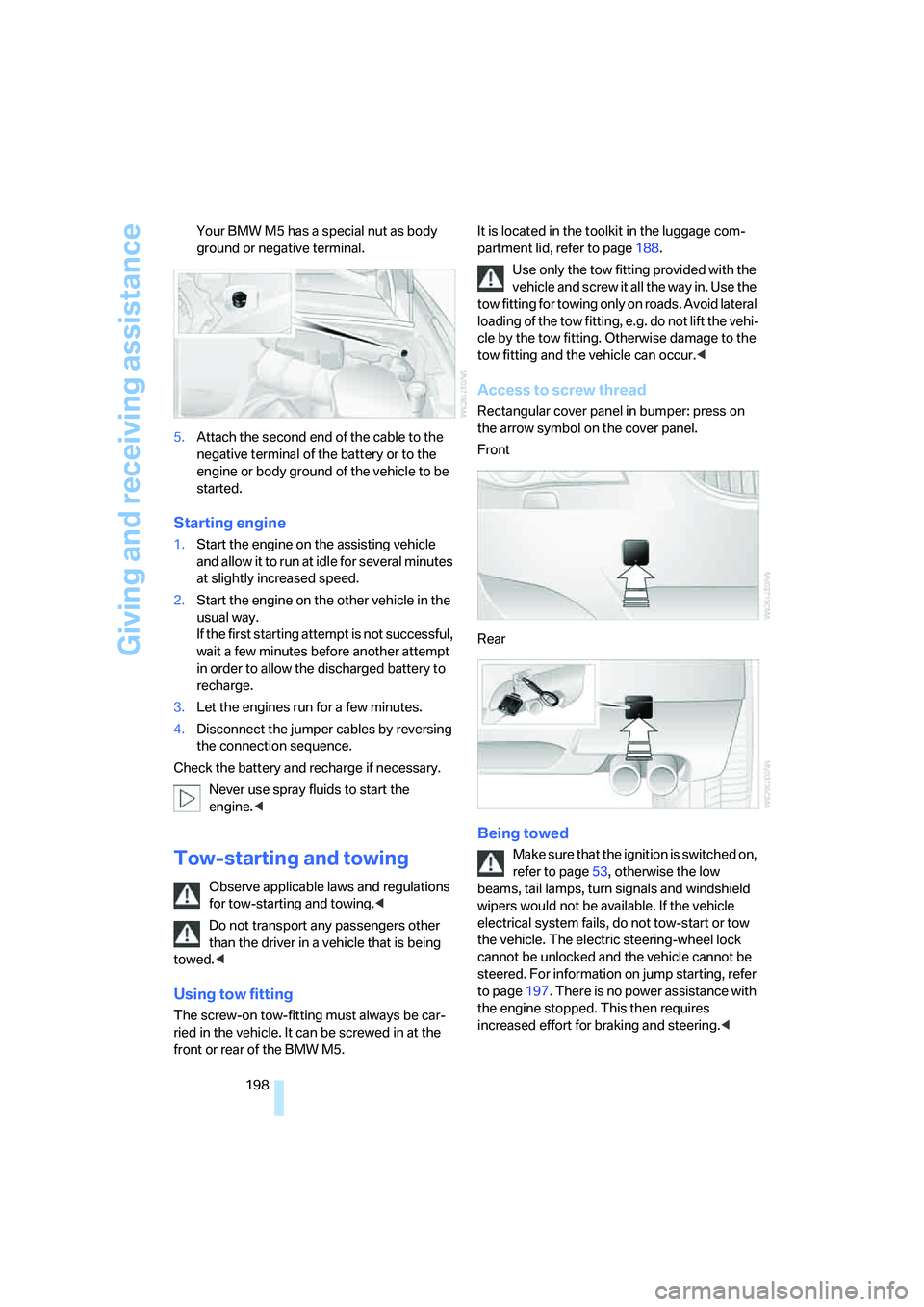
Access to screw thread
Rectangular cover panel in bumper: press on
the arrow symbol on the cover panel.
Front
Rear
Being towed
Make sure that the ignition is switched on,
refer to page53, otherwise the low
beams, tail lamps, turn signals and windshield
wipers would not be available. If the vehicle
electrical system fails, do not tow-start or tow
the vehicle. The electric steering-wheel lock
cannot be unlocked and the vehicle cannot be
steered. For information on jump starting, refer
to page197. There is no power assistance with
the engine stopped. This then requires
increased effort for braking and steering.<
Page 216 of 231
Everything from A to Z
214 "Delete address book" for
navigation system122
"Delete all numbers" for
mobile phone161
"Delete data" for navigation
system122
"Delete" for mobile
phone161
Destination address
– deleting121
– entering113,116
Destination for navigation
– destination list119
– entering via voice116
– entry113
– selecting from address
book121
– selecting using
information118
– storing120
Destination guidance124
– bypassing route
sections128
– canceling voice
instructions47
– changing specified
route122
– displaying routes125
– distance and arrival124
– interrupting124
– starting124
– terminating/continuing124
– voice instructions127
– volume of voice
instructions127
Destination list for
navigation119
Destinations recently driven
to119
"Details" in audio mode147
"Dial" for mobile phone159
"Dial number"159
Digital clock63
Digital radio, refer to High
Definition Radio140
Dimensions203
Directional indicators, refer to
Turn signals59Direction announcements,
refer to Voice
instructions127
Direction instructions, refer to
Voice instructions127
Directory for navigation, refer
to Address book120
Displacement, refer to Engine
data202
"Display"72
Display, refer to iDrive16
Display lighting, refer to
Instrument lighting
86
"Display off"21
Displays, refer to Instrument
cluster12
"Display settings"71
Displays on the windshield,
refer to Head-Up Display80
Disposal
– battery of remote control
with comfort access37
– vehicle battery195
Distance, refer to
Computer64
"Distance to dest."65
Distance to destination, refer
to Computer64
Distance warning, refer to
PDC Park Distance
Control73
Divided rear seat back, refer to
Through-loading system98
Door entry lighting86
Door key, refer to Keys/
remote control28
Door lock32
Door locking, acknowl-
edgment signals31
"Door locks"30
Doors
– manual operation32
– remote control30
DOT Quality Grades178
Draft-free ventilation90
Drinks holder, refer to Cup
holders96
Drivelogic57
Drive mode56"Driver's door only"30
Driving lamps, refer to Parking
lamps/low beams83
Driving notes104
Driving programs, refer to
Drivelogic57
Driving route, refer to
Displaying route125
Driving stability control
systems74
Driving through water105
Driving tips, refer to Driving
notes104
Dry air, refer to Cooling
function89
Drying the air, refer to Cooling
function89
"DSC"48,75
DSC Dynamic Stability
Control74
– indicator lamp13,75
DVD for navigation112
Dynamic Brake Control
DBC74
Dynamic Stability Control
DSC74
– M Dynamic Mode MDM75
E
Easy entry/exit47
– backrest width42
"EDC"48
EDC Electronic Damping
Control76
– "Comfort"76
– "Normal"76
– "Sport"76
Eject button, refer to Buttons
on CD player132
Electrical malfunction
– door lock32
– driver's door32
– fuel filler door174
– glass sunroof, electric39
– luggage compartment lid34
Electric steering wheel
adjustment47
Page 221 of 231
Reference 219
At a glance
Controls
Driving tips
Communications
Navigation
Entertainment
Mobility
Mirrors45
– automatic curb monitor46
– folding in and out46
– heating46
– memory, refer to Seat, mirror
and steering wheel
memory42
"Missed calls"160
Missed calls160
Mobile communications
devices in vehicle105
Mobile phone
– accepted calls160
– adjusting volume158
– calling159
– ending call159
– installation location, refer to
Center armrest95
– missed calls160
– operation via iDrive158
– redialing160
– refer to separate operating
instructions
– Top 8160
– touch tone dialing, refer to
Tone dialing method162
Mobility System190
Monitor, refer to iDrive16
Monitoring pressure of tires,
refer to Flat Tire Monitor76
"Monitor on / off"47
Most recent numbers
for mobile phone160
MP3, refer to Compressed
audio files145
Multi-function steering wheel,
refer to Buttons on steering
wheel11
Multifunction switch
– refer to Turn signals/
headlamp flasher59
– refer to Wiper/washer
system59
Music track, finding147
"Mute on / off"47
"M View"81
M view81
MW, waveband136N
"Navigation"64,113
Navigation destination
– home address122
– manual entry113
– selecting via map117
Navigation drive, installation
location112
Navigation DVD112
Navigation instructions, refer
to Switching voice instruc-
tions on/off127
Navigation system112
– address book120
– bypassing route
sections128
– destination entry113
– destination guidance in
assistance window112
– destination list119
– displaying current
position128
– entering a destination
manually113
– entering destination via
voice116
– last destinations119
– opening113
– route display125
– route list126
– searching for a special
destination118
– selecting destination using
information118
– selecting destination via
map117
– selecting route criteria122
– starting destination
guidance124
– switching off, refer to Termi-
nating/continuing desti-
nation guidance124
– terminating/continuing
destination guidance124
– voice instructions127
– volume adjustment127
"Navigation voice
instructions"47"Navigation voice instructions
on"127
Neck support, refer to Head
restraints43
"New address" for navigation
system120
"New destination"113,117
New remote control28
"New route"128
New wheels and tires179
"Next entertainment
source"47
"Normal", active backrest
width adjustment42
"Normal" with EDC76
Nozzles, refer to Windshield
washer nozzles60
Nylon rope, refer to Tow-
starting and towing198
O
OBD socket187
Octane ratings, refer to Fuel
specifications175
Odometer62
Oil
– additives, refer to Approved
engine oils184
– approved engine oils184
– capacity204
– consumption, refer to
Checking engine oil
level182
– level182
– refilling, refer to Adding
engine oil183
Oil change intervals, refer to
Service requirements66
Oil temperature63
"On a new destination" for
navigation system119
Onboard computer, refer to
iDrive16
"Onboard info"64
Onboard toolkit188
"On destination"119
"On location"119