change wheel BMW M5 2006 Owners Manual
[x] Cancel search | Manufacturer: BMW, Model Year: 2006, Model line: M5, Model: BMW M5 2006Pages: 231, PDF Size: 8.44 MB
Page 5 of 231
Reference
At a glance
Controls
Driving tips
Communications
Navigation
Entertainment
Mobility
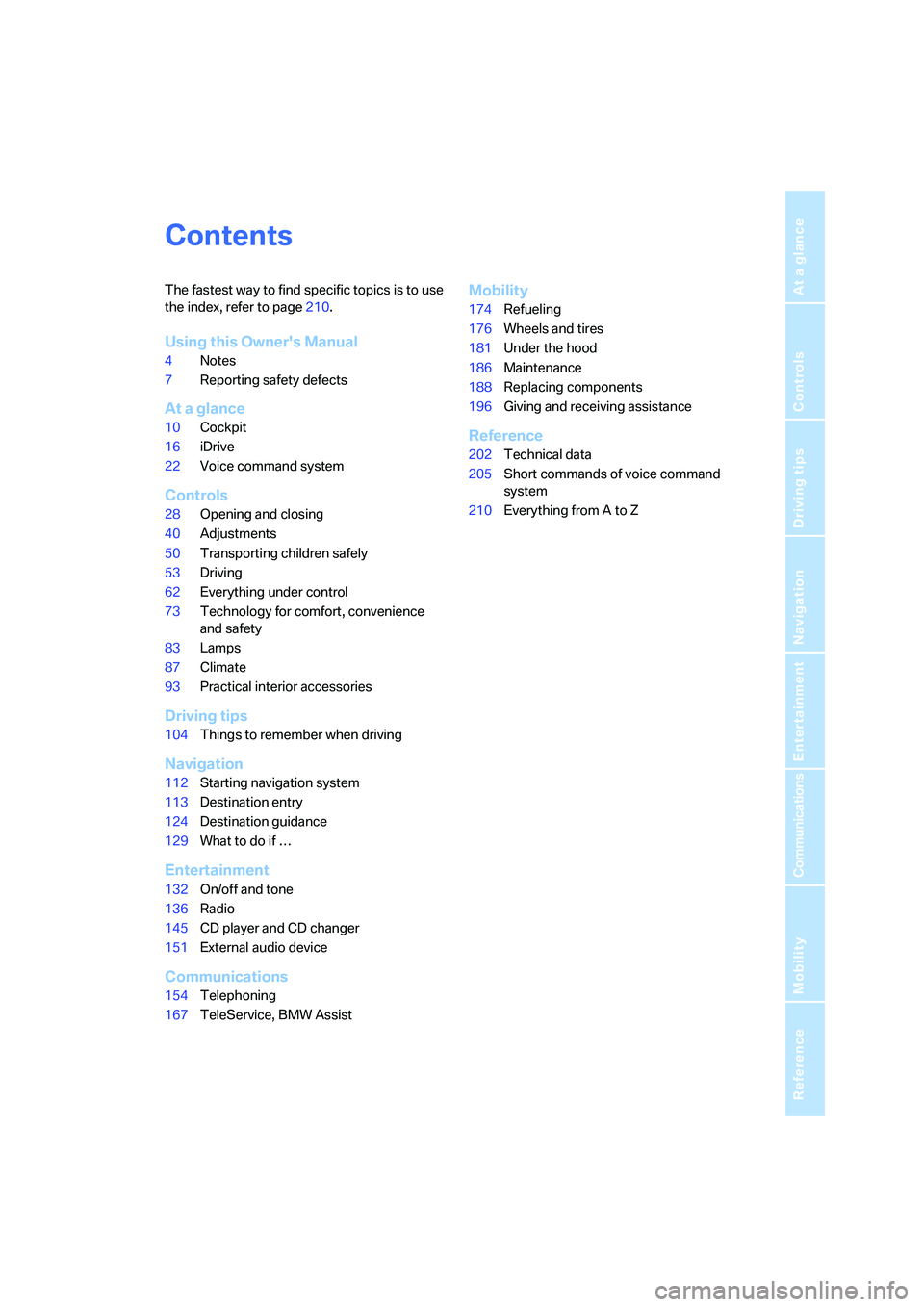
Contents
The fastest way to find specific topics is to use
the index, refer to page210.
Using this Owner's Manual
4Notes
7Reporting safety defects
At a glance
10Cockpit
16iDrive
22Voice command system
Controls
28Opening and closing
40Adjustments
50Transporting children safely
53Driving
62Everything under control
73Technology for comfort, convenience
and safety
83Lamps
87Climate
93Practical interior accessories
Driving tips
104Things to remember when driving
Navigation
112Starting navigation system
113Destination entry
124Destination guidance
129What to do if …
Entertainment
132On/off and tone
136Radio
145CD player and CD changer
151External audio device
Communications
154Telephoning
167TeleService, BMW Assist
Mobility
174Refueling
176Wheels and tires
181Under the hood
186Maintenance
188Replacing components
196Giving and receiving assistance
Reference
202Technical data
205Short commands of voice command
system
210Everything from A to Z
Page 25 of 231
At a glance
23Reference
Controls
Driving tips
Communications
Navigation
Entertainment
Mobility
If no other commands are possible, then oper-
ate the equipment using iDrive.
Terminating or canceling voice
command system
Press the button on the steering wheel or in
the center console
or
Commands
Having possible commands read aloud
You can have the system read aloud the possi-
ble commands related to the selected menu
item on the Control Display.
To have the system list the possible com-
mands:
For example, if you have selected "CD", the
system will read aloud the possible commands
for operating the CD player and the CD
changer
*.
Opening help
Using alternative commands
There are often a number of commands to run a
function, e.g.:
Running functions directly with short
commands
With short commands you can carry out certain
functions directly, regardless of which menu
item is selected, refer to page205.
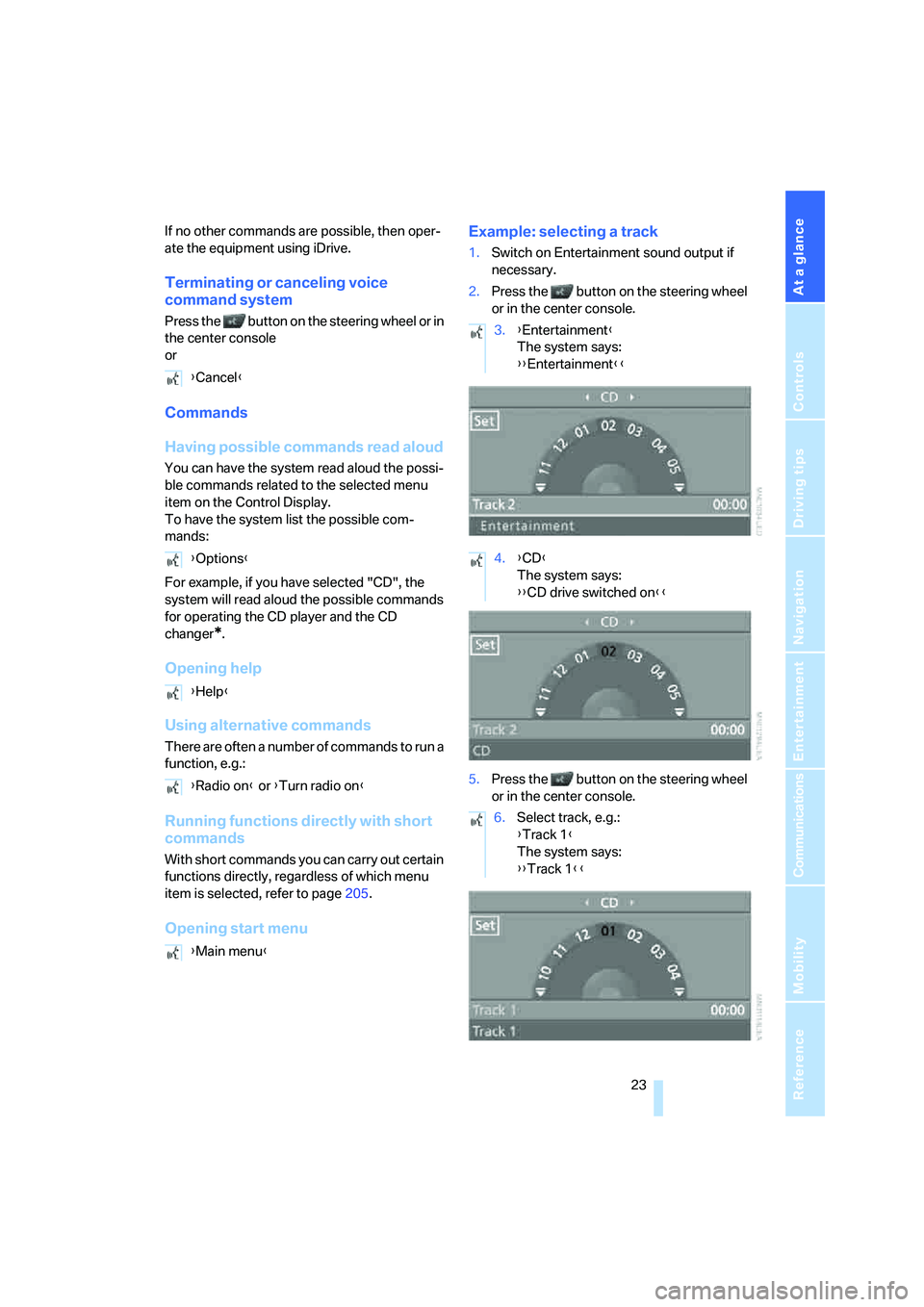
Opening start menuExample: selecting a track
1.Switch on Entertainment sound output if
necessary.
2.Press the button on the steering wheel
or in the center console.
5.Press the button on the steering wheel
or in the center console. {Cancel}
{Options}
{Help}
{Radio on} or {Turn radio on}
{Main menu}
3.{Entertainment}
The system says:
{{Entertainment}}
4.{CD}
The system says:
{{CD drive switched on}}
6.Select track, e.g.:
{Track 1}
The system says:
{{Track 1}}
Page 37 of 231
Controls
35Reference
At a glance
Driving tips
Communications
Navigation
Entertainment
Mobility
>To changes in the vehicle's tilt if someone
attempts to steal the wheels or tow the
vehicle
>To interruptions in battery voltage
Unauthorized operations are briefly signaled by
the alarm system:
>with an acoustic alarm
>by switching on
the hazard warning flashers
>by flashing the high beams
Arming and disarming alarm system
When you lock or unlock the vehicle, either with
the remote control or at the door lock, the alarm
system is armed or disarmed at the same time.
The luggage compartment lid can also be
opened with the system armed with the but-
ton on the remote control, refer to page33.
When the luggage compartment lid is closed, it
is locked and monitored again.
Switching off alarm
>Unlock the vehicle using the remote control,
refer to page30.
>Insert the remote control all the way into the
ignition lock.
Indicator lamp displays
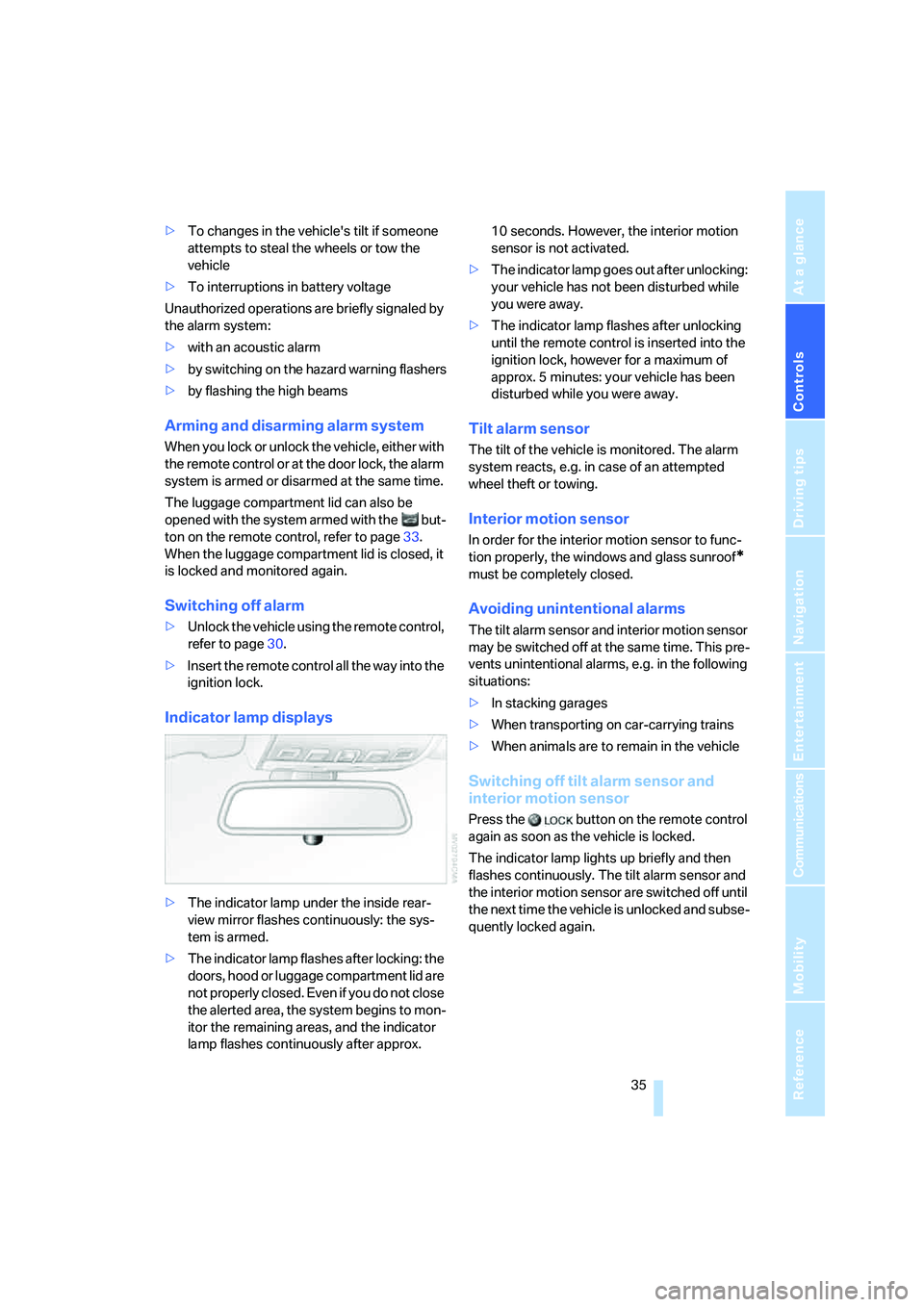
>The indicator lamp under the inside rear-
view mirror flashes continuously: the sys-
tem is armed.
>The indicator lamp flashes after locking: the
doors, hood or luggage compartment lid are
not properly closed. Even if you do not close
the alerted area, the system begins to mon-
itor the remaining areas, and the indicator
lamp flashes continuously after approx. 10 seconds. However, the interior motion
sensor is not activated.
>The indicator lamp goes out after unlocking:
your vehicle has not been disturbed while
you were away.
>The indicator lamp flashes after unlocking
until the remote control is inserted into the
ignition lock, however for a maximum of
approx. 5 minutes: your vehicle has been
disturbed while you were away.
Tilt alarm sensor
The tilt of the vehicle is monitored. The alarm
system reacts, e.g. in case of an attempted
wheel theft or towing.
Interior motion sensor
In order for the interior motion sensor to func-
tion properly, the windows and glass sunroof
*
must be completely closed.
Avoiding unintentional alarms
The tilt alarm sensor and interior motion sensor
may be switched off at the same time. This pre-
vents unintentional alarms, e.g. in the following
situations:
>In stacking garages
>When transporting on car-carrying trains
>When animals are to remain in the vehicle
Switching off tilt alarm sensor and
interior motion sensor
Press the button on the remote control
again as soon as the vehicle is locked.
The indicator lamp lights up briefly and then
flashes continuously. The tilt alarm sensor and
the interior motion sensor are switched off until
the next time the vehicle is unlocked and subse-
quently locked again.
Page 49 of 231
Controls
47Reference
At a glance
Driving tips
Communications
Navigation
Entertainment
Mobility
Steering wheel
Adjustments
Do not adjust the steering wheel while the
vehicle is moving. There is a risk of acci-
dent as the result of unexpected movement.<
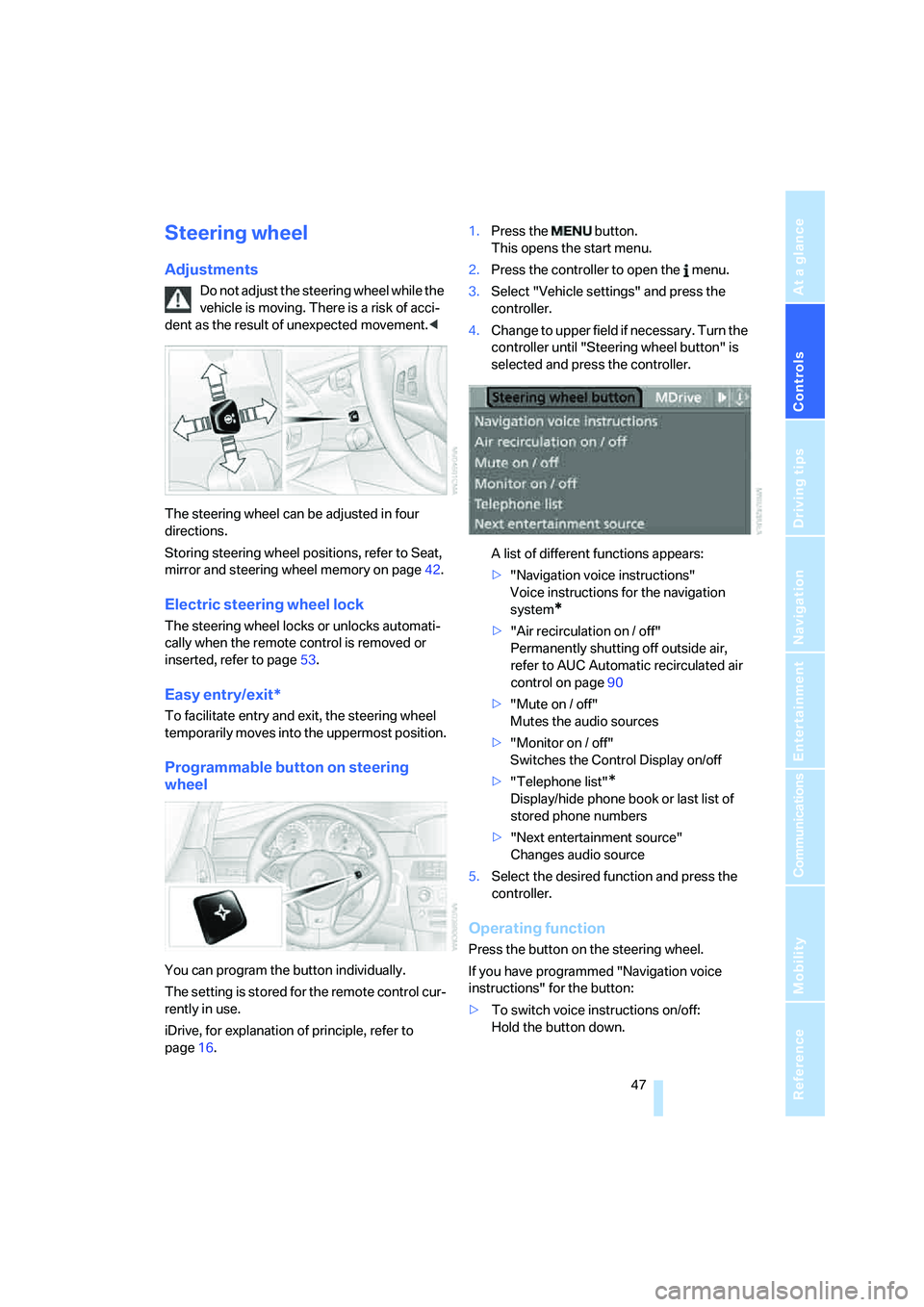
The steering wheel can be adjusted in four
directions.
Storing steering wheel positions, refer to Seat,
mirror and steering wheel memory on page42.
Electric steering wheel lock
The steering wheel locks or unlocks automati-
cally when the remote control is removed or
inserted, refer to page53.
Easy entry/exit*
To facilitate entry and exit, the steering wheel
temporarily moves into the uppermost position.
Programmable button on steering
wheel
You can program the button individually.
The setting is stored for the remote control cur-
rently in use.
iDrive, for explanation of principle, refer to
page16.1.Press the button.
This opens the start menu.
2.Press the controller to open the menu.
3.Select "Vehicle settings" and press the
controller.
4.Change to upper field if necessary. Turn the
controller until "Steering wheel button" is
selected and press the controller.
A list of different functions appears:
>"Navigation voice instructions"
Voice instructions for the navigation
system
*
>"Air recirculation on / off"
Permanently shutting off outside air,
refer to AUC Automatic recirculated air
control on page90
>"Mute on / off"
Mutes the audio sources
>"Monitor on / off"
Switches the Control Display on/off
>"Telephone list"
*
Display/hide phone book or last list of
stored phone numbers
>"Next entertainment source"
Changes audio source
5.Select the desired function and press the
controller.
Operating function
Press the button on the steering wheel.
If you have programmed "Navigation voice
instructions" for the button:
>To switch voice instructions on/off:
Hold the button down.
Page 50 of 231
Adjustments
48 >To repeat the last voice instruction:
Press the button.
MDrive
With MDrive you can configure several individ-
ual settings for your vehicle on the Control Dis-
play and activate them simultaneously with the
button on the steering wheel.
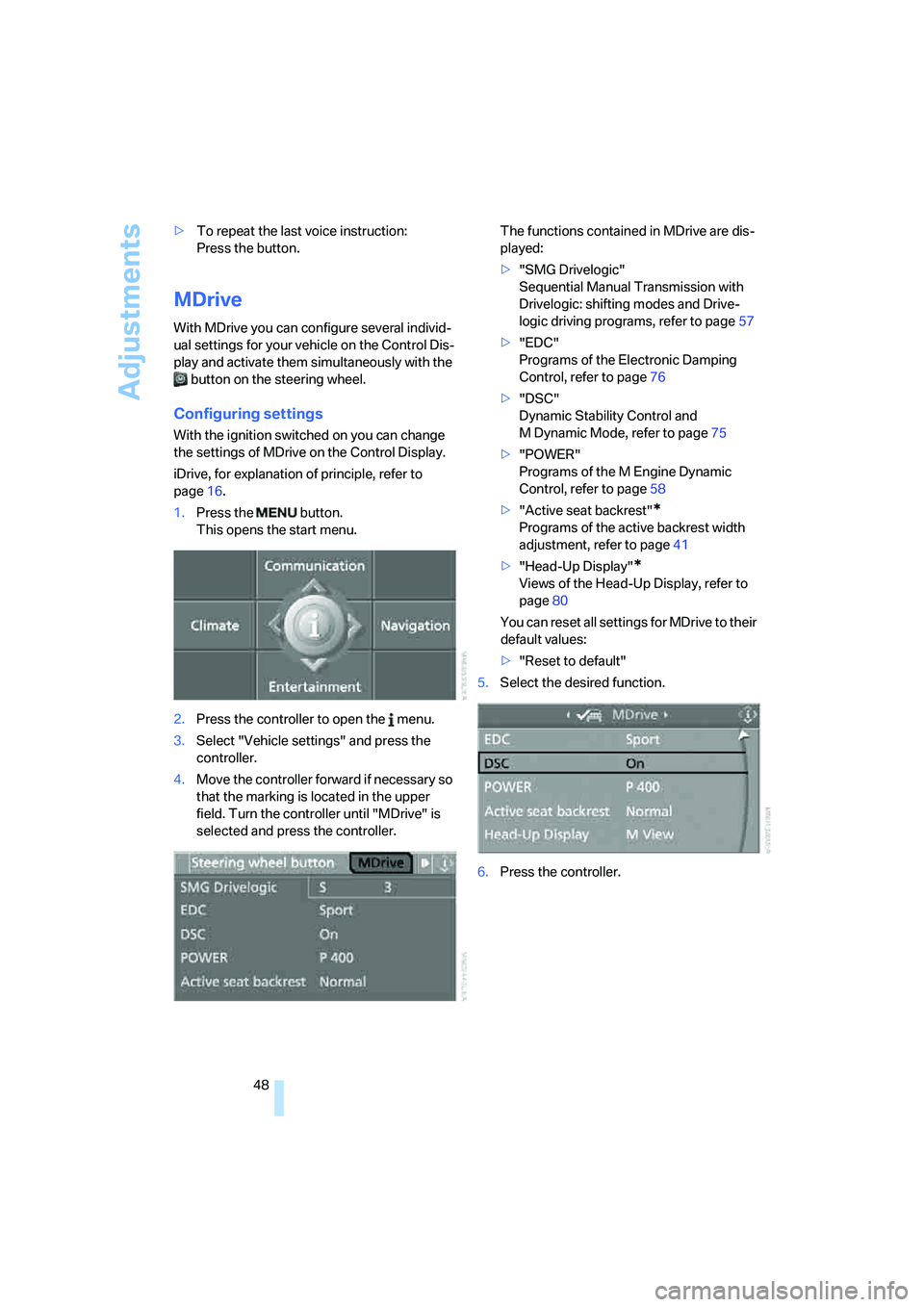
Configuring settings
With the ignition switched on you can change
the settings of MDrive on the Control Display.
iDrive, for explanation of principle, refer to
page16.
1.Press the button.
This opens the start menu.
2.Press the controller to open the menu.
3.Select "Vehicle settings" and press the
controller.
4.Move the controller forward if necessary so
that the marking is located in the upper
field. Turn the controller until "MDrive" is
selected and press the controller.The functions contained in MDrive are dis-
played:
>"SMG Drivelogic"
Sequential Manual Transmission with
Drivelogic: shifting modes and Drive-
logic driving programs, refer to page57
>"EDC"
Programs of the Electronic Damping
Control, refer to page76
>"DSC"
Dynamic Stability Control and
M Dynamic Mode, refer to page75
>"POWER"
Programs of the M Engine Dynamic
Control, refer to page58
>"Active seat backrest"
*
Programs of the active backrest width
adjustment, refer to page41
>"Head-Up Display"
*
Views of the Head-Up Display, refer to
page80
You can reset all settings for MDrive to their
default values:
>"Reset to default"
5.Select the desired function.
6.Press the controller.
Page 51 of 231
Controls
49Reference
At a glance
Driving tips
Communications
Navigation
Entertainment
Mobility
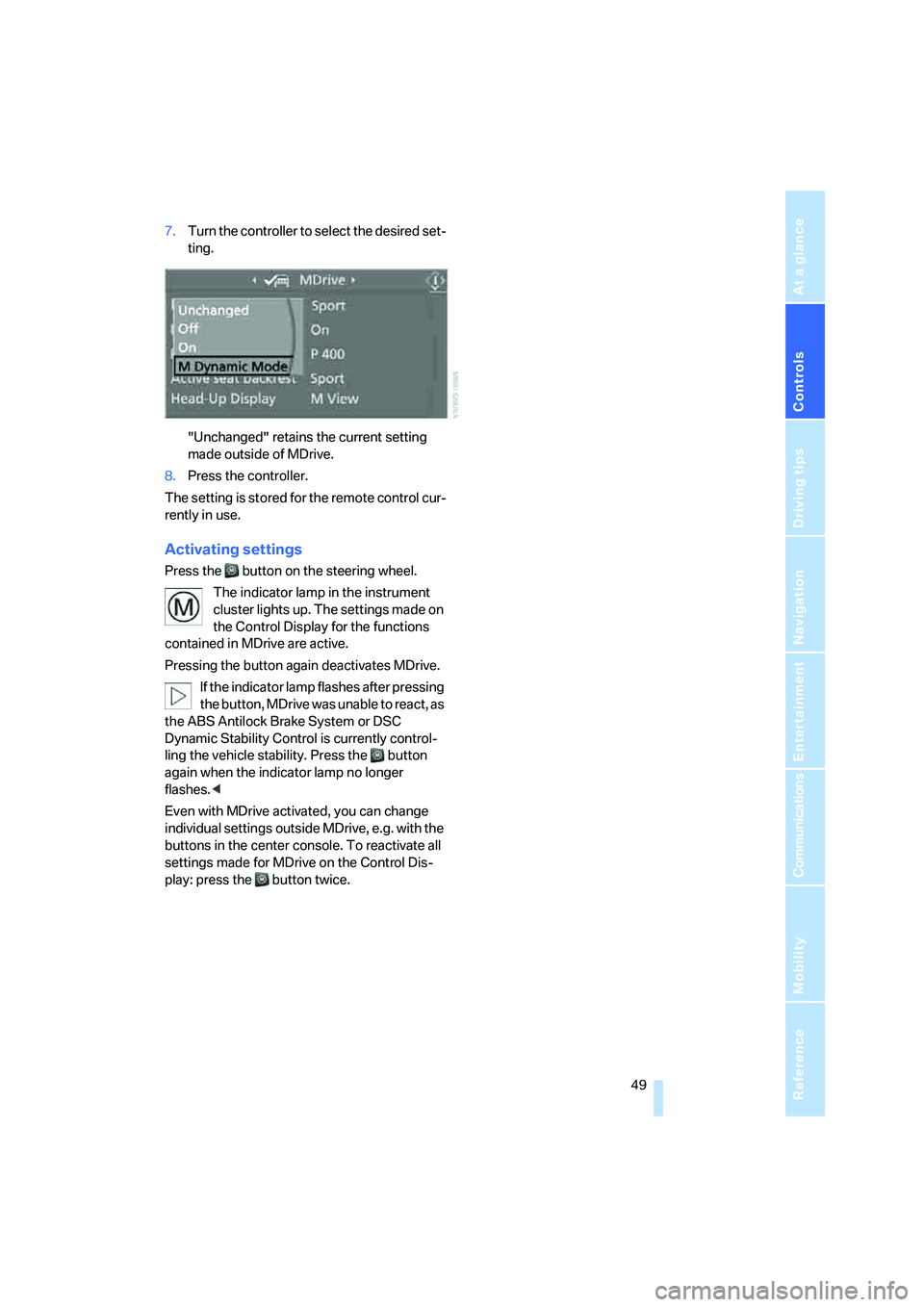
7.Turn the controller to select the desired set-
ting.
"Unchanged" retains the current setting
made outside of MDrive.
8.Press the controller.
The setting is stored for the remote control cur-
rently in use.
Activating settings
Press the button on the steering wheel.
The indicator lamp in the instrument
cluster lights up. The settings made on
the Control Display for the functions
contained in MDrive are active.
Pressing the button again deactivates MDrive.
If the indicator lamp flashes after pressing
the button, MDrive was unable to react, as
the ABS Antilock Brake System or DSC
Dynamic Stability Control is currently control-
ling the vehicle stability. Press the button
again when the indicator lamp no longer
flashes.<
Even with MDrive activated, you can change
individual settings outside MDrive, e.g. with the
buttons in the center console. To reactivate all
settings made for MDrive on the Control Dis-
play: press the button twice.
Page 57 of 231
Controls
55Reference
At a glance
Driving tips
Communications
Navigation
Entertainment
Mobility
Handbrake
The handbrake is primarily intended to prevent
the vehicle from rolling while parked; it brakes
the rear wheels.
Indicator lamp
The indicator lamp lights up, and a sig-
nal also sounds when starting off.
The handbrake is applied.
Indicator lamp for Canadian models.
Applying
The lever locks in position automatically.
Releasing
Pull slightly upwards, press the button and
lower the lever.
If exceptional circumstances should
make it necessary to engage the hand-
brake while the vehicle is in motion, do not pull it
too strongly. In doing so, continuously press the
button of the handbrake lever. Otherwise
excessive pressure can lead to the rear wheels
locking up and loss of traction – fishtailing – at
the rear axle.<
To prevent corrosion and one-sided brak-
ing action, occasionally apply the hand-
brake lightly when the vehicle is slowly coming
to a stop if the traffic conditions are suitable.
The brake lamps do not light up when the hand-
brake is applied.<
Sequential Manual
Transmission with Drivelogic
The concept
The SMG Sequential Manual Transmission
with Drivelogic is an automated manual trans-
mission in which an electrohydraulic system
handles the clutching and gear changes.
The Sequential Manual Transmission is oper-
ated with the selector lever and two shift pad-
dles on the steering wheel.
It offers you the following functions:
>Optional manual or automatic operation:
Sequential mode or Drive mode
>Selection option between different driving
programs, Drivelogic, refer to page57
>Upshift display, shift lights, refer to page58
>Automatic downshifting and prevention of
incorrect shifting even in Sequential opera-
tion
>Automatic double clutching
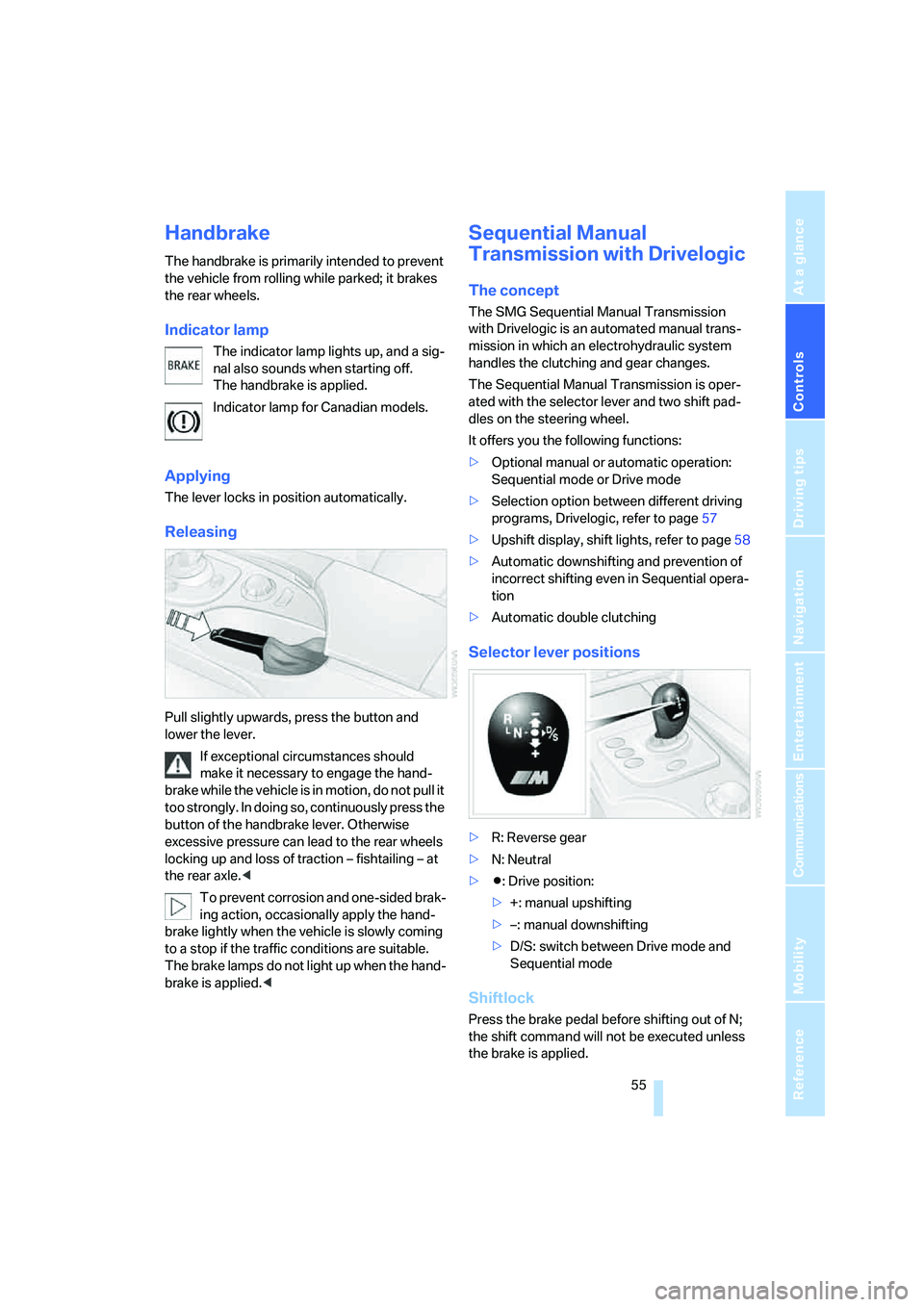
Selector lever positions
>R: Reverse gear
>N: Neutral
>Β: Drive position:
>+: manual upshifting
>–: manual downshifting
>D/S: switch between Drive mode and
Sequential mode
Shiftlock
Press the brake pedal before shifting out of N;
the shift command will not be executed unless
the brake is applied.
Page 59 of 231
Controls
57Reference
At a glance
Driving tips
Communications
Navigation
Entertainment
Mobility
Using shift paddles on steering wheel
>To upshift, briefly pull the right shift
paddle +.
>To downshift, briefly pull the left shift
paddle –.
Drivelogic
With Drivelogic various driving programs are
available to you.
Each time you change between the Sequential
mode and the Drive mode, the driving program
last selected in the respective mode is active.
Exception: after the first change from the
Sequential to the Drive mode, driving program 3
is active.
In Drive mode
Five driving programs, from relaxed 1 to sporty/
highly dynamic 5 are available for selection.
In Sequential mode
You can choose from six driving program from
balanced/dynamic 1 to sporty/purist 6.
Each time the engine is started, driving pro-
gram 3 is activated.
The sporty/purist driving program 6 is only
available with the DSC Dynamic Stability Con-
trol deactivated, refer to page75. When DSC is
activated, the system switches from driving
program 6 to 5.
To maintain vehicle stability, always drive
with the DSC switched on when possi-
ble.<
Selecting driving program with button
in center console
Press the button repeatedly until the desired
driving program is displayed in the instrument
cluster, refer to page56.
Selecting driving program via button
on steering wheel
You can also activate your preferred driving pro-
gram with the button on the steering wheel,
refer to MDrive on page48.
With the ignition switched on you can change
the settings of MDrive on the Control Display.
iDrive, for explanation of principle, refer to
page16.
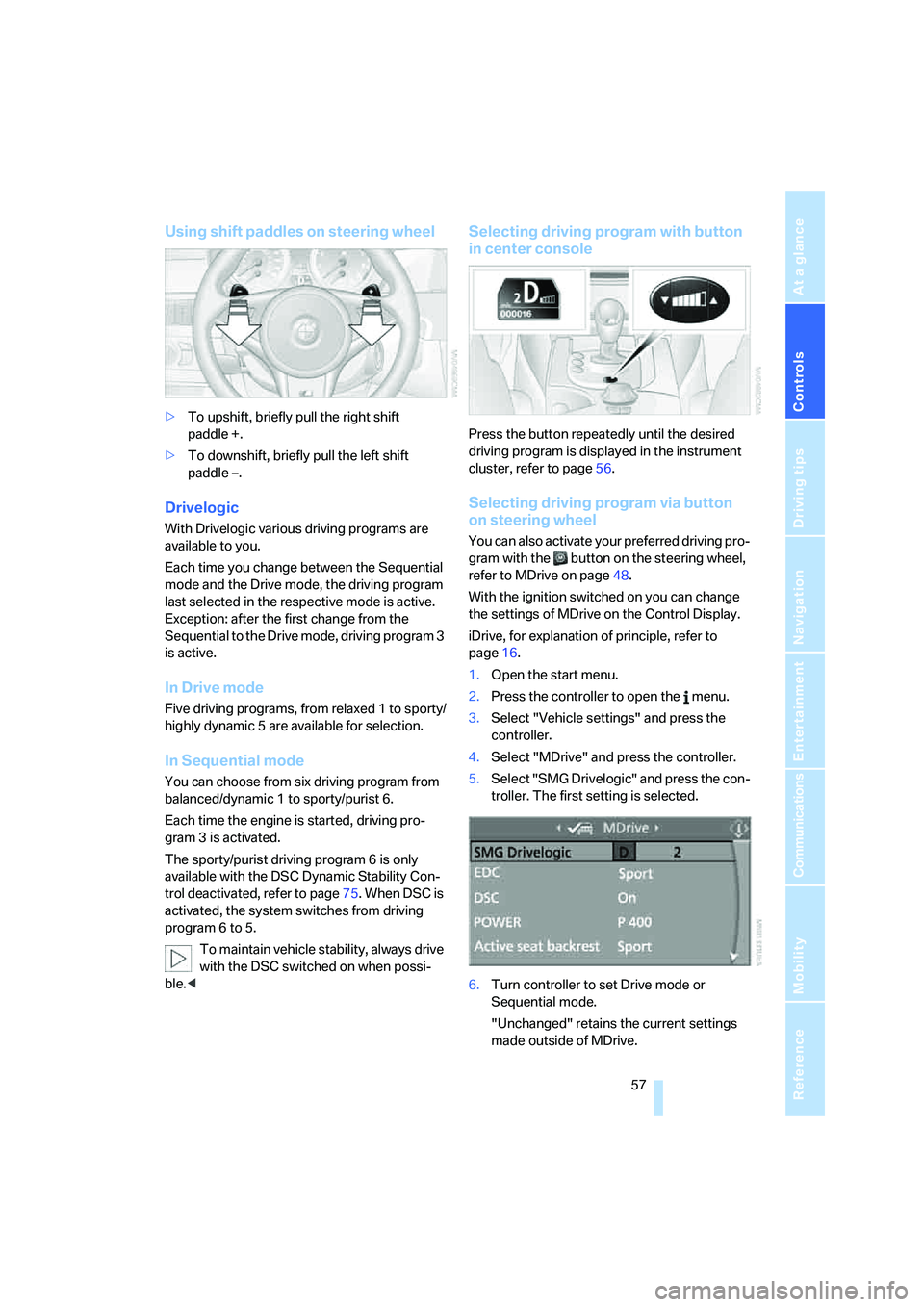
1.Open the start menu.
2.Press the controller to open the menu.
3.Select "Vehicle settings" and press the
controller.
4.Select "MDrive" and press the controller.
5.Select "SMG Drivelogic" and press the con-
troller. The first setting is selected.
6.Turn controller to set Drive mode or
Sequential mode.
"Unchanged" retains the current settings
made outside of MDrive.
Page 76 of 231
Technology for comfort, convenience and safety
74 a signal tone sounds. The setting is stored for
the remote control currently in use.
iDrive, for explanation of principle, refer to
page16.
1.Open the start menu.
2.Press the controller to open the menu.
3.Select "Vehicle settings" and press the
controller.
4.Change to upper field if necessary. Turn the
controller until "PDC" is selected and press
the controller.
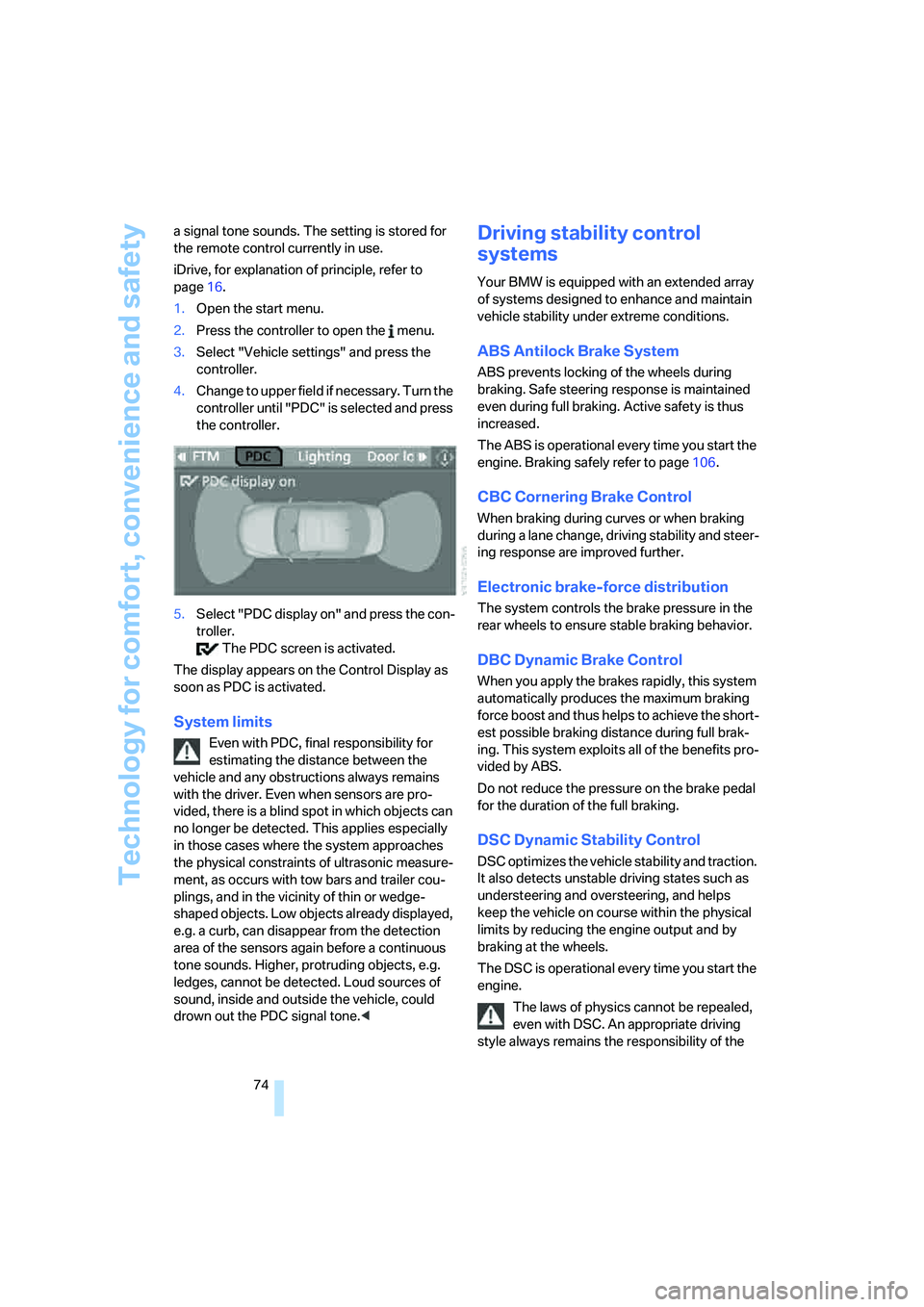
5.Select "PDC display on" and press the con-
troller.
The PDC screen is activated.
The display appears on the Control Display as
soon as PDC is activated.
System limits
Even with PDC, final responsibility for
estimating the distance between the
vehicle and any obstructions always remains
with the driver. Even when sensors are pro-
vided, there is a blind spot in which objects can
no longer be detected. This applies especially
in those cases where the system approaches
the physical constraints of ultrasonic measure-
ment, as occurs with tow bars and trailer cou-
plings, and in the vicinity of thin or wedge-
shaped objects. Low objects already displayed,
e.g. a curb, can disappear from the detection
area of the sensors again before a continuous
tone sounds. Higher, protruding objects, e.g.
ledges, cannot be detected. Loud sources of
sound, inside and outside the vehicle, could
drown out the PDC signal tone.<
Driving stability control
systems
Your BMW is equipped with an extended array
of systems designed to enhance and maintain
vehicle stability under extreme conditions.
ABS Antilock Brake System
ABS prevents locking of the wheels during
braking. Safe steering response is maintained
even during full braking. Active safety is thus
increased.
The ABS is operational every time you start the
engine. Braking safely refer to page106.
CBC Cornering Brake Control
When braking during curves or when braking
during a lane change, driving stability and steer-
ing response are improved further.
Electronic brake-force distribution
The system controls the brake pressure in the
rear wheels to ensure stable braking behavior.
DBC Dynamic Brake Control
When you apply the brakes rapidly, this system
automatically produces the maximum braking
force boost and thus helps to achieve the short-
est possible braking distance during full brak-
ing. This system exploits all of the benefits pro-
vided by ABS.
Do not reduce the pressure on the brake pedal
for the duration of the full braking.
DSC Dynamic Stability Control
DSC optimizes the vehicle stability and traction.
It also detects unstable driving states such as
understeering and oversteering, and helps
keep the vehicle on course within the physical
limits by reducing the engine output and by
braking at the wheels.
The DSC is operational every time you start the
engine.
The laws of physics cannot be repealed,
even with DSC. An appropriate driving
style always remains the responsibility of the
Page 77 of 231
Controls
75Reference
At a glance
Driving tips
Communications
Navigation
Entertainment
Mobility
driver. Therefore, do not reduce the additional
safety margin further by taking risks.<
DSC indicator lamp
The indicator lamp goes out shortly
after the engine is started.
The indicator lamp flashes: DSC con-
trols the drive forces and brake forces.
The indicator lamp stays lit: DSC is deactivated.
MDynamic Mode MDM
The M Dynamic Mode is a mode of the DSC
Dynamic Stability Control. It enables driving
with greater longitudinal and lateral accelera-
tion on dry road surfaces, however with limited
vehicle stability. The system does not provide
stabilizing intervention by reducing the engine
output and braking at the wheels until the abso-
lute driving limit is reached. Steering correc-
tions by the driver may also be required in this
driving state.
The M Dynamic Mode is deactivated each time
the engine is started.
With the M Dynamic Mode activated, sta-
bilizing interventions are only carried out
to a reduced degree.<
To maintain vehicle stability, drive with
DSC activated and the M Dynamic Mode
deactivated whenever possible.<
MDM indicator lamp
The indicator lamp goes out shortly
after the engine is started. The indica-
tor lamp stays lit: M Dynamic Mode is
activated.
The indicator lamp lights up continuously and
the DSC indicator lamp flashes: the M Dynamic
Mode is active and controls the drive and brak-
ing forces.
Activating MDM
You activate the M Dynamic Mode with the
button on the steering wheel, refer to MDrive on
page48.
With the ignition switched on you can change
the settings of MDrive on the Control Display.iDrive, for explanation of principle, refer to
page16.
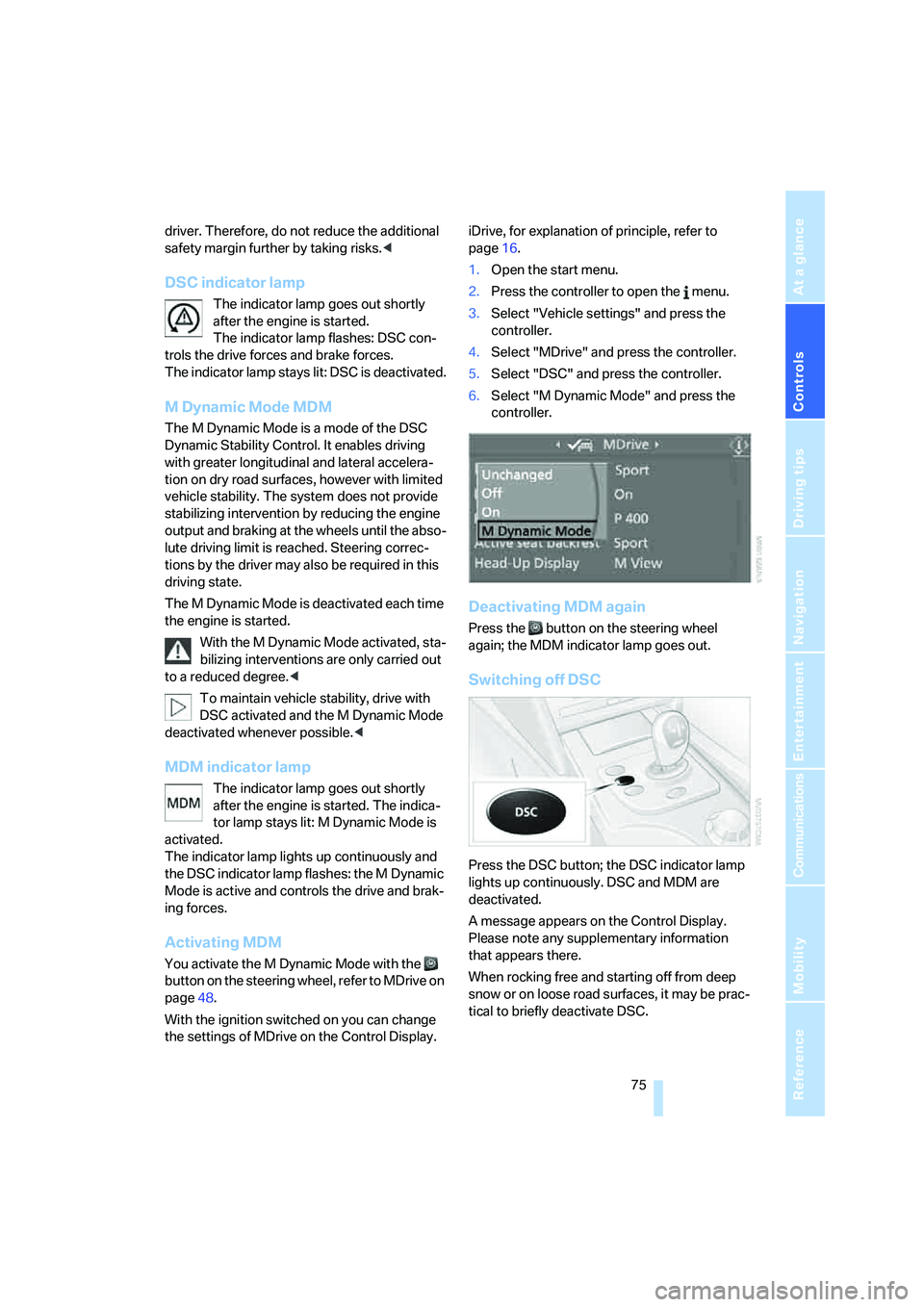
1.Open the start menu.
2.Press the controller to open the menu.
3.Select "Vehicle settings" and press the
controller.
4.Select "MDrive" and press the controller.
5.Select "DSC" and press the controller.
6.Select "M Dynamic Mode" and press the
controller.
Deactivating MDM again
Press the button on the steering wheel
again; the MDM indicator lamp goes out.
Switching off DSC
Press the DSC button; the DSC indicator lamp
lights up continuously. DSC and MDM are
deactivated.
A message appears on the Control Display.
Please note any supplementary information
that appears there.
When rocking free and starting off from deep
snow or on loose road surfaces, it may be prac-
tical to briefly deactivate DSC.