sat nav BMW M5 2006 Owners Manual
[x] Cancel search | Manufacturer: BMW, Model Year: 2006, Model line: M5, Model: BMW M5 2006Pages: 231, PDF Size: 8.44 MB
Page 17 of 231
At a glance
15Reference
Controls
Driving tips
Communications
Navigation
Entertainment
Mobility
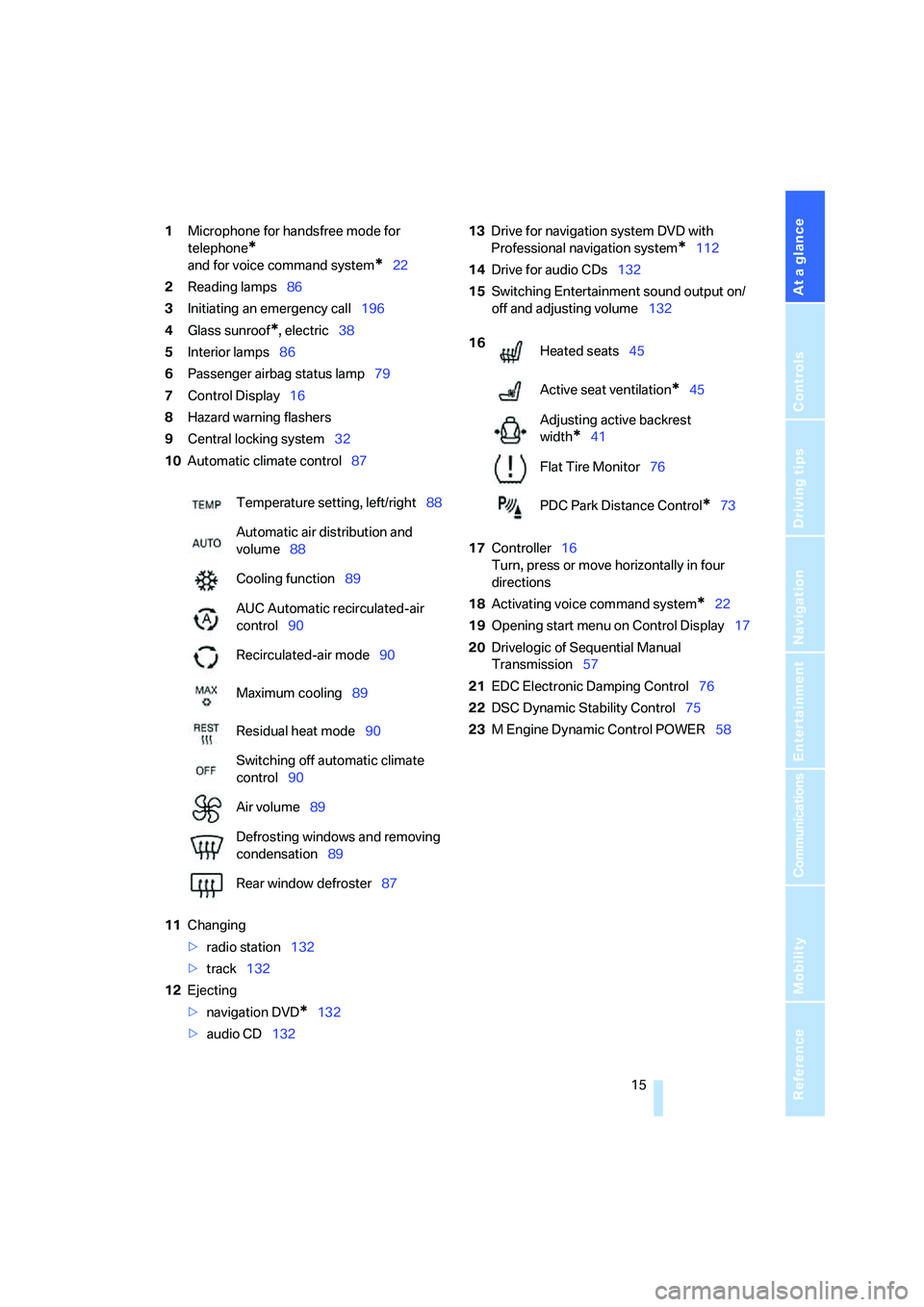
1Microphone for handsfree mode for
telephone
*
and for voice command system*22
2Reading lamps86
3Initiating
an emergency call196
4Glass sunroof
*, electric38
5Interior lamps86
6Passenger airbag status lamp79
7Control Display16
8Hazard warning flashers
9Central locking system32
10Automatic climate control87
11Changing
>radio station132
>track132
12Ejecting
>navigation DVD
*132
>audio CD13213Drive for navigation system DVD with
Professional navigation system
*112
14Drive for audio CDs132
15Switching Entertainment sound output on/
off and adjusting volume132
17Controller16
Turn, press or move horizontally in four
directions
18Activating voice command system
*22
19Opening start menu on Control Display17
20Drivelogic of Sequential Manual
Transmission57
21EDC Electronic Damping Control76
22DSC Dynamic Stability Control75
23M Engine Dynamic Control POWER58 Temperature setting, left/right88
Automatic air distribution and
volume88
Cooling function89
AUC Automatic recirculated-air
control90
Recirculated-air mode90
Maximum cooling89
Residual heat mode90
Switching off automatic climate
control90
Air volume89
Defrosting windows and removing
condensation89
Rear window defroster87
16
Heated seats45
Active seat ventilation
*45
Adjusting active backrest
width
*41
Flat Tire Monitor76
PDC Park Distance Control
*73
Page 89 of 231
Controls
87Reference
At a glance
Driving tips
Communications
Navigation
Entertainment
Mobility
Climate
Automatic climate control
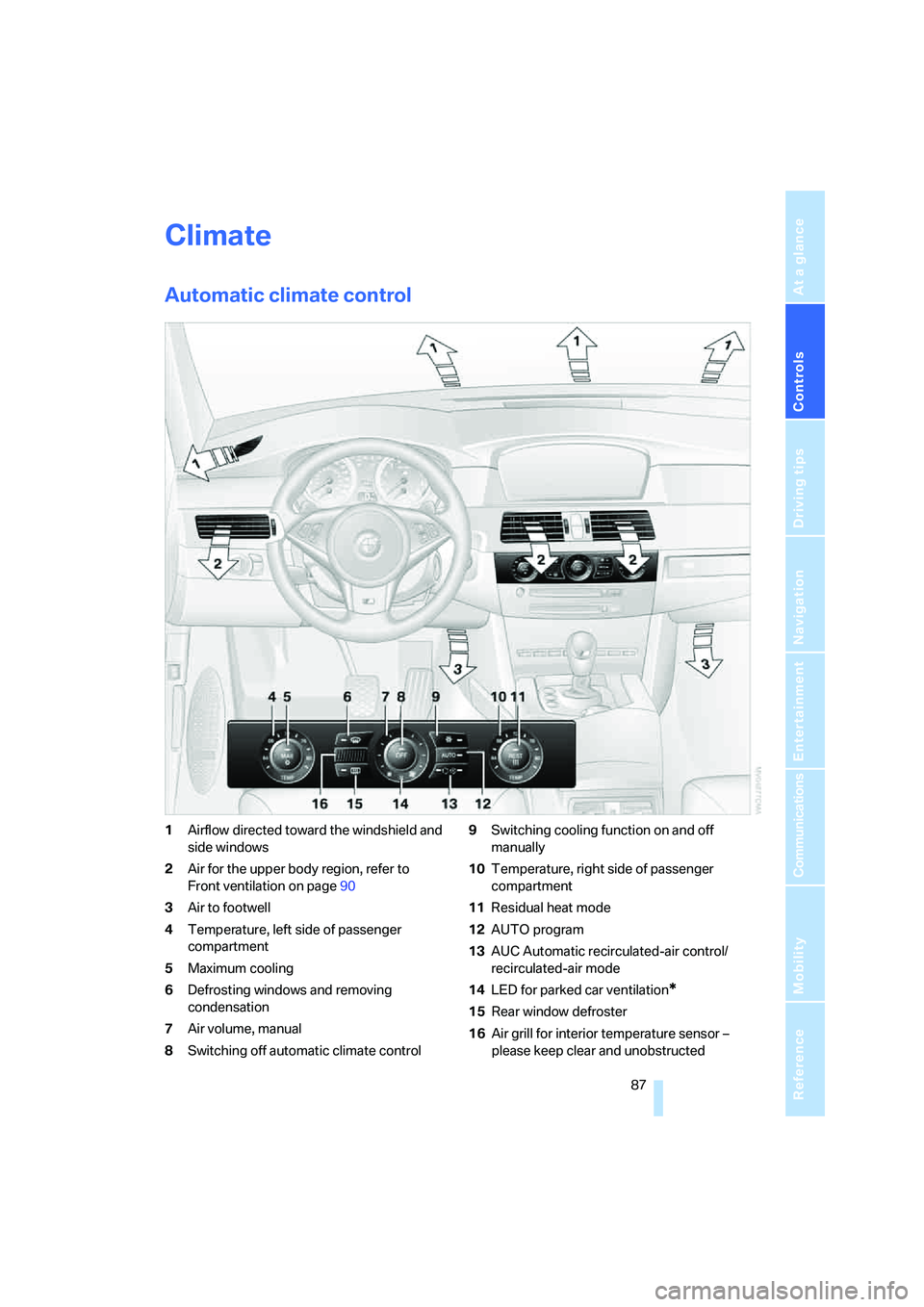
1Airflow directed toward the windshield and
side windows
2Air for the upper body region, refer to
Front ventilation on page90
3Air to footwell
4Temperature, left side of passenger
compartment
5Maximum cooling
6Defrosting windows and removing
condensation
7Air volume, manual
8Switching off automatic climate control9Switching cooling function on and off
manually
10Temperature, right side of passenger
compartment
11Residual heat mode
12AUTO program
13AUC Automatic recirculated-air control/
recirculated-air mode
14LED for parked car ventilation
*
15Rear window defroster
16Air grill for interior temperature sensor –
please keep clear and unobstructed
Page 91 of 231
Controls
89Reference
At a glance
Driving tips
Communications
Navigation
Entertainment
Mobility
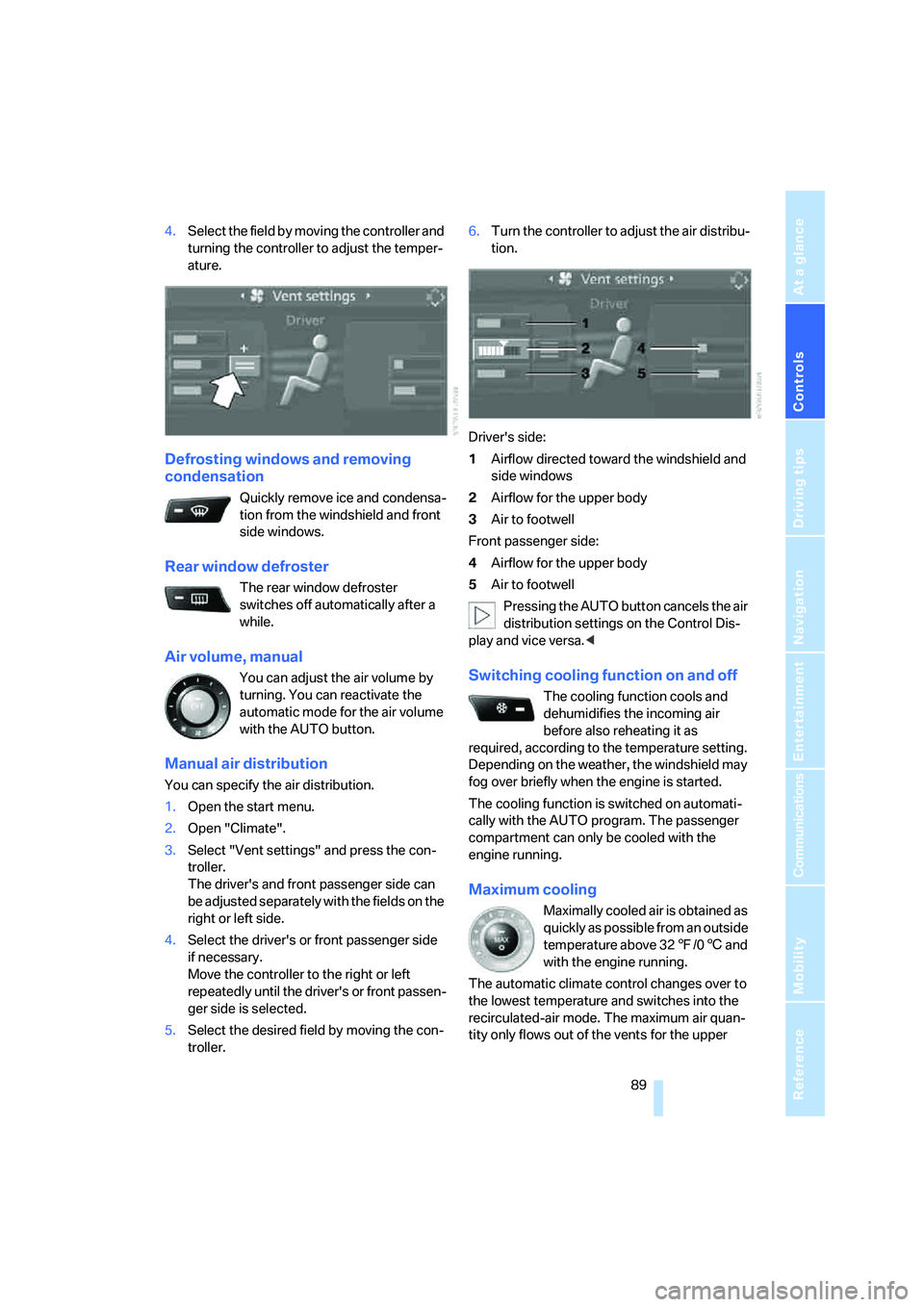
4.Select the field by moving the controller and
turning the controller to adjust the temper-
ature.
Defrosting windows and removing
condensation
Quickly remove ice and condensa-
tion from the windshield and front
side windows.
Rear window defroster
The rear window defroster
switches off automatically after a
while.
Air volume, manual
You can adjust the air volume by
turning. You can reactivate the
automatic mode for the air volume
with the AUTO button.
Manual air distribution
You can specify the air distribution.
1.Open the start menu.
2.Open "Climate".
3.Select "Vent settings" and press the con-
troller.
The driver's and front passenger side can
be adjusted separately with the fields on the
right or left side.
4.Select the driver's or front passenger side
if necessary.
Move the controller to the right or left
repeatedly until the driver's or front passen-
ger side is selected.
5.Select the desired field by moving the con-
troller.6.Turn the controller to adjust the air distribu-
tion.
Driver's side:
1Airflow directed toward the windshield and
side windows
2Airflow for the upper body
3Air to footwell
Front passenger side:
4Airflow for the upper body
5Air to footwell
Pressing the AUTO button cancels the air
distribution settings on the Control Dis-
play and vice versa.<
Switching cooling function on and off
The cooling function cools and
dehumidifies the incoming air
before also reheating it as
required, according to the temperature setting.
Depending on the weather, the windshield may
fog over briefly when the engine is started.
The cooling function is switched on automati-
cally with the AUTO program. The passenger
compartment can only be cooled with the
engine running.
Maximum cooling
Maximally cooled air is obtained as
quickly as possible from an outside
temperature above 327/06 and
with the engine running.
The automatic climate control changes over to
the lowest temperature and switches into the
recirculated-air mode. The maximum air quan-
tity only flows out of the vents for the upper
Page 114 of 231
Starting navigation system
112
Starting navigation system
Your navigation system can use satellites to
ascertain the precise position of your vehicle
and guide you reliably to any destination you
enter.
Navigation DVD
The navigation system requires a special navi-
gation DVD. The latest version is available at
your BMW center.
Inserting navigation DVD
1.Insert the navigation DVD with the labeled
side up. The DVD is automatically pulled in.
2.Allow several seconds for the system to
scan the data from the DVD.
Removing navigation DVD
1.Press button 1.
The DVD emerges slightly from the drive.
2.Remove the DVD.
If the DVD is not ejected from the drive, it is pos-
sible that it is blocked. A message appears on
the Control Display.
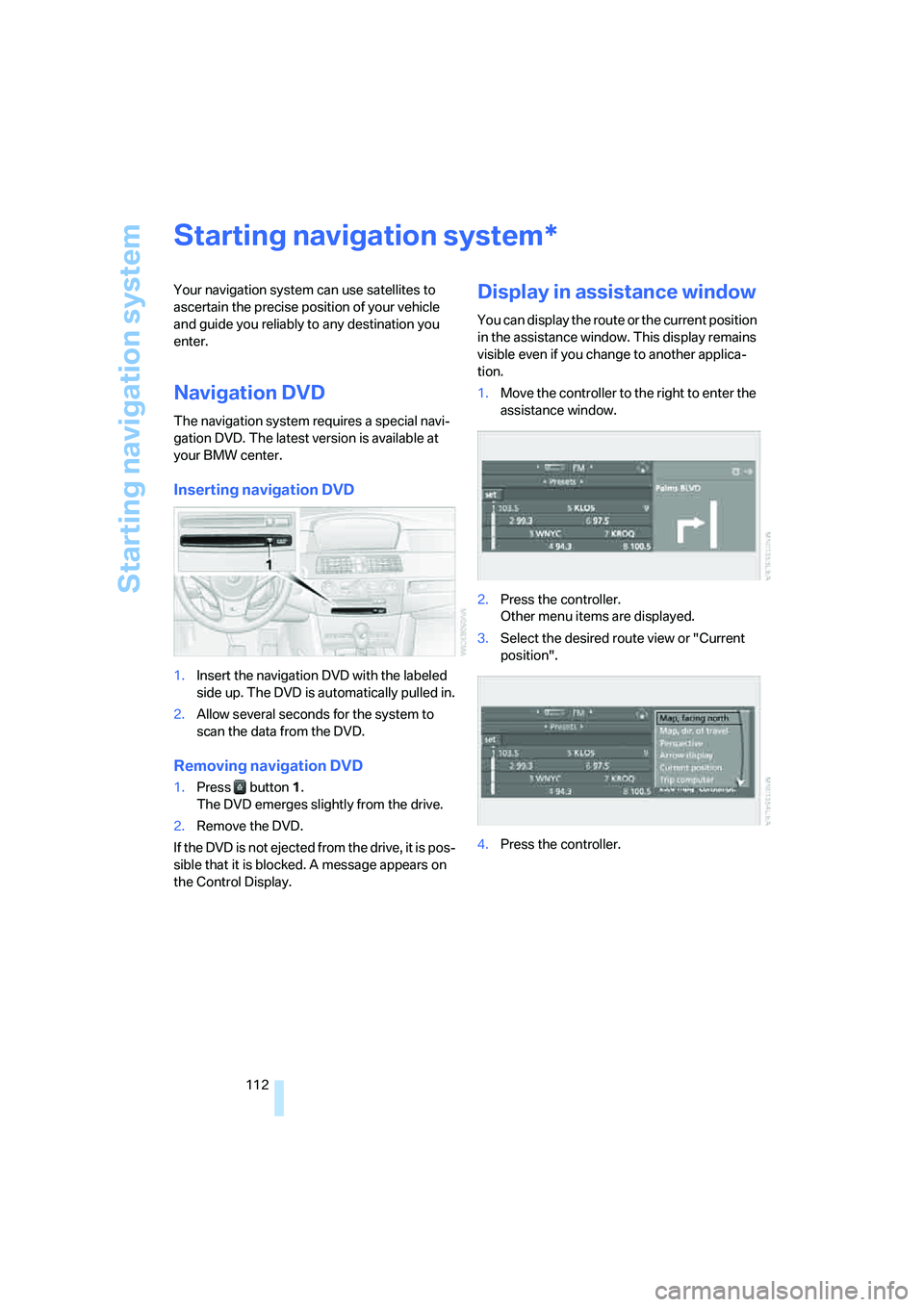
Display in assistance window
You can display the route or the current position
in the assistance window. This display remains
visible even if you change to another applica-
tion.
1.Move the controller to the right to enter the
assistance window.
2.Press the controller.
Other menu items are displayed.
3.Select the desired route view or "Current
position".
4.Press the controller.
*
Page 134 of 231
On/off and tone
132
On/off and tone
The following audio sources have shared con-
trols and setting options:
>Professional radio
* or
Business radio
>CD player
>CD changer
*
Controls
The audio sources can be operated using:
>Buttons in the area of the CD player
>iDrive
>Buttons on steering wheel, refer to page11
Buttons in area of CD player
The layout of the buttons can vary depending
on your vehicle's equipment.
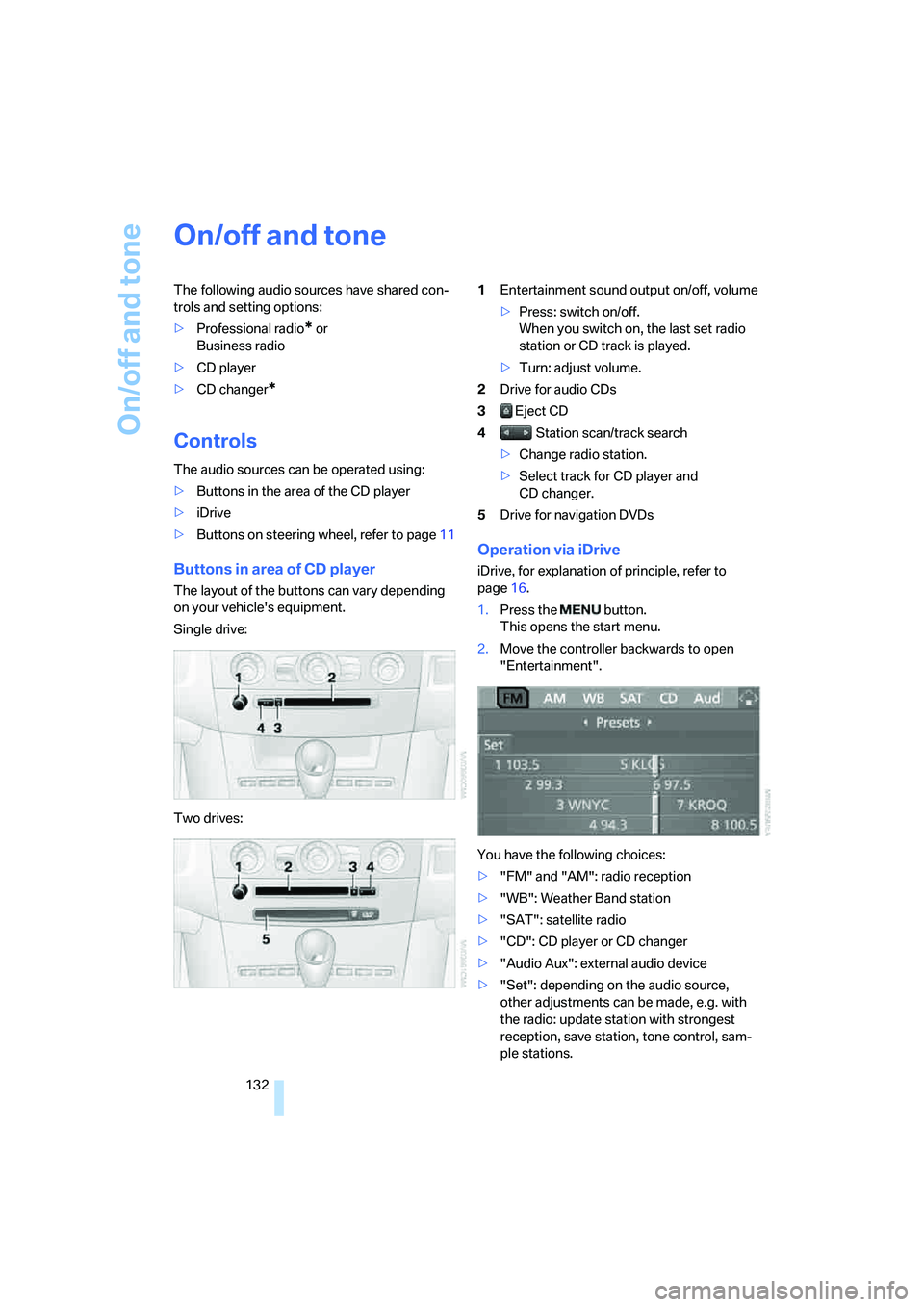
Single drive:
Two drives:1Entertainment sound output on/off, volume
>Press: switch on/off.
When you switch on, the last set radio
station or CD track is played.
>Turn: adjust volume.
2Drive for audio CDs
3 Eject CD
4 Station scan/track search
>Change radio station.
>Select track for CD player and
CD changer.
5Drive for navigation DVDs
Operation via iDrive
iDrive, for explanation of principle, refer to
page16.
1.Press the button.
This opens the start menu.
2.Move the controller backwards to open
"Entertainment".
You have the following choices:
>"FM" and "AM": radio reception
>"WB": Weather Band station
>"SAT": satellite radio
>"CD": CD player or CD changer
>"Audio Aux": external audio device
>"Set": depending on the audio source,
other adjustments can be made, e.g. with
the radio: update station with strongest
reception, save station, tone control, sam-
ple stations.
Page 143 of 231
Navigation
Entertainment
Driving tips
141Reference
At a glance
Controls
Communications
Mobility
Updating stations offering digital
reception
If you are on a longer journey and leave the
transmission range of the stations originally set,
you can update the list of stations with the best
reception.
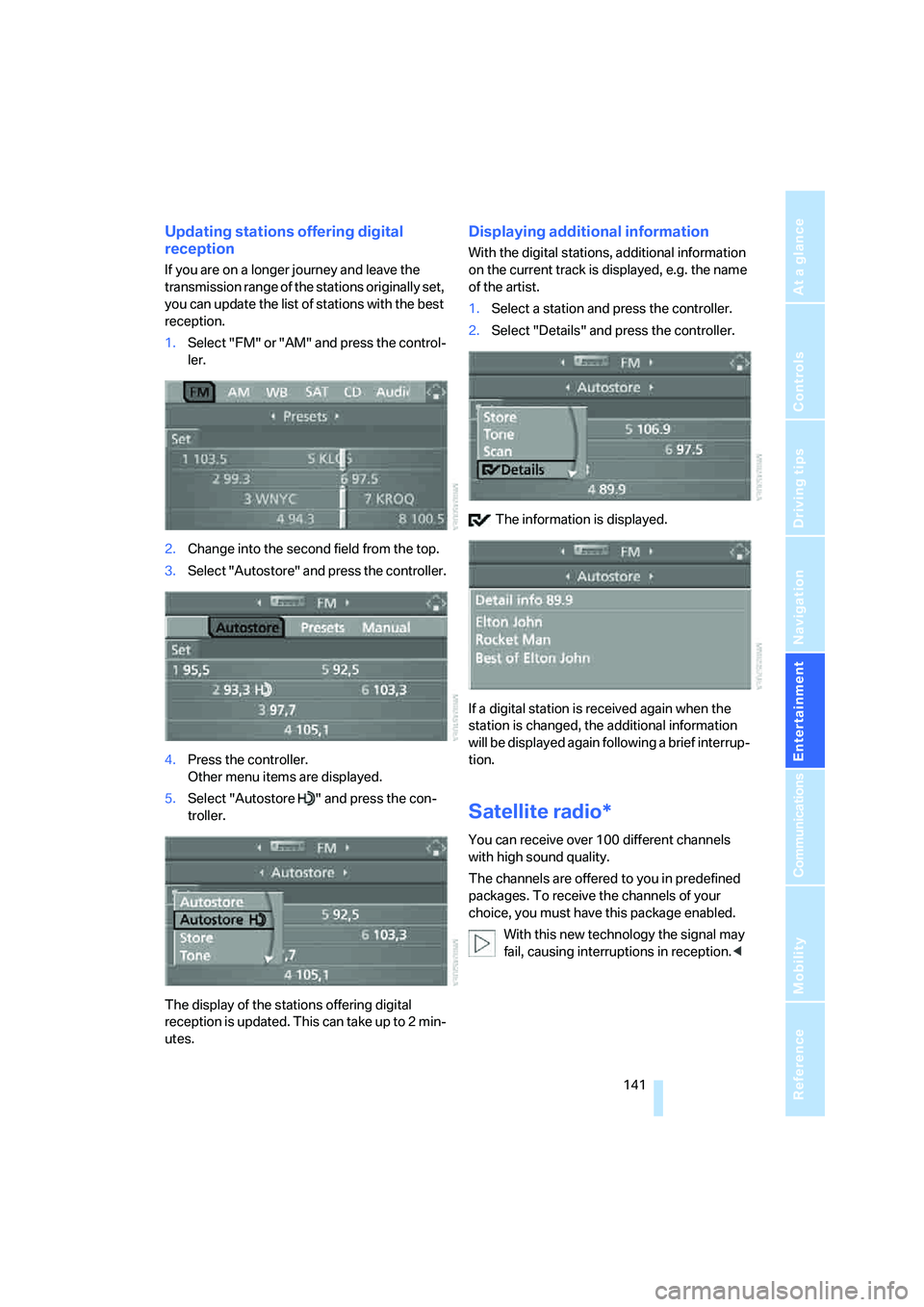
1.Select "FM" or "AM" and press the control-
ler.
2.Change into the second field from the top.
3.Select "Autostore" and press the controller.
4.Press the controller.
Other menu items are displayed.
5.Select "Autostore " and press the con-
troller.
The display of the stations offering digital
reception is updated. This can take up to 2 min-
utes.
Displaying additional information
With the digital stations, additional information
on the current track is displayed, e.g. the name
of the artist.
1.Select a station and press the controller.
2.Select "Details" and press the controller.
The information is displayed.
If a digital station is received again when the
station is changed, the additional information
will be displayed again following a brief interrup-
tion.
Satellite radio*
You can receive over 100 different channels
with high sound quality.
The channels are offered to you in predefined
packages. To receive the channels of your
choice, you must have this package enabled.
With this new technology the signal may
fail, causing interruptions in reception.<
Page 209 of 231
Reference 207
At a glance
Controls
Driving tips
Communications
Navigation
Entertainment
Mobility
Entertainment
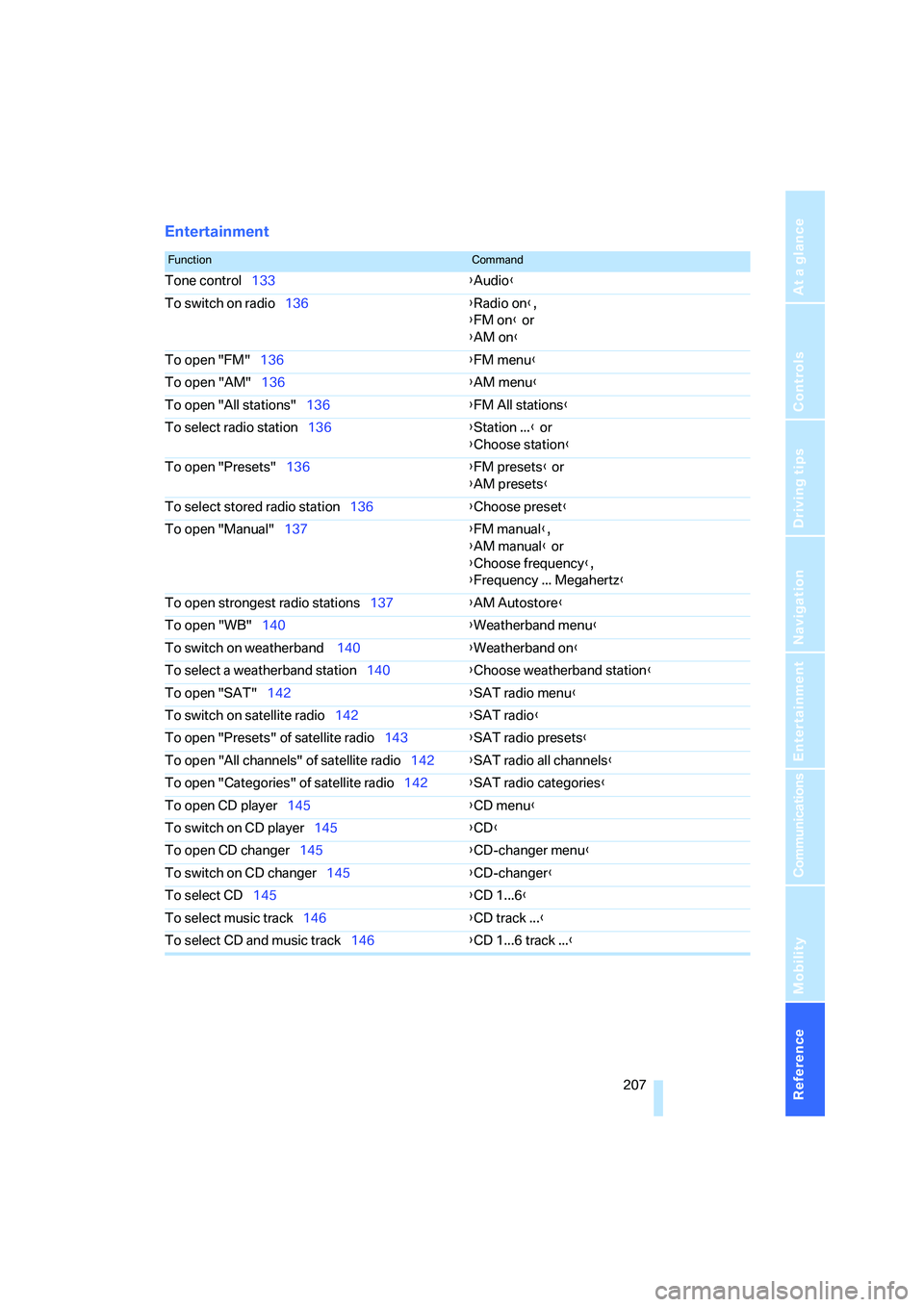
FunctionCommand
Tone control133{Audio}
To switch on radio136{Radio on},
{FM on} or
{AM on}
To open "FM"136{FM menu}
To open "AM"136{AM menu}
To open "All stations"136{FM All stations}
To select radio station136{Station ...} or
{Choose station}
To open "Presets"136{FM presets} or
{AM presets}
To select stored radio station136{Choose preset}
To open "Manual"137{FM manual},
{AM manual} or
{Choose frequency},
{Frequency ... Megahertz}
To open strongest radio stations137{AM Autostore}
To open "WB"140{Weatherband menu}
To switch on weatherband 140{Weatherband on}
To select a weatherband station140{Choose weatherband station}
To open "SAT"142{SAT radio menu}
To switch on satellite radio142{
SAT radio}
To open "Presets" of satellite radio143{SAT radio presets}
To open "All channels" of satellite radio142{SAT radio all channels}
To open "Categories" of satellite radio142{SAT radio categories}
To open CD player145{CD menu}
To switch on CD player145{CD}
To open CD changer145{CD-changer menu}
To switch on CD changer145{CD-changer}
To select CD145{CD 1...6}
To select music track146{CD track ...}
To select CD and music track146{CD 1...6 track ...}
Page 215 of 231
Reference 213
At a glance
Controls
Driving tips
Communications
Navigation
Entertainment
Mobility
CHECK button68
Check Control67
"Check Control
messages"68
Check Gas Cap174
Checking the air pressure,
refer to Tire inflation
pressure176
Child-restraint fixing system
LATCH51
Child restraint systems50
Child-safety lock52
Child seats50
Chime, refer to Check
Control67
Chock193
Chrome parts, care, refer to
Caring for your vehicle
brochure
Cigarette lighter97
Cleaning, refer to Caring for
your vehicle brochure
"Climate"45,88
Clock63
– 12h/24h mode71
– setting time and date71
Closing
– from inside32
– from outside30
Closing fuel filler cap174
Clothes hooks96
Cockpit10
Cold start, refer to Starting
engine54
"Comfort", active backrest
width adjustment42
Comfort access36
– replacing battery37
Comfort area, refer to Around
the center console14
Comfort operation
– windows with comfort
access36
– with comfort access36
"Comfort" with EDC76
"Communication"158,169
"Communication
settings"168Compact Disc
– refer to CD changer145
– refer to CD player145
Compartment for remote
control, refer to Ignition
lock53
Compartments, refer to
Storage compartments96
Compressed audio files145
Computer63
– displays on Control
Display64
– hour signal
71
"Concert hall", refer to Tone
control134
Condition Based Service
CBS186
"Confirmation"31
Connecting car vacuum
cleaner, refer to Connecting
electrical devices97
Consumption, refer to
Average fuel
consumption64
Consumption statistics, refer
to Average fuel
consumption64
"Continue guidance to
destination?"125
Control Center, refer to
iDrive16
Control Display, refer to
iDrive16
– setting brightness72
Controller, refer to iDrive16
Controls, refer to Cockpit10
Convenience operation
– glass sunroof30
– windows30
Convenience start, refer to
Starting engine54
Coolant184
– checking level184
– temperature62
Cooling, maximum89
Cornering Brake Control
CBC74
Country of destination for
navigation114Courtesy lamps86
Cradle for telephone or mobile
phone95
Cruise control61
Cruising range64
Cup holders96
Curb weight, refer to
Weights204
"Current position"128
Current position
– displaying128
– entering120
– storing120
"Customer
Relations"162,169
Cylinders, refer to Engine
data202
D
Dashboard, refer to
Cockpit10
Data202
– capacities204
– dimensions203
– engine202
– technical data202
– weights204
"Date"71
Date
– display format72
– setting71
"Date format"72
Daytime running lamps84
DBC Dynamic Brake
Control74
"Deactivated"43
Decommissioning the vehicle,
refer to Caring for your
vehicle brochure
Defect
– fuel filler door174
– glass sunroof39
– luggage compartment lid34
Defrosting windows89
Defrosting windows and
removing condensation89
Defrost position, refer to
Defrosting windows89
Page 223 of 231
Reference 221
At a glance
Controls
Driving tips
Communications
Navigation
Entertainment
Mobility
Radio readiness53
– switched off53
– switched on53
– with comfort access37
Rain sensor60
"Random", random play
sequence148
"Random all" in audio
mode148
"Random directory" in audio
mode148
"RDS"139
Reading lamps86
Rear armrest, refer to Center
armrest, rear98
Rear lamps, refer to Tail
lamps189
– replacing bulbs189
Rear seat back, folding98
Rear seats
– adjusting head restraints44
– folding over backrest98
– heating45
Rear socket98
Rear ventilation91
Rearview mirror45
Rear window
– heating89
– roller sun blind, refer to Sun
blinds94
Rear window safety switch38
"Received calls"160
Reception
– quality139
– radio stations139
– regional station137
Reception level of mobile
phone, refer to Status
information20
Rechargeable flashlight95
Recirculated-air mode
– air recirculation90
– AUC Automatic recircu-
lated-air control90
Recording times, refer to
Stopwatch70
"Redial" for mobile phone160
Reflectors, refer to Tail
lamps189Refueling174
Releasing, hood181
"Relock door if not
opened"32
Remaining distance, refer to
Cruising range64
Remaining distance to desti-
nation, refer to Computer64
Remote control28
– battery replacement37
– comfort access36
– garage door opener93
– luggage compartment lid31
– malfunction31,37
Removing condensation on
the windows89
"Repeat directory" in audio
mode148
"Repeat" in audio mode148
"Repeat track" in audio
mode148
Replacement fuses195
Replacement of tires, refer to
Changing wheels192
Replacing bulbs, refer to
Lamps and bulbs188
Replacing tires179
Replacing wheels/tires, refer
to New wheels and tires179
Reporting an accident, refer
Initiating an emergency
call196
Reporting safety defects7
Reserve warning, refer to Fuel
gauge63
Reservoir for washer
systems60
"Reset"
– stopwatch70
– tone settings135
Reset, refer to Resetting tone
settings135
"Reset to default" with
MDrive48
Residual heat90
Restraint systems
– for children50
– refer to Safety belts44Retreaded tires179
Reverse, fast
– CD changer149
– CD player149
Reverse gear56
Road map126
"Roadside
Assistance"162,169
Roadside Assistance197
Roadside parking lamps84
Roller sun blind, refer to Sun
blinds94
Roof load capacity204
Roof-mounted luggage
rack108
Rope, refer to Tow-starting
and towing198
Rotary pushbutton, refer to
iDrive16
Route122
– bypassing sections128
– changing122,128
– displaying
125
– displaying arrow display125
– displaying map126
– displaying town126
– list126
– selecting122
– selecting criteria122
Route map, refer to Map
display126
"Route preference",
changing122
Route selection122
S
Safety5
Safety belts44
– damage44
– sitting safely40
– warning lamp44
Safety belt tensioners
– refer to Airbags78
– refer to Safety belts44
Page 224 of 231
Everything from A to Z
222 Safety systems
– ABS Antilock Brake
System74
– airbags78
– DSC Dynamic Stability
Control74
– safety belts44
Satellite radio141
– enabling channel142
– selecting channel142
– storing channel142
"SAT" with radio132,142
"Save current
destination"122
"Scan"
– sampling stations137
– sampling tracks147
Scan
– CD changer147
– CD player147
– radio137
"Scan all" in audio mode147
"Scan directory" in audio
mode147
Screen, refer to iDrive16
Screw thread for tow
fitting198
SDARS, refer to Satellite
radio141
"Seat heater distribution"45
Seats40
– active backrest width
adjustment41
– adjusting backrest width41
– adjusting height41
– adjusting shoulder
support41
– adjusting the seats40
– adjusting thigh support41
– easy entry/exit42
– heating45
– lumbar support41
– memory, refer to Seat, mirror
and steering wheel
memory42
– sitting safely40
– storing the setting42
– ventilation, refer to Active
seat ventilation45Securing load
– refer to Securing cargo108
– with ski bag, refer to
Securing cargo100
"Select as destination"119
"Select current speed"70
Selecting audio sources, refer
to Operation via iDrive132
Selecting frequency
manually
137
Selecting menu items19
Selecting new scale for
navigation126
Selecting route122
Selection options with
navigation system122
Selector lever55
Selector lever lock, refer to
Shiftlock55
Selector lever positions55
Sequential Manual Trans-
mission with Drivelogic55
– Drivelogic driving
programs57
– idle56
– initializing system, refer to
After changing wheels/
tires180
– reverse gear56
– Sequential mode56
– shift lights58
– shiftlock55
Sequential mode56
"Service"66,168
Service, refer to Roadside
Assistance197
Service and Warranty Infor-
mation Booklet for US
models186
Service interval indicator, refer
to Service requirements66
"Service notification"168
"Service Request"162,169
"Service
requirements"66,168
Service requirements66
– also refer to CBS Condition
Based Service186
"Service Status"168"Set"
– in audio mode132
– on trip computer65
"Set date"72
"Set service date"67
"Set time"71
Settings
– changing on Control
Display70
– clock, 12h/24h mode71
– configuring, refer to
MDrive48
– configuring, refer to
Personal Profile29
Setting speed limit69
Setting time, refer to Prese-
lecting activation time91
"Set tire pressure"77
Shifting56
Shift lever55
Shift lights58
Shiftlock55
Shift paddles57
Shock absorber control, refer
to EDC Electronic Damping
Control76
Short commands of voice
command system205
"Short route" for
navigation123
Short route in navigation, refer
to Selecting route122
Shoulder support41
"Show current position"118
"Show destination
position"118
Shuffled, refer to Random
– CD changer148
– CD player148
Side airbags78
Side marker lamps, replacing
bulbs189
Side turn signals, replacing
bulbs189
Side window blinds, refer to
Sun blinds94
Signal horn, refer to Horn10