display BMW M5 SEDAN 2003 User Guide
[x] Cancel search | Manufacturer: BMW, Model Year: 2003, Model line: M5 SEDAN, Model: BMW M5 SEDAN 2003Pages: 155, PDF Size: 1.87 MB
Page 70 of 155
70n
Digital clock
Only make entries when the
vehicle is standing still Ð to avoid
endangering yourself or other road
users.<
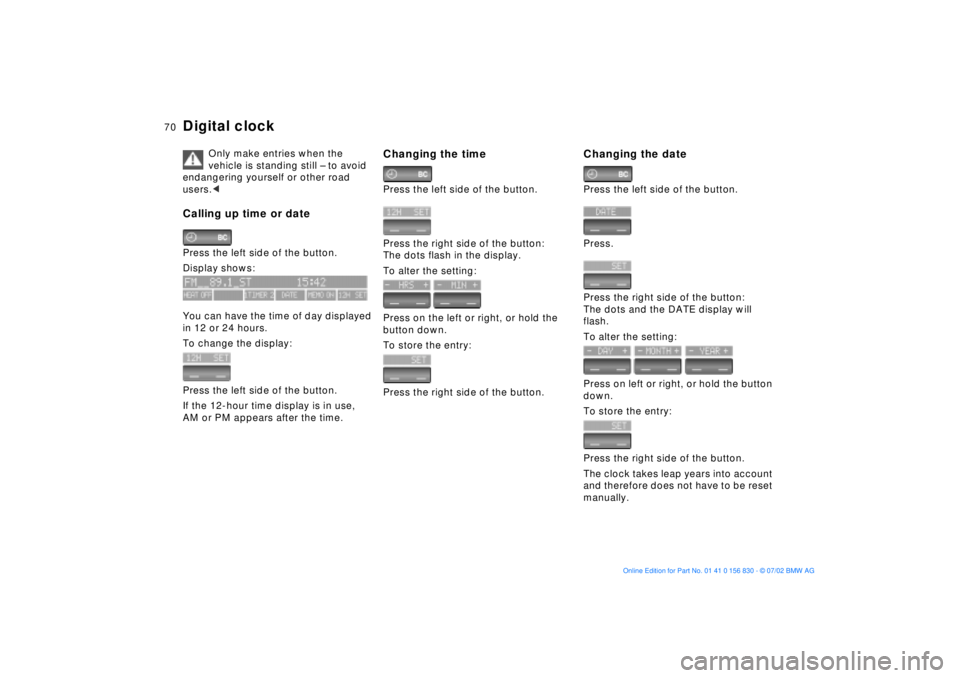
Calling up time or datePress the left side of the button.
Display shows:
You can have the time of day displayed
in 12 or 24 hours.
To change the display:
Press the left side of the button.
If the 12-hour time display is in use,
AM or PM appears after the time.
Changing the timePress the left side of the button.
Press the right side of the button:
The dots flash in the display.
To alter the setting:
Press on the left or right, or hold the
button down.
To store the entry:
Press the right side of the button.
Changing the datePress the left side of the button.
Press.
Press the right side of the button:
The dots and the DATE display will
flash.
To alter the setting:
Press on left or right, or hold the button
down.
To store the entry:
Press the right side of the button.
The clock takes leap years into account
and therefore does not have to be reset
manually.
Page 71 of 155
71n
OverviewControlsMaintenanceRepairsDataIndex
Digital clockReminder signalYou can program an hourly reminder
signal (Memo), that will, for example,
remind you of news broadcasts.
Press the left side of the button.
Press:
MEMO OFF appears in the display for
entry and query buttons, and the tone
symbol will appear in the upper right of
the display.
A signal is then heard 15 seconds
before each hour.
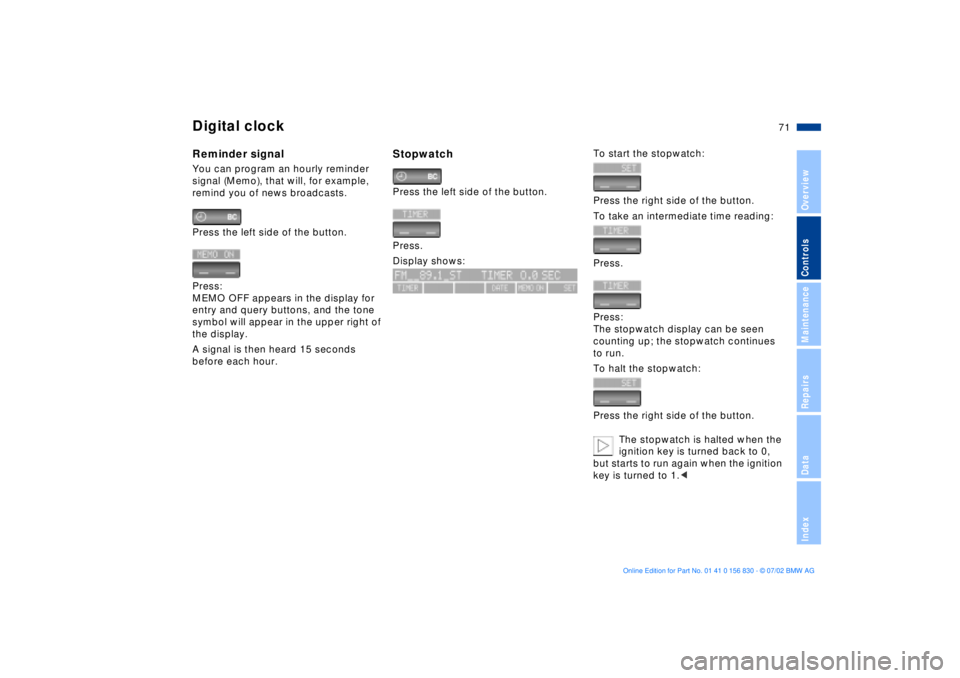
StopwatchPress the left side of the button.
Press.
Display shows:
To start the stopwatch:
Press the right side of the button.
To take an intermediate time reading:
Press.
Press:
The stopwatch display can be seen
counting up; the stopwatch continues
to run.
To halt the stopwatch:
Press the right side of the button.
The stopwatch is halted when the
ignition key is turned back to 0,
but starts to run again when the ignition
key is turned to 1.<
Page 72 of 155
72n
Digital clockSetting activation times for
parked-car ventilation systemYou can enter two different activation
times.
After 30 minutes, the ventilation will
switch off automatically.
Please observe the instructions
for operating the parked-car venti-
lation system on page 92.<
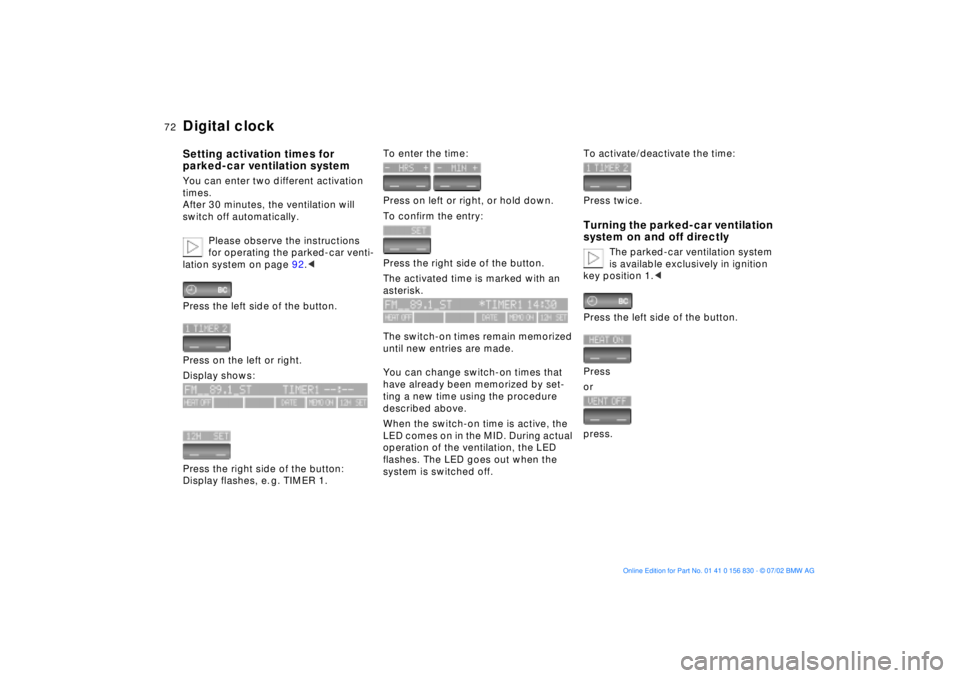
Press the left side of the button.
Press on the left or right.
Display shows:
Press the right side of the button:
Display flashes, e. g. TIMER 1.
To enter the time:
Press on left or right, or hold down.
To confirm the entry:
Press the right side of the button.
The activated time is marked with an
asterisk.
The switch-on times remain memorized
until new entries are made.
You can change switch-on times that
have already been memorized by set-
ting a new time using the procedure
described above.
When the switch-on time is active, the
LED comes on in the MID. During actual
operation of the ventilation, the LED
flashes. The LED goes out when the
system is switched off.
To activate/deactivate the time:
Press twice.Turning the parked-car ventilation
system on and off directly
The parked-car ventilation system
is available exclusively in ignition
key position 1.<
Press the left side of the button.
Press
or
press.
Page 73 of 155
73n
OverviewControlsMaintenanceRepairsDataIndex
Computer
Only make entries when the
vehicle is standing still Ð to avoid
endangering yourself or other road
users.<
Computer calculations begin at the
start of the journey.
Display information can also be
accessed by remote control, refer to
page 77.
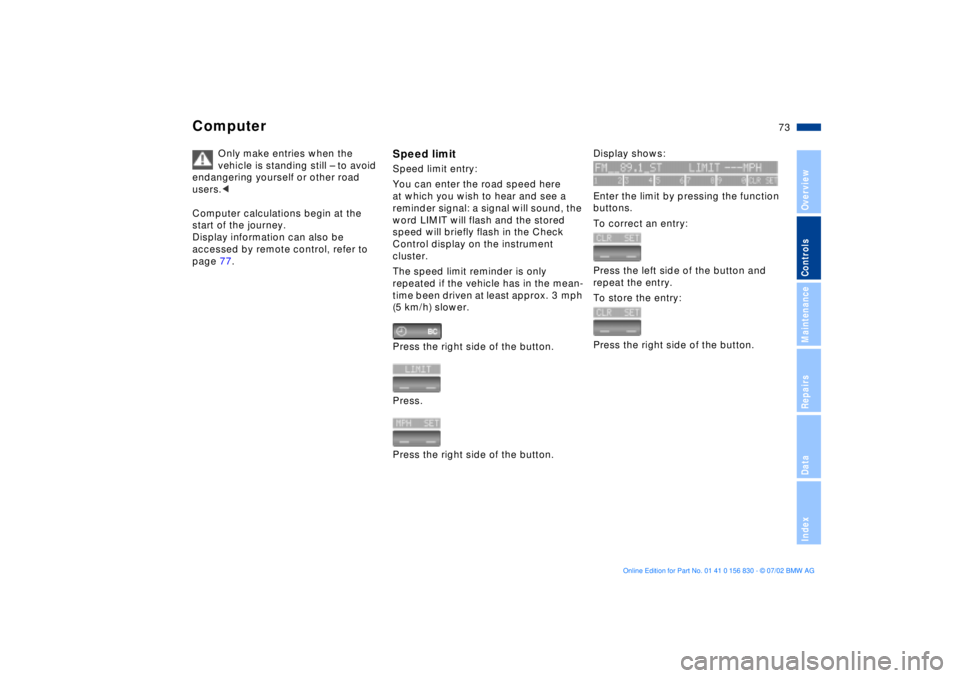
Speed limitSpeed limit entry:
You can enter the road speed here
at which you wish to hear and see a
reminder signal: a signal will sound, the
word LIMIT will flash and the stored
speed will briefly flash in the Check
Control display on the instrument
cluster.
The speed limit reminder is only
repeated if the vehicle has in the mean-
time been driven at least approx. 3 mph
(5 km/h) slower.
Press the right side of the button.
Press.
Press the right side of the button.
Display shows:
Enter the limit by pressing the function
buttons.
To correct an entry:
Press the left side of the button and
repeat the entry.
To store the entry:
Press the right side of the button.
Page 74 of 155
74n
ComputerTo adopt the current speed as the
speed limit:
Press the right side of the button.
Press.
Press twice at right.
Deactivating the speed limit:
Press the right side of the button.
Press.
The LIMIT display goes out, but the
stored limit is not lost and can be re-
activated by pressing the LIMIT button.
Distance to destinationThe remaining distance to the destina-
tion will be displayed on the screen.
This is of course only possible if you
entered the entire distance before
starting the journey.
Enter:
Press the right side of the button.
Press the left side of the button.
Press the right side of the button.
Display shows:
You can enter the distance by pressing
the function buttons.
To correct an entry:
Press the left side of the button and
repeat the entry.
To store the entry:
Press the right side of the button.
To recall stored value:
Press the right side of the button.
Press the left side of the button.
Page 75 of 155
75n
OverviewControlsMaintenanceRepairsDataIndex
ComputerEstimated time of arrivalWhen you have entered the distance
from your destination, you can obtain
an estimated time of arrival display
which is continuously updated by the
computer as your average rate of
progress varies.
Press the right side of the button.
Press the right side of the button:
The estimated time of arrival is dis-
played.
Cruising rangeThe distance which the vehicle should
cover on the remaining fuel in the tank
is displayed.
Press the right side of the button.
Press:
The display shows the estimated
cruising range.
When there is only enough fuel to
drive less than 30 miles (50 km),
you should refuel, as otherwise the
engine or the catalytic converter could
be damaged.<< < <
The computer will only register fuel
amounts over 1.8 gal (6 liters).
Fuel consumptionYou can have the average fuel
consumption displayed for two different
distances, for example a complete
journey and part of the journey .
To start the calculation, select the func-
tion with the engine running:
Press the right side of the button.
Press on left or right:
The average fuel consumption will be
indicated in the display.
To restart the fuel consumption calcula-
tion:
Press on the left or right.
Press the right side of the button.
Page 76 of 155
76n
ComputerSpeedYou can call up a display of the
vehicle's average speed.
To start the calculation, select the func-
tion with the engine running:
Press the right side of the button.
Press:
The display shows the average speed.
To recalculate the speed:
Press the right side of the button.
Extended immobilizer functionYou can define a code that will prevent
the engine from being started unless
the code is entered.
If you do not have access to the code,
the emergency deactivation procedure
will have to be carried out, refer to the
next page.
To enter and activating the code:
Press the right side of the button.
Press the left side of the button.
Display shows:
Enter the code at the function buttons.
To correct an entry:
Press the left side of the button and
repeat the entry.
To store the entry:
Press the right side of the button.
Turn the ignition key to position 0.
Deactivate the code:
When you are asked to enter the code
(ignition key in position 1 or 2):
>Enter the code at the function but-
tons
Press the right side of the button.
After the code has been entered cor-
rectly and confirmed with the SET
button, the time display appears.
Page 77 of 155
77n
OverviewControlsMaintenanceRepairsDataIndex
ComputerAfter three incorrect code entries,
or three attempts to start the engine
without a code entry, the alarm will
sound for 30 seconds on vehicles
equipped with an alarm system.
Setting the alarm in an emergency:
If you have forgotten the code, proceed
as follows:
1. Disconnect the battery, wait about
2 minutes, then reconnect it. Note
that on vehicles with an alarm
system, the alarm will sound
2. Turn the ignition key to position 1:
The time display will count down for
the next ten minutes
3. After ten minutes, start the engine.
If the code becomes available
again in the meantime, it can be
entered during the waiting period after
pressing the CODE button.<
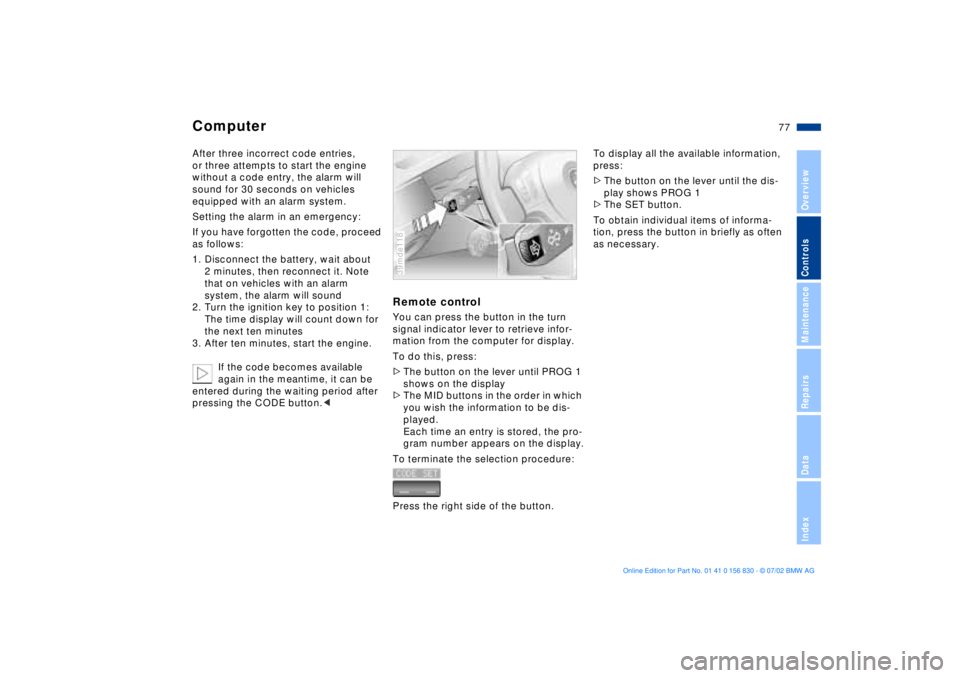
Remote controlYou can press the button in the turn
signal indicator lever to retrieve infor-
mation from the computer for display.
To do this, press:
>The button on the lever until PROG 1
shows on the display
>The MID buttons in the order in which
you wish the information to be dis-
played.
Each time an entry is stored, the pro-
gram number appears on the display.
To terminate the selection procedure:
Press the right side of the button.39mde118
To display all the available information,
press:
>The button on the lever until the dis-
play shows PROG 1
>The SET button.
To obtain individual items of informa-
tion, press the button in briefly as often
as necessary.
Page 83 of 155
83n
OverviewControlsMaintenanceRepairsDataIndex
Flat Tire MonitorFlat tireIn the event of a flat tire, the message,
"TIRE DEFECT" will appear in the
Check Control. This visual alert will be
accompanied by a gong.
If this occurs, reduce vehicle speed
immediately and stop the vehicle. Avoid
hard braking and overcorrecting at the
steering wheel.
Correct the flat tire using the M Mobility
system (refer to page 128).
The Flat Tire Monitor cannot alert
you to severe and sudden tire
damage caused by external factors.
Another factor which the Flat Tire Mon-
itor does not recognize is the balanced
and very gradual pressure loss that
takes place in all tires over an extended
period of time.<
Check the tire inflation pressure
on a regular basis and correct if
necessary. Refer to page 22.
Do not carry out any kind of system
activation when using snow chains.
Under these kinds of conditions, false
warnings and unidentified losses in
pressure are possible.
In certain circumstances, when driving
on snow-covered or slippery road sur-
faces, there may be a delay in identi-
fying any loss in inflation pressure.
Performance-oriented driving (slip at
the drive wheels, high levels of lateral
acceleration) can also delay the appear-
ance of status messages in the Flat Tire
Monitor's display panel.<
System malfunctionsThe message "TIRECONTROL INAC-
TIVE" appears in the Check Control
and remains on until the problem is cor-
rected.
The same message is displayed if there
is a system malfunction.
Please refer the problem to your BMW
center.
Page 87 of 155
87n
OverviewControlsMaintenanceRepairsDataIndex
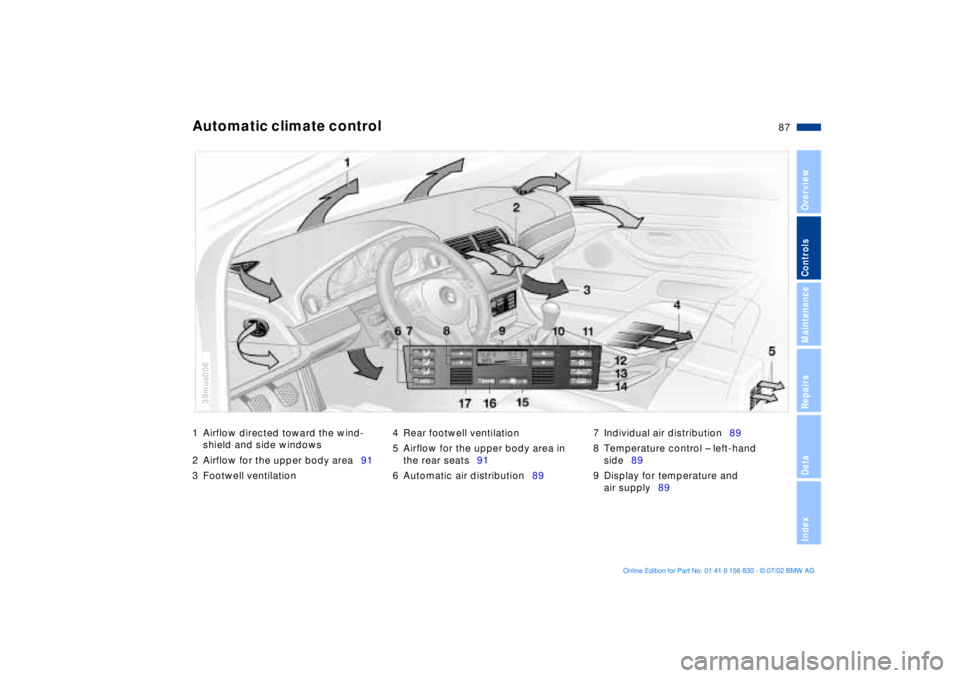
1 Airflow directed toward the wind-
shield and side windows
2 Airflow for the upper body area91
3 Footwell ventilation4 Rear footwell ventilation
5 Airflow for the upper body area in
the rear seats91
6 Automatic air distribution897 Individual air distribution89
8 Temperature control Ð left-hand
side89
9 Display for temperature and
air supply89Automatic climate control
39mus006