Mobility BMW M5 SEDAN 2007 E60 Repair Manual
[x] Cancel search | Manufacturer: BMW, Model Year: 2007, Model line: M5 SEDAN, Model: BMW M5 SEDAN 2007 E60Pages: 256, PDF Size: 12.5 MB
Page 131 of 256
Navigation
Driving tips
129Reference
At a glance
Controls
Communications
Entertainment
Mobility
Symbols in map view
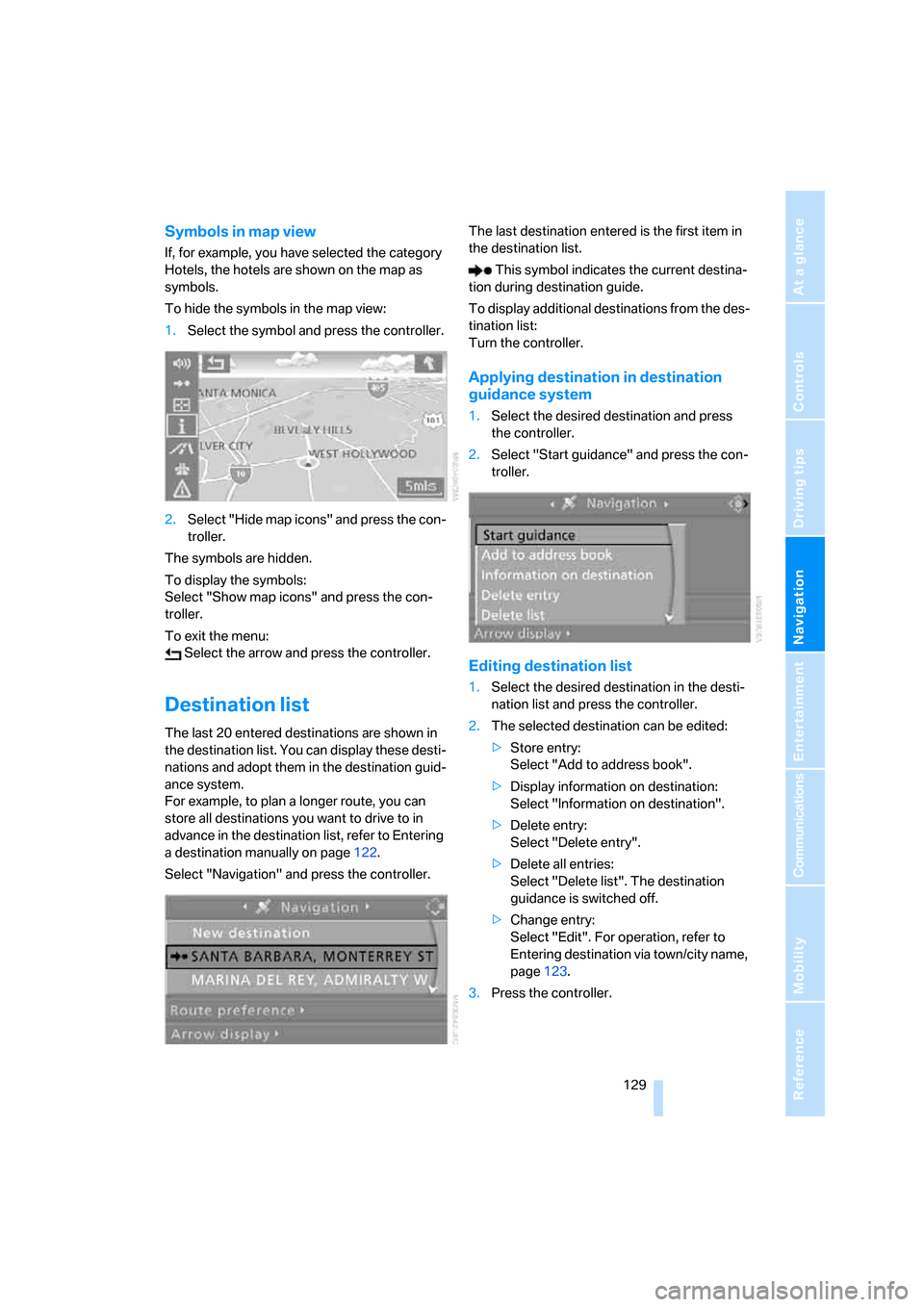
If, for example, you have selected the category
Hotels, the hotels are shown on the map as
symbols.
To hide the symbols in the map view:
1.Select the symbol and press the controller.
2.Select "Hide map icons" and press the con-
troller.
The symbols are hidden.
To display the symbols:
Select "Show map icons" and press the con-
troller.
To exit the menu:
Select the arrow and press the controller.
Destination list
The last 20 entered destinations are shown in
the destination list. You can display these desti-
nations and adopt them in the destination guid-
ance system.
For example, to plan a longer route, you can
store all destinations you want to drive to in
advance in the destination list, refer to Entering
a destination manually on page122.
Select "Navigation" and press the controller.The last destination entered is the first item in
the destination list.
This symbol indicates the current destina-
tion during destination guide.
To display additional destinations from the des-
tination list:
Turn the controller.
Applying destination in destination
guidance system
1.Select the desired destination and press
the controller.
2.Select "Start guidance" and press the con-
troller.
Editing destination list
1.Select the desired destination in the desti-
nation list and press the controller.
2.The selected destination can be edited:
>Store entry:
Select "Add to address book".
>Display information on destination:
Select "Information on destination".
>Delete entry:
Select "Delete entry".
>Delete all entries:
Select "Delete list". The destination
guidance is switched off.
>Change entry:
Select "Edit". For operation, refer to
Entering destination via town/city name,
page123.
3.Press the controller.
ba8_m5us.book Seite 129 Montag, 5. Februar 2007 12:03 12
Page 133 of 256
Navigation
Driving tips
131Reference
At a glance
Controls
Communications
Entertainment
Mobility
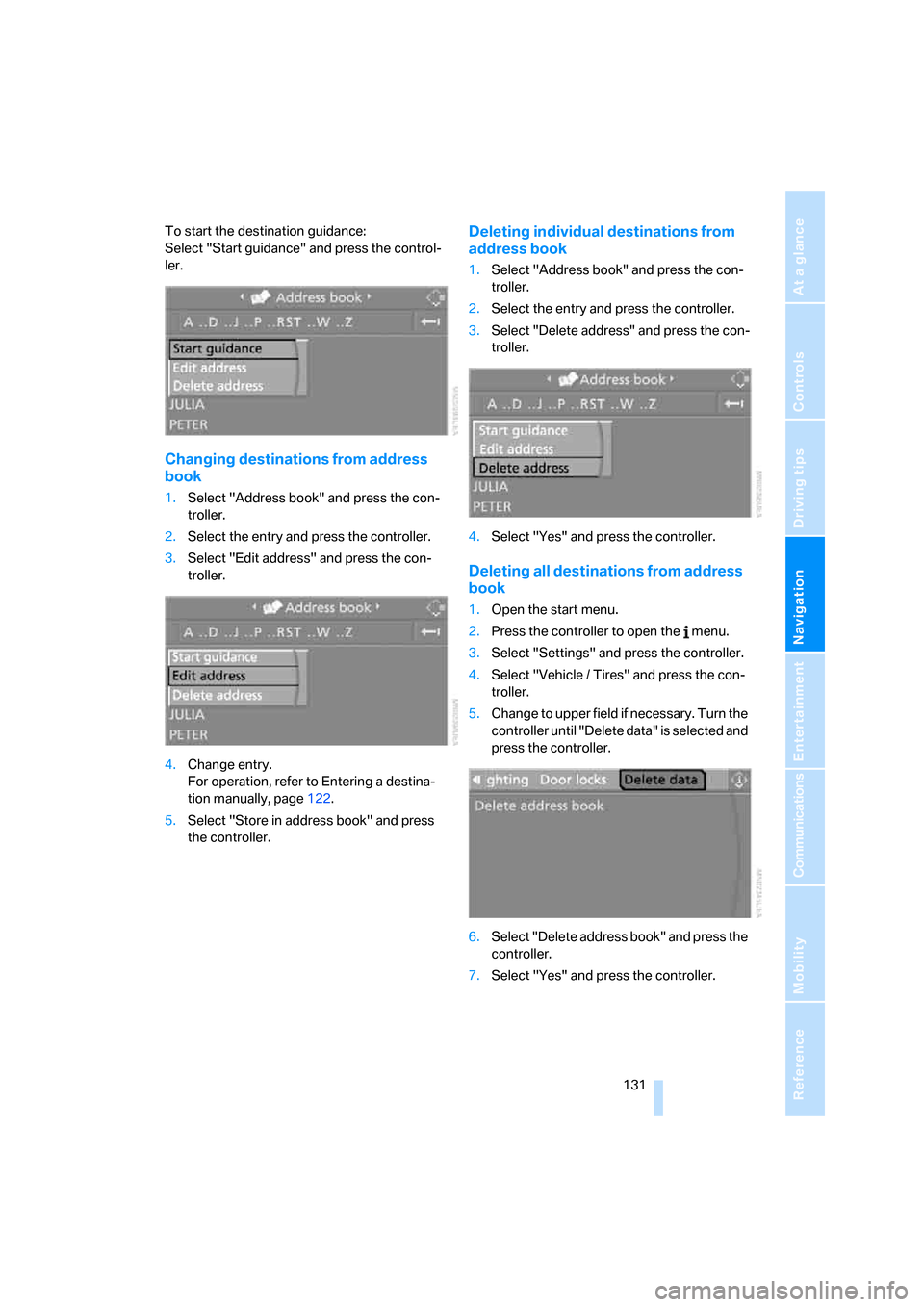
To start the destination guidance:
Select "Start guidance" and press the control-
ler.
Changing destinations from address
book
1.Select "Address book" and press the con-
troller.
2.Select the entry and press the controller.
3.Select "Edit address" and press the con-
troller.
4.Change entry.
For operation, refer to Entering a destina-
tion manually, page122.
5.Select "Store in address book" and press
the controller.
Deleting individual destinations from
address book
1.Select "Address book" and press the con-
troller.
2.Select the entry and press the controller.
3.Select "Delete address" and press the con-
troller.
4.Select "Yes" and press the controller.
Deleting all destinations from address
book
1.Open the start menu.
2.Press the controller to open the menu.
3.Select "Settings" and press the controller.
4.Select "Vehicle / Tires" and press the con-
troller.
5.Change to upper field if necessary. Turn the
controller until "Delete data" is selected and
press the controller.
6.Select "Delete address book" and press the
controller.
7.Select "Yes" and press the controller.
ba8_m5us.book Seite 131 Montag, 5. Februar 2007 12:03 12
Page 135 of 256
Navigation
Driving tips
133Reference
At a glance
Controls
Communications
Entertainment
Mobility
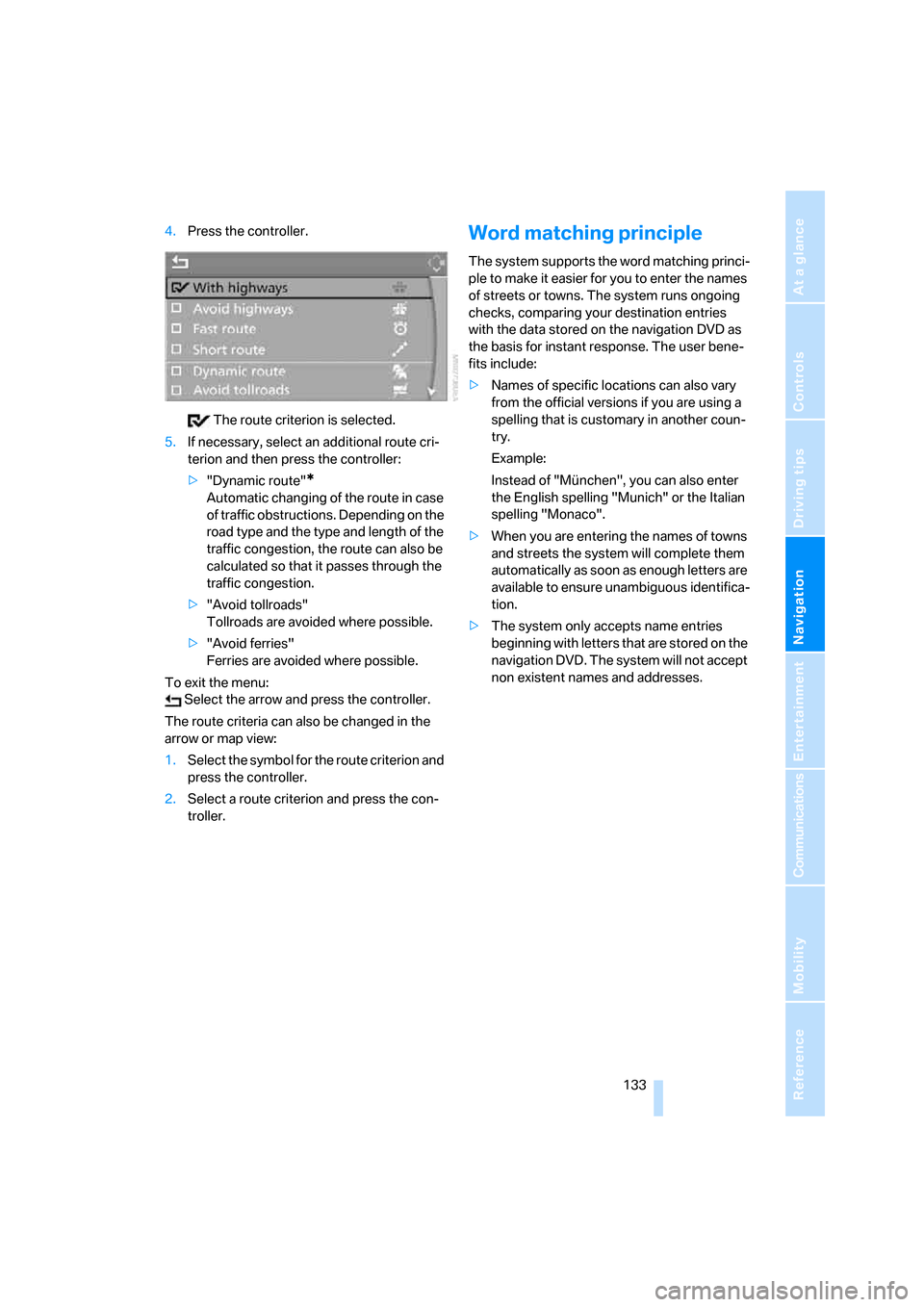
4.Press the controller.
The route criterion is selected.
5.If necessary, select an additional route cri-
terion and then press the controller:
>"Dynamic route"
*
Automatic changing of the route in case
of traffic obstructions. Depending on the
road type and the type and length of the
traffic congestion, the route can also be
calculated so that it passes through the
traffic congestion.
>"Avoid tollroads"
Tollroads are avoided where possible.
>"Avoid ferries"
Ferries are avoided where possible.
To exit the menu:
Select the arrow and press the controller.
The route criteria can also be changed in the
arrow or map view:
1.Select the symbol for the route criterion and
press the controller.
2.Select a route criterion and press the con-
troller.
Word matching principle
The system supports the word matching princi-
ple to make it easier for you to enter the names
of streets or towns. The system runs ongoing
checks, comparing your destination entries
with the data stored on the navigation DVD as
the basis for instant response. The user bene-
fits include:
>Names of specific locations can also vary
from the official versions if you are using a
spelling that is customary in another coun-
try.
Example:
Instead of "München", you can also enter
the English spelling "Munich" or the Italian
spelling "Monaco".
>When you are entering the names of towns
and streets the system will complete them
automatically as soon as enough letters are
available to ensure unambiguous identifica-
tion.
>The system only accepts name entries
beginning with letters that are stored on the
navigation DVD. The system will not accept
non existent names and addresses.
ba8_m5us.book Seite 133 Montag, 5. Februar 2007 12:03 12
Page 137 of 256
Navigation
Driving tips
135Reference
At a glance
Controls
Communications
Entertainment
Mobility
In destination list
This symbol indicates the current destina-
tion.
1.Select the current destination and press the
controller.
2.Select "Stop guidance" and press the con-
troller.
When you park the vehicle before reaching the
entered destination, the following question is
displayed before beginning the next trip:
"Continue guidance to destination?".
The destination guidance starts automatically
after a short time.
To start the destination guidance:
Select "Yes" and press the controller.
Displaying route
You have the option of displaying various views
of the route during destination guidance.
From another menu, you can change
directly to the screen last displayed,
refer to Comfort opening of menu items,
page18.<
Displaying arrow display
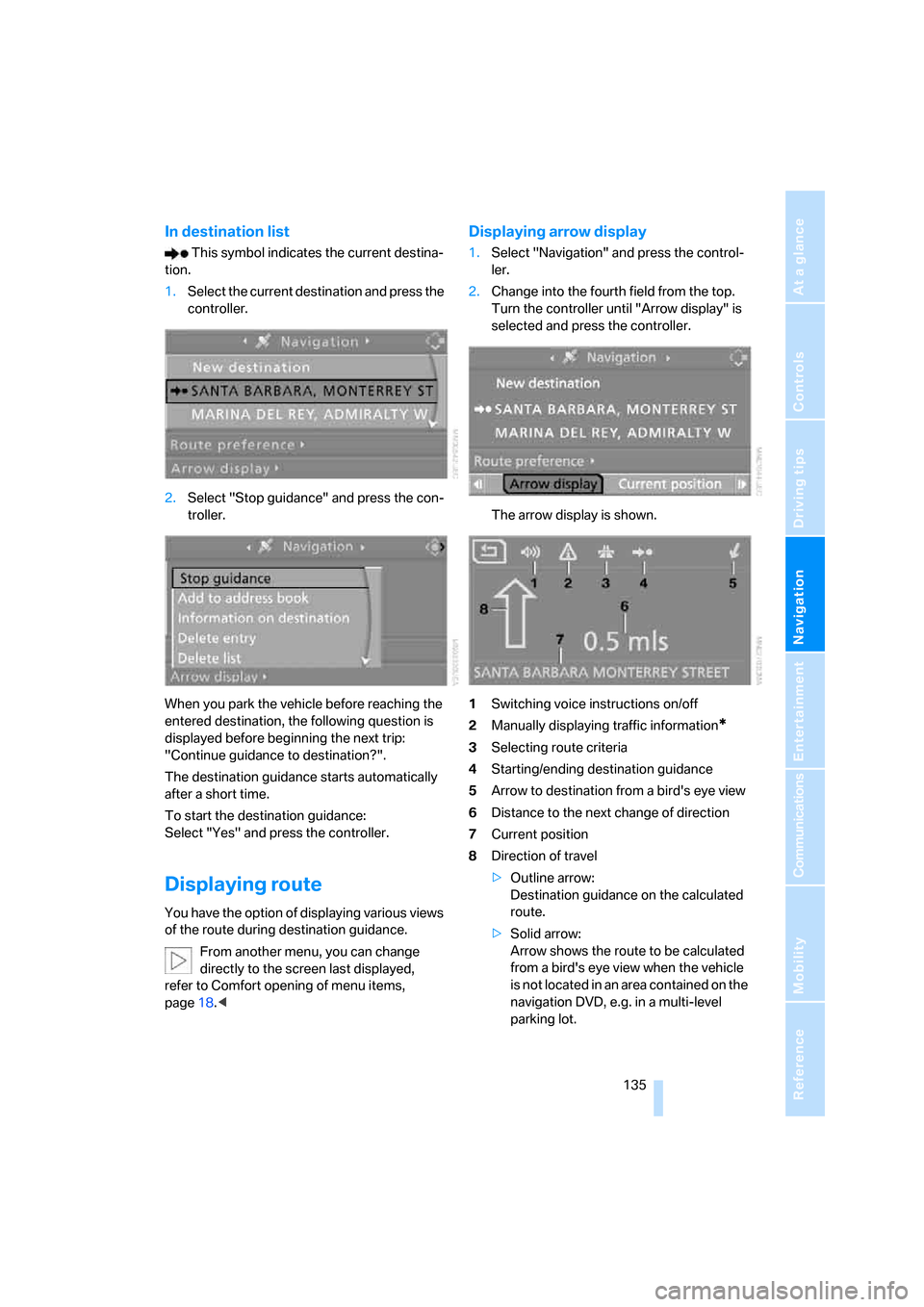
1.Select "Navigation" and press the control-
ler.
2.Change into the fourth field from the top.
Turn the controller until "Arrow display" is
selected and press the controller.
The arrow display is shown.
1Switching voice instructions on/off
2Manually displaying traffic information
*
3Selecting route criteria
4Starting/ending destination guidance
5Arrow to destination from a bird's eye view
6Distance to the next change of direction
7Current position
8Direction of travel
>Outline arrow:
Destination guidance on the calculated
route.
>Solid arrow:
Arrow shows the route to be calculated
from a bird's eye view when the vehicle
is not located in an area contained on the
navigation DVD, e.g. in a multi-level
parking lot.
ba8_m5us.book Seite 135 Montag, 5. Februar 2007 12:03 12
Page 139 of 256
Navigation
Driving tips
137Reference
At a glance
Controls
Communications
Entertainment
Mobility
Displaying streets and towns/cities of
route
You can have the roads and towns along the
route displayed during destination guidance.
The distances remaining to be traveled on each
individual road are also displayed.
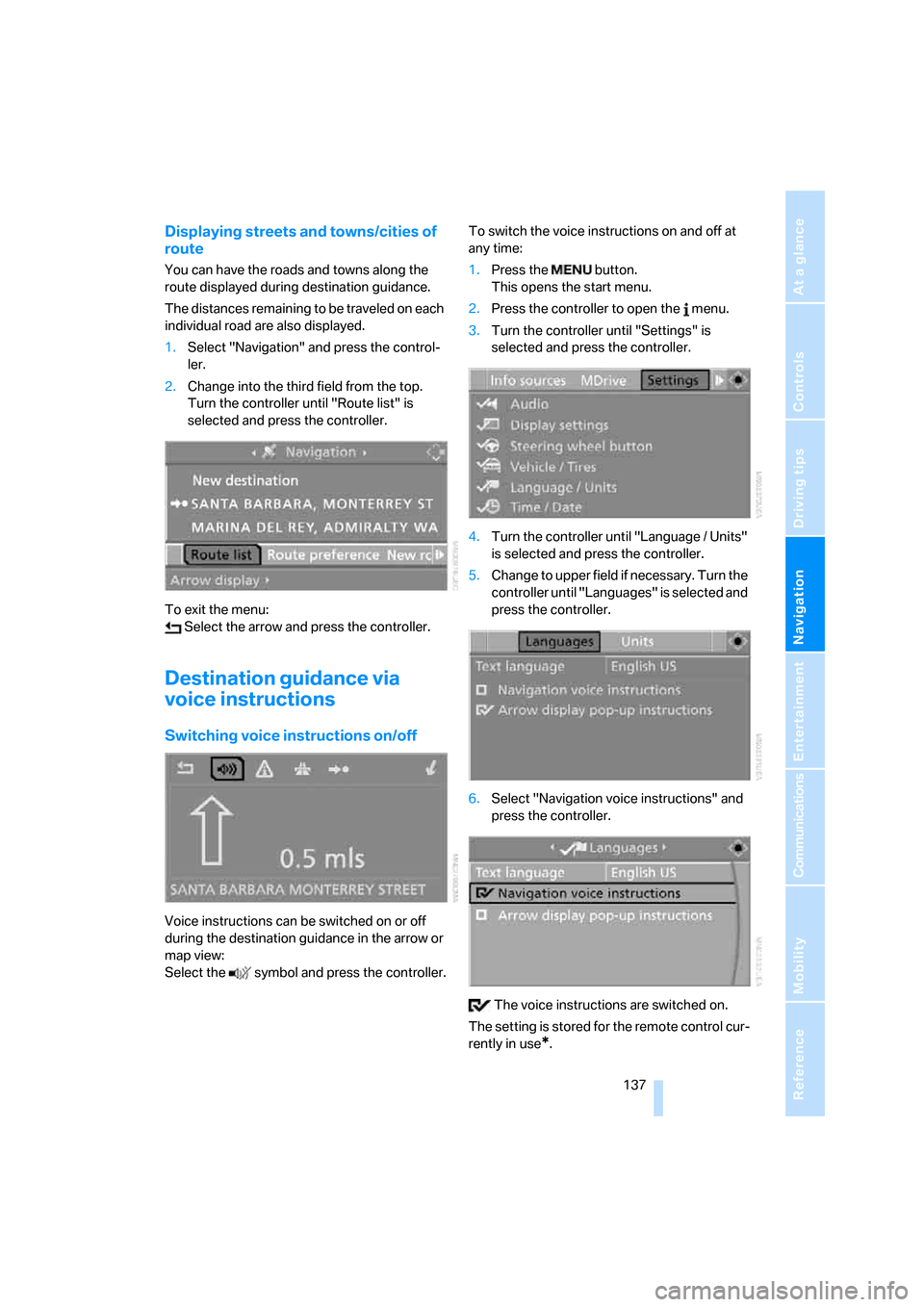
1.Select "Navigation" and press the control-
ler.
2.Change into the third field from the top.
Turn the controller until "Route list" is
selected and press the controller.
To exit the menu:
Select the arrow and press the controller.
Destination guidance via
voice instructions
Switching voice instructions on/off
Voice instructions can be switched on or off
during the destination guidance in the arrow or
map view:
Select the symbol and press the controller.To switch the voice instructions on and off at
any time:
1.Press the button.
This opens the start menu.
2.Press the controller to open the menu.
3.Turn the controller until "Settings" is
selected and press the controller.
4.Turn the controller until "Language / Units"
is selected and press the controller.
5.Change to upper field if necessary. Turn the
controller until "Languages" is selected and
press the controller.
6.Select "Navigation voice instructions" and
press the controller.
The voice instructions are switched on.
The setting is stored for the remote control cur-
rently in use
*.
ba8_m5us.book Seite 137 Montag, 5. Februar 2007 12:03 12
Page 141 of 256
Navigation
Driving tips
139Reference
At a glance
Controls
Communications
Entertainment
Mobility
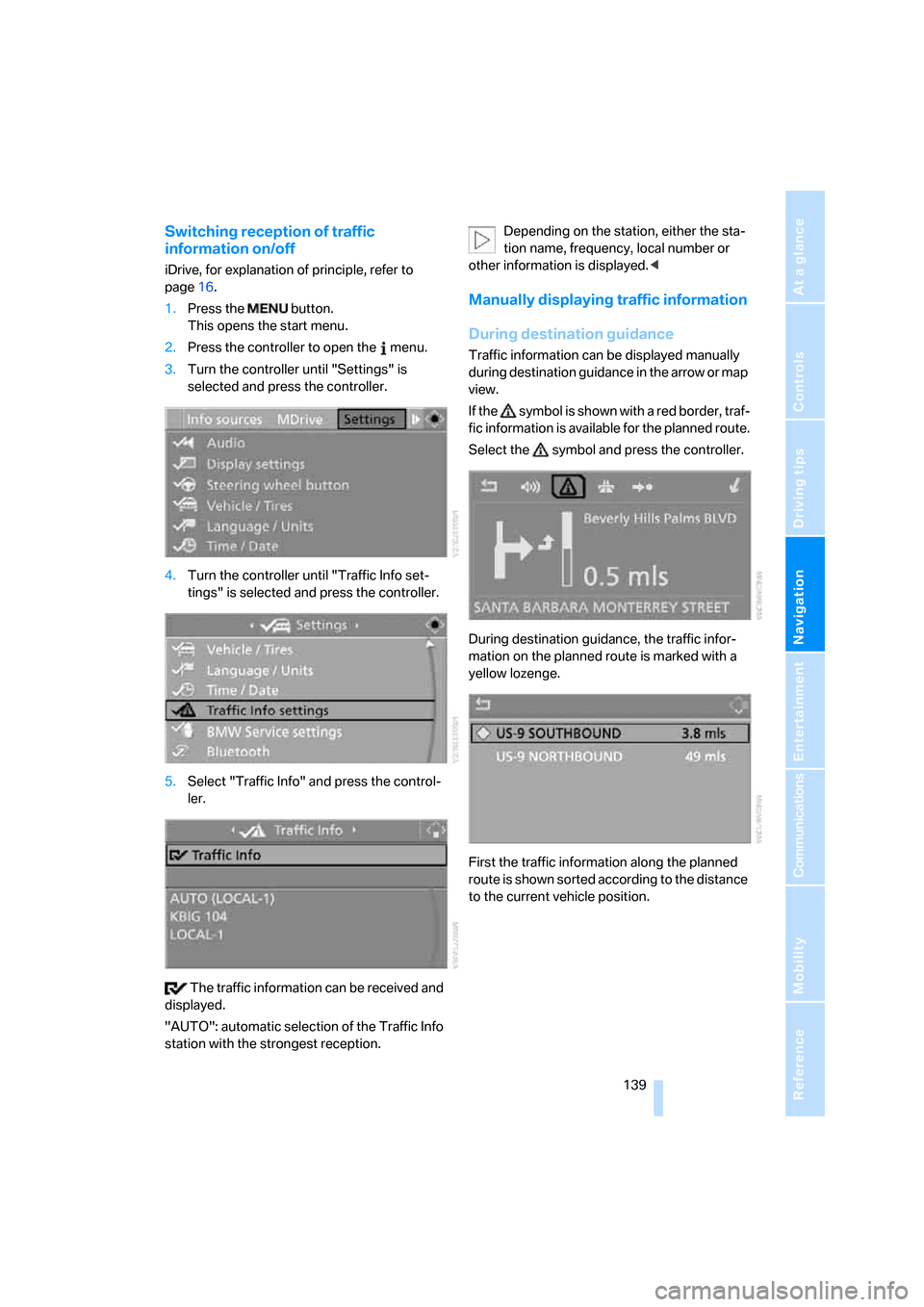
Switching reception of traffic
information on/off
iDrive, for explanation of principle, refer to
page16.
1.Press the button.
This opens the start menu.
2.Press the controller to open the menu.
3.Turn the controller until "Settings" is
selected and press the controller.
4.Turn the controller until "Traffic Info set-
tings" is selected and press the controller.
5.Select "Traffic Info" and press the control-
ler.
The traffic information can be received and
displayed.
"AUTO": automatic selection of the Traffic Info
station with the strongest reception.Depending on the station, either the sta-
tion name, frequency, local number or
other information is displayed.<
Manually displaying traffic information
During destination guidance
Traffic information can be displayed manually
during destination guidance in the arrow or map
view.
If the symbol is shown with a red border, traf-
fic information is available for the planned route.
Select the symbol and press the controller.
During destination guidance, the traffic infor-
mation on the planned route is marked with a
yellow lozenge.
First the traffic information along the planned
route is shown sorted according to the distance
to the current vehicle position.
ba8_m5us.book Seite 139 Montag, 5. Februar 2007 12:03 12
Page 143 of 256
Navigation
Driving tips
141Reference
At a glance
Controls
Communications
Entertainment
Mobility
Traffic information during destination
guidance
The system behavior varies depending on
whether "Dynamic route" is selected.
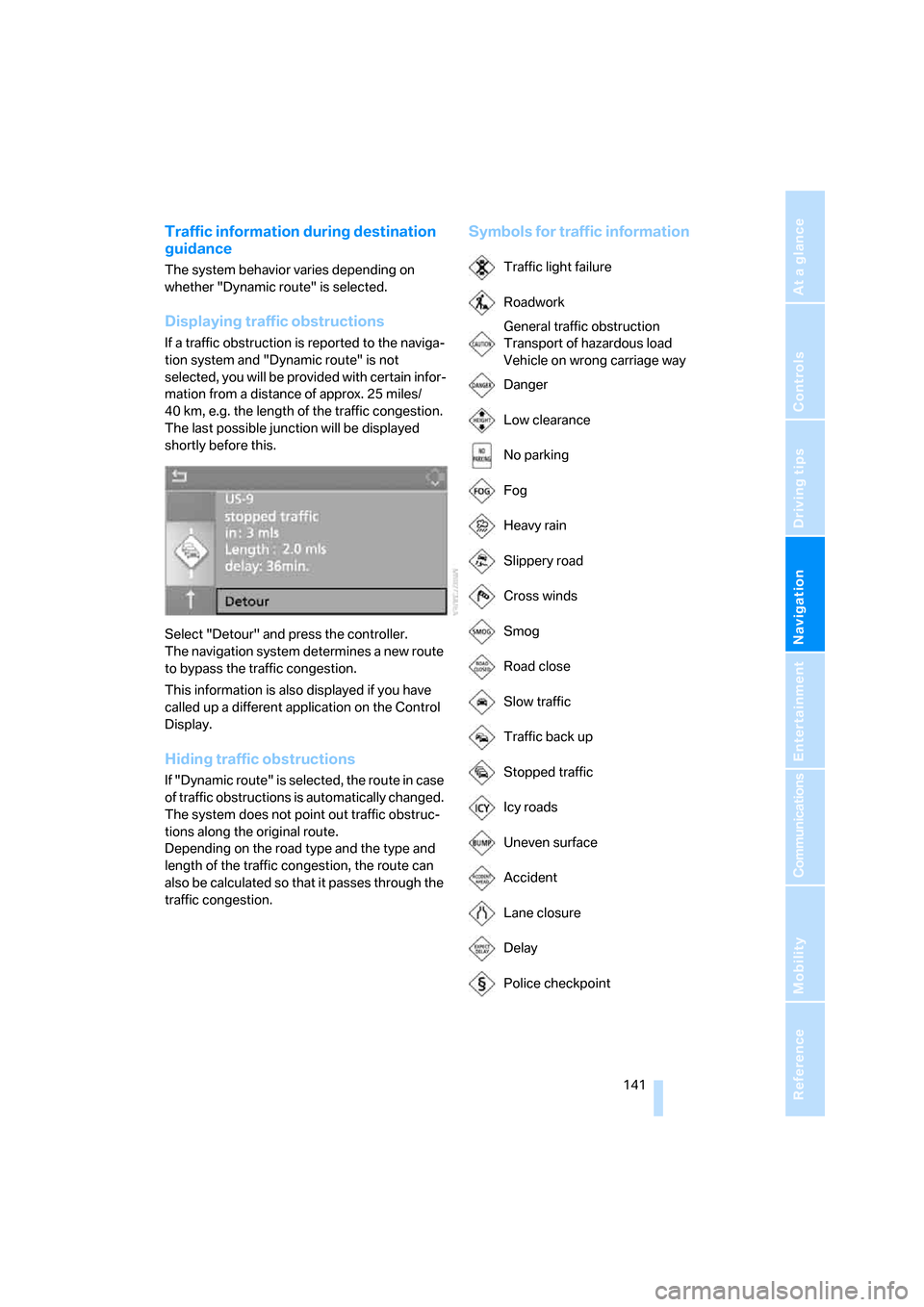
Displaying traffic obstructions
If a traffic obstruction is reported to the naviga-
tion system and "Dynamic route" is not
selected, you will be provided with certain infor-
mation from a distance of approx. 25 miles/
40 km, e.g. the length of the traffic congestion.
The last possible junction will be displayed
shortly before this.
Select "Detour" and press the controller.
The navigation system determines a new route
to bypass the traffic congestion.
This information is also displayed if you have
called up a different application on the Control
Display.
Hiding traffic obstructions
If "Dynamic route" is selected, the route in case
of traffic obstructions is automatically changed.
The system does not point out traffic obstruc-
tions along the original route.
Depending on the road type and the type and
length of the traffic congestion, the route can
also be calculated so that it passes through the
traffic congestion.
Symbols for traffic information
Traffic light failure
Roadwork
General traffic obstruction
Transport of hazardous load
Vehicle on wrong carriage way
Danger
Low clearance
No parking
Fog
Heavy rain
Slippery road
Cross winds
Smog
Road close
Slow traffic
Traffic back up
Stopped traffic
Icy roads
Uneven surface
Accident
Lane closure
Delay
Police checkpoint
ba8_m5us.book Seite 141 Montag, 5. Februar 2007 12:03 12
Page 145 of 256
Navigation
Driving tips
143Reference
At a glance
Controls
Communications
Entertainment
Mobility
What to do if …
What to do if …
>a navigation DVD is inserted, but an instruc-
tion to insert the DVD appears on the Con-
trol Display?
The navigation DVD may not be the correct
DVD for the navigation system. This infor-
mation is indicated on the DVD label.
>you request the current position of your
vehicle, but do not receive a precise dis-
play?
The system is unable to receive enough
GPS signals at your current position due to
obstructions, your position is not yet avail-
able on your navigation DVD, or the system
is in the process of calculating your posi-
tion. Reception is best when you have an
unobstructed view to the sky.
>the destination guidance does not accept a
destination?
The data of the destination is not stored on
the navigation DVD that is loaded. Select a
destination that is as close as possible to
the original.
>the destination guidance does not accept
an address without the street name?
On the navigation DVD, no downtown area
can be determined for the city or town
entered. Enter any street, or a destination
such as the railway station in the selected
town, and then start the destination guid-
ance.
>you want to enter a destination for the des-
tination guidance, but it is not possible to
select the letters for your desired entry?
The data of the destination is not stored on
the navigation DVD that is loaded. In this
case, the system will not offer you any let-
ters to choose from. Select a destination
that is as close as possible to the original.>the system stops furnishing directions on
which way to turn as you approach intersec-
tions?
You are driving in an area that has not yet
been completely recorded on the naviga-
tion DVD. Instead of an arrow indicating a
turn, you will see an arrow which indicates
the general direction of your planned route.
Or you have left the recommended route
and the system requires a few seconds to
calculate a new recommended route.
>the navigation system does not react to
entries?
If the battery was disconnected, it takes
about 10 minutes before the system is once
again operational.
ba8_m5us.book Seite 143 Montag, 5. Februar 2007 12:03 12
Page 149 of 256
Navigation
Entertainment
Driving tips
147Reference
At a glance
Controls
Communications
Mobility
reception, store station, tone control, sam-
ple stations.
From another menu, you can change
directly to the screen last displayed,
refer to Comfort opening of menu items,
page18.<
From radio readiness, the selected audio
source is stored for the remote control currently
in use.
Switching on/off
To switch the Entertainment sound output on
and off:
Press knob1 next to the CD player.
This symbol on the Control Display indi-
cates that sound output is switched off.
For a single drive, the sound output is available
for approx. 20 minutes with the ignition
switched off.
Switch on the sound output again for this pur-
pose.
Adjusting volume
Turn knob1 next to the CD player until the
desired volume is set.
You can also adjust the volume with buttons on
the steering wheel, refer to page11.
From radio readiness, the setting is stored for
the remote control currently in use.
Tone control
You can alter various tone settings, e. g. treble
and bass, or the speed-dependent volume
increase.
The tone settings are set for all audio sources at
once.
From radio readiness, the settings are stored
for the remote control currently in use.
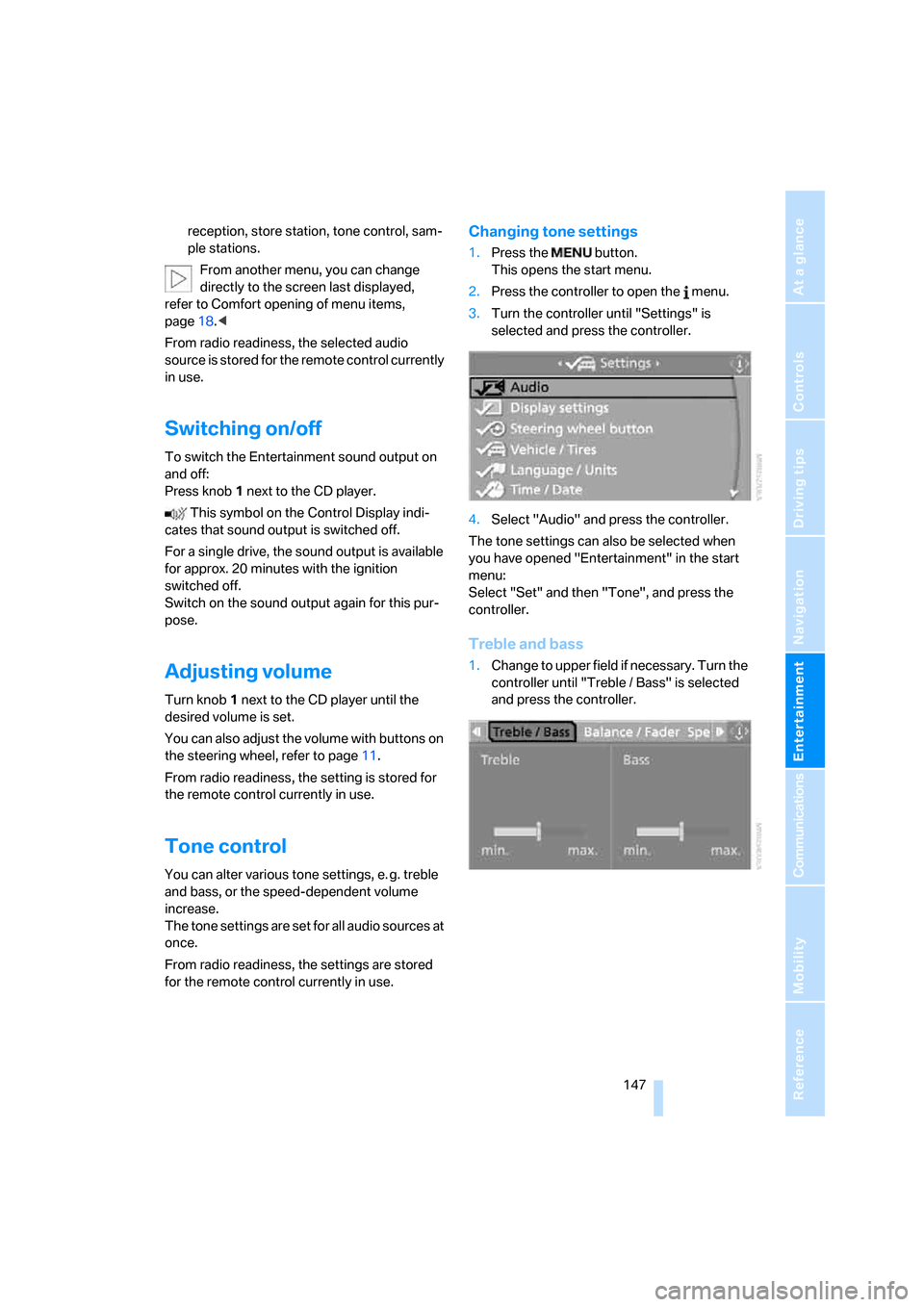
Changing tone settings
1.Press the button.
This opens the start menu.
2.Press the controller to open the menu.
3.Turn the controller until "Settings" is
selected and press the controller.
4.Select "Audio" and press the controller.
The tone settings can also be selected when
you have opened "Entertainment" in the start
menu:
Select "Set" and then "Tone", and press the
controller.
Treble and bass
1.Change to upper field if necessary. Turn the
controller until "Treble / Bass" is selected
and press the controller.
ba8_m5us.book Seite 147 Montag, 5. Februar 2007 12:03 12
Page 151 of 256
Navigation
Entertainment
Driving tips
149Reference
At a glance
Controls
Communications
Mobility
Professional LOGIC7 HiFi System*
You can select a spatial sound effect that
improves the spatial acoustics in all frequency
ranges.
1.Select "Surround Settings" and press the
controller.
2.Select "Concert hall" or "Theater".
3.Press the controller.
LOGIC7 spatial sound is switched on.
To cancel the spatial sound effect:
Select "Off" and press the controller.
LOGIC7 and the LOGIC7 logo are registered
trade marks of Lexicon, Inc., a company of the
Harman International Group.
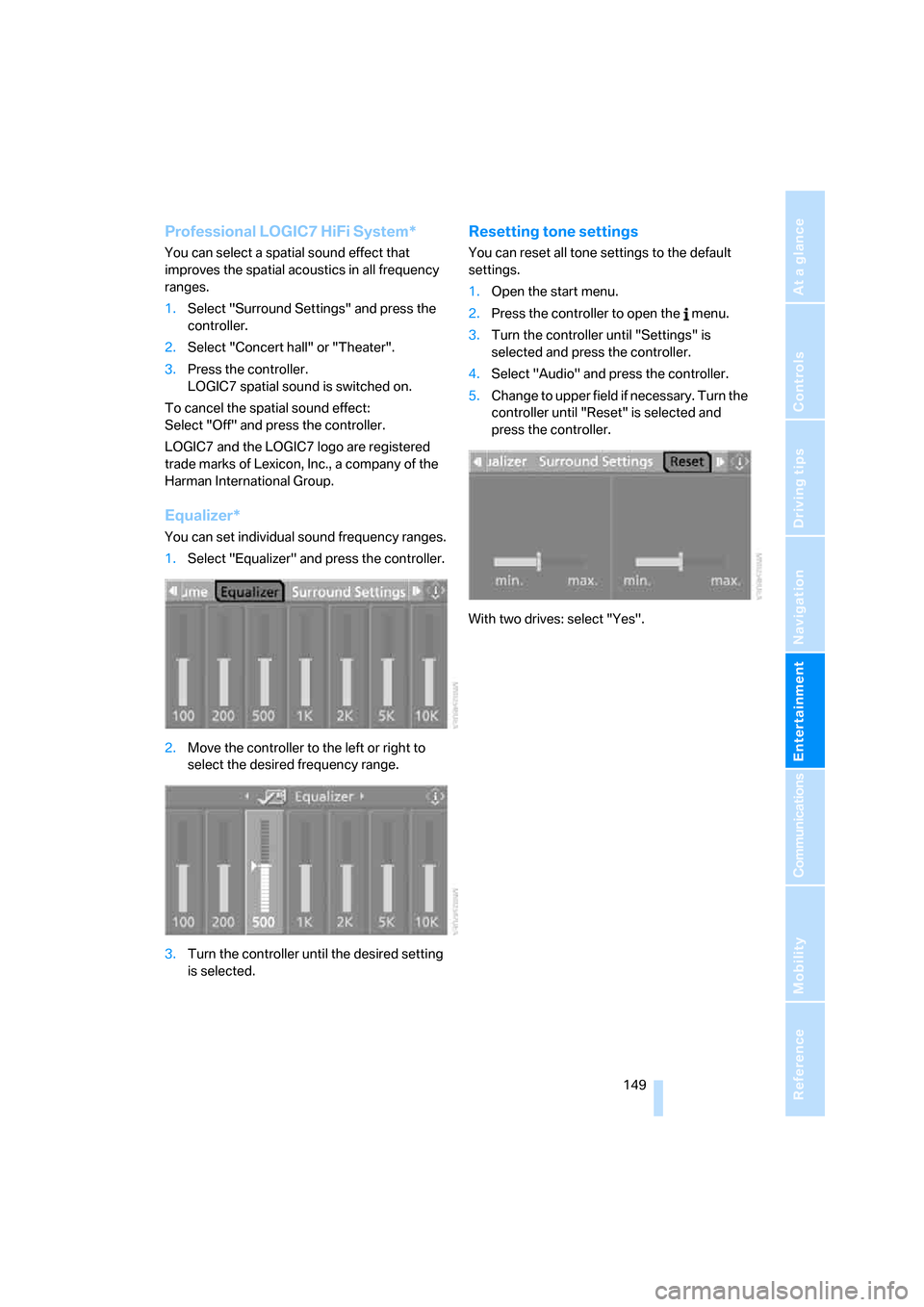
Equalizer*
You can set individual sound frequency ranges.
1.Select "Equalizer" and press the controller.
2.Move the controller to the left or right to
select the desired frequency range.
3.Turn the controller until the desired setting
is selected.
Resetting tone settings
You can reset all tone settings to the default
settings.
1.Open the start menu.
2.Press the controller to open the menu.
3.Turn the controller until "Settings" is
selected and press the controller.
4.Select "Audio" and press the controller.
5.Change to upper field if necessary. Turn the
controller until "Reset" is selected and
press the controller.
With two drives: select "Yes".
ba8_m5us.book Seite 149 Montag, 5. Februar 2007 12:03 12