Start BMW M5 SEDAN 2009 E60 Owners Manual
[x] Cancel search | Manufacturer: BMW, Model Year: 2009, Model line: M5 SEDAN, Model: BMW M5 SEDAN 2009 E60Pages: 266, PDF Size: 9.08 MB
Page 182 of 266
Telephoning
180 vehicle simultaneously, you can operate the
mobile phone highest up in the list via the vehi-
cle.
You can change the order of the mobile phones
in the list. As long as a mobile phone is selected
in this list, the mobile phones cannot be oper-
ated via the vehicle.
iDrive, for operating principle refer to page16.
1.Press the button to open the start
menu.
2.Press the controller to open the menu.
3.Select "Settings" and press the controller.
4.Select "Bluetooth" and press the controller.
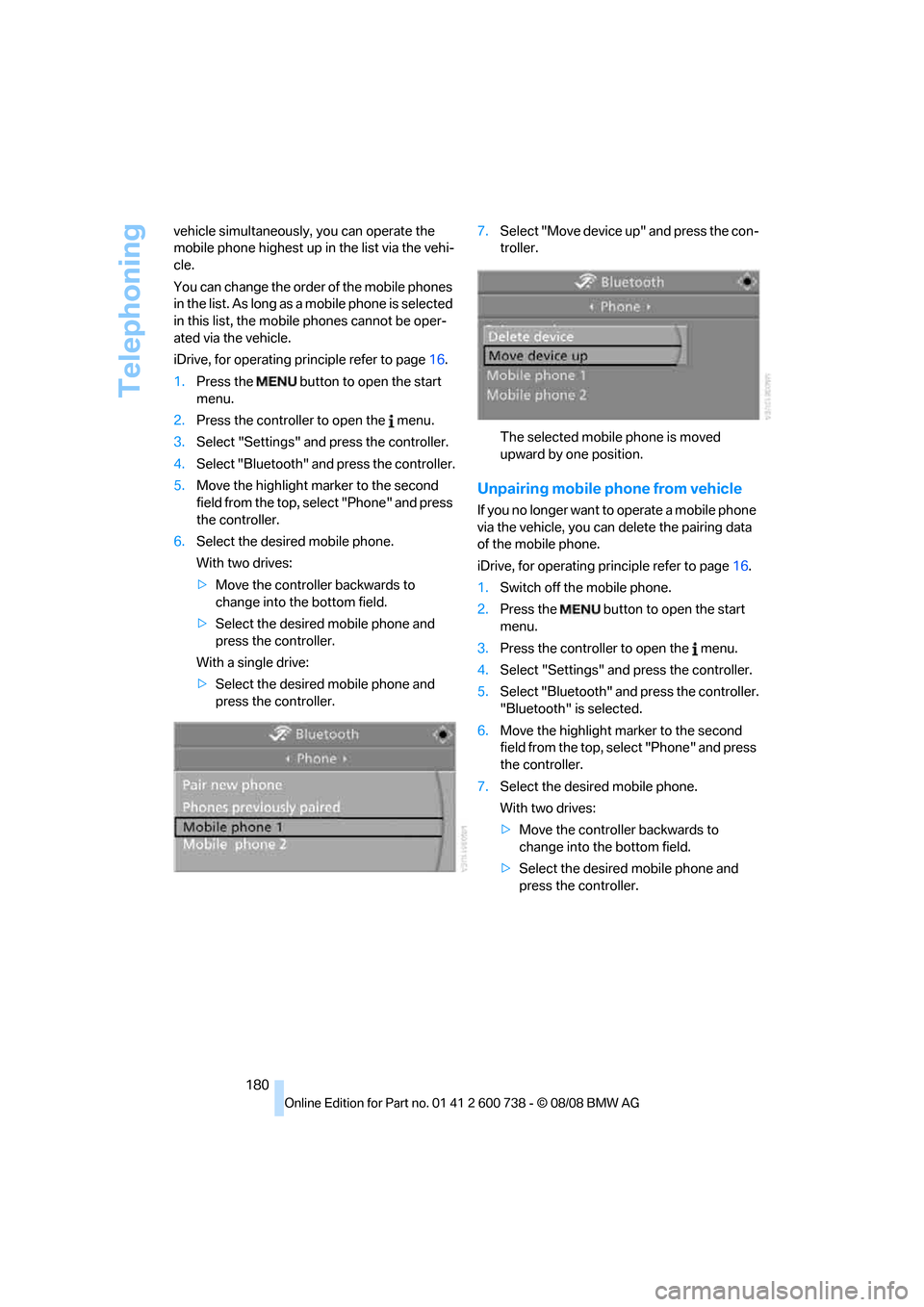
5.Move the highlight marker to the second
field from the top, select "Phone" and press
the controller.
6.Select the desired mobile phone.
With two drives:
>Move the controller backwards to
change into the bottom field.
>Select the desired mobile phone and
press the controller.
With a single drive:
>Select the desired mobile phone and
press the controller.7.Select "Move device up" and press the con-
troller.
The selected mobile phone is moved
upward by one position.
Unpairing mobile phone from vehicle
If you no longer want to operate a mobile phone
via the vehicle, you can delete the pairing data
of the mobile phone.
iDrive, for operating principle refer to page16.
1.Switch off the mobile phone.
2.Press the button to open the start
menu.
3.Press the controller to open the menu.
4.Select "Settings" and press the controller.
5.Select "Bluetooth" and press the controller.
"Bluetooth" is selected.
6.Move the highlight marker to the second
field from the top, select "Phone" and press
the controller.
7.Select the desired mobile phone.
With two drives:
>Move the controller backwards to
change into the bottom field.
>Select the desired mobile phone and
press the controller.
Page 183 of 266
181
Entertainment
Reference
At a glance
Controls
Driving tips Communications
Navigation
Mobility
With a single drive:
>Select the desired mobile phone and
press the controller.
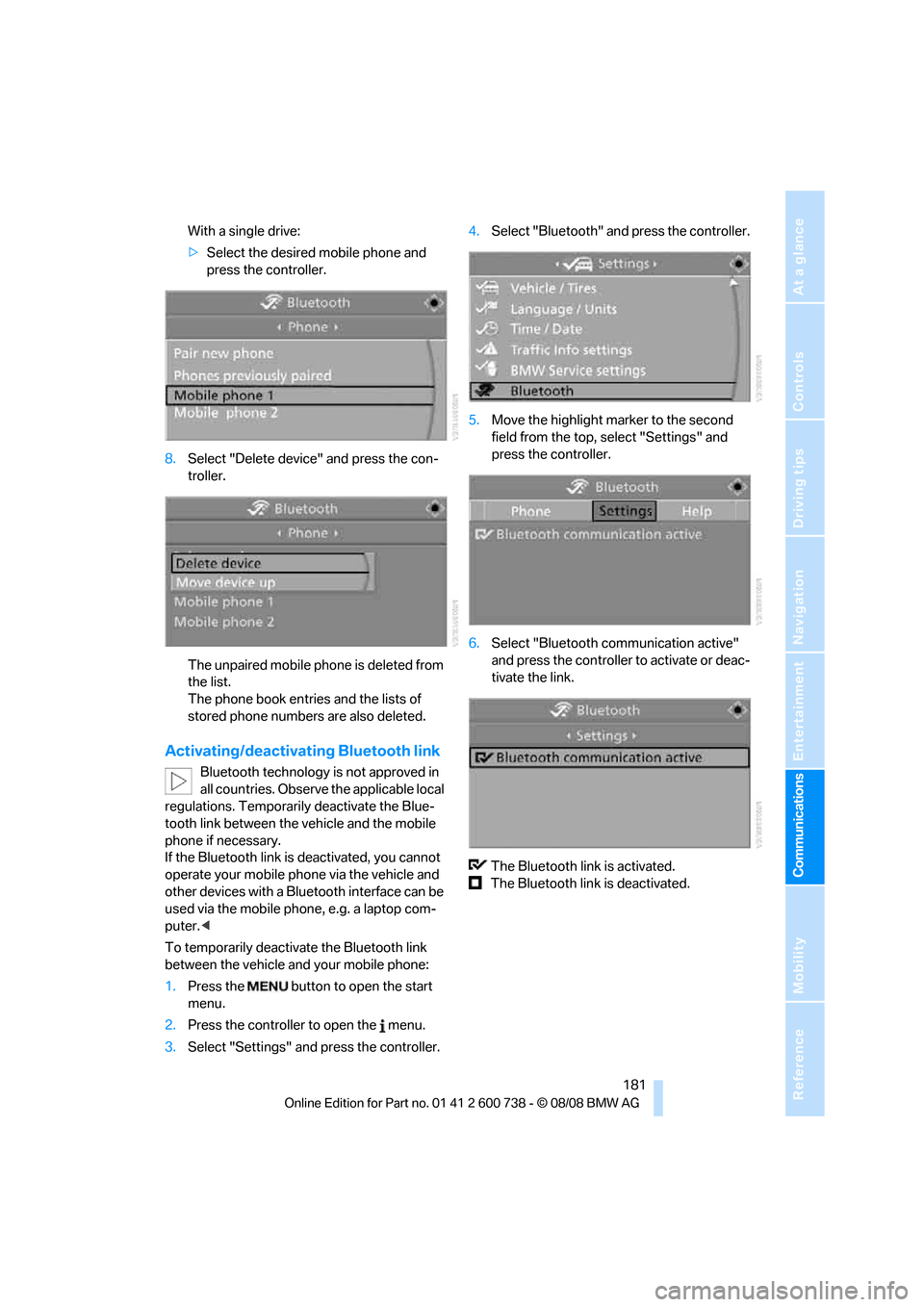
8.Select "Delete device" and press the con-
troller.
The unpaired mobile phone is deleted from
the list.
The phone book entries and the lists of
stored phone numbers are also deleted.
Activating/deactivating Bluetooth link
Bluetooth technology is not approved in
all countries. Observe the applicable local
regulations. Temporarily deactivate the Blue-
tooth link between the vehicle and the mobile
phone if necessary.
If the Bluetooth link is deactivated, you cannot
operate your mobile phone via the vehicle and
other devices with a Bluetooth interface can be
used via the mobile phone, e.g. a laptop com-
puter.<
To temporarily deactivate the Bluetooth link
between the vehicle and your mobile phone:
1.Press the button to open the start
menu.
2.Press the controller to open the menu.
3.Select "Settings" and press the controller.4.Select "Bluetooth" and press the controller.
5.Move the highlight marker to the second
field from the top, select "Settings" and
press the controller.
6.Select "Bluetooth communication active"
and press the controller to activate or deac-
tivate the link.
The Bluetooth link is activated.
The Bluetooth link is deactivated.
Page 184 of 266
Telephoning
182
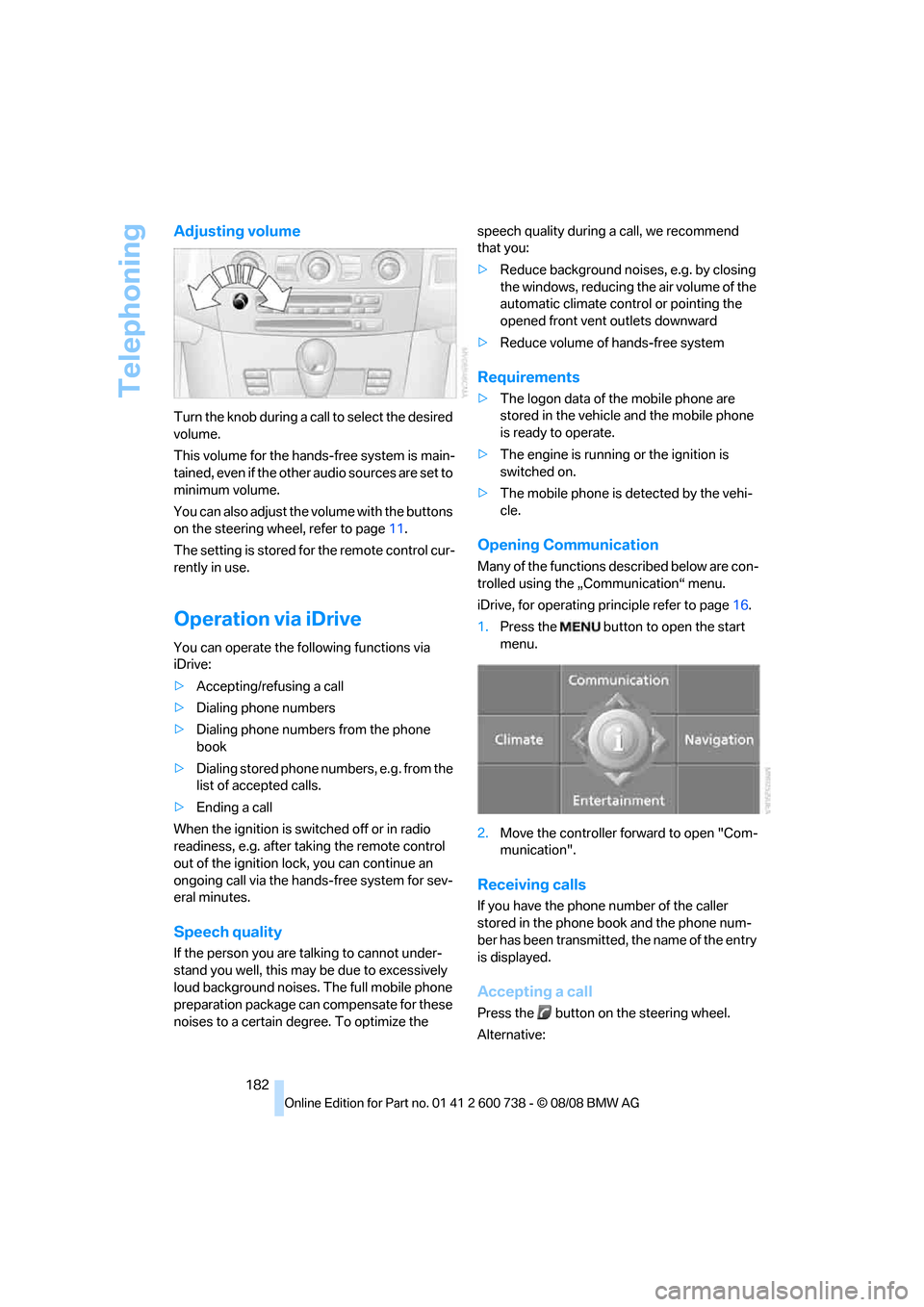
Adjusting volume
Turn the knob during a call to select the desired
volume.
This volume for the hands-free system is main-
tained, even if the other audio sources are set to
minimum volume.
You can also adjust the volume with the buttons
on the steering wheel, refer to page11.
The setting is stored for the remote control cur-
rently in use.
Operation via iDrive
You can operate the following functions via
iDrive:
>Accepting/refusing a call
>Dialing phone numbers
>Dialing phone numbers from the phone
book
>Dialing stored phone numbers, e.g. from the
list of accepted calls.
>Ending a call
When the ignition is switched off or in radio
readiness, e.g. after taking the remote control
out of the ignition lock, you can continue an
ongoing call via the hands-free system for sev-
eral minutes.
Speech quality
If the person you are talking to cannot under-
stand you well, this may be due to excessively
loud background noises. The full mobile phone
preparation package can compensate for these
noises to a certain degree. To optimize the speech quality during a call, we recommend
that you:
>Reduce background noises, e.g. by closing
the windows, reducing the air volume of the
automatic climate control or pointing the
opened front vent outlets downward
>Reduce volume of hands-free system
Requirements
>The logon data of the mobile phone are
stored in the vehicle and the mobile phone
is ready to operate.
>The engine is running or the ignition is
switched on.
>The mobile phone is detected by the vehi-
cle.
Opening Communication
Many of the functions described below are con-
trolled using the „Communication“ menu.
iDrive, for operating principle refer to page16.
1.Press the button to open the start
menu.
2.Move the controller forward to open "Com-
munication".
Receiving calls
If you have the phone number of the caller
stored in the phone book and the phone num-
ber has been transmitted, the name of the entry
is displayed.
Accepting a call
Press the button on the steering wheel.
Alternative:
Page 188 of 266
Telephoning
186 You can dial the displayed service phone num-
bers if your mobile phone is paired in the vehi-
cle:
iDrive, for operating principle refer to page16.
1.Press the button.
This opens the start menu.
2.Move the controller forward to select
"Communication".
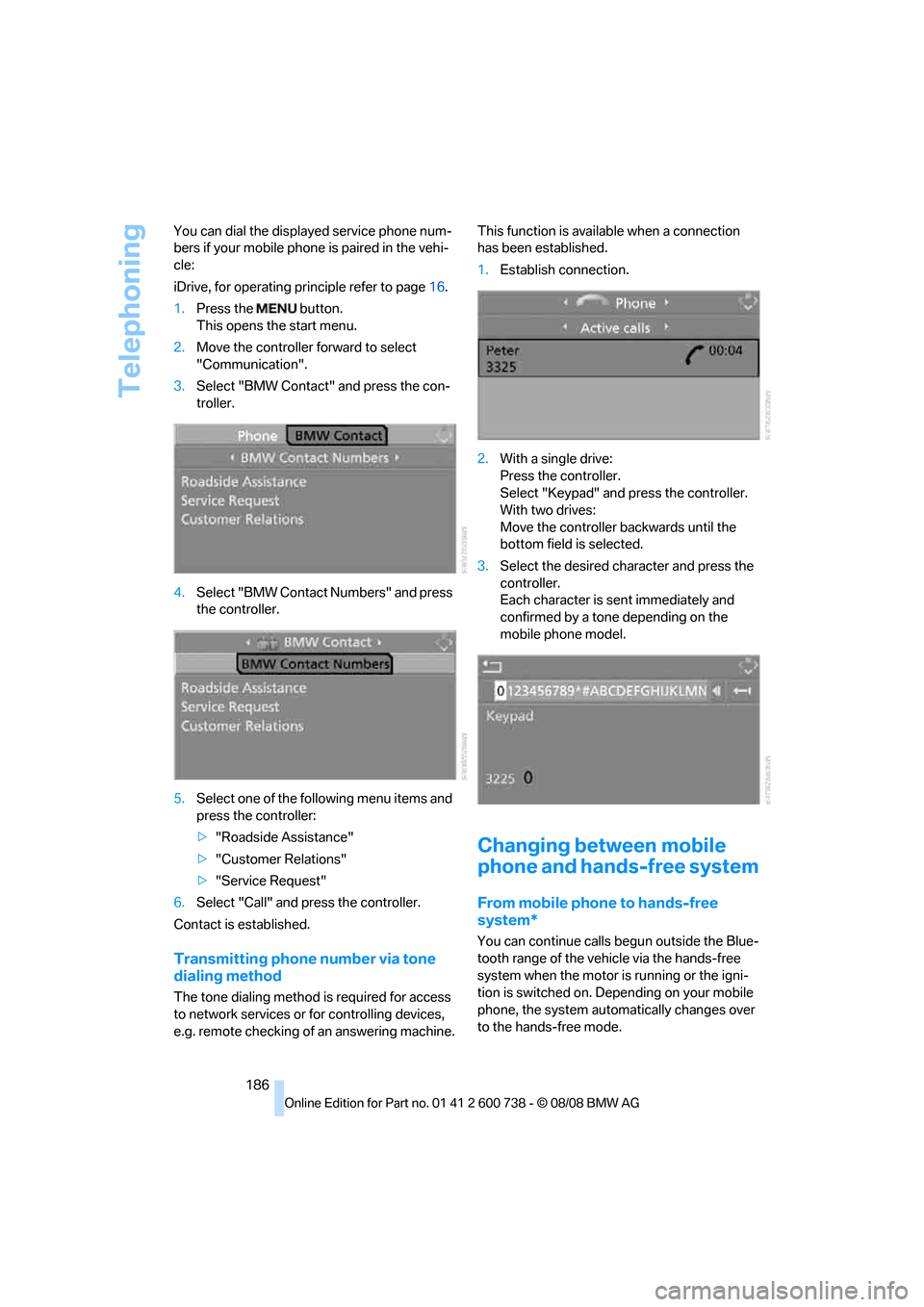
3.Select "BMW Contact" and press the con-
troller.
4.Select "BMW Contact Numbers" and press
the controller.
5.Select one of the following menu items and
press the controller:
>"Roadside Assistance"
>"Customer Relations"
>"Service Request"
6.Select "Call" and press the controller.
Contact is established.
Transmitting phone number via tone
dialing method
The tone dialing method is required for access
to network services or for controlling devices,
e.g. remote checking of an answering machine.This function is available when a connection
has been established.
1.Establish connection.
2.With a single drive:
Press the controller.
Select "Keypad" and press the controller.
With two drives:
Move the controller backwards until the
bottom field is selected.
3.Select the desired character
and press the
controller.
Each character is sent immediately and
confirmed by a tone depending on the
mobile phone model.
Changing between mobile
phone and hands-free system
From mobile phone to hands-free
system*
You can continue calls begun outside the Blue-
tooth range of the vehicle via the hands-free
system when the motor is running or the igni-
tion is switched on. Depending on your mobile
phone, the system automatically changes over
to the hands-free mode.
Page 189 of 266
187
Entertainment
Reference
At a glance
Controls
Driving tips Communications
Navigation
Mobility
For mobile phones that do not automatically
change over to the hands-free mode:
Depending on the mobile phone model used,
the conversation can be continued via the
hands-free system if necessary. Refer to the
display on your mobile phone and/or your
mobile phone's operating instructions.
From hands-free system to mobile
phone
When you telephone via the hands-free system,
you can also continue the call via the mobile
phone if necessary, depending on the mobile
phone model. Act according to what is shown
on the mobile phone display, refer to the oper-
ating instructions of your mobile phone.
As an alternative, you can deactivate the Blue-
tooth link.
Depending on your mobile phone model, poor
reception of the wireless communications net-
work can result in the system changing from the
hands-free system to the mobile phone.
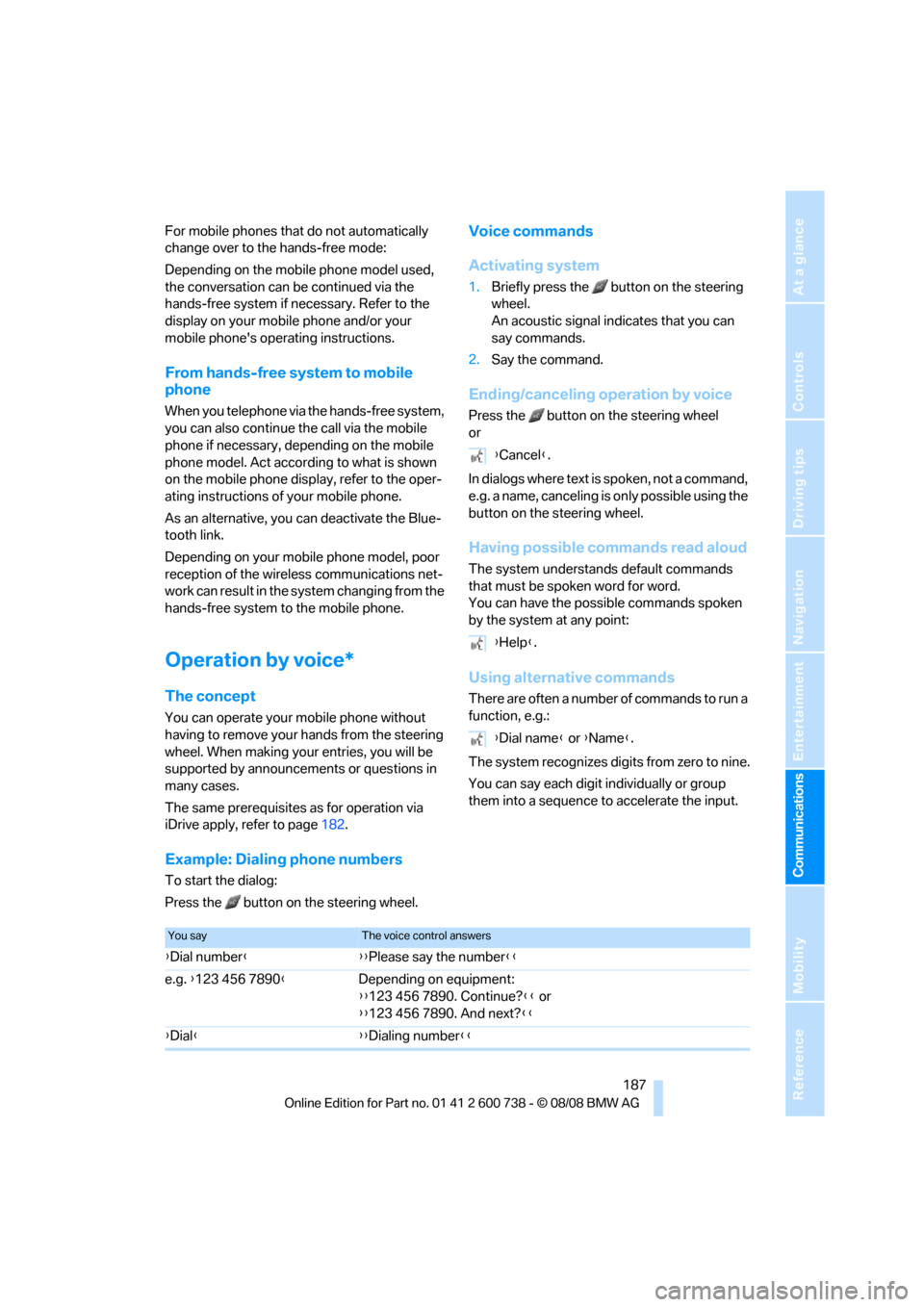
Operation by voice*
The concept
You can operate your mobile phone without
having to remove your hands from the steering
wheel. When making your entries, you will be
supported by announcements or questions in
many cases.
The same prerequisites as for operation via
iDrive apply, refer to page182.
Voice commands
Activating system
1.Briefly press the button on the steering
wheel.
An acoustic signal indicates that you can
say commands.
2.Say the command.
Ending/canceling operation by voice
Press the button on the steering wheel
or
In dialogs where text is spoken, not a command,
e.g. a name, canceling is only possible using the
button on the steering wheel.
Having possible commands read aloud
The system understands default commands
that must be spoken word for word.
You can have the possible commands spoken
by the system at any point:
Using alternative commands
There are often a number of commands to run a
function, e.g.:
The system recognizes digits from zero to nine.
You can say each digit individually or group
them into a sequence to accelerate the input.
Example: Dialing phone numbers
To start the dialog:
Press the button on the steering wheel.{Cancel}.
{Help}.
{Dial name} or {Name}.
You sayThe voice control answers
{Dial number}{{Please say the number}}
e.g. {123 456 7890}Depending on equipment:
{{123 456 7890. Continue?}} or
{{123 456 7890. And next?}}
{Dial}{{Dialing number}}
Page 194 of 266
BMW Assist
192 Press the SOS button to contact the BMW
Assist Response Center, see below.
You also have access to the BMW Assist con-
cierge service via the Internet.
Characteristics of the offered services
The following characteristics apply to the ser-
vices:
>The offered services are country-specific.
>Voice contact is established or data are
transmitted, depending on the equipment
and the country. In some countries, it is
possible to do both.
>The data transmitted can, for example, be
the vehicle data, your current position or the
CBS Condition Based Service data.
Using services
Contacting BMW Assist Response
Center
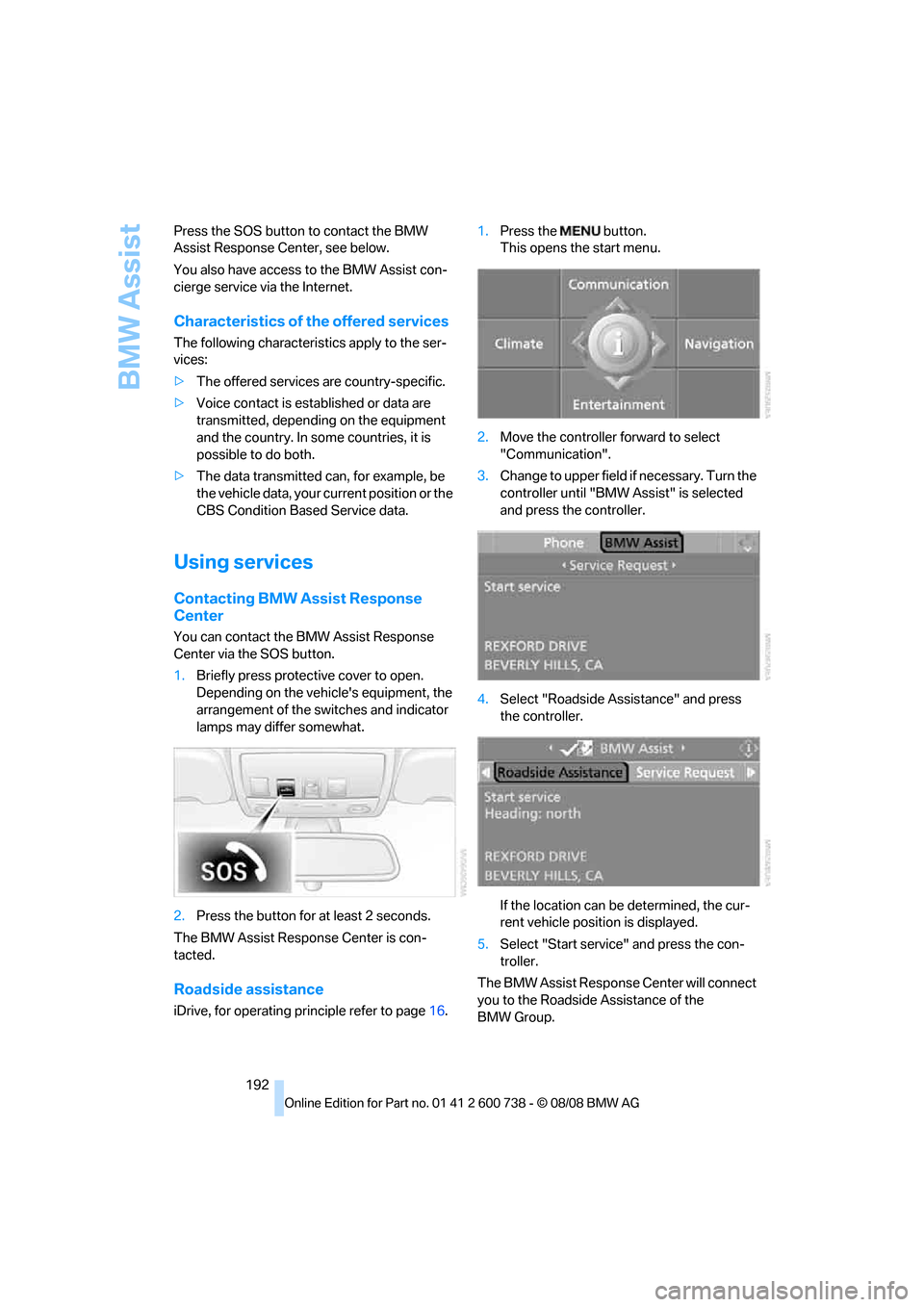
You can contact the BMW Assist Response
Center via the SOS button.
1.Briefly press protective cover to open.
Depending on the vehicle's equipment, the
arrangement of the switches and indicator
lamps may differ somewhat.
2.Press the button for at least 2 seconds.
The BMW Assist Response Center is con-
tacted.
Roadside assistance
iDrive, for operating principle refer to page16.1.Press the button.
This opens the start menu.
2.Move the controller forward to select
"Communication".
3.Change to upper field if necessary. Turn the
controller until "BMW Assist" is selected
and press the controller.
4.Select "Roadside Assistance" and press
the controller.
If the location can be determined, the cur-
rent vehicle position is displayed.
5.Select "Start service" and press the con-
troller.
The BMW Assist Response Center will connect
you to the Roadside Assistance of the
BMW Group.
Page 195 of 266
193
Entertainment
Reference
At a glance
Controls
Driving tips Communications
Navigation
Mobility
BMW TeleServices*
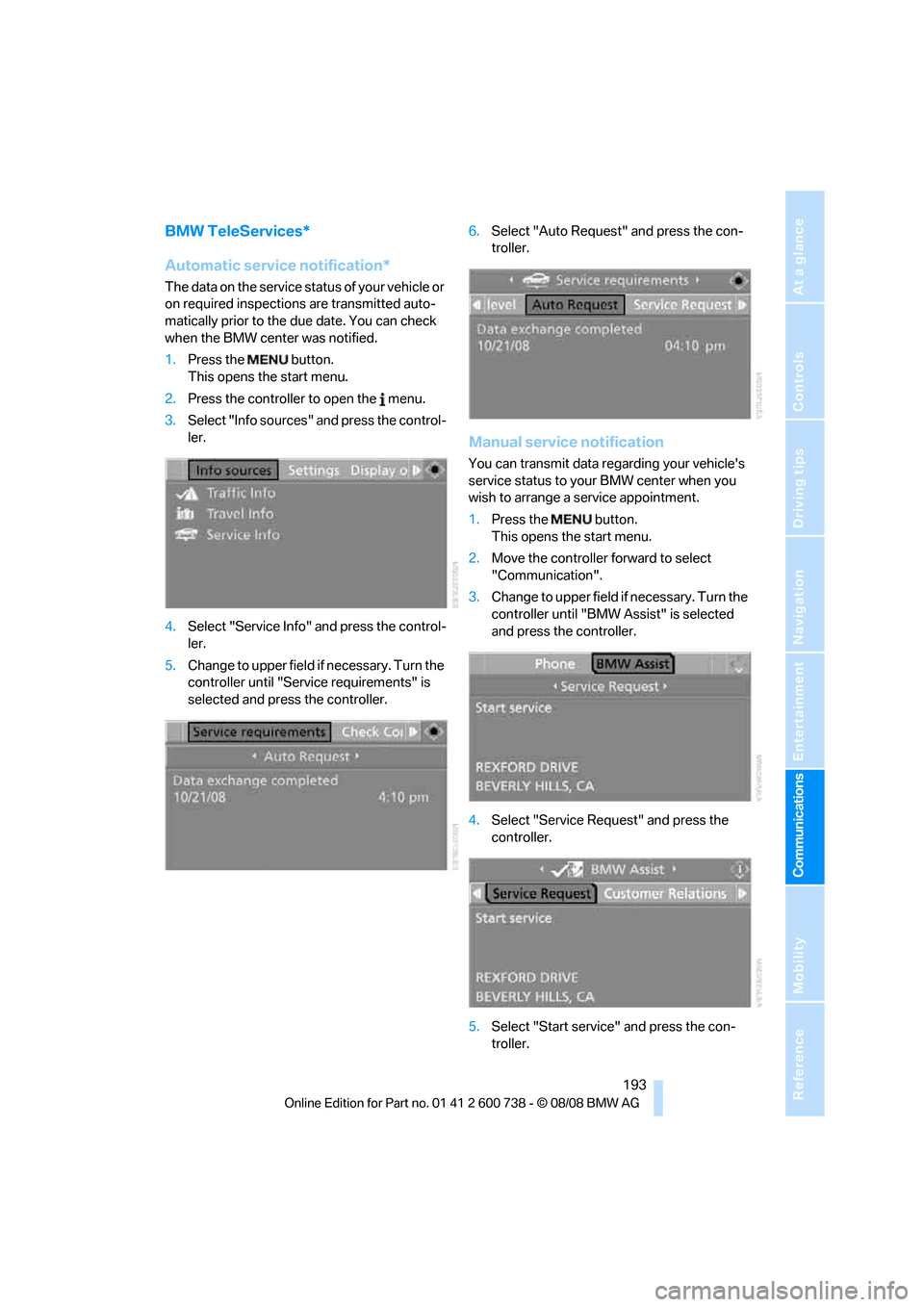
Automatic service notification*
The data on the service status of your vehicle or
on required inspections are transmitted auto-
matically prior to the due date. You can check
when the BMW center was notified.
1.Press the button.
This opens the start menu.
2.Press the controller to open the menu.
3.Select "Info sources" and press the control-
ler.
4.Select "Service Info" and press the control-
ler.
5.Change to upper field if necessary. Turn the
controller until "Service requirements" is
selected and press the controller.6.Select "Auto Request" and press the con-
troller.
Manual service notification
You can transmit data regarding your vehicle's
service status to your BMW center when you
wish to arrange a service appointment.
1.Press the button.
This opens the start menu.
2.Move the controller forward to select
"Communication".
3.Change to upper field if necessary. Turn the
controller until "BMW Assist" is selected
and press the controller.
4.Select "Service Request" and press the
controller.
5.Select "Start service" and press the con-
troller.
Page 196 of 266
BMW Assist
194 The data relevant for service are transmitted.
Your BMW center will contact you to set up an
appointment for service.
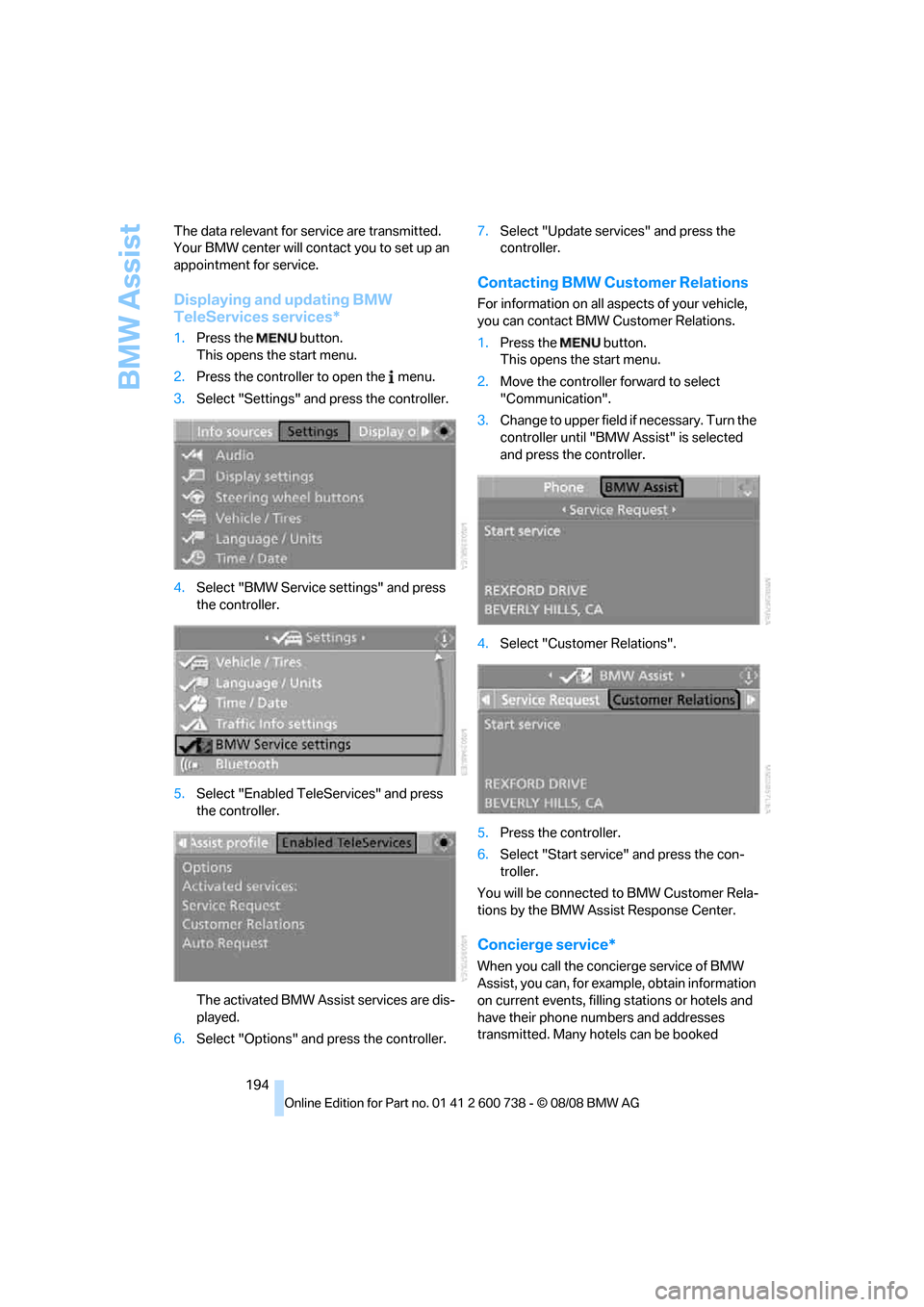
Displaying and updating BMW
TeleServices services*
1.Press the button.
This opens the start menu.
2.Press the controller to open the menu.
3.Select "Settings" and press the controller.
4.Select "BMW Service settings" and press
the controller.
5.Select "Enabled TeleServices" and press
the controller.
The activated BMW Assist services are dis-
played.
6.Select "Options" and press the controller.7.Select "Update services" and press the
controller.
Contacting BMW Customer Relations
For information on all aspects of your vehicle,
you can contact BMW Customer Relations.
1.Press the button.
This opens the start menu.
2.Move the controller forward to select
"Communication".
3.Change to upper field if necessary. Turn the
controller until "BMW Assist" is selected
and press the controller.
4.Select "Customer Relations".
5.Press the controller.
6.Select "Start service" and press the con-
troller.
You will be connected to BMW Customer Rela-
tions by the BMW Assist Response Center.
Concierge service*
When you call the concierge service of BMW
Assist, you can, for example, obtain information
on current events, filling stations or hotels and
have their phone numbers and addresses
transmitted. Many hotels can be booked
Page 197 of 266
195
Entertainment
Reference
At a glance
Controls
Driving tips Communications
Navigation
Mobility
directly through the BMW Assist concierge ser-
vice.
The concierge service must be enabled sepa-
rately by the BMW Assist Response Center.
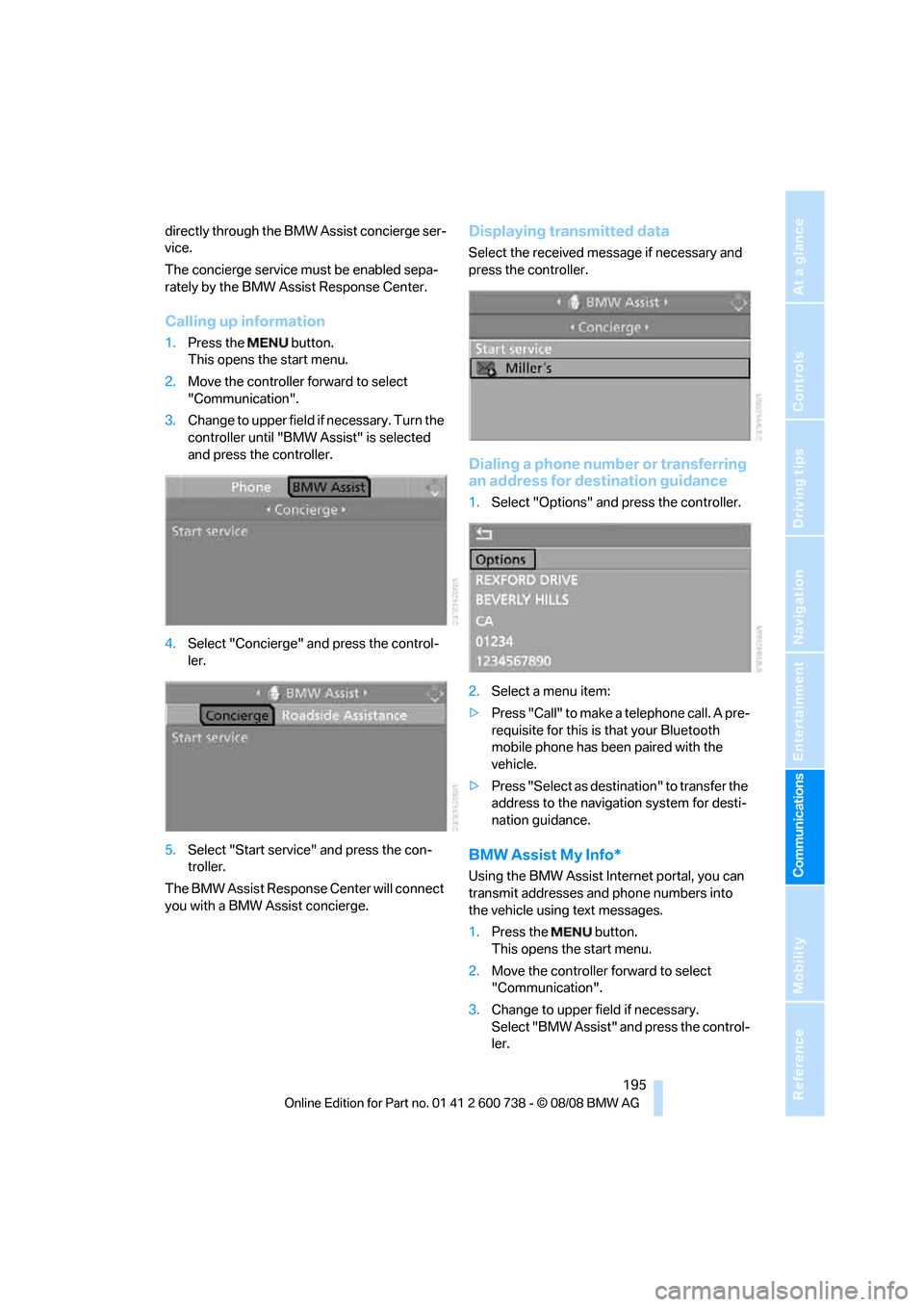
Calling up information
1.Press the button.
This opens the start menu.
2.Move the controller forward to select
"Communication".
3.Change to upper field if necessary. Turn the
controller until "BMW Assist" is selected
and press the controller.
4.Select "Concierge" and press the control-
ler.
5.Select "Start service" and press the con-
troller.
The BMW Assist Response Center will connect
you with a BMW Assist concierge.
Displaying transmitted data
Select the received message if necessary and
press the controller.
Dialing a phone number or transferring
an address for destination guidance
1.Select "Options" and press the controller.
2.Select a menu item:
>Press "Call" to make a telephone call. A pre-
requisite for this is that your Bluetooth
mobile phone has been paired with the
vehicle.
>Press "Select as destination" to transfer the
address to the navigation system for desti-
nation guidance.
BMW Assist My Info*
Using the BMW Assist Internet portal, you can
transmit addresses and phone numbers into
the vehicle using text messages.
1.Press the button.
This opens the start menu.
2.Move the controller forward to select
"Communication".
3.Change to upper field if necessary.
Select "BMW Assist" and press the control-
ler.
Page 198 of 266
BMW Assist
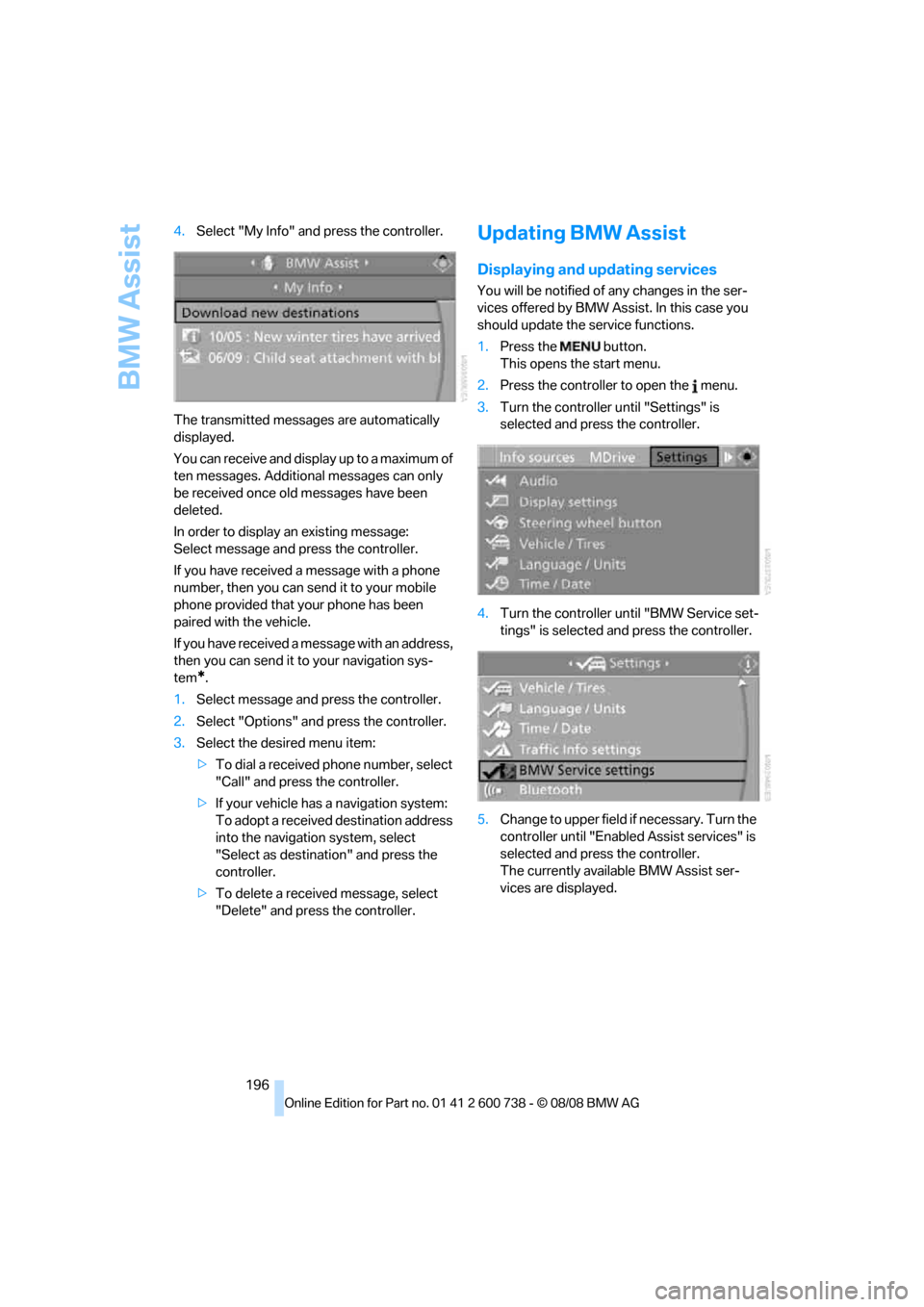
196 4.Select "My Info" and press the controller.
The transmitted messages are automatically
displayed.
You can receive and display up to a maximum of
ten messages. Additional messages can only
be received once old messages have been
deleted.
In order to display an existing message:
Select message and press the controller.
If you have received a message with a phone
number, then you can send it to your mobile
phone provided that your phone has been
paired with the vehicle.
If you have received a message with an address,
then you can send it to your navigation sys-
tem
*.
1.Select message and press the controller.
2.Select "Options" and press the controller.
3.Select the desired menu item:
>To dial a received phone number, select
"Call" and press the controller.
>If your vehicle has a navigation system:
To adopt a received destination address
into the navigation system, select
"Select as destination" and press the
controller.
>To delete a received message, select
"Delete" and press the controller.
Updating BMW Assist
Displaying and updating services
You will be notified of any changes in the ser-
vices offered by BMW Assist. In this case you
should update the service functions.
1.Press the button.
This opens the start menu.
2.Press the controller to open the menu.
3.Turn the controller until "Settings" is
selected and press the controller.
4.Turn the controller until "BMW Service set-
tings" is selected and press the controller.
5.Change to upper field if necessary. Turn the
controller until "Enabled Assist services" is
selected and press the controller.
The currently available BMW Assist ser-
vices are displayed.