CD player BMW M6 CONVERTIBLE 2012 User Guide
[x] Cancel search | Manufacturer: BMW, Model Year: 2012, Model line: M6 CONVERTIBLE, Model: BMW M6 CONVERTIBLE 2012Pages: 297, PDF Size: 12.09 MB
Page 202 of 297
▷Depending on the mobile phone, it is possi‐
ble that only one device can be connected
to the vehicle. Unpair the connected device
from the vehicle and pair and connect only
one device.▷The device no longer reacts? Switch the de‐
vice off and on again.▷Repeat the pairing procedure.
Music cannot be played back.
▷Start the program for playing back music
data on the device and select a track on the
device if necessary.▷Switch the radio off and on again.
Music files can only be played back softly.
▷Adjust the volume settings on the device.
Playback is disturbed when buttons are pressed
or by other messages on the device.
▷Switch off the button tones and other signal
tones on the device.
Playback is interrupted by a telephone call or
traffic bulletin and is not resumed automatically.
▷Switch the radio off and on again.
Playback is not possible if the mobile phone is
connected both via Bluetooth Audio and via the
extended connectivity of the music player in the
mobile phone.
▷Disconnect one of the two connections; for
example, disconnect the audio connection,
refer to page 201, and restart playback.
If all points in this list have been checked and the
required function is still not available, contact
the hotline or service center.
Software Update
The vehicle supports various external devices
depending on the current software version. With
a software update, the vehicle can support new
cell phones or new external device, for example.
The updating of the software is done via:
▷USB.Updates and related current information is
available at www.bmw.com/update.
Displaying the current version
The currently installed software is displayed.
1."Settings"2."Software update"3."Show current version"
SelectDesired version to displayAdditional in‐
formation.
Updating software via USB
The software may only be updated when the ve‐
hicle is stationary.
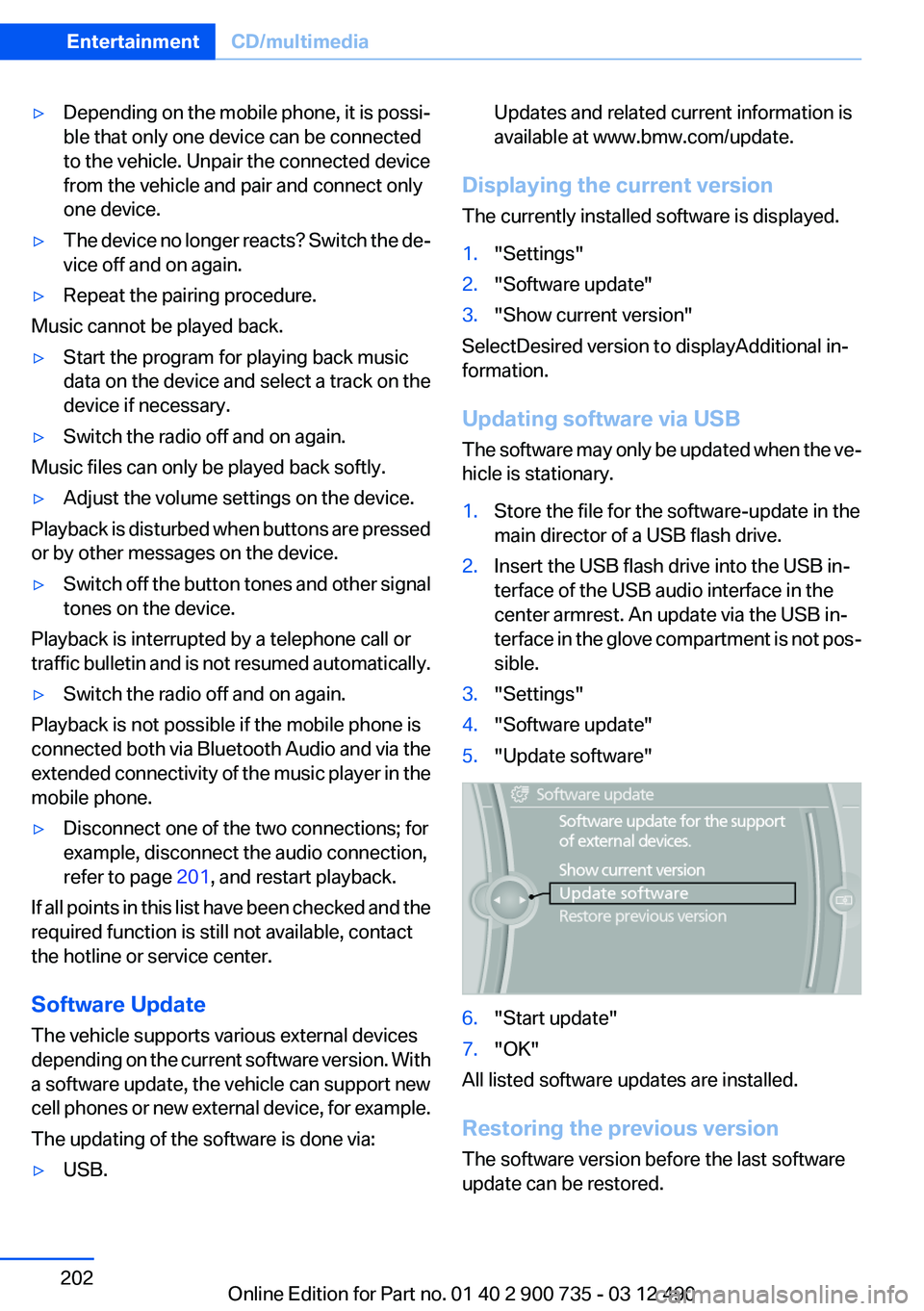
1.Store the file for the software-update in the
main director of a USB flash drive.2.Insert the USB flash drive into the USB in‐
terface of the USB audio interface in the
center armrest. An update via the USB in‐
terface in the glove compartment is not pos‐
sible.3."Settings"4."Software update"5."Update software"6."Start update"7."OK"
All listed software updates are installed.
Restoring the previous version
The software version before the last software
update can be restored.
Seite 202EntertainmentCD/multimedia202
Online Edition for Part no. 01 40 2 900 735 - 03 12 490
Page 206 of 297
TelephoneVehicle equipment
All standard, country-specific and optional
equipment that is offered in the model series is
described in this chapter. Therefore, equipment
is also described that is not available in a vehicle,
e. g., because of the selected optional equip‐
ment or country variant. This also applies for
safety-related functions and systems.
At a glance
The concept
Mobile phones or other external devices such as
audio players can be connected to the vehicle
via Bluetooth.
After these devices are paired once, they are
recognized automatically when the ignition is
switched on as soon as they are inside the ve‐
hicle and can be operated via iDrive, the buttons
on the steering wheel, and via voice activation.
Depending on their functionality, external devi‐
ces can be used via the vehicle as a telephone
or as an audio source. The telephone functions
are described in the following.
Up to four external devices can be paired.
Certain functions may need to be enabled by the
mobile phone provider or service provider.
Using the mobile phone while driving
Make entries only when traffic and road
conditions allow. Do not hold the mobile phone
in your hand while you are driving; use the
hands-free system instead. If you do not ob‐
serve this precaution, you can endanger the ve‐
hicle occupants and other road users.◀
Snap-in adapter
The snap-in adapter is used to:▷Hold the mobile phone.▷Recharge the battery.▷Connect the mobile phone to an outside an‐
tenna of the vehicle.
This provides for better network reception
and consistent sound quality.
Approved mobile phones
Details on which mobile phones and external
devices with a Bluetooth interface are sup‐
ported by the mobile phone preparation pack‐
age can be obtained at www.bmwusa.com/blue‐
tooth.
Displaying the vehicle identification
number and software part number
The vehicle identification number and software
part number are needed to determine which mo‐
bile phones are supported by the mobile phone
preparation package. The software version of
the mobile phone may also be required.
1."Telephone"2.Open "Options".3."Bluetooth® info"4."Display system information"
These approved mobile phones with a certain
software version, support the vehicle functions
described below.
Malfunctions may occur with other mobile
phones or software versions.
Do not operate a mobile phone that is connected
to the vehicle on the mobile phone keypad, as
this may lead to a malfunction.
A software update can be performed if neces‐
sary.
Notes
At high temperatures, the charge function of the
mobile phone can be limited where appropriate
and the functions are no longer executed.
Seite 206CommunicationTelephone206
Online Edition for Part no. 01 40 2 900 735 - 03 12 490
Page 291 of 297
M
Maintenance 255
Maintenance require‐ ments 255
Maintenance, service require‐ ments 83
Maintenance system, BMW 255
Malfunction displays, refer to Check Control 78
Manual air distribution 126
Manual air volume 126
Manual brake, refer to Parking brake 67
Manual operation, backup camera 115
Manual operation, door lock 37
Manual operation, exterior mir‐ rors 58
Manual operation, fuel filler flap 238
Manual operation, Park Dis‐ tance Control PDC 113
Manual operation, Side View 119
Manual operation, Top View 117
Map, destination entry 157
Map in split screen 164
Map view 162
Marking on approved tires 245
Massage seat, front 53
Master key, refer to Remote control 30
Maximum cooling 127
Maximum speed, winter tires 246
M differential, active 108
MDM, M Dynamic Mode 107
M double-clutch transmis‐ sion 68
M Drive 59 M Driving Dynamics Con‐
trol 73
M Dynamic Mode MDM 107
Measure, units of 88
Medical kit 264
Memory for seat, mirrors, steering wheel 56
Menu in instrument cluster 84
Menus, operating, iDrive 16
Menus, refer to iDrive operat‐ ing concept 17
Message list, traffic bulle‐ tins 164
Messages 221
Messages, refer to Check Control 78
Microfilter 128
Minimum tread, tires 244
Mirror 57
Mirror memory 56
Mobile communication devi‐ ces in the vehicle 143
Mobile phone 206
Mobility System 246
Modifications, technical, refer to Safety 6
Moisture in headlamp 258
Monitor, refer to Control Dis‐ play 16
Mounting of child restraint fix‐ ing systems 61
MP3 player 195
M technology 0
Multifunction steering wheel, buttons 12
Multimedia 183
Music collection 190
Music search 191
Music, storing 190
M view, Head-up Display 123
N
Navigation 152
Navigation data 167 Neck restraints, front, refer to
Head restraints 55
New wheels and tires 245
Night Vision with pedestrian detection 119
Notes 224
Nylon rope for tow-starting/ towing 267
O
OBD Onboard Diagnos‐ tics 256
Obstacle marking, backup camera 116
Odometer 81
Office 218
Oil 252
Oil, adding 252
Oil additives 253
Oil change 253
Oil change interval, service re‐ quirements 83
Oil filler neck 252
Oil types, alternative 253
Oil types, approved 253
Old batteries, disposal 261
Onboard Diagnostics OBD 256
Onboard monitor, refer to Control Display 16
Onboard vehicle tool kit 257
Opening/closing from in‐ side 37
Opening/closing via door lock 37
Opening/closing with remote control 34
Operating concept, iDrive 16
Optional equipment, standard equipment 6
Outside air, refer to Automatic recirculated-air control 127
Overheating of engine, refer to Coolant temperature 81 Seite 291Everything from A to ZReference291
Online Edition for Part no. 01 40 2 900 735 - 03 12 490