instrument cluster BMW M6 CONVERTIBLE 2012 Owner's Manual
[x] Cancel search | Manufacturer: BMW, Model Year: 2012, Model line: M6 CONVERTIBLE, Model: BMW M6 CONVERTIBLE 2012Pages: 297, PDF Size: 12.09 MB
Page 107 of 297
M Dynamic Mode MDM
M Dynamic Mode makes it possible to drive on
a dry roadway with high longitudinal and trans‐
verse acceleration but with limited driving sta‐
bility.
Only in the absolute limit area does the system
intervene for stabilization by reducing the en‐
gine power and by braking interventions on the
wheels. In this driving condition, additional
steering corrections may be necessary.
Limited stabilizing interventions
When M Dynamic Mode is activated, sta‐
bilizing interventions are carried out only to a re‐
duced extent. You must react yourself; other‐
wise, there is the danger of an accident
occurring.◀
To increase vehicle stability, activate DSC again
as soon as possible.
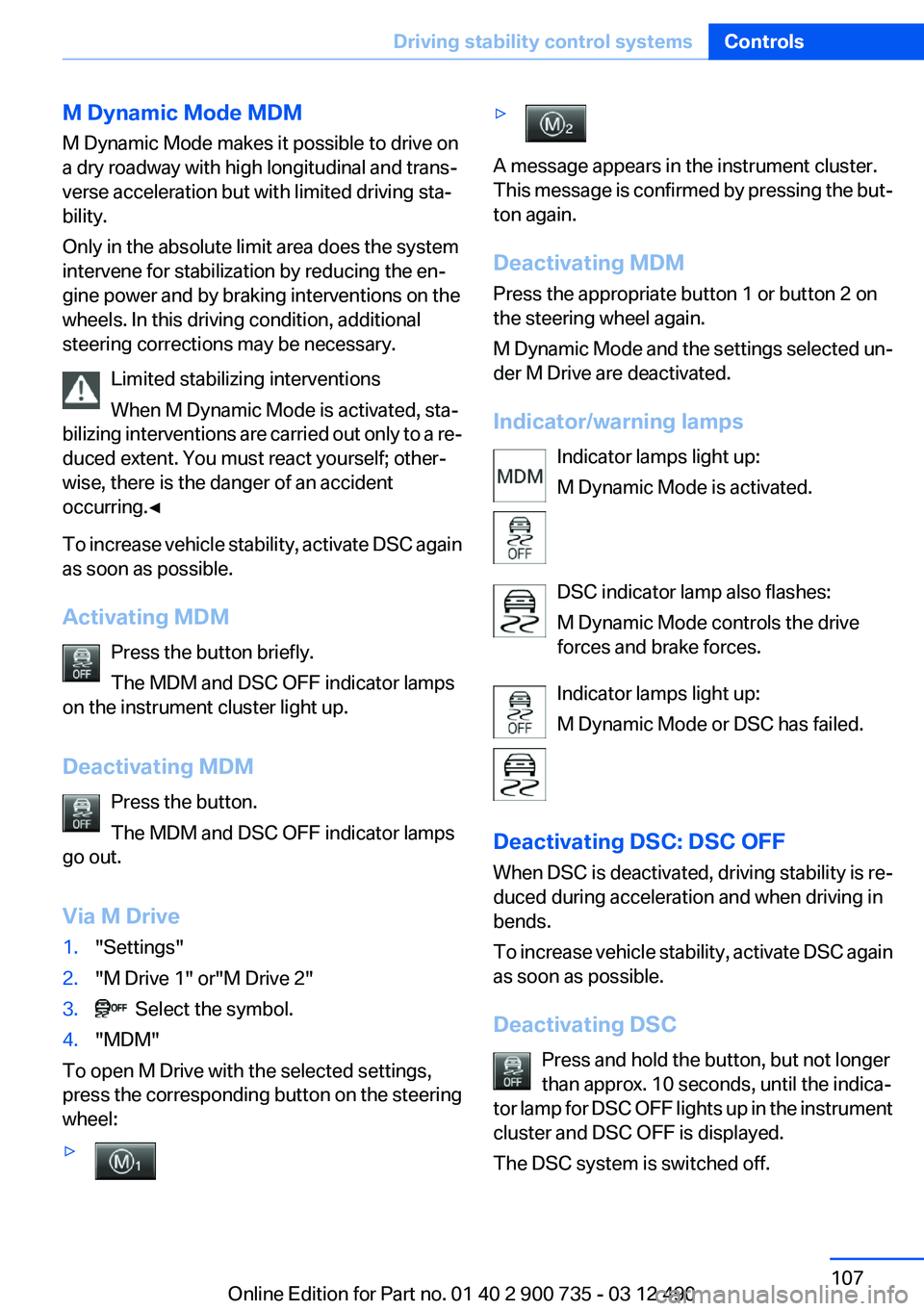
Activating MDM Press the button briefly.
The MDM and DSC OFF indicator lamps
on the instrument cluster light up.
Deactivating MDM Press the button.
The MDM and DSC OFF indicator lamps
go out.
Via M Drive1."Settings"2."M Drive 1" or"M Drive 2"3. Select the symbol.4."MDM"
To open M Drive with the selected settings,
press the corresponding button on the steering
wheel:
▷▷
A message appears in the instrument cluster.
This message is confirmed by pressing the but‐
ton again.
Deactivating MDM
Press the appropriate button 1 or button 2 on
the steering wheel again.
M Dynamic Mode and the settings selected un‐
der M Drive are deactivated.
Indicator/warning lamps Indicator lamps light up:
M Dynamic Mode is activated.
DSC indicator lamp also flashes:
M Dynamic Mode controls the drive
forces and brake forces.
Indicator lamps light up:
M Dynamic Mode or DSC has failed.
Deactivating DSC: DSC OFF
When DSC is deactivated, driving stability is re‐
duced during acceleration and when driving in
bends.
To increase vehicle stability, activate DSC again
as soon as possible.
Deactivating DSC Press and hold the button, but not longer
than approx. 10 seconds, until the indica‐
tor lamp for DSC OFF lights up in the instrument
cluster and DSC OFF is displayed.
The DSC system is switched off.
Seite 107Driving stability control systemsControls107
Online Edition for Part no. 01 40 2 900 735 - 03 12 490
Page 108 of 297
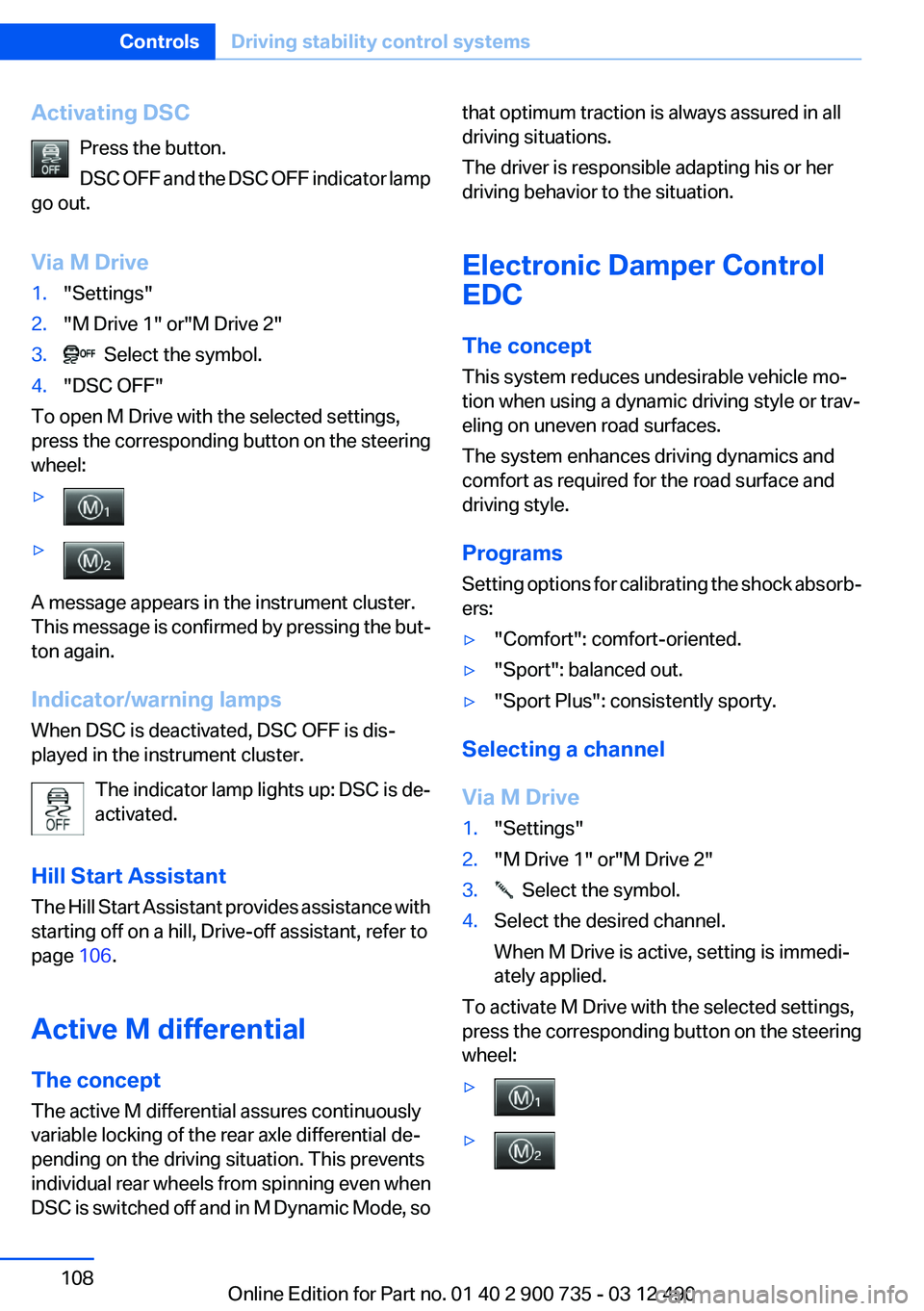
Activating DSCPress the button.
DSC OFF and the DSC OFF indicator lamp
go out.
Via M Drive1."Settings"2."M Drive 1" or"M Drive 2"3. Select the symbol.4."DSC OFF"
To open M Drive with the selected settings,
press the corresponding button on the steering
wheel:
▷▷
A message appears in the instrument cluster.
This message is confirmed by pressing the but‐
ton again.
Indicator/warning lamps
When DSC is deactivated, DSC OFF is dis‐
played in the instrument cluster.
The indicator lamp lights up: DSC is de‐
activated.
Hill Start Assistant
The Hill Start Assistant provides assistance with
starting off on a hill, Drive-off assistant, refer to
page 106.
Active M differential
The concept
The active M differential assures continuously
variable locking of the rear axle differential de‐
pending on the driving situation. This prevents
individual rear wheels from spinning even when
DSC is switched off and in M Dynamic Mode, so
that optimum traction is always assured in all
driving situations.
The driver is responsible adapting his or her
driving behavior to the situation.
Electronic Damper Control
EDC
The concept
This system reduces undesirable vehicle mo‐
tion when using a dynamic driving style or trav‐
eling on uneven road surfaces.
The system enhances driving dynamics and
comfort as required for the road surface and
driving style.
Programs
Setting options for calibrating the shock absorb‐
ers:▷"Comfort": comfort-oriented.▷"Sport": balanced out.▷"Sport Plus": consistently sporty.
Selecting a channel
Via M Drive
1."Settings"2."M Drive 1" or"M Drive 2"3. Select the symbol.4.Select the desired channel.
When M Drive is active, setting is immedi‐
ately applied.
To activate M Drive with the selected settings,
press the corresponding button on the steering
wheel:
▷▷Seite 108ControlsDriving stability control systems108
Online Edition for Part no. 01 40 2 900 735 - 03 12 490
Page 109 of 297
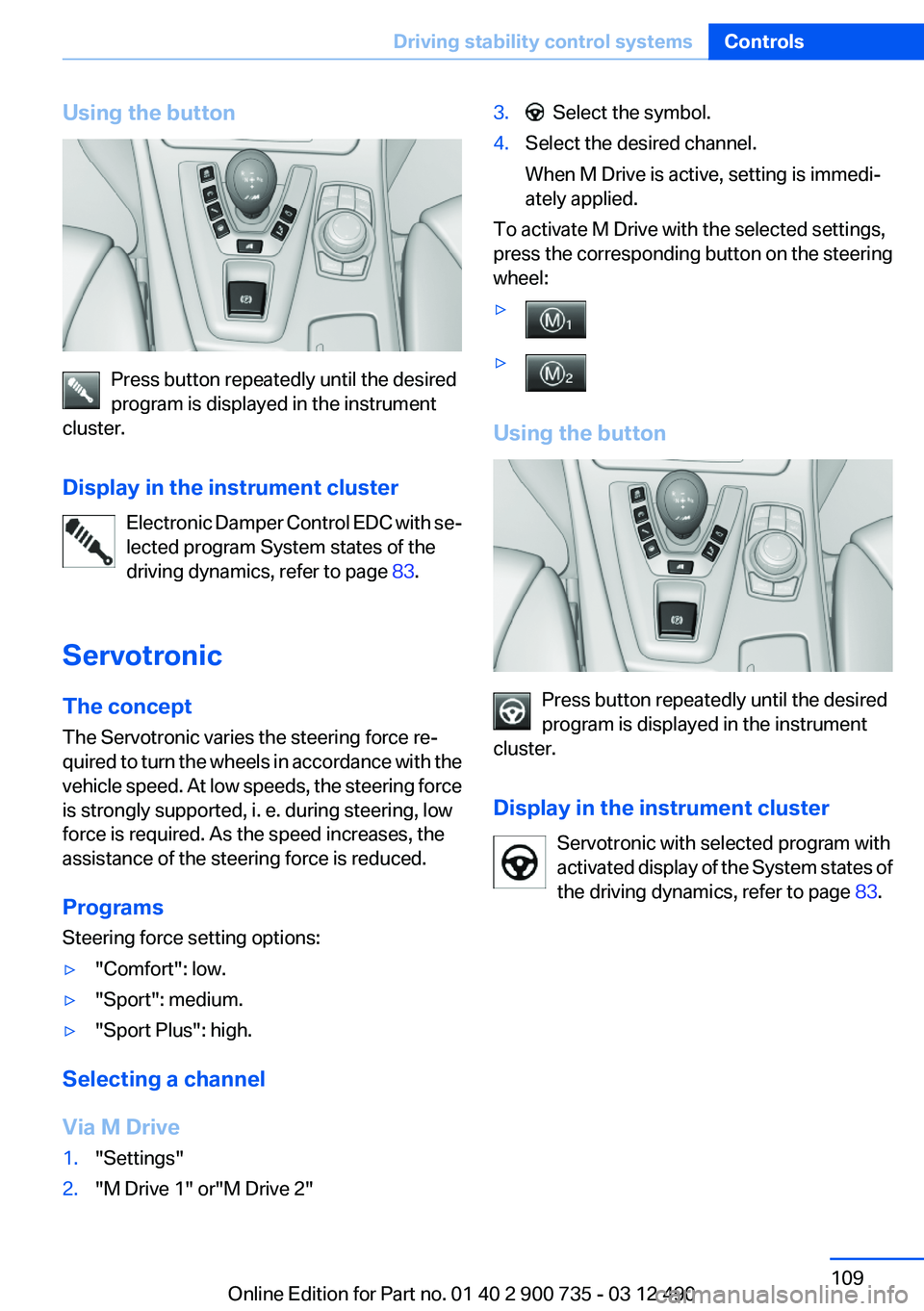
Using the button
Press button repeatedly until the desired
program is displayed in the instrument
cluster.
Display in the instrument cluster Electronic Damper Control EDC with se‐
lected program System states of the
driving dynamics, refer to page 83.
Servotronic
The concept
The Servotronic varies the steering force re‐
quired to turn the wheels in accordance with the
vehicle speed. At low speeds, the steering force
is strongly supported, i. e. during steering, low
force is required. As the speed increases, the
assistance of the steering force is reduced.
Programs
Steering force setting options:
▷"Comfort": low.▷"Sport": medium.▷"Sport Plus": high.
Selecting a channel
Via M Drive
1."Settings"2."M Drive 1" or"M Drive 2"3. Select the symbol.4.Select the desired channel.
When M Drive is active, setting is immedi‐
ately applied.
To activate M Drive with the selected settings,
press the corresponding button on the steering
wheel:
▷▷
Using the button
Press button repeatedly until the desired
program is displayed in the instrument
cluster.
Display in the instrument cluster Servotronic with selected program with
activated display of the System states of
the driving dynamics, refer to page 83.
Seite 109Driving stability control systemsControls109
Online Edition for Part no. 01 40 2 900 735 - 03 12 490
Page 111 of 297
Interrupting the systemWhen active, press the button.
The system is automatically interrupted if:▷The brakes are applied.▷The transmission position D is disengaged.▷MDM is activated or DSC is deactivated.▷DSC is actively controlling stability.
Maintaining/storing the current speed
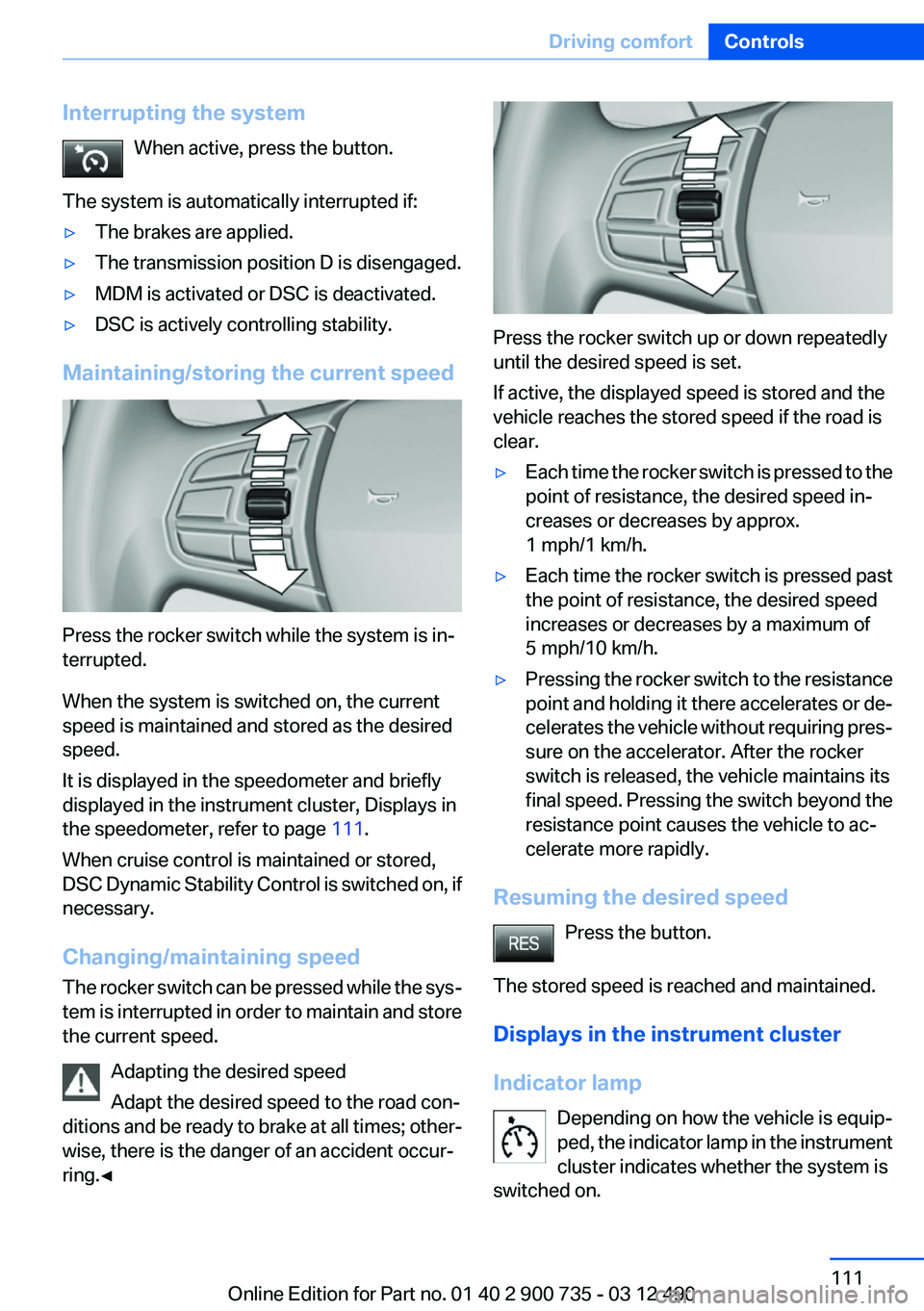
Press the rocker switch while the system is in‐
terrupted.
When the system is switched on, the current
speed is maintained and stored as the desired
speed.
It is displayed in the speedometer and briefly
displayed in the instrument cluster, Displays in
the speedometer, refer to page 111.
When cruise control is maintained or stored,
DSC Dynamic Stability Control is switched on, if
necessary.
Changing/maintaining speed
The rocker switch can be pressed while the sys‐
tem is interrupted in order to maintain and store
the current speed.
Adapting the desired speed
Adapt the desired speed to the road con‐
ditions and be ready to brake at all times; other‐
wise, there is the danger of an accident occur‐
ring.◀
Press the rocker switch up or down repeatedly
until the desired speed is set.
If active, the displayed speed is stored and the
vehicle reaches the stored speed if the road is
clear.
▷Each time the rocker switch is pressed to the
point of resistance, the desired speed in‐
creases or decreases by approx.
1 mph/1 km/h.▷Each time the rocker switch is pressed past
the point of resistance, the desired speed
increases or decreases by a maximum of
5 mph/10 km/h.▷Pressing the rocker switch to the resistance
point and holding it there accelerates or de‐
celerates the vehicle without requiring pres‐
sure on the accelerator. After the rocker
switch is released, the vehicle maintains its
final speed. Pressing the switch beyond the
resistance point causes the vehicle to ac‐
celerate more rapidly.
Resuming the desired speed
Press the button.
The stored speed is reached and maintained.
Displays in the instrument cluster
Indicator lamp Depending on how the vehicle is equip‐
ped, the indicator lamp in the instrument
cluster indicates whether the system is
switched on.
Seite 111Driving comfortControls111
Online Edition for Part no. 01 40 2 900 735 - 03 12 490
Page 160 of 297
Intermediate destination options1."Map"2. "Guidance"3."Display all trip destinations"4.Select an intermediate destination.▷"Edit destination"▷"Reposition dest. in the trip": move an
intermediate destination to another po‐
sition in the list.▷"Delete dest. in the trip"▷"Go to next dest. in the trip"
Some options are not available for certain trips.
With the Professional navigation
system: deleting a stored trip
1."Stored trips"2.Highlight the desired trip.3.Open "Options".4."Delete all trips" or "Delete trip"
With the Professional navigation
system: calling up the last trip
1."Navigation"2."Stored trips"3."Last trip"4."Start guidance"
Destination guidance
Starting destination guidance
1."Navigation"2.Enter the destination, refer to page 152.3."Accept destination"4."Start guidance"▷The route is shown on the Control Display.▷The distance to the destination/intermedi‐
ate destination and the estimated time of ar‐
rival are displayed in the map view.▷The arrow view is shown in the instrument
cluster, in the Head-up Display, and on the
Control Display where appropriate.
Terminating destination guidance
1."Navigation"2."Map"3. "Guidance"4."Stop guidance"
Continuing destination guidance
If the destination was not reached during the last
trip, destination guidance can be resumed.
"Resume guidance"
Route criteria
General information
▷The route calculated can be influenced by
selecting certain criteria.▷The route criteria can be changed when the
destination is entered and during destina‐
tion guidance.▷Road types are part of the navigation data
and are taken into consideration when plan‐
ning a route, such as when avoiding high‐
ways.▷The recommended route may differ from the
route you would take based on personal ex‐
perience.▷The settings are stored for the remote con‐
trol currently in use.▷Destination guidance with traffic bulletins,
refer to page 166.
Changing the route criteria
1."Navigation"2."Map"3. "Route preference"4.Select the criterion:Seite 160NavigationNavigation system160
Online Edition for Part no. 01 40 2 900 735 - 03 12 490
Page 161 of 297
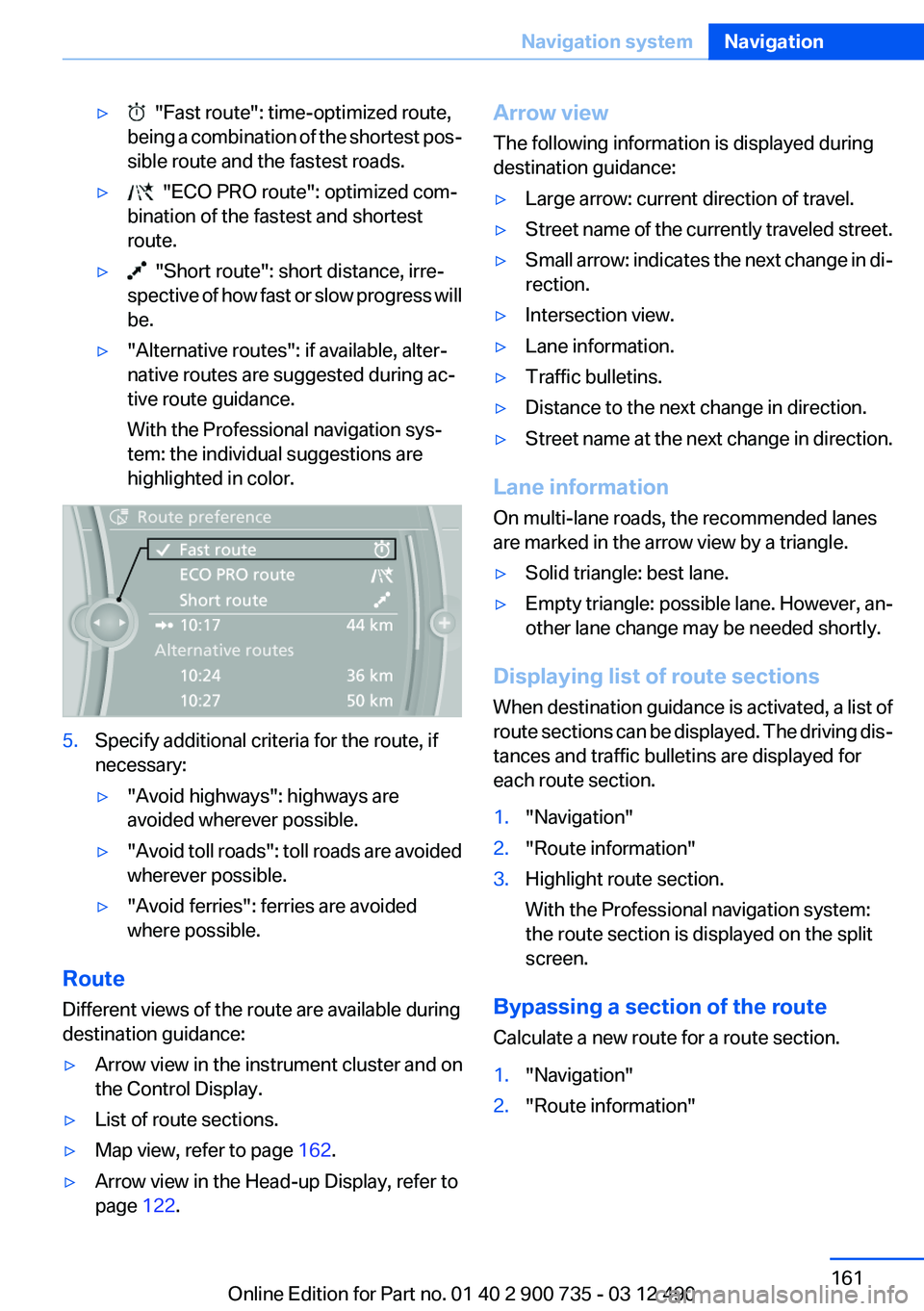
▷ "Fast route": time-optimized route,
being a combination of the shortest pos‐
sible route and the fastest roads.▷ "ECO PRO route": optimized com‐
bination of the fastest and shortest
route.▷ "Short route": short distance, irre‐
spective of how fast or slow progress will
be.▷"Alternative routes": if available, alter‐
native routes are suggested during ac‐
tive route guidance.
With the Professional navigation sys‐
tem: the individual suggestions are
highlighted in color.5.Specify additional criteria for the route, if
necessary:▷"Avoid highways": highways are
avoided wherever possible.▷" Avoid toll roads": toll roads are avoided
wherever possible.▷"Avoid ferries": ferries are avoided
where possible.
Route
Different views of the route are available during
destination guidance:
▷Arrow view in the instrument cluster and on
the Control Display.▷List of route sections.▷Map view, refer to page 162.▷Arrow view in the Head-up Display, refer to
page 122.Arrow view
The following information is displayed during
destination guidance:▷Large arrow: current direction of travel.▷Street name of the currently traveled street.▷Small arrow: indicates the next change in di‐
rection.▷Intersection view.▷Lane information.▷Traffic bulletins.▷Distance to the next change in direction.▷Street name at the next change in direction.
Lane information
On multi-lane roads, the recommended lanes
are marked in the arrow view by a triangle.
▷Solid triangle: best lane.▷Empty triangle: possible lane. However, an‐
other lane change may be needed shortly.
Displaying list of route sections
When destination guidance is activated, a list of
route sections can be displayed. The driving dis‐
tances and traffic bulletins are displayed for
each route section.
1."Navigation"2."Route information"3.Highlight route section.
With the Professional navigation system:
the route section is displayed on the split
screen.
Bypassing a section of the route
Calculate a new route for a route section.
1."Navigation"2."Route information"Seite 161Navigation systemNavigation161
Online Edition for Part no. 01 40 2 900 735 - 03 12 490
Page 211 of 297
Via the button on the steering wheelPress the button.
Via the instrument cluster
"Accept"
Rejecting a call
Via iDrive
"Reject"
Via the instrument cluster
"Reject"
Ending a call
Via iDrive
"End call"
Via the button on the steering wheel Press the button.
Via the instrument cluster
"End call"
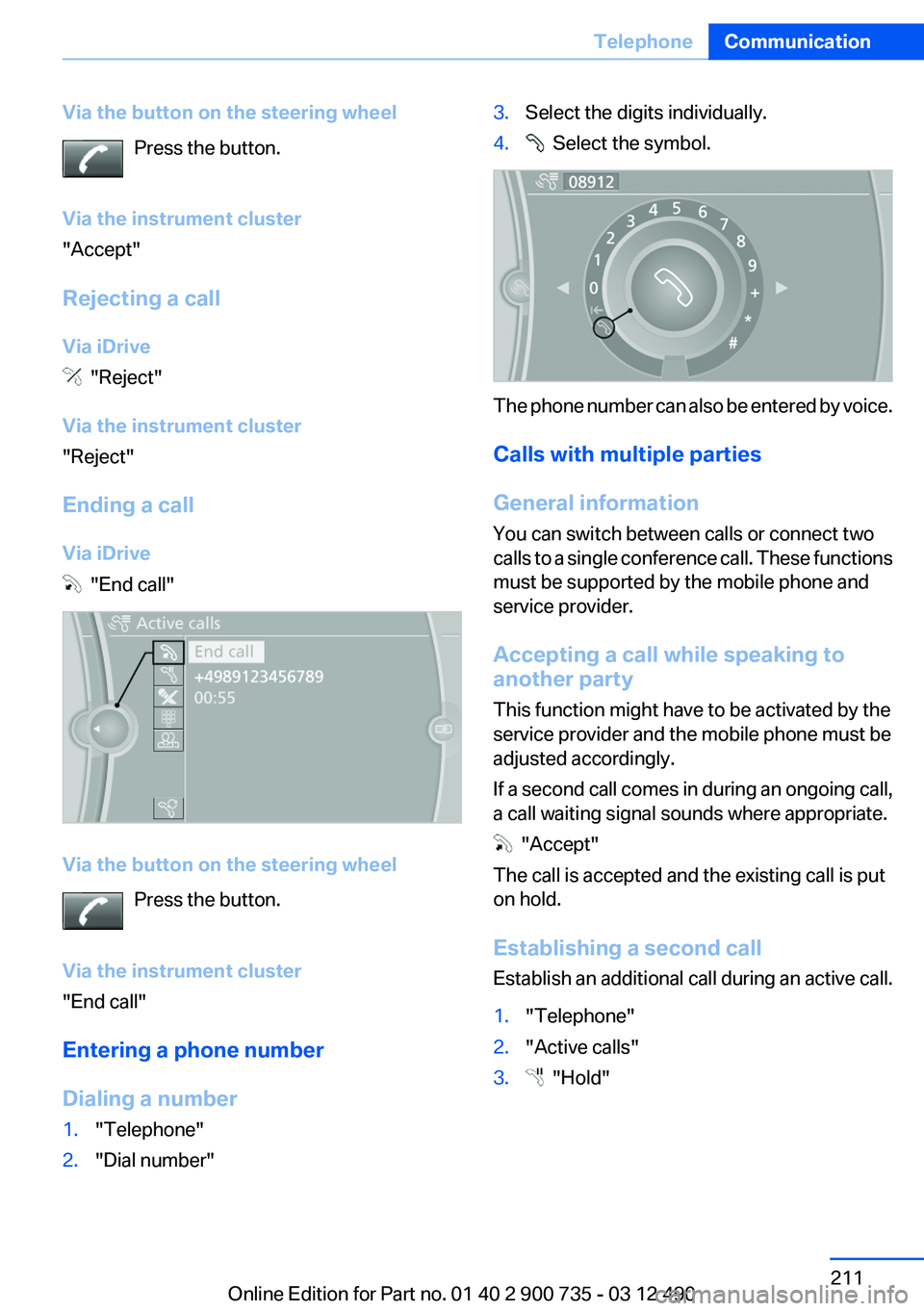
Entering a phone number
Dialing a number
1."Telephone"2."Dial number"3.Select the digits individually.4. Select the symbol.
The phone number can also be entered by voice.
Calls with multiple parties
General information
You can switch between calls or connect two
calls to a single conference call. These functions
must be supported by the mobile phone and
service provider.
Accepting a call while speaking to
another party
This function might have to be activated by the
service provider and the mobile phone must be
adjusted accordingly.
If a second call comes in during an ongoing call,
a call waiting signal sounds where appropriate.
"Accept"
The call is accepted and the existing call is put
on hold.
Establishing a second call
Establish an additional call during an active call.
1."Telephone"2."Active calls"3. "Hold"Seite 211TelephoneCommunication211
Online Edition for Part no. 01 40 2 900 735 - 03 12 490
Page 213 of 297
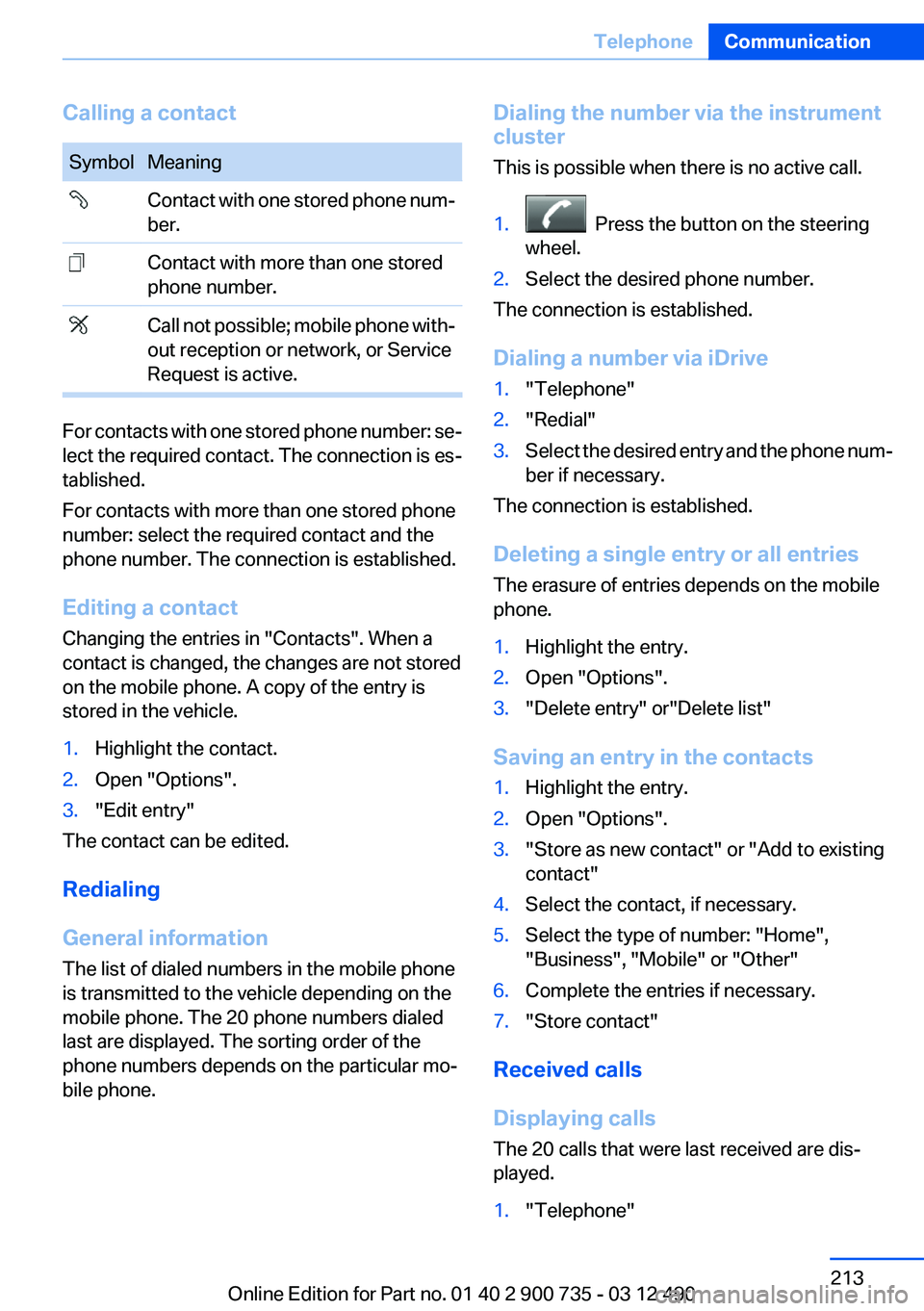
Calling a contactSymbolMeaning Contact with one stored phone num‐
ber. Contact with more than one stored
phone number. Call not possible; mobile phone with‐
out reception or network, or Service
Request is active.
For contacts with one stored phone number: se‐
lect the required contact. The connection is es‐
tablished.
For contacts with more than one stored phone
number: select the required contact and the
phone number. The connection is established.
Editing a contact
Changing the entries in "Contacts". When a
contact is changed, the changes are not stored
on the mobile phone. A copy of the entry is
stored in the vehicle.
1.Highlight the contact.2.Open "Options".3."Edit entry"
The contact can be edited.
Redialing
General information
The list of dialed numbers in the mobile phone
is transmitted to the vehicle depending on the
mobile phone. The 20 phone numbers dialed
last are displayed. The sorting order of the
phone numbers depends on the particular mo‐
bile phone.
Dialing the number via the instrument
cluster
This is possible when there is no active call.1. Press the button on the steering
wheel.2.Select the desired phone number.
The connection is established.
Dialing a number via iDrive
1."Telephone"2."Redial"3.Select the desired entry and the phone num‐
ber if necessary.
The connection is established.
Deleting a single entry or all entries
The erasure of entries depends on the mobile
phone.
1.Highlight the entry.2.Open "Options".3."Delete entry" or"Delete list"
Saving an entry in the contacts
1.Highlight the entry.2.Open "Options".3."Store as new contact" or "Add to existing
contact"4.Select the contact, if necessary.5.Select the type of number: "Home",
"Business", "Mobile" or "Other"6.Complete the entries if necessary.7."Store contact"
Received calls
Displaying calls
The 20 calls that were last received are dis‐
played.
1."Telephone"Seite 213TelephoneCommunication213
Online Edition for Part no. 01 40 2 900 735 - 03 12 490
Page 252 of 297
Engine oilVehicle equipment
All standard, country-specific and optional
equipment that is offered in the model series is
described in this chapter. Therefore, equipment
is also described that is not available in a vehicle,
e. g., because of the selected optional equip‐
ment or country variant. This also applies for
safety-related functions and systems.
General information
The engine oil consumption is dependent on the
driving style and driving conditions.
Therefore, regularly check the engine oil level
after refueling.
Checking the oil level
The concept
The oil level is monitored electronically during
driving and shown on the Control Display.
If the oil level reaches the minimum level, a
check control message is displayed.
Displaying the oil level1."Vehicle Info"2."Vehicle status"3. "Engine oil level"
Possible messages
▷"Engine oil level OK"▷"Engine oil at minimum. Add 1 quart of
engine oil!"
When the display appears in the instrument
cluster, add 1 US quart/liter of oil within the
next 125 miles/200 km.▷"Engine oil level below minimum. Add 1
quart!"Immediately add 1 US quart/liter of oil.
Detailed measurement
Requirements:
▷Vehicle is on a level road and the engine is
running at operating temperature.▷Double-clutch transmission: Selector lever
in transmission position N and accelerator
not depressed.
In order to perform a detailed measurement of
the engine oil level:
1."Vehicle Info"2."Vehicle status"3. "Measure engine oil level"4."Start measurement"
The oil level is checked and displayed via a scale.
During the detailed measurement, the idle
speed is increased somewhat.
Duration: approx. 1 minute.
Adding engine oil
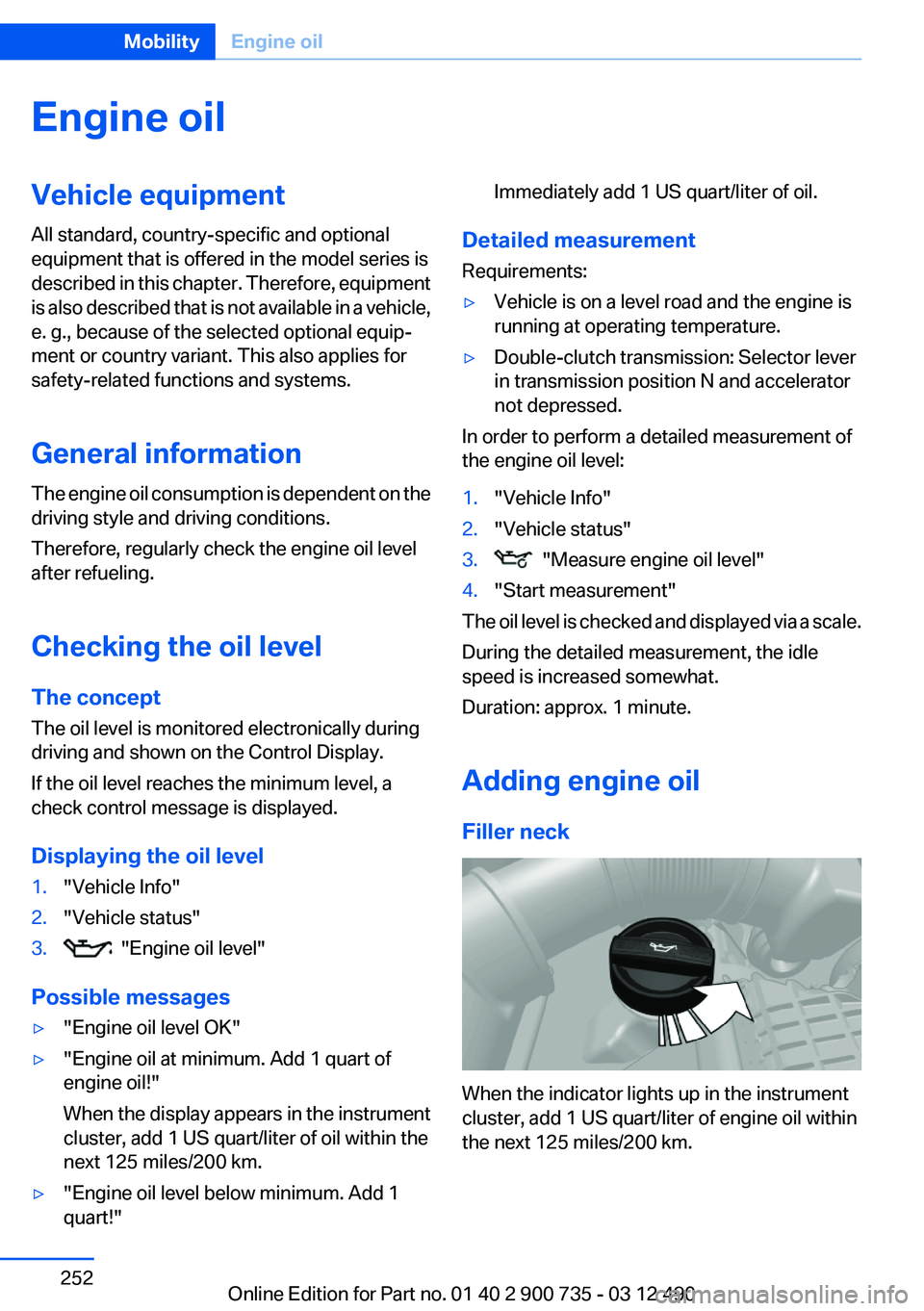
Filler neck
When the indicator lights up in the instrument
cluster, add 1 US quart/liter of engine oil within
the next 125 miles/200 km.
Seite 252MobilityEngine oil252
Online Edition for Part no. 01 40 2 900 735 - 03 12 490
Page 271 of 297
When cleaning rubber seals, do not use any sil‐
icon-containing car care products in order to
avoid damage or reduced noise damping.
Fine wood parts
Clean fine wood facing and fine wood compo‐
nents only with a moist rag. Then dry with a soft
cloth.
Plastic components
These include:▷Imitation leather surfaces.▷Headliner.▷Lamp lenses.▷Instrument cluster cover.▷Matte black spray-coated components.▷Painted parts in the interior.
Clean with a microfiber cloth.
Lightly dampen the cloth with water.
Do not soak the headliner.
Do not use cleansers that contain alcohol
or solvents
Do not use cleansers that contain alcohol or sol‐
vents, such as lacquer thinners, heavy-duty
grease removers, fuel, or such; this could lead to
surface damage.◀
Safety belts
Dirty belt straps impede the reeling action and
thus have a negative impact on safety.
Chemical cleaning
Do not clean chemically; this can destroy
the webbing.◀
Use only a mild soapy solution, with the safety
belts clipped into their buckles.
Do not allow the reels to retract the safety belts
until they are dry.
Floor carpets and floor mats
No objects in the area around the pedals
Keep floor mats, carpets, and any other
objects out of the area of motion of the pedals;
otherwise, the function of the pedals could be
impeded while driving
Do not place additional floor mats over existing
mats or other objects.
Only use floor mats that have been approved for
the vehicle and can be properly fixed in place.
Ensure that the floor mats are securely fastened
again after they were removed for cleaning, for
example.◀
Floor mats can be removed from the passenger
compartment for cleaning.
If the floor carpets are very dirty, clean with a
microfiber cloth and water or a textile cleaner. To
prevent matting of the carpet, rub back and forth
in the direction of travel only.
Sensors/cameras
To clean sensors and cameras, use a cloth mois‐
tened with a small amount of glass cleaner.
Displays/screens
Clean the displays with an antistatic microfiber
cloth.
Cleaning displays
Do not use chemical or household cleans‐
ers.
Keep all fluids and moisture away from the unit.
Otherwise, they could affect or damage surfa‐
ces or electrical components.
Avoid pressing too hard when cleaning and do
not use abrasive materials; otherwise, damage
can result.◀
Long-term vehicle storage
Your service center can advise you on what to
consider when storing the vehicle for longer
than three months.Seite 271CareMobility271
Online Edition for Part no. 01 40 2 900 735 - 03 12 490