key BMW M6 COUPE 2006 E63 User Guide
[x] Cancel search | Manufacturer: BMW, Model Year: 2006, Model line: M6 COUPE, Model: BMW M6 COUPE 2006 E63Pages: 227, PDF Size: 8.32 MB
Page 150 of 227
Telephoning
148
Telephoning
The concept
Your BMW is equipped with a full mobile phone
preparation package. After a suitable mobile
phone has been logged onto the vehicle once,
you can operate the mobile phone via iDrive,
with the buttons on the steering wheel and by
voice.
A mobile phone that has been logged on once is
automatically detected again as soon as it is
brought back inside the vehicle, provided that
the engine is running or the ignition is switched
on. The logon data of up to four mobile phones
can be stored simultaneously. If several mobile
phones are detected simultaneously, the most
recently logged-on mobile phone can be oper-
ated via the vehicle.
Using a phone in your vehicle
Using snap-in adapter*
The so-called snap-in adapter, a mobile phone
cradle, enables the battery to be charged and
the mobile phone to be connected to the exter-
nal antenna of your vehicle. This ensures
improved network reception and a consistent
voice reproduction quality. Ask your BMW cen-
ter which mobile phones will fit in the snap-in
adapters they offer.
BMW discourages the use of mobile
phones or other mobile communications
devices inside the vehicle without a direct con-
nection to an outside antenna. Otherwise, the
vehicle electronics and mobile communication
device can interfere with each other. In addition,
there is no assurance that the radiation that
results from transmission will be dissipated
from the vehicle interior.<
A mobile phone detected by the vehicle should
not be operated by the mobile phone's keypad;
otherwise malfunctions may occur.
For your safety
A car phone makes life more convenient in
many ways, and can even save lives in an emer-
gency. While you should consult your mobile
phone's separate operating instructions for a
detailed description of safety precautions and
information, we request that you direct your
particular attention to the following:
Only make entries when the traffic situa-
tion allows you to do so. Do not hold the
mobile phone in your hand while you are driving;
use the handsfree system instead. If you do not
observe this precaution, your being distracted
can endanger vehicle occupants and other road
users.<
Suitable mobile phones
Ask your BMW center which mobile phones
with a Bluetooth interface are supported by the
mobile phone preparation package or which
mobile phones will fit in the snap-in adapters
they offer. These mobile phones support the
functions described in this Owner's Manual,
provided they are running a certain software
version. Malfunctions can occur with other
mobile phones.
Care instructions
You can find what you need to know about car-
ing for your mobile phone in the separate Caring
for your vehicle brochure and in the mobile
phone operating instructions.
Operating options
You can operate the mobile phone* using:
>The steering wheel, refer to page11
>iDrive, refer to page16
>Voice commands, refer to page156
*
Page 151 of 227
149
Entertainment
Reference
At a glance
Controls
Driving tips Communications
Navigation
Mobility
Making calls with car phone:
BMW Assist calls
You can use the car phone via the handsfree
system for BMW Assist calls.
When the status information "BMW Assist" or
"BMW Service" is displayed in "Communica-
tion", only BMW Assist calls are possible.
It may not be possible to establish a telephone
connection using the mobile phone while a con-
nection is being established to BMW Assist
or while a call to BMW Assist is already in
progress. If this happens, you must unpair the
mobile phone and the vehicle if you wish to
place a call with the mobile phone.
Initial operation
Logging on mobile phone on vehicle
The following prerequisites must be met:
>The mobile phone is ready to operate.
>The Bluetooth links of the vehicle, refer to
page151, and the mobile phone are active.
>Depending on the mobile phone, presets in
the mobile phone are required: e.g. acti-
vated via the menu item Bluetooth or the
menu item Connection not with confirma-
tion.
>To log on, specify any desired number as
the Bluetooth passkey, e.g. 1. This Blue-
tooth passkey is no longer required follow-
ing successful logon.
>The ignition is switched on.
Only log on the mobile phone with the
vehicle stopped; otherwise you may
become distracted and inadvertently endanger
your passengers and other road users.<
Switching on ignition
1.Insert the remote control as far as possible
into the ignition lock.
2.S w i t c h o n t h e s w i t c h o n i g n i t i o n b y p r e s s i n g
the Start/Stop button without depressing
the brake or clutch pedal.
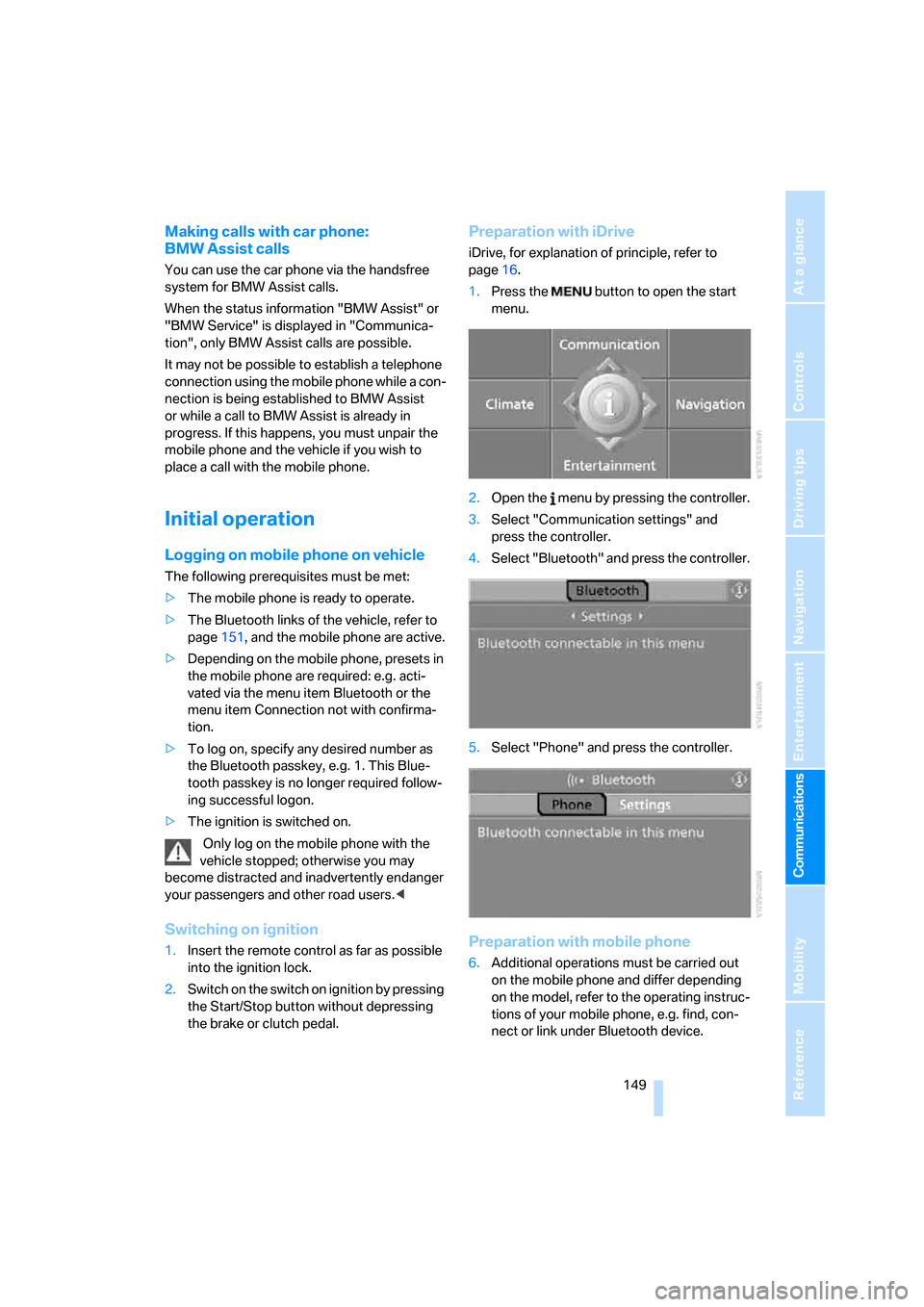
Preparation with iDrive
iDrive, for explanation of principle, refer to
page16.
1.Press the button to open the start
menu.
2.Open the menu by pressing the controller.
3.Select "Communication settings" and
press the controller.
4.Select "Bluetooth" and press the controller.
5.Select "Phone" and press the controller.
Preparation with mobile phone
6.Additional operations must be carried out
on the mobile phone and differ depending
on the model, refer to the operating instruc-
tions of your mobile phone, e.g. find, con-
nect or link under Bluetooth device.
Page 152 of 227
Telephoning
150
Logging on
Depending on your mobile phone, first, the dis-
play of your mobile phone and then the Control
Display will ask you to enter the Bluetooth pass-
key you specified.
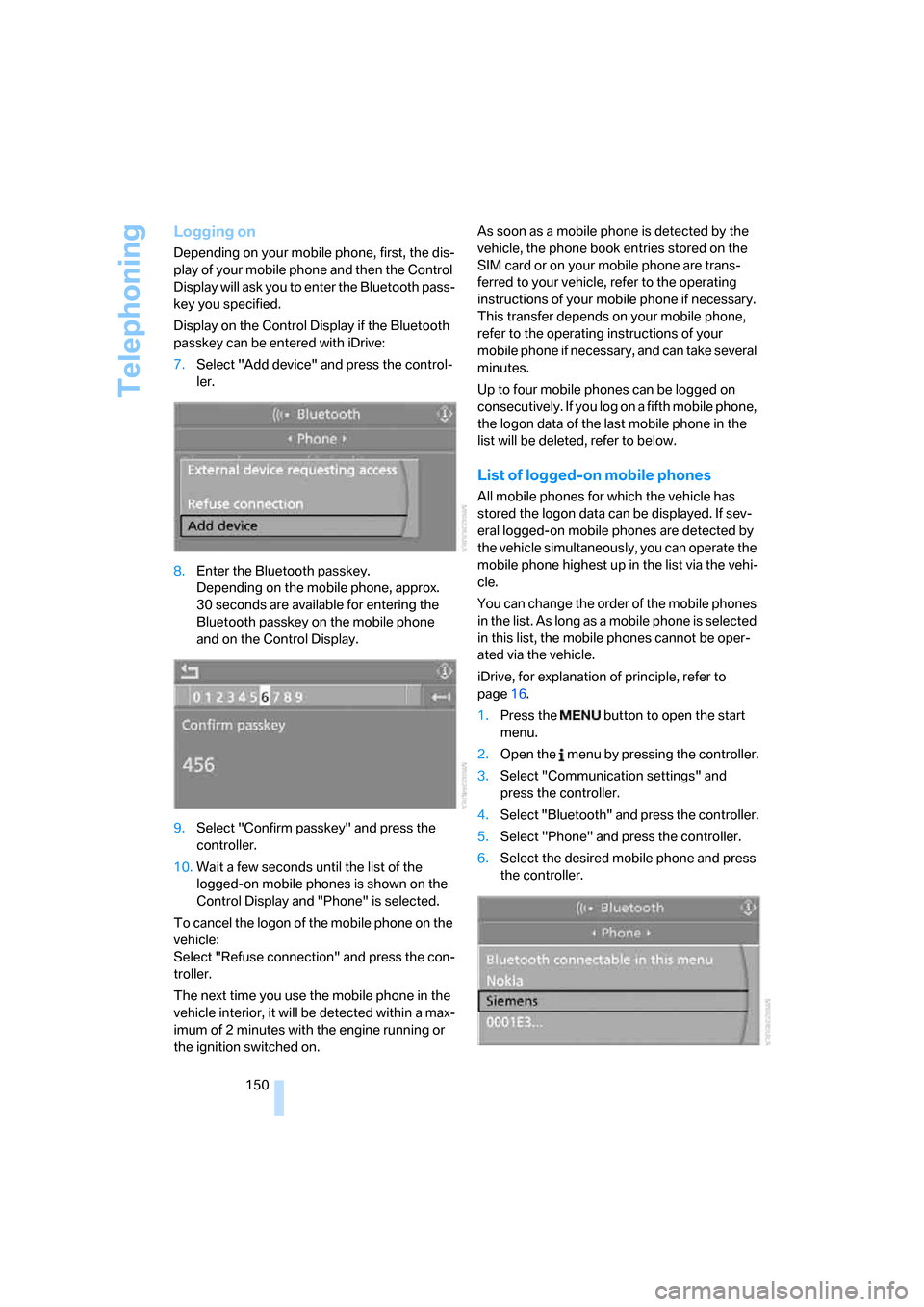
Display on the Control Display if the Bluetooth
passkey can be entered with iDrive:
7.Select "Add device" and press the control-
ler.
8.Enter the Bluetooth passkey.
Depending on the mobile phone, approx.
30 seconds are available for entering the
Bluetooth passkey on the mobile phone
and on the Control Display.
9.Select "Confirm passkey" and press the
controller.
10.Wait a few seconds until the list of the
logged-on mobile phones is shown on the
Control Display and "Phone" is selected.
To cancel the logon of the mobile phone on the
vehicle:
Select "Refuse connection" and press the con-
troller.
The next time you use the mobile phone in the
vehicle interior, it will be detected within a max-
imum of 2 minutes with the engine running or
the ignition switched on.As soon as a mobile phone is detected by the
vehicle, the phone book entries stored on the
SIM card or on your mobile phone are trans-
ferred to your vehicle, refer to the operating
instructions of your mobile phone if necessary.
This transfer depends on your mobile phone,
refer to the operating instructions of your
mobile phone if necessary, and can take several
minutes.
Up to four mobile phones can be logged on
consecutively. If you log on a fifth mobile phone,
the logon data of the last mobile phone in the
list will be deleted, refer to below.
List of logged-on mobile phones
All mobile phones for which the vehicle has
stored the logon data can be displayed. If sev-
eral logged-on mobile phones are detected by
the vehicle simultaneously, you can operate the
mobile phone highest up in the list via the vehi-
cle.
You can change the order of the mobile phones
in the list. As long as a mobile phone is selected
in this list, the mobile phones cannot be oper-
ated via the vehicle.
iDrive, for explanation of principle, refer to
page16.
1.Press the button to open the start
menu.
2.Open the menu by pressing the controller.
3.Select "Communication settings" and
press the controller.
4.Select "Bluetooth" and press the controller.
5.Select "Phone" and press the controller.
6.Select the desired mobile phone and press
the controller.
Page 155 of 227
153
Entertainment
Reference
At a glance
Controls
Driving tips Communications
Navigation
Mobility
Rejecting a call
Select "Reject" and press the controller.
The caller is diverted to your mailbox if it has
been activated.
Calling
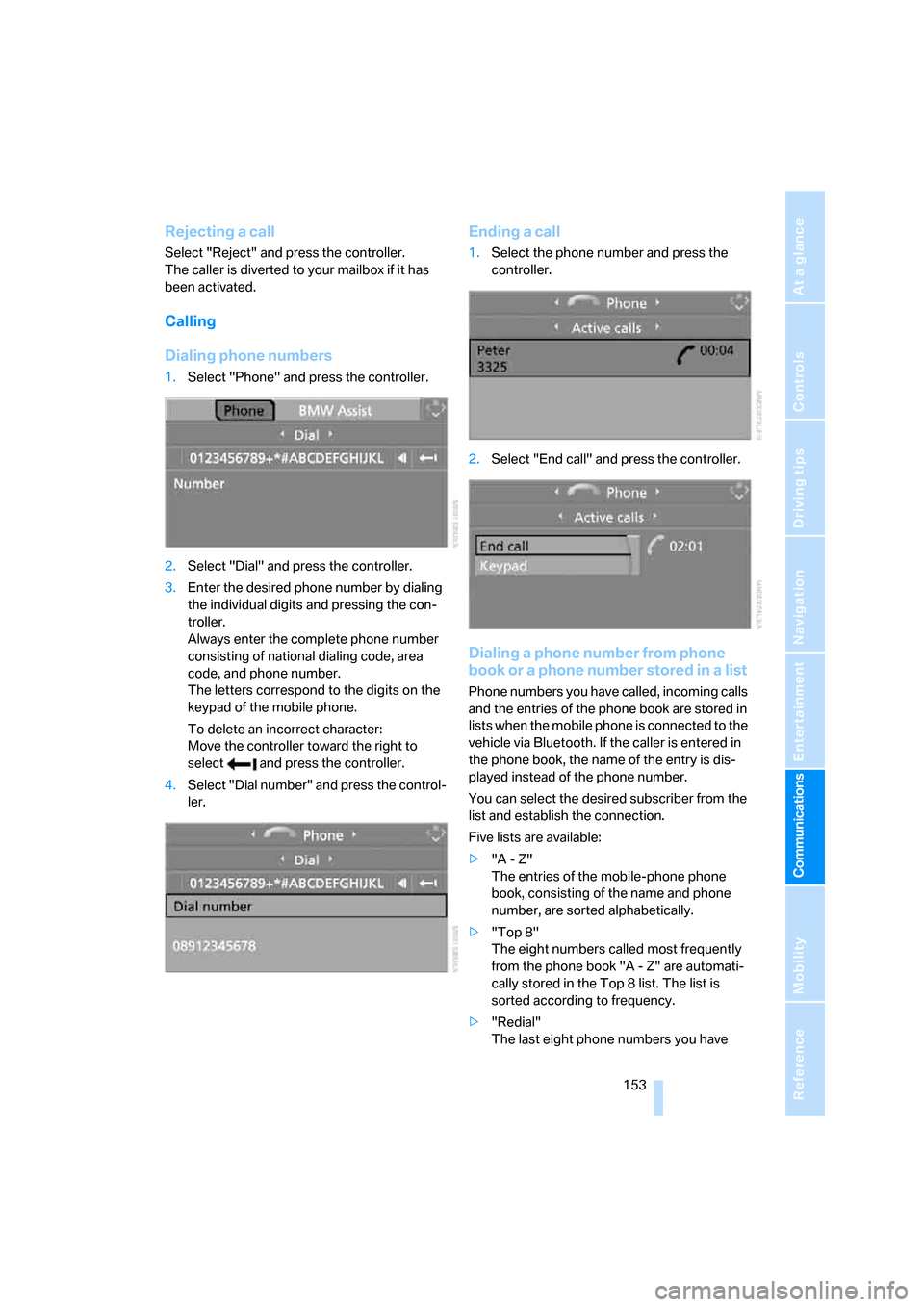
Dialing phone numbers
1.Select "Phone" and press the controller.
2.Select "Dial" and press the controller.
3.Enter the desired phone number by dialing
the individual digits and pressing the con-
troller.
Always enter the complete phone number
consisting of national dialing code, area
code, and phone number.
The letters correspond to the digits on the
keypad of the mobile phone.
To delete an incorrect character:
Move the controller toward the right to
select and press the controller.
4.Select "Dial number" and press the control-
ler.
Ending a call
1.Select the phone number and press the
controller.
2.Select "End call" and press the controller.
Dialing a phone number from phone
book or a phone number stored in a list
Phone numbers you have called, incoming calls
and the entries of the phone book are stored in
lists when the mobile phone is connected to the
vehicle via Bluetooth. If the caller is entered in
the phone book, the name of the entry is dis-
played instead of the phone number.
You can select the desired subscriber from the
list and establish the connection.
Five lists are available:
>"A - Z"
The entries of the mobile-phone phone
book, consisting of the name and phone
number, are sorted alphabetically.
>"Top 8"
The eight numbers called most frequently
from the phone book "A - Z" are automati-
cally stored in the Top 8 list. The list is
sorted according to frequency.
>"Redial"
The last eight phone numbers you have
Page 158 of 227
Telephoning
156
Transferring phone number via tone
dialing method
The tone dialing method is required for access
to network services or for controlling devices,
e.g. remote checking of an answering machine.
This function is available when a connection
has been established.
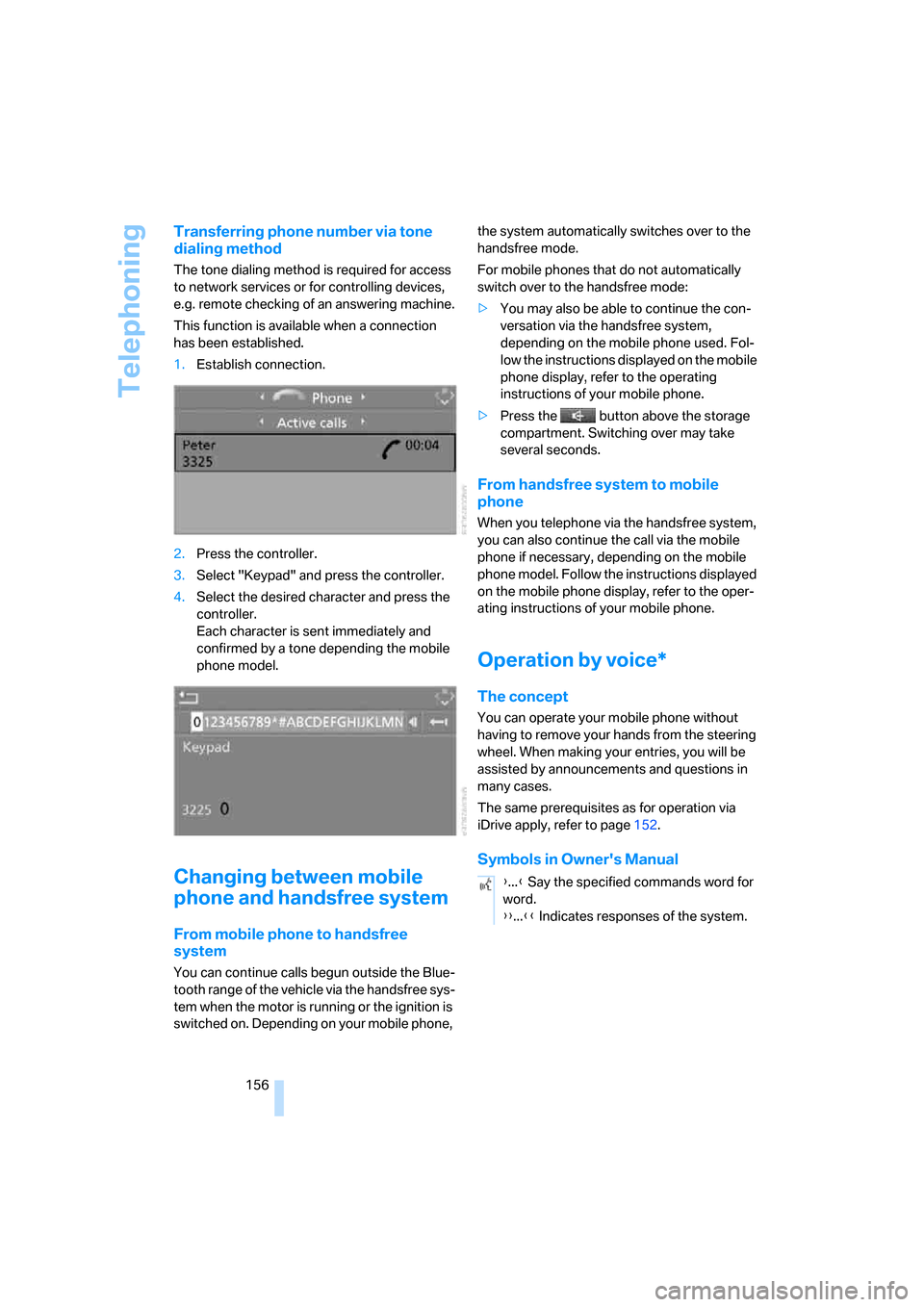
1.Establish connection.
2.Press the controller.
3.Select "Keypad" and press the controller.
4.Select the desired character
and press the
controller.
Each character is sent immediately and
confirmed by a tone depending the mobile
phone model.
Changing between mobile
phone and handsfree system
From mobile phone to handsfree
system
You can continue calls begun outside the Blue-
tooth range of the vehicle via the handsfree sys-
tem when the motor is running or the ignition is
switched on. Depending on your mobile phone, the system automatically switches over to the
handsfree mode.
For mobile phones that do not automatically
switch over to the handsfree mode:
>You may also be able to continue the con-
versation via the handsfree system,
depending on the mobile phone used. Fol-
low the instructions displayed on the mobile
phone display, refer to the operating
instructions of your mobile phone.
>Press the button above the storage
compartment. Switching over may take
several seconds.
From handsfree system to mobile
phone
When you telephone via the handsfree system,
you can also continue the call via the mobile
phone if necessary, depending on the mobile
phone model. Follow the instructions displayed
on the mobile phone display, refer to the oper-
ating instructions of your mobile phone.
Operation by voice*
The concept
You can operate your mobile phone without
having to remove your hands from the steering
wheel. When making your entries, you will be
assisted by announcements and questions in
many cases.
The same prerequisites as for operation via
iDrive apply, refer to page152.
Symbols in Owner's Manual
{...} Say the specified commands word for
word.
{{...}} Indicates responses of the system.
Page 162 of 227
Telephoning
160
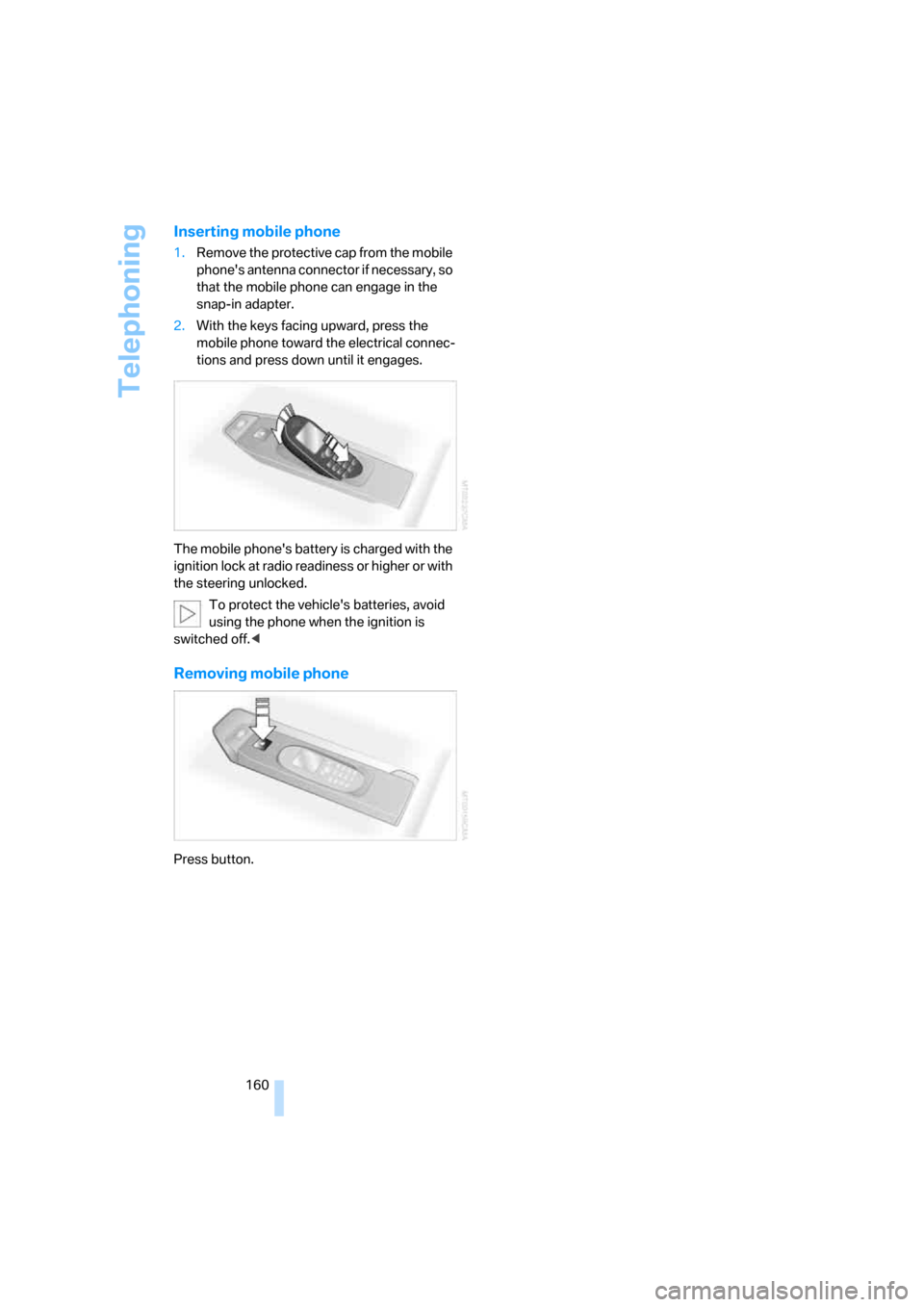
Inserting mobile phone
1.Remove the protective cap from the mobile
phone's antenna connector if necessary, so
that the mobile phone can engage in the
snap-in adapter.
2.With the keys facing upward, press the
mobile phone toward the electrical connec-
tions and press down until it engages.
The mobile phone's battery is charged with the
ignition lock at radio readiness or higher or with
the steering unlocked.
To protect the vehicle's batteries, avoid
using the phone when the ignition is
switched off.<
Removing mobile phone
Press button.
Page 208 of 227
Everything from A to Z
206
Everything from A to Z
Index
"..." Identifies Control Display
texts used to select
individual functions, and
indicates where to find them
in the text.
A
ABS Antilock Brake
System71
Accessories6
Activated-charcoal filter87
Activating hour signal68
"Activation time" for parked
car ventilation88
Adapter for spare key28
Adaptive brake lamps, refer to
Brake force display75
Adaptive Head Light81
"Add digits" for mobile
phone154
"Address book" for
navigation114
Address for navigation
– deleting115
– entering107,110
– selecting115
– storing114
– storing current position114
"Add to address book"114
"Add to destination list"110
Adjusting confirmation signals
for locking and unlocking31
Adjusting the thigh support40
Adjusting tone in audio mode,
refer to Tone control127
"After door opened"41
"After unlocking"41Airbags75
– deactivating, refer to
Exception for front
passenger seat48
– sitting safely39
– warning lamp77
Air distribution
– automatic85
– manual86
Airing, refer to Ventilation87
Air recirculation, refer to AUC
Automatic recirculated-air
control87
"Air recirculation on / off"45
Air vents, refer to
Ventilation87
Air volume86
AKI, refer to Fuel
specifications169
Alarm system35
– avoiding unintentional
alarms35
– interior motion sensor35
– switching off alarm35
– switching off tilt alarm
sensor and interior motion
sensor36
– tilt alarm sensor35
"All channels"136
"All doors"30
All-season tires, refer to
Winter tires174
"All stations" on the radio,
selecting130,133
Alterations, technical, refer to
For your own safety6
"AM", reception
range126,130
Antenna for mobile phone148
Antifreeze
– coolant178
– washer fluid57Antilock Brake System
ABS71
Anti-theft alarm system, refer
to Alarm system35
Anti-theft system, refer to
Central locking system29
Approved axle loads, refer to
Weights200
Approved engine oils178
Approved gross vehicle
weight, refer to Weights200
Armrest, refer to Center
armrest92
Around the center console14
Around the steering wheel10
Arrival time
– refer to Computer61
– refer to Starting destination
guidance118
"Arrow display" during
Navigation119
Ashtray93
Assist, refer to
BMW Assist161
Assistance systems, refer to
Driving stability control
systems71
Assistance window20
"Assist. window off"21
AUC Automatic recirculated-
air control87
Audio126
– controls126
– switching on/off126
– tone control127
– volume127
"Audio", refer to Tone
control127
Page 210 of 227
Everything from A to Z
208 Breakdown assistance163
Breakdown services, refer to
Roadside Assistance192
Breaking-in98
Breaking-in the clutch98
Breaking-in the differential98
"Brightness"69,78
Brightness of Control
Display69
Button for starting engine50
Buttons on steering wheel11
Bypassing route sections122
C
California Proposition 65
Warning6
"Call"154
Call
– accepting152
– displaying accepted154
– ending153
– in absence154
– starting153
Calling
– from phone book153
– from Top 8 list154
– redialing154
Can holder, refer to Cup
holders93
Capacity of luggage
compartment200
Car battery, refer to Vehicle
battery189
Car care, refer to the Caring
for your vehicle brochure
Car-care products, refer to the
Caring for your vehicle
brochure
"Car Data"61
Care181
– refer to the Caring for your
vehicle brochure
Cargo loading
– securing cargo101
– stowing cargo101
– vehicle100Caring for artificial leather,
refer to the Caring for your
vehicle brochure
Caring for leather, refer to the
Caring for your vehicle
brochure
Caring for light-alloy wheels,
refer to the Caring for your
vehicle brochure
Caring for plastic, refer to the
Caring for your vehicle
brochure
Caring for the carpet, refer to
the Caring for your vehicle
brochure
Caring for the vehicle finish,
refer to the Caring for your
vehicle brochure
Car key, refer to Keys/remote
control28
Car phone148
– installation location, refer to
Center armrest92
– refer to Mobile phone148
– refer to separate operating
instructions
Car radio, refer to Radio130
Car wash100
– refer to Before driving into a
car wash100
– refer to the Caring for your
vehicle brochure
Catalytic converter, refer to
Hot exhaust system98
"Categories"137
CBC Cornering Brake
Control71
CBS Condition Based
Service180
"CD"126,139CD changer139
– controls126
– fast forward/reverse
143
– installation location143
– playing a track141
– random play sequence142
– repeating a track142
– selecting a CD139
– selecting a track140
– switching on/off126
– tone control127
– volume127
CD player139
– controls126
– fast forward/reverse143
– playing a track141
– random play sequence142
– repeating a track142
– selecting a track140
– switching on/off126
– tone control127
– volume127
Center armrest, adjusting
height92
Center console14
"Central locking"30
Central locking system29
– comfort access36
– from inside vehicle32
Changes, technical, refer to
For your own safety6
Changing a wheel187
Changing language on
Control Display69
Changing units of measure on
Control Display69
Changing wheels173
CHECK button65
Check Control64
"Check Control
messages"66
Check Gas Cap168
Checking air pressure, refer to
Tire inflation pressure170
Children's seats, refer to Child
restraint systems48
Child-restraint fixing system
LATCH49
Page 212 of 227
Everything from A to Z
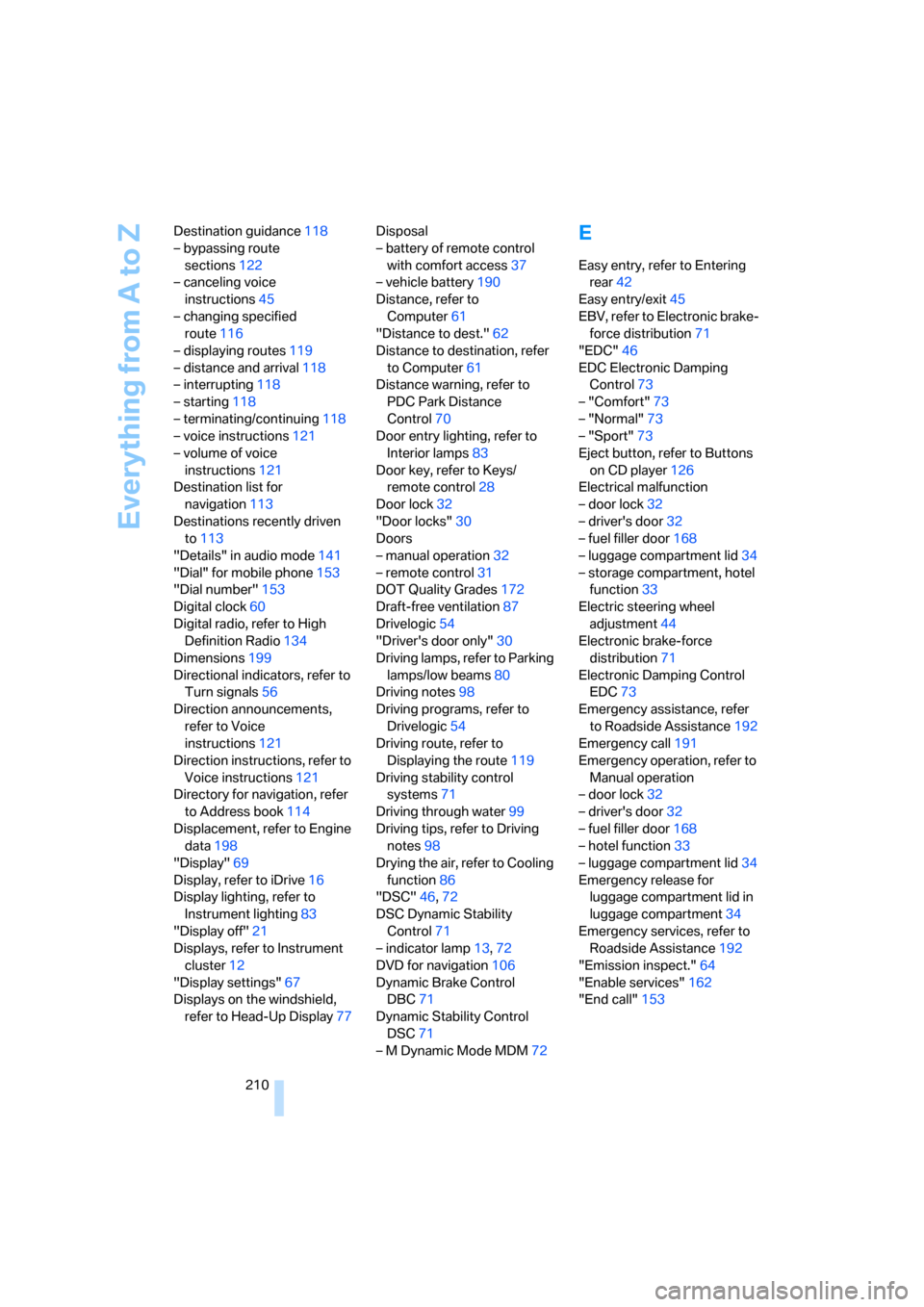
210 Destination guidance118
– bypassing route
sections122
– canceling voice
instructions45
– changing specified
route116
– displaying routes119
– distance and arrival118
– interrupting118
– starting118
– terminating/continuing118
– voice instructions121
– volume of voice
instructions121
Destination list for
navigation113
Destinations recently driven
to113
"Details" in audio mode141
"Dial" for mobile phone153
"Dial number"153
Digital clock60
Digital radio, refer to High
Definition Radio134
Dimensions199
Directional indicators, refer to
Turn signals56
Direction announcements,
refer to Voice
instructions121
Direction instructions, refer to
Voice instructions121
Directory for navigation, refer
to Address book114
Displacement, refer to Engine
data198
"Display"69
Display, refer to iDrive16
Display lighting, refer to
Instrument lighting83
"Display off"21
Displays, refer to Instrument
cluster12
"Display settings"67
Displays on the windshield,
refer to Head-Up Display77Disposal
– battery of remote control
with comfort access37
– vehicle battery190
Distance, refer to
Computer61
"Distance to dest."62
Distance to destination, refer
to Computer61
Distance warning, refer to
PDC Park Distance
Control70
Door entry lighting, refer to
Interior lamps83
Door key, refer to Keys/
remote control
28
Door lock32
"Door locks"30
Doors
– manual operation32
– remote control31
DOT Quality Grades172
Draft-free ventilation87
Drivelogic54
"Driver's door only"30
Driving lamps, refer to Parking
lamps/low beams80
Driving notes98
Driving programs, refer to
Drivelogic54
Driving route, refer to
Displaying the route119
Driving stability control
systems71
Driving through water99
Driving tips, refer to Driving
notes98
Drying the air, refer to Cooling
function86
"DSC"46,72
DSC Dynamic Stability
Control71
– indicator lamp13,72
DVD for navigation106
Dynamic Brake Control
DBC71
Dynamic Stability Control
DSC71
– M Dynamic Mode MDM72
E
Easy entry, refer to Entering
rear42
Easy entry/exit45
EBV, refer to Electronic brake-
force distribution71
"EDC"46
EDC Electronic Damping
Control73
– "Comfort"73
– "Normal"73
– "Sport"73
Eject button, refer to Buttons
on CD player126
Electrical malfunction
– door lock32
– driver's door32
– fuel filler door168
– luggage compartment lid34
– storage compartment, hotel
function33
Electric steering wheel
adjustment44
Electronic brake-force
distribution71
Electronic Damping Control
EDC73
Emergency assistance, refer
to Roadside Assistance192
Emergency call191
Emergency operation, refer to
Manual operation
– door lock32
– driver's door32
– fuel filler door168
– hotel function33
– luggage compartment lid34
Emergency release for
luggage compartment lid in
luggage compartment34
Emergency services, refer to
Roadside Assistance192
"Emission inspect."64
"Enable services"162
"End call"153
Page 214 of 227
Everything from A to Z
212
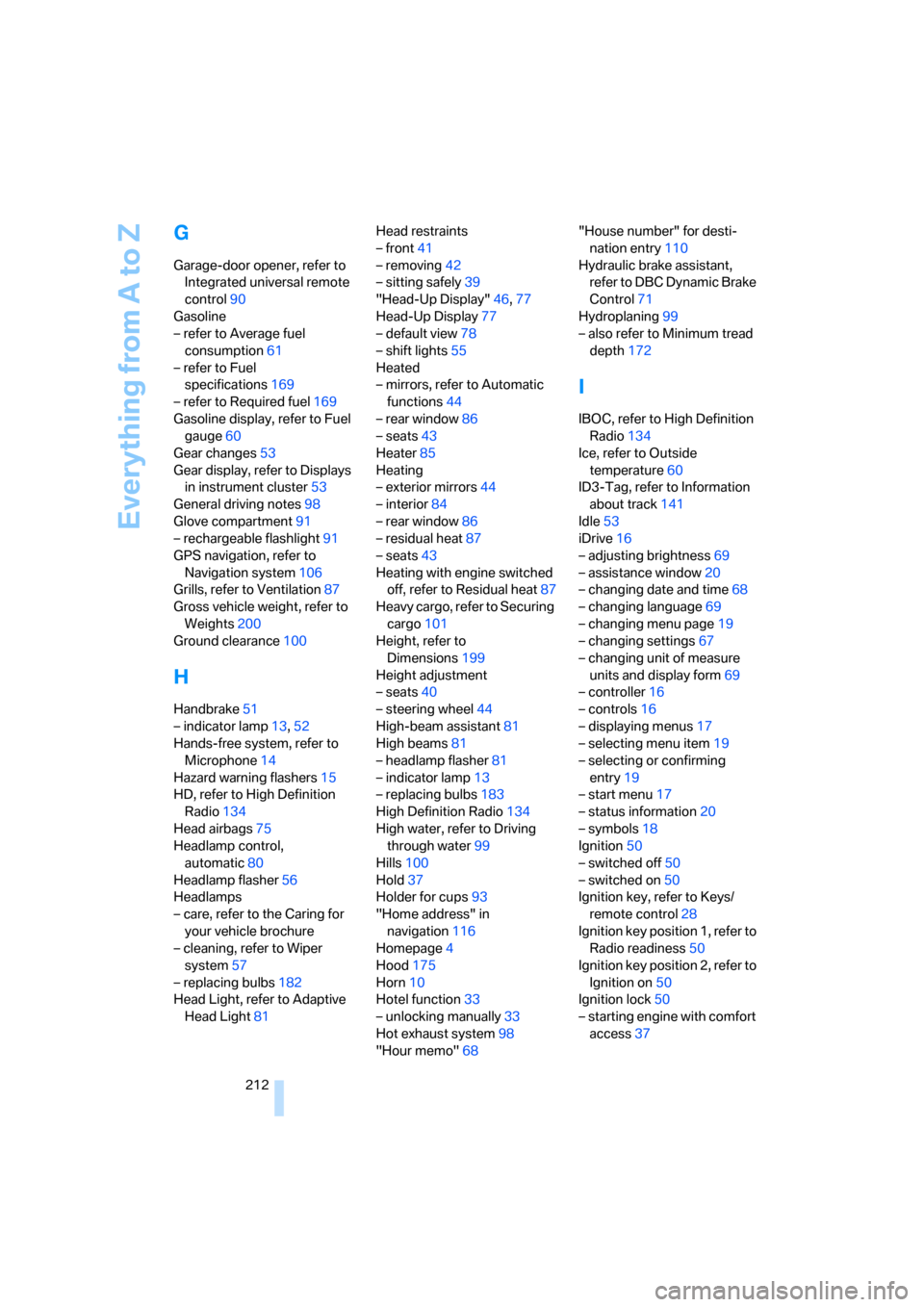
G
Garage-door opener, refer to
Integrated universal remote
control90
Gasoline
– refer to Average fuel
consumption61
– refer to Fuel
specifications169
– refer to Required fuel169
Gasoline display, refer to Fuel
gauge60
Gear changes53
Gear display, refer to Displays
in instrument cluster53
General driving notes98
Glove compartment91
– rechargeable flashlight91
GPS navigation, refer to
Navigation system106
Grills, refer to Ventilation87
Gross vehicle weight, refer to
Weights200
Ground clearance100
H
Handbrake51
– indicator lamp13,52
Hands-free system, refer to
Microphone14
Hazard warning flashers15
HD, refer to High Definition
Radio134
Head airbags75
Headlamp control,
automatic80
Headlamp flasher56
Headlamps
– care, refer to the Caring for
your vehicle brochure
– cleaning, refer to Wiper
system57
– replacing bulbs182
Head Light, refer to Adaptive
Head Light81Head restraints
– front41
– removing42
– sitting safely39
"Head-Up Display"46,77
Head-Up Display77
– default view78
– shift lights55
Heated
– mirrors, refer to Automatic
functions44
– rear window86
– seats43
Heater85
Heating
– exterior mirrors44
– interior84
– rear window86
– residual heat87
– seats43
Heating with engine switched
off, refer to Residual heat87
Heavy cargo, refer to Securing
cargo101
Height, refer to
Dimensions199
Height adjustment
– seats40
– steering wheel44
High-beam assistant81
High beams81
– headlamp flasher81
– indicator lamp13
– replacing bulbs183
High Definition Radio134
High water, refer to Driving
through water99
Hills100
Hold37
Holder for cups93
"Home address" in
navigation116
Homepage4
Hood175
Horn10
Hotel function33
– unlocking manually33
Hot exhaust system98
"Hour memo"68"House number" for desti-
nation entry110
Hydraulic brake assistant,
refer to DBC Dynamic Brake
Control71
Hydroplaning99
– also refer to Minimum tread
depth172
I
IBOC, refer to High Definition
Radio134
Ice, refer to Outside
temperature60
ID3-Tag, refer to Information
about track141
Idle53
iDrive16
– adjusting brightness69
– assistance window20
– changing date and time68
– changing language69
– changing menu page19
– changing settings67
– changing unit of measure
units and display form69
– controller16
– controls16
– displaying menus17
– selecting menu item19
– selecting or confirming
entry19
– start menu17
– status information20
– symbols18
Ignition50
– switched off50
– switched on50
Ignition key, refer to Keys/
remote control28
Ignition key position 1, refer to
Radio readiness50
Ignition key position 2, refer to
Ignition on50
Ignition lock50
– starting engine with comfort
access37