display BMW M6 COUPE 2007 E63 Owners Manual
[x] Cancel search | Manufacturer: BMW, Model Year: 2007, Model line: M6 COUPE, Model: BMW M6 COUPE 2007 E63Pages: 256, PDF Size: 8.11 MB
Page 165 of 256
Navigation
Entertainment
Driving tips
163Reference
At a glance
Controls
Communications
Mobility
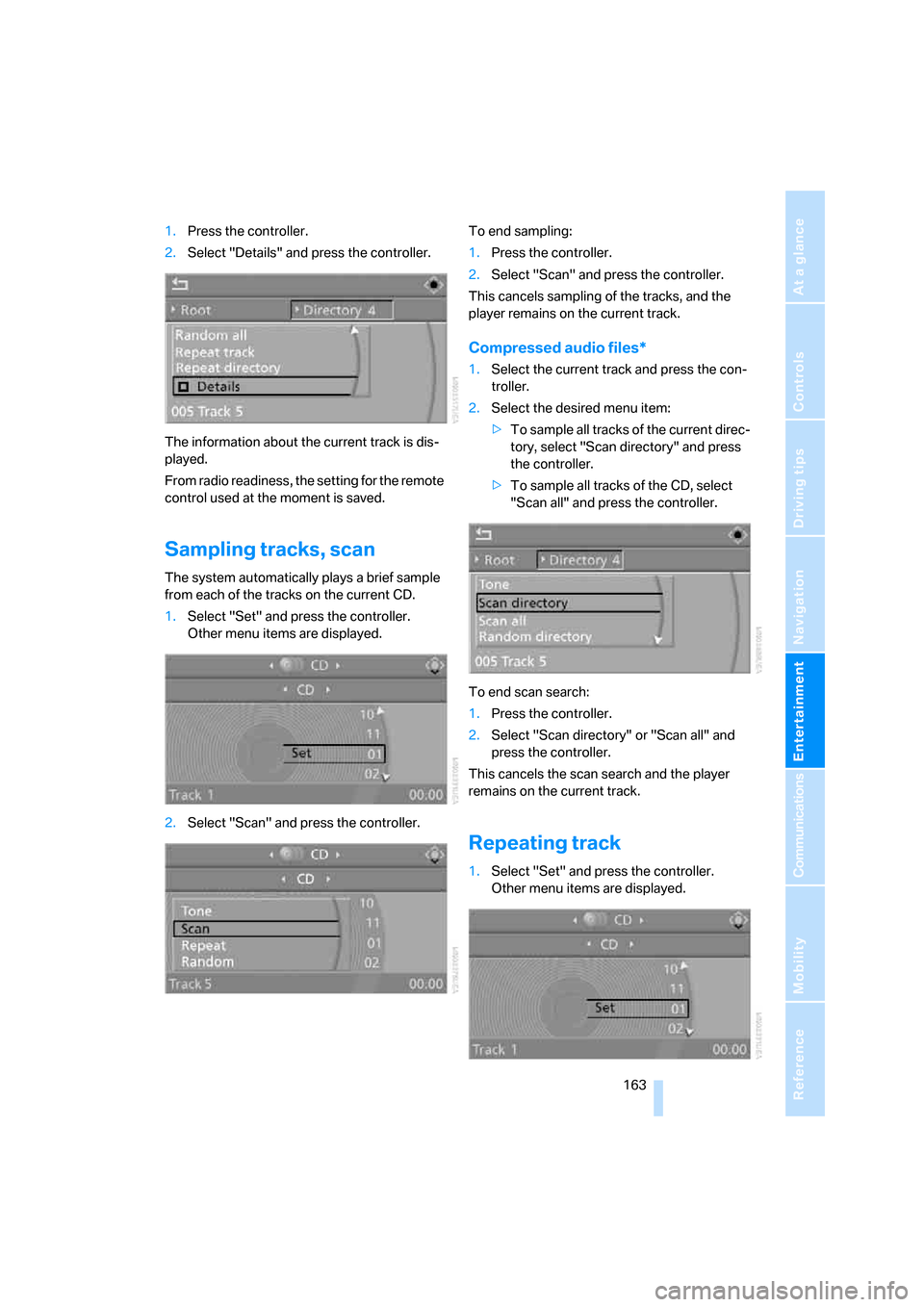
1.Press the controller.
2.Select "Details" and press the controller.
The information about the current track is dis-
played.
From radio readiness, the setting for the remote
control used at the moment is saved.
Sampling tracks, scan
The system automatically plays a brief sample
from each of the tracks on the current CD.
1.Select "Set" and press the controller.
Other menu items are displayed.
2.Select "Scan" and press the controller.To end sampling:
1.Press the controller.
2.Select "Scan" and press the controller.
This cancels sampling of the tracks, and the
player remains on the current track.
Compressed audio files*
1.Select the current track and press the con-
troller.
2.Select the desired menu item:
>To sample all tracks of the current direc-
tory, select "Scan directory" and press
the controller.
>To sample all tracks of the CD, select
"Scan all" and press the controller.
To end scan search:
1.Press the controller.
2.Select "Scan directory" or "Scan all" and
press the controller.
This cancels the scan search and the player
remains on the current track.
Repeating track
1.Select "Set" and press the controller.
Other menu items are displayed.
Page 166 of 256
CD player and CD changer
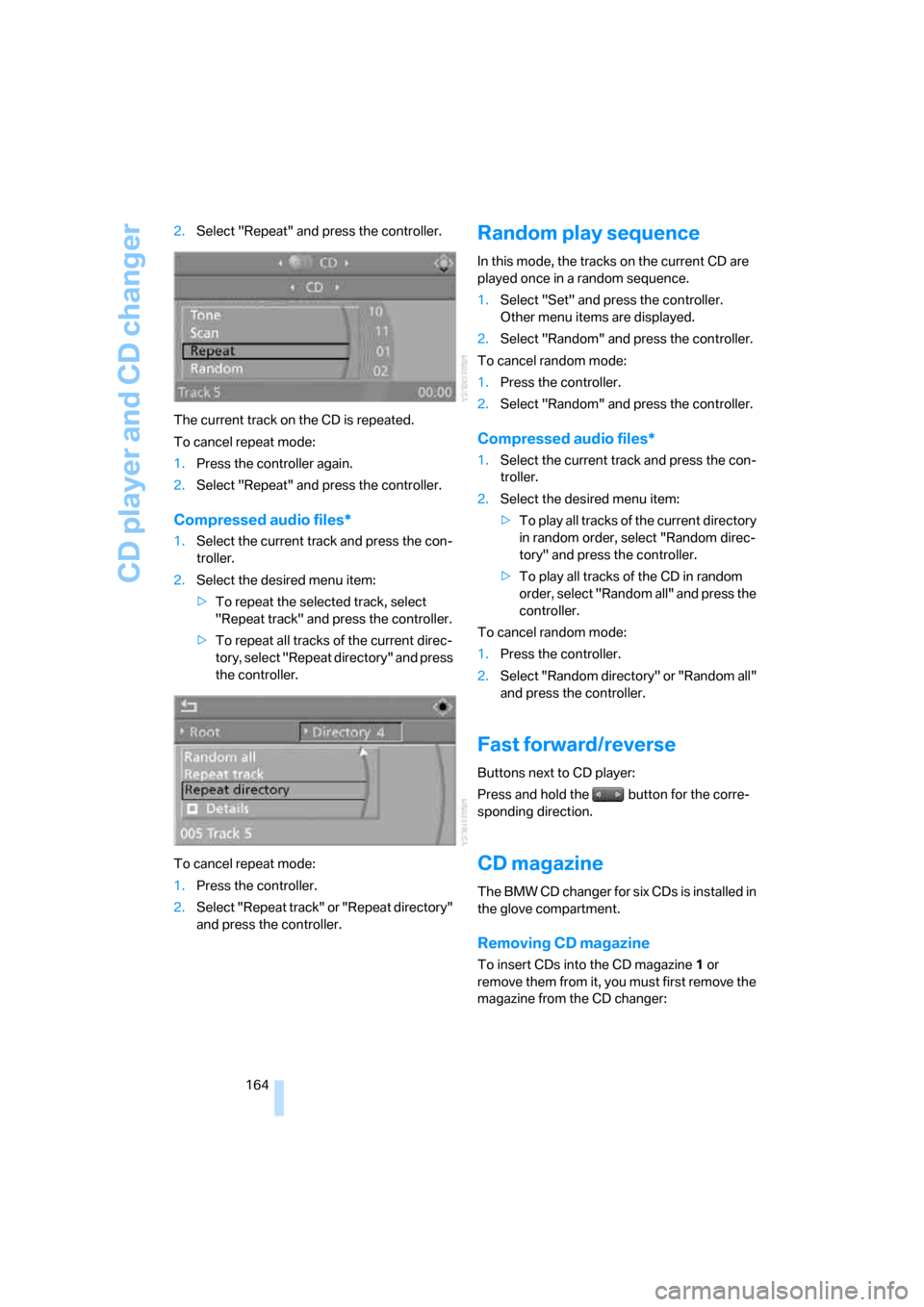
164 2.Select "Repeat" and press the controller.
The current track on the CD is repeated.
To cancel repeat mode:
1.Press the controller again.
2.Select "Repeat" and press the controller.
Compressed audio files*
1.Select the current track and press the con-
troller.
2.Select the desired menu item:
>To repeat the selected track, select
"Repeat track" and press the controller.
>To repeat all tracks of the current direc-
tory, select "Repeat directory" and press
the controller.
To cancel repeat mode:
1.Press the controller.
2.Select "Repeat track" or "Repeat directory"
and press the controller.
Random play sequence
In this mode, the tracks on the current CD are
played once in a random sequence.
1.Select "Set" and press the controller.
Other menu items are displayed.
2.Select "Random" and press the controller.
To cancel random mode:
1.Press the controller.
2.Select "Random" and press the controller.
Compressed audio files*
1.Select the current track and press the con-
troller.
2.Select the desired menu item:
>To pla y all tracks of the current directory
in random order, select "Random direc-
tory" and press the controller.
>To play all tracks of the CD in random
order, select "Random all" and press the
controller.
To cancel random mode:
1.Press the controller.
2.Select "Random directory" or "Random all"
and press the controller.
Fast forward/reverse
Buttons next to CD player:
Press and hold the button for the corre-
sponding direction.
CD magazine
The BMW CD changer for six CDs is installed in
the glove compartment.
Removing CD magazine
To insert CDs into the CD magazine 1 or
remove them from it, you must first remove the
magazine from the CD changer:
Page 173 of 256
171
Entertainment
Reference
At a glance
Controls
Driving tips Communications
Navigation
Mobility
Operating options
You can operate the mobile phone* using:
>Buttons on steering wheel, refer to page11
>iDrive, refer to page16
>Voice commands, refer to page181
A mobile phone detected by the vehicle should
not be operated by the mobile phone's keypad;
otherwise malfunctions may occur.
Placing phone calls with BMW Assist
system*: BMW Assist calls
You can use the BMW Assist system via the
hands-free unit for BMW Assist calls.
When the status information "BMW Assist" or
"BMW Service" is displayed in "Communica-
tion", only BMW Assist calls are possible.
It may not be possible to establish a telephone
connection using the mobile phone while a con-
nection is being established to BMW Assist
or while a call to BMW Assist is already in
progress. If this happens, you must unpair the
mobile phone and the vehicle if you wish to
place a call with the mobile phone.
Initial operation
Pairing mobile phone in vehicle
The following prerequisites must be met:
>Suitable mobile phone: the mobile phone is
supported by the full mobile phone prepara-
tion package. Information on this subject is
also provided on the Internet at:
www.bmw.com
>The mobile phone is ready to operate.
>The Bluetooth links of the vehicle, refer to
page175, and the mobile phone are active.
>Depending on the mobile phone, presets in
the mobile phone are required: e.g. via the
following menu items:
>Bluetooth activated
>Connection not with confirmation
>Reconnect>Depending on the mobile phone model, the
setting energy saving mode can, for exam-
ple, result in vehicle failing to detect the
paired mobile phone.
>Specify any desired number as the Blue-
tooth passkey, e.g. 1, for pairing. This Blue-
tooth passkey is no longer required follow-
ing successful pairing.
>The ignition is switched on.
Only pair the mobile phone with the vehi-
cle stopped; otherwise you may become
distracted and inadvertently endanger your
passengers and other road users.<
Switching on ignition
1.Insert the remote control as far as possible
into the ignition lock.
2.Switch on the ignition by pressing the Start/
Stop button without depressing the brake
or clutch pedal.
Preparation with iDrive
iDrive, for explanation of principle, refer to
page16.
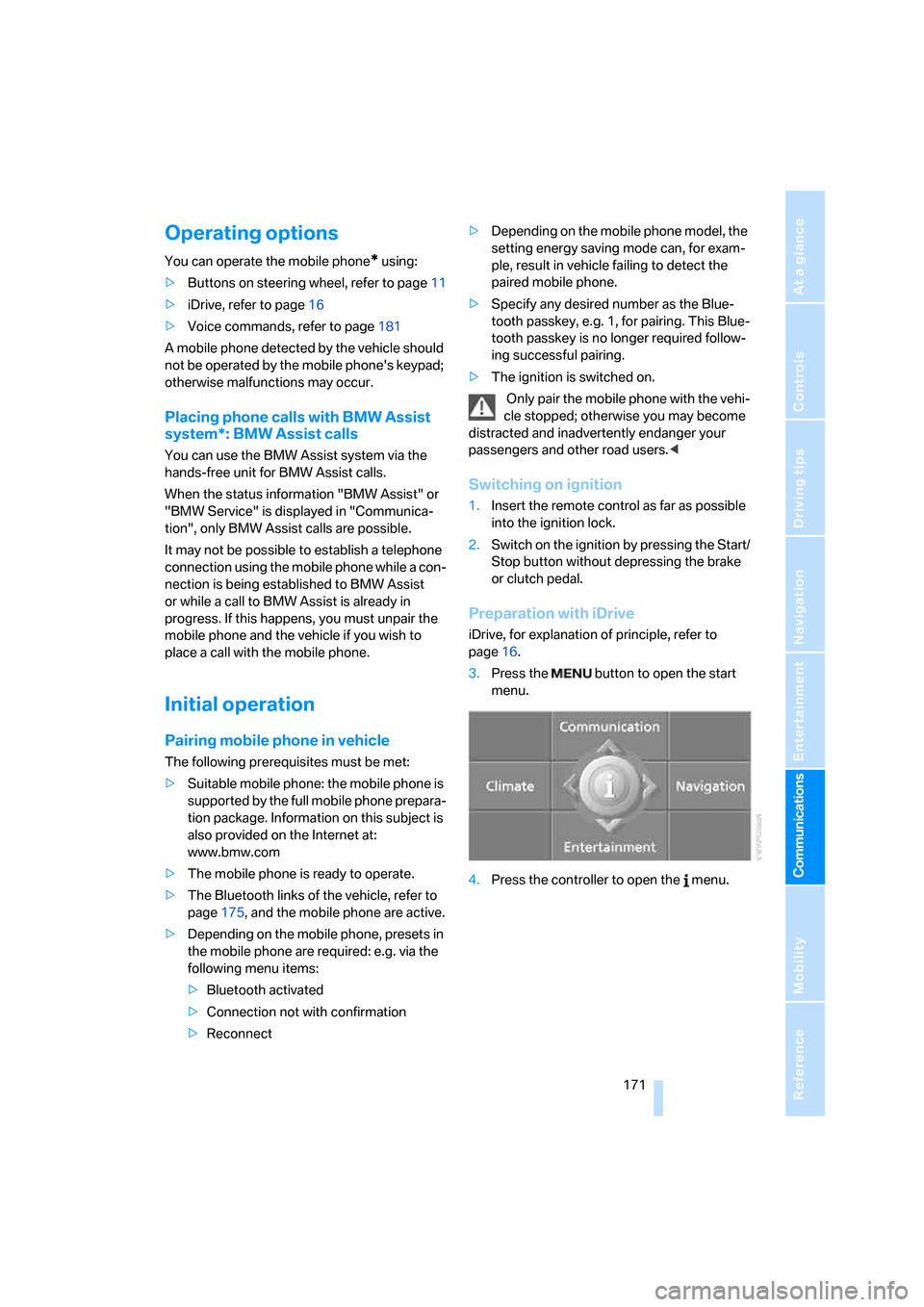
3.Press the button to open the start
menu.
4.Press the controller to open the menu.
Page 174 of 256
Telephoning
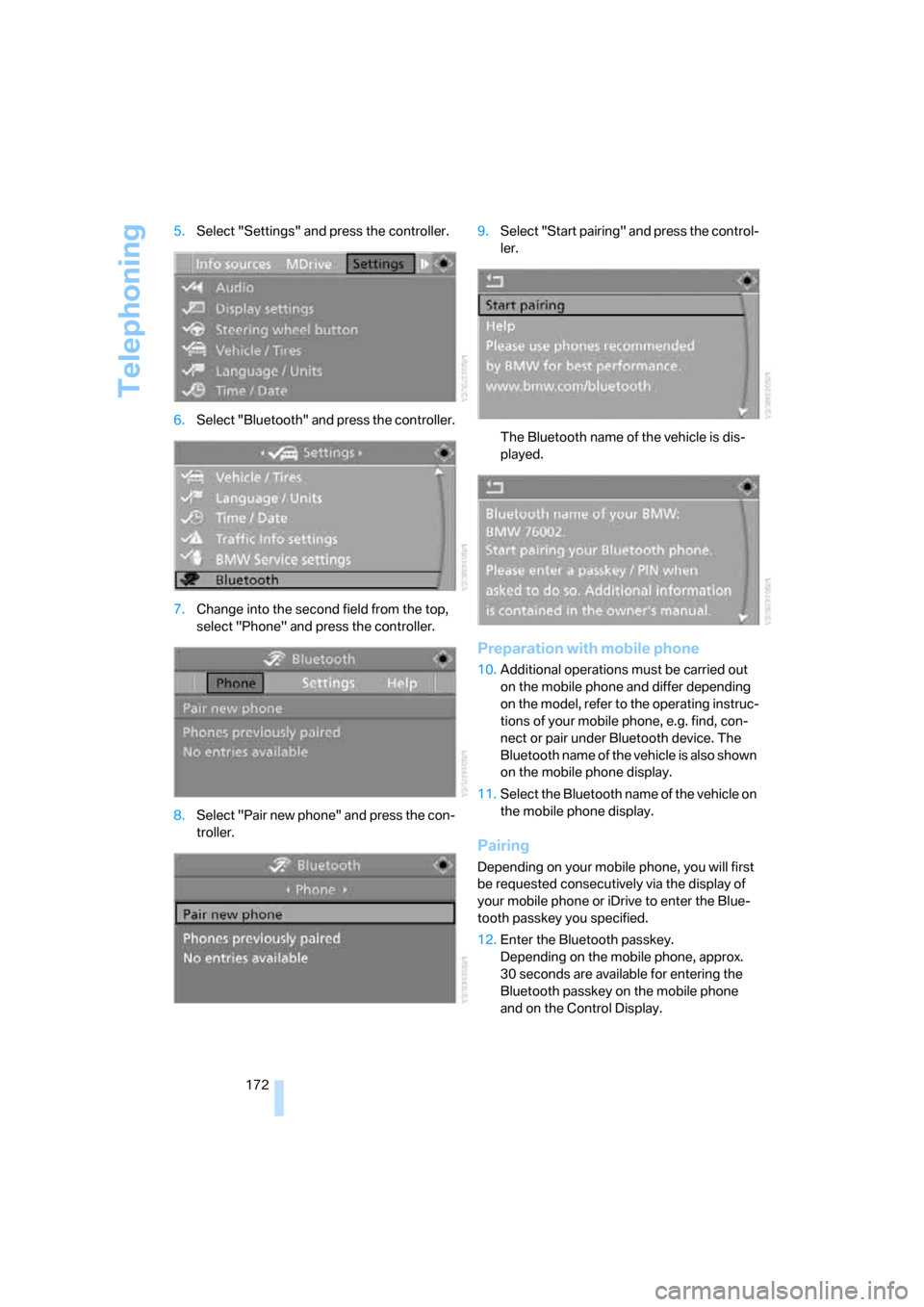
172 5.Select "Settings" and press the controller.
6.Select "Bluetooth" and press the controller.
7.Change into the second field from the top,
select "Phone" and press the controller.
8.Select "Pair new phone" and press the con-
troller.9.Select "Start pairing" and press the control-
ler.
The Bluetooth name of the vehicle is dis-
played.
Preparation with mobile phone
10.Additional operations must be carried out
on the mobile phone and differ depending
on the model, refer to the operating instruc-
tions of your mobile phone, e.g. find, con-
nect or pair under Bluetooth device. The
Bluetooth name of the vehicle is also shown
on the mobile phone display.
11.Select the Bluetooth name of the vehicle on
the mobile phone display.
Pairing
Depending on your mobile phone, you will first
be requested consecutively via the display of
your mobile phone or iDrive to enter the Blue-
tooth passkey you specified.
12.Enter the Bluetooth passkey.
Depending on the mobile phone, approx.
30 seconds are available for entering the
Bluetooth passkey on the mobile phone
and on the Control Display.
Page 175 of 256
173
Entertainment
Reference
At a glance
Controls
Driving tips Communications
Navigation
Mobility
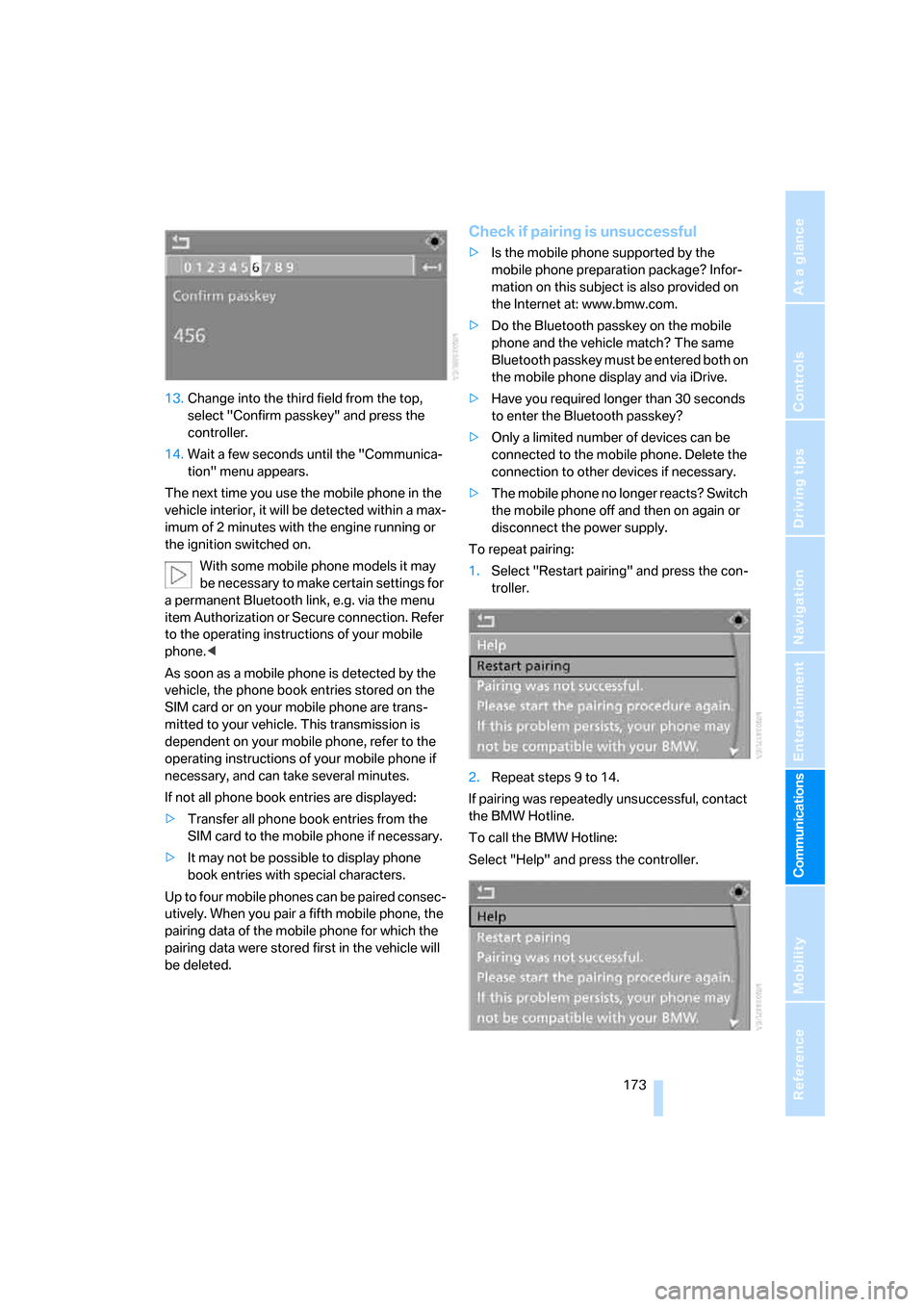
13.Change into the third field from the top,
select "Confirm passkey" and press the
controller.
14.Wait a few seconds until the "Communica-
tion" menu appears.
The next time you use the mobile phone in the
vehicle interior, it will be detected within a max-
imum of 2 minutes with the engine running or
the ignition switched on.
With some mobile phone models it may
be necessary to make certain settings for
a permanent Bluetooth link, e.g. via the menu
item Authorization or Secure connection. Refer
to the operating instructions of your mobile
phone.<
As soon as a mobile phone is detected by the
vehicle, the phone book entries stored on the
SIM card or on your mobile phone are trans-
mitted to your vehicle. This transmission is
dependent on your mobile phone, refer to the
operating instructions of your mobile phone if
necessary, and can take several minutes.
If not all phone book entries are displayed:
>Transfer all phone book entries from the
SIM card to the mobile phone if necessary.
>It may not be possible to display phone
book entries with special characters.
Up to four mobile phones can be paired consec-
utively. When you pair a fifth mobile phone, the
pairing data of the mobile phone for which the
pairing data were stored first in the vehicle will
be deleted.
Check if pairing is unsuccessful
>Is the mobile phone supported by the
mobile phone preparation package? Infor-
mation on this subject is also provided on
the Internet at: www.bmw.com.
>Do the Bluetooth passkey on the mobile
phone and the vehicle match? The same
Bluetooth passkey must be entered both on
the mobile phone display and via iDrive.
>Have you required longer than 30 seconds
to enter the Bluetooth passkey?
>Only a limited number of devices can be
connected to the mobile phone. Delete the
connection to other devices if necessary.
>The mobile phone no longer reacts? Switch
the mobile phone off and then on again or
disconnect the power supply.
To repeat pairing:
1.Select "Restart pairing" and press the con-
troller.
2.Repeat steps 9 to 14.
If pairing was repeatedly unsuccessful, contact
the BMW Hotline.
To call the BMW Hotline:
Select "Help" and press the controller.
Page 176 of 256
Telephoning
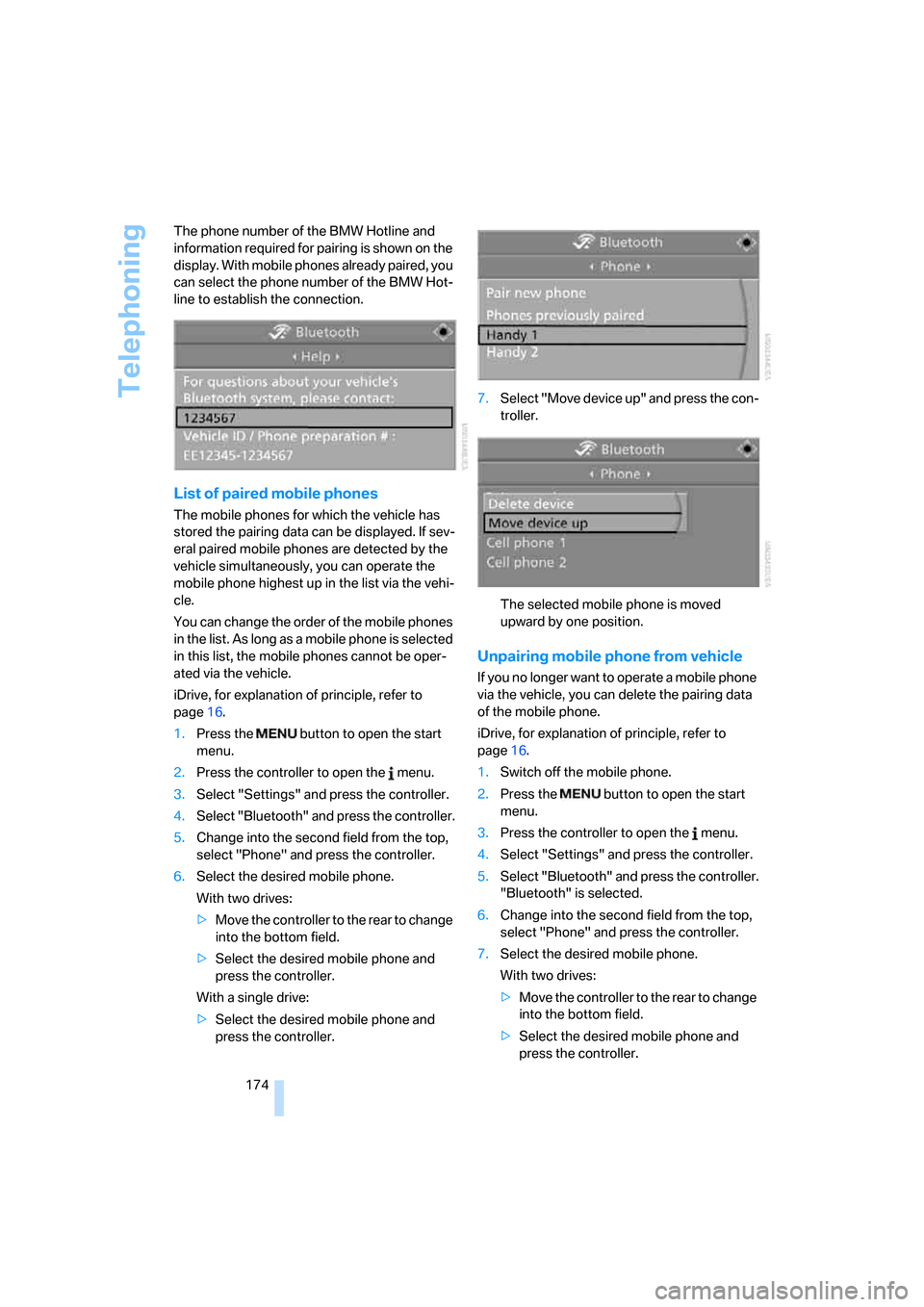
174 The phone number of the BMW Hotline and
information required for pairing is shown on the
display. With mobile phones already paired, you
can select the phone number of the BMW Hot-
line to establish the connection.
List of paired mobile phones
The mobile phones for which the vehicle has
stored the pairing data can be displayed. If sev-
eral paired mobile phones are detected by the
vehicle simultaneously, you can operate the
mobile phone highest up in the list via the vehi-
cle.
You can change the order of the mobile phones
in the list. As long as a mobile phone is selected
in this list, the mobile phones cannot be oper-
ated via the vehicle.
iDrive, for explanation of principle, refer to
page16.
1.Press the button to open the start
menu.
2.Press the controller to open the menu.
3.Select "Settings" and press the controller.
4.Select "Bluetooth" and press the controller.
5.Change into the second field from the top,
select "Phone" and press the controller.
6.Select the desired mobile phone.
With two drives:
>Move the controller to the rear to change
into the bottom field.
>Select the desired mobile phone and
press the controller.
With a single drive:
>Select the desired mobile phone and
press the controller.7.Select "Move device up" and press the con-
troller.
The selected mobile phone is moved
upward by one position.
Unpairing mobile phone from vehicle
If you no longer want to operate a mobile phone
via the vehicle, you can delete the pairing data
of the mobile phone.
iDrive, for explanation of principle, refer to
page16.
1.Switch off the mobile phone.
2.Press the button to open the start
menu.
3.Press the controller to open the menu.
4.Select "Settings" and press the controller.
5.Select "Bluetooth" and press the controller.
"Bluetooth" is selected.
6.Change into the second field from the top,
select "Phone" and press the controller.
7.Select the desired mobile phone.
With two drives:
>Move the controller to the rear to change
into the bottom field.
>Select the desired mobile phone and
press the controller.
Page 178 of 256
Telephoning
176
Adjusting volume
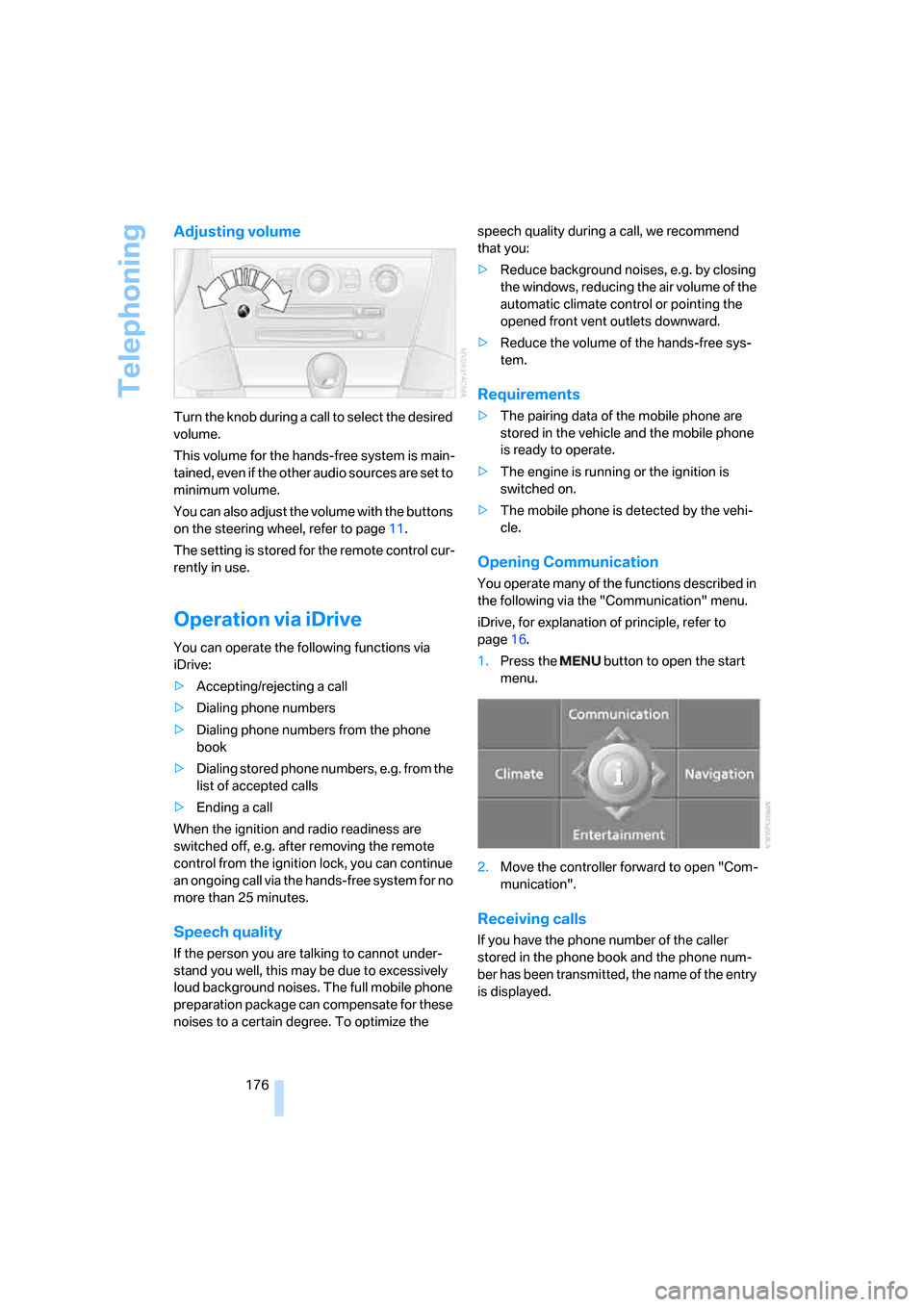
Turn the knob during a call to select the desired
volume.
This volume for the hands-free system is main-
tained, even if the other audio sources are set to
minimum volume.
You can also adjust the volume with the buttons
on the steering wheel, refer to page11.
The setting is stored for the remote control cur-
rently in use.
Operation via iDrive
You can operate the following functions via
iDrive:
>Accepting/rejecting a call
>Dialing phone numbers
>Dialing phone numbers from the phone
book
>Dialing stored phone numbers, e.g. from the
list of accepted calls
>Ending a call
When the ignition and radio readiness are
switched off, e.g. after removing the remote
control from the ignition lock, you can continue
an ongoing call via the hands-free system for no
more than 25 minutes.
Speech quality
If the person you are talking to cannot under-
stand you well, this may be due to excessively
loud background noises. The full mobile phone
preparation package can compensate for these
noises to a certain degree. To optimize the speech quality during a call, we recommend
that you:
>Reduce background noises, e.g. by closing
the windows, reducing the air volume of the
automatic climate control or pointing the
opened front vent outlets downward.
>Reduce the volume of the hands-free sys-
tem.
Requirements
>The pairing data of the mobile phone are
stored in the vehicle and the mobile phone
is ready to operate.
>The engine is running or the ignition is
switched on.
>The mobile phone is detected by the vehi-
cle.
Opening Communication
You operate many of the functions described in
the following via the "Communication" menu.
iDrive, for explanation of principle, refer to
page16.
1.Press the button to open the start
menu.
2.Move the controller forward to open "Com-
munication".
Receiving calls
If you have the phone number of the caller
stored in the phone book and the phone num-
ber has been transmitted, the name of the entry
is displayed.
Page 179 of 256
177
Entertainment
Reference
At a glance
Controls
Driving tips Communications
Navigation
Mobility
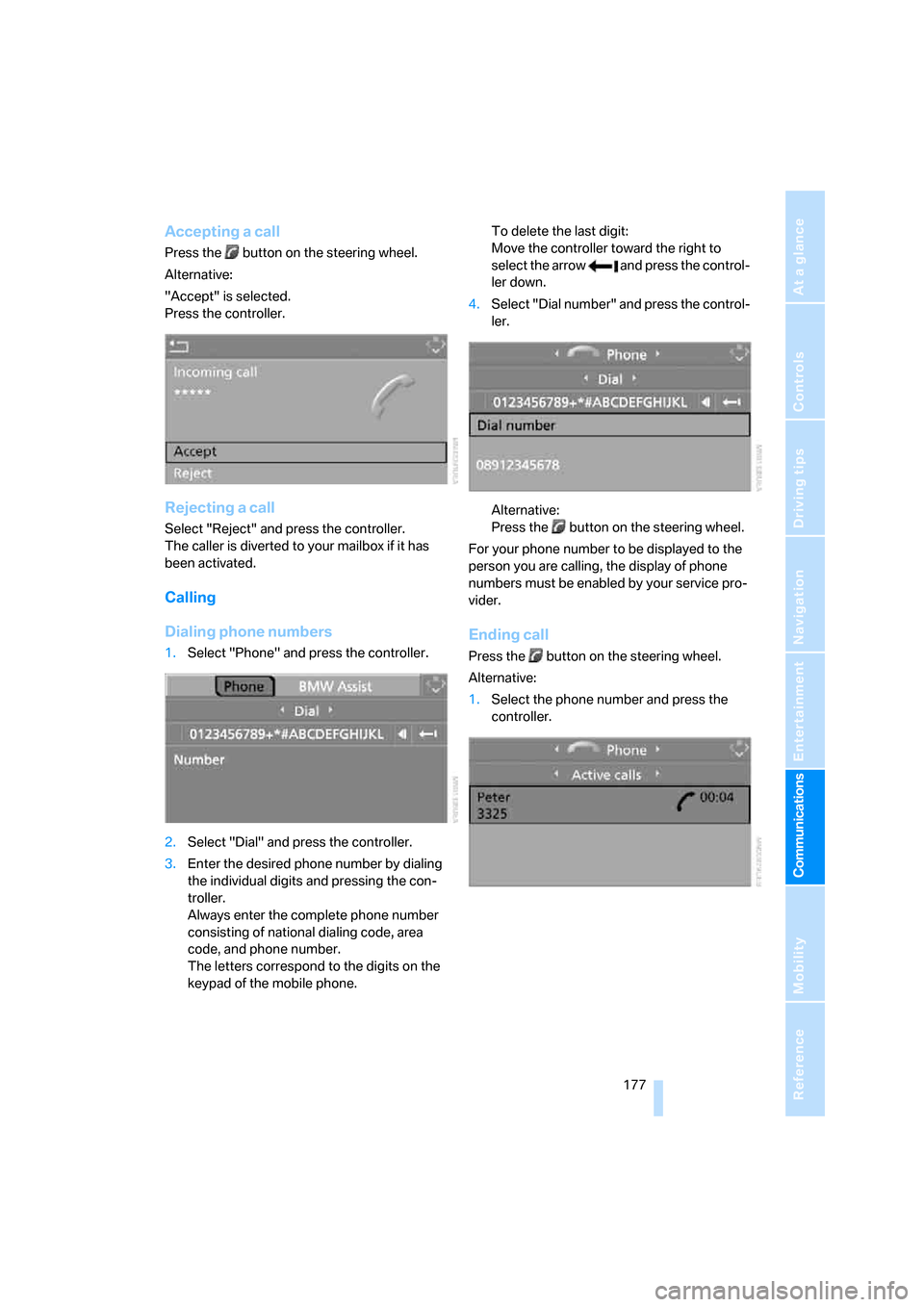
Accepting a call
Press the button on the steering wheel.
Alternative:
"Accept" is selected.
Press the controller.
Rejecting a call
Select "Reject" and press the controller.
The caller is diverted to your mailbox if it has
been activated.
Calling
Dialing phone numbers
1.Select "Phone" and press the controller.
2.Select "Dial" and press the controller.
3.Enter the desired phone number by dialing
the individual digits and pressing the con-
troller.
Always enter the complete phone number
consisting of national dialing code, area
code, and phone number.
The letters correspond to the digits on the
keypad of the mobile phone.To delete the last digit:
Move the controller toward the right to
select the arrow and press the control-
ler down.
4.Select "Dial number" and press the control-
ler.
Alternative:
Press the button on the steering wheel.
For your phone number to be displayed to the
person you are calling, the display of phone
numbers must be enabled by your service pro-
vider.
Ending call
Press the button on the steering wheel.
Alternative:
1.Select the phone number and press the
controller.
Page 180 of 256
Telephoning
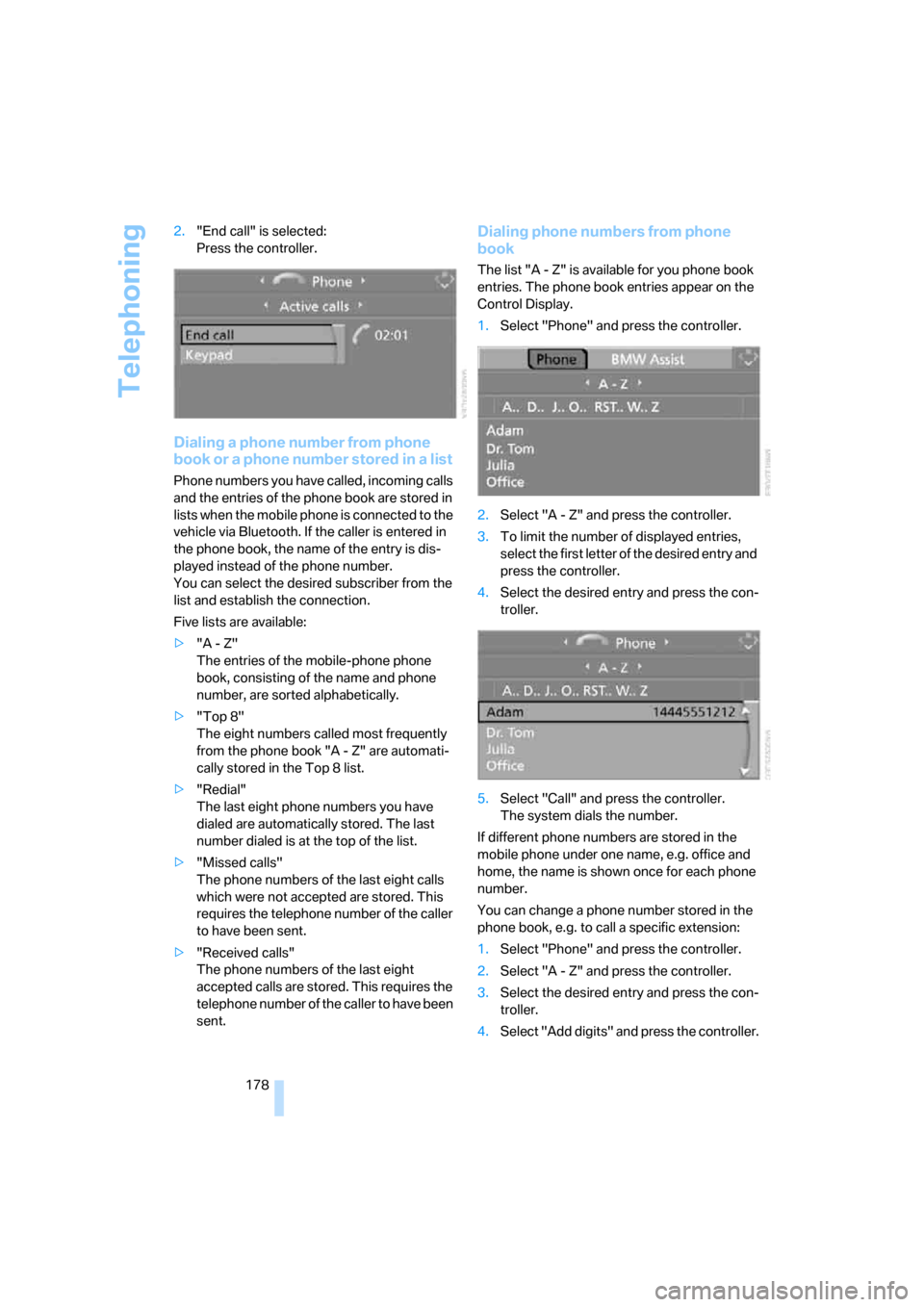
178 2."End call" is selected:
Press the controller.
Dialing a phone number from phone
book or a phone number stored in a list
Phone numbers you have called, incoming calls
and the entries of the phone book are stored in
lists when the mobile phone is connected to the
vehicle via Bluetooth. If the caller is entered in
the phone book, the name of the entry is dis-
played instead of the phone number.
You can select the desired subscriber from the
list and establish the connection.
Five lists are available:
>"A - Z"
The entries of the mobile-phone phone
book, consisting of the name and phone
number, are sorted alphabetically.
>"Top 8"
The eight numbers called most frequently
from the phone book "A - Z" are automati-
cally stored in the Top 8 list.
>"Redial"
The last eight phone numbers you have
dialed are automatically stored. The last
number dialed is at the top of the list.
>"Missed calls"
The phone numbers of the last eight calls
which were not accepted are stored. This
requires the telephone number of the caller
to have been sent.
>"Received calls"
The phone numbers of the last eight
accepted calls are stored. This requires the
telephone number of the caller to have been
sent.
Dialing phone numbers from phone
book
The list "A - Z" is available for you phone book
entries. The phone book entries appear on the
Control Display.
1.Select "Phone" and press the controller.
2.Select "A - Z" and press the controller.
3.To limit the number of displayed entries,
select the first letter of the desired entry and
press the controller.
4.Select the desired entry and press the con-
troller.
5.Select "Call" and press the controller.
The system dials the number.
If different phone numbers are stored in the
mobile phone under one name, e.g. office and
home, the name is shown once for each phone
number.
You can change a phone number stored in the
phone book, e.g. to call a specific extension:
1.Select "Phone" and press the controller.
2.Select "A - Z" and press the controller.
3.Select the desired entry and press the con-
troller.
4.Select "Add digits" and press the controller.
Page 181 of 256
179
Entertainment
Reference
At a glance
Controls
Driving tips Communications
Navigation
Mobility
5.Change the phone number.
6.Select "Dial number" and press the control-
ler.
Dialing a phone number stored in a list
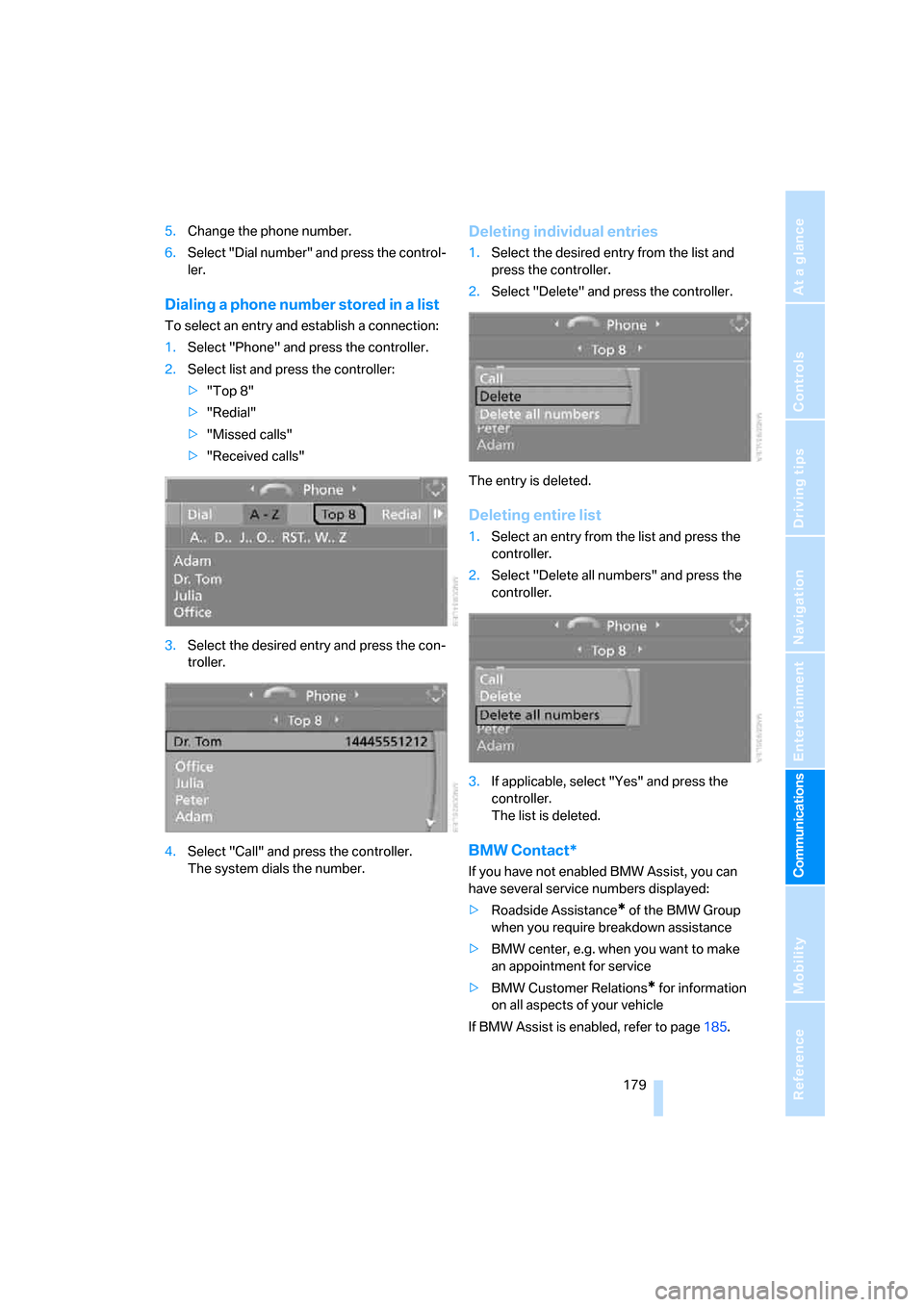
To select an entry and establish a connection:
1.Select "Phone" and press the controller.
2.Select list and press the controller:
>"Top 8"
>"Redial"
>"Missed calls"
>"Received calls"
3.Select the desired entry and press the con-
troller.
4.Select "Call" and press the controller.
The system dials the number.
Deleting individual entries
1.Select the desired entry from the list and
press the controller.
2.Select "Delete" and press the controller.
The entry is deleted.
Deleting entire list
1.Select an entry from the list and press the
controller.
2.Select "Delete all numbers" and press the
controller.
3.If applicable, select "Yes" and press the
controller.
The list is deleted.
BMW Contact*
If you have not enabled BMW Assist, you can
have several service numbers displayed:
>Roadside Assistance
* of the BMW Group
when you require breakdown assistance
>BMW center, e.g. when you want to make
an appointment for service
>BMW Customer Relations
* for information
on all aspects of your vehicle
If BMW Assist is enabled, refer to page185.