radio BMW M6 COUPE 2007 E63 Owner's Guide
[x] Cancel search | Manufacturer: BMW, Model Year: 2007, Model line: M6 COUPE, Model: BMW M6 COUPE 2007 E63Pages: 256, PDF Size: 8.11 MB
Page 157 of 256
Navigation
Entertainment
Driving tips
155Reference
At a glance
Controls
Communications
Mobility
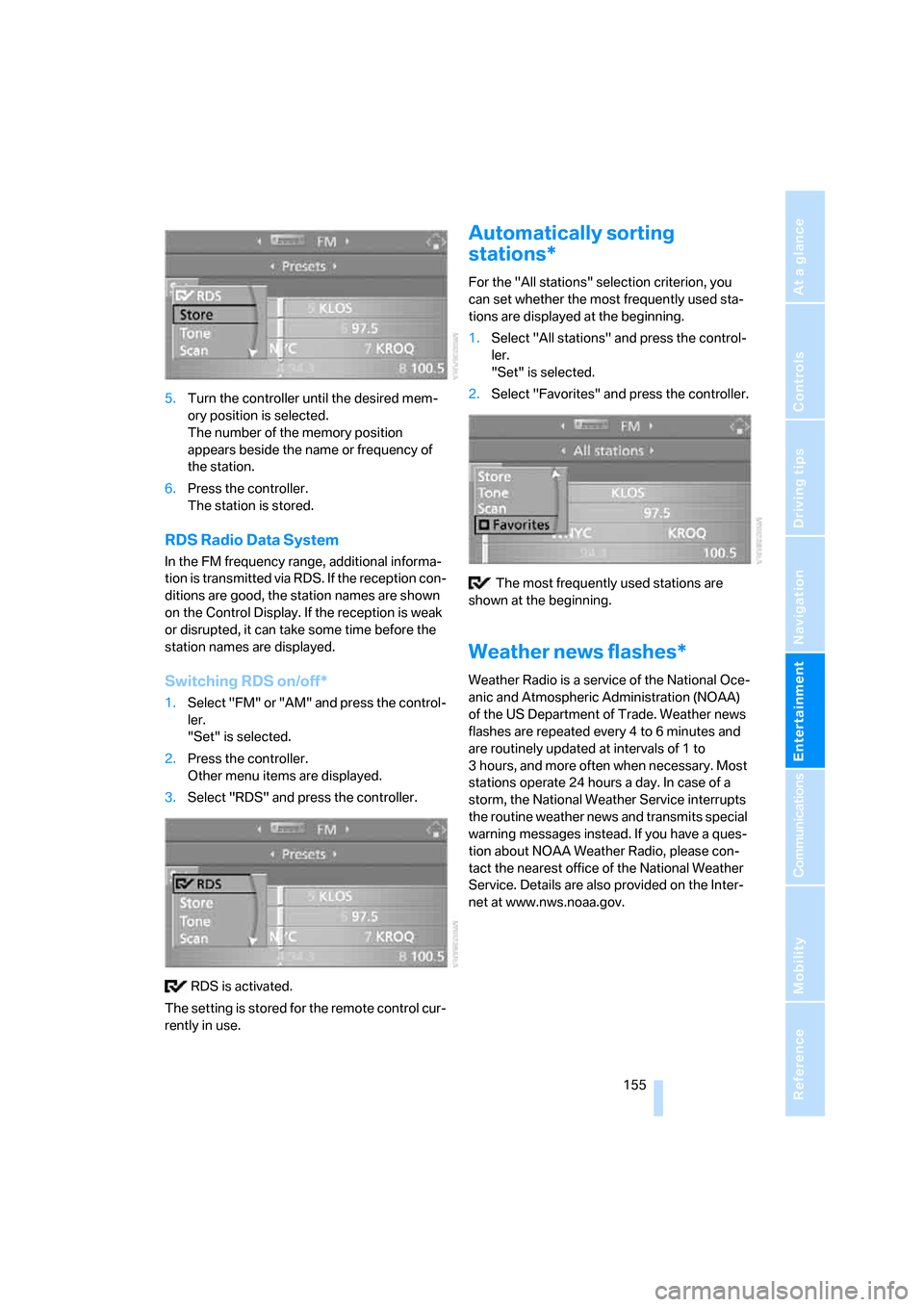
5.Turn the controller until the desired mem-
ory position is selected.
The number of the memory position
appears beside the name or frequency of
the station.
6.Press the controller.
The station is stored.
RDS Radio Data System
In the FM frequency range, additional informa-
tion is transmitted via RDS. If the reception con-
ditions are good, the station names are shown
on the Control Display. If the reception is weak
or disrupted, it can take some time before the
station names are displayed.
Switching RDS on/off*
1.Select "FM" or "AM" and press the control-
ler.
"Set" is selected.
2.Press the controller.
Other menu items are displayed.
3.Select "RDS" and press the controller.
RDS is activated.
The setting is stored for the remote control cur-
rently in use.
Automatically sorting
stations*
For the "All stations" selection criterion, you
can set whether the most frequently used sta-
tions are displayed at the beginning.
1.Select "All stations" and press the control-
ler.
"Set" is selected.
2.Select "Favorites" and press the controller.
The most frequently used stations are
shown at the beginning.
Weather news flashes*
Weather Radio is a service of the National Oce-
anic and Atmospheric Administration (NOAA)
of the US Department of Trade. Weather news
flashes are repeated every 4 to 6 minutes and
are routinely updated at intervals of 1 to
3 hours, and more often when necessary. Most
stations operate 24 hours a day. In case of a
storm, the National Weather Service interrupts
the routine weather news and transmits special
warning messages instead. If you have a ques-
tion about NOAA Weather Radio, please con-
tact the nearest office of the National Weather
Service. Details are also provided on the Inter-
net at www.nws.noaa.gov.
Page 158 of 256
Radio
156
Calling up weather news flashes
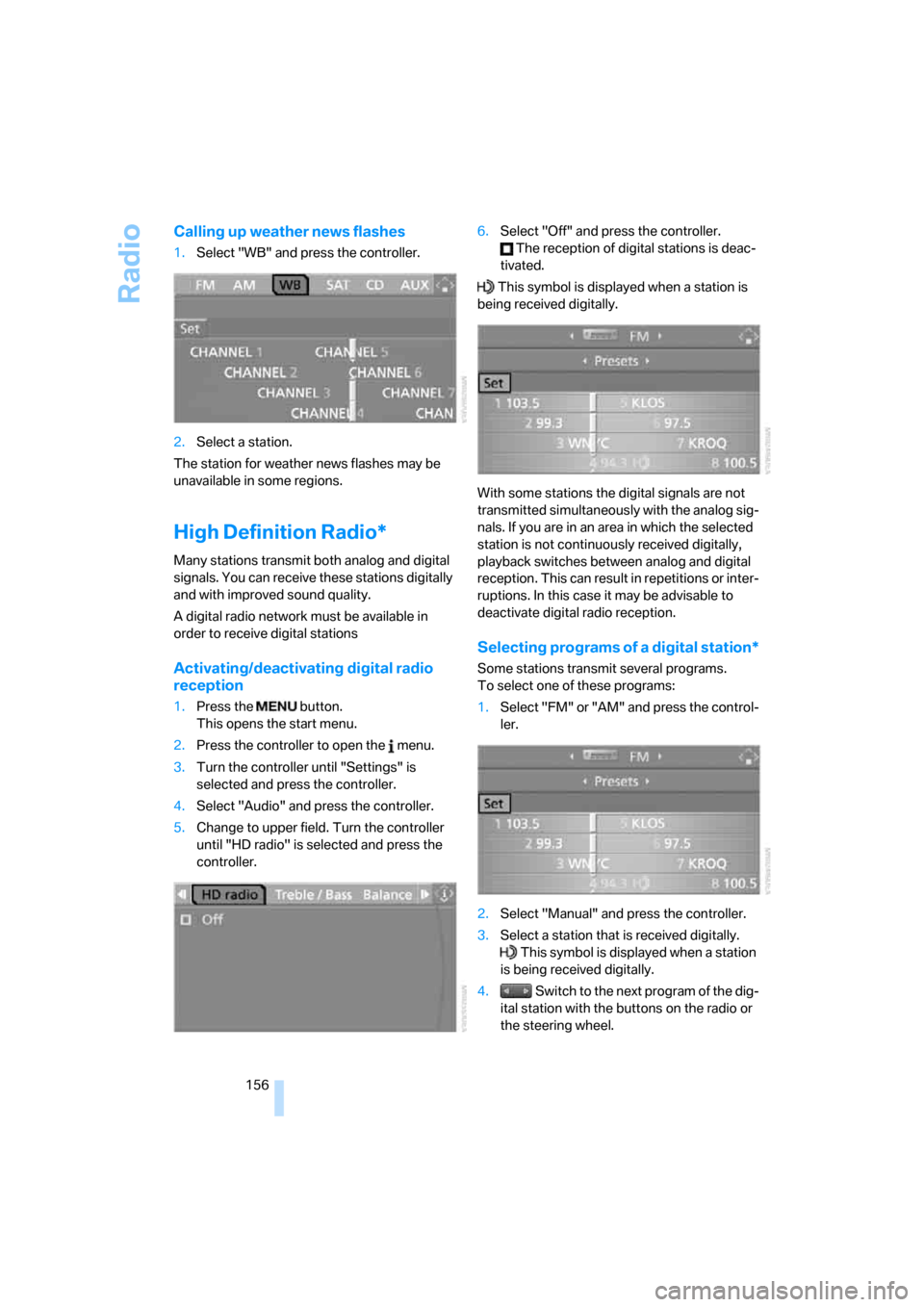
1.Select "WB" and press the controller.
2.Select a station.
The station for weather news flashes may be
unavailable in some regions.
High Definition Radio*
Many stations transmit both analog and digital
signals. You can receive these stations digitally
and with improved sound quality.
A digital radio network must be available in
order to receive digital stations
Activating/deactivating digital radio
reception
1.Press the button.
This opens the start menu.
2.Press the controller to open the menu.
3.Turn the controller until "Settings" is
selected and press the controller.
4.Select "Audio" and press the controller.
5.Change to upper field. Turn the controller
until "HD radio" is selected and press the
controller.6.Select "Off" and press the controller.
The reception of digital stations is deac-
tivated.
This symbol is displayed when a station is
being received digitally.
With some stations the digital signals are not
transmitted simultaneously with the analog sig-
nals. If you are in an area in which the selected
station is not continuously received digitally,
playback switches between analog and digital
reception. This can result in repetitions or inter-
ruptions. In this case it may be advisable to
deactivate digital radio reception.
Selecting programs of a digital station*
Some stations transmit several programs.
To select one of these programs:
1.Select "FM" or "AM" and press the control-
ler.
2.Select "Manual" and press the controller.
3.Select a station that is received digitally.
This symbol is displayed when a station
is being received digitally.
4. Switch to the next program of the dig-
ital station with the buttons on the radio or
the steering wheel.
Page 159 of 256
Navigation
Entertainment
Driving tips
157Reference
At a glance
Controls
Communications
Mobility
Updating stations offering digital
reception
If you are on a longer journey and leave the
transmission range of the stations originally set,
you can update the list of stations with the best
reception signal.
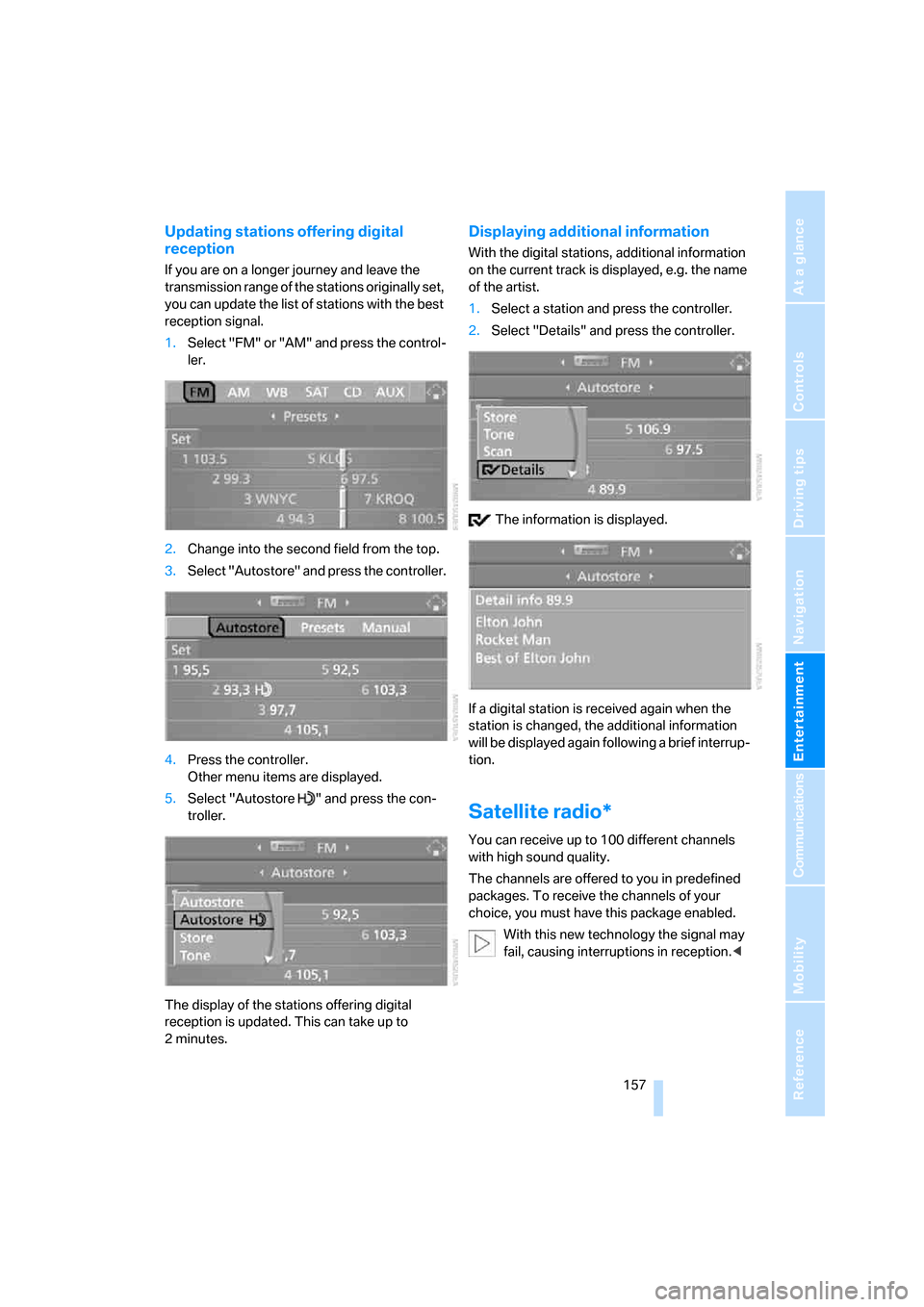
1.Select "FM" or "AM" and press the control-
ler.
2.Change into the second field from the top.
3.Select "Autostore" and press the controller.
4.Press the controller.
Other menu items are displayed.
5.Select "Autostore " and press the con-
troller.
The display of the stations offering digital
reception is updated. This can take up to
2minutes.
Displaying additional information
With the digital stations, additional information
on the current track is displayed, e.g. the name
of the artist.
1.Select a station and press the controller.
2.Select "Details" and press the controller.
The information is displayed.
If a digital station is received again when the
station is changed, the additional information
will be displayed again following a brief interrup-
tion.
Satellite radio*
You can receive up to 100 different channels
with high sound quality.
The channels are offered to you in predefined
packages. To receive the channels of your
choice, you must have this package enabled.
With this new technology the signal may
fail, causing interruptions in reception.<
Page 160 of 256
Radio
158
Enabling or disabling channels
1.Press the button.
This opens the start menu.
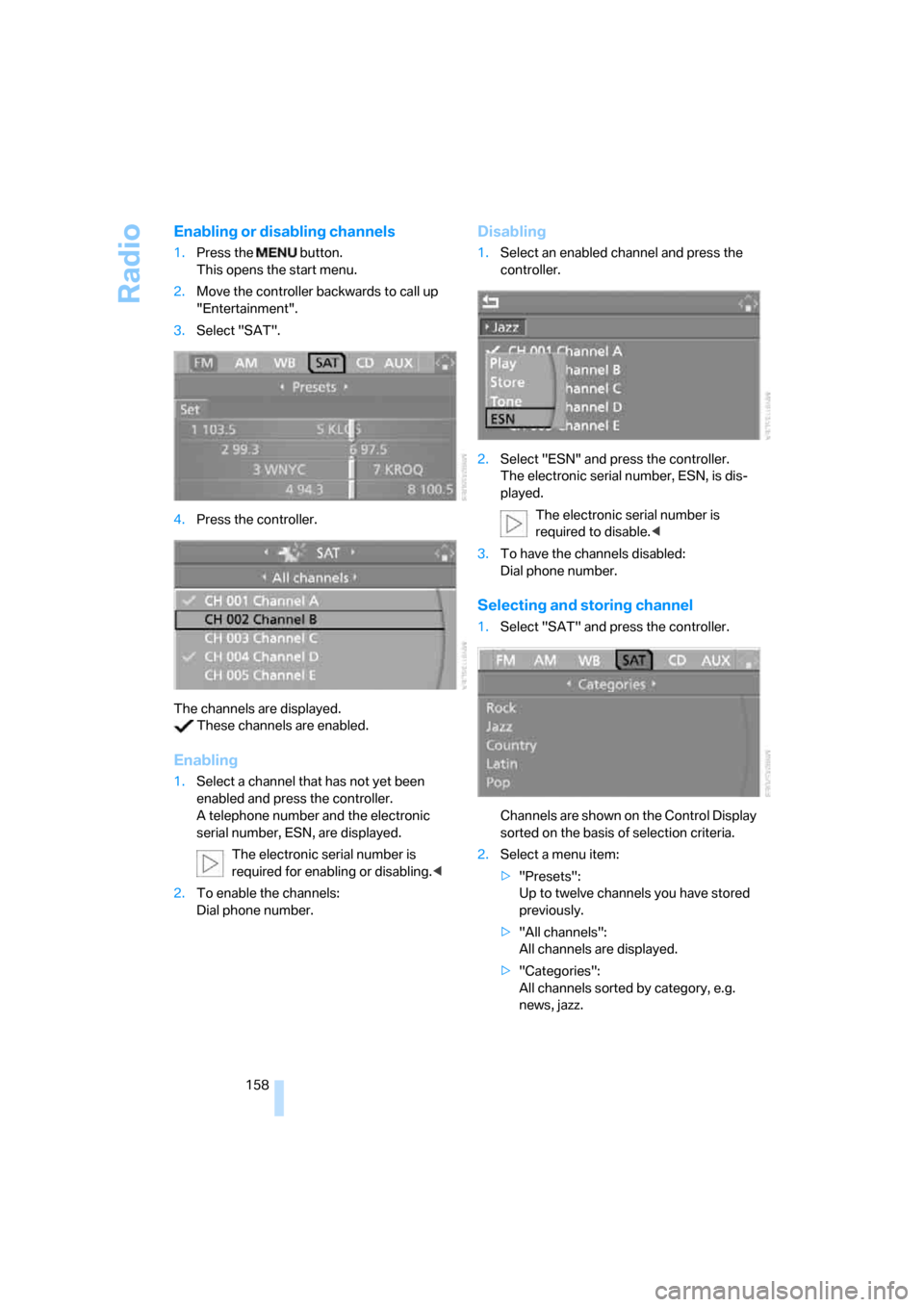
2.Move the controller backwards to call up
"Entertainment".
3.Select "SAT".
4.Press the controller.
The channels are displayed.
These channels are enabled.
Enabling
1.Select a channel that has not yet been
enabled and press the controller.
A telephone number and the electronic
serial number, ESN, are displayed.
The electronic serial number is
required for enabling or disabling.<
2.To enable the channels:
Dial phone number.
Disabling
1.Select an enabled channel and press the
controller.
2.Select "ESN" and press the controller.
The electronic serial number, ESN, is dis-
played.
The electronic serial number is
required to disable.<
3.To have the channels disabled:
Dial phone number.
Selecting and storing channel
1.Select "SAT" and press the controller.
Channels are shown on the Control Display
sorted on the basis of selection criteria.
2.Select a menu item:
>"Presets":
Up to twelve channels you have stored
previously.
>"All channels":
All channels are displayed.
>"Categories":
All channels sorted by category, e.g.
news, jazz.
Page 162 of 256
Radio
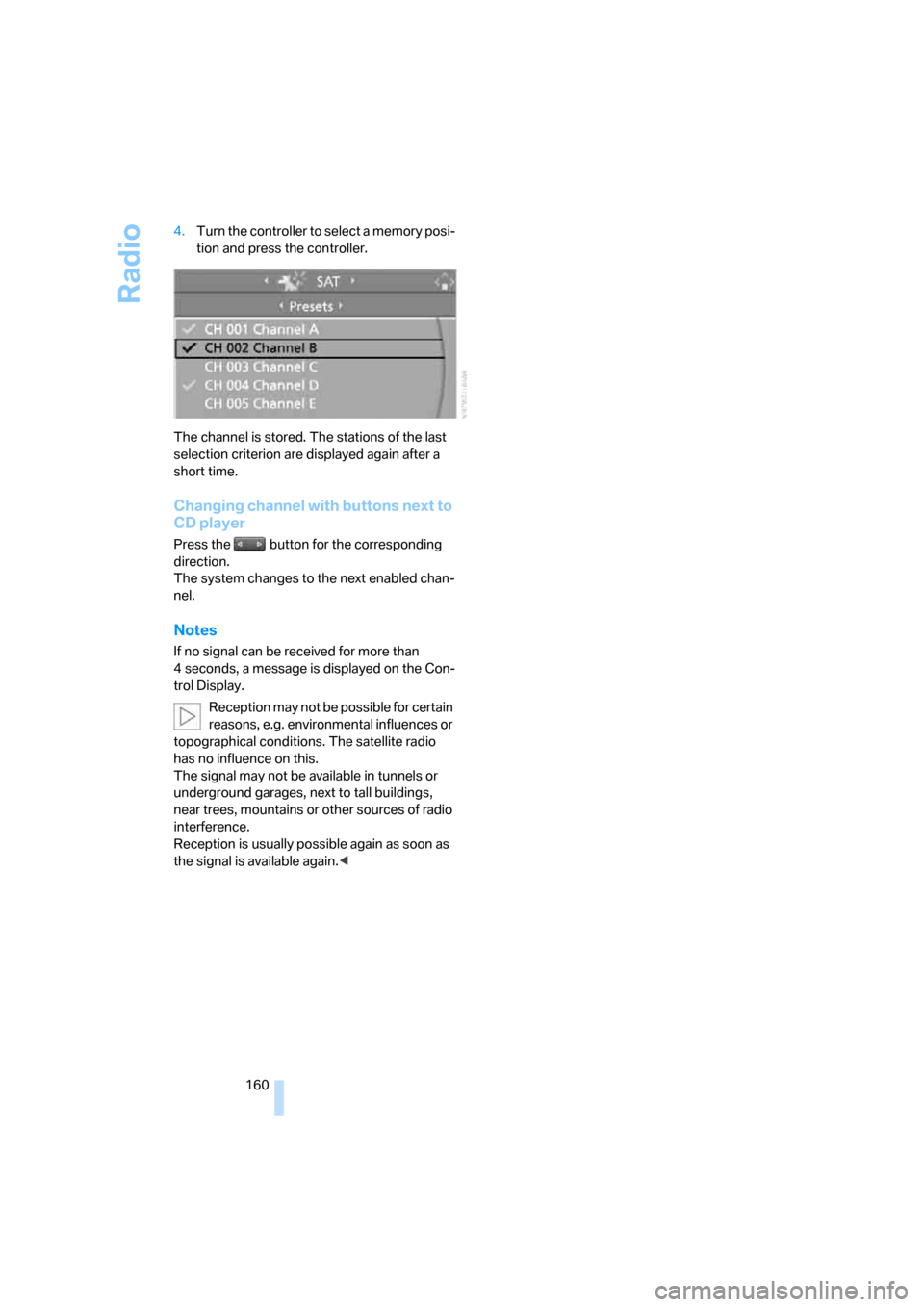
160 4.Turn the controller to select a memory posi-
tion and press the controller.
The channel is stored. The stations of the last
selection criterion are displayed again after a
short time.
Changing channel with buttons next to
CD player
Press the button for the corresponding
direction.
The system changes to the next enabled chan-
nel.
Notes
If no signal can be received for more than
4 seconds, a message is displayed on the Con-
trol Display.
Reception may not be possible for certain
reasons, e.g. environmental influences or
topographical conditions. The satellite radio
has no influence on this.
The signal may not be available in tunnels or
underground garages, next to tall buildings,
near trees, mountains or other sources of radio
interference.
Reception is usually possible again as soon as
the signal is available again.<
Page 165 of 256
Navigation
Entertainment
Driving tips
163Reference
At a glance
Controls
Communications
Mobility
1.Press the controller.
2.Select "Details" and press the controller.
The information about the current track is dis-
played.
From radio readiness, the setting for the remote
control used at the moment is saved.
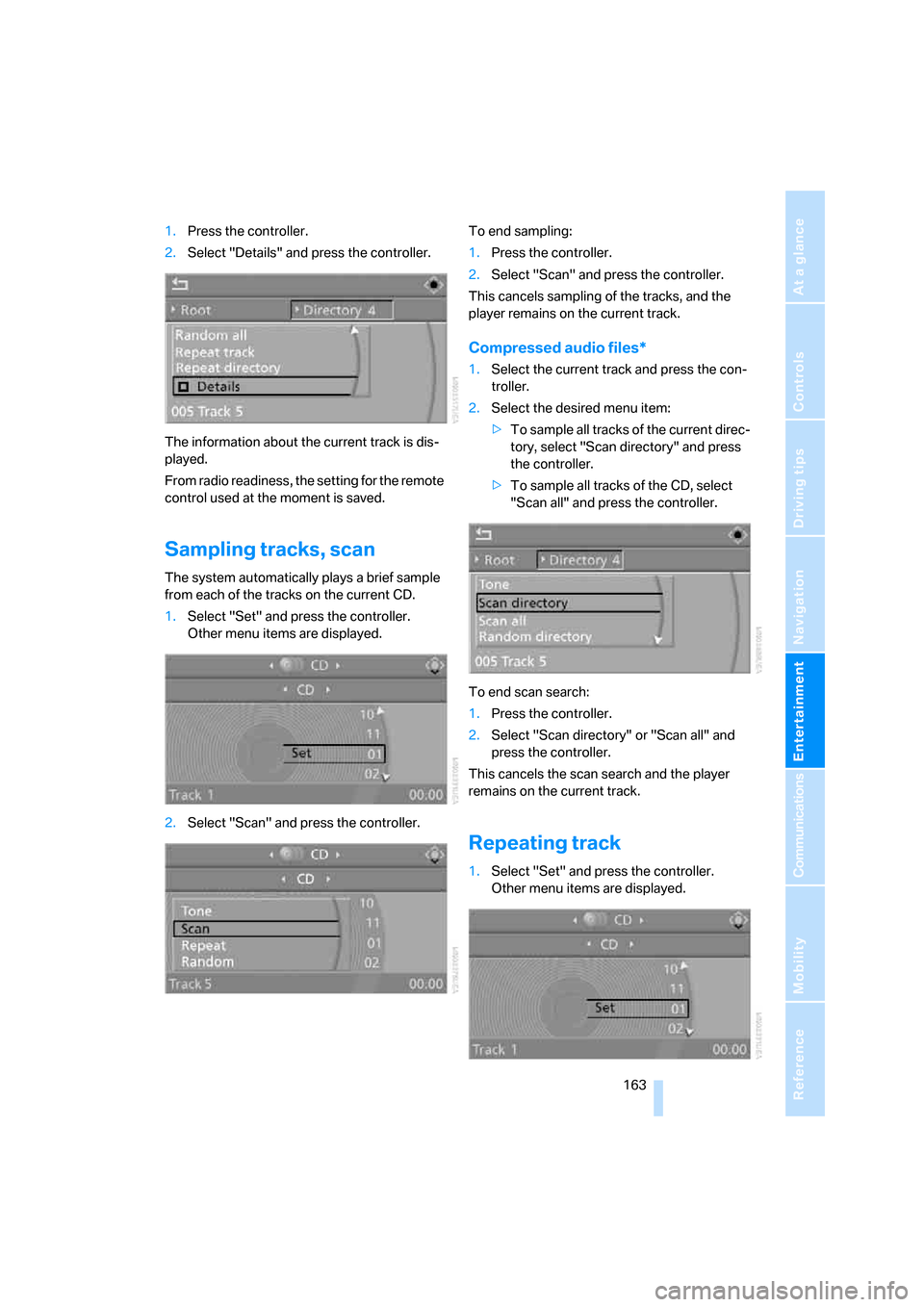
Sampling tracks, scan
The system automatically plays a brief sample
from each of the tracks on the current CD.
1.Select "Set" and press the controller.
Other menu items are displayed.
2.Select "Scan" and press the controller.To end sampling:
1.Press the controller.
2.Select "Scan" and press the controller.
This cancels sampling of the tracks, and the
player remains on the current track.
Compressed audio files*
1.Select the current track and press the con-
troller.
2.Select the desired menu item:
>To sample all tracks of the current direc-
tory, select "Scan directory" and press
the controller.
>To sample all tracks of the CD, select
"Scan all" and press the controller.
To end scan search:
1.Press the controller.
2.Select "Scan directory" or "Scan all" and
press the controller.
This cancels the scan search and the player
remains on the current track.
Repeating track
1.Select "Set" and press the controller.
Other menu items are displayed.
Page 178 of 256
Telephoning
176
Adjusting volume
Turn the knob during a call to select the desired
volume.
This volume for the hands-free system is main-
tained, even if the other audio sources are set to
minimum volume.
You can also adjust the volume with the buttons
on the steering wheel, refer to page11.
The setting is stored for the remote control cur-
rently in use.
Operation via iDrive
You can operate the following functions via
iDrive:
>Accepting/rejecting a call
>Dialing phone numbers
>Dialing phone numbers from the phone
book
>Dialing stored phone numbers, e.g. from the
list of accepted calls
>Ending a call
When the ignition and radio readiness are
switched off, e.g. after removing the remote
control from the ignition lock, you can continue
an ongoing call via the hands-free system for no
more than 25 minutes.
Speech quality
If the person you are talking to cannot under-
stand you well, this may be due to excessively
loud background noises. The full mobile phone
preparation package can compensate for these
noises to a certain degree. To optimize the speech quality during a call, we recommend
that you:
>Reduce background noises, e.g. by closing
the windows, reducing the air volume of the
automatic climate control or pointing the
opened front vent outlets downward.
>Reduce the volume of the hands-free sys-
tem.
Requirements
>The pairing data of the mobile phone are
stored in the vehicle and the mobile phone
is ready to operate.
>The engine is running or the ignition is
switched on.
>The mobile phone is detected by the vehi-
cle.
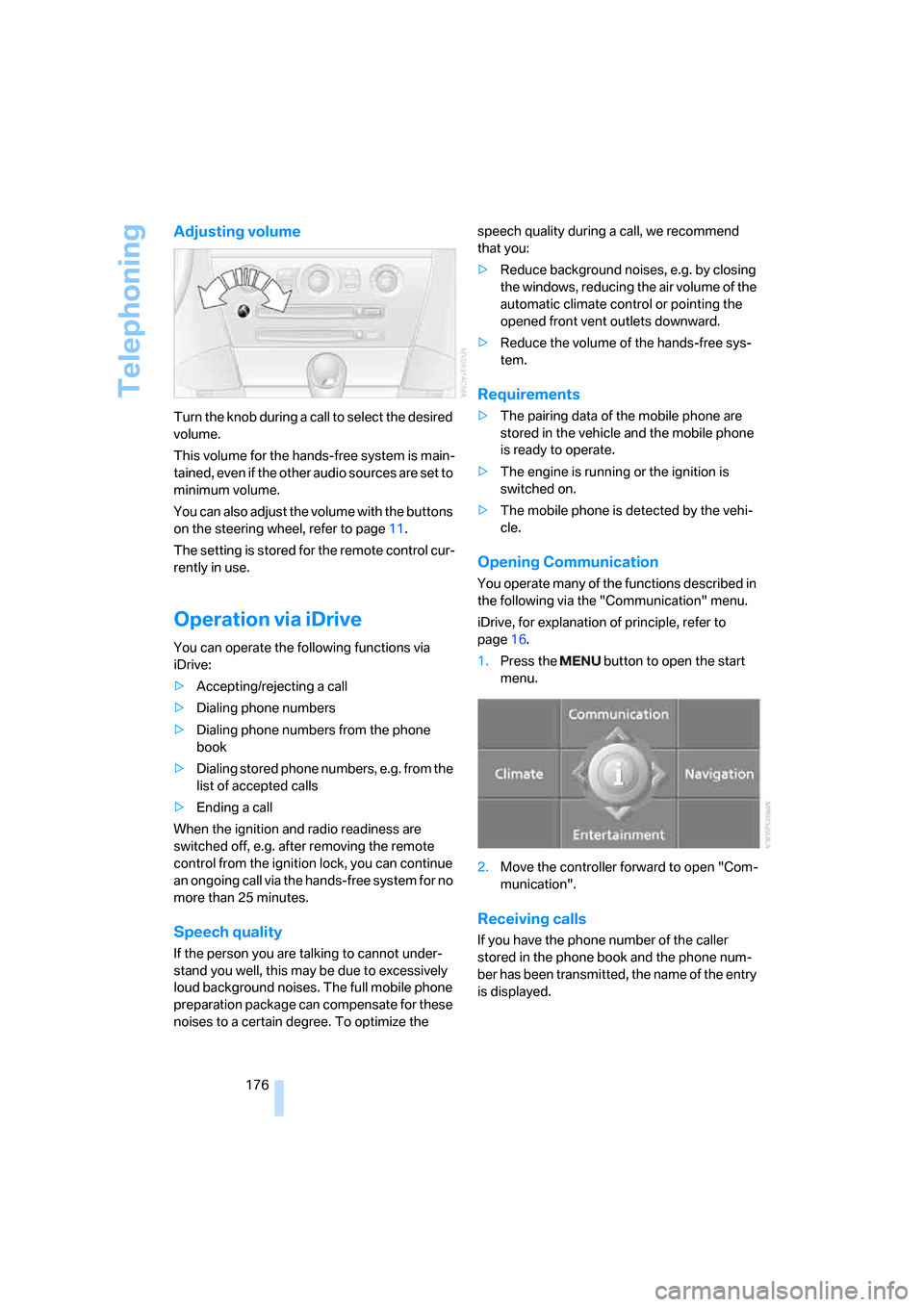
Opening Communication
You operate many of the functions described in
the following via the "Communication" menu.
iDrive, for explanation of principle, refer to
page16.
1.Press the button to open the start
menu.
2.Move the controller forward to open "Com-
munication".
Receiving calls
If you have the phone number of the caller
stored in the phone book and the phone num-
ber has been transmitted, the name of the entry
is displayed.
Page 186 of 256
Telephoning
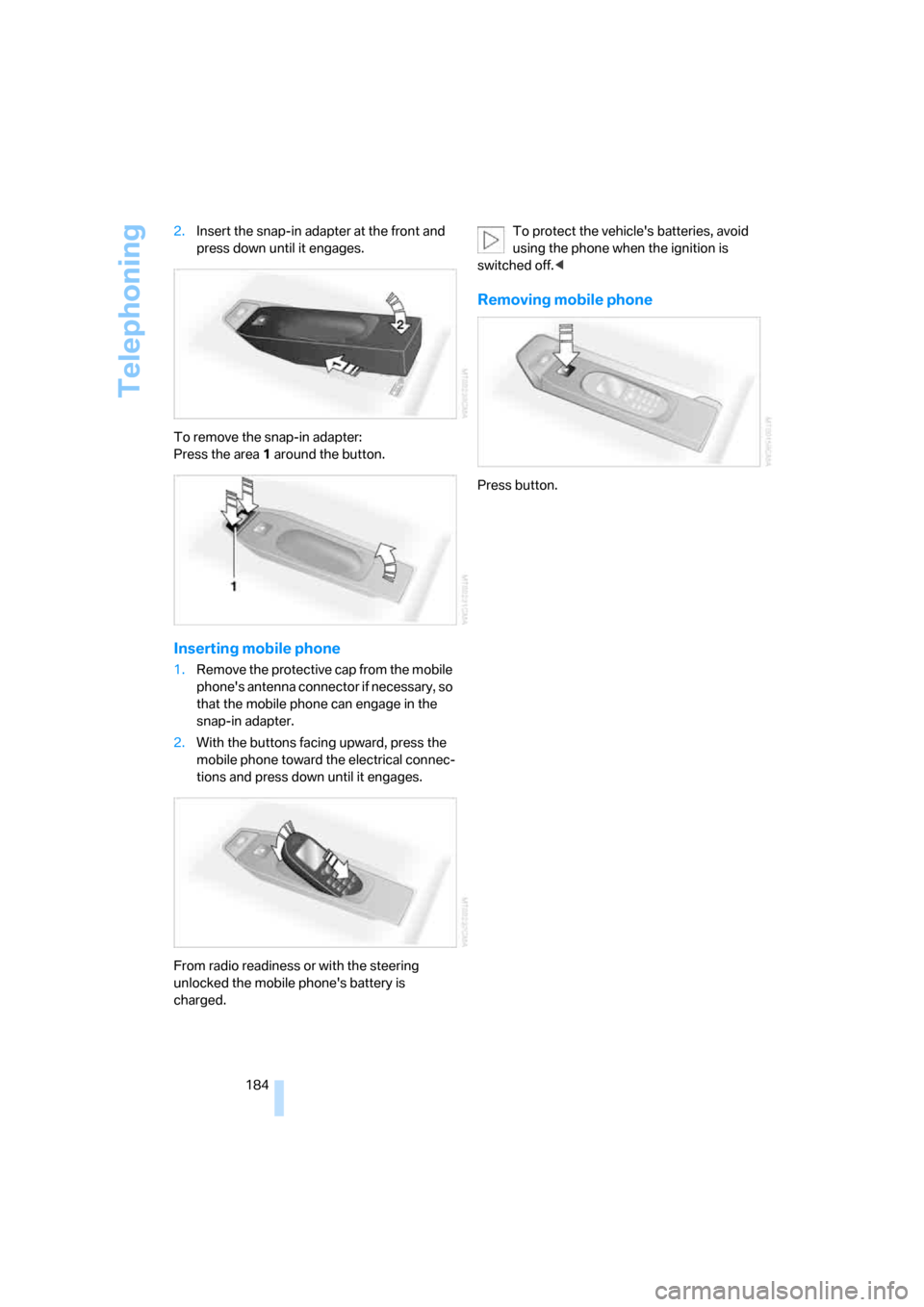
184 2.Insert the snap-in adapter at the front and
press down until it engages.
To remove the snap-in adapter:
Press the area 1 around the button.
Inserting mobile phone
1.Remove the protective cap from the mobile
phone's antenna connector if necessary, so
that the mobile phone can engage in the
snap-in adapter.
2.With the buttons facing upward, press the
mobile phone toward the electrical connec-
tions and press down until it engages.
From radio readiness or with the steering
unlocked the mobile phone's battery is
charged.To protect the vehicle's batteries, avoid
using the phone when the ignition is
switched off.<
Removing mobile phone
Press button.
Page 192 of 256
BMW Assist
190
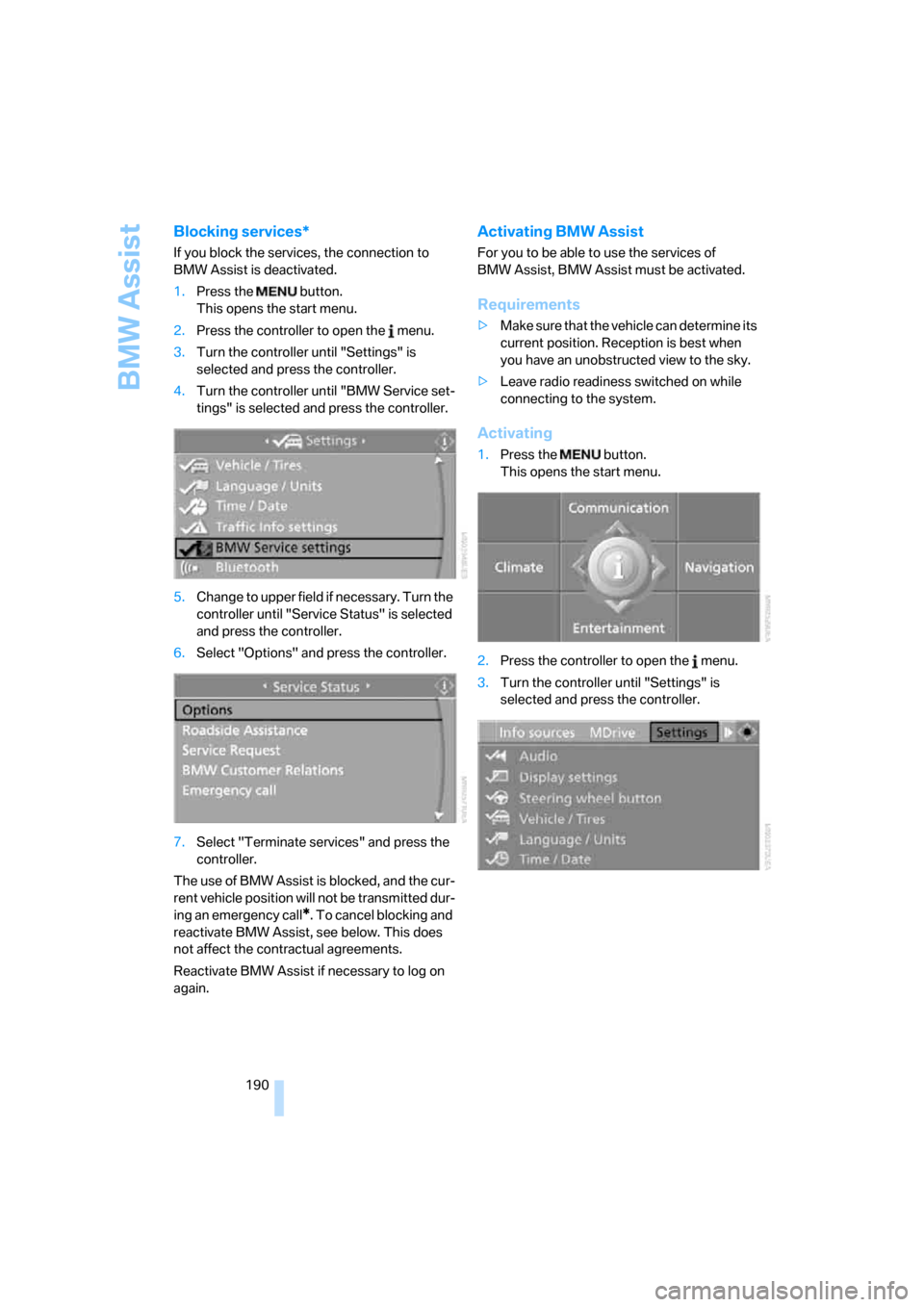
Blocking services*
If you block the services, the connection to
BMW Assist is deactivated.
1.Press the button.
This opens the start menu.
2.Press the controller to open the menu.
3.Turn the controller until "Settings" is
selected and press the controller.
4.Turn the controller until "BMW Service set-
tings" is selected and press the controller.
5.Change to upper field if necessary. Turn the
controller until "Service Status" is selected
and press the controller.
6.Select "Options" and press the controller.
7.Select "Terminate services" and press the
controller.
The use of BMW Assist is blocked, and the cur-
rent vehicle position will not be transmitted dur-
ing an emergency call
*. To cancel blocking and
reactivate BMW Assist, see below. This does
not affect the contractual agreements.
Reactivate BMW Assist if necessary to log on
again.
Activating BMW Assist
For you to be able to use the services of
BMW Assist, BMW Assist must be activated.
Requirements
>Make sure that the vehicle can determine its
current position. Reception is best when
you have an unobstructed view to the sky.
>Leave radio readiness switched on while
connecting to the system.
Activating
1.Press the button.
This opens the start menu.
2.Press the controller to open the menu.
3.Turn the controller until "Settings" is
selected and press the controller.
Page 219 of 256
Mobility
217Reference
At a glance
Controls
Driving tips
Communications
Navigation
Entertainment
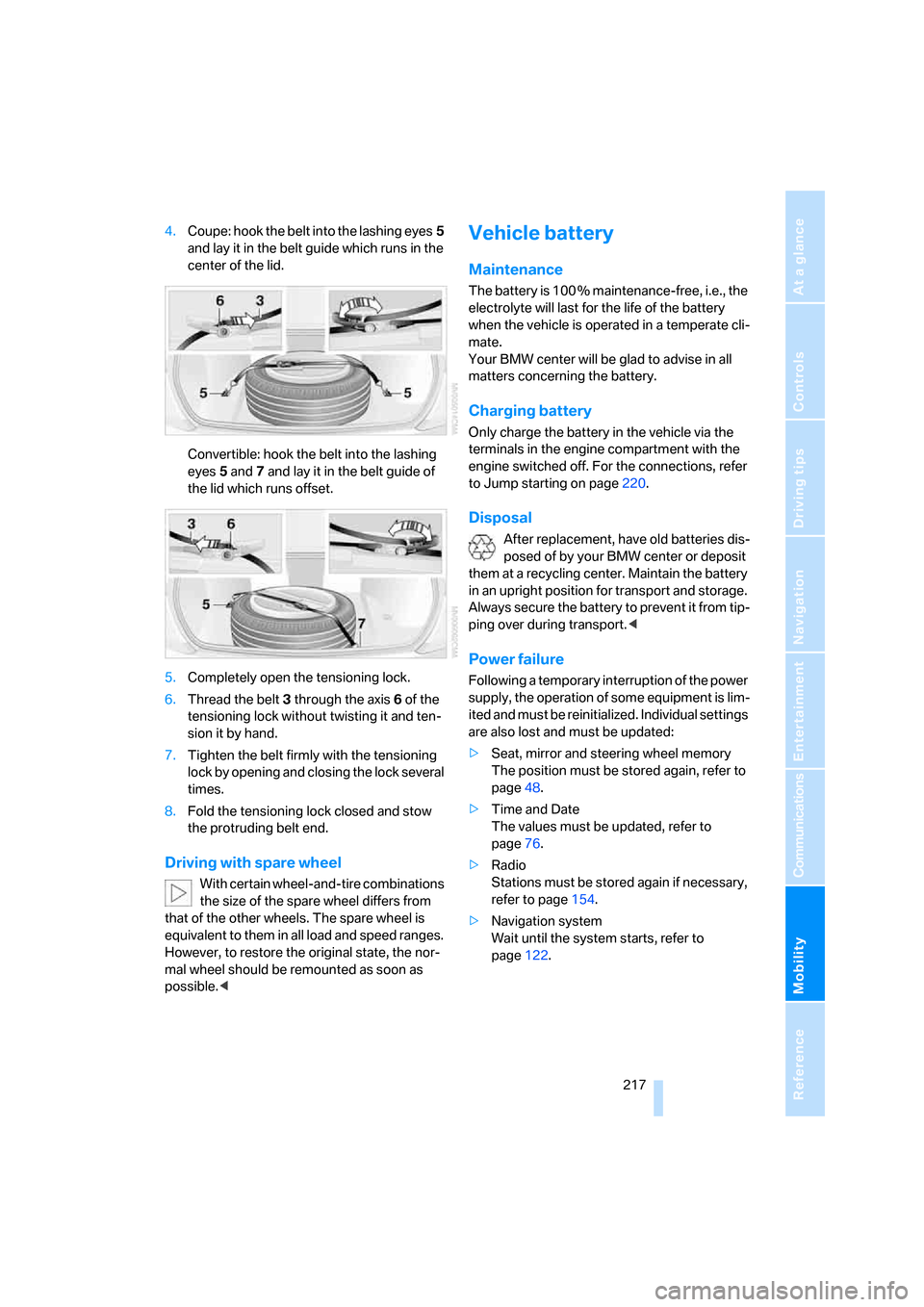
4.Coupe: hook the belt into the lashing eyes5
and lay it in the belt guide which runs in the
center of the lid.
Convertible: hook the belt into the lashing
eyes5 and7 and lay it in the belt guide of
the lid which runs offset.
5.Completely open the tensioning lock.
6.Thread the belt3 through the axis6 of the
tensioning lock without twisting it and ten-
sion it by hand.
7.Tighten the belt firmly with the tensioning
lock by opening and closing the lock several
times.
8.Fold the tensioning lock closed and stow
the protruding belt end.
Driving with spare wheel
With certain wheel-and-tire combinations
the size of the spare wheel differs from
that of the other wheels. The spare wheel is
equivalent to them in all load and speed ranges.
However, to restore the original state, the nor-
mal wheel should be remounted as soon as
possible.<
Vehicle battery
Maintenance
The battery is 100 % maintenance-free, i.e., the
electrolyte will last for the life of the battery
when the vehicle is operated in a temperate cli-
mate.
Your BMW center will be glad to advise in all
matters concerning the battery.
Charging battery
Only charge the battery in the vehicle via the
terminals in the engine compartment with the
engine switched off. For the connections, refer
to Jump starting on page220.
Disposal
After replacement, have old batteries dis-
posed of by your BMW center or deposit
them at a recycling center. Maintain the battery
in an upright position for transport and storage.
Always secure the battery to prevent it from tip-
ping over during transport.<
Power failure
Following a temporary interruption of the power
supply, the operation of some equipment is lim-
ited and must be reinitialized. Individual settings
are also lost and must be updated:
>Seat, mirror and steering wheel memory
The position must be stored again, refer to
page48.
>Time and Date
The values must be updated, refer to
page76.
>Radio
Stations must be stored again if necessary,
refer to page154.
>Navigation system
Wait until the system starts, refer to
page122.