Relê BMW X1 2013 E84 User Guide
[x] Cancel search | Manufacturer: BMW, Model Year: 2013, Model line: X1, Model: BMW X1 2013 E84Pages: 299, PDF Size: 6.66 MB
Page 67 of 299
Do not use the wipers on a dry wind‐
shield
Do not use the wipers on a dry windshield; oth‐
erwise, the wiper blades may wear more rap‐
idly or become damaged.◀
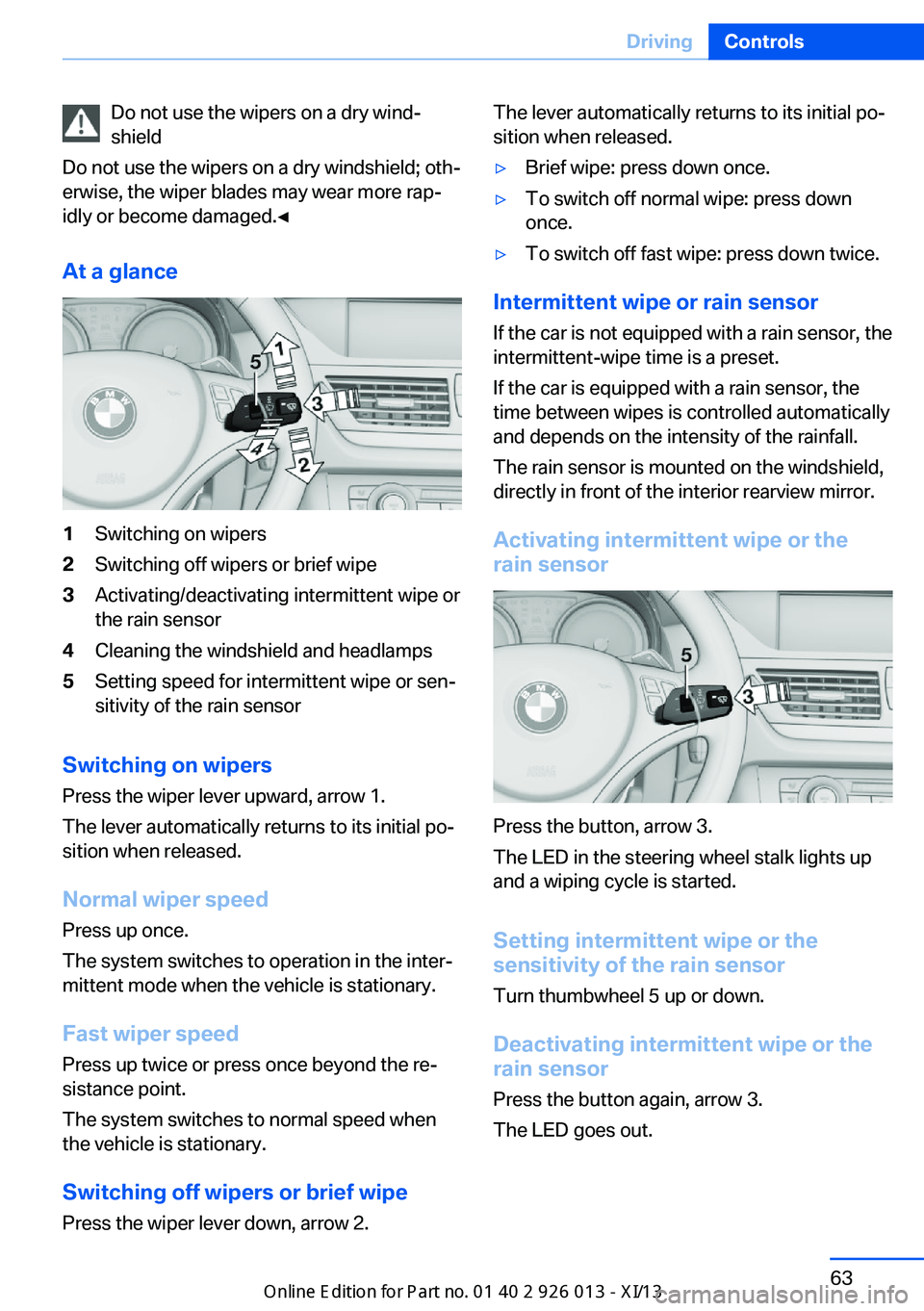
At a glance1Switching on wipers2Switching off wipers or brief wipe3Activating/deactivating intermittent wipe or
the rain sensor4Cleaning the windshield and headlamps5Setting speed for intermittent wipe or sen‐
sitivity of the rain sensor
Switching on wipers
Press the wiper lever upward, arrow 1.
The lever automatically returns to its initial po‐
sition when released.
Normal wiper speed
Press up once.
The system switches to operation in the inter‐
mittent mode when the vehicle is stationary.
Fast wiper speed
Press up twice or press once beyond the re‐
sistance point.
The system switches to normal speed when
the vehicle is stationary.
Switching off wipers or brief wipe
Press the wiper lever down, arrow 2.
The lever automatically returns to its initial po‐
sition when released.▷Brief wipe: press down once.▷To switch off normal wipe: press down
once.▷To switch off fast wipe: press down twice.
Intermittent wipe or rain sensor
If the car is not equipped with a rain sensor, the
intermittent-wipe time is a preset.
If the car is equipped with a rain sensor, the
time between wipes is controlled automatically
and depends on the intensity of the rainfall.
The rain sensor is mounted on the windshield,
directly in front of the interior rearview mirror.
Activating intermittent wipe or the
rain sensor
Press the button, arrow 3.
The LED in the steering wheel stalk lights up
and a wiping cycle is started.
Setting intermittent wipe or the
sensitivity of the rain sensor
Turn thumbwheel 5 up or down.
Deactivating intermittent wipe or the
rain sensor
Press the button again, arrow 3.
The LED goes out.
Seite 63DrivingControls63
Online Edition for Part no. 01 40 2 911 269 - VI/13
Page 72 of 299
Automatic transmission with
Steptronic, 8-gear
Transmission positions
D Drive, automatic position Position for normal vehicle operation. All for‐
ward gears are available.
Under normal operating conditions, fuel con‐
sumption is lowest when you are driving in po‐
sition D.
Kickdown
Kickdown is used to achieve maximum driving
performance. Press on the accelerator beyond
the resistance point at the full throttle position.
R is Reverse
Select only when the vehicle is stationary.
N is Neutral
The vehicle can roll.
N remains engaged after the engine is
switched off if the remote control remains in
the ignition lock. This function can be used in
an automatic car wash, refer to page 263, for
example. P is automatically engaged after ap‐
prox. 30 minutes.
P ParkThe drive wheels are blocked.
P is engaged automatically when the following
conditions are met:▷The driver's door is opened while the en‐
gine is running, the safety belt is not fas‐
tened and neither the brake pedal nor the
accelerator is activated.▷The engine is switched off unless N is en‐
gaged and the remote control is in the igni‐
tion lock.▷The remote control is removed from the ig‐
nition lock.Before leaving the vehicle, ensure that the
transmission position P is engaged; otherwise,
the vehicle may begin to roll.
Engaging transmission position▷Transmission position P can only be disen‐
gaged if the engine is running and the
brake pedal is pressed.▷With the vehicle stationary, press on the
brake pedal before shifting out of P or N;
otherwise, the shift command will not be
executed: shift lock.
Press on the brake pedal until you start
driving
To prevent the vehicle from creeping after you
select a driving position, maintain pressure on
the brake pedal until you are ready to start.◀
Engaging transmission positions D, R,
N
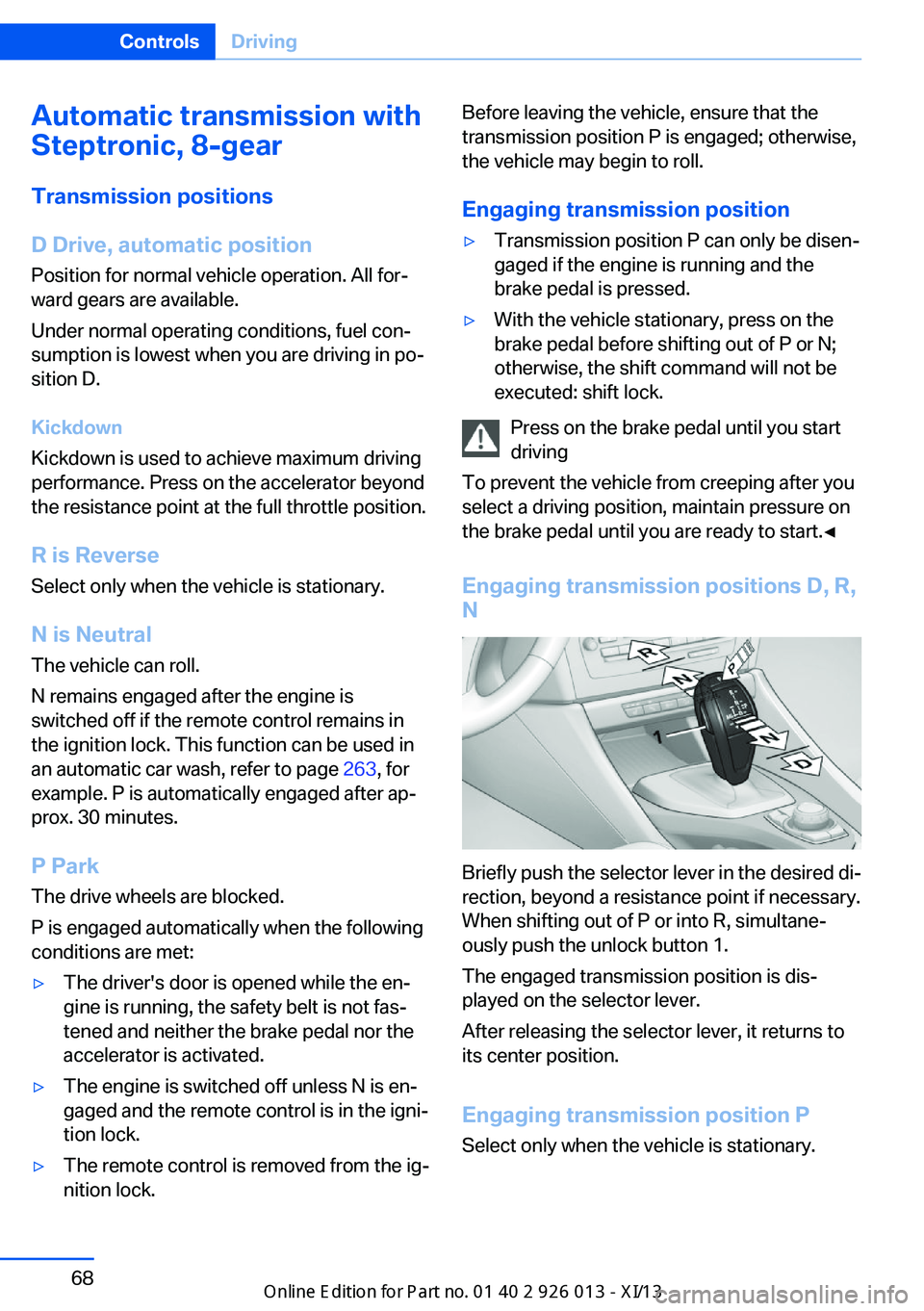
Briefly push the selector lever in the desired di‐
rection, beyond a resistance point if necessary.
When shifting out of P or into R, simultane‐
ously push the unlock button 1.
The engaged transmission position is dis‐
played on the selector lever.
After releasing the selector lever, it returns to
its center position.
Engaging transmission position P Select only when the vehicle is stationary.
Seite 68ControlsDriving68
Online Edition for Part no. 01 40 2 911 269 - VI/13
Page 104 of 299
Activating HDC
Press the button; the LED above the
button lights up.
The LED flashes when the brakes are applied
automatically.
Deactivating HDC Press the button again; the LED goes
out. HDC is automatically deactivated
above approx. 37 mph/60 km/h.
Using HDC
HDC can be used in every driving position.
Displays in the instrument cluster
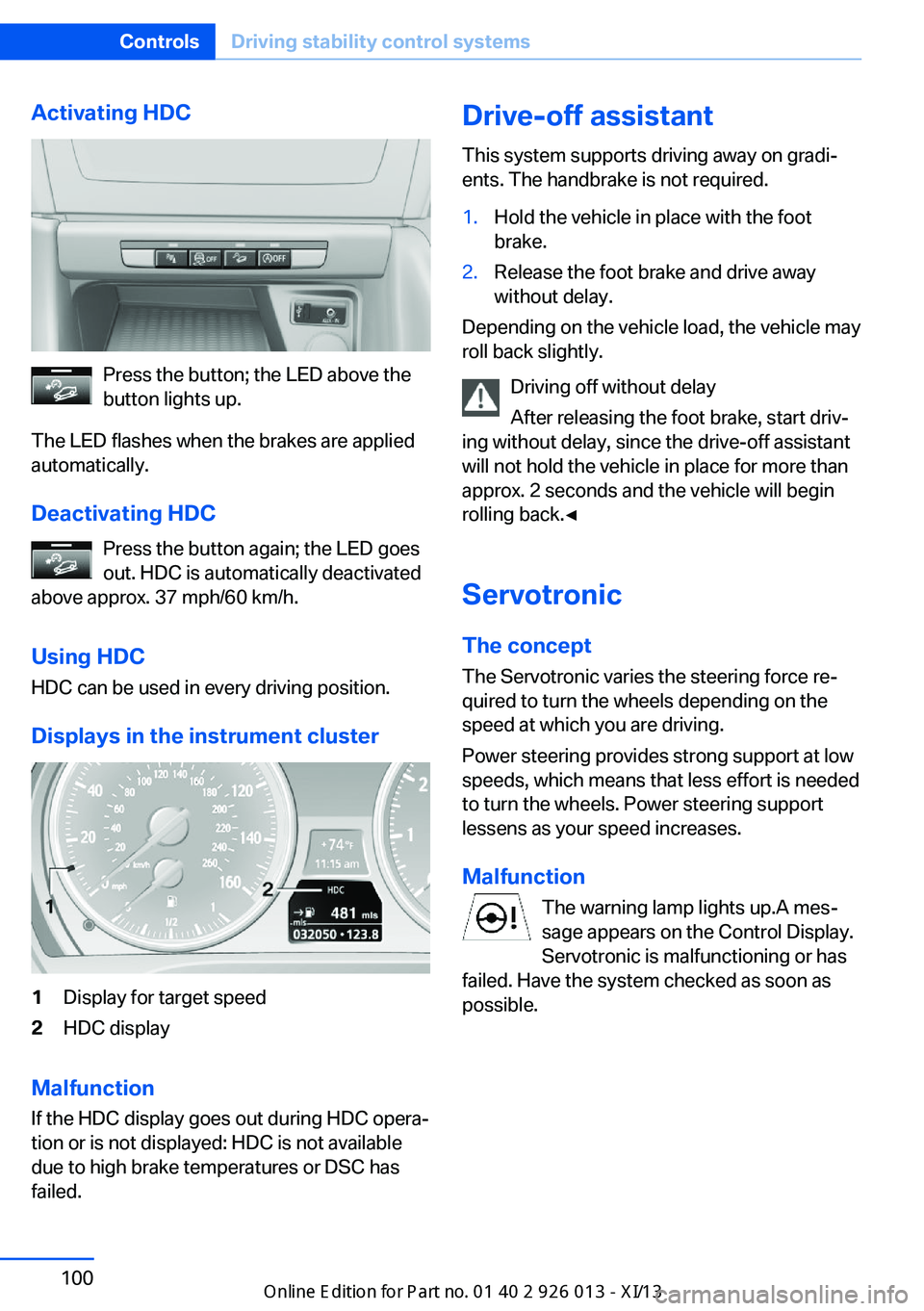
1Display for target speed2HDC display
Malfunction
If the HDC display goes out during HDC opera‐
tion or is not displayed: HDC is not available
due to high brake temperatures or DSC has
failed.
Drive-off assistant
This system supports driving away on gradi‐
ents. The handbrake is not required.1.Hold the vehicle in place with the foot
brake.2.Release the foot brake and drive away
without delay.
Depending on the vehicle load, the vehicle may
roll back slightly.
Driving off without delay
After releasing the foot brake, start driv‐
ing without delay, since the drive-off assistant
will not hold the vehicle in place for more than
approx. 2 seconds and the vehicle will begin
rolling back.◀
Servotronic The conceptThe Servotronic varies the steering force re‐
quired to turn the wheels depending on the
speed at which you are driving.
Power steering provides strong support at low
speeds, which means that less effort is needed
to turn the wheels. Power steering support
lessens as your speed increases.
Malfunction The warning lamp lights up.A mes‐
sage appears on the Control Display.
Servotronic is malfunctioning or has
failed. Have the system checked as soon as
possible.
Seite 100ControlsDriving stability control systems100
Online Edition for Part no. 01 40 2 911 269 - VI/13
Page 106 of 299
The system stores and maintains the speed.
Accelerating using the lever Accelerating slightly:
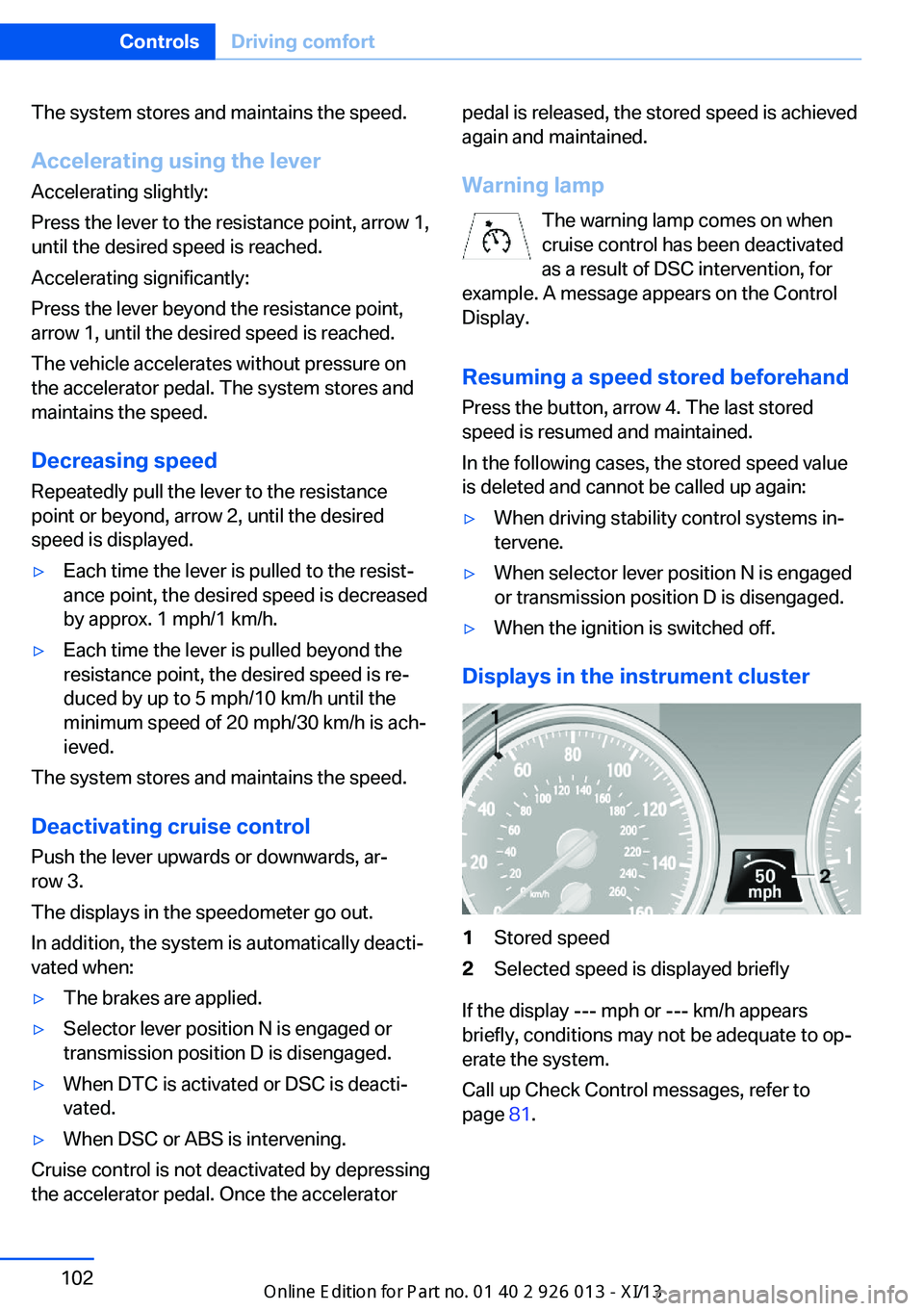
Press the lever to the resistance point, arrow 1,
until the desired speed is reached.
Accelerating significantly:
Press the lever beyond the resistance point,
arrow 1, until the desired speed is reached.
The vehicle accelerates without pressure on
the accelerator pedal. The system stores and
maintains the speed.
Decreasing speed
Repeatedly pull the lever to the resistance
point or beyond, arrow 2, until the desired
speed is displayed.▷Each time the lever is pulled to the resist‐
ance point, the desired speed is decreased
by approx. 1 mph/1 km/h.▷Each time the lever is pulled beyond the
resistance point, the desired speed is re‐
duced by up to 5 mph/10 km/h until the
minimum speed of 20 mph/30 km/h is ach‐
ieved.
The system stores and maintains the speed.
Deactivating cruise control
Push the lever upwards or downwards, ar‐
row 3.
The displays in the speedometer go out.
In addition, the system is automatically deacti‐
vated when:
▷The brakes are applied.▷Selector lever position N is engaged or
transmission position D is disengaged.▷When DTC is activated or DSC is deacti‐
vated.▷When DSC or ABS is intervening.
Cruise control is not deactivated by depressing
the accelerator pedal. Once the accelerator
pedal is released, the stored speed is achieved
again and maintained.
Warning lamp The warning lamp comes on when
cruise control has been deactivated
as a result of DSC intervention, for
example. A message appears on the Control
Display.
Resuming a speed stored beforehand Press the button, arrow 4. The last stored
speed is resumed and maintained.
In the following cases, the stored speed value
is deleted and cannot be called up again:▷When driving stability control systems in‐
tervene.▷When selector lever position N is engaged
or transmission position D is disengaged.▷When the ignition is switched off.
Displays in the instrument cluster
1Stored speed2Selected speed is displayed briefly
If the display --- mph or --- km/h appears
briefly, conditions may not be adequate to op‐
erate the system.
Call up Check Control messages, refer to
page 81.
Seite 102ControlsDriving comfort102
Online Edition for Part no. 01 40 2 911 269 - VI/13
Page 118 of 299
on the interior rearview mirror. The re‐
quired distance depends on the particular
hand-held transmitter.4.Press the button of the desired function on
the hand-held transmitter and the button
being programmed on the interior rearview
mirror simultaneously and hold. The LED
on the interior rearview mirror flashes
slowly at first.5.When the LED flashes more rapidly, re‐
lease both buttons. Rapid flashing indi‐
cates that the button on the interior rear‐
view mirror has been programmed.
If the LED does not flash faster after
60 seconds, change the distance between
the interior rearview mirror and the hand-
held transmitter and repeat the step. Multi‐
ple trials at different distances may be nec‐
essary. Wait at least 15 seconds between
trials.6.To program additional functions on other
buttons, repeat steps 3 to 5.
The systems can be operated with the buttons
on the interior rearview mirror.
Special characteristics of alternating-
code radio systems
If the system cannot be operated after re‐
peated programming, check whether the sys‐
tem to be operated uses an alternating-code
system.
Read the operating instructions of the system
or press and hold the programmed button on
the interior rearview mirror. If the LED on the
interior rearview mirror flashes rapidly at first
and then lights up continuously for 2 seconds,
the system is equipped with an alternating-
code system. This flashing LED pattern re‐
peats itself for approx. 20 seconds.
In systems with an alternating-code system,
the Universal Garage Door Opener and the
system must be additionally synchronized.
Please obtain additional information on syn‐
chronization in the operating instructions of
the system being set up.
The systems will be easier to synchronize with
the aid of a second person.
Synchronization:1.Park the vehicle within range of the re‐
mote-controlled system.2.Program the corresponding button on the
interior rearview mirror as described.3.Identify and press the synchronization but‐
ton on the system being set up. You have
approx. 30 seconds for the next step.4.Press and hold the button on the interior
rearview mirror for approx. 3 seconds and
then release it. Repeat this step up to three
times if necessary to complete the syn‐
chronization procedure. When synchroni‐
zation is completed, the programmed func‐
tion is executed.
Reprogramming individual buttons
1.Switch on the ignition.2.Hold the hand-held transmitter at a dis‐
tance of approx. 1 to 3 in/2.5 to 8 cm from
the memory buttons.
The required distance depends on the par‐
ticular hand-held transmitter.3.Press the memory button of the Universal
Garage Door Opener.4.If the LED flashes slowly after approx.
20 seconds, press the transmit button on
the hand-held transmitter.5.Release both buttons when the LED
flashes rapidly.
If the LED does not flash rapidly after ap‐
prox. 60 seconds, change the distance and
repeat the step.
Canada: if the LED does not flash rapidly
after approx. 60 seconds, change the dis‐
tance and repeat the step. If programmingSeite 114ControlsInterior equipment114
Online Edition for Part no. 01 40 2 911 269 - VI/13
Page 119 of 299
was aborted by the hand-held transmitter,
hold down the memory button and press
and release the button on the hand-held
transmitter several times for 2 seconds.
Controls
Prior to operation
Before operating a unit with the Universal
Garage Door Opener, ensure that there are no
people, animals, or objects in the range of
movement of the system; otherwise, there is a
risk of injury or damage.
Also follow the safety instructions of the hand-
held transmitter.◀
The system, such as the garage door, can be
operated using the button on the interior rear‐
view mirror with the engine running or the igni‐
tion switched on. When you are within the re‐
ception range of the system, press and hold
the button until the function is initiated. The
LED on the interior rearview mirror lights up
continuously while the radio signal is being
transmitted.
Deleting stored functions Press the right and left buttons on the interior
rearview mirror simultaneously for approx.
20 seconds until the LED flashes rapidly. All
stored functions are deleted. The functions
cannot be deleted individually.
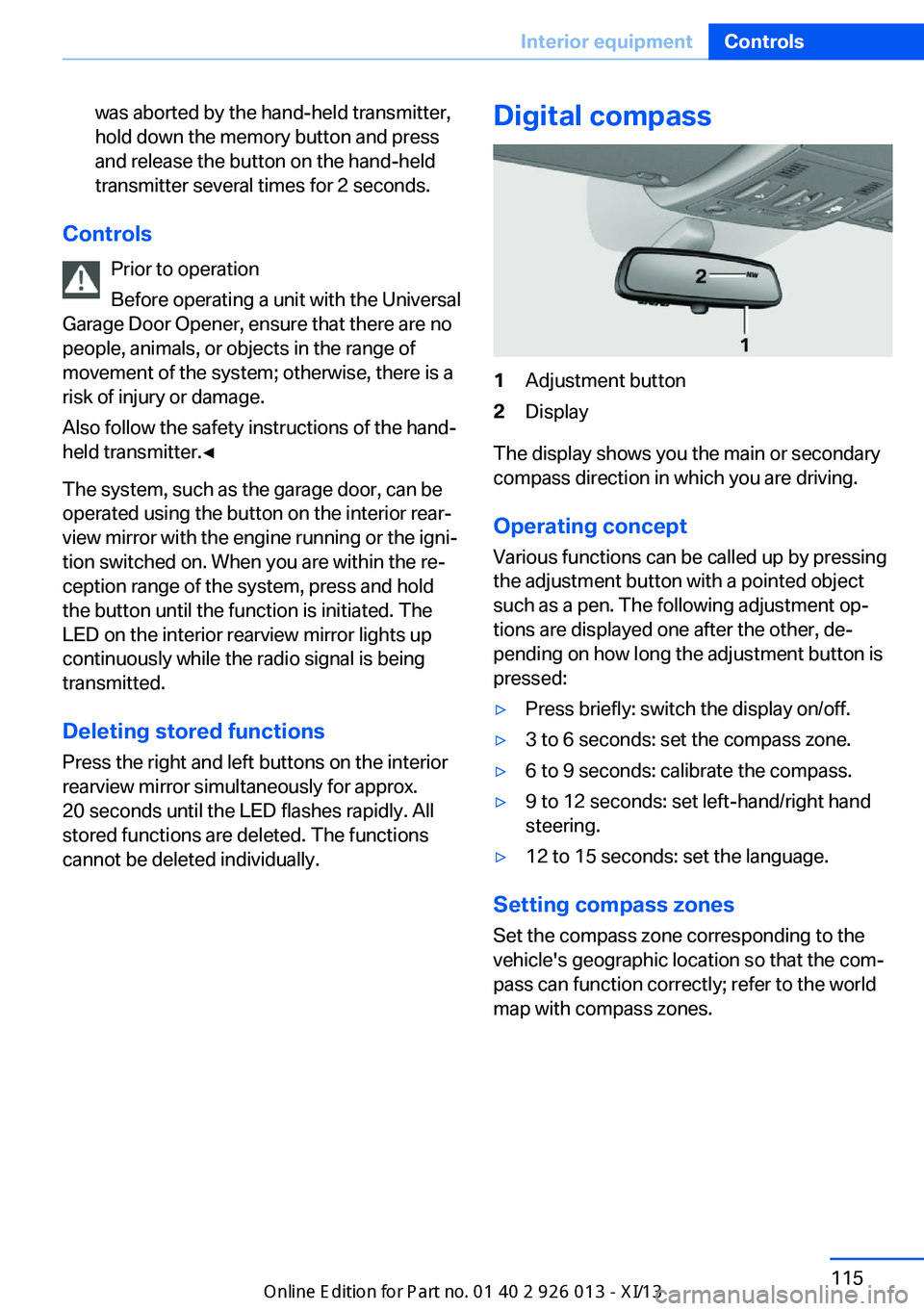
Digital compass1Adjustment button2Display
The display shows you the main or secondary
compass direction in which you are driving.
Operating concept
Various functions can be called up by pressing
the adjustment button with a pointed object
such as a pen. The following adjustment op‐
tions are displayed one after the other, de‐
pending on how long the adjustment button is
pressed:
▷Press briefly: switch the display on/off.▷3 to 6 seconds: set the compass zone.▷6 to 9 seconds: calibrate the compass.▷9 to 12 seconds: set left-hand/right hand
steering.▷12 to 15 seconds: set the language.
Setting compass zones
Set the compass zone corresponding to the
vehicle's geographic location so that the com‐
pass can function correctly; refer to the world
map with compass zones.
Seite 115Interior equipmentControls115
Online Edition for Part no. 01 40 2 911 269 - VI/13
Page 125 of 299
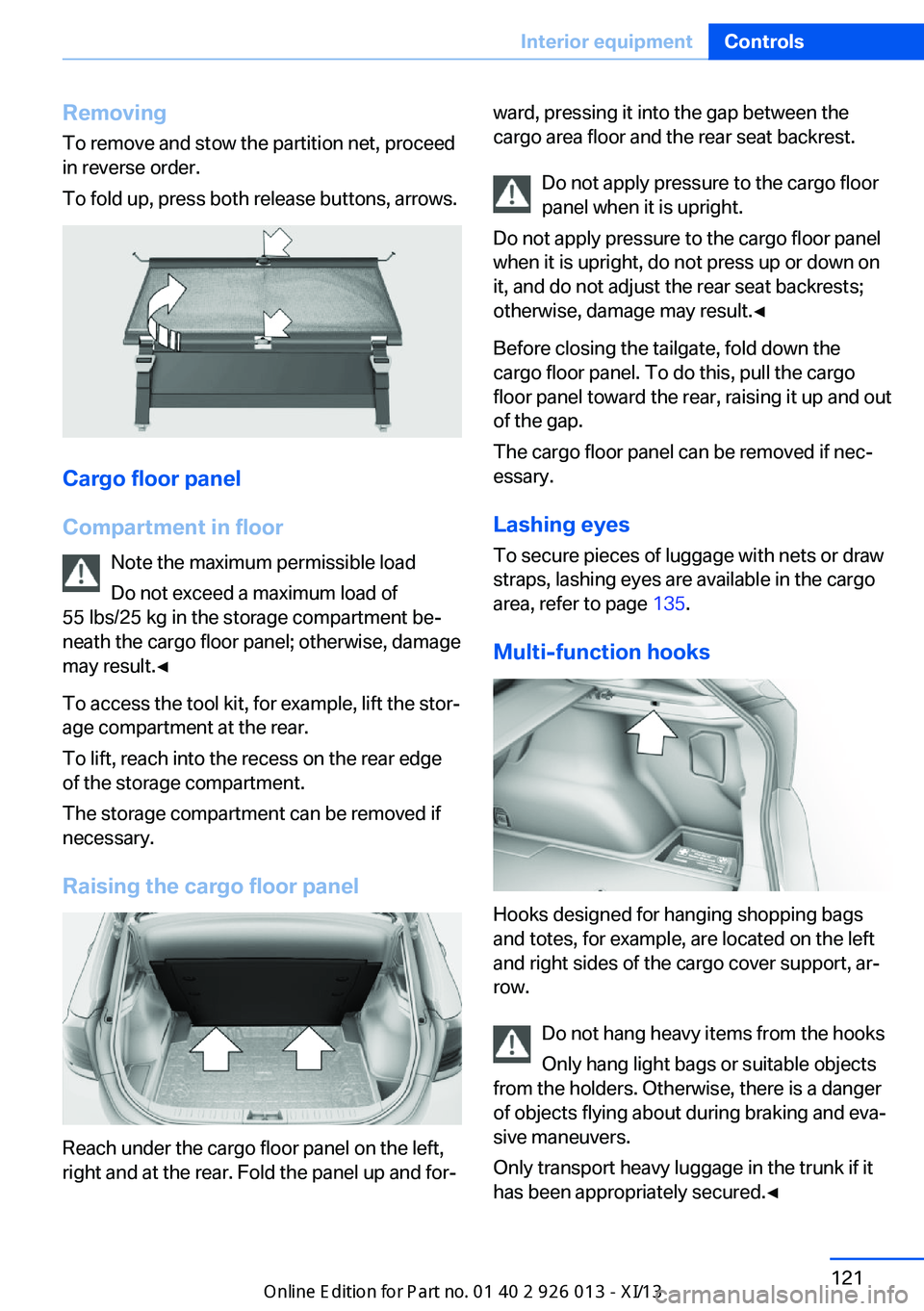
RemovingTo remove and stow the partition net, proceed
in reverse order.
To fold up, press both release buttons, arrows.
Cargo floor panel
Compartment in floor Note the maximum permissible load
Do not exceed a maximum load of
55 lbs/25 kg in the storage compartment be‐
neath the cargo floor panel; otherwise, damage
may result.◀
To access the tool kit, for example, lift the stor‐
age compartment at the rear.
To lift, reach into the recess on the rear edge
of the storage compartment.
The storage compartment can be removed if
necessary.
Raising the cargo floor panel
Reach under the cargo floor panel on the left,
right and at the rear. Fold the panel up and for‐
ward, pressing it into the gap between the
cargo area floor and the rear seat backrest.
Do not apply pressure to the cargo floor
panel when it is upright.
Do not apply pressure to the cargo floor panel
when it is upright, do not press up or down on
it, and do not adjust the rear seat backrests;
otherwise, damage may result.◀
Before closing the tailgate, fold down the
cargo floor panel. To do this, pull the cargo
floor panel toward the rear, raising it up and out
of the gap.
The cargo floor panel can be removed if nec‐
essary.
Lashing eyes
To secure pieces of luggage with nets or draw
straps, lashing eyes are available in the cargo
area, refer to page 135.
Multi-function hooks
Hooks designed for hanging shopping bags
and totes, for example, are located on the left
and right sides of the cargo cover support, ar‐
row.
Do not hang heavy items from the hooks
Only hang light bags or suitable objects
from the holders. Otherwise, there is a danger
of objects flying about during braking and eva‐
sive maneuvers.
Only transport heavy luggage in the trunk if it
has been appropriately secured.◀
Seite 121Interior equipmentControls121
Online Edition for Part no. 01 40 2 911 269 - VI/13
Page 163 of 299
garded in this setting. Symbols and special
destinations are not displayed.1."Navigation"2."Map"3.Open "Options".4."Settings"5."Traffic conditions/gray map"
Symbols in the map view
Depending on the scale of the map and the lo‐
cation of the traffic obstruction along the route,
the symbols for the traffic obstructions are dis‐
played.
Additional information in the map view Depending on the map scale, a traffic obstruc‐
tion's length, direction, and impact are dis‐
played in the map using triangles or gray bars
along the calculated route.
▷Red: traffic congestion▷Orange: stop-and-go traffic▷Yellow: heavy traffic▷Green: clear roads▷Gray: general traffic bulletins such as road
construction
The displayed information depends on the par‐
ticular traffic information service.
Filtering traffic bulletins
You can set which traffic bulletins appear on
the map.
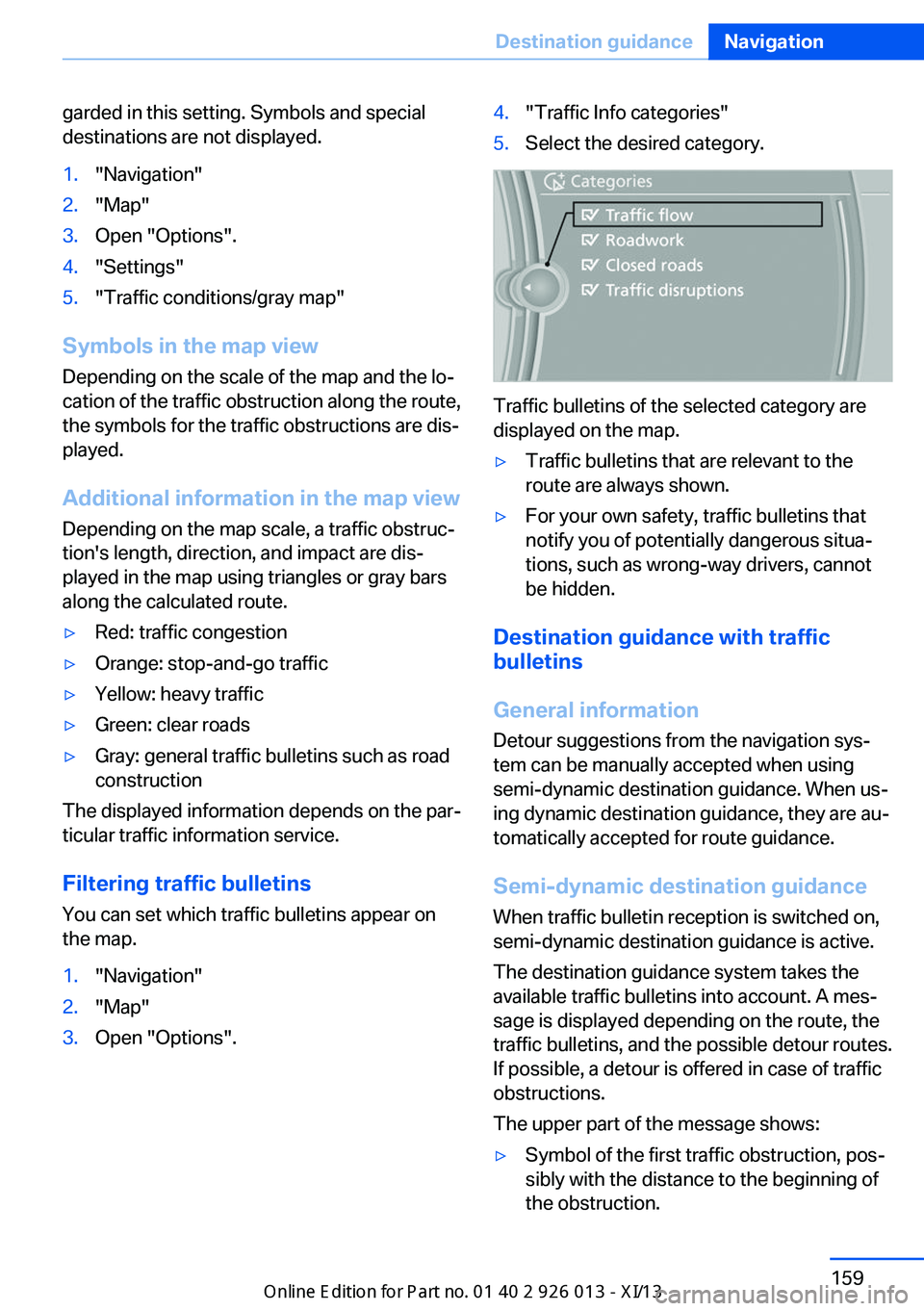
1."Navigation"2."Map"3.Open "Options".4."Traffic Info categories"5.Select the desired category.
Traffic bulletins of the selected category are
displayed on the map.
▷Traffic bulletins that are relevant to the
route are always shown.▷For your own safety, traffic bulletins that
notify you of potentially dangerous situa‐
tions, such as wrong-way drivers, cannot
be hidden.
Destination guidance with traffic
bulletins
General information
Detour suggestions from the navigation sys‐
tem can be manually accepted when using
semi-dynamic destination guidance. When us‐
ing dynamic destination guidance, they are au‐
tomatically accepted for route guidance.
Semi-dynamic destination guidance
When traffic bulletin reception is switched on,
semi-dynamic destination guidance is active.
The destination guidance system takes the
available traffic bulletins into account. A mes‐ sage is displayed depending on the route, the
traffic bulletins, and the possible detour routes.
If possible, a detour is offered in case of traffic
obstructions.
The upper part of the message shows:
▷Symbol of the first traffic obstruction, pos‐
sibly with the distance to the beginning of
the obstruction.Seite 159Destination guidanceNavigation159
Online Edition for Part no. 01 40 2 911 269 - VI/13
Page 225 of 299
ConnectedDriveVehicle equipment
This chapter describes all series equipment as
well as country-specific and special equipment
offered for this model series.Therefore, it also
describes equipment that may not be found in
your vehicle, for instance due to the selected
special equipment or the country version. This
also applies to safety-related functions and
systems.
TeleService
General information
TeleService supports communication with
your service center.▷Data on the vehicle's service requirements
can be sent directly to the service center.
In this way, the service center can plan its
work in advance. This shortens the dura‐
tion of the service appointment.▷In the event of a breakdown, data on the
vehicle's condition can be sent directly to
Roadside Assistance.▷The service varies by country.▷Connection costs may ensue.▷Services may be restricted abroad.
Requirements
Different variants of TeleService may be imple‐
mented in the vehicle. The following condi‐
tions must always be met:
▷Wireless reception is available.▷The ignition is switched on.▷A current ConnectedDrive subscription or
a vehicle equipped with intelligent Emer‐
gency Request.Concierge service
General information The Concierge service offers information on
events, gas stations, and hotels, and provides
phone numbers and addresses. Hotels can be
booked directly using the Concierge service.
The Concierge service is part of the optional
Convenience Plan.
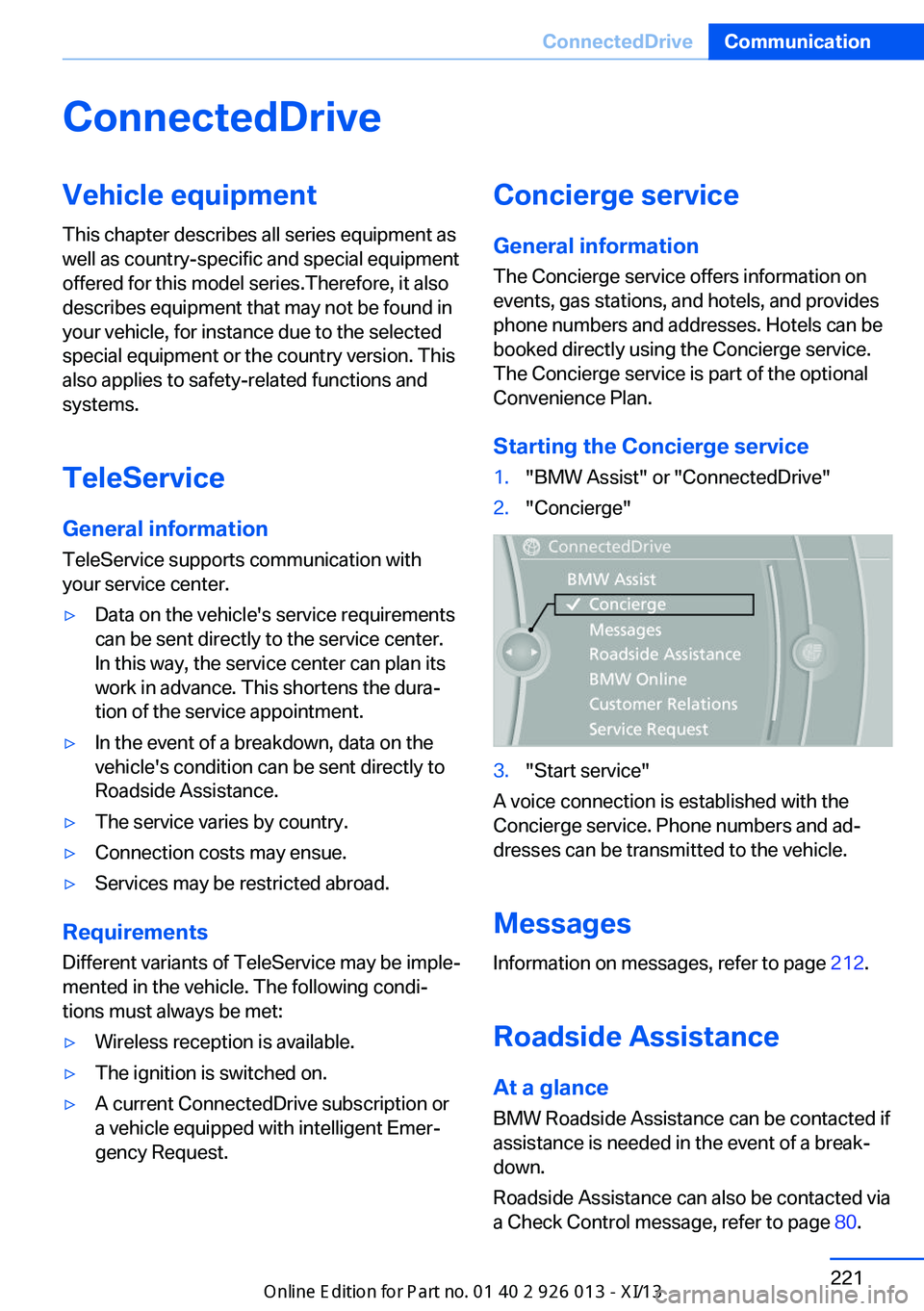
Starting the Concierge service1."BMW Assist" or "ConnectedDrive"2."Concierge"3."Start service"
A voice connection is established with the
Concierge service. Phone numbers and ad‐
dresses can be transmitted to the vehicle.
Messages
Information on messages, refer to page 212.
Roadside Assistance At a glance
BMW Roadside Assistance can be contacted if
assistance is needed in the event of a break‐
down.
Roadside Assistance can also be contacted via
a Check Control message, refer to page 80.
Seite 221ConnectedDriveCommunication221
Online Edition for Part no. 01 40 2 911 269 - VI/13
Page 226 of 299
Starting Roadside Assistance without
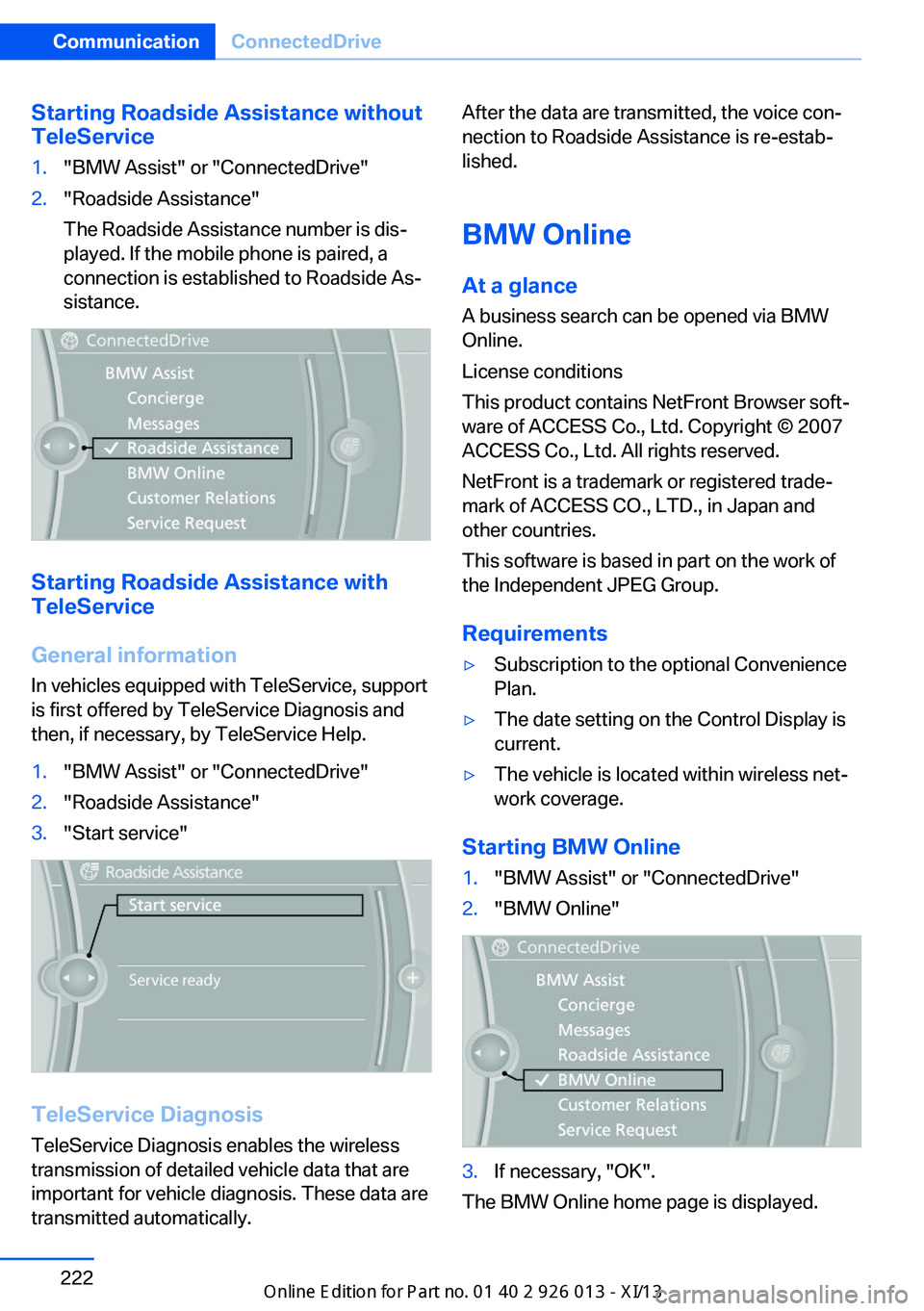
TeleService1."BMW Assist" or "ConnectedDrive"2."Roadside Assistance"
The Roadside Assistance number is dis‐
played. If the mobile phone is paired, a
connection is established to Roadside As‐
sistance.
Starting Roadside Assistance with
TeleService
General information
In vehicles equipped with TeleService, support
is first offered by TeleService Diagnosis and
then, if necessary, by TeleService Help.
1."BMW Assist" or "ConnectedDrive"2."Roadside Assistance"3."Start service"
TeleService Diagnosis
TeleService Diagnosis enables the wireless
transmission of detailed vehicle data that are
important for vehicle diagnosis. These data are
transmitted automatically.
After the data are transmitted, the voice con‐
nection to Roadside Assistance is re-estab‐
lished.
BMW Online
At a glance
A business search can be opened via BMW
Online.
License conditions
This product contains NetFront Browser soft‐
ware of ACCESS Co., Ltd. Copyright © 2007
ACCESS Co., Ltd. All rights reserved.
NetFront is a trademark or registered trade‐
mark of ACCESS CO., LTD., in Japan and
other countries.
This software is based in part on the work of
the Independent JPEG Group.
Requirements▷Subscription to the optional Convenience
Plan.▷The date setting on the Control Display is
current.▷The vehicle is located within wireless net‐
work coverage.
Starting BMW Online
1."BMW Assist" or "ConnectedDrive"2."BMW Online"3.If necessary, "OK".
The BMW Online home page is displayed.
Seite 222CommunicationConnectedDrive222
Online Edition for Part no. 01 40 2 911 269 - VI/13