navigation system BMW X1 2013 E84 User Guide
[x] Cancel search | Manufacturer: BMW, Model Year: 2013, Model line: X1, Model: BMW X1 2013 E84Pages: 299, PDF Size: 6.66 MB
Page 157 of 299
Destination guidanceVehicle equipmentThis chapter describes all series equipment as
well as country-specific and special equipment
offered for this model series.Therefore, it also
describes equipment that may not be found in
your vehicle, for instance due to the selected
special equipment or the country version. This
also applies to safety-related functions and
systems.
Starting destination
guidance1."Navigation"2.Make a destination entry, refer to
page 144.3."Accept destination"4."Start guidance"
The route is shown on the Control Display.
The distance to the destination/intermediate
destination and the estimated time of arrival
are displayed in the map view.
Terminating destination
guidance
1."Navigation"2."Map"3. "Guidance"4."Stop guidance"
Continuing destination
guidance
If the destination was not reached during thelast trip, destination guidance can be resumed.
"Resume guidance"
Route criteria
General information▷The route calculated can be influenced by
selecting certain criteria.▷The route criteria can be changed when
the destination is entered and during desti‐
nation guidance.▷Road types are part of the navigation data
and are taken into consideration when
planning a route, e.g., avoid highways.▷The recommended route may differ from
the route you would take based on per‐
sonal experience.▷The settings are stored for the remote
control currently in use.▷Destination guidance with traffic bulletins,
refer to page 159.
Changing the route criteria
1."Navigation"2."Map"3. "Route preference"4.Select the criterion:▷ "Fast route": time-optimized route,
being a combination of the shortest
possible route and the fastest roads.▷ "ECO PRO route" or "Efficient
route": optimized combination of the
fastest and shortest possible route.▷ "Short route": short distance, irre‐
spective of how fast or slow progress
will be.▷"Alternative routes": if available, alter‐
native routes are suggested during ac‐
tive destination guidance.Seite 153Destination guidanceNavigation153
Online Edition for Part no. 01 40 2 911 269 - VI/13
Page 161 of 299
Automatically scaled map scaleIn the map view facing north, turn the control‐
ler in any direction until the AUTO scale is dis‐
played. The entire route between the current
location and the destination is displayed on the
map.
Settings for the map view
The settings are stored for the remote control
currently in use.1."Navigation"2."Map"3.Open "Options".4."Settings"5.To set the map view:▷"Day/night mode"
Select and create the necessary settings
depending on the light conditions.
"Traffic conditions/gray map" active: the
setting is disregarded.▷"Satellite images"
Depending on availability and resolution,
satellite images are displayed at scales of
approx. 1 mile to 600 miles/2 km to
1,000 km.▷"Perspective view in 3D"
Prominent areas that are contained in the
navigation data are displayed on the map in
3D.▷"Traffic conditions/gray map"
The map is optimized for displaying traffic
bulletins, refer to page 158.
Symbols for the special destinations are no
longer displayed.
Map view for splitscreen
The map view can be selected for the split
screen independently from the main screen.
1.Open "Options".2."Split screen"3.Move the controller to the right repeatedly
until the split screen is selected.4.Select "Split screen content" or the scale.5.Select the map view.▷"Arrow display"▷"Map facing north"▷"Map direction of travel"▷"Map view with perspective"▷"Position"▷"Exit ramp view": selected blind drive‐
ways are displayed three dimension‐
ally.▷"Traffic conditions/gray map"6.To change the scale: select the split
screen and turn the controller.
Traffic bulletins
At a glance
▷Display the traffic bulletins from radio sta‐
tions that broadcast the TI Traffic Informa‐
tion of a traffic information service. Infor‐
mation on traffic obstructions and hazards
is updated continuously.
Certain BMW models equipped with navi‐
gation have the capability to display real-
time traffic information. If your system has
this capability the following additional
terms and conditions apply:
An End-User shall no longer have the right
to use the Traffic Data in the event that the
End-User is in material breach of the terms
and conditions contained herein.
A. Total Traffic Network, a division of Clear
Channel Broadcasting, Inc. (“Total Traffic
Network”) holds the rights to the traffic in‐
cident data and RDS-TMC network
through which it is delivered. You may not
modify, copy, scan or use any other
method to reproduce, duplicate, republish,
transmit or distribute in any way any por‐Seite 157Destination guidanceNavigation157
Online Edition for Part no. 01 40 2 911 269 - VI/13
Page 163 of 299
garded in this setting. Symbols and special
destinations are not displayed.1."Navigation"2."Map"3.Open "Options".4."Settings"5."Traffic conditions/gray map"
Symbols in the map view
Depending on the scale of the map and the lo‐
cation of the traffic obstruction along the route,
the symbols for the traffic obstructions are dis‐
played.
Additional information in the map view Depending on the map scale, a traffic obstruc‐
tion's length, direction, and impact are dis‐
played in the map using triangles or gray bars
along the calculated route.
▷Red: traffic congestion▷Orange: stop-and-go traffic▷Yellow: heavy traffic▷Green: clear roads▷Gray: general traffic bulletins such as road
construction
The displayed information depends on the par‐
ticular traffic information service.
Filtering traffic bulletins
You can set which traffic bulletins appear on
the map.
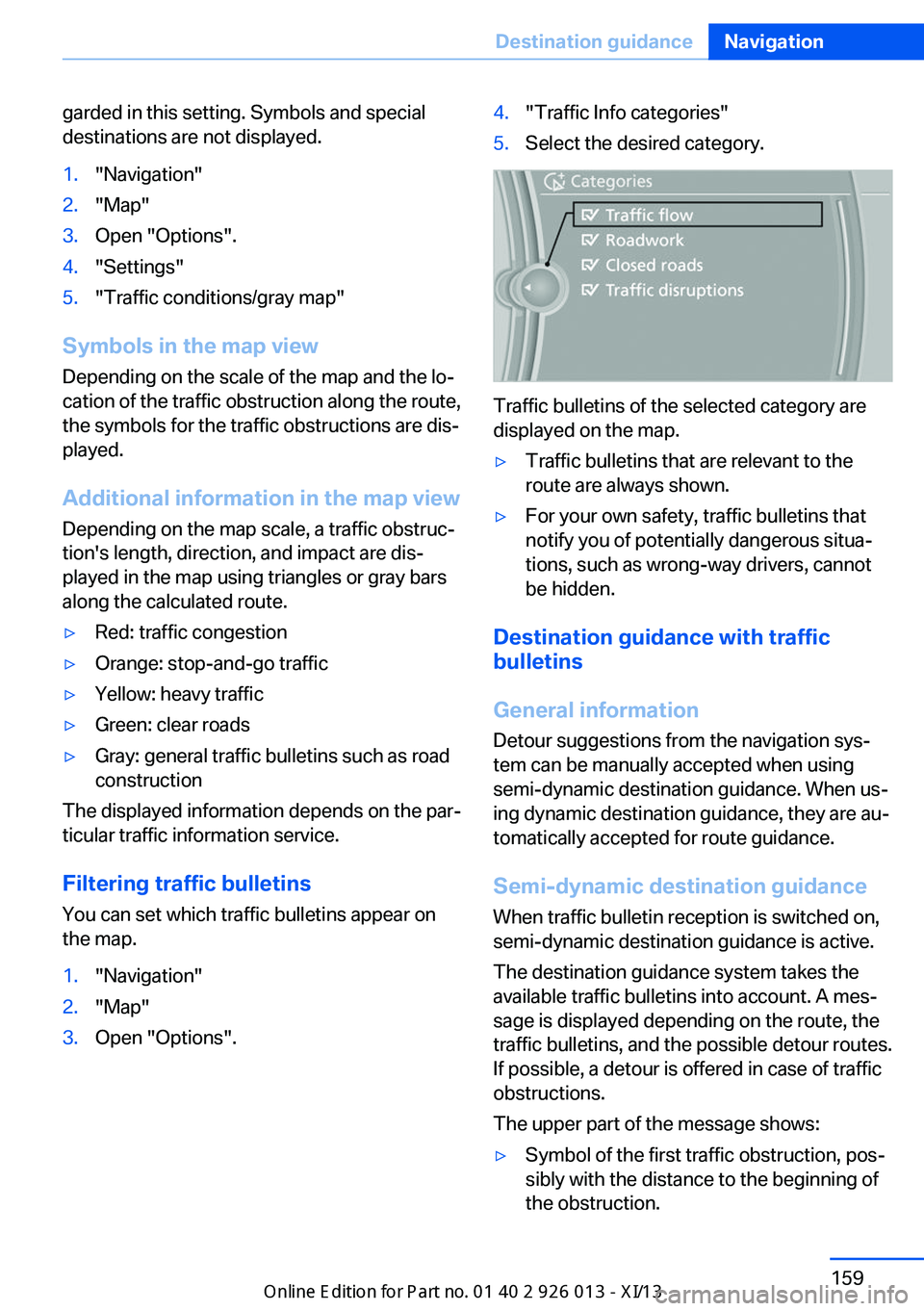
1."Navigation"2."Map"3.Open "Options".4."Traffic Info categories"5.Select the desired category.
Traffic bulletins of the selected category are
displayed on the map.
▷Traffic bulletins that are relevant to the
route are always shown.▷For your own safety, traffic bulletins that
notify you of potentially dangerous situa‐
tions, such as wrong-way drivers, cannot
be hidden.
Destination guidance with traffic
bulletins
General information
Detour suggestions from the navigation sys‐
tem can be manually accepted when using
semi-dynamic destination guidance. When us‐
ing dynamic destination guidance, they are au‐
tomatically accepted for route guidance.
Semi-dynamic destination guidance
When traffic bulletin reception is switched on,
semi-dynamic destination guidance is active.
The destination guidance system takes the
available traffic bulletins into account. A mes‐ sage is displayed depending on the route, the
traffic bulletins, and the possible detour routes.
If possible, a detour is offered in case of traffic
obstructions.
The upper part of the message shows:
▷Symbol of the first traffic obstruction, pos‐
sibly with the distance to the beginning of
the obstruction.Seite 159Destination guidanceNavigation159
Online Edition for Part no. 01 40 2 911 269 - VI/13
Page 164 of 299
▷Total length of the traffic obstructions on
the route.▷Time by which the trip is extended due to
the traffic obstructions.
The lower part of the message shows:
▷Detour recommendation with the distance
to the beginning of the detour.▷Difference between the length of the new
route compared to the original route.▷Time gained if the detour is taken com‐
pared to the original route with the traffic
obstructions.
Both the original route, shown in white, and the
detour are displayed on the split screen.
Accepting the detour
"Detour"
In the event of special hazards, e. g., objects on
the road, a message is displayed without a de‐
tour suggestion.
Detours can also be accepted if the traffic
messages are called up in the list.
1."Navigation"2."Map"3. "Traffic Info"4."Detour information"5. "Detour"
Dynamic destination guidance
The route is automatically changed in the
event of traffic obstructions.
▷The system does not point out traffic ob‐
structions along the original route.▷Traffic bulletins continue to be displayed
on the map.▷Depending on road type and the kind and
extent of the traffic obstruction, the calcu‐
lated route may lead through the traffic ob‐
struction.▷Dangerous situations are displayed regard‐
less of the setting.Activating dynamic destination guidance1."Navigation"2.Open "Options".3."Dynamic guidance"Seite 160NavigationDestination guidance160
Online Edition for Part no. 01 40 2 911 269 - VI/13
Page 165 of 299
What to do if...Vehicle equipmentThis chapter describes all series equipment as
well as country-specific and special equipment
offered for this model series.Therefore, it also
describes equipment that may not be found in
your vehicle, for instance due to the selected
special equipment or the country version. This
also applies to safety-related functions and
systems.
What to do if...▷The current transmission position cannot
be displayed?
The vehicle is located in an unrecognized
region, is in a poor reception area, or the
system is currently determining the posi‐
tion. Reception is usually best when you
have an unobstructed view of the sky.▷The destination without street information
is not used for route guidance?
When city has been input, no downtown
can be determined. Input any street in the
selected city and start destination guid‐
ance.▷The destination is not used for route guid‐
ance?
The destination data are not contained in
the navigation data. Select a destination
that is as close as possible to the original.▷Letters for destination input cannot be se‐
lected?
The stored data do not contain the data of
the destination. Select a goal that is as
close as possible to the original.▷Is the map displayed in shades of gray?
"Traffic conditions/gray map" active:The Control Display changes to a black
and white display. This enables a better
view of the traffic bulletins.▷Spoken instructions are no longer output
during route guidance in front of intersec‐
tions?
The area has not yet been fully recorded,
or you have left the recommended route
and the system requires a few seconds to
calculate a new route suggestion.Seite 161What to do if...Navigation161
Online Edition for Part no. 01 40 2 911 269 - VI/13
Page 215 of 299
tained in the vehicle. The address can be
checked for this purpose.1.Select the desired contact and highlight
the address.2.Open "Options".3."Check as destination"4.Correct and store the address if necessary.
If the address is corrected and stored, a copy
of it is stored in the vehicle. The address is not
changed on the mobile phone.
New contact
General information
A contact can have up to 8 phone numbers,
2 addresses, 3 e-mail addresses and one Inter‐
net address.
1."Office"2."Contacts"3.Open "Options".4."New contact"5.The entry fields are still filled with the pre‐
vious entries: "Delete input fields"6.Fill in the entry fields: select the symbol
next to the entry field.7.Enter the text and assign the contact type.8.If the vehicle is equipped with a navigation
system: enter the address. Only addresses
contained in the navigation data in the ve‐
hicle can be entered. This ensures that
destination guidance is possible for all ad‐
dresses.If necessary, "Accept address".9."Store contact in vehicle"
Contact types
Various contact types can be assigned to
phone numbers and addresses.
SymbolMeaning Home phone number. Business phone number. Mobile phone number. Other phone number. Home address. Business address.
Specifying the home address
A home address can be stored. It appears at
the top of the contact list.
1."Office"2."Contacts"3."Home"4.Create a contact.5."Store contact in vehicle"
Selecting the sorting order of the
names
Names can be displayed in a different order.
1."Office"2."Contacts"3.Open "Options".4."Display: last, first name" or "Display: first,
last name"
Depending on how the contacts were stored
on the mobile phone, the sorting order of the
names may differ from the selected sorting or‐
der.
Seite 211OfficeCommunication211
Online Edition for Part no. 01 40 2 911 269 - VI/13
Page 222 of 299
ContactsVehicle equipmentThis chapter describes all series equipment as
well as country-specific and special equipment
offered for this model series.Therefore, it also
describes equipment that may not be found in
your vehicle, for instance due to the selected
special equipment or the country version. This
also applies to safety-related functions and
systems.
Note
Equipment version without the mobile phone
preparation package.
General information
Contacts can be created and edited. The con‐
tacts from the mobile phone are displayed as
well if this function is supported by the mobile
phone. The addresses can be adopted as des‐
tinations for navigation and the phone num‐
bers can be dialed.
New contact1."Contacts"2."New contact"3.The entry fields are still filled with the pre‐
vious entries: "Delete input fields"4.Fill in the entry fields: select the symbol
next to the entry field.5.Enter the text, refer to page 23.
In vehicles equipped with a navigation sys‐
tem: it is only possible to enter addresses
that are contained in the vehicle navigation
data. This ensures that destination guid‐
ance is possible for all addresses.6.If necessary, "Store".7."Store contact in vehicle"
Specifying the home address
A home address can be stored. It appears at
the top of the contact list.
1."Home"2.Create a contact.3."Store contact in vehicle"
My contacts
General information List of all contacts stored in the vehicle.
Displaying contacts
1."Contacts"Seite 218CommunicationContacts218
Online Edition for Part no. 01 40 2 911 269 - VI/13
Page 259 of 299
Jacking points for the vehicle jack
The jacking points for the vehicle jack are lo‐
cated in the positions shown.
Vehicle battery
Maintenance
The battery is maintenance-free, i.e., the elec‐ trolyte will last for the life of the battery.
Your service center will be glad to advise you
on questions regarding the battery.
Battery replacement Use approved vehicle batteries
Only use vehicle batteries that have been
approved for your vehicle by the manufacturer;
otherwise, the vehicle could be damaged and
systems or functions may not be fully availa‐
ble.◀
After a battery replacement, have the battery
registered on the vehicle by your service cen‐
ter to ensure that all comfort functions are fully
available.
Charging the battery
Note Do not connect the charger to the socket
Do not connect the battery charger to
the socket installed in the vehicle at the factory
as this could damage the battery.◀
General information
Ensure that the battery is sufficiently charged
to achieve the full battery life.
It may be necessary to charge the battery in
the following cases:▷When the vehicle is frequently used to
drive short distances.▷When the vehicle has not been driven for
more than one month.
Starting aid terminals
Only charge using the starting aid terminals,
refer to page 259, in the engine compartment
while the engine is switched off.
Power failure
After a temporary power loss, some equipment
needs to be reinitialized.
Individual settings need to be reprogrammed:
▷Seat and mirror memory: store the posi‐
tions again, refer to page 48.▷Time: update, refer to page 75.▷Date: update, refer to page 76.▷Radio station: save again, refer to
page 166.▷Navigation system: wait for the navigation
system to be operational.▷Panoramic glass sunroof: it may only be
possible to tilt the roof. Have the system
initialized by the service center.▷Digital compass: recalibrate, refer to
page 115.▷xDrive: the system automatically initializes
as you drive. During this time, indicator
lamps light up. If the lamps do not disap‐
pear during the current trip, have the sys‐
tem checked.
Disposing of old batteries
Have old batteries disposed of by your
service center or bring them to a recy‐
cling center.
Seite 255Replacing componentsMobility255
Online Edition for Part no. 01 40 2 911 269 - VI/13
Page 277 of 299
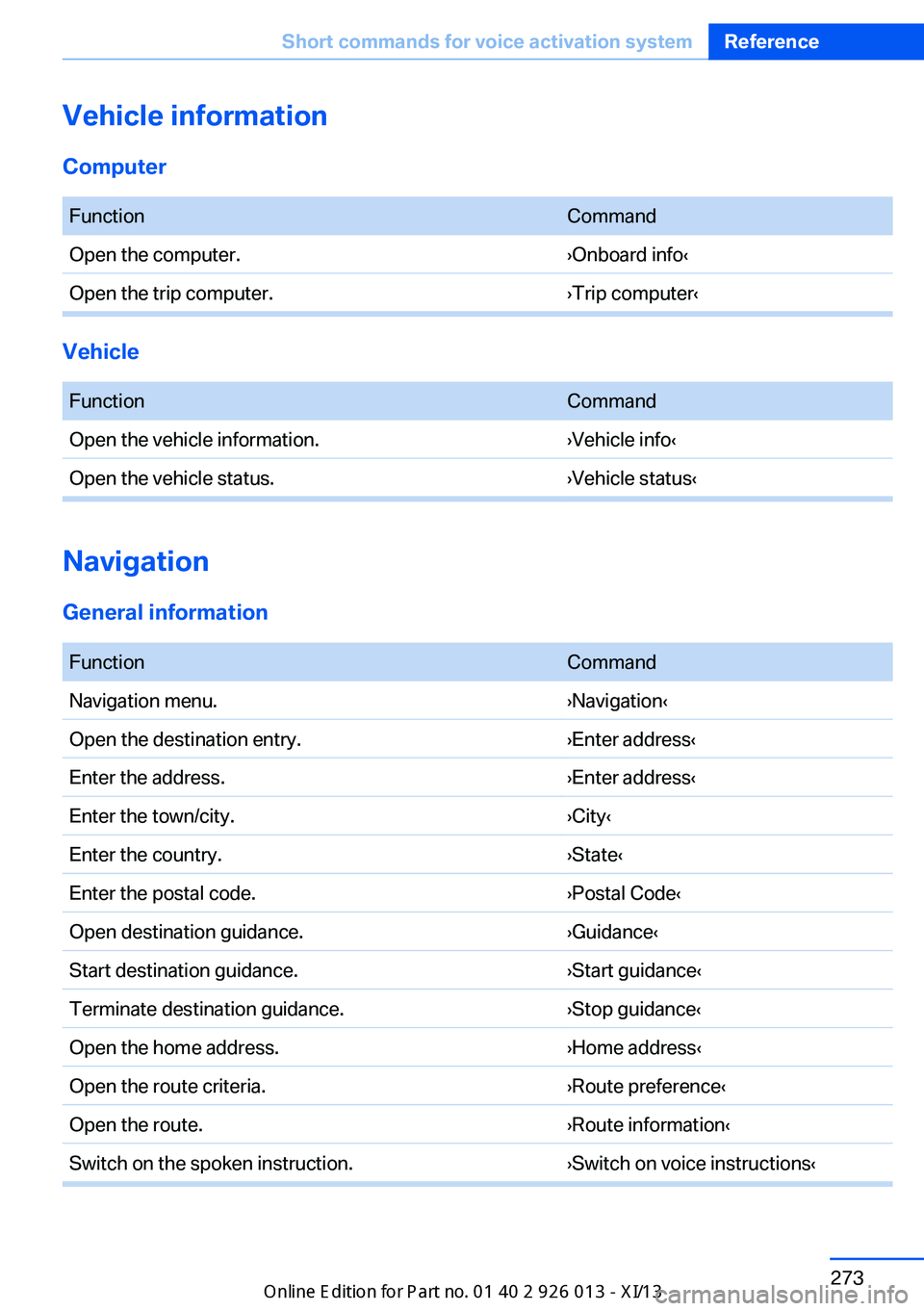
Vehicle information
Computer FunctionCommandOpen the computer.›Onboard info‹Open the trip computer.›Trip computer‹
Vehicle
FunctionCommandOpen the vehicle information.›Vehicle info‹Open the vehicle status.›Vehicle status‹
Navigation
General information
FunctionCommandNavigation menu.›Navigation‹Open the destination entry.›Enter address‹Enter the address.›Enter address‹Enter the town/city.›City‹Enter the country.›State‹Enter the postal code.›Postal Code‹Open destination guidance.›Guidance‹Start destination guidance.›Start guidance‹Terminate destination guidance.›Stop guidance‹Open the home address.›Home address‹Open the route criteria.›Route preference‹Open the route.›Route information‹Switch on the spoken instruction.›Switch on voice instructions‹Seite 273Short commands for voice activation systemReference273
Online Edition for Part no. 01 40 2 911 269 - VI/13
Page 284 of 299
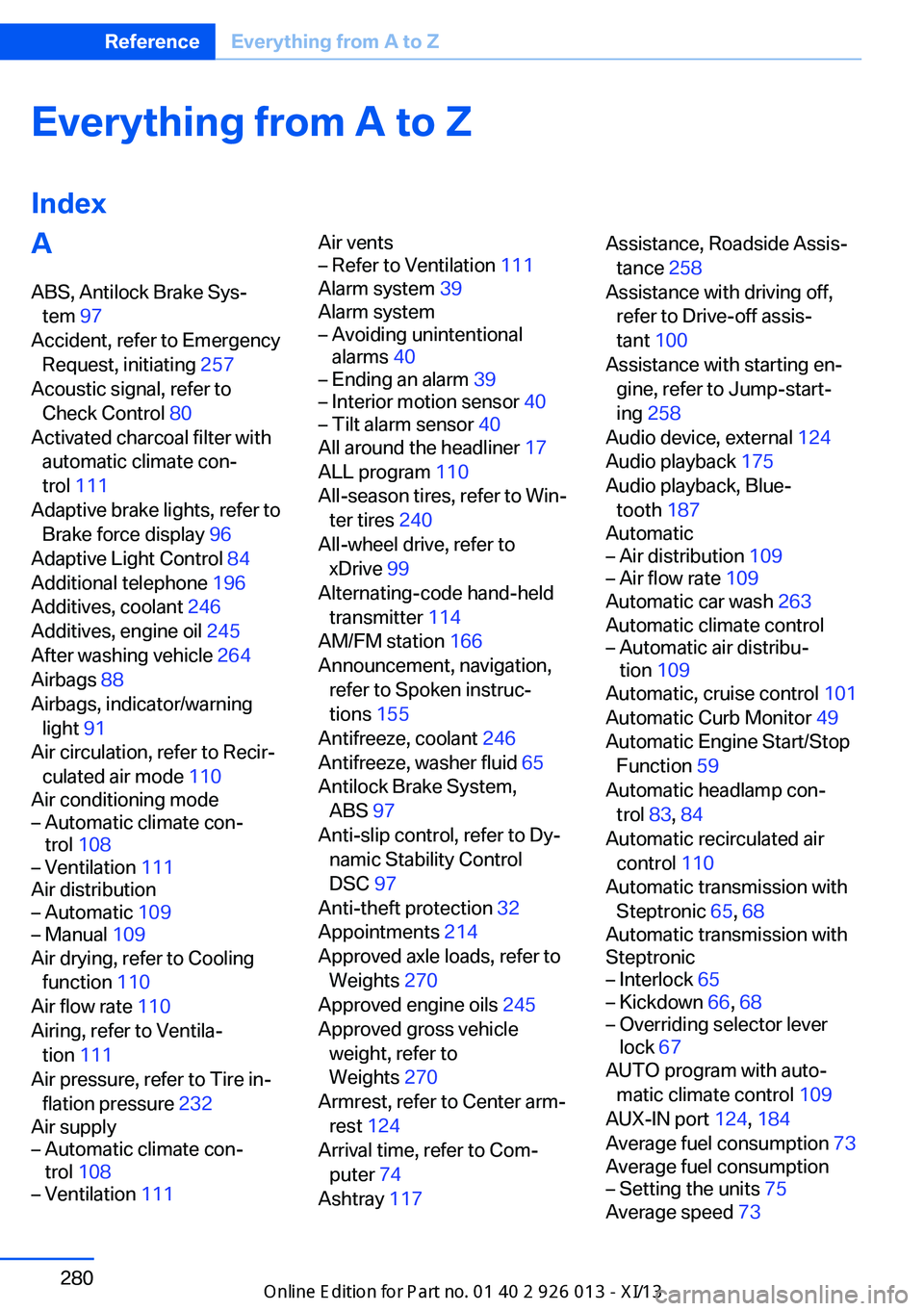
Everything from A to Z
IndexA ABS, Antilock Brake Sys‐ tem 97
Accident, refer to Emergency Request, initiating 257
Acoustic signal, refer to Check Control 80
Activated charcoal filter with automatic climate con‐
trol 111
Adaptive brake lights, refer to Brake force display 96
Adaptive Light Control 84
Additional telephone 196
Additives, coolant 246
Additives, engine oil 245
After washing vehicle 264
Airbags 88
Airbags, indicator/warning light 91
Air circulation, refer to Recir‐ culated air mode 110
Air conditioning mode– Automatic climate con‐
trol 108– Ventilation 111
Air distribution
– Automatic 109– Manual 109
Air drying, refer to Cooling
function 110
Air flow rate 110
Airing, refer to Ventila‐ tion 111
Air pressure, refer to Tire in‐ flation pressure 232
Air supply
– Automatic climate con‐
trol 108– Ventilation 111Air vents– Refer to Ventilation 111
Alarm system 39
Alarm system
– Avoiding unintentional
alarms 40– Ending an alarm 39– Interior motion sensor 40– Tilt alarm sensor 40
All around the headliner 17
ALL program 110
All-season tires, refer to Win‐ ter tires 240
All-wheel drive, refer to xDrive 99
Alternating-code hand-held transmitter 114
AM/FM station 166
Announcement, navigation, refer to Spoken instruc‐
tions 155
Antifreeze, coolant 246
Antifreeze, washer fluid 65
Antilock Brake System, ABS 97
Anti-slip control, refer to Dy‐ namic Stability Control
DSC 97
Anti-theft protection 32
Appointments 214
Approved axle loads, refer to Weights 270
Approved engine oils 245
Approved gross vehicle weight, refer to
Weights 270
Armrest, refer to Center arm‐ rest 124
Arrival time, refer to Com‐ puter 74
Ashtray 117
Assistance, Roadside Assis‐
tance 258
Assistance with driving off, refer to Drive-off assis‐
tant 100
Assistance with starting en‐ gine, refer to Jump-start‐
ing 258
Audio device, external 124
Audio playback 175
Audio playback, Blue‐ tooth 187
Automatic– Air distribution 109– Air flow rate 109
Automatic car wash 263
Automatic climate control
– Automatic air distribu‐
tion 109
Automatic, cruise control 101
Automatic Curb Monitor 49
Automatic Engine Start/Stop Function 59
Automatic headlamp con‐ trol 83, 84
Automatic recirculated air control 110
Automatic transmission with Steptronic 65, 68
Automatic transmission with
Steptronic
– Interlock 65– Kickdown 66, 68– Overriding selector lever
lock 67
AUTO program with auto‐
matic climate control 109
AUX-IN port 124, 184
Average fuel consumption 73
Average fuel consumption
– Setting the units 75
Average speed 73
Seite 280ReferenceEverything from A to Z280
Online Edition for Part no. 01 40 2 911 269 - VI/13