telephone BMW X1 2013 E84 Owner's Manual
[x] Cancel search | Manufacturer: BMW, Model Year: 2013, Model line: X1, Model: BMW X1 2013 E84Pages: 299, PDF Size: 6.66 MB
Page 6 of 299
Addendum
text beginning, “Have the work
performed only by your service
center . . .” should be disregarded
and the following text should be
read in lieu thereof: “BMW
recommends having this work
performed by a service center as it
is important that this safety feature
functions properly.”
7.At page 131 under the heading:
“Objects in the area around the
pedals” and at page 265 under the
heading: “Carpets and floor mats,”
the paragraph that begins: “Only
use floor mats . . .” should be
disregarded and the following
language should be read in lieu
thereof: “The manufacturer of your
vehicle recommends that you use
floor mats that have been identified
by it as appropriate for use in your
vehicle and that can be properly
fixed in place.”
8.At page 138, under the heading:
“Have maintenance carried out,” the
sentence beginning, “Have the
maintenance carried out . . .” should
be disregarded and the following
text should be read in lieu thereof:
“BMW recommends that you have
the maintenance carried out by your
service center.”
9.At page 196, under “Telephone,”
the heading that reads “Approved
mobile phones” should read
“Compatible mobile phones.”
10.At page 224 and page 225, under
the heading “Apps” and subheading
“Requirements,” the section that
begins, “Use only . . . ,” should be
disregarded and the following text
should be read in lieu thereof: “The
manufacturer of your vehicle
recommends the use of BMW
recommended software; otherwise
there may be malfunctions in
system operations.”
11.At page 239, under the heading:
“Approved wheels and tires,” the
term “Approved” should be
disregarded and in lieu thereof, the
term “Recommended” should be
read in its place. In addition, the
text of that section should be
disregarded and the following text
should be read in lieu thereof:
The manufacturer of your vehicle
strongly suggests that you use
wheels and tires that have been
recommended by the vehicle
manufacturer for your vehicle type;
otherwise, for example, despite
having the same official size ratings,
variations can lead to body contact
and with it, the risk of severe
accidents.
The manufacturer of your vehicle
does not evaluate non-
recommended wheels and tires to
determine if they are suitable for
use on your vehicle.
12.At page 241, under the heading:
“Snow Chains,” the text should be
disregarded and the following text
should be read in lieu thereof:
Only certain types of fine-link snow
chains have been tested by the
manufacturer of your vehicle and
are determined by the manufacturer
Page 9 of 299
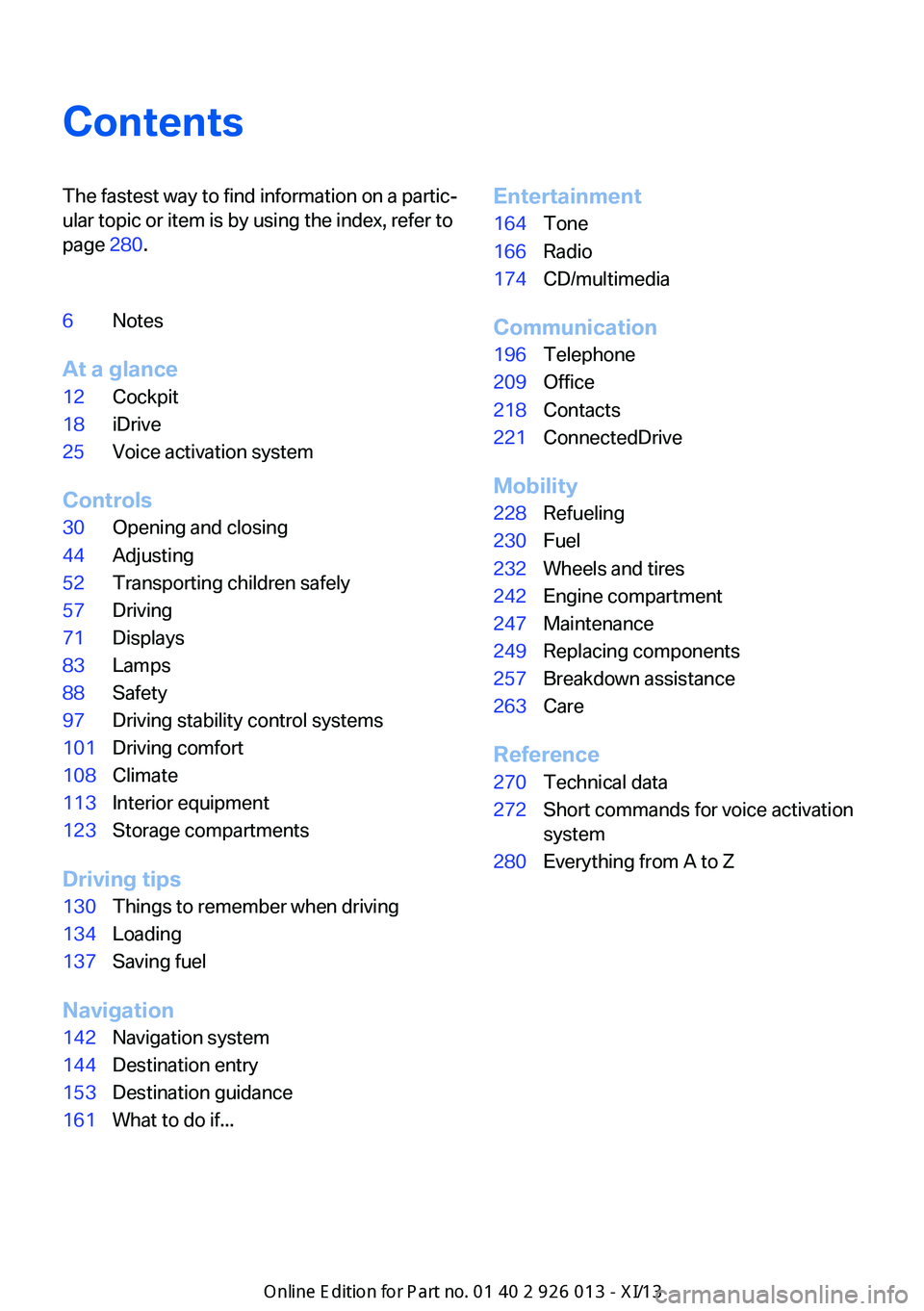
ContentsThe fastest way to find information on a partic‐
ular topic or item is by using the index, refer to
page 280.6Notes
At a glance
12Cockpit18iDrive25Voice activation system
Controls
30Opening and closing44Adjusting52Transporting children safely57Driving71Displays83Lamps88Safety97Driving stability control systems101Driving comfort108Climate113Interior equipment123Storage compartments
Driving tips
130Things to remember when driving134Loading137Saving fuel
Navigation
142Navigation system144Destination entry153Destination guidance161What to do if...Entertainment164Tone166Radio174CD/multimedia
Communication
196Telephone209Office218Contacts221ConnectedDrive
Mobility
228Refueling230Fuel232Wheels and tires242Engine compartment247Maintenance249Replacing components257Breakdown assistance263Care
Reference
270Technical data272Short commands for voice activation
system280Everything from A to Z
Online Edition for Part no. 01 40 2 911 269 - VI/13
Page 13 of 299
the transfer of certain vehicle data out of the
vehicle.
Reporting safety defects For US customers
The following only applies to vehicles owned
and operated in the US.
If you believe that your vehicle has a defect
which could cause a crash or could cause in‐
jury or death, you should immediately inform
the National Highway Traffic Safety Adminis‐
tration NHTSA, in addition to notifying BMW of
North America, LLC, P.O. Box 1227, West‐
wood, New Jersey 07675-1227, Telephone
1-800-831-1117.
If NHTSA receives similar complaints, it may
open an investigation, and if it finds that a
safety defect exists in a group of vehicles, it
may order a recall and remedy campaign.
However, NHTSA cannot become involved in
individual problems between you, your dealer,
or BMW of North America, LLC.
To contact NHTSA, you may call the Vehicle
Safety Hotline toll-free at 1-888-327-4236
(TTY: 1-800-424-9153); go to http://
www.safercar.gov; or write to: Administrator,
NHTSA, 400 Seventh Street, SW., Washing‐
ton, DC 20590. You can also obtain other in‐
formation about motor vehicle safety from
http://www.safercar.gov
For Canadian customers Canadian customers who wish to report a
safety- related defect to Transport Canada,
Defect Investigations and Recalls, may tele‐
phone the toll-free hotline 1-800-333-0510.
You can also obtain other information about
motor vehicle safety from http://www.tc.gc.ca/
roadsafety.Seite 9Notes9
Online Edition for Part no. 01 40 2 911 269 - VI/13
Page 17 of 299
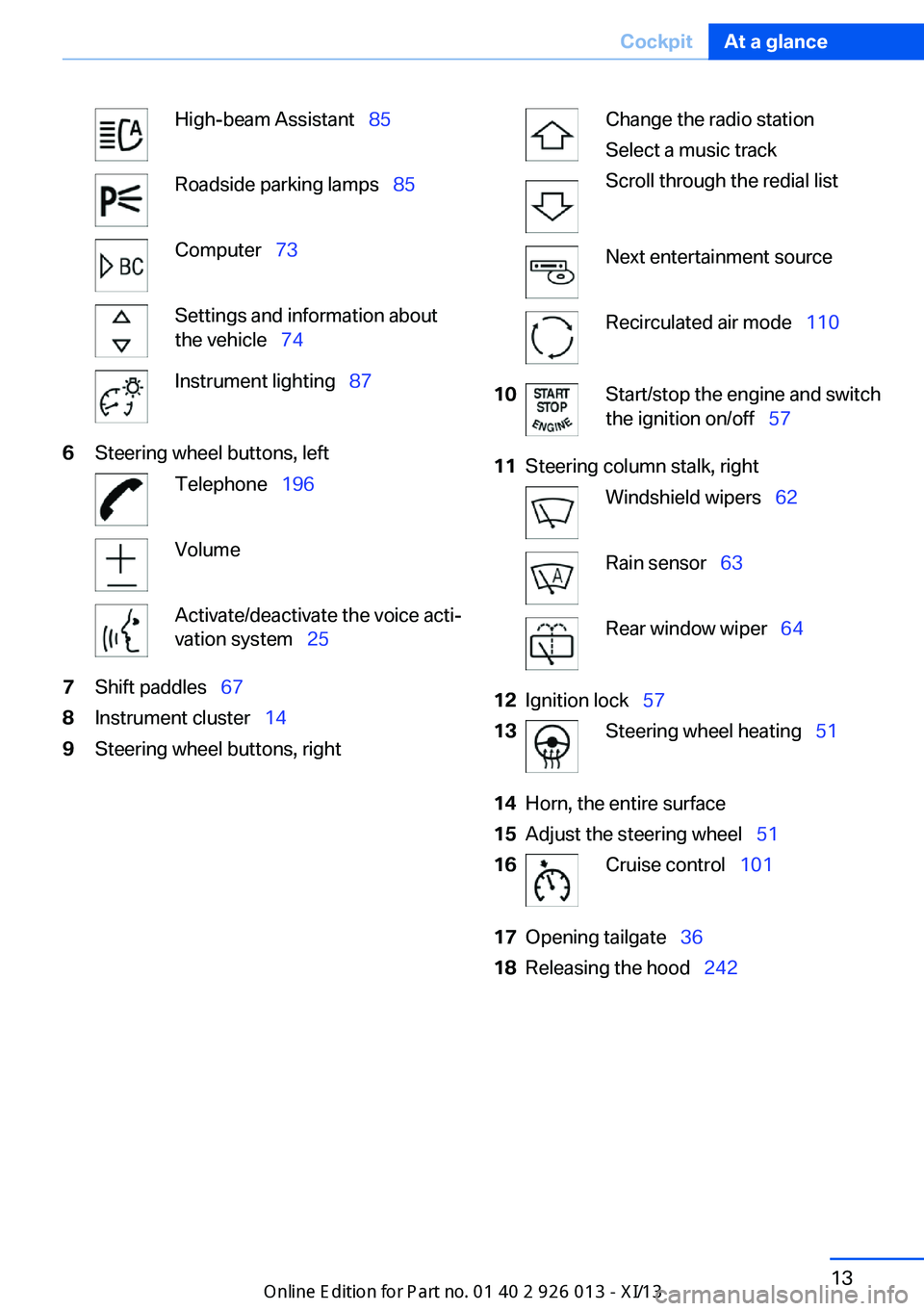
High-beam Assistant 85Roadside parking lamps 85Computer 73Settings and information about
the vehicle 74Instrument lighting 876Steering wheel buttons, leftTelephone 196VolumeActivate/deactivate the voice acti‐
vation system 257Shift paddles 678Instrument cluster 149Steering wheel buttons, rightChange the radio station
Select a music track
Scroll through the redial listNext entertainment sourceRecirculated air mode 11010Start/stop the engine and switch
the ignition on/off 5711Steering column stalk, rightWindshield wipers 62Rain sensor 63Rear window wiper 6412Ignition lock 5713Steering wheel heating 5114Horn, the entire surface15Adjust the steering wheel 5116Cruise control 10117Opening tailgate 3618Releasing the hood 242Seite 13CockpitAt a glance13
Online Edition for Part no. 01 40 2 911 269 - VI/13
Page 23 of 299
Controller
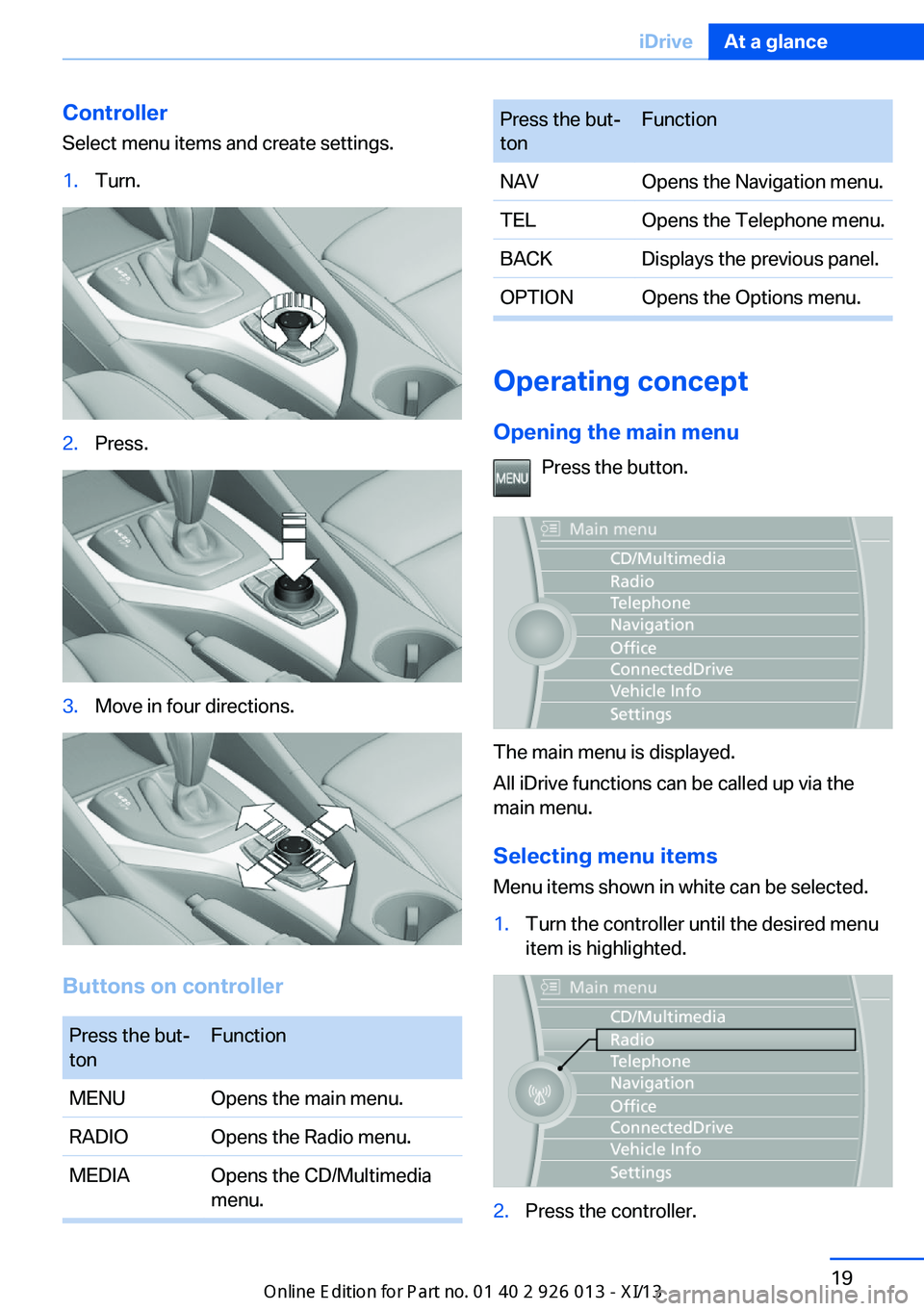
Select menu items and create settings.1.Turn.2.Press.3.Move in four directions.
Buttons on controller
Press the but‐
tonFunctionMENUOpens the main menu.RADIOOpens the Radio menu.MEDIAOpens the CD/Multimedia
menu.Press the but‐
tonFunctionNAVOpens the Navigation menu.TELOpens the Telephone menu.BACKDisplays the previous panel.OPTIONOpens the Options menu.
Operating concept
Opening the main menu Press the button.
The main menu is displayed.
All iDrive functions can be called up via the
main menu.
Selecting menu items
Menu items shown in white can be selected.
1.Turn the controller until the desired menu
item is highlighted.2.Press the controller.Seite 19iDriveAt a glance19
Online Edition for Part no. 01 40 2 911 269 - VI/13
Page 25 of 299
The function is activated.
The function is deactivated.
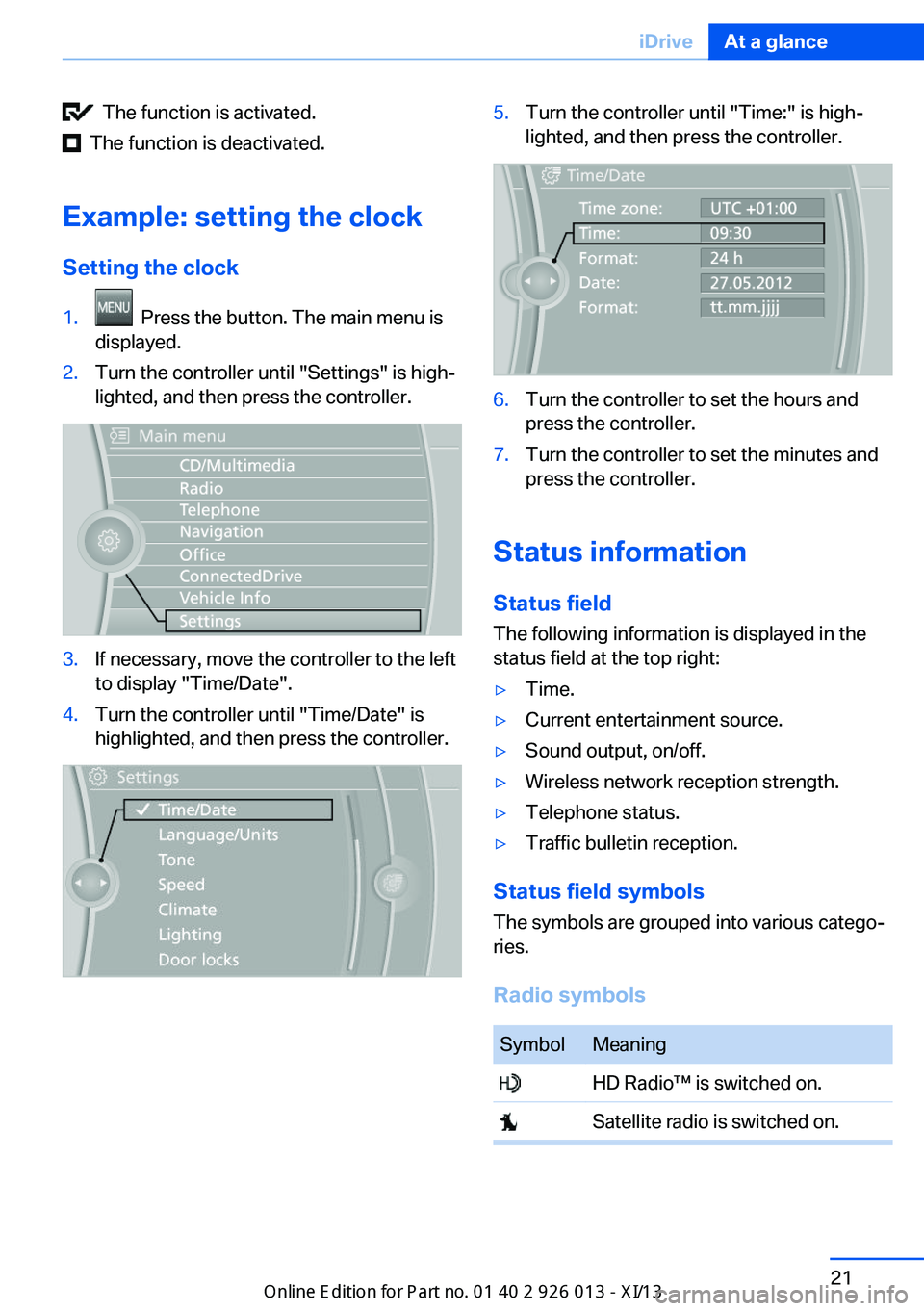
Example: setting the clock Setting the clock
1. Press the button. The main menu is
displayed.2.Turn the controller until "Settings" is high‐
lighted, and then press the controller.3.If necessary, move the controller to the left
to display "Time/Date".4.Turn the controller until "Time/Date" is
highlighted, and then press the controller.5.Turn the controller until "Time:" is high‐
lighted, and then press the controller.6.Turn the controller to set the hours and
press the controller.7.Turn the controller to set the minutes and
press the controller.
Status information
Status field The following information is displayed in the
status field at the top right:
▷Time.▷Current entertainment source.▷Sound output, on/off.▷Wireless network reception strength.▷Telephone status.▷Traffic bulletin reception.
Status field symbols
The symbols are grouped into various catego‐
ries.
Radio symbols
SymbolMeaning HD Radio™ is switched on. Satellite radio is switched on.Seite 21iDriveAt a glance21
Online Edition for Part no. 01 40 2 911 269 - VI/13
Page 26 of 299
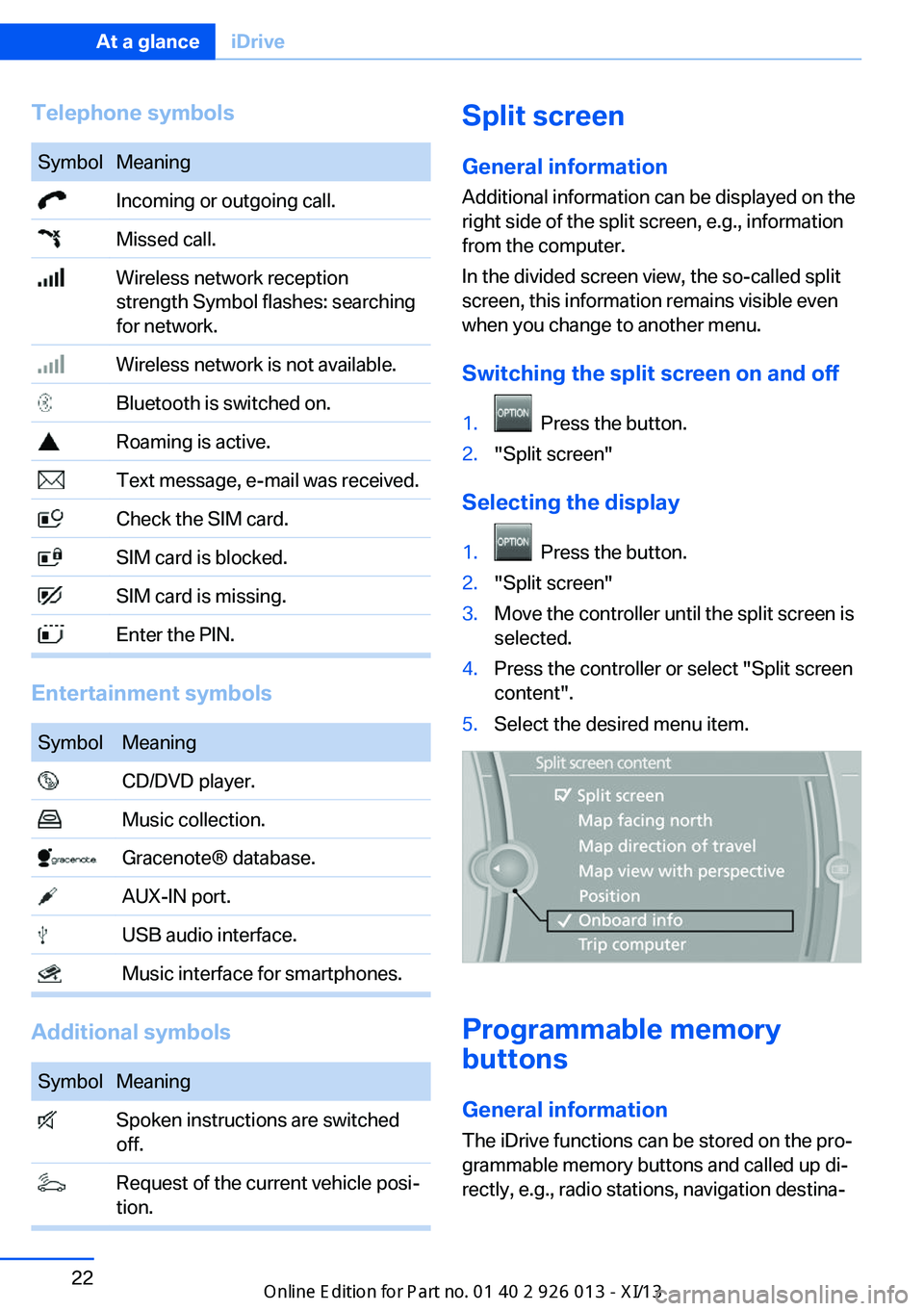
Telephone symbolsSymbolMeaning Incoming or outgoing call. Missed call. Wireless network reception
strength Symbol flashes: searching
for network. Wireless network is not available. Bluetooth is switched on. Roaming is active. Text message, e-mail was received. Check the SIM card. SIM card is blocked. SIM card is missing. Enter the PIN.
Entertainment symbols
SymbolMeaning CD/DVD player. Music collection. Gracenote® database. AUX-IN port. USB audio interface. Music interface for smartphones.
Additional symbols
SymbolMeaning Spoken instructions are switched
off. Request of the current vehicle posi‐
tion.Split screen
General information Additional information can be displayed on the
right side of the split screen, e.g., information
from the computer.
In the divided screen view, the so-called split
screen, this information remains visible even when you change to another menu.
Switching the split screen on and off1. Press the button.2."Split screen"
Selecting the display
1. Press the button.2."Split screen"3.Move the controller until the split screen is
selected.4.Press the controller or select "Split screen
content".5.Select the desired menu item.
Programmable memory
buttons
General information
The iDrive functions can be stored on the pro‐
grammable memory buttons and called up di‐
rectly, e.g., radio stations, navigation destina‐
Seite 22At a glanceiDrive22
Online Edition for Part no. 01 40 2 911 269 - VI/13
Page 31 of 299
▷The volume remains constant even if the
volume of other audio sources is changed.▷The volume is stored for the remote con‐
trol currently in use.
Notes on Emergency
Requests
Do not use the voice activation system to ini‐
tiate an Emergency Request. In stressful situa‐
tions, the voice and vocal pitch can change.
This can unnecessarily delay the establish‐
ment of a telephone connection.
Instead, use the SOS button, refer to
page 257, in the vicinity of the interior mirror.
Environmental conditions
▷Say the commands, numbers, and letters
smoothly and with normal volume, empha‐
sis, and speed.▷Always say commands in the language of
the voice activation system.▷Keep the doors, windows, and glass sun‐
roof closed to prevent noise interference.▷Avoid making other noise in the vehicle
while speaking.Seite 27Voice activation systemAt a glance27
Online Edition for Part no. 01 40 2 911 269 - VI/13
Page 35 of 299
▷The remote control used is detected when
the vehicle is unlocked and the stored pro‐
file is called up.▷Your personal settings will be recognized
and called up again even if the vehicle has
been used in the meantime by someone
else with another remote control.
The individual settings are stored for a maxi‐
mum of four remote controls. They are stored
for two remote controls if Comfort Access is in
use.
Personal Profile settingsThe following functions and settings can be
stored in a profile.
More information on the settings can be found
under:
▷Assigning the programmable memory but‐
tons, refer to page 22.▷Response of the central locking system
when the car is being unlocked, refer to
page 32.▷Automatic locking of the vehicle, refer to
page 35.▷Automatic call-up of the driver's seat posi‐
tion after unlocking, refer to page 33.▷Settings for the display on the Control Dis‐
play and in the instrument cluster:▷12h/24h clock format, refer to
page 76.▷Date format, refer to page 77.▷Brightness of the Control Display, refer
to page 78.▷Language on the Control Display, refer
to page 77.▷Units of measure for fuel consumption,
distance covered/remaining distances,
and temperature, refer to page 75.▷Show visual warning for the Park Distance
Control PDC, refer to page 104.▷Backup camera:▷Function selection, refer to page 106.▷Type of display, refer to page 107.▷Light settings:▷Triple turn signal activation, refer to
page 62.▷Welcome lamps, refer to page 83.▷Headlamp courtesy delay feature, refer
to page 84.▷Daytime running lights, refer to
page 84.▷High-beam Assistant, refer to
page 85.▷Automatic climate control: AUTO program,
cooling function and automatic recircu‐
lated air control activated/deactivated,
temperature, air flow rate and distribution,
refer to page 108.▷Navigation:▷Voice activation, refer to page 155.▷Route criteria, refer to page 153.▷Map view settings, refer to page 157.▷Entertainment:▷Tone control, refer to page 164.▷Radio, stored stations, refer to
page 172.▷CD/multimedia, audio source listened
to last, refer to page 174.▷Telephone: volume, refer to page 200.
Central locking system
The concept The central locking system becomes active
when the driver's door is closed.
The system simultaneously engages and re‐
leases the locks on the following:
▷Doors.▷Tailgate.▷Fuel filler flap.Seite 31Opening and closingControls31
Online Edition for Part no. 01 40 2 911 269 - VI/13
Page 160 of 299
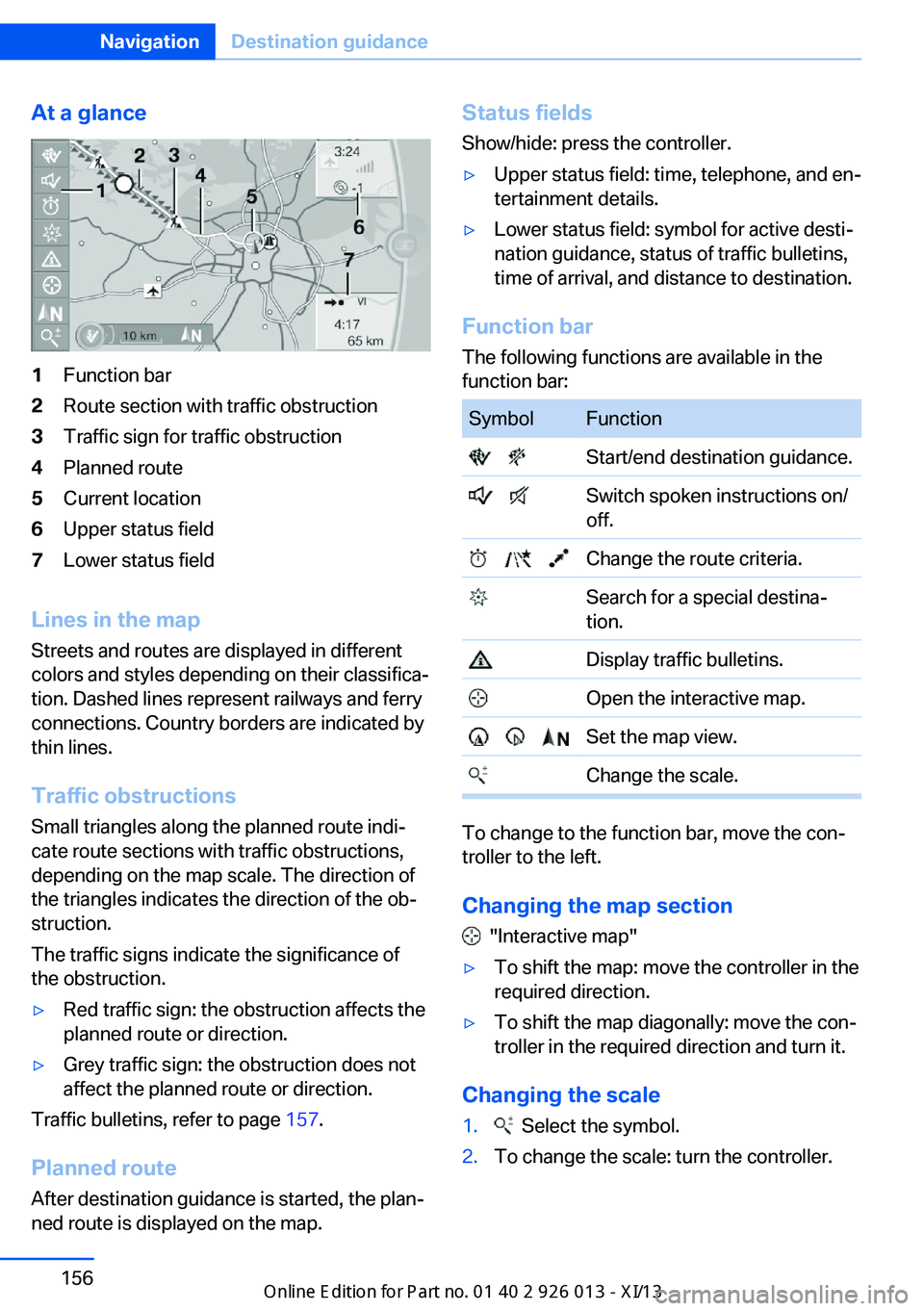
At a glance1Function bar2Route section with traffic obstruction3Traffic sign for traffic obstruction4Planned route5Current location6Upper status field7Lower status field
Lines in the mapStreets and routes are displayed in different
colors and styles depending on their classifica‐ tion. Dashed lines represent railways and ferry
connections. Country borders are indicated by
thin lines.
Traffic obstructions
Small triangles along the planned route indi‐
cate route sections with traffic obstructions,
depending on the map scale. The direction of
the triangles indicates the direction of the ob‐
struction.
The traffic signs indicate the significance of
the obstruction.
▷Red traffic sign: the obstruction affects the
planned route or direction.▷Grey traffic sign: the obstruction does not
affect the planned route or direction.
Traffic bulletins, refer to page 157.
Planned route After destination guidance is started, the plan‐
ned route is displayed on the map.
Status fields
Show/hide: press the controller.▷Upper status field: time, telephone, and en‐
tertainment details.▷Lower status field: symbol for active desti‐
nation guidance, status of traffic bulletins,
time of arrival, and distance to destination.
Function bar
The following functions are available in the
function bar:
SymbolFunction Start/end destination guidance. Switch spoken instructions on/
off. Change the route criteria. Search for a special destina‐
tion. Display traffic bulletins. Open the interactive map. Set the map view. Change the scale.
To change to the function bar, move the con‐
troller to the left.
Changing the map section
"Interactive map"
▷To shift the map: move the controller in the
required direction.▷To shift the map diagonally: move the con‐
troller in the required direction and turn it.
Changing the scale
1. Select the symbol.2.To change the scale: turn the controller.Seite 156NavigationDestination guidance156
Online Edition for Part no. 01 40 2 911 269 - VI/13