Instrument cluster BMW X1 2014 E84 User Guide
[x] Cancel search | Manufacturer: BMW, Model Year: 2014, Model line: X1, Model: BMW X1 2014 E84Pages: 297, PDF Size: 7 MB
Page 75 of 297
DisplaysVehicle equipmentThis chapter describes all series equipment as
well as country-specific and special equipment
offered for this model series. Therefore, it also
describes equipment that may not be found in
your vehicle, for instance due to the selected
special equipment or the country version. This
also applies to safety-related functions and
systems.
When using the features and systems descri‐
bed here, adhere to local regulations.
Odometer, external
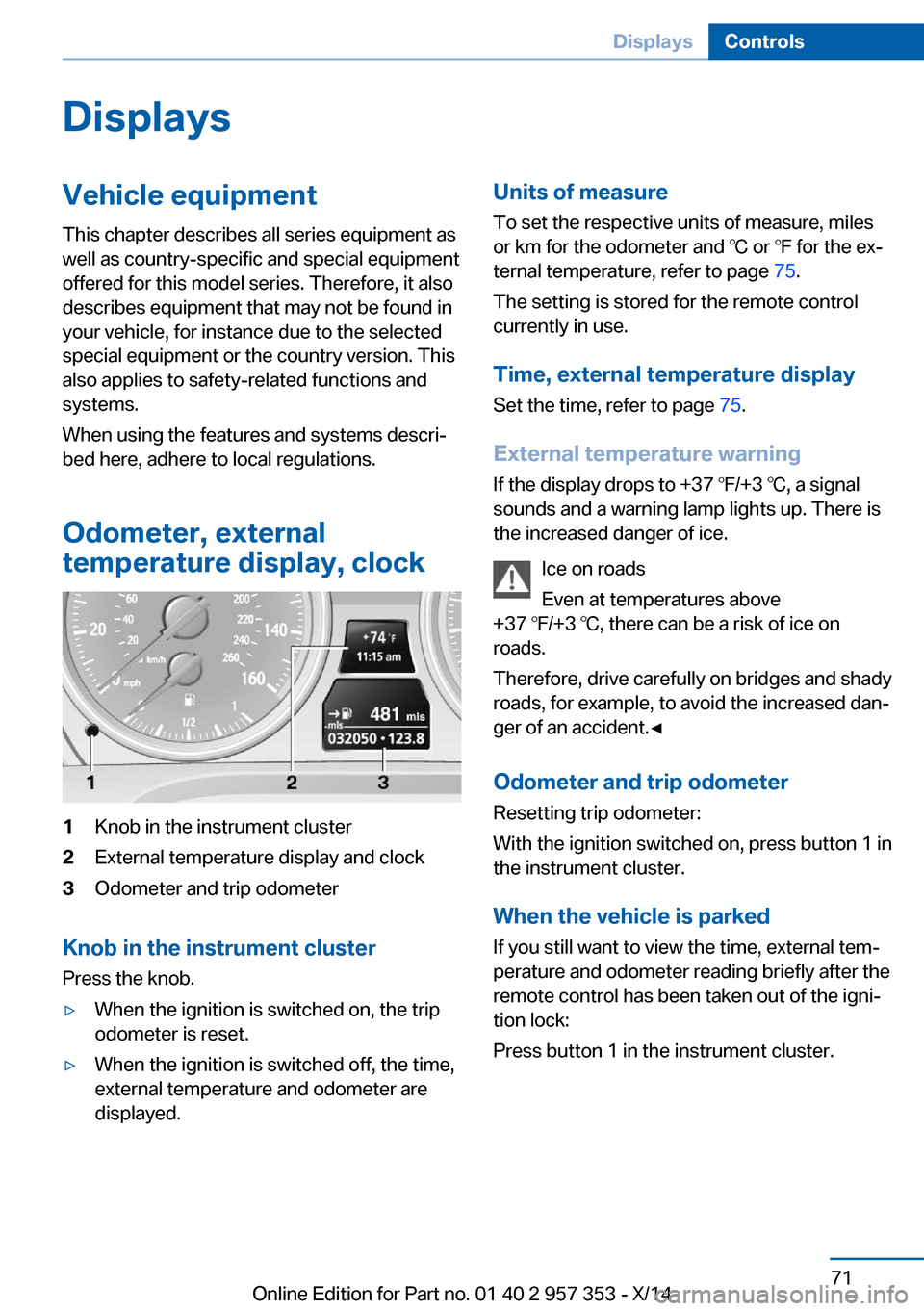
temperature display, clock1Knob in the instrument cluster2External temperature display and clock3Odometer and trip odometer
Knob in the instrument cluster
Press the knob.
▷When the ignition is switched on, the trip
odometer is reset.▷When the ignition is switched off, the time,
external temperature and odometer are
displayed.Units of measure
To set the respective units of measure, miles
or km for the odometer and ℃ or ℉ for the ex‐
ternal temperature, refer to page 75.
The setting is stored for the remote control
currently in use.
Time, external temperature display Set the time, refer to page 75.
External temperature warning
If the display drops to +37 ℉/+3 ℃, a signal
sounds and a warning lamp lights up. There is the increased danger of ice.
Ice on roads
Even at temperatures above
+37 ℉/+3 ℃, there can be a risk of ice on
roads.
Therefore, drive carefully on bridges and shady
roads, for example, to avoid the increased dan‐
ger of an accident.◀
Odometer and trip odometer
Resetting trip odometer:
With the ignition switched on, press button 1 in
the instrument cluster.
When the vehicle is parked
If you still want to view the time, external tem‐
perature and odometer reading briefly after the
remote control has been taken out of the igni‐
tion lock:
Press button 1 in the instrument cluster.Seite 71DisplaysControls71
Online Edition for Part no. 01 40 2 957 353 - X/14
Page 77 of 297
▷A message is briefly displayed on the Con‐
trol Display.▷The remaining range is shown on the com‐
puter.▷When a dynamic driving style is used, such
as when corners are taken rapidly, engine
functions are not ensured.
The message appears continuously below a
range of approx. 30 miles/50 km.
Refuel promptly
At the latest, refuel at a range below
30 miles/50 km; otherwise, the engine function
is not ensured and damage may occur.◀
Computer Displaying information on the
instrument panel
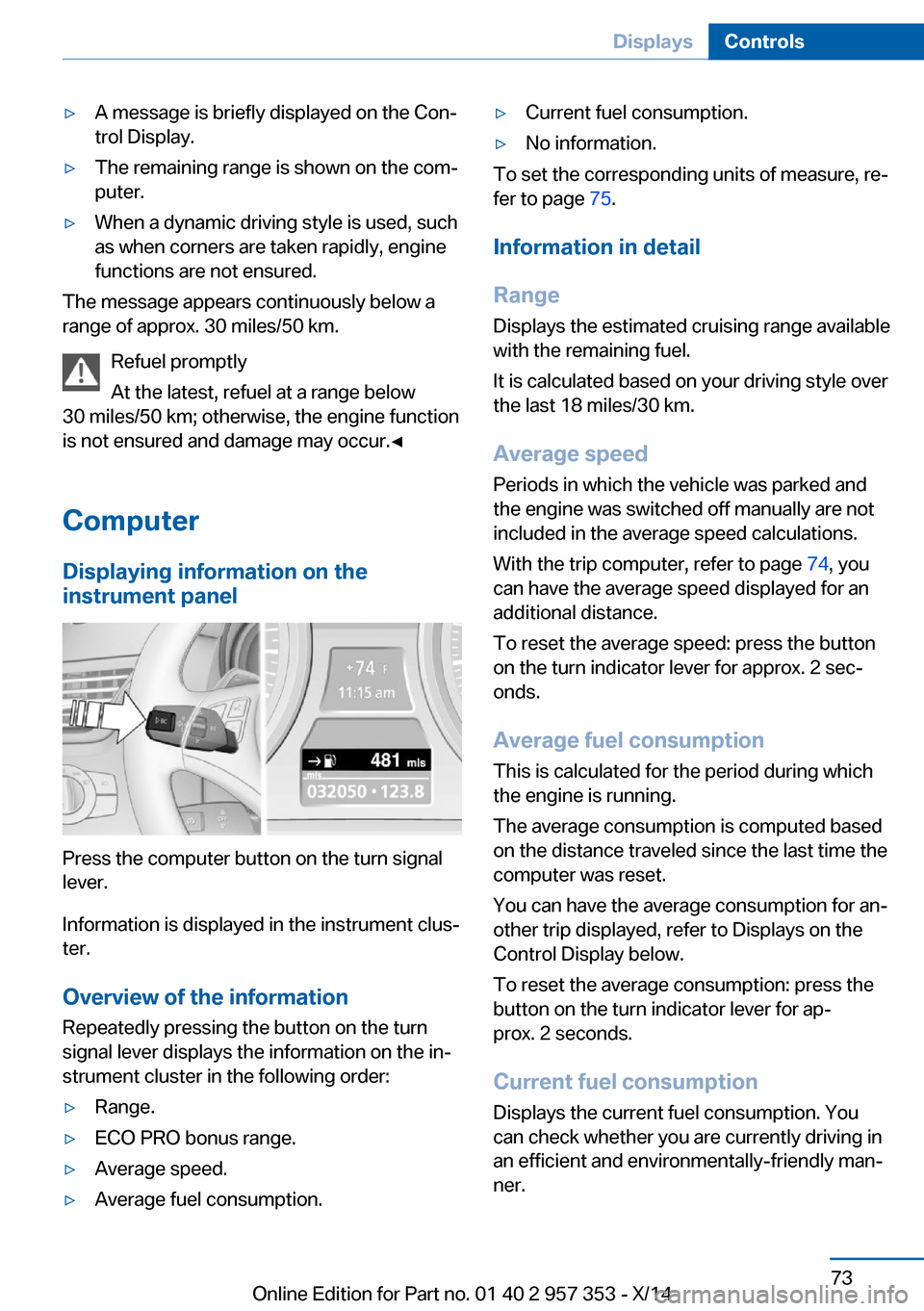
Press the computer button on the turn signal
lever.
Information is displayed in the instrument clus‐
ter.
Overview of the information Repeatedly pressing the button on the turn
signal lever displays the information on the in‐
strument cluster in the following order:
▷Range.▷ECO PRO bonus range.▷Average speed.▷Average fuel consumption.▷Current fuel consumption.▷No information.
To set the corresponding units of measure, re‐
fer to page 75.
Information in detail
Range
Displays the estimated cruising range available
with the remaining fuel.
It is calculated based on your driving style over
the last 18 miles/30 km.
Average speed
Periods in which the vehicle was parked and
the engine was switched off manually are not
included in the average speed calculations.
With the trip computer, refer to page 74, you
can have the average speed displayed for an
additional distance.
To reset the average speed: press the button
on the turn indicator lever for approx. 2 sec‐
onds.
Average fuel consumption
This is calculated for the period during which
the engine is running.
The average consumption is computed based
on the distance traveled since the last time the
computer was reset.
You can have the average consumption for an‐
other trip displayed, refer to Displays on the
Control Display below.
To reset the average consumption: press the
button on the turn indicator lever for ap‐
prox. 2 seconds.
Current fuel consumption Displays the current fuel consumption. You
can check whether you are currently driving in
an efficient and environmentally-friendly man‐
ner.
Seite 73DisplaysControls73
Online Edition for Part no. 01 40 2 957 353 - X/14
Page 79 of 297
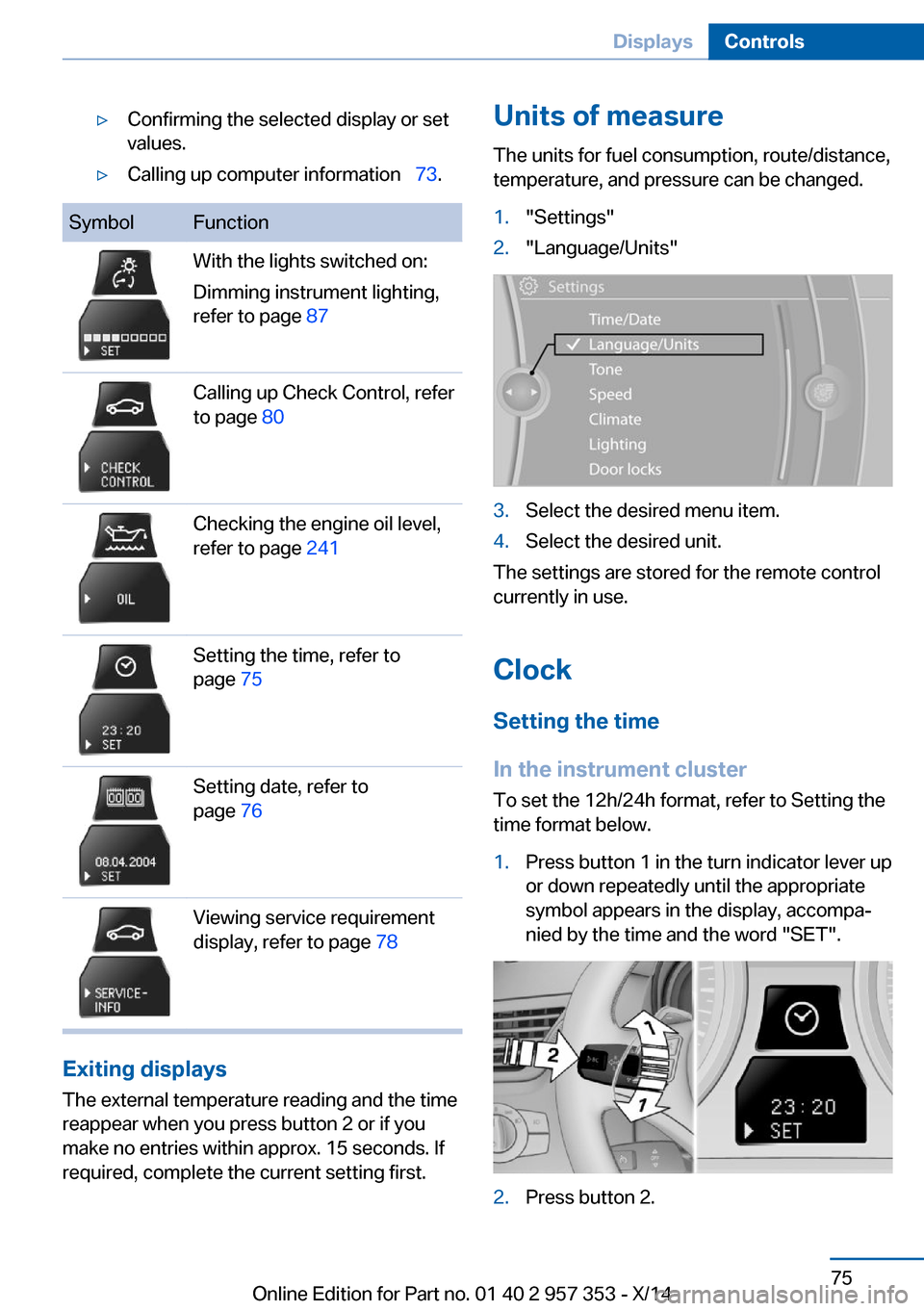
▷Confirming the selected display or set
values.▷Calling up computer information 73.SymbolFunctionWith the lights switched on:
Dimming instrument lighting,
refer to page 87Calling up Check Control, refer
to page 80Checking the engine oil level,
refer to page 241Setting the time, refer to
page 75Setting date, refer to
page 76Viewing service requirement
display, refer to page 78
Exiting displays
The external temperature reading and the time
reappear when you press button 2 or if you
make no entries within approx. 15 seconds. If
required, complete the current setting first.
Units of measure
The units for fuel consumption, route/distance,
temperature, and pressure can be changed.1."Settings"2."Language/Units"3.Select the desired menu item.4.Select the desired unit.
The settings are stored for the remote control
currently in use.
Clock
Setting the time
In the instrument cluster To set the 12h/24h format, refer to Setting the
time format below.
1.Press button 1 in the turn indicator lever up
or down repeatedly until the appropriate
symbol appears in the display, accompa‐
nied by the time and the word "SET".2.Press button 2.Seite 75DisplaysControls75
Online Edition for Part no. 01 40 2 957 353 - X/14
Page 80 of 297
3.Use button 1 to set the hours.4.Press button 2 to confirm the entry.5.Use button 1 to set the minutes.6.Press button 2 to confirm the entry.7.Press button 2.
The system accepts the new time.
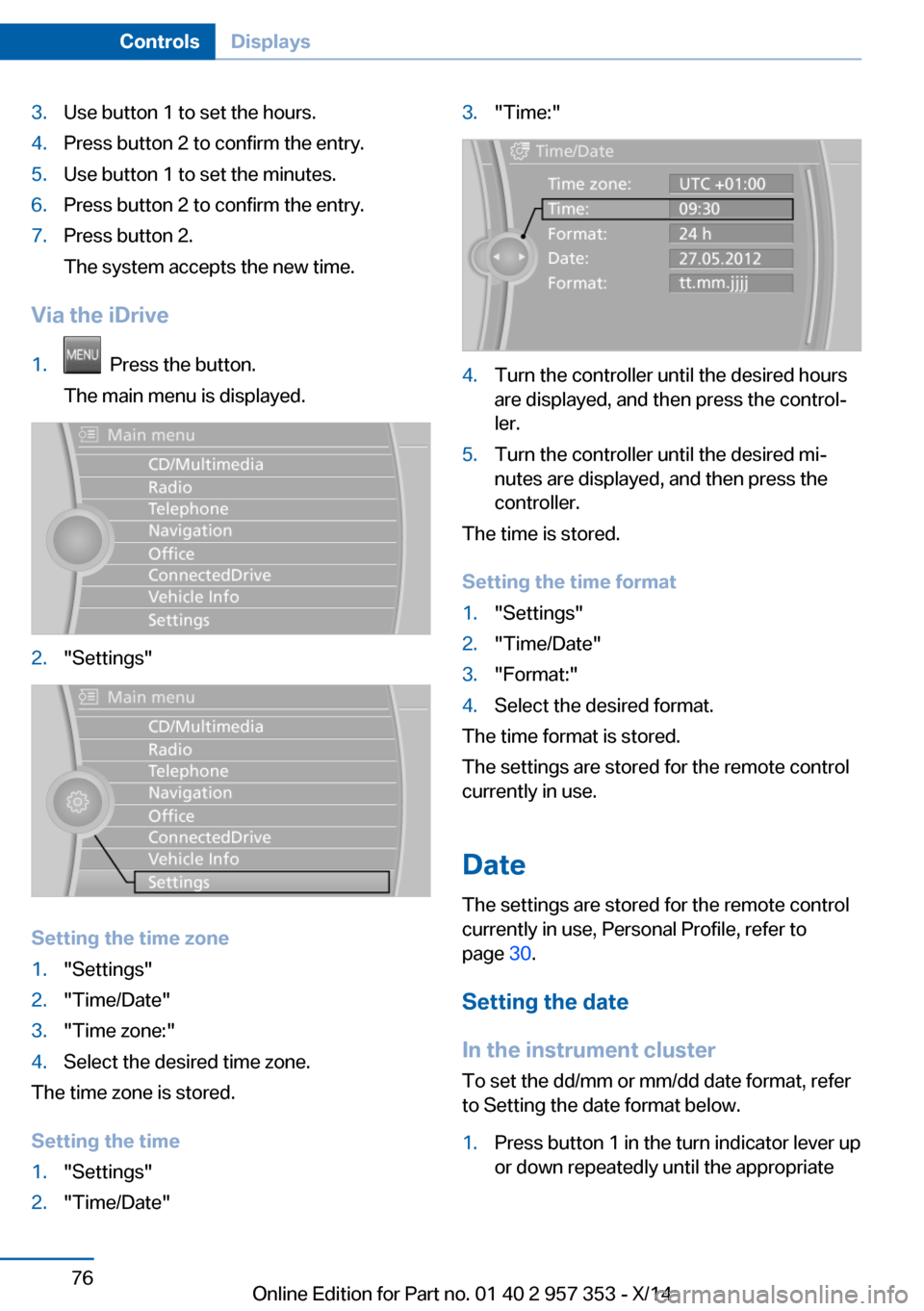
Via the iDrive
1. Press the button.
The main menu is displayed.2."Settings"
Setting the time zone
1."Settings"2."Time/Date"3."Time zone:"4.Select the desired time zone.
The time zone is stored.
Setting the time
1."Settings"2."Time/Date"3."Time:"4.Turn the controller until the desired hours
are displayed, and then press the control‐
ler.5.Turn the controller until the desired mi‐
nutes are displayed, and then press the
controller.
The time is stored.
Setting the time format
1."Settings"2."Time/Date"3."Format:"4.Select the desired format.
The time format is stored.
The settings are stored for the remote control
currently in use.
Date
The settings are stored for the remote control
currently in use, Personal Profile, refer to
page 30.
Setting the date
In the instrument cluster
To set the dd/mm or mm/dd date format, refer
to Setting the date format below.
1.Press button 1 in the turn indicator lever up
or down repeatedly until the appropriateSeite 76ControlsDisplays76
Online Edition for Part no. 01 40 2 957 353 - X/14
Page 82 of 297
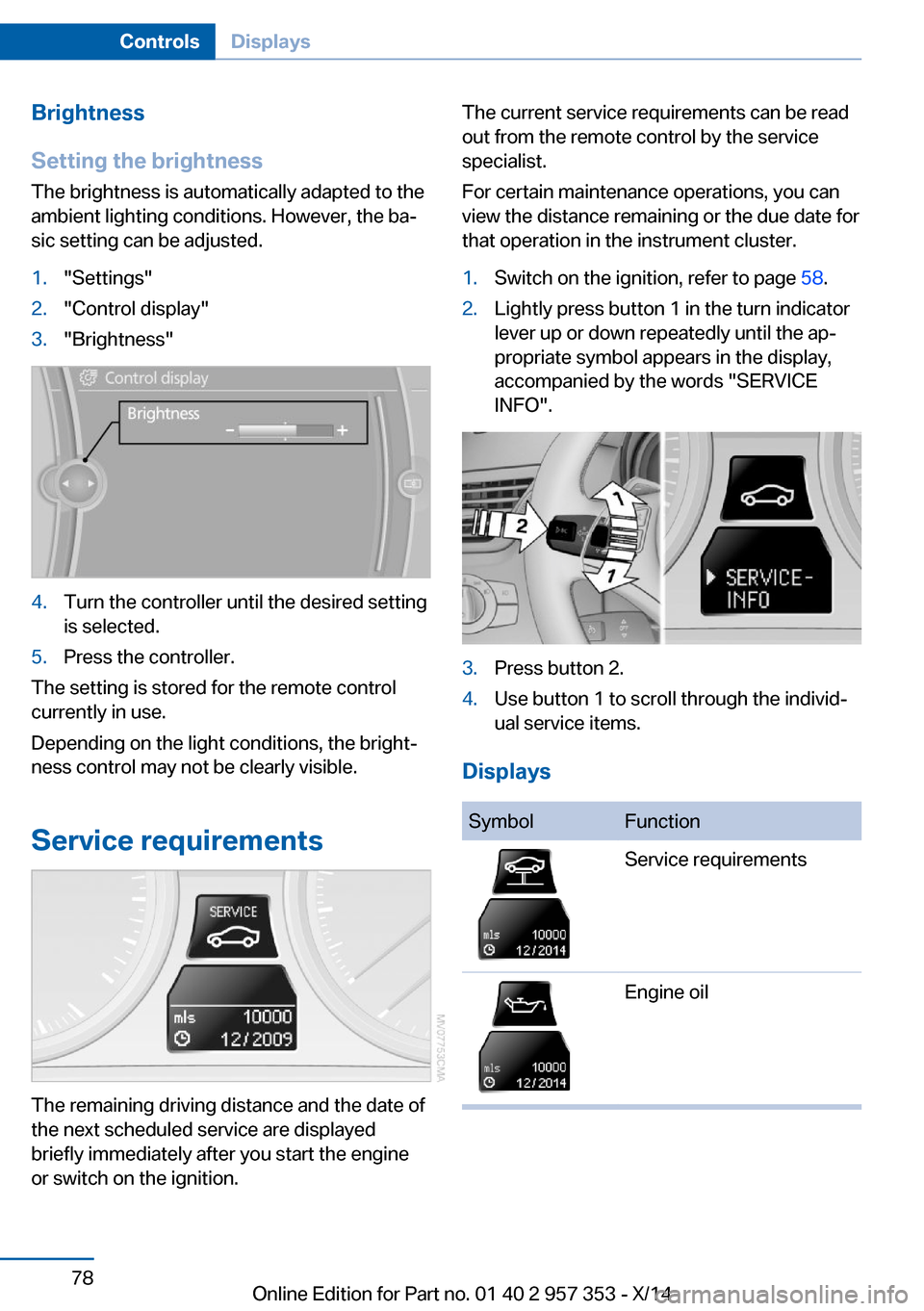
Brightness
Setting the brightness
The brightness is automatically adapted to the
ambient lighting conditions. However, the ba‐
sic setting can be adjusted.1."Settings"2."Control display"3."Brightness"4.Turn the controller until the desired setting
is selected.5.Press the controller.
The setting is stored for the remote control
currently in use.
Depending on the light conditions, the bright‐
ness control may not be clearly visible.
Service requirements
The remaining driving distance and the date of
the next scheduled service are displayed
briefly immediately after you start the engine
or switch on the ignition.
The current service requirements can be read
out from the remote control by the service
specialist.
For certain maintenance operations, you can
view the distance remaining or the due date for
that operation in the instrument cluster.1.Switch on the ignition, refer to page 58.2.Lightly press button 1 in the turn indicator
lever up or down repeatedly until the ap‐
propriate symbol appears in the display,
accompanied by the words "SERVICE
INFO".3.Press button 2.4.Use button 1 to scroll through the individ‐
ual service items.
Displays
SymbolFunctionService requirementsEngine oilSeite 78ControlsDisplays78
Online Edition for Part no. 01 40 2 957 353 - X/14
Page 84 of 297
7.Create the settings.8.Press the controller to apply the setting.
The year is highlighted.9.Turn the controller to make the adjust‐
ment.10.Press the controller to apply the setting.
The date entry is stored.
To exit from the menu:
Move the controller to the left.
Automatic Service Request
Data regarding the maintenance status or le‐
gally mandated inspections of the vehicle are
automatically transmitted to your service cen‐
ter before a service due date.
You can check when your service center was
notified.
1."Vehicle Info"2."Vehicle status"3.Open "Options".4."Last Service Request"
Check Control
The concept The Check Control monitors vehicle functions
and alerts you to any malfunctions in the sys‐
tems monitored.
A Check Control message consists of indicator and warning lamps in the instrument cluster
and, in some circumstances, an acoustic signal
and text messages at the top of the Control
Display.
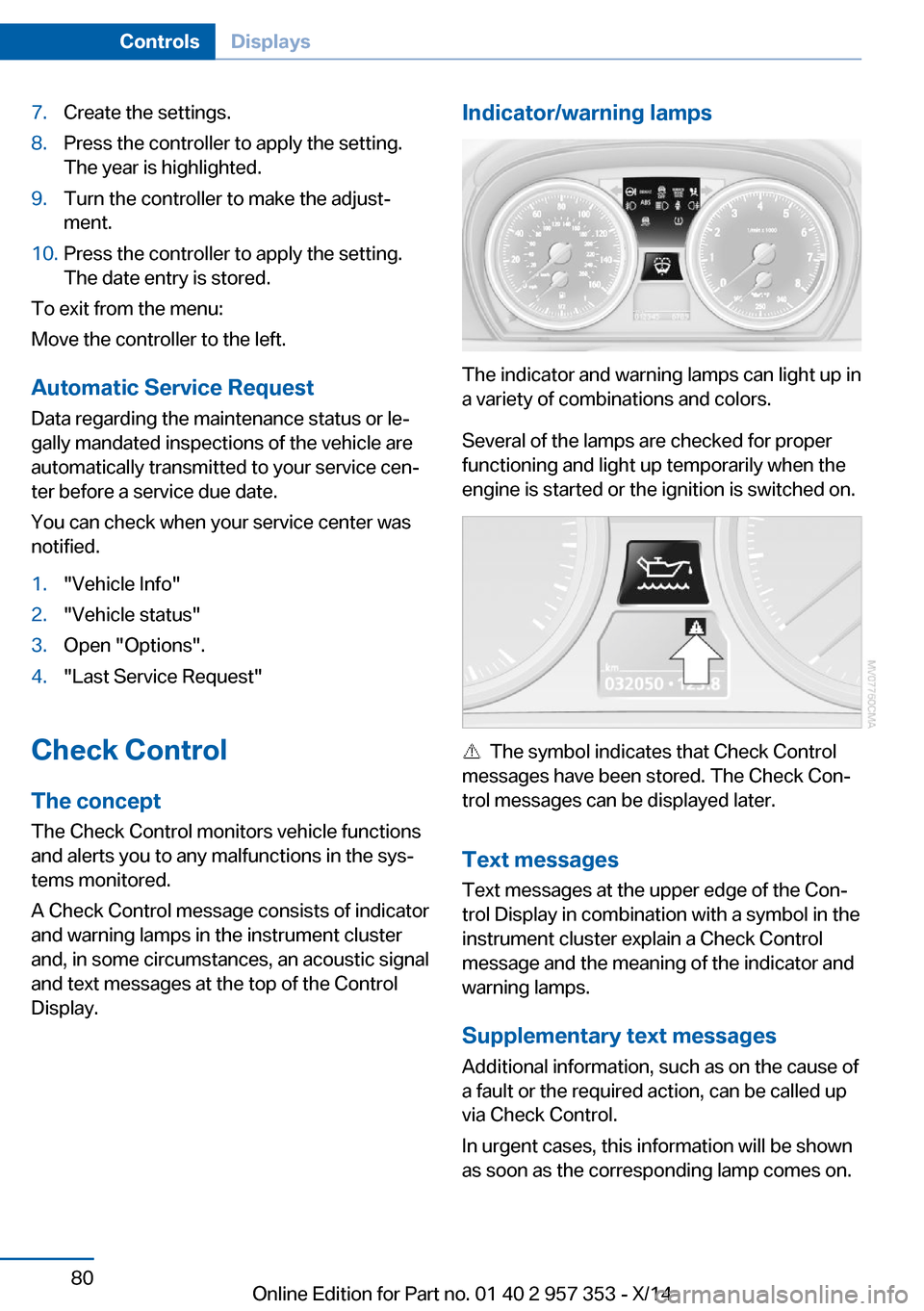
Indicator/warning lamps
The indicator and warning lamps can light up in
a variety of combinations and colors.
Several of the lamps are checked for proper
functioning and light up temporarily when the
engine is started or the ignition is switched on.
The symbol indicates that Check Control
messages have been stored. The Check Con‐
trol messages can be displayed later.
Text messages Text messages at the upper edge of the Con‐
trol Display in combination with a symbol in the
instrument cluster explain a Check Control
message and the meaning of the indicator and
warning lamps.
Supplementary text messages
Additional information, such as on the cause of
a fault or the required action, can be called up
via Check Control.
In urgent cases, this information will be shown
as soon as the corresponding lamp comes on.
Seite 80ControlsDisplays80
Online Edition for Part no. 01 40 2 957 353 - X/14
Page 89 of 297
front fog lamps is switched on as a turning
lamp. This provides improved illumination of
the area inside the curve.
Controls
Activating Switch position
with the ignition switched
on.
The turning lamps are automatically switched
on depending on the steering angle or the use
of turn signals.
To avoid blinding oncoming traffic, the Adap‐
tive Light Control does not swivel to the driv‐
er's side when the vehicle is at a standstill.
When driving in reverse, both turning lamps
are active.
Malfunction The warning lamp lights up.A mes‐
sage appears on the Control Display.
Adaptive Light Control is malfunc‐
tioning or has failed. Have the system checked
as soon as possible.
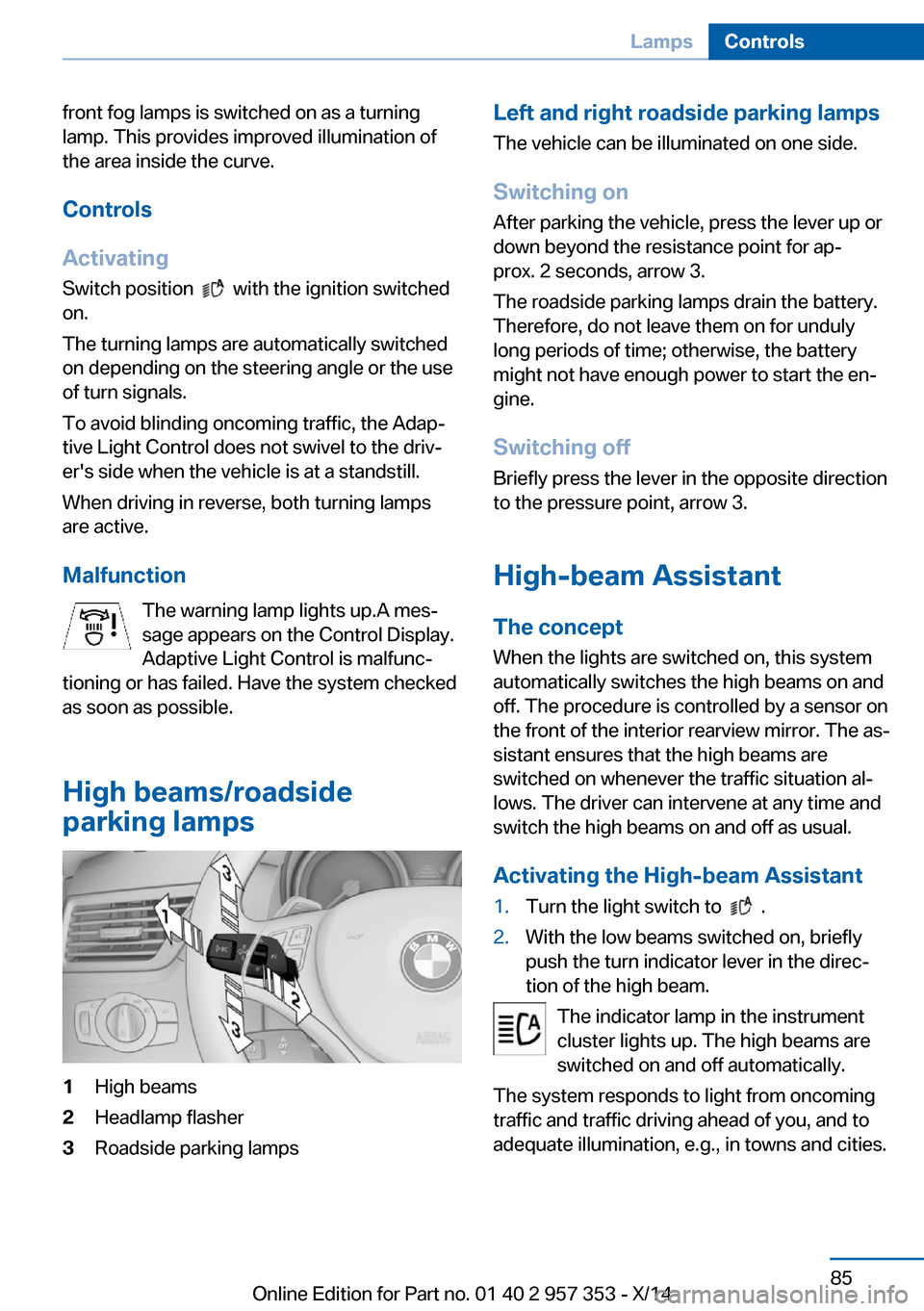
High beams/roadside
parking lamps
1High beams2Headlamp flasher3Roadside parking lampsLeft and right roadside parking lamps
The vehicle can be illuminated on one side.
Switching on After parking the vehicle, press the lever up or
down beyond the resistance point for ap‐
prox. 2 seconds, arrow 3.
The roadside parking lamps drain the battery.
Therefore, do not leave them on for unduly
long periods of time; otherwise, the battery might not have enough power to start the en‐
gine.
Switching off
Briefly press the lever in the opposite direction
to the pressure point, arrow 3.
High-beam Assistant
The concept When the lights are switched on, this system
automatically switches the high beams on and
off. The procedure is controlled by a sensor on
the front of the interior rearview mirror. The as‐
sistant ensures that the high beams are
switched on whenever the traffic situation al‐
lows. The driver can intervene at any time and
switch the high beams on and off as usual.
Activating the High-beam Assistant1.Turn the light switch to .2.With the low beams switched on, briefly
push the turn indicator lever in the direc‐
tion of the high beam.
The indicator lamp in the instrument
cluster lights up. The high beams are
switched on and off automatically.
The system responds to light from oncoming
traffic and traffic driving ahead of you, and to
adequate illumination, e.g., in towns and cities.
Seite 85LampsControls85
Online Edition for Part no. 01 40 2 957 353 - X/14
Page 90 of 297
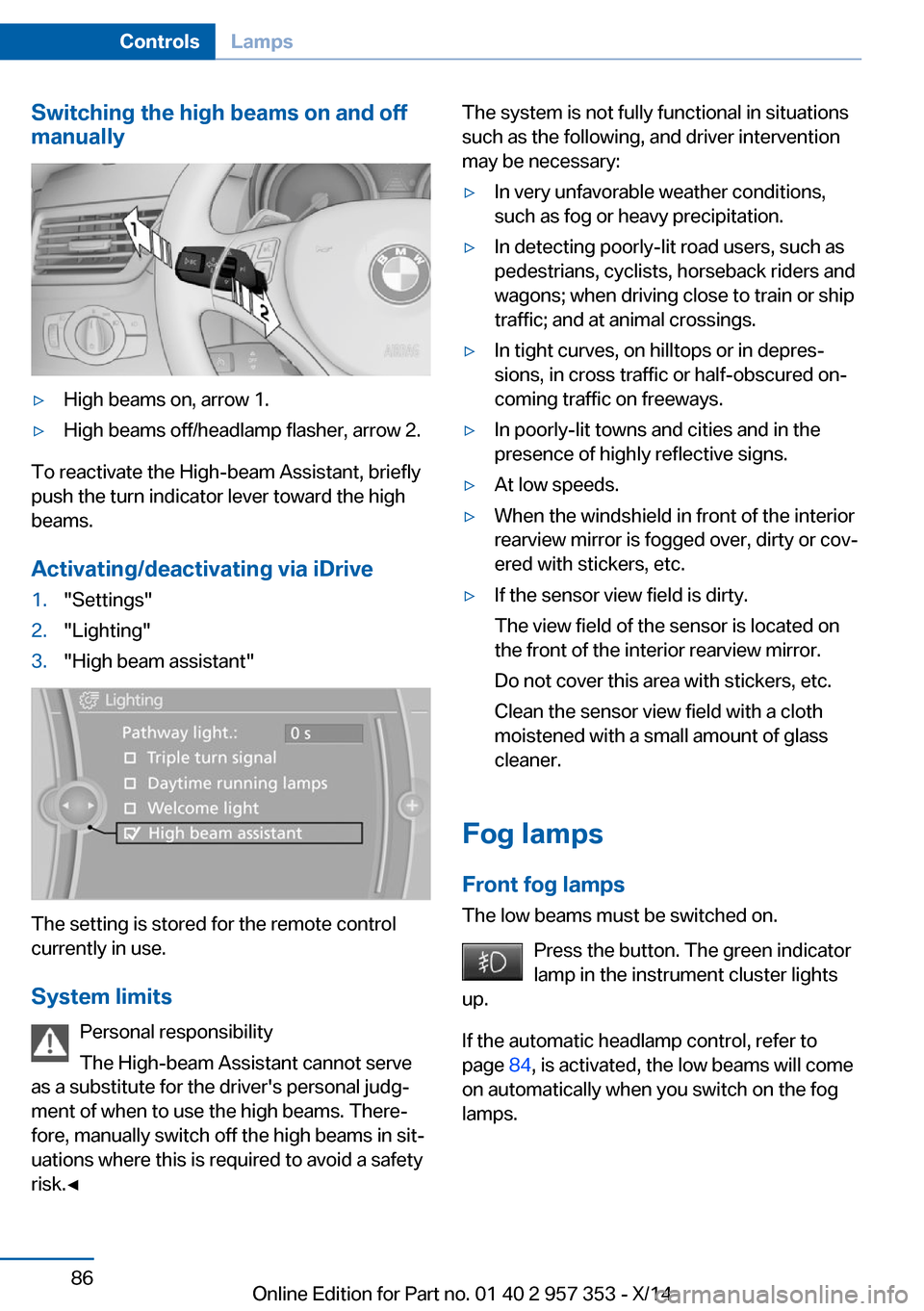
Switching the high beams on and off
manually▷High beams on, arrow 1.▷High beams off/headlamp flasher, arrow 2.
To reactivate the High-beam Assistant, briefly
push the turn indicator lever toward the high
beams.
Activating/deactivating via iDrive
1."Settings"2."Lighting"3."High beam assistant"
The setting is stored for the remote control
currently in use.
System limits Personal responsibility
The High-beam Assistant cannot serve
as a substitute for the driver's personal judg‐
ment of when to use the high beams. There‐
fore, manually switch off the high beams in sit‐
uations where this is required to avoid a safety
risk.◀
The system is not fully functional in situations
such as the following, and driver intervention
may be necessary:▷In very unfavorable weather conditions,
such as fog or heavy precipitation.▷In detecting poorly-lit road users, such as
pedestrians, cyclists, horseback riders and
wagons; when driving close to train or ship
traffic; and at animal crossings.▷In tight curves, on hilltops or in depres‐
sions, in cross traffic or half-obscured on‐
coming traffic on freeways.▷In poorly-lit towns and cities and in the
presence of highly reflective signs.▷At low speeds.▷When the windshield in front of the interior
rearview mirror is fogged over, dirty or cov‐
ered with stickers, etc.▷If the sensor view field is dirty.
The view field of the sensor is located on
the front of the interior rearview mirror.
Do not cover this area with stickers, etc.
Clean the sensor view field with a cloth
moistened with a small amount of glass
cleaner.
Fog lamps
Front fog lamps
The low beams must be switched on.
Press the button. The green indicator
lamp in the instrument cluster lights
up.
If the automatic headlamp control, refer to
page 84, is activated, the low beams will come
on automatically when you switch on the fog
lamps.
Seite 86ControlsLamps86
Online Edition for Part no. 01 40 2 957 353 - X/14
Page 102 of 297
Press and hold the button, but not lon‐
ger than approx. 10 seconds, until the
indicator lamp for DSC lights up in the instru‐
ment cluster and DSC OFF is displayed. DTC
Dynamic Traction Control and DSC are deacti‐
vated together.
In the interest of better forward momentum,
brake intervention is performed in the manner
of a differential lock when the drive wheels spin
quickly even if DSC is deactivated.
Activating DSC Press the button.
DSC OFF and the indicator lamp in the
instrument cluster go out.
For better control The indicator lamp flashes: DSC con‐
trols the drive forces and brake forces.
The indicator lamp lights up: DSC and
DTC has failed.
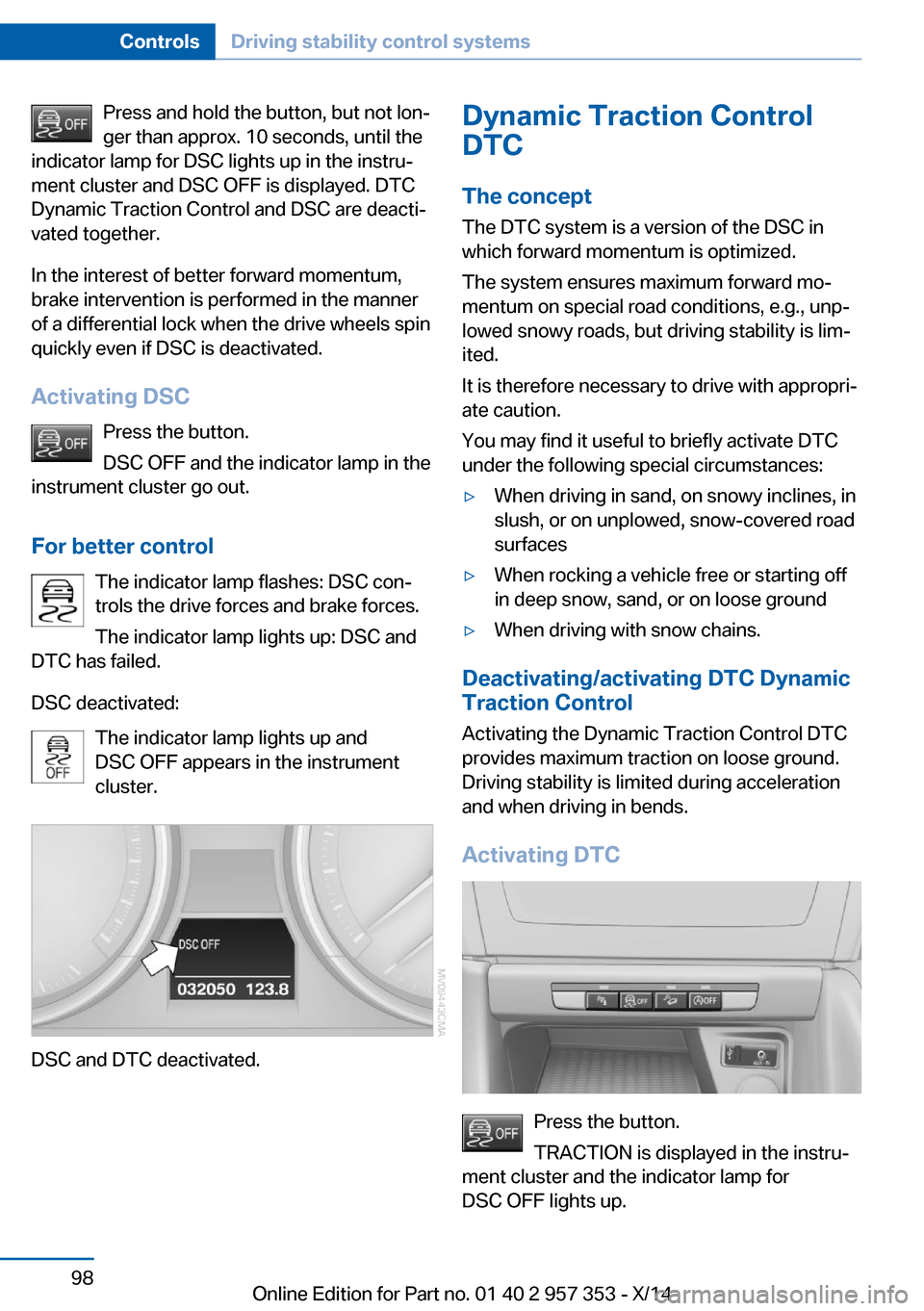
DSC deactivated: The indicator lamp lights up and
DSC OFF appears in the instrument
cluster.
DSC and DTC deactivated.
Dynamic Traction Control
DTC
The concept The DTC system is a version of the DSC in
which forward momentum is optimized.
The system ensures maximum forward mo‐
mentum on special road conditions, e.g., unp‐
lowed snowy roads, but driving stability is lim‐
ited.
It is therefore necessary to drive with appropri‐
ate caution.
You may find it useful to briefly activate DTC
under the following special circumstances:▷When driving in sand, on snowy inclines, in
slush, or on unplowed, snow-covered road
surfaces▷When rocking a vehicle free or starting off
in deep snow, sand, or on loose ground▷When driving with snow chains.
Deactivating/activating DTC Dynamic
Traction Control
Activating the Dynamic Traction Control DTC
provides maximum traction on loose ground.
Driving stability is limited during acceleration
and when driving in bends.
Activating DTC
Press the button.
TRACTION is displayed in the instru‐
ment cluster and the indicator lamp for
DSC OFF lights up.
Seite 98ControlsDriving stability control systems98
Online Edition for Part no. 01 40 2 957 353 - X/14
Page 103 of 297
Deactivating DTCPress the button again.
TRACTION and the indicator lamp in
the instrument cluster go out.
For better control The indicator lamp flashes: DTC con‐
trols the drive forces and brake forces.
The indicator lamp lights up: DSC and
DTC has failed.
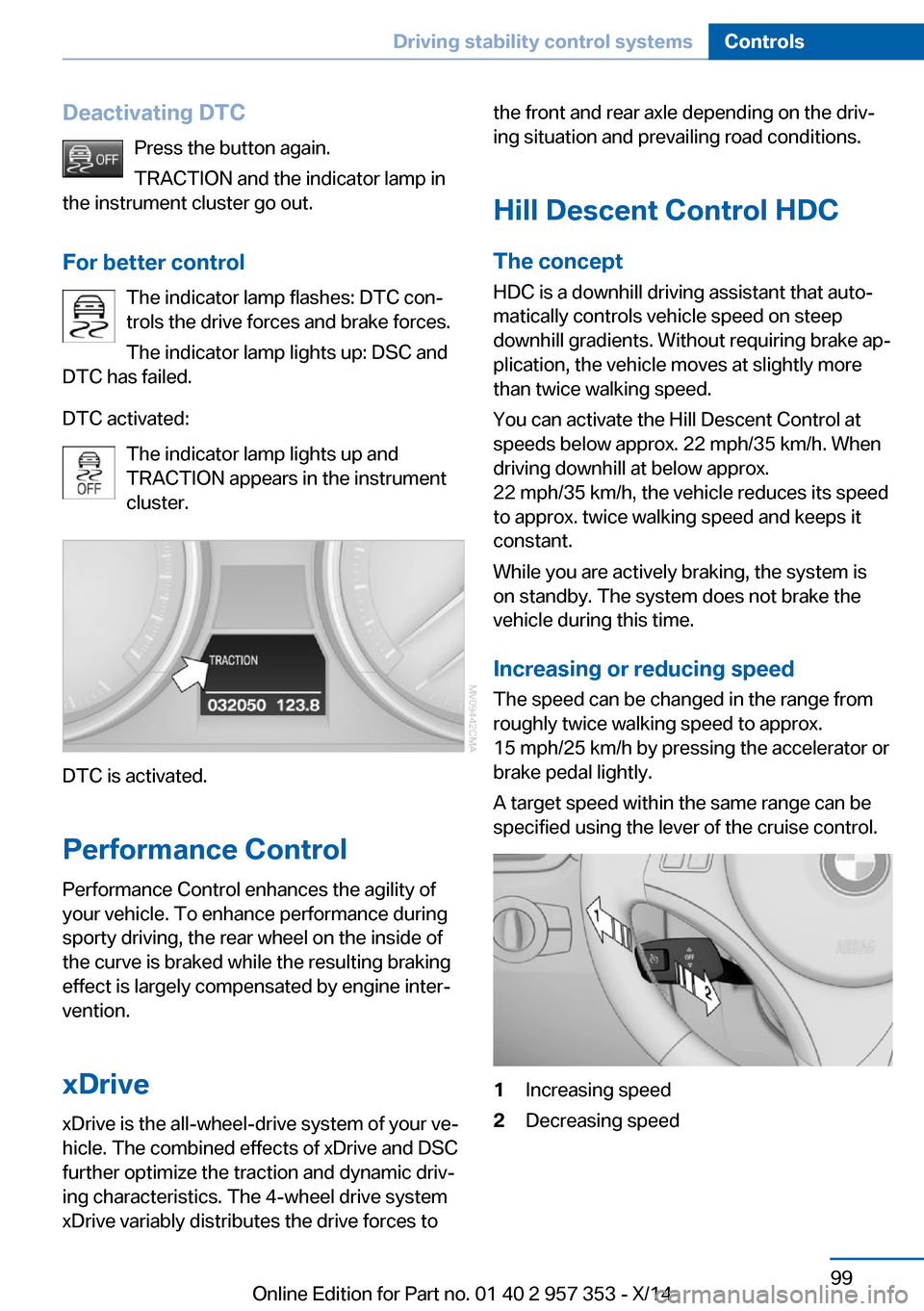
DTC activated: The indicator lamp lights up and
TRACTION appears in the instrument
cluster.
DTC is activated.
Performance Control
Performance Control enhances the agility of
your vehicle. To enhance performance during
sporty driving, the rear wheel on the inside of
the curve is braked while the resulting braking
effect is largely compensated by engine inter‐
vention.
xDrivexDrive is the all-wheel-drive system of your ve‐
hicle. The combined effects of xDrive and DSC
further optimize the traction and dynamic driv‐
ing characteristics. The 4-wheel drive system
xDrive variably distributes the drive forces to
the front and rear axle depending on the driv‐
ing situation and prevailing road conditions.
Hill Descent Control HDC
The concept HDC is a downhill driving assistant that auto‐
matically controls vehicle speed on steep
downhill gradients. Without requiring brake ap‐
plication, the vehicle moves at slightly more
than twice walking speed.
You can activate the Hill Descent Control at
speeds below approx. 22 mph/35 km/h. When
driving downhill at below approx.
22 mph/35 km/h, the vehicle reduces its speed
to approx. twice walking speed and keeps it
constant.
While you are actively braking, the system is
on standby. The system does not brake the
vehicle during this time.
Increasing or reducing speed
The speed can be changed in the range from
roughly twice walking speed to approx.
15 mph/25 km/h by pressing the accelerator or
brake pedal lightly.
A target speed within the same range can be
specified using the lever of the cruise control.1Increasing speed2Decreasing speedSeite 99Driving stability control systemsControls99
Online Edition for Part no. 01 40 2 957 353 - X/14