bluetooth BMW X1 2014 E84 User Guide
[x] Cancel search | Manufacturer: BMW, Model Year: 2014, Model line: X1, Model: BMW X1 2014 E84Pages: 297, PDF Size: 7 MB
Page 203 of 297
phone when it is reconnected. These functions
are deactivated in a mobile phone that is al‐
ready connected.
Configuring the mobile phone Additional functions can be activated or deacti‐
vated for paired and connected mobile phones.1."Telephone"2."Bluetooth® (phone)"3.Highlight the mobile phone to be config‐
ured.4.Open "Options".5."Configure phone"6.At least one function must be selected.▷"Telephone"▷"Additional telephone"▷"Audio"7."OK"
If a function has already been assigned to an‐
other connected mobile phone, the function is
deactivated in that mobile phone and the mo‐
bile phone is unpaired when the function is as‐
signed to a new mobile phone.
Swapping the telephone and
additional telephone
The function of the telephone and additional
telephone can be swapped automatically.
1."Telephone"2."Bluetooth® (phone)"3."Swap phone/addit. phone"
Unpairing the mobile phone
1."Telephone"2."Bluetooth® (phone)"3.Highlight the mobile phone that is to be
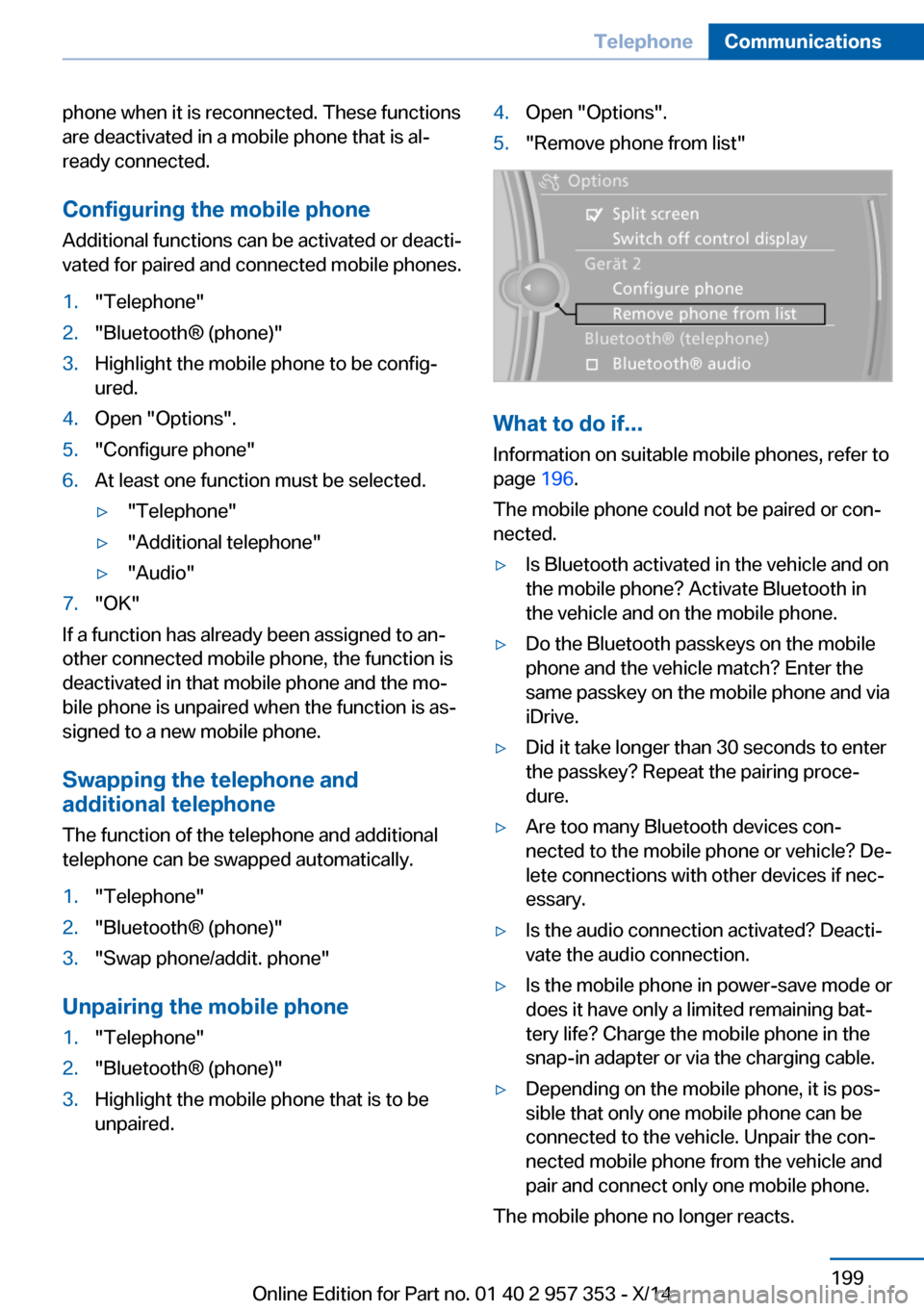
unpaired.4.Open "Options".5."Remove phone from list"
What to do if...
Information on suitable mobile phones, refer to
page 196.
The mobile phone could not be paired or con‐
nected.
▷Is Bluetooth activated in the vehicle and on
the mobile phone? Activate Bluetooth in
the vehicle and on the mobile phone.▷Do the Bluetooth passkeys on the mobile
phone and the vehicle match? Enter the
same passkey on the mobile phone and via
iDrive.▷Did it take longer than 30 seconds to enter
the passkey? Repeat the pairing proce‐
dure.▷Are too many Bluetooth devices con‐
nected to the mobile phone or vehicle? De‐
lete connections with other devices if nec‐
essary.▷Is the audio connection activated? Deacti‐
vate the audio connection.▷Is the mobile phone in power-save mode or
does it have only a limited remaining bat‐
tery life? Charge the mobile phone in the
snap-in adapter or via the charging cable.▷Depending on the mobile phone, it is pos‐
sible that only one mobile phone can be
connected to the vehicle. Unpair the con‐
nected mobile phone from the vehicle and
pair and connect only one mobile phone.
The mobile phone no longer reacts.
Seite 199TelephoneCommunications199
Online Edition for Part no. 01 40 2 957 353 - X/14
Page 204 of 297
▷Switch the mobile phone off and on again.▷Is the ambient temperature too high or
low? Do not expose the mobile phone to
extreme environmental conditions.
The telephone functions are not available.
▷Is the mobile phone paired as an additional
telephone and is the additional telephone
function deactivated? Activate the func‐
tion.▷Is an outgoing call not possible? Connect
the mobile phone as a telephone.
No phone book entries or only some phone
book entries are displayed, or they are incom‐
plete.
▷Transmission of the phone book entries is
not yet complete.▷It is possible that only the phone book en‐
tries of the mobile phone or the SIM card
are transmitted.▷It may not be possible to display phone
book entries with special characters.▷The number of phone book entries to be
stored is too high.▷Is the data volume of the contact too large,
e. g., due to stored information such as
notes? Reduce the data volume of the con‐
tact.▷Is the mobile phone connected as an audio
source or additional telephone? The mo‐
bile phone must be connected as a tele‐
phone.
The phone connection quality is poor.
▷The strength of the Bluetooth signal on the
mobile phone can be adjusted, depending
on the mobile phone.▷Insert the mobile phone into the snap-in
adapter or place it in the area of the center
console.▷Adjust the volume of the microphone and
loudspeakers separately.If all points in this list have been checked and
the required function is still not available, con‐
tact Customer Relations or the service center.
Controls
Adjusting the volume
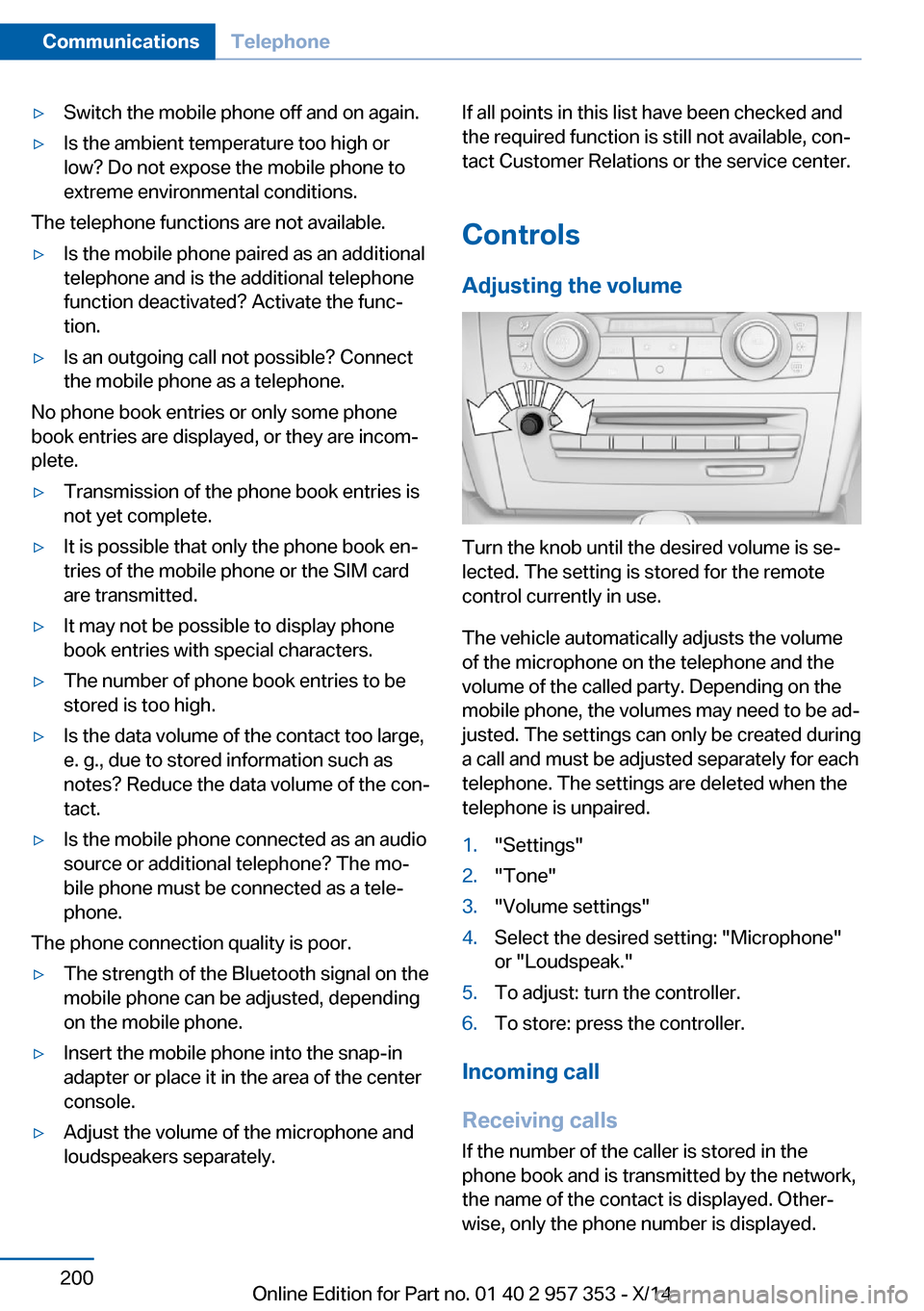
Turn the knob until the desired volume is se‐
lected. The setting is stored for the remote
control currently in use.
The vehicle automatically adjusts the volume
of the microphone on the telephone and the
volume of the called party. Depending on the
mobile phone, the volumes may need to be ad‐
justed. The settings can only be created during
a call and must be adjusted separately for each
telephone. The settings are deleted when the
telephone is unpaired.
1."Settings"2."Tone"3."Volume settings"4.Select the desired setting: "Microphone"
or "Loudspeak."5.To adjust: turn the controller.6.To store: press the controller.
Incoming call
Receiving calls If the number of the caller is stored in the
phone book and is transmitted by the network,
the name of the contact is displayed. Other‐
wise, only the phone number is displayed.
Seite 200CommunicationsTelephone200
Online Edition for Part no. 01 40 2 957 353 - X/14
Page 208 of 297
Saving an entry in the contacts1.Highlight the entry.2.Open "Options".3."Store as new contact" or "Add to existing
contact"4.Select the contact if necessary.5.Select the type of number: "Home",
"Business", "Mobile" or "Other"6.Complete the entries if necessary.7."Store contact"
Received calls
Displaying calls
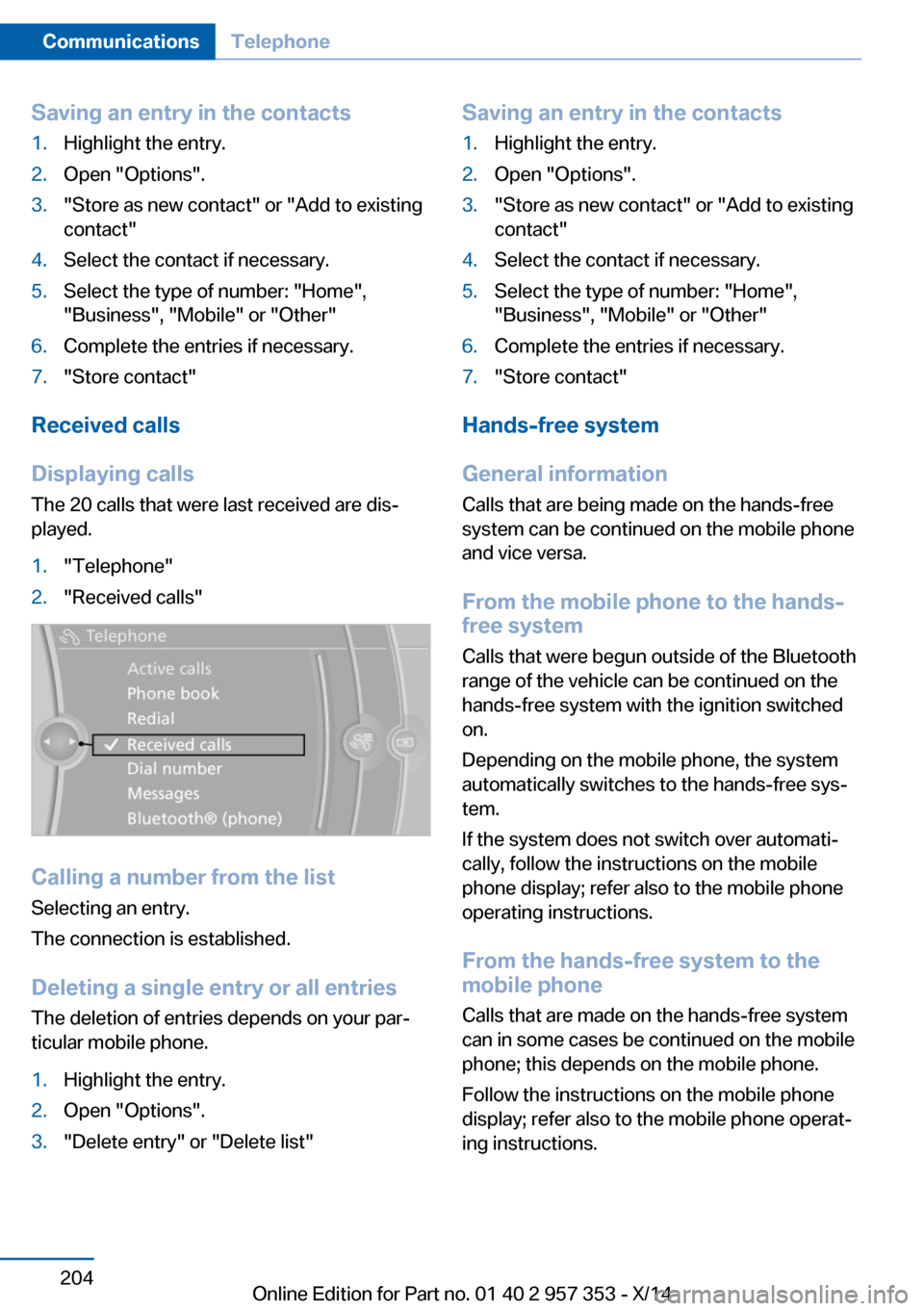
The 20 calls that were last received are dis‐
played.
1."Telephone"2."Received calls"
Calling a number from the list
Selecting an entry.
The connection is established.
Deleting a single entry or all entriesThe deletion of entries depends on your par‐
ticular mobile phone.
1.Highlight the entry.2.Open "Options".3."Delete entry" or "Delete list"Saving an entry in the contacts1.Highlight the entry.2.Open "Options".3."Store as new contact" or "Add to existing
contact"4.Select the contact if necessary.5.Select the type of number: "Home",
"Business", "Mobile" or "Other"6.Complete the entries if necessary.7."Store contact"
Hands-free system
General information
Calls that are being made on the hands-free
system can be continued on the mobile phone
and vice versa.
From the mobile phone to the hands-
free system
Calls that were begun outside of the Bluetooth
range of the vehicle can be continued on the
hands-free system with the ignition switched
on.
Depending on the mobile phone, the system
automatically switches to the hands-free sys‐
tem.
If the system does not switch over automati‐
cally, follow the instructions on the mobile
phone display; refer also to the mobile phone
operating instructions.
From the hands-free system to the
mobile phone
Calls that are made on the hands-free system
can in some cases be continued on the mobile
phone; this depends on the mobile phone.
Follow the instructions on the mobile phone
display; refer also to the mobile phone operat‐
ing instructions.
Seite 204CommunicationsTelephone204
Online Edition for Part no. 01 40 2 957 353 - X/14
Page 211 of 297
OfficeVehicle equipment
This chapter describes all series equipment as
well as country-specific and special equipment
offered for this model series. Therefore, it also
describes equipment that may not be found in
your vehicle, for instance due to the selected
special equipment or the country version. This
also applies to safety-related functions and
systems.
When using the features and systems descri‐
bed here, adhere to local regulations.
At a glance General information
Contacts, appointments, tasks, notes, text
messages, and e-mails from the mobile phone
can be displayed on the Control Display if the
mobile phone provides compatible support of
these functions and the necessary Bluetooth
standards.
Information about which mobile phones sup‐
port the Office functions can be found at
www.bmwusa.com/bluetooth. A limited num‐
ber of compatible mobile phones is available
for Office.
Contents are only displayed in full length when
the vehicle is stationary.
The mobile phone has read-access only.
Do not use Office while driving
To avoid becoming distracted and pos‐
ing an unnecessary hazard to your vehicle's
occupants and to other road users, never at‐
tempt to use the controls or enter information
unless traffic and road conditions allow this.◀
Requirements▷A suitable mobile phone is paired with the
vehicle and connected. In some mobilephones, data access must be confirmed on
the mobile phone.▷The time, time zone, and date, refer to
page 75, are correctly set on the Control
Display and on the mobile phone, for in‐
stance to correctly display appointments.▷Office is activated, refer to page 197.
Updating
Data are updated every time the mobile phone
is connected to the vehicle. Appointment en‐
tries, tasks, notes and reminders can be up‐
dated separately.
1."Office"2."Current office", "Calendar", "Tasks",
"Notes" or "Reminders"3.Open "Options".4."Update data"
Mobile phone data are transmitted again to
the vehicle.
Office information
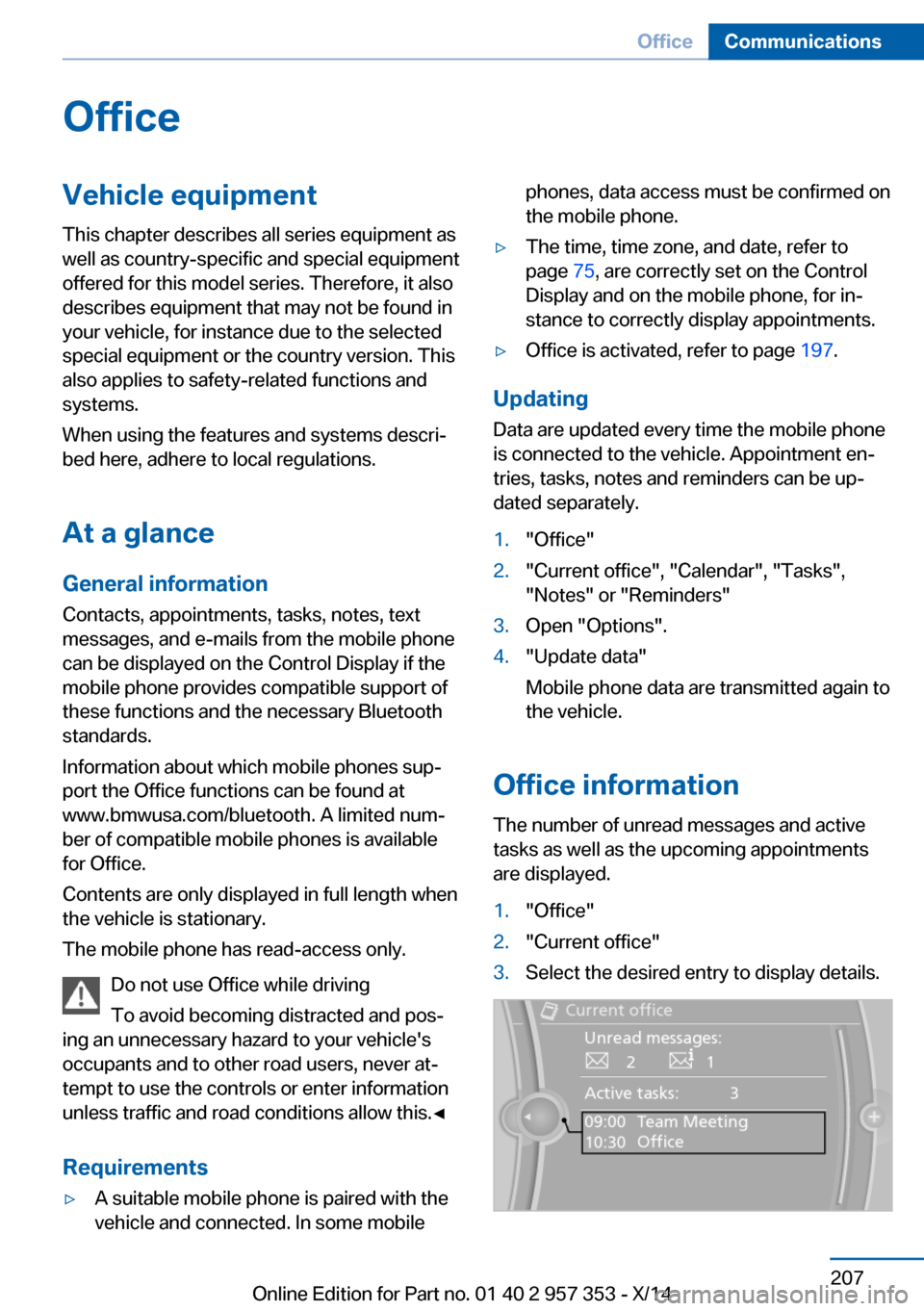
The number of unread messages and active
tasks as well as the upcoming appointments
are displayed.
1."Office"2."Current office"3.Select the desired entry to display details.Seite 207OfficeCommunications207
Online Edition for Part no. 01 40 2 957 353 - X/14
Page 214 of 297
Show contact picturesPictures stored with the contacts are stored in
the vehicle when the mobile phone is con‐
nected to the vehicle. The number of transmit‐ ted pictures depends on the mobile phone.
The mobile phone must support this function.1."Office"2."Contacts"3.Open "Options".4."Configure Bluetooth®"5."Show images"
Display of all contact pictures is activated or
deactivated.
Deleting contacts
Only contacts that are stored in the vehicle are
deleted. The contacts on the mobile phone
cannot be deleted.
1."Office"2."Contacts"3.Highlight the contact.4.Open "Options".5."Delete contact" or "Delete all contacts"6.If necessary. "Yes"
Messages
General information
Whether or not text messages and e-mails
from the mobile phone are displayed depends
on whether transmission from the mobile
phone to the vehicle is supported. Text mes‐
sages and e-mails may not be supported by
the service provider, or the function may need
to be enabled separately. After the mobile
phone is first paired, transmission may take
several minutes. Messages are only displayed
in full length when the vehicle is stationary.
Messages from the additional telephone are
not transmitted.
Displaying messages1."Office"2."Messages"
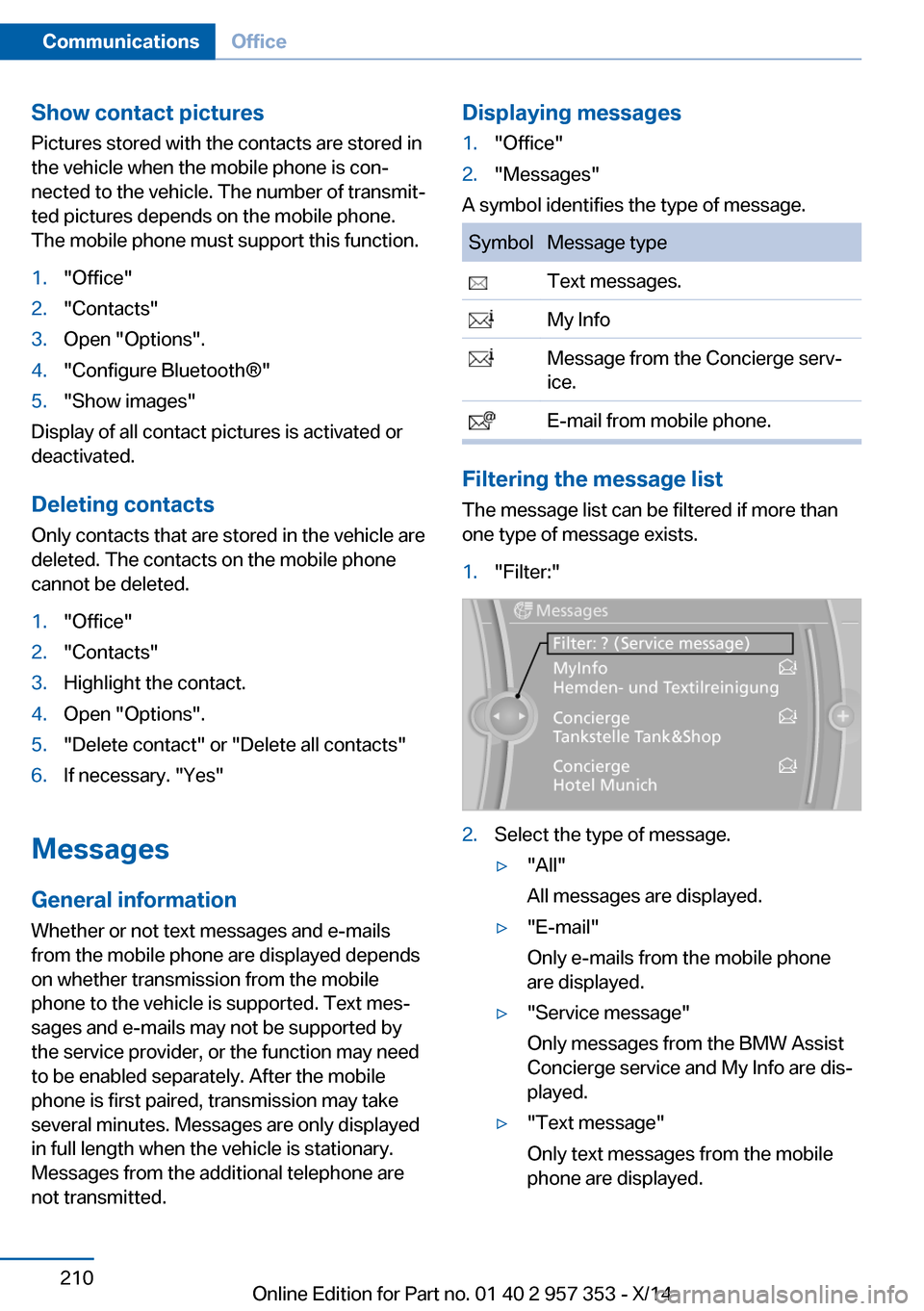
A symbol identifies the type of message.
SymbolMessage type Text messages. My Info Message from the Concierge serv‐
ice. E-mail from mobile phone.
Filtering the message list
The message list can be filtered if more than
one type of message exists.
1."Filter:"2.Select the type of message.▷"All"
All messages are displayed.▷"E-mail"
Only e-mails from the mobile phone
are displayed.▷"Service message"
Only messages from the BMW Assist
Concierge service and My Info are dis‐
played.▷"Text message"
Only text messages from the mobile
phone are displayed.Seite 210CommunicationsOffice210
Online Edition for Part no. 01 40 2 957 353 - X/14
Page 227 of 297
▷Corresponding mobile wireless contract.
Any additionally incurred costs are not a
part of Apps.▷Use only BMW approved software applica‐
tions; otherwise, it may result in malfunc‐
tions.
Information about suitable mobile phones,
available software applications and their instal‐
lation can be found at www.bmw.com/connec‐
tivity or at the service center.
Create the entries.
Make entries only when traffic and road
conditions allow. Otherwise, the vehicle occu‐
pants and other road users may be put in dan‐
ger because of the distraction from driving.
For reasons of safety, some software applica‐
tions are usable only while the vehicle is sta‐
tionary.◀
Operating Apps
1.Connect the mobile phone via the snap-in
adapter or via the USB audio interface.2."ConnectedDrive"3.Select the desired software application.
Displaying status
Information about the currently available soft‐
ware applications can be displayed.
1."ConnectedDrive"2."BMW apps"
Notes
▷The ranges of Apps that can be displayed
on the Control Display depend on the
range of installed software applications on
the mobile phone.▷The data transmission of the software ap‐
plications from the mobile phone to the ve‐
hicle can last some time. Some software
applications depend on the speed of the
available Internet connection of the mobile
phone.▷Some mobile phones cannot simultane‐
ously use Apps and the Bluetooth hands-
free system.
If necessary, restart the software applica‐
tion on the mobile phone after a phone
conversation.
Remote Services
With Remote Services, a connection can be
established between a mobile phone and the
vehicle. This connection can be used, for ex‐
ample, to lock and unlock the vehicle.
Depending on the vehicle, additional functions
may be available.
To be able to use the functions, the My BMW
Remote app must be downloaded. Operation
takes place via the app.
Alternatively, the functions can also be used
via the ConnectedDrive Hotline.
The operating instructions for the My BMW
Remote app can be found on the Connected‐
Drive portal or at www.bmw.com.
Seite 223ConnectedDriveCommunications223
Online Edition for Part no. 01 40 2 957 353 - X/14
Page 279 of 297
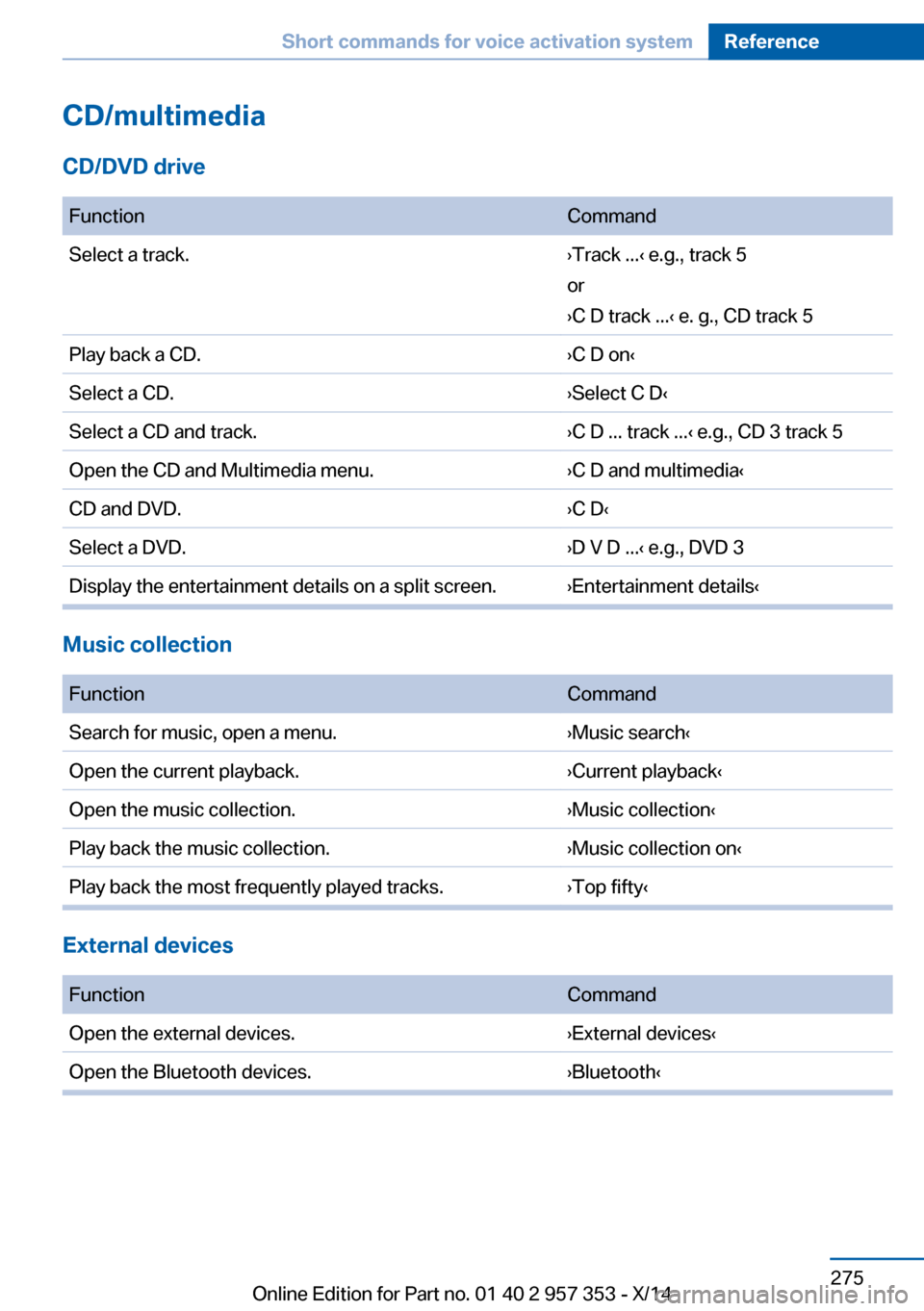
CD/multimedia
CD/DVD drive
FunctionCommandSelect a track.›Track ...‹ e.g., track 5
or
›C D track ...‹ e. g., CD track 5Play back a CD.›C D on‹Select a CD.›Select C D‹Select a CD and track.›C D ... track ...‹ e.g., CD 3 track 5Open the CD and Multimedia menu.›C D and multimedia‹CD and DVD.›C D‹Select a DVD.›D V D ...‹ e.g., DVD 3Display the entertainment details on a split screen.›Entertainment details‹
Music collection
FunctionCommandSearch for music, open a menu.›Music search‹Open the current playback.›Current playback‹Open the music collection.›Music collection‹Play back the music collection.›Music collection on‹Play back the most frequently played tracks.›Top fifty‹
External devices
FunctionCommandOpen the external devices.›External devices‹Open the Bluetooth devices.›Bluetooth‹Seite 275Short commands for voice activation systemReference275
Online Edition for Part no. 01 40 2 957 353 - X/14
Page 280 of 297
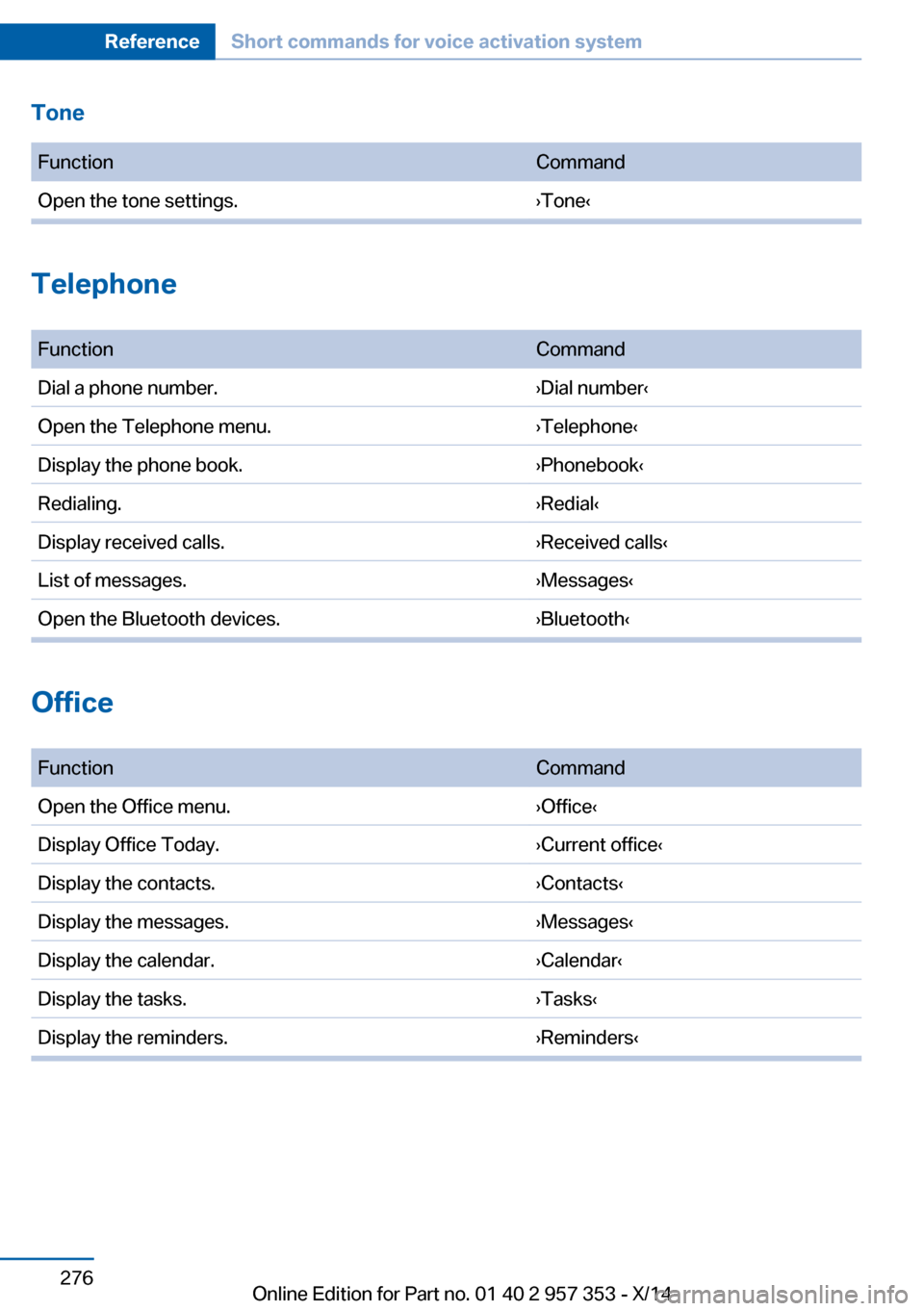
Tone FunctionCommandOpen the tone settings.›Tone‹
Telephone
FunctionCommandDial a phone number.›Dial number‹Open the Telephone menu.›Telephone‹Display the phone book.›Phonebook‹Redialing.›Redial‹Display received calls.›Received calls‹List of messages.›Messages‹Open the Bluetooth devices.›Bluetooth‹
Office
FunctionCommandOpen the Office menu.›Office‹Display Office Today.›Current office‹Display the contacts.›Contacts‹Display the messages.›Messages‹Display the calendar.›Calendar‹Display the tasks.›Tasks‹Display the reminders.›Reminders‹Seite 276ReferenceShort commands for voice activation system276
Online Edition for Part no. 01 40 2 957 353 - X/14
Page 283 of 297
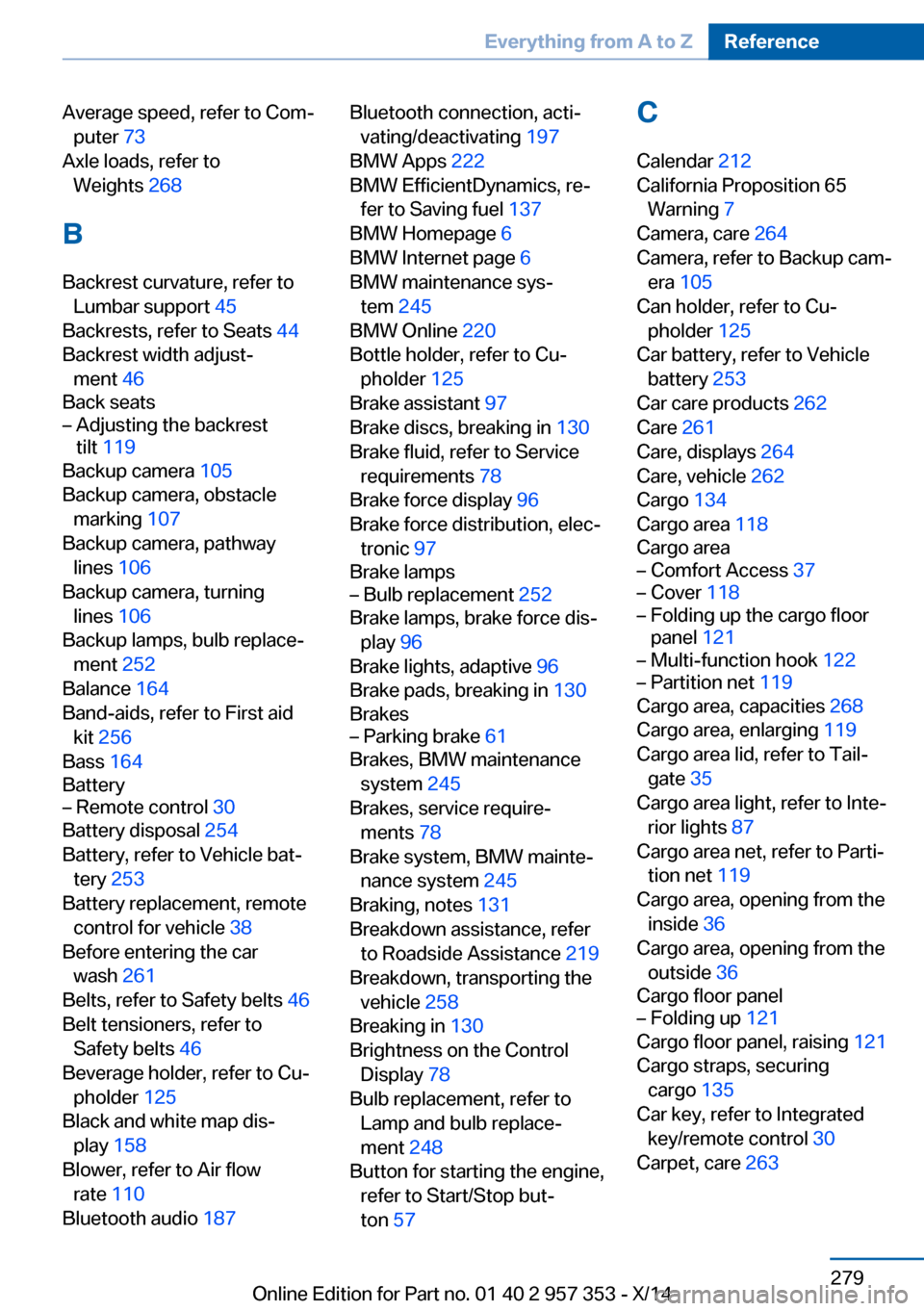
Average speed, refer to Com‐puter 73
Axle loads, refer to Weights 268
B
Backrest curvature, refer to Lumbar support 45
Backrests, refer to Seats 44
Backrest width adjust‐ ment 46
Back seats– Adjusting the backrest
tilt 119
Backup camera 105
Backup camera, obstacle marking 107
Backup camera, pathway lines 106
Backup camera, turning lines 106
Backup lamps, bulb replace‐ ment 252
Balance 164
Band-aids, refer to First aid kit 256
Bass 164
Battery
– Remote control 30
Battery disposal 254
Battery, refer to Vehicle bat‐ tery 253
Battery replacement, remote control for vehicle 38
Before entering the car wash 261
Belts, refer to Safety belts 46
Belt tensioners, refer to Safety belts 46
Beverage holder, refer to Cu‐ pholder 125
Black and white map dis‐ play 158
Blower, refer to Air flow rate 110
Bluetooth audio 187
Bluetooth connection, acti‐
vating/deactivating 197
BMW Apps 222
BMW EfficientDynamics, re‐ fer to Saving fuel 137
BMW Homepage 6
BMW Internet page 6
BMW maintenance sys‐ tem 245
BMW Online 220
Bottle holder, refer to Cu‐ pholder 125
Brake assistant 97
Brake discs, breaking in 130
Brake fluid, refer to Service requirements 78
Brake force display 96
Brake force distribution, elec‐ tronic 97
Brake lamps– Bulb replacement 252
Brake lamps, brake force dis‐
play 96
Brake lights, adaptive 96
Brake pads, breaking in 130
Brakes
– Parking brake 61
Brakes, BMW maintenance
system 245
Brakes, service require‐ ments 78
Brake system, BMW mainte‐ nance system 245
Braking, notes 131
Breakdown assistance, refer to Roadside Assistance 219
Breakdown, transporting the vehicle 258
Breaking in 130
Brightness on the Control Display 78
Bulb replacement, refer to Lamp and bulb replace‐
ment 248
Button for starting the engine, refer to Start/Stop but‐
ton 57
C
Calendar 212
California Proposition 65 Warning 7
Camera, care 264
Camera, refer to Backup cam‐ era 105
Can holder, refer to Cu‐ pholder 125
Car battery, refer to Vehicle battery 253
Car care products 262
Care 261
Care, displays 264
Care, vehicle 262
Cargo 134
Cargo area 118
Cargo area– Comfort Access 37– Cover 118– Folding up the cargo floor
panel 121– Multi-function hook 122– Partition net 119
Cargo area, capacities 268
Cargo area, enlarging 119
Cargo area lid, refer to Tail‐ gate 35
Cargo area light, refer to Inte‐ rior lights 87
Cargo area net, refer to Parti‐ tion net 119
Cargo area, opening from the inside 36
Cargo area, opening from the outside 36
Cargo floor panel
– Folding up 121
Cargo floor panel, raising 121
Cargo straps, securing cargo 135
Car key, refer to Integrated key/remote control 30
Carpet, care 263
Seite 279Everything from A to ZReference279
Online Edition for Part no. 01 40 2 957 353 - X/14