phone BMW X1 2014 E84 User Guide
[x] Cancel search | Manufacturer: BMW, Model Year: 2014, Model line: X1, Model: BMW X1 2014 E84Pages: 297, PDF Size: 7 MB
Page 31 of 297
▷The volume remains constant even if the
volume of other audio sources is changed.▷The volume is stored for the remote con‐
trol currently in use.
Notes on Emergency
Requests
Do not use the voice activation system to ini‐
tiate an Emergency Request. In stressful situa‐
tions, the voice and vocal pitch can change.
This can unnecessarily delay the establish‐
ment of a telephone connection.
Instead, use the SOS button, refer to
page 255, in the vicinity of the interior mirror.
Environmental conditions
▷Say the commands, numbers, and letters
smoothly and with normal volume, empha‐
sis, and speed.▷Always say commands in the language of
the voice activation system.▷Keep the doors, windows, and glass sun‐
roof closed to prevent noise interference.▷Avoid making other noise in the vehicle
while speaking.Seite 27Voice activation systemAt a glance27
Online Edition for Part no. 01 40 2 957 353 - X/14
Page 35 of 297
▷The settings are automatically saved in the
profile currently activated in the remote
control.▷The remote control used is detected when
the vehicle is unlocked and the stored pro‐
file is called up.▷Your personal settings will be recognized
and called up again even if the vehicle has
been used in the meantime by someone
else with another remote control.
The individual settings are stored for a maxi‐
mum of four remote controls. They are stored
for two remote controls if Comfort Access is in
use.
Personal Profile settingsThe following functions and settings can be
stored in a profile.
More information on the settings can be found
under:
▷Assigning the programmable memory but‐
tons, refer to page 22.▷Response of the central locking system
when the car is being unlocked, refer to
page 32.▷Automatic locking of the vehicle, refer to
page 35.▷Automatic call-up of the driver's seat posi‐
tion after unlocking, refer to page 33.▷Settings for the display on the Control Dis‐
play and in the instrument cluster:▷12h/24h clock format, refer to
page 76.▷Date format, refer to page 77.▷Brightness of the Control Display, refer
to page 78.▷Language on the Control Display, refer
to page 77.▷Units of measure for fuel consumption,
distance covered/remaining distances,
and temperature, refer to page 75.▷Show visual warning for the Park Distance
Control PDC, refer to page 104.▷rearview camera:▷Function selection, refer to page 106.▷Type of display, refer to page 107.▷Light settings:▷Triple turn signal activation, refer to
page 62.▷Welcome lamps, refer to page 83.▷Headlamp courtesy delay feature, refer
to page 84.▷Daytime running lights, refer to
page 84.▷High-beam Assistant, refer to
page 85.▷Automatic climate control: AUTO program,
cooling function and automatic recircu‐
lated air control activated/deactivated,
temperature, air flow rate and distribution,
refer to page 108.▷Navigation:▷Voice activation, refer to page 155.▷Route criteria, refer to page 153.▷Map view settings, refer to page 157.▷Entertainment:▷Tone control, refer to page 164.▷Radio, stored stations, refer to
page 172.▷CD/multimedia, audio source listened
to last, refer to page 174.▷Telephone: volume, refer to page 200.
Central locking system
The concept The central locking system becomes active
when the driver's door is closed.
The system simultaneously engages and re‐
leases the locks on the following:
Seite 31Opening and closingControls31
Online Edition for Part no. 01 40 2 957 353 - X/14
Page 42 of 297
Ignition onPressing the Start/Stop button switches the
ignition on.
When doing so, do not depress the brake
pedal, otherwise the engine will start.
Starting the engine
The engine can be started or the ignition can
be switched on when a remote control is inside
the vehicle. It is not necessary to insert a re‐
mote control into the ignition lock, refer to
page 57.
Switching off the engine in cars with
automatic transmission
The engine can only be switched off with
transmission position P engaged, refer to
page 59.
To switch the engine off with transmission po‐
sition N engaged, insert the remote control in
the ignition lock.
Malfunction
The Comfort Access functions can be distur‐
bed by local radio waves, such as by a mobile
phone in the immediate vicinity of the remote
control or when a mobile phone is being
charged in the vehicle.
If this occurs, open or close the vehicle using
the buttons on the remote control or use the
integrated key in the door lock.
Mechanical activation using the integrated key
only locks/unlocks the driver's door.
To start the engine afterward, insert the re‐
mote control into the ignition switch.
Warning lamps The warning lamp in the instrument
cluster lights up when you attempt to
start the engine: the engine cannot
be started.
The remote control is not in the vehicle or has
a malfunction. Take the remote control withyou inside the vehicle or have it checked. If
necessary, insert another remote control into
the ignition switch.
The warning lamp in the instrumentcluster lights up while the engine is
running: the remote control is no lon‐
ger inside the vehicle.
After switching off the engine, the engine can
only be started again within approx. 10 sec‐
onds if no door has been opened.
The indicator lamp in the instrument
cluster comes on and a message ap‐
pears on the Control Display: replace
the remote control battery.
Replacing the battery
The remote control for Comfort Access con‐
tains a battery that will need to be replaced
from time to time.1.Take the integrated key out of the remote
control, refer to page 30.2.Remove the cover.3.Insert a new battery of the same type with
the positive side facing upwards.4.Press on the cover to close it.
Return used battery to a recycling center
or to your service center.
Seite 38ControlsOpening and closing38
Online Edition for Part no. 01 40 2 957 353 - X/14
Page 93 of 297
Protective action
Airbags are not triggered in every impact situa‐
tion, e.g., in less severe accidents or rear-end
collisions.
Information on how to ensure the optimal
protective effect of the airbags▷Keep at a distance from the airbags.▷Always grasp the steering wheel on the
steering wheel rim, holding your hands at
the 3 o'clock and 9 o'clock positions, to
keep the danger of injury to your hands or
arms as low as possible if the airbag is trig‐
gered.▷There should be no people, animals, or ob‐
jects between an airbag and a person.▷Do not use the cover of the front airbag on
the front passenger side as a storage area.▷Keep the dashboard and window on the
front passenger side clear, i.e., do not
cover with adhesive labels or coverings,
and do not attach holders or cables such
as for navigation instruments and mobile
phones.▷Make sure that the front passenger is sit‐
ting correctly, i.e., keeps his or her feet and
legs in the footwell; otherwise, leg injuries
can occur if the front airbag is triggered.▷Do not place slip covers, seat cushions or
other objects on the front passenger seat
that are not approved specifically for seats
with integrated side airbags.▷Do not hang pieces of clothing, such as
jackets, over the backrests.▷Make sure that occupants keep their heads
away from the side airbag and do not rest
against the head airbag; otherwise, injuries
can occur if the airbags are triggered.▷Do not remove the airbag restraint system.▷Do not remove the steering wheel.▷Do not apply adhesive materials to the air‐
bag cover panels, cover them or modify
them in any way.▷Never modify either the individual compo‐
nents or the wiring in the airbag system.
This also applies to steering wheel covers,
the dashboard, the seats, the roof pillars
and the sides of the headliner.◀
Even when all instructions are followed closely,
injury from contact with the airbags cannot be
ruled out in certain situations.
The ignition and inflation noise may lead to
short-term and, in most cases, temporary
hearing impairment in sensitive individuals.
In the case of a malfunction, deactivation
and after triggering of the airbags
Do not touch the individual components imme‐
diately after the system has been triggered;
otherwise, there is the danger of burns.
Only have the airbags checked, repaired or dis‐
mantled and the airbag generator scrapped by
your service center or a workshop that has the
necessary authorization for handling explo‐
sives.
Non-professional attempts to service the sys‐
tem could lead to failure in an emergency or
undesired triggering of the airbag, either of
which could result in injury.◀
Warnings and information on the airbags are
also found on the sun visors.
Automatic deactivation of the front
passenger airbags
The system determines whether the front pas‐
senger seat is occupied by measuring the re‐
sistance of the human body.
The front and side airbags on the front passen‐
ger side are activated or deactivated accord‐
ingly by the system.
The indicator lamp above the interior rearview
mirror shows the current status of the front
passenger airbags, deactivated or activated,
refer to Front passenger airbag indicator lamp
below.
Seite 89SafetyControls89
Online Edition for Part no. 01 40 2 957 353 - X/14
Page 128 of 297
▷Do not use force when plugging the con‐
nector into the USB interface.▷Do not connect devices such as fans or
lamps to the USB interface.▷Do not connect a USB hard drive.▷Do not use the USB interface to recharge
external devices.
Center armrest front
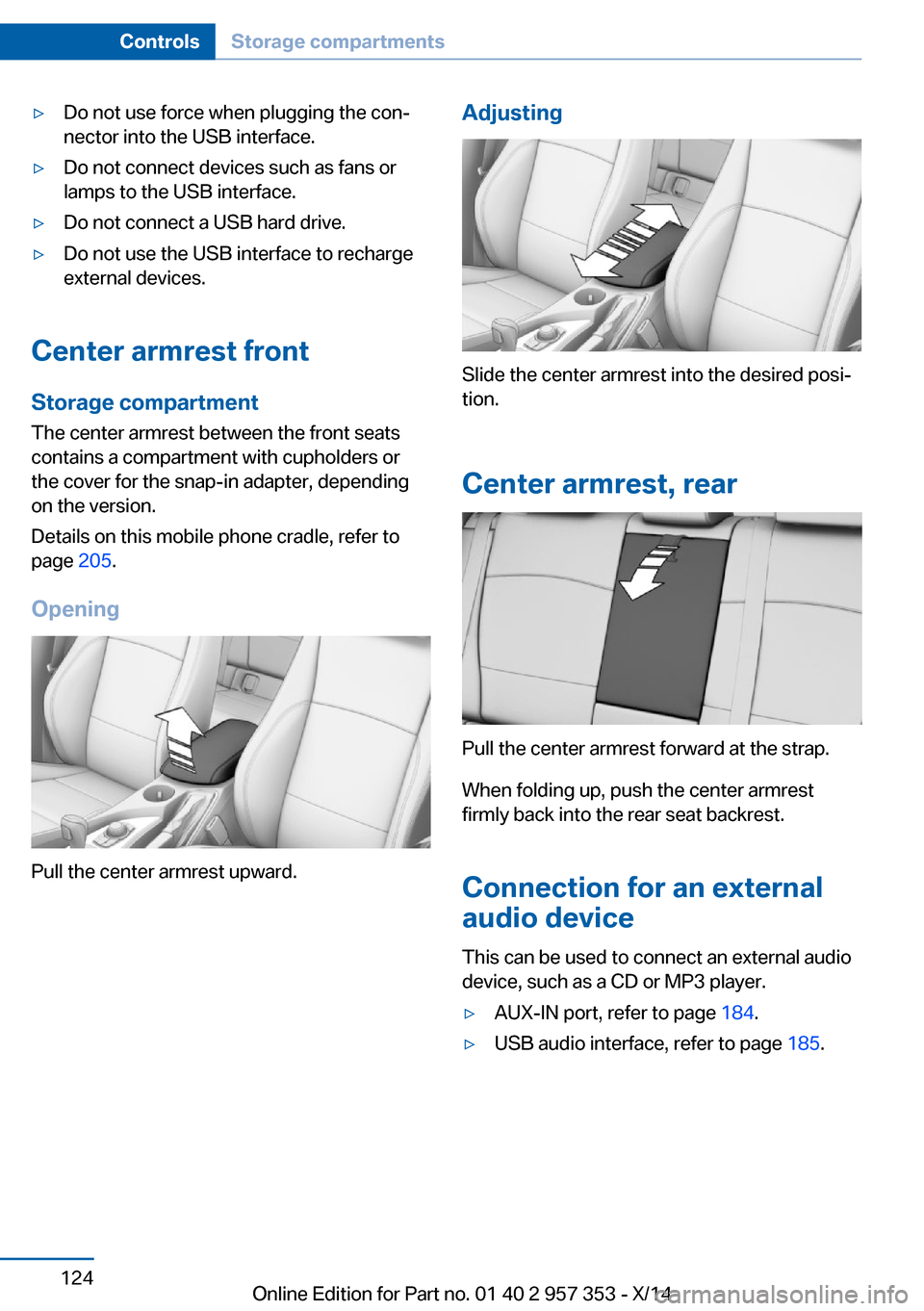
Storage compartment The center armrest between the front seats
contains a compartment with cupholders or
the cover for the snap-in adapter, depending
on the version.
Details on this mobile phone cradle, refer to
page 205.
Opening
Pull the center armrest upward.
Adjusting
Slide the center armrest into the desired posi‐
tion.
Center armrest, rear
Pull the center armrest forward at the strap.
When folding up, push the center armrest
firmly back into the rear seat backrest.
Connection for an external
audio device
This can be used to connect an external audio
device, such as a CD or MP3 player.
▷AUX-IN port, refer to page 184.▷USB audio interface, refer to page 185.Seite 124ControlsStorage compartments124
Online Edition for Part no. 01 40 2 957 353 - X/14
Page 135 of 297
Hot exhaust systemHot exhaust system
High temperatures are generated in the
exhaust system.
Do not remove the heat shields installed and
never apply undercoating to them. Make sure
that flammable materials, e. g. hay, leaves,
grass, etc. do not come in contact with the hot
exhaust system during driving, while in idle po‐
sition mode, or when parked. Such contact
could lead to a fire, and with it the risk of seri‐
ous personal injury as well as property dam‐
age.
Do not touch hot exhaust pipes; otherwise,
there is the danger of getting burned.◀
Mobile communication devices in the
vehicle
Mobile communication devices in the ve‐
hicle
It is not recommended to use mobile phones,
such as mobile phones without a direct con‐
nection to an external aerial in the vehicle's
passenger compartment. Otherwise, the vehi‐
cle electronics and mobile communication de‐
vices can interfere with each other. In addition,
there is no assurance that the radiation gener‐
ated during transmission will be discharged
from the vehicle interior.◀
Hydroplaning
On wet or slushy roads, a wedge of water can
form between the tires and road surface.
This phenomenon is referred to as hydroplan‐
ing. It is characterized by a partial or complete
loss of contact between the tires and the road
surface, ultimately undermining your ability to
steer and brake the vehicle.
Hydroplaning
When driving on wet or slushy roads, re‐
duce your speed to prevent hydroplaning.◀The risk of hydroplaning increases as the tire
tread depth decreases. Minimum tread depth,
refer to page 237.
Driving through water Drive though calm water only if it is not deeper
than 12 inches/30 cm and at this height, no
faster than walking speed, up to
6 mph/10 km/h.
Adhere to water depth and speed limita‐
tions
Do not exceed this water depth and walking speed; otherwise, the vehicle's engine, the
electrical systems and the transmission may
be damaged.◀
Braking safely
Your vehicle is equipped with ABS as a stand‐
ard feature.
Applying the brakes fully is the most effective
way of braking in situations when this is neces‐
sary.
The vehicle maintains steering responsive‐
ness. You can still avoid any obstacles with a
minimum of steering effort.
Pulsation of the brake pedal and sounds from
the hydraulic circuits indicate that ABS is in its
active mode.
Do not let your foot rest on the brake
pedal
Do not drive with your foot resting on the brake
pedal. Even light but consistent pedal pressure
can lead to high temperatures, brake wear and
possibly even brake failure.◀
Objects in the area around the pedals No objects in the area around the pedals
Keep floor mats, carpets, and any other
objects out of the area of motion of the pedals;
otherwise, the function of the pedals could be
impeded while drivingSeite 131Things to remember when drivingDriving tips131
Online Edition for Part no. 01 40 2 957 353 - X/14
Page 150 of 297
6.Select the letters.7.Change to the list of street names.8.Highlight the street.9.Select the street.
Starting destination guidance after
entering the destination
1."Accept destination"2."Start guidance" or "Add as another
destination"
Add, refer to page 151, a destination as a
further destination.
Address book
Create contacts, refer to page 216.
Selecting a destination from the
address book
1."Navigation"2."Address book"
Contacts with addresses are displayed if
these addresses have been checked as
destinations in the contacts.
If the contacts with addresses from the
mobile phone are not displayed, they first
need to be checked as destinations, refer
to page 217.3.Select a contact in the list or, if desired,
with "A-Z search".4."Business address" or "Home address"Storing the destination in the address
book
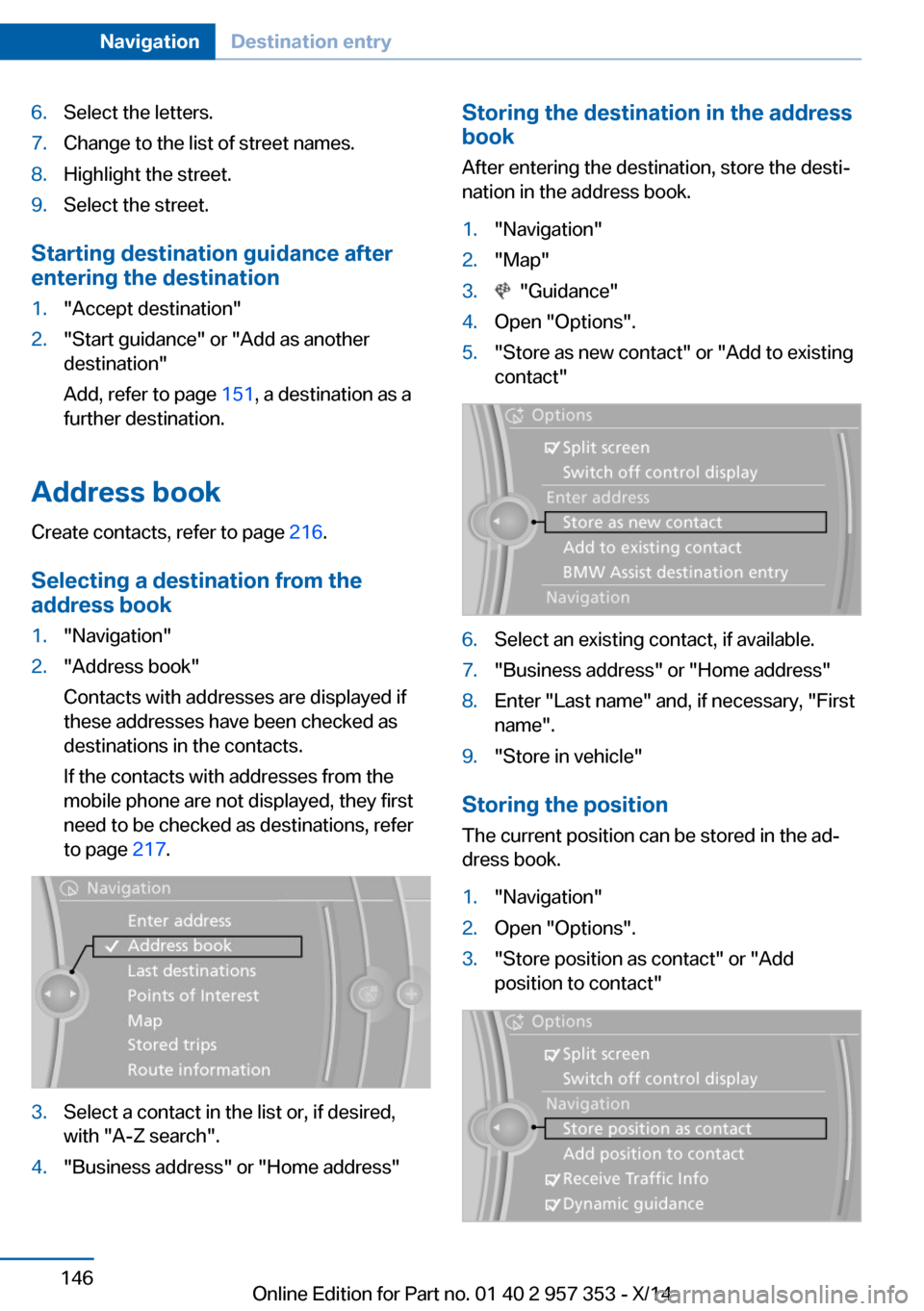
After entering the destination, store the desti‐
nation in the address book.1."Navigation"2."Map"3. "Guidance"4.Open "Options".5."Store as new contact" or "Add to existing
contact"6.Select an existing contact, if available.7."Business address" or "Home address"8.Enter "Last name" and, if necessary, "First
name".9."Store in vehicle"
Storing the position
The current position can be stored in the ad‐
dress book.
1."Navigation"2.Open "Options".3."Store position as contact" or "Add
position to contact"Seite 146NavigationDestination entry146
Online Edition for Part no. 01 40 2 957 353 - X/14
Page 152 of 297
changed; for example, gas stations might not
be in operation.
Opening the search for specialdestinations
Selection of special destinations, such as ho‐
tels or tourist attractions.1."Navigation"2."Points of Interest"3.Select the search function.
Online Search
1."Google™ Local Search"2.Select a special destination.3. Select the symbol.4."Start guidance"
A-Z search
1."A-Z search"2."Town/City"3.Select or enter the town/city.4."Category"5.Select the category.6."Category details"
For some special destinations, multiple
category details can be selected. Move the
controller to the left to leave the category
details.7."Keyword"8.Enter the keyword.
A list of the special destinations is dis‐
played.9.Select a special destination.
Details are displayed.
If multiple details are stored, you can leaf
through the pages.
If a phone number is available, a connec‐
tion can be established if necessary.10. Select the symbol.11."Start guidance" or "Add as another
destination"
Add a destination as a further destination,
refer to page 151.
"Start search": if a search term is not entered,
the search is repeated with the previous
search term.
Category search
1."Category search"2."Town/City"3.Select or enter the town/city.4."Category"5.Select the category.6."Category details"
For some special destinations, multiple
category details can be selected. Move the
controller to the left to leave the category
details.7."Start search"
A list of the special destinations is dis‐
played.8.Select a special destination.
Details are displayed.
If multiple details are stored, you can leaf
through the pages.
If a phone number is available, a connec‐
tion can be established if necessary.9. Select the symbol.10."Start guidance" or "Add as another
destination"
Add a destination as a further destination,
refer to page 151.
Display of special destinations
List of special destinations: special destina‐
tions are arranged by distance and appear with
a directional arrow pointing to the special des‐
tination.
Seite 148NavigationDestination entry148
Online Edition for Part no. 01 40 2 957 353 - X/14
Page 160 of 297
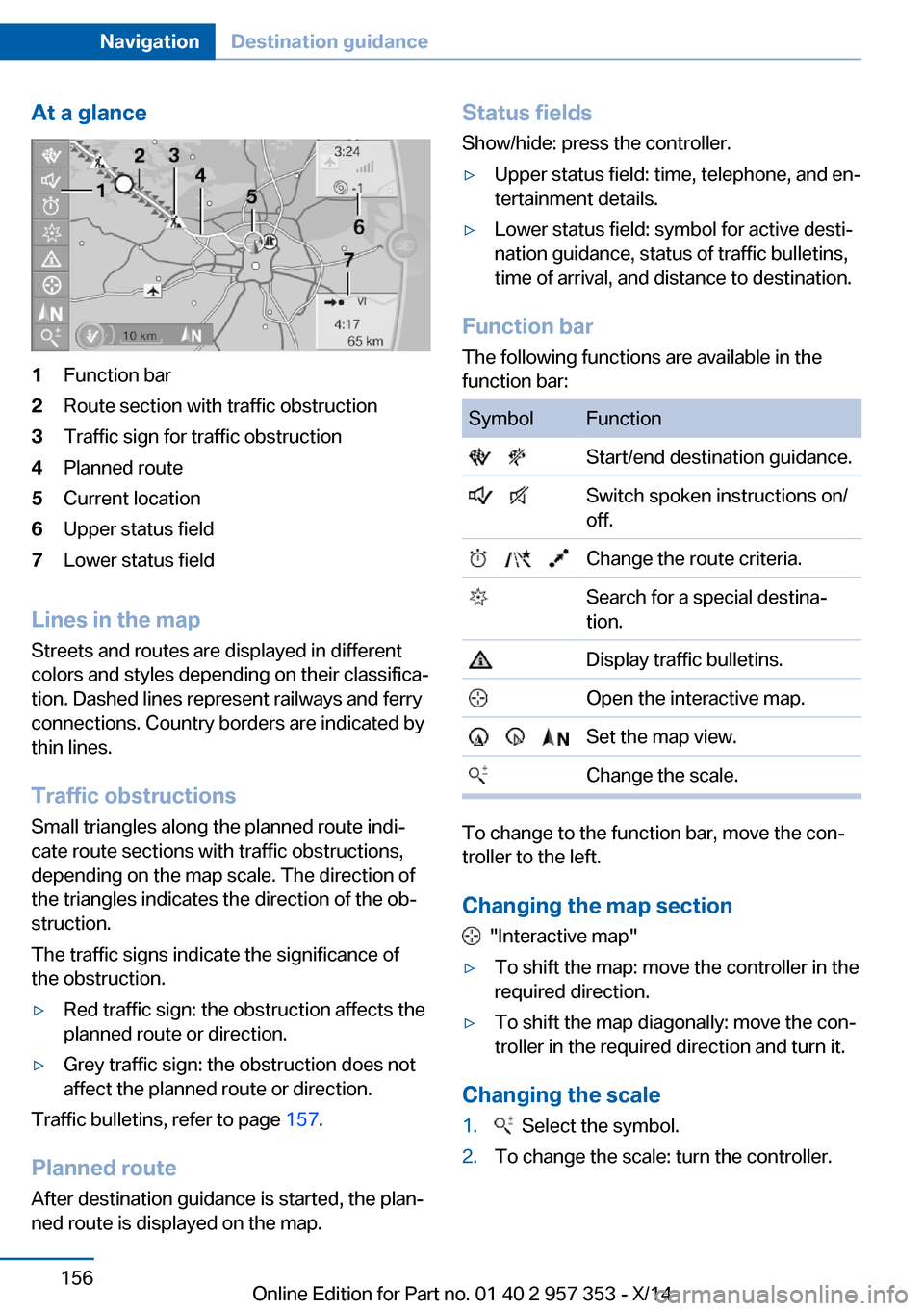
At a glance1Function bar2Route section with traffic obstruction3Traffic sign for traffic obstruction4Planned route5Current location6Upper status field7Lower status field
Lines in the mapStreets and routes are displayed in different
colors and styles depending on their classifica‐ tion. Dashed lines represent railways and ferry
connections. Country borders are indicated by
thin lines.
Traffic obstructions
Small triangles along the planned route indi‐
cate route sections with traffic obstructions,
depending on the map scale. The direction of
the triangles indicates the direction of the ob‐
struction.
The traffic signs indicate the significance of
the obstruction.
▷Red traffic sign: the obstruction affects the
planned route or direction.▷Grey traffic sign: the obstruction does not
affect the planned route or direction.
Traffic bulletins, refer to page 157.
Planned route After destination guidance is started, the plan‐
ned route is displayed on the map.
Status fields
Show/hide: press the controller.▷Upper status field: time, telephone, and en‐
tertainment details.▷Lower status field: symbol for active desti‐
nation guidance, status of traffic bulletins,
time of arrival, and distance to destination.
Function bar
The following functions are available in the
function bar:
SymbolFunction Start/end destination guidance. Switch spoken instructions on/
off. Change the route criteria. Search for a special destina‐
tion. Display traffic bulletins. Open the interactive map. Set the map view. Change the scale.
To change to the function bar, move the con‐
troller to the left.
Changing the map section
"Interactive map"
▷To shift the map: move the controller in the
required direction.▷To shift the map diagonally: move the con‐
troller in the required direction and turn it.
Changing the scale
1. Select the symbol.2.To change the scale: turn the controller.Seite 156NavigationDestination guidance156
Online Edition for Part no. 01 40 2 957 353 - X/14
Page 169 of 297
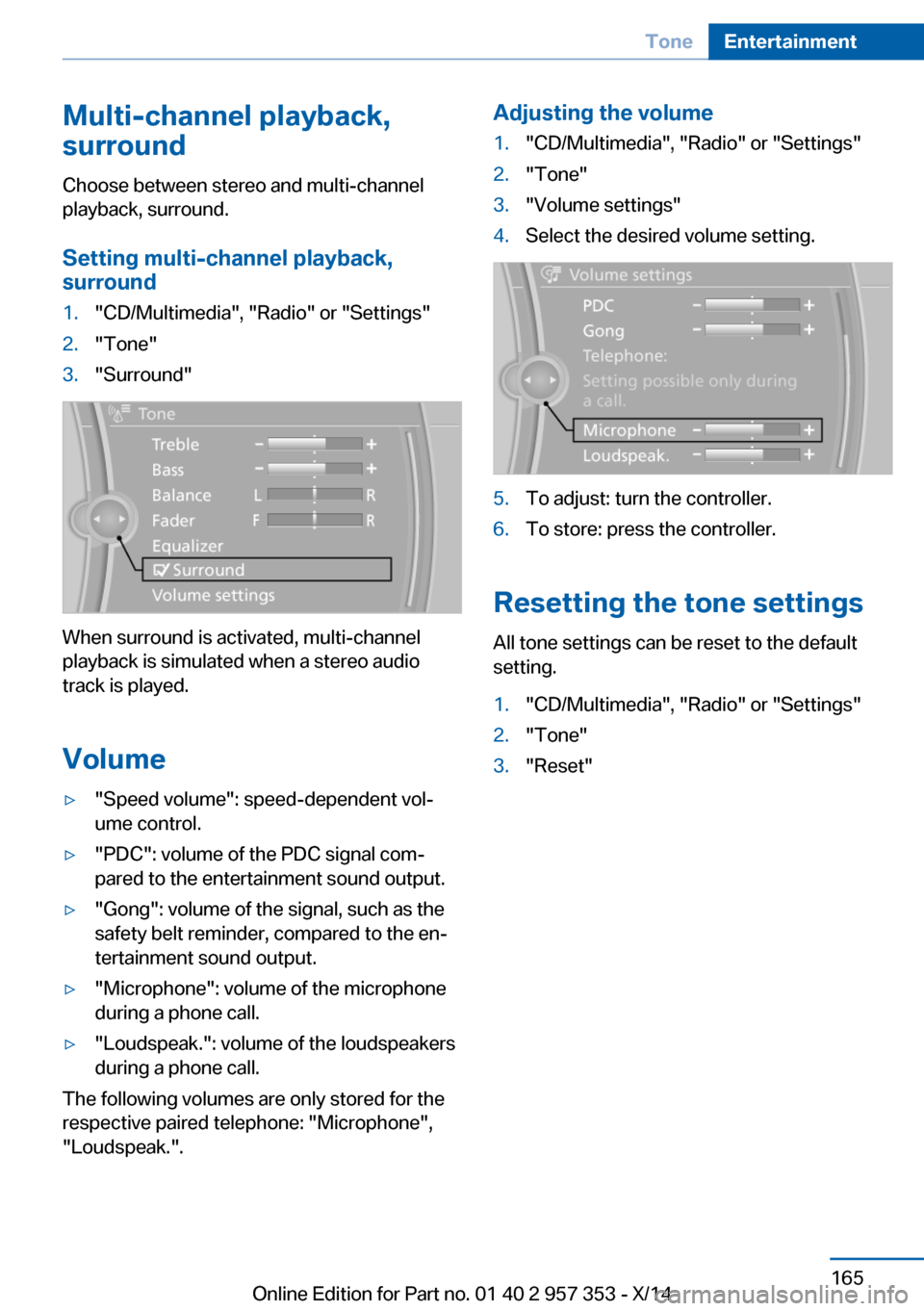
Multi-channel playback,
surround
Choose between stereo and multi-channel
playback, surround.
Setting multi-channel playback,
surround1."CD/Multimedia", "Radio" or "Settings"2."Tone"3."Surround"
When surround is activated, multi-channel
playback is simulated when a stereo audio
track is played.
Volume
▷"Speed volume": speed-dependent vol‐
ume control.▷"PDC": volume of the PDC signal com‐
pared to the entertainment sound output.▷"Gong": volume of the signal, such as the
safety belt reminder, compared to the en‐
tertainment sound output.▷"Microphone": volume of the microphone
during a phone call.▷"Loudspeak.": volume of the loudspeakers
during a phone call.
The following volumes are only stored for the
respective paired telephone: "Microphone",
"Loudspeak.".
Adjusting the volume1."CD/Multimedia", "Radio" or "Settings"2."Tone"3."Volume settings"4.Select the desired volume setting.5.To adjust: turn the controller.6.To store: press the controller.
Resetting the tone settings
All tone settings can be reset to the default
setting.
1."CD/Multimedia", "Radio" or "Settings"2."Tone"3."Reset"Seite 165ToneEntertainment165
Online Edition for Part no. 01 40 2 957 353 - X/14