3 series BMW X1 2014 E84 Owner's Guide
[x] Cancel search | Manufacturer: BMW, Model Year: 2014, Model line: X1, Model: BMW X1 2014 E84Pages: 297, PDF Size: 7 MB
Page 148 of 297
Destination entryVehicle equipment
This chapter describes all series equipment as
well as country-specific and special equipment
offered for this model series. Therefore, it also
describes equipment that may not be found in
your vehicle, for instance due to the selected
special equipment or the country version. This
also applies to safety-related functions and
systems.
When using the features and systems descri‐
bed here, adhere to local regulations.
At a glance In entering your destination you can select
from the following options:▷Enter the destination manually, see below.▷Select the destination from the address
book, refer to page 146.▷Last destinations, refer to page 147.▷Special destinations, refer to page 147.▷Destination entry via map, refer to
page 149.▷Using the home address as the destina‐
tion, refer to page 147.▷Destination entry by voice, refer to
page 150.▷Destination entry via the Concierge serv‐
ice, refer to page 149.
You can also store a navigation destination on
the programmable memory buttons, refer to
page 22.
Entries in stationary vehicle
Enter data only when the vehicle is sta‐
tionary, and always give priority to the applica‐
ble traffic regulations in the event of any con‐
tradiction between traffic and road conditions
and the instructions issued by the navigation
system. Failure to take to this precaution can
place you in violation of the law and put vehicle
occupants and other road users in danger.◀
Manual destination entry General information
The system supports you in entering street
names and house numbers by automatically
completing the entry and providing entry com‐
parisons, refer to page 23.
Stored town/city and street names can be
called up quickly.▷If the existing entries should not be
changed, the entries for the state/province
and town/city can be skipped.▷Destination guidance is started to the
town/city center if no street is entered.
Entering a state/province
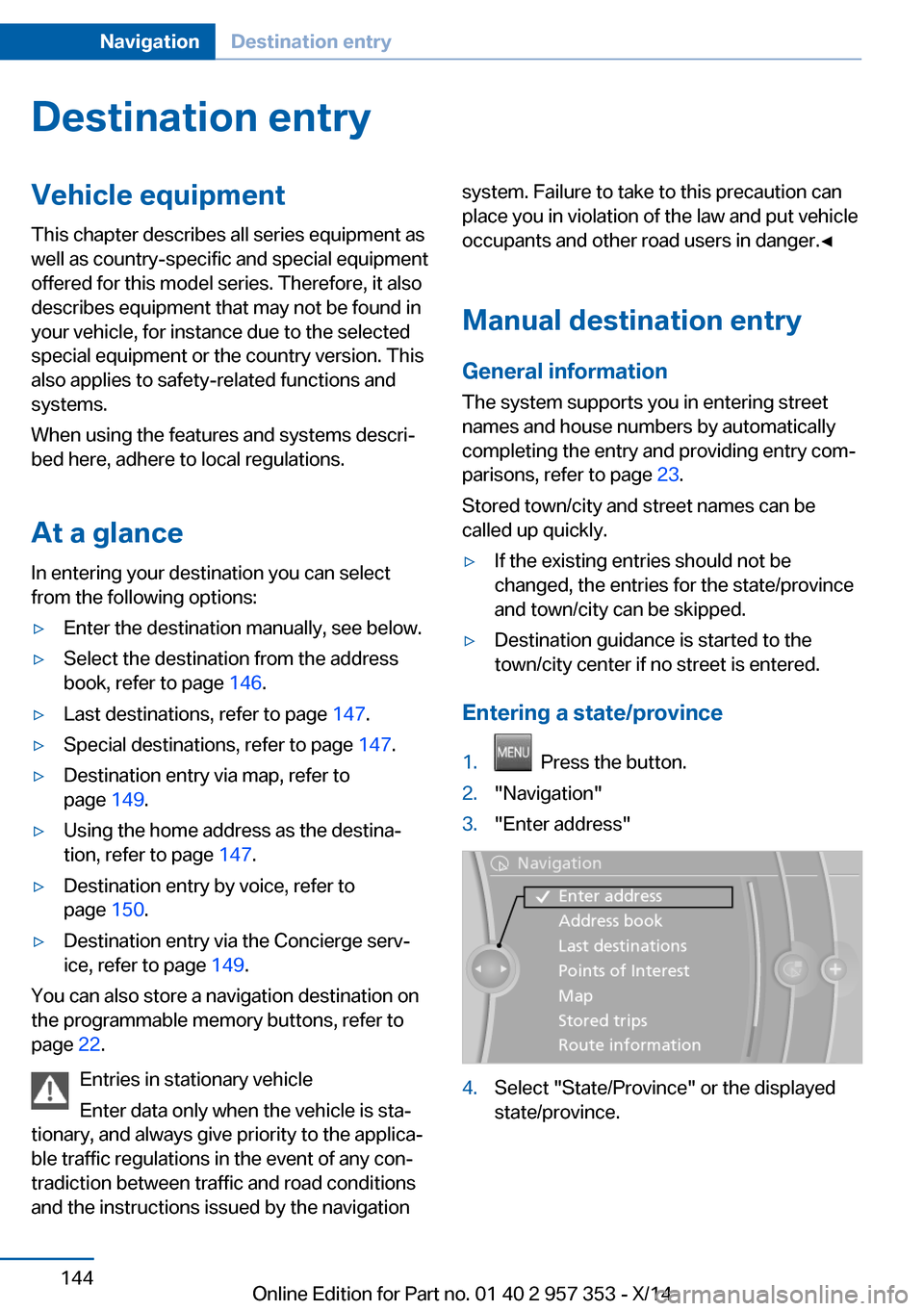
1. Press the button.2."Navigation"3."Enter address"4.Select "State/Province" or the displayed
state/province.Seite 144NavigationDestination entry144
Online Edition for Part no. 01 40 2 957 353 - X/14
Page 157 of 297
Destination guidanceVehicle equipmentThis chapter describes all series equipment as
well as country-specific and special equipment
offered for this model series. Therefore, it also
describes equipment that may not be found in
your vehicle, for instance due to the selected
special equipment or the country version. This
also applies to safety-related functions and
systems.
When using the features and systems descri‐
bed here, adhere to local regulations.
Starting destination
guidance1."Navigation"2.Make a destination entry, refer to
page 144.3."Accept destination"4."Start guidance"
The route is shown on the Control Display.
The distance to the destination/intermediate
destination and the estimated time of arrival
are displayed in the map view.
Terminating destination
guidance
1."Navigation"2."Map"3. "Guidance"4."Stop guidance"Continuing destination
guidance
If the destination was not reached during thelast trip, destination guidance can be resumed.
"Resume guidance"
Route criteria
General information▷The route calculated can be influenced by
selecting certain criteria.▷The route criteria can be changed when
the destination is entered and during desti‐
nation guidance.▷Road types are part of the navigation data
and are taken into consideration when
planning a route, e.g., avoid highways.▷The recommended route may differ from
the route you would take based on per‐
sonal experience.▷The settings are stored for the remote
control currently in use.▷Destination guidance with traffic bulletins,
refer to page 159.
Changing the route criteria
1."Navigation"2."Map"3. "Route preference"4.Select the criterion:▷ "Fast route": time-optimized route,
being a combination of the shortest
possible route and the fastest roads.▷ "ECO PRO route" or "Efficient
route": optimized combination of the
fastest and shortest possible route.Seite 153Destination guidanceNavigation153
Online Edition for Part no. 01 40 2 957 353 - X/14
Page 165 of 297
What to do if...Vehicle equipmentThis chapter describes all series equipment as
well as country-specific and special equipment
offered for this model series. Therefore, it also
describes equipment that may not be found in
your vehicle, for instance due to the selected
special equipment or the country version. This
also applies to safety-related functions and
systems.
When using the features and systems descri‐
bed here, adhere to local regulations.
What to do if...▷The current transmission position cannot
be displayed?
The vehicle is located in an unrecognized
region, is in a poor reception area, or the
system is currently determining the posi‐
tion. Reception is usually best when you
have an unobstructed view of the sky.▷The destination without street information
is not used for route guidance?
When city has been input, no downtown
can be determined. Input any street in the
selected city and start destination guid‐
ance.▷The destination is not used for route guid‐
ance?
The destination data are not contained in
the navigation data. Select a destination
that is as close as possible to the original.▷Letters for destination input cannot be se‐
lected?
The stored data do not contain the data of
the destination. Select a goal that is as
close as possible to the original.▷Is the map displayed in shades of gray?
"Traffic conditions/gray map" active:The Control Display changes to a black
and white display. This enables a better
view of the traffic bulletins.▷Spoken instructions are no longer output
during route guidance in front of intersec‐
tions?
The area has not yet been fully recorded,
or you have left the recommended route
and the system requires a few seconds to
calculate a new route suggestion.Seite 161What to do if...Navigation161
Online Edition for Part no. 01 40 2 957 353 - X/14
Page 168 of 297
ToneVehicle equipmentThis chapter describes all series equipment as
well as country-specific and special equipment
offered for this model series. Therefore, it also
describes equipment that may not be found in
your vehicle, for instance due to the selected
special equipment or the country version. This
also applies to safety-related functions and
systems.
When using the features and systems descri‐
bed here, adhere to local regulations.
General information The sound settings are stored for the remote
control currently in use.
Treble, bass, balance, and
fader▷"Treble": treble adjustment.▷"Bass": depth adjustment.▷"Balance": left/right volume distribution.▷"Fader": front/rear volume distribution.
Setting treble, bass, balance, and fader
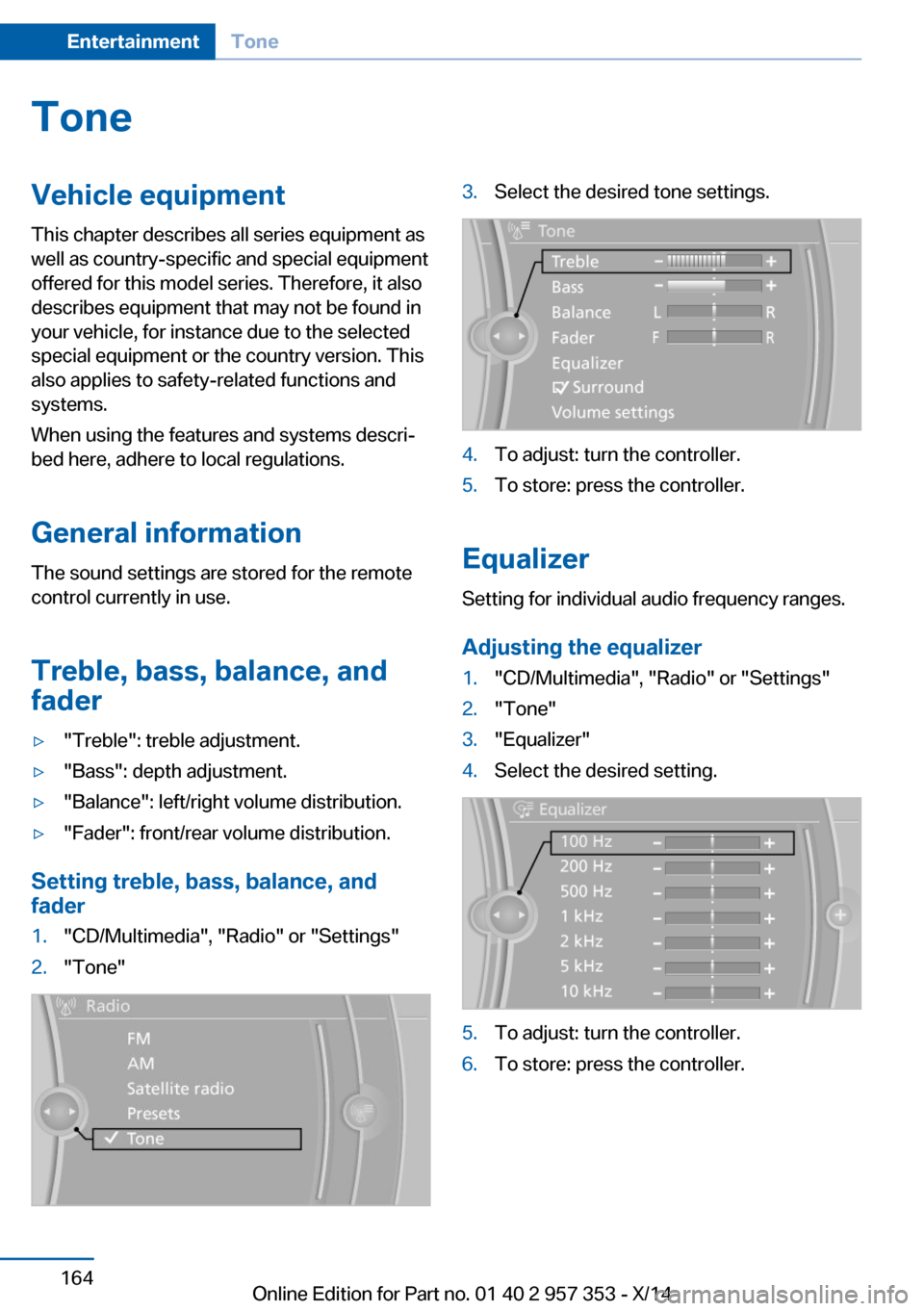
1."CD/Multimedia", "Radio" or "Settings"2."Tone"3.Select the desired tone settings.4.To adjust: turn the controller.5.To store: press the controller.
Equalizer
Setting for individual audio frequency ranges.
Adjusting the equalizer
1."CD/Multimedia", "Radio" or "Settings"2."Tone"3."Equalizer"4.Select the desired setting.5.To adjust: turn the controller.6.To store: press the controller.Seite 164EntertainmentTone164
Online Edition for Part no. 01 40 2 957 353 - X/14
Page 170 of 297
RadioVehicle equipment
This chapter describes all series equipment as
well as country-specific and special equipment
offered for this model series. Therefore, it also
describes equipment that may not be found in
your vehicle, for instance due to the selected
special equipment or the country version. This
also applies to safety-related functions and
systems.
When using the features and systems descri‐
bed here, adhere to local regulations.
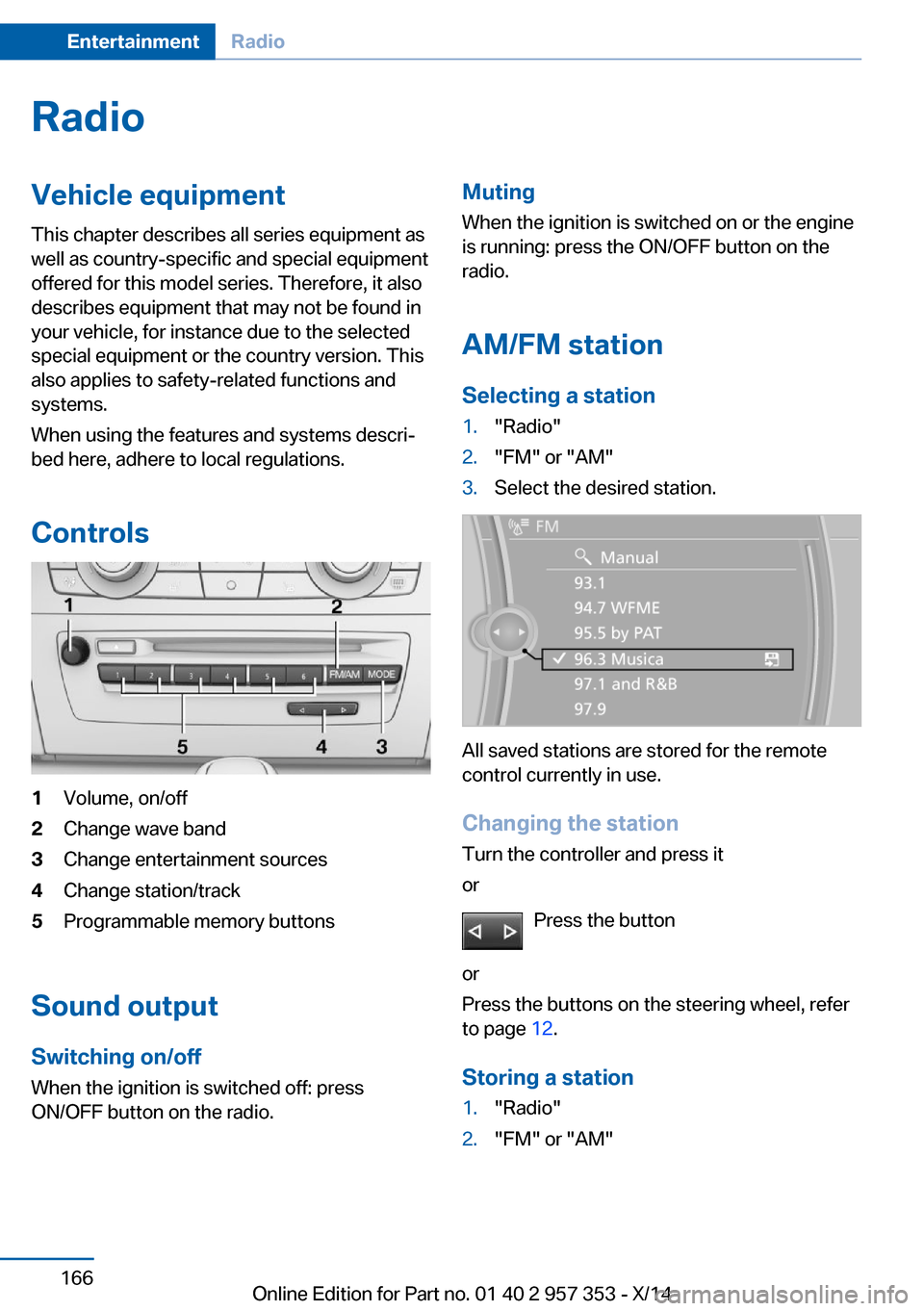
Controls1Volume, on/off2Change wave band3Change entertainment sources4Change station/track5Programmable memory buttons
Sound output Switching on/offWhen the ignition is switched off: press
ON/OFF button on the radio.
Muting
When the ignition is switched on or the engine
is running: press the ON/OFF button on the
radio.
AM/FM station Selecting a station1."Radio"2."FM" or "AM"3.Select the desired station.
All saved stations are stored for the remote
control currently in use.
Changing the station
Turn the controller and press it
or
Press the button
or
Press the buttons on the steering wheel, refer
to page 12.
Storing a station
1."Radio"2."FM" or "AM"Seite 166EntertainmentRadio166
Online Edition for Part no. 01 40 2 957 353 - X/14
Page 178 of 297
CD/multimediaVehicle equipmentThis chapter describes all series equipment as
well as country-specific and special equipment
offered for this model series. Therefore, it also
describes equipment that may not be found in
your vehicle, for instance due to the selected
special equipment or the country version. This
also applies to safety-related functions and
systems.
When using the features and systems descri‐
bed here, adhere to local regulations.
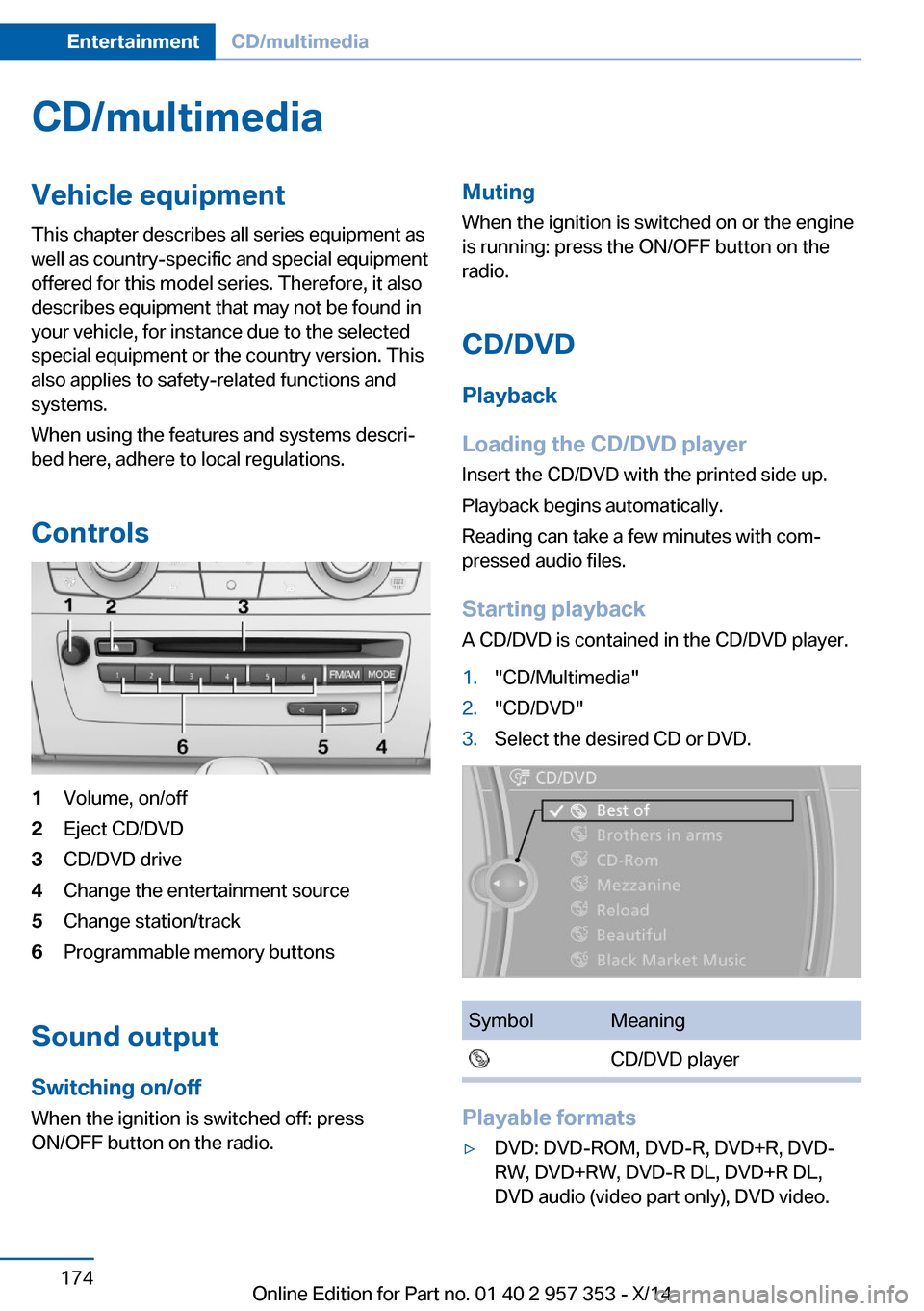
Controls1Volume, on/off2Eject CD/DVD3CD/DVD drive4Change the entertainment source5Change station/track6Programmable memory buttons
Sound output Switching on/offWhen the ignition is switched off: press
ON/OFF button on the radio.
Muting
When the ignition is switched on or the engine
is running: press the ON/OFF button on the
radio.
CD/DVD
Playback
Loading the CD/DVD player
Insert the CD/DVD with the printed side up.
Playback begins automatically.
Reading can take a few minutes with com‐
pressed audio files.
Starting playback A CD/DVD is contained in the CD/DVD player.1."CD/Multimedia"2."CD/DVD"3.Select the desired CD or DVD.SymbolMeaning CD/DVD player
Playable formats
▷DVD: DVD-ROM, DVD-R, DVD+R, DVD-
RW, DVD+RW, DVD-R DL, DVD+R DL,
DVD audio (video part only), DVD video.Seite 174EntertainmentCD/multimedia174
Online Edition for Part no. 01 40 2 957 353 - X/14
Page 200 of 297
TelephoneVehicle equipmentThis chapter describes all series equipment as
well as country-specific and special equipment
offered for this model series. Therefore, it also
describes equipment that may not be found in
your vehicle, for instance due to the selected
special equipment or the country version. This
also applies to safety-related functions and
systems.
When using the features and systems descri‐
bed here, adhere to local regulations.
At a glance The conceptMobile phones or other external devices such
as audio players can be connected to the vehi‐
cle via Bluetooth.
Bluetooth® is a registered trademark of Blue‐
tooth® SIG, Inc.
After these devices are paired once, they are
recognized automatically when the ignition is
switched on as soon as they are in the vehicle
and can then be operated via iDrive, the but‐
tons on the steering wheel, and via voice acti‐
vation.
Depending on their functionality, external devi‐
ces can be used via the vehicle as a telephone
or as an audio source. The telephone functions
are described in the following. Operating the
audio functions, refer to page 187.
Up to four external devices can be paired.
Certain functions may need to be enabled by
the mobile phone provider or service provider.
Using the mobile phone while driving
Make entries only when traffic and road
conditions allow. Do not hold the mobile phone
in your hand while you are driving; use the
hands-free system instead. If you do not ob‐serve this precaution, you can endanger the
vehicle occupants and other road users.◀
Snap-in adapter The snap-in adapter is used to:▷Hold the mobile phone.▷Recharge the battery.▷Connect the mobile phone to an outside
antenna of the vehicle.
This provides for better network reception
and consistent sound quality.
Approved mobile phones
Details on which mobile phones and external
devices with a Bluetooth interface are sup‐
ported by the mobile phone preparation pack‐
age can be obtained at www.bmwusa.com/
bluetooth.
Displaying the vehicle identification
number and software part number
The vehicle identification number and software part number are needed to determine which
mobile phones are supported by the mobile
phone preparation package. The software ver‐
sion of the mobile phone may also be required.
1."Telephone"2.Open "Options".3."Bluetooth® info"4."Display system information"
These approved mobile phones with a certain
software version, support the vehicle functions
described below.
Malfunctions may occur with other mobile
phones or software versions.
Do not operate a mobile phone that is con‐
nected to the vehicle on the mobile phone key‐
pad, as this may lead to a malfunction.
Seite 196CommunicationsTelephone196
Online Edition for Part no. 01 40 2 957 353 - X/14
Page 211 of 297
OfficeVehicle equipment
This chapter describes all series equipment as
well as country-specific and special equipment
offered for this model series. Therefore, it also
describes equipment that may not be found in
your vehicle, for instance due to the selected
special equipment or the country version. This
also applies to safety-related functions and
systems.
When using the features and systems descri‐
bed here, adhere to local regulations.
At a glance General information
Contacts, appointments, tasks, notes, text
messages, and e-mails from the mobile phone
can be displayed on the Control Display if the
mobile phone provides compatible support of
these functions and the necessary Bluetooth
standards.
Information about which mobile phones sup‐
port the Office functions can be found at
www.bmwusa.com/bluetooth. A limited num‐
ber of compatible mobile phones is available
for Office.
Contents are only displayed in full length when
the vehicle is stationary.
The mobile phone has read-access only.
Do not use Office while driving
To avoid becoming distracted and pos‐
ing an unnecessary hazard to your vehicle's
occupants and to other road users, never at‐
tempt to use the controls or enter information
unless traffic and road conditions allow this.◀
Requirements▷A suitable mobile phone is paired with the
vehicle and connected. In some mobilephones, data access must be confirmed on
the mobile phone.▷The time, time zone, and date, refer to
page 75, are correctly set on the Control
Display and on the mobile phone, for in‐
stance to correctly display appointments.▷Office is activated, refer to page 197.
Updating
Data are updated every time the mobile phone
is connected to the vehicle. Appointment en‐
tries, tasks, notes and reminders can be up‐
dated separately.
1."Office"2."Current office", "Calendar", "Tasks",
"Notes" or "Reminders"3.Open "Options".4."Update data"
Mobile phone data are transmitted again to
the vehicle.
Office information
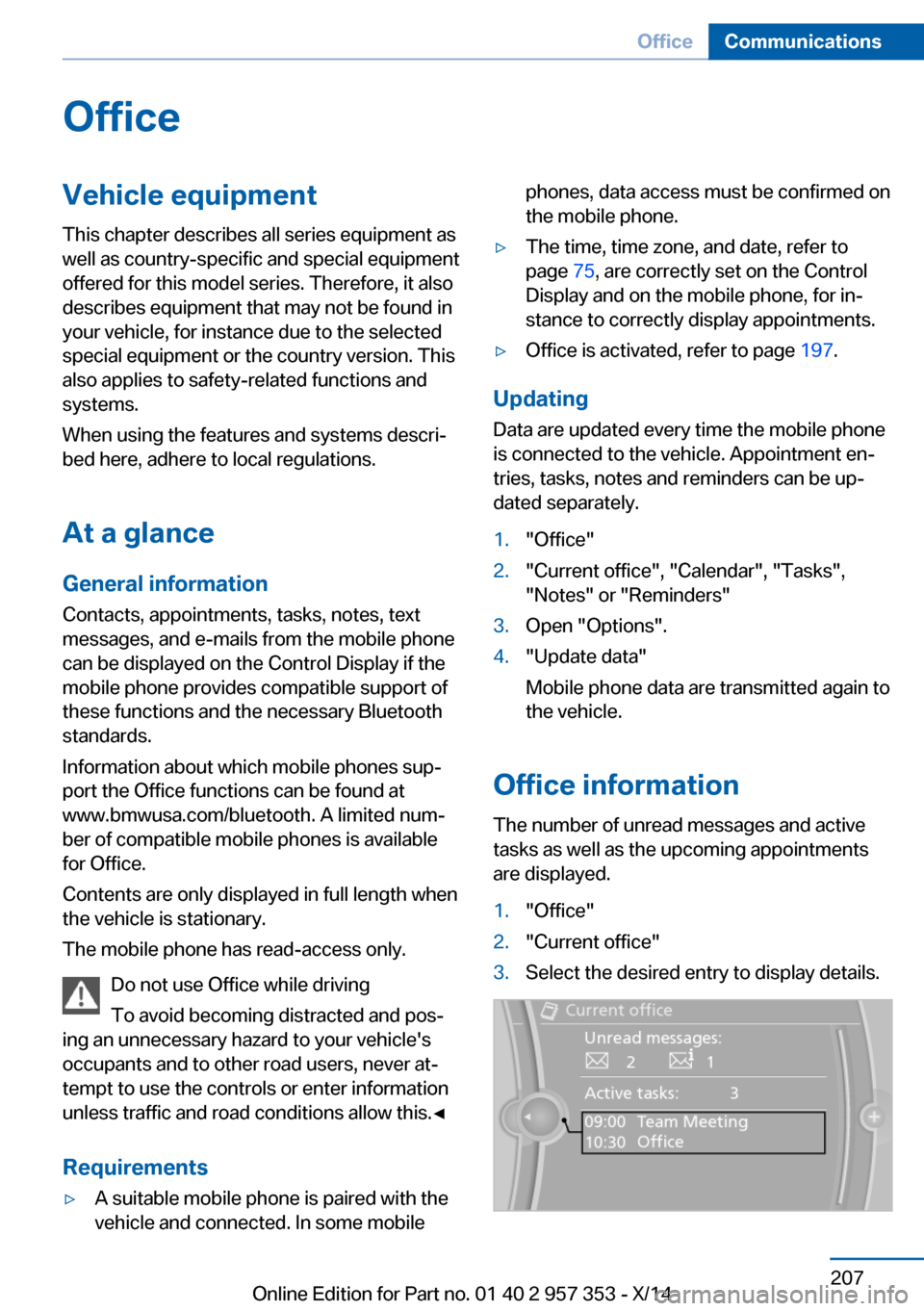
The number of unread messages and active
tasks as well as the upcoming appointments
are displayed.
1."Office"2."Current office"3.Select the desired entry to display details.Seite 207OfficeCommunications207
Online Edition for Part no. 01 40 2 957 353 - X/14
Page 220 of 297
ContactsVehicle equipmentThis chapter describes all series equipment as
well as country-specific and special equipment
offered for this model series. Therefore, it also
describes equipment that may not be found in
your vehicle, for instance due to the selected
special equipment or the country version. This
also applies to safety-related functions and
systems.
When using the features and systems descri‐
bed here, adhere to local regulations.
Note Equipment version without the mobile phone
preparation package.
General information
Contacts can be created and edited. The con‐
tacts from the mobile phone are displayed as
well if this function is supported by the mobile
phone. The addresses can be adopted as des‐
tinations for navigation and the phone num‐
bers can be dialed.
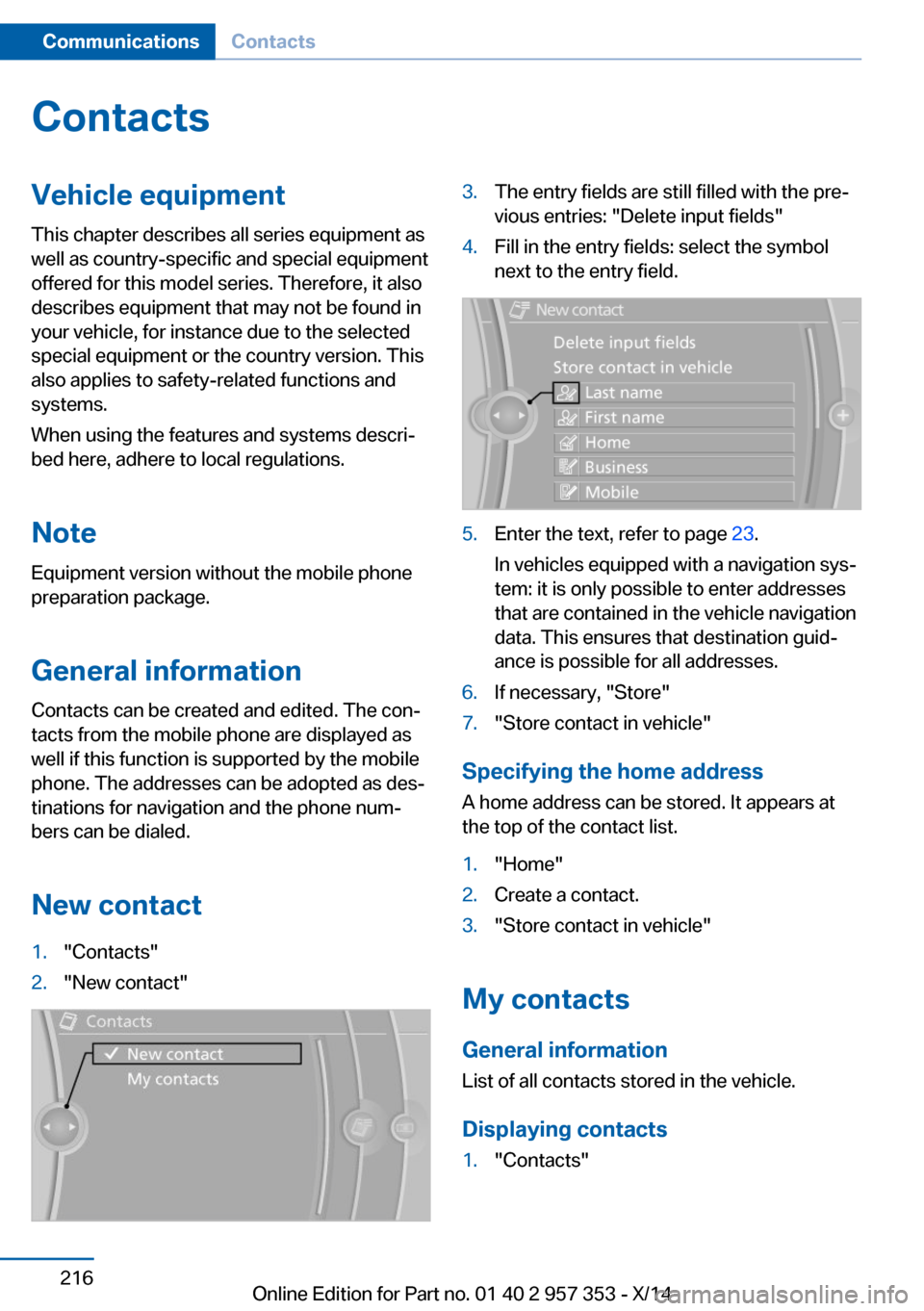
New contact1."Contacts"2."New contact"3.The entry fields are still filled with the pre‐
vious entries: "Delete input fields"4.Fill in the entry fields: select the symbol
next to the entry field.5.Enter the text, refer to page 23.
In vehicles equipped with a navigation sys‐
tem: it is only possible to enter addresses
that are contained in the vehicle navigation
data. This ensures that destination guid‐
ance is possible for all addresses.6.If necessary, "Store"7."Store contact in vehicle"
Specifying the home address
A home address can be stored. It appears at
the top of the contact list.
1."Home"2.Create a contact.3."Store contact in vehicle"
My contacts
General information List of all contacts stored in the vehicle.
Displaying contacts
1."Contacts"Seite 216CommunicationsContacts216
Online Edition for Part no. 01 40 2 957 353 - X/14
Page 223 of 297
ConnectedDriveVehicle equipment
This chapter describes all series equipment as
well as country-specific and special equipment
offered for this model series. Therefore, it also
describes equipment that may not be found in
your vehicle, for instance due to the selected
special equipment or the country version. This
also applies to safety-related functions and
systems.
When using the features and systems descri‐
bed here, adhere to local regulations.
TeleService General information
TeleService supports communication with
your service center.▷Data on the vehicle's service requirements
can be sent directly to the service center.
In this way, the service center can plan its
work in advance. This shortens the dura‐
tion of the service appointment.▷In the event of a breakdown, data on the
vehicle's condition can be sent directly to
Roadside Assistance.▷The service varies by country.▷Connection costs may ensue.▷Services may be restricted abroad.
Requirements
Different variants of TeleService may be imple‐
mented in the vehicle. The following condi‐
tions must always be met:
▷Wireless reception is available.▷The ignition is switched on.▷A current ConnectedDrive subscription or
a vehicle equipped with intelligent Emer‐
gency Request.Concierge service
General information The Concierge service offers information on
events, gas stations, and hotels, and provides
phone numbers and addresses. Hotels can be
booked directly using the Concierge service.
The Concierge service is part of the optional
Convenience Plan.
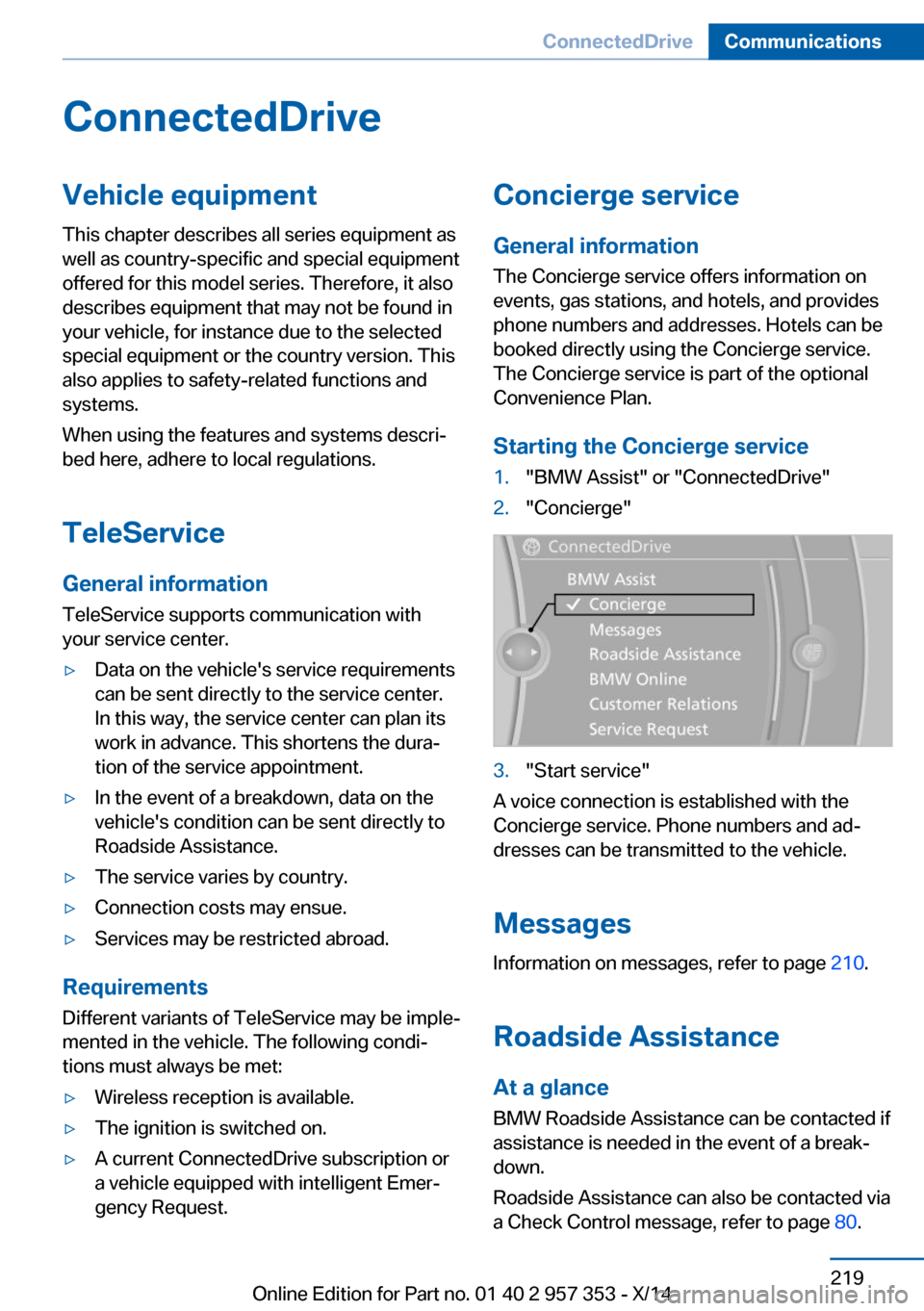
Starting the Concierge service1."BMW Assist" or "ConnectedDrive"2."Concierge"3."Start service"
A voice connection is established with the
Concierge service. Phone numbers and ad‐
dresses can be transmitted to the vehicle.
Messages
Information on messages, refer to page 210.
Roadside Assistance At a glance
BMW Roadside Assistance can be contacted if
assistance is needed in the event of a break‐
down.
Roadside Assistance can also be contacted via
a Check Control message, refer to page 80.
Seite 219ConnectedDriveCommunications219
Online Edition for Part no. 01 40 2 957 353 - X/14