button BMW X1 2014 E84 Manual Online
[x] Cancel search | Manufacturer: BMW, Model Year: 2014, Model line: X1, Model: BMW X1 2014 E84Pages: 297, PDF Size: 7 MB
Page 180 of 297
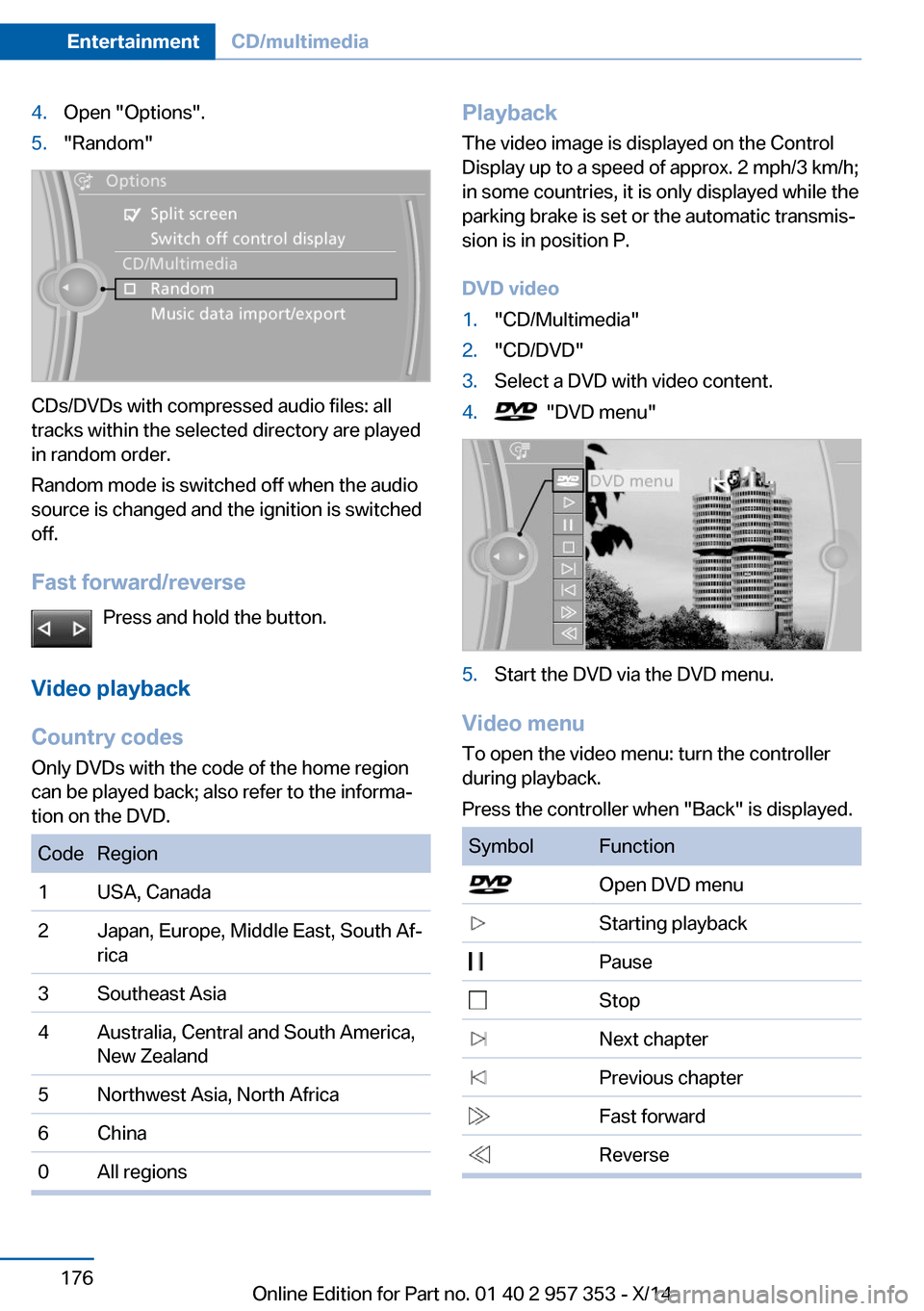
4.Open "Options".5."Random"
CDs/DVDs with compressed audio files: all
tracks within the selected directory are played
in random order.
Random mode is switched off when the audio
source is changed and the ignition is switched
off.
Fast forward/reverse Press and hold the button.
Video playback
Country codes
Only DVDs with the code of the home region
can be played back; also refer to the informa‐
tion on the DVD.
CodeRegion1USA, Canada2Japan, Europe, Middle East, South Af‐
rica3Southeast Asia4Australia, Central and South America,
New Zealand5Northwest Asia, North Africa6China0All regionsPlayback
The video image is displayed on the Control
Display up to a speed of approx. 2 mph/3 km/h;
in some countries, it is only displayed while the
parking brake is set or the automatic transmis‐
sion is in position P.
DVD video1."CD/Multimedia"2."CD/DVD"3.Select a DVD with video content.4. "DVD menu"5.Start the DVD via the DVD menu.
Video menu
To open the video menu: turn the controller
during playback.
Press the controller when "Back" is displayed.
SymbolFunction Open DVD menu Starting playback Pause Stop Next chapter Previous chapter Fast forward ReverseSeite 176EntertainmentCD/multimedia176
Online Edition for Part no. 01 40 2 957 353 - X/14
Page 186 of 297
Music search by voice
Instructions for voice activation system, refer
to page 25.1. Press the button on the steering
wheel.2.›Music search‹3.Open the desired category, e. g., ›Select
artist‹.4.Say the desired entry in the list.5.Select other categories if you wish.
To select a track directly: ›Title ...‹
Say the voice command and the name of the
desired track in a single command.
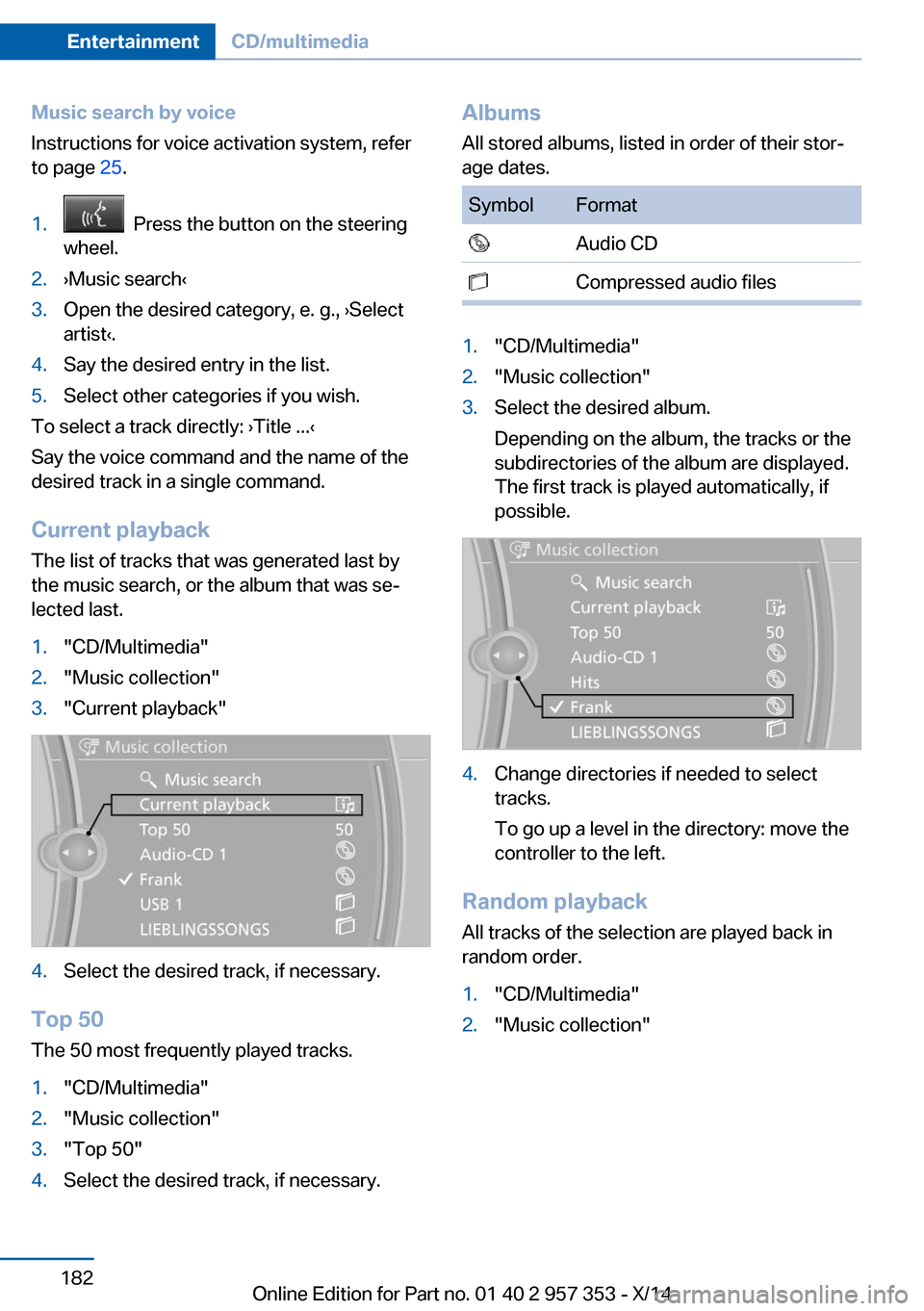
Current playback The list of tracks that was generated last by
the music search, or the album that was se‐
lected last.
1."CD/Multimedia"2."Music collection"3."Current playback"4.Select the desired track, if necessary.
Top 50
The 50 most frequently played tracks.
1."CD/Multimedia"2."Music collection"3."Top 50"4.Select the desired track, if necessary.Albums All stored albums, listed in order of their stor‐
age dates.SymbolFormat Audio CD Compressed audio files1."CD/Multimedia"2."Music collection"3.Select the desired album.
Depending on the album, the tracks or the
subdirectories of the album are displayed.
The first track is played automatically, if
possible.4.Change directories if needed to select
tracks.
To go up a level in the directory: move the
controller to the left.
Random playback
All tracks of the selection are played back in
random order.
1."CD/Multimedia"2."Music collection"Seite 182EntertainmentCD/multimedia182
Online Edition for Part no. 01 40 2 957 353 - X/14
Page 191 of 297
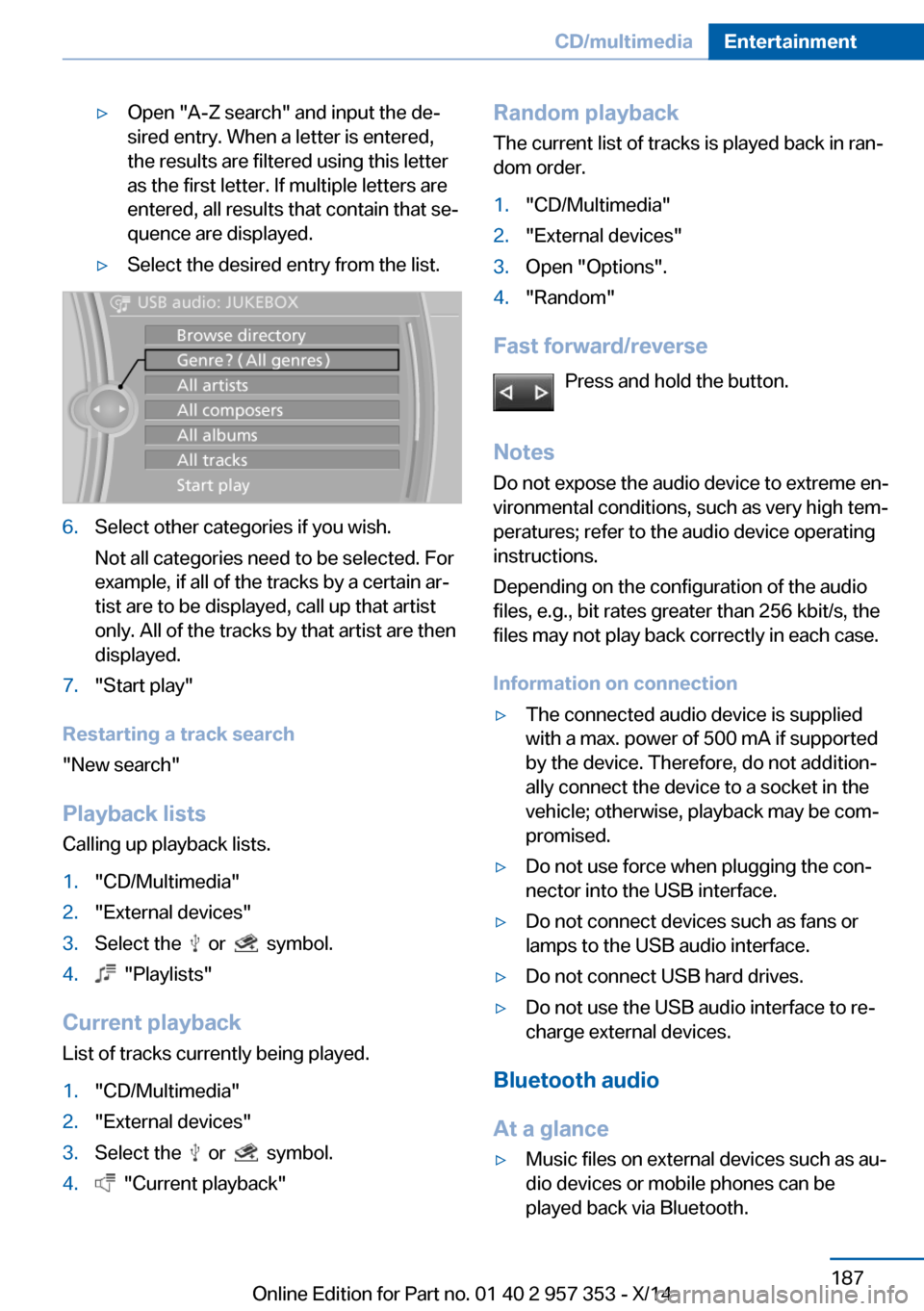
▷Open "A-Z search" and input the de‐
sired entry. When a letter is entered,
the results are filtered using this letter
as the first letter. If multiple letters are
entered, all results that contain that se‐
quence are displayed.▷Select the desired entry from the list.6.Select other categories if you wish.
Not all categories need to be selected. For
example, if all of the tracks by a certain ar‐
tist are to be displayed, call up that artist
only. All of the tracks by that artist are then
displayed.7."Start play"
Restarting a track search
"New search"
Playback lists Calling up playback lists.
1."CD/Multimedia"2."External devices"3.Select the or symbol.4. "Playlists"
Current playbackList of tracks currently being played.
1."CD/Multimedia"2."External devices"3.Select the or symbol.4. "Current playback"Random playbackThe current list of tracks is played back in ran‐dom order.1."CD/Multimedia"2."External devices"3.Open "Options".4."Random"
Fast forward/reverse
Press and hold the button.
Notes Do not expose the audio device to extreme en‐
vironmental conditions, such as very high tem‐
peratures; refer to the audio device operating
instructions.
Depending on the configuration of the audio
files, e.g., bit rates greater than 256 kbit/s, the
files may not play back correctly in each case.
Information on connection
▷The connected audio device is supplied
with a max. power of 500 mA if supported
by the device. Therefore, do not addition‐
ally connect the device to a socket in the
vehicle; otherwise, playback may be com‐
promised.▷Do not use force when plugging the con‐
nector into the USB interface.▷Do not connect devices such as fans or
lamps to the USB audio interface.▷Do not connect USB hard drives.▷Do not use the USB audio interface to re‐
charge external devices.
Bluetooth audio
At a glance
▷Music files on external devices such as au‐
dio devices or mobile phones can be
played back via Bluetooth.Seite 187CD/multimediaEntertainment187
Online Edition for Part no. 01 40 2 957 353 - X/14
Page 195 of 297
Music cannot be played back.▷Start the program for playing back music
data on the device and select a track on the
device if necessary.▷Switch the radio on and off again.
Music files can only be played back softly.
▷Adjust the volume settings on the device.
Playback is disturbed when buttons are
pressed or by other messages on the device.
▷Switch off the button tones and other sig‐
nal tones on the device.
Playback is interrupted by a telephone call or
traffic bulletin and is not resumed automati‐
cally.
▷Switch the radio on and off again.
Playback is not possible if the mobile phone is
connected via Bluetooth Audio while it is also
connected via the USB interface or the snap-in
adapter.
▷Disconnect one of the two connections; for
example, disconnect the audio connection,
refer to page 190, and restart playback.
If all points in this list have been checked and
the required function is still not available,
please contact the hotline or service center.
Software Update
The vehicle supports various external devices
depending on the current software version.
With a software update, the vehicle can sup‐
port new mobile phones or new external de‐
vice, for example.
▷USB.
Software updates and related current infor‐
mation is available at www.bmw.com/
update.
Displaying the current version
The currently installed software is displayed.
1."Settings"2."Software update"3."Show current version"
Select desired version to display additional in‐
formation.
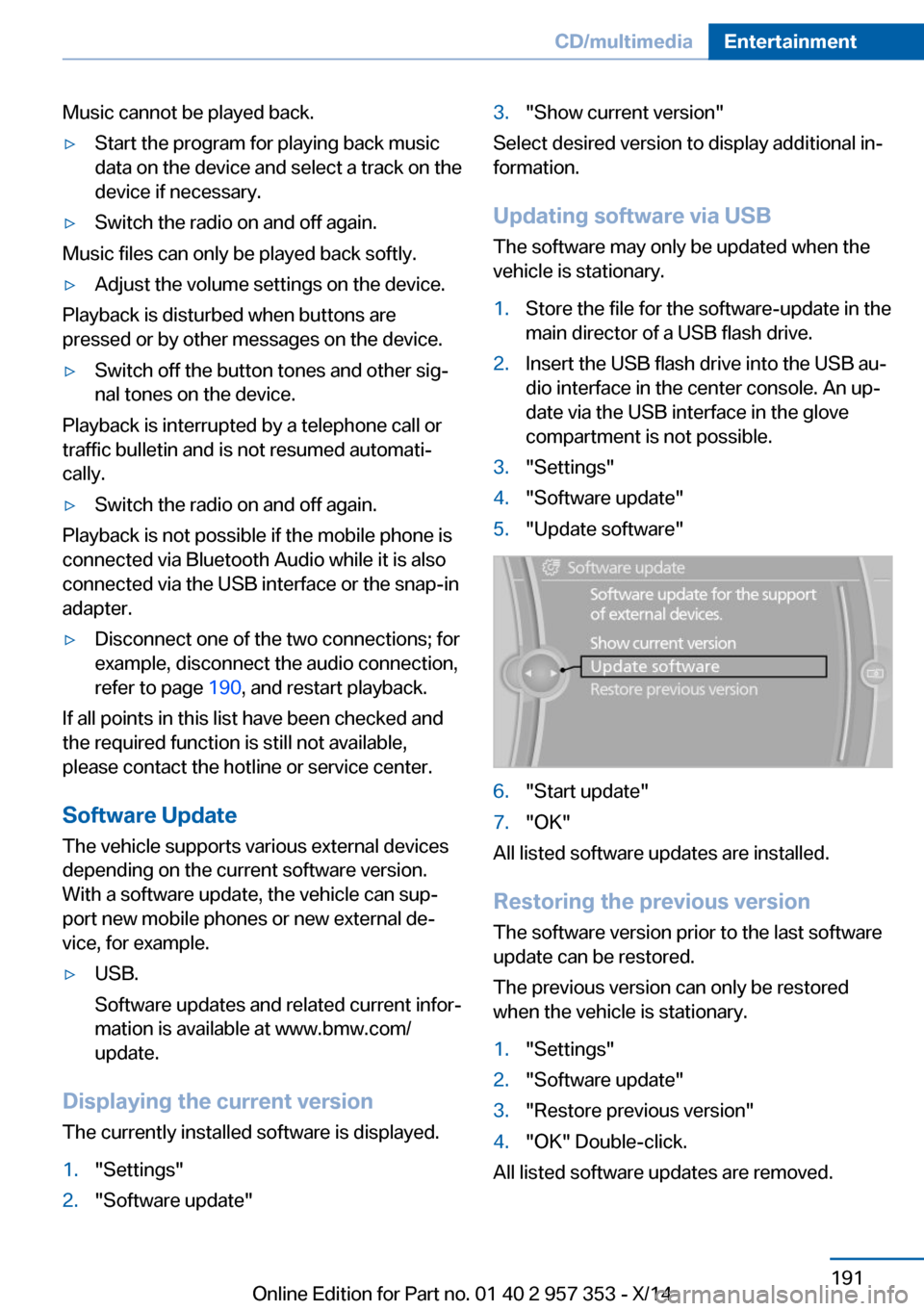
Updating software via USB The software may only be updated when the
vehicle is stationary.
1.Store the file for the software-update in the
main director of a USB flash drive.2.Insert the USB flash drive into the USB au‐
dio interface in the center console. An up‐
date via the USB interface in the glove
compartment is not possible.3."Settings"4."Software update"5."Update software"6."Start update"7."OK"
All listed software updates are installed.
Restoring the previous version
The software version prior to the last software
update can be restored.
The previous version can only be restored
when the vehicle is stationary.
1."Settings"2."Software update"3."Restore previous version"4."OK" Double-click.
All listed software updates are removed.
Seite 191CD/multimediaEntertainment191
Online Edition for Part no. 01 40 2 957 353 - X/14
Page 205 of 297
If more than one phone number is assigned to
a contact, only the name of the contact is dis‐
played.
For calls on the additional telephone, the num‐
ber is only displayed if it is transmitted by the
network.
An incoming call to one of the telephones is
automatically rejected if there is an active call
on the other telephone.
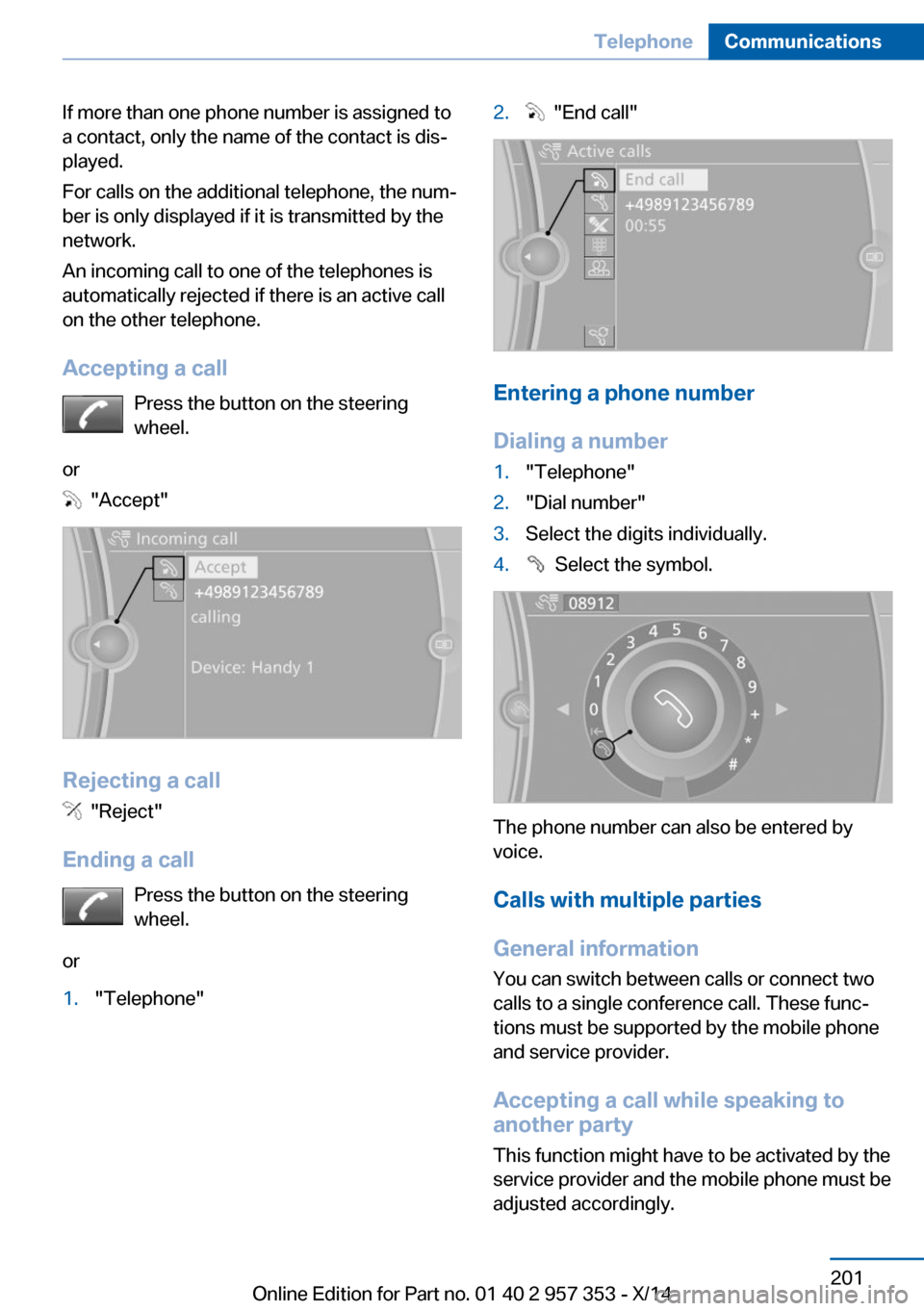
Accepting a call Press the button on the steering
wheel.
or
"Accept"
Rejecting a call
"Reject"
Ending a call Press the button on the steering
wheel.
or
1."Telephone"2. "End call"
Entering a phone number
Dialing a number
1."Telephone"2."Dial number"3.Select the digits individually.4. Select the symbol.
The phone number can also be entered by
voice.
Calls with multiple parties
General information
You can switch between calls or connect two
calls to a single conference call. These func‐
tions must be supported by the mobile phone
and service provider.
Accepting a call while speaking to
another party
This function might have to be activated by the
service provider and the mobile phone must be
adjusted accordingly.
Seite 201TelephoneCommunications201
Online Edition for Part no. 01 40 2 957 353 - X/14
Page 207 of 297
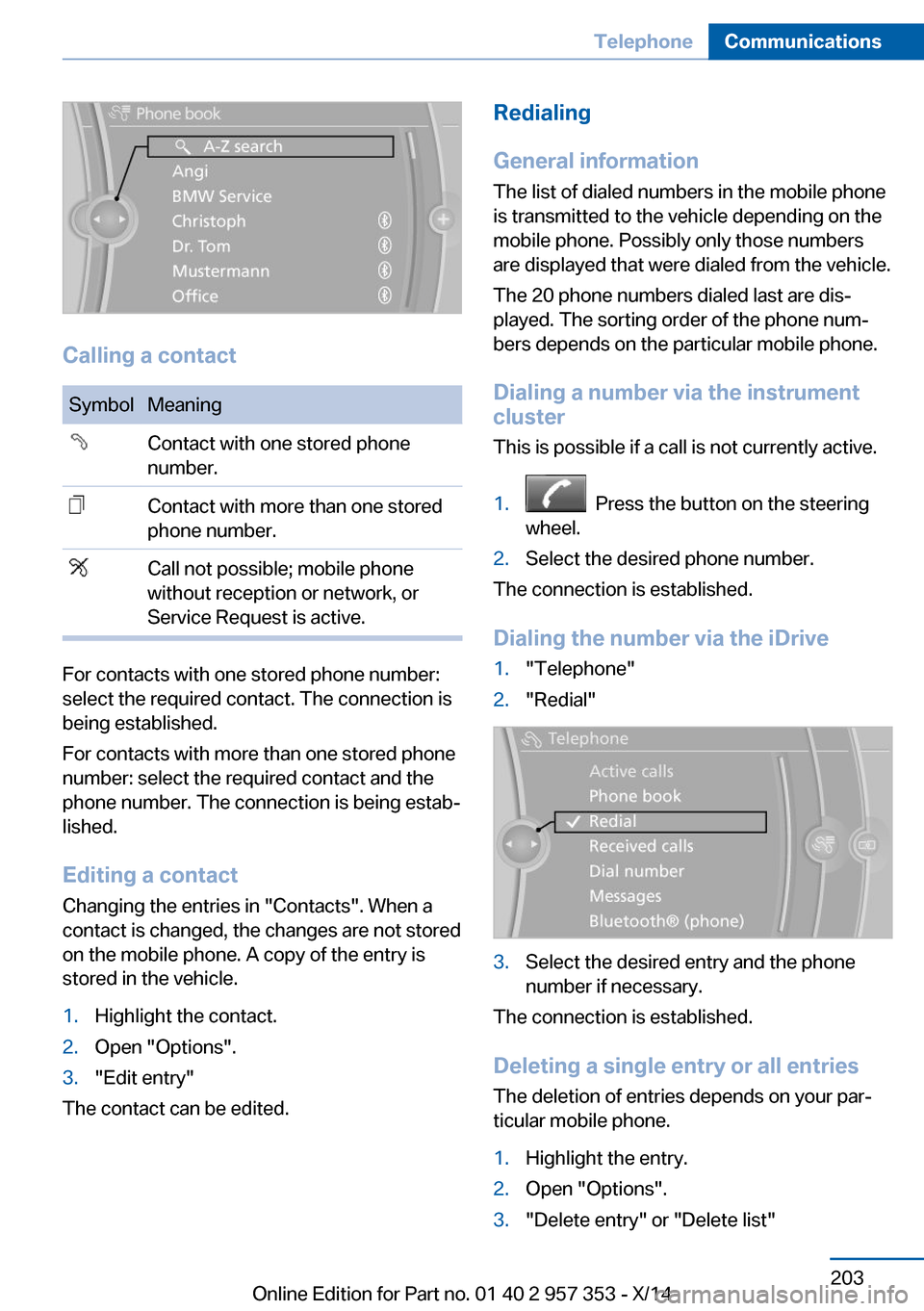
Calling a contact
SymbolMeaningContact with one stored phone
number.Contact with more than one stored
phone number.Call not possible; mobile phone
without reception or network, or
Service Request is active.
For contacts with one stored phone number:
select the required contact. The connection is
being established.
For contacts with more than one stored phone
number: select the required contact and the
phone number. The connection is being estab‐
lished.
Editing a contact Changing the entries in "Contacts". When a
contact is changed, the changes are not stored
on the mobile phone. A copy of the entry is
stored in the vehicle.
1.Highlight the contact.2.Open "Options".3."Edit entry"
The contact can be edited.
Redialing
General information
The list of dialed numbers in the mobile phone
is transmitted to the vehicle depending on the
mobile phone. Possibly only those numbers
are displayed that were dialed from the vehicle.
The 20 phone numbers dialed last are dis‐
played. The sorting order of the phone num‐
bers depends on the particular mobile phone.
Dialing a number via the instrument cluster
This is possible if a call is not currently active.1. Press the button on the steering
wheel.2.Select the desired phone number.
The connection is established.
Dialing the number via the iDrive
1."Telephone"2."Redial"3.Select the desired entry and the phone
number if necessary.
The connection is established.
Deleting a single entry or all entries The deletion of entries depends on your par‐
ticular mobile phone.
1.Highlight the entry.2.Open "Options".3."Delete entry" or "Delete list"Seite 203TelephoneCommunications203
Online Edition for Part no. 01 40 2 957 353 - X/14
Page 209 of 297
Snap-in adapter
General information More information on compatible snap-in
adapters that support the functions of the mo‐
bile phone is available at the service center.
Notes At high temperatures, the charging function of
the mobile phone may be limited and functions
may not be executed.
When using the mobile phone via the vehicle,
note the operating instructions of the mobile
phone.
Installation position
In the center armrest.
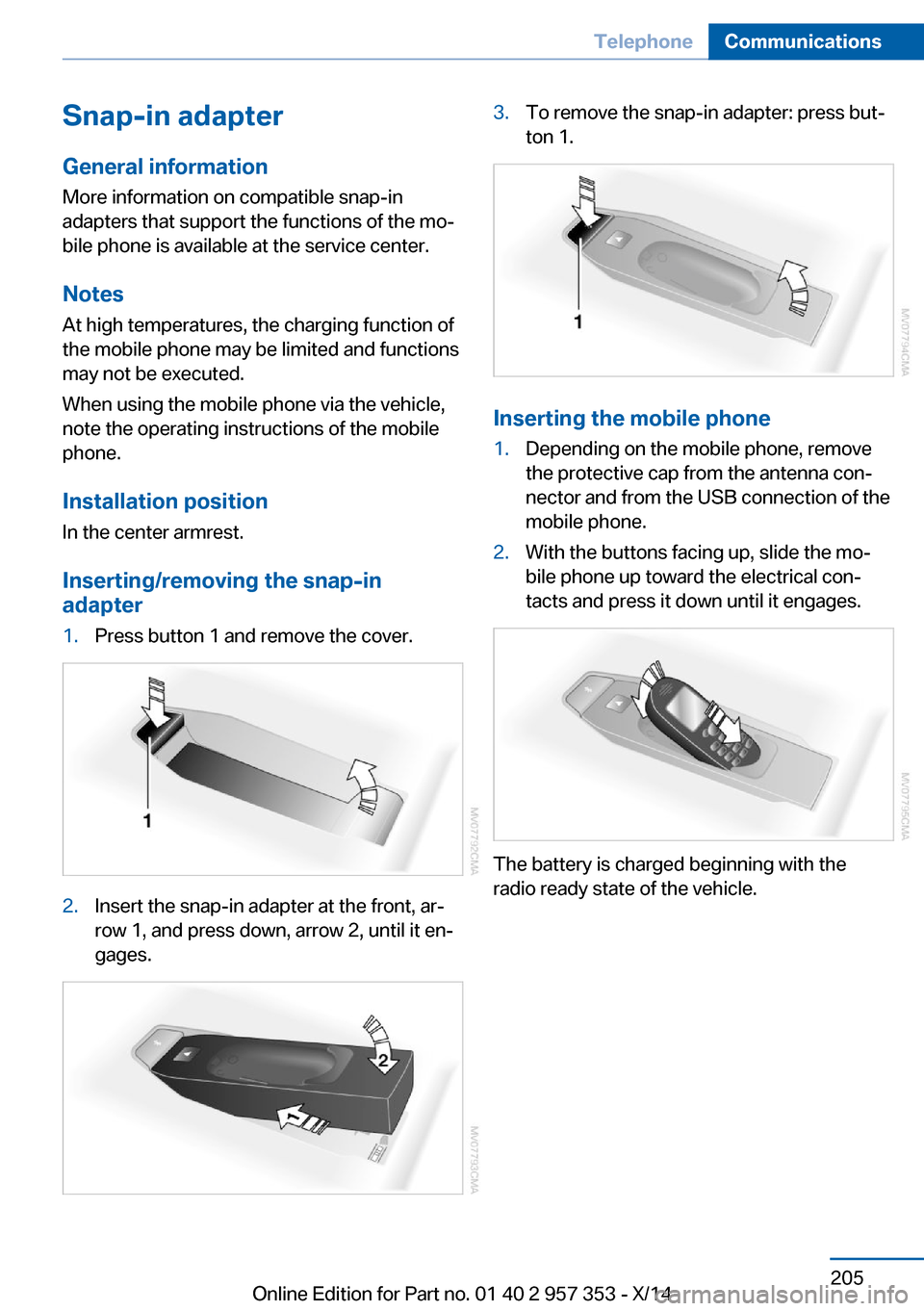
Inserting/removing the snap-in
adapter1.Press button 1 and remove the cover.2.Insert the snap-in adapter at the front, ar‐
row 1, and press down, arrow 2, until it en‐
gages.3.To remove the snap-in adapter: press but‐
ton 1.
Inserting the mobile phone
1.Depending on the mobile phone, remove
the protective cap from the antenna con‐
nector and from the USB connection of the
mobile phone.2.With the buttons facing up, slide the mo‐
bile phone up toward the electrical con‐
tacts and press it down until it engages.
The battery is charged beginning with the
radio ready state of the vehicle.
Seite 205TelephoneCommunications205
Online Edition for Part no. 01 40 2 957 353 - X/14
Page 210 of 297
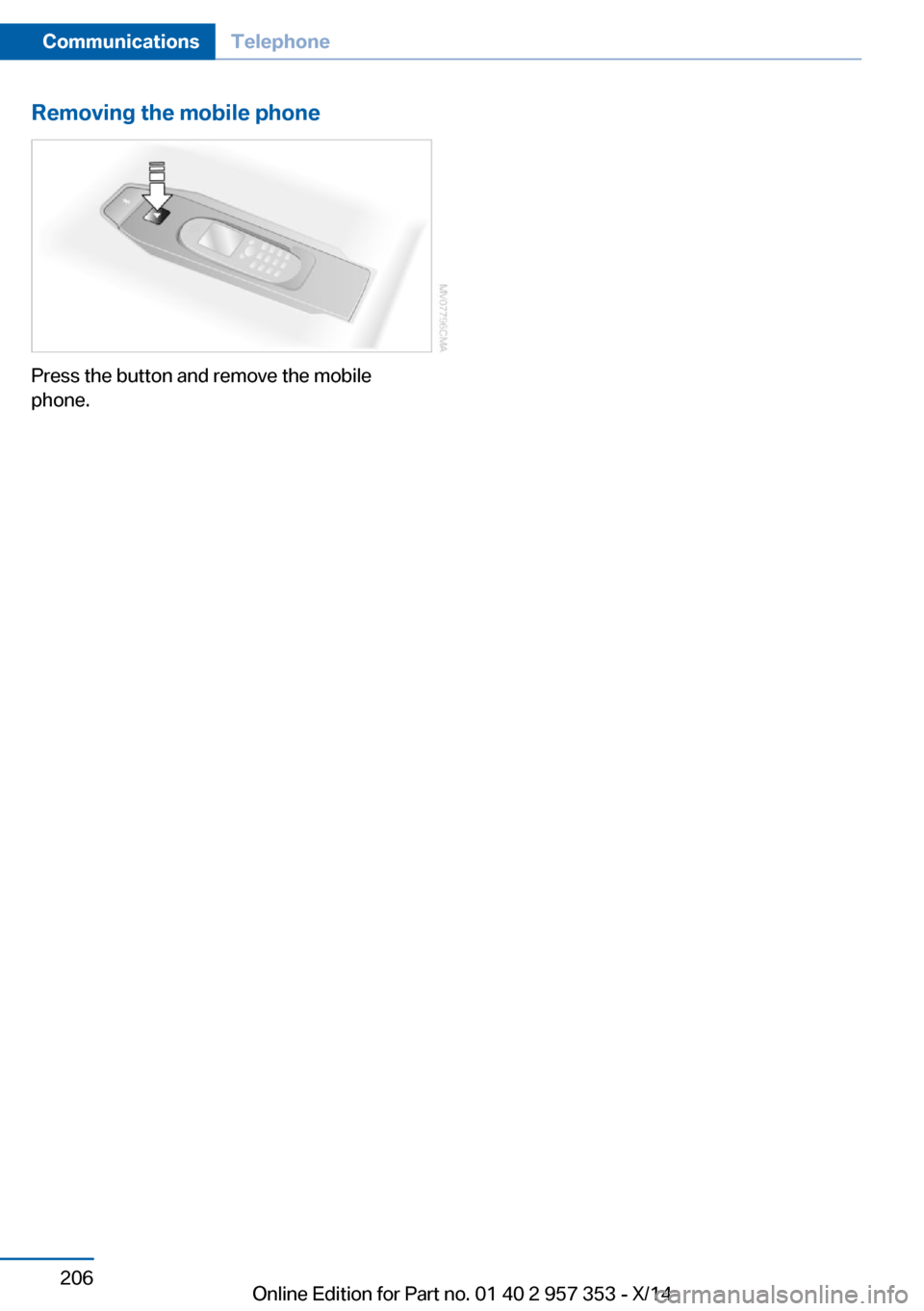
Removing the mobile phone
Press the button and remove the mobile
phone.
Seite 206CommunicationsTelephone206
Online Edition for Part no. 01 40 2 957 353 - X/14
Page 231 of 297
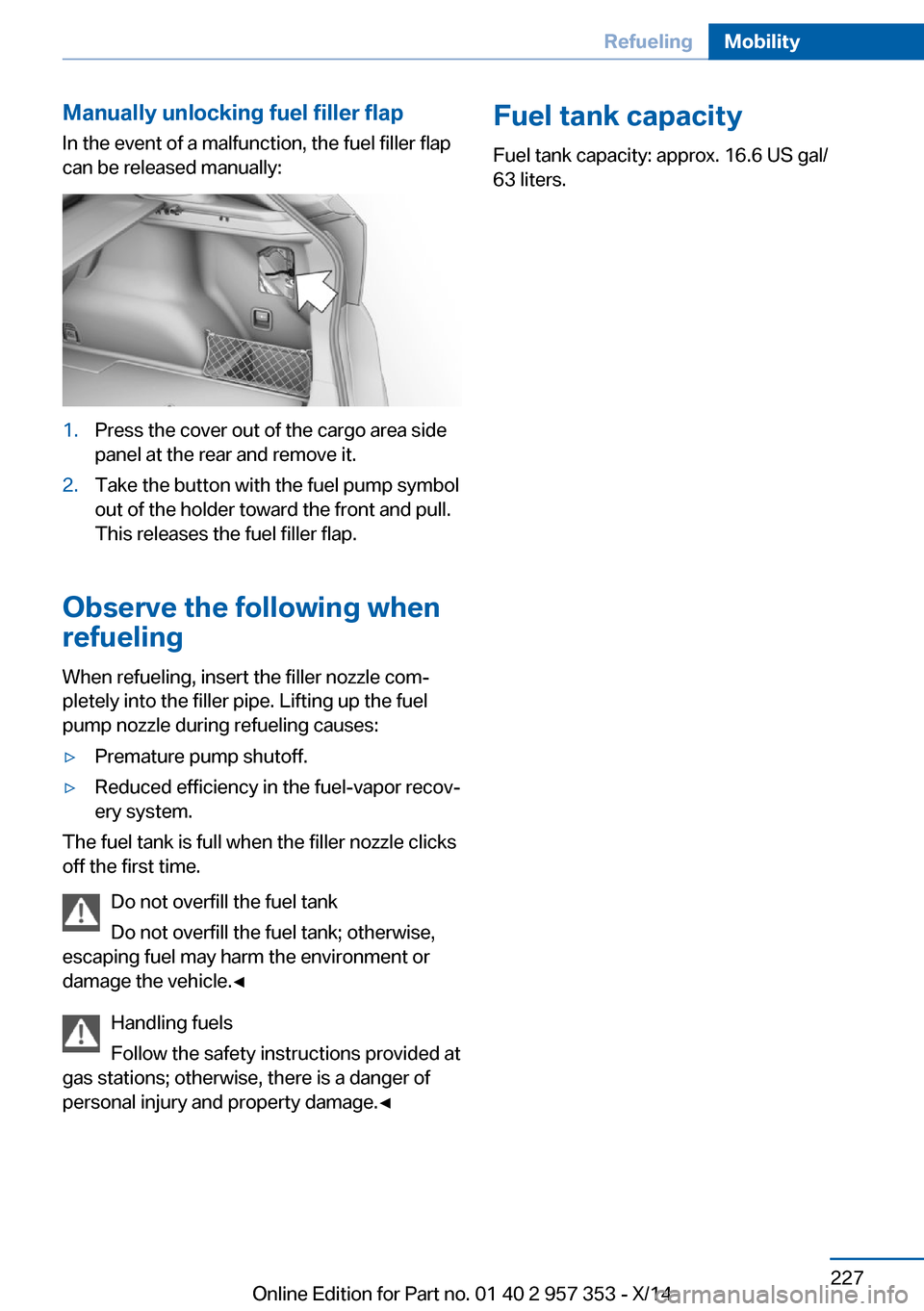
Manually unlocking fuel filler flapIn the event of a malfunction, the fuel filler flap
can be released manually:1.Press the cover out of the cargo area side
panel at the rear and remove it.2.Take the button with the fuel pump symbol
out of the holder toward the front and pull.
This releases the fuel filler flap.
Observe the following when
refueling
When refueling, insert the filler nozzle com‐
pletely into the filler pipe. Lifting up the fuel
pump nozzle during refueling causes:
▷Premature pump shutoff.▷Reduced efficiency in the fuel-vapor recov‐
ery system.
The fuel tank is full when the filler nozzle clicks
off the first time.
Do not overfill the fuel tank
Do not overfill the fuel tank; otherwise,
escaping fuel may harm the environment or
damage the vehicle.◀
Handling fuels
Follow the safety instructions provided at
gas stations; otherwise, there is a danger of
personal injury and property damage.◀
Fuel tank capacity
Fuel tank capacity: approx. 16.6 US gal/
63 liters.Seite 227RefuelingMobility227
Online Edition for Part no. 01 40 2 957 353 - X/14
Page 246 of 297
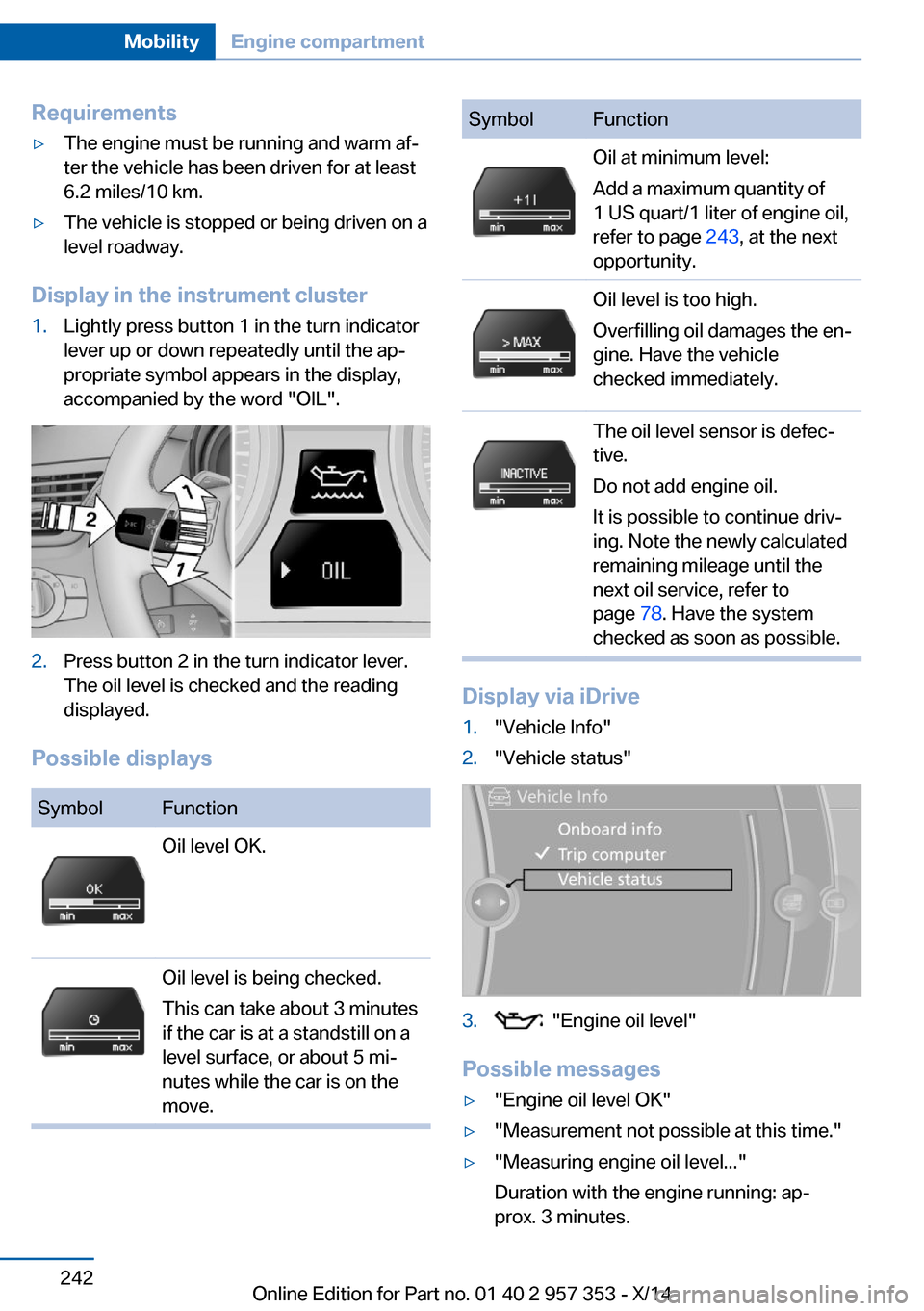
Requirements▷The engine must be running and warm af‐
ter the vehicle has been driven for at least
6.2 miles/10 km.▷The vehicle is stopped or being driven on a
level roadway.
Display in the instrument cluster
1.Lightly press button 1 in the turn indicator
lever up or down repeatedly until the ap‐
propriate symbol appears in the display,
accompanied by the word "OIL".2.Press button 2 in the turn indicator lever.
The oil level is checked and the reading
displayed.
Possible displays
SymbolFunctionOil level OK.Oil level is being checked.
This can take about 3 minutes
if the car is at a standstill on a
level surface, or about 5 mi‐
nutes while the car is on the
move.SymbolFunctionOil at minimum level:
Add a maximum quantity of
1 US quart/1 liter of engine oil,
refer to page 243, at the next
opportunity.Oil level is too high.
Overfilling oil damages the en‐
gine. Have the vehicle
checked immediately.The oil level sensor is defec‐
tive.
Do not add engine oil.
It is possible to continue driv‐
ing. Note the newly calculated
remaining mileage until the
next oil service, refer to
page 78. Have the system
checked as soon as possible.
Display via iDrive
1."Vehicle Info"2."Vehicle status"3. "Engine oil level"
Possible messages
▷"Engine oil level OK"▷"Measurement not possible at this time."▷"Measuring engine oil level..."
Duration with the engine running: ap‐
prox. 3 minutes.Seite 242MobilityEngine compartment242
Online Edition for Part no. 01 40 2 957 353 - X/14