navigation system BMW X1 2015 E84 Owner's Manual
[x] Cancel search | Manufacturer: BMW, Model Year: 2015, Model line: X1, Model: BMW X1 2015 E84Pages: 297, PDF Size: 7.01 MB
Page 7 of 297
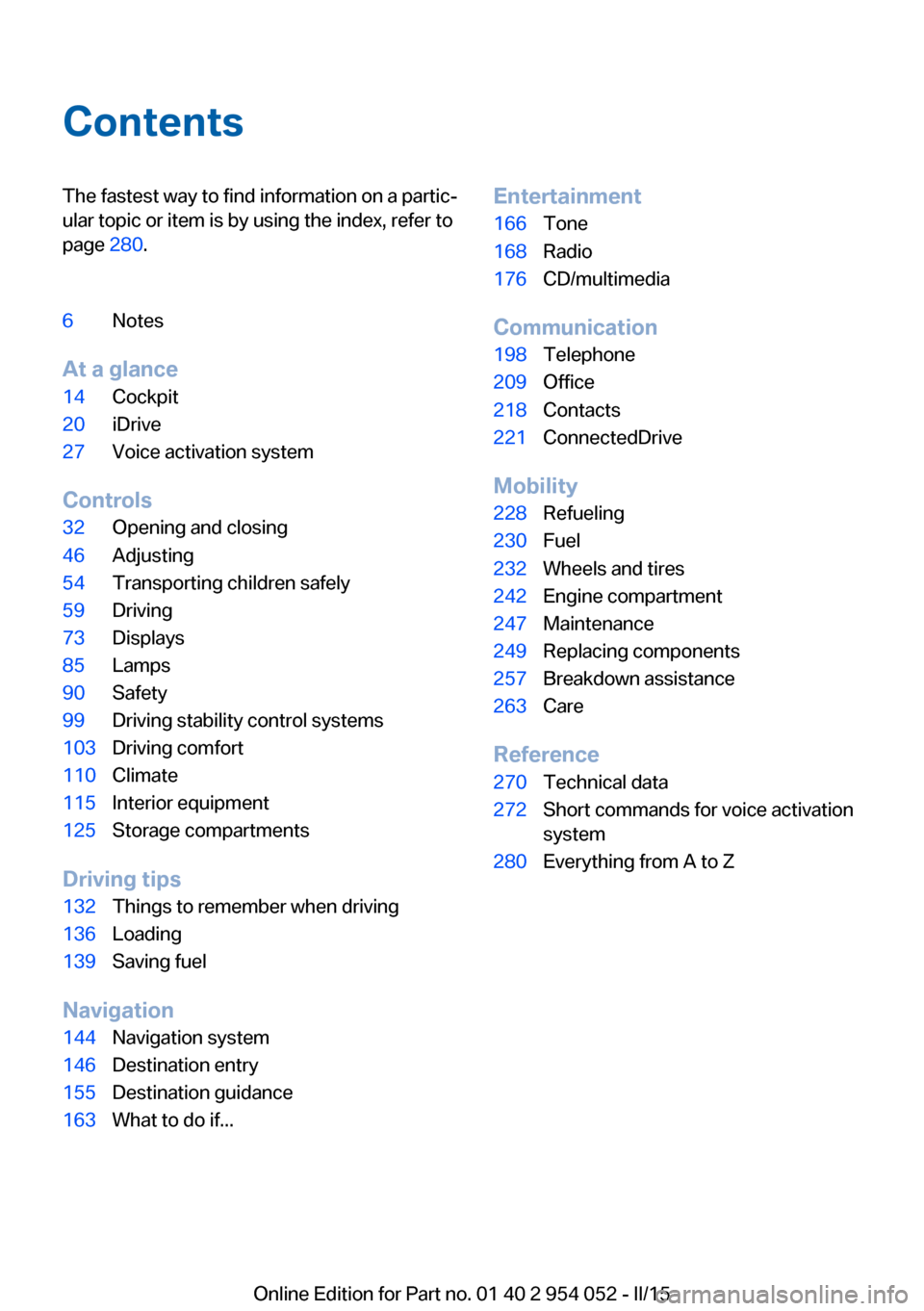
ContentsThe fastest way to find information on a partic‐
ular topic or item is by using the index, refer to
page 280.6Notes
At a glance
14Cockpit20iDrive27Voice activation system
Controls
32Opening and closing46Adjusting54Transporting children safely59Driving73Displays85Lamps90Safety99Driving stability control systems103Driving comfort110Climate115Interior equipment125Storage compartments
Driving tips
132Things to remember when driving136Loading139Saving fuel
Navigation
144Navigation system146Destination entry155Destination guidance163What to do if...Entertainment166Tone168Radio176CD/multimedia
Communication
198Telephone209Office218Contacts221ConnectedDrive
Mobility
228Refueling230Fuel232Wheels and tires242Engine compartment247Maintenance249Replacing components257Breakdown assistance263Care
Reference
270Technical data272Short commands for voice activation
system280Everything from A to Z
Online Edition for Part no. 01 40 2 954 052 - II/15
Page 35 of 297
▷The settings are automatically saved in the
profile currently activated in the remote
control.▷The remote control used is detected when
the vehicle is unlocked and the stored pro‐
file is called up.▷Your personal settings will be recognized
and called up again even if the vehicle has
been used in the meantime by someone
else with another remote control.
The individual settings are stored for a maxi‐
mum of four remote controls. They are stored
for two remote controls if Comfort Access is in
use.
Personal Profile settingsThe following functions and settings can be
stored in a profile.
More information on the settings can be found
under:
▷Assigning the programmable memory but‐
tons, refer to page 24.▷Response of the central locking system
when the car is being unlocked, refer to
page 34.▷Automatic locking of the vehicle, refer to
page 37.▷Automatic call-up of the driver's seat posi‐
tion after unlocking, refer to page 35.▷Settings for the display on the Control Dis‐
play and in the instrument cluster:▷12h/24h clock format, refer to
page 78.▷Date format, refer to page 79.▷Brightness of the Control Display, refer
to page 80.▷Language on the Control Display, refer
to page 79.▷Units of measure for fuel consumption,
distance covered/remaining distances,
and temperature, refer to page 77.▷Show visual warning for the Park Distance
Control PDC, refer to page 106.▷rearview camera:▷Function selection, refer to page 107.▷Type of display, refer to page 109.▷Light settings:▷Triple turn signal activation, refer to
page 64.▷Welcome lights, refer to page 85.▷Headlight courtesy delay feature, refer
to page 86.▷Daytime running lights, refer to
page 86.▷High-beam Assistant, refer to
page 87.▷Automatic climate control: AUTO program,
cooling function and automatic recircu‐
lated air control activated/deactivated,
temperature, air flow rate and distribution,
refer to page 110.▷Navigation:▷Voice activation, refer to page 157.▷Route criteria, refer to page 155.▷Map view settings, refer to page 159.▷Entertainment:▷Tone control, refer to page 166.▷Radio, stored stations, refer to
page 174.▷CD/multimedia, audio source listened
to last, refer to page 176.▷Telephone: volume, refer to page 202.
Central locking system
The concept The central locking system becomes active
when the driver's door is closed.
The system simultaneously engages and re‐
leases the locks on the following:
Seite 33Opening and closingControls33
Online Edition for Part no. 01 40 2 954 052 - II/15
Page 78 of 297
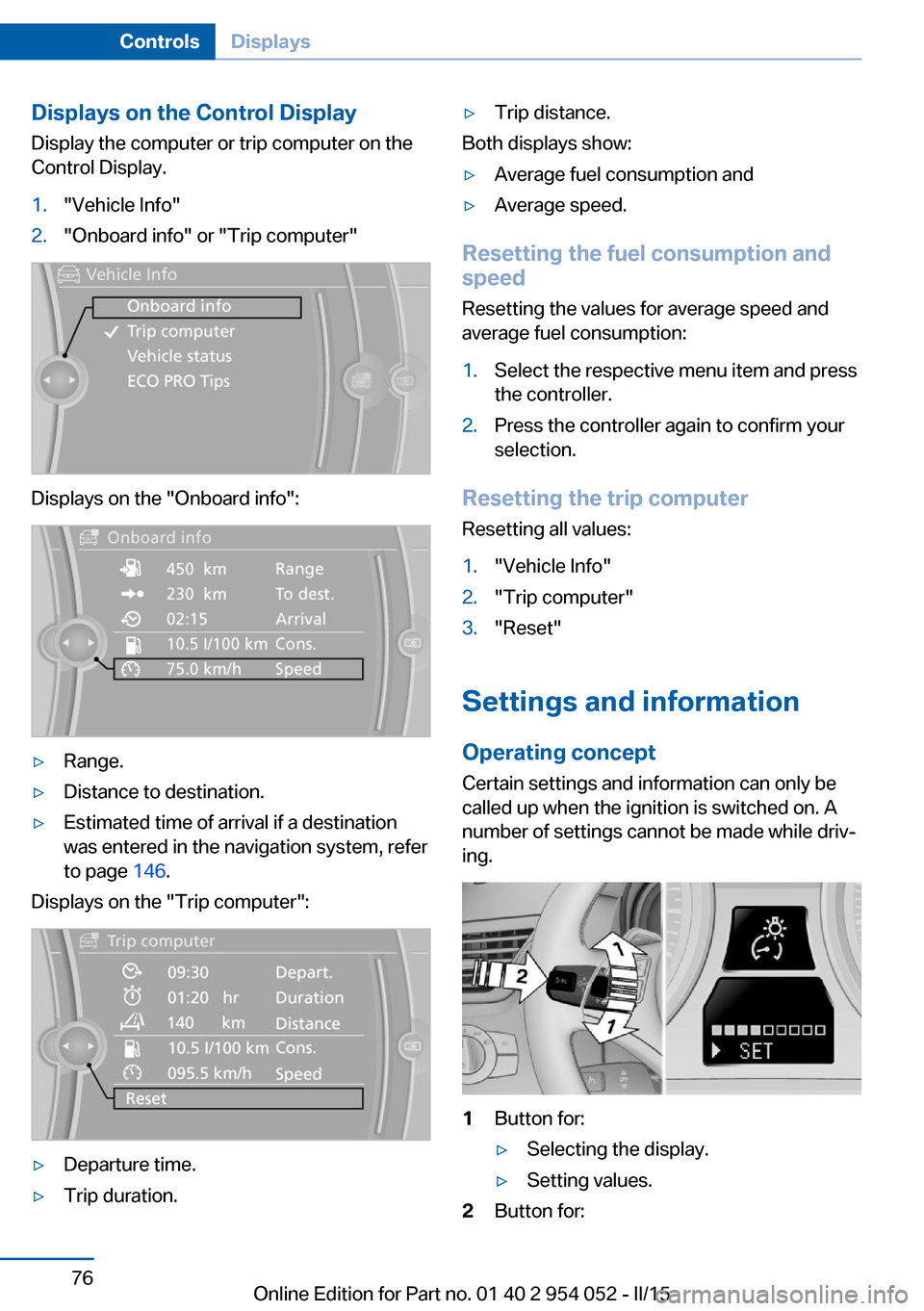
Displays on the Control Display
Display the computer or trip computer on the
Control Display.1."Vehicle Info"2."Onboard info" or "Trip computer"
Displays on the "Onboard info":
▷Range.▷Distance to destination.▷Estimated time of arrival if a destination
was entered in the navigation system, refer
to page 146.
Displays on the "Trip computer":
▷Departure time.▷Trip duration.▷Trip distance.
Both displays show:
▷Average fuel consumption and▷Average speed.
Resetting the fuel consumption and
speed
Resetting the values for average speed and
average fuel consumption:
1.Select the respective menu item and press
the controller.2.Press the controller again to confirm your
selection.
Resetting the trip computer
Resetting all values:
1."Vehicle Info"2."Trip computer"3."Reset"
Settings and information
Operating concept Certain settings and information can only be
called up when the ignition is switched on. A
number of settings cannot be made while driv‐
ing.
1Button for:▷Selecting the display.▷Setting values.2Button for:Seite 76ControlsDisplays76
Online Edition for Part no. 01 40 2 954 052 - II/15
Page 93 of 297
Protective action
Airbags are not triggered in every impact situa‐
tion, e.g., in less severe accidents or rear-end
collisions.
Information on how to ensure the optimal
protective effect of the airbags▷Keep at a distance from the airbags.▷Always grasp the steering wheel on the
steering wheel rim, holding your hands at
the 3 o'clock and 9 o'clock positions, to
keep the danger of injury to your hands or
arms as low as possible if the airbag is trig‐
gered.▷There should be no people, animals, or ob‐
jects between an airbag and a person.▷Do not use the cover of the front airbag on
the front passenger side as a storage area.▷Keep the dashboard and window on the
front passenger side clear, i.e., do not
cover with adhesive labels or coverings,
and do not attach holders or cables such
as for navigation instruments and mobile
phones.▷Make sure that the front passenger is sit‐
ting correctly, i.e., keeps his or her feet and
legs in the footwell; otherwise, leg injuries
can occur if the front airbag is triggered.▷Do not place slip covers, seat cushions or
other objects on the front passenger seat
that are not approved specifically for seats
with integrated side airbags.▷Do not hang pieces of clothing, such as
jackets, over the backrests.▷Make sure that occupants keep their heads
away from the side airbag and do not rest
against the head airbag; otherwise, injuries
can occur if the airbags are triggered.▷Do not remove the airbag restraint system.▷Do not remove the steering wheel.▷Do not apply adhesive materials to the air‐
bag cover panels, cover them or modify
them in any way.▷Never modify either the individual compo‐
nents or the wiring in the airbag system.
This also applies to steering wheel covers,
the dashboard, the seats, the roof pillars
and the sides of the headliner.◀
Even when all instructions are followed closely,
injury from contact with the airbags cannot be
ruled out in certain situations.
The ignition and inflation noise may lead to
short-term and, in most cases, temporary
hearing impairment in sensitive individuals.
In the case of a malfunction, deactivation
and after triggering of the airbags
Do not touch the individual components imme‐
diately after the system has been triggered;
otherwise, there is the danger of burns.
Only have the airbags checked, repaired or dis‐
mantled and the airbag generator scrapped by
your service center or a workshop that has the
necessary authorization for handling explo‐
sives.
Non-professional attempts to service the sys‐
tem could lead to failure in an emergency or
undesired triggering of the airbag, either of
which could result in injury.◀
Warnings and information on the airbags are
also found on the sun visors.
Automatic deactivation of the front
passenger airbags
The system determines whether the front pas‐
senger seat is occupied by measuring the re‐
sistance of the human body.
The front and side airbags on the front passen‐
ger side are activated or deactivated accord‐
ingly by the system.
The indicator lamp above the interior rearview
mirror shows the current status of the front
passenger airbags, deactivated or activated,
refer to Front passenger airbag indicator lamp
below.
Seite 91SafetyControls91
Online Edition for Part no. 01 40 2 954 052 - II/15
Page 145 of 297
Navigation
This chapter contains various examples of how the navigation system can guide you reliably to your destination.Online Edition for Part no. 01 40 2 954 052 - II/15
Page 146 of 297
Navigation systemVehicle equipmentThis chapter describes all series equipment as
well as country-specific and special equipment
offered for this model series. Therefore, it also
describes equipment that may not be found in
your vehicle, for instance due to the selected
special equipment or the country version. This
also applies to safety-related functions and
systems.
When using the features and systems descri‐
bed here, adhere to local regulations.
General information The navigation system can determine the pre‐
cise position of the vehicle, with the aid of sat‐
ellites and vehicle sensors, and can reliably
guide you to every entered destination.
Entries in stationary vehicle
Enter data only when the vehicle is sta‐
tionary, and always give priority to the applica‐
ble traffic regulations in the event of any con‐
tradiction between traffic and road conditions
and the instructions issued by the navigation
system. Failure to take to this precaution can
place you in violation of the law and put vehicle
occupants and other road users in danger.◀
Opening the navigation system1. Press the button on the controller.2."Navigation"
The navigation system can also be called
up directly using the button on the con‐
troller.
Navigation data
Information on navigation data1."Navigation"2.Open "Options".3."Navigation system version"
Information is displayed on the data ver‐
sion.
Updating the navigation data
General information
Navigation data are stored in the vehicle and
can be updated.
Current navigation data and the authorization
code are available from your service center.
▷Depending on the data volume, a data up‐
date may take several hours.▷Update during the trip to preserve battery.▷During the update, only the basic functions
of the navigation system are available.▷The status of the update can be viewed.▷After the updating process is complete, the
system restarts.▷Remove the medium with the navigation
data after the update.
Performing an update
1.Insert the navigation DVD into the DVD
player with the labeled side facing up.2.Follow the instructions on the Control Dis‐
play.3.Enter the authorization code of the naviga‐
tion DVD.4.Change the DVD if necessary.
After the trip is interrupted, follow the instruc‐
tions on the Control Display.
Seite 144NavigationNavigation system144
Online Edition for Part no. 01 40 2 954 052 - II/15
Page 147 of 297
Viewing the status1.Open "Options".2."Navigation update"
Removing navigation DVD
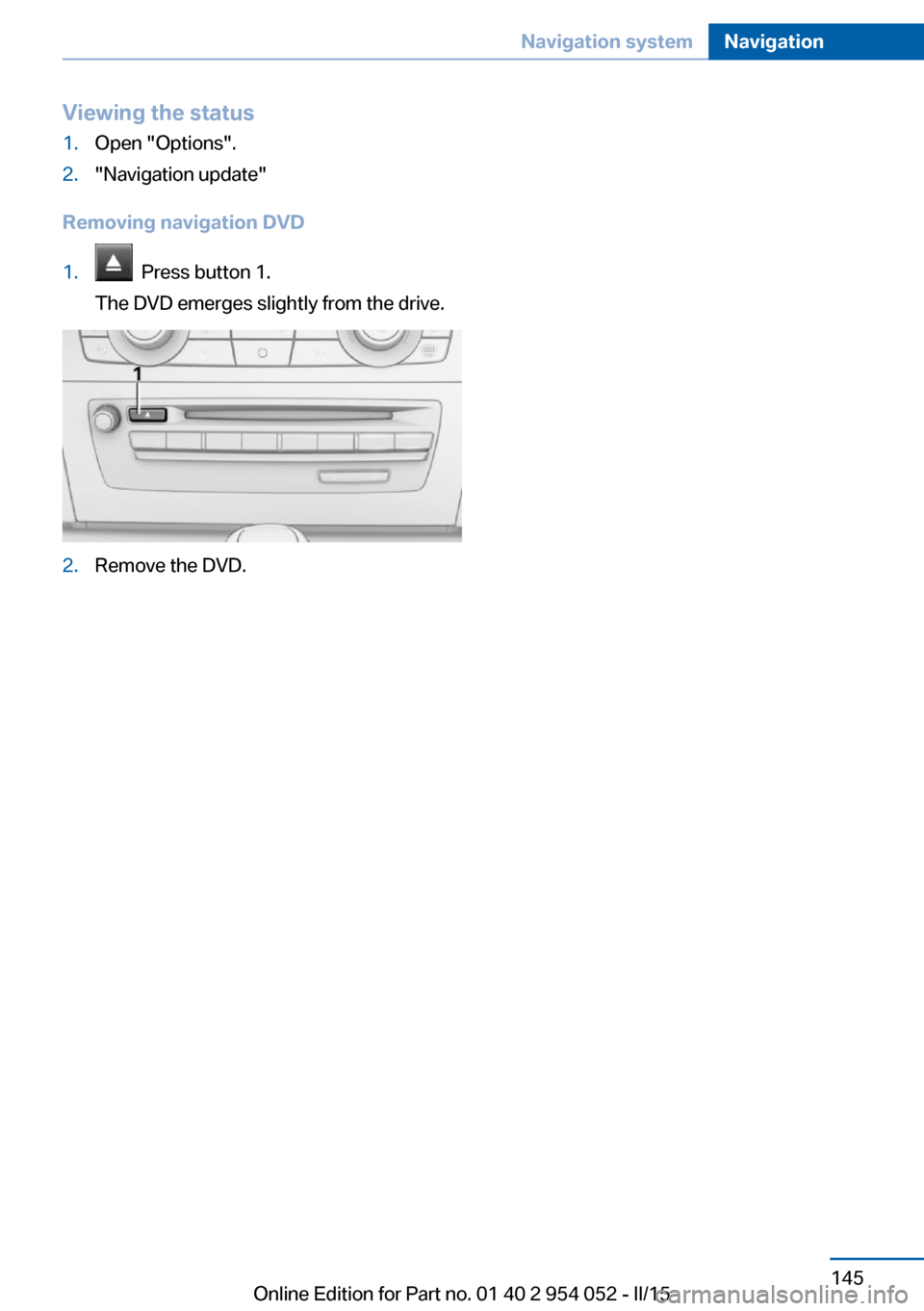
1. Press button 1.
The DVD emerges slightly from the drive.2.Remove the DVD.Seite 145Navigation systemNavigation145
Online Edition for Part no. 01 40 2 954 052 - II/15
Page 148 of 297
Destination entryVehicle equipment
This chapter describes all series equipment as
well as country-specific and special equipment
offered for this model series. Therefore, it also
describes equipment that may not be found in
your vehicle, for instance due to the selected
special equipment or the country version. This
also applies to safety-related functions and
systems.
When using the features and systems descri‐
bed here, adhere to local regulations.
At a glance In entering your destination you can select
from the following options:▷Enter the destination manually, see below.▷Select the destination from the address
book, refer to page 148.▷Last destinations, refer to page 149.▷Special destinations, refer to page 149.▷Destination entry via map, refer to
page 151.▷Using the home address as the destina‐
tion, refer to page 149.▷Destination entry by voice, refer to
page 152.▷Destination entry via the Concierge serv‐
ice, refer to page 151.
You can also store a navigation destination on
the programmable memory buttons, refer to
page 24.
Entries in stationary vehicle
Enter data only when the vehicle is sta‐
tionary, and always give priority to the applica‐
ble traffic regulations in the event of any con‐
tradiction between traffic and road conditions
and the instructions issued by the navigation
system. Failure to take to this precaution can
place you in violation of the law and put vehicle
occupants and other road users in danger.◀
Manual destination entry General information
The system supports you in entering street
names and house numbers by automatically
completing the entry and providing entry com‐
parisons, refer to page 25.
Stored town/city and street names can be
called up quickly.▷If the existing entries should not be
changed, the entries for the state/province
and town/city can be skipped.▷Destination guidance is started to the
town/city center if no street is entered.
Entering a state/province
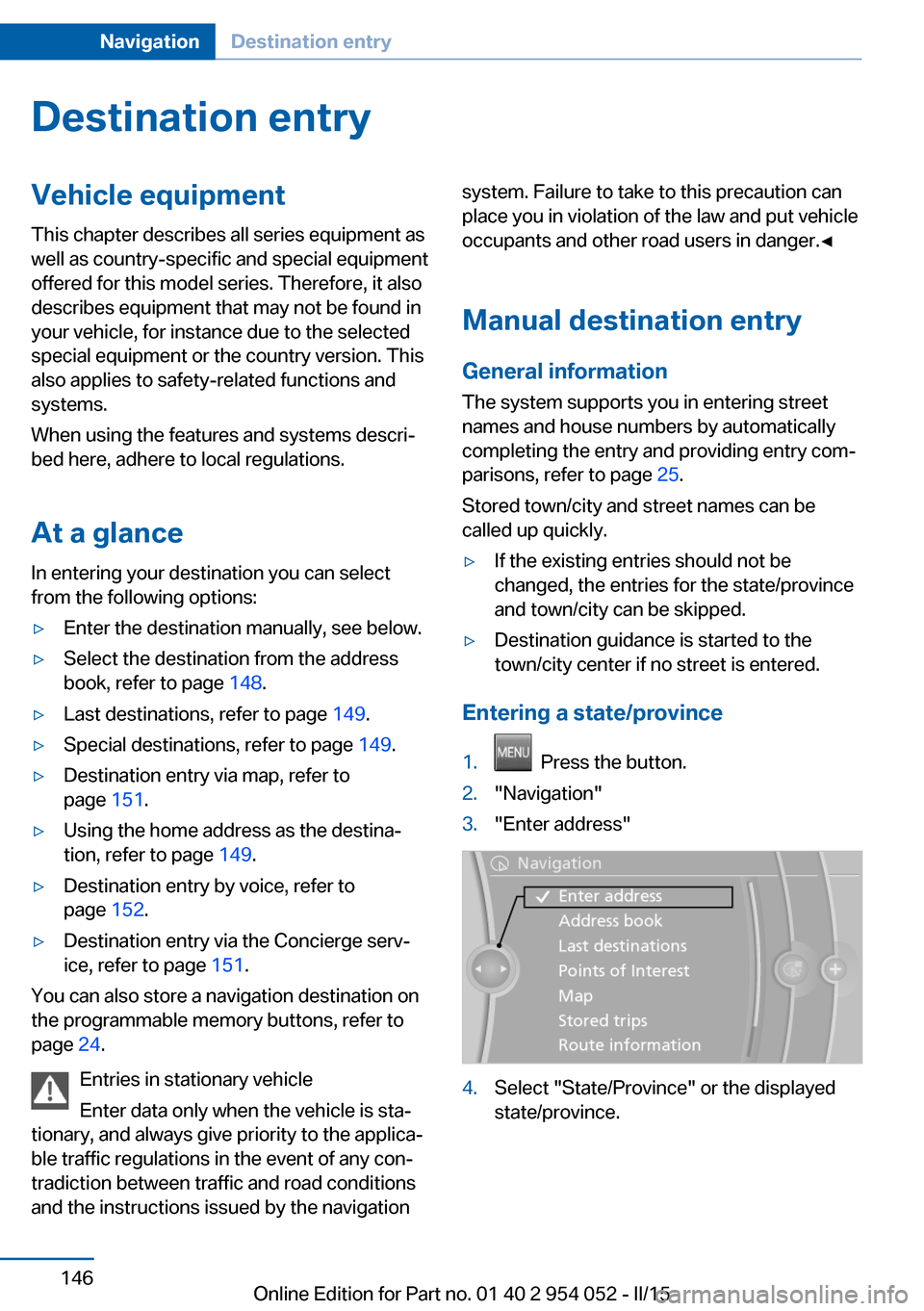
1. Press the button.2."Navigation"3."Enter address"4.Select "State/Province" or the displayed
state/province.Seite 146NavigationDestination entry146
Online Edition for Part no. 01 40 2 954 052 - II/15
Page 153 of 297
Destination entry via the Concierge
service
A connection is established to the Concierge
service, refer to page 221.1."Navigation"2."Enter address"3.Open "Options".4."BMW Assist dest. entry"
Displaying Points of Interest in the
map
To display symbols of the Points of Interest in
the map view:
1."Navigation"2."Map"3.Open "Options".4."Display Points of Interest"5.Select the setting.
Destination entry by map
Selecting the destination
1."Navigation"2."Map"
The current position of the vehicle is dis‐
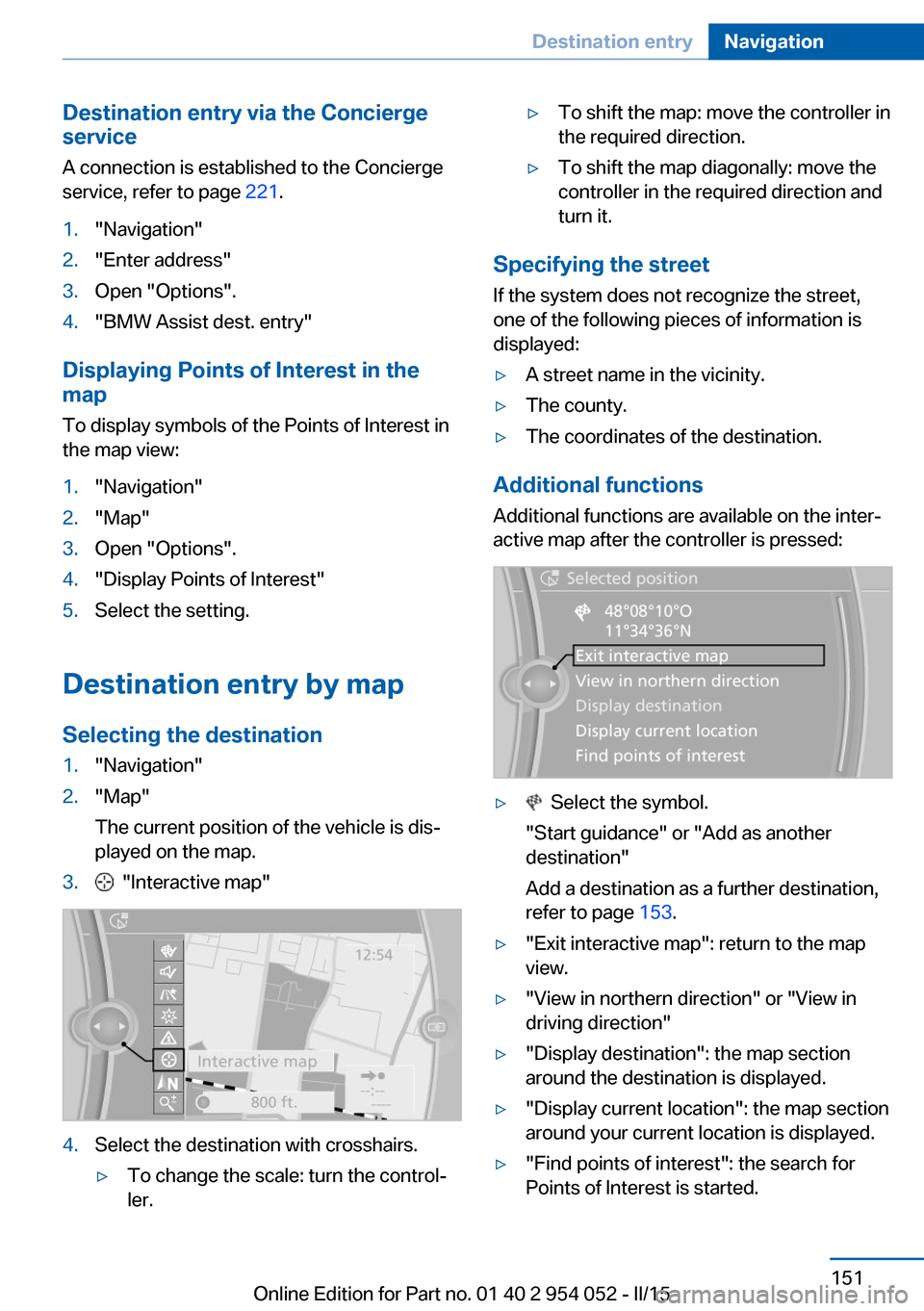
played on the map.3. "Interactive map"4.Select the destination with crosshairs.▷To change the scale: turn the control‐
ler.▷To shift the map: move the controller in
the required direction.▷To shift the map diagonally: move the
controller in the required direction and
turn it.
Specifying the street
If the system does not recognize the street,
one of the following pieces of information is
displayed:
▷A street name in the vicinity.▷The county.▷The coordinates of the destination.
Additional functions
Additional functions are available on the inter‐
active map after the controller is pressed:
▷ Select the symbol.
"Start guidance" or "Add as another destination"
Add a destination as a further destination,
refer to page 153.▷"Exit interactive map": return to the map
view.▷"View in northern direction" or "View in driving direction"▷"Display destination": the map section
around the destination is displayed.▷"Display current location": the map section
around your current location is displayed.▷"Find points of interest": the search for
Points of Interest is started.Seite 151Destination entryNavigation151
Online Edition for Part no. 01 40 2 954 052 - II/15
Page 154 of 297
Destination entry by voiceGeneral information▷Instructions for voice activation system, re‐
fer to page 27.▷When making a destination entry by voice,
you can change between voice operation
and iDrive.▷To have the available spoken instructions
read out loud: ›Voice commands‹.
Saying the entries
▷The town/city, street, and house number
can be entered using a single command.▷Countries, towns and cities, streets, and
intersections can be said as whole words
or spelled in the language of the system,
refer to page 79.
Example: to enter a destination in a US
state as a whole word, the system lan‐
guage must be English.▷Spell the entry if the spoken language and
the language of the system differ.▷Say the letters smoothly, and avoid exag‐
gerating the pronunciation and inserting
lengthy pauses between the letters.▷The methods of entry depend on the navi‐
gation data in use and the country and lan‐
guage settings.
Entering the address in a command
1. Press the button on the steering
wheel.2.›Enter address‹3.Wait for a request from the system.4.Say the address in the suggested order.5.Continue making the entry as prompted by
the system.
If necessary, individually name the sepa‐
rate components of the address, e.g., the
town/city.Entering a town/city separately
The town/city can be said as a complete word.
With the destination entry menu displayed:1. Press the button on the steering
wheel.2.›City‹ or ›Spell city‹3.Wait for the system to prompt you for the
town/city.4.Say the name of the town/city, or name at
least the first three letters.
Depending on the entry, up to 20 towns/
cities may be suggested.5.Select a location:▷Select a recommended town/
city: ›Yes‹.▷Select a different town/city: ›New
entry‹.▷Select an entry: ›Entry ...‹, for instance,
entry 2.▷Spell an entry: ›Spell city‹.6.Continue making the entry as prompted by
the system.
If there are several towns/cities with the same
name:
Towns/cities of the same name are grouped in
a list and displayed as one location followed by
an ellipsis.
1.Select an entry: ›Yes‹ or ›Entry ...‹, e. g., En‐
try 2.2.Select the desired town/city.
Entering a street or intersection
separately
Enter a street and intersection in the same way
as you would enter a town/city.
Seite 152NavigationDestination entry152
Online Edition for Part no. 01 40 2 954 052 - II/15