Multimedia BMW X1 2015 E84 Owner's Guide
[x] Cancel search | Manufacturer: BMW, Model Year: 2015, Model line: X1, Model: BMW X1 2015 E84Pages: 297, PDF Size: 7.01 MB
Page 192 of 297
Use of a mobile phone as an audio source,
refer to page 200.▷Bluetooth® is a registered trademark of
Bluetooth® SIG, Inc.▷The sound is output on the vehicle loud‐
speakers.▷The volume of the sound output is de‐
pendent on the device. If necessary, adjust
the volume on the device.▷Up to four external devices can be paired
with the vehicle.
Requirements
▷The device is suitable. Details can be found
at www.bmwusa.com/bluetooth▷The device is ready for operation.▷The ignition is switched on.▷Bluetooth is activated on the vehicle, refer
to page 199.▷Bluetooth is activated on the vehicle.▷Bluetooth presettings must be made on
the device, such as for a connection with‐
out confirmation or visibility; refer to the
device operating instructions.▷A number with at least four and a maximum
of 16 digits is defined as the Bluetooth
passkey. It is only required once for pairing.
Pairing and connecting
Pairing a device
To avoid becoming distracted and pos‐
ing an unnecessary hazard both to your own
vehicle's occupants and to other road users,
only pair the device while the vehicle is station‐
ary.◀
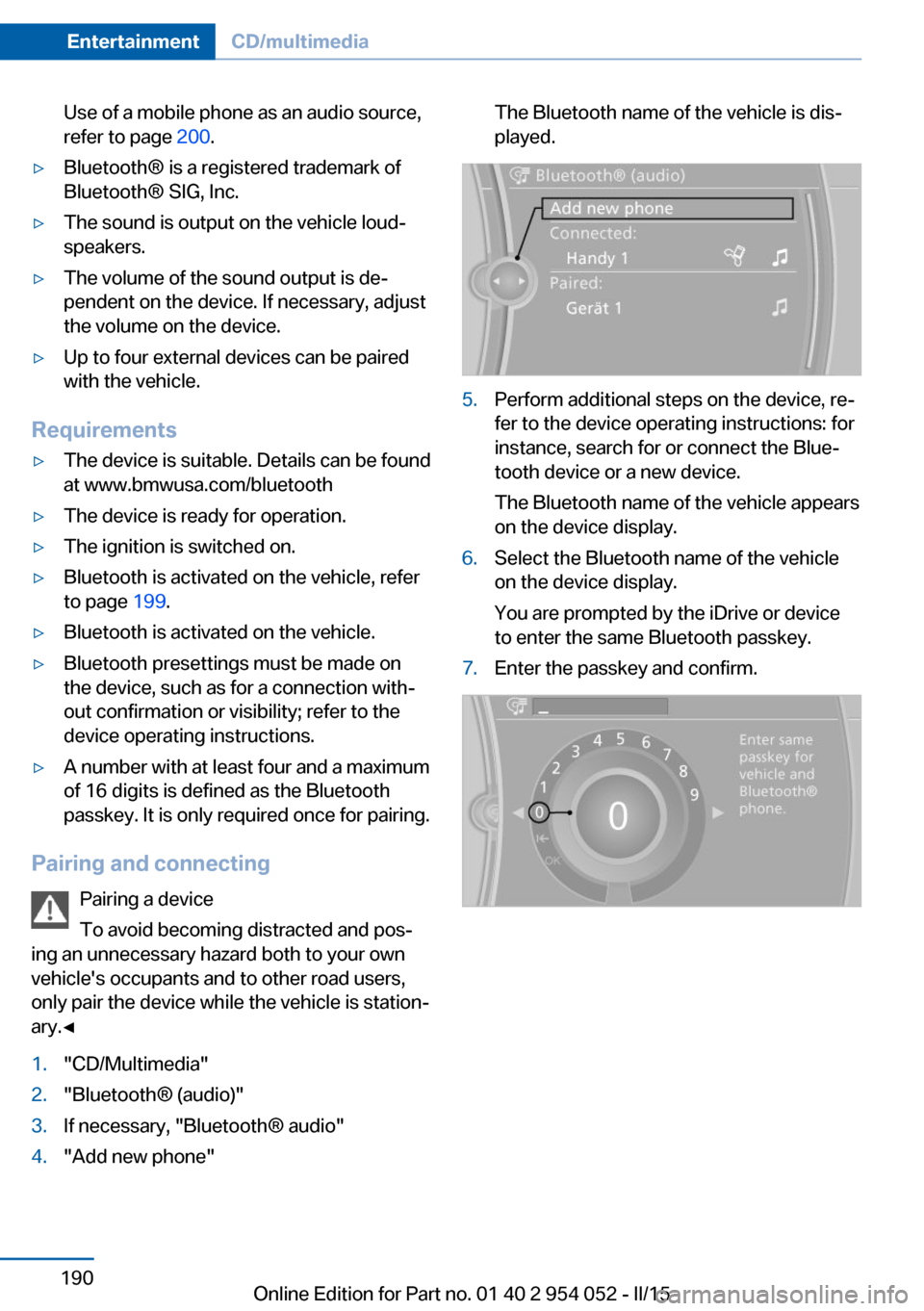
1."CD/Multimedia"2."Bluetooth® (audio)"3.If necessary, "Bluetooth® audio"4."Add new phone"The Bluetooth name of the vehicle is dis‐
played.5.Perform additional steps on the device, re‐
fer to the device operating instructions: for
instance, search for or connect the Blue‐
tooth device or a new device.
The Bluetooth name of the vehicle appears
on the device display.6.Select the Bluetooth name of the vehicle
on the device display.
You are prompted by the iDrive or device
to enter the same Bluetooth passkey.7.Enter the passkey and confirm.Seite 190EntertainmentCD/multimedia190
Online Edition for Part no. 01 40 2 954 052 - II/15
Page 193 of 297
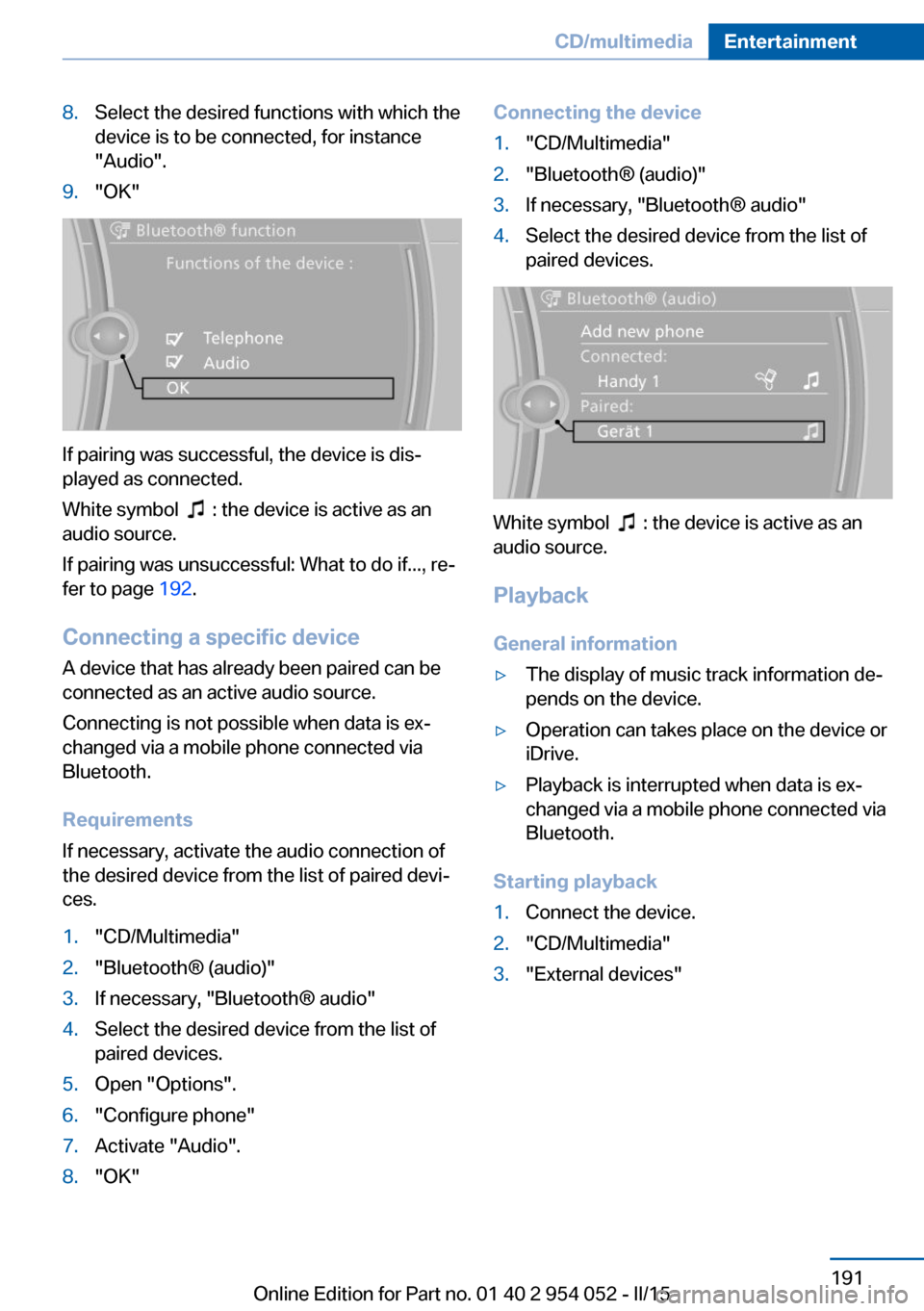
8.Select the desired functions with which the
device is to be connected, for instance
"Audio".9."OK"
If pairing was successful, the device is dis‐
played as connected.
White symbol
: the device is active as an
audio source.
If pairing was unsuccessful: What to do if..., re‐
fer to page 192.
Connecting a specific device A device that has already been paired can be
connected as an active audio source.
Connecting is not possible when data is ex‐
changed via a mobile phone connected via
Bluetooth.
Requirements
If necessary, activate the audio connection of
the desired device from the list of paired devi‐
ces.
1."CD/Multimedia"2."Bluetooth® (audio)"3.If necessary, "Bluetooth® audio"4.Select the desired device from the list of
paired devices.5.Open "Options".6."Configure phone"7.Activate "Audio".8."OK"Connecting the device1."CD/Multimedia"2."Bluetooth® (audio)"3.If necessary, "Bluetooth® audio"4.Select the desired device from the list of
paired devices.
White symbol : the device is active as an
audio source.
Playback General information
▷The display of music track information de‐
pends on the device.▷Operation can takes place on the device or
iDrive.▷Playback is interrupted when data is ex‐
changed via a mobile phone connected via
Bluetooth.
Starting playback
1.Connect the device.2."CD/Multimedia"3."External devices"Seite 191CD/multimediaEntertainment191
Online Edition for Part no. 01 40 2 954 052 - II/15
Page 194 of 297
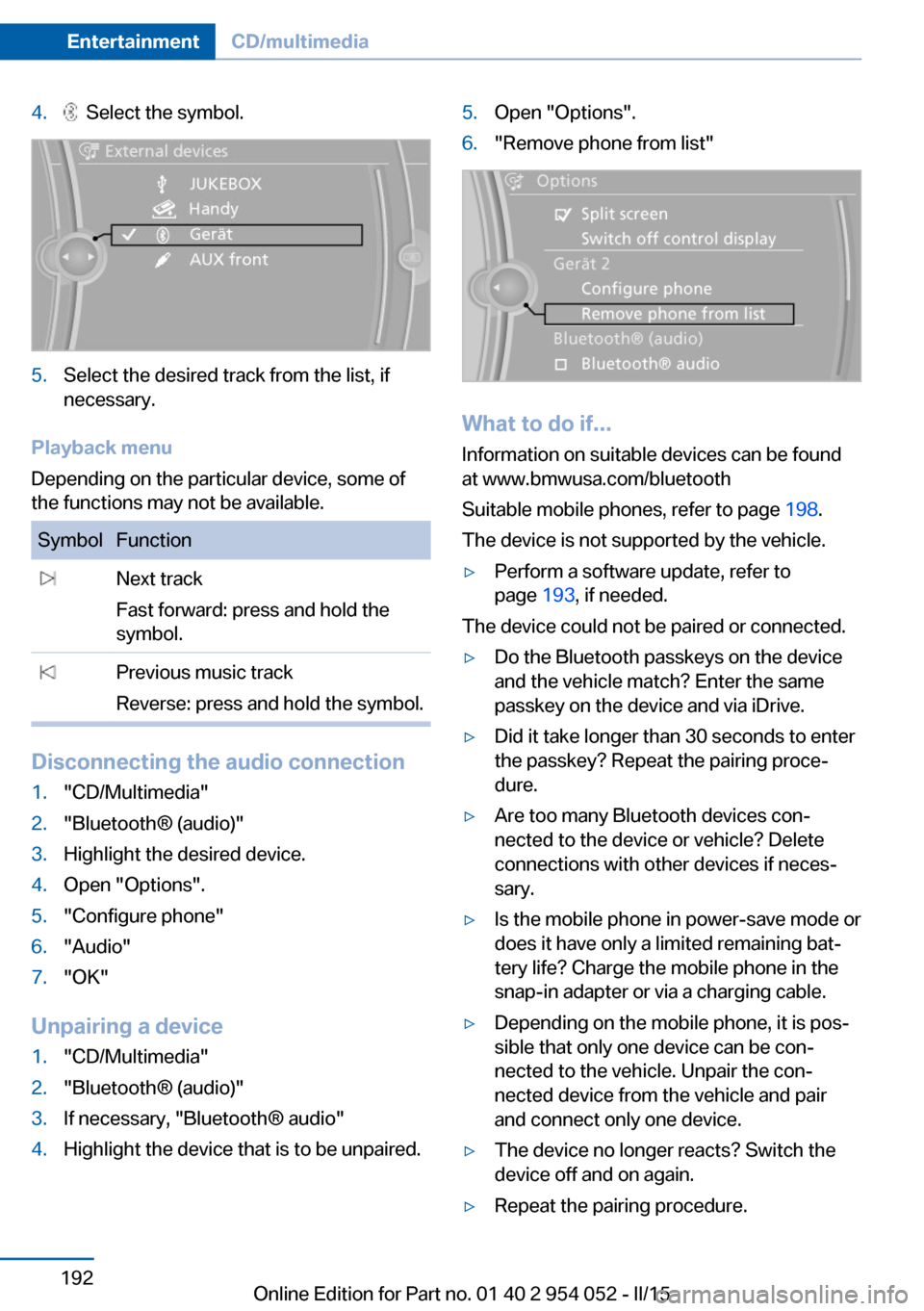
4. Select the symbol.5.Select the desired track from the list, if
necessary.
Playback menu
Depending on the particular device, some of
the functions may not be available.
SymbolFunction Next track
Fast forward: press and hold the
symbol. Previous music track
Reverse: press and hold the symbol.
Disconnecting the audio connection
1."CD/Multimedia"2."Bluetooth® (audio)"3.Highlight the desired device.4.Open "Options".5."Configure phone"6."Audio"7."OK"
Unpairing a device
1."CD/Multimedia"2."Bluetooth® (audio)"3.If necessary, "Bluetooth® audio"4.Highlight the device that is to be unpaired.5.Open "Options".6."Remove phone from list"
What to do if...
Information on suitable devices can be found
at www.bmwusa.com/bluetooth
Suitable mobile phones, refer to page 198.
The device is not supported by the vehicle.
▷Perform a software update, refer to
page 193, if needed.
The device could not be paired or connected.
▷Do the Bluetooth passkeys on the device
and the vehicle match? Enter the same
passkey on the device and via iDrive.▷Did it take longer than 30 seconds to enter
the passkey? Repeat the pairing proce‐
dure.▷Are too many Bluetooth devices con‐
nected to the device or vehicle? Delete
connections with other devices if neces‐
sary.▷Is the mobile phone in power-save mode or
does it have only a limited remaining bat‐
tery life? Charge the mobile phone in the
snap-in adapter or via a charging cable.▷Depending on the mobile phone, it is pos‐
sible that only one device can be con‐
nected to the vehicle. Unpair the con‐
nected device from the vehicle and pair
and connect only one device.▷The device no longer reacts? Switch the
device off and on again.▷Repeat the pairing procedure.Seite 192EntertainmentCD/multimedia192
Online Edition for Part no. 01 40 2 954 052 - II/15
Page 195 of 297
Music cannot be played back.▷Start the program for playing back music
data on the device and select a track on the
device if necessary.▷Switch the radio on and off again.
Music files can only be played back softly.
▷Adjust the volume settings on the device.
Playback is disturbed when buttons are
pressed or by other messages on the device.
▷Switch off the button tones and other sig‐
nal tones on the device.
Playback is interrupted by a telephone call or
traffic bulletin and is not resumed automati‐
cally.
▷Switch the radio on and off again.
Playback is not possible if the mobile phone is
connected via Bluetooth Audio while it is also
connected via the USB interface or the snap-in
adapter.
▷Disconnect one of the two connections; for
example, disconnect the audio connection,
refer to page 192. Start playback again.
If all points in this list have been checked and
the required function is still not available,
please contact the hotline or service center.
Software Update
The vehicle supports various external devices
depending on the current software version.
With a software update, the vehicle can sup‐
port new mobile phones or new external de‐
vice, for example.
▷USB.
Software updates and related current infor‐
mation is available at www.bmw.com/
update.
Displaying the current version
The currently installed software is displayed.
1."Settings"2."Software update"3."Show current version"
Select desired version to display additional in‐
formation.
Updating software via USB The software may only be updated when the
vehicle is stationary.
1.Store the file for the software-update in the
main director of a USB flash drive.2.Insert the USB flash drive into the USB au‐
dio interface in the center console. An up‐
date via the USB interface in the glove
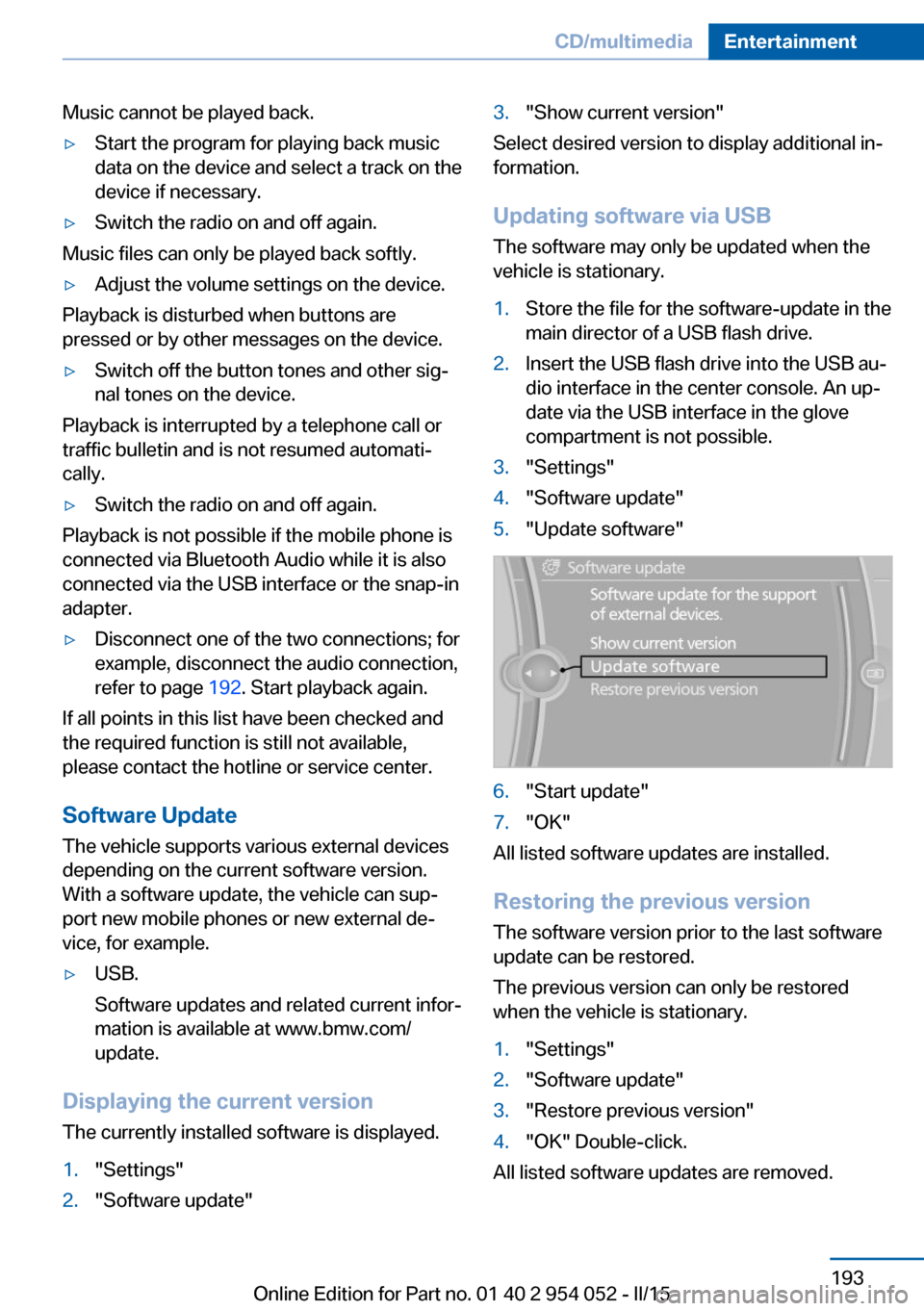
compartment is not possible.3."Settings"4."Software update"5."Update software"6."Start update"7."OK"
All listed software updates are installed.
Restoring the previous version
The software version prior to the last software
update can be restored.
The previous version can only be restored
when the vehicle is stationary.
1."Settings"2."Software update"3."Restore previous version"4."OK" Double-click.
All listed software updates are removed.
Seite 193CD/multimediaEntertainment193
Online Edition for Part no. 01 40 2 954 052 - II/15
Page 196 of 297
NoteWhile the software is being updated or a previ‐
ous version is being restored, BMW Assist, Of‐
fice functions, and the connected devices are
temporarily unavailable. Wait several minutes
for the functions to become available again.Seite 194EntertainmentCD/multimedia194
Online Edition for Part no. 01 40 2 954 052 - II/15
Page 197 of 297

Seite 195CD/multimediaEntertainment195
Online Edition for Part no. 01 40 2 954 052 - II/15
Page 279 of 297
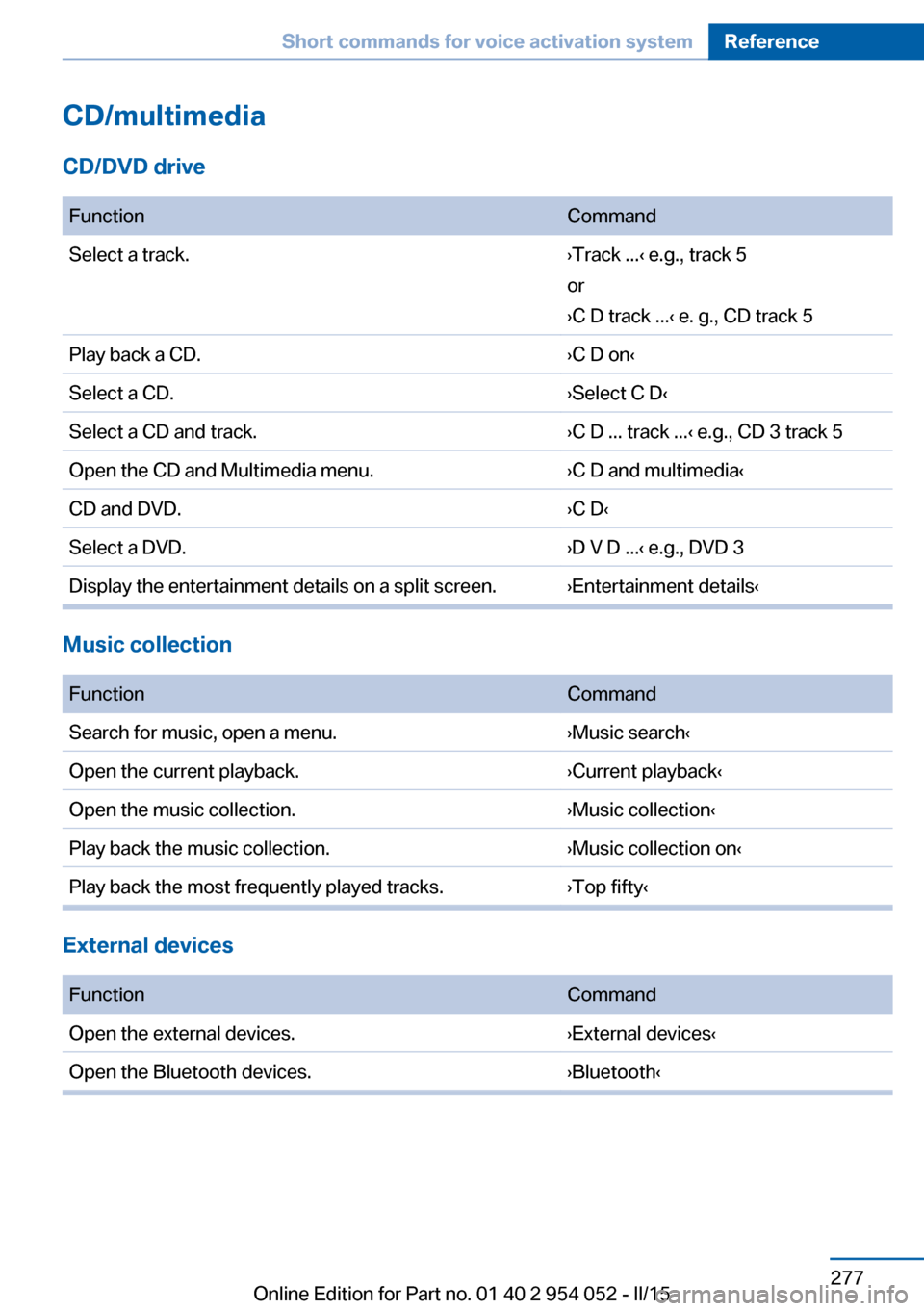
CD/multimedia
CD/DVD drive
FunctionCommandSelect a track.›Track ...‹ e.g., track 5
or
›C D track ...‹ e. g., CD track 5Play back a CD.›C D on‹Select a CD.›Select C D‹Select a CD and track.›C D ... track ...‹ e.g., CD 3 track 5Open the CD and Multimedia menu.›C D and multimedia‹CD and DVD.›C D‹Select a DVD.›D V D ...‹ e.g., DVD 3Display the entertainment details on a split screen.›Entertainment details‹
Music collection
FunctionCommandSearch for music, open a menu.›Music search‹Open the current playback.›Current playback‹Open the music collection.›Music collection‹Play back the music collection.›Music collection on‹Play back the most frequently played tracks.›Top fifty‹
External devices
FunctionCommandOpen the external devices.›External devices‹Open the Bluetooth devices.›Bluetooth‹Seite 277Short commands for voice activation systemReference277
Online Edition for Part no. 01 40 2 954 052 - II/15
Page 290 of 297
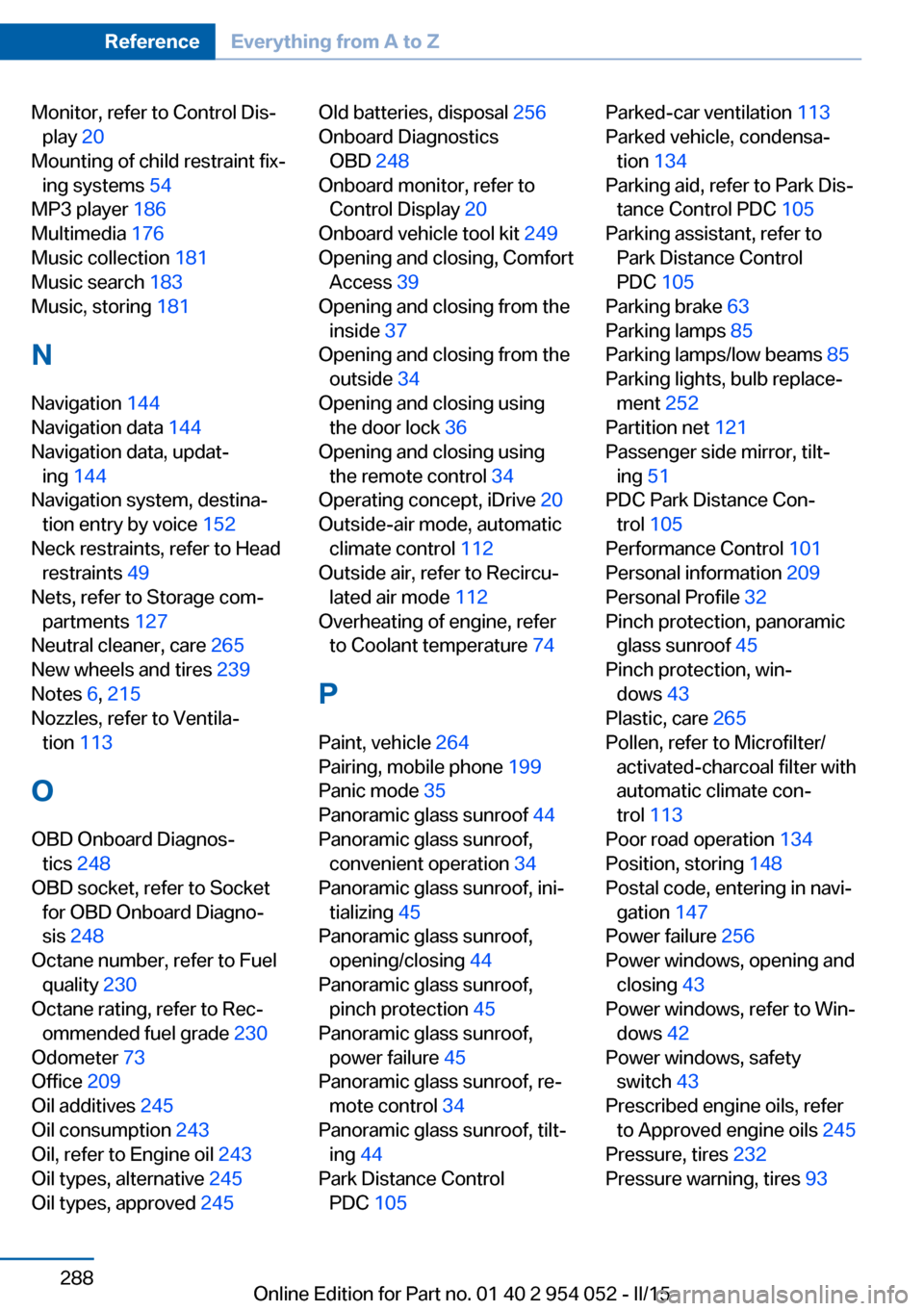
Monitor, refer to Control Dis‐play 20
Mounting of child restraint fix‐ ing systems 54
MP3 player 186
Multimedia 176
Music collection 181
Music search 183
Music, storing 181
N
Navigation 144
Navigation data 144
Navigation data, updat‐ ing 144
Navigation system, destina‐ tion entry by voice 152
Neck restraints, refer to Head restraints 49
Nets, refer to Storage com‐ partments 127
Neutral cleaner, care 265
New wheels and tires 239
Notes 6, 215
Nozzles, refer to Ventila‐ tion 113
O OBD Onboard Diagnos‐ tics 248
OBD socket, refer to Socket for OBD Onboard Diagno‐
sis 248
Octane number, refer to Fuel quality 230
Octane rating, refer to Rec‐ ommended fuel grade 230
Odometer 73
Office 209
Oil additives 245
Oil consumption 243
Oil, refer to Engine oil 243
Oil types, alternative 245
Oil types, approved 245 Old batteries, disposal 256
Onboard Diagnostics OBD 248
Onboard monitor, refer to Control Display 20
Onboard vehicle tool kit 249
Opening and closing, Comfort Access 39
Opening and closing from the inside 37
Opening and closing from the outside 34
Opening and closing using the door lock 36
Opening and closing using the remote control 34
Operating concept, iDrive 20
Outside-air mode, automatic climate control 112
Outside air, refer to Recircu‐ lated air mode 112
Overheating of engine, refer to Coolant temperature 74
P Paint, vehicle 264
Pairing, mobile phone 199
Panic mode 35
Panoramic glass sunroof 44
Panoramic glass sunroof, convenient operation 34
Panoramic glass sunroof, ini‐ tializing 45
Panoramic glass sunroof, opening/closing 44
Panoramic glass sunroof, pinch protection 45
Panoramic glass sunroof, power failure 45
Panoramic glass sunroof, re‐ mote control 34
Panoramic glass sunroof, tilt‐ ing 44
Park Distance Control PDC 105 Parked-car ventilation 113
Parked vehicle, condensa‐ tion 134
Parking aid, refer to Park Dis‐ tance Control PDC 105
Parking assistant, refer to Park Distance Control
PDC 105
Parking brake 63
Parking lamps 85
Parking lamps/low beams 85
Parking lights, bulb replace‐ ment 252
Partition net 121
Passenger side mirror, tilt‐ ing 51
PDC Park Distance Con‐ trol 105
Performance Control 101
Personal information 209
Personal Profile 32
Pinch protection, panoramic glass sunroof 45
Pinch protection, win‐ dows 43
Plastic, care 265
Pollen, refer to Microfilter/ activated-charcoal filter with
automatic climate con‐
trol 113
Poor road operation 134
Position, storing 148
Postal code, entering in navi‐ gation 147
Power failure 256
Power windows, opening and closing 43
Power windows, refer to Win‐ dows 42
Power windows, safety switch 43
Prescribed engine oils, refer to Approved engine oils 245
Pressure, tires 232
Pressure warning, tires 93 Seite 288ReferenceEverything from A to Z288
Online Edition for Part no. 01 40 2 954 052 - II/15