eco BMW X1 2015 E84 Manual PDF
[x] Cancel search | Manufacturer: BMW, Model Year: 2015, Model line: X1, Model: BMW X1 2015 E84Pages: 297, PDF Size: 7.01 MB
Page 205 of 297
If more than one phone number is assigned to
a contact, only the name of the contact is dis‐
played.
For calls on the additional telephone, the num‐
ber is only displayed if it is transmitted by the
network.
An incoming call to one of the telephones is
automatically rejected if there is an active call
on the other telephone.
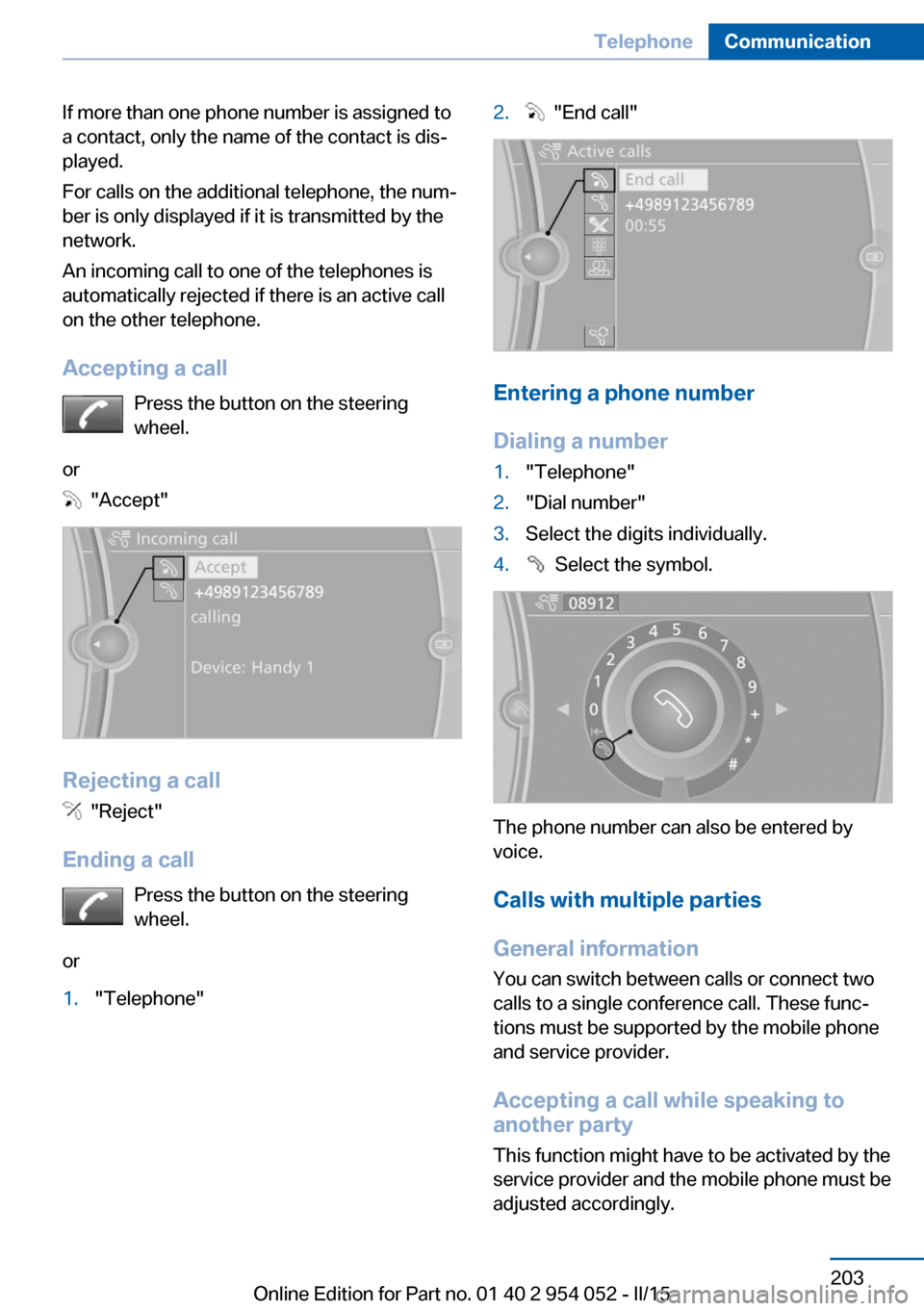
Accepting a call Press the button on the steering
wheel.
or
"Accept"
Rejecting a call
"Reject"
Ending a call Press the button on the steering
wheel.
or
1."Telephone"2. "End call"
Entering a phone number
Dialing a number
1."Telephone"2."Dial number"3.Select the digits individually.4. Select the symbol.
The phone number can also be entered by
voice.
Calls with multiple parties
General information
You can switch between calls or connect two
calls to a single conference call. These func‐
tions must be supported by the mobile phone
and service provider.
Accepting a call while speaking to
another party
This function might have to be activated by the
service provider and the mobile phone must be
adjusted accordingly.
Seite 203TelephoneCommunication203
Online Edition for Part no. 01 40 2 954 052 - II/15
Page 206 of 297
If a second call comes in during an ongoing
call, a call waiting signal is sounded.
"Accept"
The call is accepted and the existing call is put
on hold.
Establishing a second call
Establish an additional call during an active
call.
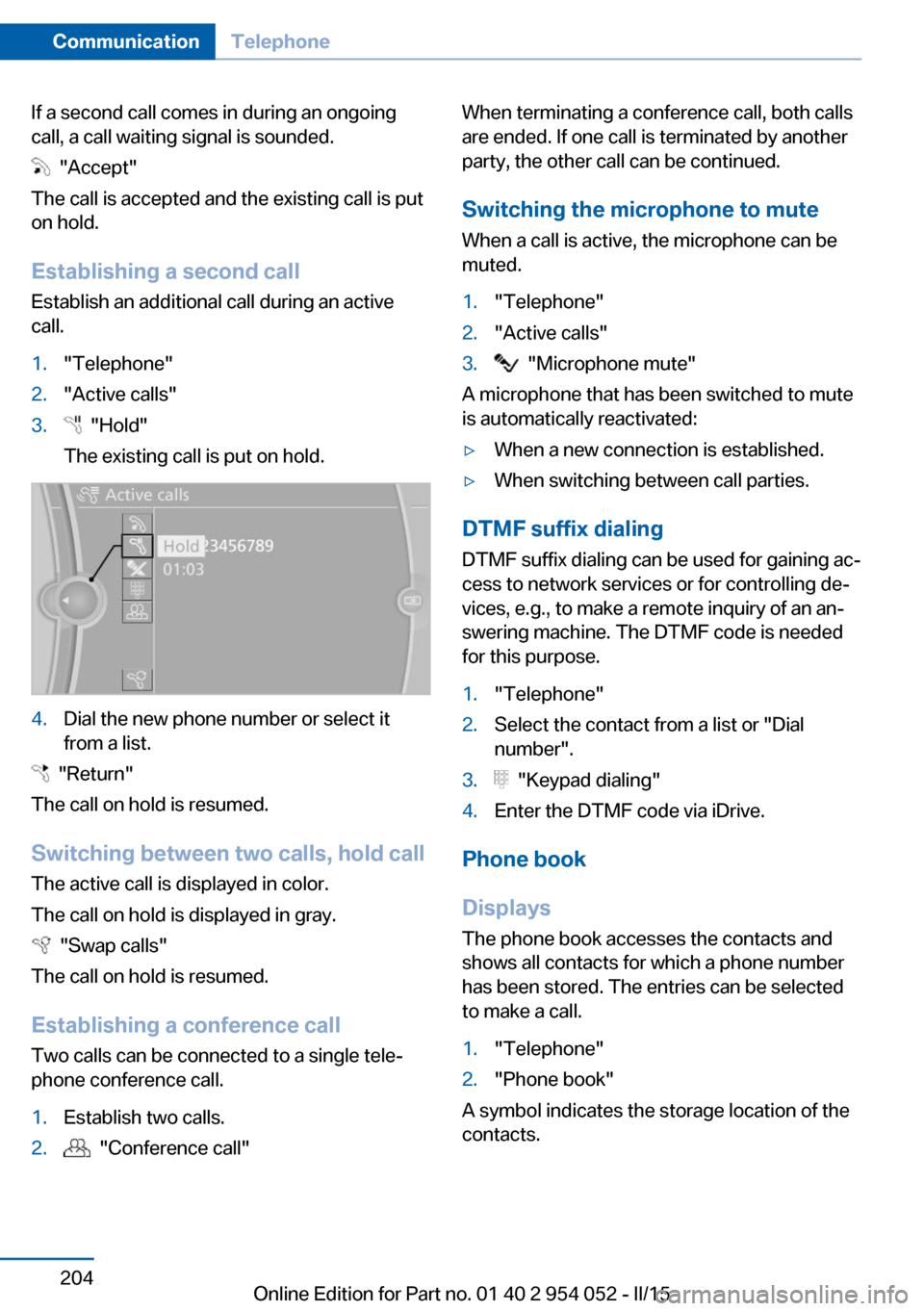
1."Telephone"2."Active calls"3. "Hold"
The existing call is put on hold.4.Dial the new phone number or select it
from a list.
"Return"
The call on hold is resumed.
Switching between two calls, hold call The active call is displayed in color.
The call on hold is displayed in gray.
"Swap calls"
The call on hold is resumed.
Establishing a conference call Two calls can be connected to a single tele‐
phone conference call.
1.Establish two calls.2. "Conference call"When terminating a conference call, both calls
are ended. If one call is terminated by another
party, the other call can be continued.
Switching the microphone to mute When a call is active, the microphone can be
muted.1."Telephone"2."Active calls"3. "Microphone mute"
A microphone that has been switched to mute
is automatically reactivated:
▷When a new connection is established.▷When switching between call parties.
DTMF suffix dialing
DTMF suffix dialing can be used for gaining ac‐
cess to network services or for controlling de‐
vices, e.g., to make a remote inquiry of an an‐
swering machine. The DTMF code is needed
for this purpose.
1."Telephone"2.Select the contact from a list or "Dial
number".3. "Keypad dialing"4.Enter the DTMF code via iDrive.
Phone book
Displays The phone book accesses the contacts and
shows all contacts for which a phone number
has been stored. The entries can be selected
to make a call.
1."Telephone"2."Phone book"
A symbol indicates the storage location of the
contacts.
Seite 204CommunicationTelephone204
Online Edition for Part no. 01 40 2 954 052 - II/15
Page 207 of 297
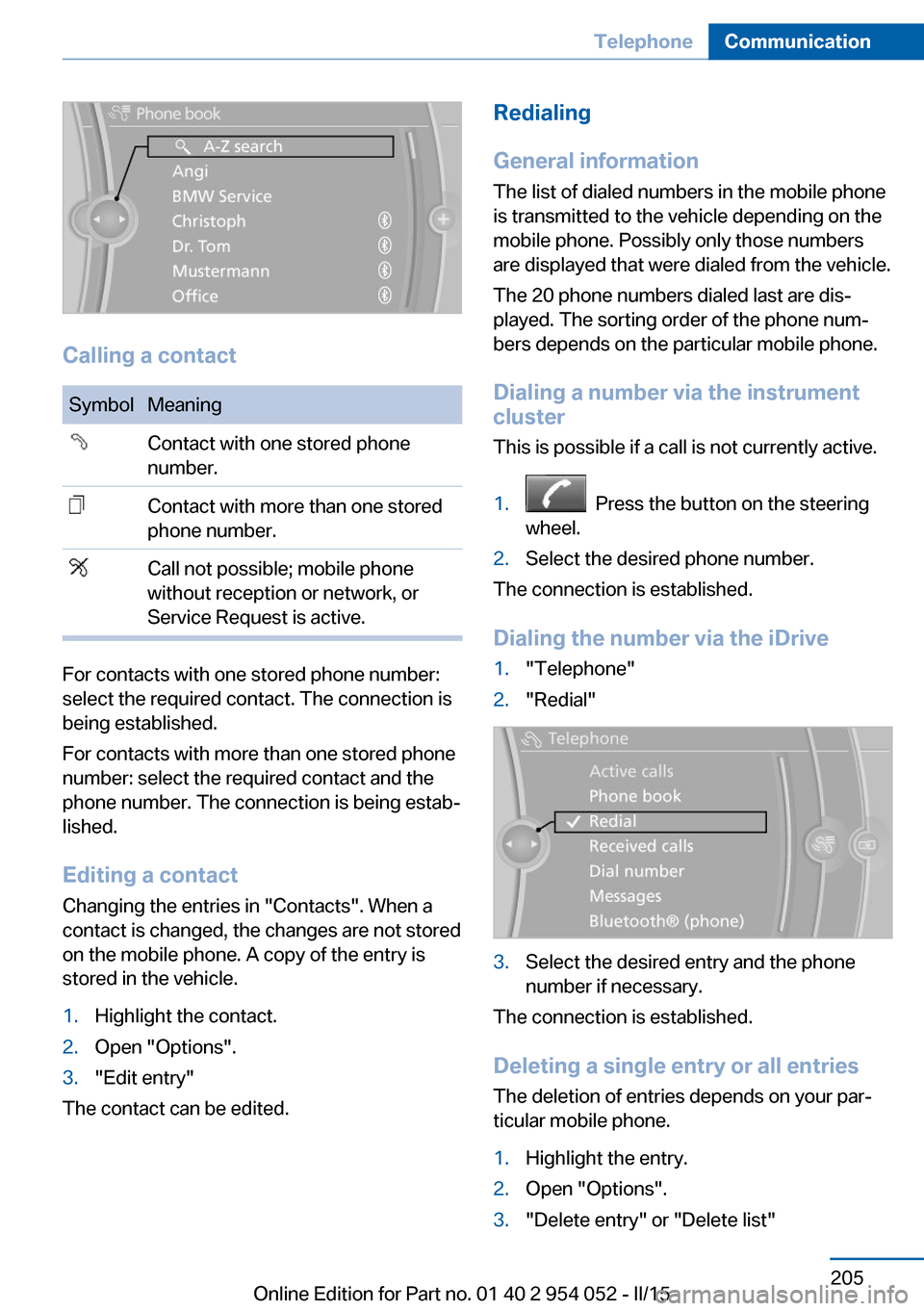
Calling a contact
SymbolMeaningContact with one stored phone
number.Contact with more than one stored
phone number.Call not possible; mobile phone
without reception or network, or
Service Request is active.
For contacts with one stored phone number:
select the required contact. The connection is
being established.
For contacts with more than one stored phone
number: select the required contact and the
phone number. The connection is being estab‐
lished.
Editing a contact Changing the entries in "Contacts". When a
contact is changed, the changes are not stored
on the mobile phone. A copy of the entry is
stored in the vehicle.
1.Highlight the contact.2.Open "Options".3."Edit entry"
The contact can be edited.
Redialing
General information
The list of dialed numbers in the mobile phone
is transmitted to the vehicle depending on the
mobile phone. Possibly only those numbers
are displayed that were dialed from the vehicle.
The 20 phone numbers dialed last are dis‐
played. The sorting order of the phone num‐
bers depends on the particular mobile phone.
Dialing a number via the instrument cluster
This is possible if a call is not currently active.1. Press the button on the steering
wheel.2.Select the desired phone number.
The connection is established.
Dialing the number via the iDrive
1."Telephone"2."Redial"3.Select the desired entry and the phone
number if necessary.
The connection is established.
Deleting a single entry or all entries The deletion of entries depends on your par‐
ticular mobile phone.
1.Highlight the entry.2.Open "Options".3."Delete entry" or "Delete list"Seite 205TelephoneCommunication205
Online Edition for Part no. 01 40 2 954 052 - II/15
Page 209 of 297
Snap-in adapter
General information More information on compatible snap-in
adapters that support the functions of the mo‐
bile phone is available at the service center.
Notes At high temperatures, the charging function of
the mobile phone may be limited and functions
may not be executed.
When using the mobile phone via the vehicle,
note the operating instructions of the mobile
phone.
Installation position
In the center armrest.
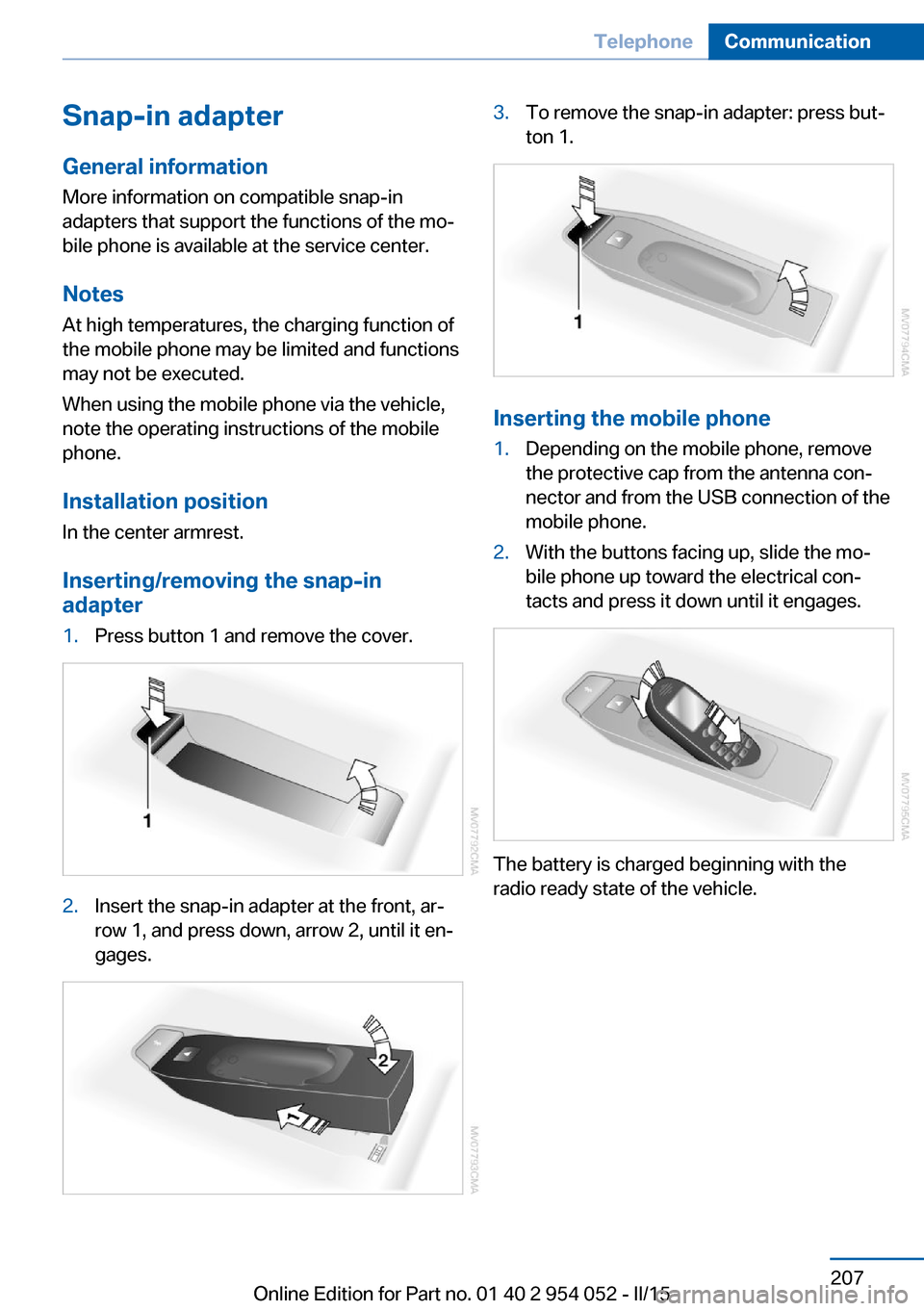
Inserting/removing the snap-in
adapter1.Press button 1 and remove the cover.2.Insert the snap-in adapter at the front, ar‐
row 1, and press down, arrow 2, until it en‐
gages.3.To remove the snap-in adapter: press but‐
ton 1.
Inserting the mobile phone
1.Depending on the mobile phone, remove
the protective cap from the antenna con‐
nector and from the USB connection of the
mobile phone.2.With the buttons facing up, slide the mo‐
bile phone up toward the electrical con‐
tacts and press it down until it engages.
The battery is charged beginning with the
radio ready state of the vehicle.
Seite 207TelephoneCommunication207
Online Edition for Part no. 01 40 2 954 052 - II/15
Page 211 of 297
OfficeVehicle equipment
This chapter describes all series equipment as
well as country-specific and special equipment
offered for this model series. Therefore, it also
describes equipment that may not be found in
your vehicle, for instance due to the selected
special equipment or the country version. This
also applies to safety-related functions and
systems.
When using the features and systems descri‐
bed here, adhere to local regulations.
At a glance General information
Contacts, appointments, tasks, notes, text
messages, and e-mails from the mobile phone
can be displayed on the Control Display if the
mobile phone provides compatible support of
these functions and the necessary Bluetooth
standards.
Information about which mobile phones sup‐
port Office functions can be found at
www.bmwusa.com/bluetooth. A limited num‐
ber of compatible mobile phones is available
for Office.
Contents are only displayed in full length when
the vehicle is stationary.
The mobile phone has read-access only.
Do not use Office while driving
To avoid becoming distracted and pos‐
ing an unnecessary hazard to your vehicle's
occupants and to other road users, never at‐
tempt to use the controls or enter information
unless traffic and road conditions allow this.◀
Requirements▷A suitable mobile phone is paired with the
vehicle and connected. In some mobilephones, data access must be confirmed on
the mobile phone.▷The time, time zone, and date, refer to
page 77, are correctly set on the Control
Display and on the mobile phone, for in‐
stance to correctly display appointments.▷Office is activated, refer to page 199.
Updating
Data are updated every time the mobile phone
is connected to the vehicle. Appointment en‐
tries, tasks, notes and reminders can be up‐
dated separately.
1."Office"2."Current office", "Calendar", "Tasks",
"Notes" or "Reminders"3.Open "Options".4."Update data"
Mobile phone data are transmitted again to
the vehicle.
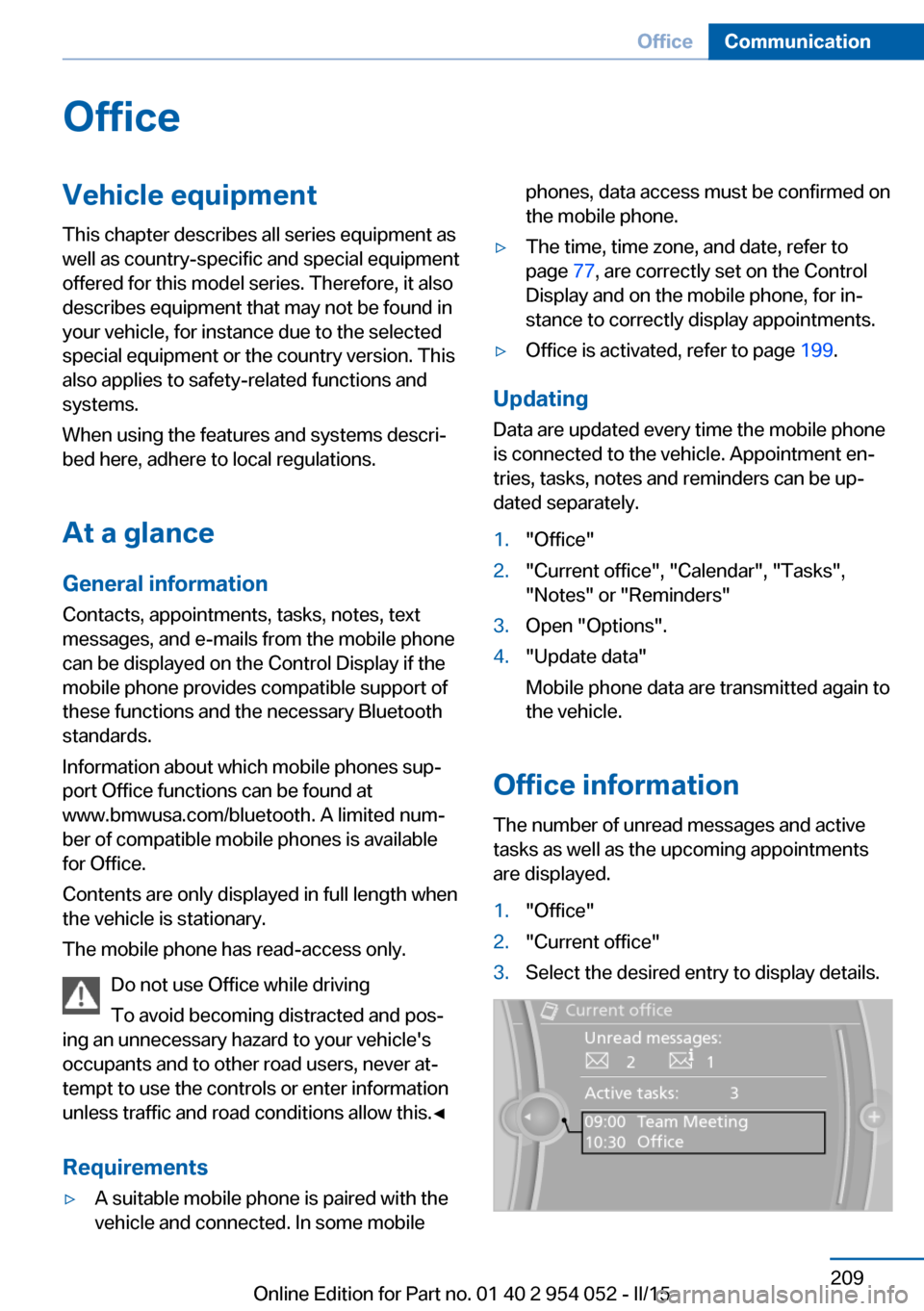
Office information
The number of unread messages and active
tasks as well as the upcoming appointments
are displayed.
1."Office"2."Current office"3.Select the desired entry to display details.Seite 209OfficeCommunication209
Online Edition for Part no. 01 40 2 954 052 - II/15
Page 213 of 297
tained in the vehicle. The address can be
checked for this purpose.1.Select the desired contact and highlight
the address.2.Open "Options".3."Check as destination"4.Correct and store the address if necessary.
If the address is corrected and stored, a copy
of it is stored in the vehicle. The address is not
changed on the mobile phone.
New contact
General information
A contact can have up to 8 phone numbers,
2 addresses, 3 e-mail addresses and one Inter‐
net address.
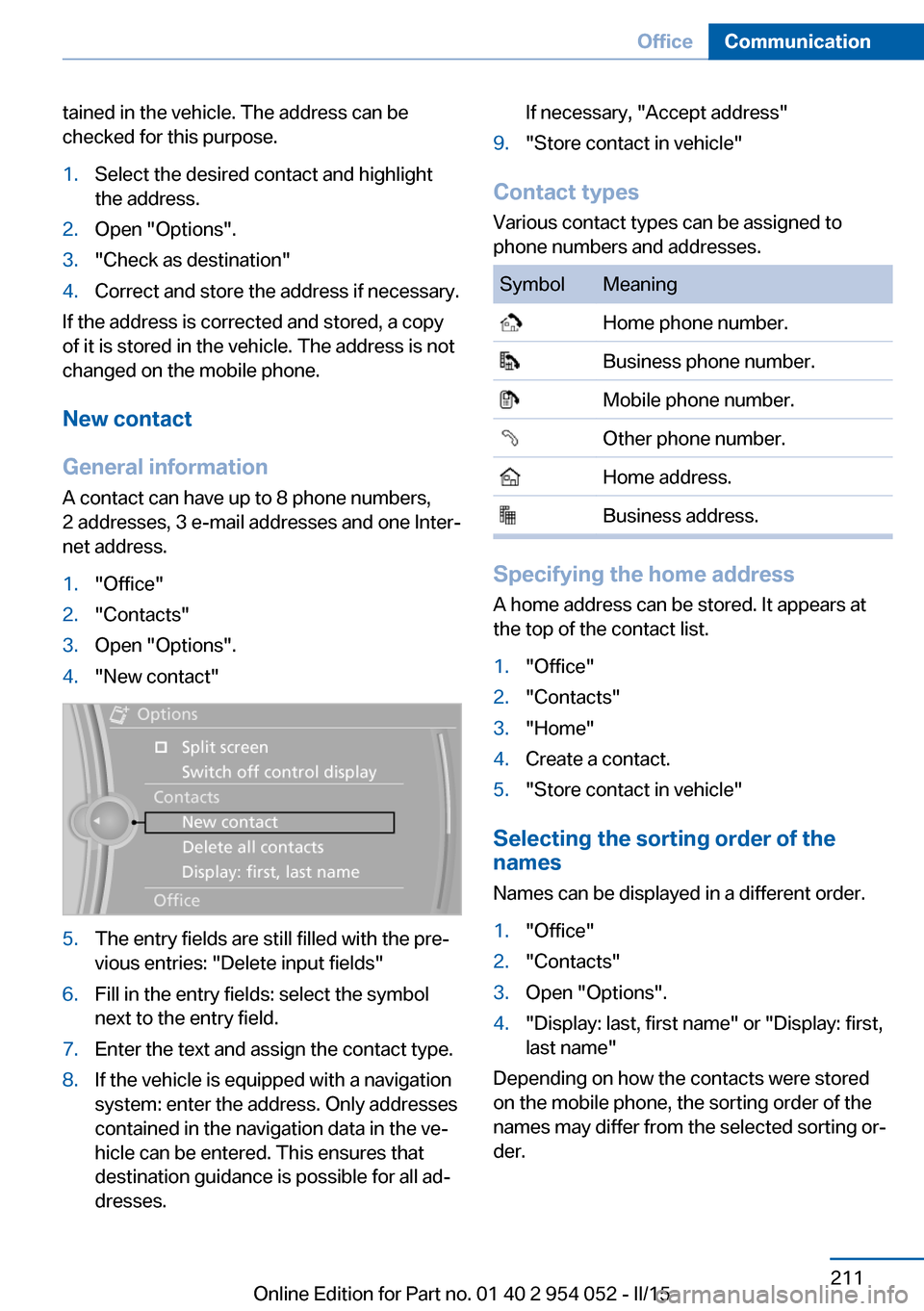
1."Office"2."Contacts"3.Open "Options".4."New contact"5.The entry fields are still filled with the pre‐
vious entries: "Delete input fields"6.Fill in the entry fields: select the symbol
next to the entry field.7.Enter the text and assign the contact type.8.If the vehicle is equipped with a navigation
system: enter the address. Only addresses
contained in the navigation data in the ve‐
hicle can be entered. This ensures that
destination guidance is possible for all ad‐
dresses.If necessary, "Accept address"9."Store contact in vehicle"
Contact types
Various contact types can be assigned to
phone numbers and addresses.
SymbolMeaning Home phone number. Business phone number. Mobile phone number. Other phone number. Home address. Business address.
Specifying the home address
A home address can be stored. It appears at
the top of the contact list.
1."Office"2."Contacts"3."Home"4.Create a contact.5."Store contact in vehicle"
Selecting the sorting order of the
names
Names can be displayed in a different order.
1."Office"2."Contacts"3.Open "Options".4."Display: last, first name" or "Display: first,
last name"
Depending on how the contacts were stored
on the mobile phone, the sorting order of the
names may differ from the selected sorting or‐
der.
Seite 211OfficeCommunication211
Online Edition for Part no. 01 40 2 954 052 - II/15
Page 215 of 297
Deleting messages
Messages from the Concierge service and
My Info can be deleted.
Delete a message:1."Office"2."Messages"3.Select the desired message.4.Open "Options".5."Delete message"
Delete all messages:
1."Office"2."Messages"3.Open "Options".4."Delete all messages" or "Delete service
messages"
Text messages
Calling the sender of a text message
1.Select the desired message.2. Select the symbol.
Saving the sender in the contacts
1.Highlight the desired message.2.Open "Options".3."Store as new contact" or "Add to existing
contact"
Using contact data
Contact data from appointments, tasks, text
messages, e-mails, and notes can be saved or
selected, refer to page 216.
Reading the text message out loud Read the text message out loud, refer to
page 216.
My Info
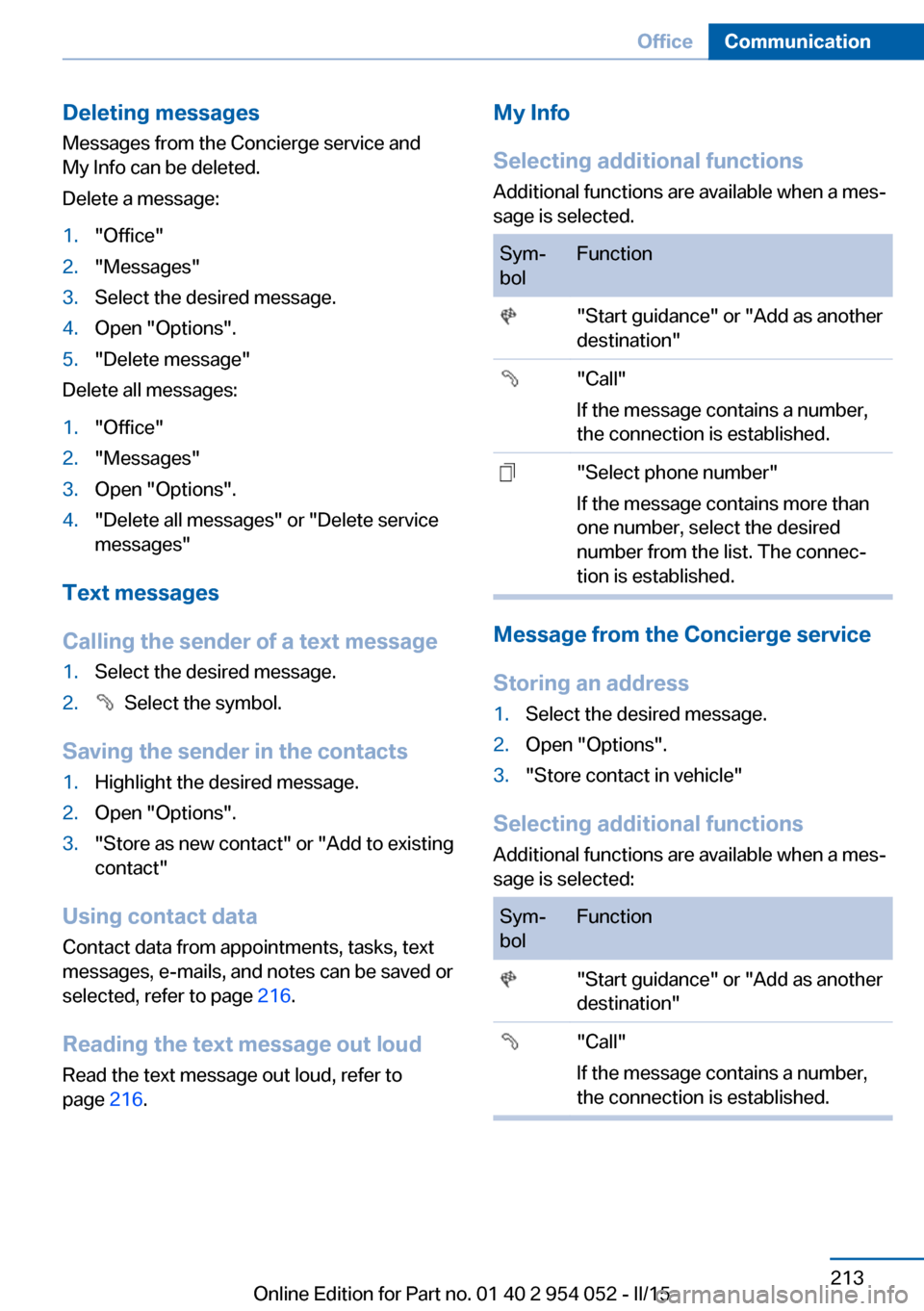
Selecting additional functions Additional functions are available when a mes‐
sage is selected.Sym‐
bolFunction "Start guidance" or "Add as another
destination" "Call"
If the message contains a number,
the connection is established. "Select phone number"
If the message contains more than
one number, select the desired
number from the list. The connec‐
tion is established.
Message from the Concierge service
Storing an address
1.Select the desired message.2.Open "Options".3."Store contact in vehicle"
Selecting additional functions Additional functions are available when a mes‐
sage is selected:
Sym‐
bolFunction "Start guidance" or "Add as another
destination" "Call"
If the message contains a number,
the connection is established.Seite 213OfficeCommunication213
Online Edition for Part no. 01 40 2 954 052 - II/15
Page 217 of 297
▷ Select the symbol.
Using contact data
Contact data from appointments, tasks, text
messages, e-mails, and notes can be saved or
selected, refer to page 216.
Reading the appointment out loud Read the appointment out loud, refer to
page 216.
Tasks Displaying the task list
Display tasks that are due within the next
90 days.
1."Office"2."Tasks"
Sorting the task list
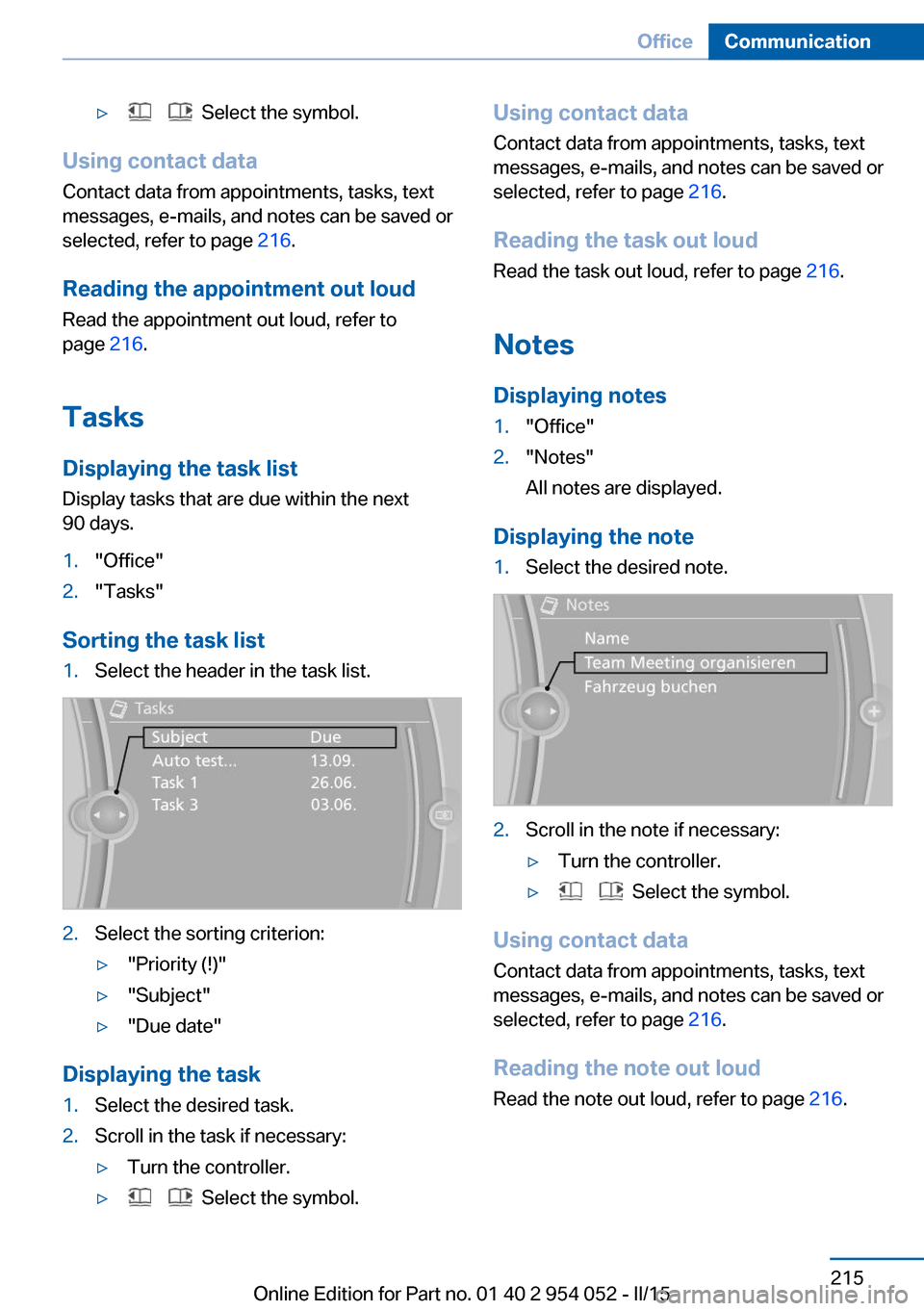
1.Select the header in the task list.2.Select the sorting criterion:▷"Priority (!)"▷"Subject"▷"Due date"
Displaying the task
1.Select the desired task.2.Scroll in the task if necessary:▷Turn the controller.▷ Select the symbol.Using contact data
Contact data from appointments, tasks, text
messages, e-mails, and notes can be saved or
selected, refer to page 216.
Reading the task out loud Read the task out loud, refer to page 216.
Notes
Displaying notes1."Office"2."Notes"
All notes are displayed.
Displaying the note
1.Select the desired note.2.Scroll in the note if necessary:▷Turn the controller.▷ Select the symbol.
Using contact data
Contact data from appointments, tasks, text
messages, e-mails, and notes can be saved or
selected, refer to page 216.
Reading the note out loud Read the note out loud, refer to page 216.
Seite 215OfficeCommunication215
Online Edition for Part no. 01 40 2 954 052 - II/15
Page 219 of 297
▷Depending on the number of stored ap‐
pointments, task notes, and messages in
the mobile phone, not all are displayed in
the vehicle.
Not all appointments and tasks from the mo‐
bile phone are displayed at the right time?
▷The time zone, time, or date is incorrectly
set on the Control Display and mobile
phone.
The e-mail attachment is not displayed.
▷E-mails are transmitted without an attach‐
ment.
Entries are not displayed in full length.
▷Text were already transmitted from the
mobile phone in a shortened form.▷Synchronization between the mobile
phone and vehicle may take several mi‐
nutes.
The contact pictures are not being displayed?
▷Up to 200 contact pictures can be stored in
the vehicle.
The E-mail is displayed with a delay?
▷Check the e-mail settings on the telephone
and adjust if necessary.
If all points in this list have been checked and
the required function is still not available,
please contact the hotline or service center.
Seite 217OfficeCommunication217
Online Edition for Part no. 01 40 2 954 052 - II/15
Page 223 of 297
ConnectedDriveVehicle equipment
This chapter describes all series equipment as
well as country-specific and special equipment
offered for this model series. Therefore, it also
describes equipment that may not be found in
your vehicle, for instance due to the selected
special equipment or the country version. This
also applies to safety-related functions and
systems.
When using the features and systems descri‐
bed here, adhere to local regulations.
TeleService General information
TeleService supports communication with
your service center.▷Data on the vehicle's service requirements
can be sent directly to the service center.
In this way, the service center can plan its
work in advance. This shortens the dura‐
tion of the service appointment.▷In the event of a breakdown, data on the
vehicle's condition can be sent directly to
Roadside Assistance.▷The service varies by country.▷Connection costs may ensue.▷Services may be restricted abroad.
Requirements
Different variants of TeleService may be imple‐
mented in the vehicle. The following condi‐
tions must always be met:
▷Wireless reception is available.▷The ignition is switched on.▷A current ConnectedDrive subscription or
a vehicle equipped with intelligent Emer‐
gency Request.Concierge service
General information The Concierge service offers information on
events, gas stations, and hotels, and provides
phone numbers and addresses. Hotels can be
booked directly using the Concierge service.
The Concierge service is part of the optional
Convenience Plan.
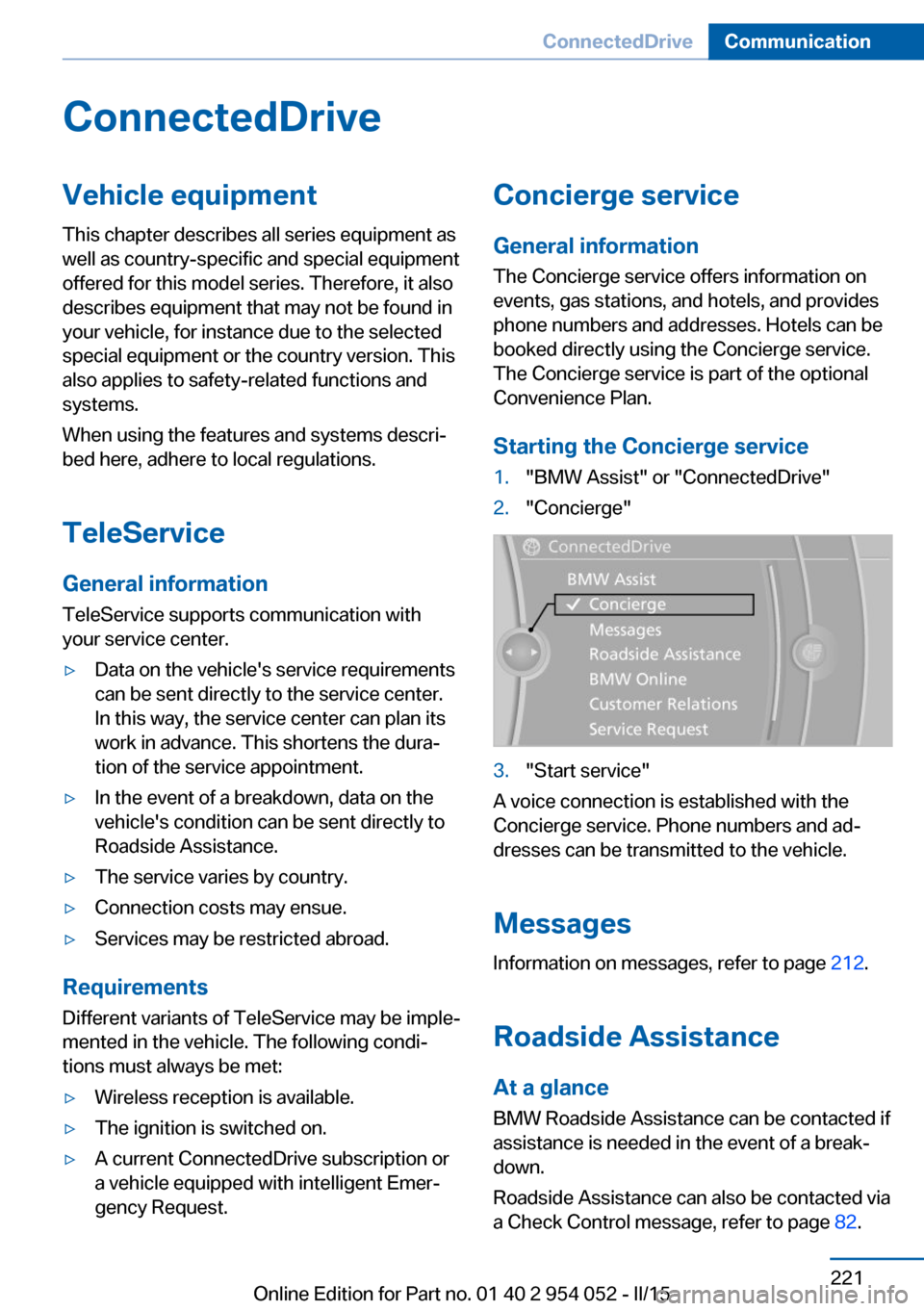
Starting the Concierge service1."BMW Assist" or "ConnectedDrive"2."Concierge"3."Start service"
A voice connection is established with the
Concierge service. Phone numbers and ad‐
dresses can be transmitted to the vehicle.
Messages
Information on messages, refer to page 212.
Roadside Assistance At a glance
BMW Roadside Assistance can be contacted if
assistance is needed in the event of a break‐
down.
Roadside Assistance can also be contacted via
a Check Control message, refer to page 82.
Seite 221ConnectedDriveCommunication221
Online Edition for Part no. 01 40 2 954 052 - II/15