Business BMW X1 2015 E84 Owner's Manual
[x] Cancel search | Manufacturer: BMW, Model Year: 2015, Model line: X1, Model: BMW X1 2015 E84Pages: 297, PDF Size: 7.01 MB
Page 150 of 297
6.Select the letters.7.Change to the list of street names.8.Highlight the street.9.Select the street.
Starting destination guidance after
entering the destination
1."Accept destination"2."Start guidance" or "Add as another
destination"
Add, refer to page 153, a destination as a
further destination.
Address book
Create contacts, refer to page 218.
Selecting a destination from the
address book
1."Navigation"2."Address book"
Contacts with addresses are displayed if
these addresses have been checked as
destinations in the contacts.
If the contacts with addresses from the
mobile phone are not displayed, they first
need to be checked as destinations, refer
to page 219.3.Select a contact in the list or, if desired,
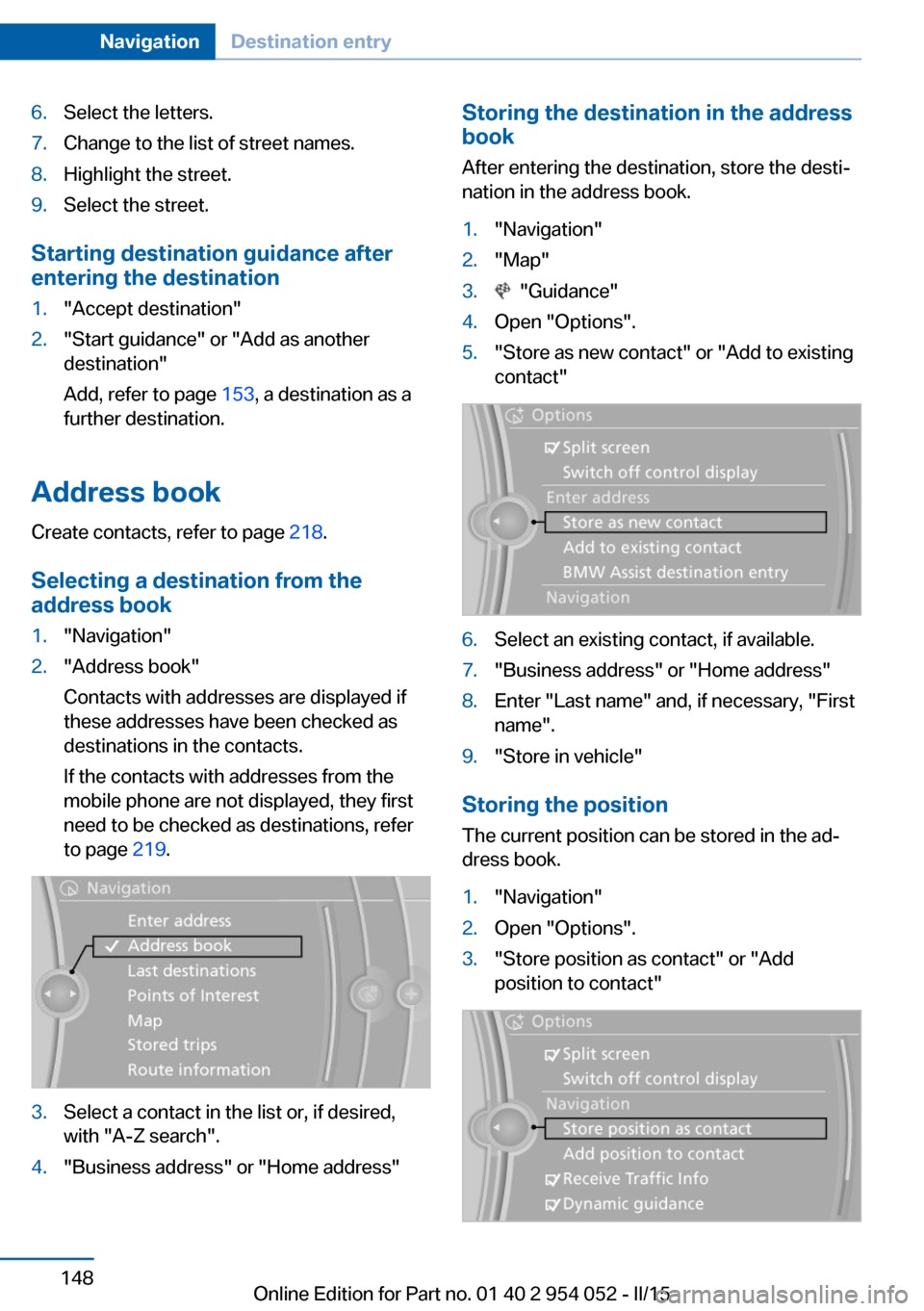
with "A-Z search".4."Business address" or "Home address"Storing the destination in the address
book
After entering the destination, store the desti‐
nation in the address book.1."Navigation"2."Map"3. "Guidance"4.Open "Options".5."Store as new contact" or "Add to existing
contact"6.Select an existing contact, if available.7."Business address" or "Home address"8.Enter "Last name" and, if necessary, "First
name".9."Store in vehicle"
Storing the position
The current position can be stored in the ad‐
dress book.
1."Navigation"2.Open "Options".3."Store position as contact" or "Add
position to contact"Seite 148NavigationDestination entry148
Online Edition for Part no. 01 40 2 954 052 - II/15
Page 199 of 297
Communication
All of the options available to you for mobile
communication with family, friends, business
partners, and service providers are described in this chapter.Online Edition for Part no. 01 40 2 954 052 - II/15
Page 208 of 297
Saving an entry in the contacts1.Highlight the entry.2.Open "Options".3."Store as new contact" or "Add to existing
contact"4.Select the contact if necessary.5.Select the type of number: "Home",
"Business", "Mobile" or "Other"6.Complete the entries if necessary.7."Store contact"
Received calls
Displaying calls
The 20 calls that were last received are dis‐
played.
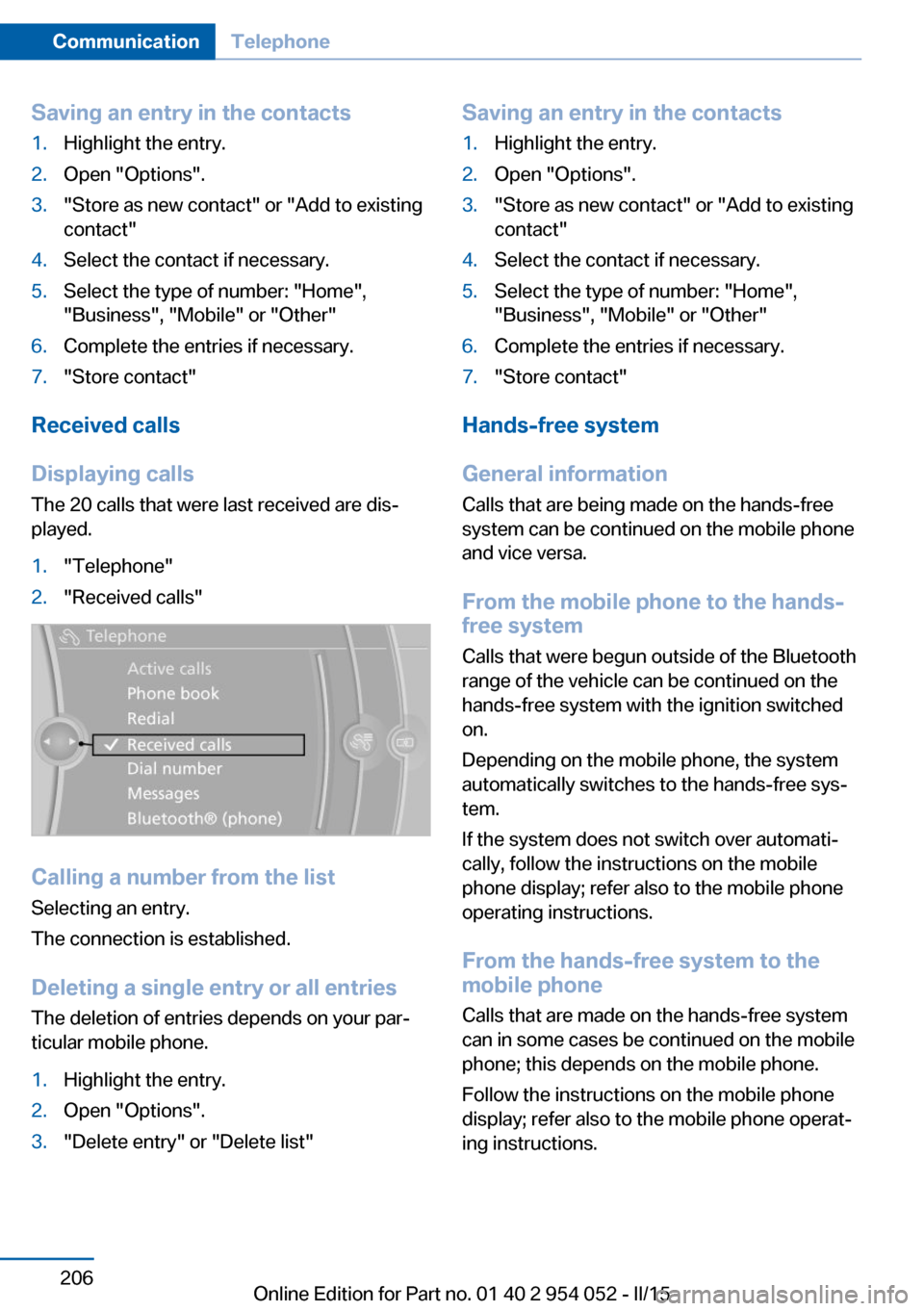
1."Telephone"2."Received calls"
Calling a number from the list
Selecting an entry.
The connection is established.
Deleting a single entry or all entriesThe deletion of entries depends on your par‐
ticular mobile phone.
1.Highlight the entry.2.Open "Options".3."Delete entry" or "Delete list"Saving an entry in the contacts1.Highlight the entry.2.Open "Options".3."Store as new contact" or "Add to existing
contact"4.Select the contact if necessary.5.Select the type of number: "Home",
"Business", "Mobile" or "Other"6.Complete the entries if necessary.7."Store contact"
Hands-free system
General information
Calls that are being made on the hands-free
system can be continued on the mobile phone
and vice versa.
From the mobile phone to the hands-
free system
Calls that were begun outside of the Bluetooth
range of the vehicle can be continued on the
hands-free system with the ignition switched
on.
Depending on the mobile phone, the system
automatically switches to the hands-free sys‐
tem.
If the system does not switch over automati‐
cally, follow the instructions on the mobile
phone display; refer also to the mobile phone
operating instructions.
From the hands-free system to the
mobile phone
Calls that are made on the hands-free system
can in some cases be continued on the mobile
phone; this depends on the mobile phone.
Follow the instructions on the mobile phone
display; refer also to the mobile phone operat‐
ing instructions.
Seite 206CommunicationTelephone206
Online Edition for Part no. 01 40 2 954 052 - II/15
Page 213 of 297
tained in the vehicle. The address can be
checked for this purpose.1.Select the desired contact and highlight
the address.2.Open "Options".3."Check as destination"4.Correct and store the address if necessary.
If the address is corrected and stored, a copy
of it is stored in the vehicle. The address is not
changed on the mobile phone.
New contact
General information
A contact can have up to 8 phone numbers,
2 addresses, 3 e-mail addresses and one Inter‐
net address.
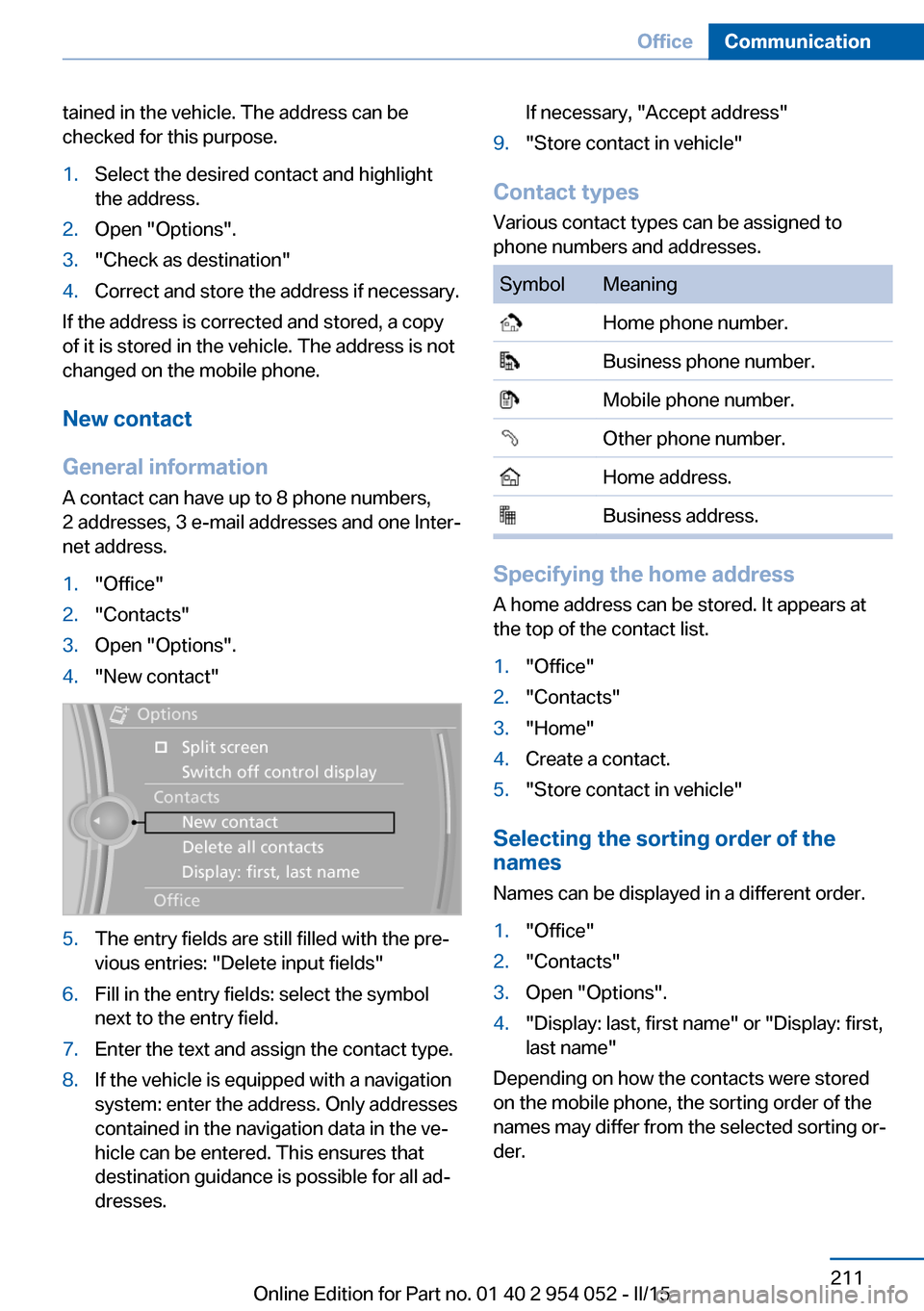
1."Office"2."Contacts"3.Open "Options".4."New contact"5.The entry fields are still filled with the pre‐
vious entries: "Delete input fields"6.Fill in the entry fields: select the symbol
next to the entry field.7.Enter the text and assign the contact type.8.If the vehicle is equipped with a navigation
system: enter the address. Only addresses
contained in the navigation data in the ve‐
hicle can be entered. This ensures that
destination guidance is possible for all ad‐
dresses.If necessary, "Accept address"9."Store contact in vehicle"
Contact types
Various contact types can be assigned to
phone numbers and addresses.
SymbolMeaning Home phone number. Business phone number. Mobile phone number. Other phone number. Home address. Business address.
Specifying the home address
A home address can be stored. It appears at
the top of the contact list.
1."Office"2."Contacts"3."Home"4.Create a contact.5."Store contact in vehicle"
Selecting the sorting order of the
names
Names can be displayed in a different order.
1."Office"2."Contacts"3.Open "Options".4."Display: last, first name" or "Display: first,
last name"
Depending on how the contacts were stored
on the mobile phone, the sorting order of the
names may differ from the selected sorting or‐
der.
Seite 211OfficeCommunication211
Online Edition for Part no. 01 40 2 954 052 - II/15
Page 224 of 297
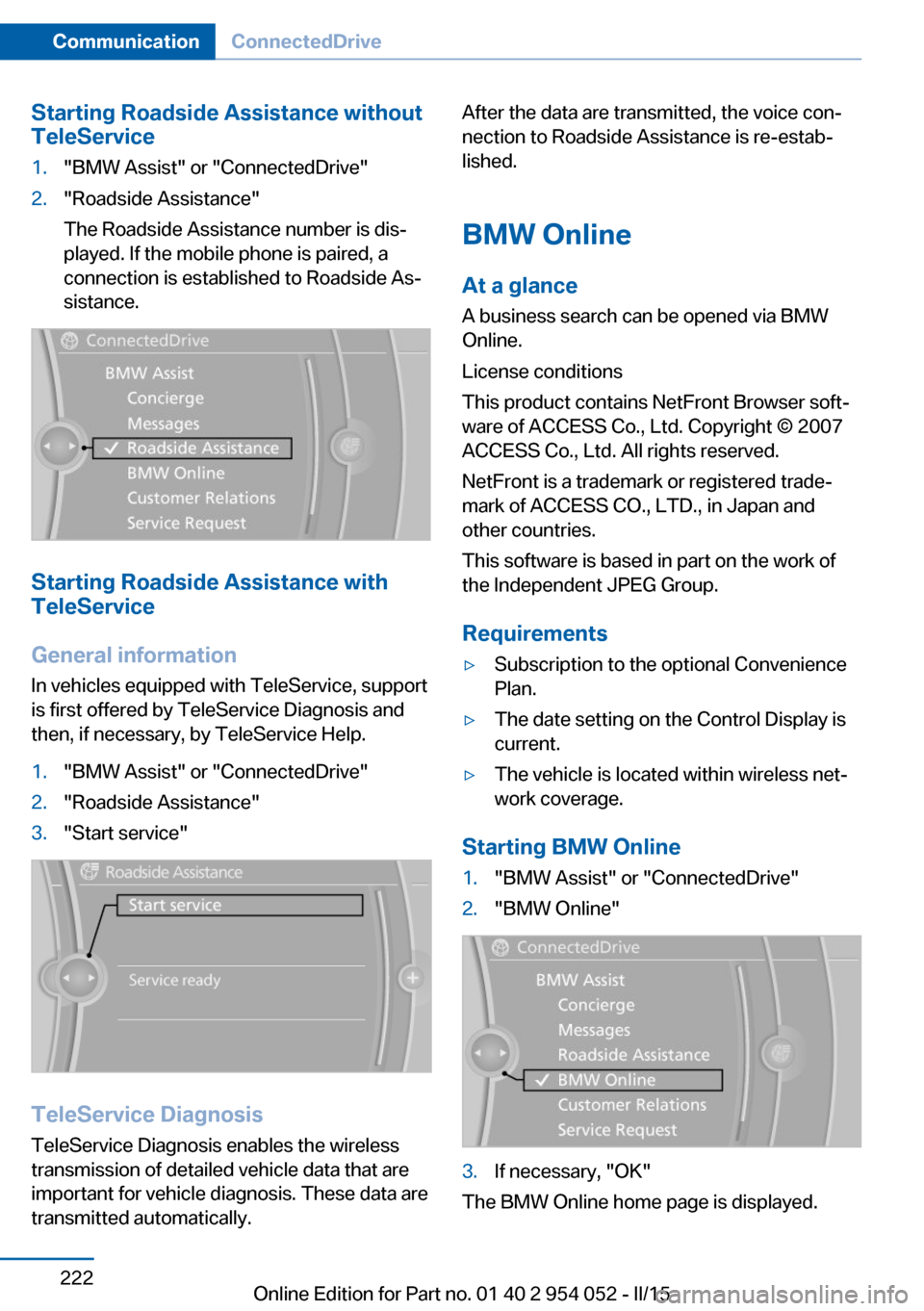
Starting Roadside Assistance without
TeleService1."BMW Assist" or "ConnectedDrive"2."Roadside Assistance"
The Roadside Assistance number is dis‐
played. If the mobile phone is paired, a
connection is established to Roadside As‐
sistance.
Starting Roadside Assistance with
TeleService
General information
In vehicles equipped with TeleService, support
is first offered by TeleService Diagnosis and
then, if necessary, by TeleService Help.
1."BMW Assist" or "ConnectedDrive"2."Roadside Assistance"3."Start service"
TeleService Diagnosis
TeleService Diagnosis enables the wireless
transmission of detailed vehicle data that are
important for vehicle diagnosis. These data are
transmitted automatically.
After the data are transmitted, the voice con‐
nection to Roadside Assistance is re-estab‐
lished.
BMW Online
At a glance
A business search can be opened via BMW
Online.
License conditions
This product contains NetFront Browser soft‐
ware of ACCESS Co., Ltd. Copyright © 2007
ACCESS Co., Ltd. All rights reserved.
NetFront is a trademark or registered trade‐
mark of ACCESS CO., LTD., in Japan and
other countries.
This software is based in part on the work of
the Independent JPEG Group.
Requirements▷Subscription to the optional Convenience
Plan.▷The date setting on the Control Display is
current.▷The vehicle is located within wireless net‐
work coverage.
Starting BMW Online
1."BMW Assist" or "ConnectedDrive"2."BMW Online"3.If necessary, "OK"
The BMW Online home page is displayed.
Seite 222CommunicationConnectedDrive222
Online Edition for Part no. 01 40 2 954 052 - II/15