automatic transmission BMW X1 SDRIVE28I 2013 User Guide
[x] Cancel search | Manufacturer: BMW, Model Year: 2013, Model line: X1 SDRIVE28I, Model: BMW X1 SDRIVE28I 2013Pages: 291, PDF Size: 6.58 MB
Page 66 of 291
Sport program and manual mode M/S
Activating the Sport program
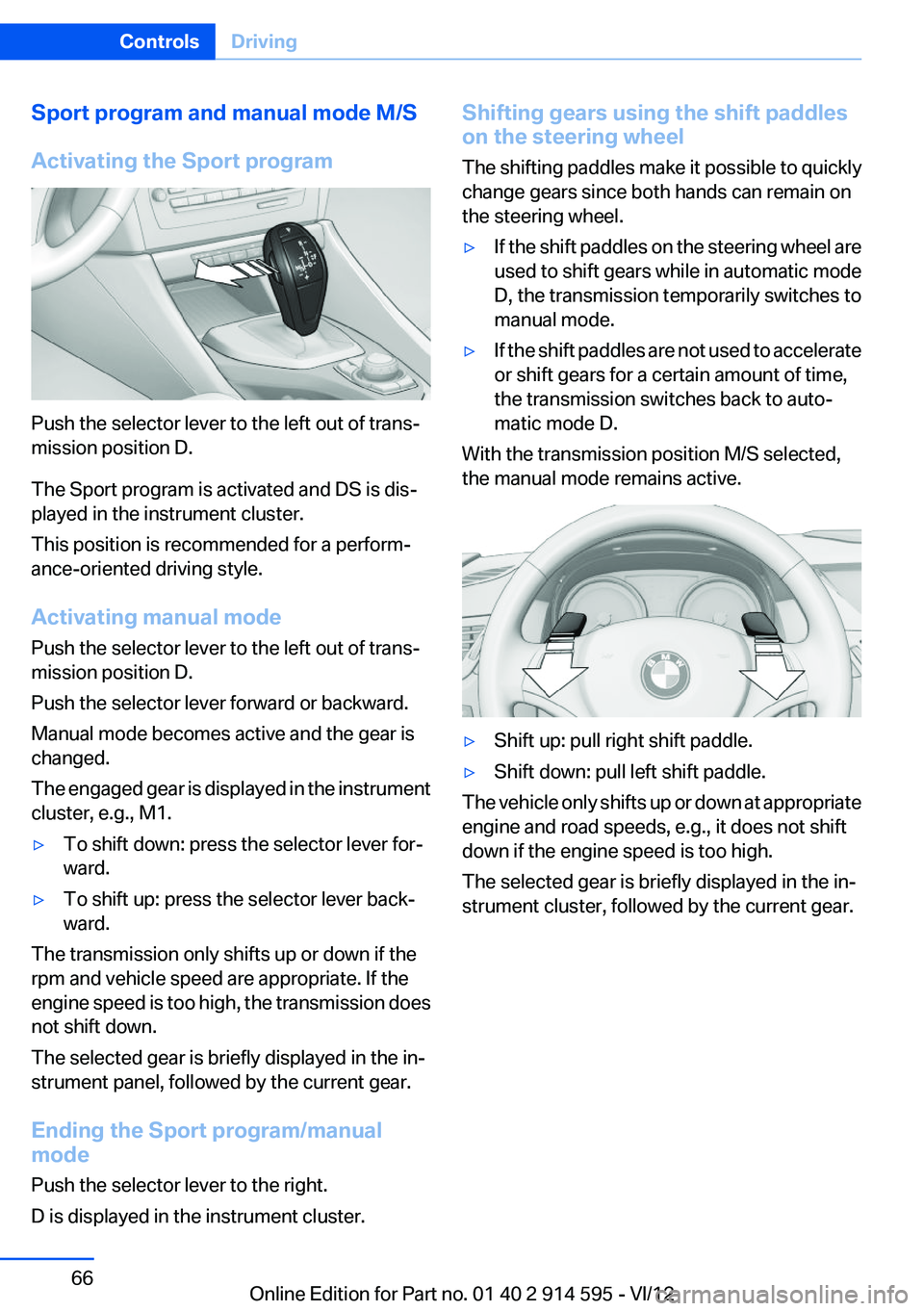
Push the selector lever to the left out of trans‐
mission position D.
The Sport program is activated and DS is dis‐
played in the instrument cluster.
This position is recommended for a perform‐
ance-oriented driving style.
Activating manual mode
Push the selector lever to the left out of trans‐
mission position D.
Push the selector lever forward or backward.
Manual mode becomes active and the gear is
changed.
The engaged gear is displayed in the instrument
cluster, e.g., M1.
▷To shift down: press the selector lever for‐
ward.▷To shift up: press the selector lever back‐
ward.
The transmission only shifts up or down if the
rpm and vehicle speed are appropriate. If the
engine speed is too high, the transmission does
not shift down.
The selected gear is briefly displayed in the in‐
strument panel, followed by the current gear.
Ending the Sport program/manual
mode
Push the selector lever to the right.
D is displayed in the instrument cluster.
Shifting gears using the shift paddles
on the steering wheel
The shifting paddles make it possible to quickly
change gears since both hands can remain on
the steering wheel.▷If the shift paddles on the steering wheel are
used to shift gears while in automatic mode
D, the transmission temporarily switches to
manual mode.▷If the shift paddles are not used to accelerate
or shift gears for a certain amount of time,
the transmission switches back to auto‐
matic mode D.
With the transmission position M/S selected,
the manual mode remains active.
▷Shift up: pull right shift paddle.▷Shift down: pull left shift paddle.
The vehicle only shifts up or down at appropriate
engine and road speeds, e.g., it does not shift
down if the engine speed is too high.
The selected gear is briefly displayed in the in‐
strument cluster, followed by the current gear.
Seite 66ControlsDriving66
Online Edition for Part no. 01 40 2 914 595 - VI/12
Page 99 of 291
The system stores and maintains the speed.
Accelerating using the lever
Accelerating slightly:
Press the lever to the resistance point, arrow 1,
until the desired speed is reached.
Accelerating significantly:
Press the lever beyond the resistance point, ar‐
row 1, until the desired speed is reached.
The vehicle accelerates without pressure on the
accelerator pedal. The system stores and main‐
tains the speed.
Decreasing speed
Repeatedly pull the lever to the resistance point
or beyond, arrow 2, until the desired speed is
displayed.▷Each time the lever is pulled to the resist‐
ance point, the desired speed is decreased
by approx. 1 mph/1 km/h.▷Each time the lever is pulled beyond the re‐
sistance point, the desired speed is reduced
by up to 5 mph/10 km/h until the minimum
speed of 20 mph/30 km/h is achieved.
The system stores and maintains the speed.
Deactivating cruise control
Push the lever upwards or downwards, arrow 3.
The displays in the speedometer go out.
In addition, the system is automatically deacti‐
vated when:
▷The brakes are applied.▷Selector lever position N is engaged or
transmission position D is disengaged.▷When DTC is activated or DSC is deacti‐
vated.▷When DSC or ABS is intervening.
Cruise control is not deactivated by depressing
the accelerator pedal. Once the accelerator
pedal is released, the stored speed is achieved
again and maintained.
Warning lamp
The warning lamp comes on when
cruise control has been deactivated as
a result of DSC intervention, for exam‐
ple. A message appears on the Control Display.
Resuming a speed stored beforehand
Press the button, arrow 4. The last stored speed
is resumed and maintained.
In the following cases, the stored speed value is
deleted and cannot be called up again:▷When driving stability control systems inter‐
vene.▷When selector lever position N is engaged
or transmission position D is disengaged.▷When the ignition is switched off.
Displays in the instrument cluster
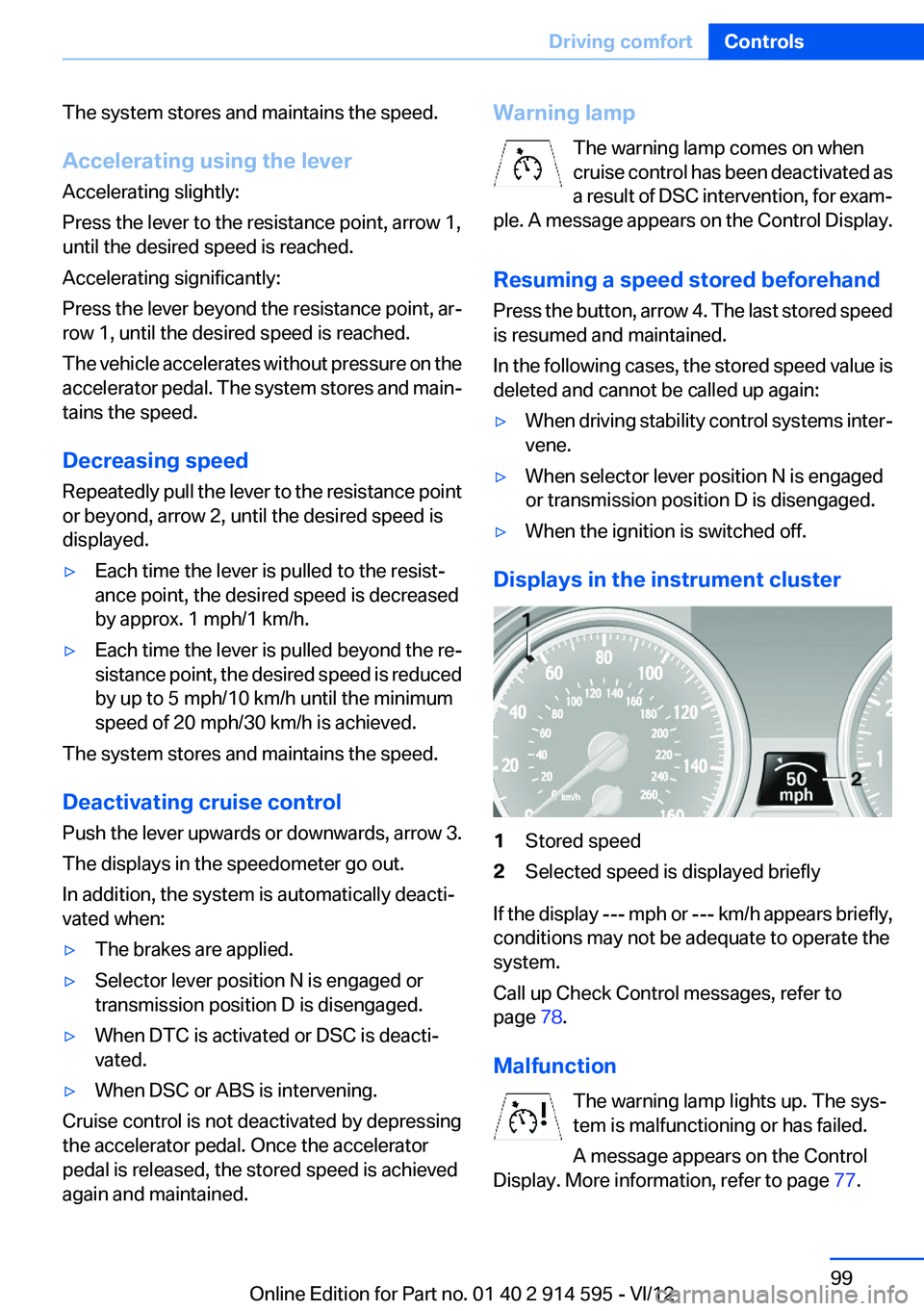
1Stored speed2Selected speed is displayed briefly
If the display --- mph or --- km/h appears briefly,
conditions may not be adequate to operate the
system.
Call up Check Control messages, refer to
page 78.
Malfunction The warning lamp lights up. The sys‐
tem is malfunctioning or has failed.
A message appears on the Control
Display. More information, refer to page 77.
Seite 99Driving comfortControls99
Online Edition for Part no. 01 40 2 914 595 - VI/12
Page 128 of 291
Ensure that the floor mats are securely fastened
again when they are returned after being re‐
moved, such as for cleaning.◀
Driving in wet conditions
When roads are wet or there is heavy rain, briefly
exert gentle pressure on the brake pedal every
few miles.
Ensure that this action does not endanger other
road users.
The heat generated in this process helps dry the
brake discs and pads.
In this way braking efficiency will be available
when you need it.
Hills
Drive long or steep downhill gradients in the gear
in which the least braking is required. Otherwise,
the brake system may overheat, resulting in a
reduction in the brake system efficiency.
You can increase the engine's braking effect by
shifting down, going all the way to first gear, if
necessary.
Downshifting in manual mode of the automatic
transmission, refer to page 63.
Avoid load on the brakes
Avoid placing excessive load on the brake
system. Light but consistent brake pressure can
lead to high temperatures, brake wear and pos‐
sibly even brake failure.◀
Do not drive in neutral
Do not drive in neutral or with the engine
stopped, as doing so disables engine braking. In
addition, steering and brake assist is unavailable
with the engine stopped.◀
Brake disc corrosion
Corrosion on the brake discs and contamination
on the brake pads are furthered by:▷Low mileage.▷Extended periods when the vehicle is not
used at all.▷Infrequent use of the brakes.
Corrosion occurs when the minimum pressure
that must be exerted by the pads during brake
applications to clean the discs is not reached.
Should corrosion form on the brake discs, the
brakes will tend to respond with a pulsating ef‐
fect that generally cannot be corrected.
Condensation under the parked vehicle
When using the automatic climate control, con‐
densation water develops that exits underneath
the vehicle.
Therefore, traces of condensed water under the
vehicle are normal.
Driving on poor roads
BMW X1 combines an all-wheel drive system
with the advantages of a normal passenger car.
Do not drive on unpaved terrain
Do not drive on unpaved terrain, as other‐
wise the vehicle may be damaged.◀
For your own safety and the safety of passen‐
gers and the vehicle, adhere to the following
points:
▷Familiarize yourself with the vehicle before
driving; never take risks.▷Adjust speeds according to road conditions.
The steeper and rougher the road surface is,
the lower the speed should be.▷When driving on steep uphill and downhill
grades: the engine oil and coolant should be
filled nearly to the MAX mark.▷Use Hill Descent Control HDC, refer to
page 96, on steep downhill grades.▷Watch for stones, holes, and other obstacles
and drive around these where possible.Seite 128Driving tipsThings to remember when driving128
Online Edition for Part no. 01 40 2 914 595 - VI/12
Page 135 of 291
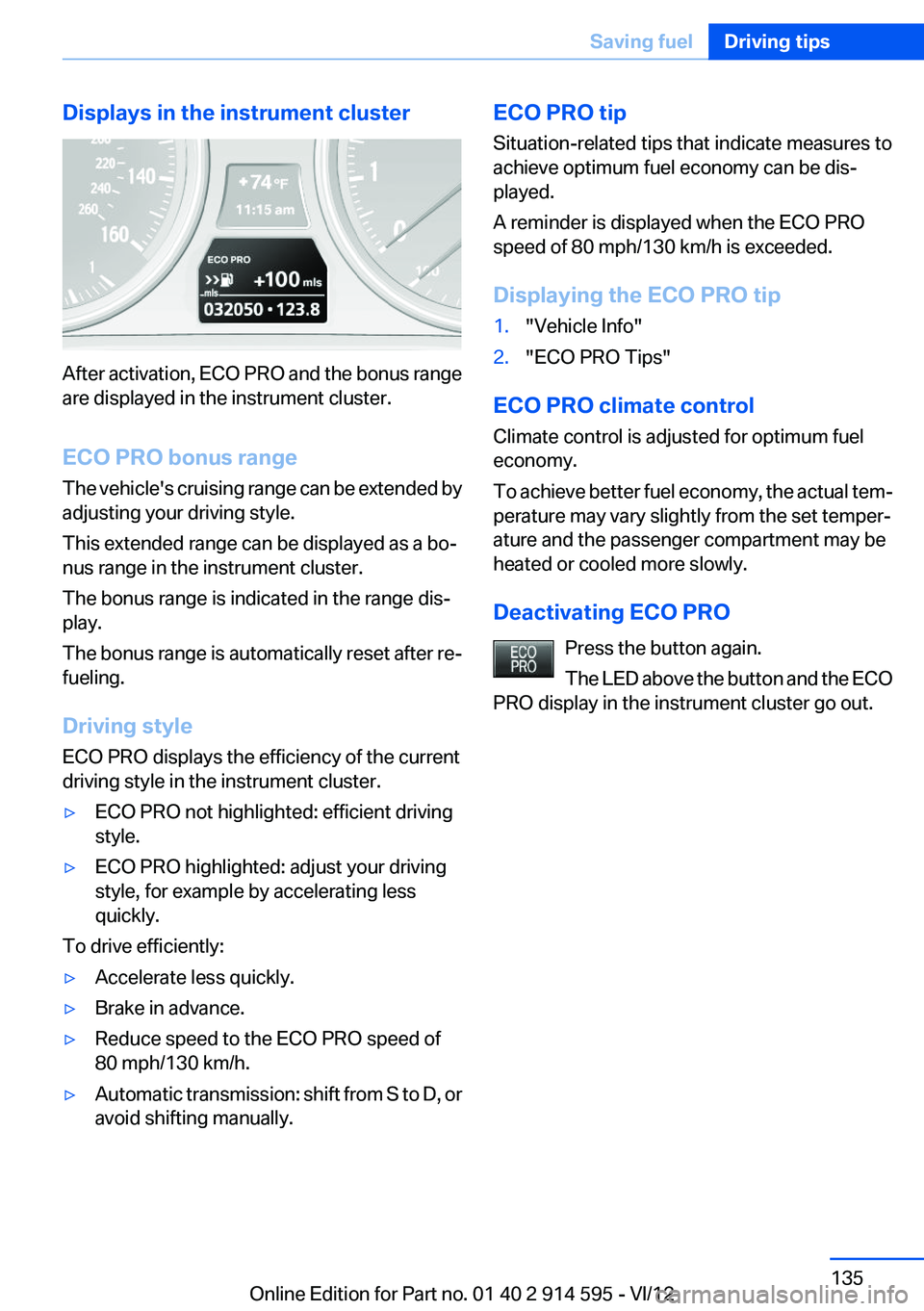
Displays in the instrument cluster
After activation, ECO PRO and the bonus range
are displayed in the instrument cluster.
ECO PRO bonus range
The vehicle's cruising range can be extended by
adjusting your driving style.
This extended range can be displayed as a bo‐
nus range in the instrument cluster.
The bonus range is indicated in the range dis‐
play.
The bonus range is automatically reset after re‐
fueling.
Driving style
ECO PRO displays the efficiency of the current
driving style in the instrument cluster.
▷ECO PRO not highlighted: efficient driving
style.▷ECO PRO highlighted: adjust your driving
style, for example by accelerating less
quickly.
To drive efficiently:
▷Accelerate less quickly.▷Brake in advance.▷Reduce speed to the ECO PRO speed of
80 mph/130 km/h.▷Automatic transmission: shift from S to D, or
avoid shifting manually.ECO PRO tip
Situation-related tips that indicate measures to
achieve optimum fuel economy can be dis‐
played.
A reminder is displayed when the ECO PRO
speed of 80 mph/130 km/h is exceeded.
Displaying the ECO PRO tip1."Vehicle Info"2."ECO PRO Tips"
ECO PRO climate control
Climate control is adjusted for optimum fuel
economy.
To achieve better fuel economy, the actual tem‐
perature may vary slightly from the set temper‐
ature and the passenger compartment may be
heated or cooled more slowly.
Deactivating ECO PRO Press the button again.
The LED above the button and the ECO
PRO display in the instrument cluster go out.
Seite 135Saving fuelDriving tips135
Online Edition for Part no. 01 40 2 914 595 - VI/12
Page 166 of 291
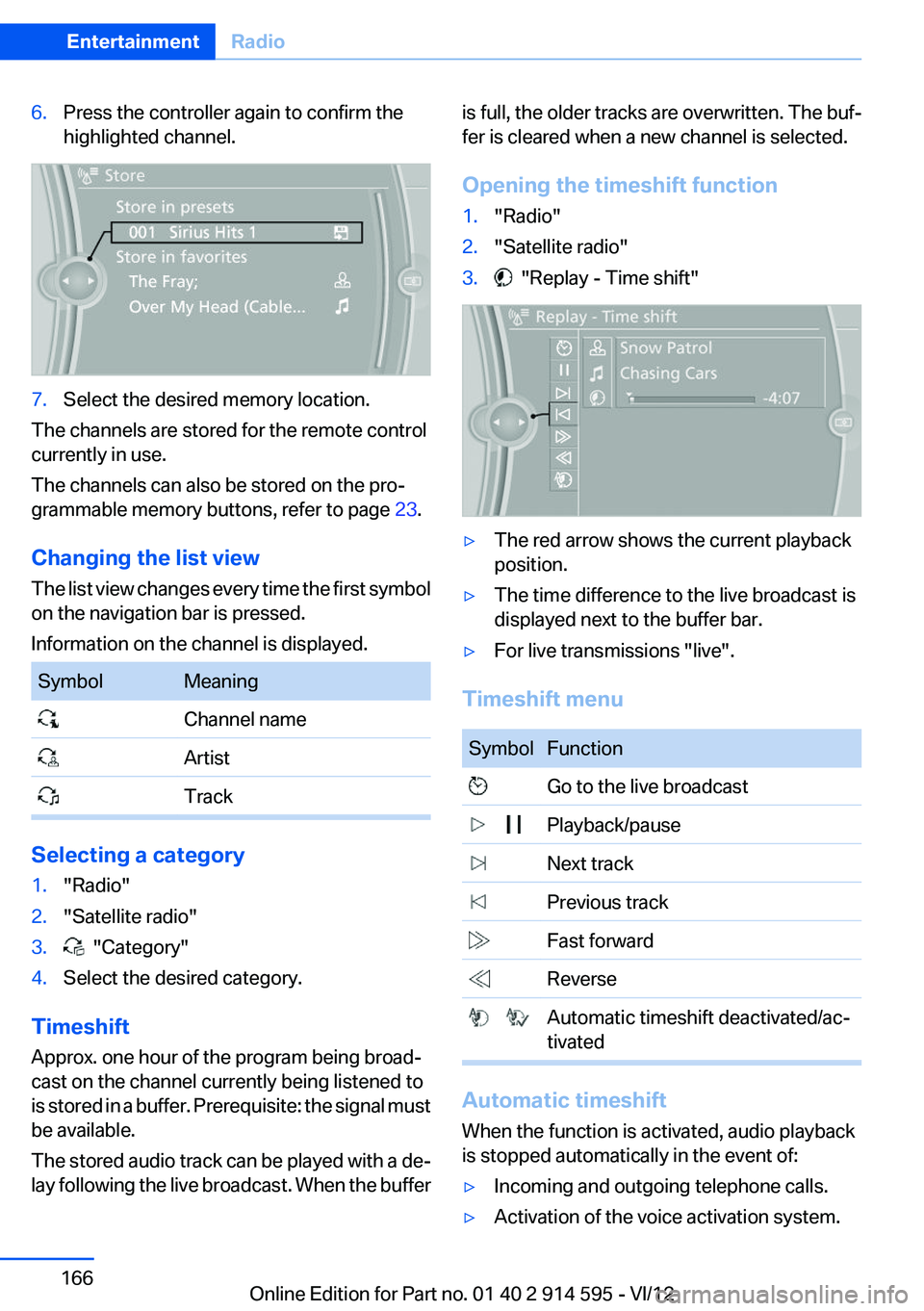
6.Press the controller again to confirm the
highlighted channel.7.Select the desired memory location.
The channels are stored for the remote control
currently in use.
The channels can also be stored on the pro‐
grammable memory buttons, refer to page 23.
Changing the list view
The list view changes every time the first symbol
on the navigation bar is pressed.
Information on the channel is displayed.
SymbolMeaning Channel name Artist Track
Selecting a category
1."Radio"2."Satellite radio"3. "Category"4.Select the desired category.
Timeshift
Approx. one hour of the program being broad‐
cast on the channel currently being listened to
is stored in a buffer. Prerequisite: the signal must
be available.
The stored audio track can be played with a de‐
lay following the live broadcast. When the buffer
is full, the older tracks are overwritten. The buf‐
fer is cleared when a new channel is selected.
Opening the timeshift function1."Radio"2."Satellite radio"3. "Replay - Time shift"▷The red arrow shows the current playback
position.▷The time difference to the live broadcast is
displayed next to the buffer bar.▷For live transmissions "live".
Timeshift menu
SymbolFunction Go to the live broadcast Playback/pause Next track Previous track Fast forward Reverse Automatic timeshift deactivated/ac‐
tivated
Automatic timeshift
When the function is activated, audio playback
is stopped automatically in the event of:
▷Incoming and outgoing telephone calls.▷Activation of the voice activation system.Seite 166EntertainmentRadio166
Online Edition for Part no. 01 40 2 914 595 - VI/12
Page 172 of 291
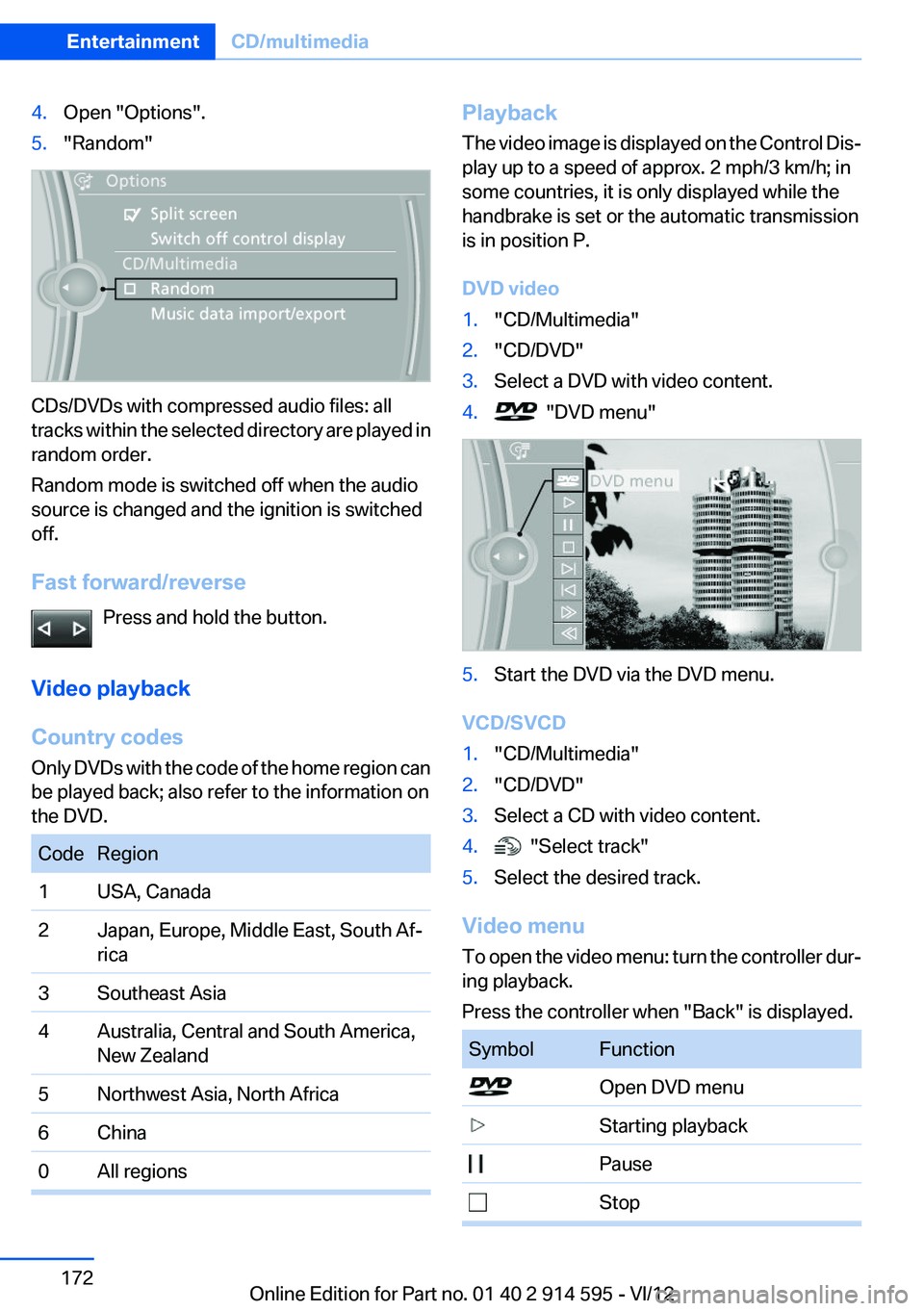
4.Open "Options".5."Random"
CDs/DVDs with compressed audio files: all
tracks within the selected directory are played in
random order.
Random mode is switched off when the audio
source is changed and the ignition is switched
off.
Fast forward/reverse Press and hold the button.
Video playback
Country codes
Only DVDs with the code of the home region can
be played back; also refer to the information on
the DVD.
CodeRegion1USA, Canada2Japan, Europe, Middle East, South Af‐
rica3Southeast Asia4Australia, Central and South America,
New Zealand5Northwest Asia, North Africa6China0All regionsPlayback
The video image is displayed on the Control Dis‐
play up to a speed of approx. 2 mph/3 km/h; in
some countries, it is only displayed while the
handbrake is set or the automatic transmission
is in position P.
DVD video1."CD/Multimedia"2."CD/DVD"3.Select a DVD with video content.4. "DVD menu"5.Start the DVD via the DVD menu.
VCD/SVCD
1."CD/Multimedia"2."CD/DVD"3.Select a CD with video content.4. "Select track"5.Select the desired track.
Video menu
To open the video menu: turn the controller dur‐
ing playback.
Press the controller when "Back" is displayed.
SymbolFunction Open DVD menu Starting playback Pause StopSeite 172EntertainmentCD/multimedia172
Online Edition for Part no. 01 40 2 914 595 - VI/12
Page 184 of 291
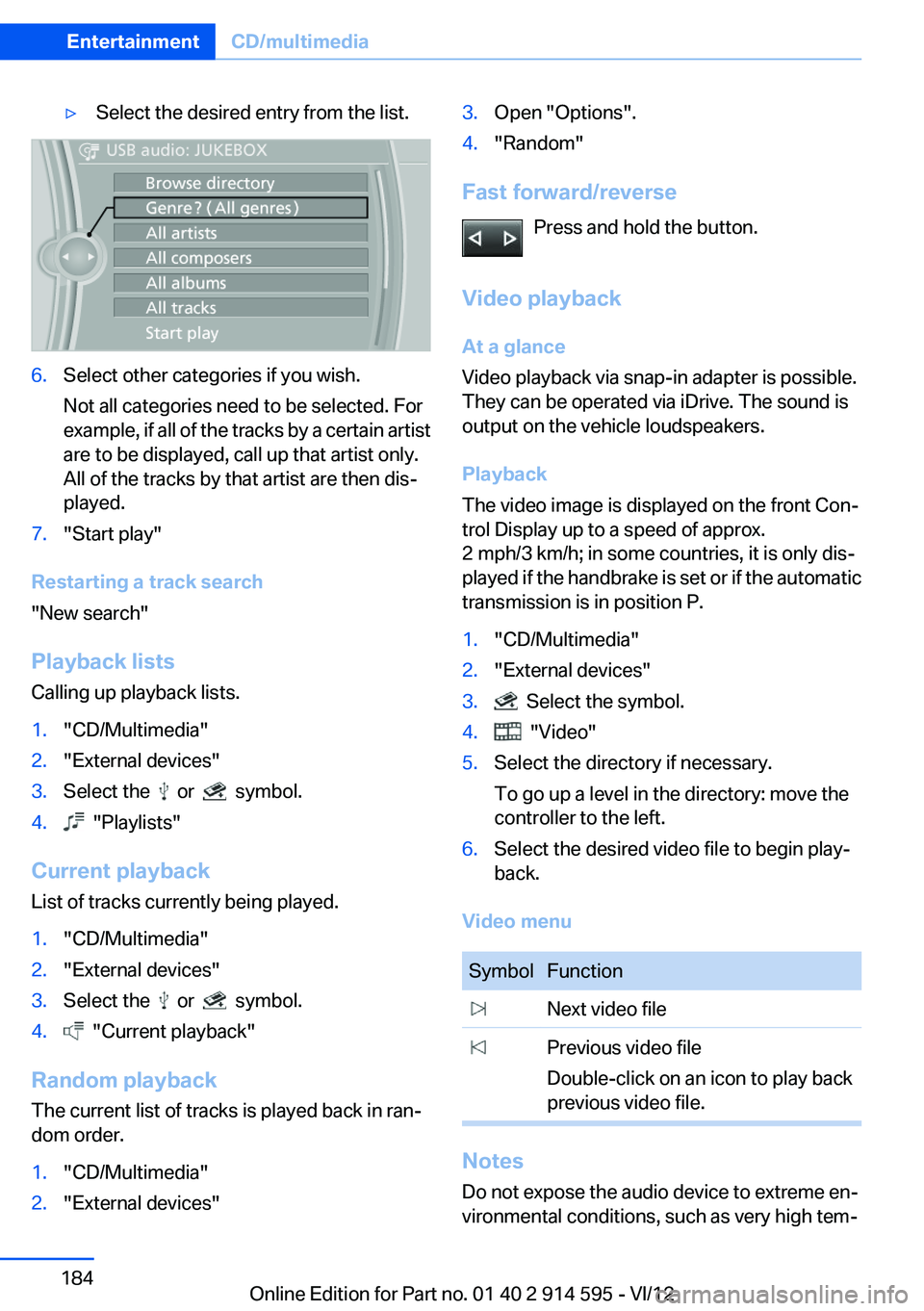
▷Select the desired entry from the list.6.Select other categories if you wish.
Not all categories need to be selected. For
example, if all of the tracks by a certain artist
are to be displayed, call up that artist only.
All of the tracks by that artist are then dis‐
played.7."Start play"
Restarting a track search
"New search"
Playback lists
Calling up playback lists.
1."CD/Multimedia"2."External devices"3.Select the or symbol.4. "Playlists"
Current playback
List of tracks currently being played.
1."CD/Multimedia"2."External devices"3.Select the or symbol.4. "Current playback"
Random playback
The current list of tracks is played back in ran‐
dom order.
1."CD/Multimedia"2."External devices"3.Open "Options".4."Random"
Fast forward/reverse
Press and hold the button.
Video playback
At a glance
Video playback via snap-in adapter is possible.
They can be operated via iDrive. The sound is
output on the vehicle loudspeakers.
Playback
The video image is displayed on the front Con‐
trol Display up to a speed of approx.
2 mph/3 km/h; in some countries, it is only dis‐
played if the handbrake is set or if the automatic
transmission is in position P.
1."CD/Multimedia"2."External devices"3. Select the symbol.4. "Video"5.Select the directory if necessary.
To go up a level in the directory: move the
controller to the left.6.Select the desired video file to begin play‐
back.
Video menu
SymbolFunction Next video file Previous video file
Double-click on an icon to play back
previous video file.
Notes
Do not expose the audio device to extreme en‐
vironmental conditions, such as very high tem‐
Seite 184EntertainmentCD/multimedia184
Online Edition for Part no. 01 40 2 914 595 - VI/12
Page 196 of 291
▷Is the ambient temperature too high or low?
Do not expose the mobile phone to extreme
environmental conditions.
The telephone functions are not available.
▷Is the mobile phone paired as an additional
telephone and is the additional telephone
function deactivated? Activate the function.▷Is an outgoing call not possible? Connect
the mobile phone as a telephone.
No phone book entries or only some phone book
entries are displayed, or they are incomplete.
▷Transmission of the phone book entries is
not yet complete.▷It is possible that only the phone book en‐
tries of the mobile phone or the SIM card are
transmitted.▷It may not be possible to display phone book
entries with special characters.▷The number of phone book entries to be
stored is too high.▷Is the data volume of the contact too large,
e. g., due to stored information such as
notes? Reduce the data volume of the con‐
tact.▷Is the mobile phone connected as an audio
source or additional telephone? The mobile
phone must be connected as a telephone.
The phone connection quality is poor.
▷The strength of the Bluetooth signal on the
mobile phone can be adjusted, depending
on the mobile phone.▷Insert the mobile phone into the snap-in
adapter or place it in the area of the center
console.▷Adjust the volume of the microphone and
loudspeakers separately.
If all points in this list have been checked and the
required function is still not available, contact
Customer Relations or the service center.
Controls
Adjusting the volume
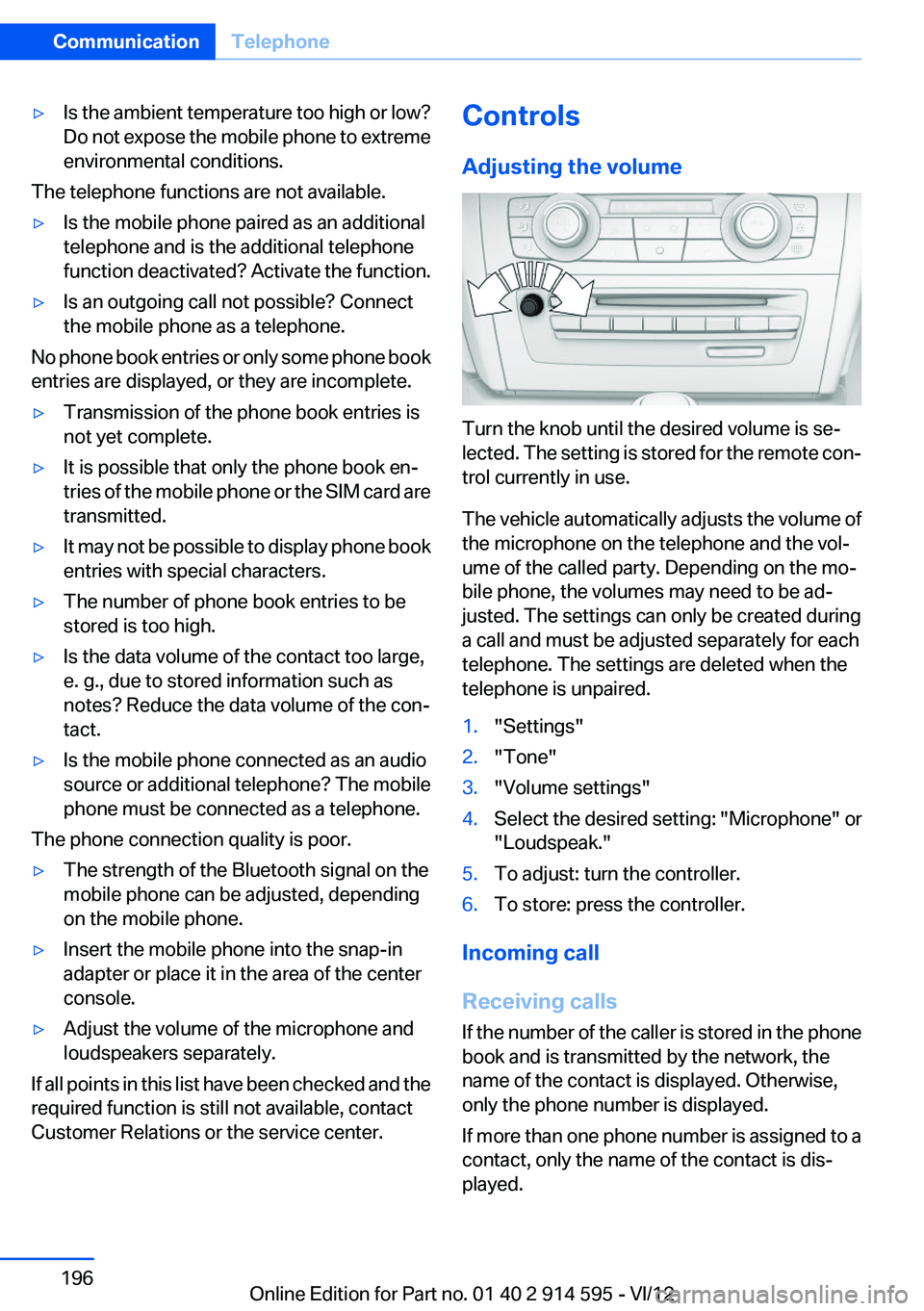
Turn the knob until the desired volume is se‐
lected. The setting is stored for the remote con‐
trol currently in use.
The vehicle automatically adjusts the volume of
the microphone on the telephone and the vol‐
ume of the called party. Depending on the mo‐
bile phone, the volumes may need to be ad‐
justed. The settings can only be created during
a call and must be adjusted separately for each
telephone. The settings are deleted when the
telephone is unpaired.
1."Settings"2."Tone"3."Volume settings"4.Select the desired setting: "Microphone" or
"Loudspeak."5.To adjust: turn the controller.6.To store: press the controller.
Incoming call
Receiving calls
If the number of the caller is stored in the phone
book and is transmitted by the network, the
name of the contact is displayed. Otherwise,
only the phone number is displayed.
If more than one phone number is assigned to a
contact, only the name of the contact is dis‐
played.
Seite 196CommunicationTelephone196
Online Edition for Part no. 01 40 2 914 595 - VI/12
Page 215 of 291

ConnectedDriveVehicle equipment
This chapter describes all series equipment as
well as country-specific and special equipment
offered for this model series.Therefore, it also
describes equipment that may not be found in
your vehicle, for instance due to the selected
special equipment or the country version. This
also applies to safety-related functions and sys‐
tems.
BMW Assist
General information
BMW Assist provides you with certain services,
e.g., transmission of the position data of your
vehicle to the BMW Assist Response Center if
an Emergency Request has been initiated.
Many BMW Assist services depend on the indi‐
vidually agreed upon contract.
After your contract has expired, the BMW Assist
system will be deactivated by the BMW Assist
Response Center without your having to visit a
service center. After the BMW Assist system
has been deactivated, no BMW Assist services
will be available. The BMW Assist system can be
reactivated by a service center after you sign a
new contract.
Requirements▷The installed BMW Assist system is logged
in to a wireless communications network.
This network must be capable of transmit‐
ting the services.▷To transmit position data, the vehicle must
be able to determine the current position.▷The BMW Assist service contract was
signed with your service center or with the
BMW Assist Response Center. Enabling
must have been completed.▷BMW Assist is activated.
Services offered
▷Emergency Request: when you press the
SOS button, a connection to the BMW As‐
sist Response Center is established. The
BMW Assist Response Center then speaks
with you and takes further steps to help you.▷Automatic Collision Notification: under cer‐
tain conditions, a connection is established
to the BMW Assist Response Center after a
serious accident. If possible, the BMW As‐
sist Response Center then speaks with you
and takes further steps to help you.▷Enhanced Roadside Assistance: BMW
Roadside Assistance can be contacted if as‐
sistance is needed in the event of a break‐
down. If possible, the vehicle and position
data are transmitted in the process.▷Customer Relations: connection with Cus‐
tomer Relations for information on all as‐
pects of your vehicle.▷TeleService: data on your vehicle's service
status or required inspections are transmit‐
ted to your service center, either automati‐
cally before a service due date or when you
request a BMW service appointment.▷Remote Door Unlock: the BMW Assist Re‐
sponse Center provides assistance if, for ex‐
ample, the remote control is not available
and the vehicle needs to be opened.▷Stolen Vehicle Recovery: after you report
that your vehicle was stolen to the police, the
BMW Assist Response Center can deter‐
mine its position.▷In addition to these services, the optional
Convenience Plan offers Concierge service
and information for route planning, traffic,
and weather. A limited number of calls can
be made via the BMW Assist Response
Center with Critical Calling if, for example,Seite 215ConnectedDriveCommunication215
Online Edition for Part no. 01 40 2 914 595 - VI/12
Page 217 of 291
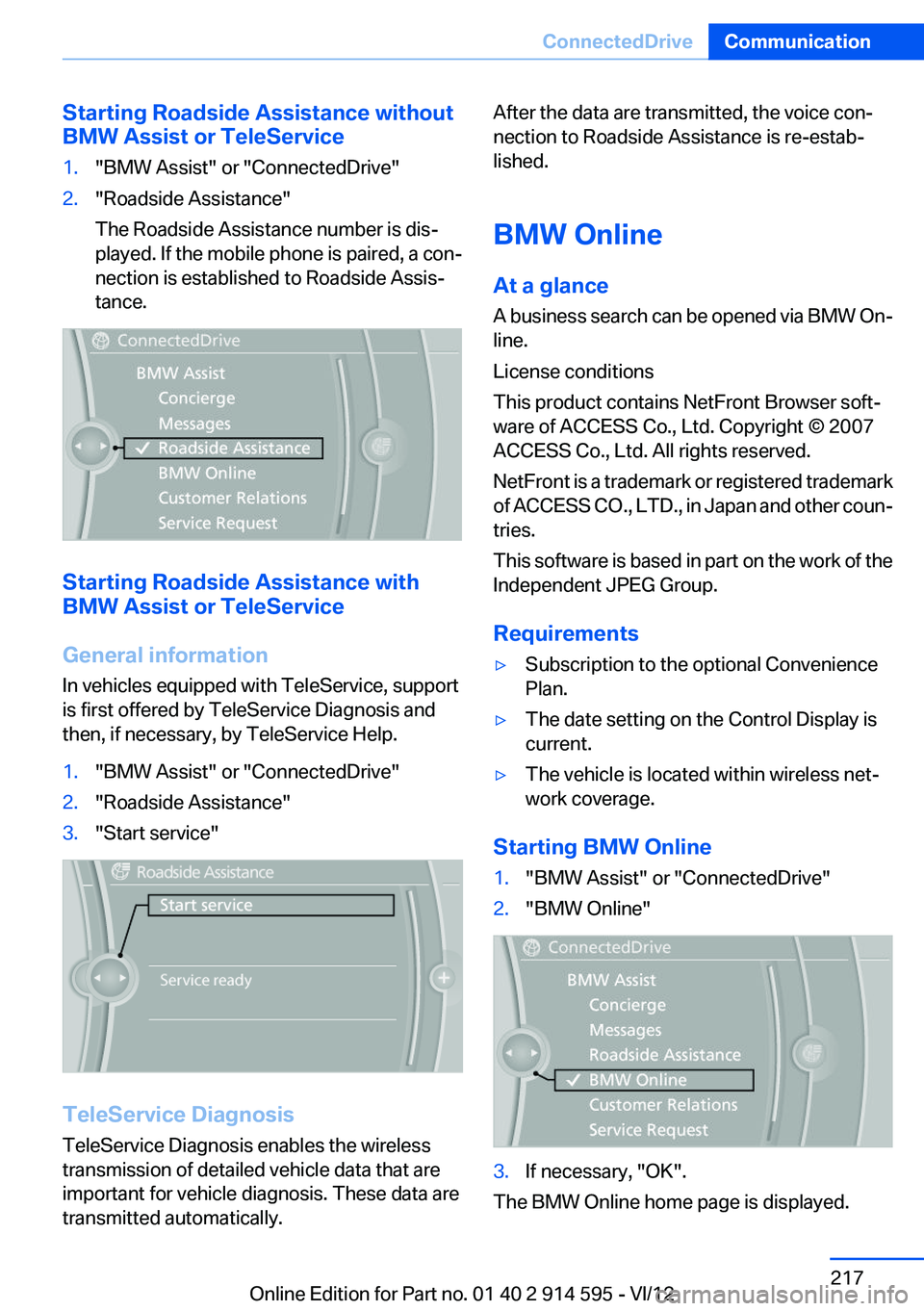
Starting Roadside Assistance without
BMW Assist or TeleService1."BMW Assist" or "ConnectedDrive"2."Roadside Assistance"
The Roadside Assistance number is dis‐
played. If the mobile phone is paired, a con‐
nection is established to Roadside Assis‐
tance.
Starting Roadside Assistance with
BMW Assist or TeleService
General information
In vehicles equipped with TeleService, support
is first offered by TeleService Diagnosis and
then, if necessary, by TeleService Help.
1."BMW Assist" or "ConnectedDrive"2."Roadside Assistance"3."Start service"
TeleService Diagnosis
TeleService Diagnosis enables the wireless
transmission of detailed vehicle data that are
important for vehicle diagnosis. These data are
transmitted automatically.
After the data are transmitted, the voice con‐
nection to Roadside Assistance is re-estab‐
lished.
BMW Online
At a glance
A business search can be opened via BMW On‐
line.
License conditions
This product contains NetFront Browser soft‐
ware of ACCESS Co., Ltd. Copyright © 2007
ACCESS Co., Ltd. All rights reserved.
NetFront is a trademark or registered trademark
of ACCESS CO., LTD., in Japan and other coun‐
tries.
This software is based in part on the work of the
Independent JPEG Group.
Requirements▷Subscription to the optional Convenience
Plan.▷The date setting on the Control Display is
current.▷The vehicle is located within wireless net‐
work coverage.
Starting BMW Online
1."BMW Assist" or "ConnectedDrive"2."BMW Online"3.If necessary, "OK".
The BMW Online home page is displayed.
Seite 217ConnectedDriveCommunication217
Online Edition for Part no. 01 40 2 914 595 - VI/12