tow BMW X1 SDRIVE28I 2013 User Guide
[x] Cancel search | Manufacturer: BMW, Model Year: 2013, Model line: X1 SDRIVE28I, Model: BMW X1 SDRIVE28I 2013Pages: 291, PDF Size: 6.58 MB
Page 122 of 291
Cargo area▷Retaining strap on the left side panel for se‐
curing small items.▷Retaining straps on the cargo area floor.▷Insertable partition elements for the storage
compartment under the cargo floor panel,
used to variably subdivide the storage com‐
partment.
With partition net: arrange the partition ele‐
ments in such a way that there is enough
space at the rear of the storage compart‐
ment for the partition net.▷Storage net next to the storage compart‐
ment on the right in the cargo area.
Clothes hooks
The clothes hooks are located at the grab han‐
dles in the rear.
Do not obstruct view
When suspending clothing from the
hooks, ensure that it will not obstruct the driver's
vision.◀
No heavy objects
Do not hang heavy objects from the hooks;
otherwise, they may present a danger to pas‐
sengers during braking and evasive maneu‐
vers.◀
Cupholders
Notes Shatter-proof containers and no hot
drinks
Use light and shatter-proof containers and do
not transport hot drinks. Otherwise, there is the
increased danger of injury in an accident.◀
Unsuitable containers
Do not forcefully push unsuitable contain‐
ers into the cupholders. This may result in dam‐
age.◀
Front▷In the front door compartments as a bottle
holder for 1-quart/1 liter bottles, for exam‐
ple.
Insert the bottle into the bottle holder with
the bottom slanted toward the front.▷In the center console.
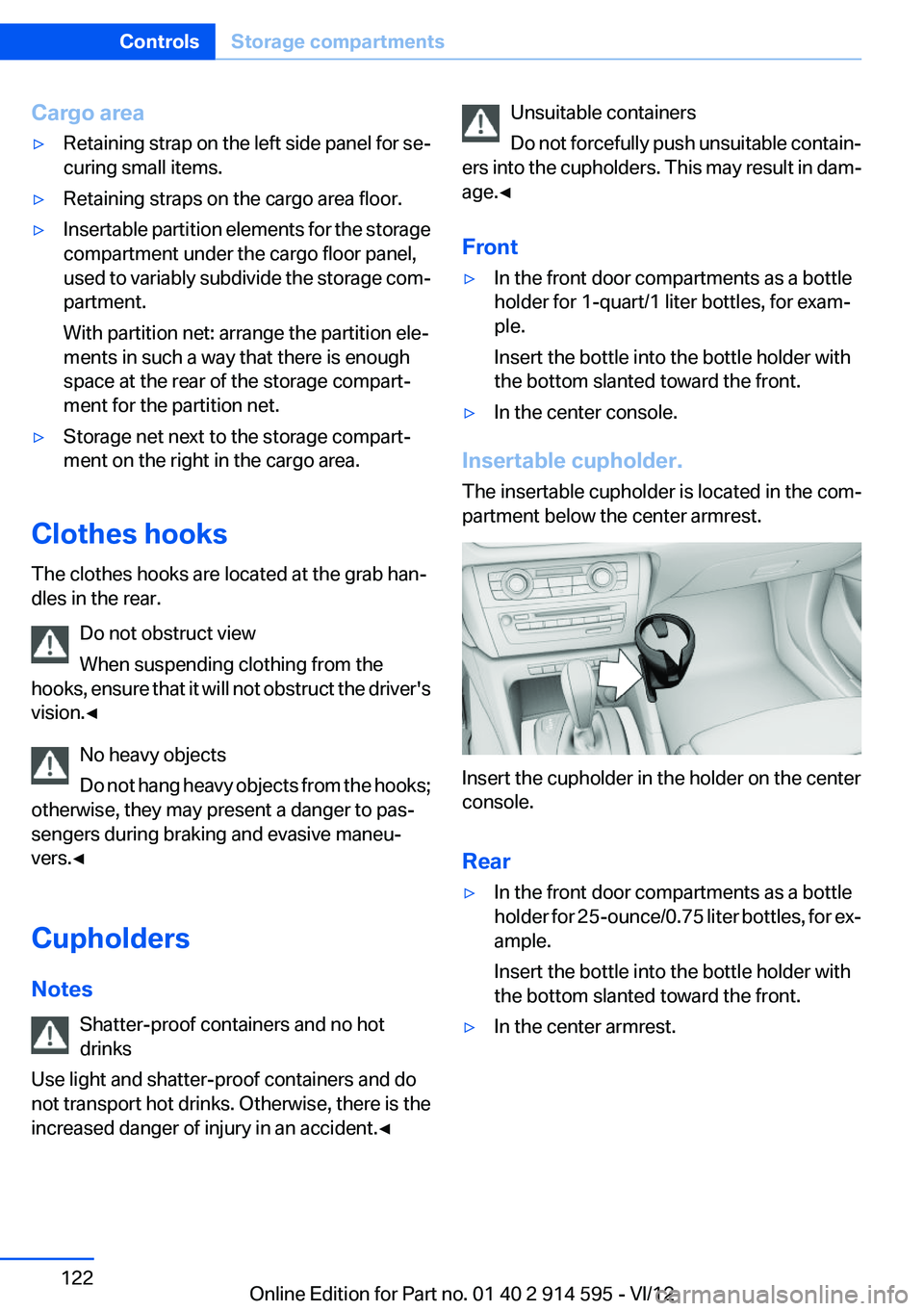
Insertable cupholder.
The insertable cupholder is located in the com‐
partment below the center armrest.
Insert the cupholder in the holder on the center
console.
Rear
▷In the front door compartments as a bottle
holder for 25-ounce/0.75 liter bottles, for ex‐
ample.
Insert the bottle into the bottle holder with
the bottom slanted toward the front.▷In the center armrest.Seite 122ControlsStorage compartments122
Online Edition for Part no. 01 40 2 914 595 - VI/12
Page 130 of 291
LoadingVehicle equipment
This chapter describes all series equipment as
well as country-specific and special equipment
offered for this model series.Therefore, it also
describes equipment that may not be found in
your vehicle, for instance due to the selected
special equipment or the country version. This
also applies to safety-related functions and sys‐
tems.
General information Overloading the vehicle
To avoid exceeding the approved carrying
capacity of the tires, never overload the vehicle.
Overloading can lead to overheating and in‐
creases the rate at which damage develops in‐
side the tires. This could result in a sudden loss
of tire inflation pressure.◀
No fluids in the cargo area
Make sure that fluids do not leak into the
cargo area; otherwise, the vehicle may be dam‐
aged.◀
Determining the load limit1.Locate the following statement on your ve‐
hicle’s placard:▷The combined weight of occupants and
cargo should never exceed XXX kg orYYY lbs. Otherwise, damage to the ve‐
hicle and unstable driving situations may
result.2.Determine the combined weight of the
driver and passengers that will be riding in
your vehicle.3.Subtract the combined weight of the driver
and passengers from XXX kilograms or YYY
pounds.4.The resulting figure equals the available
amount of cargo and luggage load capacity.
For example, if the YYY amount equals
1,000 lbs and there will be four 150 lbs pas‐
sengers in your vehicle, the amount of avail‐
able cargo and luggage load capacity is
400 lbs: 1,000 lbs minus 600 lbs = 400 lbs.5.Determine the combined weight of luggage
and cargo being loaded on the vehicle. That
weight may not safely exceed the available
cargo and luggage load capacity calculated
in Step 4.6.If your vehicle will be towing a trailer, load
from your trailer will be transfered to your
vehicle. Consult the manual for transporting
a trailer to determine how this may reduce
the available cargo and luggage load ca‐
pacity of your vehicle.
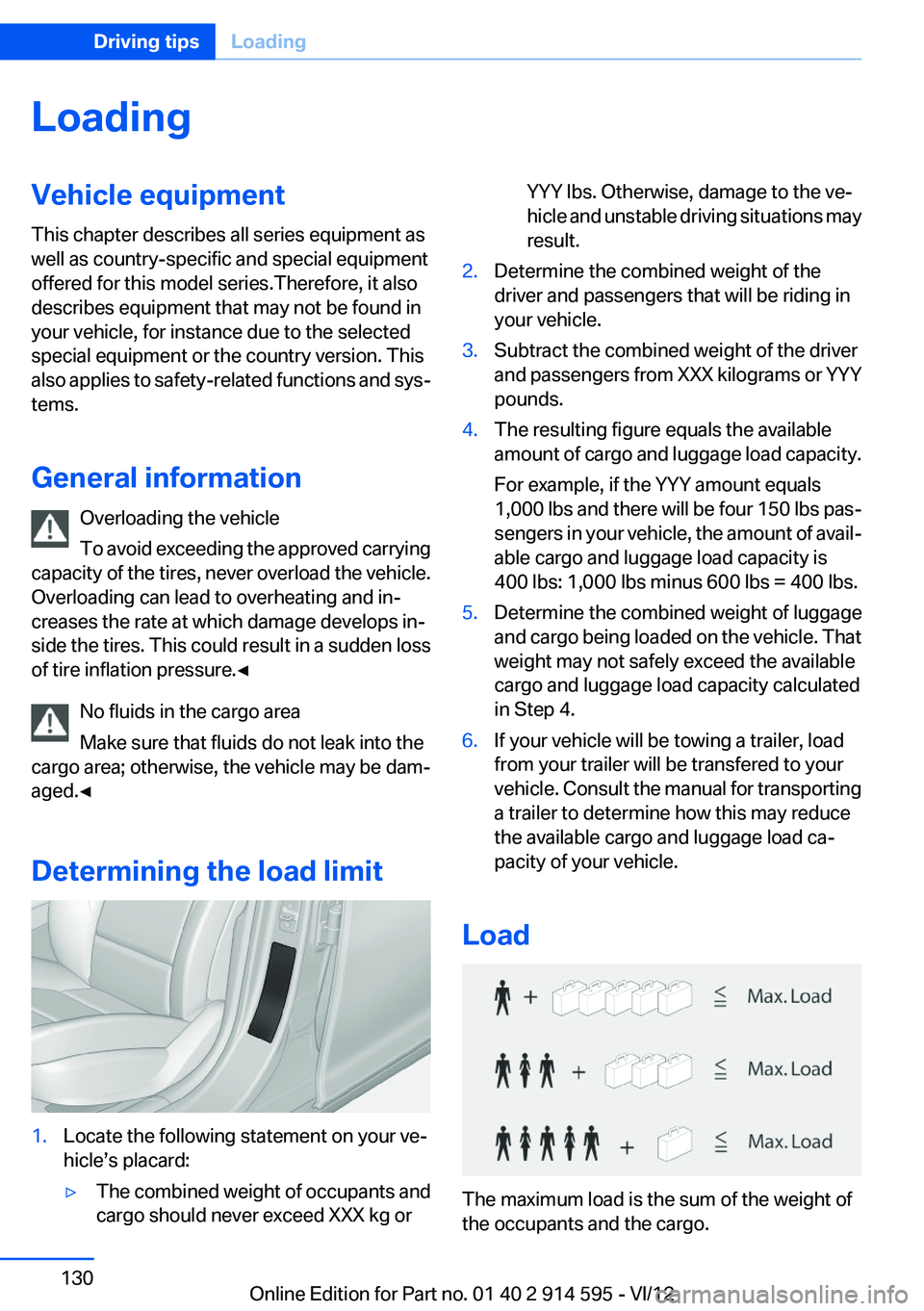
Load
The maximum load is the sum of the weight of
the occupants and the cargo.
Seite 130Driving tipsLoading130
Online Edition for Part no. 01 40 2 914 595 - VI/12
Page 131 of 291
The greater the weight of the occupants, the
less cargo that can be transported.
Stowing cargo▷Very heavy cargo: when the rear seat is not
occupied, secure each of the outer safety
belts in the opposite buckle.▷Heavy cargo: stow as far forward and as low
as possible, ideally directly behind the back‐
rests.▷Cover sharp edges and corners.▷Do not pile cargo higher than the top edge
of the backrests.▷If necessary, fold down the rear backrests to
stow cargo.▷Use the partition net, refer to page 116, to
protect passengers. Make sure that objects
cannot penetrate the partition net.▷Place protective material around any sharp-
edged or pointed objects that could bump
against the rear window while the vehicle is
in motion.Securing cargo
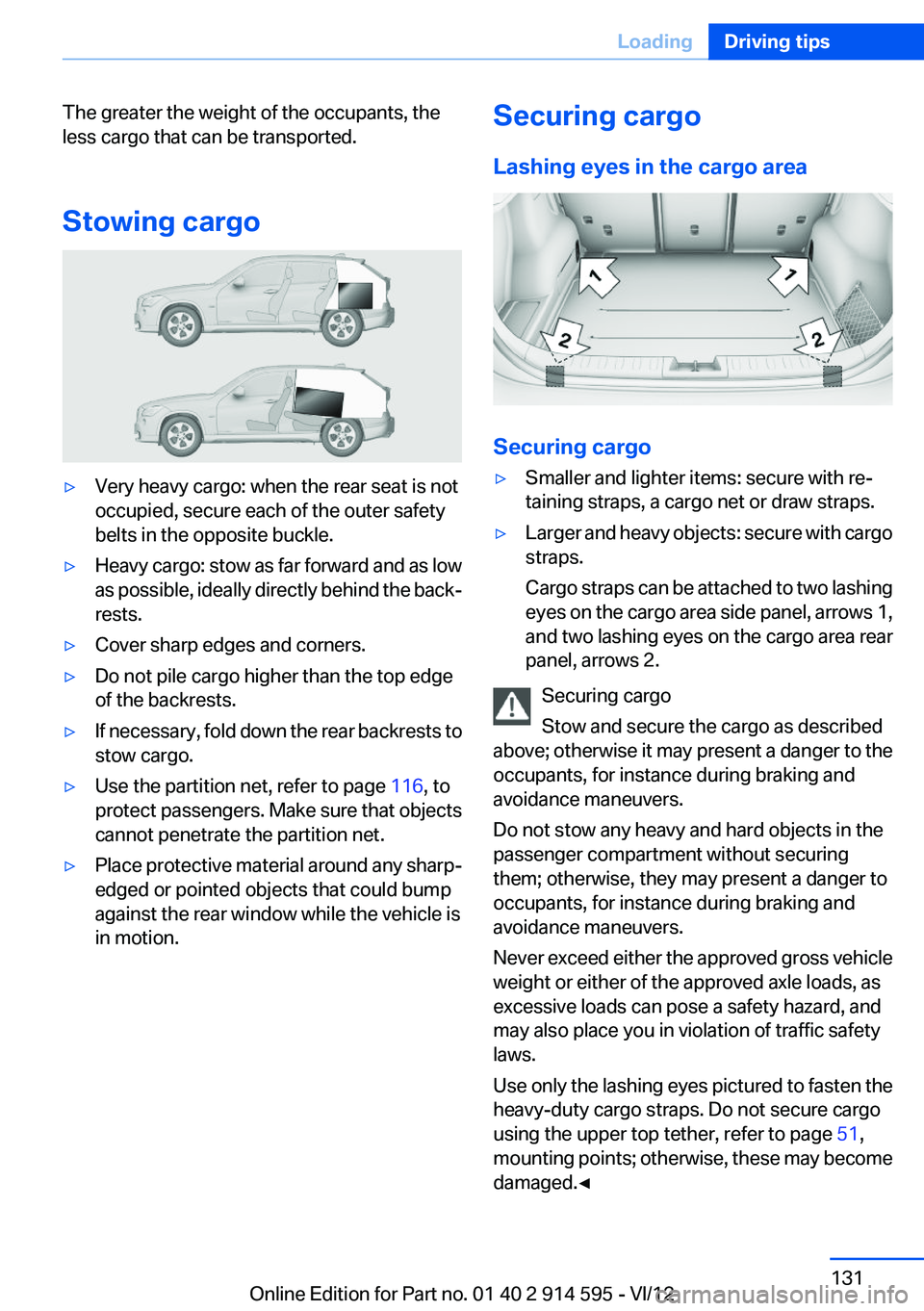
Lashing eyes in the cargo area
Securing cargo
▷Smaller and lighter items: secure with re‐
taining straps, a cargo net or draw straps.▷Larger and heavy objects: secure with cargo
straps.
Cargo straps can be attached to two lashing
eyes on the cargo area side panel, arrows 1,
and two lashing eyes on the cargo area rear
panel, arrows 2.
Securing cargo
Stow and secure the cargo as described
above; otherwise it may present a danger to the
occupants, for instance during braking and
avoidance maneuvers.
Do not stow any heavy and hard objects in the
passenger compartment without securing
them; otherwise, they may present a danger to
occupants, for instance during braking and
avoidance maneuvers.
Never exceed either the approved gross vehicle
weight or either of the approved axle loads, as
excessive loads can pose a safety hazard, and
may also place you in violation of traffic safety
laws.
Use only the lashing eyes pictured to fasten the
heavy-duty cargo straps. Do not secure cargo
using the upper top tether, refer to page 51,
mounting points; otherwise, these may become
damaged.◀
Seite 131LoadingDriving tips131
Online Edition for Part no. 01 40 2 914 595 - VI/12
Page 140 of 291

Destination entryVehicle equipment
This chapter describes all series equipment as
well as country-specific and special equipment
offered for this model series.Therefore, it also
describes equipment that may not be found in
your vehicle, for instance due to the selected
special equipment or the country version. This
also applies to safety-related functions and sys‐
tems.
At a glance
In entering your destination you can select from
the following options:▷Enter the destination manually, see below.▷Select the destination from the address
book, refer to page 142.▷Last destinations, refer to page 143.▷Special destinations, refer to page 143.▷Destination entry via map, refer to
page 145.▷Using the home address as the destination,
refer to page 143.▷Destination entry by voice, refer to
page 146.▷Enter the destination via BMW Assist, refer
to page 145.
You can also store a navigation destination on
the programmable memory buttons, refer to
page 23.
Entries in stationary vehicle
Enter data only when the vehicle is sta‐
tionary, and always give priority to the applicable
traffic regulations in the event of any contradic‐
tion between traffic and road conditions and the
instructions issued by the navigation system.
Failure to take to this precaution can place you
in violation of the law and put vehicle occupants
and other road users in danger.◀
Manual destination entry
General information
The system supports you in entering street
names and house numbers by automatically
completing the entry and providing entry com‐
parisons, refer to page 24.
Stored town/city and street names can be called
up quickly.▷If the existing entries should not be changed,
the entries for the state/province and town/
city can be skipped.▷Destination guidance is started to the town/
city center if no street is entered.
Entering a state/province
1. Press the button.2."Navigation"3."Enter address"4.Select "State/Province" or the displayed
state/province.Seite 140NavigationDestination entry140
Online Edition for Part no. 01 40 2 914 595 - VI/12
Page 141 of 291
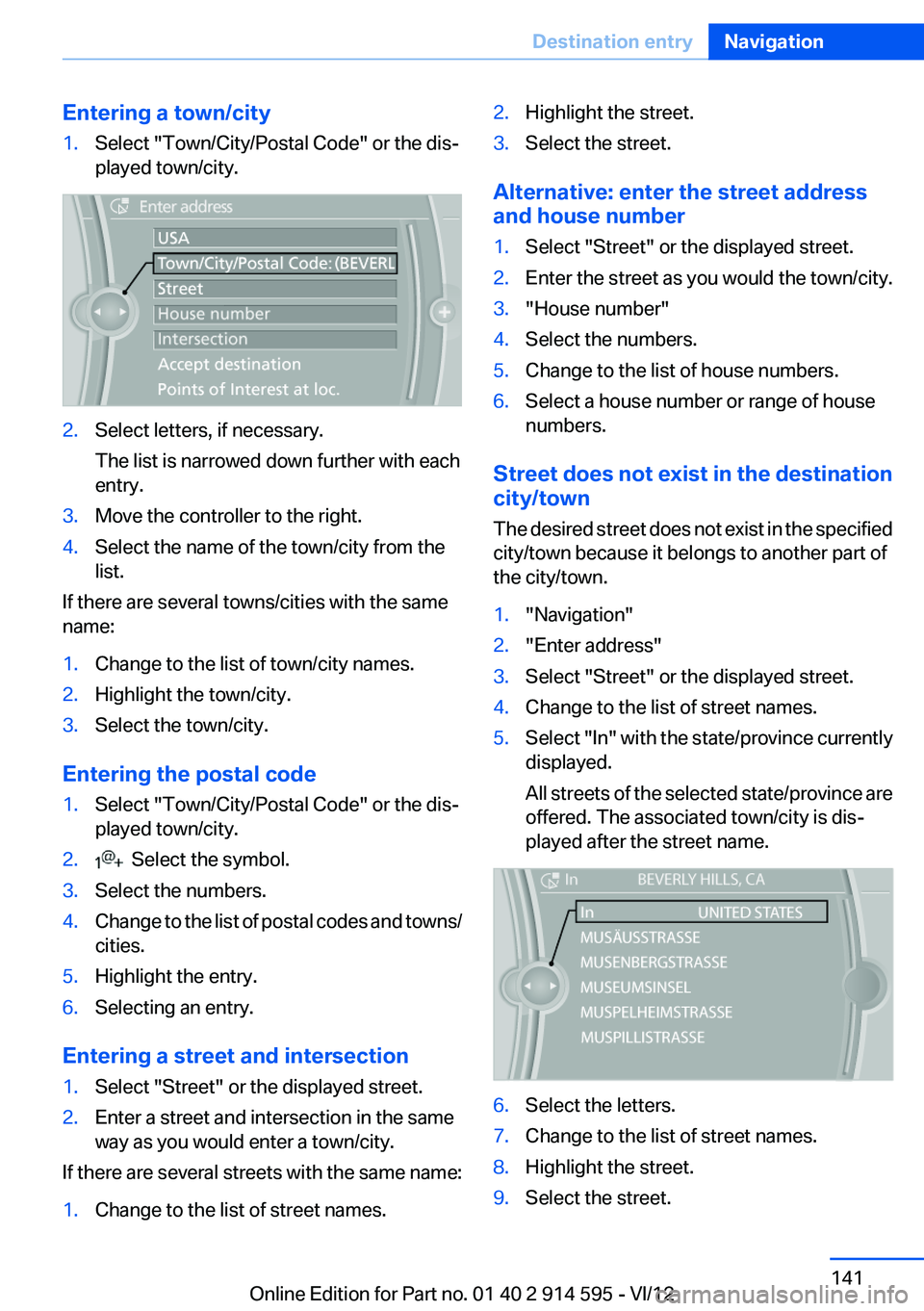
Entering a town/city1.Select "Town/City/Postal Code" or the dis‐
played town/city.2.Select letters, if necessary.
The list is narrowed down further with each
entry.3.Move the controller to the right.4.Select the name of the town/city from the
list.
If there are several towns/cities with the same
name:
1.Change to the list of town/city names.2.Highlight the town/city.3.Select the town/city.
Entering the postal code
1.Select "Town/City/Postal Code" or the dis‐
played town/city.2. Select the symbol.3.Select the numbers.4.Change to the list of postal codes and towns/
cities.5.Highlight the entry.6.Selecting an entry.
Entering a street and intersection
1.Select "Street" or the displayed street.2.Enter a street and intersection in the same
way as you would enter a town/city.
If there are several streets with the same name:
1.Change to the list of street names.2.Highlight the street.3.Select the street.
Alternative: enter the street address
and house number
1.Select "Street" or the displayed street.2.Enter the street as you would the town/city.3."House number"4.Select the numbers.5.Change to the list of house numbers.6.Select a house number or range of house
numbers.
Street does not exist in the destination
city/town
The desired street does not exist in the specified
city/town because it belongs to another part of
the city/town.
1."Navigation"2."Enter address"3.Select "Street" or the displayed street.4.Change to the list of street names.5.Select "In" with the state/province currently
displayed.
All streets of the selected state/province are
offered. The associated town/city is dis‐
played after the street name.6.Select the letters.7.Change to the list of street names.8.Highlight the street.9.Select the street.Seite 141Destination entryNavigation141
Online Edition for Part no. 01 40 2 914 595 - VI/12
Page 144 of 291
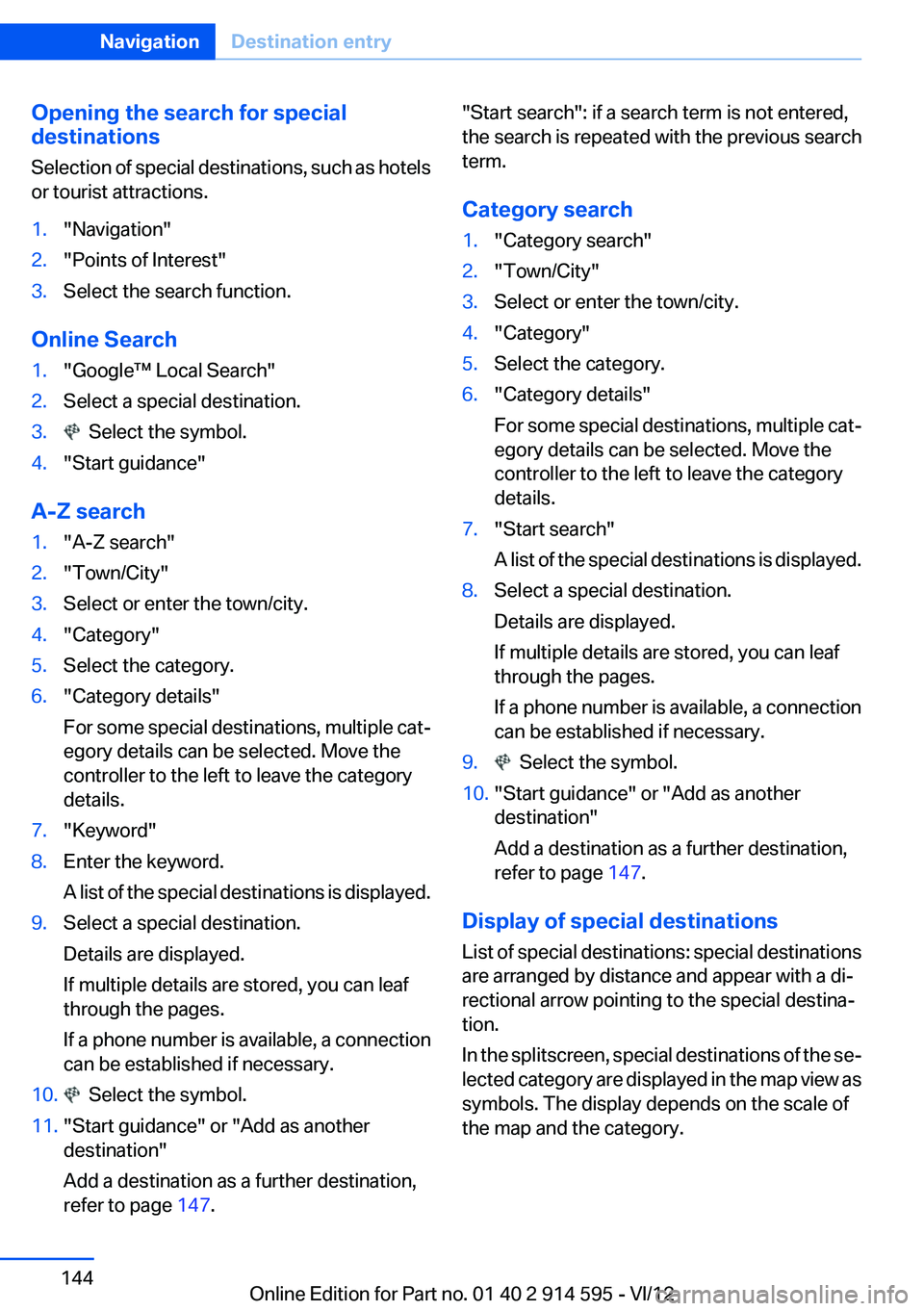
Opening the search for special
destinations
Selection of special destinations, such as hotels
or tourist attractions.1."Navigation"2."Points of Interest"3.Select the search function.
Online Search
1."Google™ Local Search"2.Select a special destination.3. Select the symbol.4."Start guidance"
A-Z search
1."A-Z search"2."Town/City"3.Select or enter the town/city.4."Category"5.Select the category.6."Category details"
For some special destinations, multiple cat‐
egory details can be selected. Move the
controller to the left to leave the category
details.7."Keyword"8.Enter the keyword.
A list of the special destinations is displayed.9.Select a special destination.
Details are displayed.
If multiple details are stored, you can leaf
through the pages.
If a phone number is available, a connection
can be established if necessary.10. Select the symbol.11."Start guidance" or "Add as another
destination"
Add a destination as a further destination,
refer to page 147."Start search": if a search term is not entered,
the search is repeated with the previous search
term.
Category search1."Category search"2."Town/City"3.Select or enter the town/city.4."Category"5.Select the category.6."Category details"
For some special destinations, multiple cat‐
egory details can be selected. Move the
controller to the left to leave the category
details.7."Start search"
A list of the special destinations is displayed.8.Select a special destination.
Details are displayed.
If multiple details are stored, you can leaf
through the pages.
If a phone number is available, a connection
can be established if necessary.9. Select the symbol.10."Start guidance" or "Add as another
destination"
Add a destination as a further destination,
refer to page 147.
Display of special destinations
List of special destinations: special destinations
are arranged by distance and appear with a di‐
rectional arrow pointing to the special destina‐
tion.
In the splitscreen, special destinations of the se‐
lected category are displayed in the map view as
symbols. The display depends on the scale of
the map and the category.
Seite 144NavigationDestination entry144
Online Edition for Part no. 01 40 2 914 595 - VI/12
Page 146 of 291
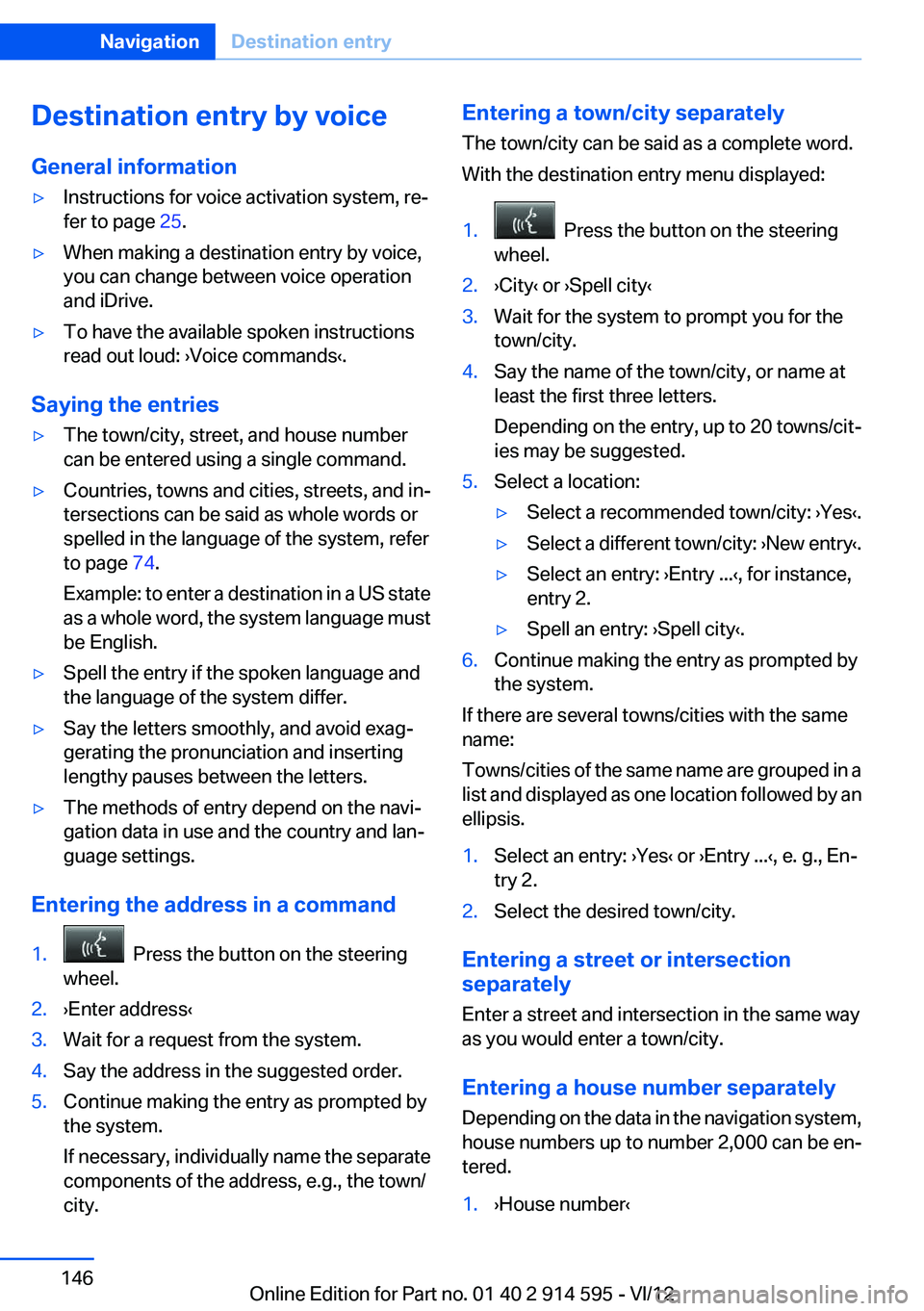
Destination entry by voice
General information▷Instructions for voice activation system, re‐
fer to page 25.▷When making a destination entry by voice,
you can change between voice operation
and iDrive.▷To have the available spoken instructions
read out loud: ›Voice commands‹.
Saying the entries
▷The town/city, street, and house number
can be entered using a single command.▷Countries, towns and cities, streets, and in‐
tersections can be said as whole words or
spelled in the language of the system, refer
to page 74.
Example: to enter a destination in a US state
as a whole word, the system language must
be English.▷Spell the entry if the spoken language and
the language of the system differ.▷Say the letters smoothly, and avoid exag‐
gerating the pronunciation and inserting
lengthy pauses between the letters.▷The methods of entry depend on the navi‐
gation data in use and the country and lan‐
guage settings.
Entering the address in a command
1. Press the button on the steering
wheel.2.›Enter address‹3.Wait for a request from the system.4.Say the address in the suggested order.5.Continue making the entry as prompted by
the system.
If necessary, individually name the separate
components of the address, e.g., the town/
city.Entering a town/city separately
The town/city can be said as a complete word.
With the destination entry menu displayed:1. Press the button on the steering
wheel.2.›City‹ or ›Spell city‹3.Wait for the system to prompt you for the
town/city.4.Say the name of the town/city, or name at
least the first three letters.
Depending on the entry, up to 20 towns/cit‐
ies may be suggested.5.Select a location:▷Select a recommended town/city: › Yes‹.▷Select a different town/city: ›New entry‹.▷Select an entry: ›Entry ...‹, for instance,
entry 2.▷Spell an entry: ›Spell city‹.6.Continue making the entry as prompted by
the system.
If there are several towns/cities with the same
name:
Towns/cities of the same name are grouped in a
list and displayed as one location followed by an
ellipsis.
1.Select an entry: ›Yes‹ or ›Entry ...‹, e. g., En‐
try 2.2.Select the desired town/city.
Entering a street or intersection
separately
Enter a street and intersection in the same way
as you would enter a town/city.
Entering a house number separately
Depending on the data in the navigation system,
house numbers up to number 2,000 can be en‐
tered.
1.›House number‹Seite 146NavigationDestination entry146
Online Edition for Part no. 01 40 2 914 595 - VI/12
Page 157 of 291
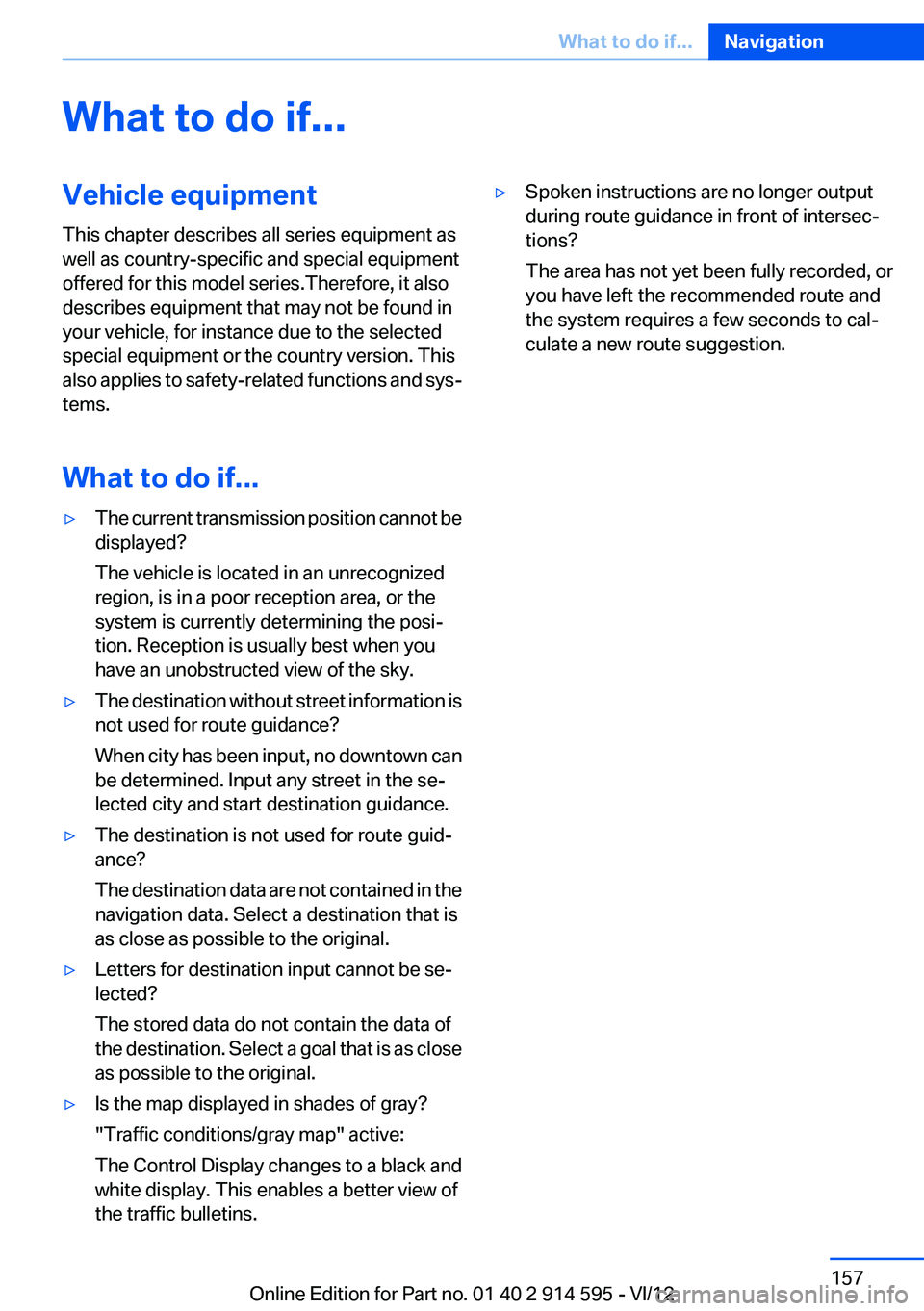
What to do if...Vehicle equipment
This chapter describes all series equipment as
well as country-specific and special equipment
offered for this model series.Therefore, it also
describes equipment that may not be found in
your vehicle, for instance due to the selected
special equipment or the country version. This
also applies to safety-related functions and sys‐
tems.
What to do if...▷The current transmission position cannot be
displayed?
The vehicle is located in an unrecognized
region, is in a poor reception area, or the
system is currently determining the posi‐
tion. Reception is usually best when you
have an unobstructed view of the sky.▷The destination without street information is
not used for route guidance?
When city has been input, no downtown can
be determined. Input any street in the se‐
lected city and start destination guidance.▷The destination is not used for route guid‐
ance?
The destination data are not contained in the
navigation data. Select a destination that is
as close as possible to the original.▷Letters for destination input cannot be se‐
lected?
The stored data do not contain the data of
the destination. Select a goal that is as close
as possible to the original.▷Is the map displayed in shades of gray?
"Traffic conditions/gray map" active:
The Control Display changes to a black and
white display. This enables a better view of
the traffic bulletins.▷Spoken instructions are no longer output
during route guidance in front of intersec‐
tions?
The area has not yet been fully recorded, or
you have left the recommended route and
the system requires a few seconds to cal‐
culate a new route suggestion.Seite 157What to do if...Navigation157
Online Edition for Part no. 01 40 2 914 595 - VI/12
Page 203 of 291
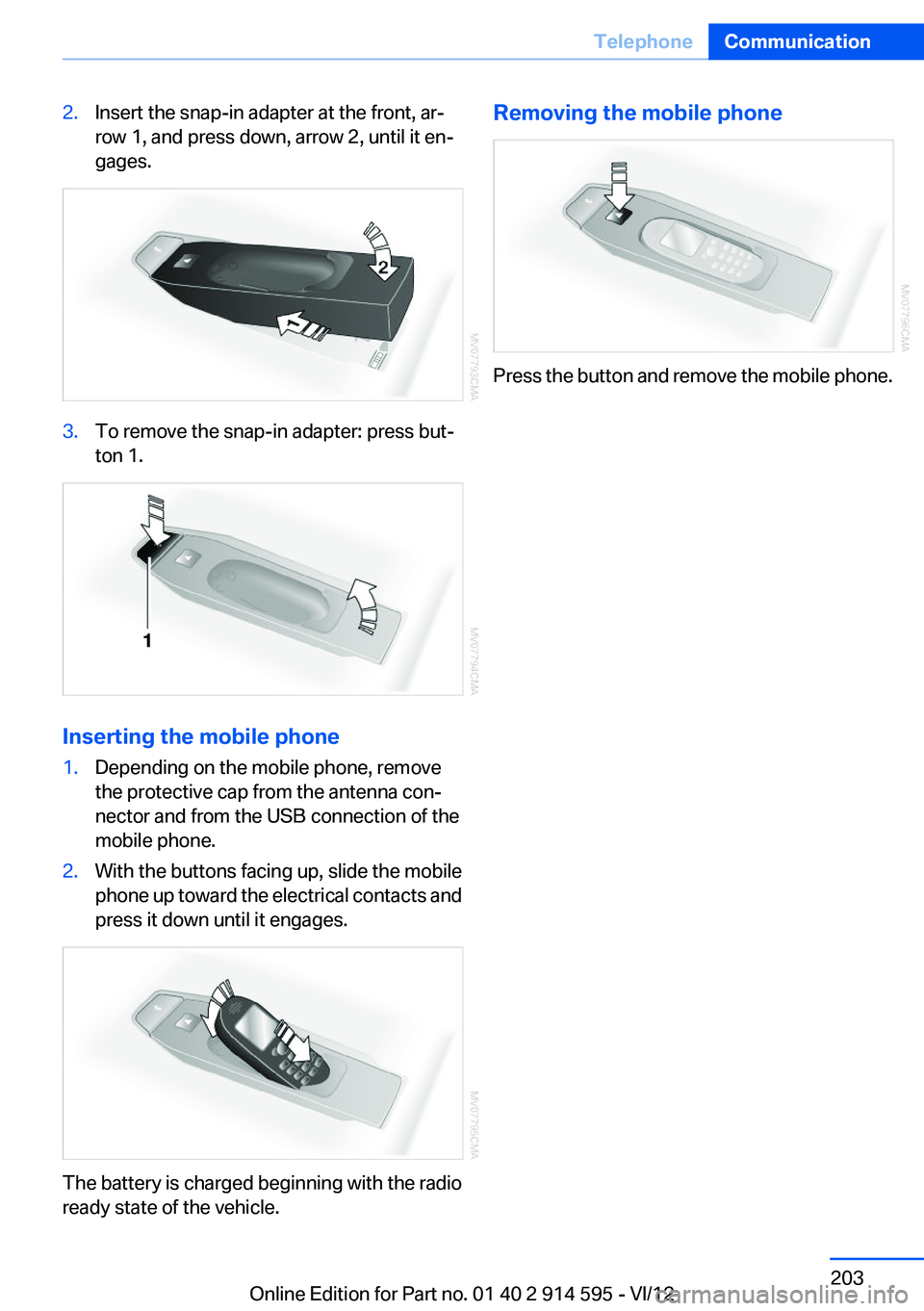
2.Insert the snap-in adapter at the front, ar‐
row 1, and press down, arrow 2, until it en‐
gages.3.To remove the snap-in adapter: press but‐
ton 1.
Inserting the mobile phone
1.Depending on the mobile phone, remove
the protective cap from the antenna con‐
nector and from the USB connection of the
mobile phone.2.With the buttons facing up, slide the mobile
phone up toward the electrical contacts and
press it down until it engages.
The battery is charged beginning with the radio
ready state of the vehicle.
Removing the mobile phone
Press the button and remove the mobile phone.
Seite 203TelephoneCommunication203
Online Edition for Part no. 01 40 2 914 595 - VI/12
Page 225 of 291
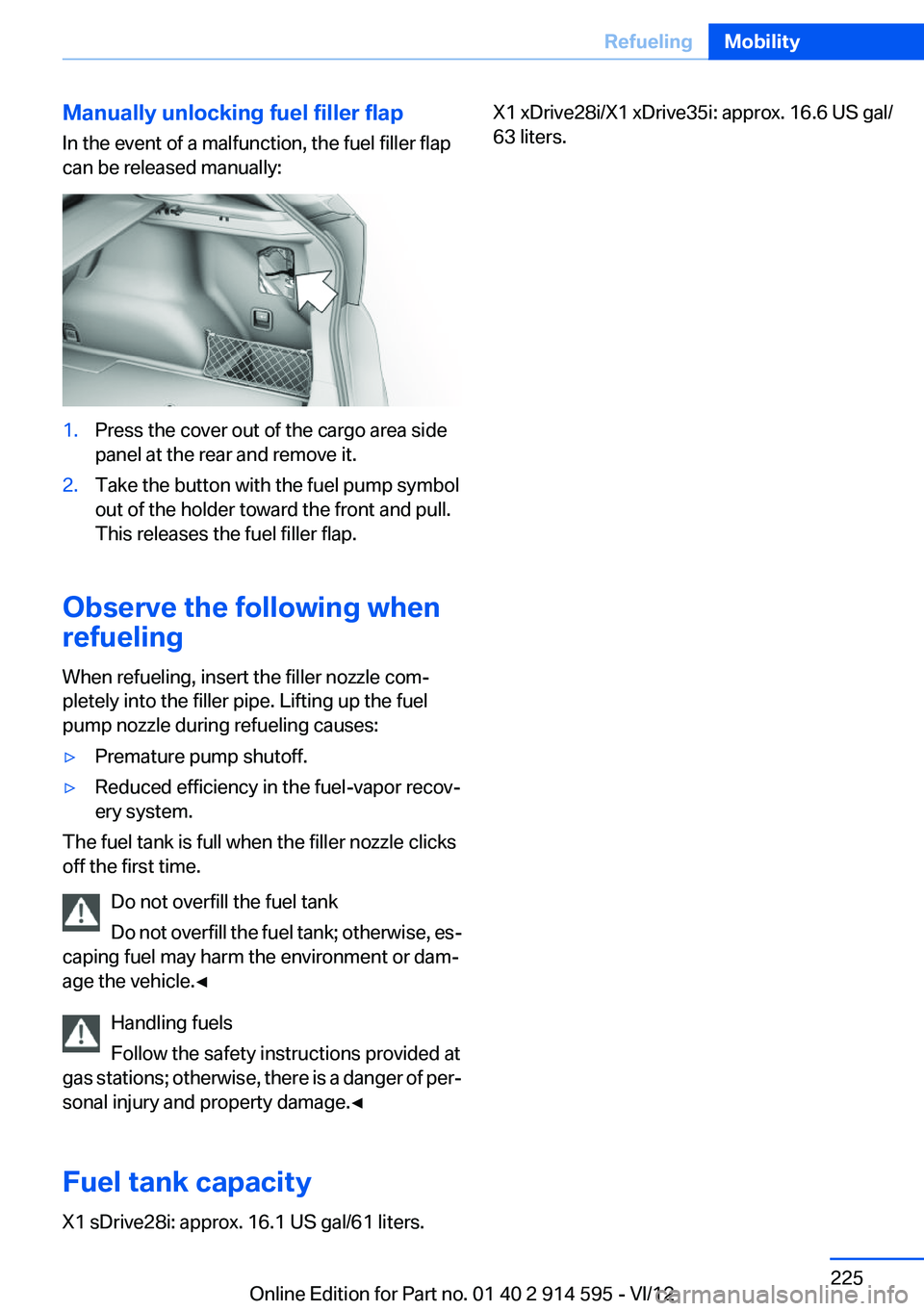
Manually unlocking fuel filler flap
In the event of a malfunction, the fuel filler flap
can be released manually:1.Press the cover out of the cargo area side
panel at the rear and remove it.2.Take the button with the fuel pump symbol
out of the holder toward the front and pull.
This releases the fuel filler flap.
Observe the following when
refueling
When refueling, insert the filler nozzle com‐
pletely into the filler pipe. Lifting up the fuel
pump nozzle during refueling causes:
▷Premature pump shutoff.▷Reduced efficiency in the fuel-vapor recov‐
ery system.
The fuel tank is full when the filler nozzle clicks
off the first time.
Do not overfill the fuel tank
Do not overfill the fuel tank; otherwise, es‐
caping fuel may harm the environment or dam‐
age the vehicle.◀
Handling fuels
Follow the safety instructions provided at
gas stations; otherwise, there is a danger of per‐
sonal injury and property damage.◀
Fuel tank capacity
X1 sDrive28i: approx. 16.1 US gal/61 liters.
X1 xDrive28i/X1 xDrive35i: approx. 16.6 US gal/
63 liters.Seite 225RefuelingMobility225
Online Edition for Part no. 01 40 2 914 595 - VI/12