buttons BMW X1 SDRIVE28I 2013 Owner's Manual
[x] Cancel search | Manufacturer: BMW, Model Year: 2013, Model line: X1 SDRIVE28I, Model: BMW X1 SDRIVE28I 2013Pages: 291, PDF Size: 6.58 MB
Page 164 of 291
3.Open "Options".4."HD Radio Reception"
The setting is stored for the remote control cur‐
rently in use.
This symbol is displayed in the status line
when the audio signal is digital.
When tuning to a station with a digital signal, it
may take several seconds for the station to be
played back in digital quality.
In areas in which the station is not continuously
received in digital mode, the playback switches
between analog and digital reception. In this
case, switch off digital radio reception.
Displaying additional information
Some stations broadcast additional information
on the current track, such as the name of the ar‐
tist.
1.Select the desired station.2.Open "Options".3."Station info"
Selecting a substation
This symbol indicates that a main station also
broadcasts additional substations. The station
name of the main station ends in HD1. Station
names of the substations end in HD2, HD3, etc.
1.Select the desired station.2.Press the controller.3.Select the substation.
When reception is poor, the substation is muted.
Satellite radio
General information
The channels are offered in predefined pack‐
ages. The packages must be enabled by tele‐
phone.
Navigation bar overviewSymbolFunction Change the list view. Select the category. Direct channel entry Timeshift Open the My Favorites category/
open a favorite. Manage the favorites. Traffic Jump
The functions of the navigation bar symbols can
also be stored on the programmable memory
buttons, refer to page 23.
Managing a subscription
To be able to enable or unsubscribe from the
channels, you must have reception. It is usually
at its best when you have an unobstructed view
of the sky. The channel name is displayed in the
status line.
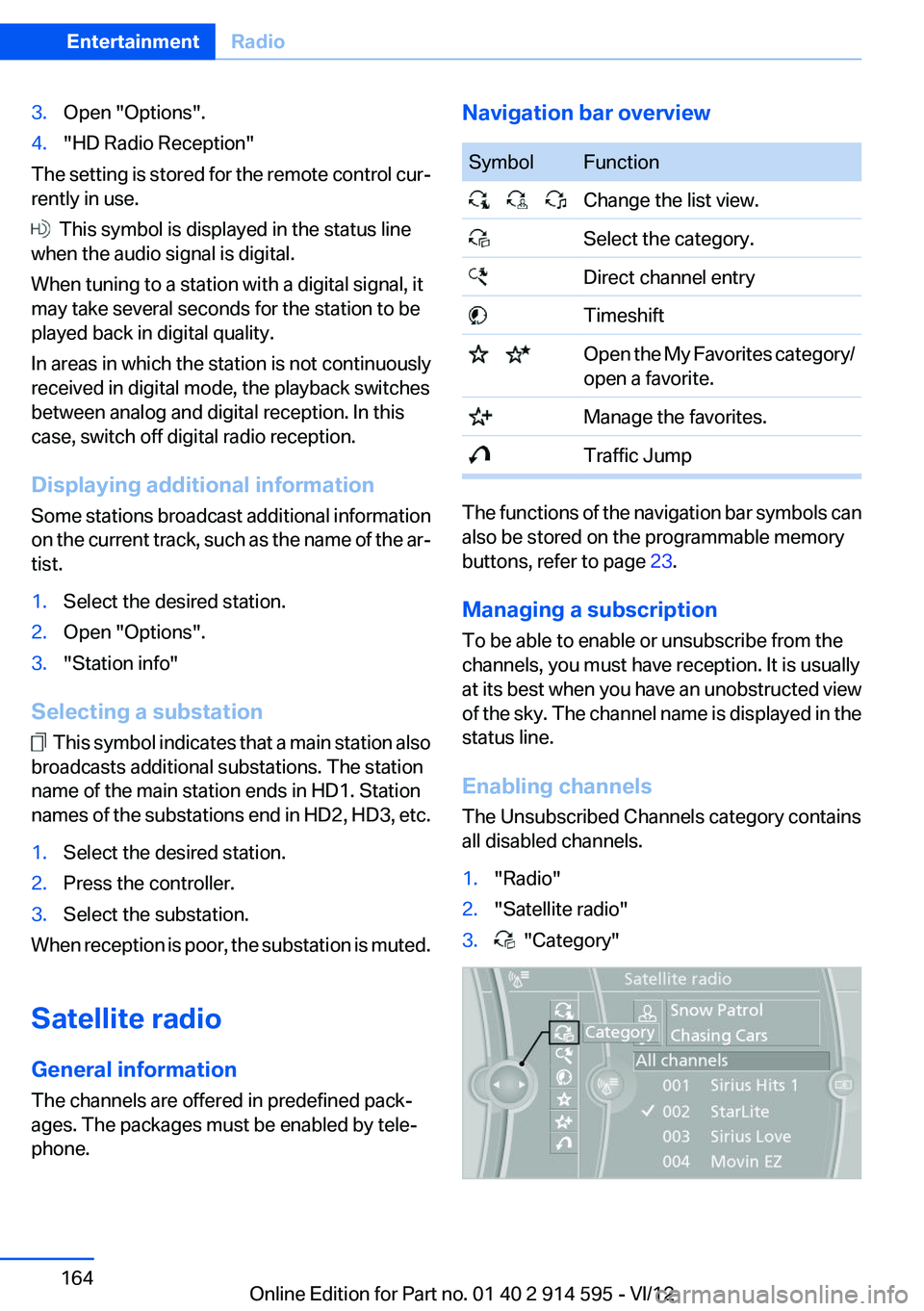
Enabling channels
The Unsubscribed Channels category contains
all disabled channels.
1."Radio"2."Satellite radio"3. "Category"Seite 164EntertainmentRadio164
Online Edition for Part no. 01 40 2 914 595 - VI/12
Page 166 of 291
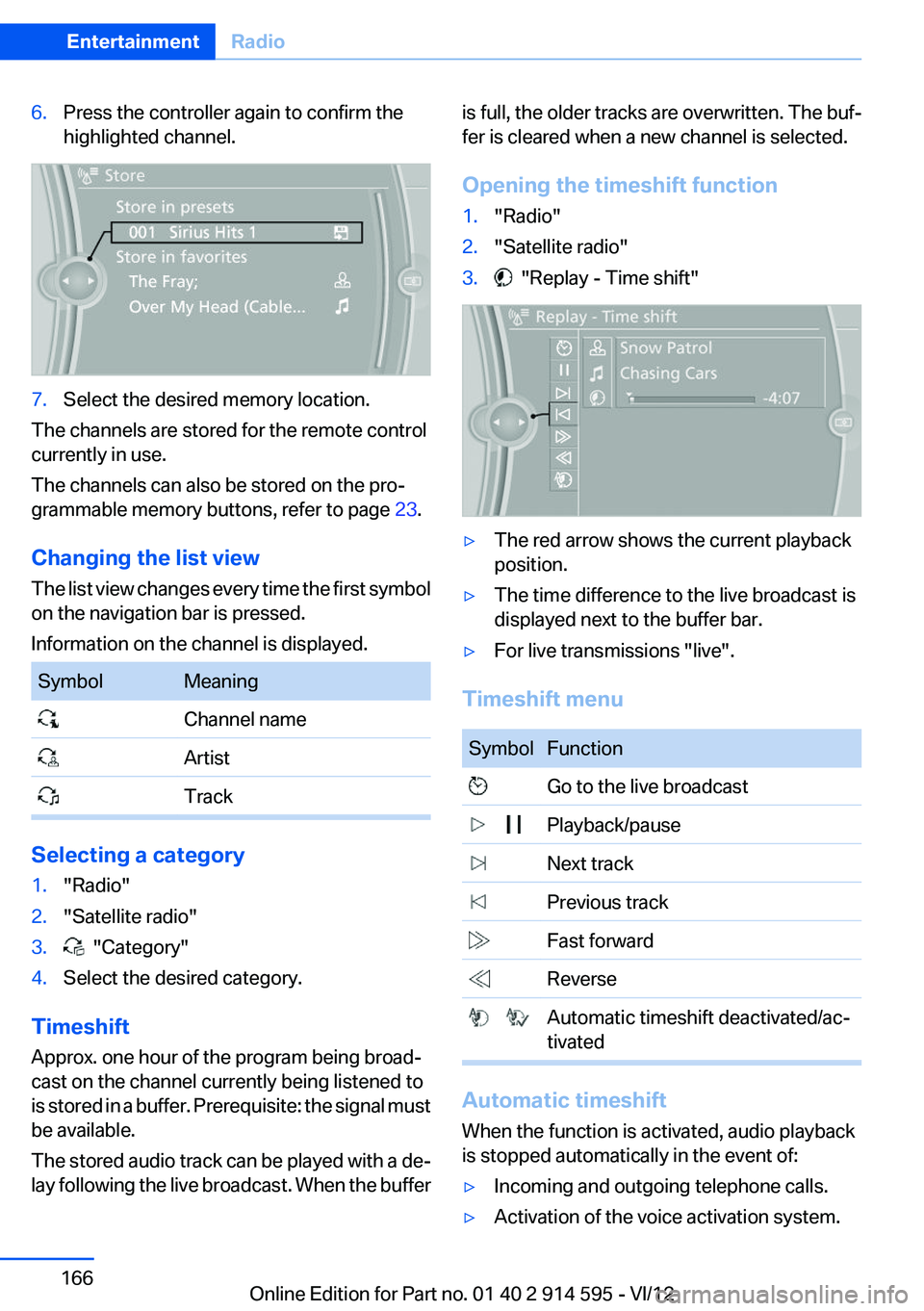
6.Press the controller again to confirm the
highlighted channel.7.Select the desired memory location.
The channels are stored for the remote control
currently in use.
The channels can also be stored on the pro‐
grammable memory buttons, refer to page 23.
Changing the list view
The list view changes every time the first symbol
on the navigation bar is pressed.
Information on the channel is displayed.
SymbolMeaning Channel name Artist Track
Selecting a category
1."Radio"2."Satellite radio"3. "Category"4.Select the desired category.
Timeshift
Approx. one hour of the program being broad‐
cast on the channel currently being listened to
is stored in a buffer. Prerequisite: the signal must
be available.
The stored audio track can be played with a de‐
lay following the live broadcast. When the buffer
is full, the older tracks are overwritten. The buf‐
fer is cleared when a new channel is selected.
Opening the timeshift function1."Radio"2."Satellite radio"3. "Replay - Time shift"▷The red arrow shows the current playback
position.▷The time difference to the live broadcast is
displayed next to the buffer bar.▷For live transmissions "live".
Timeshift menu
SymbolFunction Go to the live broadcast Playback/pause Next track Previous track Fast forward Reverse Automatic timeshift deactivated/ac‐
tivated
Automatic timeshift
When the function is activated, audio playback
is stopped automatically in the event of:
▷Incoming and outgoing telephone calls.▷Activation of the voice activation system.Seite 166EntertainmentRadio166
Online Edition for Part no. 01 40 2 914 595 - VI/12
Page 169 of 291
The list of stored stations is stored for the re‐
mote control currently in use.
The stations can also be stored on the program‐
mable memory buttons, refer to page 23.
Deleting a station1."Radio"2."Presets"3.Select the desired station.4.Open "Options".5."Delete entry"Seite 169RadioEntertainment169
Online Edition for Part no. 01 40 2 914 595 - VI/12
Page 170 of 291
CD/multimediaVehicle equipment
This chapter describes all series equipment as
well as country-specific and special equipment
offered for this model series.Therefore, it also
describes equipment that may not be found in
your vehicle, for instance due to the selected
special equipment or the country version. This
also applies to safety-related functions and sys‐
tems.
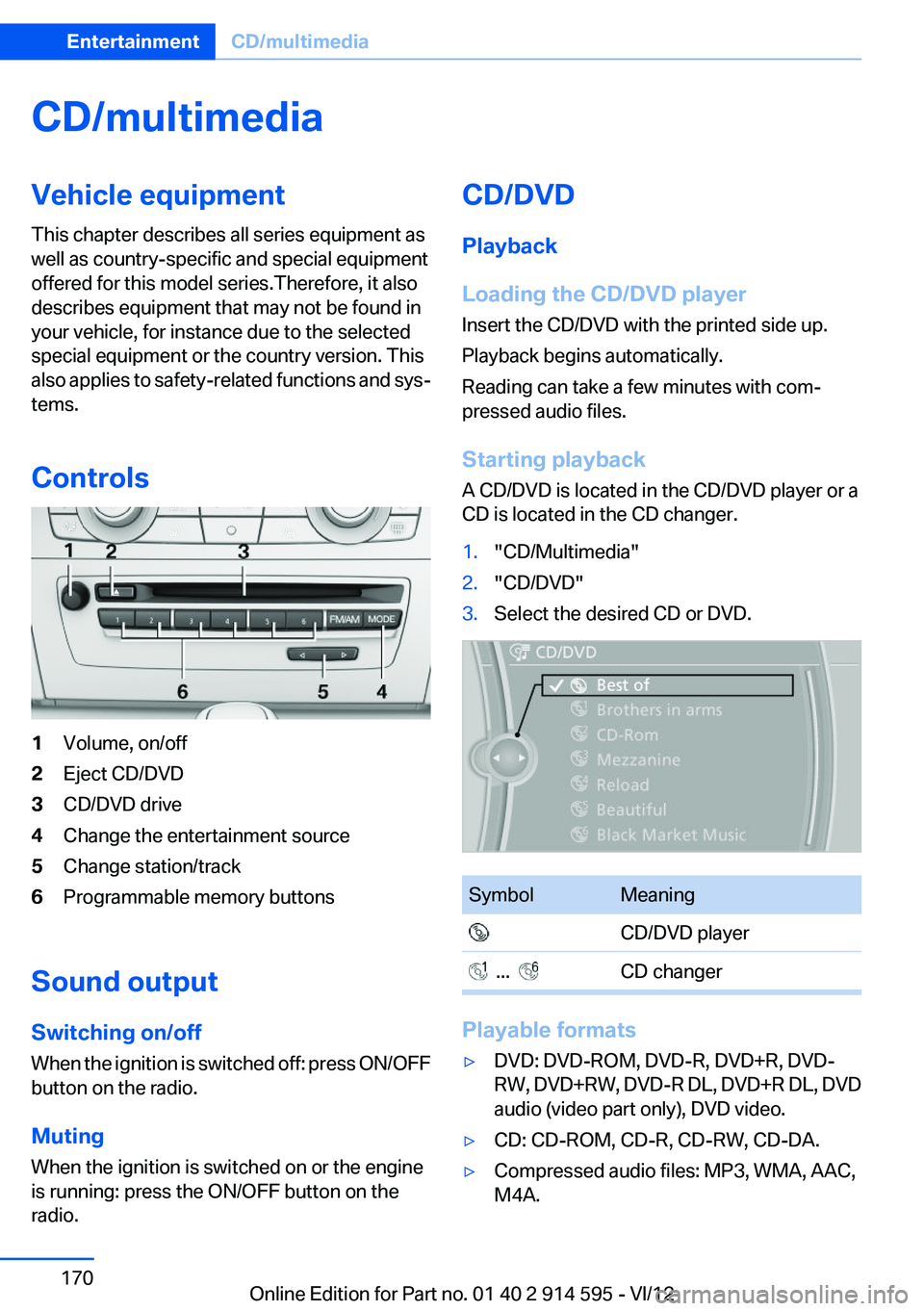
Controls1Volume, on/off2Eject CD/DVD3CD/DVD drive4Change the entertainment source5Change station/track6Programmable memory buttons
Sound output
Switching on/off
When the ignition is switched off: press ON/OFF
button on the radio.
Muting
When the ignition is switched on or the engine
is running: press the ON/OFF button on the
radio.
CD/DVD
Playback
Loading the CD/DVD player
Insert the CD/DVD with the printed side up.
Playback begins automatically.
Reading can take a few minutes with com‐
pressed audio files.
Starting playback
A CD/DVD is located in the CD/DVD player or a
CD is located in the CD changer.1."CD/Multimedia"2."CD/DVD"3.Select the desired CD or DVD.SymbolMeaning CD/DVD player ... CD changer
Playable formats
▷DVD: DVD-ROM, DVD-R, DVD+R, DVD-
RW, DVD+RW, DVD-R DL, DVD+R DL, DVD
audio (video part only), DVD video.▷CD: CD-ROM, CD-R, CD-RW, CD-DA.▷Compressed audio files: MP3, WMA, AAC,
M4A.Seite 170EntertainmentCD/multimedia170
Online Edition for Part no. 01 40 2 914 595 - VI/12
Page 188 of 291
from the vehicle and pair and connect only
one device.▷The device no longer reacts? Switch the de‐
vice off and on again.▷Repeat the pairing procedure.
Music cannot be played back.
▷Start the program for playing back music
data on the device and select a track on the
device if necessary.▷Switch the radio on and off again.
Music files can only be played back softly.
▷Adjust the volume settings on the device.
Playback is disturbed when buttons are pressed
or by other messages on the device.
▷Switch off the button tones and other signal
tones on the device.
Playback is interrupted by a telephone call or
traffic bulletin and is not resumed automatically.
▷Switch the radio on and off again.
Playback is not possible if the mobile phone is
connected via Bluetooth Audio while it is also
connected via the USB interface or the snap-in
adapter.
▷Disconnect one of the two connections; for
example, disconnect the audio connection,
refer to page 187, and restart playback.
If all points in this list have been checked and the
required function is still not available, please
contact the hotline or service center.
Software Update
The vehicle supports various external devices
depending on the current software version. With
a software update, the vehicle can support new
mobile phones or new external device, for ex‐
ample.
▷USB.
Software updates and related current infor‐
mation is available at www.bmw.com/up‐
date.Displaying the current version
The currently installed software is displayed.1."Settings"2."Software update"3."Show current version"
Select desired version to display additional in‐
formation.
Updating software via USB
The software may only be updated when the ve‐
hicle is stationary.
1.Store the file for the software-update in the
main director of a USB flash drive.2.Insert the USB flash drive into the USB audio
interface in the center console. An update
via the USB interface in the glove compart‐
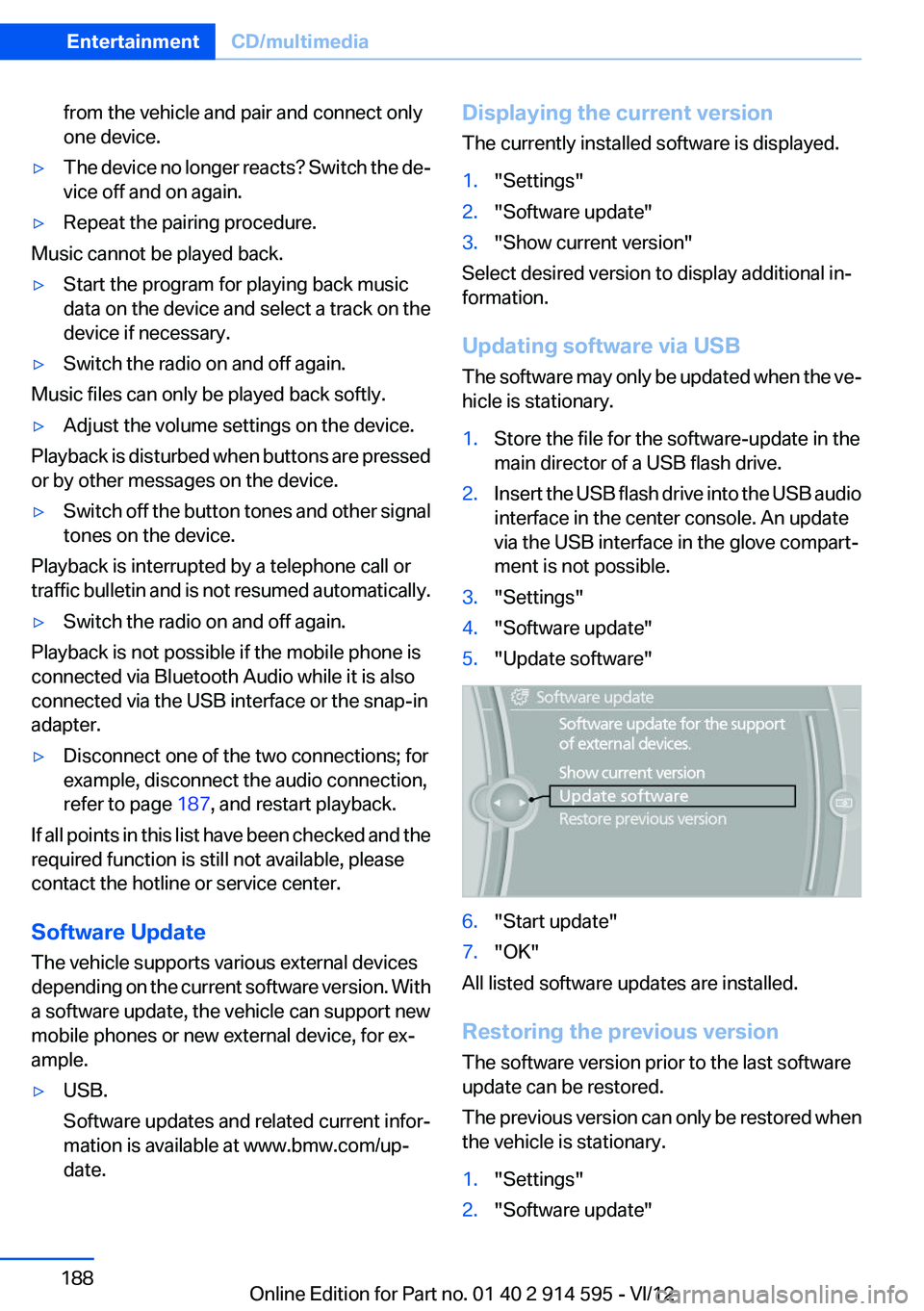
ment is not possible.3."Settings"4."Software update"5."Update software"6."Start update"7."OK"
All listed software updates are installed.
Restoring the previous version
The software version prior to the last software
update can be restored.
The previous version can only be restored when
the vehicle is stationary.
1."Settings"2."Software update"Seite 188EntertainmentCD/multimedia188
Online Edition for Part no. 01 40 2 914 595 - VI/12
Page 192 of 291
TelephoneVehicle equipment
This chapter describes all series equipment as
well as country-specific and special equipment
offered for this model series.Therefore, it also
describes equipment that may not be found in
your vehicle, for instance due to the selected
special equipment or the country version. This
also applies to safety-related functions and sys‐
tems.
At a glance
The concept
Mobile phones or other external devices such as
audio players can be connected to the vehicle
via Bluetooth.
Bluetooth® is a registered trademark of Blue‐
tooth® SIG, Inc.
After these devices are paired once, they are
recognized automatically when the ignition is
switched on as soon as they are in the vehicle
and can then be operated via iDrive, the buttons
on the steering wheel, and via voice activation.
Depending on their functionality, external devi‐
ces can be used via the vehicle as a telephone
or as an audio source. The telephone functions
are described in the following. Operating the au‐
dio functions, refer to page 185.
Up to four external devices can be paired.
Certain functions may need to be enabled by the
mobile phone provider or service provider.
Using the mobile phone while driving
Make entries only when traffic and road
conditions allow. Do not hold the mobile phone
in your hand while you are driving; use the
hands-free system instead. If you do not ob‐
serve this precaution, you can endanger the ve‐
hicle occupants and other road users.◀Snap-in adapter
The snap-in adapter is used to:▷Hold the mobile phone.▷Recharge the battery.▷Connect the mobile phone to an outside an‐
tenna of the vehicle.
This provides for better network reception
and consistent sound quality.
Approved mobile phones
Details on which mobile phones and external
devices with a Bluetooth interface are sup‐
ported by the mobile phone preparation pack‐
age can be obtained at www.bmwusa.com/blue‐
tooth.
Displaying the vehicle identification
number and software part number
The vehicle identification number and software
part number are needed to determine which mo‐
bile phones are supported by the mobile phone
preparation package. The software version of
the mobile phone may also be required.
1."Telephone"2.Open "Options".3."Bluetooth® info"4."Display system information"
These approved mobile phones with a certain
software version, support the vehicle functions
described below.
Malfunctions may occur with other mobile
phones or software versions.
Do not operate a mobile phone that is connected
to the vehicle on the mobile phone keypad, as
this may lead to a malfunction.
A software update, refer to page 188, can be
performed if necessary.
Seite 192CommunicationTelephone192
Online Edition for Part no. 01 40 2 914 595 - VI/12
Page 203 of 291
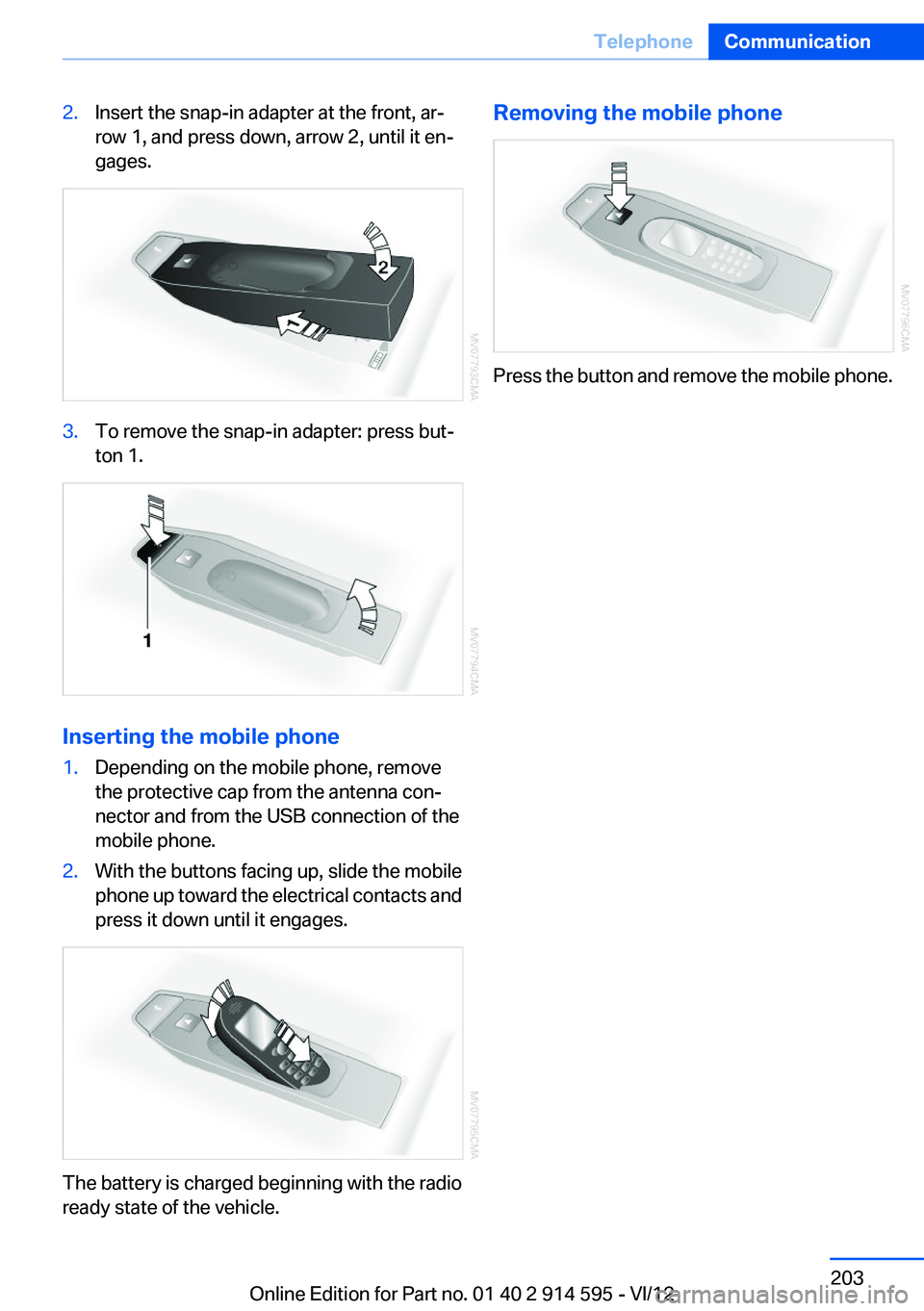
2.Insert the snap-in adapter at the front, ar‐
row 1, and press down, arrow 2, until it en‐
gages.3.To remove the snap-in adapter: press but‐
ton 1.
Inserting the mobile phone
1.Depending on the mobile phone, remove
the protective cap from the antenna con‐
nector and from the USB connection of the
mobile phone.2.With the buttons facing up, slide the mobile
phone up toward the electrical contacts and
press it down until it engages.
The battery is charged beginning with the radio
ready state of the vehicle.
Removing the mobile phone
Press the button and remove the mobile phone.
Seite 203TelephoneCommunication203
Online Edition for Part no. 01 40 2 914 595 - VI/12
Page 282 of 291
Inflation pressure monitor, re‐fer to Flat Tire Monitor 88
Inflation pressure, refer to Tire inflation pressure 228
Information on the navigation data 138
Initialization after power fail‐ ure 251
Initializing– Compass, refer to Calibrat‐
ing 113– Panoramic glass sunroof 42– Refer to Setting the time and
date 73
Initializing, Flat Tire Monitor
FTM 88
Initializing, Tire Pressure Mon‐ itor TPM 91
Inside brake lamps
– Bulb replacement 250
Installation location, tele‐
phone 120
Instrument cluster 14
Instrument lighting 83
Instrument panel, refer to In‐ strument cluster 14
Instruments, refer to Cock‐ pit 12
Integrated key 30
Interactive map 145
Interior equipment 110
Interior lamps 84
Interior lamps
– Remote control 32
Interior mirror 49
Interior rearview mirror, auto‐ matic dimming 49
Interior rearview mirror, com‐ pass 112
Interior temperature, setting
– Automatic climate con‐
trol 105
Interlock, refer to Disengaging
the remote control 62
Intermediate destinations 147
Internet page 6
Intersection, entering for navi‐
gation 141
iPod/iPhone 182
J
Jacking points for the vehicle jack 251
Jack, refer to Vehicle jack 251
Joystick, refer to Selector lever 65
Jump-starting 255
K
Keyless Go, refer to Comfort Access 36
Keyless opening and closing, refer to Comfort Access 36
Key Memory, refer to Personal Profile 30
Key, refer to Integrated key/re‐ mote control 30
Kickdown– Automatic transmission with
Steptronic 63, 64
Knee airbag 85
Knocking control 226
L
Label, run-flat tire 236
Lamp and bulb replacement, lamp replacement 246
Lamps 80
Lamps, automatic headlamp control 80, 81
Lamps, High-beam Assis‐ tant 82
Lamps, parking lamps/low beams 80
Lamps, replacing, refer to Lamp and bulb replace‐
ment 246
Language, changing on the Control Display 74
Lap-and-shoulder belt, refer to
Safety belts 45
Lashing eyes, securing cargo 131
LATCH child restraint fixing system 51
Leather, care 260
LEDs, light-emitting di‐ odes 246
Length, refer to Dimen‐ sions 266
Letters and numbers, enter‐ ing 23
License plate lamp, bulb re‐ placement 250
Light-alloy wheels, care 261
Light-emitting diodes, LEDs 246
Lighter 114
Lighting– Instruments 83– Lamp and bulb replace‐
ment 246
Lighting, vehicle, refer to
Lamps 80
Light switch 80
Limit, refer to Speed limit 78
Load 130
Loading 130
Lock buttons, doors, refer to Locking 35
Locking
– From the inside 35– From the outside 32– Setting the confirmation sig‐
nals 33– Without remote control, refer
to Comfort Access 36
Locking the vehicle
– From the inside 34– From the outside 32
Locks, doors, and win‐
dows 53
Longlife oils, alternative oil types 241
Longlife oils, refer to Approved engine oils 241
Seite 282ReferenceEverything from A to Z282
Online Edition for Part no. 01 40 2 914 595 - VI/12