remote control BMW X1 SDRIVE28I 2013 Owner's Manual
[x] Cancel search | Manufacturer: BMW, Model Year: 2013, Model line: X1 SDRIVE28I, Model: BMW X1 SDRIVE28I 2013Pages: 291, PDF Size: 6.58 MB
Page 64 of 291
Shifting gears using the shift paddles
on the steering wheel
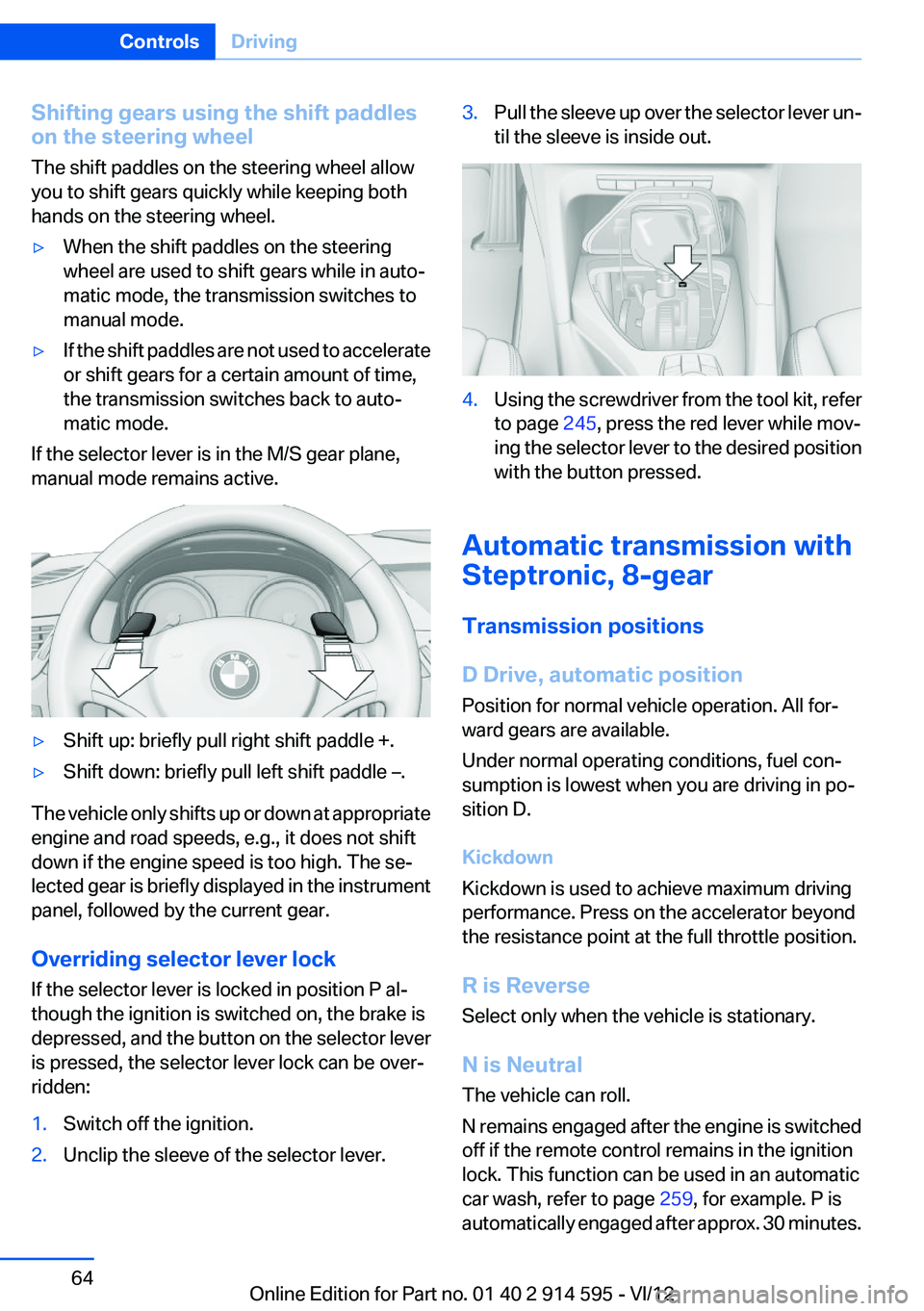
The shift paddles on the steering wheel allow
you to shift gears quickly while keeping both
hands on the steering wheel.▷When the shift paddles on the steering
wheel are used to shift gears while in auto‐
matic mode, the transmission switches to
manual mode.▷If the shift paddles are not used to accelerate
or shift gears for a certain amount of time,
the transmission switches back to auto‐
matic mode.
If the selector lever is in the M/S gear plane,
manual mode remains active.
▷Shift up: briefly pull right shift paddle +.▷Shift down: briefly pull left shift paddle –.
The vehicle only shifts up or down at appropriate
engine and road speeds, e.g., it does not shift
down if the engine speed is too high. The se‐
lected gear is briefly displayed in the instrument
panel, followed by the current gear.
Overriding selector lever lock
If the selector lever is locked in position P al‐
though the ignition is switched on, the brake is
depressed, and the button on the selector lever
is pressed, the selector lever lock can be over‐
ridden:
1.Switch off the ignition.2.Unclip the sleeve of the selector lever.3.Pull the sleeve up over the selector lever un‐
til the sleeve is inside out.4.Using the screwdriver from the tool kit, refer
to page 245, press the red lever while mov‐
ing the selector lever to the desired position
with the button pressed.
Automatic transmission with
Steptronic, 8-gear
Transmission positions
D Drive, automatic position
Position for normal vehicle operation. All for‐
ward gears are available.
Under normal operating conditions, fuel con‐
sumption is lowest when you are driving in po‐
sition D.
Kickdown
Kickdown is used to achieve maximum driving
performance. Press on the accelerator beyond
the resistance point at the full throttle position.
R is Reverse
Select only when the vehicle is stationary.
N is Neutral
The vehicle can roll.
N remains engaged after the engine is switched
off if the remote control remains in the ignition
lock. This function can be used in an automatic
car wash, refer to page 259, for example. P is
automatically engaged after approx. 30 minutes.
Seite 64ControlsDriving64
Online Edition for Part no. 01 40 2 914 595 - VI/12
Page 65 of 291
P Park
The drive wheels are blocked.
P is engaged automatically when the following
conditions are met:▷The driver's door is opened while the engine
is running, the safety belt is not fastened and
neither the brake pedal nor the accelerator
is activated.▷The engine is switched off unless N is en‐
gaged and the remote control is in the igni‐
tion lock.▷The remote control is removed from the ig‐
nition lock.
Before leaving the vehicle, ensure that the trans‐
mission position P is engaged; otherwise, the
vehicle may begin to roll.
Engaging transmission position
▷Transmission position P can only be disen‐
gaged if the engine is running and the brake
pedal is pressed.▷With the vehicle stationary, press on the
brake pedal before shifting out of P or N;
otherwise, the shift command will not be
executed: shift lock.
Press on the brake pedal until you start
driving
To prevent the vehicle from creeping after you
select a driving position, maintain pressure on
the brake pedal until you are ready to start.◀
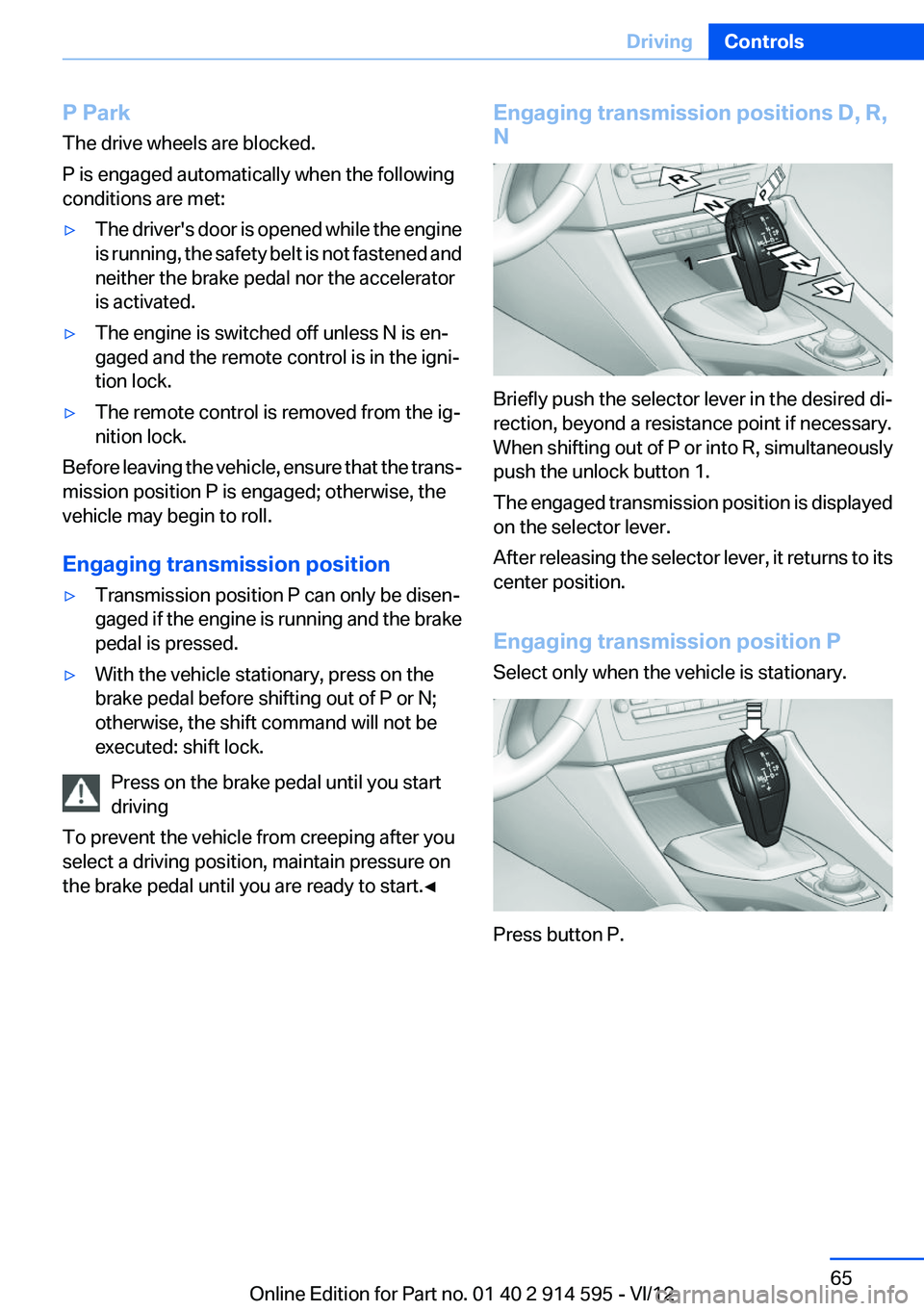
Engaging transmission positions D, R,
N
Briefly push the selector lever in the desired di‐
rection, beyond a resistance point if necessary.
When shifting out of P or into R, simultaneously
push the unlock button 1.
The engaged transmission position is displayed
on the selector lever.
After releasing the selector lever, it returns to its
center position.
Engaging transmission position P
Select only when the vehicle is stationary.
Press button P.
Seite 65DrivingControls65
Online Edition for Part no. 01 40 2 914 595 - VI/12
Page 68 of 291
DisplaysVehicle equipment
This chapter describes all series equipment as
well as country-specific and special equipment
offered for this model series.Therefore, it also
describes equipment that may not be found in
your vehicle, for instance due to the selected
special equipment or the country version. This
also applies to safety-related functions and sys‐
tems.
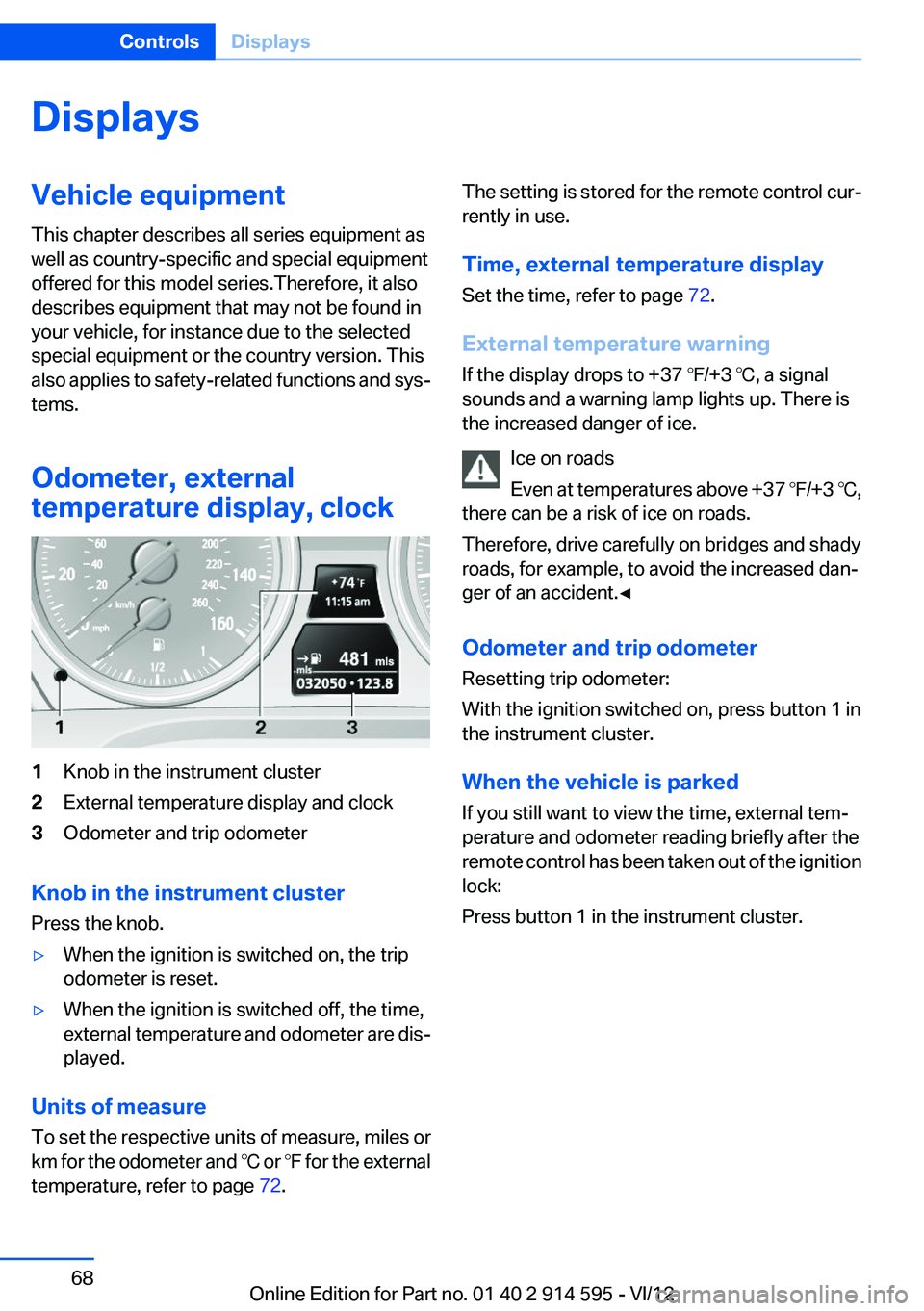
Odometer, external
temperature display, clock1Knob in the instrument cluster2External temperature display and clock3Odometer and trip odometer
Knob in the instrument cluster
Press the knob.
▷When the ignition is switched on, the trip
odometer is reset.▷When the ignition is switched off, the time,
external temperature and odometer are dis‐
played.
Units of measure
To set the respective units of measure, miles or
km for the odometer and ℃ or ℉ for the external
temperature, refer to page 72.
The setting is stored for the remote control cur‐
rently in use.
Time, external temperature display
Set the time, refer to page 72.
External temperature warning
If the display drops to +37 ℉/+3 ℃, a signal
sounds and a warning lamp lights up. There is
the increased danger of ice.
Ice on roads
Even at temperatures above +37 ℉/+3 ℃,
there can be a risk of ice on roads.
Therefore, drive carefully on bridges and shady
roads, for example, to avoid the increased dan‐
ger of an accident.◀
Odometer and trip odometer
Resetting trip odometer:
With the ignition switched on, press button 1 in
the instrument cluster.
When the vehicle is parked
If you still want to view the time, external tem‐
perature and odometer reading briefly after the
remote control has been taken out of the ignition
lock:
Press button 1 in the instrument cluster.Seite 68ControlsDisplays68
Online Edition for Part no. 01 40 2 914 595 - VI/12
Page 72 of 291
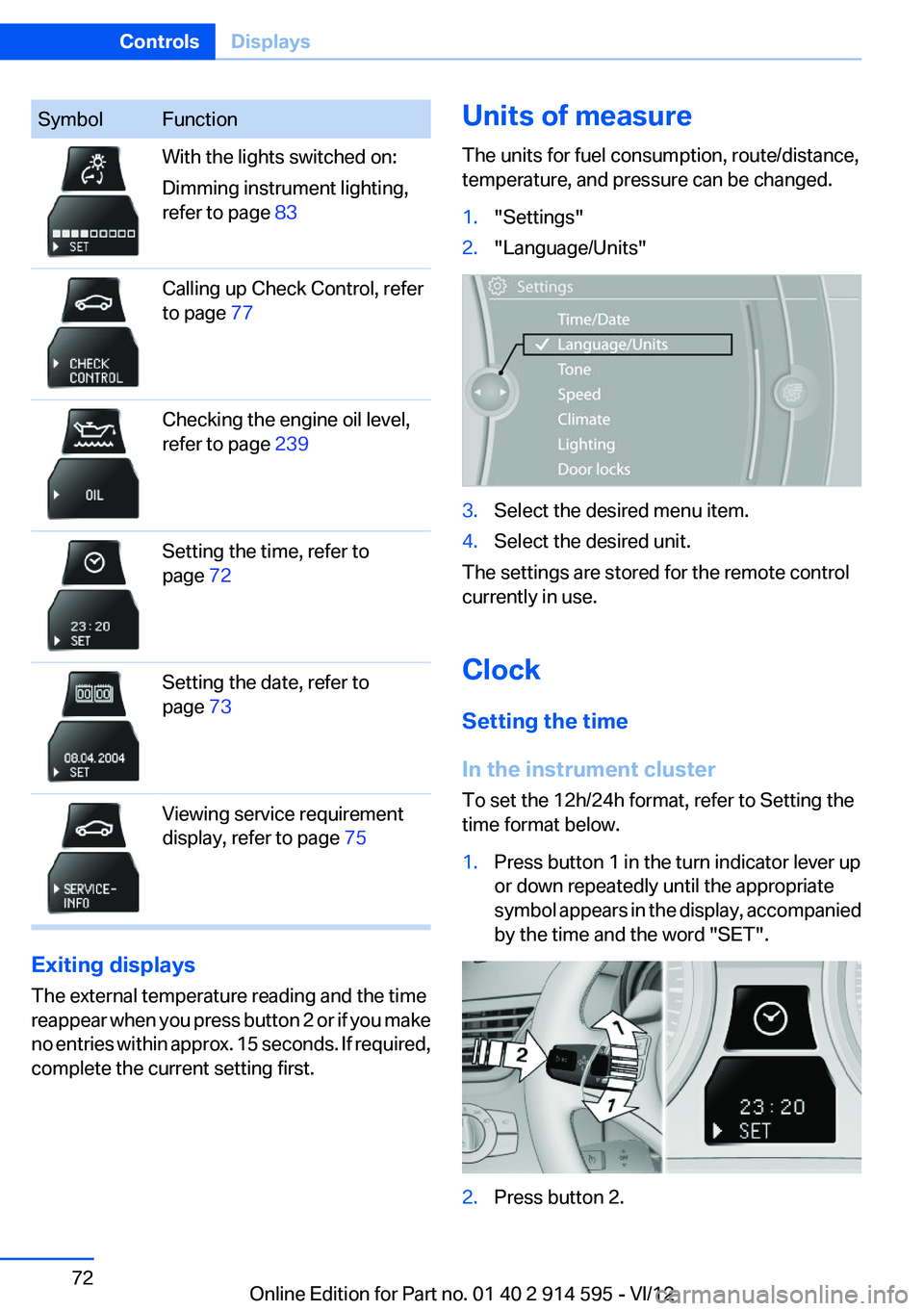
SymbolFunctionWith the lights switched on:
Dimming instrument lighting,
refer to page 83Calling up Check Control, refer
to page 77Checking the engine oil level,
refer to page 239Setting the time, refer to
page 72Setting the date, refer to
page 73Viewing service requirement
display, refer to page 75
Exiting displays
The external temperature reading and the time
reappear when you press button 2 or if you make
no entries within approx. 15 seconds. If required,
complete the current setting first.
Units of measure
The units for fuel consumption, route/distance,
temperature, and pressure can be changed.1."Settings"2."Language/Units"3.Select the desired menu item.4.Select the desired unit.
The settings are stored for the remote control
currently in use.
Clock
Setting the time
In the instrument cluster
To set the 12h/24h format, refer to Setting the
time format below.
1.Press button 1 in the turn indicator lever up
or down repeatedly until the appropriate
symbol appears in the display, accompanied
by the time and the word "SET".2.Press button 2.Seite 72ControlsDisplays72
Online Edition for Part no. 01 40 2 914 595 - VI/12
Page 73 of 291
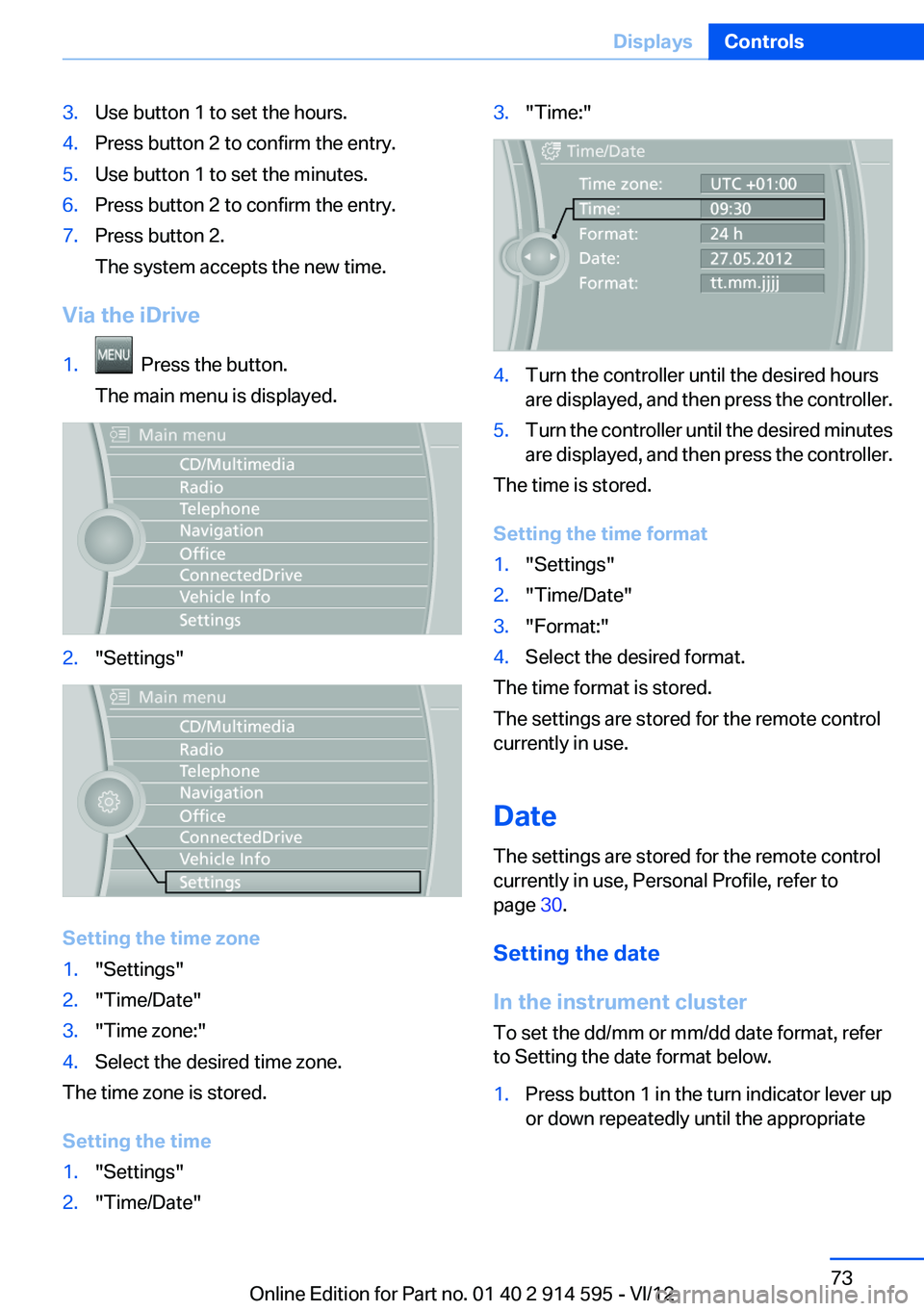
3.Use button 1 to set the hours.4.Press button 2 to confirm the entry.5.Use button 1 to set the minutes.6.Press button 2 to confirm the entry.7.Press button 2.
The system accepts the new time.
Via the iDrive
1. Press the button.
The main menu is displayed.2."Settings"
Setting the time zone
1."Settings"2."Time/Date"3."Time zone:"4.Select the desired time zone.
The time zone is stored.
Setting the time
1."Settings"2."Time/Date"3."Time:"4.Turn the controller until the desired hours
are displayed, and then press the controller.5.Turn the controller until the desired minutes
are displayed, and then press the controller.
The time is stored.
Setting the time format
1."Settings"2."Time/Date"3."Format:"4.Select the desired format.
The time format is stored.
The settings are stored for the remote control
currently in use.
Date
The settings are stored for the remote control
currently in use, Personal Profile, refer to
page 30.
Setting the date
In the instrument cluster
To set the dd/mm or mm/dd date format, refer
to Setting the date format below.
1.Press button 1 in the turn indicator lever up
or down repeatedly until the appropriateSeite 73DisplaysControls73
Online Edition for Part no. 01 40 2 914 595 - VI/12
Page 74 of 291

symbol appears in the display, accompanied
by the date and the word "SET".2.Press button 2.3.Use button 1 to set the day of the month.4.Press button 2 to confirm the entry.5.Set the month and the year in the same way.6.Press button 2.
The system stores the new date.
Via the iDrive
1."Settings"2."Time/Date"3."Date:"4.Turn the controller until the desired day is
displayed, and then press the controller.5.Make the necessary settings for the month
and year.
The date is stored.
Setting the date format
1."Settings"2."Time/Date"3."Format:"4.Select the desired format.
The date format is stored.
Settings on the Control
Display
Language
Setting the language
1."Settings"2."Language/Units"3."Language:"4.Select the desired language.
The setting is stored for the remote control cur‐
rently in use.
Setting the voice dialog
Voice dialog for the voice activation system, re‐
fer to page 26.
Seite 74ControlsDisplays74
Online Edition for Part no. 01 40 2 914 595 - VI/12
Page 75 of 291
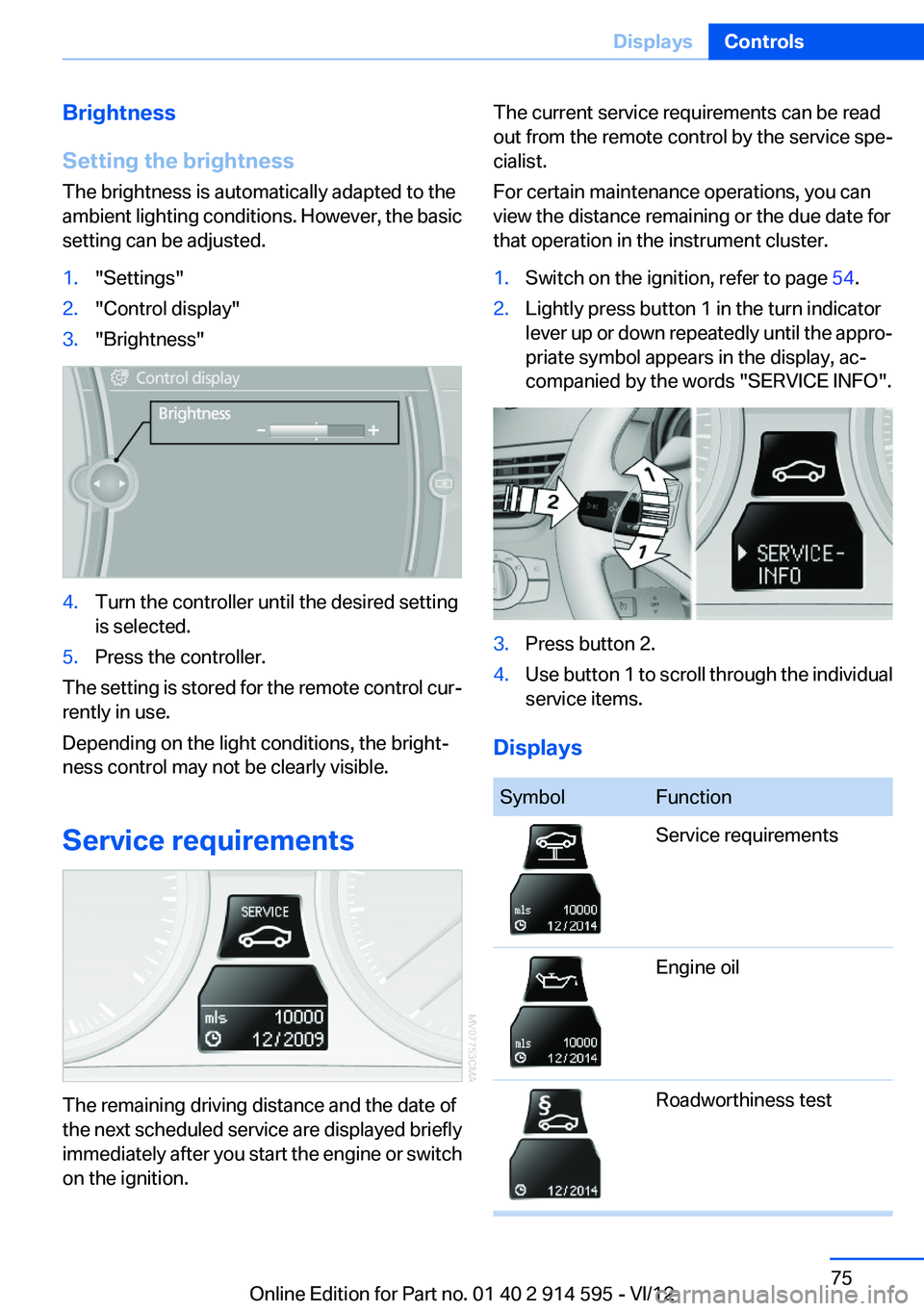
Brightness
Setting the brightness
The brightness is automatically adapted to the
ambient lighting conditions. However, the basic
setting can be adjusted.1."Settings"2."Control display"3."Brightness"4.Turn the controller until the desired setting
is selected.5.Press the controller.
The setting is stored for the remote control cur‐
rently in use.
Depending on the light conditions, the bright‐
ness control may not be clearly visible.
Service requirements
The remaining driving distance and the date of
the next scheduled service are displayed briefly
immediately after you start the engine or switch
on the ignition.
The current service requirements can be read
out from the remote control by the service spe‐
cialist.
For certain maintenance operations, you can
view the distance remaining or the due date for
that operation in the instrument cluster.1.Switch on the ignition, refer to page 54.2.Lightly press button 1 in the turn indicator
lever up or down repeatedly until the appro‐
priate symbol appears in the display, ac‐
companied by the words "SERVICE INFO".3.Press button 2.4.Use button 1 to scroll through the individual
service items.
Displays
SymbolFunctionService requirementsEngine oilRoadworthiness testSeite 75DisplaysControls75
Online Edition for Part no. 01 40 2 914 595 - VI/12
Page 80 of 291
LampsVehicle equipment
This chapter describes all series equipment as
well as country-specific and special equipment
offered for this model series.Therefore, it also
describes equipment that may not be found in
your vehicle, for instance due to the selected
special equipment or the country version. This
also applies to safety-related functions and sys‐
tems.
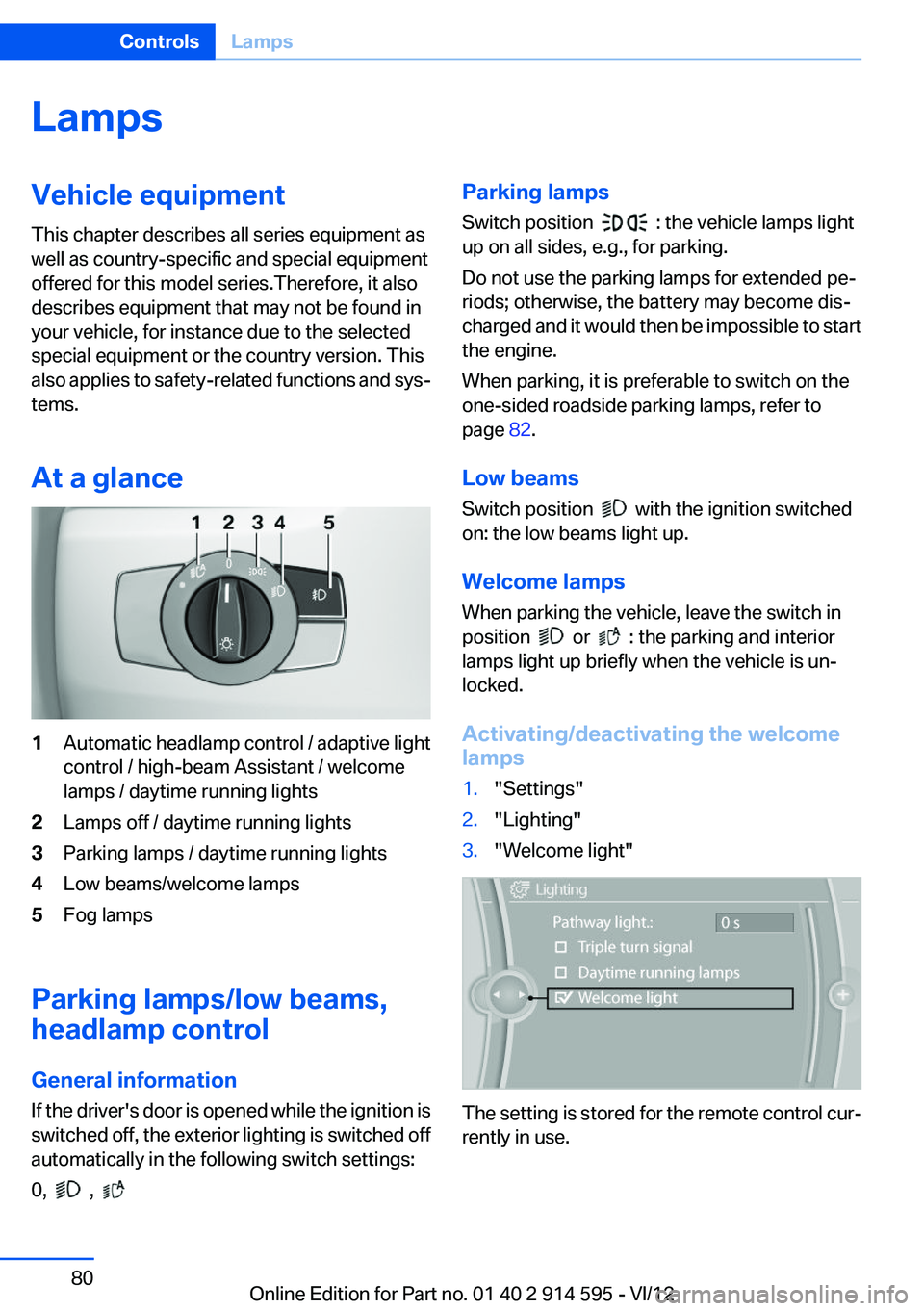
At a glance1Automatic headlamp control / adaptive light
control / high-beam Assistant / welcome
lamps / daytime running lights2Lamps off / daytime running lights3Parking lamps / daytime running lights4Low beams/welcome lamps5Fog lamps
Parking lamps/low beams,
headlamp control
General information
If the driver's door is opened while the ignition is
switched off, the exterior lighting is switched off
automatically in the following switch settings:
0,
,
Parking lamps
Switch position
: the vehicle lamps light
up on all sides, e.g., for parking.
Do not use the parking lamps for extended pe‐
riods; otherwise, the battery may become dis‐
charged and it would then be impossible to start
the engine.
When parking, it is preferable to switch on the
one-sided roadside parking lamps, refer to
page 82.
Low beams
Switch position
with the ignition switched
on: the low beams light up.
Welcome lamps
When parking the vehicle, leave the switch in
position
or : the parking and interior
lamps light up briefly when the vehicle is un‐
locked.
Activating/deactivating the welcome
lamps
1."Settings"2."Lighting"3."Welcome light"
The setting is stored for the remote control cur‐
rently in use.
Seite 80ControlsLamps80
Online Edition for Part no. 01 40 2 914 595 - VI/12
Page 81 of 291
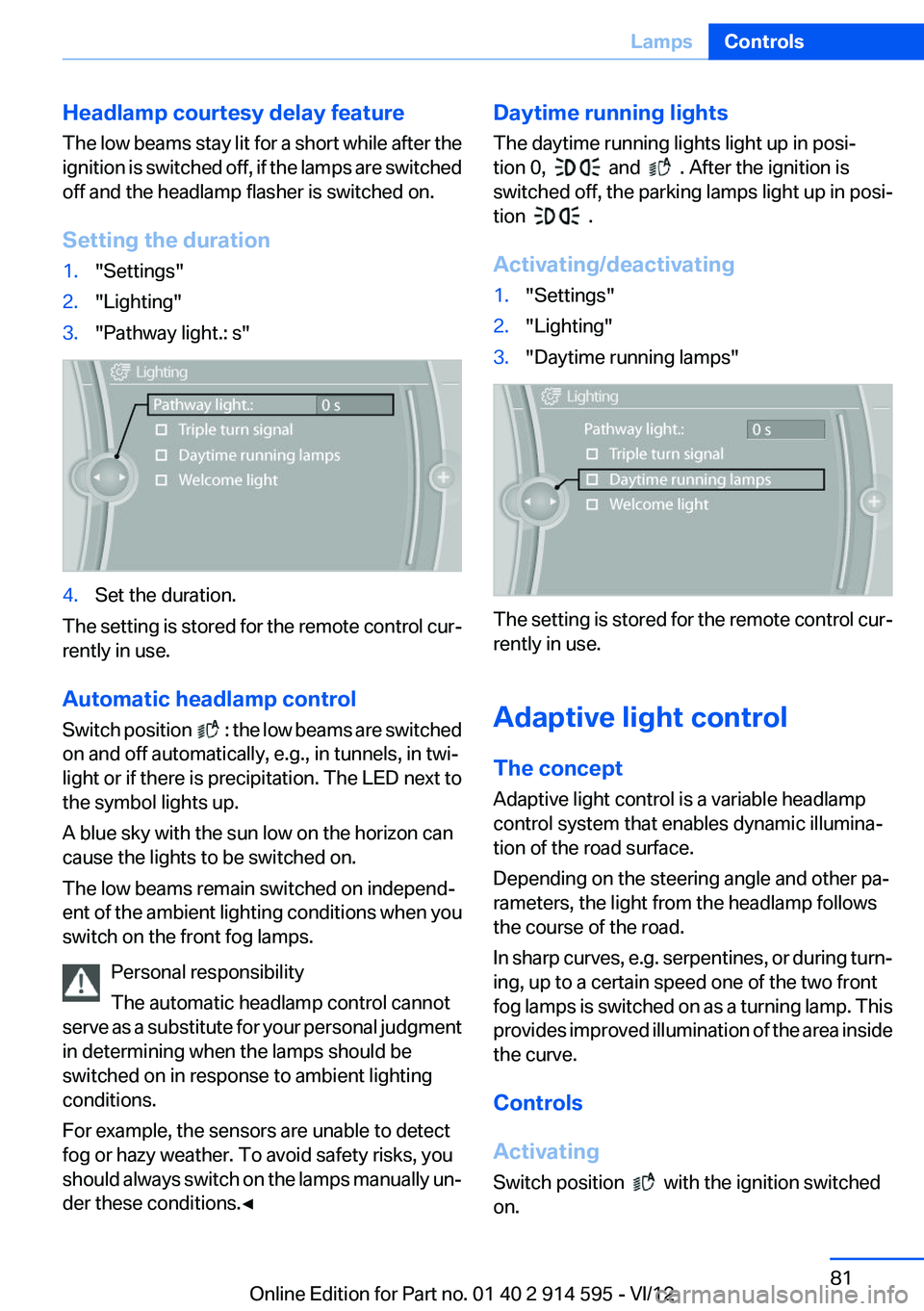
Headlamp courtesy delay feature
The low beams stay lit for a short while after the
ignition is switched off, if the lamps are switched
off and the headlamp flasher is switched on.
Setting the duration1."Settings"2."Lighting"3."Pathway light.: s"4.Set the duration.
The setting is stored for the remote control cur‐
rently in use.
Automatic headlamp control
Switch position
: the low beams are switched
on and off automatically, e.g., in tunnels, in twi‐
light or if there is precipitation. The LED next to
the symbol lights up.
A blue sky with the sun low on the horizon can
cause the lights to be switched on.
The low beams remain switched on independ‐
ent of the ambient lighting conditions when you
switch on the front fog lamps.
Personal responsibility
The automatic headlamp control cannot
serve as a substitute for your personal judgment
in determining when the lamps should be
switched on in response to ambient lighting
conditions.
For example, the sensors are unable to detect
fog or hazy weather. To avoid safety risks, you
should always switch on the lamps manually un‐
der these conditions.◀
Daytime running lights
The daytime running lights light up in posi‐
tion 0,
and . After the ignition is
switched off, the parking lamps light up in posi‐
tion
.
Activating/deactivating
1."Settings"2."Lighting"3."Daytime running lamps"
The setting is stored for the remote control cur‐
rently in use.
Adaptive light control
The concept
Adaptive light control is a variable headlamp
control system that enables dynamic illumina‐
tion of the road surface.
Depending on the steering angle and other pa‐
rameters, the light from the headlamp follows
the course of the road.
In sharp curves, e.g. serpentines, or during turn‐
ing, up to a certain speed one of the two front
fog lamps is switched on as a turning lamp. This
provides improved illumination of the area inside
the curve.
Controls
Activating
Switch position
with the ignition switched
on.
Seite 81LampsControls81
Online Edition for Part no. 01 40 2 914 595 - VI/12
Page 83 of 291
▷High beams off/headlamp flasher, arrow 2.
To reactivate the High-beam Assistant, briefly
push the turn indicator lever toward the high
beams.
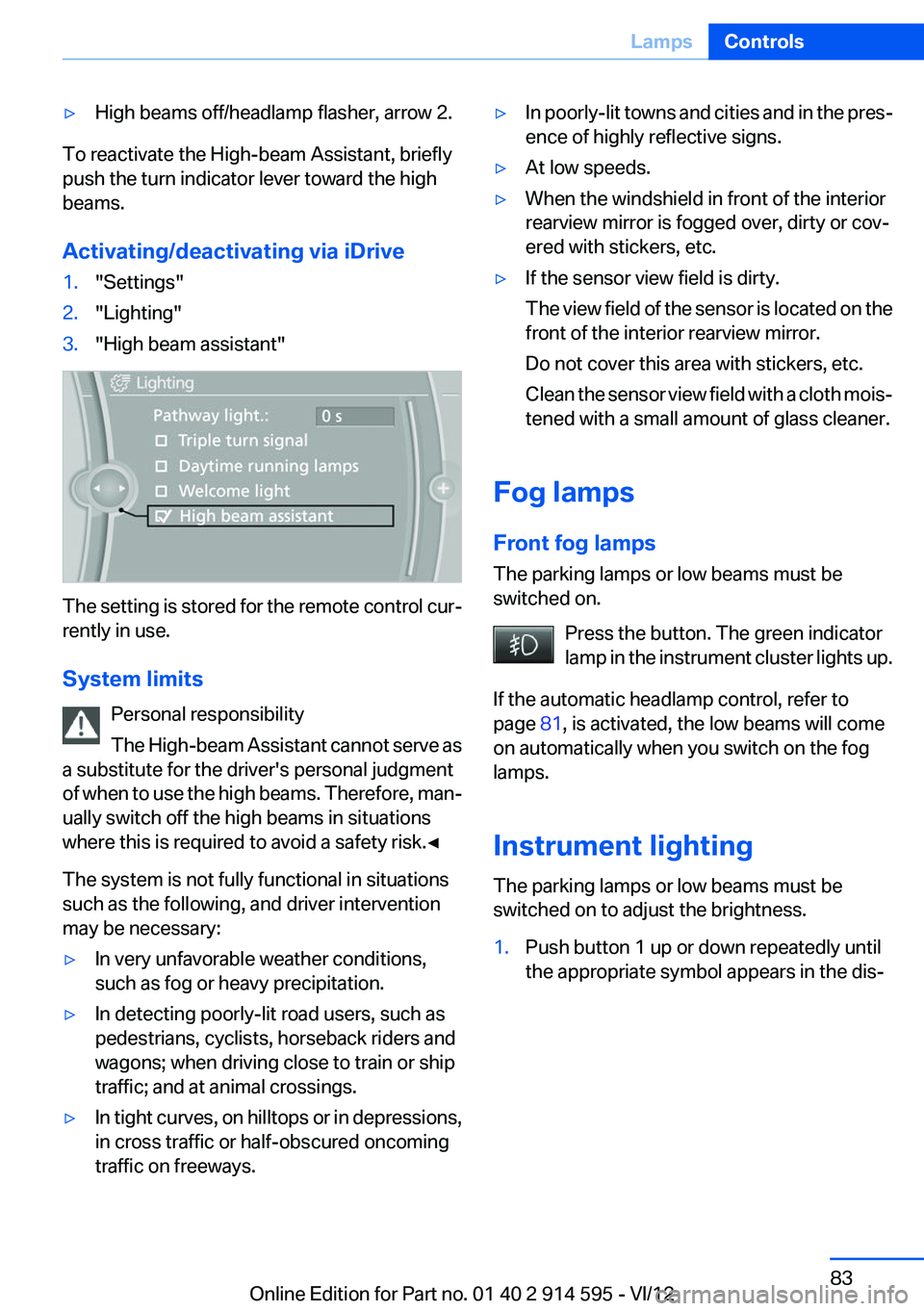
Activating/deactivating via iDrive
1."Settings"2."Lighting"3."High beam assistant"
The setting is stored for the remote control cur‐
rently in use.
System limits Personal responsibility
The High-beam Assistant cannot serve as
a substitute for the driver's personal judgment
of when to use the high beams. Therefore, man‐
ually switch off the high beams in situations
where this is required to avoid a safety risk.◀
The system is not fully functional in situations
such as the following, and driver intervention
may be necessary:
▷In very unfavorable weather conditions,
such as fog or heavy precipitation.▷In detecting poorly-lit road users, such as
pedestrians, cyclists, horseback riders and
wagons; when driving close to train or ship
traffic; and at animal crossings.▷In tight curves, on hilltops or in depressions,
in cross traffic or half-obscured oncoming
traffic on freeways.▷In poorly-lit towns and cities and in the pres‐
ence of highly reflective signs.▷At low speeds.▷When the windshield in front of the interior
rearview mirror is fogged over, dirty or cov‐
ered with stickers, etc.▷If the sensor view field is dirty.
The view field of the sensor is located on the
front of the interior rearview mirror.
Do not cover this area with stickers, etc.
Clean the sensor view field with a cloth mois‐
tened with a small amount of glass cleaner.
Fog lamps
Front fog lamps
The parking lamps or low beams must be
switched on.
Press the button. The green indicator
lamp in the instrument cluster lights up.
If the automatic headlamp control, refer to
page 81, is activated, the low beams will come
on automatically when you switch on the fog
lamps.
Instrument lighting
The parking lamps or low beams must be
switched on to adjust the brightness.
1.Push button 1 up or down repeatedly until
the appropriate symbol appears in the dis‐Seite 83LampsControls83
Online Edition for Part no. 01 40 2 914 595 - VI/12