change time BMW X1 SDRIVE28I 2015 Owner's Manual
[x] Cancel search | Manufacturer: BMW, Model Year: 2015, Model line: X1 SDRIVE28I, Model: BMW X1 SDRIVE28I 2015Pages: 297, PDF Size: 7.01 MB
Page 180 of 297
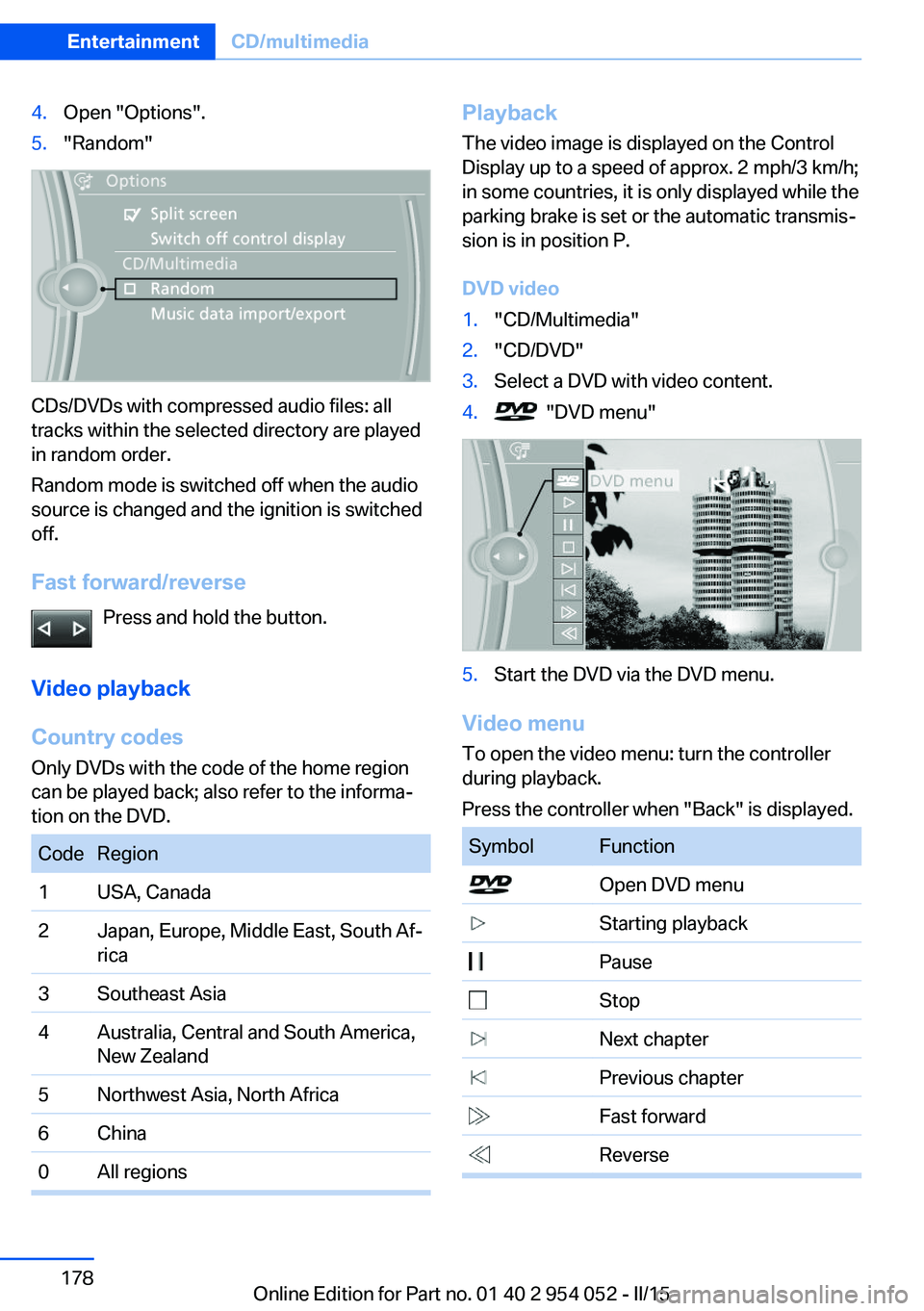
4.Open "Options".5."Random"
CDs/DVDs with compressed audio files: all
tracks within the selected directory are played
in random order.
Random mode is switched off when the audio
source is changed and the ignition is switched
off.
Fast forward/reverse Press and hold the button.
Video playback
Country codes
Only DVDs with the code of the home region
can be played back; also refer to the informa‐
tion on the DVD.
CodeRegion1USA, Canada2Japan, Europe, Middle East, South Af‐
rica3Southeast Asia4Australia, Central and South America,
New Zealand5Northwest Asia, North Africa6China0All regionsPlayback
The video image is displayed on the Control
Display up to a speed of approx. 2 mph/3 km/h;
in some countries, it is only displayed while the
parking brake is set or the automatic transmis‐
sion is in position P.
DVD video1."CD/Multimedia"2."CD/DVD"3.Select a DVD with video content.4. "DVD menu"5.Start the DVD via the DVD menu.
Video menu
To open the video menu: turn the controller
during playback.
Press the controller when "Back" is displayed.
SymbolFunction Open DVD menu Starting playback Pause Stop Next chapter Previous chapter Fast forward ReverseSeite 178EntertainmentCD/multimedia178
Online Edition for Part no. 01 40 2 954 052 - II/15
Page 181 of 297
In fast forward/reverse: the speed increases
every time the controller is pressed. To stop,
start playback.
DVD menu1.If necessary, turn the controller to open the
video menu.2. "DVD menu"
The DVD menu is displayed. The display
depends on the contents of the DVD.3.To select menu items: move the controller
and press it.
To change to the video menu: turn the control‐
ler and press it.
DVD settingsFor some DVDs, settings can only be made via
the DVD menu; refer also to the information on
the DVD.
Selecting the language
The languages that are available depend on
the DVD.
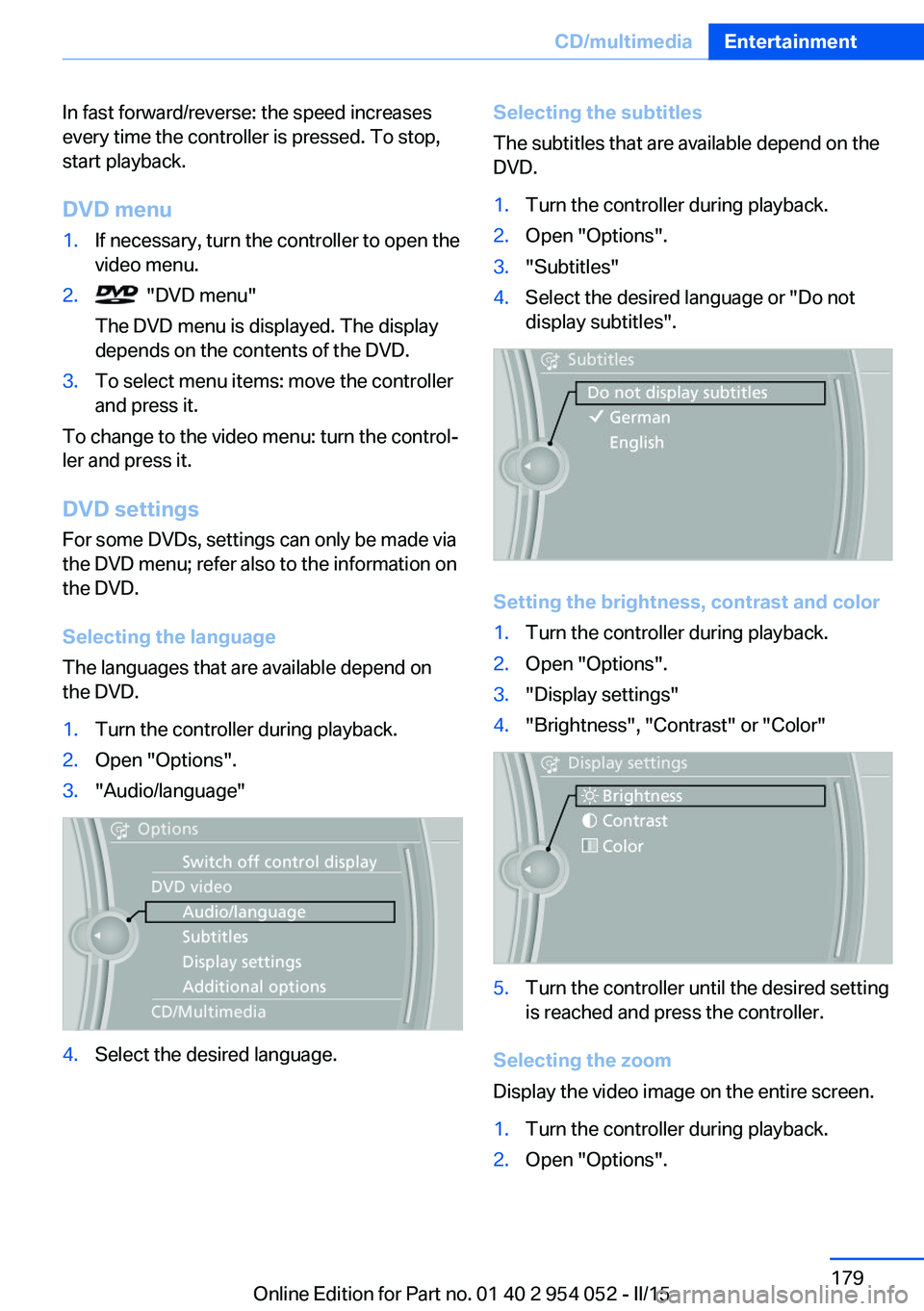
1.Turn the controller during playback.2.Open "Options".3."Audio/language"4.Select the desired language.Selecting the subtitles
The subtitles that are available depend on the
DVD.1.Turn the controller during playback.2.Open "Options".3."Subtitles"4.Select the desired language or "Do not
display subtitles".
Setting the brightness, contrast and color
1.Turn the controller during playback.2.Open "Options".3."Display settings"4."Brightness", "Contrast" or "Color"5.Turn the controller until the desired setting
is reached and press the controller.
Selecting the zoom
Display the video image on the entire screen.
1.Turn the controller during playback.2.Open "Options".Seite 179CD/multimediaEntertainment179
Online Edition for Part no. 01 40 2 954 052 - II/15
Page 182 of 297
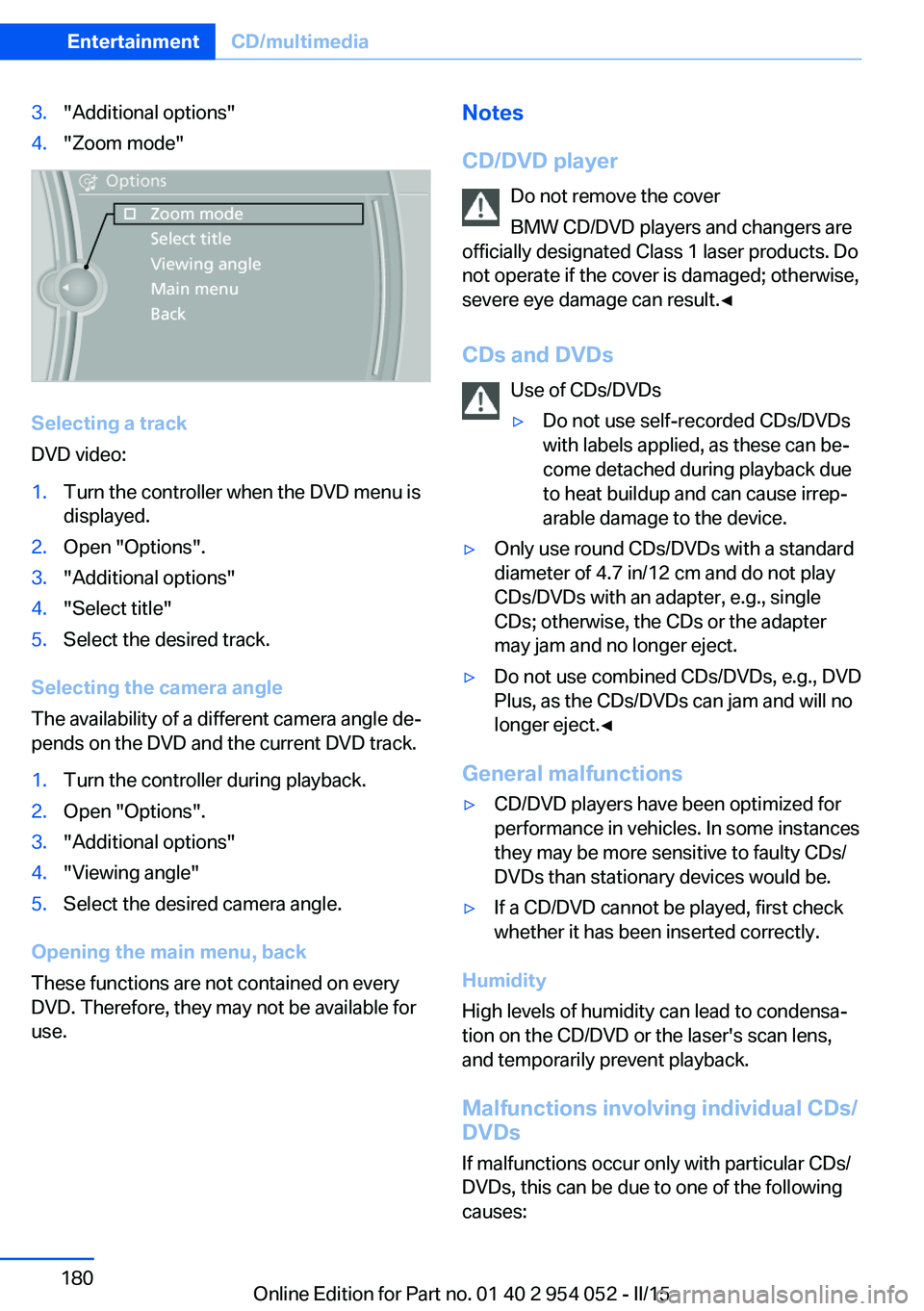
3."Additional options"4."Zoom mode"
Selecting a track
DVD video:
1.Turn the controller when the DVD menu is
displayed.2.Open "Options".3."Additional options"4."Select title"5.Select the desired track.
Selecting the camera angle
The availability of a different camera angle de‐
pends on the DVD and the current DVD track.
1.Turn the controller during playback.2.Open "Options".3."Additional options"4."Viewing angle"5.Select the desired camera angle.
Opening the main menu, back
These functions are not contained on every
DVD. Therefore, they may not be available for
use.
Notes
CD/DVD player Do not remove the cover
BMW CD/DVD players and changers are
officially designated Class 1 laser products. Do
not operate if the cover is damaged; otherwise,
severe eye damage can result.◀
CDs and DVDs Use of CDs/DVDs▷Do not use self-recorded CDs/DVDs
with labels applied, as these can be‐
come detached during playback due
to heat buildup and can cause irrep‐
arable damage to the device.▷Only use round CDs/DVDs with a standard
diameter of 4.7 in/12 cm and do not play
CDs/DVDs with an adapter, e.g., single
CDs; otherwise, the CDs or the adapter
may jam and no longer eject.▷Do not use combined CDs/DVDs, e.g., DVD
Plus, as the CDs/DVDs can jam and will no
longer eject.◀
General malfunctions
▷CD/DVD players have been optimized for
performance in vehicles. In some instances
they may be more sensitive to faulty CDs/
DVDs than stationary devices would be.▷If a CD/DVD cannot be played, first check
whether it has been inserted correctly.
Humidity
High levels of humidity can lead to condensa‐
tion on the CD/DVD or the laser's scan lens,
and temporarily prevent playback.
Malfunctions involving individual CDs/
DVDs
If malfunctions occur only with particular CDs/
DVDs, this can be due to one of the following
causes:
Seite 180EntertainmentCD/multimedia180
Online Edition for Part no. 01 40 2 954 052 - II/15
Page 186 of 297
Music search by voice
Instructions for voice activation system, refer
to page 27.1. Press the button on the steering
wheel.2.›Music search‹3.Open the desired category, e. g., ›Select
artist‹.4.Say the desired entry in the list.5.Select other categories if you wish.
To select a track directly: ›Title ...‹
Say the voice command and the name of the
desired track in a single command.
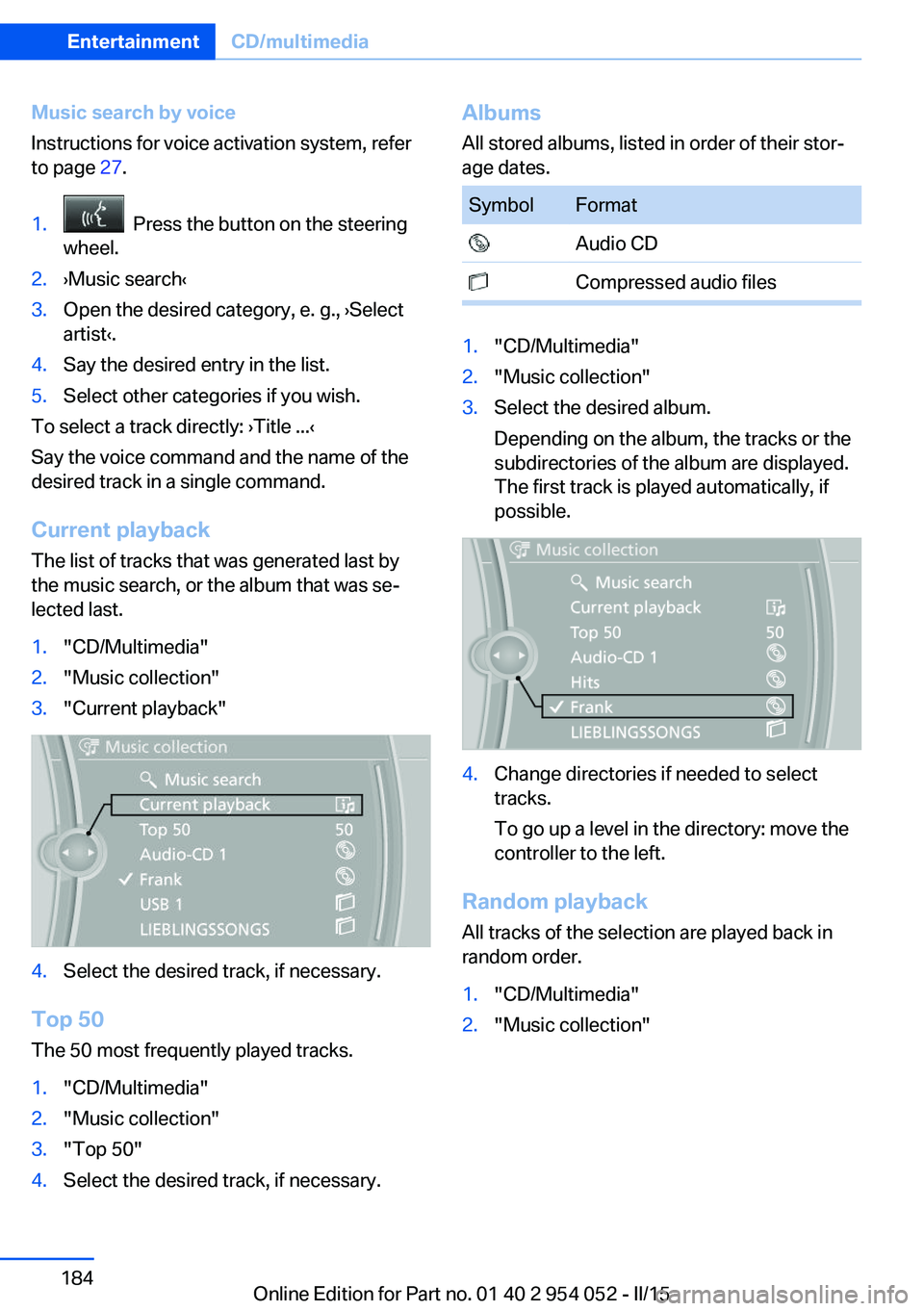
Current playback The list of tracks that was generated last by
the music search, or the album that was se‐
lected last.
1."CD/Multimedia"2."Music collection"3."Current playback"4.Select the desired track, if necessary.
Top 50
The 50 most frequently played tracks.
1."CD/Multimedia"2."Music collection"3."Top 50"4.Select the desired track, if necessary.Albums All stored albums, listed in order of their stor‐
age dates.SymbolFormat Audio CD Compressed audio files1."CD/Multimedia"2."Music collection"3.Select the desired album.
Depending on the album, the tracks or the
subdirectories of the album are displayed.
The first track is played automatically, if
possible.4.Change directories if needed to select
tracks.
To go up a level in the directory: move the
controller to the left.
Random playback
All tracks of the selection are played back in
random order.
1."CD/Multimedia"2."Music collection"Seite 184EntertainmentCD/multimedia184
Online Edition for Part no. 01 40 2 954 052 - II/15
Page 187 of 297
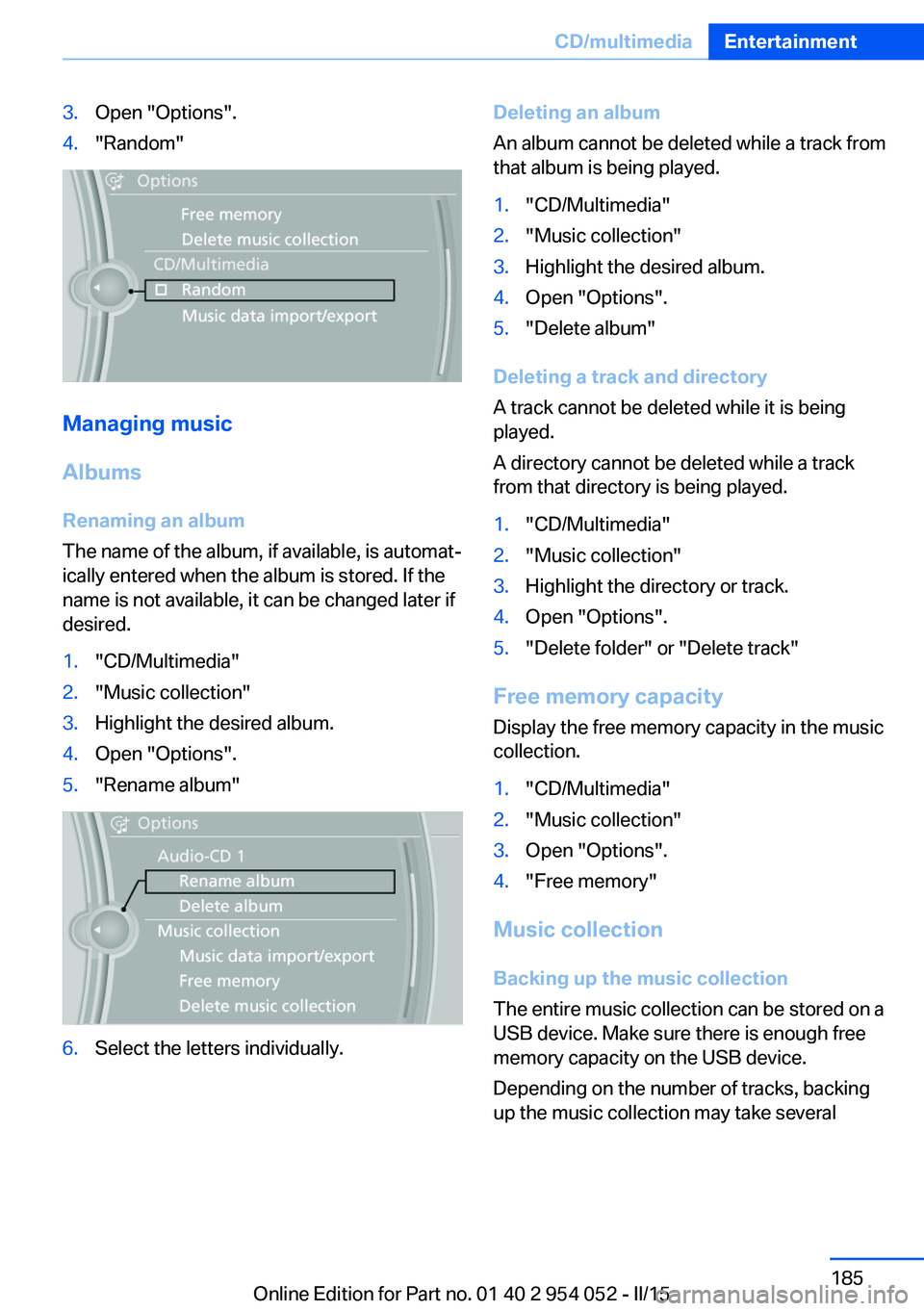
3.Open "Options".4."Random"
Managing music
Albums Renaming an album
The name of the album, if available, is automat‐
ically entered when the album is stored. If the
name is not available, it can be changed later if
desired.
1."CD/Multimedia"2."Music collection"3.Highlight the desired album.4.Open "Options".5."Rename album"6.Select the letters individually.Deleting an album
An album cannot be deleted while a track from
that album is being played.1."CD/Multimedia"2."Music collection"3.Highlight the desired album.4.Open "Options".5."Delete album"
Deleting a track and directory
A track cannot be deleted while it is being
played.
A directory cannot be deleted while a track
from that directory is being played.
1."CD/Multimedia"2."Music collection"3.Highlight the directory or track.4.Open "Options".5."Delete folder" or "Delete track"
Free memory capacity
Display the free memory capacity in the music
collection.
1."CD/Multimedia"2."Music collection"3.Open "Options".4."Free memory"
Music collection
Backing up the music collection
The entire music collection can be stored on a
USB device. Make sure there is enough free
memory capacity on the USB device.
Depending on the number of tracks, backing
up the music collection may take several
Seite 185CD/multimediaEntertainment185
Online Edition for Part no. 01 40 2 954 052 - II/15
Page 193 of 297
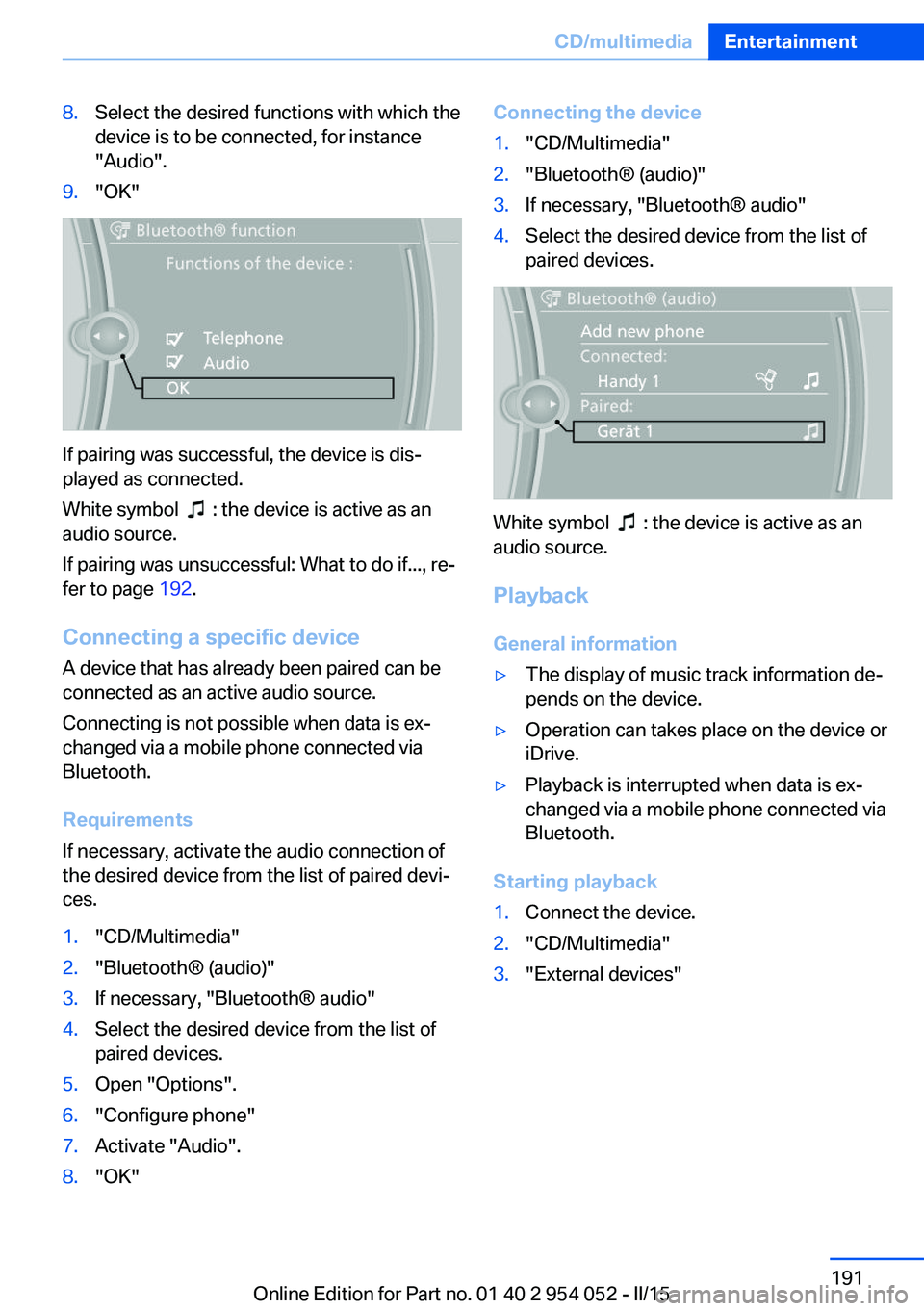
8.Select the desired functions with which the
device is to be connected, for instance
"Audio".9."OK"
If pairing was successful, the device is dis‐
played as connected.
White symbol
: the device is active as an
audio source.
If pairing was unsuccessful: What to do if..., re‐
fer to page 192.
Connecting a specific device A device that has already been paired can be
connected as an active audio source.
Connecting is not possible when data is ex‐
changed via a mobile phone connected via
Bluetooth.
Requirements
If necessary, activate the audio connection of
the desired device from the list of paired devi‐
ces.
1."CD/Multimedia"2."Bluetooth® (audio)"3.If necessary, "Bluetooth® audio"4.Select the desired device from the list of
paired devices.5.Open "Options".6."Configure phone"7.Activate "Audio".8."OK"Connecting the device1."CD/Multimedia"2."Bluetooth® (audio)"3.If necessary, "Bluetooth® audio"4.Select the desired device from the list of
paired devices.
White symbol : the device is active as an
audio source.
Playback General information
▷The display of music track information de‐
pends on the device.▷Operation can takes place on the device or
iDrive.▷Playback is interrupted when data is ex‐
changed via a mobile phone connected via
Bluetooth.
Starting playback
1.Connect the device.2."CD/Multimedia"3."External devices"Seite 191CD/multimediaEntertainment191
Online Edition for Part no. 01 40 2 954 052 - II/15
Page 252 of 297
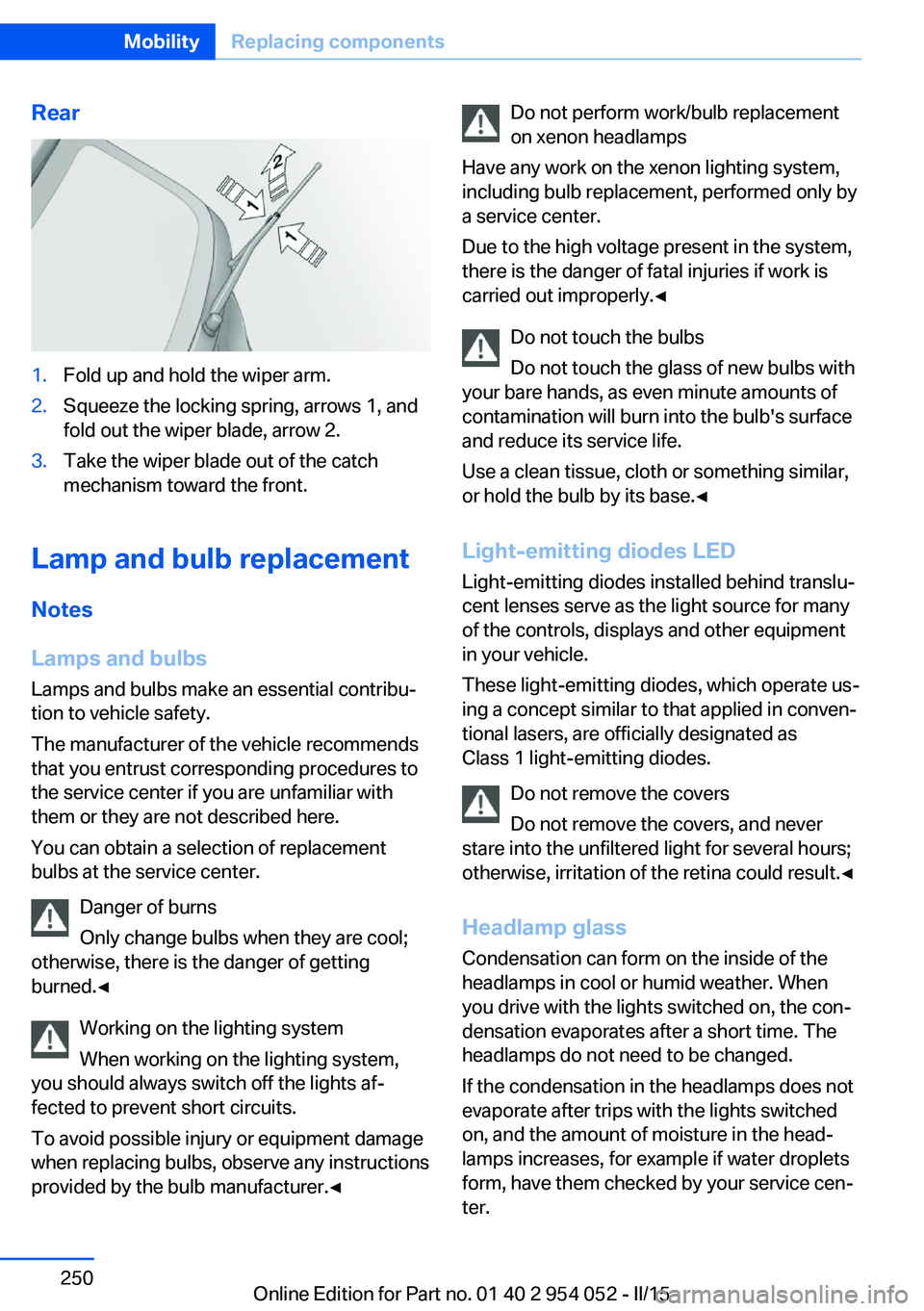
Rear1.Fold up and hold the wiper arm.2.Squeeze the locking spring, arrows 1, and
fold out the wiper blade, arrow 2.3.Take the wiper blade out of the catch
mechanism toward the front.
Lamp and bulb replacement
Notes
Lamps and bulbs
Lamps and bulbs make an essential contribu‐
tion to vehicle safety.
The manufacturer of the vehicle recommends
that you entrust corresponding procedures to
the service center if you are unfamiliar with them or they are not described here.
You can obtain a selection of replacement
bulbs at the service center.
Danger of burns
Only change bulbs when they are cool;
otherwise, there is the danger of getting
burned.◀
Working on the lighting system
When working on the lighting system,
you should always switch off the lights af‐
fected to prevent short circuits.
To avoid possible injury or equipment damage
when replacing bulbs, observe any instructions
provided by the bulb manufacturer.◀
Do not perform work/bulb replacement
on xenon headlamps
Have any work on the xenon lighting system,
including bulb replacement, performed only by
a service center.
Due to the high voltage present in the system,
there is the danger of fatal injuries if work is
carried out improperly.◀
Do not touch the bulbs
Do not touch the glass of new bulbs with
your bare hands, as even minute amounts of
contamination will burn into the bulb's surface
and reduce its service life.
Use a clean tissue, cloth or something similar,
or hold the bulb by its base.◀
Light-emitting diodes LED
Light-emitting diodes installed behind translu‐
cent lenses serve as the light source for many
of the controls, displays and other equipment
in your vehicle.
These light-emitting diodes, which operate us‐
ing a concept similar to that applied in conven‐
tional lasers, are officially designated as
Class 1 light-emitting diodes.
Do not remove the covers
Do not remove the covers, and never
stare into the unfiltered light for several hours; otherwise, irritation of the retina could result.◀
Headlamp glass
Condensation can form on the inside of the
headlamps in cool or humid weather. When
you drive with the lights switched on, the con‐
densation evaporates after a short time. The
headlamps do not need to be changed.
If the condensation in the headlamps does not
evaporate after trips with the lights switched
on, and the amount of moisture in the head‐
lamps increases, for example if water droplets
form, have them checked by your service cen‐
ter.Seite 250MobilityReplacing components250
Online Edition for Part no. 01 40 2 954 052 - II/15
Page 255 of 297
Adhere to the general instructions, refer to
page 250.
With Xenon headlights, the following lights are
designed with LED technology:▷Parking and roadside parking lights.▷Daytime running lights.
Contact your service center in the event of a
malfunction.
Parking lights and roadside parking
lights, daytime running lights
H8 bulb, 35 watt
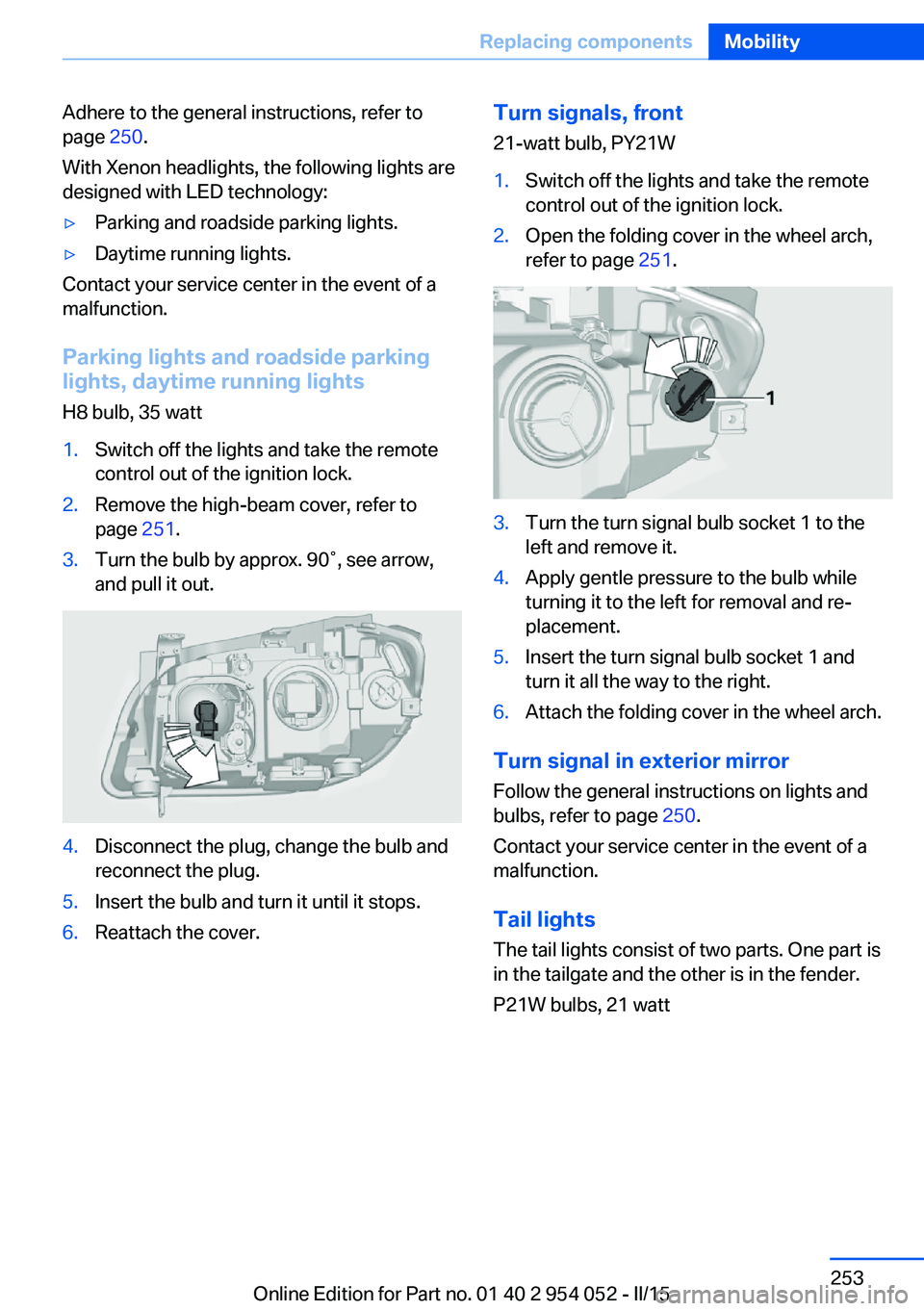
1.Switch off the lights and take the remote
control out of the ignition lock.2.Remove the high-beam cover, refer to
page 251.3.Turn the bulb by approx. 90˚, see arrow,
and pull it out.4.Disconnect the plug, change the bulb and
reconnect the plug.5.Insert the bulb and turn it until it stops.6.Reattach the cover.Turn signals, front
21-watt bulb, PY21W1.Switch off the lights and take the remote
control out of the ignition lock.2.Open the folding cover in the wheel arch,
refer to page 251.3.Turn the turn signal bulb socket 1 to the
left and remove it.4.Apply gentle pressure to the bulb while
turning it to the left for removal and re‐
placement.5.Insert the turn signal bulb socket 1 and
turn it all the way to the right.6.Attach the folding cover in the wheel arch.
Turn signal in exterior mirror
Follow the general instructions on lights and
bulbs, refer to page 250.
Contact your service center in the event of a
malfunction.
Tail lights
The tail lights consist of two parts. One part is
in the tailgate and the other is in the fender.
P21W bulbs, 21 watt
Seite 253Replacing componentsMobility253
Online Edition for Part no. 01 40 2 954 052 - II/15
Page 284 of 297
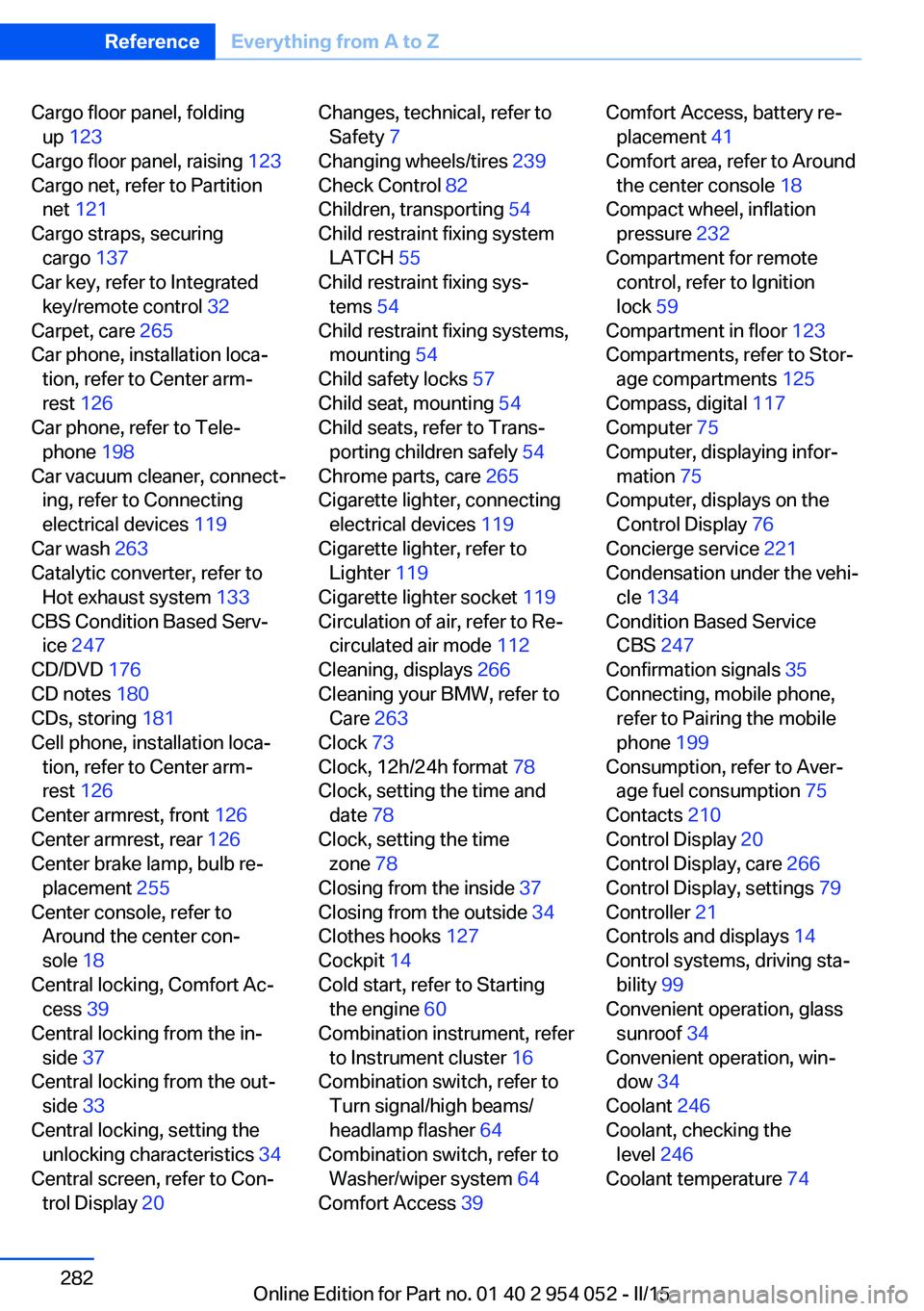
Cargo floor panel, foldingup 123
Cargo floor panel, raising 123
Cargo net, refer to Partition net 121
Cargo straps, securing cargo 137
Car key, refer to Integrated key/remote control 32
Carpet, care 265
Car phone, installation loca‐ tion, refer to Center arm‐
rest 126
Car phone, refer to Tele‐ phone 198
Car vacuum cleaner, connect‐ ing, refer to Connecting
electrical devices 119
Car wash 263
Catalytic converter, refer to Hot exhaust system 133
CBS Condition Based Serv‐ ice 247
CD/DVD 176
CD notes 180
CDs, storing 181
Cell phone, installation loca‐ tion, refer to Center arm‐
rest 126
Center armrest, front 126
Center armrest, rear 126
Center brake lamp, bulb re‐ placement 255
Center console, refer to Around the center con‐
sole 18
Central locking, Comfort Ac‐ cess 39
Central locking from the in‐ side 37
Central locking from the out‐ side 33
Central locking, setting the unlocking characteristics 34
Central screen, refer to Con‐ trol Display 20 Changes, technical, refer to
Safety 7
Changing wheels/tires 239
Check Control 82
Children, transporting 54
Child restraint fixing system LATCH 55
Child restraint fixing sys‐ tems 54
Child restraint fixing systems, mounting 54
Child safety locks 57
Child seat, mounting 54
Child seats, refer to Trans‐ porting children safely 54
Chrome parts, care 265
Cigarette lighter, connecting electrical devices 119
Cigarette lighter, refer to Lighter 119
Cigarette lighter socket 119
Circulation of air, refer to Re‐ circulated air mode 112
Cleaning, displays 266
Cleaning your BMW, refer to Care 263
Clock 73
Clock, 12h/24h format 78
Clock, setting the time and date 78
Clock, setting the time zone 78
Closing from the inside 37
Closing from the outside 34
Clothes hooks 127
Cockpit 14
Cold start, refer to Starting the engine 60
Combination instrument, refer to Instrument cluster 16
Combination switch, refer to Turn signal/high beams/
headlamp flasher 64
Combination switch, refer to Washer/wiper system 64
Comfort Access 39 Comfort Access, battery re‐
placement 41
Comfort area, refer to Around the center console 18
Compact wheel, inflation pressure 232
Compartment for remote control, refer to Ignition
lock 59
Compartment in floor 123
Compartments, refer to Stor‐ age compartments 125
Compass, digital 117
Computer 75
Computer, displaying infor‐ mation 75
Computer, displays on the Control Display 76
Concierge service 221
Condensation under the vehi‐ cle 134
Condition Based Service CBS 247
Confirmation signals 35
Connecting, mobile phone, refer to Pairing the mobile
phone 199
Consumption, refer to Aver‐ age fuel consumption 75
Contacts 210
Control Display 20
Control Display, care 266
Control Display, settings 79
Controller 21
Controls and displays 14
Control systems, driving sta‐ bility 99
Convenient operation, glass sunroof 34
Convenient operation, win‐ dow 34
Coolant 246
Coolant, checking the level 246
Coolant temperature 74 Seite 282ReferenceEverything from A to Z282
Online Edition for Part no. 01 40 2 954 052 - II/15
Page 293 of 297
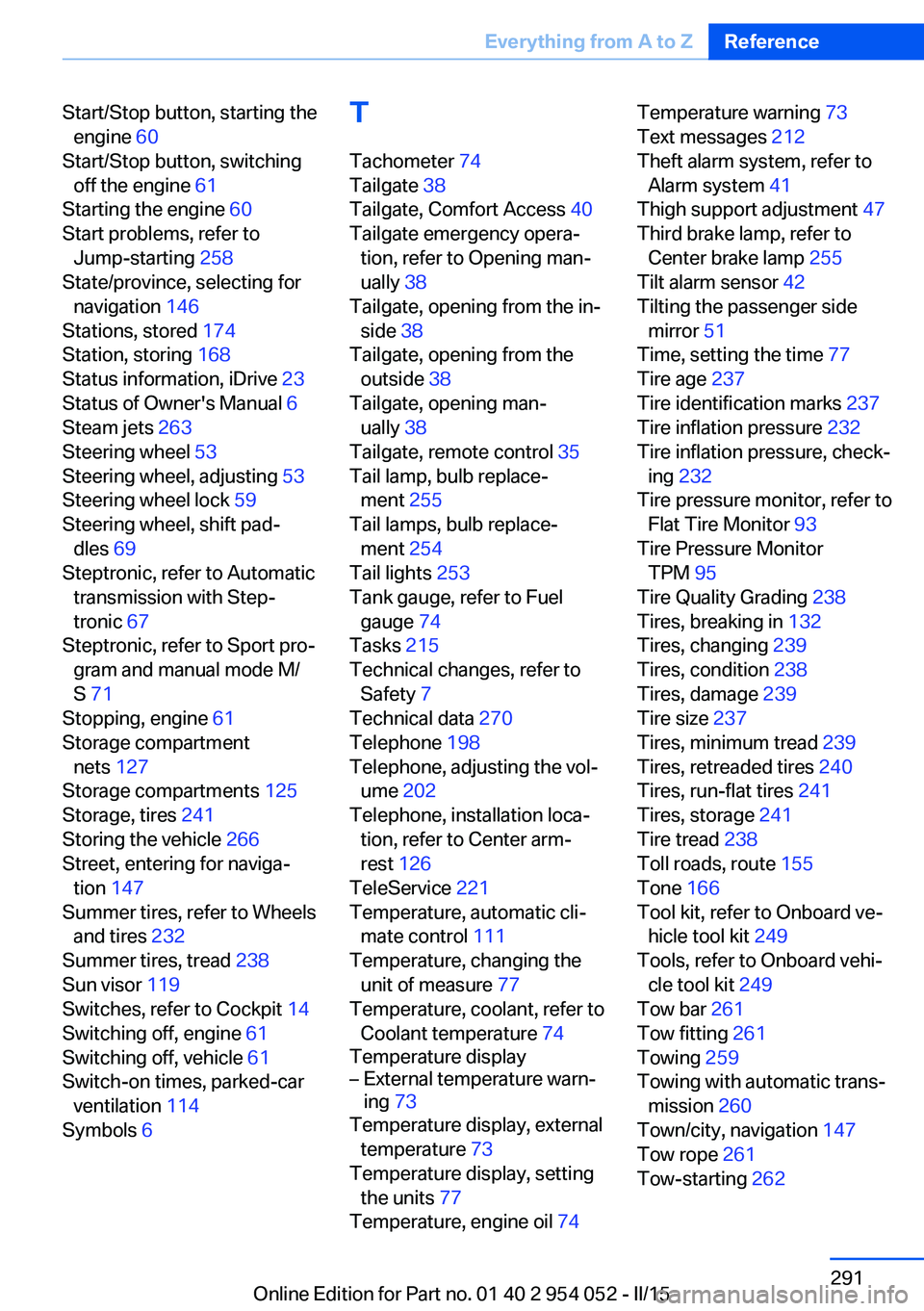
Start/Stop button, starting theengine 60
Start/Stop button, switching off the engine 61
Starting the engine 60
Start problems, refer to Jump-starting 258
State/province, selecting for navigation 146
Stations, stored 174
Station, storing 168
Status information, iDrive 23
Status of Owner's Manual 6
Steam jets 263
Steering wheel 53
Steering wheel, adjusting 53
Steering wheel lock 59
Steering wheel, shift pad‐ dles 69
Steptronic, refer to Automatic transmission with Step‐
tronic 67
Steptronic, refer to Sport pro‐ gram and manual mode M/
S 71
Stopping, engine 61
Storage compartment nets 127
Storage compartments 125
Storage, tires 241
Storing the vehicle 266
Street, entering for naviga‐ tion 147
Summer tires, refer to Wheels and tires 232
Summer tires, tread 238
Sun visor 119
Switches, refer to Cockpit 14
Switching off, engine 61
Switching off, vehicle 61
Switch-on times, parked-car ventilation 114
Symbols 6 T
Tachometer 74
Tailgate 38
Tailgate, Comfort Access 40
Tailgate emergency opera‐ tion, refer to Opening man‐
ually 38
Tailgate, opening from the in‐ side 38
Tailgate, opening from the outside 38
Tailgate, opening man‐ ually 38
Tailgate, remote control 35
Tail lamp, bulb replace‐ ment 255
Tail lamps, bulb replace‐ ment 254
Tail lights 253
Tank gauge, refer to Fuel gauge 74
Tasks 215
Technical changes, refer to Safety 7
Technical data 270
Telephone 198
Telephone, adjusting the vol‐ ume 202
Telephone, installation loca‐ tion, refer to Center arm‐
rest 126
TeleService 221
Temperature, automatic cli‐ mate control 111
Temperature, changing the unit of measure 77
Temperature, coolant, refer to Coolant temperature 74
Temperature display– External temperature warn‐
ing 73
Temperature display, external
temperature 73
Temperature display, setting the units 77
Temperature, engine oil 74
Temperature warning 73
Text messages 212
Theft alarm system, refer to Alarm system 41
Thigh support adjustment 47
Third brake lamp, refer to Center brake lamp 255
Tilt alarm sensor 42
Tilting the passenger side mirror 51
Time, setting the time 77
Tire age 237
Tire identification marks 237
Tire inflation pressure 232
Tire inflation pressure, check‐ ing 232
Tire pressure monitor, refer to Flat Tire Monitor 93
Tire Pressure Monitor TPM 95
Tire Quality Grading 238
Tires, breaking in 132
Tires, changing 239
Tires, condition 238
Tires, damage 239
Tire size 237
Tires, minimum tread 239
Tires, retreaded tires 240
Tires, run-flat tires 241
Tires, storage 241
Tire tread 238
Toll roads, route 155
Tone 166
Tool kit, refer to Onboard ve‐ hicle tool kit 249
Tools, refer to Onboard vehi‐ cle tool kit 249
Tow bar 261
Tow fitting 261
Towing 259
Towing with automatic trans‐ mission 260
Town/city, navigation 147
Tow rope 261
Tow-starting 262 Seite 291Everything from A to ZReference291
Online Edition for Part no. 01 40 2 954 052 - II/15