Voice BMW X3 2011 F25 User Guide
[x] Cancel search | Manufacturer: BMW, Model Year: 2011, Model line: X3, Model: BMW X3 2011 F25Pages: 262, PDF Size: 11.2 MB
Page 164 of 262
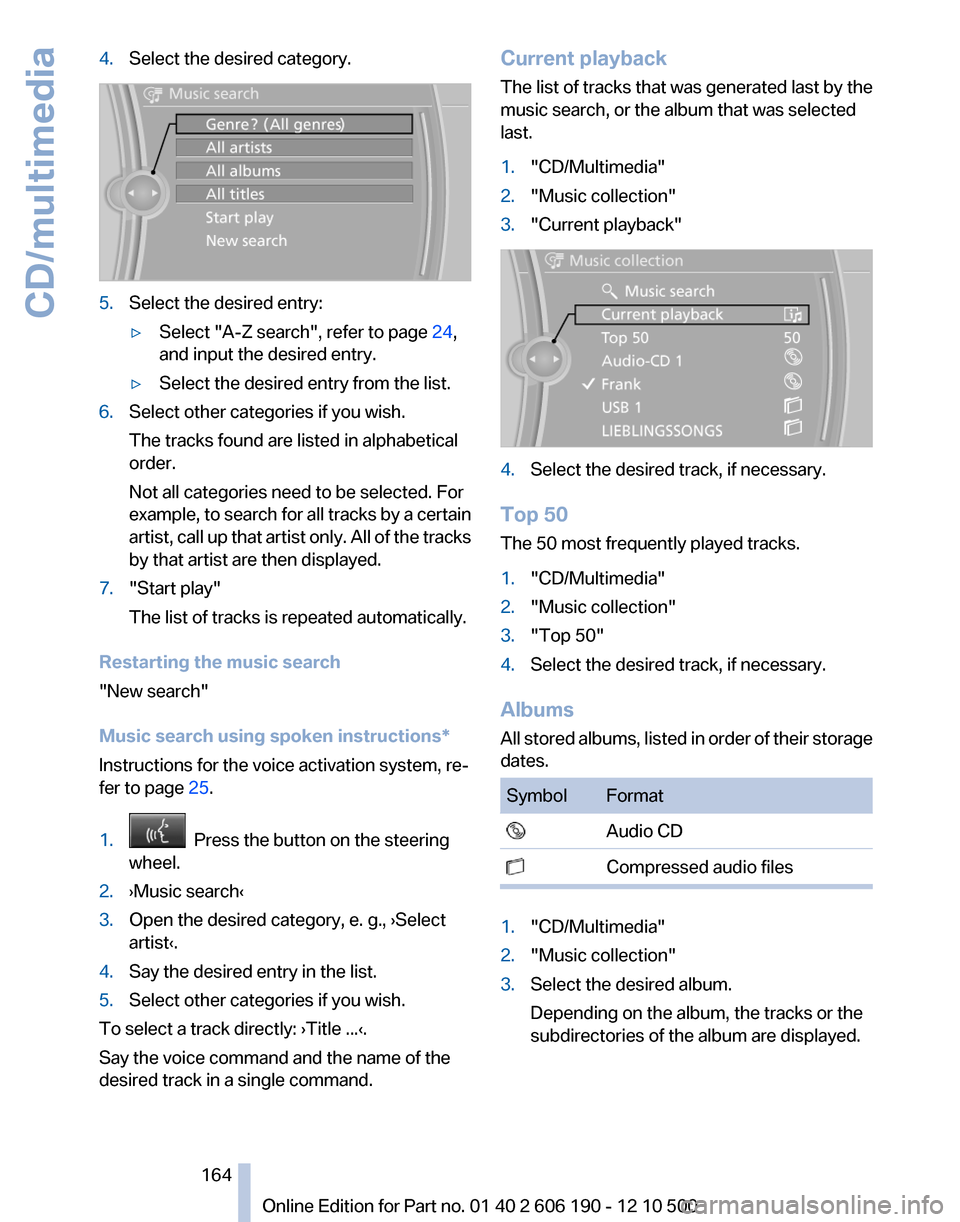
4.Select the desired category.5.Select the desired entry:▷Select "A-Z search", refer to page 24,
and input the desired entry.▷Select the desired entry from the list.6.Select other categories if you wish.
The tracks found are listed in alphabetical
order.
Not all categories need to be selected. For
example, to search for all tracks by a certain
artist, call up that artist only. All of the tracks
by that artist are then displayed.7."Start play"
The list of tracks is repeated automatically.
Restarting the music search
"New search"
Music search using spoken instructions*
Instructions for the voice activation system, re‐
fer to page 25.
1. Press the button on the steering
wheel.2.›Music search‹3.Open the desired category, e. g., ›Select
artist‹.4.Say the desired entry in the list.5.Select other categories if you wish.
To select a track directly: ›Title ...‹.
Say the voice command and the name of the
desired track in a single command.
Current playback
The list of tracks that was generated last by the
music search, or the album that was selected
last.1."CD/Multimedia"2."Music collection"3."Current playback"4.Select the desired track, if necessary.
Top 50
The 50 most frequently played tracks.
1."CD/Multimedia"2."Music collection"3."Top 50"4.Select the desired track, if necessary.
Albums
All stored albums, listed in order of their storage
dates.
SymbolFormat Audio CD Compressed audio files1."CD/Multimedia"2."Music collection"3.Select the desired album.
Depending on the album, the tracks or the
subdirectories of the album are displayed.Seite 164164
Online Edition for Part no. 01 40 2 606 190 - 12 10 500CD/multimedia
Page 176 of 262
Professional mobile phone preparation
package*At a glance
The concept
Mobile phones or other external devices such as
audio players can be connected to the vehicle
via Bluetooth.
After these devices are paired once, they are
recognized automatically when the ignition is
switched on as soon as they are inside the ve‐
hicle and can be operated via iDrive, the buttons
on the steering wheel, and via voice activation*.
Depending on their functionality, external devi‐
ces can be used via the vehicle as a telephone
or as an audio source.
The telephone functions are described in the
following. Operating the audio functions, refer to
page 169.
Up to four external devices can be paired.
Certain functions may need to be enabled by the
mobile phone provider or service provider.
Using the mobile phone while driving
Make entries only when traffic and road
conditions allow. Do not hold the mobile phone
in your hand while you are driving; use the
hands-free system instead. If you do not ob‐
serve this precaution, you can endanger the ve‐
hicle occupants and other road users.◀
Snap-in adapter*
The snap-in adapter is used to:▷Hold the mobile phone.▷Recharge the battery.▷Connect the mobile phone to an outside an‐
tenna of the vehicle.
This provides for better network reception
and consistent sound quality.Approved mobile phones
Details on which mobile phones and external
devices with a Bluetooth interface are sup‐
ported by the mobile phone preparation pack‐
age can be obtained at www.bmwusa.com/blue‐
tooth.
Displaying the vehicle identification
number and software part number
The vehicle identification number and software
part number are needed to determine which mo‐
bile phones are supported by the mobile phone
preparation package. The software version of
the mobile phone may also be required.1."Telephone"2.Open "Options".3."Bluetooth info"4."Display system information"
These approved mobile phones with a certain
software version, support the vehicle functions
described below.
Malfunctions may occur with other mobile
phones or software versions.
Do not operate a mobile phone that is connected
to the vehicle on the mobile phone keypad, as
this may lead to a malfunction.
Pairing/unpairing the mobile
phone
General information
The following functions are available:
▷Use of a mobile phone as a telephone.▷Use of a mobile phone as an additional tele‐
phone.▷Use of a mobile phone as an audio source.▷Use of an audio device as an audio source,
refer to page 170.Seite 176176
Online Edition for Part no. 01 40 2 606 190 - 12 10 500Professional mobile phone preparation package
Page 196 of 262
in advance. This shortens the duration of the
service appointment.▷In the event of a breakdown, data on the ve‐
hicle's condition can be sent directly to
Roadside Assistance.▷The service varies by country.▷Connection costs may ensue.▷Services may be restricted abroad.
Requirements
▷BMW Assist is activated.▷Wireless reception is available.▷The engine is running.
Using BMW TeleService*
BMW TeleService are typically activated in the
vehicle.
Even if the BMW TeleService are not active, a
voice contact to Roadside Assistance is still
possible.
To continue using or to deactivate the services,
please contact your service partner or the BMW
customer hotline.
Concierge service*
General information
The BMW Assist Concierge service offers infor‐
mation on events, gas stations or hotels, and
provides phone numbers and addresses. Hotels
can be booked directly by the BMW Assist Con‐
cierge service. The Concierge service is part of
the optional BMW Convenience Plan.
Starting the Concierge service
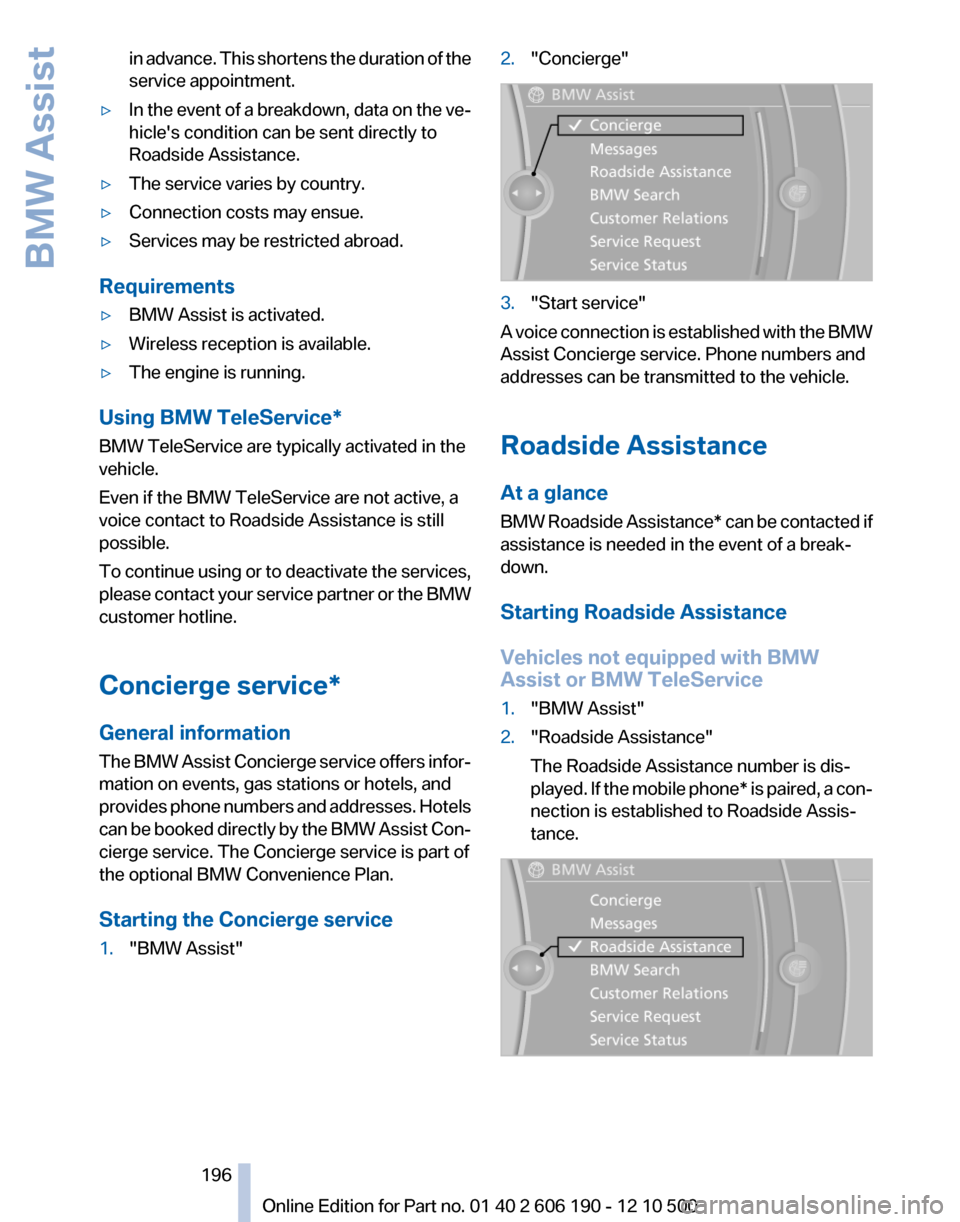
1."BMW Assist"2."Concierge"3."Start service"
A voice connection is established with the BMW
Assist Concierge service. Phone numbers and
addresses can be transmitted to the vehicle.
Roadside Assistance
At a glance
BMW Roadside Assistance* can be contacted if
assistance is needed in the event of a break‐
down.
Starting Roadside Assistance
Vehicles not equipped with BMW
Assist or BMW TeleService
1."BMW Assist"2."Roadside Assistance"
The Roadside Assistance number is dis‐
played. If the mobile phone* is paired, a con‐
nection is established to Roadside Assis‐
tance.Seite 196196
Online Edition for Part no. 01 40 2 606 190 - 12 10 500BMW Assist
Page 197 of 262
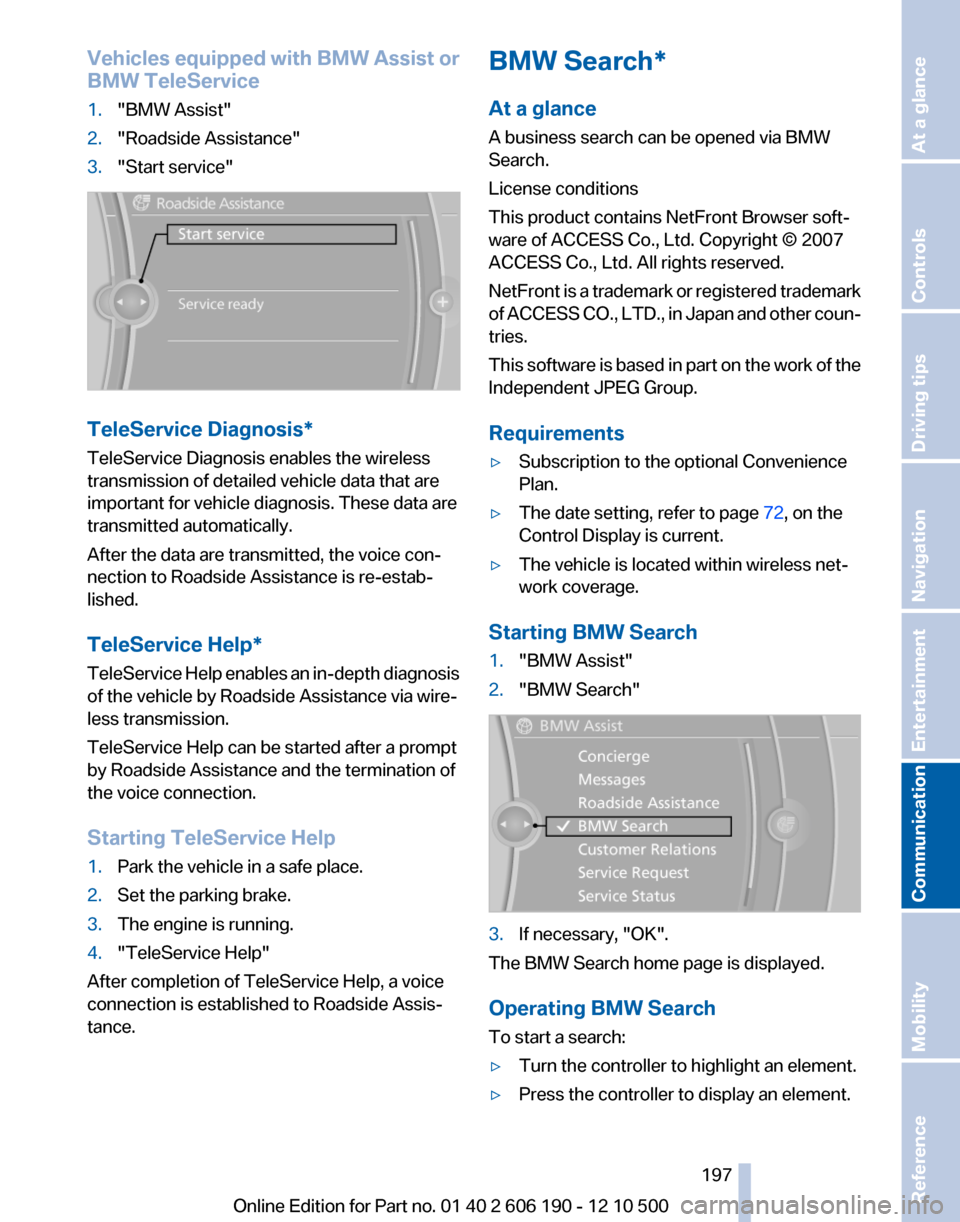
Vehicles equipped with BMW Assist or
BMW TeleService1."BMW Assist"2."Roadside Assistance"3."Start service"
TeleService Diagnosis*
TeleService Diagnosis enables the wireless
transmission of detailed vehicle data that are
important for vehicle diagnosis. These data are
transmitted automatically.
After the data are transmitted, the voice con‐
nection to Roadside Assistance is re-estab‐
lished.
TeleService Help*
TeleService Help enables an in-depth diagnosis
of the vehicle by Roadside Assistance via wire‐
less transmission.
TeleService Help can be started after a prompt
by Roadside Assistance and the termination of
the voice connection.
Starting TeleService Help
1.Park the vehicle in a safe place.2.Set the parking brake.3.The engine is running.4."TeleService Help"
After completion of TeleService Help, a voice
connection is established to Roadside Assis‐
tance.
BMW Search*
At a glance
A business search can be opened via BMW
Search.
License conditions
This product contains NetFront Browser soft‐
ware of ACCESS Co., Ltd. Copyright © 2007
ACCESS Co., Ltd. All rights reserved.
NetFront is a trademark or registered trademark
of ACCESS CO., LTD., in Japan and other coun‐
tries.
This software is based in part on the work of the
Independent JPEG Group.
Requirements▷Subscription to the optional Convenience
Plan.▷The date setting, refer to page 72, on the
Control Display is current.▷The vehicle is located within wireless net‐
work coverage.
Starting BMW Search
1."BMW Assist"2."BMW Search"3.If necessary, "OK".
The BMW Search home page is displayed.
Operating BMW Search
To start a search:
▷Turn the controller to highlight an element.▷Press the controller to display an element.Seite 197197
Online Edition for Part no. 01 40 2 606 190 - 12 10 500
ReferenceMobilityCommunicationEntertainmentNavigationDriving tipsControlsAt a glance
Page 228 of 262
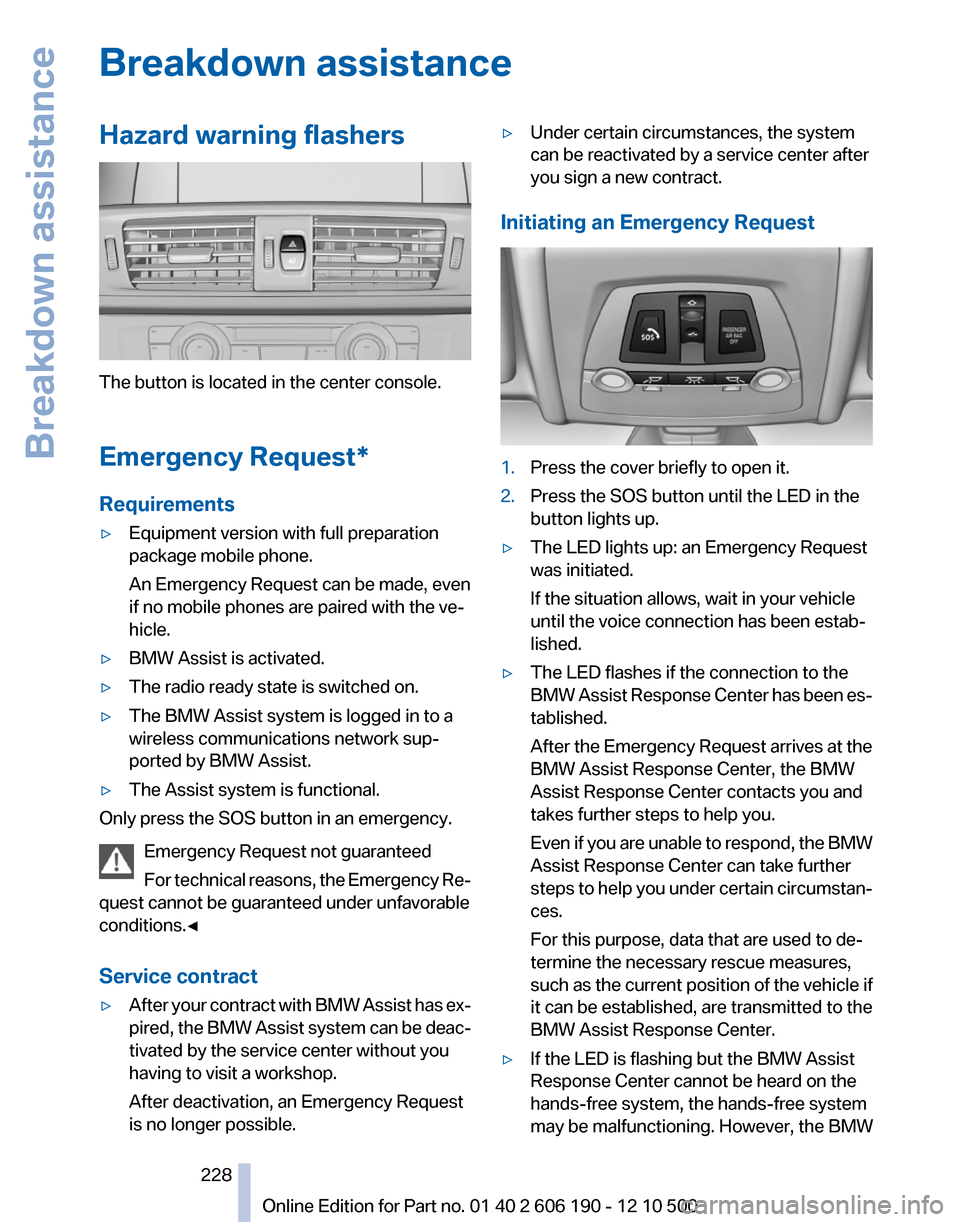
Breakdown assistanceHazard warning flashers
The button is located in the center console.
Emergency Request*
Requirements
▷Equipment version with full preparation
package mobile phone.
An Emergency Request can be made, even
if no mobile phones are paired with the ve‐
hicle.▷BMW Assist is activated.▷The radio ready state is switched on.▷The BMW Assist system is logged in to a
wireless communications network sup‐
ported by BMW Assist.▷The Assist system is functional.
Only press the SOS button in an emergency.
Emergency Request not guaranteed
For technical reasons, the Emergency Re‐
quest cannot be guaranteed under unfavorable
conditions.◀
Service contract
▷After your contract with BMW Assist has ex‐
pired, the BMW Assist system can be deac‐
tivated by the service center without you
having to visit a workshop.
After deactivation, an Emergency Request
is no longer possible.▷Under certain circumstances, the system
can be reactivated by a service center after
you sign a new contract.
Initiating an Emergency Request
1.Press the cover briefly to open it.2.Press the SOS button until the LED in the
button lights up.▷The LED lights up: an Emergency Request
was initiated.
If the situation allows, wait in your vehicle
until the voice connection has been estab‐
lished.▷The LED flashes if the connection to the
BMW Assist Response Center has been es‐
tablished.
After the Emergency Request arrives at the
BMW Assist Response Center, the BMW
Assist Response Center contacts you and
takes further steps to help you.
Even if you are unable to respond, the BMW
Assist Response Center can take further
steps to help you under certain circumstan‐
ces.
For this purpose, data that are used to de‐
termine the necessary rescue measures,
such as the current position of the vehicle if
it can be established, are transmitted to the
BMW Assist Response Center.▷If the LED is flashing but the BMW Assist
Response Center cannot be heard on the
hands-free system, the hands-free system
may be malfunctioning. However, the BMWSeite 228228
Online Edition for Part no. 01 40 2 606 190 - 12 10 500Breakdown assistance
Page 237 of 262
Reference
This chapter contains technical data, short
commands for the voice activation system, and an index that will quickly take you to the information you need.Online Edition for Part no. 01 40 2 606 190 - 12 10 500
Page 243 of 262
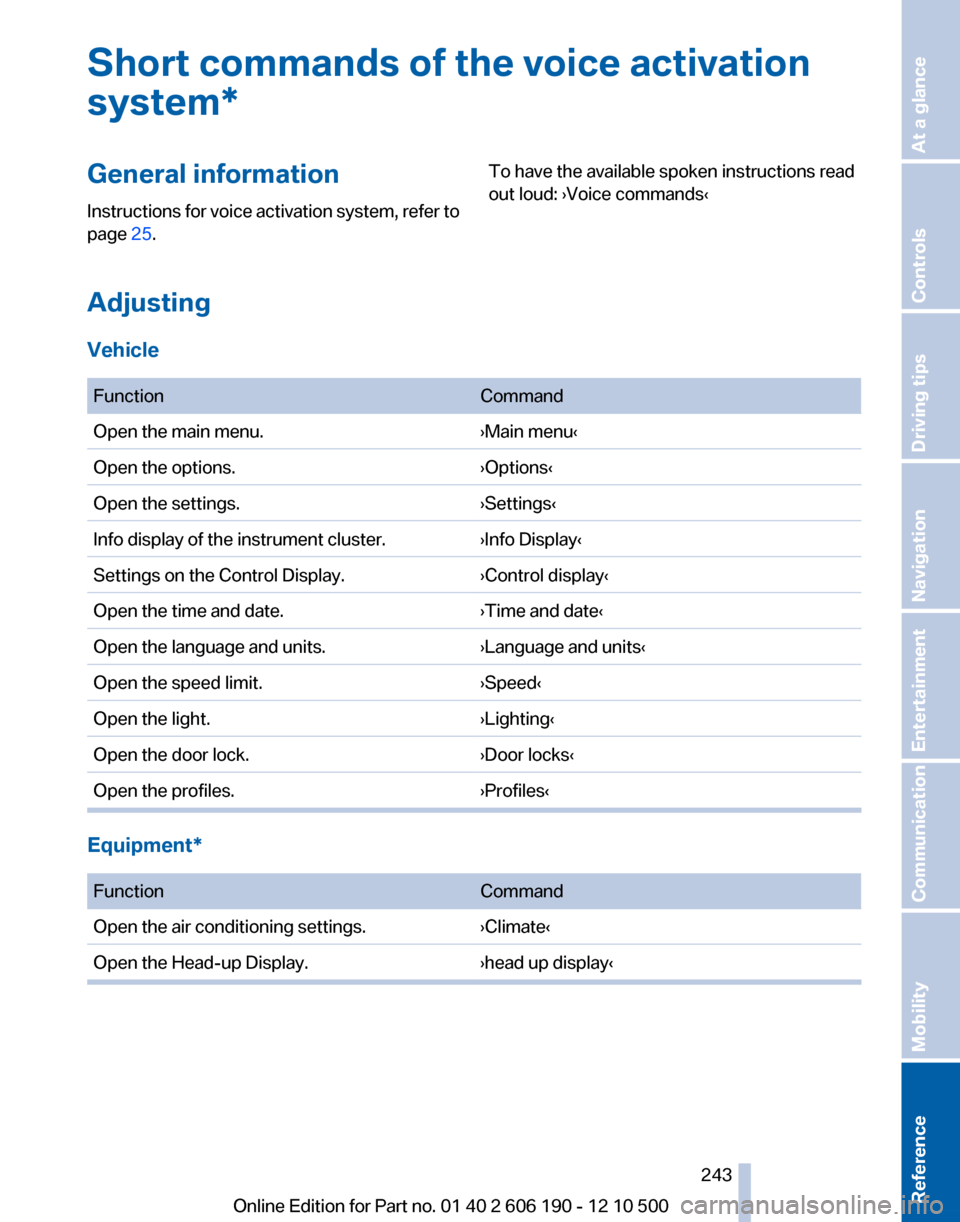
Short commands of the voice activation
system*General information
Instructions for voice activation system, refer to
page 25.To have the available spoken instructions read
out loud: ›Voice commands‹
Adjusting
Vehicle
FunctionCommandOpen the main menu.›Main menu‹Open the options.›Options‹Open the settings.›Settings‹Info display of the instrument cluster.›Info Display‹Settings on the Control Display.›Control display‹Open the time and date.›Time and date‹Open the language and units.›Language and units‹Open the speed limit.›Speed‹Open the light.›Lighting‹Open the door lock.›Door locks‹Open the profiles.›Profiles‹
Equipment*
FunctionCommandOpen the air conditioning settings.›Climate‹Open the Head-up Display.›head up display‹Seite 243243
Online Edition for Part no. 01 40 2 606 190 - 12 10 500
ReferenceMobilityCommunicationEntertainmentNavigationDriving tipsControlsAt a glance
Page 244 of 262
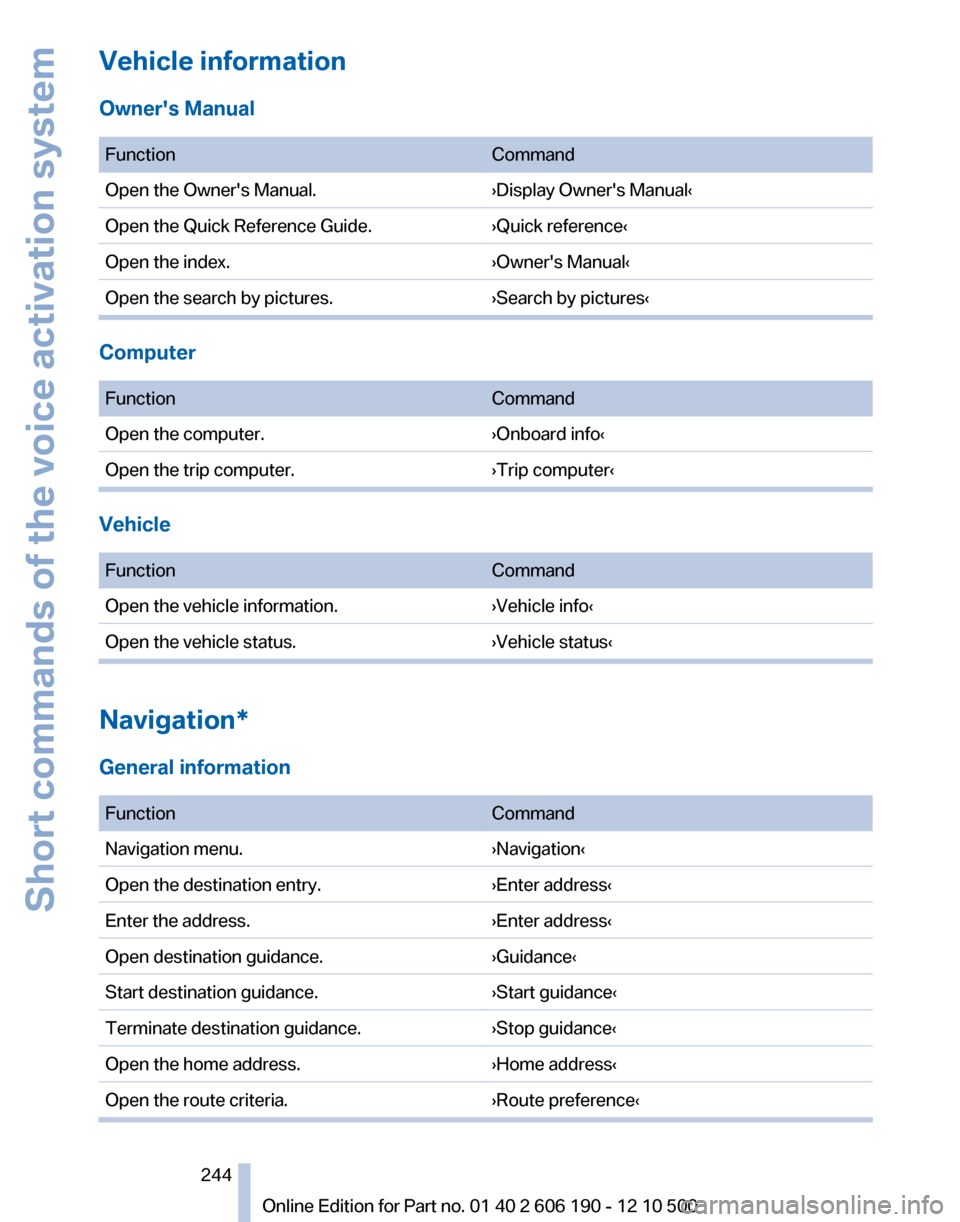
Vehicle information
Owner's Manual
FunctionCommandOpen the Owner's Manual.›Display Owner's Manual‹Open the Quick Reference Guide.›Quick reference‹Open the index.›Owner's Manual‹Open the search by pictures.›Search by pictures‹
Computer
FunctionCommandOpen the computer.›Onboard info‹Open the trip computer.›Trip computer‹
Vehicle
FunctionCommandOpen the vehicle information.›Vehicle info‹Open the vehicle status.›Vehicle status‹
Navigation*
General information
FunctionCommandNavigation menu.›Navigation‹Open the destination entry.›Enter address‹Enter the address.›Enter address‹Open destination guidance.›Guidance‹Start destination guidance.›Start guidance‹Terminate destination guidance.›Stop guidance‹Open the home address.›Home address‹Open the route criteria.›Route preference‹Seite 244244
Online Edition for Part no. 01 40 2 606 190 - 12 10 500Short commands of the voice activation system
Page 245 of 262
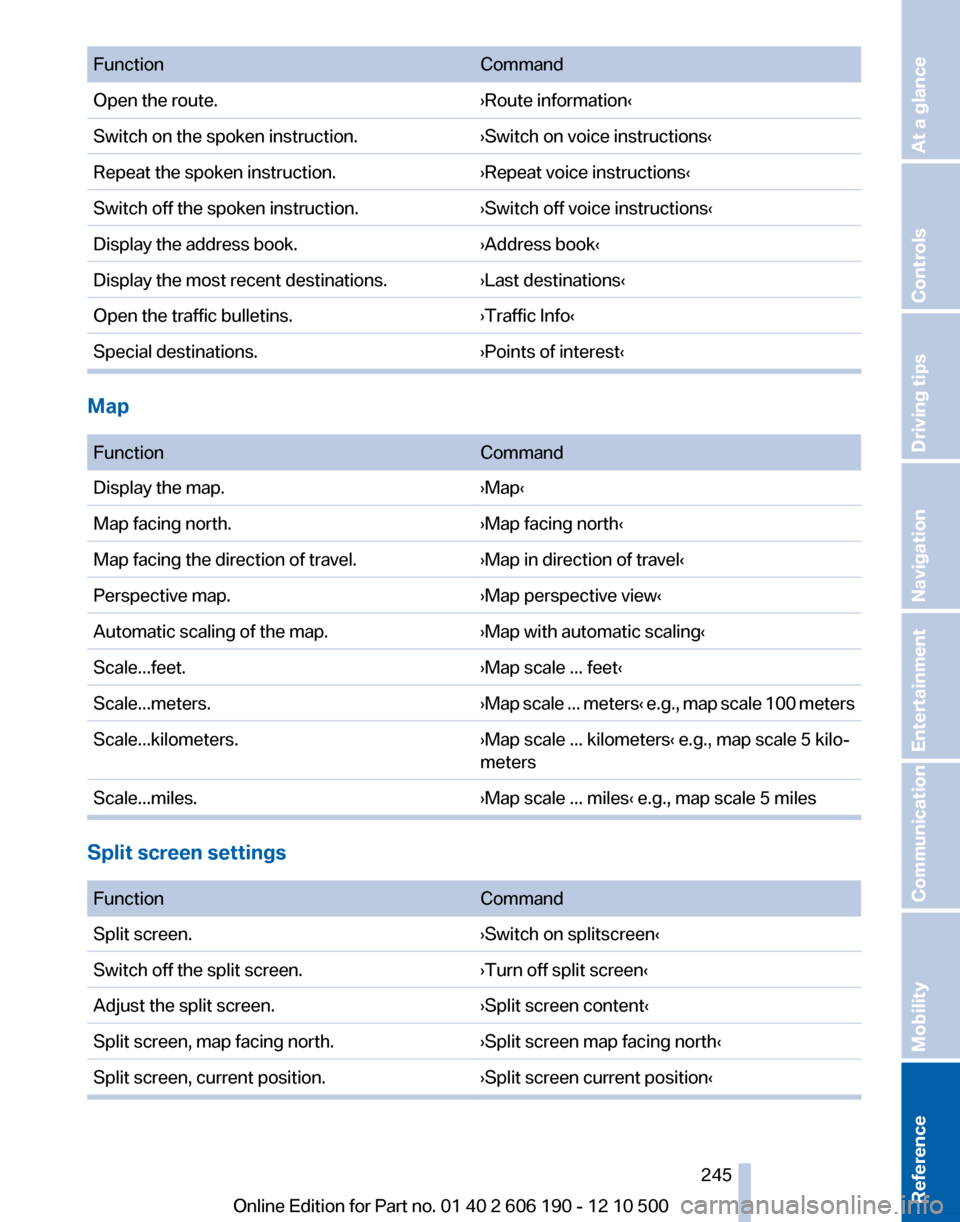
FunctionCommandOpen the route.›Route information‹Switch on the spoken instruction.›Switch on voice instructions‹Repeat the spoken instruction.›Repeat voice instructions‹Switch off the spoken instruction.›Switch off voice instructions‹Display the address book.›Address book‹Display the most recent destinations.›Last destinations‹Open the traffic bulletins.›Traffic Info‹Special destinations.›Points of interest‹
Map
FunctionCommandDisplay the map.›Map‹Map facing north.›Map facing north‹Map facing the direction of travel.›Map in direction of travel‹Perspective map.›Map perspective view‹Automatic scaling of the map.›Map with automatic scaling‹Scale...feet.›Map scale ... feet‹Scale...meters.› Map scale ... meters ‹ e.g., map scale 100 metersScale...kilometers.›Map scale ... kilometers‹ e.g., map scale 5 kilo‐
metersScale...miles.›Map scale ... miles‹ e.g., map scale 5 miles
Split screen settings
FunctionCommandSplit screen.›Switch on splitscreen‹Switch off the split screen.›Turn off split screen‹Adjust the split screen.›Split screen content‹Split screen, map facing north.›Split screen map facing north‹Split screen, current position.›Split screen current position‹Seite 245245
Online Edition for Part no. 01 40 2 606 190 - 12 10 500
ReferenceMobilityCommunicationEntertainmentNavigationDriving tipsControlsAt a glance
Page 246 of 262
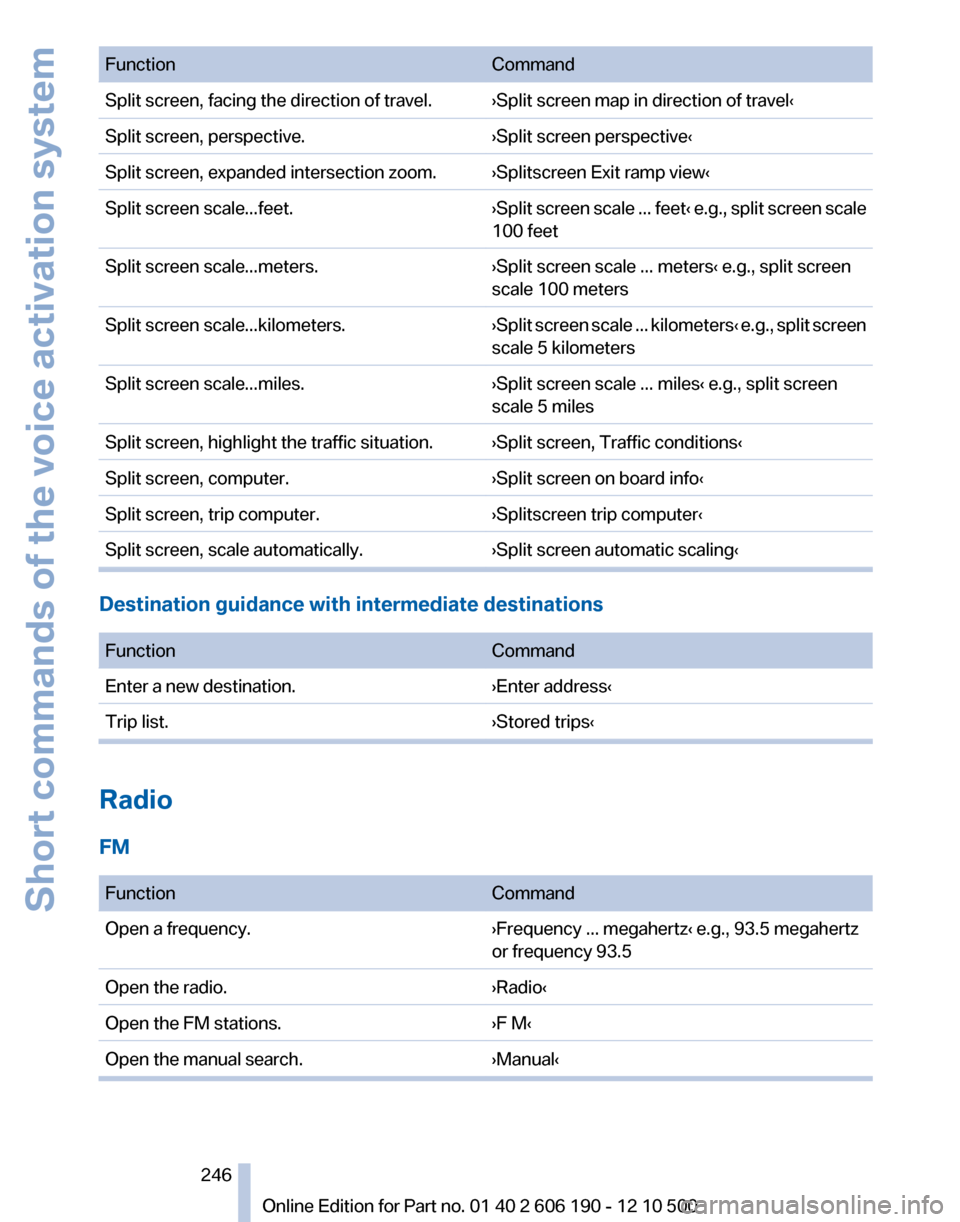
FunctionCommandSplit screen, facing the direction of travel.›Split screen map in direction of travel‹Split screen, perspective.›Split screen perspective‹Split screen, expanded intersection zoom.›Splitscreen Exit ramp view‹Split screen scale...feet.›Split screen scale ... feet ‹ e.g., split screen scale
100 feetSplit screen scale...meters.›Split screen scale ... meters‹ e.g., split screen
scale 100 metersSplit screen scale...kilometers.› Split screen scale ... kilometers ‹ e.g., split screen
scale 5 kilometersSplit screen scale...miles.›Split screen scale ... miles‹ e.g., split screen
scale 5 milesSplit screen, highlight the traffic situation.›Split screen, Traffic conditions‹Split screen, computer.›Split screen on board info‹Split screen, trip computer.›Splitscreen trip computer‹Split screen, scale automatically.›Split screen automatic scaling‹
Destination guidance with intermediate destinations
FunctionCommandEnter a new destination.›Enter address‹Trip list.›Stored trips‹
Radio
FM
FunctionCommandOpen a frequency.›Frequency ... megahertz‹ e.g., 93.5 megahertz
or frequency 93.5Open the radio.›Radio‹Open the FM stations.›F M‹Open the manual search.›Manual‹Seite 246246
Online Edition for Part no. 01 40 2 606 190 - 12 10 500Short commands of the voice activation system