buttons BMW X3 2012 Owner's Guide
[x] Cancel search | Manufacturer: BMW, Model Year: 2012, Model line: X3, Model: BMW X3 2012Pages: 278, PDF Size: 10.15 MB
Page 170 of 278
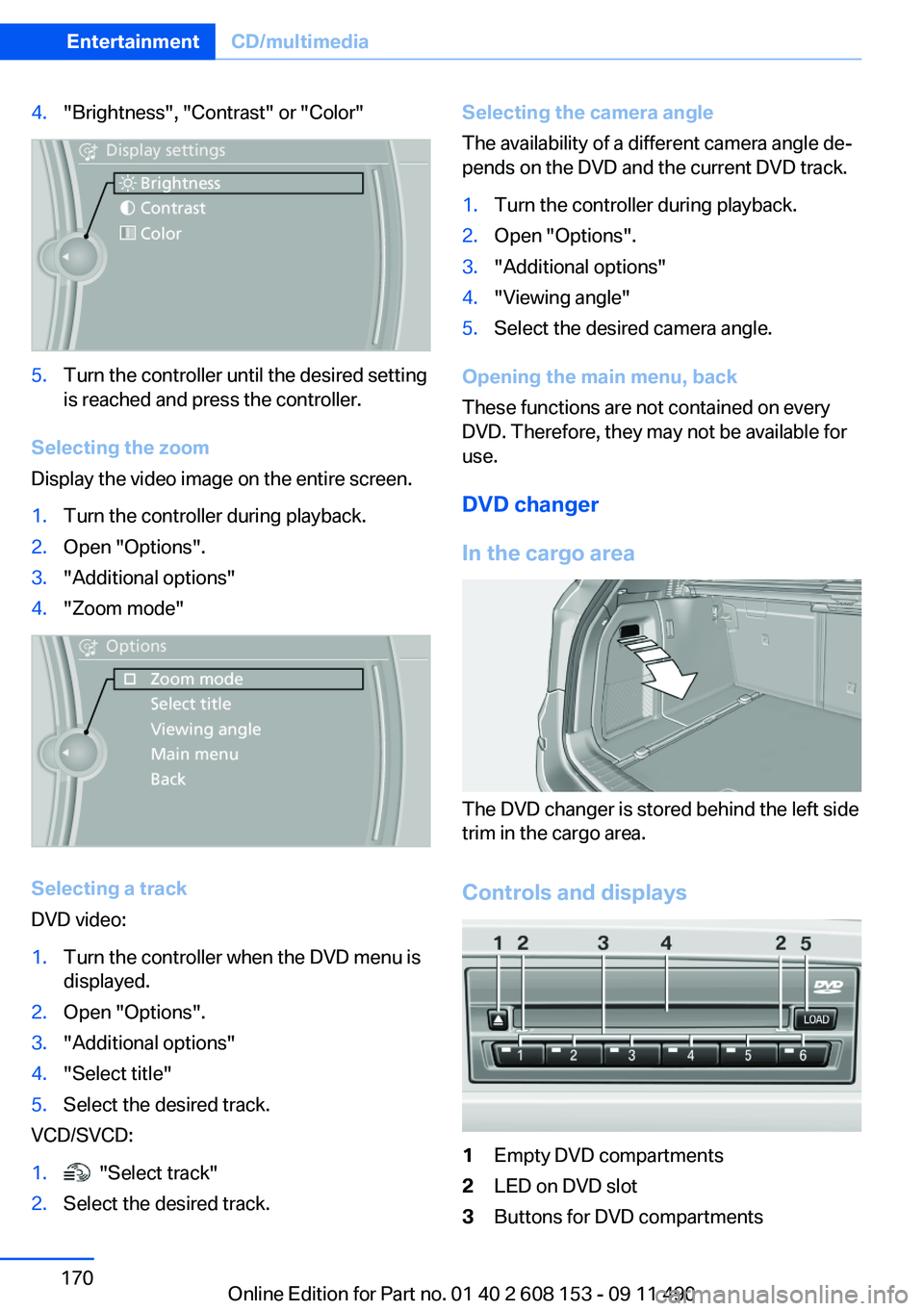
4."Brightness", "Contrast" or "Color"5.Turn the controller until the desired setting
is reached and press the controller.
Selecting the zoom
Display the video image on the entire screen.
1.Turn the controller during playback.2.Open "Options".3."Additional options"4."Zoom mode"
Selecting a track
DVD video:
1.Turn the controller when the DVD menu is
displayed.2.Open "Options".3."Additional options"4."Select title"5.Select the desired track.
VCD/SVCD:
1. "Select track"2.Select the desired track.Selecting the camera angle
The availability of a different camera angle de‐
pends on the DVD and the current DVD track.1.Turn the controller during playback.2.Open "Options".3."Additional options"4."Viewing angle"5.Select the desired camera angle.
Opening the main menu, back
These functions are not contained on every
DVD. Therefore, they may not be available for
use.
DVD changer
In the cargo area
The DVD changer is stored behind the left side
trim in the cargo area.
Controls and displays
1Empty DVD compartments2LED on DVD slot3Buttons for DVD compartmentsSeite 170EntertainmentCD/multimedia170
Online Edition for Part no. 01 40 2 608 153 - 09 11 490
Page 171 of 278
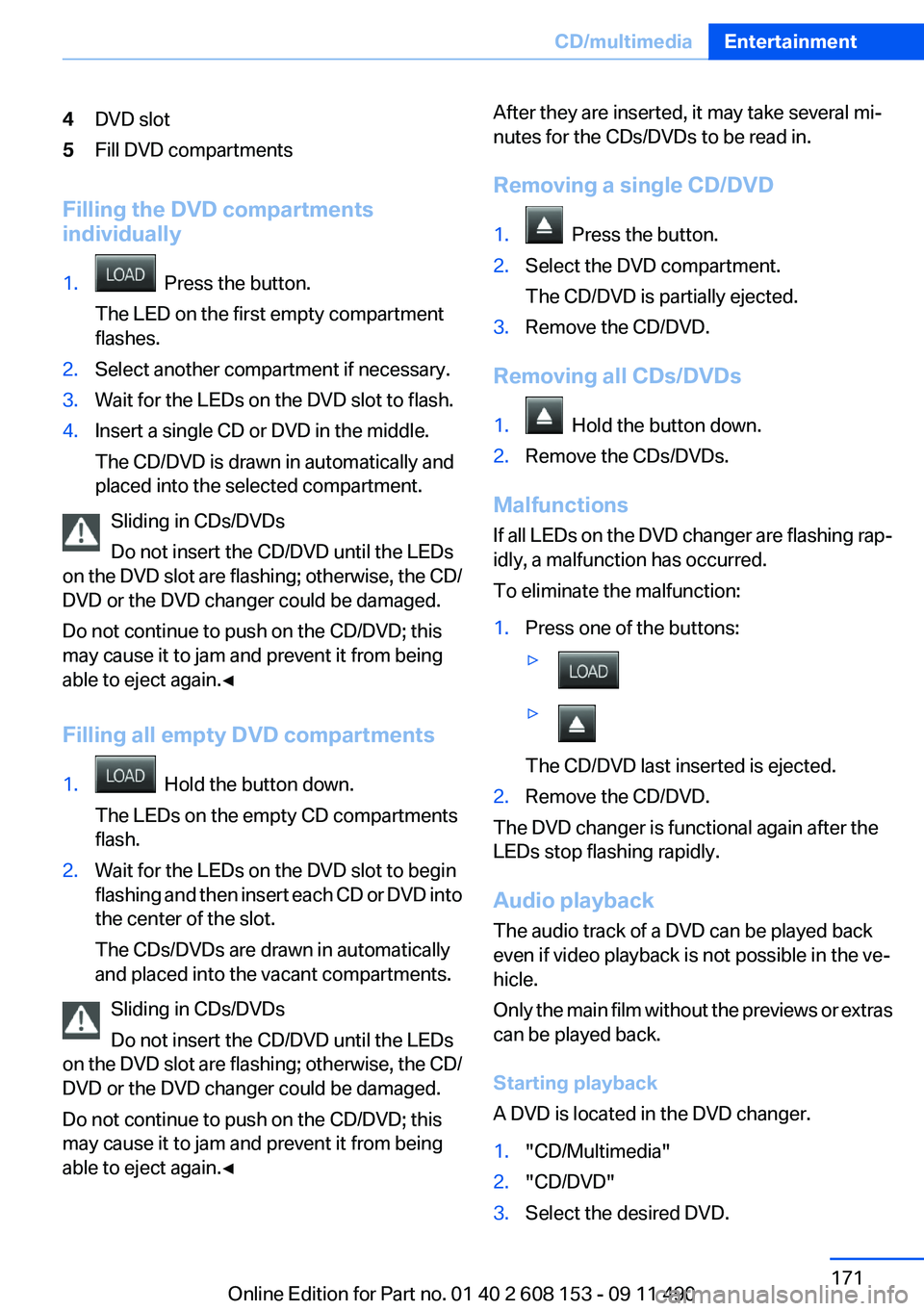
4DVD slot5Fill DVD compartments
Filling the DVD compartments
individually
1. Press the button.
The LED on the first empty compartment
flashes.2.Select another compartment if necessary.3.Wait for the LEDs on the DVD slot to flash.4.Insert a single CD or DVD in the middle.
The CD/DVD is drawn in automatically and
placed into the selected compartment.
Sliding in CDs/DVDs
Do not insert the CD/DVD until the LEDs
on the DVD slot are flashing; otherwise, the CD/
DVD or the DVD changer could be damaged.
Do not continue to push on the CD/DVD; this
may cause it to jam and prevent it from being
able to eject again.◀
Filling all empty DVD compartments
1. Hold the button down.
The LEDs on the empty CD compartments
flash.2.Wait for the LEDs on the DVD slot to begin
flashing and then insert each CD or DVD into
the center of the slot.
The CDs/DVDs are drawn in automatically
and placed into the vacant compartments.
Sliding in CDs/DVDs
Do not insert the CD/DVD until the LEDs
on the DVD slot are flashing; otherwise, the CD/
DVD or the DVD changer could be damaged.
Do not continue to push on the CD/DVD; this
may cause it to jam and prevent it from being
able to eject again.◀
After they are inserted, it may take several mi‐
nutes for the CDs/DVDs to be read in.
Removing a single CD/DVD1. Press the button.2.Select the DVD compartment.
The CD/DVD is partially ejected.3.Remove the CD/DVD.
Removing all CDs/DVDs
1. Hold the button down.2.Remove the CDs/DVDs.
Malfunctions
If all LEDs on the DVD changer are flashing rap‐
idly, a malfunction has occurred.
To eliminate the malfunction:
1.Press one of the buttons:▷▷
The CD/DVD last inserted is ejected.
2.Remove the CD/DVD.
The DVD changer is functional again after the
LEDs stop flashing rapidly.
Audio playback
The audio track of a DVD can be played back
even if video playback is not possible in the ve‐
hicle.
Only the main film without the previews or extras
can be played back.
Starting playback
A DVD is located in the DVD changer.
1."CD/Multimedia"2."CD/DVD"3.Select the desired DVD.Seite 171CD/multimediaEntertainment171
Online Edition for Part no. 01 40 2 608 153 - 09 11 490
Page 184 of 278
Playback menu
Depending on the particular device, some of the
functions may not be available.SymbolFunction Next track
Fast forward: press and hold the
symbol. Previous music track
Reverse: press and hold the symbol.
Disconnecting the audio connection
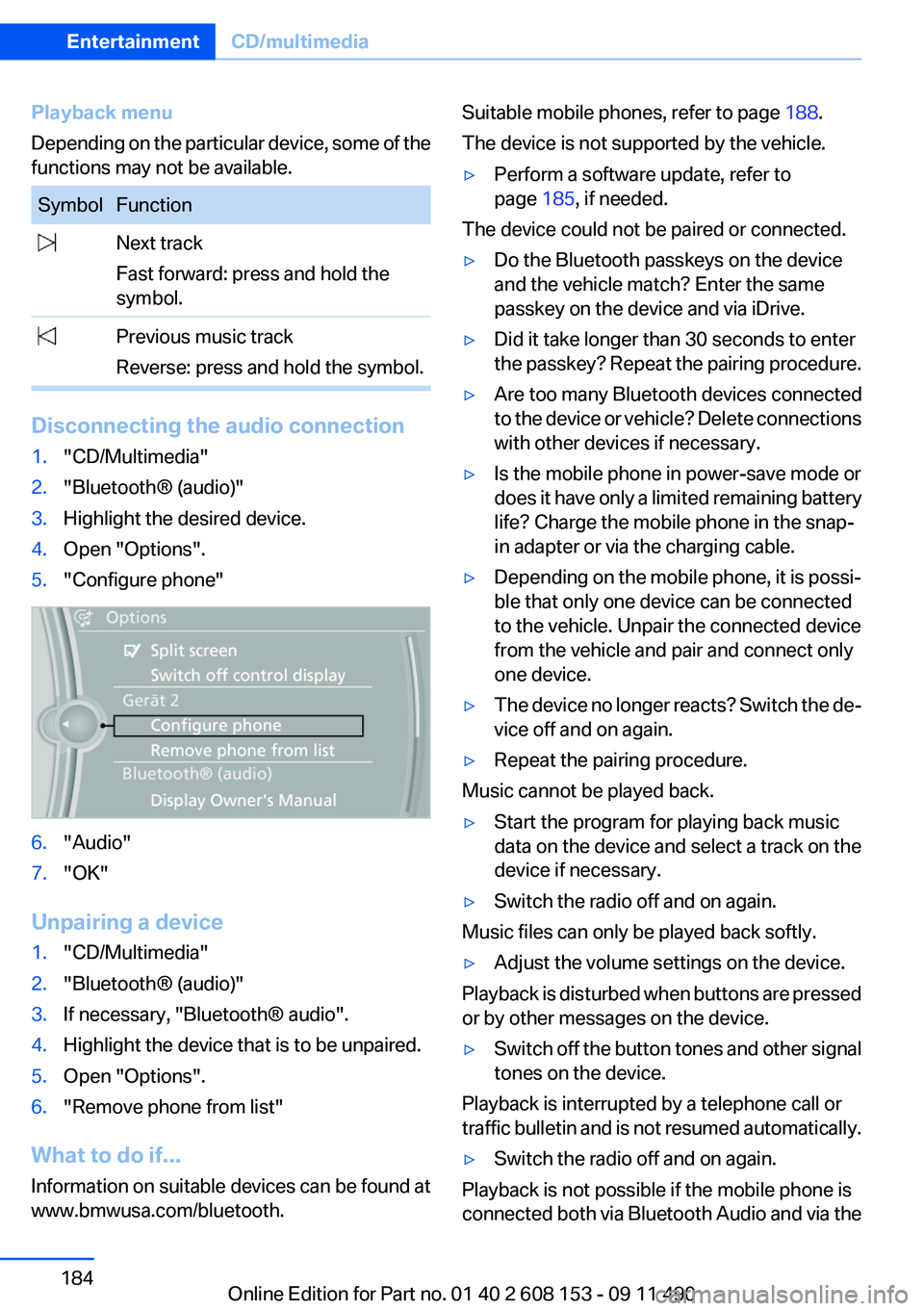
1."CD/Multimedia"2."Bluetooth® (audio)"3.Highlight the desired device.4.Open "Options".5."Configure phone"6."Audio"7."OK"
Unpairing a device
1."CD/Multimedia"2."Bluetooth® (audio)"3.If necessary, "Bluetooth® audio".4.Highlight the device that is to be unpaired.5.Open "Options".6."Remove phone from list"
What to do if...
Information on suitable devices can be found at
www.bmwusa.com/bluetooth.
Suitable mobile phones, refer to page 188.
The device is not supported by the vehicle.▷Perform a software update, refer to
page 185, if needed.
The device could not be paired or connected.
▷Do the Bluetooth passkeys on the device
and the vehicle match? Enter the same
passkey on the device and via iDrive.▷Did it take longer than 30 seconds to enter
the passkey? Repeat the pairing procedure.▷Are too many Bluetooth devices connected
to the device or vehicle? Delete connections
with other devices if necessary.▷Is the mobile phone in power-save mode or
does it have only a limited remaining battery
life? Charge the mobile phone in the snap-
in adapter or via the charging cable.▷Depending on the mobile phone, it is possi‐
ble that only one device can be connected
to the vehicle. Unpair the connected device
from the vehicle and pair and connect only
one device.▷The device no longer reacts? Switch the de‐
vice off and on again.▷Repeat the pairing procedure.
Music cannot be played back.
▷Start the program for playing back music
data on the device and select a track on the
device if necessary.▷Switch the radio off and on again.
Music files can only be played back softly.
▷Adjust the volume settings on the device.
Playback is disturbed when buttons are pressed
or by other messages on the device.
▷Switch off the button tones and other signal
tones on the device.
Playback is interrupted by a telephone call or
traffic bulletin and is not resumed automatically.
▷Switch the radio off and on again.
Playback is not possible if the mobile phone is
connected both via Bluetooth Audio and via the
Seite 184EntertainmentCD/multimedia184
Online Edition for Part no. 01 40 2 608 153 - 09 11 490
Page 188 of 278
Professional mobile phone preparation
packageVehicle equipment
All standard, country-specific and optional
equipment that is offered in the model series is
described in this chapter. Therefore, equipment
is also described that is not available in a vehicle,
e. g., because of the selected optional equip‐
ment or country variant. This also applies for
safety-related functions and systems.
At a glance
The concept
Mobile phones or other external devices such as
audio players can be connected to the vehicle
via Bluetooth.
After these devices are paired once, they are
recognized automatically when the ignition is
switched on as soon as they are inside the ve‐
hicle and can be operated via iDrive, the buttons
on the steering wheel, and via voice activation.
Depending on their functionality, external devi‐
ces can be used via the vehicle as a telephone
or as an audio source.
The telephone functions are described in the
following. Operation of the audio functions, refer
to page 181.
Up to four external devices can be paired.
Certain functions may need to be enabled by the
mobile phone provider or service provider.
Using the mobile phone while driving
Make entries only when traffic and road
conditions allow. Do not hold the mobile phone
in your hand while you are driving; use the
hands-free system instead. If you do not ob‐
serve this precaution, you can endanger the ve‐
hicle occupants and other road users.◀Snap-in adapter
The snap-in adapter is used to:▷Hold the mobile phone.▷Recharge the battery.▷Connect the mobile phone to an outside an‐
tenna of the vehicle.
This provides for better network reception
and consistent sound quality.
Approved mobile phones
Details on which mobile phones and external
devices with a Bluetooth interface are sup‐
ported by the mobile phone preparation pack‐
age can be obtained at www.bmwusa.com/blue‐
tooth.
Displaying the vehicle identification
number and software part number
The vehicle identification number and software
part number are needed to determine which mo‐
bile phones are supported by the mobile phone
preparation package. The software version of
the mobile phone may also be required.
1."Telephone"2.Open "Options".3."Bluetooth® info"4."Display system information"
These approved mobile phones with a certain
software version, support the vehicle functions
described below.
Malfunctions may occur with other mobile
phones or software versions.
Do not operate a mobile phone that is connected
to the vehicle on the mobile phone keypad, as
this may lead to a malfunction.
Seite 188CommunicationProfessional mobile phone preparation package188
Online Edition for Part no. 01 40 2 608 153 - 09 11 490
Page 197 of 278
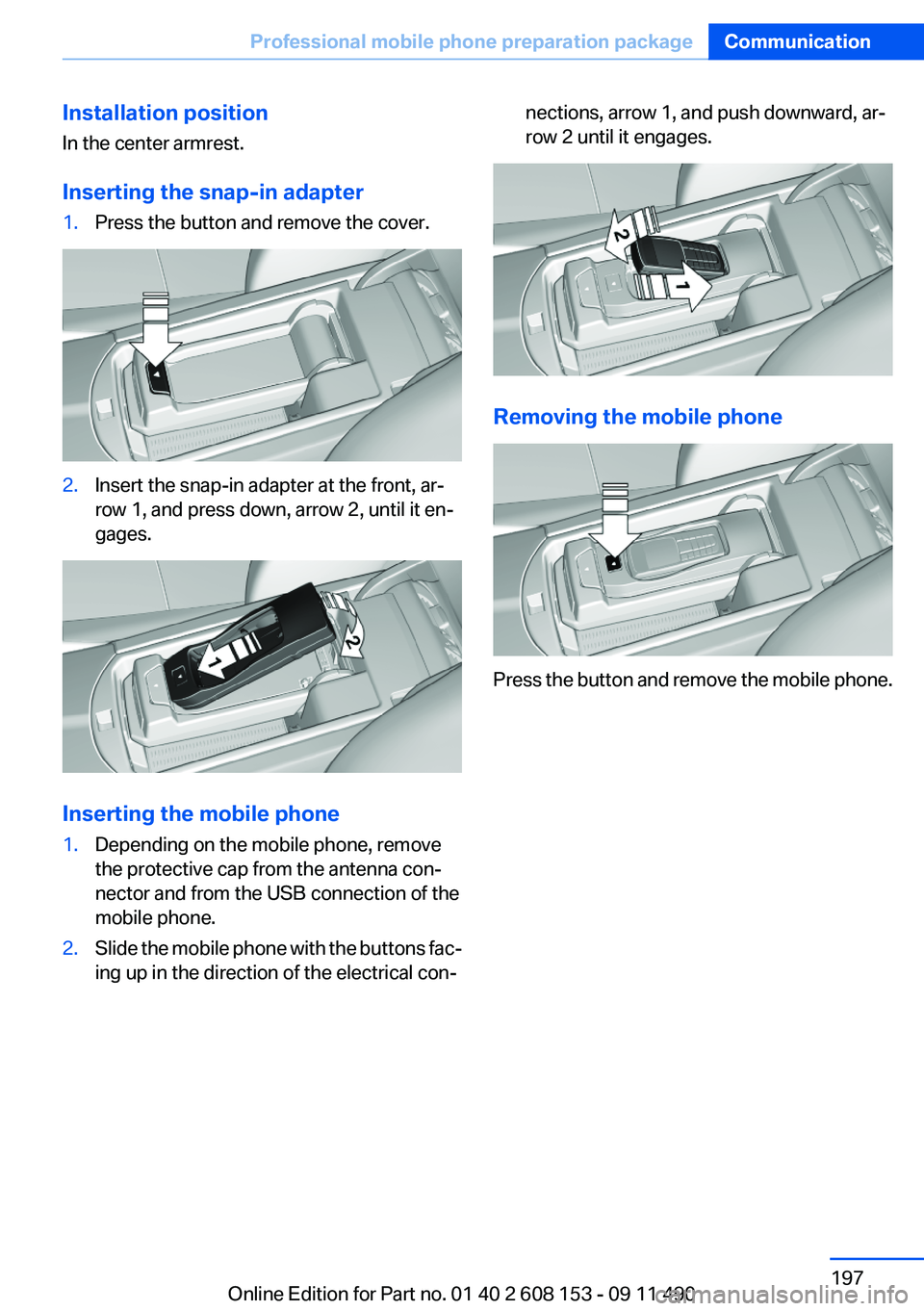
Installation position
In the center armrest.
Inserting the snap-in adapter1.Press the button and remove the cover.2.Insert the snap-in adapter at the front, ar‐
row 1, and press down, arrow 2, until it en‐
gages.
Inserting the mobile phone
1.Depending on the mobile phone, remove
the protective cap from the antenna con‐
nector and from the USB connection of the
mobile phone.2.Slide the mobile phone with the buttons fac‐
ing up in the direction of the electrical con‐nections, arrow 1, and push downward, ar‐
row 2 until it engages.
Removing the mobile phone
Press the button and remove the mobile phone.
Seite 197Professional mobile phone preparation packageCommunication197
Online Edition for Part no. 01 40 2 608 153 - 09 11 490
Page 273 of 278
Menus, refer to iDrive operat‐ing concept 17
Message list, traffic bulle‐ tins 150
Messages 201
Microfilter 111, 114
Minimum tread, tires 225
Mirror 52
Mirror memory 52
Mobile communication devi‐ ces in the vehicle 129
Mobile phone 188
Modifications, technical, refer to Safety 6
Moisture in headlamp 237
Monitor, refer to Control Dis‐ play 16
Mounting of child restraint fix‐ ing systems 55
MP3 player 178
Multifunction steering wheel, buttons 12
Multimedia 166
Music collection 173
Music search 174
Music, storing 173
N
Navigation 138
Navigation data 152
Neck restraints, front, refer to Head restraints 50
Neck restraints, rear, refer to Head restraints 51
New wheels and tires 226
NORMAL program, Dynamic Driving Control 98
Notes 205
Number of cylinders, en‐ gine 255
Nylon rope for tow-starting/ towing 246 O
OBD Onboard Diagnos‐ tics 235
Obstacle marking, backup camera 105
Odometer 72
Office 198
Oil 231
Oil, adding 231
Oil additives 232
Oil change 232
Oil change interval, service re‐ quirements 74
Oil filler neck 231
Oil level check 231
Oil types, alternative 232
Oil types, approved 232
Old batteries, disposal 242
Onboard Diagnostics OBD 235
Onboard monitor, refer to Control Display 16
Onboard vehicle tool kit 236
Opening/closing from in‐ side 37
Opening/closing via door lock 36
Opening/closing with remote control 34
Operating concept, iDrive 16
Optional equipment, standard equipment 6
Outside air, refer to Automatic recirculated-air control 113
P
Paint, vehicle 249
Pairing, mobile phone 189
Panic mode 35
Panoramic glass sunroof 44
Park Distance Control PDC 101
Parked-car ventilation 114 Parked vehicle, condensa‐
tion 130
Parking aid, refer to PDC 101
Parking brake 60
Parking lamps 80
Parking lamps, bulb replace‐ ment 238
Parking with Auto Hold 60
Partition net 120
Passenger side mirror, tilting downward 53
Pathway lines, backup cam‐ era 104
PDC Park Distance Con‐ trol 101
Performance Control 95
Permissible axle load 256
Personal information 198
Personal Profile 31
Phone 188
Pinch protection system, glass sunroof 45
Pinch protection system, win‐ dows 43
Plastic, care 250
PlugIn 214
Position, storing 140
Postal code, entering in navi‐ gation 139
Power failure 242
Power output, engine 255
Power windows 42
Pressure, tire air pres‐ sure 221
Pressure warning, tires 91
Profile, refer to Personal Pro‐ file 31
Programmable memory but‐ tons, iDrive 20
Protective function, glass sun‐ roof 45
Protective function, win‐ dows 43
Push-and-turn switch, refer to Controller 16 Seite 273Everything from A to ZReference273
Online Edition for Part no. 01 40 2 608 153 - 09 11 490