navigation system BMW X3 2015 F25 User Guide
[x] Cancel search | Manufacturer: BMW, Model Year: 2015, Model line: X3, Model: BMW X3 2015 F25Pages: 257, PDF Size: 5.26 MB
Page 90 of 257
The Check Control message appears continu‐
ously below a range of approx. 30 miles/50 km.
Refuel promptly
Refuel no later than at a range of
30 miles/50 km or engine operation might fail
and damage might occur.◀
Displaying the cruising range Depending on your vehicle's optional features,
the range can also be displayed as bar in the
instrument cluster.
On the Control Display:1."Settings"2."Instrument cluster"3."Additional indicators"
With navigation system: range with destination guidance active
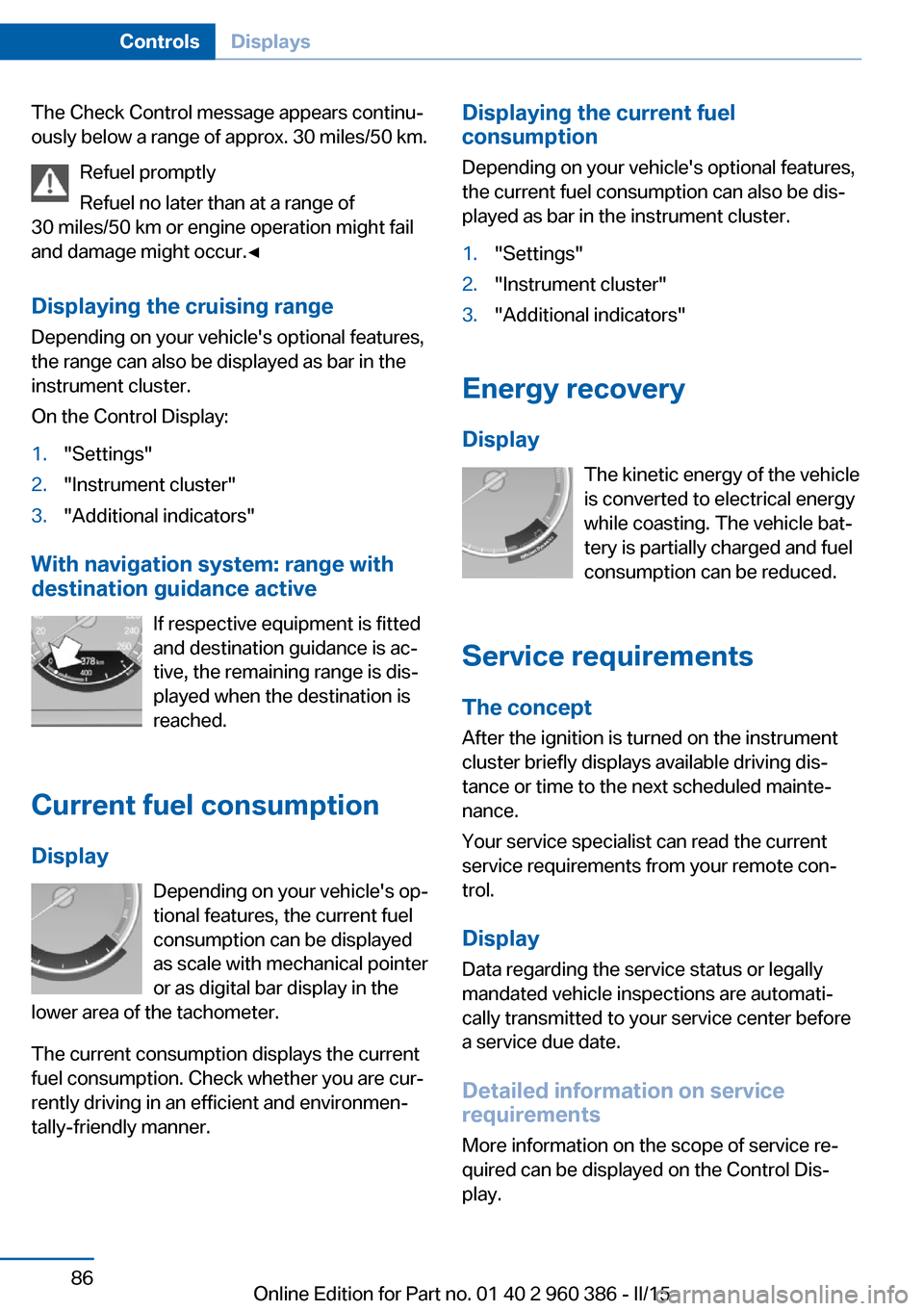
If respective equipment is fitted
and destination guidance is ac‐
tive, the remaining range is dis‐ played when the destination is
reached.
Current fuel consumption
Display Depending on your vehicle's op‐
tional features, the current fuel
consumption can be displayed
as scale with mechanical pointer
or as digital bar display in the
lower area of the tachometer.
The current consumption displays the current
fuel consumption. Check whether you are cur‐
rently driving in an efficient and environmen‐
tally-friendly manner.
Displaying the current fuel
consumption
Depending on your vehicle's optional features,
the current fuel consumption can also be dis‐
played as bar in the instrument cluster.1."Settings"2."Instrument cluster"3."Additional indicators"
Energy recovery
Display The kinetic energy of the vehicle
is converted to electrical energy while coasting. The vehicle bat‐
tery is partially charged and fuel
consumption can be reduced.
Service requirements The concept
After the ignition is turned on the instrument
cluster briefly displays available driving dis‐
tance or time to the next scheduled mainte‐
nance.
Your service specialist can read the current
service requirements from your remote con‐
trol.
Display
Data regarding the service status or legally
mandated vehicle inspections are automati‐
cally transmitted to your service center before
a service due date.
Detailed information on service
requirements
More information on the scope of service re‐
quired can be displayed on the Control Dis‐
play.
Seite 86ControlsDisplays86
Online Edition for Part no. 01 40 2 960 386 - II/15
Page 92 of 257
Speed limit detection
The concept
Speed limit detection
Speed limit detection uses a symbol in the
shape of a traffic sign to display the currently
detected speed limit. The camera in the area of
the interior rearview mirror detects traffic signs
at the edge of the road as well as variable over‐
head sign posts. Traffic signs with extra sym‐
bols for wet road conditions, etc. are also de‐
tected and compared with the vehicle's
onboard data, such as for the rain sensor, and
will be displayed depending on the situation.
The system takes into account the information
stored in the navigation system and also dis‐
plays speed limits present on routes without
signs.
Hints Personal judgment
The system cannot serve as a substitute
for the driver's personal judgment of the traffic
situation.
The system assists the driver and does not re‐
place the human eye.◀
At a glance
Camera
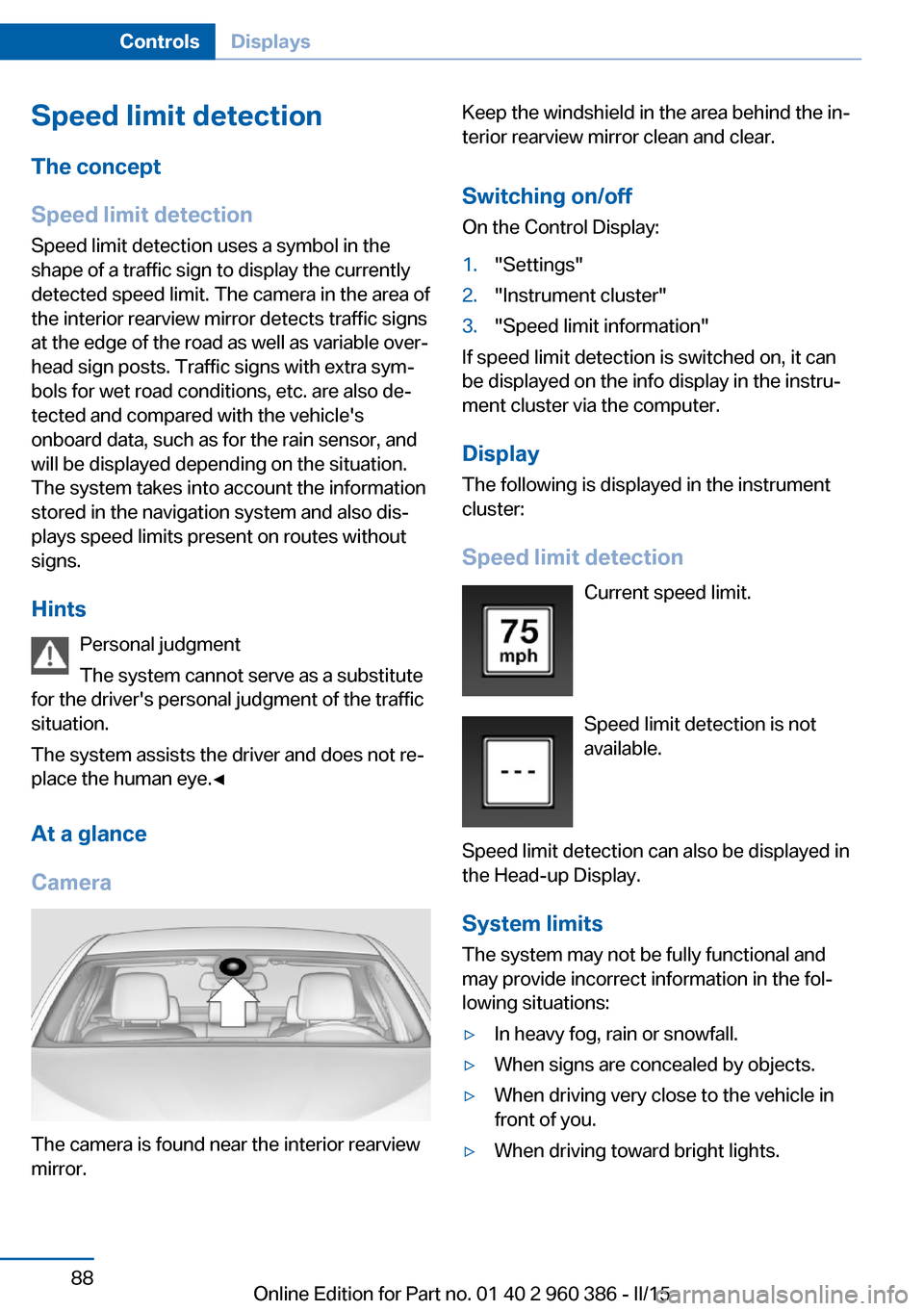
The camera is found near the interior rearview
mirror.
Keep the windshield in the area behind the in‐
terior rearview mirror clean and clear.
Switching on/offOn the Control Display:1."Settings"2."Instrument cluster"3."Speed limit information"
If speed limit detection is switched on, it can
be displayed on the info display in the instru‐
ment cluster via the computer.
Display The following is displayed in the instrument
cluster:
Speed limit detection Current speed limit.
Speed limit detection is not available.
Speed limit detection can also be displayed in
the Head-up Display.
System limits
The system may not be fully functional and
may provide incorrect information in the fol‐
lowing situations:
▷In heavy fog, rain or snowfall.▷When signs are concealed by objects.▷When driving very close to the vehicle in
front of you.▷When driving toward bright lights.Seite 88ControlsDisplays88
Online Edition for Part no. 01 40 2 960 386 - II/15
Page 93 of 257
▷When the windshield behind the interior
rearview mirror is fogged over, dirty or cov‐
ered by a sticker, etc.▷In the event of incorrect detection by the
camera.▷If the speed limits stored in the navigation
system are incorrect.▷In areas not covered by the navigation sys‐
tem.▷When roads differ from the navigation,
such as due to changes in road routing.▷When passing buses or trucks with a
speed sticker.▷If the traffic signs are non-conforming.▷During calibration of the camera immedi‐
ately after vehicle shipment.
Selection lists in the
instrument cluster
The concept Depending on your vehicle's optional features,
the following can be displayed or operated us‐
ing the buttons and the thumbwheel on the
steering wheel as well as the displays in the in‐
strument cluster and the Head-up Display:
▷Current audio source.▷Redial phone feature.▷Turn on voice activation system.Display
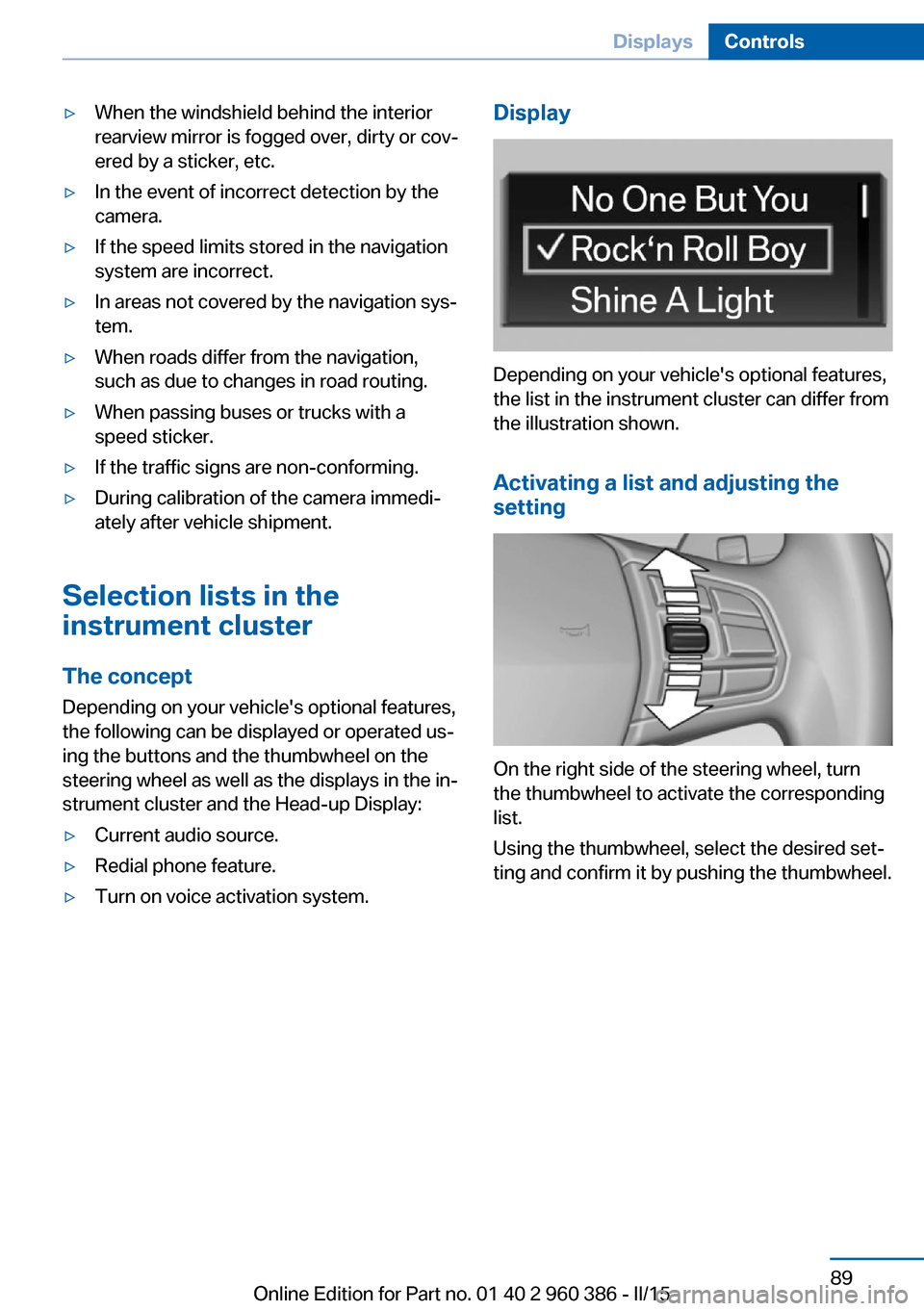
Depending on your vehicle's optional features,
the list in the instrument cluster can differ from
the illustration shown.
Activating a list and adjusting the
setting
On the right side of the steering wheel, turn
the thumbwheel to activate the corresponding
list.
Using the thumbwheel, select the desired set‐
ting and confirm it by pushing the thumbwheel.
Seite 89DisplaysControls89
Online Edition for Part no. 01 40 2 960 386 - II/15
Page 94 of 257
On-board computerCalling up information on the info
display
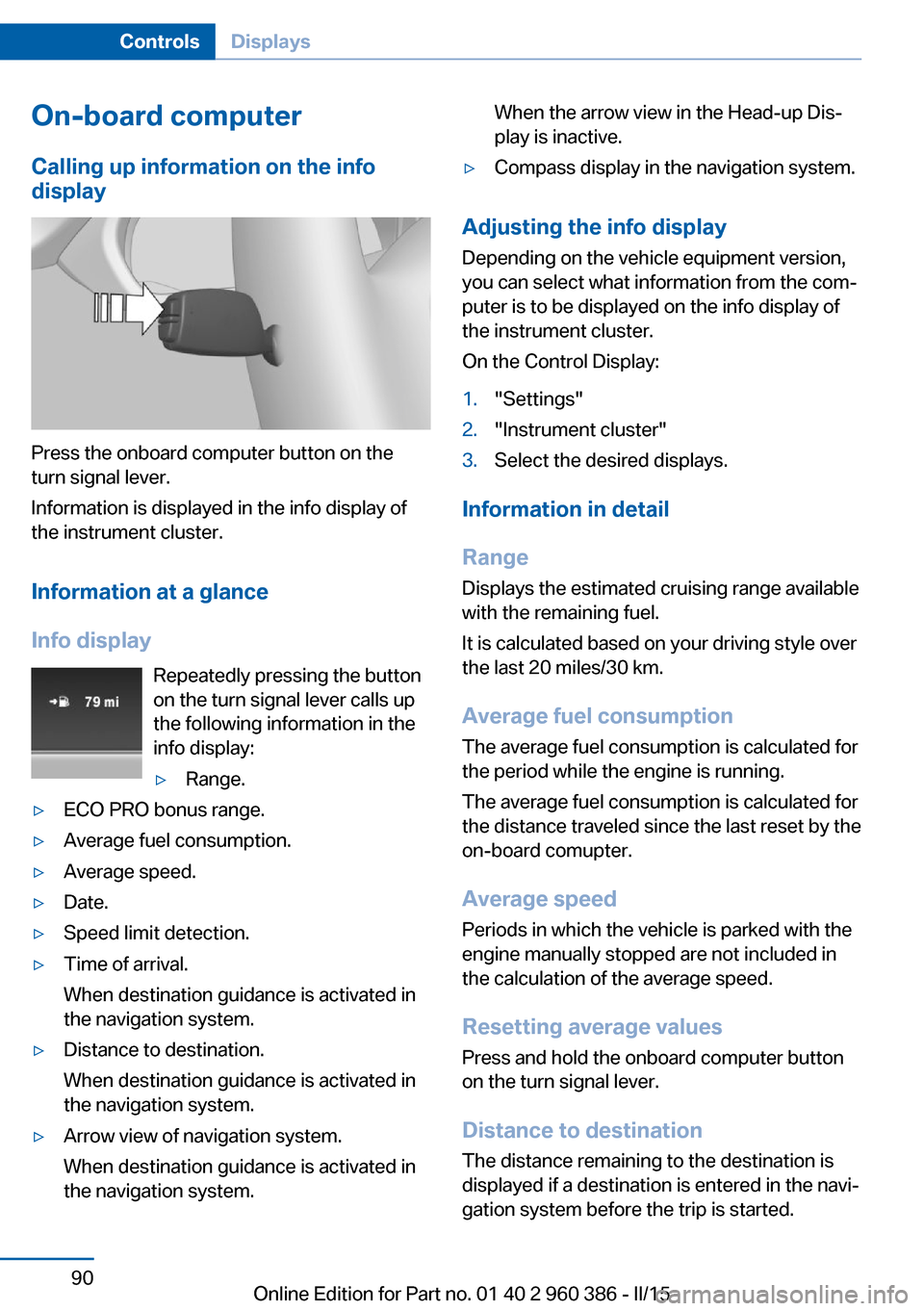
Press the onboard computer button on the
turn signal lever.
Information is displayed in the info display of
the instrument cluster.
Information at a glance
Info display Repeatedly pressing the button
on the turn signal lever calls up
the following information in the
info display:
▷Range.▷ECO PRO bonus range.▷Average fuel consumption.▷Average speed.▷Date.▷Speed limit detection.▷Time of arrival.
When destination guidance is activated in
the navigation system.▷Distance to destination.
When destination guidance is activated in
the navigation system.▷Arrow view of navigation system.
When destination guidance is activated in
the navigation system.When the arrow view in the Head-up Dis‐
play is inactive.▷Compass display in the navigation system.
Adjusting the info display
Depending on the vehicle equipment version,
you can select what information from the com‐
puter is to be displayed on the info display of
the instrument cluster.
On the Control Display:
1."Settings"2."Instrument cluster"3.Select the desired displays.
Information in detail
Range
Displays the estimated cruising range available
with the remaining fuel.
It is calculated based on your driving style over
the last 20 miles/30 km.
Average fuel consumption
The average fuel consumption is calculated for
the period while the engine is running.
The average fuel consumption is calculated for
the distance traveled since the last reset by the
on-board comupter.
Average speed
Periods in which the vehicle is parked with the
engine manually stopped are not included in
the calculation of the average speed.
Resetting average values Press and hold the onboard computer button
on the turn signal lever.
Distance to destination
The distance remaining to the destination is
displayed if a destination is entered in the navi‐
gation system before the trip is started.
Seite 90ControlsDisplays90
Online Edition for Part no. 01 40 2 960 386 - II/15
Page 95 of 257
The distance to the destination is adopted au‐
tomatically.
Time of arrival The estimated time of arrival is
displayed if a destination is en‐
tered in the navigation system
before the trip is started.
The time must be correctly set. Speed limit detection
Description of the speed limit detection, refer
to page 88, function.
Compass With a navigation system: com‐
pass display for the driving di‐
rection.
Trip computer The vehicle features two types of board com‐
puters.▷"Onboard info": the values can be reset as
often as necessary.▷"Trip computer": the values provide an
overview of the current trip.
Resetting the trip computer
On the Control Display:
1."Vehicle info"2."Trip computer"3."Reset": all values are reset.
"Automatically reset": all values are reset
approx. 4 hours after the vehicle came to a
standstill.
Display on the Control Display
Display the computer or trip computer on the
Control Display.
On the Control Display:1."Vehicle info"2."Onboard info" or "Trip computer"
Resetting the fuel consumption and
speed
On the Control Display:
1."Vehicle info"2."Onboard info"3."Consumpt." or "Speed"4."Yes"
Sport displays
The concept
On the Control Display, the current values for
performance and torque can be displayed if
the vehicle is appropriately equipped.
Displaying sport displays on the
Control Display
1."Vehicle info"2."Sport displays"
Speed warning
The concept Displays a speed, when reached, should cause
a warning to be issued.
The warning is repeated if the vehicle speed
drops below the set speed once by at least
3 mph/5 km/h.
Displaying, setting or changing the
speed warning
On the Control Display:
1."Settings"2."Speed"3."Warning at:"Seite 91DisplaysControls91
Online Edition for Part no. 01 40 2 960 386 - II/15
Page 98 of 257
3."Head-Up Display"
Display
Overview
▷Speed.▷Navigation system.▷Check Control messages.▷Selection list from the instrument cluster.▷Driver assistance systems.
Some of this information is only displayed
briefly as needed.
Selecting displays in the Head-up
Display
On the Control Display:
1."Settings"2."Head-Up Display"3."Displayed information"4.Select the desired displays in the Head-up
Display.
Settings are stored for the profile currently in
use.
Setting the brightness
The brightness is automatically adjusted to the
ambient brightness.
The basic setting can be adjusted manually.
On the Control Display:
1."Settings"2."Head-Up Display"3."Brightness"4.Turn the controller.
When the low beams are activated, the bright‐
ness of the Head-up Display can be addition‐
ally influenced using the instrument lighting.
Settings are stored for the profile currently in
use.
Adjusting the height
On the Control Display:1."Settings"2."Head-Up Display"3."Height"4.Turn the controller.
Settings are stored for the profile currently in
use.
Setting the rotation
On the Control Display:
1."Settings"2."Head-Up Display"3."Rotation"4.Turn the controller.
Settings are stored for the profile currently in
use.
Special windshield
The windshield is part of the system.
The shape of the windshield makes it possible
to display a precise image.
A film in the windshield prevents double im‐
ages from being displayed.
Therefore, have the special windshield re‐
placed by a service center only.
Seite 94ControlsDisplays94
Online Edition for Part no. 01 40 2 960 386 - II/15
Page 129 of 257
xDrivexDrive is the all-wheel-drive system of your ve‐
hicle. Concerted action by the xDrive and DSC
further optimize traction and driving dynamics.
The xDrive all-wheel-drive system variably dis‐
tributes the drive forces to the front and rear
axles as demanded by the driving situation and
road surface.
Display on the Control Display
Displaying xDrive view1."Vehicle info"2."xDrive status"
The following information is displayed:
▷With a navigation system: compass display
for the driving direction▷Pitch attitude with degree and percentage▷Transverse gradient with degree indication▷Graphic display for the steering
HDC Hill Descent Control
The concept HDC is a downhill driving assistant that auto‐
matically controls vehicle speed on steep
downhill gradients. Without applying the
brakes, the vehicle moves at slightly more than
walking speed.
Hill Descent Control can be activated at
speeds below approx. 22 mph/35 km/h. When
driving downhill, the vehicle reduces its speed
to approx. walking speed and then keeps its
speed constant.
As long as there is active braking, the system
is on standby. The system does not brake the
vehicle during this time.
Only use HDC in low gears or in selector lever
position D or R.
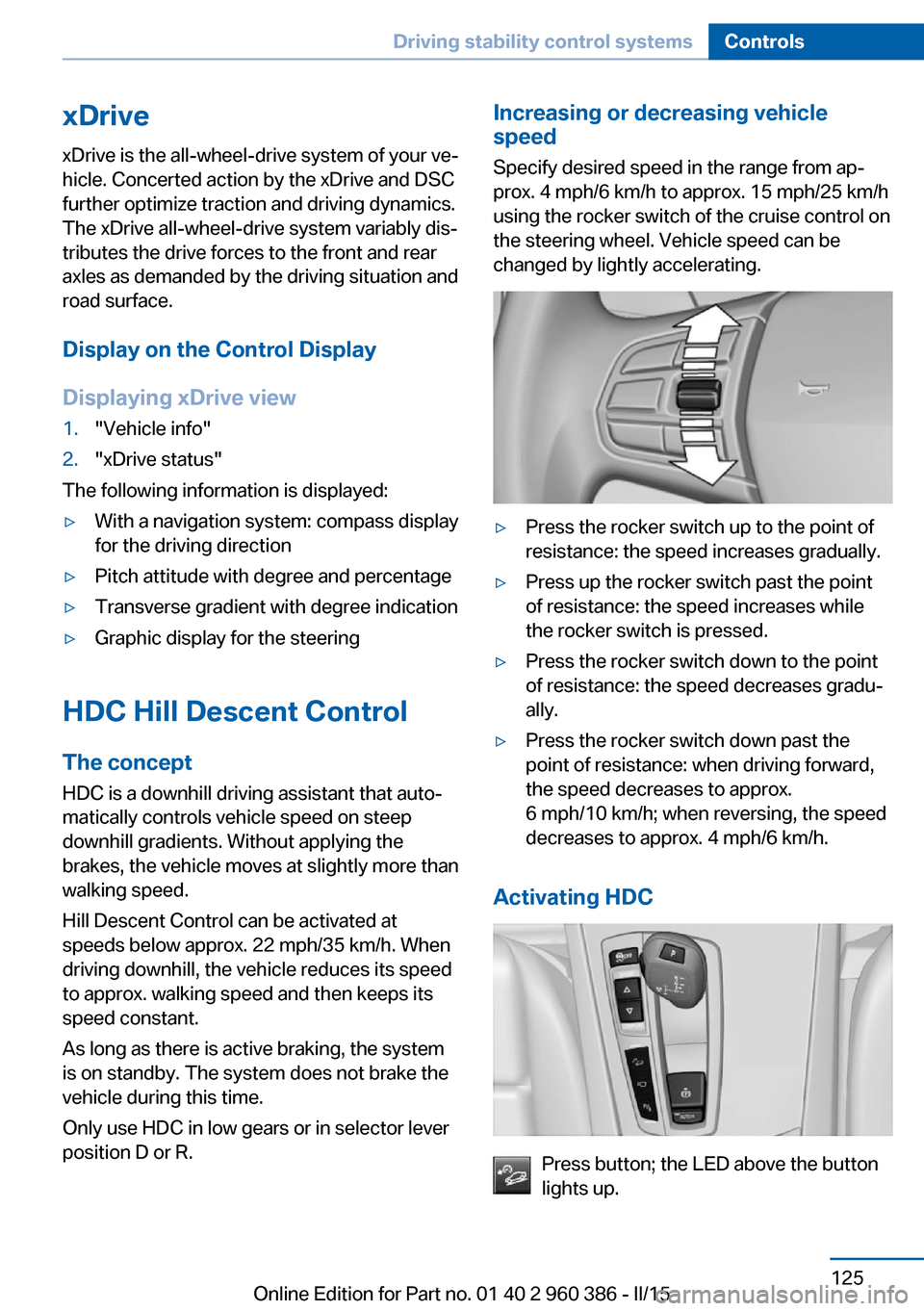
Increasing or decreasing vehicle
speed
Specify desired speed in the range from ap‐
prox. 4 mph/6 km/h to approx. 15 mph/25 km/h
using the rocker switch of the cruise control on
the steering wheel. Vehicle speed can be
changed by lightly accelerating.▷Press the rocker switch up to the point of
resistance: the speed increases gradually.▷Press up the rocker switch past the point
of resistance: the speed increases while
the rocker switch is pressed.▷Press the rocker switch down to the point
of resistance: the speed decreases gradu‐
ally.▷Press the rocker switch down past the
point of resistance: when driving forward,
the speed decreases to approx.
6 mph/10 km/h; when reversing, the speed
decreases to approx. 4 mph/6 km/h.
Activating HDC
Press button; the LED above the button
lights up.
Seite 125Driving stability control systemsControls125
Online Edition for Part no. 01 40 2 960 386 - II/15
Page 246 of 257
Everything from A to Z
IndexA ABS, Antilock Brake Sys‐ tem 123
ACC, Active Cruise Control with Stop & Go 130
Acceleration Assistant, refer to Launch Control 79
Accessories and parts 7
Activated-charcoal filter 157
Active Blind Spot Detec‐ tion 120
Active Cruise Control with Stop & Go, ACC 130
Adaptive brake lights, refer to Brake force display 122
Adaptive Light Control 96
Additives, oil 211
Adjustments, seats/head re‐ straints 52
After washing vehicle 232
Airbags 100
Airbags, indicator/warning light 101
Air circulation, refer to Recir‐ culated-air mode 153, 157
Air, dehumidifying, refer to Cooling function 154, 157
Air distribution, manual 153, 156
Air flow, automatic climate control 153, 156
Air pressure, tires 197
Air vents, refer to Ventila‐ tion 158
Alarm system 46
Alarm, unintentional 47
All around the center con‐ sole 16
All around the roofliner 17 All around the steering
wheel 14
All-season tires, refer to Win‐ ter tires 203
All-wheel-drive 125
Alternating-code hand-held transmitter 161
Alternative oil types 212
Ambient light 99
Antifreeze, washer fluid 75
Antilock Brake System, ABS 123
Anti-slip control, refer to DSC 123
Approved axle load 239
Approved engine oils, see Suitable engine oil
types 212
Armrest, refer to Center arm‐ rest 169
Arrival time 91
Ash tray 162
Assistance when driving off 128
Assist system, refer to Intelli‐ gent Safety 108
AUTO H button 71
AUTO H button, refer to Au‐ tomatic Hold 71
AUTO intensity 156
Automatic car wash 231
Automatic climate con‐ trol 152
Automatic climate control with enhanced features 155
Automatic Cruise Control with Stop & Go 130
Automatic Curb Monitor 59
Automatic deactivation, front- seat passenger airbags 102 Automatic headlight con‐
trol 96
Automatic Hold 71
Automatic locking 46
Automatic recirculated-air control 157
Automatic tailgate 41
Automatic transmission, see Steptronic transmission 76
AUTO program, automatic cli‐ mate control 156
AUTO program, climate con‐ trol 153
AUTO program, intensity 156
Auto Start/Stop function 68
Average fuel consumption 90
Average speed 90
Axle loads, weights 239
B Backrest curvature, refer to Lumbar support 54
Backrest, width 54
Bad road trips 174
Band-aids, refer to First aid kit 227
Bar for tow-starting/ towing 229
Battery replacement, vehicle battery 224
Battery replacement, vehicle remote control 35
Battery, vehicle 223
Belts, safety belts 55
Beverage holder, cu‐ pholder 169
Blinds, sun protection 49
BMW Advanced Diesel 193
BMW Assist, see user's manual for Navigation, En‐Seite 242ReferenceEverything from A to Z242
Online Edition for Part no. 01 40 2 960 386 - II/15
Page 247 of 257
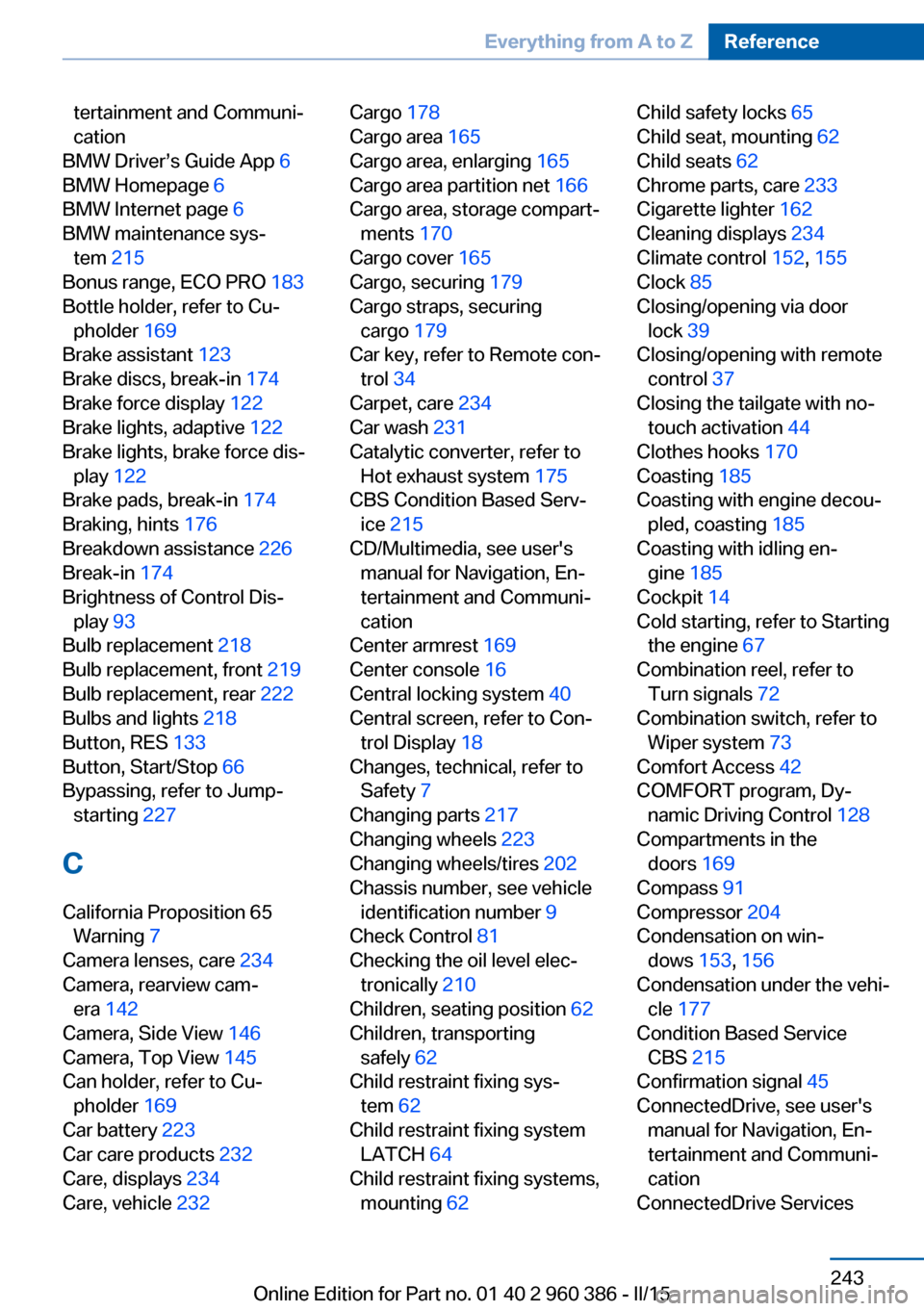
tertainment and Communi‐
cation
BMW Driver’s Guide App 6
BMW Homepage 6
BMW Internet page 6
BMW maintenance sys‐ tem 215
Bonus range, ECO PRO 183
Bottle holder, refer to Cu‐ pholder 169
Brake assistant 123
Brake discs, break-in 174
Brake force display 122
Brake lights, adaptive 122
Brake lights, brake force dis‐ play 122
Brake pads, break-in 174
Braking, hints 176
Breakdown assistance 226
Break-in 174
Brightness of Control Dis‐ play 93
Bulb replacement 218
Bulb replacement, front 219
Bulb replacement, rear 222
Bulbs and lights 218
Button, RES 133
Button, Start/Stop 66
Bypassing, refer to Jump- starting 227
C
California Proposition 65 Warning 7
Camera lenses, care 234
Camera, rearview cam‐ era 142
Camera, Side View 146
Camera, Top View 145
Can holder, refer to Cu‐ pholder 169
Car battery 223
Car care products 232
Care, displays 234
Care, vehicle 232 Cargo 178
Cargo area 165
Cargo area, enlarging 165
Cargo area partition net 166
Cargo area, storage compart‐ ments 170
Cargo cover 165
Cargo, securing 179
Cargo straps, securing cargo 179
Car key, refer to Remote con‐ trol 34
Carpet, care 234
Car wash 231
Catalytic converter, refer to Hot exhaust system 175
CBS Condition Based Serv‐ ice 215
CD/Multimedia, see user's manual for Navigation, En‐
tertainment and Communi‐
cation
Center armrest 169
Center console 16
Central locking system 40
Central screen, refer to Con‐ trol Display 18
Changes, technical, refer to Safety 7
Changing parts 217
Changing wheels 223
Changing wheels/tires 202
Chassis number, see vehicle identification number 9
Check Control 81
Checking the oil level elec‐ tronically 210
Children, seating position 62
Children, transporting safely 62
Child restraint fixing sys‐ tem 62
Child restraint fixing system LATCH 64
Child restraint fixing systems, mounting 62 Child safety locks 65
Child seat, mounting 62
Child seats 62
Chrome parts, care 233
Cigarette lighter 162
Cleaning displays 234
Climate control 152, 155
Clock 85
Closing/opening via door lock 39
Closing/opening with remote control 37
Closing the tailgate with no- touch activation 44
Clothes hooks 170
Coasting 185
Coasting with engine decou‐ pled, coasting 185
Coasting with idling en‐ gine 185
Cockpit 14
Cold starting, refer to Starting the engine 67
Combination reel, refer to Turn signals 72
Combination switch, refer to Wiper system 73
Comfort Access 42
COMFORT program, Dy‐ namic Driving Control 128
Compartments in the doors 169
Compass 91
Compressor 204
Condensation on win‐ dows 153, 156
Condensation under the vehi‐ cle 177
Condition Based Service CBS 215
Confirmation signal 45
ConnectedDrive, see user's manual for Navigation, En‐
tertainment and Communi‐
cation
ConnectedDrive Services Seite 243Everything from A to ZReference243
Online Edition for Part no. 01 40 2 960 386 - II/15
Page 251 of 257
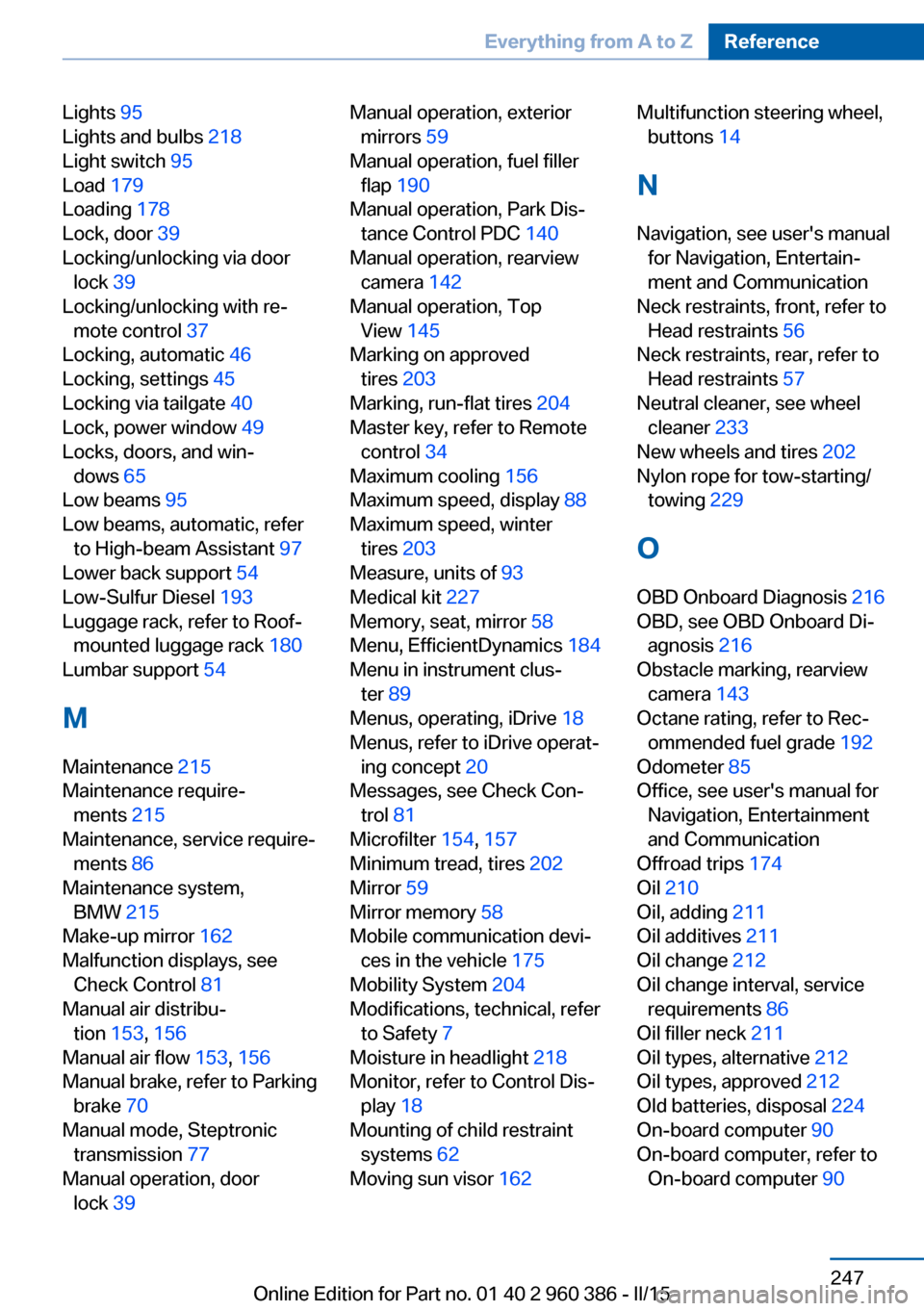
Lights 95
Lights and bulbs 218
Light switch 95
Load 179
Loading 178
Lock, door 39
Locking/unlocking via door lock 39
Locking/unlocking with re‐ mote control 37
Locking, automatic 46
Locking, settings 45
Locking via tailgate 40
Lock, power window 49
Locks, doors, and win‐ dows 65
Low beams 95
Low beams, automatic, refer to High-beam Assistant 97
Lower back support 54
Low-Sulfur Diesel 193
Luggage rack, refer to Roof- mounted luggage rack 180
Lumbar support 54
M
Maintenance 215
Maintenance require‐ ments 215
Maintenance, service require‐ ments 86
Maintenance system, BMW 215
Make-up mirror 162
Malfunction displays, see Check Control 81
Manual air distribu‐ tion 153, 156
Manual air flow 153, 156
Manual brake, refer to Parking brake 70
Manual mode, Steptronic transmission 77
Manual operation, door lock 39 Manual operation, exterior
mirrors 59
Manual operation, fuel filler flap 190
Manual operation, Park Dis‐ tance Control PDC 140
Manual operation, rearview camera 142
Manual operation, Top View 145
Marking on approved tires 203
Marking, run-flat tires 204
Master key, refer to Remote control 34
Maximum cooling 156
Maximum speed, display 88
Maximum speed, winter tires 203
Measure, units of 93
Medical kit 227
Memory, seat, mirror 58
Menu, EfficientDynamics 184
Menu in instrument clus‐ ter 89
Menus, operating, iDrive 18
Menus, refer to iDrive operat‐ ing concept 20
Messages, see Check Con‐ trol 81
Microfilter 154, 157
Minimum tread, tires 202
Mirror 59
Mirror memory 58
Mobile communication devi‐ ces in the vehicle 175
Mobility System 204
Modifications, technical, refer to Safety 7
Moisture in headlight 218
Monitor, refer to Control Dis‐ play 18
Mounting of child restraint systems 62
Moving sun visor 162 Multifunction steering wheel,
buttons 14
N
Navigation, see user's manual for Navigation, Entertain‐
ment and Communication
Neck restraints, front, refer to Head restraints 56
Neck restraints, rear, refer to Head restraints 57
Neutral cleaner, see wheel cleaner 233
New wheels and tires 202
Nylon rope for tow-starting/ towing 229
O OBD Onboard Diagnosis 216
OBD, see OBD Onboard Di‐ agnosis 216
Obstacle marking, rearview camera 143
Octane rating, refer to Rec‐ ommended fuel grade 192
Odometer 85
Office, see user's manual for Navigation, Entertainment
and Communication
Offroad trips 174
Oil 210
Oil, adding 211
Oil additives 211
Oil change 212
Oil change interval, service requirements 86
Oil filler neck 211
Oil types, alternative 212
Oil types, approved 212
Old batteries, disposal 224
On-board computer 90
On-board computer, refer to On-board computer 90 Seite 247Everything from A to ZReference247
Online Edition for Part no. 01 40 2 960 386 - II/15