car BMW X3 2017 Owners Manual
[x] Cancel search | Manufacturer: BMW, Model Year: 2017, Model line: X3, Model: BMW X3 2017Pages: 265, PDF Size: 5.37 MB
Page 5 of 265
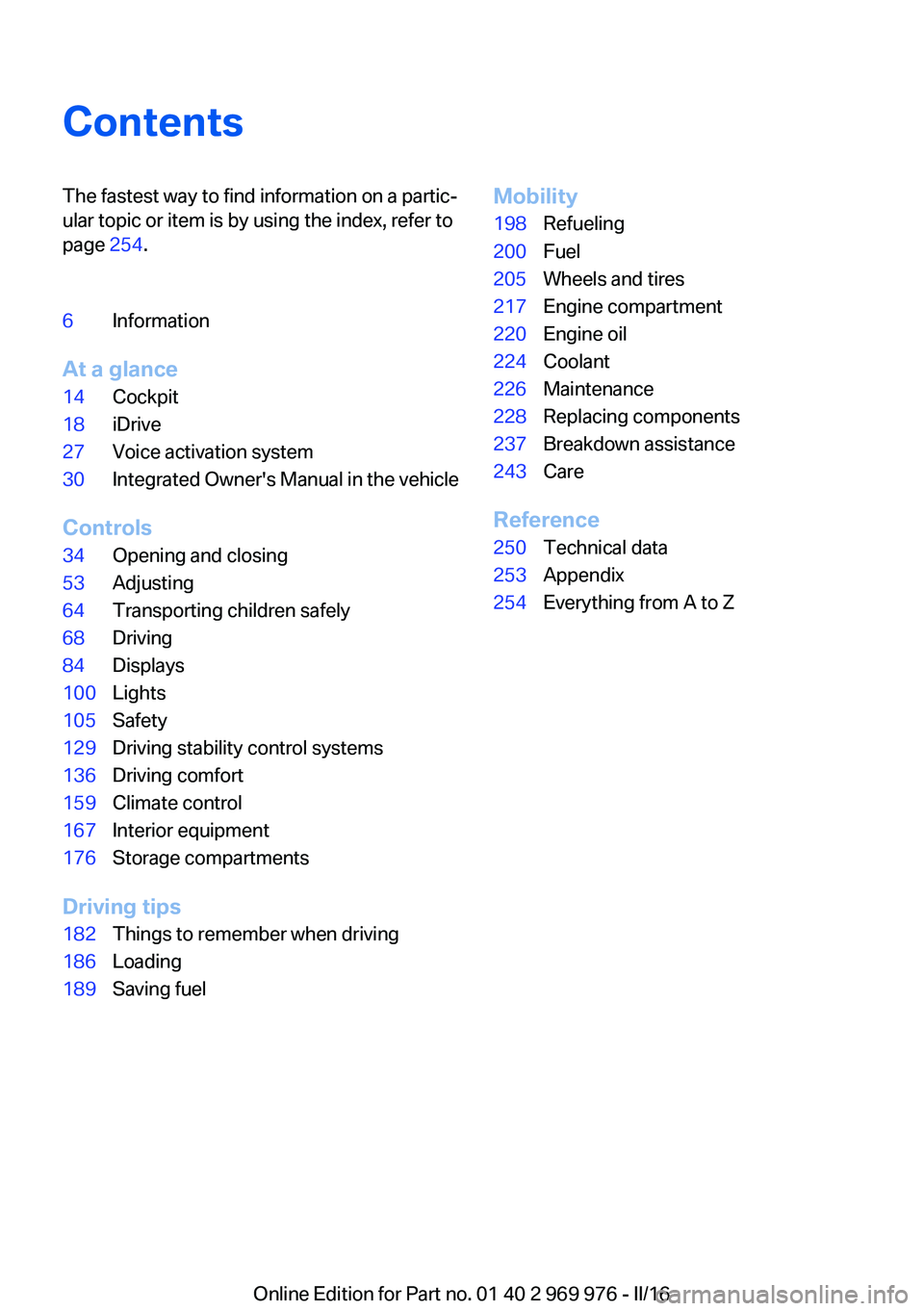
ContentsThe fastest way to find information on a partic‐
ular topic or item is by using the index, refer to
page 254.6Information
At a glance
14Cockpit18iDrive27Voice activation system30Integrated Owner's Manual in the vehicle
Controls
34Opening and closing53Adjusting64Transporting children safely68Driving84Displays100Lights105Safety129Driving stability control systems136Driving comfort159Climate control167Interior equipment176Storage compartments
Driving tips
182Things to remember when driving186Loading189Saving fuelMobility198Refueling200Fuel205Wheels and tires217Engine compartment220Engine oil224Coolant226Maintenance228Replacing components237Breakdown assistance243Care
Reference
250Technical data253Appendix254Everything from A to Z
Online Edition for Part no. 01 40 2 969 976 - II/16
Page 6 of 265
InformationUsing this Owner's ManualOrientation
The fastest way to find information on a partic‐
ular topic is by using the index.
An initial overview of the vehicle is provided in
the first chapter.
Updates made after the editorialdeadline
Due to updates after the editorial deadline, dif‐
ferences may exist between the printed Own‐
er's Manual and the following Owner's Man‐
uals:▷Integrated Owner's Manual in the vehicle.▷Online Owner's Manual.▷BMW Driver’s Guide app.
Notes on updates can be found in the appen‐
dix of the printed Owner's Manual for the vehi‐
cle.
Owner's Manual for Navigation,
Entertainment, Communication
Owner's Manual for Navigation, Entertainment,
and Communication can be obtained as
printed book from the service center.
The topics of Navigation, Entertainment, and
Communication can also be called up via the
following media:
▷Integrated Owner's Manual on the Control
Display.▷BMW Driver’s Guide app.
Additional sources of
information
A dealer’s service center will be glad to answer
additional questions at any time.
Internet
Information on BMW, for example, on technol‐ogy, is available on the Internet:
www.bmwusa.com.
BMW Driver’s Guide App The Owner's Manual is available
in many countries as an app. Ad‐
ditional information on the Inter‐
net:
www.bmw.com/bmw_drivers_guide
Symbols and displays
Symbols in the Owner's Manual
Indicates precautions that must be followed
precisely in order to avoid the possibility of
personal injury and serious damage to the
vehicle.
◄ Marks the end of a specific item of
information.
Refers to measures that can be taken to
help protect the environment.
"..." Identifies display texts in vehicle used to
select individual functions.
›...‹ Verbal instructions to use with the voice
activation system.
››...‹‹ Identifies the answers generated by the
voice activation system.
Action steps Action steps to be carried out are presented as
numbered list. The steps must be carried out
in the defined order.
1.First action step.2.Second action step.Seite 6Information6
Online Edition for Part no. 01 40 2 969 976 - II/16
Page 10 of 265
However, other parties, such as law enforce‐
ment, could combine the EDR data with the
type of personally identifying data routinely ac‐
quired during a crash investigation.
To read data recorded by an EDR, special
equipment is required, and access to the vehi‐
cle or the EDR is needed. In addition to the ve‐
hicle manufacturer, other parties, such as law
enforcement, that have the special equipment,
can read the information if they have access to
the vehicle or the EDR.
Vehicle identification
number
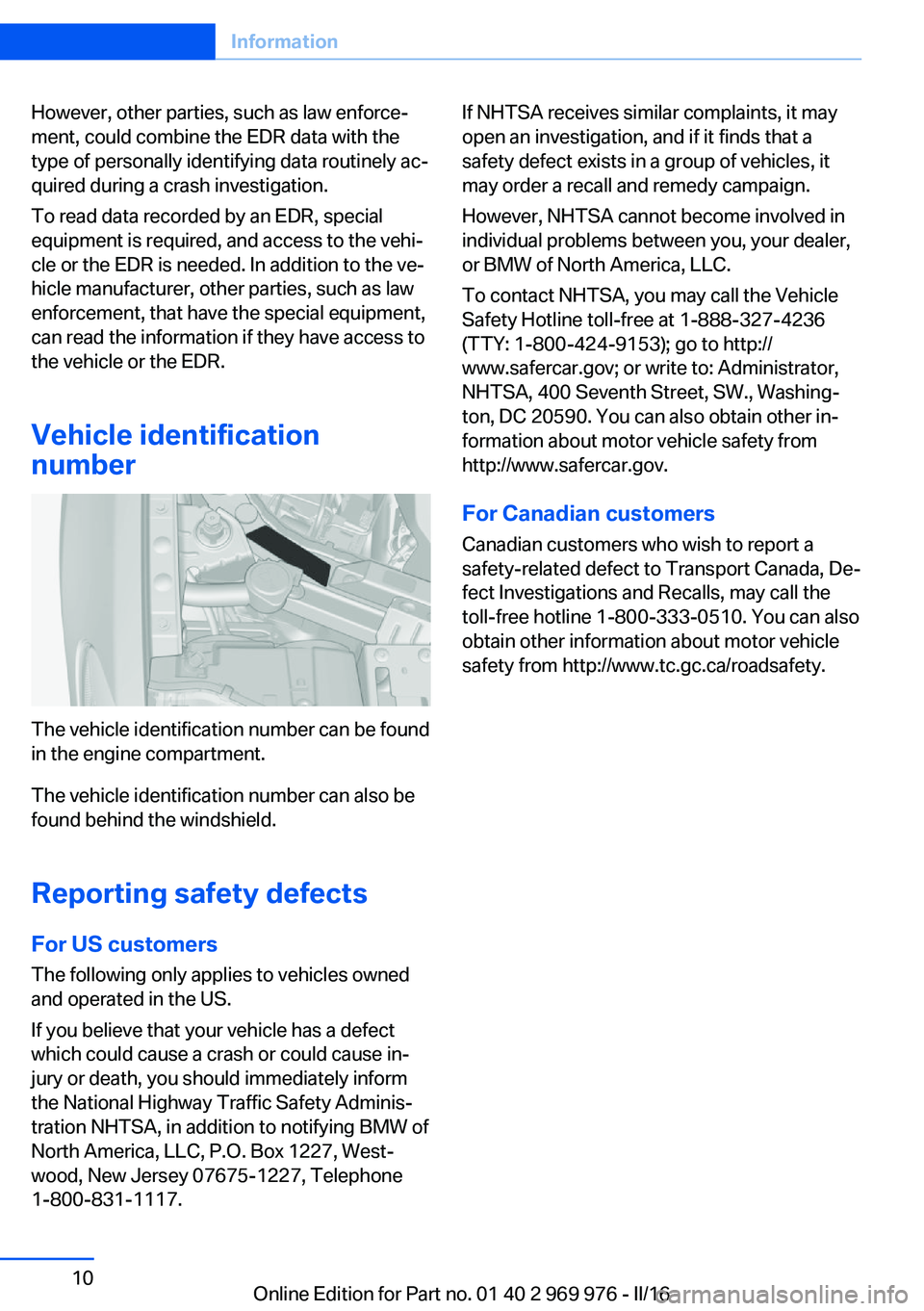
The vehicle identification number can be found
in the engine compartment.
The vehicle identification number can also be
found behind the windshield.
Reporting safety defects
For US customers The following only applies to vehicles owned
and operated in the US.
If you believe that your vehicle has a defect
which could cause a crash or could cause in‐
jury or death, you should immediately inform
the National Highway Traffic Safety Adminis‐
tration NHTSA, in addition to notifying BMW of
North America, LLC, P.O. Box 1227, West‐
wood, New Jersey 07675-1227, Telephone
1-800-831-1117.
If NHTSA receives similar complaints, it may
open an investigation, and if it finds that a
safety defect exists in a group of vehicles, it
may order a recall and remedy campaign.
However, NHTSA cannot become involved in
individual problems between you, your dealer,
or BMW of North America, LLC.
To contact NHTSA, you may call the Vehicle
Safety Hotline toll-free at 1-888-327-4236
(TTY: 1-800-424-9153); go to http://
www.safercar.gov; or write to: Administrator,
NHTSA, 400 Seventh Street, SW., Washing‐
ton, DC 20590. You can also obtain other in‐
formation about motor vehicle safety from
http://www.safercar.gov.
For Canadian customers
Canadian customers who wish to report a
safety-related defect to Transport Canada, De‐
fect Investigations and Recalls, may call the
toll-free hotline 1-800-333-0510. You can also
obtain other information about motor vehicle
safety from http://www.tc.gc.ca/roadsafety.Seite 10Information10
Online Edition for Part no. 01 40 2 969 976 - II/16
Page 14 of 265
CockpitVehicle features and options
This chapter describes all standard, country-
specific and optional features offered with the
series. It also describes features that are not
necessarily available in your car, e. g., due tothe selected options or country versions. This
also applies to safety-related functions and
systems. The respectively applicable country
provisions must be observed when using the
respective features and systems.
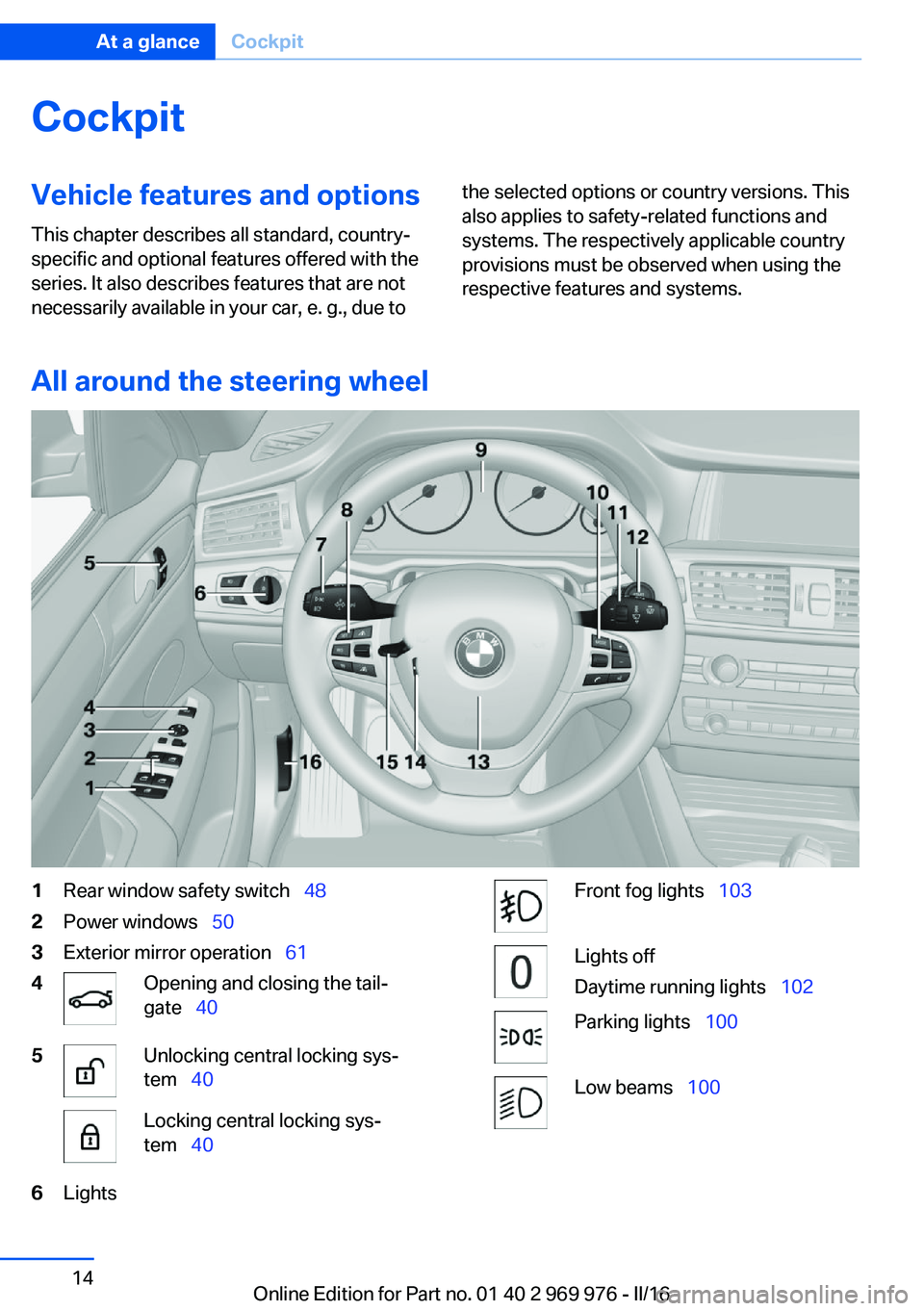
All around the steering wheel
1Rear window safety switch 482Power windows 503Exterior mirror operation 614Opening and closing the tail‐
gate 405Unlocking central locking sys‐
tem 40Locking central locking sys‐
tem 406LightsFront fog lights 103Lights off
Daytime running lights 102Parking lights 100Low beams 100Seite 14At a glanceCockpit14
Online Edition for Part no. 01 40 2 969 976 - II/16
Page 18 of 265
iDriveVehicle features and options
This chapter describes all standard, country-
specific and optional features offered with the
series. It also describes features that are not
necessarily available in your car, e. g., due to
the selected options or country versions. This
also applies to safety-related functions and
systems. The respectively applicable country
provisions must be observed when using the
respective features and systems.
The concept
The iDrive combines the functions of many
switches. Thus, these functions can be oper‐
ated from a central location.
WARNING
Operating the integrated information
systems and communication devices while
driving can distract from traffic. It is possible to lose control of the vehicle. There is risk of an
accident. Only use the systems or devices
when the traffic situation allows. If necessary,
stop and use the systems and devices while
the vehicle is stationary.◀Overview of control elements
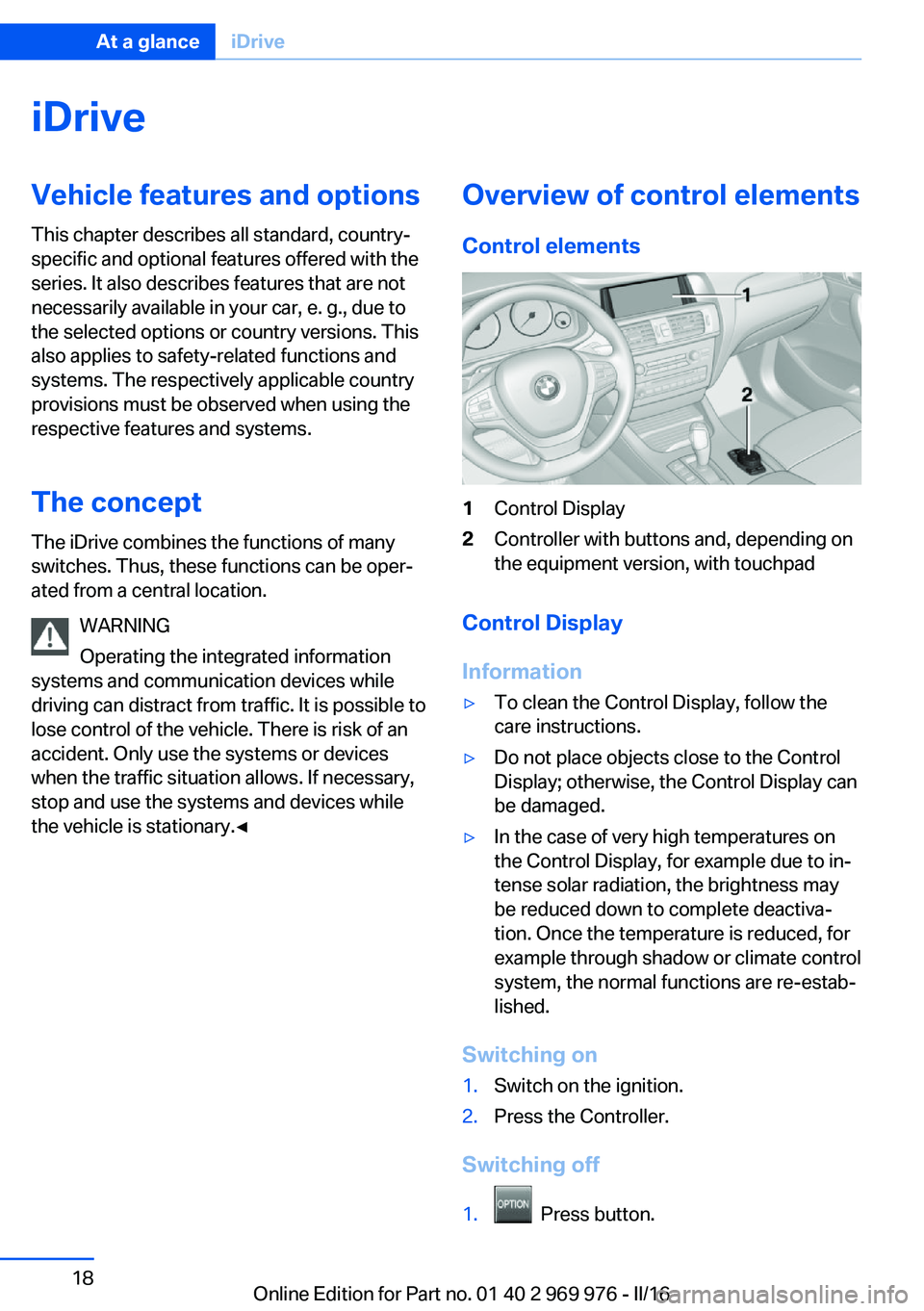
Control elements1Control Display2Controller with buttons and, depending on
the equipment version, with touchpad
Control Display
Information
▷To clean the Control Display, follow the
care instructions.▷Do not place objects close to the Control
Display; otherwise, the Control Display can
be damaged.▷In the case of very high temperatures on
the Control Display, for example due to in‐
tense solar radiation, the brightness may
be reduced down to complete deactiva‐
tion. Once the temperature is reduced, for
example through shadow or climate control
system, the normal functions are re-estab‐
lished.
Switching on
1.Switch on the ignition.2.Press the Controller.
Switching off
1. Press button.
Seite 18At a glanceiDrive18
Online Edition for Part no. 01 40 2 969 976 - II/16
Page 23 of 265
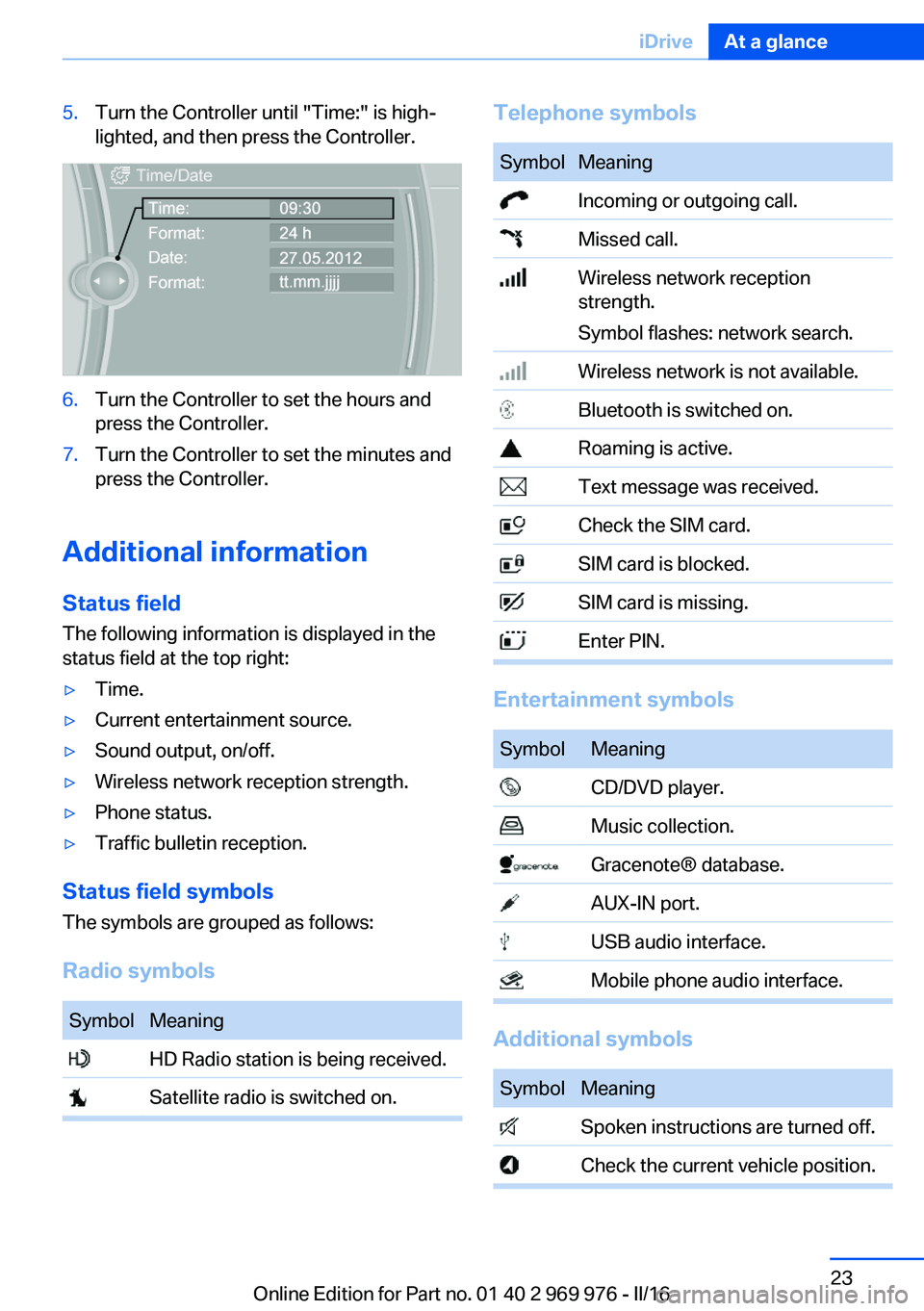
5.Turn the Controller until "Time:" is high‐
lighted, and then press the Controller.6.Turn the Controller to set the hours and
press the Controller.7.Turn the Controller to set the minutes and
press the Controller.
Additional information
Status field
The following information is displayed in the
status field at the top right:
▷Time.▷Current entertainment source.▷Sound output, on/off.▷Wireless network reception strength.▷Phone status.▷Traffic bulletin reception.
Status field symbols
The symbols are grouped as follows:
Radio symbols
SymbolMeaning HD Radio station is being received. Satellite radio is switched on.Telephone symbolsSymbolMeaning Incoming or outgoing call. Missed call. Wireless network reception
strength.
Symbol flashes: network search. Wireless network is not available. Bluetooth is switched on. Roaming is active. Text message was received. Check the SIM card. SIM card is blocked. SIM card is missing. Enter PIN.
Entertainment symbols
SymbolMeaning CD/DVD player. Music collection. Gracenote® database. AUX-IN port. USB audio interface. Mobile phone audio interface.
Additional symbols
SymbolMeaning Spoken instructions are turned off. Check the current vehicle position.Seite 23iDriveAt a glance23
Online Edition for Part no. 01 40 2 969 976 - II/16
Page 27 of 265
Voice activation systemVehicle features and options
This chapter describes all standard, country-
specific and optional features offered with the
series. It also describes features that are not
necessarily available in your car, e. g., due to
the selected options or country versions. This
also applies to safety-related functions and
systems. The respectively applicable country
provisions must be observed when using the
respective features and systems.
The concept▷Most functions displayed on the Control
Display can be operated by voice com‐
mands via the voice activation system. The
system supports you with announcements
during input.▷Functions that can only be used when the
vehicle is stationary cannot be used via the
voice activation system.▷The system uses a special microphone on
the driver's side.▷›...‹ Verbal instructions in the Owner's Man‐
ual to use with the voice activation system.
Requirements
Via the Control Display, set a language that is
also supported by the voice activation system
so that the spoken commands can be identi‐
fied.
Set the language, refer to page 97.
Using voice activation
Using the voice activation system1. Press button on the steering
wheel.2.Wait for the signal.3.Say the command.
A command that is recognized by the voice
activation system is announced and dis‐
played in the instrument cluster.
This symbol in the instrument cluster indi‐
cates that the voice activation system is active.
If no other commands are available, use func‐
tion via iDrive.
Terminating the voice activation
system
Briefly press the button on the steer‐
ing wheel or ›Cancel‹.
Possible commands Most menu items on the Control Display can
be voiced as commands.
The available commands depend on the menu
that is currently displayed on the Control Dis‐
play.
There are short commands for many functions.
You may select lists such as phone lists via
voice activation. Read these lists out loud ex‐
actly as they show in the respective list.
Having possible commands read aloud You can have available commands read out
loud for you: ›Voice commands‹.
E.g. if the "Settings" menu is displayed, the
commands for the settings are read out loud.
Seite 27Voice activation systemAt a glance27
Online Edition for Part no. 01 40 2 969 976 - II/16
Page 30 of 265
Integrated Owner's Manual in the vehicleVehicle features and optionsThis chapter describes all standard, country-
specific and optional features offered with the
series. It also describes features that are not
necessarily available in your car, e. g., due to
the selected options or country versions. This
also applies to safety-related functions and
systems. The respectively applicable country
provisions must be observed when using the
respective features and systems.
Integrated Owner's Manual
in the vehicle
The Integrated Owner's Manual can be dis‐
played on the Control Display. It specifically
describes features and functions found in the
vehicle.
Components of the Integrated
Owner's Manual
The Integrated Owner's Manual consists of
three parts, which offer various levels of infor‐
mation or possible access.
Quick Reference Guide The Quick Reference Guide provides informa‐
tion how to operate the car, how to use basic
vehicle functions and what to do in case of a
breakdown. This information can also be dis‐
played while driving.
Search by images
Image search provides information and de‐
scriptions. This is helpful when the terminol‐
ogy for a feature is not at hand.
Owner's Manual Search for information and descriptions by en‐
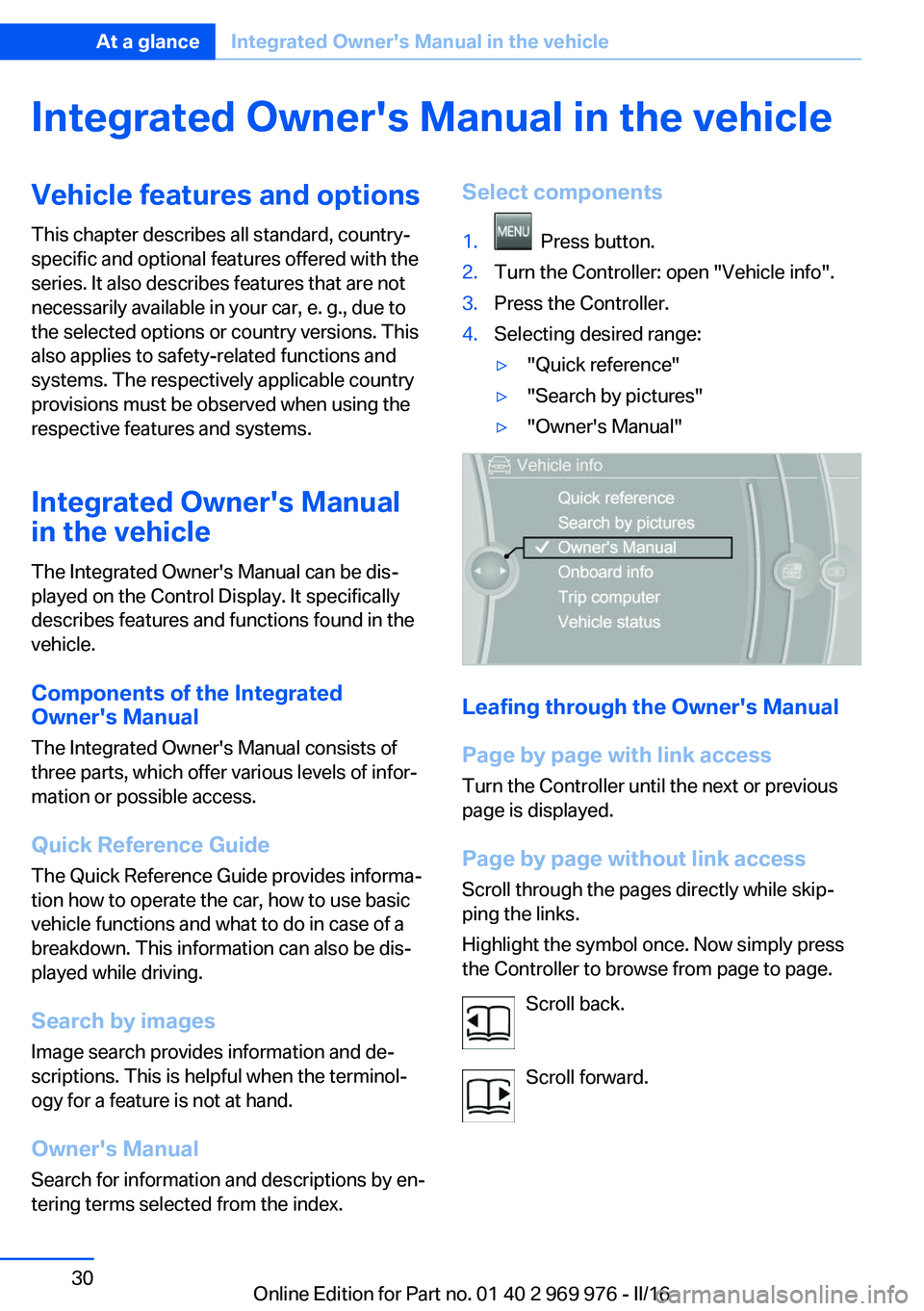
tering terms selected from the index.Select components1. Press button.2.Turn the Controller: open "Vehicle info".3.Press the Controller.4.Selecting desired range:▷"Quick reference"▷"Search by pictures"▷"Owner's Manual"
Leafing through the Owner's Manual
Page by page with link access
Turn the Controller until the next or previous
page is displayed.
Page by page without link access
Scroll through the pages directly while skip‐
ping the links.
Highlight the symbol once. Now simply press
the Controller to browse from page to page.
Scroll back.
Scroll forward.
Seite 30At a glanceIntegrated Owner's Manual in the vehicle30
Online Edition for Part no. 01 40 2 969 976 - II/16
Page 34 of 265
Opening and closingVehicle features and options
This chapter describes all standard, country-
specific and optional features offered with the
series. It also describes features that are not
necessarily available in your car, e. g., due to
the selected options or country versions. This
also applies to safety-related functions and
systems. The respectively applicable country
provisions must be observed when using the
respective features and systems.
Remote control/key General information
The vehicle is supplied with two remote con‐
trols with integrated key.
Every remote control holds a replaceable bat‐
tery.
You may set the key functions depending on
the optional features and country-specific ver‐
sion. For Settings, refer to page 46.
The vehicle stores personal settings for every
remote control. Personal Profile, refer to
page 36.
The remote controls hold information on re‐
quired maintenance. Service data in the re‐
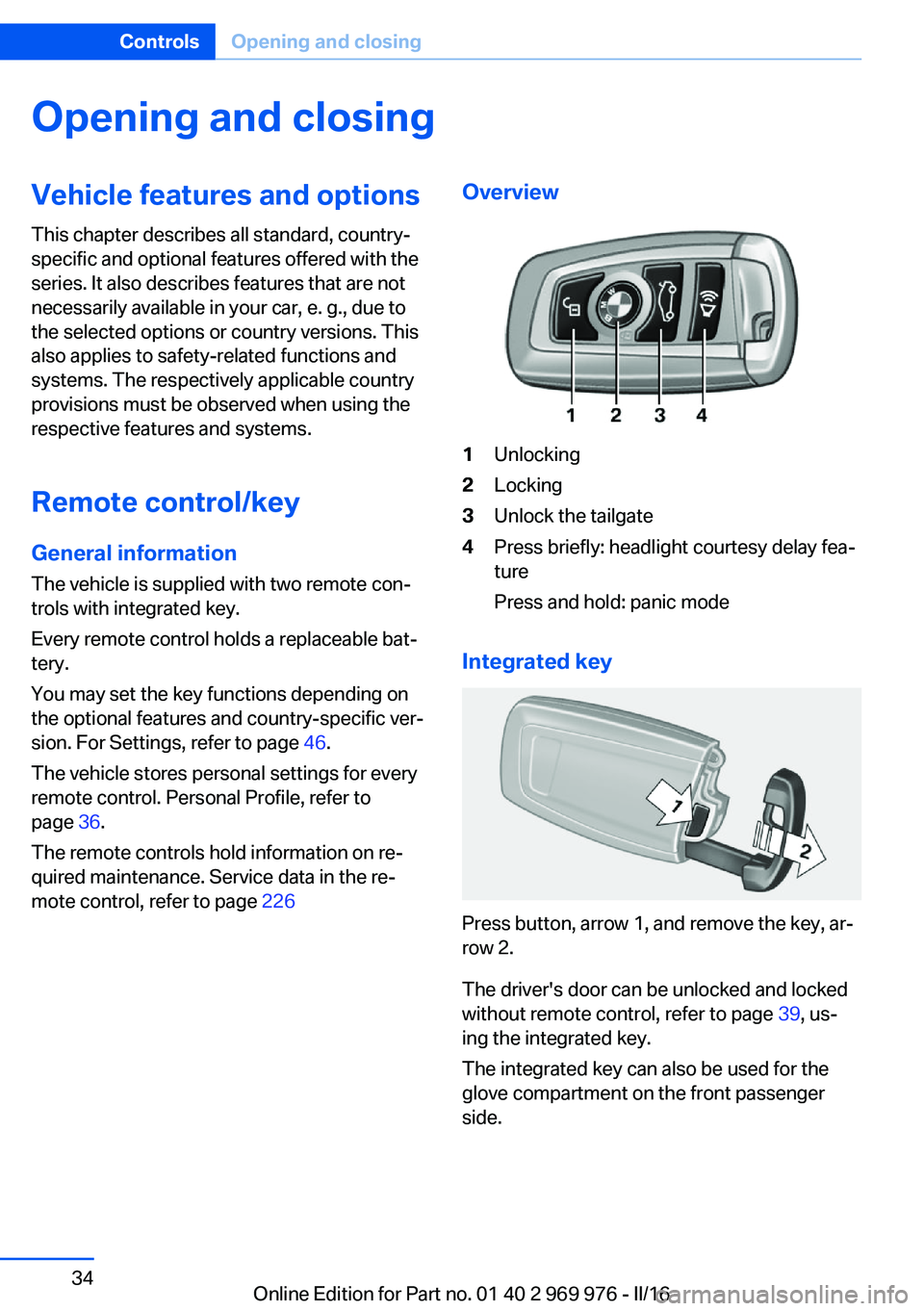
mote control, refer to page 226Overview1Unlocking2Locking3Unlock the tailgate4Press briefly: headlight courtesy delay fea‐
ture
Press and hold: panic mode
Integrated key
Press button, arrow 1, and remove the key, ar‐
row 2.
The driver's door can be unlocked and locked
without remote control, refer to page 39, us‐
ing the integrated key.
The integrated key can also be used for the
glove compartment on the front passenger
side.
Seite 34ControlsOpening and closing34
Online Edition for Part no. 01 40 2 969 976 - II/16
Page 38 of 265
Using the remote control
Information WARNING
People or animals in the vehicle can lock
the doors from the inside and lock themselves
in. The vehicle can then not be opened from
the outside. There is a risk of injury. Take the
remote control along so that the vehicle can be
opened from the outside.◀
Unlocking Press button on the remote control.
Depending on the settings, refer to page 46,
the following access points are unlocked.▷Driver's door and fuel filler flap.▷All doors, tailgate, and fuel filler flap.
In addition, the following functions are exe‐
cuted:
▷The interior lights are switched on, when it
is dark outside, the courtesy lamps are also
switched on. This function is not available,
if the interior lamps were switched off man‐
ually.▷The welcome lamps are switched on, if this
function was activated.▷The alarm system, refer to page 47, is
switched off.
Convenient opening
Press and hold this button on the re‐
mote control after unlocking.
The windows and the glass sunroof are
opened, as long as the button on the remote
control is pressed.
Locking WARNING
Unlocking from the inside is only possi‐
ble with special knowledge.
If people must spend a longer time in the vehi‐
cle while it is very hot or cold outside, there is a
risk of injuries or danger to life. Do not lock the
vehicle from the outside when there are people
in it.◀
The driver's door must be closed. Press button on the remote control.
All doors, the tailgate, and the fuel filler flap are
being locked.
The alarm system, refer to page 47, is
switched on.
Switching on interior lights and
courtesy lights
Press button on the remote control with
the vehicle locked.
The courtesy lamps are only switched on when
it is dark outside. This function is not available,
if the interior lamps were switched off man‐
ually.
If the button is pressed again within 10 sec‐
onds after vehicle was locked, the interior mo‐
tion sensor and tilt alarm sensor of the anti-
theft warning system, refer to page 48, are
turned off. After locking, wait 10 seconds be‐
fore pressing the button again.
Panic mode You can trigger the alarm system if you find
yourself in a dangerous situation.
Press button on the remote control for
at least 3 seconds.
To switch off the alarm: press any button.
Unlocking the tailgate With automatic tailgate operation:
To avoid locking it into the vehicle, do not
place the remote control in the cargo area.
Press button on the remote control for
approx. 1 second.Seite 38ControlsOpening and closing38
Online Edition for Part no. 01 40 2 969 976 - II/16