high BMW X3 XDRIVE 28I 2011 Owners Manual
[x] Cancel search | Manufacturer: BMW, Model Year: 2011, Model line: X3 XDRIVE 28I, Model: BMW X3 XDRIVE 28I 2011Pages: 262, PDF Size: 11.2 MB
Page 6 of 262
NotesUsing this Owner's Manual
The fastest way to find information on a partic‐
ular topic is by using the index.
An initial overview of the vehicle is provided in
the first chapter.
Additional sources of information
Should you have any questions, your service
center will be glad to advise you at any time.
Information on BMW, e.g., on technology, is
available on the Internet: bmwusa.com.
Symbols
Indicates precautions that must be followed
precisely in order to avoid the possibility of per‐
sonal injury and serious damage to the vehicle.
◄ Marks the end of a specific item of informa‐
tion.
* Indicates special equipment, country-specific
equipment and optional accessories, as well as
equipment and functions not yet available at the
time of printing.
"..." Identifies Control Display texts used to se‐
lect individual functions.
›...‹ Verbal instructions to use with the voice ac‐
tivation system.
››...‹‹ Identifies the answers generated by the
voice activation system.
Refers to measures that can be taken to help
protect the environment.
Symbols on vehicle components
Indicates that you should consult the rele‐
vant section of this Owner's Manual for infor‐
mation on a particular part or assembly.
Your individual vehicle
You have decided in favor of a vehicle with indi‐
vidualized equipment and features.
This Owner's Manual describes the entire array
of options and equipment available for a specific
model.
As a result, the manual may contain accessories
and equipment that you may not have specified
for your own vehicle.
All options and special equipment are marked
with an asterisk *.
For options and equipment not described in this
Owner's Manual, please refer to the Supple‐
mentary Owner's Manuals.
On right-hand drive vehicles, some controls are
arranged differently than shown in the illustra‐
tions.
Status at publication
The manufacturer of your vehicle pursues a pol‐
icy of constant development that is conceived
to ensure that our vehicles continue to embody
the highest quality and safety standards. In rare
cases, therefore, the features described in this
Owner's Manual may differ from those in your
vehicle.
For your own safety
Maintenance and repairs
Advanced technology, e.g., the use of modern
materials and high-performance electronics, re‐
quires suitable maintenance and repair meth‐
ods.
Therefore, have this work performed only by a
BMW center or a workshop that works accord‐
ing to BMW repair procedures with appropri‐
ately trained personnel.Seite 66
Online Edition for Part no. 01 40 2 606 190 - 12 10 500Notes
Page 8 of 262
Reporting safety defects
For US customers
The following only applies to vehicles owned
and operated in the US.
If you believe that your vehicle has a defect
which could cause a crash or could cause injury
or death, you should immediately inform the Na‐
tional Highway Traffic Safety Administration
NHTSA, in addition to notifying BMW of North
America, LLC, P.O. Box 1227, Westwood, New
Jersey 07675-1227, Telephone
1-800-831-1117.
If NHTSA receives similar complaints, it may
open an investigation, and if it finds that a safety
defect exists in a group of vehicles, it may order
a recall and remedy campaign.
However, NHTSA cannot become involved in
individual problems between you, your dealer,
or BMW of North America, LLC.
To contact NHTSA, you may call the Vehicle
Safety Hotline toll-free at 1-888-327-4236
(TTY: 1-800-424-9153); go to http://www.safe‐
rcar.gov; or write to: Administrator, NHTSA, 400
Seventh Street, SW., Washington, DC 20590.
You can also obtain other information about mo‐
tor vehicle safety from http://www.safercar.gov
For Canadian customers
Canadian customers who wish to report a
safety-related defect to Transport Canada, De‐
fect Investigations and Recalls, may telephone
the toll-free hotline 1-800-333-0510. You can
also obtain other information about motor vehi‐
cle safety from http://www.tc.gc.ca/roadsafety.Seite 88
Online Edition for Part no. 01 40 2 606 190 - 12 10 500Notes
Page 12 of 262
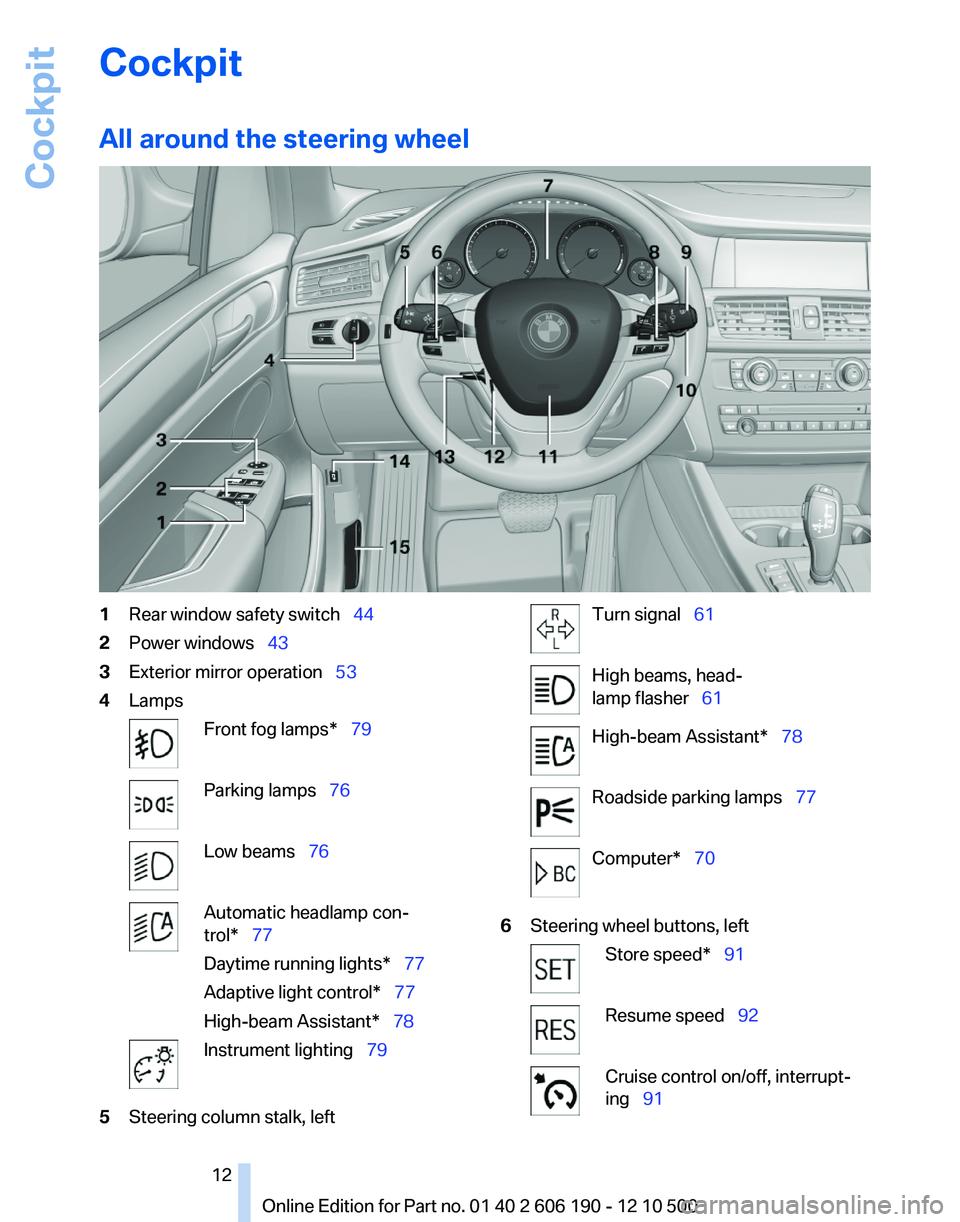
Cockpit
All around the steering wheel1Rear window safety switch 442Power windows 433Exterior mirror operation 534LampsFront fog lamps* 79Parking lamps 76Low beams 76Automatic headlamp con‐
trol* 77
Daytime running lights* 77
Adaptive light control* 77
High-beam Assistant* 78Instrument lighting 795Steering column stalk, leftTurn signal 61High beams, head‐
lamp flasher 61High-beam Assistant* 78Roadside parking lamps 77Computer* 706Steering wheel buttons, leftStore speed* 91Resume speed 92Cruise control on/off, interrupt‐
ing 91Seite 1212
Online Edition for Part no. 01 40 2 606 190 - 12 10 500Cockpit
Page 14 of 262
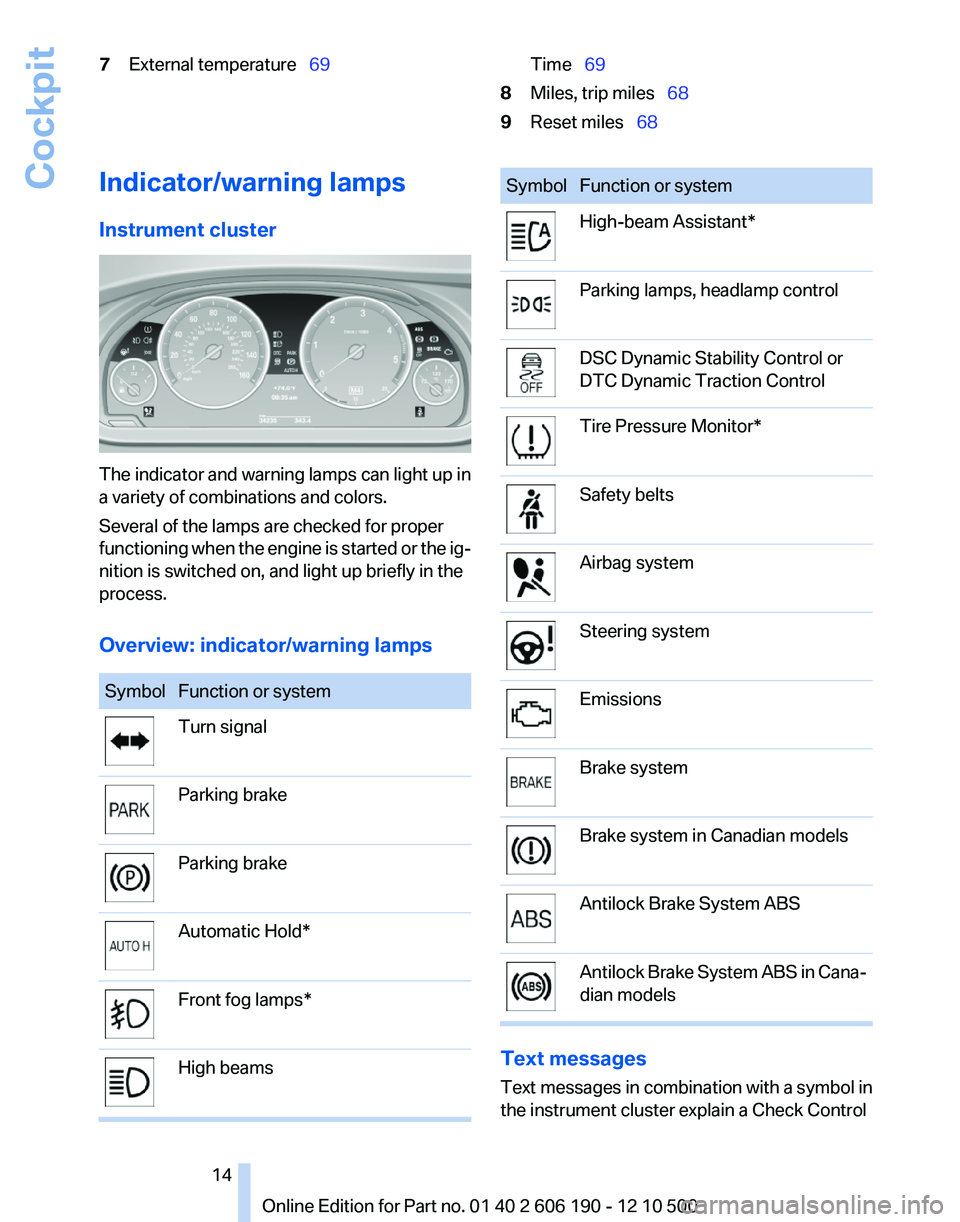
7External temperature 69Time 698Miles, trip miles 689Reset miles 68Indicator/warning lamps
Instrument cluster
The indicator and warning lamps can light up in
a variety of combinations and colors.
Several of the lamps are checked for proper
functioning when the engine is started or the ig‐
nition is switched on, and light up briefly in the
process.
Overview: indicator/warning lamps
SymbolFunction or systemTurn signalParking brakeParking brakeAutomatic Hold*Front fog lamps*High beamsSymbolFunction or systemHigh-beam Assistant*Parking lamps, headlamp controlDSC Dynamic Stability Control or
DTC Dynamic Traction ControlTire Pressure Monitor*Safety beltsAirbag systemSteering systemEmissionsBrake systemBrake system in Canadian modelsAntilock Brake System ABSAntilock Brake System ABS in Cana‐
dian models
Text messages
Text messages in combination with a symbol in
the instrument cluster explain a Check Control
Seite 1414
Online Edition for Part no. 01 40 2 606 190 - 12 10 500Cockpit
Page 20 of 262
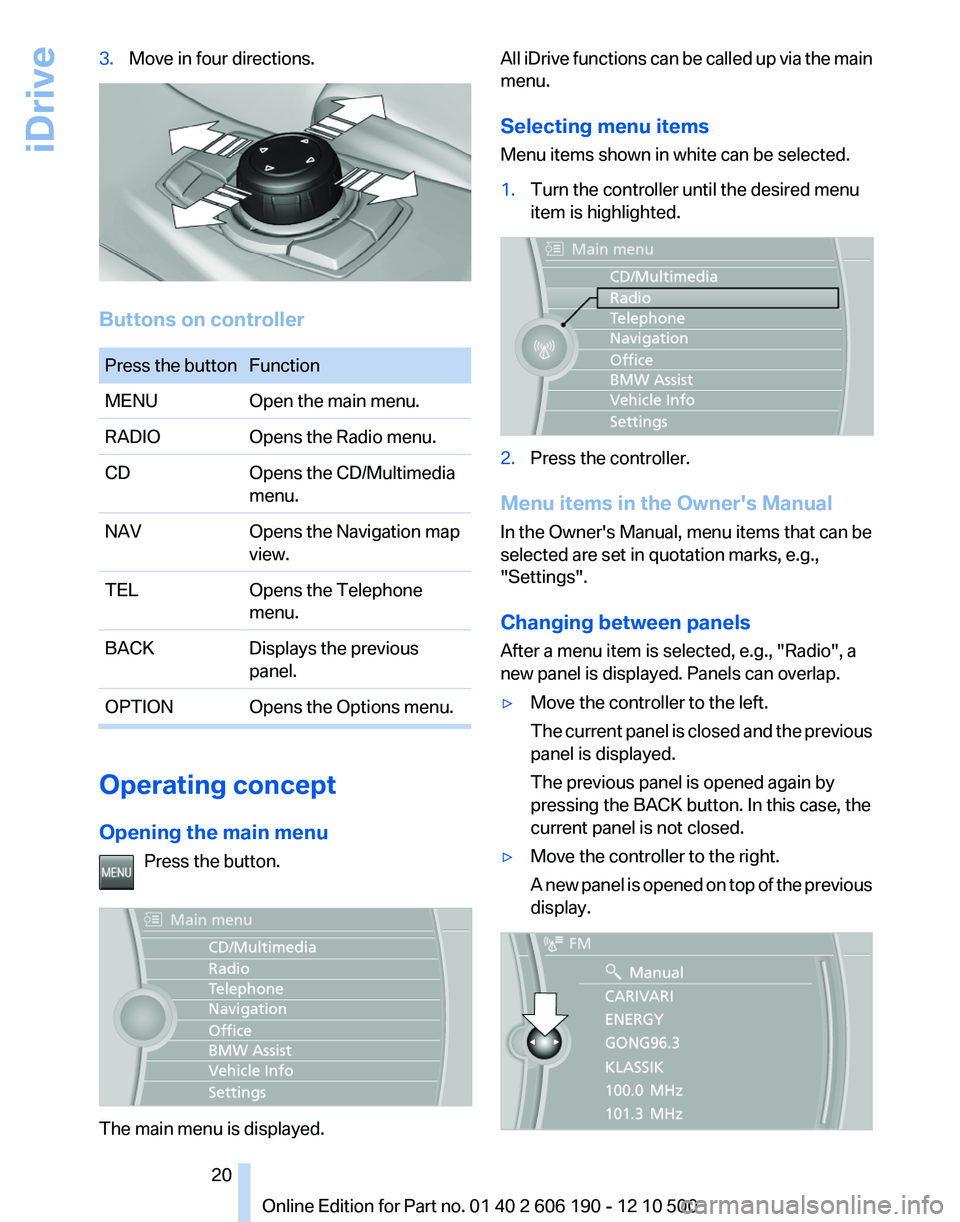
3.Move in four directions.
Buttons on controller
Press the buttonFunctionMENUOpen the main menu.RADIOOpens the Radio menu.CDOpens the CD/Multimedia
menu.NAVOpens the Navigation map
view.TELOpens the Telephone
menu.BACKDisplays the previous
panel.OPTIONOpens the Options menu.
Operating concept
Opening the main menu Press the button.
The main menu is displayed.
All iDrive functions can be called up via the main
menu.
Selecting menu items
Menu items shown in white can be selected.1.Turn the controller until the desired menu
item is highlighted.2.Press the controller.
Menu items in the Owner's Manual
In the Owner's Manual, menu items that can be
selected are set in quotation marks, e.g.,
"Settings".
Changing between panels
After a menu item is selected, e.g., "Radio", a
new panel is displayed. Panels can overlap.
▷Move the controller to the left.
The current panel is closed and the previous
panel is displayed.
The previous panel is opened again by
pressing the BACK button. In this case, the
current panel is not closed.▷Move the controller to the right.
A new panel is opened on top of the previous
display.Seite 2020
Online Edition for Part no. 01 40 2 606 190 - 12 10 500iDrive
Page 21 of 262
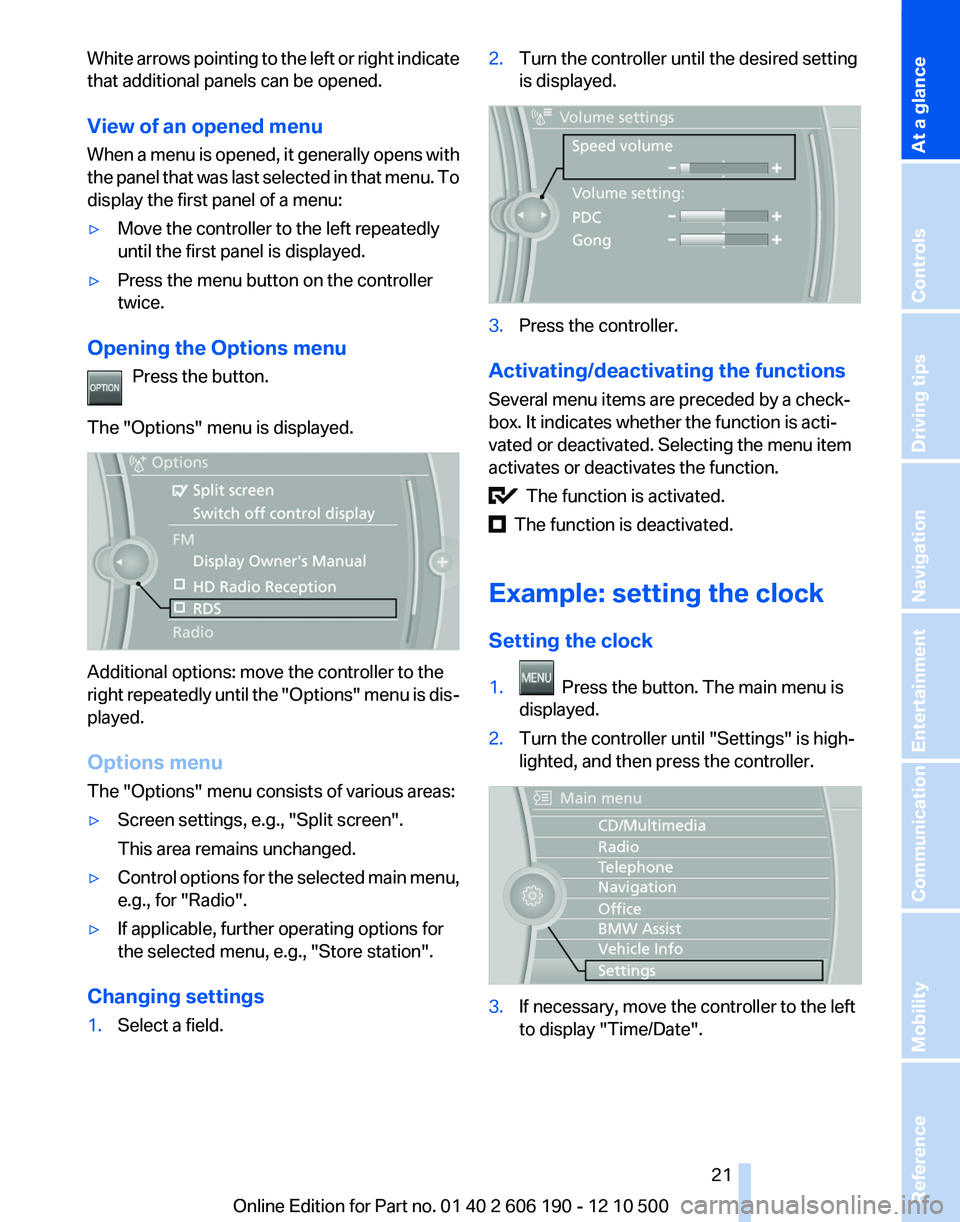
White arrows pointing to the left or right indicate
that additional panels can be opened.
View of an opened menu
When a menu is opened, it generally opens with
the panel that was last selected in that menu. To
display the first panel of a menu:▷Move the controller to the left repeatedly
until the first panel is displayed.▷Press the menu button on the controller
twice.
Opening the Options menu
Press the button.
The "Options" menu is displayed.
Additional options: move the controller to the
right repeatedly until the "Options" menu is dis‐
played.
Options menu
The "Options" menu consists of various areas:
▷Screen settings, e.g., "Split screen".
This area remains unchanged.▷Control options for the selected main menu,
e.g., for "Radio".▷If applicable, further operating options for
the selected menu, e.g., "Store station".
Changing settings
1.Select a field.2.Turn the controller until the desired setting
is displayed.3.Press the controller.
Activating/deactivating the functions
Several menu items are preceded by a check‐
box. It indicates whether the function is acti‐
vated or deactivated. Selecting the menu item
activates or deactivates the function.
The function is activated.
The function is deactivated.
Example: setting the clock
Setting the clock
1. Press the button. The main menu is
displayed.2.Turn the controller until "Settings" is high‐
lighted, and then press the controller.3.If necessary, move the controller to the left
to display "Time/Date".Seite 2121
Online Edition for Part no. 01 40 2 606 190 - 12 10 500
ReferenceMobilityCommunicationEntertainmentNavigationDriving tipsControlsAt a glance
Page 22 of 262
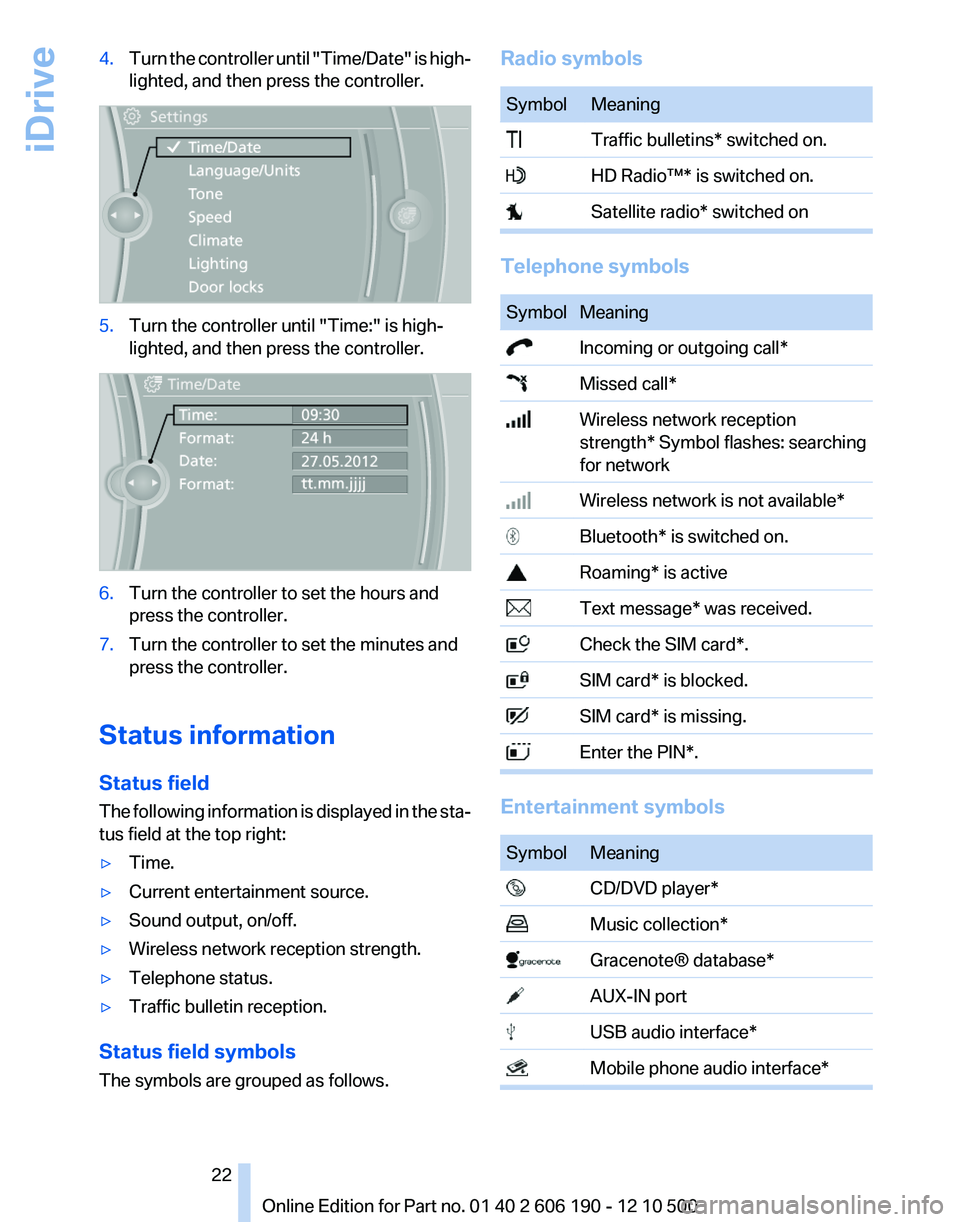
4.Turn the controller until "Time/Date" is high‐
lighted, and then press the controller.5.Turn the controller until "Time:" is high‐
lighted, and then press the controller.6.Turn the controller to set the hours and
press the controller.7.Turn the controller to set the minutes and
press the controller.
Status information
Status field
The following information is displayed in the sta‐
tus field at the top right:
▷Time.▷Current entertainment source.▷Sound output, on/off.▷Wireless network reception strength.▷Telephone status.▷Traffic bulletin reception.
Status field symbols
The symbols are grouped as follows.
Radio symbolsSymbolMeaning Traffic bulletins* switched on. HD Radio™* is switched on. Satellite radio* switched on
Telephone symbols
SymbolMeaning Incoming or outgoing call* Missed call* Wireless network reception
strength * Symbol flashes: searching
for network Wireless network is not available* Bluetooth* is switched on. Roaming* is active Text message* was received. Check the SIM card*. SIM card* is blocked. SIM card* is missing. Enter the PIN*.
Entertainment symbols
SymbolMeaning CD/DVD player* Music collection* Gracenote® database* AUX-IN port USB audio interface* Mobile phone audio interface*Seite 2222
Online Edition for Part no. 01 40 2 606 190 - 12 10 500iDrive
Page 23 of 262
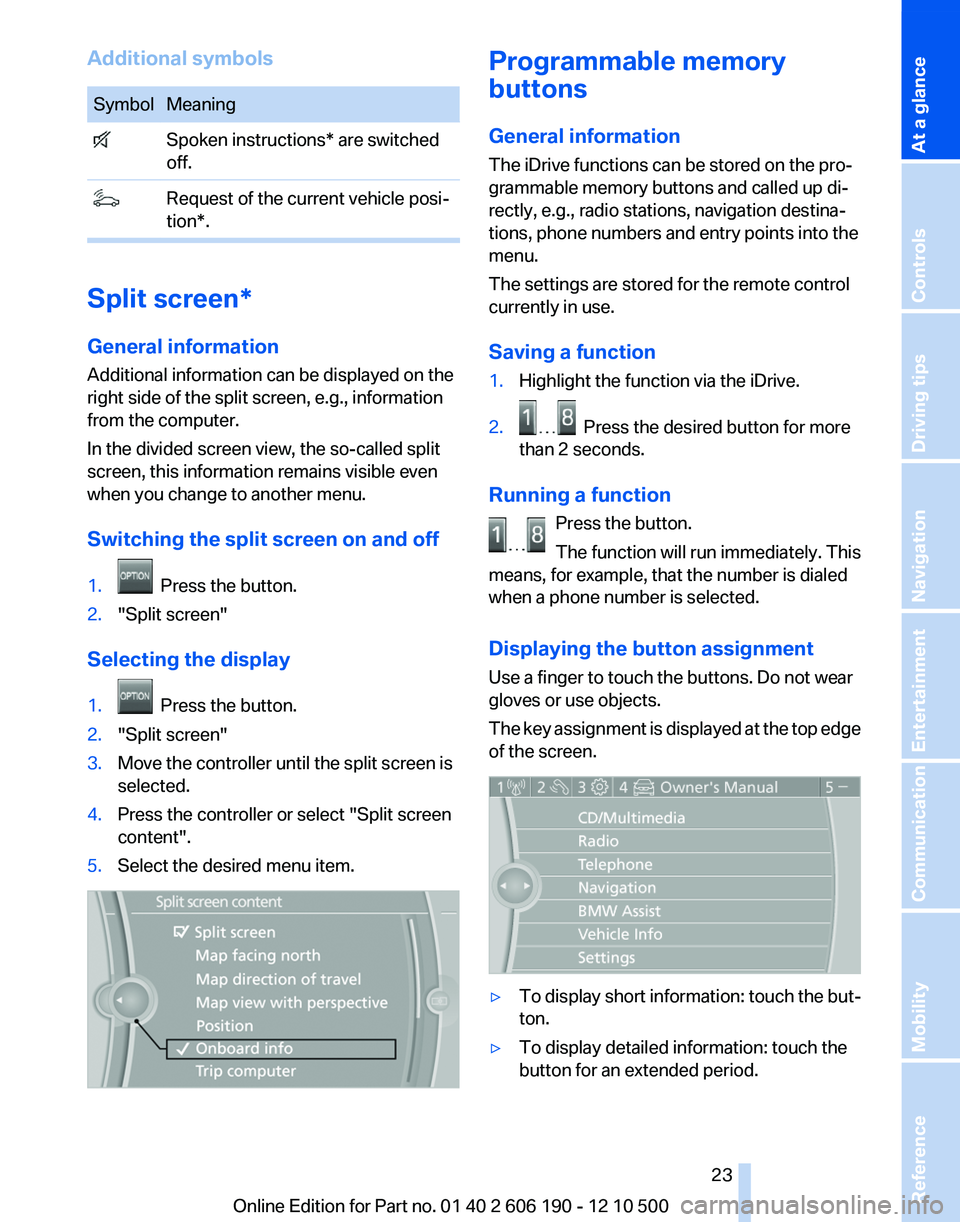
Additional symbolsSymbolMeaning Spoken instructions* are switched
off. Request of the current vehicle posi‐
tion*.
Split screen*
General information
Additional information can be displayed on the
right side of the split screen, e.g., information
from the computer.
In the divided screen view, the so-called split
screen, this information remains visible even
when you change to another menu.
Switching the split screen on and off
1. Press the button.2."Split screen"
Selecting the display
1. Press the button.2."Split screen"3.Move the controller until the split screen is
selected.4.Press the controller or select "Split screen
content".5.Select the desired menu item.Programmable memory
buttons
General information
The iDrive functions can be stored on the pro‐
grammable memory buttons and called up di‐
rectly, e.g., radio stations, navigation destina‐
tions, phone numbers and entry points into the
menu.
The settings are stored for the remote control
currently in use.
Saving a function1.Highlight the function via the iDrive.2. Press the desired button for more
than 2 seconds.
Running a function
Press the button.
The function will run immediately. This
means, for example, that the number is dialed
when a phone number is selected.
Displaying the button assignment
Use a finger to touch the buttons. Do not wear
gloves or use objects.
The key assignment is displayed at the top edge
of the screen.
▷To display short information: touch the but‐
ton.▷To display detailed information: touch the
button for an extended period.Seite 2323
Online Edition for Part no. 01 40 2 606 190 - 12 10 500
ReferenceMobilityCommunicationEntertainmentNavigationDriving tipsControlsAt a glance
Page 27 of 262
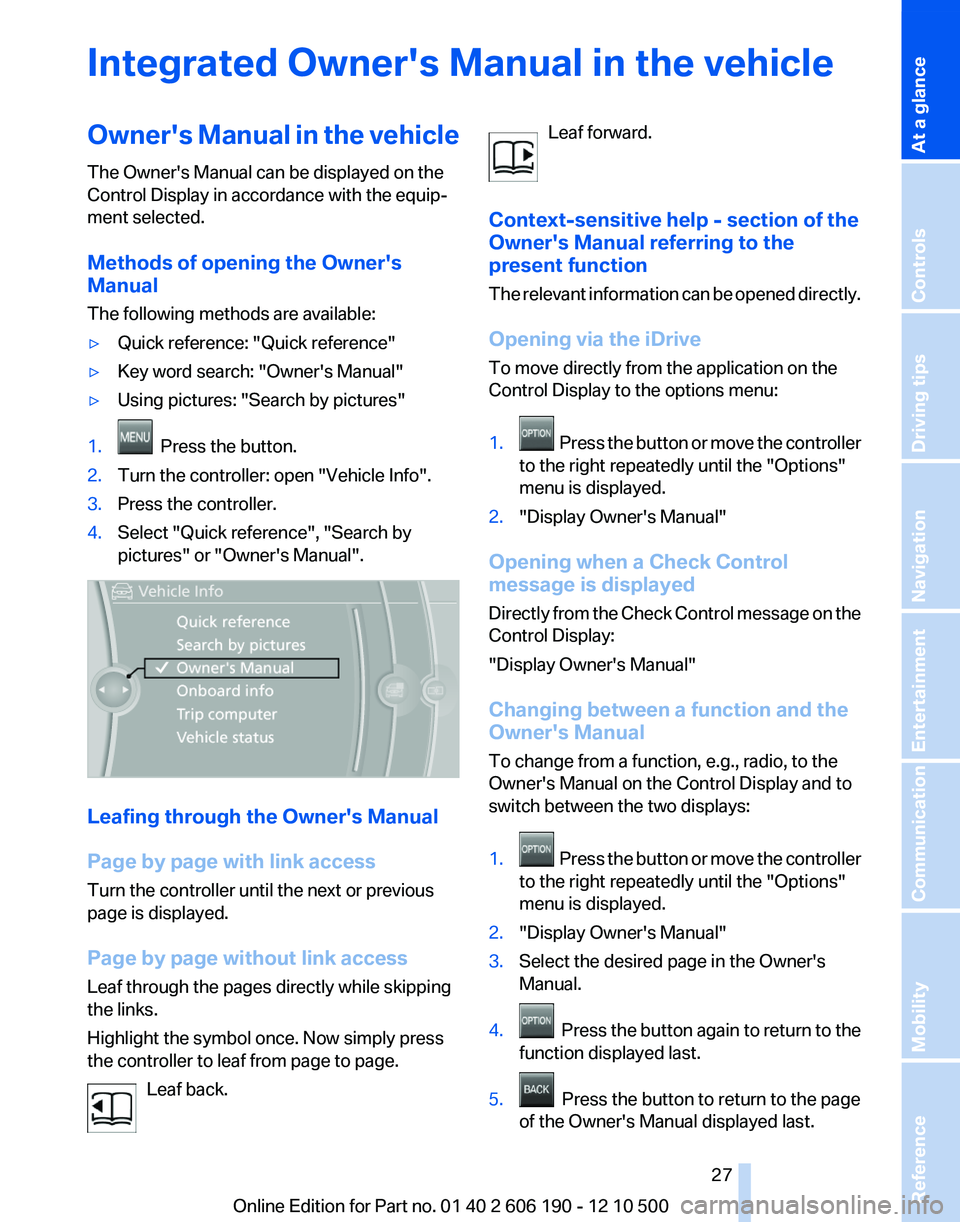
Integrated Owner's Manual in the vehicleOwner's Manual in the vehicle
The Owner's Manual can be displayed on the
Control Display in accordance with the equip‐
ment selected.
Methods of opening the Owner's
Manual
The following methods are available:▷Quick reference: "Quick reference"▷Key word search: "Owner's Manual"▷Using pictures: "Search by pictures"1. Press the button.2.Turn the controller: open "Vehicle Info".3.Press the controller.4.Select "Quick reference", "Search by
pictures" or "Owner's Manual".
Leafing through the Owner's Manual
Page by page with link access
Turn the controller until the next or previous
page is displayed.
Page by page without link access
Leaf through the pages directly while skipping
the links.
Highlight the symbol once. Now simply press
the controller to leaf from page to page.
Leaf back.
Leaf forward.
Context-sensitive help - section of the
Owner's Manual referring to the
present function
The relevant information can be opened directly.
Opening via the iDrive
To move directly from the application on the
Control Display to the options menu:1. Press the button or move the controller
to the right repeatedly until the "Options"
menu is displayed.2."Display Owner's Manual"
Opening when a Check Control
message is displayed
Directly from the Check Control message on the
Control Display:
"Display Owner's Manual"
Changing between a function and the
Owner's Manual
To change from a function, e.g., radio, to the
Owner's Manual on the Control Display and to
switch between the two displays:
1. Press the button or move the controller
to the right repeatedly until the "Options"
menu is displayed.2."Display Owner's Manual"3.Select the desired page in the Owner's
Manual.4. Press the button again to return to the
function displayed last.5. Press the button to return to the page
of the Owner's Manual displayed last.
Seite 2727
Online Edition for Part no. 01 40 2 606 190 - 12 10 500
ReferenceMobilityCommunicationEntertainmentNavigationDriving tipsControlsAt a glance
Page 40 of 262
The vehicle is locked completely.
Automatic trunk lid operation*
Adjusting the opening height
You can set how far the tailgate should open.
Adjusting the opening height
When adjusting the opening height, en‐
sure that there is a clearance of at least 4 in/
10 cm above the tailgate. Otherwise, the ceiling
may not be high enough for the open tailgate if
the load situation changes.◀1."Settings"2."Tailgate"3.Turn the controller until the desired opening
height is selected.
Opening
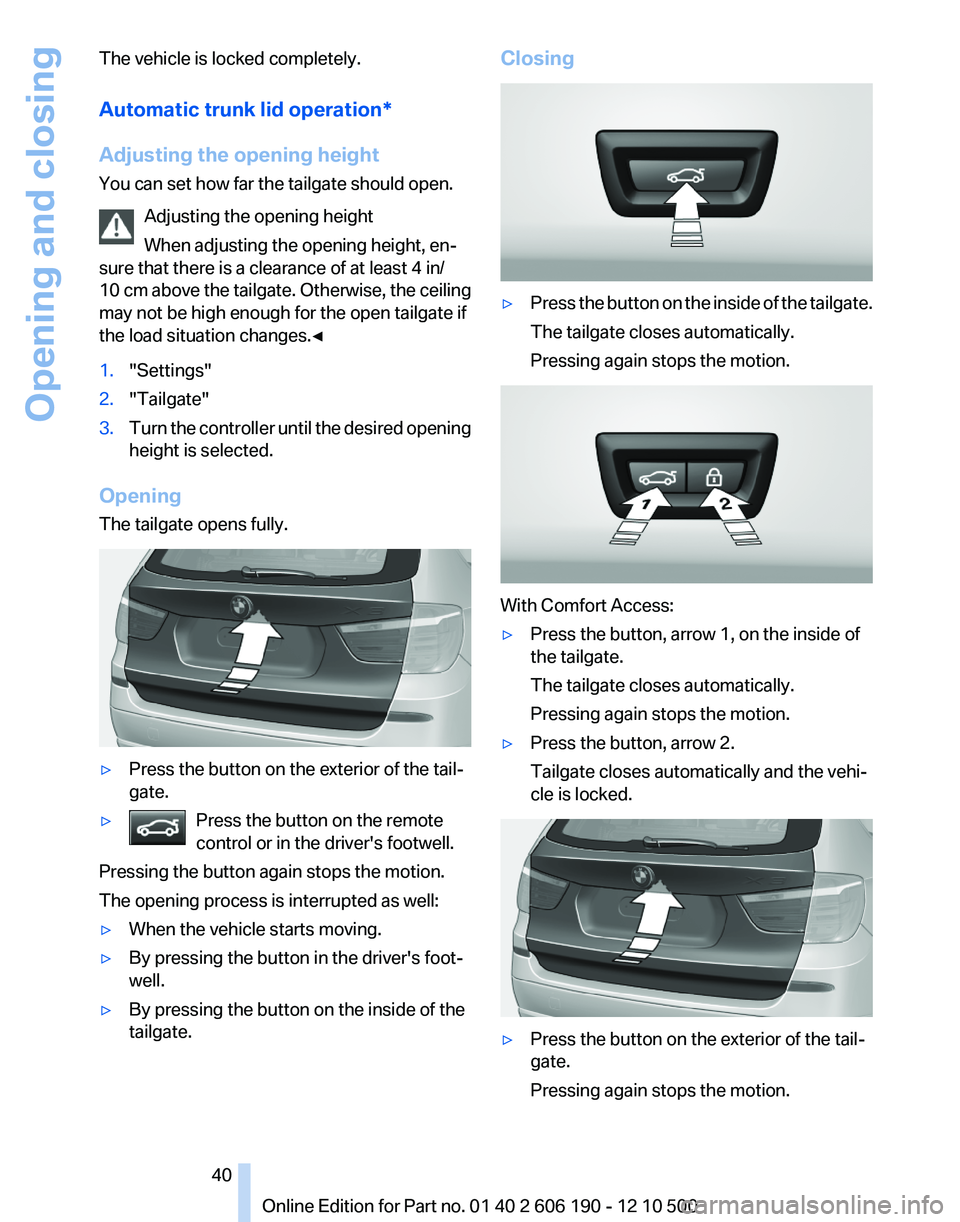
The tailgate opens fully.
▷Press the button on the exterior of the tail‐
gate.▷Press the button on the remote
control or in the driver's footwell.
Pressing the button again stops the motion.
The opening process is interrupted as well:
▷When the vehicle starts moving.▷By pressing the button in the driver's foot‐
well.▷By pressing the button on the inside of the
tailgate.Closing▷Press the button on the inside of the tailgate.
The tailgate closes automatically.
Pressing again stops the motion.
With Comfort Access:
▷Press the button, arrow 1, on the inside of
the tailgate.
The tailgate closes automatically.
Pressing again stops the motion.▷Press the button, arrow 2.
Tailgate closes automatically and the vehi‐
cle is locked.▷Press the button on the exterior of the tail‐
gate.
Pressing again stops the motion.Seite 4040
Online Edition for Part no. 01 40 2 606 190 - 12 10 500Opening and closing