battery BMW X3 XDRIVE 35I 2011 User Guide
[x] Cancel search | Manufacturer: BMW, Model Year: 2011, Model line: X3 XDRIVE 35I, Model: BMW X3 XDRIVE 35I 2011Pages: 262, PDF Size: 11.2 MB
Page 101 of 262
Climate control
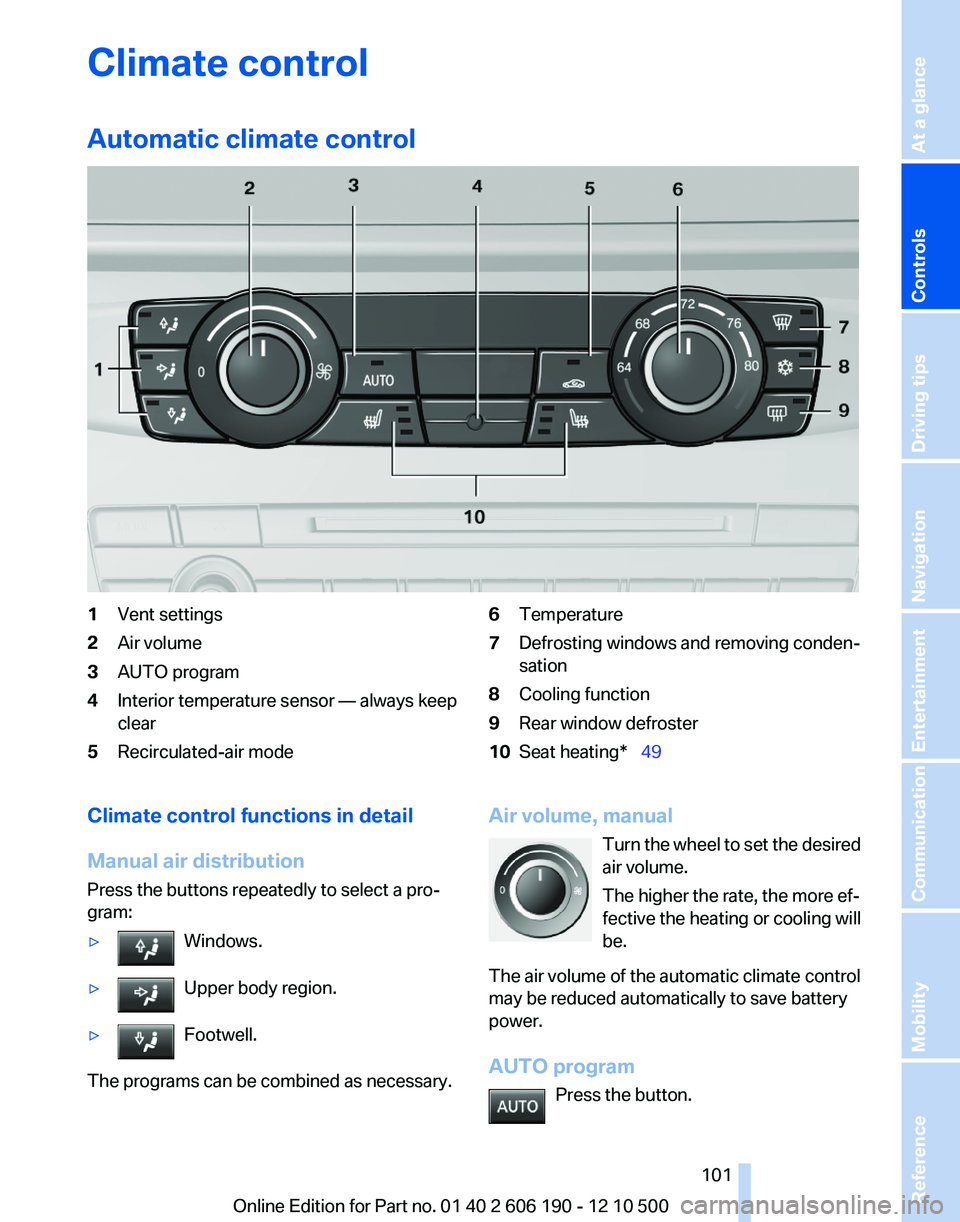
Automatic climate control1Vent settings2Air volume3AUTO program4Interior temperature sensor — always keep
clear5Recirculated-air mode6Temperature7Defrosting windows and removing conden‐
sation8Cooling function9Rear window defroster10Seat heating* 49Climate control functions in detail
Manual air distribution
Press the buttons repeatedly to select a pro‐
gram:▷Windows.▷Upper body region.▷Footwell.
The programs can be combined as necessary.
Air volume, manual
Turn the wheel to set the desired
air volume.
The higher the rate, the more ef‐
fective the heating or cooling will
be.
The air volume of the automatic climate control
may be reduced automatically to save battery
power.
AUTO program Press the button.Seite 101101
Online Edition for Part no. 01 40 2 606 190 - 12 10 500
ReferenceMobilityCommunicationEntertainmentNavigationDriving tipsControlsAt a glance
Page 104 of 262
The programs can be combined as necessary.
Temperature Turn the wheel to set the desired
temperature.
The automatic climate control achieves this
temperature as quickly as possible, if necessary
with the maximum cooling or heating capacity,
and then keeps it constant.
Avoid rapidly switching between different tem‐
perature settings. The automatic climate control
will not have sufficient time to adjust the set
temperature.
Maximum cooling Press the button.
The system is set to the lowest tem‐
perature, maximum air volume and recirculated-
air mode.
Air flows out of the vents for the upper body re‐
gion. Open them for this purpose.
Air is cooled as quickly as possible:▷At an external temperature of approx. 32 ℉/
0 ℃.▷When the engine is running.
The air volume can be adjusted when the pro‐
gram is active.
AUTO program Press the button.
Air volume, air distribution, and tem‐
perature are controlled automatically.
Depending on the selected temperature, AUTO
intensity, and outside influences, the air is di‐
rected to the windshield, side windows, upper
body, and into the footwell.
The cooling function, refer to page 105, is
switched on automatically with the AUTO pro‐
gram.
At the same time, a condensation sensor con‐
trols the program so as to prevent window con‐
densation as much as possible.
To switch off the program: press the button
again or manually adjust the air distribution.
Intensity of the AUTO program
With the AUTO program switched on, automatic
control of the air volume and air distribution can
be adjusted.
Press the left or right side of the button:
decrease or increase the intensity.
The selected intensity is shown on the display
of the automatic climate control.
Air volume, manual
To be able to manually adjust the air volume,
switch off the AUTO program first.
Press the left or right side of the button:
decrease or increase air volume.
The selected air volume is shown on the display
of the automatic climate control.
The air volume of the automatic climate control
may be reduced automatically to save battery
power.
Automatic recirculated-air control/
recirculated-air mode
You can respond to unpleasant odors or pollu‐
tants in the immediate environment by tempo‐
rarily suspending the supply of outside air. The
system then recirculates the air currently within
the vehicle.
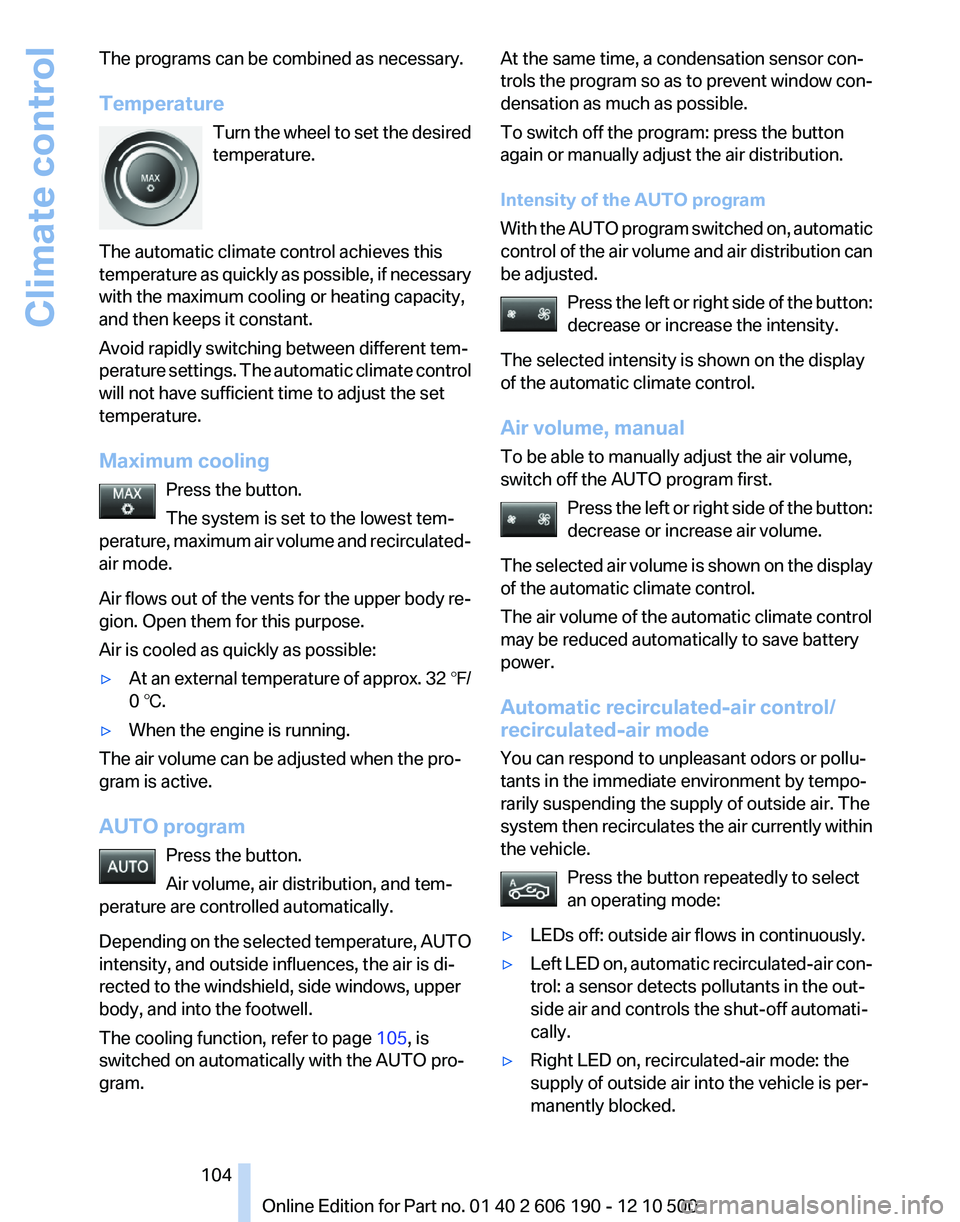
Press the button repeatedly to select
an operating mode:▷LEDs off: outside air flows in continuously.▷Left LED on, automatic recirculated-air con‐
trol: a sensor detects pollutants in the out‐
side air and controls the shut-off automati‐
cally.▷Right LED on, recirculated-air mode: the
supply of outside air into the vehicle is per‐
manently blocked.Seite 104104
Online Edition for Part no. 01 40 2 606 190 - 12 10 500Climate control
Page 142 of 262
lated route may lead through the traffic ob‐
struction.▷Dangerous situations are displayed regard‐
less of the setting.
To activate dynamic destination guidance:
1."Navigation"2.Open "Options".3."Dynamic guidance"
Navigation data
Information on the navigation data
1."Navigation"2.Open "Options".3."Navigation system version"
Information is displayed on the data version.
Updating the navigation data
General information
Navigation data and authorization codes are
available from your service center. Navigation
data are stored in the vehicle and can be up‐
dated.
▷Depending on the data volume, a data up‐
date may take several hours.▷Update during the trip to preserve battery.▷During the update, only the basic functions
of the navigation system are available.▷The status of the update can be viewed.▷The system restarts after the update.▷The data carrier with the navigation data can
be removed after the update is complete.
Perform an update
1.Insert the navigation DVD into the DVD
player with the labeled side facing up.2.Follow the instructions on the Control Dis‐
play.3.Enter the authorization code of the naviga‐
tion DVD and change the DVD if needed.After interrupting your trip, follow the instruc‐
tions on the Control Display.
Viewing the status1. Press the button.2."Navigation update"
What to do if...
▷The current transmission position cannot be
displayed?
The vehicle is located in an unrecognized
region, is in a poor reception area, or the
system is currently determining the posi‐
tion. Reception is usually best when you
have an unobstructed view of the sky.▷The destination without street information is
not used for route guidance?
When city has been input, no downtown can
be determined.
Input any street in the selected city and start
destination guidance.▷The destination is not used for route guid‐
ance?
The destination data is not contained in the
navigation data. Select a destination that is
as close as possible to the original.▷Letters for destination input cannot be se‐
lected?
The stored data do not contain the data of
the destination.
Select a goal that is as close as possible to
the original.▷Is the map displayed in shades of gray?
When the traffic situation/gray card is acti‐
vated, the view on the Control Display is
switched over to shades of gray. This ena‐
bles a better view of the traffic bulletins.▷Spoken instructions are no longer output
during route guidance in front of intersec‐
tions?Seite 142142
Online Edition for Part no. 01 40 2 606 190 - 12 10 500Navigation
Page 172 of 262
Unpairing a device1."CD/Multimedia"2."Bluetooth (audio)"3.If necessary, "Bluetooth audio".4.Highlight the device that is to be unpaired.5.Open "Options".6."Remove phone from list"
What to do if...
Information on suitable devices can be found at
www.bmwusa.com/bluetooth.
Suitable mobile phones, refer to page 176.
▷The device is not supported by the vehicle.
Perform a software update*, refer to
page 172, if needed.▷The device could not be paired or con‐
nected.
Do the Bluetooth passkeys on the device
and the vehicle match? Enter the same
passkey on the device and via iDrive.
Did it take longer than 30 seconds to enter
the passkey? Repeat the pairing procedure.
Are too many Bluetooth devices connected
to the device or vehicle? Delete connections
with other devices if necessary.
Is the mobile phone in power-save mode or
does it have only a limited remaining battery
life? Charge the mobile phone in the snap-
in adapter or via the charging cable.
Depending on the mobile phone, it is possi‐
ble that only one device can be connected
to the vehicle. Unpair the connected device
from the vehicle and pair and connect only
one device.
The device no longer reacts? Switch the de‐
vice off and on again.
Repeat the pairing procedure.▷Music cannot be played back.
Start the program for playing back music
data on the device and select a track on the
device if necessary.
Switch the radio off and on again.▷Music files can only be played back softly.
Adjust the volume settings on the device.▷Playback is disturbed when buttons are
pressed or by other messages on the de‐
vice.
Switch off the button tones and other signal
tones on the device.▷Playback is interrupted by a telephone call
or traffic bulletin and is not resumed auto‐
matically.
Switch the radio off and on again.▷Playback is not possible if the mobile phone
is connected both via Bluetooth Audio and
via the extended connectivity of the music
player in the mobile phone*.
Disconnect one of the two connections; for
example, disconnect the audio connection,
refer to page 171, and restart playback.
If all points in this list have been checked and the
required function is still not available, please
contact the hotline or service center.
Software update*
The vehicle supports various external devices
depending on the current software version. A
software update may result in vehicle support of
new mobile phones or new external devices, for
example.
Software updates and related current informa‐
tion is available at www.bmw.com/update.
Displaying the current version
The currently installed software is displayed.
1."Settings"2."Software update"3."Show current version"
Updating the software
The software may only be updated when the ve‐
hicle is stationary.
Seite 172172
Online Edition for Part no. 01 40 2 606 190 - 12 10 500CD/multimedia
Page 176 of 262
Professional mobile phone preparation
package*At a glance
The concept
Mobile phones or other external devices such as
audio players can be connected to the vehicle
via Bluetooth.
After these devices are paired once, they are
recognized automatically when the ignition is
switched on as soon as they are inside the ve‐
hicle and can be operated via iDrive, the buttons
on the steering wheel, and via voice activation*.
Depending on their functionality, external devi‐
ces can be used via the vehicle as a telephone
or as an audio source.
The telephone functions are described in the
following. Operating the audio functions, refer to
page 169.
Up to four external devices can be paired.
Certain functions may need to be enabled by the
mobile phone provider or service provider.
Using the mobile phone while driving
Make entries only when traffic and road
conditions allow. Do not hold the mobile phone
in your hand while you are driving; use the
hands-free system instead. If you do not ob‐
serve this precaution, you can endanger the ve‐
hicle occupants and other road users.◀
Snap-in adapter*
The snap-in adapter is used to:▷Hold the mobile phone.▷Recharge the battery.▷Connect the mobile phone to an outside an‐
tenna of the vehicle.
This provides for better network reception
and consistent sound quality.Approved mobile phones
Details on which mobile phones and external
devices with a Bluetooth interface are sup‐
ported by the mobile phone preparation pack‐
age can be obtained at www.bmwusa.com/blue‐
tooth.
Displaying the vehicle identification
number and software part number
The vehicle identification number and software
part number are needed to determine which mo‐
bile phones are supported by the mobile phone
preparation package. The software version of
the mobile phone may also be required.1."Telephone"2.Open "Options".3."Bluetooth info"4."Display system information"
These approved mobile phones with a certain
software version, support the vehicle functions
described below.
Malfunctions may occur with other mobile
phones or software versions.
Do not operate a mobile phone that is connected
to the vehicle on the mobile phone keypad, as
this may lead to a malfunction.
Pairing/unpairing the mobile
phone
General information
The following functions are available:
▷Use of a mobile phone as a telephone.▷Use of a mobile phone as an additional tele‐
phone.▷Use of a mobile phone as an audio source.▷Use of an audio device as an audio source,
refer to page 170.Seite 176176
Online Edition for Part no. 01 40 2 606 190 - 12 10 500Professional mobile phone preparation package
Page 179 of 262
What to do if...
Information on suitable mobile phones, refer to
page 176.
The mobile phone could not be paired or con‐
nected.▷Is Bluetooth activated in the vehicle and on
the mobile phone? Activate Bluetooth in the
vehicle and on the mobile phone.▷Do the Bluetooth passkeys on the mobile
phone and the vehicle match? Enter the
same passkey on the mobile phone and via
iDrive.▷Did it take longer than 30 seconds to enter
the passkey? Repeat the pairing procedure.▷Are too many Bluetooth devices connected
to the mobile phone or vehicle? Delete con‐
nections with other devices if necessary.▷Is the audio connection activated? Deacti‐
vate the audio connection.▷Is the mobile phone in power-save mode or
does it have only a limited remaining battery
life? Charge the mobile phone in the snap-
in adapter* or via the charging cable.▷Depending on the mobile phone, it is possi‐
ble that only one device can be connected
to the vehicle. Unpair the connected device
from the vehicle and pair and connect only
one device.▷The mobile phone no longer reacts? Switch
the mobile phone off and on again. Repeat
the pairing procedure.
The telephone functions are not available.
▷Is the mobile phone paired as an additional
telephone and is the additional telephone
function deactivated? Activate the function.▷Is an outgoing call not possible? Connect
the mobile phone as a telephone.
No or not all phone book entries are displayed,
or they are incomplete.
▷Transmission of the phone book entries is
not yet complete.▷It is possible that only the phone book en‐
tries of the mobile phone or the SIM card*
are transmitted.▷It may not be possible to display phone book
entries with special characters.▷The number of phone book entries being
stored is too high.▷Is the data volume of the contact too large,
e.g., due to stored information such as
notes? Reduce the data volume of the con‐
tact.▷Is the mobile phone connected as an audio
source or additional telephone? The mobile
phone must be connected as a telephone.
The phone connection quality is poor.
▷The strength of the Bluetooth signal on the
mobile phone can be adjusted, depending
on the mobile phone.▷Insert the mobile phone into the snap-in
adapter* or place it in the area of the center
console.▷Adjust the volume of the microphone and
loudspeakers separately.
If all points in this list have been checked and the
required function is still not available, please
contact the hotline or service center.
Controls
Adjusting the volume
Turn the knob until the desired volume is se‐
lected. The setting is stored for the remote con‐
trol currently in use.
The vehicle automatically adjusts the volume of
the microphone on the telephone and the vol‐
ume of the called party. Depending on the mo‐
bile phone, the volumes may need to be ad‐
justed. The settings can only be created during
a call and must be adjusted separately for each
telephone. The settings are deleted when the
telephone is unpaired.
1."Settings"2."Tone"3."Volume settings"4.Select the desired setting: "Microphone" or
"Loudspeak."Seite 179179
Online Edition for Part no. 01 40 2 606 190 - 12 10 500
ReferenceMobilityCommunicationEntertainmentNavigationDriving tipsControlsAt a glance
Page 227 of 262
Vehicle battery
Maintenance
The battery is maintenance-free, i.e., the elec‐
trolyte will last for the life of the battery.
Your service center will be glad to advise you on
questions regarding the battery.
Battery replacement Use approved vehicle batteries only.
Only use vehicle batteries that have been
approved for your vehicle by the manufacturer;
otherwise, the vehicle could be damaged and
systems or functions may not be fully availa‐
ble.◀
After a battery replacement, have the battery
registered on the vehicle by your service center
to ensure that all comfort functions are fully
available.
Charging the battery
In the vehicle, only charge the battery via the
terminals, refer to page 230, in the engine com‐
partment with the engine off.
Power failure
After a temporary power loss, some equipment
needs to be reinitialized.
Individual settings need to be reprogrammed:▷Seat and mirror memory: store the positions
again.▷Time: update.▷Date: update.▷Radio station: save again.▷Navigation system: wait for the operability of
the navigation.
Disposing of old batteries
Have old batteries disposed of by your
service center or bring them to a recy‐
cling center.
Maintain the battery in an upright position for
transport and storage. Secure the battery so
that it does not tip over during transport.
Fuses
Notes Replacing fuses
Never attempt to repair a blown fuse and
do not replace a defective fuse with a substitute
of another color or amperage rating; this could
lead to a circuit overload, ultimately resulting in
a fire in the vehicle.◀
Plastic tweezers and information on the fuse
types and locations are stored in the fuse box in
the cargo area.
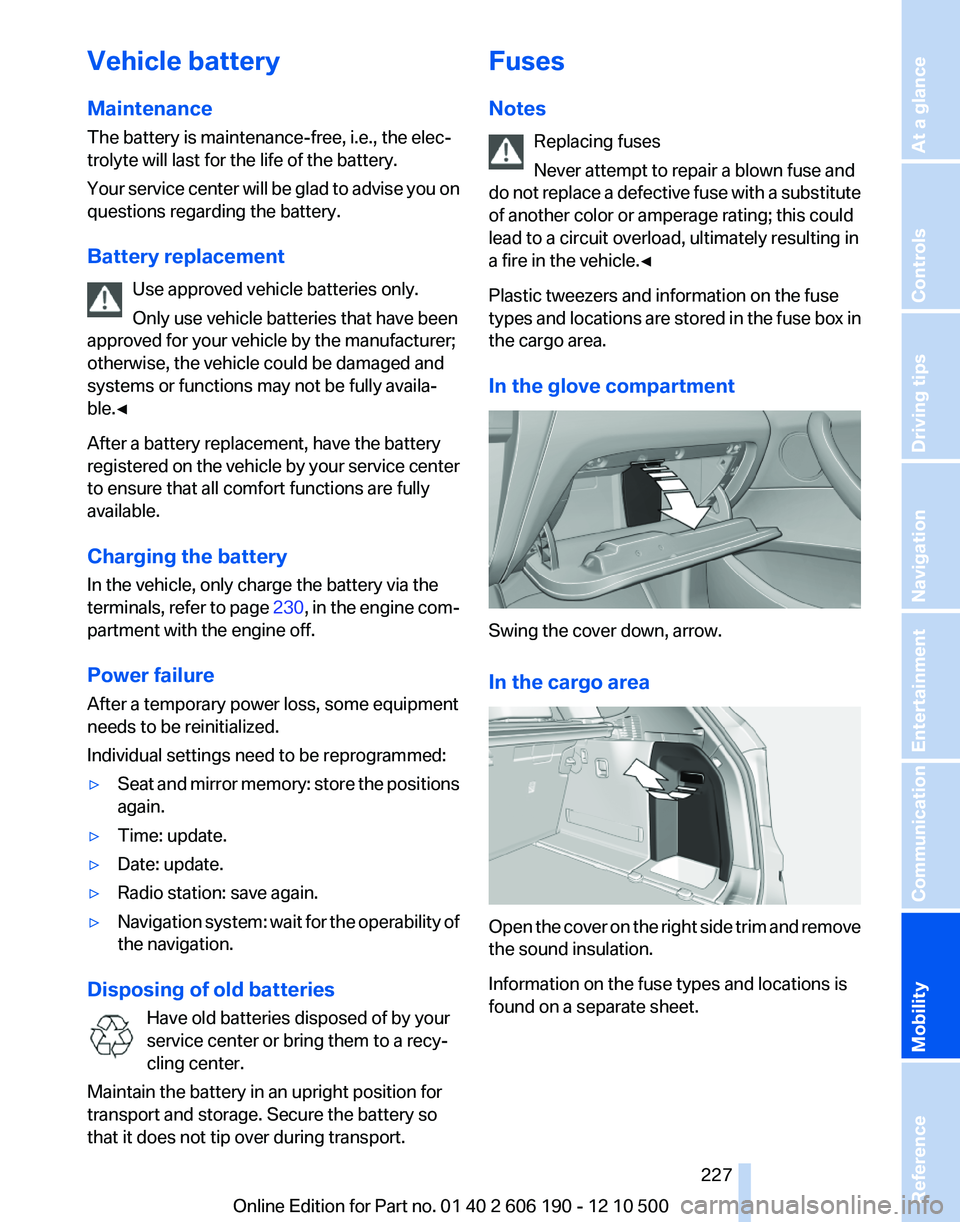
In the glove compartment
Swing the cover down, arrow.
In the cargo area
Open the cover on the right side trim and remove
the sound insulation.
Information on the fuse types and locations is
found on a separate sheet.
Seite 227227
Online Edition for Part no. 01 40 2 606 190 - 12 10 500
ReferenceMobilityCommunicationEntertainmentNavigationDriving tipsControlsAt a glance
Page 229 of 262
Assist Response Center may still be able to
hear you.
Initiating an Emergency Request
automatically
Under certain conditions, an Emergency Re‐
quest is automatically initiated immediately after
a severe accident. Automatic Collision Notifica‐
tion is not affected by pressing the SOS button.
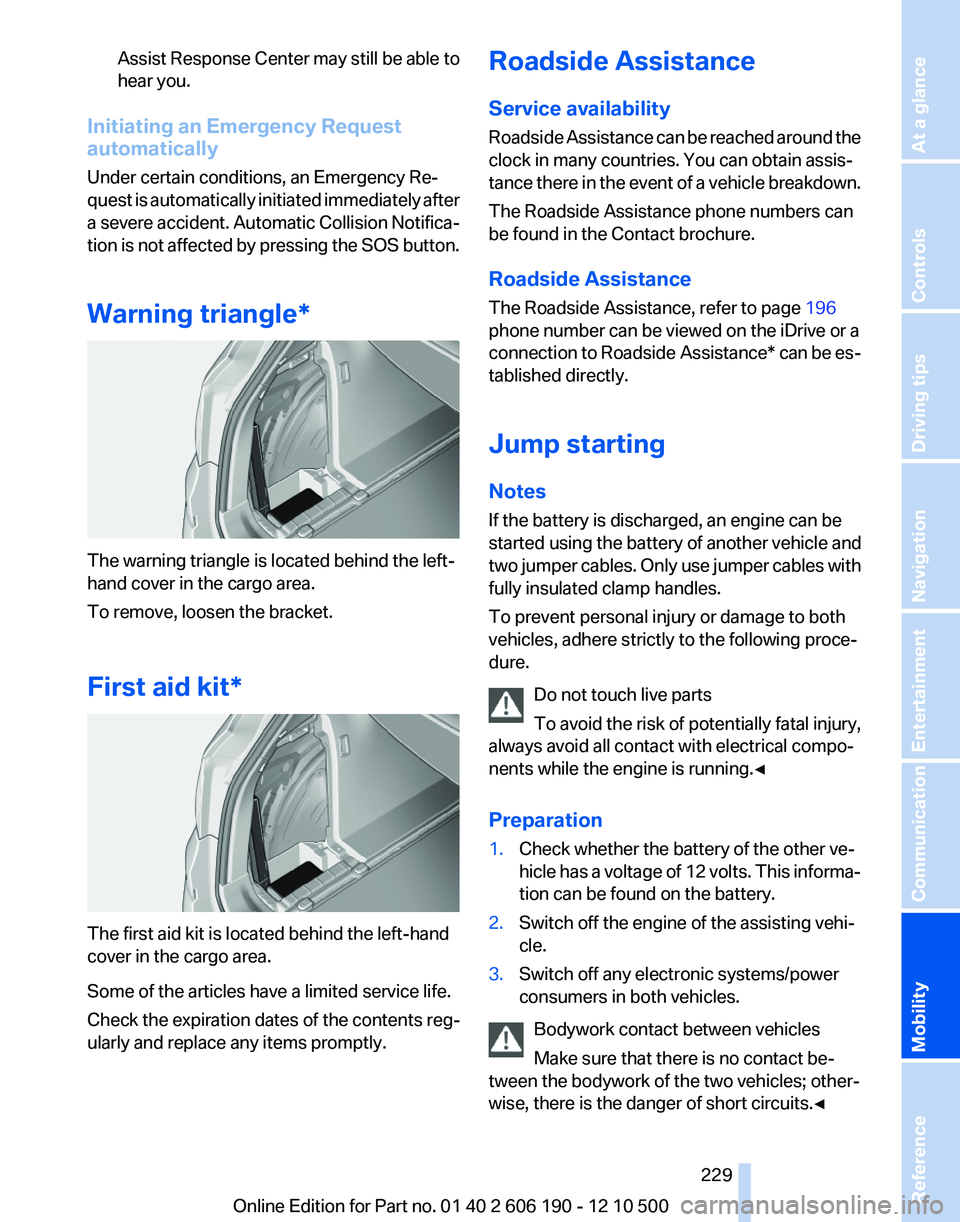
Warning triangle*
The warning triangle is located behind the left-
hand cover in the cargo area.
To remove, loosen the bracket.
First aid kit*
The first aid kit is located behind the left-hand
cover in the cargo area.
Some of the articles have a limited service life.
Check the expiration dates of the contents reg‐
ularly and replace any items promptly.
Roadside Assistance
Service availability
Roadside Assistance can be reached around the
clock in many countries. You can obtain assis‐
tance there in the event of a vehicle breakdown.
The Roadside Assistance phone numbers can
be found in the Contact brochure.
Roadside Assistance
The Roadside Assistance, refer to page 196
phone number can be viewed on the iDrive or a
connection to Roadside Assistance * can be es‐
tablished directly.
Jump starting
Notes
If the battery is discharged, an engine can be
started using the battery of another vehicle and
two jumper cables. Only use jumper cables with
fully insulated clamp handles.
To prevent personal injury or damage to both
vehicles, adhere strictly to the following proce‐
dure.
Do not touch live parts
To avoid the risk of potentially fatal injury,
always avoid all contact with electrical compo‐
nents while the engine is running.◀
Preparation1.Check whether the battery of the other ve‐
hicle has a voltage of 12 volts. This informa‐
tion can be found on the battery.2.Switch off the engine of the assisting vehi‐
cle.3.Switch off any electronic systems/power
consumers in both vehicles.
Bodywork contact between vehicles
Make sure that there is no contact be‐
tween the bodywork of the two vehicles; other‐
wise, there is the danger of short circuits.◀
Seite 229229
Online Edition for Part no. 01 40 2 606 190 - 12 10 500
ReferenceMobilityCommunicationEntertainmentNavigationDriving tipsControlsAt a glance
Page 230 of 262
Starting aid terminalsConnecting order
Connect the jumper cables in the correct
order; otherwise, there is the danger of injury
from sparking.◀
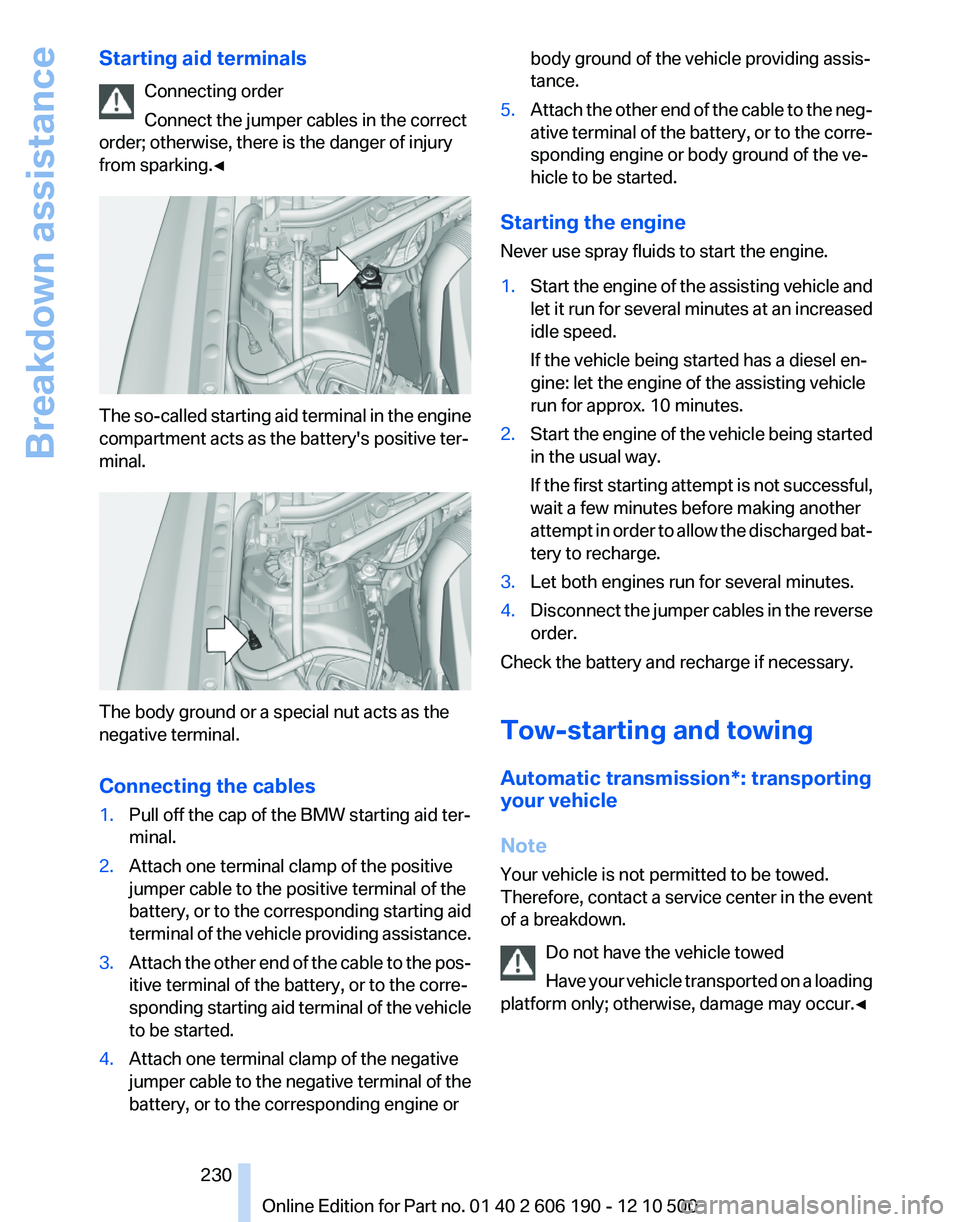
The so-called starting aid terminal in the engine
compartment acts as the battery's positive ter‐
minal.
The body ground or a special nut acts as the
negative terminal.
Connecting the cables
1.Pull off the cap of the BMW starting aid ter‐
minal.2.Attach one terminal clamp of the positive
jumper cable to the positive terminal of the
battery, or to the corresponding starting aid
terminal of the vehicle providing assistance.3.Attach the other end of the cable to the pos‐
itive terminal of the battery, or to the corre‐
sponding starting aid terminal of the vehicle
to be started.4.Attach one terminal clamp of the negative
jumper cable to the negative terminal of the
battery, or to the corresponding engine orbody ground of the vehicle providing assis‐
tance.5.Attach the other end of the cable to the neg‐
ative terminal of the battery, or to the corre‐
sponding engine or body ground of the ve‐
hicle to be started.
Starting the engine
Never use spray fluids to start the engine.
1.Start the engine of the assisting vehicle and
let it run for several minutes at an increased
idle speed.
If the vehicle being started has a diesel en‐
gine: let the engine of the assisting vehicle
run for approx. 10 minutes.2.Start the engine of the vehicle being started
in the usual way.
If the first starting attempt is not successful,
wait a few minutes before making another
attempt in order to allow the discharged bat‐
tery to recharge.3.Let both engines run for several minutes.4.Disconnect the jumper cables in the reverse
order.
Check the battery and recharge if necessary.
Tow-starting and towing
Automatic transmission*: transporting
your vehicle
Note
Your vehicle is not permitted to be towed.
Therefore, contact a service center in the event
of a breakdown.
Do not have the vehicle towed
Have your vehicle transported on a loading
platform only; otherwise, damage may occur.◀
Seite 230230
Online Edition for Part no. 01 40 2 606 190 - 12 10 500Breakdown assistance
Page 252 of 262
Everything from A to Z
IndexA
ABS, Antilock Brake Sys‐ tem 86
Activated-charcoal filter 105
Adaptive brake lights, refer to Brake force display 85
Adaptive light control 77
Adaptive light control, bulb re‐ placement 223
Additional telephone 176
Additives, oil 217
Adjustments, seats/head re‐ straints 47
After washing vehicle 234
Airbags 80
Air circulation, refer to Recir‐ culated-air mode 102, 104
Air distribution, manual 101, 103
Air drying, refer to Cooling function 102, 105
Air pressure, tires 207
Air vents, refer to Ventila‐ tion 106
Air volume, automatic climate control 101, 104
Alarm system 42
Alarm, unintentional 43
All around the center con‐ sole 17
All around the headliner 18
All around the steering wheel 12
ALL program, automatic cli‐ mate control 105
All-season tires, refer to Win‐ ter tires 213
All-wheel-drive 87
Alternating-code hand-held transmitter 108
Alternative oil types 218
AM/FM station 148 Announcement, navigation,
refer to Spoken instruc‐
tions 137
Antifreeze, washer fluid 64
Antilock Brake System, ABS 86
Anti-slip control, refer to DSC 86
Appointments 189
Approved engine oils 217
Armrest, refer to Center arm‐ rest 114
Arrival time 71
Assist 195
Assistance, Roadside Assis‐ tance 229
Audio playback 155
Audio playback, Blue‐ tooth 169
AUTO intensity 104
Automatic car wash 233
Automatic climate con‐ trol 101
Automatic climate control with enhanced features 103
Automatic Curb Monitor 53
Automatic deactivation, front passenger airbags 81
Automatic headlamp con‐ trol 77
Automatic Hold 60
Automatic locking 38
Automatic recirculated-air control 104
Automatic tailgate 40
Automatic transmission with Steptronic 64
AUTO program, automatic cli‐ mate control 104
AUTO program, climate con‐ trol 101
AUTO program, intensity 104
AUX-IN port 166 Average fuel consumption 70
Average speed 70
Axle loads, weights 241
B
Backrest curvature, refer to Lumbar support 49
Backrest, seats 47
Backrest, width 49
Backup camera 95
Balance 146
Band-aids, refer to First aid kit 229
Bar for tow-starting/tow‐ ing 231
Bass 146
Battery replacement, vehicle battery 227
Battery replacement, vehicle remote control 32
Battery, vehicle 227
Before entering the car wash 233
Belts, safety belts 50
Beverage holder, cu‐ pholder 115
Blinds, sun protection 44
Bluetooth audio 169
Bluetooth connection, activat‐ ing/deactivating 177
BMW Assist 195
BMW EfficientDynamics, refer to Saving fuel 124
BMW homepage 6
BMW Internet page 6
BMW Maintenance Sys‐ tem 219
BMW Search 197
Bottle holder, refer to Cu‐ pholder 115
Brake assistant 86
Brake discs, breaking in 120 Seite 252252
Online Edition for Part no. 01 40 2 606 190 - 12 10 500Everything from A to Z