light BMW X5 2009 E70 Repair Manual
[x] Cancel search | Manufacturer: BMW, Model Year: 2009, Model line: X5, Model: BMW X5 2009 E70Pages: 317, PDF Size: 9.56 MB
Page 145 of 317
Driving tips
143Reference
At a glance
Controls
Communications
Navigation
Entertainment
Mobility
Securing cargo
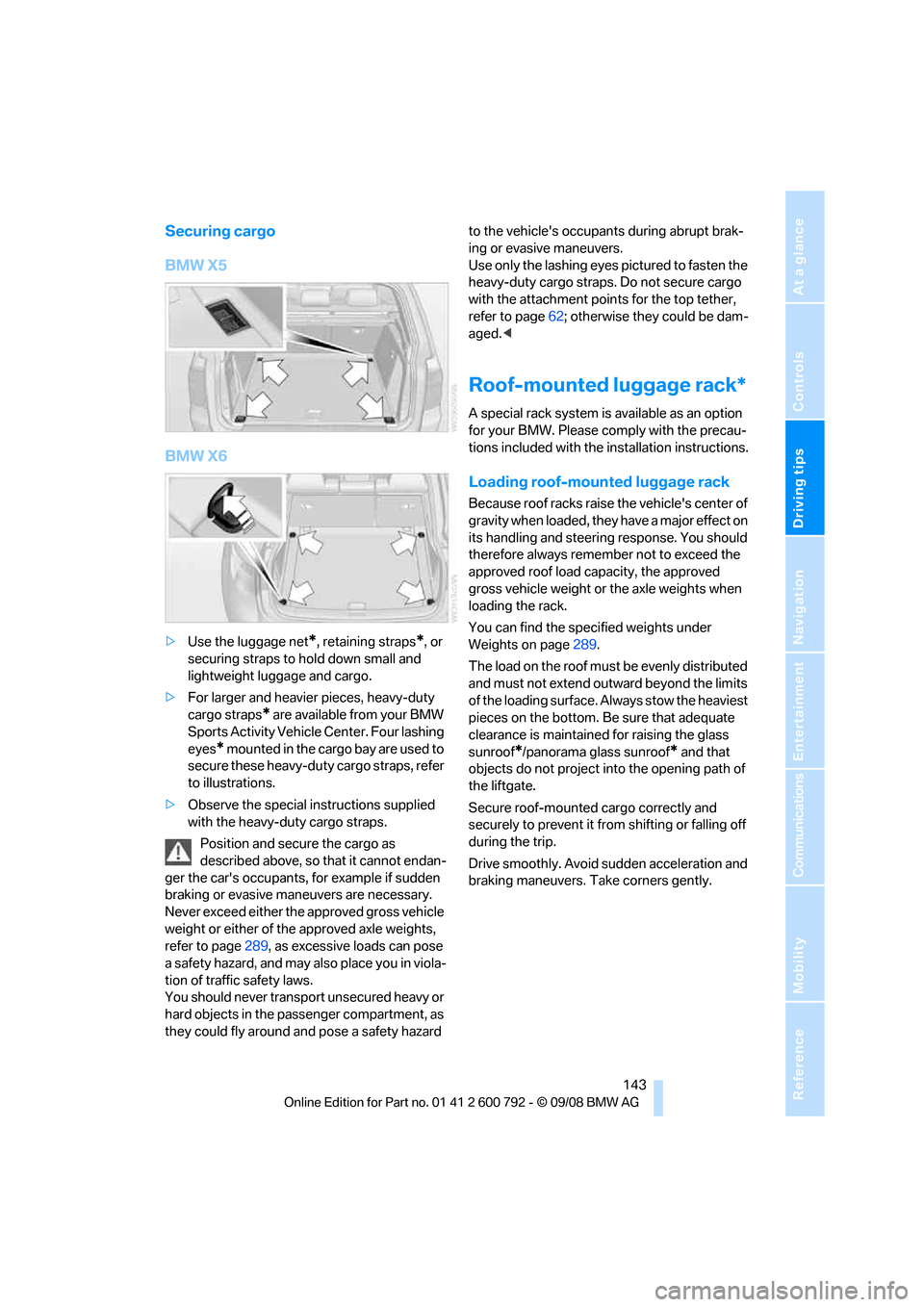
BMW X5
BMW X6
>Use the luggage net*, retaining straps*, or
securing straps to hold down small and
lightweight luggage and cargo.
> For larger and heavier pieces, heavy-duty
cargo straps
* are available from your BMW
Sports Activity Vehicl e Center. Four lashing
eyes
* mounted in the cargo bay are used to
secure these heavy-duty cargo straps, refer
to illustrations.
> Observe the special instructions supplied
with the heavy-duty cargo straps.
Position and secure the cargo as
described above, so that it cannot endan-
ger the car's occupants, for example if sudden
braking or evasive maneuvers are necessary.
Never exceed either the approved gross vehicle
weight or either of the approved axle weights,
refer to page 289, as excessive loads can pose
a safety hazard, and may also place you in viola-
tion of traffic safety laws.
You should never transport unsecured heavy or
hard objects in the passenger compartment, as
they could fly around and pose a safety hazard to the vehicle's occupants during abrupt brak-
ing or evasive maneuvers.
Use only the lashing eyes pictured to fasten the
heavy-duty cargo straps. Do not secure cargo
with the attachment points for the top tether,
refer to page
62; otherwise they could be dam-
aged. <
Roof-mounted luggage rack*
A special rack system is available as an option
for your BMW. Please co mply with the precau-
tions included with the installation instructions.
Loading roof-mounted luggage rack
Because roof racks raise the vehicle's center of
gravity when loaded, they have a major effect on
its handling and steering response. You should
therefore always remember not to exceed the
approved roof load capacity, the approved
gross vehicle weight or the axle weights when
loading the rack.
You can find the specified weights under
Weights on page 289.
The load on the roof must be evenly distributed
and must not extend outward beyond the limits
of the loading surface. Always stow the heaviest
pieces on the bottom. Be sure that adequate
clearance is maintained for raising the glass
sunroof
*/panorama glass sunroof* and that
objects do not project into the opening path of
the liftgate.
Secure roof-mounted cargo correctly and
securely to prevent it fr om shifting or falling off
during the trip.
Drive smoothly. Avoid su dden acceleration and
braking maneuvers. Take corners gently.
Page 146 of 317
Things to remember when driving
144
Driving on poor roads
Your BMW is at home on all roads and surfaces.
It combines a 4-wheel drive system with the
advantages of a normal passenger car.Do not drive on unpaved terrain, as other-
wise the vehicle may be damaged. <
When you are driving on poor roads, there are a
few points which you shou ld strictly observe for
your own safety, for that of your passengers,
and for the safety of the vehicle:
> Familiarize yourself wi th the vehicle before
driving off and avoid taking risks at all costs.
> Adapt your driving spee d to the road condi-
tions. The steeper and rougher the road
surface is, the lower the speed should be.
> If you want to drive on very steep uphill or
downhill gradients, ma ke sure beforehand
that the engine oil and coolant levels are
near the MAX mark, refer to page 259.
BMW X5: you can operate your vehicle on
uphill and downhill gradients with a maxi-
mum slope of 50 %.
> On very steep downhill slopes, use Hill
Descent Control HDC, refer to page 98.
BMW X5: it is possible to start off on inclines
of up to 33 %. The permissible body roll is
50 %.
> While driving, watch carefully for obstacles
such as rocks or holes. Try to avoid these
obstacles whenev er possible.
> Make sure that the undercarriage does not
touch the ground, for example on crests and
bumpy roads. The ground clearance of the
vehicle is a maximum of approx. 8 in/20 cm.
Please note that the ground clearance can
vary depending on lo ading and the driving
conditions of the vehicle.
> Only drive through road surface water up to
a maximum water depth of
> BMW X5 20 in/50 cm
> BMW X6 17 in/45 cm
and only drive at walking speed; do not
remain stationary. >
After driving through water at low speed,
lightly press the brake pedal several times
to dry the brakes and to prevent the braking
effect from being reduced by wetness.
> Depending on the condition of the surface,
it may be practical to briefly activate DTC,
refer to DTC Dynamic Traction Control on
page 97.
> If the drive wheels spin on one side, depress
the accelerator pedal su fficiently so that the
driving stability control systems can distrib-
ute the drive forces to the individual wheels.
Please note the following points after driving on
poor roads to maintain the driving safety of your
BMW:
> Clean the coarsest dirt from the body.
> Clean mud, snow, ice etc. from the wheels
and tires and check the tires for damage.
Page 150 of 317
Starting navigation system
148
Starting navigation system
Your navigation system can use satellites to
ascertain the precise position of your vehicle
and guide you reliably to any destination you
enter.
Navigation DVD
The navigation system requires a special navi-
gation DVD. The latest version is available at
your BMW Sports Activity Vehicle Center.
Inserting navigation DVD
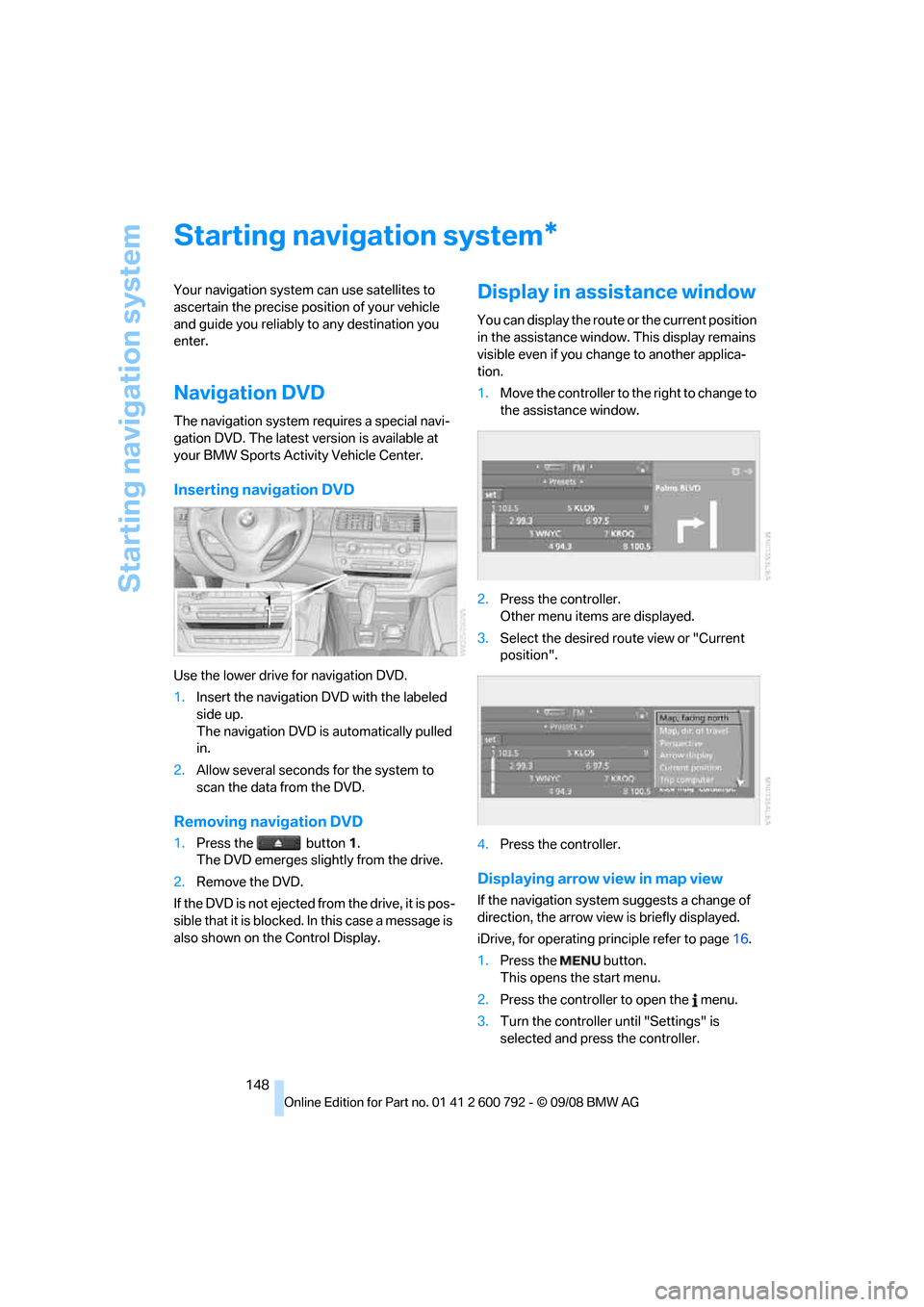
Use the lower drive for navigation DVD.
1. Insert the navigation DVD with the labeled
side up.
The navigation DVD is automatically pulled
in.
2. Allow several seconds for the system to
scan the data from the DVD.
Removing navigation DVD
1.Press the button 1.
The DVD emerges slightly from the drive.
2. Remove the DVD.
If the DVD is not ejected fr om the drive, it is pos-
sible that it is blocked. In this case a message is
also shown on the Control Display.
Display in assi stance window
You can display the route or the current position
in the assistance window . This display remains
visible even if you change to another applica-
tion.
1. Move the controller to th e right to change to
the assistance window.
2. Press the controller.
Other menu items are displayed.
3. Select the desired route view or "Current
position".
4. Press the controller.
Displaying arrow view in map view
If the navigation system suggests a change of
direction, the arrow view is briefly displayed.
iDrive, for operating pr inciple refer to page16.
1. Press the button.
This opens the start menu.
2. Press the controller to open the menu.
3. Turn the controller until "Settings" is
selected and press the controller.
*
Page 163 of 317
Navigation
Driving tips
161Reference
At a glance
Controls
Communications
Entertainment
Mobility
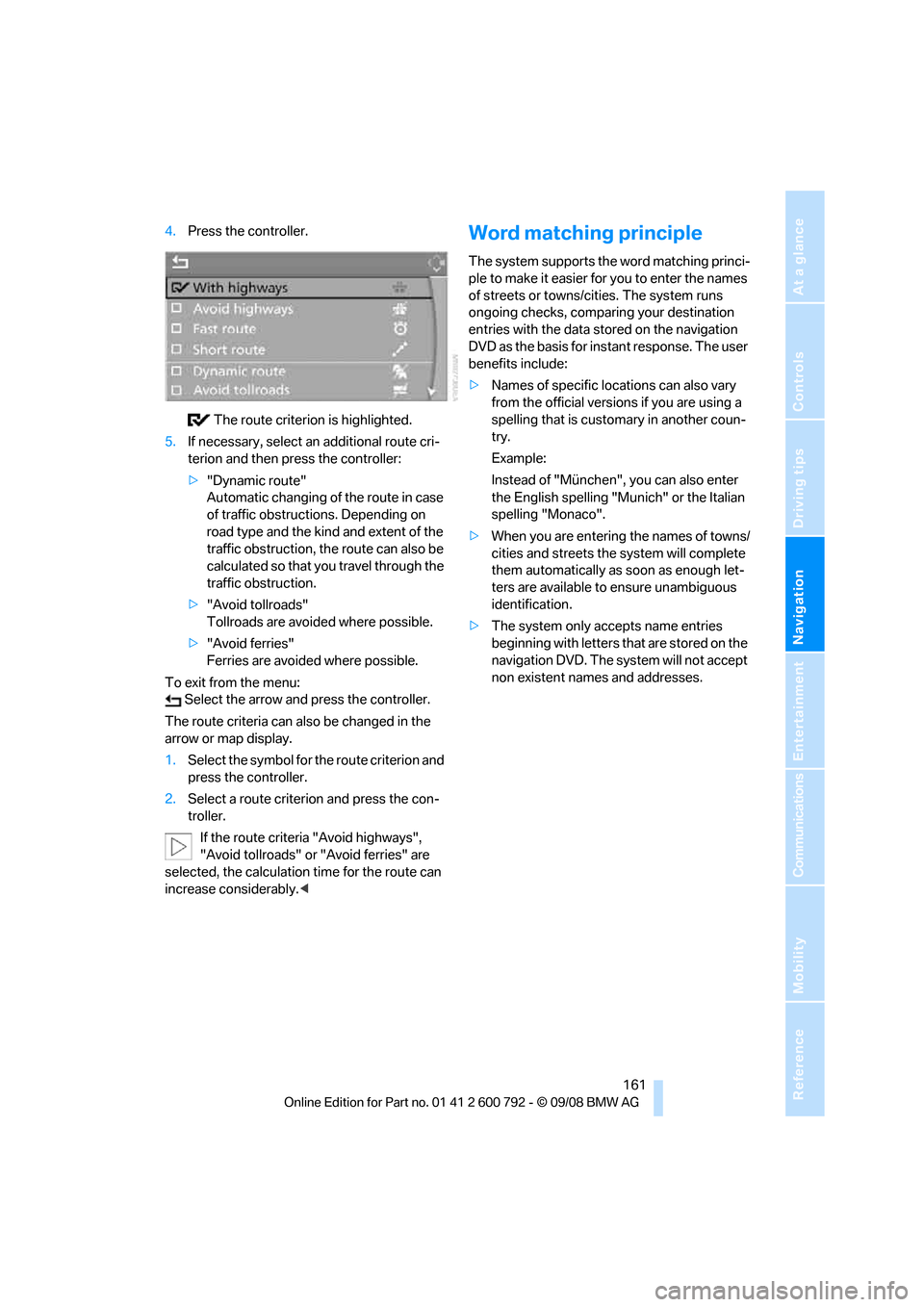
4.Press the controller.
The route criterion is highlighted.
5. If necessary, select an additional route cri-
terion and then press the controller:
>"Dynamic route"
Automatic changing of the route in case
of traffic obstructions. Depending on
road type and the kind and extent of the
traffic obstruction, the route can also be
calculated so that yo u travel through the
traffic obstruction.
> "Avoid tollroads"
Tollroads are avoi ded where possible.
> "Avoid ferries"
Ferries are avoided where possible.
To exit from the menu: Select the arrow and press the controller.
The route criteria can also be changed in the
arrow or map display.
1. Select the symbol for the route criterion and
press the controller.
2. Select a route criterion and press the con-
troller.
If the route criteria "Avoid highways",
"Avoid tollroads" or "Avoid ferries" are
selected, the calculation time for the route can
increase considerably.
ple to make it easier for you to enter the names
of streets or towns/cities. The system runs
ongoing checks, comparing your destination
entries with the data stored on the navigation
DVD as the basis for instant response. The user
benefits include:
>Names of specific loca tions can also vary
from the official versions if you are using a
spelling that is customary in another coun-
try.
Example:
Instead of "München", you can also enter
the English spelling "Mun ich" or the Italian
spelling "Monaco".
> When you are entering the names of towns/
cities and streets the system will complete
them automatically as soon as enough let-
ters are available to ensure unambiguous
identification.
> The system only accepts name entries
beginning with letters that are stored on the
navigation DVD. The system will not accept
non existent names and addresses.
Page 170 of 317
Destination guidance
168
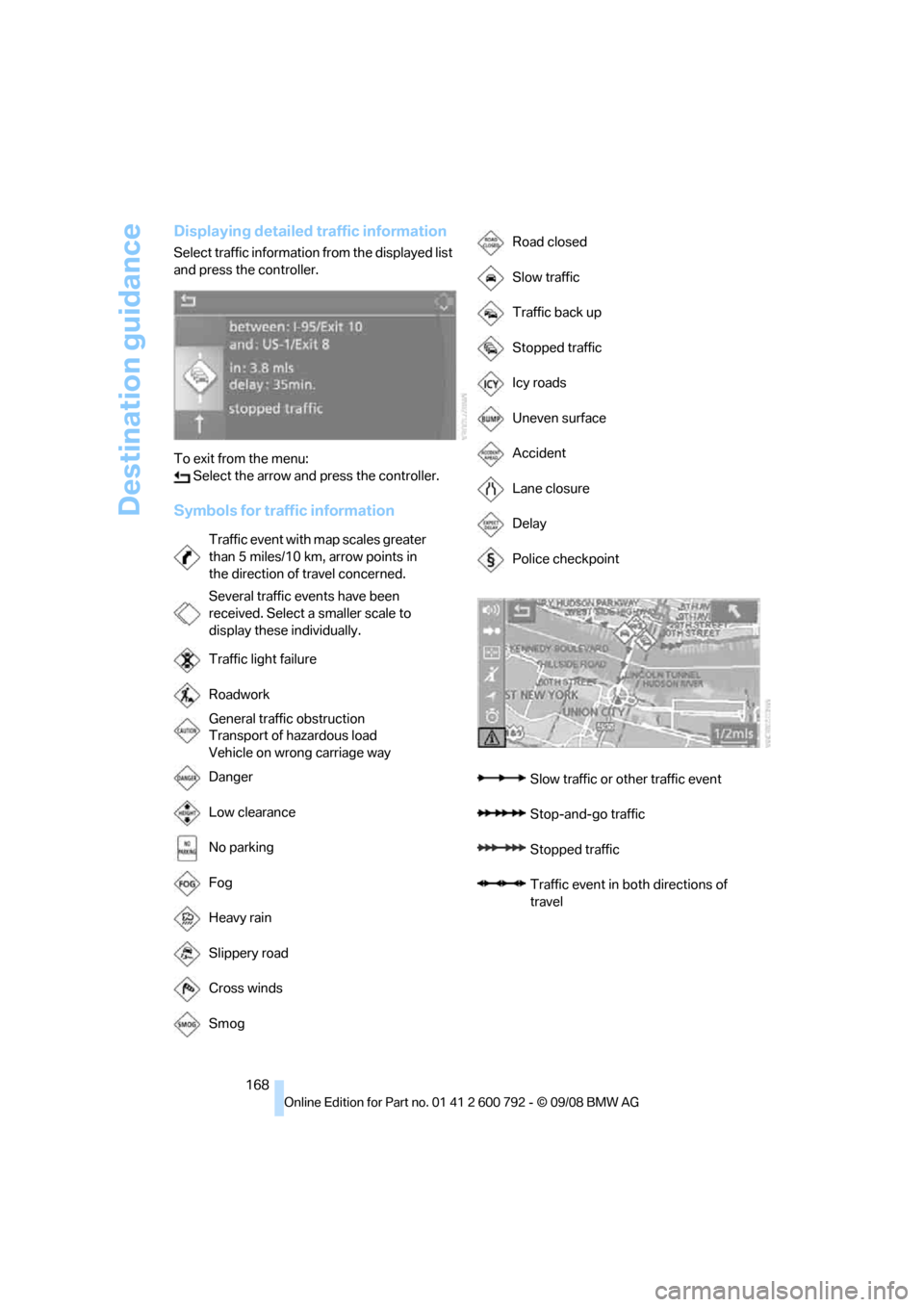
Displaying detailed traffic information
Select traffic information from the displayed list
and press the controller.
To exit from the menu: Select the arrow and press the controller.
Symbols for traffic information
Traffic event with map scales greater
than 5 miles/10 km, arrow points in
the direction of travel concerned.
Several traffic events have been
received. Select a smaller scale to
display these individually.
Traffic light failure
Roadwork
General traffic obstruction
Transport of hazardous load
Vehicle on wrong carriage way
Danger
Low clearance
No parking
Fog
Heavy rain
Slippery road
Cross winds
Smog
Road closed
Slow traffic
Traffic back up
Stopped traffic
Icy roads
Uneven surface
Accident
Lane closure
Delay
Police checkpoint
Slow traffic or other traffic event
Stop-and-go traffic
Stopped traffic
Traffic event in bo th directions of
travel
Page 193 of 317
Navigation
Entertainment
Driving tips
191Reference
At a glance
Controls
Communications
Mobility
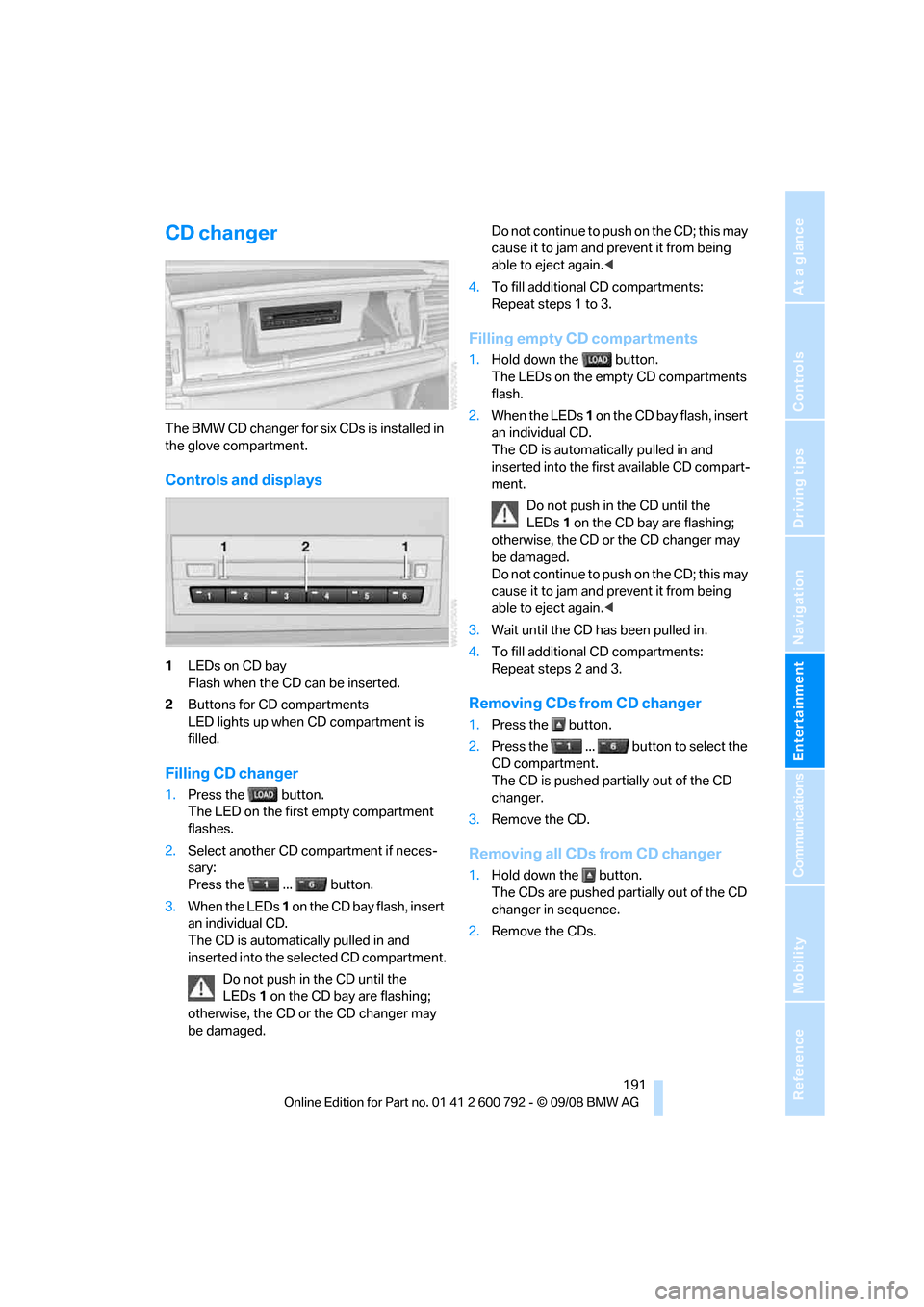
CD changer
The BMW CD changer for six CDs is installed in
the glove compartment.
Controls and displays
1LEDs on CD bay
Flash when the CD can be inserted.
2 Buttons for CD compartments
LED lights up when CD compartment is
filled.
Filling CD changer
1.Press the button.
The LED on the first empty compartment
flashes.
2. Select another CD compartment if neces-
sary:
Press the ... button.
3. When the LEDs 1 o n t h e C D b a y f l a s h , i n s e r t
an individual CD.
The CD is automatica lly pulled in and
inserted into the selected CD compartment.
Do not push in the CD until the
LEDs 1 on the CD bay are flashing;
otherwise, the CD or the CD changer may
be damaged. Do not continue to push on the CD; this may
cause it to jam and prevent it from being
able to eject again.
<
4. To fill additional CD compartments:
Repeat steps 1 to 3.
Filling empty CD compartments
1.Hold down the button.
The LEDs on the empty CD compartments
flash.
2. When the LEDs 1 o n t h e C D b a y f l a s h , i n s e r t
an individual CD.
The CD is automati cally pulled in and
inserted into the first available CD compart-
ment.
Do not push in the CD until the
LEDs 1 on the CD bay are flashing;
otherwise, the CD or the CD changer may
be damaged.
Do not continue to push on the CD; this may
cause it to jam and prevent it from being
able to eject again. <
3. Wait until the CD has been pulled in.
4. To fill additional CD compartments:
Repeat steps 2 and 3.
Removing CDs from CD changer
1.Press the button.
2. Press the ... button to select the
CD compartment.
The CD is pushed partially out of the CD
changer.
3. Remove the CD.
Removing all CDs from CD changer
1.Hold down the button.
The CDs are pushed partially out of the CD
changer in sequence.
2. Remove the CDs.
Page 194 of 317
CD player and CD changer
192
Notes
BMW CD/DVD players and changers are
officially designated Class 1 laser prod-
ucts. Do not operate if the cover is damaged,
otherwise severe eye damage can result.
Do not use self-recorded CDs/DVDs with labels
applied as these can become detached during
playback due to heat buildup and can cause
irreparable damage to the device.
Only use round CDs/DVDs with a standard
diameter of 4.7 in/12 cm and do not play CDs/
D V D s w i t h a n a d a p t e r , e . g . C D si n g l e s , a s o t h e r -
wise the CD/DVD or the adapter can jam and
may no longer eject properly.
Do not use a combined CD/DVD, e.g. DVD
Plus,
otherwise the CD/DVD can jam and will no
longer eject. <
General malfunctions
BMW CD/DVD changers and players have been
optimized for performance in vehicles. In some
instances they may be mo re sensitive to faulty
CDs/DVDs than stationary devices would be.
If a CD/DVD cannot be pl ayed, first check if it
has been inserted correctly.
Humidity
High levels of humidity can lead to condensa-
tion on the CD/DVD or the laser's scan lens and
temporarily prevent playback.
Malfunctions with individual CDs/DVDs
If malfunctions occur on ly with particular CDs/
DVDs, this can be due to one of the following
causes.
Filling CD/DVD changer or removing
CDs/DVDs
If all of the LEDs on the CD/DVD changer flash
rapidly, then a malfunction is occurring.
To rectify the malfunction:
1. Press the button.
The CD/DVD last in serted is ejected.
2. Remove the CD/DVD. When the LEDs stop flashing rapidly, the CD/
DVD changer is once more operational.
Self-recorded CDs/DVDs
Possible reasons for malfunctions with self-
recorded CDs/DVDs are, e.g., inconsistent
data-creation or recording processes, or poor
quality or high age of the CD/DVD blank.
Only label CDs/DVDs on
the upper side with a
pen intended for this purpose.
Avoiding damage
Avoid fingerprints, dust, scratches and mois-
ture.
Store CDs/DVDs in a sleeve.
Do not subject CDs/DVDs to temperatures over
122 6/50 6, high levels of humidity, or direct
sunlight.
CDs/DVDs with copy protection
CDs/DVDs are often prov ided with a copy pro-
tection feature by the manufacturer. This can
m e a n t h a t s o m e C D s / D V D s c a n n o t b e p l a y e d o r
can only be played to a limited extent.
Care
If necessary, clean the reflective scanning side
of the CDs/DVDs with a commercially available
cleaning cloth by wiping in straight lines from
the center outward.
Page 195 of 317
Navigation
Entertainment
Driving tips
193Reference
At a glance
Controls
Communications
Mobility
DVD changer
Installation position
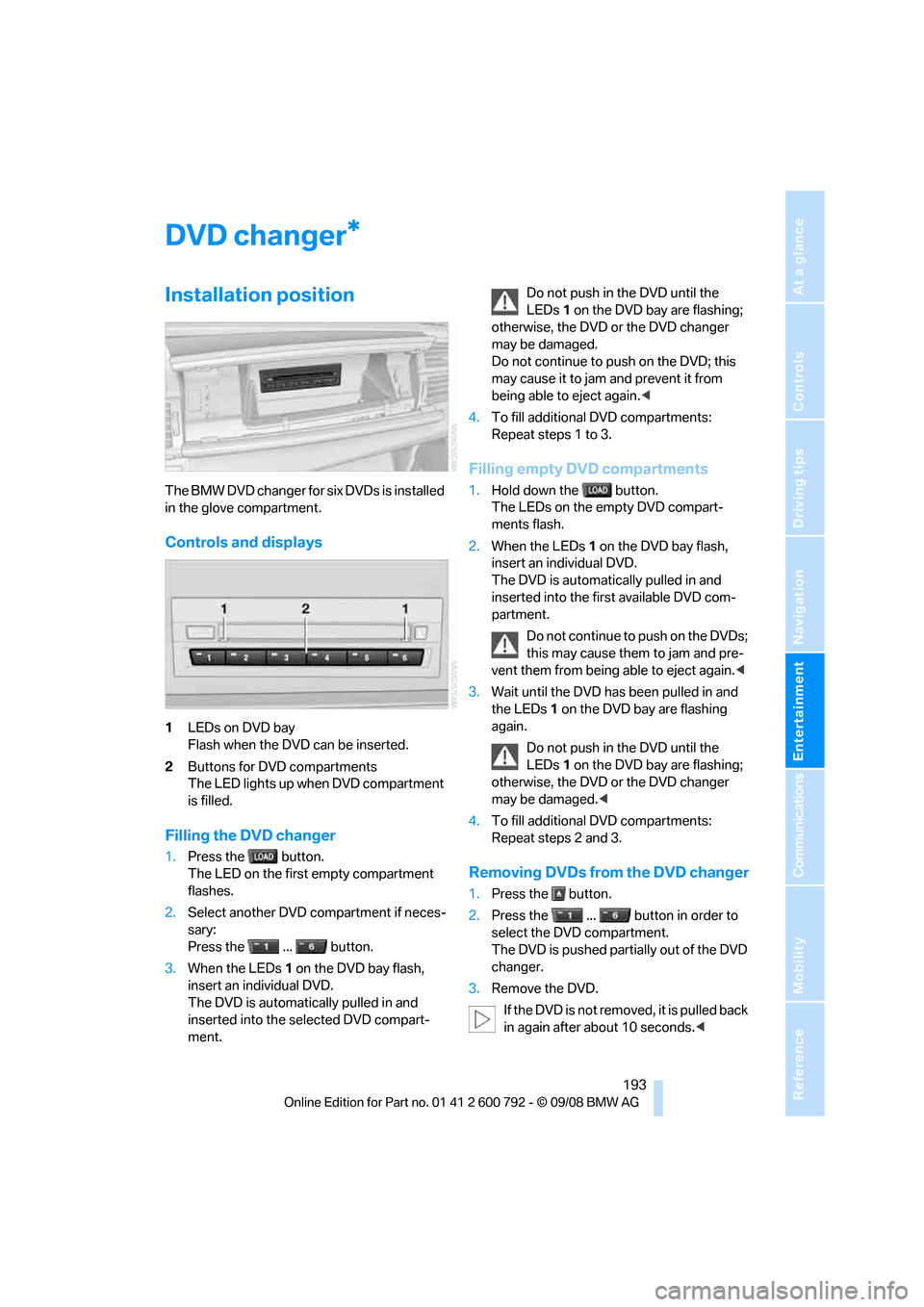
The BMW DVD changer for six DVDs is installed
in the glove compartment.
Controls and displays
1LEDs on DVD bay
Flash when the DVD can be inserted.
2 Buttons for DVD compartments
The LED lights up when DVD compartment
is filled.
Filling the DVD changer
1.Press the button.
The LED on the first empty compartment
flashes.
2. Select another DVD compartment if neces-
sary:
Press the ... button.
3. When the LEDs 1 on the DVD bay flash,
insert an individual DVD.
The DVD is automatically pulled in and
inserted into the selected DVD compart-
ment. Do not push in the DVD until the
LEDs
1 on the DVD bay are flashing;
otherwise, the DVD or the DVD changer
may be damaged.
Do not continue to push on the DVD; this
may cause it to jam and prevent it from
being able to eject again. <
4. To fill additional DVD compartments:
Repeat steps 1 to 3.
Filling empty DVD compartments
1.Hold down the button.
The LEDs on the empty DVD compart-
ments flash.
2. When the LEDs 1 on the DVD bay flash,
insert an individual DVD.
The DVD is automatically pulled in and
inserted into the first available DVD com-
partment.
Do not continue to push on the DVDs;
this may cause them to jam and pre-
vent them from being able to eject again. <
3. Wait until the DVD has been pulled in and
the LEDs 1 on the DVD bay are flashing
again.
Do not push in the DVD until the
LEDs 1 on the DVD bay are flashing;
otherwise, the DVD or the DVD changer
may be damaged. <
4. To fill additional DVD compartments:
Repeat steps 2 and 3.
Removing DVDs from the DVD changer
1.Press the button.
2. Press the ... button in order to
select the DVD compartment.
The DVD is pushed partially out of the DVD
changer.
3. Remove the DVD.
If the DVD is not removed, it is pulled back
in again after about 10 seconds. <
*
Page 207 of 317
Navigation
Entertainment
Driving tips
205Reference
At a glance
Controls
Communications
Mobility
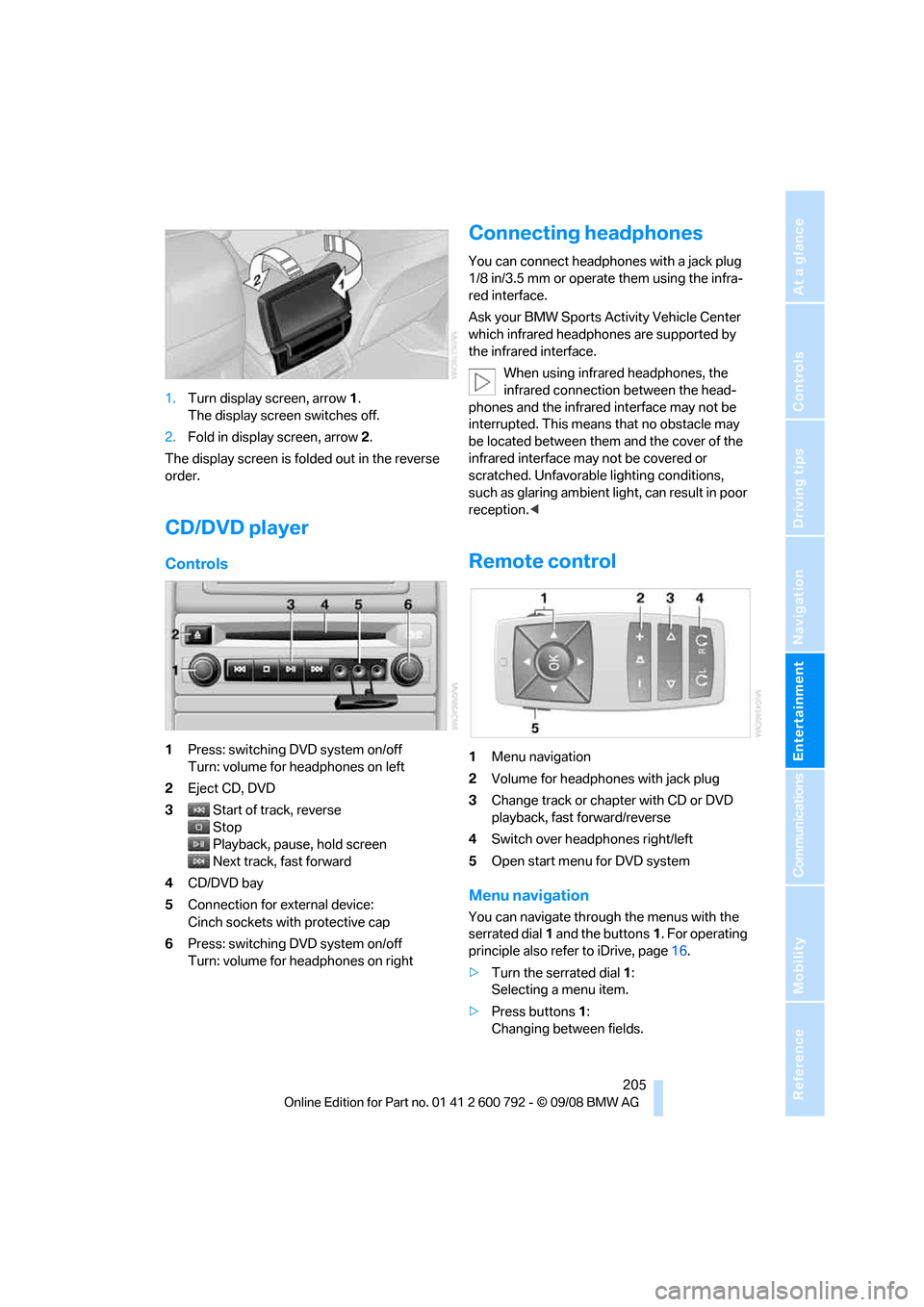
1.Turn display screen, arrow 1.
The display screen switches off.
2. Fold in display screen, arrow 2.
The display screen is folded out in the reverse
order.
CD/DVD player
Controls
1 Press: switching DVD system on/off
Turn: volume for he adphones on left
2 Eject CD, DVD
3 Start of track, reverse
Stop
Playback, pause, hold screen
Next track, fast forward
4 CD/DVD bay
5 Connection for external device:
Cinch sockets with protective cap
6 Press: switching DVD system on/off
Turn: volume for he adphones on right
Connecting headphones
You can connect headphones with a jack plug
1/8 in/3.5 mm or operate them using the infra-
red interface.
Ask your BMW Sports Activity Vehicle Center
which infrared headphones are supported by
the infrared interface.
When using infrared headphones, the
infrared connection between the head-
phones and the infrared interface may not be
interrupted. This means that no obstacle may
be located between them and the cover of the
infrared interface may not be covered or
scratched. Unfavorable lighting conditions,
such as glaring ambient lig ht, can result in poor
reception. <
Remote control
1Menu navigation
2 Volume for headphones with jack plug
3 Change track or chapter with CD or DVD
playback, fast forward/reverse
4 Switch over headphones right/left
5 Open start menu for DVD system
Menu navigation
You can navigate throug h the menus with the
serrated dial 1 and the buttons 1. For operating
principle also refer to iDrive, page 16.
> Turn the serrated dial 1:
Selecting a menu item.
> Press buttons 1:
Changing between fields.
Page 209 of 317
Navigation
Entertainment
Driving tips
207Reference
At a glance
Controls
Communications
Mobility
An overview of the coding zones:
Starting playback
1.Push the CD/DVD into the drive with the
labeled side facing upward.
The CD/DVD is automa tically pulled in.
> Playback usually begins automatically
after a few seconds.
> If playback does no t begin automatically:
Select "DVD".
Press the button.
2. If the DVD controller or the DVD-specific
menu is displayed fo r a DVD, select the
desired option for menu guidance with the
remote control buttons.
Or:
Press the button on the CD/DVD player.
You can control the playback with the buttons
on the CD/DVD player or the DVD control. Video CDs, VCD, and Super Video CDs,
SVCD, can be played like DVDs if they do
not have a DVD menu of their own. <
Ejecting CD/DVD
Press the button on the CD/DVD player.
The DVD emerges slightly from the drive.
DVD control
With the DVD control, you can select the title
and chapter, open the DVD-specific menu and
operate functions such as Language, Fast for-
ward and Reverse or Freeze frame.
A DVD can briefly deacti vate functions of the
DVD control, under certain circumstances while the entire DVD is being played. It is not possible
to operate the DVD control under these circum-
stances. In this case, tr
y to make the selection
using the DVD-specific menu.
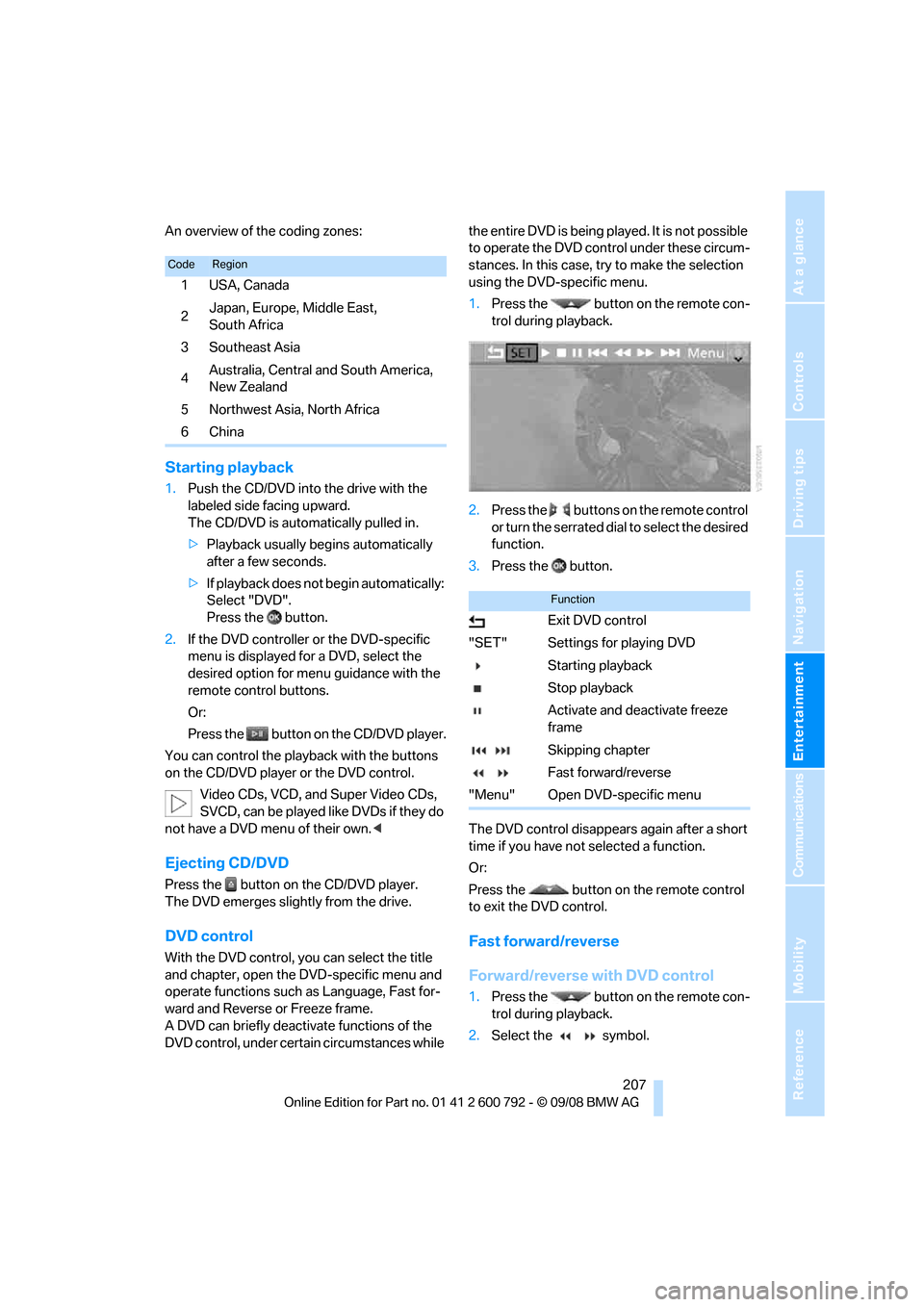
1. Press the button on the remote con-
trol during playback.
2. Press the buttons on the remote control
or turn the serrated dial to select the desired
function.
3. Press the button.
The DVD control disappears again after a short
time if you have not selected a function.
Or:
Press the button on the remote control
to exit the DVD control.
Fast forward/reverse
Forward/reverse with DVD control
1. Press the button on the remote con-
trol during playback.
2. Select the symbol.
CodeRegion
1USA, Canada
2 Japan, Europe, Middle East,
South Africa
3 Southeast Asia
4 Australia, Central and South America,
New Zealand
5Northwest Asia, North Africa
6China
Function
Exit DVD control
"SET" Settings for playing DVD Starting playback
Stop playback
Activate and deactivate freeze
frame
Skipping chapter
Fast forward/reverse
"Menu" Open DVD-specific menu