rear view camera BMW X5 2010 E70 Owner's Manual
[x] Cancel search | Manufacturer: BMW, Model Year: 2010, Model line: X5, Model: BMW X5 2010 E70Pages: 300, PDF Size: 12.41 MB
Page 17 of 300
At a glance
15Reference
Controls
Driving tips
Communications
Navigation
Entertainment
Mobility
1Microphone for hands-free mode for
telephone
* and for voice activation
system
*22
2Initiating
an emergency request261
3Reading lamps106
4Glass sunroof38, 40
5Interior lamps106
6Passenger airbag status lamp98
7Control Display16
Displays for menu navigation
8Hazard warning flashers
9Central locking system27
10Opening glove compartment118
11Automatic climate control with 2-zone
control108
Automatic climate control with 4-zone
control
*112
12Changing
>radio station160
>track160
13Selecting radio, CD and CD/DVD changer
*
14Selecting AM or FM waveband
16Controller16
Can be turned, pressed, or moved in four
directions
17Buttons on the controller17
Selecting menus directly
18Automatic Hold61
19Parking brake61
20Adaptive Drive
*91
21Programmable memory buttons20
22Switching Entertainment sound output on/
off and adjusting volume160
23Ejecting audio CD Manual air distribution110
Automatic air distribution and
volume108
Cooling function110
AUC Automatic recirculated-air
control110
Maximum cooling110
Air volume109
Residual heat utilization110
Defrosting windows and removing
condensation109
Rear window defroster109
Seat heating
*50
Active seat ventilation
*51
15
Opening liftgate30, 33
Active seat
*52
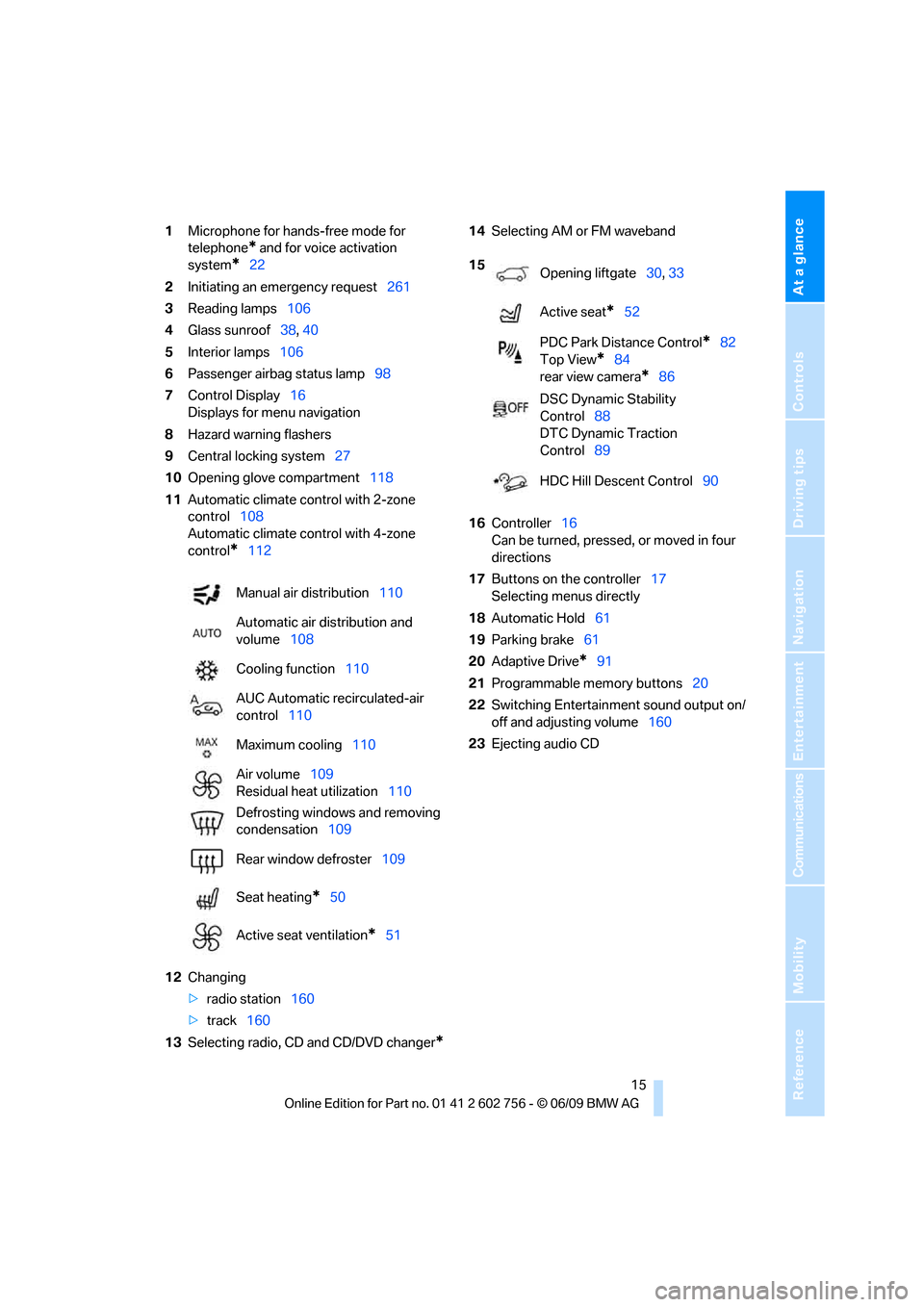
PDC Park Distance Control
*82
Top View
*84
rear view camera
*86
DSC Dynamic Stability
Control88
DTC Dynamic Traction
Control89
HDC Hill Descent Control90
ba8_e70ag.book Seite 15 Freitag, 5. Juni 2009 11:42 11
Page 29 of 300
Controls
27Reference
At a glance
Driving tips
Communications
Navigation
Entertainment
Mobility
>12h/24h clock format, refer to page80
>Date format, refer to page80
>Lighting settings:
>Triple turn signal activation, refer to
page67
>Welcome lamps, refer to page102
>Pathway lighting, refer to page103
>Daytime driving lamps
*, refer to
page103
>High-beam assistant
*, refer to page104
>PDC Park Distance Control
*: optical warn-
ing, refer to page83
>Top View
*: optical warning, refer to
page85
>Rear view camera
*:
>Selecting functions, refer to page86
>Type of display, refer to page87
>Head-Up Display
*: selection, brightness
and position of display, refer to page100
>Automatic climate control: AUTO program
and intensity, cooling function, and auto-
matic recirculated-air control/recirculated-
air mode, temperature, air distribution, ven-
tilation temperature, starting on page108
>Programmable memory buttons: selecting
stored functions, refer to page20
>Positions of driver's seat, outside mirrors,
and steering wheel
*, refer to page45
>Adaptive Drive
*: selected chassis and sus-
pension tuning, refer to page91
>Audio sources: volume and tone settings,
refer to page160
>Radio:
>Display of stored stations, refer to
page165
>Switching RDS Radio Data System on/
off
*, refer to page164
>Phone: volume setting, refer to
pages205,210
Central locking system
The concept
The central locking system functions when the
driver's door is closed.
The system simultaneously engages and
releases the locks on the following:
>Doors
>liftgate
>Fuel filler door
Operating from outside
>using the remote control
>using the door lock
>with comfort access
* using the door han-
dles
The interior lamps and the courtesy lamps
* are
also switched on and off with the remote con-
trol. The alarm system
is armed/disarmed at the
same time.
You can find more detailed information on the
alarm system
on page34.
Operating from inside
Using the button for central locking, refer to
page30. The fuel filler door is not locked.
In an accident of sufficient severity, the central
locking system automatically unlocks the vehi-
cle. In addition, the hazard warning flashers and
interior lamps come on.
Opening and closing:
Using remote control
Persons or animals in a parked vehicle
could lock the doors from the inside.
Always take along the remote control when
leaving the vehicle so that the vehicle can then
be opened from the outside.<
Unlocking
Press the button.
This unlocks the vehicle.
ba8_e70ag.book Seite 27 Freitag, 5. Juni 2009 11:42 11
Page 84 of 300
Technology for comfort, convenience and safety
82
Technology for comfort, convenience and
safety
PDC Park Distance Control*
The concept
In addition to the PDC Park Distance Control,
the rear view camera
*, refer to page86, can
also be switched on.
PDC assists you during parking. A slow
approach to an object in front of or behind your
vehicle is announced by:
>Signal tones
>Optical displays
Measurement
Ultrasonic sensors in the bumpers carry out the
measurement.
Their range is approx. 7 ft/2 m.
The acoustic warning begins:
>at approx. 24 in/60 cm for the front
* sen-
sors and the two rear corner sensors.
>at approx. 5 ft/1.50 m for the middle sen-
sors in the rear.
System limitations
PDC cannot replace the personal assess-
ment of the traffic situation. Also make a
direct visual check of the traffic situation around
the vehicle. Otherwise, there could be a risk of
accident, for example due to other road users or
objects outside the detection range of PDC.
Loud sources of sound, inside and outside the
vehicle, could drown out the PDC signal tone.<
Avoid approaching an object too quickly.
Avoid starting off quickly while PDC is not
yet activated.
Otherwise, physical circumstances could cause
the system to issue a warning late.<
Limitations of ultrasonic measurement
The detection of objects can come up against
the limitations of physical ultrasonic measure-
ment, for example:
>when using tow bars and towing hitches
>in the presence of thin or wedge-shaped
objects
>in the presence of low objects
>in the presence of objects with corners and
sharp edges
Low objects that have already been displayed,
e.g. curbs, can disappear again from the detec-
tion area of the sensors before or after a contin-
uous tone sounds.
Higher, protruding objects, e.g. ledges, cannot
be detected.
False warnings
Under the following conditions, PDC may dis-
play a warning even though no obstacle is
present in the detection range:
>in heavy rain
>when the sensors are heavily soiled or iced-
over
>when the sensors are covered with snow
>on rough road surfaces
>in large, rectangular buildings with smooth
walls, e.g. underground garages
>in the presence of heavy exhaust
>due to the presence of other ultrasonic
sources such as street sweepers, steam
cleaners, or neon lamps.
Automatic activation
With the engine running or the ignition switched
on, shift the selector lever into position R.
ba8_e70ag.book Seite 82 Freitag, 5. Juni 2009 11:42 11
Page 85 of 300
Controls
83Reference
At a glance
Driving tips
Communications
Navigation
Entertainment
Mobility
Automatic deactivation
The system switches off and the LED goes out:
>after approx. 165 ft/50 m when driving for-
ward
>at speeds over approx. 25 mph/35 km/h
when driving forward
Switch the system back on as needed.
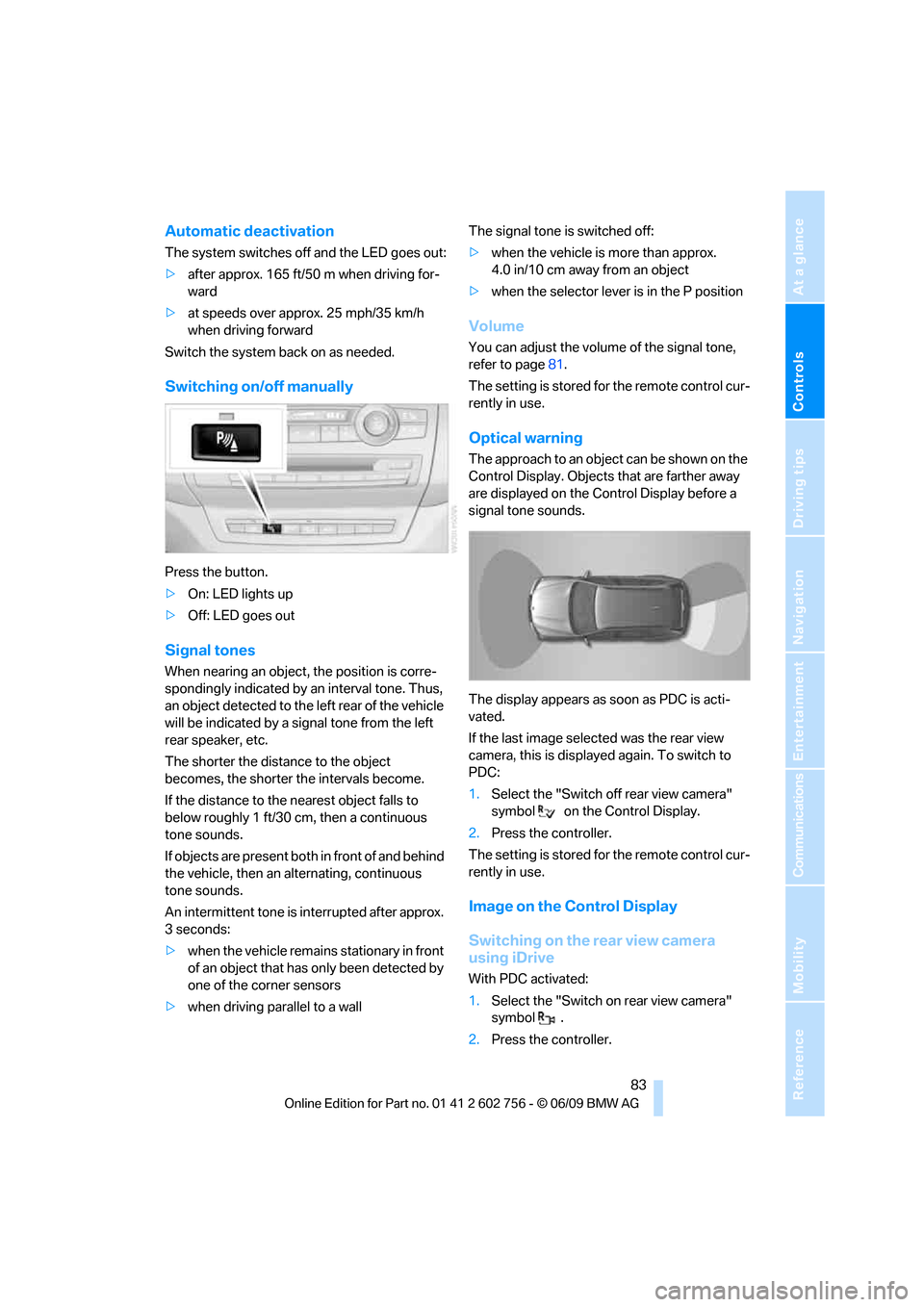
Switching on/off manually
Press the button.
>On: LED lights up
>Off: LED goes out
Signal tones
When nearing an object, the position is corre-
spondingly indicated by an interval tone. Thus,
an object detected to the left rear of the vehicle
will be indicated by a signal tone from the left
rear speaker, etc.
The shorter the distance to the object
becomes, the shorter the intervals become.
If the distance to the nearest object falls to
below roughly 1 ft/30 cm, then a continuous
tone sounds.
If objects are present both in front of and behind
the vehicle, then an alternating, continuous
tone sounds.
An intermittent tone is interrupted after approx.
3seconds:
>when the vehicle remains stationary in front
of an object that has only been detected by
one of the corner sensors
>when driving parallel to a wallThe signal tone is switched off:
>when the vehicle is more than approx.
4.0 in/10 cm away from an object
>when the selector lever is in the P position
Volume
You can adjust the volume of the signal tone,
refer to page81.
The setting is stored for the remote control cur-
rently in use.
Optical warning
The approach to an object can be shown on the
Control Display. Objects that are farther away
are displayed on the Control Display before a
signal tone sounds.
The display appears as soon as PDC is acti-
vated.
If the last image selected was the rear view
camera, this is displayed again. To switch to
PDC:
1.Select the "Switch off rear view camera"
symbol on the Control Display.
2.Press the controller.
The setting is stored for the remote control cur-
rently in use.
Image on the Control Display
Switching on the rear view camera
using iDrive
With PDC activated:
1.Select the "Switch on rear view camera"
symbol .
2.Press the controller.
ba8_e70ag.book Seite 83 Freitag, 5. Juni 2009 11:42 11
Page 86 of 300
Technology for comfort, convenience and safety
84 The image of the rear view camera is displayed.
The setting is stored for the remote control cur-
rently in use.
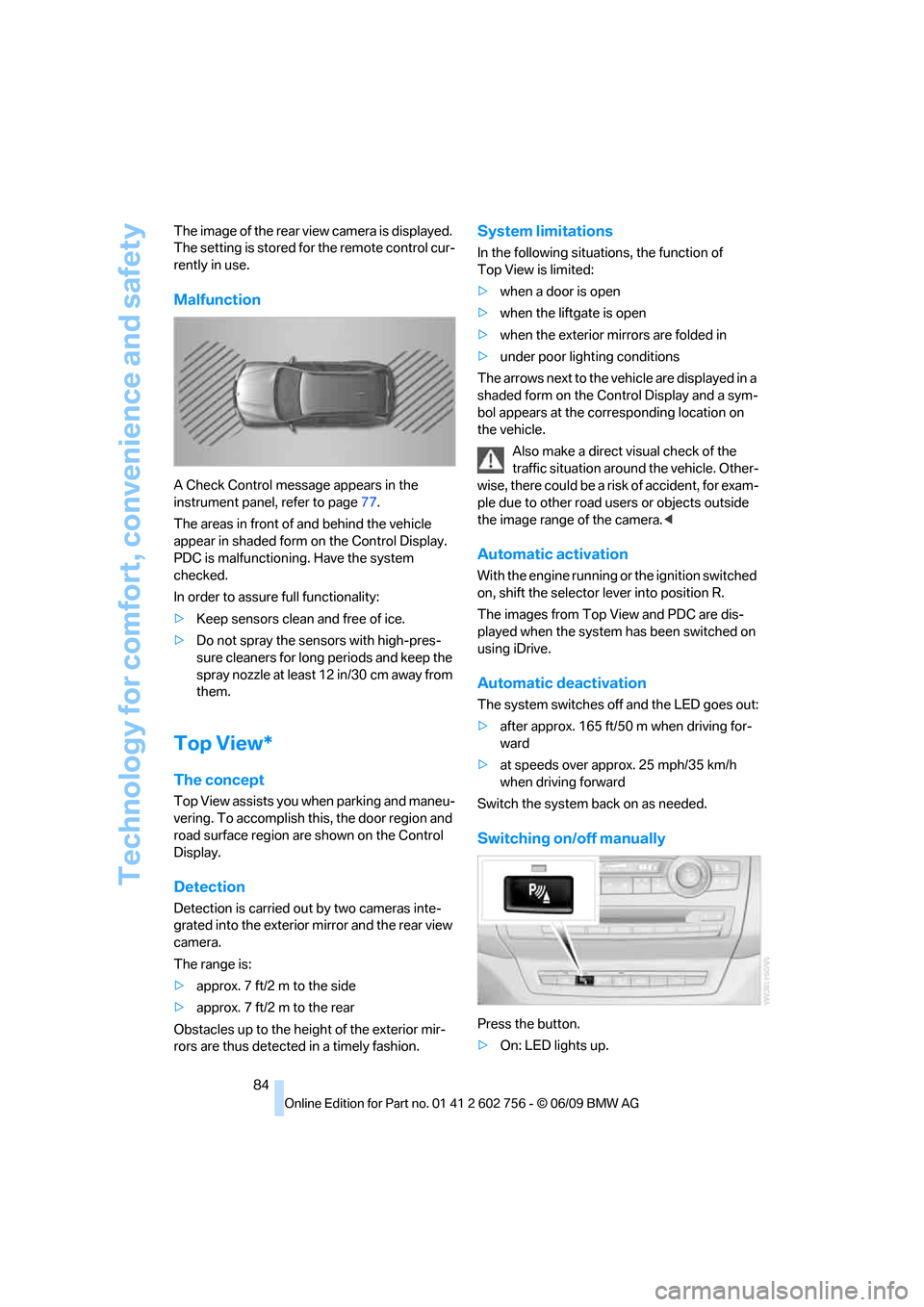
Malfunction
A Check Control message appears in the
instrument panel, refer to page77.
The areas in front of and behind the vehicle
appear in shaded form on the Control Display.
PDC is malfunctioning. Have the system
checked.
In order to assure full functionality:
>Keep sensors clean and free of ice.
>Do not spray the sensors with high-pres-
sure cleaners for long periods and keep the
spray nozzle at least 12 in/30 cm away from
them.
Top View*
The concept
Top View assists you when parking and maneu-
vering. To accomplish this, the door region and
road surface region are shown on the Control
Display.
Detection
Detection is carried out by two cameras inte-
grated into the exterior mirror and the rear view
camera.
The range is:
>approx. 7 ft/2 m to the side
>approx. 7 ft/2 m to the rear
Obstacles up to the height of the exterior mir-
rors are thus detected in a timely fashion.
System limitations
In the following situations, the function of
Top View is limited:
>when a door is open
>when the liftgate is open
>when the exterior mirrors are folded in
>under poor lighting conditions
The arrows next to the vehicle are displayed in a
shaded form on the Control Display and a sym-
bol appears at the corresponding location on
the vehicle.
Also make a direct visual check of the
traffic situation around the vehicle. Other-
wise, there could be a risk of accident, for exam-
ple due to other road users or objects outside
the image range of the camera.<
Automatic activation
With the engine running or the ignition switched
on, shift the selector lever into position R.
The images from Top View and PDC are dis-
played when the system has been switched on
using iDrive.
Automatic deactivation
The system switches off and the LED goes out:
>after approx. 165 ft/50 m when driving for-
ward
>at speeds over approx. 25 mph/35 km/h
when driving forward
Switch the system back on as needed.
Switching on/off manually
Press the button.
>On: LED lights up.
ba8_e70ag.book Seite 84 Freitag, 5. Juni 2009 11:42 11
Page 87 of 300
Controls
85Reference
At a glance
Driving tips
Communications
Navigation
Entertainment
Mobility
>Off: LED goes out.
If Top View is displayed, switch o n the rea r vie w
camera using iDrive, refer to page87.
Optical warning
The approach to an object can be shown on the
Control Display.
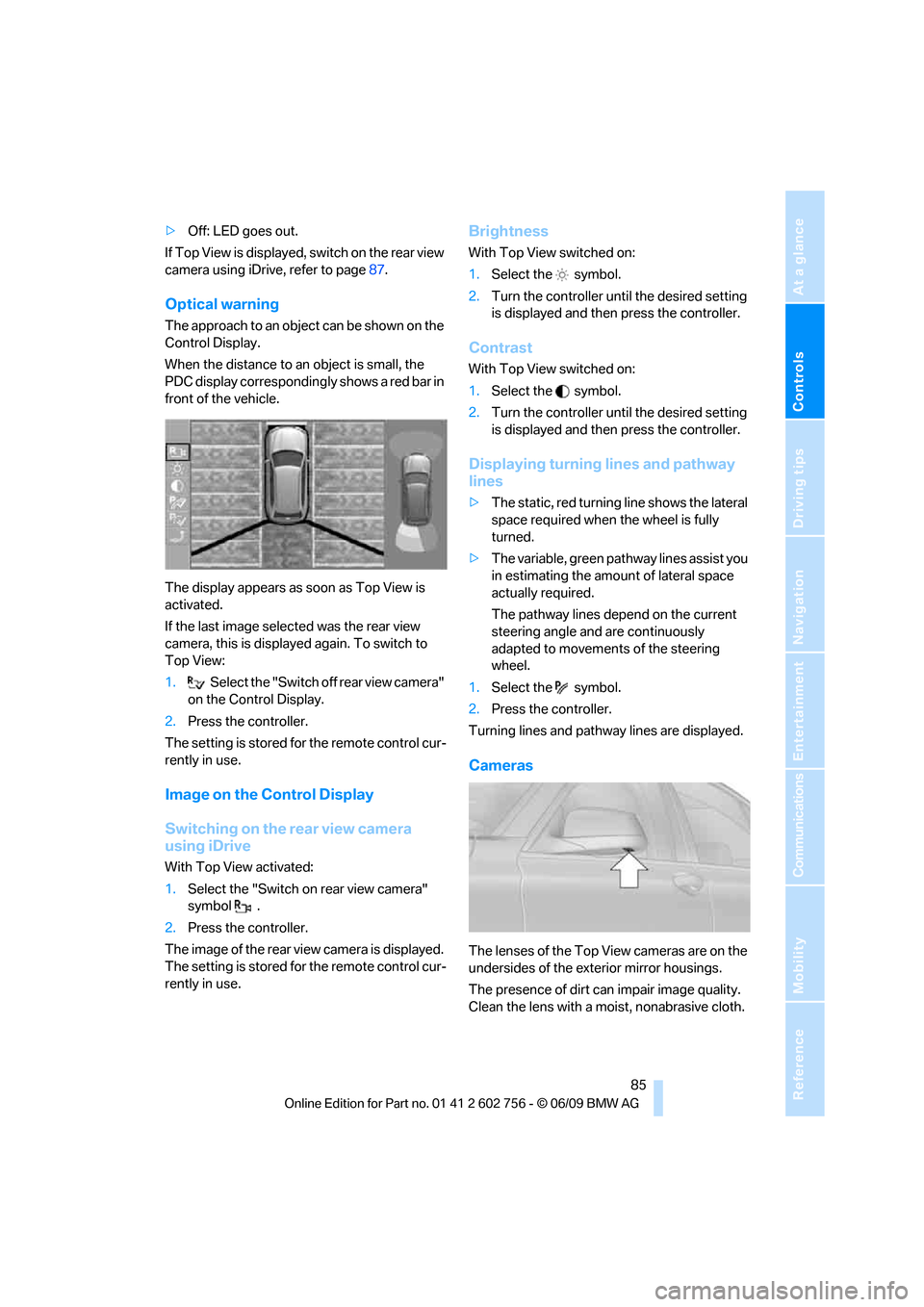
When the distance to an object is small, the
PDC display correspondingly shows a red bar in
front of the vehicle.
The display appears as soon as Top View is
activated.
If the last image selected was the rear view
camera, this is displayed again. To switch to
Top View:
1.Select the "Switch off rear view camera"
on the Control Display.
2.Press the controller.
The setting is stored for the remote control cur-
rently in use.
Image on the Control Display
Switching on the rear view camera
using iDrive
With Top View activated:
1.Select the "Switch on rear view camera"
symbol .
2.Press the controller.
The image of the rear view camera is displayed.
The setting is stored for the remote control cur-
rently in use.
Brightness
With Top View switched on:
1.Select the symbol.
2.Turn the controller until the desired setting
is displayed and then press the controller.
Contrast
With Top View switched on:
1.Select the symbol.
2.Turn the controller until the desired setting
is displayed and then press the controller.
Displaying turning lines and pathway
lines
>The static, red turning line shows the lateral
space required when the wheel is fully
turned.
>The variable, green pathway lines assist you
in estimating the amount of lateral space
actually required.
The pathway lines depend on the current
steering angle and are continuously
adapted to movements of the steering
wheel.
1.Select the symbol.
2.Press the controller.
Turning lines and pathway lines are displayed.
Cameras
The lenses of the Top View cameras are on the
undersides of the exterior mirror housings.
The presence of dirt can impair image quality.
Clean the lens with a moist, nonabrasive cloth.
ba8_e70ag.book Seite 85 Freitag, 5. Juni 2009 11:42 11
Page 88 of 300
Technology for comfort, convenience and safety
86
Rear view camera*
The concept
The rear view camera assists you when parking
and maneuvering in reverse. To accomplish
this, the region behind your vehicle is shown on
the Control Display.
System limitations
Also make a direct visual check of the
traffic situation around the vehicle. Other-
wise, there could be a risk of accident, for exam-
ple due to other road users or objects outside
the image range of the rear view camera.<
The rear view camera is not able to detect
objects at greater heights or protruding
objects such as projections from walls.<
Automatic activation
With the engine running or the ignition switched
on, shift the selector lever into position R.
The image of the rear view camera is displayed
when the system has been switched on using
iDrive.
Automatic deactivation
The system switches off and the LED goes out:
>after approx. 33 ft/10 m when driving for-
ward
>at speeds over approx. 9 mph/15 km/h
when driving forward
Switch the system back on as needed.
Switching on/off manually
Press the button.
>On: LED lights up.>Off: LED goes out.
If PDC is displayed, switch on the rear view
camera using iDrive, refer to page83.
Assistance functions
Function requirements
>Rear view camera is switched on.
>Liftgate is completely closed.
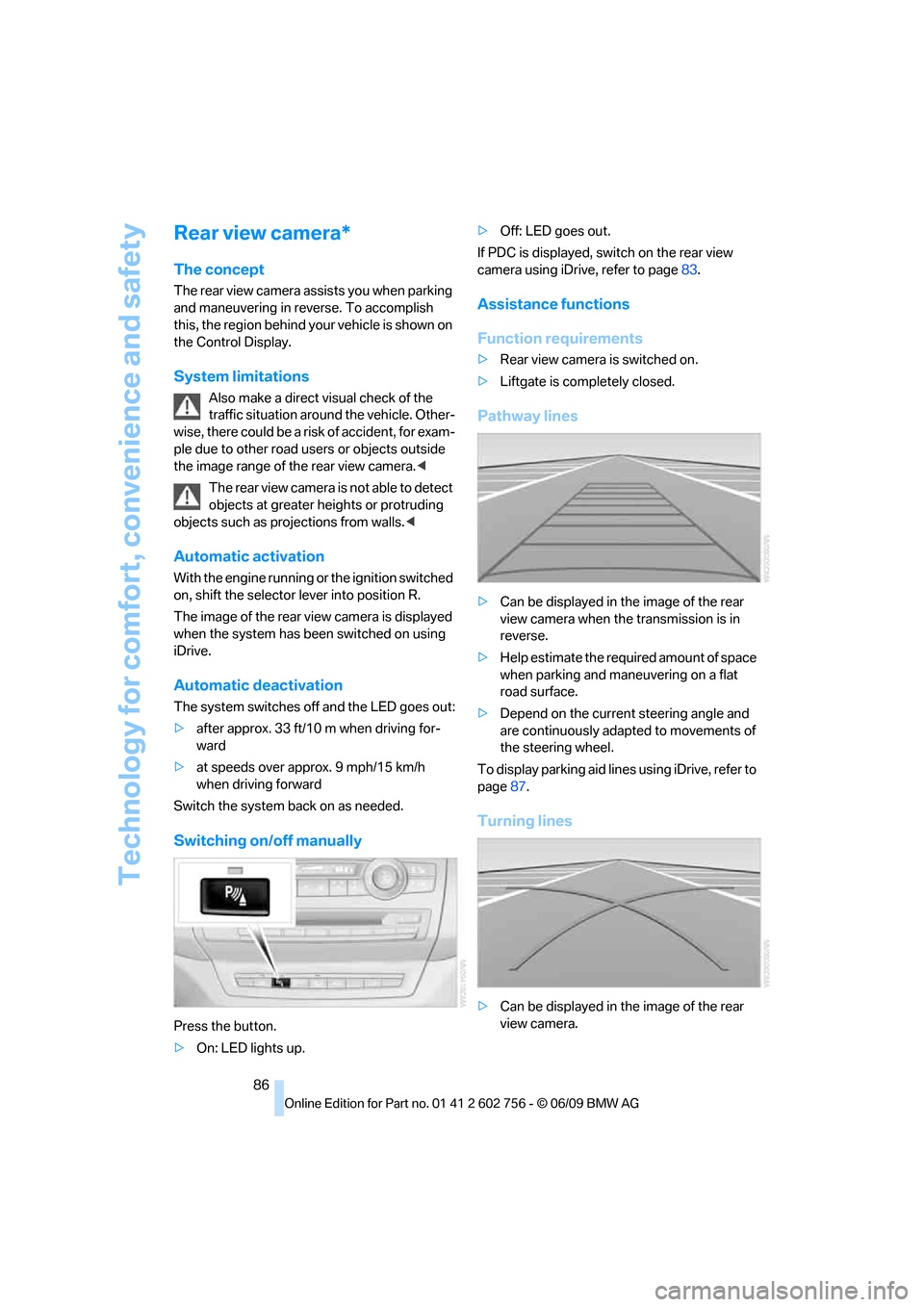
Pathway lines
>Can be displayed in the image of the rear
view camera when the transmission is in
reverse.
>Help estimate the required amount of space
when parking and maneuvering on a flat
road surface.
>Depend on the current steering angle and
are continuously adapted to movements of
the steering wheel.
To display parking aid lines using iDrive, refer to
page87.
Turning lines
>Can be displayed in the image of the rear
view camera.
ba8_e70ag.book Seite 86 Freitag, 5. Juni 2009 11:42 11
Page 89 of 300
Controls
87Reference
At a glance
Driving tips
Communications
Navigation
Entertainment
Mobility
>Show the path of the smallest turning circle
on a flat road surface.
>When the steering wheel is turned, only one
turning line is displayed.
To display parking aid lines using iDrive, refer to
page87.
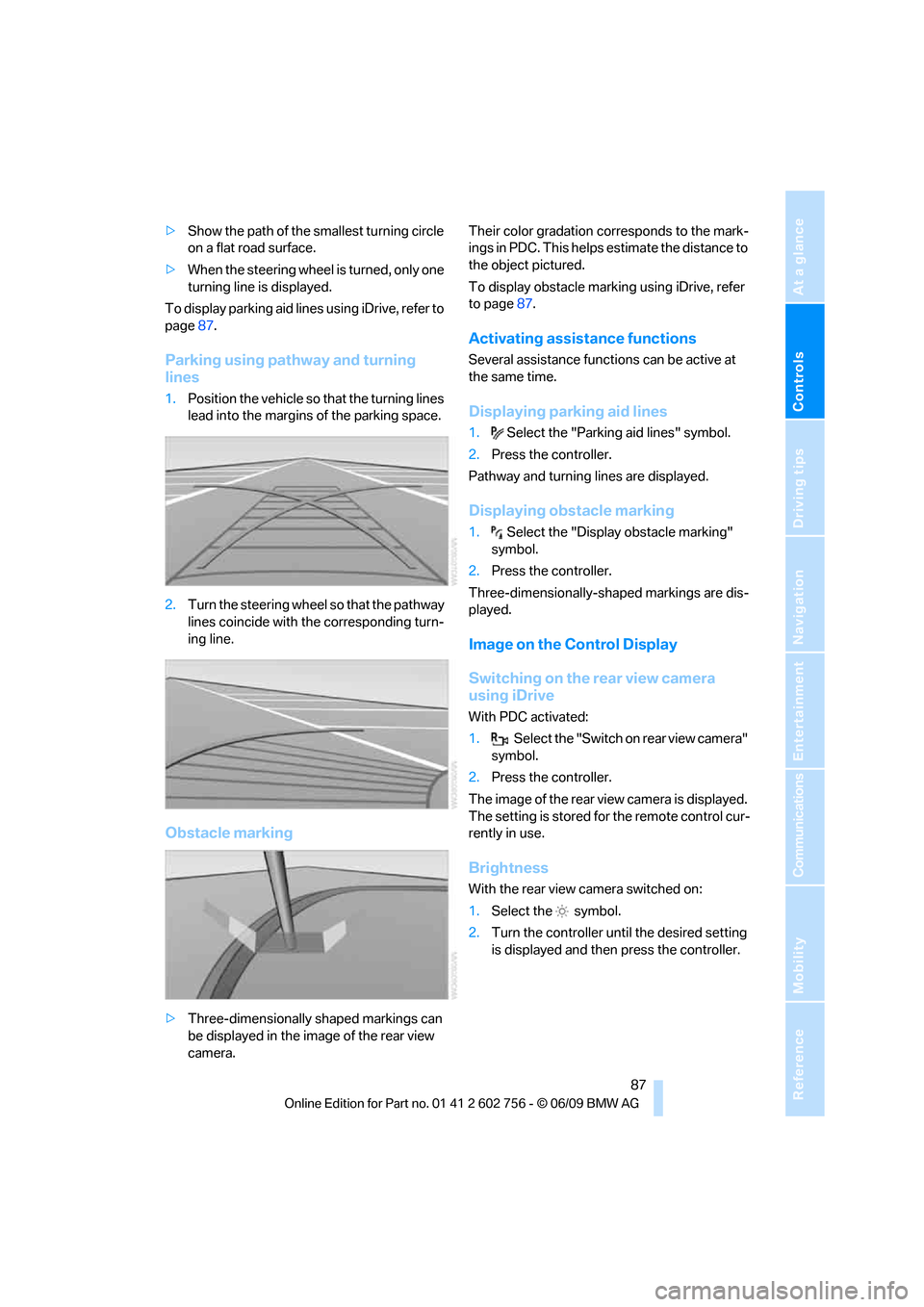
Parking using pathway and turning
lines
1.Position the vehicle so that the turning lines
lead into the margins of the parking space.
2.Turn the steering wheel so that the pathway
lines coincide with the corresponding turn-
ing line.
Obstacle marking
>Three-dimensionally shaped markings can
be displayed in the image of the rear view
camera.Their color gradation corresponds to the mark-
ings in PDC. This helps estimate the distance to
the object pictured.
To display obstacle marking using iDrive, refer
to page87.
Activating assistance functions
Several assistance functions can be active at
the same time.
Displaying parking aid lines
1.Select the "Parking aid lines" symbol.
2.Press the controller.
Pathway and turning lines are displayed.
Displaying obstacle marking
1.Select the "Display obstacle marking"
symbol.
2.Press the controller.
Three-dimensionally-shaped markings are dis-
played.
Image on the Control Display
Switching on the rear view camera
using iDrive
With PDC activated:
1.Select the "Switch on rear view camera"
symbol.
2.Press the controller.
The image of the rear view camera is displayed.
The setting is stored for the remote control cur-
rently in use.
Brightness
With the rear view camera switched on:
1.Select the symbol.
2.Turn the controller until the desired setting
is displayed and then press the controller.
ba8_e70ag.book Seite 87 Freitag, 5. Juni 2009 11:42 11
Page 90 of 300
Technology for comfort, convenience and safety
88
Contrast
With the rear view camera switched on:
1.Select the symbol.
2.Turn the controller until the desired setting
is displayed and then press the controller.
Camera
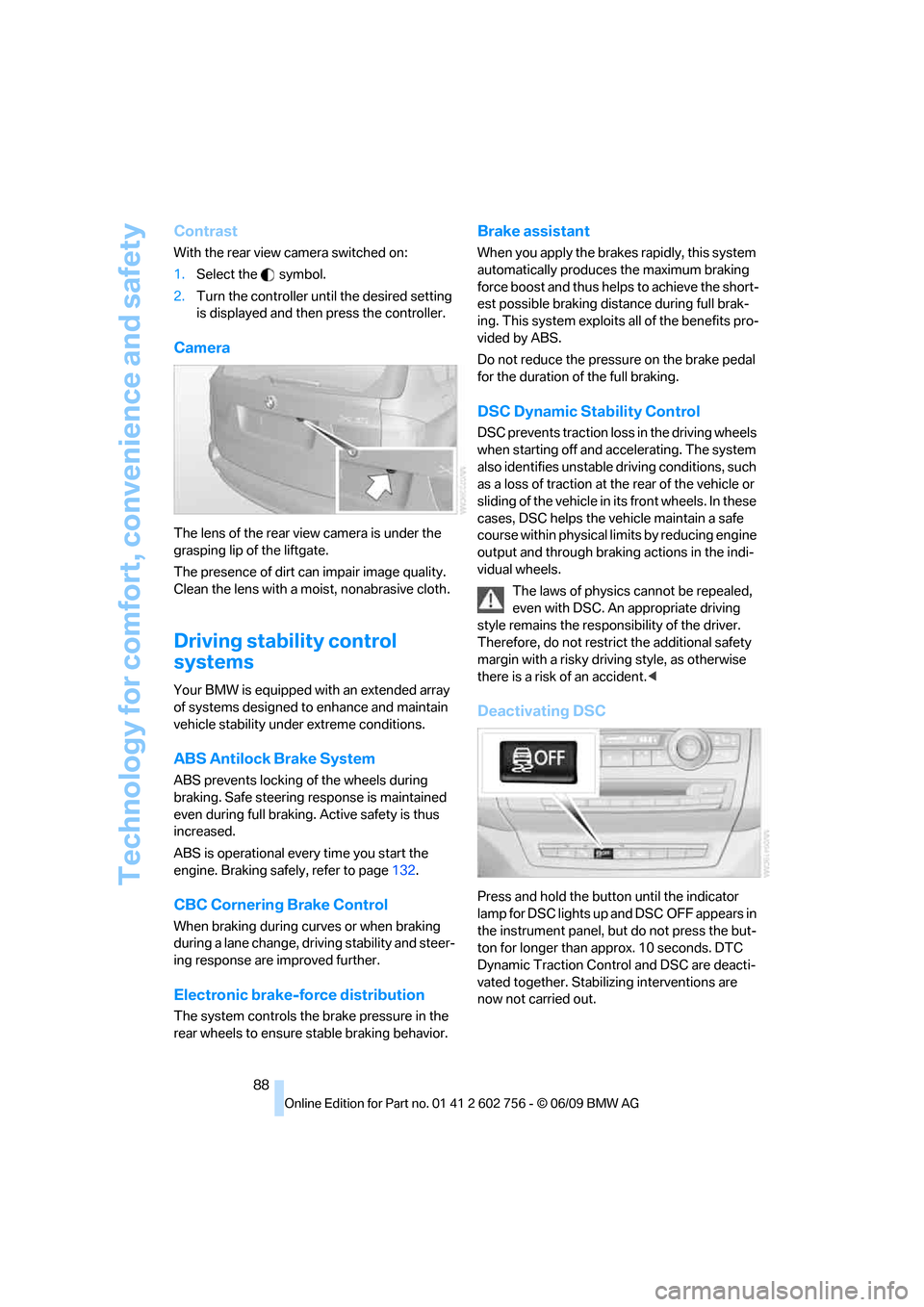
The lens of the rear view camera is under the
grasping lip of the liftgate.
The presence of dirt can impair image quality.
Clean the lens with a moist, nonabrasive cloth.
Driving stability control
systems
Your BMW is equipped with an extended array
of systems designed to enhance and maintain
vehicle stability under extreme conditions.
ABS Antilock Brake System
ABS prevents locking of the wheels during
braking. Safe steering response is maintained
even during full braking. Active safety is thus
increased.
ABS is operational every time you start the
engine. Braking safely, refer to page132.
CBC Cornering Brake Control
When braking during curves or when braking
during a lane change, driving stability and steer-
ing response are improved further.
Electronic brake-force distribution
The system controls the brake pressure in the
rear wheels to ensure stable braking behavior.
Brake assistant
When you apply the brakes rapidly, this system
automatically produces the maximum braking
force boost and thus helps to achieve the short-
est possible braking distance during full brak-
ing. This system exploits all of the benefits pro-
vided by ABS.
Do not reduce the pressure on the brake pedal
for the duration of the full braking.
DSC Dynamic Stability Control
DSC prevents traction loss in the driving wheels
when starting off and accelerating. The system
also identifies unstable driving conditions, such
as a loss of traction at the rear of the vehicle or
sliding of the vehicle in its front wheels. In these
cases, DSC helps the vehicle maintain a safe
course within physical limits by reducing engine
output and through braking actions in the indi-
vidual wheels.
The laws of physics cannot be repealed,
even with DSC. An appropriate driving
style remains the responsibility of the driver.
Therefore, do not restrict the additional safety
margin with a risky driving style, as otherwise
there is a risk of an accident.<
Deactivating DSC
Press and hold the button until the indicator
lamp for DSC lights up and DSC OFF appears in
the instrument panel, but do not press the but-
ton for longer than approx. 10 seconds. DTC
Dynamic Traction Control and DSC are deacti-
vated together. Stabilizing interventions are
now not carried out.
ba8_e70ag.book Seite 88 Freitag, 5. Juni 2009 11:42 11
Page 194 of 300
DVD system in rear
192 The system language of the DVD sys-
tem
"Display": background brightness of
screen.
>"Tone":
>"Treble / Bass" and "Balance":
Separately adjustable for the left and
right-hand headphones and the infrared
headphones.
>"Reset":
The settings are reset to the default
value.
>"DVD format":
>"Standard"
>"Zoom": full-screen playback
>"Language":
Language of the DVD playback. The lan-
guage advances one setting each time the
menu item is selected.
>"Subtitles":
Language of subtitles
or turn off subtitles
>"Title":
Selecting individual tracks on the DVD
>"Angle of view":
Camera angle
Notes or symbols that appear during the
playback of a film generally point out differ-
ent camera angles. These are usually only
briefly available.
>"Menu":
Call up the DVD-specific menu.
>"Return":
Exit menu or:
Press the buttons on the remote con-
trol.
Many DVDs offer dialogs and subtitles in vari-
ous languages or scene descriptions for the
hearing impaired. These functions are stored
on the DVD.
With some DVDs, it is only possible to
select language, subtitles, camera angle,
or title by using the DVD-specific menu.
Consult the information accompanying your
DVD.<
Opening the DVD-specific menu
Additional functions may be available on DVDs.
It is thus possible, for example, to select from
among several possible actions or to access
information about the film.
1.Press the button on the remote con-
trol during playback.
2.Select "Menu".
3.Press the button.
On some DVDs, you can use "Main
menu" and "Title" to access addi-
tional menus in which you can select maga-
zine segments about the music scene, for
example.<
To make a selection:
1.Select the symbol.
2.Press the button until the desired func-
tion is selected.
3.Select the arrow.
4.Press the button.
To return to the start menu:
1.Select the arrow.
2.Press the button.
You can also select language, subtitles,
camera angle, or title in the DVD-specific
menu.
Consult the information accompanying your
DVD.<
Compressed video files
Playback
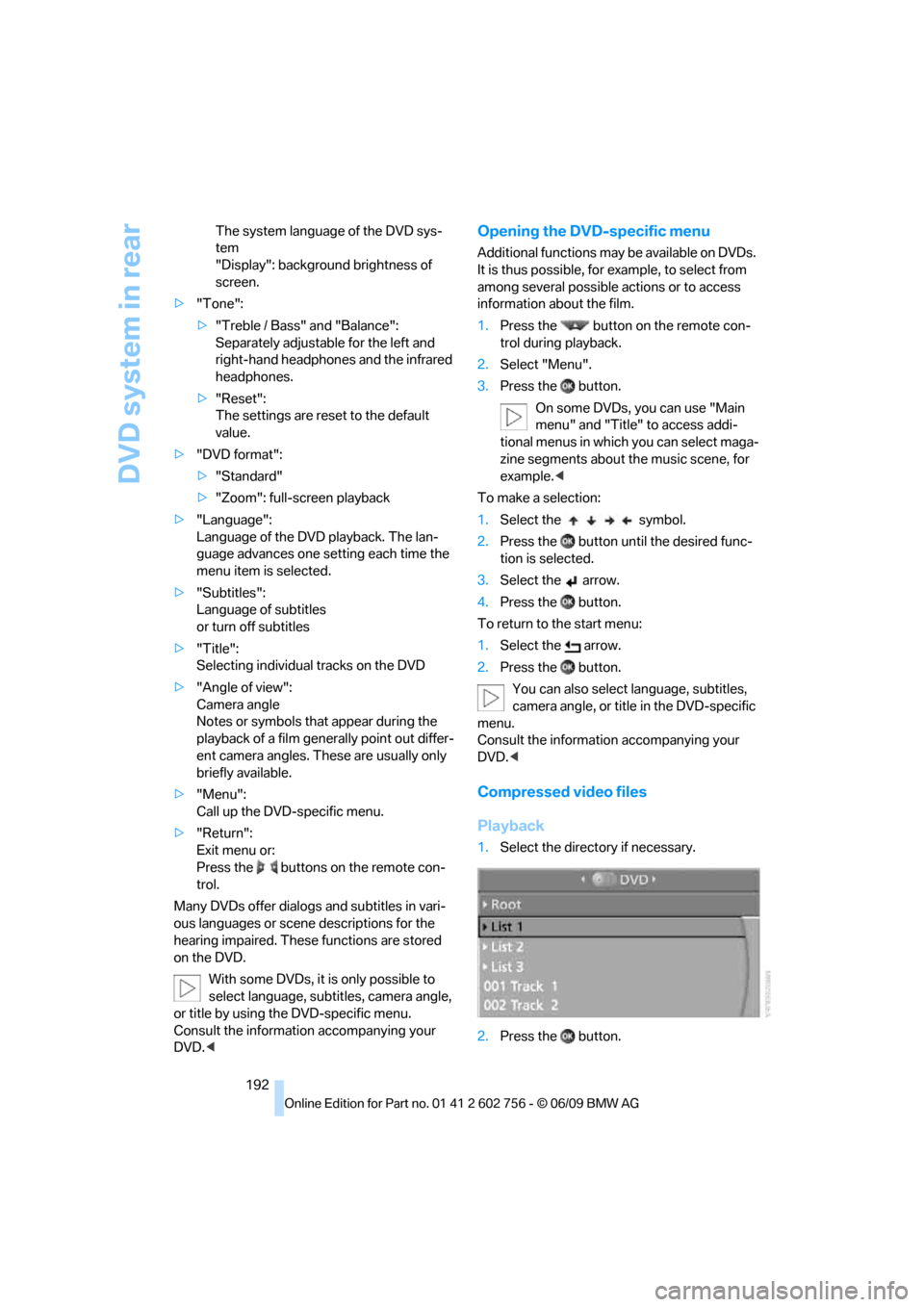
1.Select the directory if necessary.
2.Press the button.
ba8_e70ag.book Seite 192 Freitag, 5. Juni 2009 11:42 11