music BMW X5 2011 E70 User Guide
[x] Cancel search | Manufacturer: BMW, Model Year: 2011, Model line: X5, Model: BMW X5 2011 E70Pages: 312, PDF Size: 8.91 MB
Page 195 of 312
Navigation
Entertainment
Driving tips
193Reference
At a glance
Controls
Communications
Mobility
phone: Apple iPhone/mobile phones. Play-
back is possible only if no audio device/
mobile phone is connected to the USB
audio interface.
Due to the vast array of audio devices/mobile
phones on the market, it is not possible to
assure that every audio device/mobile phone
can be operated via the vehicle.
Ask your BMW Sports Activity Vehicle Center,
which audio devices/mobile phones are com-
patible.
Audio files
Standard audio formats, e.g. MP3, WMA, WAV
(PCM) and AAC, and playlists in the M3U format
can be played.
Connecting via USB audio interface
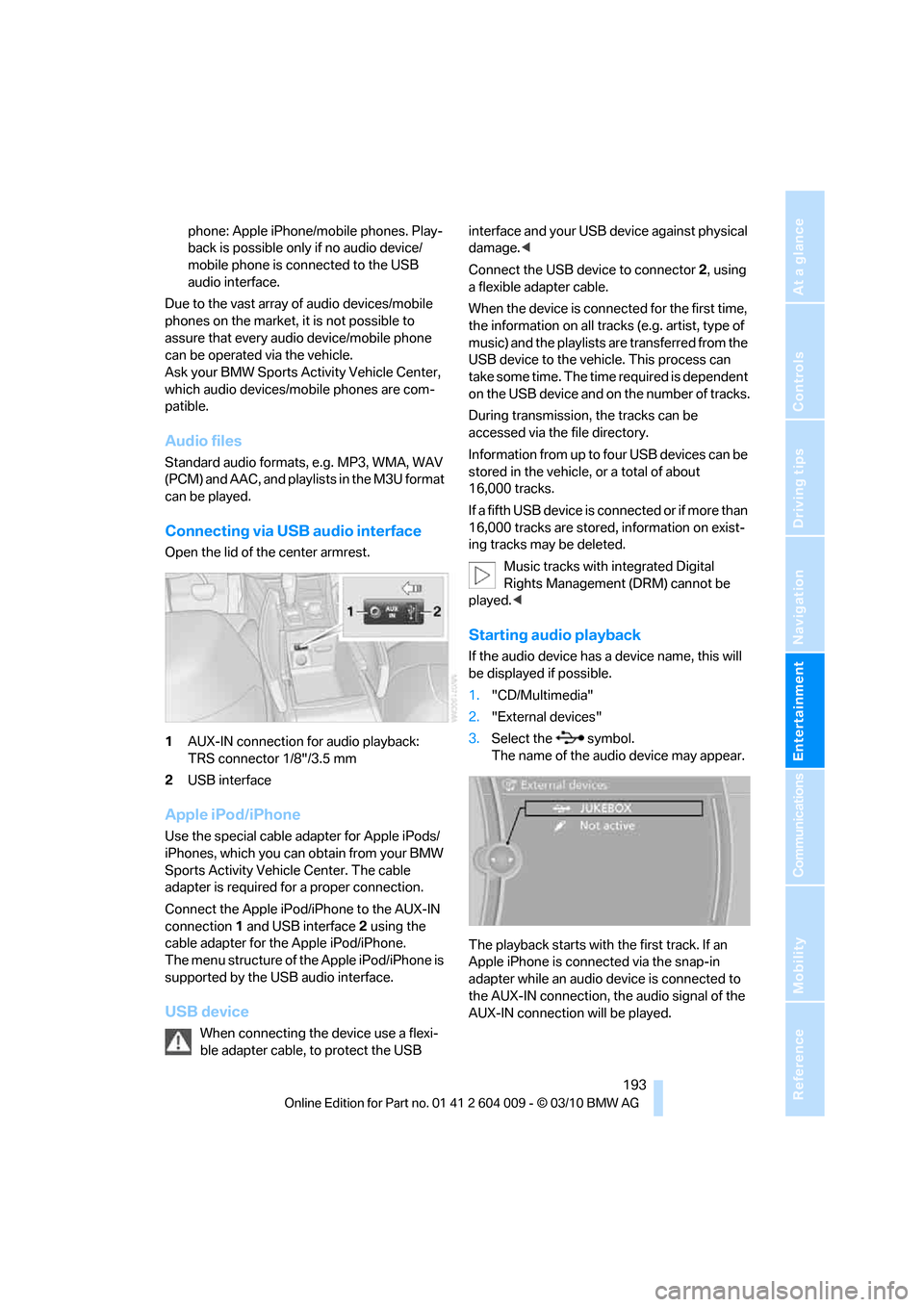
Open the lid of the center armrest.
1AUX-IN connection for audio playback:
TRS connector 1/8"/3.5 mm
2USB interface
Apple iPod/iPhone
Use the special cable adapter for Apple iPods/
iPhones, which you can obtain from your BMW
Sports Activity Vehicle Center. The cable
adapter is required for a proper connection.
Connect the Apple iPod/iPhone to the AUX-IN
connection1 and USB interface2 using the
cable adapter for the Apple iPod/iPhone.
The menu structure of the Apple iPod/iPhone is
supported by the USB audio interface.
USB device
When connecting the device use a flexi-
ble adapter cable, to protect the USB interface and your USB device against physical
damage.<
Connect the USB device to connector 2, using
a flexible adapter cable.
When the device is connected for the first time,
the information on all tracks (e.g. artist, type of
music) and the playlists are transferred from the
USB device to the vehicle. This process can
take some time. The time required is dependent
on the USB device and on the number of tracks.
During transmission, the tracks can be
accessed via the file directory.
Information from up to four USB devices can be
stored in the vehicle, or a total of about
16,000 tracks.
I f a f i f t h U S B d e v i c e i s c o n n e c t e d o r i f m o r e t h a n
16,000 tracks are stored, information on exist-
ing tracks may be deleted.
Music tracks with integrated Digital
Rights Management (DRM) cannot be
played.<
Starting audio playback
If the audio device has a device name, this will
be displayed if possible.
1."CD/Multimedia"
2."External devices"
3.Select the symbol.
The name of the audio device may appear.
The playback starts with the first track. If an
Apple iPhone is connected via the snap-in
adapter while an audio device is connected to
the AUX-IN connection, the audio signal of the
AUX-IN connection will be played.
Page 196 of 312
External devices
194
Information about the track
If information about a track has been stored, it is
displayed automatically:
>Artist
>Album title
>Number of tracks
>Track file name
Track search
Selection is possible via:
>Playback lists
>Information: type of music, artist, album,
title
>Additionally for USB devices: file directory,
composer
Track titles are displayed if they have been
stored in the Latin alphabet.
Starting the track search
1."CD/Multimedia"
2."External devices"
3.Select the symbol.
The name of the audio device may appear.
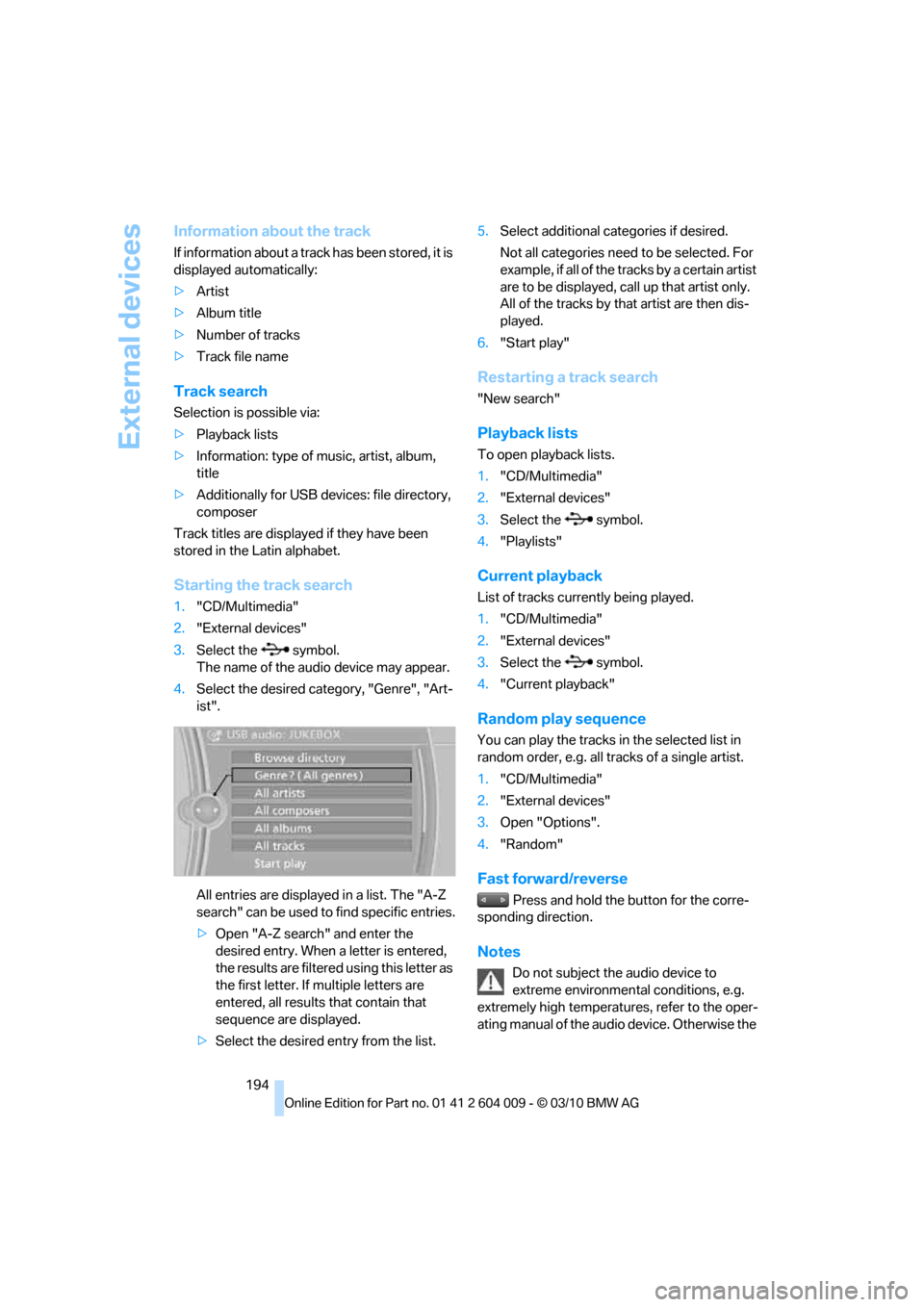
4.Select the desired category, "Genre", "Art-
ist".
All entries are displayed in a list. The "A-Z
search" can be used to find specific entries.
>Open "A-Z search" and enter the
desired entry. When a letter is entered,
the results are filtered using this letter as
the first letter. If multiple letters are
entered, all results that contain that
sequence are displayed.
>Select the desired entry from the list.5.Select additional categories if desired.
Not all categories need to be selected. For
example, if all of the tracks by a certain artist
are to be displayed, call up that artist only.
All of the tracks by that artist are then dis-
played.
6."Start play"
Restarting a track search
"New search"
Playback lists
To open playback lists.
1."CD/Multimedia"
2."External devices"
3.Select the symbol.
4."Playlists"
Current playback
List of tracks currently being played.
1."CD/Multimedia"
2."External devices"
3.Select the symbol.
4."Current playback"
Random play sequence
You can play the tracks in the selected list in
random order, e.g. all tracks of a single artist.
1."CD/Multimedia"
2."External devices"
3.Open "Options".
4."Random"
Fast forward/reverse
Press and hold the button for the corre-
sponding direction.
Notes
Do not subject the audio device to
extreme environmental conditions, e.g.
extremely high temperatures, refer to the oper-
ating manual of the audio device. Otherwise the
Page 203 of 312
Navigation
Entertainment
Driving tips
201Reference
At a glance
Controls
Communications
Mobility
The system language of the DVD sys-
tem
"Display": background brightness of
screen.
>"Tone":
>"Treble / Bass" and "Balance": sepa-
rately adjustable for the left and right-
hand headphones and the infrared head-
phones.
>"Reset":
The settings are reset to the default
value.
>"DVD format":
>"Standard"
>"Zoom": full-screen playback
>"Language":
Language of the DVD playback. The lan-
guage advances one setting each time the
menu item is selected.
>"Subtitles":
Language of the subtitles
or turn off the subtitles
>"Title":
Select individual tracks on the DVD
>"Angle of view":
Camera angle
Notes or symbols that appear during the
playback of a film generally point out differ-
ent camera angles. These are usually only
briefly available.
>"Menu":
Call up the DVD-specific menu.
>"Return":
Exit the menu, or:
Press the buttons on the remote con-
trol.
Many DVDs offer dialogs and subtitles in vari-
ous languages or scene descriptions for the
hearing impaired. These functions are stored
on the DVD.
With some DVDs, it is only possible to
select language, subtitles, camera angle,
or title by using the DVD-specific menu.
Consult the information accompanying your
DVD.
It is thus possible, for example, to select from
among several possible actions or to access
information about the film.
1.Press the button on the remote con-
trol during playback.
2.Select "Menu".
3.Press the button.
On some DVDs, you can use "Main
menu" and "Title" to access addi-
tional menus in which you can select music
scenes, for example.<
To make a selection:
1.Select the symbol.
2.Press the button until the desired func-
tion is selected.
3.Select the arrow.
4.Press the button.
To return to the start menu:
1.Select the arrow.
2.Press the button.
You can also select language, subtitles,
camera angle, or title in the DVD-specific
menu.
Consult the information accompanying your
DVD.<
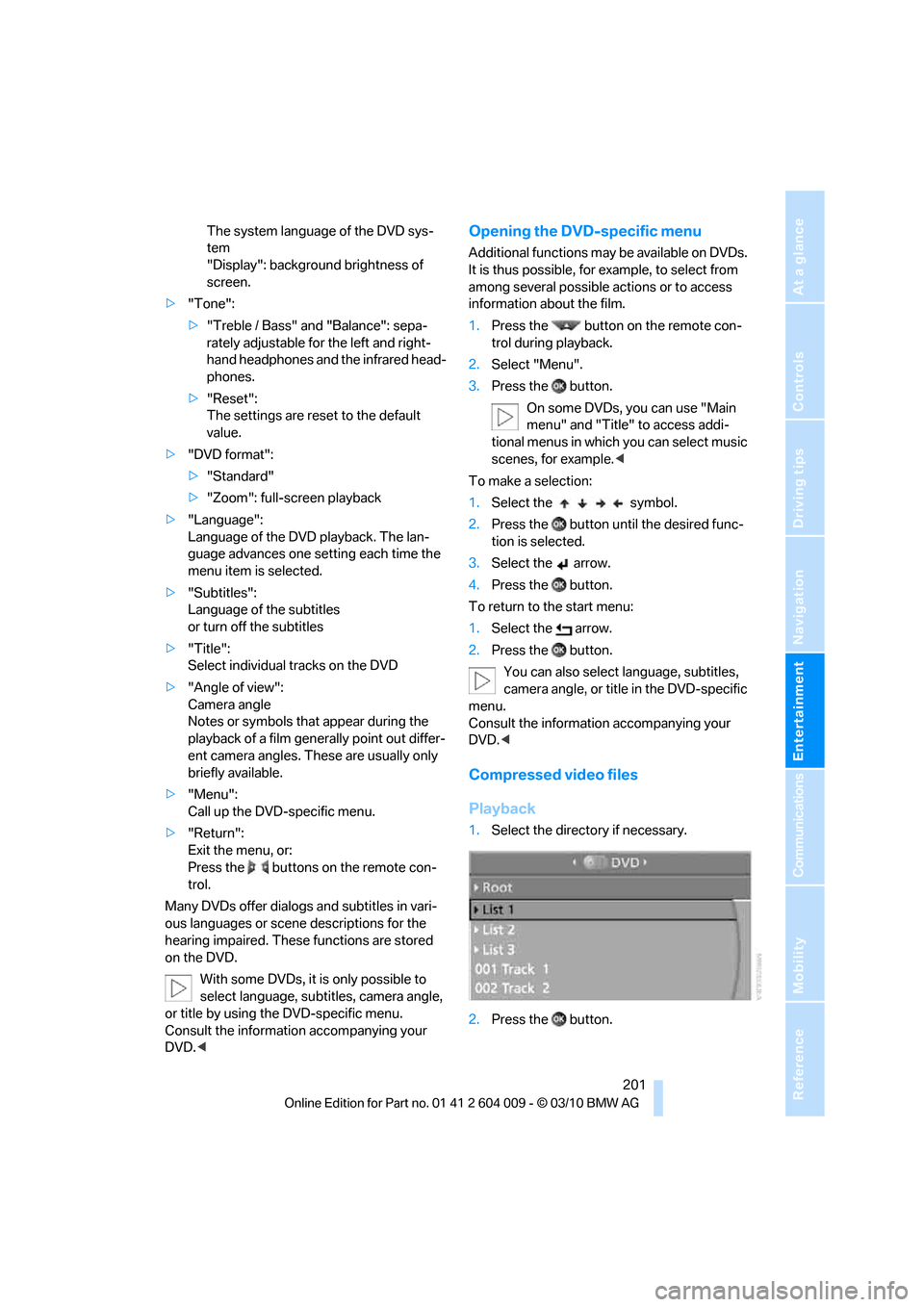
Compressed video files
Playback
1.Select the directory if necessary.
2.Press the button.
Page 209 of 312
Navigation
Entertainment
Driving tips
207Reference
At a glance
Controls
Communications
Mobility
some CDs/DVDs cannot be played, can only be
played to a limited degree, or cause the system
to switch off. In this case, wait a short while and
then switch the system back on again. Then
remove the CD/DVD from the drive.
CDs/DVDs with compressed audio files
If the language set for the CD/DVD player does
not match the language of the music track, the
music tracks may be displayed incorrectly.
Care instructions
More information about this can be found under
Care, starting on page258.
External device
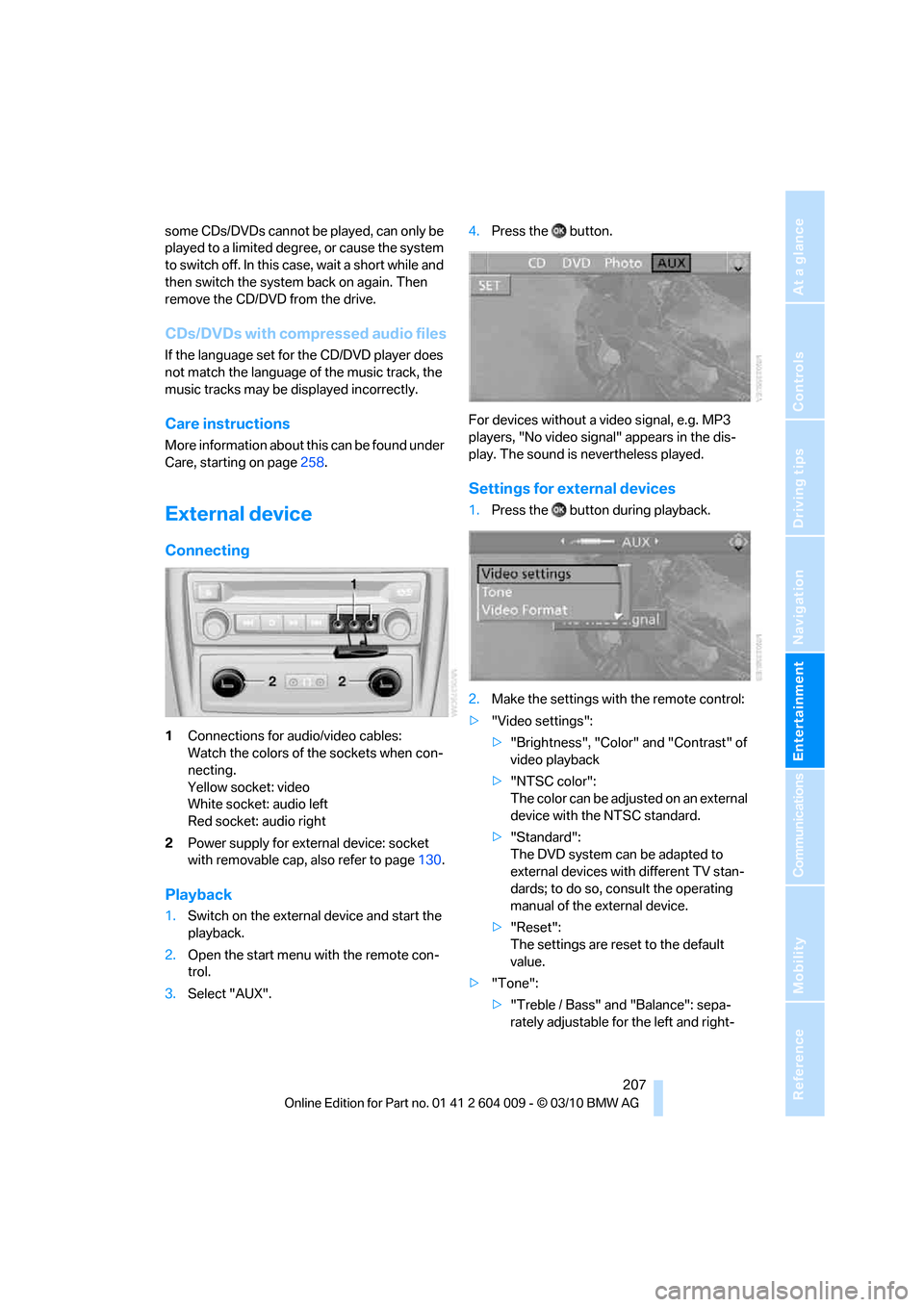
Connecting
1Connections for audio/video cables:
Watch the colors of the sockets when con-
necting.
Yellow socket: video
White socket: audio left
Red socket: audio right
2Power supply for external device: socket
with removable cap, also refer to page130.
Playback
1.Switch on the external device and start the
playback.
2.Open the start menu with the remote con-
trol.
3.Select "AUX".4.Press the button.
For devices without a video signal, e.g. MP3
players, "No video signal" appears in the dis-
play. The sound is nevertheless played.
Settings for external devices
1.Press the button during playback.
2.Make the settings with the remote control:
>"Video settings":
>"Brightness", "Color" and "Contrast" of
video playback
>"NTSC color":
The color can be adjusted on an external
device with the NTSC standard.
>"Standard":
The DVD system can be adapted to
external devices with different TV stan-
dards; to do so, consult the operating
manual of the external device.
>"Reset":
The settings are reset to the default
value.
>"Tone":
>"Treble / Bass" and "Balance": sepa-
rately adjustable for the left and right-
Page 287 of 312
Reference 285
At a glance
Controls
Driving tips
Communications
Navigation
Entertainment
Mobility
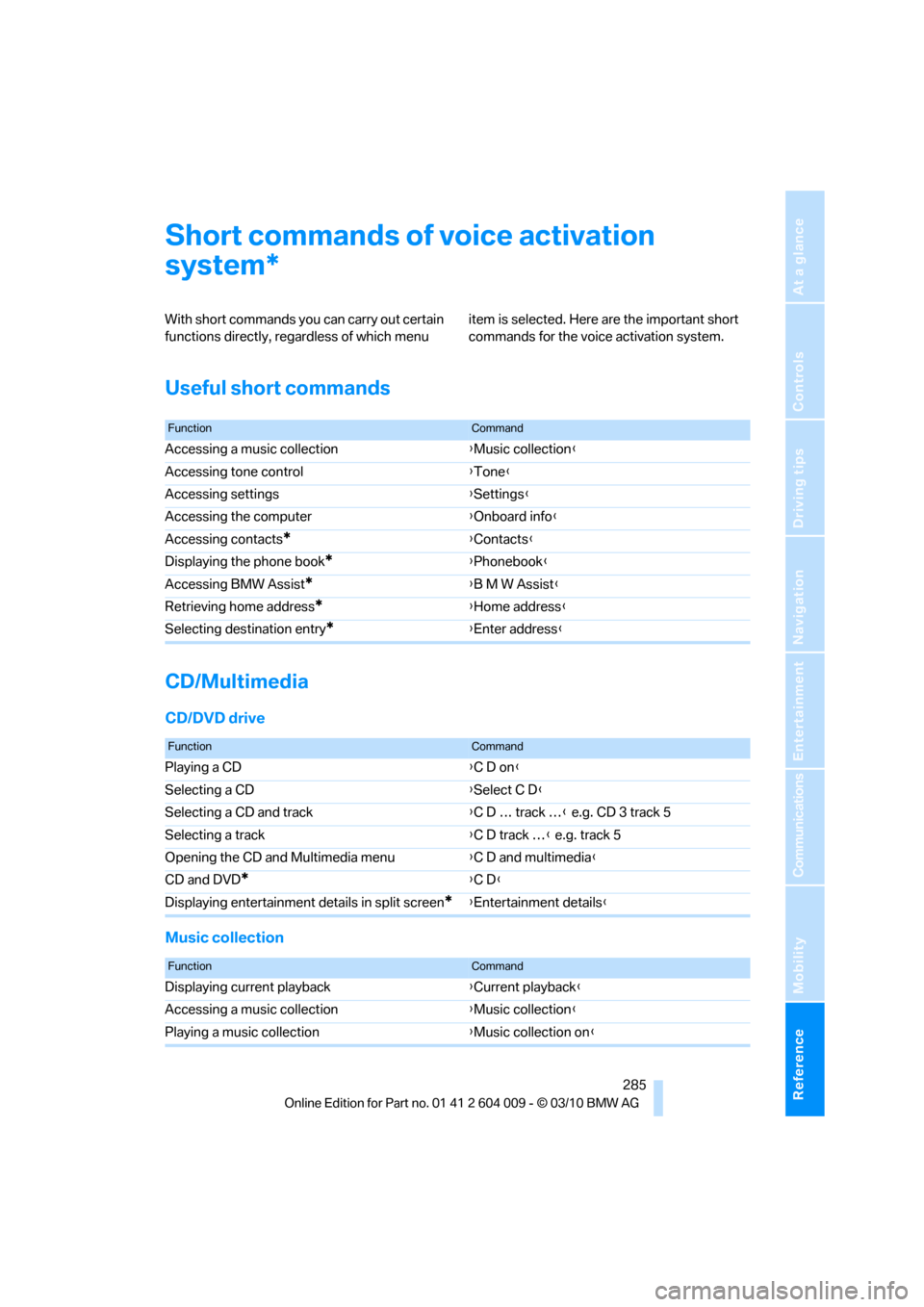
Short commands of voice activation
system
With short commands you can carry out certain
functions directly, regardless of which menu item is selected. Here are the important short
commands for the voice activation system.
Useful short commands
CD/Multimedia
CD/DVD drive
Music collection
*
FunctionCommand
Accessing a music collection{Music collection}
Accessing tone control{Tone}
Accessing settings{Settings}
Accessing the computer{Onboard info}
Accessing contacts
*{Contacts}
Displaying the phone book
*{Phonebook}
Accessing BMW Assist
*{B M W Assist}
Retrieving home address
*{Home address}
Selecting destination entry
*{Enter address}
FunctionCommand
Playing a CD{C D on}
Selecting a CD{Select C D}
Selecting a CD and track{C D … track …} e.g. CD 3 track 5
Selecting a track{C D track …} e.g. track 5
Opening the CD and Multimedia menu{C D and multimedia}
CD and DVD
*{C D}
Displaying entertainment details in split screen
*{Entertainment details}
FunctionCommand
Displaying current playback{Current playback}
Accessing a music collection{Music collection}
Playing a music collection{Music collection on}
Page 288 of 312
Short commands of voice activation system
286
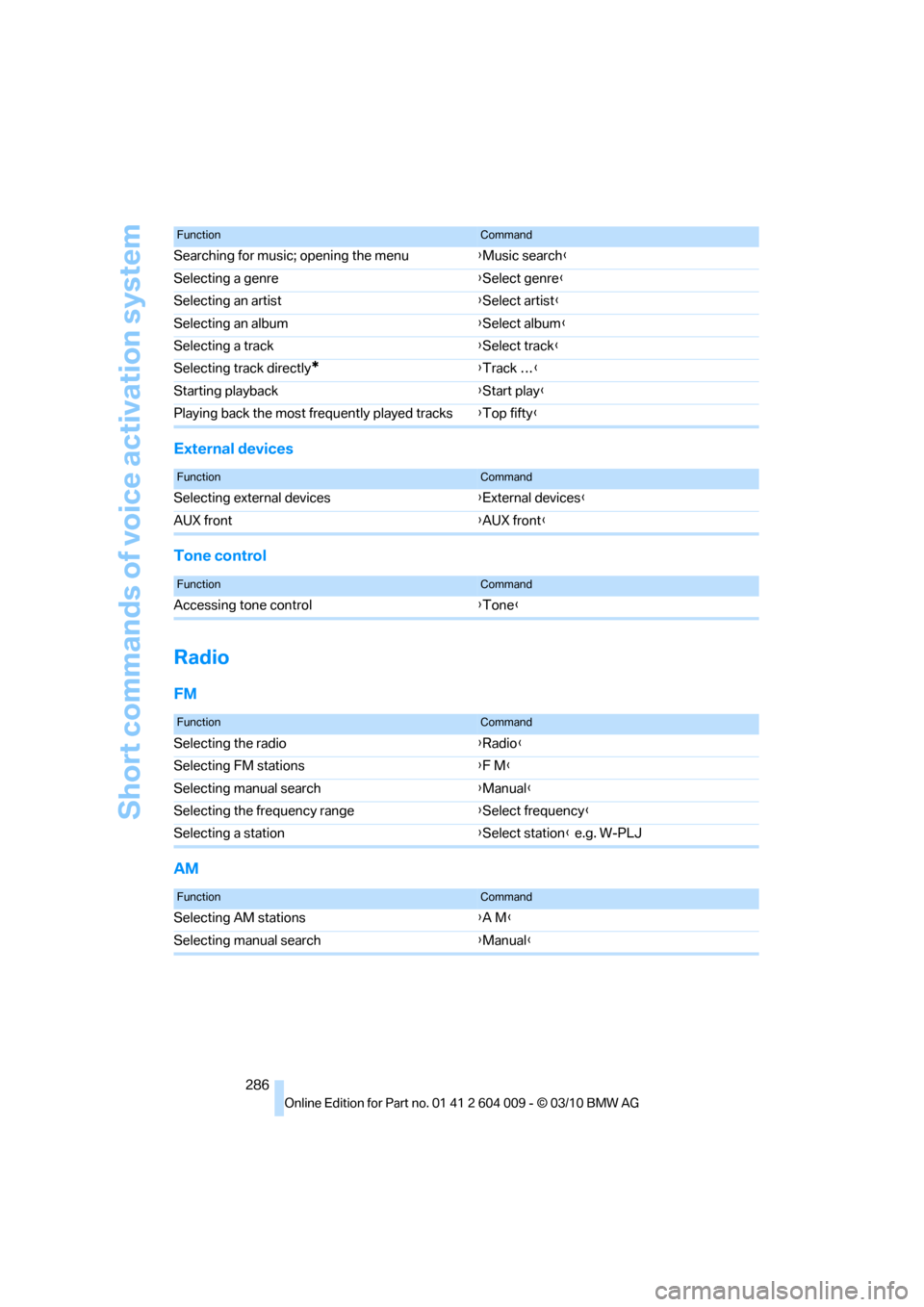
External devices
Tone control
Radio
FM
AM
Searching for music; opening the menu{Music search}
Selecting a genre{Select genre}
Selecting an artist{Select artist}
Selecting an album{Select album}
Selecting a track{Select track}
Selecting track directly
*{Track …}
Starting playback{Start play}
Playing back the most frequently played tracks{Top fifty}
FunctionCommand
FunctionCommand
Selecting external devices{External devices}
AUX front{AUX front}
FunctionCommand
Accessing tone control{Tone}
FunctionCommand
Selecting the radio{Radio}
Selecting FM stations{F M}
Selecting manual search{Manual}
Selecting the frequency range{Select frequency}
Selecting a station{Select station} e.g. W-PLJ
FunctionCommand
Selecting AM stations{A M}
Selecting manual search{Manual}
Page 294 of 312
Everything from A - Z
292
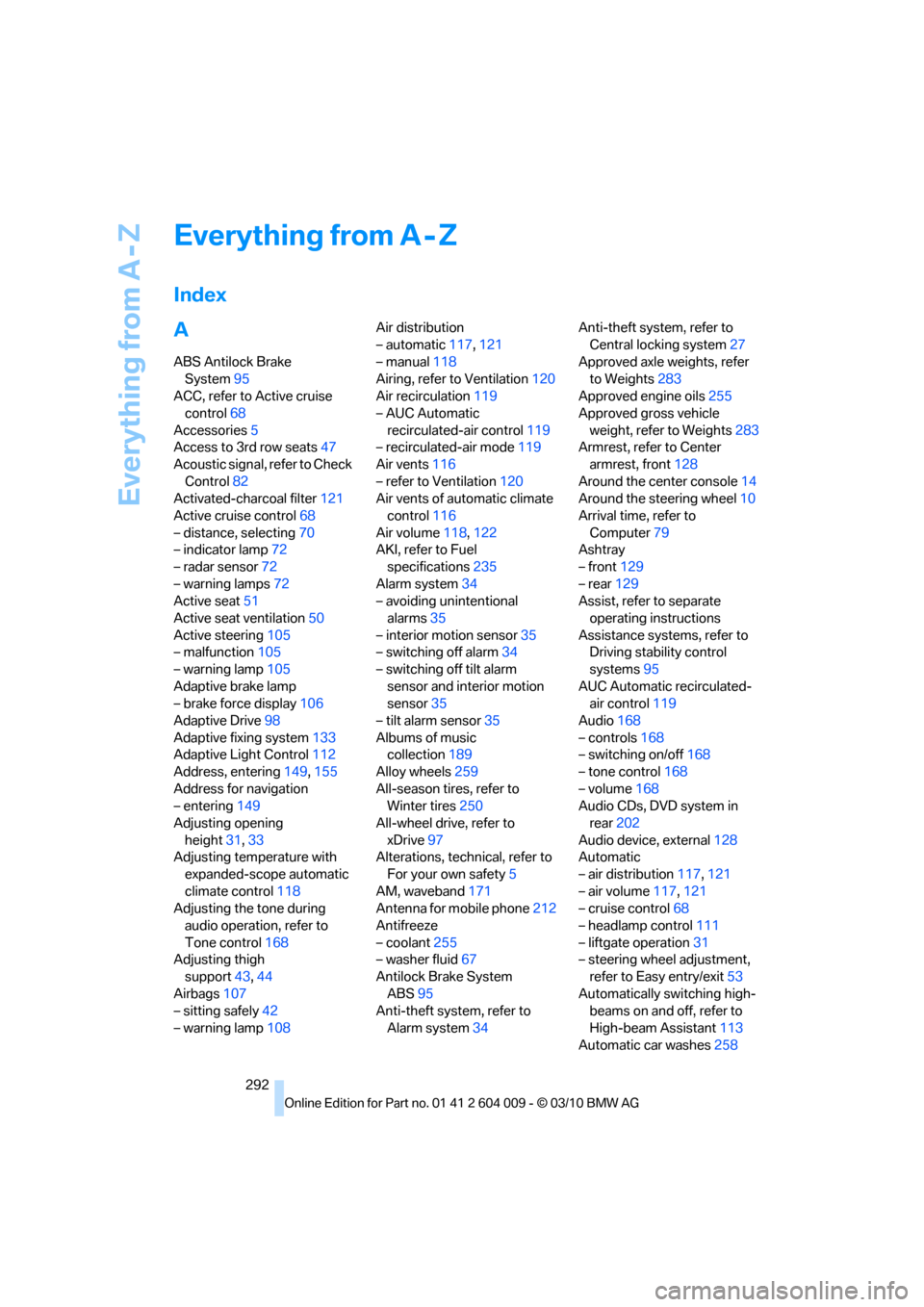
Everything from A - Z
Index
A
ABS Antilock Brake
System95
ACC, refer to Active cruise
control68
Accessories5
Access to 3rd row seats47
Acoustic signal, refer to Check
Control82
Activated-charcoal filter121
Active cruise control68
– distance, selecting70
– indicator lamp72
– radar sensor72
– warning lamps72
Active seat51
Active seat ventilation50
Active steering105
– malfunction105
– warning lamp105
Adaptive brake lamp
– brake force display106
Adaptive Drive98
Adaptive fixing system133
Adaptive Light Control112
Address, entering149,155
Address for navigation
– entering149
Adjusting opening
height31,33
Adjusting temperature with
expanded-scope automatic
climate control118
Adjusting the tone during
audio operation, refer to
Tone control168
Adjusting thigh
support43,44
Airbags107
– sitting safely42
– warning lamp108Air distribution
– automatic117,121
– manual118
Airing, refer to Ventilation120
Air recirculation119
– AUC Automatic
recirculated-air control119
– recirculated-air mode119
Air vents116
– refer to Ventilation120
Air vents of automatic climate
control116
Air volume118,
122
AKI, refer to Fuel
specifications235
Alarm system34
– avoiding unintentional
alarms35
– interior motion sensor35
– switching off alarm34
– switching off tilt alarm
sensor and interior motion
sensor35
– tilt alarm sensor35
Albums of music
collection189
Alloy wheels259
All-season tires, refer to
Winter tires250
All-wheel drive, refer to
xDrive97
Alterations, technical, refer to
For your own safety5
AM, waveband171
Antenna for mobile phone212
Antifreeze
– coolant255
– washer fluid67
Antilock Brake System
ABS95
Anti-theft system, refer to
Alarm system34Anti-theft system, refer to
Central locking system27
Approved axle weights, refer
to Weights283
Approved engine oils255
Approved gross vehicle
weight, refer to Weights283
Armrest, refer to Center
armrest, front128
Around the center console14
Around the steering wheel10
Arrival time, refer to
Computer79
Ashtray
– front129
– rear129
Assist, refer to separate
operating instructions
Assistance systems, refer to
Driving stability control
systems95
AUC Automatic recirculated-
air control119
Audio168
– controls168
– switching on/off168
– tone control168
– volume168
Audio CDs, DVD system in
rear202
Audio device, external128
Automatic
– air distribution117,121
– air volume
117,121
– cruise control68
– headlamp control111
– liftgate operation31
– steering wheel adjustment,
refer to Easy entry/exit53
Automatically switching high-
beams on and off, refer to
High-beam Assistant113
Automatic car washes258
Page 297 of 312
Reference 295
At a glance
Controls
Driving tips
Communications
Navigation
Entertainment
Mobility
Cell phone
– refer to Mobile phone
Center armrest
– front128
– rear131
Center brake lamp265,268
Center console14
Central locking system27
– Comfort Access35
– from inside vehicle30
Changes, technical, refer to
For your own safety5
Changes, technical, refer to
Parts and accessories5
Changing gears
– using shift paddles64
Changing language on
Control Display86
Changing tires249
Changing trips157
Changing units of measure on
Control Display86
Changing wheels268
Check Control82
Checking the air pressure,
refer to Tire inflation
pressure239
Children, transporting54
Child restraint devices54
Child restraint fixing system
LATCH55
Child restraint systems54
Child-safety locks57
Child seats54
Chime, refer to Check
Control82
Cigarette lighter, refer to
Lighter130
Cleaning your BMW, refer to
Care258
Clock76
– 12h/24h mode85
– setting time85
Closing
– from inside30
– using remote control28
Closing fuel filler cap234
Clothes hooks128
Cockpit10Cold start, refer to Starting
engine59
Combination instrument, refer
to Instrument panel12
Comfort Access35
– observe in car wash36
– replacing battery37
Comfort area, refer to Around
the center console14
Comfort start, refer to Starting
engine59
Compact wheel
– inflation pressure241
– wheel change268
Compartment for remote
control, refer to Ignition
lock58
Compartments, refer to
Storage compartments128
Compass, digital125
Computer78
– displaying information78
– opening via iDrive79
Concierge service227
Condition Based Service
CBS256
Confirmation signals,
adjusting for locking and
unlocking28
Connecting car vacuum
cleaner, refer to Connecting
electrical devices130
Connecting headphones197
Consumption, refer to
Average fuel
consumption78
Consumption indicator
– energy control77
Consumption statistics, refer
to Average fuel
consumption78
Contacts
– creating224
Control Center, refer to
iDrive16
Control Display, refer to
iDrive16
– setting brightness86
– switching on/off19Controller, refer to iDrive16
Controls, refer to Cockpit10
Controls DVD system in
rear196
Convenient opening and
closing
– glass sunroof28,29
– glass sunroof with Comfort
Access36
– windows28,29
– windows with Comfort
Access36
– with Comfort Access36
Coolant255
– checking level255
– temperature77
Cooling, maximum119
Copyright2
Cornering Brake Control
CBC95
Country codes DVD181
Courtesy lamps, refer to
Interior lamps115
Cradle for telephone or mobile
phone128
Criteria for route158
Cruise control67
– active cruise control68
Cruising range78
Cupholders128
Current playback
– external devices194
– of music collection189
Customer Relations229
Cylinders, refer to Engine
data280
D
Dashboard, refer to
Cockpit10
Dashboard lighting, refer to
Instrument lighting115
Data280
– capacities284
– dimensions281
– engine280
– technical data280
– weights283
Page 299 of 312
Reference 297
At a glance
Controls
Driving tips
Communications
Navigation
Entertainment
Mobility
DVD video181
Dynamic destination
guidance159
Dynamic Performance
Control97
Dynamic Stability Control
DSC95
Dynamic Traction, refer to
Dynamic Traction
Control96
Dynamic Traction Control
DTC96
E
Easy entry/exit53
Eject button, refer to Buttons
on the CD/DVD player168
Electrical malfunction
– door lock29
– driver's door29
– fuel filler flap234
– liftgate31
– parking brake62
Electric seat43
Electric steering wheel
adjustment53
Electronic brake-force
distribution95
Electronic oil level check253
Emergency operation, refer to
Manual operation
– door lock29
– driver's door29
– fuel filler flap234
– liftgate31
Emergency request273
Emergency services, refer to
Roadside Assistance274Engine
– breaking-in138
– data280
– oil temperature77
– overheated, refer to Coolant
temperature77
– speed280
– starting59
– starting, with Comfort
Access36
– switching off59
Engine compartment252
Engine coolant255
Engine oil
– adding254
– additives, refer to Approved
engine oils255
– approved engine oil255
– checking oil level253
– electronic oil level check253
– temperature77
Engine oil temperature77
Engine output, refer to Engine
data280
Engine speed280
Engine starting, refer to
Starting engine59
Entering special destinations
by name153
Entertainment sound output
on/off168
Entry map for destination154
Equalizer, tone setting169
ESP Electronic Stability
Program, refer to DSC
Dynamic Stability
Control95
Exhaust system, refer to Hot
exhaust system139
Extended connectivity of the
music player in the mobile
phone192Exterior mirrors51
– adjusting51
– automatic dimming
feature52
– automatic heating51
– folding in and out51
– tilting down passenger-side
exterior mirror52
External audio device128
External devices
– random sequence194
Eye for tow-starting and
towing, refer to Tow
fitting276
F
Failure messages, refer to
Check Control82
False alarm, refer to Avoiding
unintentional alarms35
Fastening safety belts, refer to
Safety belts48
– warning lamp48
Fastest route for
navigation158
Fast forward
– CD changer181
– CD player181
Fault displays, refer to Check
Control82
Filler neck for washer fluid67
First aid, refer to First-aid
kit273
First-aid kit273
Fixing system, adaptive133
Flashing during locking/
unlocking, refer to Setting
confirmation signals28
Flat tire
– changing wheels268
– compact wheel268
– Flat Tire Monitor99
– run-flat tires100,103,249
– TPM Tire Pressure
Monitor101
Flat Tire Monitor FTM99
Fluid reservoir, refer to Filler
neck for washer fluid67
Page 300 of 312
Everything from A - Z
298 FM, waveband171
Fog lamps114
– indicator lamp13,114
Folding display screen open/
closed, DVD system in
rear196
Folding rear seat backrest132
Footwell lamps115
For your own safety5
4-wheel drive system, refer to
xDrive97
Free memory capacity, music
collection190
Front airbags107
Front passenger airbags107
– deactivating107
– refer to Exception of front
passenger seat54
Front seat adjustment43
FTM Flat Tire Monitor99
– false alarms100
– indicating a flat tire100
– initializing the system100
– snow chains250
– system limits100
– warning lamp100
Fuel235
– capacity284
– display78
– high-quality brands235
– quality235
– saving138
– specifications235
Fuel clock, refer to Fuel
gauge78
Fuel consumption display
– computer, average fuel
consumption78
Fuel display, refer to Fuel
gauge78
Fuel filler flap234
– closing234
– opening234
– releasing manually234
Fuses271
G
Garage door opener, refer to
Integrated universal remote
control124
Gasoline, refer
to Required fuel235
Gasoline display, refer to Fuel
gauge78
Gas station
recommendations159
Gearshifts
– automatic transmission with
Steptronic64
General driving
notes138,139
Glass sunroof
– convenient opening and
closing from outside29
– convenient opening and
closing with Comfort
Access36
– remote control28
Glass sunroof, electric40
– opening, closing40
– power interruption41
– raising40
Glove compartment127
– lighting127
GPS navigation, refer to
Navigation system148
Grills, refer to Ventilation120
Grills of the automatic climate
control116
Gross vehicle weight, refer to
Weights283
H
Handbrake, refer to Parking
brake60
– Automatic Hold61
Hands-free system, refer to
Microphone14
Hand washing259
Have diesel exhaust fluid
– refilled237
Hazard warning flashers15
HDC Hill Descent Control97HD Radio172
Head airbags107
Headlamp control,
automatic111
Headlamp flasher65
Headlamps111
– cleaning, refer to Washer/
wiper system65
– replacing bulbs262
Head Light, refer to Adaptive
Light Control112
Head restraints45
– sitting safely42
Head-up Display109
Heated
– mirrors51
– rear window118
– seats49,50
– steering wheel53
Heating116
– exterior mirrors51
– interior116
– rear window118
– residual heat119
– seats49,50
– steering wheel53
Heating with engine switched
off, refer to Residual
heat119
Heavy cargo, refer to Securing
cargo142
Height
– on Head-up Display109
Height, refer to
Dimensions281
Height adjustment
– seats43
– steering wheel52
High-beam Assistant113
High beams65,113
– headlamp flasher65
– indicator lamp13
High-beams, automatically
switching on and off, refer to
High-beam Assistant113
High-pressure cleaning
jets259
High water, refer to Driving
through water140