selection list BMW X5 2011 E70 Owner's Manual
[x] Cancel search | Manufacturer: BMW, Model Year: 2011, Model line: X5, Model: BMW X5 2011 E70Pages: 312, PDF Size: 8.91 MB
Page 152 of 312
Destination entry
150 To delete letters:
>To delete individual letters:
Turn the controller to select , and
then press the controller.
>To delete all letters:
Turn the controller to select , and
then press the controller for an extended
period.
To enter spaces:
>Select the symbol.
The list gradually grows smaller each time
you enter a new letter.
3.Move the controller to the right.
4.Select the name of the town/city from the
list.
If there are several towns/cities with the same
name:
1.Change to the list of town/city names.
2.Highlight the town/city: a preview map is
displayed.
3.Select the town/city.
Entering the postal code
1.Select "Town/City/Postal Code" or the dis-
played town/city.
2.Select the symbol.
3.Select the digits.
4.Change to the list of postal codes and
towns/cities.
5.Highlight postal code: a preview map is dis-
played.
6.Select the postal code.
Entering street and intersection
1.Select "Street" or the displayed street.
2.Enter a street and intersection as you would
the town/city.
After the street you can also enter the intersec-
tion or the house number.
If there are several streets with the same name:1.Change to the list of street names.
2.Highlight the street: a preview map is dis-
played.
3.Select the street.
Entering a street without a destination
town/city
You can also enter a street without entering a
town/city of destination. In this case all streets
of the entered country are offered for selection.
The related town/city is displayed after the
street name.
If a town/city has already been entered, you can
undo this entry. This may be practical if the
desired street does not exist in the entered des-
tination, because, for example, it belongs to
another part of the town/city.
1."Navigation"
2."Enter address"
3.Select "Street" or the displayed street.
4.Change to the list of street names.
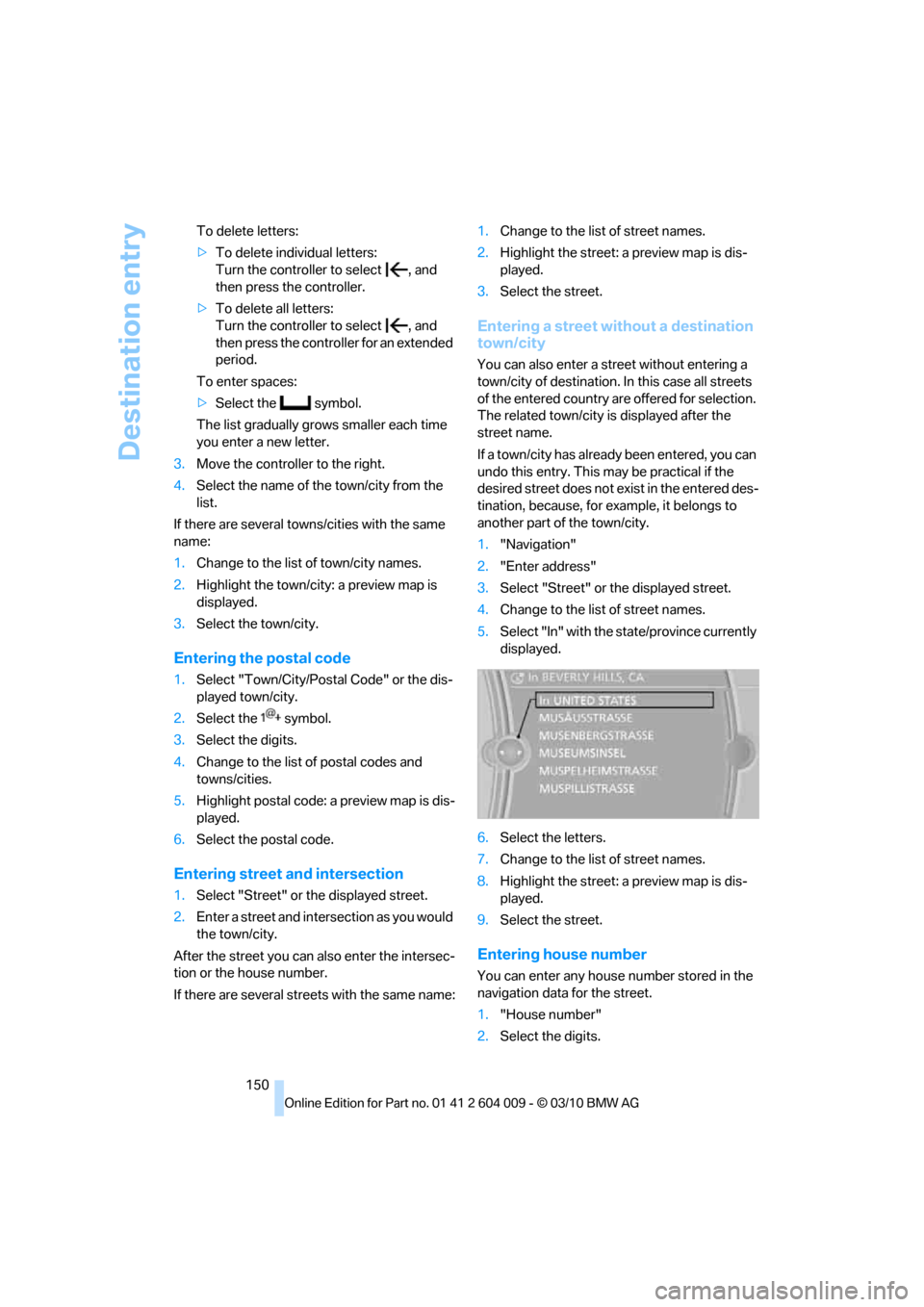
5.Select "In" with the state/province currently
displayed.
6.Select the letters.
7.Change to the list of street names.
8.Highlight the street: a preview map is dis-
played.
9.Select the street.
Entering house number
You can enter any house number stored in the
navigation data for the street.
1."House number"
2.Select the digits.
Page 153 of 312
Navigation
Driving tips
151Reference
At a glance
Controls
Communications
Entertainment
Mobility
3.Change to the list of house numbers.
4.Select a house number or range of house
numbers.
Starting destination guidance after
entering the destination
1."Accept destination"
2."Start guidance" or "Add as another dest.".
>Set your "Route preference",
Refer to page158.
>Search for "Points of Interest at loc.",
Refer to page152.
Address book
To create contacts, refer to page224.
Selecting a destination from the
address book
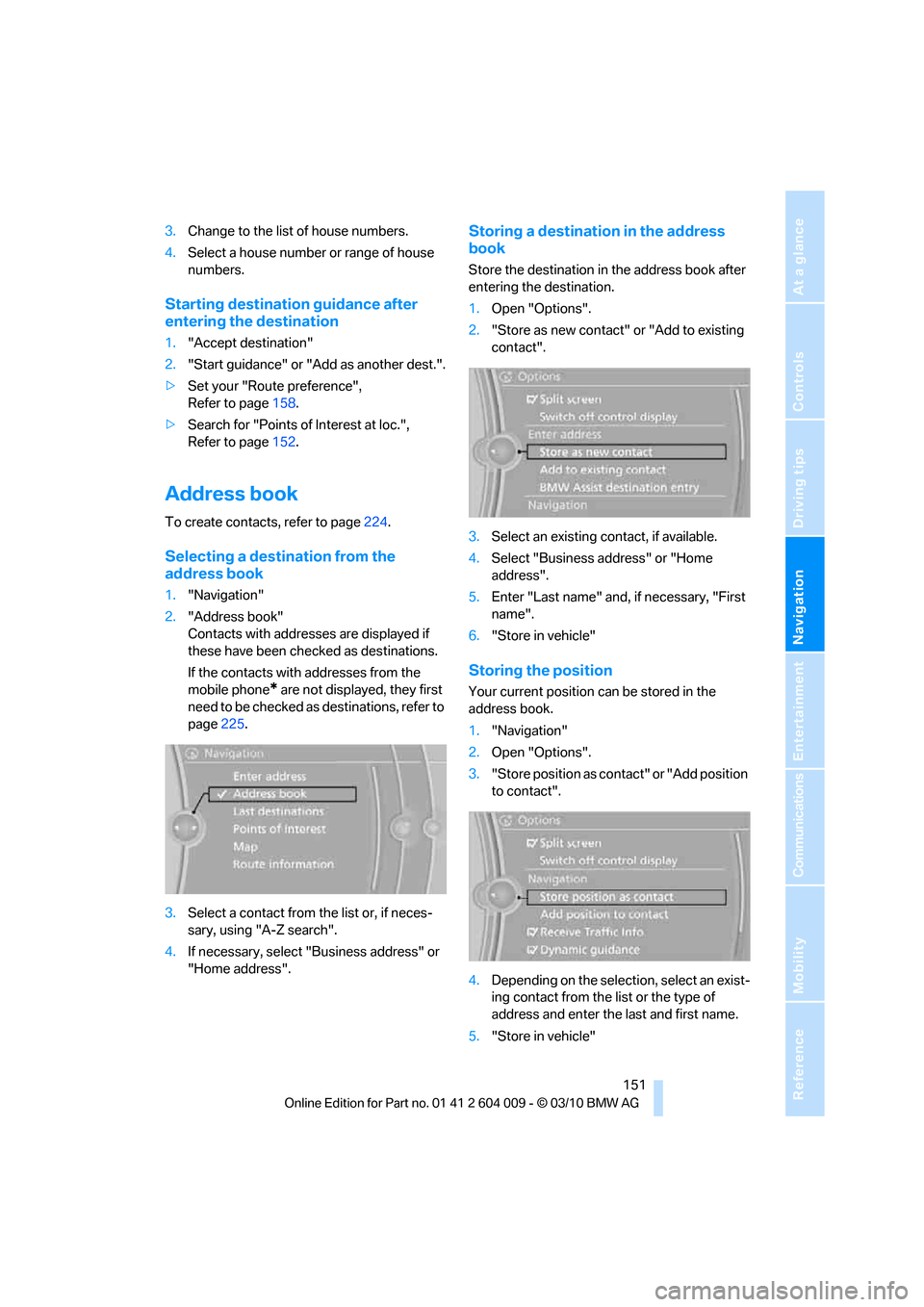
1."Navigation"
2."Address book"
Contacts with addresses are displayed if
these have been checked as destinations.
If the contacts with addresses from the
mobile phone
* are not displayed, they first
need to be checked as destinations, refer to
page225.
3.Select a contact from the list or, if neces-
sary, using "A-Z search".
4.If necessary, select "Business address" or
"Home address".
Storing a destination in the address
book
Store the destination in the address book after
entering the destination.
1.Open "Options".
2."Store as new contact" or "Add to existing
contact".
3.Select an existing contact, if available.
4.Select "Business address" or "Home
address".
5.Enter "Last name" and, if necessary, "First
name".
6."Store in vehicle"
Storing the position
Your current position can be stored in the
address book.
1."Navigation"
2.Open "Options".
3."Store position as contact" or "Add position
to contact".
4.Depending on the selection, select an exist-
ing contact from the list or the type of
address and enter the last and first name.
5."Store in vehicle"
Page 159 of 312
Navigation
Driving tips
157Reference
At a glance
Controls
Communications
Entertainment
Mobility
3.Enter the letters.
4."OK"
The trip is stored in the trip list under the
entered name.
Starting a stored trip
1."Navigation"
2."Stored trips"
3.Select the desired trip.
4."Start guidance"
Changing trips
Changing the trip direction
Intermediate destinations can be displayed in
reverse order after destination guidance is
started.
1."Map"
2."Guidance"
3.Open "Options".
4."Reverse order of trip dest."
Rearranging the intermediate
destinations
1."Map"
2."Guidance"
3."Display all trip destinations"
4.Select an intermediate destination.
5."Reposition dest. in the trip"
Deleting an intermediate destination
1."Map"
2."Guidance"
3."Display all trip destinations"
4.Select an intermediate destination.
5."Delete dest. in the trip"
Deleting a trip
1."Navigation"
2."Stored trips"
3.Select the desired trip.
4.Open "Options".5."Delete all trips" or "Delete trip".
Word-matching principle
The system supports the word matching princi-
ple to make it easier for you to enter the names
of streets or towns/cities. The system runs
ongoing checks, comparing your destination
entries with the data stored in the vehicle as the
basis for instant response. The user benefits
include:
>Names of specific locations can also vary
from the official versions if you are using a
spelling that is customary in another coun-
try.
Example:
Instead of "München", you can also enter
the English spelling "Munich" or the Italian
spelling "Monaco".
>When you are entering the names of towns/
cities and streets the system will complete
them automatically as soon as enough let-
ters are available to ensure unambiguous
identification.
>The system offers only those letters for
selection of name entries that are stored in
the vehicle. The system will not accept non
existent names and addresses.
Page 177 of 312
Navigation
Entertainment
Driving tips
175Reference
At a glance
Controls
Communications
Mobility
4."Manage subscription"
The telephone number and electronic serial
number, ESN, are displayed.
5.Call Sirius to deactivate the channels.
Selecting channels
You can only listen to activated channels.
The selected channel is stored for the remote
control currently in use.
Using iDrive
1."Radio"
2."Satellite radio"
3.Select "All channels" or the desired cate-
gory.
4.Select desired channel.
Using the button near the CD/DVD
player
Press the button for the corresponding
direction.
The next channel is selected.
Using direct channel entry
1."Radio"
2."Satellite radio"
3."Select channel"
4.Turn the controller until the desired channel
is displayed and press the controller.
Storing channel
1."Radio"
2."Satellite radio"
3.Select "All channels" or the desired cate-
gory.
4.Select desired channel.
5.Press the controller again.
6.Press the controller again in order to con-
firm selection of the highlighted channel.
7.Select the desired memory location.
The channels are stored for the remote control
currently in use.
You can also store the channels on the pro-
grammable memory buttons, refer to page.20.
Changing list view
The list view changes each time the first symbol
on the navigation bar is pressed.
Information about the channel is displayed.
SymbolFunction
Channel name
Artist
Track
Page 179 of 312
Navigation
Entertainment
Driving tips
177Reference
At a glance
Controls
Communications
Mobility
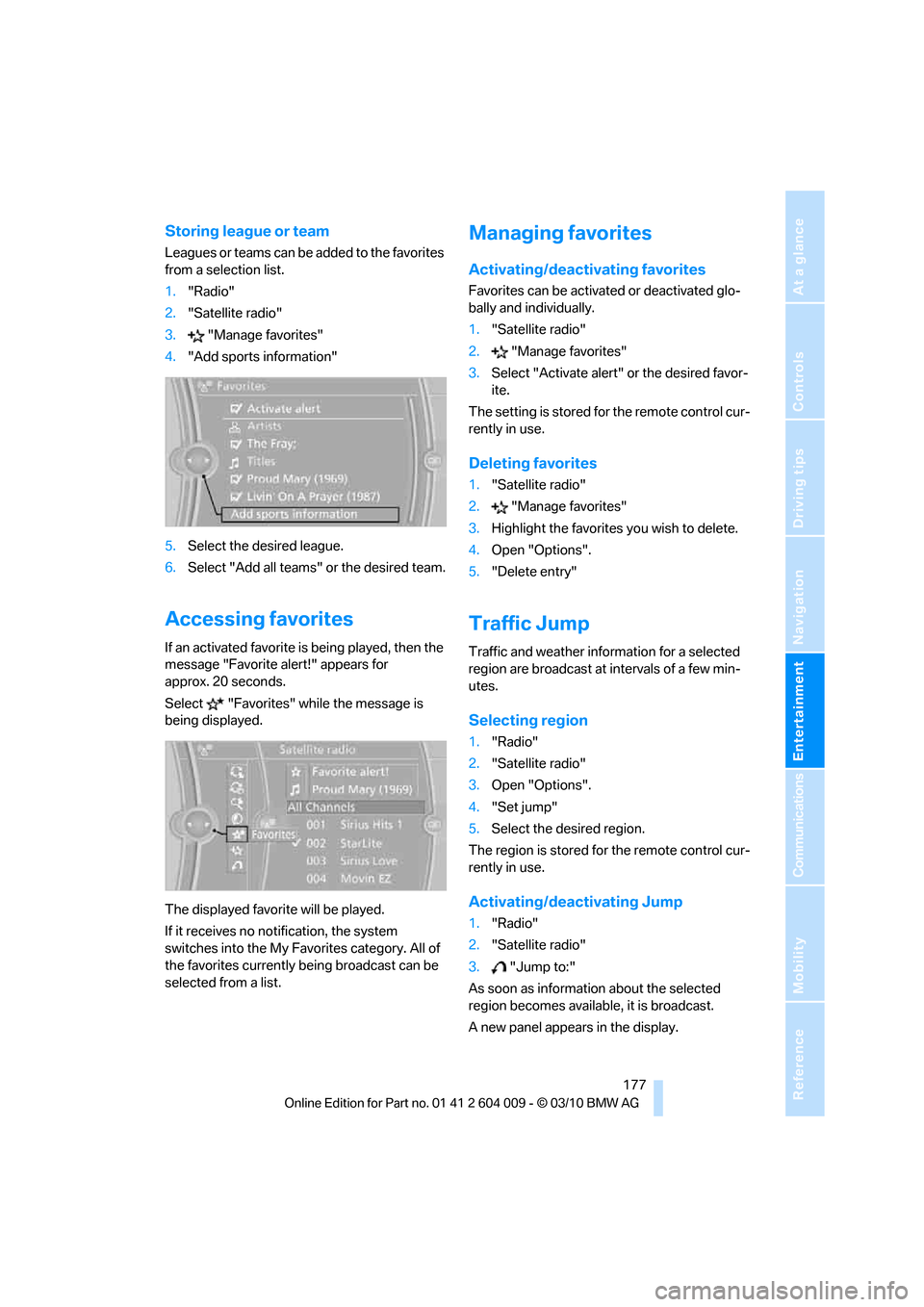
Storing league or team
Leagues or teams can be added to the favorites
from a selection list.
1."Radio"
2."Satellite radio"
3."Manage favorites"
4."Add sports information"
5.Select the desired league.
6.Select "Add all teams" or the desired team.
Accessing favorites
If an activated favorite is being played, then the
message "Favorite alert!" appears for
approx. 20 seconds.
Select "Favorites" while the message is
being displayed.
The displayed favorite will be played.
If it receives no notification, the system
switches into the My Favorites category. All of
the favorites currently being broadcast can be
selected from a list.
Managing favorites
Activating/deactivating favorites
Favorites can be activated or deactivated glo-
bally and individually.
1."Satellite radio"
2."Manage favorites"
3.Select "Activate alert" or the desired favor-
ite.
The setting is stored for the remote control cur-
rently in use.
Deleting favorites
1."Satellite radio"
2."Manage favorites"
3.Highlight the favorites you wish to delete.
4.Open "Options".
5."Delete entry"
Traffic Jump
Traffic and weather information for a selected
region are broadcast at intervals of a few min-
utes.
Selecting region
1."Radio"
2."Satellite radio"
3.Open "Options".
4."Set jump"
5.Select the desired region.
The region is stored for the remote control cur-
rently in use.
Activating/deactivating Jump
1."Radio"
2."Satellite radio"
3."Jump to:"
As soon as information about the selected
region becomes available, it is broadcast.
A new panel appears in the display.
Page 196 of 312
External devices
194
Information about the track
If information about a track has been stored, it is
displayed automatically:
>Artist
>Album title
>Number of tracks
>Track file name
Track search
Selection is possible via:
>Playback lists
>Information: type of music, artist, album,
title
>Additionally for USB devices: file directory,
composer
Track titles are displayed if they have been
stored in the Latin alphabet.
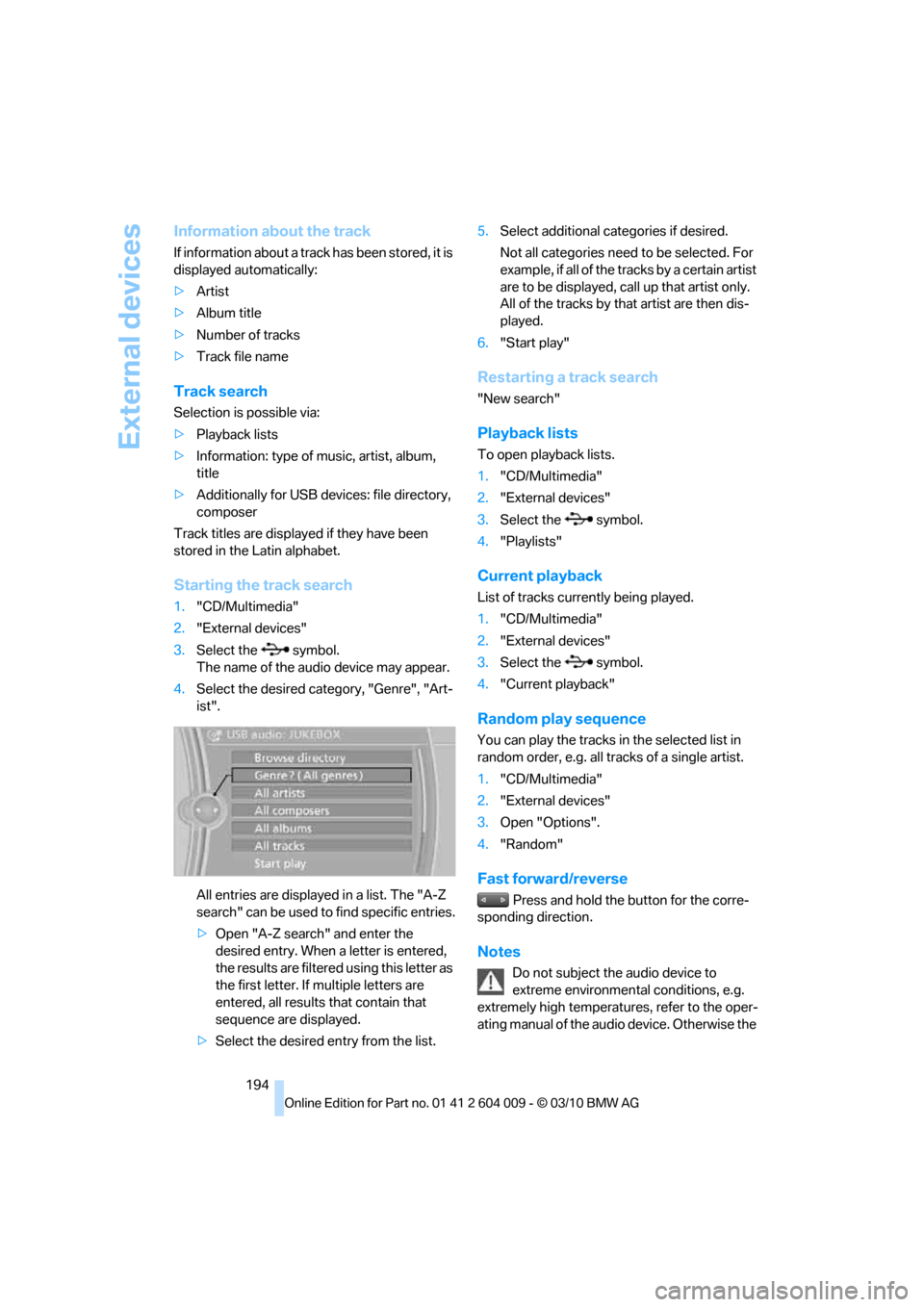
Starting the track search
1."CD/Multimedia"
2."External devices"
3.Select the symbol.
The name of the audio device may appear.
4.Select the desired category, "Genre", "Art-
ist".
All entries are displayed in a list. The "A-Z
search" can be used to find specific entries.
>Open "A-Z search" and enter the
desired entry. When a letter is entered,
the results are filtered using this letter as
the first letter. If multiple letters are
entered, all results that contain that
sequence are displayed.
>Select the desired entry from the list.5.Select additional categories if desired.
Not all categories need to be selected. For
example, if all of the tracks by a certain artist
are to be displayed, call up that artist only.
All of the tracks by that artist are then dis-
played.
6."Start play"
Restarting a track search
"New search"
Playback lists
To open playback lists.
1."CD/Multimedia"
2."External devices"
3.Select the symbol.
4."Playlists"
Current playback
List of tracks currently being played.
1."CD/Multimedia"
2."External devices"
3.Select the symbol.
4."Current playback"
Random play sequence
You can play the tracks in the selected list in
random order, e.g. all tracks of a single artist.
1."CD/Multimedia"
2."External devices"
3.Open "Options".
4."Random"
Fast forward/reverse
Press and hold the button for the corre-
sponding direction.
Notes
Do not subject the audio device to
extreme environmental conditions, e.g.
extremely high temperatures, refer to the oper-
ating manual of the audio device. Otherwise the